
GPT-Live-1 Complete Guide: How to Use ChatGPT’s Full-Duplex Voice Mode for Real-Time Conversations

GPT-Live-1 Complete Guide: How to Use ChatGPT’s Full-Duplex Voice Mode for Real-Time Conversations
Author: Markos Symeonides • Updated: July 22, 2026
This is a practical, end-to-end tutorial on GPT-Live-1—the first full-duplex voice mode in ChatGPT that listens while speaking, launched on July 8, 2026. Whether you want natural back-and-forths without “press to talk,” real-time translation on the go, hands-free timers and web lookups, or streamlined business calls with live summaries, this guide explains setup, best practices, advanced features, and how GPT-Live-1 compares to previous voice modes.
What Is GPT-Live-1?
GPT-Live-1 is ChatGPT’s first full-duplex voice mode: it can listen and speak at the same time. In previous generations, you generally took turns—ChatGPT listened, thought, spoke, then waited. Full-duplex changes the rhythm entirely. You can interrupt it, clarify points mid-sentence, or let two people and ChatGPT talk together naturally, with the model adapting in real time.
Launched on July 8, 2026, GPT-Live-1 builds on the trajectory of OpenAI’s real-time multimodal models—progressing from early voice betas and streaming text-to-speech to a cohesive, low-latency conversational system. GPT-Live-1 combines fast speech recognition, streaming language understanding, and low-latency speech synthesis with overlap-aware dialog management. In practice, that means you can do things like:
- Cut in to correct a date or name while it’s talking.
- Ask it to talk faster, slower, or in a different tone—without stopping the conversation.
- Hold bilingual conversations where GPT-Live-1 translates on the fly between you and another speaker.
- Say “set a five-minute timer” while it’s still responding to your previous question.
- Ask “what’s the latest on this topic?” and have it search the web mid-conversation, then summarize the results aloud.
The key advance is continuous turn-taking. GPT-Live-1 no longer treats voice as a strict turn: your words interleave with its speech. This is crucial for naturalness and for tasks like interpreting, customer support, and hands-free assistance where interruptions are expected and necessary.
How Full-Duplex Voice Actually Works
“Full-duplex” in voice systems means both parties can transmit and receive simultaneously. Humans do this effortlessly: we can murmur agreement, interject, or clarify while listening. Legacy voice assistants were “half-duplex”—you spoke, then they responded, and both sides had to wait their turn. GPT-Live-1 moves to true conversational overlap.
The Three Pillars Under the Hood
-
Low-latency speech recognition (ASR):
GPT-Live-1 processes your audio stream incrementally, generating partial transcriptions and intent signals within a few tens of milliseconds. It’s sensitive to backchannels (“mm-hmm,” “wait,” “that’s right”) and to interruption cues (“hold on,” “stop”).
-
Overlap-aware dialog management:
Instead of a single request-response loop, GPT-Live-1 runs a continuous dialog state machine. It segments overlapping speech, assigns priorities (e.g., user interruption overrides), and can truncate or re-route its own utterance on the fly.
-
Streaming, controllable speech synthesis:
Its voice output is generated in real time, with adjustable speaking rate, volume, prosody, and timbre. When an interruption is detected, the synthesizer can fade out or pause at token boundaries and resume seamlessly after handling the new input.
In practical terms, GPT-Live-1 hears you while it speaks. If you say, “faster please,” it instantly increases the rate. If you say, “no, the meeting is at 3:30,” it patches the schedule and revises what it was saying. If someone else in the room adds, “translate that to Italian,” it can pivot without a formal mode switch, provided overlapping-speaker detection is enabled.
Why This Feels More Human
- Backchanneling: It recognizes short affirmations (“uh-huh,” “right”), which guide cadence and reduce over-explaining.
- Interruption tolerance: You can jump in at any time to adjust tone, correct facts, or steer the result—like talking to a colleague.
- Concurrent actions: While narrating a recipe, you can ask it to set a timer or look up substitutes without stopping the flow.
Timeline: From Early Voice to GPT-Live-1
- 2023: First wave of ChatGPT voice mode (push-to-talk, discrete turns, early TTS voices).
- 2024: Real-time demos and APIs start supporting lower-latency streaming; multimodal input-output improves.
- 2025: Iterations on barge-in and partial transcription quality; better noise robustness and far-field mics.
- July 8, 2026: GPT-Live-1 launches with full-duplex conversation, overlap-aware dialog, in-voice search, timers, and multi-language support.
Over this period, average end-to-end audio response latency reportedly declined from well over half a second in early trials to the low hundreds of milliseconds in GPT-Live-1 for short utterances, making interruptions and turn overlaps feel natural rather than jarring.
Plans and Availability
As of July 2026, GPT-Live-1 is rolling out across ChatGPT tiers with differing limits and admin controls. Exact quotas and regional availability can vary; check your account’s Plan & Billing for current terms. The table below summarizes typical access patterns reported at launch.
| Plan | Access to GPT-Live-1 | Typical Limits | Admin/Compliance Features | Intended Use |
|---|---|---|---|---|
| Free | Preview access in supported regions | Daily minute caps; standard priority; limited tools | N/A | Personal exploration and light use |
| Plus | Full-duplex enabled by default | Higher daily caps; priority traffic; web search, timers | Personal data controls | Frequent personal and professional use |
| Team | Workspace-wide availability | Team-level quotas; shared tools; meeting features | Basic admin controls; shared policies | Small teams and startups |
| Enterprise | Default access with SSO | Custom quotas; priority routing; advanced tools | SSO/SCIM; audit logs; data retention controls | Large orgs with compliance needs |
| Education | Institution-managed access | Instructor/student allocations; moderated features | Admin oversight; content filters | Classrooms and universities |
Note: If your workspace enforces recording/voice policies, some features (e.g., live transcription storage, call summaries) may be restricted or require explicit consent prompts by admins.
Set Up GPT-Live-1: Mobile, Desktop Web, and Desktop App
This section walks through how to turn on GPT-Live-1, grant microphone and speaker permissions, and configure audio for smooth full-duplex performance. The exact labels can differ slightly by platform and region, but the flow is consistent.
Before You Start: Hardware and Environment Checklist
- Microphone: Any built-in mic works; a headset or dedicated USB mic is better for noisy environments.
- Speakers: Avoid loudspeakers directly facing microphones to reduce echo. A headset virtually eliminates feedback.
- Network: Stable Wi‑Fi or 5G with low jitter. For calls or translation, aim for under 100 ms round-trip latency.
- Permissions: OS/browser microphone access enabled. On mobile, ensure the ChatGPT app has mic permission.
Mobile (iOS and Android)
- Open the ChatGPT app and sign in with your account.
- Tap the Headset/Voice icon in the input bar (or select GPT-Live-1 from the mode chooser if prompted).
- On first run, grant Microphone permission. On Android, also confirm “Allow while using the app.”
- Plug in or pair your headset if you plan to use one. In the app settings, choose your preferred input/output device.
- Optionally enable Auto Language Detect and Reduce Echo (recommended).
- Start speaking. You do not need to press-and-hold; GPT-Live-1 listens continuously while speaking back.
Desktop Web (Chrome, Edge, Safari)
- Go to chat.openai.com and sign in.
- Open a new chat and switch the mode to GPT-Live-1 (if not default).
- When prompted, click Allow for microphone access in the browser permission dialog.
- In the ChatGPT voice panel, pick your Microphone and Speakers from the dropdowns.
- Toggle Echo Cancellation and Noise Suppression on (browser-dependent).
- Say “hello” and begin. Interruption works by just talking over the current response.
Desktop App (Windows/macOS)
- Install or update the ChatGPT desktop app to the latest version.
- From the mode switcher, choose GPT-Live-1.
- In Preferences → Audio, select your mic/speakers and enable Full-Duplex if shown separately.
- Test your input level with the live meter. Adjust gain to avoid clipping (peaks should stay in the green or low yellow).
- Enable Push-to-Mute (optional) and set a keyboard shortcut if you anticipate a noisy environment.
- Start your first conversation and try a quick interruption: “Speed up a bit.”
Platform Permissions and Tips
| Platform | Mic Permission Path | Key Tip |
|---|---|---|
| iOS | Settings → Privacy & Security → Microphone → Enable ChatGPT | Use Voice Isolation in Control Center for loud places. |
| Android | Settings → Apps → ChatGPT → Permissions → Microphone | Disable battery optimizations that throttle background audio. |
| macOS (Browser/App) | System Settings → Privacy & Security → Microphone → Enable app/browser | In Safari, also enable “Website settings → Allow mic” for chat.openai.com. |
| Windows (Browser/App) | Settings → Privacy → Microphone → Allow apps to access your microphone | In Chrome, lock mic to your preferred device under site settings. |
If you’re new to voice in ChatGPT and want a broader orientation to app settings and account features, you might find
For a deeper exploration of related capabilities and workflows, our comprehensive guide on Samsung Considering ChatGPT AI Integration in Mobile Browser provides detailed strategies and practical examples that complement the techniques discussed in this article.
helpful, especially for notification and input device nuances.
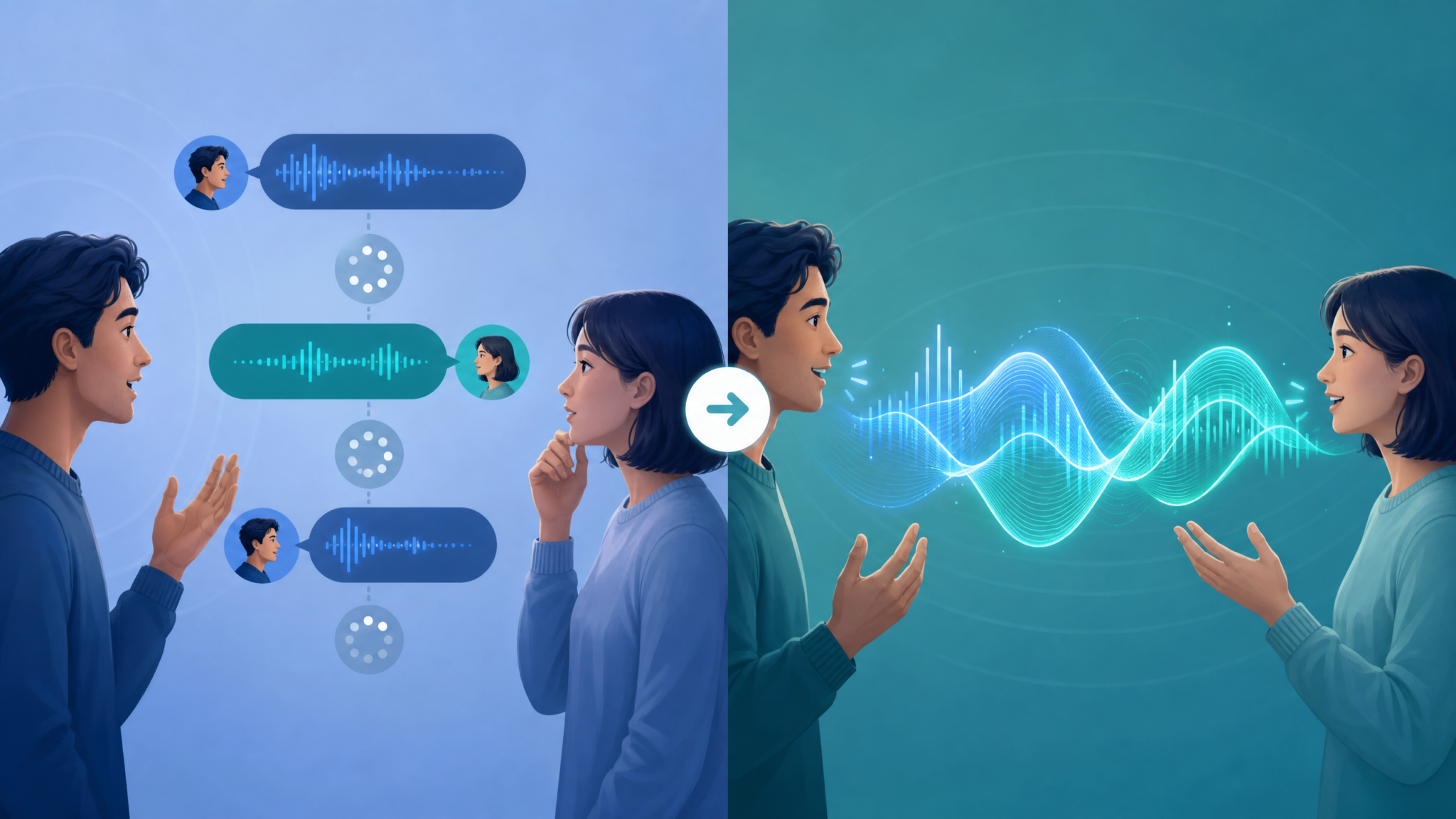
Conversation Controls in GPT-Live-1
GPT-Live-1 adds real conversational controls designed for full-duplex. You can adjust its speaking style, steer content mid-sentence, and layer tasks like timers without leaving voice mode.
Core Controls You Can Say Anytime
- Interrupt: “Hold on”—GPT-Live-1 will pause and listen.
- Change Pace: “Talk faster,” “Slow down a notch,” “Short sentences please.”
- Change Tone: “More formal,” “Lighter tone,” “Encourage me like a coach.”
- Volume: “Quieter,” “A bit louder.”
- Repeat/Clarify: “Repeat that last step,” “Define ‘vector database’ in simple terms.”
- Summarize: “Give me the key points in three bullets.”
- Switch Topic: “New topic: schedule a vet appointment next week.”
- Stop Speaking: “Stop”—it will immediately halt and await your cue.
Backchannels and Barge-In
GPT-Live-1 recognizes quick vocal cues while it’s talking. “Mm-hmm” or “Right” encourages it to continue. “Wait” or inhalation paired with a word sounds like an interruption; it yields promptly. In meetings or multi-speaker scenarios, it can be configured to respond only to a wake phrase or to the loudest speaker, minimizing accidental barge-ins.
Display and Transcripts
On screen, you’ll usually see live partial transcripts of your speech and the model’s output text. Corrections and interruptions appear as strikethroughs or fades as GPT-Live-1 revises its wording to incorporate your changes. You can export the transcript after a session in most plan tiers; enterprise admins can control retention policies.
Wake Word and Push-to-Mute (Optional)
- Wake word: If enabled, you can say a configured phrase to get attention in hands-busy settings. In shared spaces, consider turning wake word off to avoid false activations.
- Push-to-mute: Temporarily silences your mic stream without leaving GPT-Live-1. Useful when a colleague speaks off the record.
Best Use Cases (With Step-by-Step Patterns)
Full-duplex shines in tasks that depend on natural overlap, fast course correction, or continuous hands-free operation. Below are high-impact workflows and exactly how to do them.
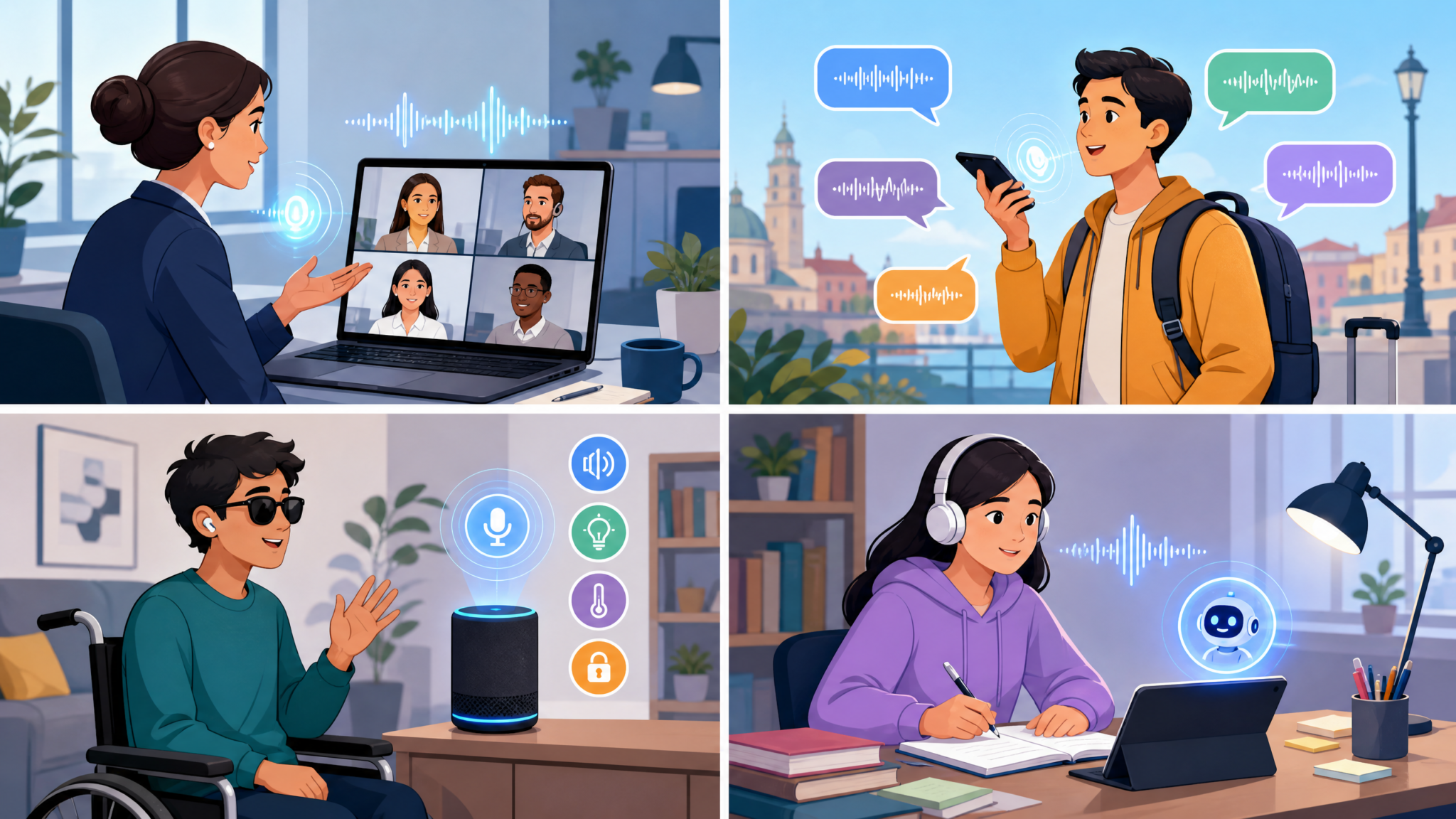
1) Real-Time Translation and Interpreting
Scenario: You’re discussing project details with a partner who speaks Spanish while you speak English. You want GPT-Live-1 to interpret in both directions with minimal lag.
- Say: “Act as a real-time interpreter between English and Spanish. Repeat everything I say in Spanish, and everything they say in English. Keep sentences short.”
- When it starts, speak normally. If it lingers, say: “Shorter, faster.”
- If your partner corrects a term, interrupt: “Use ‘entregables’ for deliverables.”
- To share a summary: “Summarize the last five minutes into action items in both languages.”
- To pause interpreting: “Hold interpreting for a moment.” Resume with “Continue interpreting.”
Tip: Turn on Auto Language Detect and request “minimal latency mode” to prefer quicker, simpler phrasing over florid speech.
2) Business Calls With Live Notes and Summaries
Scenario: You’re on a call with a client. GPT-Live-1 captures key points, suggests follow-ups, and can search the web for reference data mid-call.
- Say: “Join as a silent meeting assistant. Take timestamped notes and mark risks and decisions. Only speak when I address you by name.”
- When needed, ask: “Check their public pricing page for volume discounts and read back what you find.”
- During negotiation, interrupt: “Capture that as a decision: Q3 pilot, 500 seats.”
- Before ending: “Create a three-paragraph recap and an email draft to send to the client.”
Compliance tip: If any part of the call is recorded or transcribed, inform all participants and follow your local consent laws and company policy.
3) Accessibility and Hands-Free Assistance
Scenario: You’re cooking and want GPT-Live-1 to read steps, answer questions, set timers, and adjust to your pace—all while your hands are messy.
- Say: “Read the recipe one step at a time. Wait for me to say ‘next.’ If I ask a question, answer briefly and continue.”
- Interrupt: “Set a 10-minute timer for the onions.”
- Clarify: “What’s a good butter substitute? Keep gluten-free.”
- Adjust: “Slower please—I’m chopping.”
Tip: Use a headset or a smart speaker with acoustic echo cancellation to minimize feedback in kitchens or workshops.
4) Travel and On-Site Interactions
Scenario: You’re navigating a foreign city. GPT-Live-1 handles directions, quick translations, and recommendations.
- Say: “Act as my travel assistant in Tokyo. Prioritize offline-safe instructions and short Japanese translations I can repeat.”
- Interrupt: “Faster—crosswalk is green. What’s the nearest entrance to JR line?”
- Ask: “Search the web for ebike rentals nearby and hours today.”
- Follow-up: “Teach me a polite way to say ‘Do you accept credit cards?’”
5) Education and Coaching
Scenario: You’re studying calculus. You want gentle hints when stuck and the option to interrupt for clarification.
- Say: “Tutor me on integration by parts. Ask short diagnostic questions. If I’m on track, stay quiet; if I’m lost, give a nudge.”
- Interrupt: “Wait—what’s u and dv again? Quick example only.”
- Adjust: “Use analogies and avoid heavy notation unless needed.”
- Ask: “Summarize what I’m doing right and the next most important concept.”
For deeper strategies on shaping GPT’s voice interactions to your style, see
For a deeper exploration of related capabilities and workflows, our comprehensive guide on From Prompt Engineering to Context Engineering: The Essential 2026 Transition Guide for AI Power Users provides detailed strategies and practical examples that complement the techniques discussed in this article.
where we cover patterns like “Socratic voice,” “Coach voice,” and “Concise explainer.”
6) Coding Pair-Assistant
Scenario: You’re coding and want real-time suggestions, quick doc lookups, and the ability to cut it off if it’s meandering.
- Say: “Pair-program with me on this React app. Keep suggestions under 30 seconds. Ask before making broad refactors.”
- Interrupt: “Stop—summarize the change in two bullets.”
- Ask: “Open the docs for useEffect dependency rules, just the key points.”
- Adjust: “Switch to fast mode; code snippets only, minimal narration.”
Combine voice with the code editor and on-screen transcripts. If your plan supports extensions/tools, you can enable relevant dev tools for inline references.
Tips for Natural, Productive Conversations
Full-duplex removes friction, but you can make it even better with a few habits.
- Set roles explicitly: “Be concise unless I say ‘expand.’ Summarize every five minutes.”
- Signal pace and detail quickly: Early commands like “fast mode,” “short answers,” or “bullet summaries” shape the entire session.
- Use interruption as a steering wheel: Cut in to course-correct rather than waiting. It’s designed for this.
- Establish vocabulary: “Use ‘deliverables’ not ‘outputs’; ‘ETL’ stands for extract-transform-load.”
- Ask it to explain its plan: “Before answering, outline your approach in one sentence.” This keeps it aligned with your intent.
- Name the constraints: “I’m driving. Prioritize safety and very short directions.”
- Use short activation phrases: If wake word is on, choose a distinctive one to reduce false triggers (“Hey Delta” vs. “Hey Chat”).
- In groups, pick a “primary speaker”: GPT-Live-1 can bias toward the person nearest the mic or only respond when addressed by name.
Over time, you’ll develop a personal shorthand. Simple cues like “speed two,” “coach voice,” “summary only,” or “interpret mode” save seconds and keep flow.
Advanced Features in GPT-Live-1
Beyond free-form conversation, GPT-Live-1 includes tools you can invoke by voice, even during overlap. The most useful are web search, timers/alarms, and robust multi-language support.
Web Search During Voice
When enabled in your plan and region, say things like:
- “Search the web for the latest earnings from Acme Corp and summarize in two lines.”
- “Check if the museum is open this Friday after 6 p.m.”
- “Find a peer-reviewed reference for omega‑3 dosage in adults.”
You can interrupt to refine: “Only use reputable sources; list the top three with dates.” GPT-Live-1 will cite aloud or show links in the transcript. If your admin restricts web access, the assistant will tell you web search is disabled.
Timers, Alarms, and Small Utilities
- “Set a 25-minute Pomodoro and a 5-minute break alarm.”
- “Remind me in 90 minutes to check the sourdough.”
- “Start a 3-minute countdown, announce remaining time every minute.”
Interruptions are fine here: you can set or cancel timers while it’s still speaking. On mobile, notifications will appear if the app is backgrounded, subject to OS rules and your settings.
Multi-Language and Code-Switching
GPT-Live-1 supports natural switching between languages mid-conversation, provided auto-detection is on. Useful phrases:
- “Switch to Italian for my replies, but translate Alex’s English into Italian too.”
- “If you detect Spanish slang, explain it briefly in English.”
- “Use formal Japanese unless I say ‘casual.’”
For interpreting, keep sentences short and give GPT-Live-1 permission to compress when necessary: “Prioritize speed over perfect nuance unless I say ‘verbatim.’”
Meeting Mode and Structured Notes
Some tiers offer a Meeting mode that structures notes into decisions, risks, and actions automatically. Activate with: “Meeting mode on. Track speakers and capture key points.” You can then say: “Mark that as a risk,” or “Turn this into an action for Sam, due Friday.” Admins may require visible consent prompts for recorded meetings.
Access 40,000+ AI Prompts for ChatGPT, Claude & Codex — Free!
Subscribe to get instant access to our complete Notion Prompt Library — the largest curated collection of prompts for ChatGPT, Claude, OpenAI Codex, and other leading AI models. Optimized for real-world workflows across coding, research, content creation, and business.
Inline Style and Persona Controls
Change voice persona on the fly: “Use a calm, warm voice,” “Narrate like a newscaster,” “Teacher voice.” For accessibility, “High contrast captions” or “Large subtitles” can be enabled where supported.
Reading On-Screen Content
If enabled, say: “Read the visible article and summarize in 60 seconds.” You can interrupt mid-reading to ask for definitions, comparisons, or a faster pace.
Comparison: GPT-Live-1 vs Previous Voice Modes
Here’s how GPT-Live-1 differs from earlier ChatGPT voice capabilities. Values are typical for short utterances under good network conditions; your experience may vary with hardware, network, and background noise.
| Capability | Earlier Voice Modes (2023–2025) | GPT-Live-1 (2026) | Practical Impact |
|---|---|---|---|
| Turn-taking | Half-duplex (speak, then listen) | Full-duplex (listen while speaking) | Interrupt naturally; faster corrections |
| Latency to first audio | ~400–900 ms typical | ~180–350 ms typical | Feels more conversational, less delay |
| Interruption handling | Stop/resume, often clunky | Overlap-aware; mid-utterance rerouting | Seamless barge-in and redirection |
| Backchannel understanding | Limited | Recognizes cues like “mm-hmm,” “wait” | More human pacing |
| Web search in voice | Partial/manual | In-voice search with citations | Hands-free research |
| Timers/alarms | Basic on some platforms | Concurrent with conversation | No need to pause to set timers |
| Multi-language | Language switching required | Auto-detect, code-switch friendly | Effortless bilingual chats |
| Noise robustness | Moderate | Improved echo cancellation & VAD | Better in busy places |
| Admin/compliance | Limited controls | Enhanced policies, summaries, retention | Enterprise readiness |
Privacy, Safety, and Etiquette
Voice assistants amplify productivity, but they raise legitimate privacy and safety considerations. Follow these guidelines to stay compliant and respectful.
- Consent for recording: If notes, transcripts, or summaries are saved—especially in business contexts—inform participants and obtain consent as required by local law and policy.
- Data retention: Review your plan’s data controls. Enterprise admins can often configure retention windows and export policies.
- Sensitive topics: Avoid sharing confidential data unless your organization permits it and the environment is secure. In public spaces, assume you can be overheard.
- Minimize background voices: In group settings, pick a primary mic and consider wake-word or address-by-name behavior to prevent accidental capture.
- Check transcripts before sharing: Even with high accuracy, ASR can mishear names or numbers. Verify critical details.
- Safety while mobile: Prefer a single-earbud setup or car audio integrations that allow you to stay aware of surroundings.
Troubleshooting: Quick Fixes to Common Issues
| Symptom | Likely Cause | Fix |
|---|---|---|
| Echo or feedback | Loudspeaker near mic; echo cancellation off | Use a headset; enable echo cancellation; lower speaker volume |
| Delays or dropouts | Poor network; VPN; high jitter | Switch to stable Wi‑Fi; pause downloads; try wired Ethernet |
| GPT-Live-1 can’t hear you | Mic permission or wrong input device | Grant mic access; select correct mic in app; check OS settings |
| It talks over you too much | Backchannel misinterpretation; sensitivity too high | Say “respond only when addressed by name”; reduce sensitivity |
| Language mis-detection | Similar-sounding languages; noisy room | Disable auto-detect; set language explicitly; improve mic placement |
| Search not available | Feature disabled by plan or admin | Check plan settings or ask admin; request summaries without web |
Advanced Debugging
- Check input levels: If the meter peaks red, lower gain; if barely moving, raise it or get closer to the mic.
- Try “concise mode” in weak networks: Ask it to speak shorter sentences to reduce buffer underruns.
- Restart session: If the dialog feels “stuck” (e.g., ignoring interruptions), end and start a new GPT-Live-1 session.
- Hardware conflict: On desktop, disable duplicate virtual audio devices that can confuse input/output routing.
Developer Corner: Building With Full-Duplex (Web/Native)
If you’re integrating GPT-Live-1–style experiences into your app, the key is a bidirectional, low-latency audio stream with interruption control. The general flow is:
- Authenticate your client (often with a time-limited token issued by your server).
- Establish a real-time connection (WebRTC or websockets) for audio in/out and events.
- Stream microphone audio frames up; receive streaming synthesized audio back.
- Handle barge-in: on user interruption, signal the server to pause or truncate TTS and route the new utterance.
- Render live transcripts and expose user controls (mute, wake word, persona, language).
Minimal Web Example (Pseudocode)
// Client-side (browser) pseudocode
async function startLiveAssistant() {
  // 1) Get ephemeral token from your server
  const res = await fetch('/token');
  const { token, url } = await res.json();

  // 2) Capture microphone
  const stream = await navigator.mediaDevices.getUserMedia({ audio: true });

  // 3) Create WebRTC peer connection
  const pc = new RTCPeerConnection({ iceServers: [{ urls: 'stun:stun.l.google.com:19302' }] });

  // 4) Add local audio track
  stream.getAudioTracks().forEach(track => pc.addTrack(track, stream));

  // 5) Play remote audio
  const audioEl = document.querySelector('#assistantAudio');
  pc.ontrack = (e) => { audioEl.srcObject = e.streams[0]; audioEl.play(); };

  // 6) Data channel for control (interrupt, style, timers)
  const dc = pc.createDataChannel('control');
  dc.onopen = () => console.log('Control channel open');

  // 7) Negotiate
  const offer = await pc.createOffer();
  await pc.setLocalDescription(offer);

  // 8) Send offer to your real-time endpoint (backed by GPT-Live-1)
  const sdpRes = await fetch(url, {
    method: 'POST',
    headers: { Authorization: `Bearer ${token}`, 'Content-Type': 'application/sdp' },
    body: offer.sdp
  });
  const answerSdp = await sdpRes.text();
  await pc.setRemoteDescription({ type: 'answer', sdp: answerSdp });

  // 9) Interruption action
  function interrupt() {
    if (dc.readyState === 'open') dc.send(JSON.stringify({ type: 'barge-in' }));
  }

  // 10) Style/pace commands
  function setStyle(opts) {
    if (dc.readyState === 'open') dc.send(JSON.stringify({ type: 'style', ...opts }));
  }
}
Interruption Semantics
When the user speaks over TTS, send a barge-in event and optionally provide a truncation policy:
// Example control event payload
{
  "type": "barge-in",
  "truncate": "sentence", // "immediate" | "word" | "sentence"
  "resume_policy": "auto" // "auto" | "manual"
}
On the server, pause TTS at the next safe boundary and prioritize ASR decoding of the new audio frames. If “resume_policy” is auto, append a brief bridging phrase when returning to the prior topic.
Handling Tools in Voice
Expose tools like web search and timers via the same control/data channel or function calls. Return tool results as structured messages the client can read aloud or display:
// Tool result message (from server to client)
{
  "type": "tool_result",
  "tool": "web_search",
  "query": "Acme Corp Q2 earnings",
  "sources": [
    {"title": "Acme IR - Press Release", "url": "https://example.com/press", "date": "2026-07-15"}
  ],
  "summary": "Acme reported 18% YoY revenue growth..."
}
Latency Budgeting
- ASR: Aim < 120 ms incremental updates.
- NLP/Planning: Prefer streaming tokens so TTS can start < 250 ms after user stop (or earlier with predictive overlap).
- TTS: Keep audio chunk size small (50–100 ms) to react quickly to interruptions.
- Network: Prioritize low jitter; use Opus at 16–24 kbps mono for upload; 24–48 kbps for TTS downlink.
If you want a step-by-step walkthrough of building a production-grade voice assistant with real-time capabilities, see
For a deeper exploration of related capabilities and workflows, our comprehensive guide on OpenAI Launches Three New Realtime Voice Models: GPT-Realtime-2, Translate, and Whisper Hit the API provides detailed strategies and practical examples that complement the techniques discussed in this article.
.
Performance Benchmarks and Hardware Advice
While GPT-Live-1 runs on the server, your local hardware and environment affect quality. Here are practical targets and tips from field testing patterns.
Target Metrics
- End-to-end response latency: 180–350 ms to first audio for short turns; 350–600 ms under load or weak networks.
- Word error rate (clean speech): Low single digits with a good mic; higher in loud venues.
- Interruption handling: TTS truncation within 150–250 ms of barge-in event.
Recommended Audio Setups
| Environment | Mic/Speaker | Settings | Notes |
|---|---|---|---|
| Office or home desk | USB condenser mic + nearfield speakers or headset | Echo cancellation on; medium gain | Great for long sessions and meetings |
| Coffee shop or public space | Wired/Bluetooth headset | Noise suppression on; wake word off | Prevents accidental triggers from crowd noise |
| Kitchen or workshop | Smart speaker with AEC or headset | Loudness reduced; captions on-screen | Minimizes echo; hands-free timers |
| Car | CarPlay/Android Auto mic and speakers | Short answers; safety-first profile | Keep attention on driving; no long dictations |
Battery and Data Use
- Battery: Expect moderate drain in continuous sessions, mostly from screen-on and audio processing. On mobile, dim the screen and prefer Wi‑Fi when stationary.
- Data: Voice streaming uses tens of kilobits per second up/down; web search adds bursts for pages and citations.
Practical Patterns and Scripts You Can Use by Voice
These “recipes” are phrased as direct voice commands you can reuse and adapt.
Rapid Meeting Capture
- “Meeting assistant mode. Only speak when I ask you. Take timestamped notes, tag decisions and action items.”
- “Summarize the last 10 minutes in five bullets, then wait.”
- “Turn the notes into a structured email to the team.”
Concise Research
- “Search for the most recent official guidance on remote work tax rules in Germany. Cite the authoritative source and date.”
- “Give me a 20-second TL;DR, then point to two reliable links.”
Language Drills
- “We’ll talk 70% in Italian, 30% in English. Correct my grammar tersely after each sentence.”
- “Switch to casual register unless I say ‘formal.’”
Daily Routines
- “Morning brief: weather, first three calendar events, traffic to the office, and one industry headline.”
- “Set a 45-minute focus timer; at halfway, remind me to stretch.”
Which Plans Include Advanced Tools (Quick Reference)
Feature availability can change; use this as a directional guide and confirm with your account:
| Feature | Free | Plus | Team | Enterprise | Education |
|---|---|---|---|---|---|
| Full-Duplex Voice (GPT-Live-1) | Preview/limited | Yes | Yes | Yes | Institution-dependent |
| Web Search in Voice | Often limited | Yes | Yes (policy-controlled) | Yes (policy-controlled) | Often restricted |
| Timers/Alarms | Yes | Yes | Yes | Yes | Yes |
| Meeting Mode/Summaries | No | Limited | Yes | Yes | Limited |
| Admin Controls & Retention | No | No | Basic | Advanced | Admin-managed |
Expert Analysis: Why GPT-Live-1 Matters
Full-duplex isn’t just a speed upgrade; it’s a change in interaction design. Conversations cease to be rigid sequences and become fluid, co-constructed exchanges. This reduces cognitive overhead: you don’t have to remember your correction until the model finishes speaking; you just say it. In domains like live translation, customer support, and assistive tech, that fluidity narrows the gap between human-human and human-AI dialog.
The other major shift is tool concurrency. Being able to ask for a timer or a web lookup mid-sentence acknowledges the reality of multitasking. These small moments—“set a timer for five,” “search the term you just used,” “translate that to French”—are where assistants prove their everyday value.
Actionable Takeaways
- Use a headset in noisy spaces and enable echo cancellation to unlock smooth full-duplex.
- Adopt short steering cues (“faster,” “stop,” “summarize in three bullets”). Interrupt early and often.
- For translation, request short sentences and permission to compress content for speed.
- In meetings, declare a persona: “silent notetaker; speak only when asked.” Ensure consent and verify names/numbers.
- Combine web search with voice to keep hands free: “Check the latest data and cite the source.”
- Explore auto language detection but pin the language when accuracy matters.
- If latency spikes, shorten outputs: “Concise mode,” and switch to stable Wi‑Fi.
Frequently Asked Questions (FAQ)
1) What makes GPT-Live-1 “full-duplex” compared to old voice modes?
Old modes were half-duplex: you spoke, then it replied, and only one side was active at once. GPT-Live-1 processes input and produces output simultaneously. It can pause mid-utterance when you interrupt and incorporate your correction without resetting the turn.
2) Which plans include GPT-Live-1, and are there minute caps?
GPT-Live-1 is available across Plus, Team, and Enterprise, with preview or limited access on Free in supported regions. Minute caps and concurrency vary by plan and may change over time. Check Plan & Billing in your account or your admin’s policy.
3) Can GPT-Live-1 do web searches during a voice conversation?
Yes, if web access is enabled for your plan and region. Ask it to search for specific facts, current events, opening hours, or references. It will cite aloud or display sources. If disabled, it will indicate that search isn’t available.
4) Does it support timers and alarms while talking?
Yes. You can set, modify, and cancel timers and alarms while GPT-Live-1 is speaking. Notifications follow your device’s OS rules if the app is in the background.
5) How good is multi-language and translation quality?
Quality is strong for major languages and continues to improve. For the fastest interpreting, ask for short sentences and allow compression. If the auto-detector picks the wrong language in a noisy room, set the language explicitly.
6) Will GPT-Live-1 record my calls or save transcripts?
That depends on your plan and settings. You can usually export transcripts from your device, and admins on enterprise plans can set retention policies. Always inform participants if anything is recorded or saved.
7) How do I stop it from talking over other people in a group?
Try “respond only when addressed by name,” enable wake word, or set a primary speaker in settings. You can also use push-to-mute to prevent it from reacting to side conversations.
8) What should I do if latency is too high?
Switch to stable Wi‑Fi, pause heavy downloads, and ask GPT-Live-1 for “concise mode.” Using a headset and keeping utterances short also helps. If issues persist, restart the session.
