
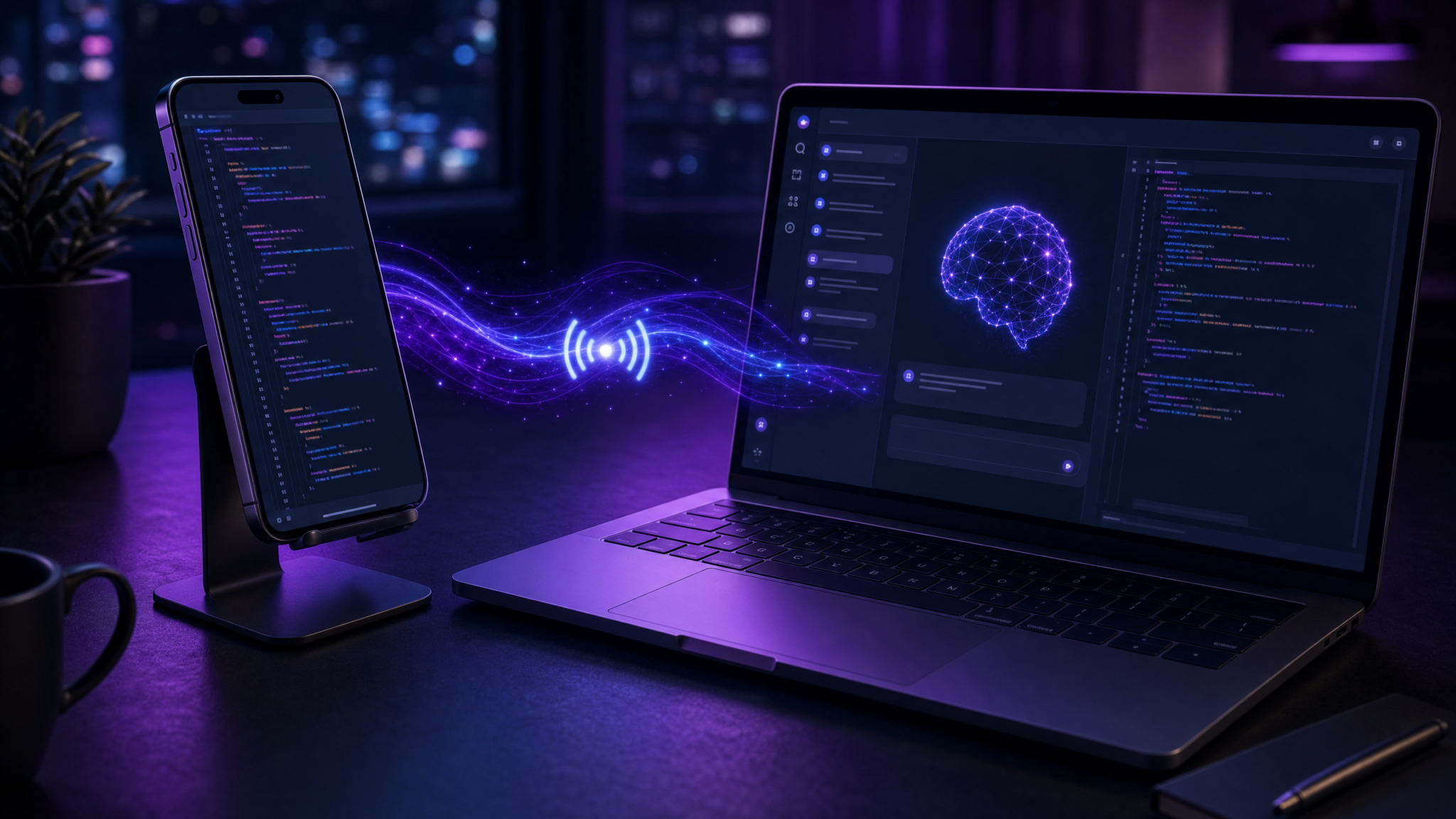
Unlocking OpenAI Codex on Mobile: A Step-by-Step Guide to Coding Remotely with Your Mac
On May 14, 2026, OpenAI launched a groundbreaking update to the ChatGPT mobile app (available on iPhone, iPad, and Android) that brings the powerful Codex coding assistant directly to your fingertips—remotely connected to your Mac. This integration redefines mobile development workflows, enabling users to control, monitor, and interact with Codex-driven coding projects running on their Mac machines from anywhere in the world.
Empowered by this technology, developers and AI enthusiasts no longer need to be tethered to their physical workstations to harness the power of AI-assisted coding. The ability to remotely access, review, and modify code through natural language commands via an intuitive mobile interface creates unprecedented flexibility and productivity.
In this comprehensive tutorial, we will walk you through the entire setup, explore the core and advanced features, troubleshoot common concerns, and outline multiple use cases to maximize your efficiency while using OpenAI Codex on mobile devices. Whether you own a MacBook Pro, Mac Mini, or a managed remote Mac environment, this guide is tailored to help you transform your phone or tablet into a full-fledged coding companion.
Understanding OpenAI Codex on Mobile: What It Is and Why It Matters
What is OpenAI Codex?
OpenAI Codex is a sophisticated AI model specifically designed to understand and generate programming code. It powers intelligent coding assistants by translating natural language prompts into executable code snippets, offering debugging advice, code review, and much more.
Launched as an extension of GPT technology, Codex supports dozens of programming languages and frameworks, making it a versatile tool for engineers, data scientists, and AI researchers.
The Mobile Integration Breakthrough
The recent update to the ChatGPT mobile app introduces a seamless bridge between OpenAI Codex and your Mac’s local development environment. Unlike conventional remote desktop or SSH clients, this integration goes beyond mere screen sharing or command line tunnels:
- Real-time Synchronization: Continuous update of project files, coding threads, terminal outputs, and test results between your Mac and mobile device.
- Security-First Architecture: Sensitive credentials and source files remain on your Mac, never transmitted, keeping your data safe.
- Intelligent, Contextual Interaction: Codex-generated recommendations and prompts are delivered instantly to your mobile app, allowing immediate approvals or adjustments.
- Multi-Model Support: Easily switch between Codex, GPT-4, and specialized code generation models without leaving your phone.
This synergy empowers developers to remotely manage intricate coding projects, oversee CI/CD pipelines, conduct automated code reviews, and debug on the go—all with the enhanced intelligence of an AI-powered assistant.
Benefits of Using OpenAI Codex on Mobile
Transforming your mobile device into a Codex-powered coding assistant unlocks several benefits:
- Flexibility: Code, review, and approve tasks from anywhere, removing the physical boundaries of a desk or office.
- Efficiency: Rapidly respond to AI code suggestions and bug fixes without switching devices.
- Collaboration: Share project states and debugging sessions seamlessly with teammates, fostering distributed teamwork.
- Security: Maintain strict control over your environment with encrypted, local storage of sensitive information.
As mobile technology continues to evolve, this paradigm enables a hybrid approach to software development that merges cloud AI capabilities with local hardware robustness.
Step-by-Step Tutorial: Setting Up and Using OpenAI Codex on Mobile
Step 1: Install or Update the ChatGPT Mobile App
The foundation for using OpenAI Codex on your mobile device is the latest ChatGPT app. The Codex integration is only available starting from version 6.0 onward.
- For iOS users: Open the App Store, search for ChatGPT, and select Update (or Install if it’s your first time).
- For Android users: Navigate to the Google Play Store and update the ChatGPT app to the latest version.
If you’re uncertain about the app version, verify it by going to your device’s app settings or the ChatGPT app’s “About” section within the settings menu.
Step 2: Download and Launch the OpenAI Codex Mac App
Next, prepare your Mac environment by installing the new Codex app designed to facilitate communication with your mobile device. This app acts as the critical intermediary for secure data exchange.
- Visit the official OpenAI developer portal or the OpenAI account dashboard to download the Mac Codex app installer.
- Run the installer, follow the on-screen prompts for setup, and launch the Codex app.
Upon launching, the app will generate a QR code on your Mac screen. This code is a secure handshake token needed to pair your Mac with your mobile ChatGPT app.
Step 3: Connect Your Mobile ChatGPT App to Your Mac
Establishing a secure connection between the two devices involves scanning the QR code generated by your Mac’s Codex app:
- Open the ChatGPT app on your iPhone, iPad, or Android device.
- Locate the new “Codex Remote” feature in the sidebar or main navigation menu.
- Tap Connect to Mac.
- Use your mobile device’s camera to scan the QR code displayed on your Mac.
- Confirm the pairing prompts on both your Mac and mobile device to establish trust.
After a successful connection, the mobile app will immediately synchronize your current project contexts, active coding threads, and ongoing Codex sessions, accurately mirroring the state on your Mac.
Step 4: Navigate the Mobile Codex Interface
The mobile interface is uniquely optimized for smaller screens while maintaining full functionality:
- Threads: Easily toggle between ongoing coding conversations and prompt threads, allowing you to keep track of multiple projects or tasks concurrently.
- Approvals: Review AI-suggested code modifications with a simple tap to approve, reject, or request changes.
- Plugins & Project Context: Access enhanced workflows via third-party plugins integrated directly into Codex, and maintain project-specific context across sessions, regardless of device.
- Model Selection: Seamlessly switch between Codex’s various versions as well as GPT-4 or other specialized language models optimized for coding.
- File Browser & Editor: Browse your project files, perform quick edits, and commit changes remotely without missing a beat.
Step 5: Interact with Code and Results in Real-Time
The Codex Mac app streams detailed real-time outputs directly to your mobile device, ensuring you never lose track of your work progress:
- Screenshots: View snapshots of your development environment, UI changes, or graphical outputs.
- Terminal Output: Monitor live terminal or console feedback, enabling instant detection of errors or progress reports.
- Diffs: Review highlighted code differences between commits or AI-generated patch suggestions.
- Test Results: Access automated testing outcomes, including passed/failed test summaries.
This continuous feedback loop enhances debugging and verification capabilities without the need to be physically present at your Mac.
Step 6: Approve and Initiate Commands Remotely
OpenAI Codex on mobile allows you to act on AI-generated coding recommendations efficiently:
- Approvals: Instantly approve, modify, or reject AI-suggested code changes or automated command executions from your phone or tablet.
- New Prompts: Start fresh coding prompts or debugging sessions remotely by typing or using voice inputs.
- Command Execution: Issue shell commands, run scripts, or trigger deployment pipelines via natural language.
This level of interaction transforms the mobile app from a remote control into an active programming interface, enabling continuous development workflows on the go.
Step 7: Manage Security and Credentials
Security remains paramount when remotely accessing development environments. OpenAI Codex on mobile employs a robust security model to safeguard your data:
- Local File Storage: Project files and credentials always stay on your Mac, never transmitted to mobile devices.
- Encrypted Connections: All communication between your Mac and mobile device is encrypted end-to-end, protecting against interception.
- Session Control: Pairing sessions can be revoked at any time from your Mac or mobile app to prevent unauthorized access.
- Permissions Management: Granular controls for what Codex can access and execute enable customized levels of security and convenience.
Following best practices—such as using strong passwords, two-factor authentication, and regularly updating software—ensures the remote coding experience stays safe and reliable.
Pro Tips for Maximizing Your Mobile Codex Experience
- Use an External Keyboard: For longer coding sessions on iPads or larger phones, consider pairing an external keyboard. This drastically enhances typing speed and reduces fatigue.
- Leverage Project Context Features: Organize projects thoughtfully within the Codex Mac app to preserve state and context, which automates synchronization and improves AI accuracy.
- Experiment with Model Settings: Different projects may benefit from various Codex or GPT-4 variants. Test which model version best balances speed, accuracy, and output style.
- Monitor Mac Resource Usage: Use Codex’s integrated resource panel to keep tabs on CPU load and memory consumption, preventing slowdowns during intensive tasks.
- Use Voice Commands: Take advantage of speech-to-text integration to initiate codemates, prompts, or commands when your hands are occupied.
- Customize Notification Preferences: Tailor alerts for task completions, approval requests, or error reports to ensure timely responsiveness without distraction.
- Backup Regularly: Sync your projects with version control systems like Git to avoid accidental losses during remote sessions.
Troubleshooting Common Issues and Recommended Solutions
| Issue | Possible Cause | Recommended Solution |
|---|---|---|
| QR Code Scan Fails | Camera permission for ChatGPT app is disabled or unstable network connectivity. | Enable camera access in device settings for ChatGPT; ensure stable Wi-Fi or cellular connection. |
| Connection Drops Frequently | Intermittent network interruptions or firewall restrictions blocking key ports. | Check firewall/security software; connect to a reliable Wi-Fi network; restart both devices if necessary. |
| No Terminal Output on Mobile | Codex Mac app may not be streaming output correctly due to permission issues or bugs. | Restart the Codex Mac app; verify application permissions; update to the latest app versions. |
| Cannot Approve Commands | Pairing session expired or lost connectivity; potentially different OpenAI accounts used. | Re-scan the QR code to re-establish connection; ensure logged into the same OpenAI account on both devices. |
| Files Not Syncing Properly | Sync feature disabled or experiencing latency due to network congestion. | Verify sync settings in both apps; reconnect network or restart apps; consider manually syncing if available. |
Use Cases: When and Why to Use Mobile Codex
The OpenAI Codex mobile integration excels across multiple scenarios, elevating traditional remote development workflows:
- Monitoring Long-Running Tasks: Keep track of builds, testing suites, or deployment status in real time, even when away from your desk.
- Approving AI-Suggested Commands On-the-Go: Instantly review and approve code changes generated by Codex without disrupting your schedule.
- Remote Development From Anywhere: Connect to Mac Minis or cloud-hosted Mac environments to write, debug, and deploy applications from any location with internet access.
- Collaborative Debugging: Share live project contexts, terminal outputs, and diffs with teammates remotely to facilitate joint troubleshooting sessions.
- Emergency Hotfixes: Respond quickly to critical bugs by initiating patches and code fixes remotely during off-hours or travel.
- Learning and Experimentation: Use Codex mobile to experiment with code snippets and get AI-assisted explanations or suggestions right from your phone.
- Rapid Prototyping: Quickly mock up ideas or verify code logic before committing changes to your main development branch.
Beyond Remote Control: A Full Mobile Coding Experience
Traditional remote desktop and SSH clients often require significant bandwidth, offer limited interactivity, and lack context awareness. OpenAI Codex on mobile reimagines the developer’s workflow with unique advantages:
- AI-Enhanced Contextual Assistance: The Codex assistant understands your project’s state, previous prompts, and file history, delivering smarter code completions and recommendations.
- Natural Language Interaction: Instead of memorizing complex commands, speak or type tasks in plain English and let Codex translate them into code or shell operations.
- Integrated Dev Environment Features: Features like file browsing, syntax highlighting, diffs, and test result visualization are built into the mobile interface.
- Lower Bandwidth Usage: Since the mobile app streams context updates and outputs instead of entire desktop frames, it performs efficiently over constrained networks.
This hybrid approach blends the computational might of cloud AI with controlled local resource management—optimizing security without sacrificing functionality.
Comparison Table: Mobile Codex vs. Traditional Remote Coding Tools
| Feature | OpenAI Codex on Mobile | Traditional Remote Desktop / SSH |
|---|---|---|
| AI-Powered Code Assistance | Integrated AI coding assistant with contextual understanding and code generation | None; purely manual command and code input |
| Security Model | Sensitive files remain on Mac; encrypted streaming of outputs and commands only | Full remote desktop or shell access; higher vulnerability if credentials compromised |
| Bandwidth Usage | Low, streaming text, diffs, outputs, and screenshots | High, streaming full video frames or SSH terminal data |
| User Interface | Mobile-optimized, context-aware, plugin-enabled interface with model switching | Desktop UI replicated on mobile, often less optimized for small screens |
| Command Interaction | Natural language input with AI translation to code and commands | Direct shell command input; requires technical knowledge |
| Application Scenarios | Remote coding, code review, debugging, project management on mobile | Remote desktop control, basic command line access |
Useful Links
- Official OpenAI Codex Announcement
- Apple Developer Documentation
- OpenAI GitHub Repository
- ChatGPT AI Hub – Latest News & Tutorials
- Stack Overflow – OpenAI Codex Questions
- JetBrains Guide to Remote Development
- Security Best Practices for Remote Development
- Mobile App Development Basics
- Android Developer Guide
