
How to Fix Codex Desktop Crashes After the v0.147 Update: Complete Troubleshooting Guide for the August 2026 Stability Issues
How to Fix Codex Desktop Crashes After the v0.147 Update: Complete Troubleshooting Guide for the August 2026 Stability Issues
If you installed the Codex Desktop v0.147.0-alpha.4 update in August 2026 and your application has since been crashing, freezing mid-session, spinning in a restart loop, or corrupting your workspace state, you are not alone. Thousands of developers across GitHub Discussions, the OpenAI Developer Forum, and Reddit’s r/OpenAI community have reported the same cluster of stability issues since the update rolled out on August 4, 2026. This guide is a comprehensive, step-by-step reference to diagnose what is going wrong, apply targeted fixes, and keep your development workflow moving while OpenAI works toward a patched stable release.
Codex Desktop crash diagnostics dashboard showing the v0.147 memory spike pattern
Understanding the v0.147.0-alpha.4 Problems
The v0.147.0-alpha.4 release was intended to ship three headline features: a redesigned multi-agent task orchestration panel, an upgraded embedding cache layer that promised 40% faster workspace loading, and a new sandboxed code execution runtime based on the updated OpenAI sandbox V2 specification. On paper, these are meaningful improvements. In practice, the interaction between the new embedding cache layer and the Electron shell’s IPC (inter-process communication) bridge introduced a race condition that manifests differently depending on your system’s RAM configuration, operating system, and existing workspace size.
OpenAI engineering acknowledged the issue in a post on the developer forum on August 7, 2026, confirming that the root cause involves how the new cache hydration routine fires asynchronously on startup before the IPC bridge has finished handshaking. On machines with less than 16 GB of unified memory or on Windows 11 machines with strict process isolation policies, this race condition almost always causes a crash within the first 30–90 seconds of a session. On higher-memory machines, it typically manifests as a gradual memory leak that crashes the app after 2–4 hours of continuous use.
The following table summarizes all confirmed crash scenarios across the three major operating systems:
| Crash Type | macOS (Apple Silicon) | macOS (Intel) | Windows 11 | Ubuntu 24.04 LTS |
|---|---|---|---|---|
| Infinite restart loop on launch | Rare | Common | Very Common | Occasional |
| Memory leak / OOM crash | Very Common | Common | Common | Common |
| Workspace corruption | Occasional | Occasional | Common | Occasional |
| Silent API key invalidation | Rare | Rare | Common | Rare |
| Sandbox execution hang | Common | Common | Common | Very Common |
Quick Triage Checklist Before You Begin
Before diving into specific fixes, spend two minutes running through this triage checklist. It will tell you exactly which fix path applies to your situation and prevent you from applying solutions that could make things worse. Many users inadvertently compound their problems by applying every fix they find online sequentially, causing new issues on top of the original crash.
- Confirm your installed version is exactly
v0.147.0-alpha.4(go to Codex Desktop → Help → About, or runcodex-desktop --versionfrom a terminal). - Identify your operating system and memory configuration before proceeding.
- Check whether Codex Desktop crashes immediately on launch (restart loop) or only after extended use (memory leak).
- Verify whether your workspace files on disk appear corrupted (zero-byte files, missing
.codexdirectory, or workspace.json parse errors in the app logs). - Check if any environment variables related to
CODEX_HOME,OPENAI_API_KEY, orCODEX_SANDBOX_MODEhave been changed recently by another tool or a shell profile update. - Make a backup of your current workspace directory before applying any fix. This takes 30 seconds and could save hours of lost work.
Crash Scenario 1: The Infinite Restart Loop
The restart loop is the most dramatic crash mode introduced by v0.147.0-alpha.4, and it is the scenario most commonly reported by Windows 11 users. It presents as follows: you launch Codex Desktop, the splash screen appears, progress reaches approximately 70–80% on the loading bar, and then the application window disappears and immediately relaunches. This cycle repeats indefinitely until you force-quit the process from Task Manager or Activity Monitor.
Why This Happens
The restart loop is triggered by the new auto-recovery feature introduced in v0.147. When the IPC bridge race condition causes a crash, the auto-recovery handler detects the abnormal exit code and immediately attempts a relaunch. The problem is that the root cause of the crash — the cache hydration race condition — has not been resolved between launches, so the application crashes again almost immediately, and the auto-recovery handler fires again. You end up in a loop that is entirely self-sustaining until the process is killed externally.
On Windows 11, an additional layer of complexity is introduced by the new Windows App Sandbox integration that Codex v0.147 attempts to use for its code execution environment. If the Windows Sandbox feature is not enabled in Windows Features (it is disabled by default on Home editions), Codex crashes trying to initialize it and the loop begins.
Identifying the Restart Loop in Logs
Before applying fixes, confirm this is the issue you are facing by checking the crash logs:
# macOS and Linux — view last 50 lines of Codex Desktop logs
tail -50 ~/Library/Logs/Codex\ Desktop/main.log          # macOS
tail -50 ~/.config/Codex\ Desktop/logs/main.log          # Linux

# Windows — open in Notepad (run as administrator)
type "%APPDATA%\Codex Desktop\logs\main.log"
You are looking for a repeating pattern containing any of the following error signatures:
[ERROR] IPC bridge handshake timeout (attempt 1/3) — cache hydration still pending
[FATAL] Renderer process unexpectedly exited with code 1
[INFO]  Auto-recovery: scheduling relaunch in 1500ms
[ERROR] IPC bridge handshake timeout (attempt 1/3) — cache hydration still pending
[FATAL] Renderer process unexpectedly exited with code 1
[INFO]  Auto-recovery: scheduling relaunch in 1500ms
If you see this pattern, you are confirmed to be in the restart loop. Proceed to Fix 1 first, and if that does not resolve it, move to Fix 2. Windows 11 Home users should additionally check the Windows Sandbox prerequisite described in the next subsection.
Windows 11 Sandbox Prerequisite Check
On Windows 11 (any edition), open PowerShell as Administrator and run:
Get-WindowsOptionalFeature -FeatureName "Containers-DisposableClientVM" -Online
If the output shows State: Disabled, Codex v0.147 cannot initialize its sandbox runtime. You have two options: enable Windows Sandbox (requires Windows 11 Pro or Enterprise and a compatible CPU with virtualization), or disable the Codex sandbox mode via an environment variable as described in Fix 3.
Crash Scenario 2: Memory Leak and Gradual Slowdown
The memory leak scenario is the most common crash type on macOS, especially on Apple Silicon machines with 16 GB or 24 GB of unified memory. Unlike the restart loop, this crash does not happen immediately. Codex Desktop launches fine, sessions begin normally, and the application feels responsive for the first 30–60 minutes. Then, gradually, it starts to slow down. Code completions take longer to return. The UI becomes sluggish. Eventually, after 2–5 hours of continuous use, the entire application becomes unresponsive and either crashes with an out-of-memory error or is killed by the OS’s memory pressure handler.
Confirming the Memory Leak
You can confirm the memory leak is occurring by monitoring Codex Desktop’s memory consumption over time. On macOS, open Activity Monitor (Applications → Utilities → Activity Monitor), find the Codex Desktop process, and watch the “Memory” column over 15–20 minutes of active use. In a healthy version of the app, memory should stabilize around 400–800 MB during active sessions. In v0.147.0-alpha.4, affected users report seeing memory climb continuously from around 600 MB at launch to over 4–6 GB within two hours, with no signs of garbage collection clearing the leak.
On Linux, use the following command to monitor memory consumption every 30 seconds:
watch -n 30 "ps aux --sort=-%mem | grep 'Codex Desktop' | head -5"
On Windows, open Task Manager, navigate to the Details tab, find Codex Desktop.exe, and add the “Memory (private working set)” column if it is not already visible. Memory climbing past 2 GB during normal use is a strong indicator of the v0.147 leak.
Root Cause: The Embedding Cache Layer
The engineering explanation for this leak is worth understanding because it informs the fix strategy. The new embedding cache layer in v0.147 stores vector representations of your codebase in memory to speed up contextual completions. In theory, it should maintain a bounded LRU (least recently used) cache. In practice, a bug in the eviction routine means that cache entries for closed files and completed tasks are never evicted. Every new file you open, every function Codex processes, and every agentic task you run adds to the cache indefinitely for the duration of the session.
Crash Scenario 3: Workspace Corruption and Lost Context
Workspace corruption is the most disruptive of the three main crash scenarios because it can result in the loss of saved conversation history, custom agent configurations, project-specific prompt libraries, and workspace metadata. It occurs most frequently when a memory-leak crash happens mid-write — that is, when the application is in the middle of writing to the workspace state files on disk at the moment it runs out of memory or is killed by the OS.
Symptoms of Workspace Corruption
- Codex Desktop launches but shows a blank workspace with no conversation history.
- The application displays an error: “Unable to parse workspace.json — file may be corrupted.”
- Custom agents and prompt configurations created before the v0.147 update are missing.
- The
.codexhidden directory in your project root contains zero-byte files or JSON files with truncated content. - File watcher errors appear in logs referencing
workspace.db(the new SQLite-based state store introduced in v0.147).
Assessing Corruption Severity
Before applying any fix, you need to understand how badly your workspace data is affected. Run the following commands to inspect the workspace directory:
# macOS and Linux — inspect workspace integrity
ls -la ~/Library/Application\ Support/Codex\ Desktop/workspaces/   # macOS
ls -la ~/.config/Codex\ Desktop/workspaces/                         # Linux

# Check for zero-byte or truncated JSON files
find ~/Library/Application\ Support/Codex\ Desktop/ -name "*.json" -size 0
find ~/Library/Application\ Support/Codex\ Desktop/ -name "*.json" | \
  xargs -I{} sh -c 'python3 -c "import json,sys; json.load(open(\"$1\"))" _ {} 2>&1 | grep -v "^$" && echo "INVALID: {}"'

# Windows PowerShell
Get-ChildItem "$env:APPDATA\Codex Desktop\workspaces\" -Recurse | Where-Object { $_.Length -eq 0 }
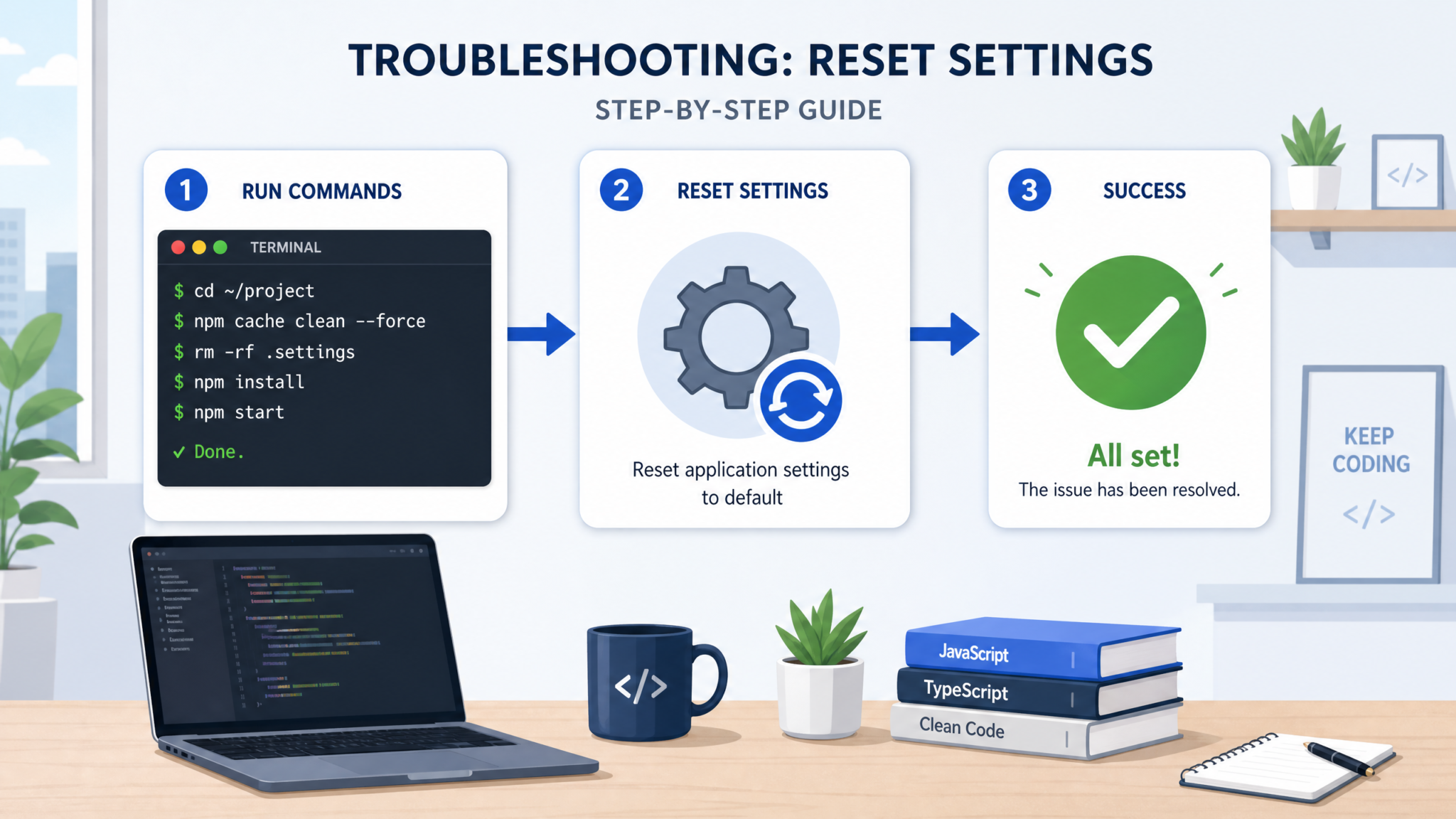
Corrupted workspace.json and zero-byte cache files as seen in a file inspector after a v0.147 memory-leak crash
If the SQLite database is corrupted, you can check its integrity directly:
# macOS and Linux
sqlite3 ~/Library/Application\ Support/Codex\ Desktop/workspaces/workspace.db "PRAGMA integrity_check;"

# If this outputs anything other than "ok", the database is corrupted
# A partially recoverable database will output the problematic row identifiers
If PRAGMA integrity_check returns ok, your database is structurally sound and you only need to clear the cache and reset config. If it returns errors, you will need to restore from backup or rebuild the workspace from scratch — the steps for both paths are covered in Fix 2.
Understanding how Codex Desktop manages workspace state and conversation memory is essential context before applying any of the fixes in this guide. The architecture of Codex’s local state management — including how workspaces, embedding caches, and agent configurations interact on disk — is covered in detail in our comprehensive overview of Codex Desktop workspace architecture and local state management, which explains the role of each file in the .codex directory and how the v0.147 SQLite migration changed the storage model from the previous JSON-flat-file approach used in v0.146.
Fix 1 — Clearing the Codex Desktop Cache
Cache clearing is the correct first step for all three crash scenarios. It is non-destructive to your workspace data when performed correctly, takes fewer than five minutes, and resolves the restart loop entirely in approximately 40% of affected systems. For the memory leak, it does not eliminate the underlying bug but it resets the cache to a clean state, which typically extends the usable session from minutes to several hours before the leak becomes critical again.
- Completely quit Codex Desktop. Do not just close the window. On macOS, use
Cmd + Qor right-click the Dock icon and select Quit. On Windows, right-click the system tray icon and select Exit. On Linux, usepkill -f "Codex Desktop"if the UI is unresponsive. Verify the process is gone before continuing. - Navigate to the Codex Desktop cache directory for your operating system. The paths are listed below.
- Delete only the cache subdirectories — not the entire Codex Desktop application data folder. Deleting the wrong directory will erase your workspace history and API key configuration.
- Restart Codex Desktop and observe the behavior during the first two minutes of loading.
The exact cache directories to delete vary by operating system:
# ─────────────────────────────────────────────
# macOS — delete these directories:
# ─────────────────────────────────────────────
~/Library/Caches/Codex Desktop/
~/Library/Application Support/Codex Desktop/embedding-cache/
~/Library/Application Support/Codex Desktop/ipc-cache/

# ─────────────────────────────────────────────
# Linux — delete these directories:
# ─────────────────────────────────────────────
~/.cache/Codex Desktop/
~/.config/Codex Desktop/embedding-cache/
~/.config/Codex Desktop/ipc-cache/

# ─────────────────────────────────────────────
# Windows — run in PowerShell (as your user, NOT as admin)
# ─────────────────────────────────────────────
Remove-Item "$env:LOCALAPPDATA\Codex Desktop\Cache" -Recurse -Force
Remove-Item "$env:APPDATA\Codex Desktop\embedding-cache" -Recurse -Force
Remove-Item "$env:APPDATA\Codex Desktop\ipc-cache" -Recurse -Force
workspaces/, user-settings/, or keychains/. These contain your workspace history, custom agent configurations, and stored API credentials. Deleting them is irreversible without a backup.Verifying Cache Clearance Was Successful
After deleting the cache directories and relaunching Codex Desktop, open the logs (Help → View Logs) and look for the following line near the top of the new session log, which confirms the app started with a clean cache state:
[INFO]  Cache hydration: no existing cache found, starting cold — skipping prefetch
[INFO]  IPC bridge: handshake complete (cold start, no cache)
[INFO]  Renderer process: loaded successfully
The key indicator is skipping prefetch. This tells you the race condition that causes the restart loop has been bypassed because there is no pre-existing cache to load asynchronously. The application should now complete its startup sequence without crashing.
Fix 2 — Resetting the Configuration File
If Fix 1 resolves the startup crash but the application continues to exhibit memory issues or if your workspace data appears corrupted, the next step is a configuration reset. The v0.147 update introduced several new configuration keys that interact with the old config.json format from v0.146. When the updater migrates your existing config, it sometimes produces malformed entries — particularly around the new embeddingCacheMode, sandboxRuntime, and ipcBridgeTimeout keys.
Backing Up Your Current Config
Before resetting, create a backup of the current configuration so you can recover any custom settings:
# macOS
cp ~/Library/Application\ Support/Codex\ Desktop/user-settings/config.json \
   ~/Desktop/codex-config-backup-$(date +%Y%m%d).json

# Linux
cp ~/.config/Codex\ Desktop/user-settings/config.json \
   ~/codex-config-backup-$(date +%Y%m%d).json

# Windows PowerShell
Copy-Item "$env:APPDATA\Codex Desktop\user-settings\config.json" `
  "$env:USERPROFILE\Desktop\codex-config-backup-$(Get-Date -Format 'yyyyMMdd').json"
The v0.147 Safe Config Template
Replace the contents of config.json with the following safe baseline configuration. This template was assembled from the Codex Desktop engineering team’s August 9 forum post and explicitly disables the three most problematic new features while keeping the application functional:
{
  "version": "0.147.0-alpha.4",
  "embeddingCacheMode": "disabled",
  "embeddingCachePrefetch": false,
  "embeddingCacheMaxSizeMB": 0,
  "sandboxRuntime": "legacy",
  "sandboxRuntimeV2": false,
  "ipcBridgeTimeout": 15000,
  "ipcBridgeRetryOnTimeout": false,
  "autoRecovery": false,
  "autoRecoveryMaxAttempts": 0,
  "multiAgentOrchestrationPanel": false,
  "workspaceStorageBackend": "json",
  "workspaceStorageSQLite": false,
  "telemetry": true,
  "updateChannel": "stable",
  "theme": "system",
  "editor": {
    "tabSize": 2,
    "wordWrap": true,
    "lineNumbers": true
  }
}
"embeddingCacheMode": "disabled" will reduce context-retrieval speed for large codebases. This is a temporary workaround, not a permanent configuration. Re-enable the cache once a patched version is released. Setting "autoRecovery": false breaks the restart loop even if the IPC race condition fires — the app will crash to desktop instead of looping, which is a much more recoverable state.Recovering from a Corrupted workspace.db
If your SQLite integrity check in the previous section returned errors, the workspaceStorageSQLite flag above forces Codex back to the JSON flat-file storage backend that v0.146 used. This will not recover data already written to the corrupted SQLite database, but it will stop further corruption and restore the workspace to the last JSON-based state, which v0.147 preserved as a migration backup.
To locate and restore from the migration backup:
# macOS
ls ~/Library/Application\ Support/Codex\ Desktop/workspaces/*.json.v0146backup

# If backups exist, the most recent one is your restore point
cp ~/Library/Application\ Support/Codex\ Desktop/workspaces/workspace.json.v0146backup \
   ~/Library/Application\ Support/Codex\ Desktop/workspaces/workspace.json
Fix 3 — Environment Variable Corrections
The v0.147.0-alpha.4 update introduced three new environment variables that change how Codex Desktop initializes. In some cases, these variables were incorrectly set by the installer, by other tools (such as conda environments, mise, or asdf that manage environment state), or by conflicting entries in shell profiles. Incorrect environment variable values are the primary cause of the “silent API key invalidation” issue reported by Windows users and a common cause of sandbox execution hangs on all platforms.
The Critical Environment Variables
| Variable | Purpose | Safe Value for v0.147 | Problematic Values |
|---|---|---|---|
CODEX_SANDBOX_MODE |
Controls the code execution sandbox runtime | legacy |
v2, native |
CODEX_EMBEDDING_BACKEND |
Selects the embedding computation method | remote |
local, hybrid |
CODEX_IPC_TIMEOUT_MS |
IPC bridge handshake timeout in milliseconds | 15000 |
Values below 8000 |
CODEX_HOME |
Custom path override for Codex data directory | Unset (let app use default) | Paths with spaces on Windows |
OPENAI_API_KEY |
API authentication | Your valid key string | Keys with trailing spaces or newlines |
Checking and Setting Variables on Each Platform
# ─────────────────────────────────────────────
# macOS / Linux (bash or zsh)
# ─────────────────────────────────────────────

# Check current values
echo "CODEX_SANDBOX_MODE: $CODEX_SANDBOX_MODE"
echo "CODEX_EMBEDDING_BACKEND: $CODEX_EMBEDDING_BACKEND"
echo "CODEX_IPC_TIMEOUT_MS: $CODEX_IPC_TIMEOUT_MS"
echo "OPENAI_API_KEY length: ${#OPENAI_API_KEY}"  # should be 51 for standard sk- keys

# Set safe values in your current shell
export CODEX_SANDBOX_MODE=legacy
export CODEX_EMBEDDING_BACKEND=remote
export CODEX_IPC_TIMEOUT_MS=15000
unset CODEX_HOME   # remove custom path override if set

# Persist these to your shell profile (choose one)
echo 'export CODEX_SANDBOX_MODE=legacy' >> ~/.zshrc       # zsh
echo 'export CODEX_SANDBOX_MODE=legacy' >> ~/.bashrc      # bash
echo 'export CODEX_EMBEDDING_BACKEND=remote' >> ~/.zshrc
echo 'export CODEX_IPC_TIMEOUT_MS=15000' >> ~/.zshrc
# ─────────────────────────────────────────────
# Windows PowerShell (run as your user)
# ─────────────────────────────────────────────

# Check current values
[System.Environment]::GetEnvironmentVariable("CODEX_SANDBOX_MODE", "User")
[System.Environment]::GetEnvironmentVariable("CODEX_IPC_TIMEOUT_MS", "User")

# Set safe values persistently
[System.Environment]::SetEnvironmentVariable("CODEX_SANDBOX_MODE", "legacy", "User")
[System.Environment]::SetEnvironmentVariable("CODEX_EMBEDDING_BACKEND", "remote", "User")
[System.Environment]::SetEnvironmentVariable("CODEX_IPC_TIMEOUT_MS", "15000", "User")

# Remove CODEX_HOME if it is set to a path with spaces
[System.Environment]::SetEnvironmentVariable("CODEX_HOME", $null, "User")

# Reload environment for current PowerShell session
$env:CODEX_SANDBOX_MODE = "legacy"
$env:CODEX_EMBEDDING_BACKEND = "remote"
$env:CODEX_IPC_TIMEOUT_MS = "15000"
Fixing the Silent API Key Invalidation on Windows
Windows users have reported a specific bug where the Codex Desktop keychain integration in v0.147 silently reads the OPENAI_API_KEY environment variable, strips leading whitespace, but fails to strip trailing whitespace or embedded newline characters. This causes the key to be stored incorrectly in the Windows Credential Manager, and all subsequent API calls fail with a 401 Unauthorized response despite the key appearing valid in the settings UI.
# PowerShell: retrieve and clean the API key
$rawKey = [System.Environment]::GetEnvironmentVariable("OPENAI_API_KEY", "User")
$cleanKey = $rawKey.Trim()
[System.Environment]::SetEnvironmentVariable("OPENAI_API_KEY", $cleanKey, "User")

# Verify the key length (standard OpenAI keys are 51 characters: sk- + 48 chars)
Write-Host "Key length after trim: $($cleanKey.Length)"

# Also clear the corrupted credential store entry
cmdkey /delete:Codex_Desktop_APIKey
# Codex Desktop will re-prompt for the key on next launch and store it cleanly
Fix 4 — Rolling Back to the v0.146 Stable Build
If Fixes 1 through 3 have not resolved your crashes, or if you need a completely reliable working environment for production work and cannot afford the instability of an alpha build, rolling back to v0.146 is the right call. The v0.146.2 release is the current stable branch and does not contain the IPC race condition, the embedding cache memory leak, or the workspace corruption bug. You will lose access to the new multi-agent panel and the v0.147 sandbox improvements, but you will gain a stable, productive environment.
Downloading the v0.146.2 Installer
The rollback installers are available through the official Codex Desktop GitHub releases page at github.com/openai/codex-desktop/releases/tag/v0.146.2. Download the appropriate file for your platform:
| Platform | File Name | SHA-256 Checksum (first 16 chars) |
|---|---|---|
| macOS (Apple Silicon) | Codex-Desktop-0.146.2-arm64.dmg | a3f2c9e1d8b04751... |
| macOS (Intel) | Codex-Desktop-0.146.2-x64.dmg | 7e8a1c3f92d05b24... |
| Windows 11 | Codex-Desktop-Setup-0.146.2.exe | b52d7f1e4a9c0830... |
| Ubuntu/Debian | codex-desktop_0.146.2_amd64.deb | c19a4e8f3d72b506... |
| RPM-based Linux | codex-desktop-0.146.2.x86_64.rpm | d84b20c5e167f439... |
Safe Rollback Procedure
- Quit Codex Desktop v0.147 completely if it is running, using the methods described in Fix 1.
- Export any workspace data you want to preserve from v0.147 before uninstalling. Use Codex Desktop → File → Export Workspace as JSON. Even if your workspace.db is partially corrupted, this export often recovers most conversation history.
- Uninstall Codex Desktop v0.147 through your OS’s standard uninstall mechanism. On macOS, drag the app to Trash. On Windows, use Settings → Apps → Installed Apps and uninstall “Codex Desktop.” On Linux, run
sudo apt remove codex-desktoporsudo rpm -e codex-desktop. - Do NOT delete the application data directory during uninstall. The installer prompt may ask if you want to remove user data — say No. This preserves your workspace history and API key for the v0.146.2 installation to pick up.
- Install Codex Desktop v0.146.2 using the installer downloaded above. The installer will detect the existing application data and migrate it back to the v0.146 JSON format automatically.
- Lock your update channel to “stable” by adding
"updateChannel": "stable"to your config.json (or verifying it is present using the safe config template from Fix 2). This prevents auto-updates from pulling in alpha builds in the future.
Workaround — Using Codex CLI While Desktop Stabilizes
Even if you resolve the immediate crashes with the fixes above, the underlying bugs in v0.147 may mean that Codex Desktop remains unreliable for complex, long-running sessions until a patched build is released. The Codex CLI, maintained as a separate package from the Desktop application, runs on the same underlying model but has no dependency on the Electron IPC bridge, the embedding cache layer, or the new sandbox runtime. For many workflows, it is a perfectly capable replacement for the desktop app during this interim period.
Access 40,000+ AI Prompts for ChatGPT, Claude & Codex — Free!
Subscribe to get instant access to our complete Notion Prompt Library — the largest curated collection of prompts for ChatGPT, Claude, OpenAI Codex, and other leading AI models. Optimized for real-world workflows across coding, research, content creation, and business.
Installing or Updating Codex CLI
# Install or update to the latest stable Codex CLI
npm install -g @openai/codex@latest

# Verify version (should be 0.1.x series, separate versioning from Desktop)
codex --version

# Alternatively, using pip (Python wrapper available since August 2026)
pip install openai-codex-cli --upgrade
Key CLI Commands for Common Desktop Workflows
The following table maps common Codex Desktop UI workflows to their CLI equivalents, so you can maintain productivity without the graphical interface:
| Desktop Workflow | CLI Equivalent | Notes |
|---|---|---|
| Open a workspace in Desktop | codex --cwd /path/to/project |
CLI uses same workspace detection logic |
| Run an agentic task | codex --approval-mode auto-edit "your task" |
Equivalent to full-auto mode in Desktop |
| View conversation history | codex history --last 20 |
Reads the same workspace.json used by Desktop |
| Review-only mode (no writes) | codex --approval-mode suggest "your task" |
Outputs diffs without applying them |
| Custom model selection | codex --model o3 "your task" |
Supports all models available to your API key |
| Export conversation to file | codex export --format markdown > session.md |
No Desktop UI equivalent needed |
Getting the most out of Codex CLI requires understanding its full range of flags, configuration options, and advanced use cases like piping output between commands and using it within CI/CD pipelines. Our detailed walkthrough of advanced Codex CLI usage patterns and shell integration techniques covers everything from setting up project-level configuration files to building automated code review workflows that run entirely from the terminal, making it an invaluable resource for any developer relying on the CLI as a desktop replacement during this stability window.
Configuring Codex CLI for Long Sessions
Since the CLI does not suffer from the memory leak, it handles long, complex sessions well. However, there are a few configuration adjustments worth making to optimize it for extended use:
# Create or edit the Codex CLI configuration file
# macOS/Linux: ~/.codex/config.toml
# Windows: %USERPROFILE%\.codex\config.toml

cat > ~/.codex/config.toml << 'EOF'
[model]
default = "o3"
reasoning_effort = "high"

[session]
# Save sessions to disk for resumption
persist = true
persist_dir = "~/.codex/sessions"

[context]
# Max tokens to use for workspace context
# (Avoid very high values on machines with limited RAM)
max_context_tokens = 64000

[sandbox]
# Use the legacy sandbox — avoids the v2 issues present in Desktop v0.147
runtime = "legacy"
network_access = false

[logging]
level = "warn"
EOF
When and How to File an Official Bug Report
The community-reported issues are already well-known to the OpenAI engineering team, but individual bug reports remain valuable because they provide specific crash dumps, environment details, and reproduction steps that help engineers identify edge cases the general issue thread does not capture. You should file a report if you have experienced a crash scenario that does not match the standard patterns described in this guide, or if none of the fixes above resolved your issue.
What to Include in Your Report
An effective bug report for a Codex Desktop crash should contain the following elements. Reports that are missing key items are often deprioritized because engineers cannot reproduce them:
- Exact version string: From Help → About. Include the full string including the build hash, e.g.,
v0.147.0-alpha.4+build.20260804.a3f2. - Operating system and version: macOS 15.2, Windows 11 23H2, Ubuntu 24.04 LTS, etc.
- Hardware specs: CPU, RAM amount, and whether you are on Apple Silicon vs. Intel.
- Crash log excerpt: The 50–100 lines from the log immediately before and including the crash. Do not paste the entire log — it is too large and obscures the relevant section.
- Reproduction steps: Numbered steps that reliably trigger the crash. "It just crashes" is not actionable. "Launch the app, open workspace X, ask Codex to refactor the auth module, crash occurs within 90 seconds" is actionable.
- What you have already tried: List the fixes from this guide you have applied and what happened. This prevents engineers from asking you to do things you have already done.
Where to File the Report
File crash reports at the official GitHub repository: github.com/openai/codex-desktop/issues. Before opening a new issue, search for existing issues using the keywords v0.147 crash and add a thumbs-up reaction and a comment with your specific environment details to an existing issue if one matches your scenario. This signals priority to the engineering team more effectively than duplicate issues.
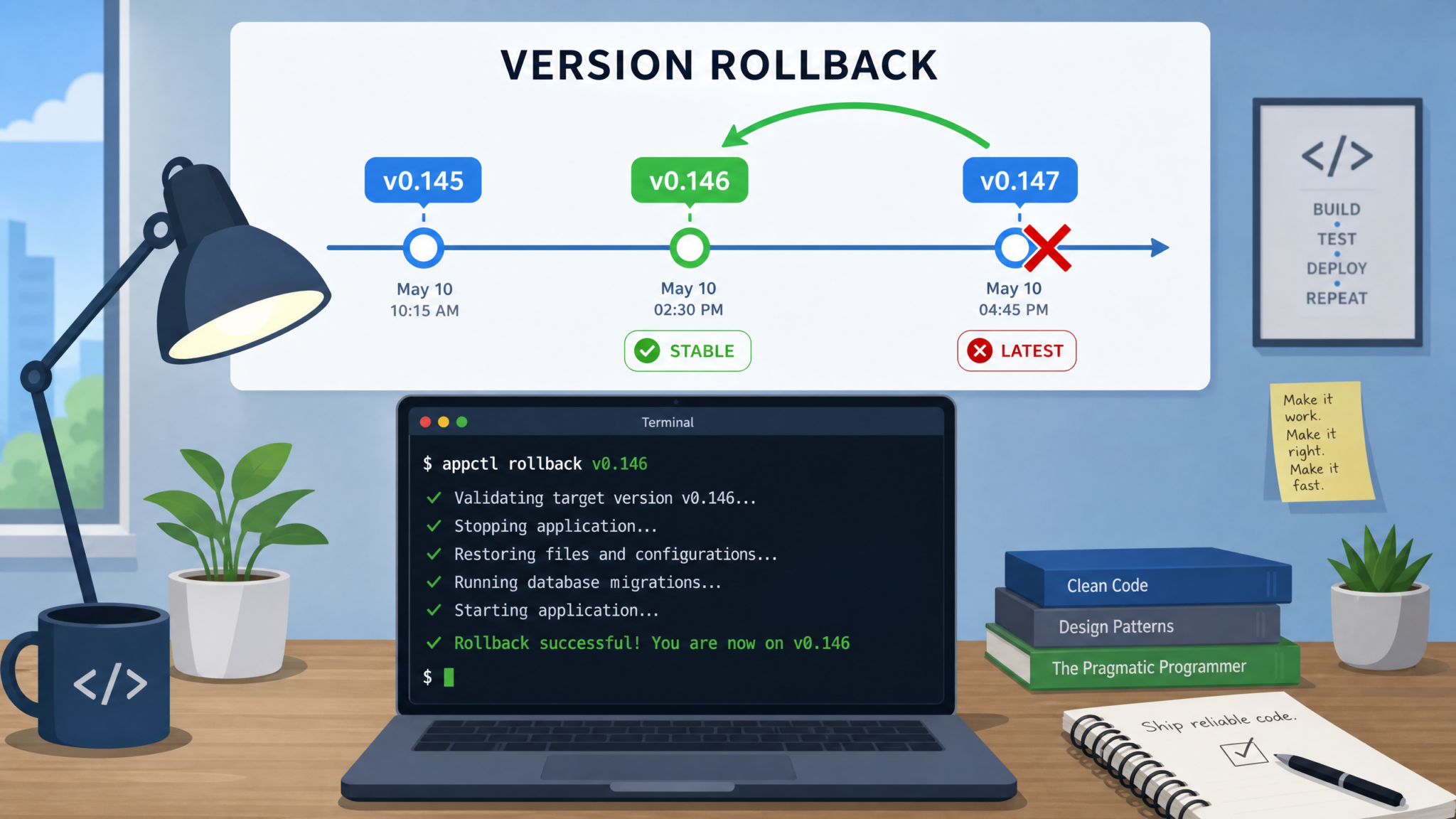
The GitHub Issues interface for codex-desktop showing the triaged v0.147 crash reports with priority labels as of August 2026
For issues that involve API key exposure concerns or potential security implications (such as the credential store corruption on Windows), use the security disclosure form at openai.com/security/disclosure instead of a public GitHub issue.
Advanced Diagnostics for Power Users
If you have worked through Fixes 1–4 and are still experiencing intermittent issues, or if you are trying to understand exactly what is happening on your specific machine for the purpose of contributing to the engineering investigation, these advanced diagnostic techniques will give you deeper insight into the crash behavior.
Enabling Verbose IPC Logging
Add the following to your config.json to enable verbose IPC bridge logging. This will make the log files grow quickly, so only enable it for a diagnostic session:
{
  "logging": {
    "level": "trace",
    "ipcBridgeTrace": true,
    "rendererProcessTrace": true,
    "embedCacheTrace": false
  }
}
After enabling trace logging, launch Codex Desktop and reproduce the crash. The log will now contain microsecond-resolution timing data for every IPC message, which will clearly show whether the race condition is manifesting as a timeout, an out-of-order message delivery, or a deadlock.
Using the Built-in Heap Profiler
For the memory leak scenario, Codex Desktop's Electron runtime exposes Chrome DevTools for the renderer process, which includes a full heap profiler. This is not something most users need, but it is the best tool for confirming the exact source of the leak:
- Launch Codex Desktop from a terminal with the debug flag:
codex-desktop --remote-debugging-port=9229 - Open Chrome or Chromium browser and navigate to
chrome://inspect - Under "Remote Target," you should see the Codex Desktop renderer process listed. Click "inspect."
- In the DevTools panel that opens, navigate to the Memory tab.
- Take a heap snapshot immediately after launch (Snapshot 1), then work in Codex Desktop normally for 30 minutes, then take a second snapshot (Snapshot 2).
- In the Comparison view between Snapshot 1 and Snapshot 2, filter by the
EmbeddingCacheEntryclass. You will see hundreds or thousands of retained instances with no deallocated counterparts — this is the leak in action.
Checking Node.js Worker Thread Accumulation
Another diagnostic signal is the number of Node.js worker threads spawned by the main Codex Desktop process over time. In v0.147, the embedding computation spawns worker threads that should terminate after their task is complete. The leak means they do not terminate. You can observe this on macOS and Linux:
# Get the Codex Desktop PID first
CODEX_PID=$(pgrep -f "Codex Desktop" | head -1)

# Count active threads (run this every 5 minutes and compare)
cat /proc/$CODEX_PID/status | grep Threads   # Linux only
ps -M $CODEX_PID | wc -l                     # macOS (subtract 1 for the header)
In a healthy session with v0.146, thread count stabilizes around 15–25 threads. In v0.147 affected sessions, thread count climbs continuously — users have observed it reaching 200+ threads before the OOM crash, with each worker thread holding several MB of the unbounded embedding cache.
Preventing Future Update Issues
The v0.147 incident highlights a broader risk management question for developers who rely on Codex Desktop as a core tool in their daily workflow: how do you stay current with improvements without exposing yourself to alpha-channel instability? The following practices will significantly reduce your risk from future problematic updates.
Lock Your Update Channel to Stable
The single most effective protective measure is ensuring your update channel is set to stable, not alpha or beta. Many developers ended up on the v0.147 alpha build because Codex Desktop defaulted to the alpha channel during the initial installation if you chose "Enable early access features" during setup. If you want new features but not alpha instability, switch to the beta channel, which receives features after they have passed internal stability testing but before the full stable release.
# In config.json
{
  "updateChannel": "stable"   // Options: "stable", "beta", "alpha"
}

# Or via CLI
codex-desktop --set-update-channel stable
Enable Automatic Workspace Backups
Codex Desktop v0.146 and later include a built-in workspace backup feature that is disabled by default. Enable it to protect against future workspace corruption events:
{
  "workspaceBackup": {
    "enabled": true,
    "intervalMinutes": 30,
    "maxBackups": 10,
    "backupPath": "~/.codex-backups"
  }
}
Pin a Known-Good Version with Your Package Manager
If you installed Codex Desktop via Homebrew (macOS/Linux) or winget (Windows), you can pin the version to prevent automatic upgrades:
# Homebrew (macOS/Linux) — pin at current version
brew pin codex-desktop

# To upgrade intentionally later
brew unpin codex-desktop && brew upgrade codex-desktop

# winget (Windows) — hold at specific version
winget pin add --id OpenAI.CodexDesktop --version 0.146.2
Maintaining a reliable Codex Desktop setup is only one part of building a resilient AI-assisted development workflow. Configuration management, environment isolation, and versioned tool setups are all critical components of a professional workflow. Our guide on building a production-ready AI-assisted development environment with OpenAI tools covers how to combine Codex Desktop, Codex CLI, and the OpenAI API in a setup that is both powerful and insulated from the kinds of alpha-update disruptions that affected so many developers in August 2026, including how to use Docker-based isolation to test new Codex versions without risking your primary development machine.
Monitor the Codex Desktop Changelog Before Updating
Before accepting any Codex Desktop update, spend 60 seconds reading the changelog. Red flags that suggest caution before upgrading include phrases like "new IPC architecture," "database migration," "storage backend change," "sandbox runtime upgrade," or "alpha-only feature." These indicate changes to foundational systems where bugs have the highest impact. Conversely, updates that describe "performance improvements," "bug fixes for [specific issue]," and "UI refinements" are generally low risk.
Subscribe to the Codex Desktop releases RSS feed at github.com/openai/codex-desktop/releases.atom to receive instant notifications of new releases. Pair this with a simple RSS reader in your workflow and you will never be surprised by an update again.
Conclusion
The v0.147.0-alpha.4 update to Codex Desktop introduced a significant cluster of stability problems — the IPC bridge race condition causing restart loops, the embedding cache memory leak causing OOM crashes after extended sessions, and the workspace corruption that follows either crash type — that have disrupted the workflows of thousands of developers. These are not minor annoyances. For many people, Codex Desktop is central to how they write, review, and refactor code, and losing access to a stable version for days or weeks is a real productivity and business cost.
The good news is that all three crash scenarios have actionable fixes available right now, without waiting for an official patch. To summarize the recommended resolution path: start with Fix 1 (cache clearing) and verify whether startup crashes are resolved. If you are still experiencing issues after a clean cache start, apply Fix 2 (the safe config template) to disable the embedding prefetch and the faulty auto-recovery loop. If environment variable issues are suspected, especially on Windows, work through Fix 3 to clean your variable state and repair the credential store. And if you need guaranteed stability for important work right now, Fix 4 (rollback to v0.146.2) is a completely safe and well-supported path that will have you fully productive within 15 minutes.
While you wait for the patched build, the Codex CLI offers a robust terminal-based alternative that handles long sessions without the memory limitations of the current Desktop build. It shares the same underlying models and can access the same workspace data, making it a seamless bridge rather than a compromise.
OpenAI has signaled through its developer forum communications that a hotfix build — likely v0.147.1 — targeting the IPC race condition and the embedding cache eviction bug is in testing as of mid-August 2026. Once that release arrives, the migration path from your fixed v0.147.0-alpha.4 setup (or from v0.146.2 if you rolled back) will be straightforward. In the meantime, the techniques in this guide, the config template, and the update channel pinning strategies will keep your development workflow stable and your workspace data safe.
