
ChatGPT Atlas Shutdown August 9: Step-by-Step Migration Guide to Agent Mode Before You Lose Your Data
ChatGPT Atlas Shutdown August 9: Step-by-Step Migration Guide to Agent Mode Before You Lose Your Data
On August 9, 2026, OpenAI will permanently shut down ChatGPT Atlas — its experimental AI-native browser that promised to reimagine how users browse, research, and interact with the web. If you’ve been relying on Atlas for bookmarks, tab management, AI-assisted browsing, or research workflows, you need to act now. Unlike many platform transitions, OpenAI is not providing any automatic migration path for your Atlas data. Your bookmarks, saved tabs, browsing history, and custom configurations will be permanently deleted when the servers go dark. The good news is that Agent Mode — Atlas’s functional successor — is already available and significantly more powerful for automation tasks like form filling, online shopping, and multi-step research. This guide walks you through everything: what data you can save, how to export it before the deadline, what Agent Mode can and cannot do, and exactly how to rebuild your most important workflows.
- Understanding the Atlas Shutdown: What’s Happening and Why
- What Data You Have in Atlas and What Happens to It
- Step-by-Step: Exporting Your Atlas Data Before August 9
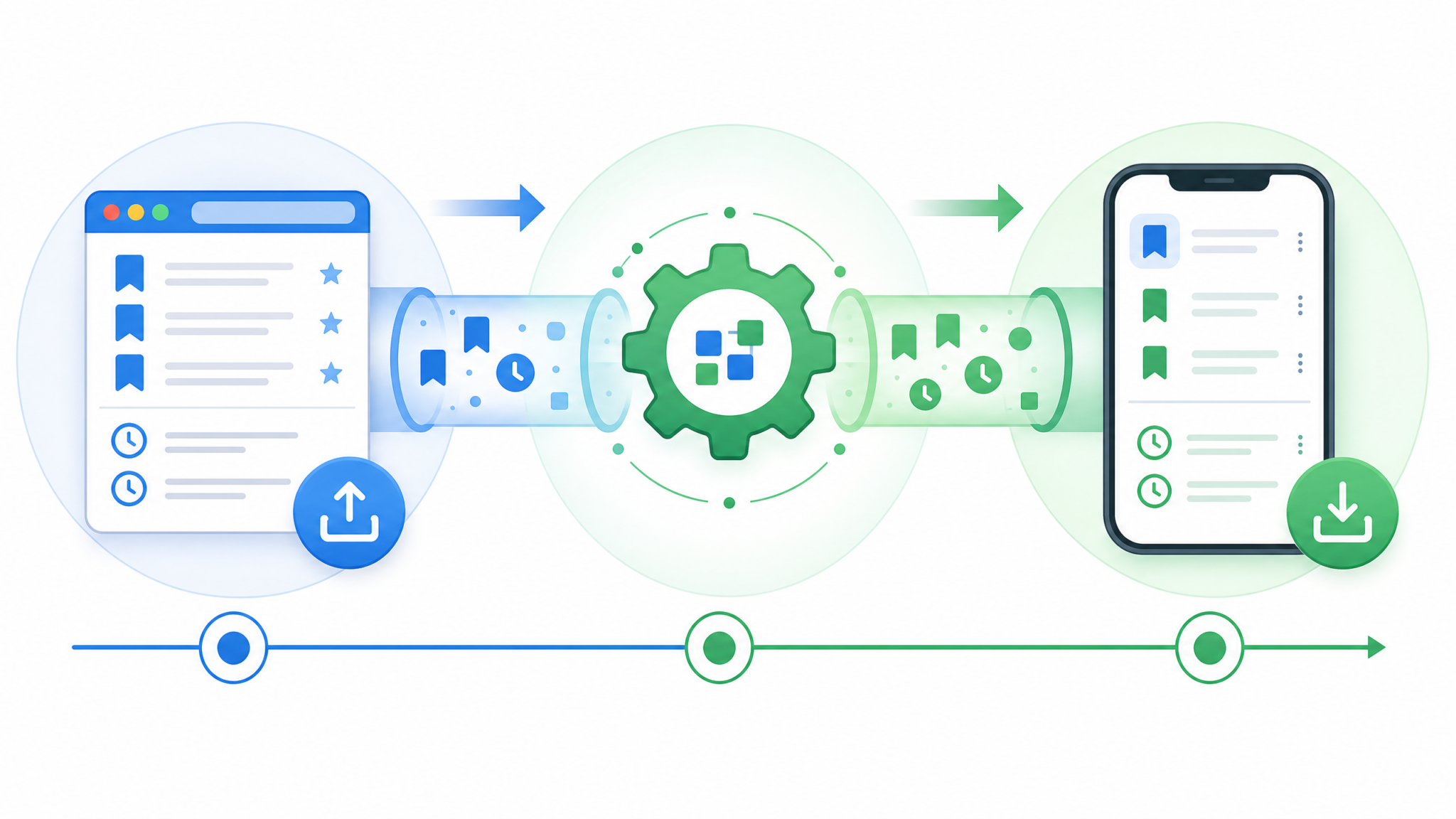
- What Transfers Automatically to Agent Mode
- What You Permanently Lose: No Migration Path Available
- Setting Up Agent Mode: Complete Configuration Guide
- How to Recreate Your Atlas Workflows in Agent Mode
- Agent Mode Capabilities Deep Dive: Forms, Shopping, and Research
- Atlas vs. Agent Mode: Feature-by-Feature Comparison
- Complete Migration Checklist: Your 30-Day Countdown
- Conclusion: Making the Most of Your Migration

Understanding the Atlas Shutdown: What’s Happening and Why
ChatGPT Atlas launched as an ambitious experiment — a Chromium-based browser deeply integrated with OpenAI’s AI infrastructure. Unlike browser extensions that bolt AI capabilities onto existing browsers, Atlas was designed from the ground up to have the AI model understand and interact with web content at a fundamental level. Users could ask Atlas to summarize pages, remember visited sites, tag bookmarks with AI-generated metadata, and perform simple web tasks autonomously.
The shutdown announcement, communicated via email to Atlas users and posted in the OpenAI developer blog, cited strategic consolidation rather than technical failure. OpenAI has decided to focus its browser-based AI capabilities entirely on Agent Mode — a feature within ChatGPT itself that operates across any browser via the ChatGPT interface. Rather than maintaining a separate browser application (with its own update cadence, security patches, and infrastructure costs), OpenAI is doubling down on an approach where the AI agent operates on top of your existing browser rather than replacing it.
This is actually a philosophically significant shift. Atlas required you to use a specific browser, tying your workflow to OpenAI’s browser team’s update schedule. Agent Mode works with Chrome, Firefox, Safari, Edge, and any Chromium-based browser — meaning you keep your existing browser ecosystem while gaining AI automation capabilities that, in many respects, exceed what Atlas could do.
Why the August 9 Deadline Is Non-Negotiable
OpenAI has made it clear that August 9, 2026 is a hard cutoff — not a soft deprecation. After this date, the Atlas application will fail to connect to OpenAI’s servers, and any data stored server-side (which includes synced bookmarks, browsing history, and AI-generated notes) will be purged from their systems in accordance with their data retention policies. Data stored locally in the Atlas application cache may persist on your machine temporarily, but the application itself will stop functioning, making that data increasingly difficult to access over time.
The 30-day notice period (from the official announcement to the shutdown date) is tight. If you’re reading this with less than two weeks remaining, prioritize the export steps in Section 3 above everything else in this guide.
What Data You Have in Atlas and What Happens to It
Before you can migrate anything, you need a clear inventory of what Atlas actually stores. Atlas data falls into three distinct categories, each with different storage locations and different migration implications.
Server-Side Atlas Data (Deleted on August 9)
This is the data most at risk. Server-side Atlas data includes everything synced to your OpenAI account:
- Synced Bookmarks: Any bookmark you created while signed into Atlas, including AI-generated tags, folder structures, and notes attached to bookmarks
- Browsing History: If you enabled history sync (an Atlas privacy setting), your full browsing history stored in OpenAI’s cloud
- AI-Generated Summaries: Page summaries that Atlas automatically generated and saved when you bookmarked a page
- Research Sessions: Named research sessions where Atlas tracked related pages you visited as part of a research task
- Custom Search Configurations: Any custom search engine configurations or search shortcuts you set up
- Saved Form Data: Autofill profiles specifically stored in Atlas (distinct from your OS-level credential manager)
Locally-Stored Atlas Data (Accessible After Shutdown, But Difficult)
Chromium-based browsers, including Atlas, store significant data locally even when sync is enabled. This local data doesn’t disappear on August 9, but Atlas won’t open after that date, making access increasingly inconvenient:
- Local bookmarks (if you had local bookmark storage enabled or had not signed in)
- Downloaded files (these are in your system’s Downloads folder, fully safe)
- Cookies and site session data (stored in the Atlas profile directory)
- Extension data and settings (if you had any extensions installed in Atlas)
OpenAI Account Data (Persists After Shutdown)
This is important: your underlying OpenAI account and ChatGPT conversation history are completely separate from Atlas and will not be affected by the shutdown. This includes:
- All your ChatGPT conversation history
- Custom GPTs you’ve created or favorited
- ChatGPT memory entries
- API keys and usage history
- Subscription and billing information
Agent Mode operates within this existing ChatGPT infrastructure, so your continuity of AI assistance is preserved — only the browser-specific data is at risk.
Step-by-Step: Exporting Your Atlas Data Before August 9
This is the most time-sensitive section of this guide. Follow these steps in order. Budget approximately 45–90 minutes depending on how much data you’ve accumulated in Atlas.
Step 1: Export Bookmarks as HTML
Atlas uses the standard Chromium bookmarks format, which means you can export bookmarks in a universally compatible HTML format that any browser can import.
- Open Atlas and click the three-dot menu (⋮) in the top-right corner
- Navigate to Bookmarks → Bookmark Manager (or press
Ctrl+Shift+O/Cmd+Shift+O) - In the Bookmark Manager, click the three-dot menu at the top of the Bookmark Manager panel
- Select “Export bookmarks”
- Save the file as
atlas_bookmarks_export.htmlto a location you’ll remember — your Desktop or a dedicated migration folder
Critical note on AI-generated metadata: The standard HTML bookmark export preserves URLs and folder structures but does NOT preserve Atlas-specific metadata such as AI-generated summaries, tags, or notes. For those, you need the next step.
Step 2: Export AI-Enhanced Bookmark Data (Atlas-Specific)
Atlas provides a separate export for AI-enhanced bookmark data through your OpenAI account settings, not through the Atlas application itself.
- Go to chat.openai.com and sign into your account
- Click your profile icon → Settings
- Navigate to Data Controls → Atlas Data
- Click “Export Atlas Data” — this generates a JSON file containing all server-side Atlas data
- OpenAI will email you a download link within 24 hours (this is a privacy-compliant export process)
- Download the file immediately when the email arrives — the download link expires after 72 hours
The exported JSON file will contain a structured dump of your bookmarks with AI metadata, research sessions, browsing history (if sync was enabled), and saved configurations. Keep this file archived even if you don’t immediately know how to use all of it — it serves as a permanent record.
Step 3: Export Browsing History
If you need a record of your browsing history from Atlas (useful for research reference), the Atlas data export in Step 2 includes this. However, for a more human-readable format:
- In Atlas, open a new tab and navigate to
atlas://historyor pressCtrl+H - Use
Ctrl+Ato select all visible history entries, thenCtrl+Cto copy - Paste into a text document for a basic record — this won’t be comprehensive but captures what’s visible
- For complete history export, rely on the JSON export from Step 2
Step 4: Save Open Tabs as a Session
If you have important tabs currently open in Atlas that you need to preserve:
- In Atlas, right-click any tab and select “Bookmark all tabs” (or press
Ctrl+Shift+D) - Create a new bookmark folder named “Atlas Migration — [Date]”
- Save all tabs to this folder — they’ll be included in your bookmark HTML export
- Alternatively, install a tab export extension in Atlas (many Chromium extensions are compatible) to export as a URL list
Step 5: Document Your Custom Configurations
This step is manual but crucial. Take screenshots or written notes of:
- Your Atlas settings (navigate to
atlas://settingsand screenshot each section) - Any custom search engines you configured
- Atlas AI behavior settings (summary preferences, research mode settings)
- Any keyboard shortcuts you customized
Step 6: Export Passwords (If Stored in Atlas)
If you used Atlas as your password manager (not recommended, but some users did):
- Go to
atlas://settings/passwords - Click the three-dot menu next to “Saved Passwords”
- Select “Export passwords”
- Save the CSV file to a secure, encrypted location immediately
- Import these passwords into your preferred password manager (1Password, Bitwarden, etc.) before August 9
Security warning: The password export CSV is unencrypted. Delete it from your Downloads folder and empty your trash after importing it to your password manager.
What Transfers Automatically to Agent Mode
Despite the lack of a formal migration pipeline, certain things do carry over automatically because they’re tied to your OpenAI account rather than to Atlas specifically.
ChatGPT Memory and Context
If you have ChatGPT Memory enabled (available on Plus, Pro, and Team plans), any information the AI learned about your preferences, work context, and habits during Atlas sessions that were reflected back into ChatGPT conversations will persist in Agent Mode. This includes things like:
- Preferred communication style and response format preferences
- Professional context (industry, role, common tasks) if you discussed these in ChatGPT conversations
- Research preferences and citation style preferences if previously noted
Custom GPTs and Instructions
Any Custom GPTs you built or subscribed to that were used alongside Atlas for research workflows are fully accessible in Agent Mode. If you built a custom research assistant GPT, a form-filling helper, or a shopping comparison GPT, these all work natively with Agent Mode.
Account Authentication Context
Since you’ll be accessing Agent Mode through the same OpenAI account, your subscription level (and thus Agent Mode access tier) carries over automatically. There’s no re-verification or new subscription required.
What You Permanently Lose: No Migration Path Available
OpenAI has been relatively transparent about what will not be migrated, and the list is significant enough that you need to understand it clearly before August 9.
Permanent Losses (No Recovery After August 9)
- AI-Generated Bookmark Summaries: The automatic one-paragraph summaries Atlas generated for every bookmarked page are not exportable in any usable format and will be permanently deleted. You can manually re-summarize important bookmarks using ChatGPT after migration.
- Research Session Threading: Atlas’s ability to group related pages into a named research “session” with an AI-understood context thread has no direct equivalent in Agent Mode. You’ll need to recreate this using ChatGPT Projects or manual folder organization.
- Passive Browsing Analysis: Atlas silently analyzed pages as you browsed, building a semantic understanding of your interests over time. This ambient intelligence feature doesn’t exist in Agent Mode, which operates on explicit commands rather than passive observation.
- Tab State: The exact state of open tabs (scroll position, form data entered, video timestamp, etc.) is not exportable and will be lost when Atlas stops working.
- Site-Specific AI Annotations: If you used Atlas’s inline annotation feature to add AI-assisted notes directly to web pages, these annotations exist only within Atlas and have no migration path.
- Browsing History Semantic Index: Atlas built a semantic search index of your browsing history, allowing queries like “find that article about quantum computing I read last month.” This semantic index is proprietary to Atlas and is deleted with the server data.
Partial Losses (Recoverable With Effort)
- Bookmark Organization: The folder structure exports, but AI-generated tags and sorting don’t. You’ll have URLs organized in folders, but lose the contextual AI metadata.
- Custom Search Workflows: Search configurations export as data but need manual re-entry in your new browser.
- Extension Settings: Extensions themselves can be reinstalled, but their Atlas-specific settings and data won’t transfer.
For teams and power users who built extensive Atlas workflows, the loss of Research Session Threading and Passive Browsing Analysis represents the most significant productivity disruption. The migration guide in the following sections includes workarounds for both.
Setting Up Agent Mode: Complete Configuration Guide
Agent Mode is available to ChatGPT Plus, Pro, and Team subscribers. If you’re on the free plan, this is the moment to evaluate whether a subscription makes sense — Agent Mode’s capabilities are substantially different from the free tier. Here’s the complete setup process.
Prerequisites and Access Requirements
- ChatGPT Plus, Pro, or Team subscription (Agent Mode is not available on the free tier)
- A supported browser: Chrome 110+, Firefox 115+, Safari 16+, or any Chromium-based browser
- The ChatGPT browser extension installed (required for Agent Mode to interact with web pages)
- Operating system: Windows 10/11, macOS 12+, or Ubuntu 20.04+ (Linux support is partial)
Step 1: Install the ChatGPT Browser Extension
Agent Mode’s web interaction capabilities (form filling, clicking, reading page content) require the official ChatGPT browser extension, which serves as the bridge between the ChatGPT interface and the active browser tab.
- Navigate to your browser’s extension store (Chrome Web Store, Firefox Add-ons, or Safari Extensions)
- Search for “ChatGPT” and install the official OpenAI extension (verify it’s published by “openai.com”)
- After installation, click the extension icon and sign in with your OpenAI account credentials
- Grant the requested permissions — Agent Mode requires access to read and interact with web page content. Review each permission carefully; you can restrict it to specific sites if preferred.
- Enable “Agent Mode Access” in the extension settings (this may be labeled as “Computer Use” or “Browser Actions” depending on when you’re reading this)
Step 2: Configure Agent Mode in ChatGPT Settings
- Go to chat.openai.com and open Settings → Beta Features
- Enable “Agent Mode” (toggle it on)
- Under Settings → Personalization → Agent Preferences, configure:
- Confirmation prompts: Set whether Agent Mode asks for confirmation before each action, or operates autonomously for trusted task types
- Data sharing: Configure whether Agent Mode can store action logs for improving future assistance
- Default browser profile: If you use multiple browser profiles, specify which one Agent Mode should interact with
- Under Agent Mode → Trusted Sites, add websites where you want Agent Mode to operate without per-action confirmation (e.g., your commonly used shopping sites, research databases, or internal tools)
Step 3: Import Your Atlas Bookmarks
Now import the bookmark HTML file you exported in Step 1 of the data export process.
- In your new primary browser (Chrome, Firefox, etc.), open the bookmark manager
- Find the import option (usually under a three-dot menu within the bookmark manager)
- Select “Import from HTML file”
- Navigate to your saved
atlas_bookmarks_export.htmlfile - The import will create a new bookmark folder containing all your Atlas bookmarks in their original folder structure
Step 4: Set Up Agent Mode Context via ChatGPT Memory
This step replaces Atlas’s passive intelligence features with explicit context setting. In a new ChatGPT conversation, tell Agent Mode about your typical workflows:
I'm migrating from ChatGPT Atlas and want to set up Agent Mode
for my regular workflows. Here's my context:
- I primarily use AI browsing for [research/shopping/form filling/etc.]
- My most common tasks are: [list them]
- Sites I use most frequently: [list key sites]
- My preferences for web research: [citation format, summary style, etc.]

Please remember this context for future Agent Mode sessions.
This prompt seeds ChatGPT Memory with the workflow context that Atlas previously learned passively, significantly accelerating your productivity in Agent Mode from day one.
Step 5: Test Agent Mode with a Simple Task
Before relying on Agent Mode for important work, verify it’s functioning correctly with a test task:
- Open a new tab in your browser and navigate to any website
- Open ChatGPT in a separate window or tab
- Ask Agent Mode: “Go to [the website you have open] and tell me what the main navigation links are.”
- If Agent Mode can read the page content and respond accurately, your setup is working
- Then test an action: “Use the search box on [website] to search for [something]”
If Agent Mode fails to read the page, check that your browser extension is active (the icon should show as “connected”) and that you’ve granted the necessary permissions for that site.
How to Recreate Your Atlas Workflows in Agent Mode
This is where migration gets practical. Atlas supported several distinct workflow patterns that need to be consciously rebuilt in Agent Mode. Here are the most common Atlas use cases and their Agent Mode equivalents.
Workflow 1: AI-Assisted Research Sessions
How it worked in Atlas: You’d start a named research session, browse relevant pages, and Atlas would silently build a connected understanding of what you were researching — tracking themes, contradictions between sources, and key entities across all the pages you visited.
Agent Mode equivalent: Use ChatGPT Projects to create a research context, then use Agent Mode within that project.
- Create a new ChatGPT Project and name it after your research topic
- At the start of each research session, tell Agent Mode: “We’re continuing research on [topic]. The key questions I’m trying to answer are: [questions]”
- As you browse, paste key quotes or URLs into the project conversation for Agent Mode to analyze and connect
- Periodically ask Agent Mode to synthesize what you’ve found: “Based on everything we’ve discussed in this project, what are the most important findings and what gaps remain?”
This approach is actually more reliable than Atlas’s passive session tracking because you maintain explicit control over what gets included in the research context.
Workflow 2: Automated Form Filling
How it worked in Atlas: Atlas could pre-populate forms using AI-understood context — not just autofill fields like a standard browser, but intelligently match your information to form fields based on the form’s purpose.
Agent Mode equivalent: Agent Mode directly handles this, and typically more capably than Atlas did.
Access 40,000+ AI Prompts for ChatGPT, Claude & Codex — Free!
Subscribe to get instant access to our complete Notion Prompt Library — the largest curated collection of prompts for ChatGPT, Claude, OpenAI Codex, and other leading AI models. Optimized for real-world workflows across coding, research, content creation, and business.
To use Agent Mode for form filling:
- Navigate to the form you need to fill out
- Tell Agent Mode: “I need to fill out this form. Here are my details: [provide relevant information]. Please review the form fields and fill them appropriately, but ask me before submitting.”
- Agent Mode will read the form structure, match your information to the appropriate fields, and complete them
- Always set Agent Mode to require confirmation before form submission until you’ve verified its accuracy
Workflow 3: AI-Assisted Shopping
How it worked in Atlas: Atlas could compare products across tabs you had open, summarize reviews, and flag potential issues with products you were considering.
Agent Mode equivalent: Agent Mode can actively conduct this research rather than passively observing it.
Agent Mode prompt template for shopping:
"I'm looking to buy [product description]. My requirements are:
- Budget: [amount]
- Key features I need: [features]
- Deal-breakers: [any requirements]

Please search [retailer 1], [retailer 2], and [retailer 3]
and give me a comparison of the top 3 options that meet my
criteria, including current prices and key user feedback."
This active approach actually exceeds Atlas’s shopping capabilities because Agent Mode can navigate across multiple sites in a single task, rather than requiring you to manually open each site’s tab.
Workflow 4: Bookmark Organization and Retrieval
How it worked in Atlas: Atlas’s semantic search could find bookmarks using natural language queries based on content summaries.
Agent Mode equivalent: This requires a workaround since bookmark semantic search isn’t built into Agent Mode. The best approach is to upload your exported bookmark HTML to a ChatGPT conversation and let the AI index it for you:
- Upload your
atlas_bookmarks_export.htmlto a ChatGPT conversation - Ask ChatGPT to create a categorized summary of your bookmarks
- Save this summary in a dedicated ChatGPT Project called “Bookmark Reference”
- For future retrieval, ask the project: “Do I have any bookmarks related to [topic]?”
For users who heavily relied on Atlas’s semantic bookmark search, exploring dedicated bookmark management tools alongside Agent Mode — and connecting them via the ChatGPT API — is worth investigating. Understanding how to build custom workflows using ChatGPT’s API capabilities can help you recreate sophisticated bookmark intelligence outside of Atlas.
For users who built advanced research workflows with Atlas and want to understand the full spectrum of what Agent Mode enables compared to earlier ChatGPT browsing features, ChatGPT browsing vs Agent Mode comparison guide provides a detailed technical breakdown of the architectural differences between web browsing in ChatGPT and true agent-based automation, including which use cases each approach handles best and where the limitations lie.
Agent Mode Capabilities Deep Dive: Forms, Shopping, and Research
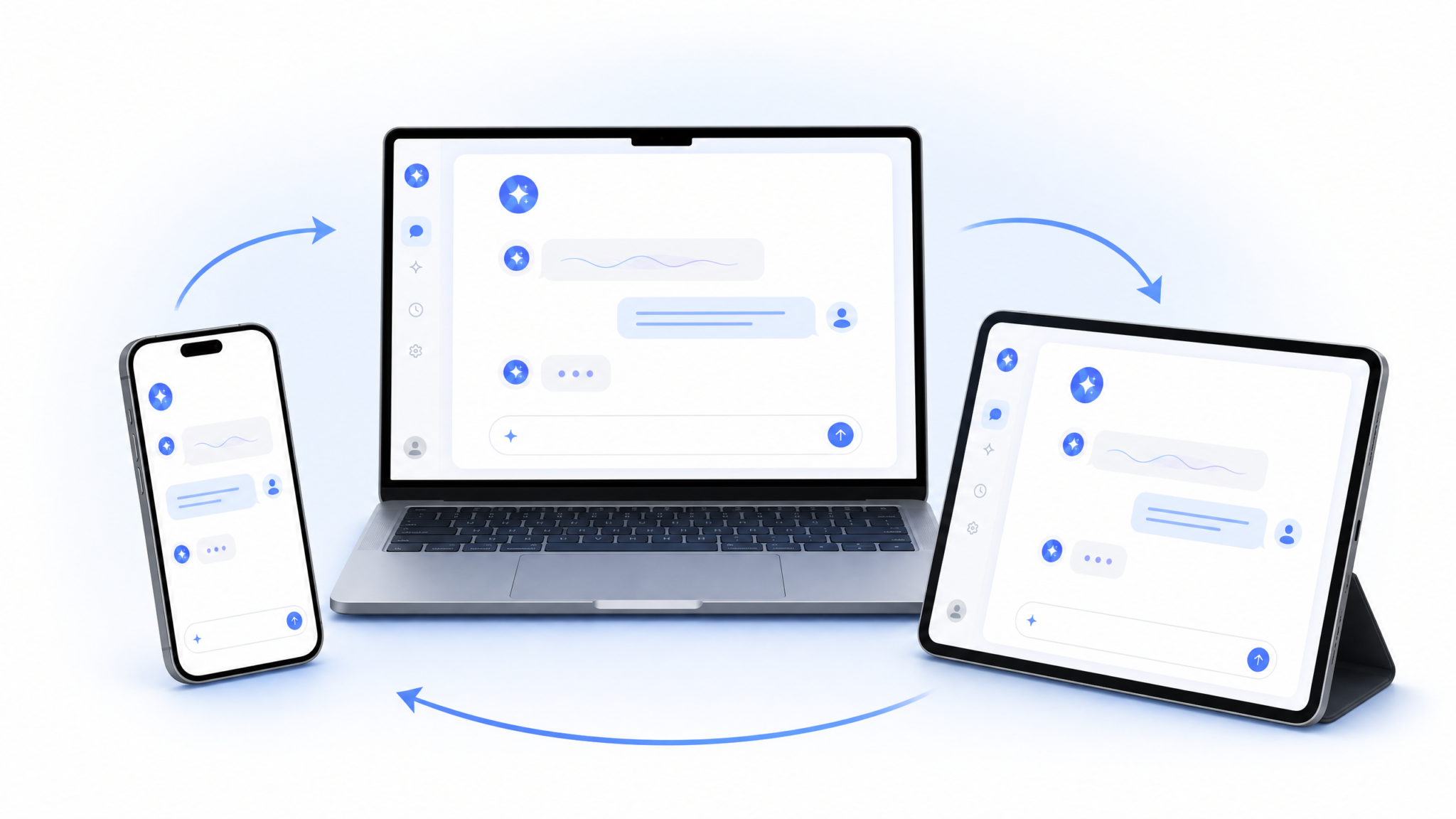
To effectively replace Atlas, you need to understand what Agent Mode can actually do — and where its current limitations create gaps you’ll need to work around.
Form Filling: What Agent Mode Can Handle
Agent Mode’s form filling capabilities go well beyond traditional browser autofill. The AI understands form context, not just field labels:
- Contextual field matching: Agent Mode understands that a field labeled “Given Name” should get your first name even if your autofill profile labels it “First Name”
- Multi-page form navigation: Agent Mode can progress through multi-step forms, handling conditional fields that appear based on previous answers
- Document-based form filling: If you provide Agent Mode with a PDF or document containing relevant information (like a prior application), it can extract the relevant data and populate form fields accordingly
- Form validation recovery: When a form returns validation errors, Agent Mode can identify the problematic fields and correct them
Current limitations: Agent Mode cannot handle CAPTCHA challenges, two-factor authentication flows, or payment forms on sites that detect automated interaction (most major e-commerce sites block automated payment processing as a fraud prevention measure).
Shopping: Agent Mode’s Strongest Feature Area
Shopping assistance is arguably where Agent Mode surpasses Atlas most dramatically. The key capabilities include:
- Cross-site price comparison: Agent Mode can actively visit multiple retailer sites and return standardized price comparisons, including shipping cost variations by location
- Review synthesis: Rather than just summarizing reviews on a single product page, Agent Mode can gather reviews from multiple sources (retailer site, Reddit, YouTube) and provide a synthesized assessment
- Coupon and deal finding: Agent Mode can search for active coupon codes and verify their current validity before you attempt to apply them
- Specification comparison: For technical products, Agent Mode can pull specifications from manufacturer pages and create structured comparisons that are difficult to find in retailer listings
- Cart management: On supported sites, Agent Mode can add items to cart, apply coupon codes, and navigate checkout through the address/shipping phase (stopping before payment processing)
Research: The Most Powerful Upgrade from Atlas
For research workflows, Agent Mode offers capabilities that Atlas — as a passive browser — was fundamentally unable to provide:
- Active source gathering: Agent Mode can be instructed to find and retrieve information from specific types of sources (academic, news, government data) rather than simply analyzing pages you happen to visit
- Structured research reports: Agent Mode can synthesize information from multiple sources into formatted documents — literature reviews, competitive analyses, technical summaries — in a single session
- Real-time fact verification: As you write or research, Agent Mode can verify claims against current web content, flagging potential inaccuracies or outdated information
- Data extraction and structuring: Agent Mode can visit data-heavy pages (financial reports, statistical databases, government data portals) and extract specific data points into structured formats like tables or CSV-compatible lists
For professionals who used Atlas primarily for competitive research or market analysis, Agent Mode’s active research capabilities represent a major step forward. Instead of browsing competitor sites yourself while Atlas took notes, you can ask Agent Mode to conduct the competitive analysis autonomously and return a structured report.
Users who are just getting started with Agent Mode and want to understand how to prompt it effectively for research tasks — particularly in academic or professional research contexts — will find that ChatGPT Agent Mode prompting guide for research and analysis covers the prompt patterns that elicit the most reliable and detailed research outputs, including how to handle citations, source verification, and iterative research refinement.
Atlas vs. Agent Mode: Feature-by-Feature Comparison
Understanding exactly where the two products overlap and where they diverge is essential for planning your workflow migration. The table below covers the key functional areas.
| Feature Category | ChatGPT Atlas | Agent Mode | Migration Notes |
|---|---|---|---|
| Bookmark Management | ✅ Built-in with AI tags | ❌ Not built-in | Use native browser bookmarks + ChatGPT for semantic retrieval |
| Passive Page Summarization | ✅ Automatic | ⚠️ On-demand only | Ask Agent Mode to summarize specific pages when needed |
| Form Filling | ⚠️ Basic AI assistance | ✅ Advanced contextual | Significant upgrade — Agent Mode superior |
| Shopping Assistance | ⚠️ Passive comparison | ✅ Active multi-site search | Significant upgrade — Agent Mode superior |
| Research Session Tracking | ✅ Automatic threading | ⚠️ Manual via Projects | Use ChatGPT Projects; manual but more controllable |
| Browsing History Semantic Search | ✅ Built-in | ❌ Not available | No direct replacement; use browser’s built-in history |
| Browser Choice | ❌ Atlas only | ✅ Any browser | Major flexibility advantage for Agent Mode |
| Multi-Step Web Tasks | ⚠️ Limited | ✅ Full support | Agent Mode can execute 10+ step tasks autonomously |
| Cross-Site Navigation | ⚠️ Tab-based only | ✅ Autonomous navigation | Agent Mode can visit multiple sites in one task |
| Inline Page Annotations | ✅ Available | ❌ Not available | Use browser annotation extensions (Hypothesis, etc.) |
| API Integration | ❌ Limited | ✅ Full API support | Agent Mode integrates with external APIs and tools |
| Data Privacy Controls | ⚠️ Moderate | ✅ Granular per-site controls | Agent Mode offers more explicit permission controls |
The comparison reveals a clear pattern: Atlas was stronger in passive, ambient intelligence features (automatic summarization, history indexing, research session tracking), while Agent Mode is dramatically stronger in active, task-execution features (multi-step automation, cross-site navigation, form completion). For users whose primary Atlas value came from passive features, the migration will feel like a step backward in convenience. For users who used Atlas primarily for specific task assistance, Agent Mode is an upgrade.
Complete Migration Checklist: Your 30-Day Countdown
Use this countdown checklist to ensure nothing falls through the cracks before the August 9 shutdown. Times are approximate and assume moderate Atlas usage.
Immediately (Do This Today)
- ☐ Request the OpenAI Atlas Data Export from your account settings (24-hour delivery)
- ☐ Export bookmarks as HTML from within the Atlas application
- ☐ Save all important open tabs as a bookmark folder
- ☐ Check if you have passwords stored in Atlas and flag for export
Within 48 Hours
- ☐ Download your Atlas Data Export JSON when the email arrives (72-hour window)
- ☐ Export passwords from Atlas if applicable and import to a password manager
- ☐ Screenshot all Atlas settings pages for reference
- ☐ Document your top 5 Atlas workflows that you use most frequently
Week 1
- ☐ Install the ChatGPT browser extension in your primary browser
- ☐ Configure Agent Mode in ChatGPT settings
- ☐ Import Atlas bookmark HTML into your primary browser
- ☐ Create a ChatGPT Project for your most important ongoing research
- ☐ Set up ChatGPT Memory context with your workflow preferences
- ☐ Test Agent Mode with at least 3 representative tasks from your Atlas workflows
Week 2
- ☐ Rebuild your top 3 most-used Atlas workflows in Agent Mode
- ☐ Create prompt templates for your recurring Agent Mode tasks
- ☐ Set up Trusted Sites list in Agent Mode settings
- ☐ Upload bookmark HTML to ChatGPT for semantic indexing (as described in Section 7)
- ☐ Identify any Atlas workflows that need alternative solutions
Week 3
- ☐ Transition primary work to Agent Mode — stop using Atlas for new work
- ☐ Verify all bookmark imports are complete and accessible
- ☐ Test form filling workflows on the sites most important to your work
- ☐ Configure any API integrations you want Agent Mode to use
Final Week Before August 9
- ☐ Do a final bookmark audit — verify important bookmarks are in your new browser
- ☐ Check that your Atlas Data Export JSON is safely stored in at least two locations (local + cloud backup)
- ☐ Confirm Agent Mode is fully functional for your most critical workflows
- ☐ Complete any remaining Atlas-dependent tasks before the deadline
- ☐ Uninstall Atlas after August 9 (no longer functional, but takes disk space)
Prompt Templates to Save Before Migration
Creating a personal prompt library for Agent Mode is one of the highest-leverage things you can do during migration. Here are starting templates for the three most common Atlas use cases:
// Research Session Template
"Start a research session on [TOPIC].
Key questions: [QUESTIONS]
Preferred sources: [academic/news/government/all]
Output format: [summary/outline/detailed report]
Source requirements: published after [DATE], cite all sources"

// Shopping Task Template
"Compare [PRODUCT] across [SITES OR 'major retailers'].
My requirements: [REQUIREMENTS]
Budget: [AMOUNT]
Prioritize: [price/quality/availability/reviews]
Return top 3 options as a comparison table."

// Form Filling Template
"I need to complete the form at [URL/description].
My information: [RELEVANT INFO]
Instructions: fill all required fields, flag any
ambiguous fields for my review, do NOT submit
without my explicit confirmation."
Store these templates in a dedicated ChatGPT Project called “Agent Mode Templates” so they’re always accessible when you start a new session. You can also add these to Custom Instructions in your ChatGPT settings so Agent Mode always has your preferences as context.
For users who want to take Agent Mode customization further and build reusable workflows that go beyond simple prompt templates — including how to chain multiple Agent Mode tasks together and create semi-automated pipelines for routine research or data gathering — Advanced ChatGPT Agent Mode workflow automation tutorial walks through building multi-step agentic workflows with conditional logic, error handling, and output formatting that can replace entire portions of your manual browsing and research process.
Conclusion: Making the Most of Your Migration
The ChatGPT Atlas shutdown on August 9, 2026 is a genuine disruption for users who built workflows around its unique passive intelligence features. But it’s worth being clear-eyed about what you’re actually gaining: Agent Mode is not a downgrade disguised as a migration. For the majority of Atlas use cases — and certainly for the most time-consuming ones like shopping research, form completion, and structured research projects — Agent Mode is demonstrably more capable.
The workflows you built around Atlas’s strengths (ambient summarization, automatic research threading, semantic bookmark search) will need to be consciously rebuilt with different tools. That requires up-front effort, and there’s no way to pretend otherwise. But the rebuilt workflows, using ChatGPT Projects, explicit Agent Mode instructions, and structured prompt templates, are typically more reliable and more transparent than Atlas’s black-box passive tracking.
The most important actions you can take right now, in order of priority:
- Export your data immediately — request the OpenAI Atlas Data Export today, before anything else
- Export your bookmarks as HTML from within Atlas while the application still works
- Install and configure Agent Mode in your primary browser this week, not the week before the deadline
- Rebuild your three most important workflows first — don’t try to recreate everything at once
- Accept the losses — semantic browsing history search and automatic page annotation don’t have perfect replacements yet, and working around that limitation is more productive than searching for a perfect solution
The transition from Atlas to Agent Mode mirrors a broader shift in how AI integrates with knowledge work: from ambient, always-on observation to explicit, task-specific activation. Each approach has trade-offs. Atlas’s ambient intelligence felt magical when it worked. Agent Mode’s explicit task model gives you more control and produces more predictable results. Given that Agent Mode continues to receive active development investment from OpenAI and Atlas is being discontinued, the direction of future capability improvements is clear. Your effort to migrate now is an investment in a platform that will continue getting better, not a move toward a dead end.
Final reminder: The Atlas data export request through your OpenAI account settings must be submitted before August 9, 2026. Even if you submit it on August 8, you may not receive the download link before the servers shut down. Submit this request today, download the file within 72 hours of receiving the email, and store it in at least two separate locations. This is the one irreversible action in this entire guide — everything else can be rebuilt, but this data cannot be recovered after the shutdown.
