
How to Use ChatGPT’s New Google Drive Integration: Complete Setup Guide for Reading, Writing, and Organizing Files Directly from Conversations
Introduction: Why the ChatGPT–Google Drive Integration Changes Everything
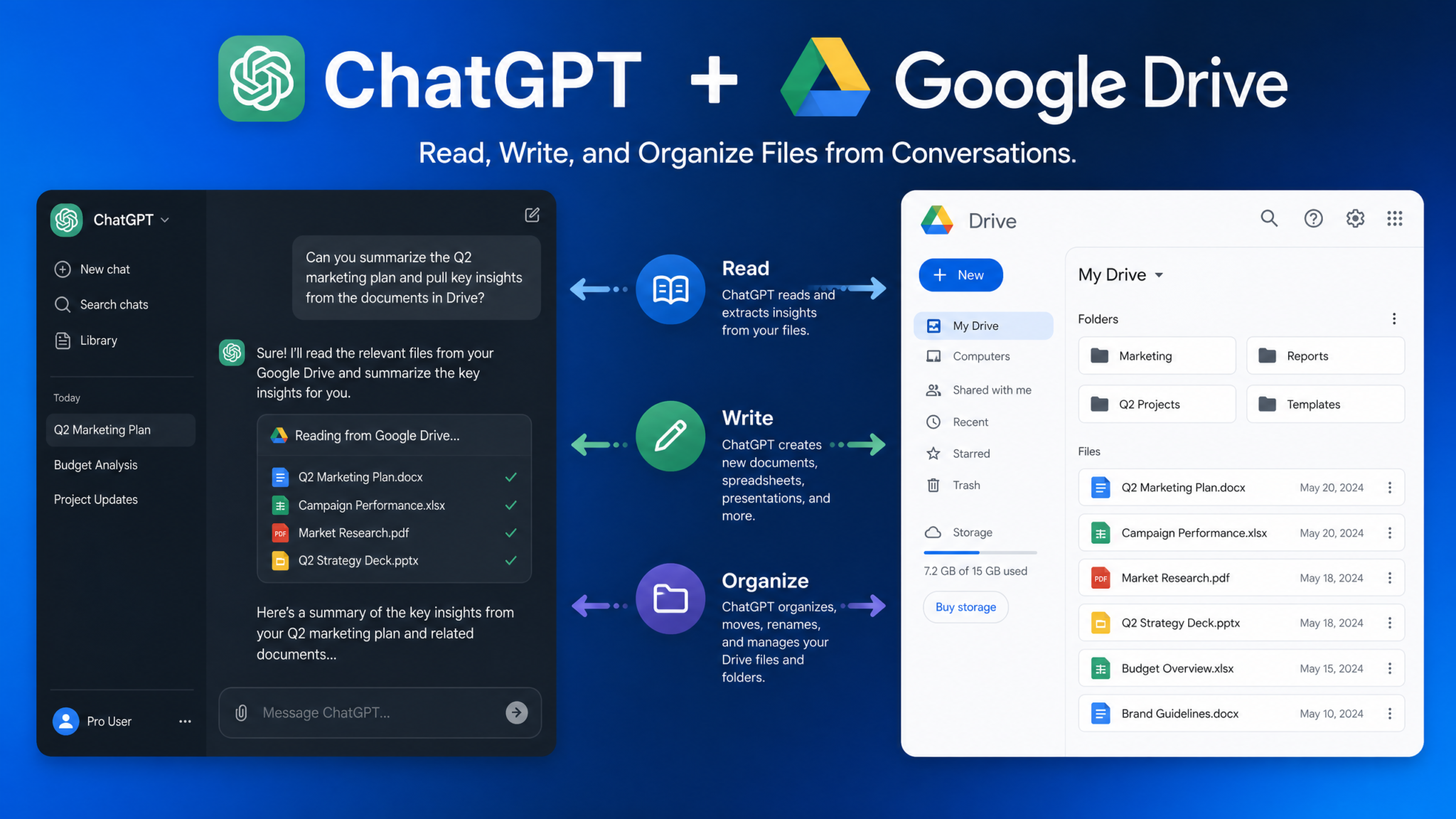
For years, the most significant friction point in AI-assisted work has been the gap between where your data lives and where your AI assistant operates. You would summarize a document, copy it into ChatGPT, get your analysis, and then manually re-enter the output back into whatever system you were using. That era is over. OpenAI’s native Google Drive integration for ChatGPT collapses that gap entirely, enabling you to read, write, search, and organize files inside your Drive without ever leaving a single conversation window. According to a 2024 McKinsey survey, knowledge workers spend an average of 1.8 hours per day searching for and managing documents — the ChatGPT Drive integration directly attacks that inefficiency at the root.
This tutorial is a complete, step-by-step guide to every dimension of the ChatGPT Google Drive integration. Whether you are an individual professional managing project documentation, a team lead coordinating shared workspaces, or a Google Workspace administrator rolling out AI tools enterprise-wide, this guide covers every configuration option, permission scope, practical workflow, and security consideration you need to make confident decisions. By the end, you will be able to connect your Drive, read and summarize files on demand, generate new documents from conversations, build automated filing workflows, and understand exactly what data ChatGPT can and cannot access. Let us start from the very beginning.
Step 1: Connecting Google Drive to ChatGPT — OAuth Setup, Permissions, and Scopes
Prerequisites Before You Begin
Before initiating the connection, confirm the following prerequisites are in place. You will need a ChatGPT Plus, Team, or Enterprise account — the Google Drive integration is not available on the free tier at the time of writing. You also need a Google account (personal Gmail or Google Workspace) and either owner or editor-level access to the folders you intend to share. If you are in a Google Workspace environment, your domain administrator must have enabled third-party OAuth app connections, which is covered in detail in Step 7.
Navigating to the Connector Settings
Log in to your ChatGPT account at chat.openai.com. In the left sidebar, click on your username or the profile icon in the bottom-left corner. Select Settings from the dropdown menu. Inside Settings, navigate to the Integrations or Connected Apps tab — this panel lists all available third-party service connectors. Scroll until you see Google Drive listed alongside other available integrations. Click the Connect button next to it.
The OAuth Authorization Flow
Clicking Connect triggers an OAuth 2.0 authorization flow. A new browser window or tab will open, redirecting you to Google’s authentication page. The URL will display accounts.google.com, and you should verify this before proceeding — never enter credentials on any other domain. If you have multiple Google accounts signed in simultaneously, Google will ask which account you want to use for this connection. Select the account whose Drive files you want ChatGPT to access. This is a critical decision: once connected, ChatGPT’s file access is scoped to this specific account. You can always revoke and reconnect with a different account later.
Understanding the Permission Scopes
After selecting your account, Google presents a consent screen showing exactly what permissions OpenAI is requesting. This is the most important screen in the entire setup process. Take time to read each permission carefully. Typical scopes presented include:
- View and manage files in Google Drive: Allows reading file content, metadata, names, and folder structures.
- See, edit, create, and delete files in Google Drive: Enables ChatGPT to create new documents and write to existing ones on your behalf.
- View and manage Google Docs, Sheets, and Slides: Specific application-level access for the core Workspace productivity suite.
OpenAI currently requests scoped permissions rather than blanket Drive access, which means you can restrict which folders are accessible. However, the initial OAuth grant is broad — the folder-level scoping happens in a subsequent configuration step inside the ChatGPT interface after authorization is complete. Grant the permissions by clicking Allow. You will be redirected back to ChatGPT, where the Google Drive tile in your Integrations panel should now show a green connected status and display the connected account’s email address.
Choosing Which Folders to Share
Immediately after connecting, and again at any time from Settings, you can define which folders ChatGPT is permitted to interact with. Click Manage Folders or Configure Access next to the connected Google Drive entry. A folder picker interface appears, replicating your Drive’s directory structure. Select individual folders by clicking their checkboxes. You can select top-level folders (which implicitly includes all subfolders) or drill down and select specific nested folders. Best practice is to create a dedicated folder in your Drive named something like ChatGPT Workspace or AI Projects and grant access exclusively to that folder during initial setup. This limits exposure while you build familiarity with the integration. You can always expand access later.
Configuration Checklist: Step 1
- ☑ ChatGPT Plus, Team, or Enterprise account confirmed
- ☑ Google account selected and OAuth consent granted
- ☑ OAuth consent screen reviewed — all scopes understood
- ☑ Folder scope configured to limit initial access
- ☑ Connected account email visible in ChatGPT Integrations panel
- ☑ No sensitive personal or financial folders included in initial scope
Step 2: Reading Files Directly from Your Drive
Searching for Documents Within a Conversation
Once Drive is connected, you can reference files directly inside any conversation. The most straightforward method is natural language search. Simply type something like: “Find the document called Q3 Marketing Strategy in my Drive” or “Do I have any files in my Projects folder related to onboarding?” ChatGPT will query your Drive metadata — including file names, document titles, and (where indexed) content snippets — and return a list of matching files with their locations and last-modified dates. The search respects the folder scope you configured, meaning files outside your granted folders will not appear in results even if they technically exist in your Drive.
For more precise retrieval, you can include folder paths in your request: “Open the file named Client Brief in the /ChatGPT Workspace/Client Projects/Acme Corp folder.” This direct path reference is faster than a broad search when you know exactly where a file lives. ChatGPT Productivity Features for Power Users
Opening and Summarizing Google Docs
After ChatGPT locates a document, you can ask it to open and read the full content. For a Google Doc, ChatGPT converts the native Docs format to plain text, preserving headings, lists, and paragraph structure. You can then ask for:
- A three-sentence executive summary of the entire document
- A bulleted list of all action items mentioned
- Identification of any unresolved questions or open decisions
- A comparison between this document and another file already open in the conversation
- Rewriting of a specific section in a different tone or reading level
For documents exceeding approximately 100,000 tokens in length, ChatGPT may process the file in chunks. It will indicate when it is doing so and will generally produce a synthesized summary across all chunks rather than stopping after the first. Long legal agreements, comprehensive research reports, and multi-chapter project documentation all fall comfortably within this range for most real-world use cases.
Analyzing Google Sheets and Spreadsheets
Spreadsheet analysis is one of the most immediately powerful use cases of the Drive integration. When you open a Google Sheet through ChatGPT, the data is loaded as a structured table. You can ask ChatGPT to:
- Calculate totals, averages, medians, or custom aggregations across columns
- Identify the top 10 rows by a specific metric
- Find anomalies, outliers, or data entry inconsistencies
- Build a narrative summary of what the data shows
- Suggest pivot table configurations or chart types appropriate for the data
- Generate a complete set of Google Sheets formulas based on the structure it reads
For financial models, sales trackers, inventory sheets, or research datasets, this capability eliminates the need to copy data into a separate analysis tool. The conversation becomes the analysis environment, and results can be written back to your Drive as a new summary document — more on that in Step 3.
Reviewing Google Slides Presentations
When ChatGPT accesses a Google Slides presentation, it reads the text content of each slide in sequence, along with speaker notes if present. While it cannot render visual elements like images or charts embedded in slides, it can provide comprehensive assistance including:
- A slide-by-slide outline of the presentation’s narrative flow
- Feedback on the logical progression of arguments
- Suggestions for missing slides or sections
- Rewriting of specific slide titles and bullet points for clarity or impact
- Generation of a complete new speaker notes section
Reading PDFs Stored in Drive
PDFs uploaded to Google Drive are accessible to ChatGPT through the integration, provided they are text-based PDFs rather than scanned image PDFs. For scanned documents, Google Drive’s built-in OCR feature can first convert them to searchable text — simply right-click the PDF in Drive, select Open with Google Docs, and the OCR-converted version will be saved as a new Google Doc that ChatGPT can then fully read. Research papers, contracts, regulatory filings, and technical manuals stored as PDFs in your Drive are all first-class citizens in this workflow. Best Practices for Feeding Long Documents to ChatGPT
Configuration Checklist: Step 2
- ☑ Natural language file search tested and returning results
- ☑ At least one Google Doc opened, read, and summarized
- ☑ Spreadsheet loaded and at least one calculation or analysis performed
- ☑ PDF accessibility confirmed (OCR applied to any scanned documents)
- ☑ Folder path direct access tested for speed comparison with search
Step 3: Creating New Files and Saving Them to Google Drive
Generating Documents from Conversations
The write capability of the ChatGPT Drive integration is transformative for document production workflows. At any point in a conversation, you can ask ChatGPT to save its output as a new file in your Drive. The simplest syntax is: “Save this as a Google Doc in my /ChatGPT Workspace folder with the title ‘Project Alpha Kickoff Summary’.” ChatGPT will create the file, apply the title, format the content using Google Docs native formatting (including H1/H2 headings, bullet lists, and bold text where appropriate), and confirm the file’s creation with a direct link you can click to open it immediately.
Creating Formatted Google Docs
When creating Google Docs through the integration, you can specify formatting requirements as part of your instruction. For example:
“Generate a formal project brief based on what we discussed. Use a title heading, an executive summary section, a project scope section with bullet points, a timeline section formatted as a table, and a stakeholder section. Save it to /Projects/Active/Client Docs as ‘Riverside Campaign Brief – Draft 1’.”
ChatGPT will honor these structural instructions, producing a document that requires minimal cleanup before it is ready to share with stakeholders. This is especially valuable for teams with document templates and formatting standards — you can describe your template structure in your instruction, and ChatGPT will replicate it consistently across every document it generates.
Building Spreadsheets with Structured Data
Creating new Google Sheets through the integration works best when you have structured data emerging from your conversation. Common scenarios include:
- Generating a project budget estimate as a properly structured Sheet with column headers and formula rows
- Converting a list of research findings into a comparison table with Source, Key Finding, Relevance, and Date columns
- Building a content calendar from a list of blog post ideas discussed in the conversation
- Creating a risk register with likelihood and impact ratings based on risks identified during planning discussions
Instruct ChatGPT precisely: “Create a Google Sheet called ‘Q4 Content Calendar’ in /Marketing/Planning. Include columns for Topic, Publish Date, Author, Status, and Target Keyword. Populate it with the 12 content ideas we just discussed, assigning staggered weekly publish dates starting November 4th.”
Saving Research Summaries Automatically
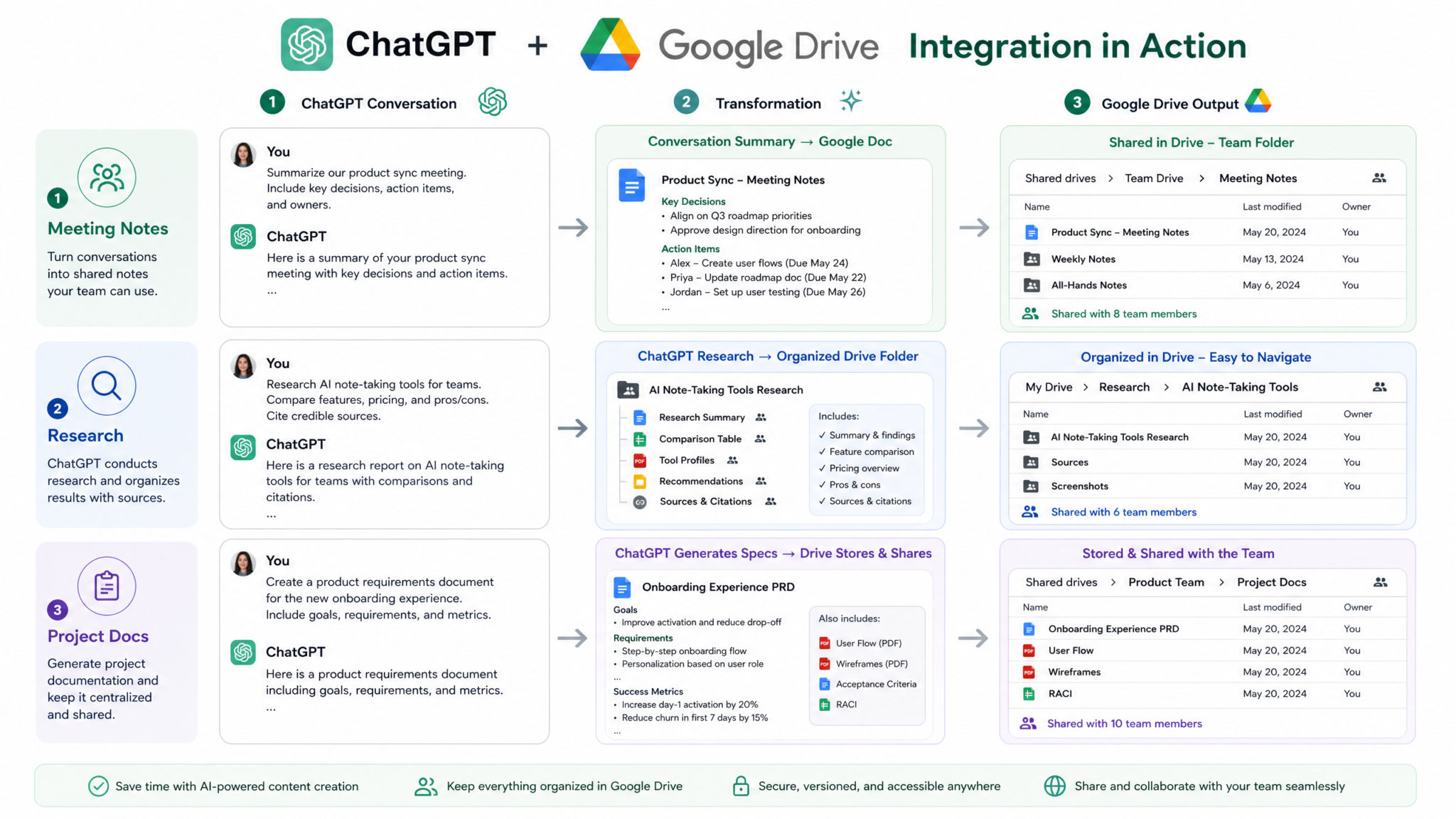
One of the most practically powerful patterns is using ChatGPT as a research engine and automatically archiving its output. After completing a research conversation — asking ChatGPT to synthesize information on a topic, compare options, or analyze a situation — issue a single save command: “Save everything we covered in this research session as a structured document in /Research/Saved Sessions with today’s date in the filename.” ChatGPT will compile the conversation’s key outputs, structure them as a readable document with section headings, and save it with a datestamped filename like 2024-11-04 AI Regulation Research Summary.gdoc.
Auto-Filing Meeting Notes
Meeting notes represent one of the highest-volume, lowest-excitement documentation tasks in professional life. The ChatGPT Drive integration makes the workflow nearly effortless. During or after a meeting, paste your raw notes or transcript into a ChatGPT conversation. Ask it to structure them into a proper meeting notes document: agenda recap, attendees, discussion points, decisions made, and action items with owners and due dates. Then ask it to save directly to your Drive: “Format these as standard meeting notes and save to /Team/Meeting Notes/2024/November as ‘Product Sync 2024-11-04’.” The resulting document is formatted, readable, and filed — all in under 30 seconds. ChatGPT Prompts for Business Productivity and Document Automation
Configuration Checklist: Step 3
- ☑ First test document created and confirmed in Drive
- ☑ Formatted Google Doc with section headings created successfully
- ☑ At least one Google Sheet generated from structured conversation data
- ☑ File naming convention established and tested
- ☑ Target folder paths confirmed and accessible for writing
Step 4: Organizing Your Drive with AI Assistance
Folder Management Through Conversation
Beyond reading and writing individual files, ChatGPT can manage your Drive’s organizational architecture directly. You can ask ChatGPT to create new folder structures, rename folders, and move files between directories — all through natural language instructions. This is particularly valuable when setting up new projects that require a consistent folder hierarchy. A single instruction like: “Create a new project folder structure in /Projects/Active for a client called Meridian Analytics. Include subfolders for Contracts, Briefs, Research, Deliverables, and Meeting Notes.” results in an immediately usable, properly organized project folder ready to receive files.
File Categorization and Intelligent Sorting
If your Drive has accumulated a backlog of unsorted files — a common condition for anyone who has used Drive for more than a few years — ChatGPT can analyze a folder’s contents and propose or execute a categorization scheme. Ask: “Look at everything in my /Unsorted folder. Group the files by type and purpose, then move them into appropriate subfolders. Create the subfolders as needed.” ChatGPT will read the file names, creation dates, and any accessible content, then build a logical categorization. For large folders, it will first present its proposed structure for your approval before executing any moves — a sensible default that prevents accidental reorganization you did not intend.
Establishing Naming Conventions
Inconsistent file naming is the silent killer of personal and team Drive organizations. ChatGPT can both recommend and enforce naming conventions. Ask it to audit a folder and identify naming inconsistencies: “Review the files in /Marketing/Campaigns and tell me which ones don’t follow a consistent naming pattern. Suggest a standard convention.” ChatGPT might respond with an observation like: “14 out of 23 files follow a Date-ClientName-DocumentType pattern, but 9 files use varying formats. I recommend standardizing to YYYY-MM-DD_ClientName_DocumentType and can rename the outliers if you confirm.”
You can then confirm and ChatGPT executes the batch rename — a task that would take 20+ minutes of tedious manual work completed in seconds.
Creating Project Structures from Templates
Power users can define folder and naming convention templates inside a ChatGPT System Prompt or Custom Instruction, ensuring that every new project structure created through Drive integration follows organizational standards automatically. For example, a consulting firm might standardize on: /Client Name/Year/Project Code/[Contracts, Research, Deliverables, Internal, Invoices]. By encoding this in a Custom Instruction, any request to set up a new client folder automatically produces this exact structure without needing to specify it each time.
Moving Files Between Folders
File movement requests follow the same natural language pattern: “Move all files in /Projects/Archive that haven’t been modified in over 18 months to /Drive Archive/Pre-2023.” ChatGPT will check modification dates on accessible files and execute the moves accordingly, confirming how many files were moved and listing any it skipped due to permission constraints. This time-based archiving is something most Drive users know they should do but rarely prioritize — the conversational interface makes it trivially easy.
Configuration Checklist: Step 4
- ☑ New folder structure created through conversation
- ☑ File categorization audit run on at least one folder
- ☑ Naming convention defined and documented
- ☑ Test file move executed and verified in Drive
- ☑ Project template structure encoded in Custom Instructions (if applicable)
Step 5: Building Practical Workflows
Workflow 1: The Meeting Notes Pipeline
This workflow transforms raw meeting artifacts into organized, shared documentation in under two minutes. Here is the complete sequence:
- Capture: During your meeting, take raw notes in any format — bullet points, fragments, voice memo transcript, or Zoom transcript export.
- Paste into ChatGPT: Open a new conversation and paste the raw notes with the prompt: “These are raw notes from a product planning meeting on November 4th. Attendees were Sarah (PM), Marcus (Engineering), and Lisa (Design). Structure these as proper meeting notes with sections for Summary, Key Discussion Points, Decisions Made, and Action Items with owners and due dates.”
- Review and refine: Read the structured output and request any adjustments: “Add a note that the timeline decision is pending approval from Finance.”
- Save to Drive: Issue the save command: “Save this to /Team/Meeting Notes/2024/November as ‘Product Planning Sync 2024-11-04’ and share it with edit access for the Product team folder.”
- Confirm and distribute: ChatGPT returns the document link. Copy it into your team’s Slack channel or email thread.
Total time: approximately 90 seconds after the meeting ends. Compare this to the industry average of 15–20 minutes for manual meeting notes documentation.
Workflow 2: The Research and Filing Pipeline
This workflow is ideal for ongoing research projects where you need to accumulate and organize information from multiple sessions.
- Research session: Conduct a focused research conversation in ChatGPT on your topic — market analysis, competitive landscape, technical feasibility, regulatory environment, etc.
- Generate a structured summary: At the conclusion of the session: “Summarize all the key findings from this research session. Organize them by theme with source attribution where possible. Flag any areas that need further investigation.”
- Save with metadata: “Save this to /Research/Market Analysis/2024 Sessions as ‘2024-11-04 AI Regulation EU Analysis’. Add a brief one-line description at the top of the document summarizing the session’s scope.”
- Build the research index: After accumulating several sessions: “Look at all the files in /Research/Market Analysis/2024 Sessions. Create an index document called ‘Research Index 2024’ that lists each file, its date, its one-line description, and three key findings.”
This creates a self-organizing research library that grows with each session and remains navigable as it scales. How to Build a Personal Knowledge Management System with ChatGPT
Access 40,000+ AI Prompts for ChatGPT, Claude & Codex — Free!
Subscribe to get instant access to our complete Notion Prompt Library — the largest curated collection of prompts for ChatGPT, Claude, OpenAI Codex, and other leading AI models. Optimized for real-world workflows across coding, research, content creation, and business.
Workflow 3: Project Documentation Generation
When launching a new project, the documentation overhead — project brief, scope of work, stakeholder map, risk register, communication plan — can take days of effort. With the Drive integration, a full initial documentation suite can be generated in a single focused session.
- Context dump: Describe your project to ChatGPT in full detail — goals, constraints, stakeholders, timeline, budget range, known risks.
- Generate each document: Ask for each document type sequentially, reviewing and refining before saving each one.
- Create the project folder: “Create a project folder structure in /Projects/Active for this project called Beacon Platform Relaunch with standard subfolders.”
- File each document: As each document is finalized: “Save the risk register to /Projects/Active/Beacon Platform Relaunch/Planning as ‘Risk Register v1.0’.”
- Generate a master index: “Create a project hub document in the root Beacon Platform Relaunch folder that lists all project documents with links and brief descriptions.”
Workflow 4: Client Deliverable Production
For agencies, consultants, and service professionals, the Drive integration enables a client deliverable assembly line. Read a client’s brief document from Drive, generate the deliverable in conversation, refine iteratively, then save the final version to the client’s folder with version numbering. The entire process — from reading the brief to saving the deliverable — happens within a single conversation thread, creating a natural audit trail of the production process.
Step 6: Security, Permissions, and Data Handling
What ChatGPT Can Access — and What It Cannot
Understanding the precise boundaries of ChatGPT’s Drive access is essential for confident use. ChatGPT can access:
- Files and folders within the scope you authorized during setup
- File names, creation dates, modification dates, and owner metadata
- Text content of Google Docs, Sheets, Slides, and text-based PDFs
- Files shared with your account that are within the authorized folder scope
- Folder structure and hierarchy within the authorized scope
ChatGPT cannot access:
- Files or folders outside the scope you defined during setup
- Google Drive Trash contents
- Drive data from other Google accounts not connected to the integration
- Binary file formats it cannot read (proprietary formats, encrypted files, password-protected documents)
- Google Forms responses stored in Drive (these require specific API access)
- Files shared within Google Workspace that your account does not have permission to view
How OpenAI Handles Your Drive Data
When ChatGPT reads a file from your Drive, the content is processed within OpenAI’s infrastructure subject to your account’s data handling settings. For ChatGPT Plus users with default settings, conversation content including file data may be used to improve OpenAI’s models unless you have opted out under Settings → Data Controls → Improve the model for everyone. For ChatGPT Team and Enterprise accounts, data is not used for model training by default — this is a foundational guarantee of those tiers. If you are processing sensitive documents — legal agreements, financial records, personal health information, or proprietary business strategy — ensure you are on a Team or Enterprise plan with training data usage disabled, or review OpenAI’s current data processing agreement before use.
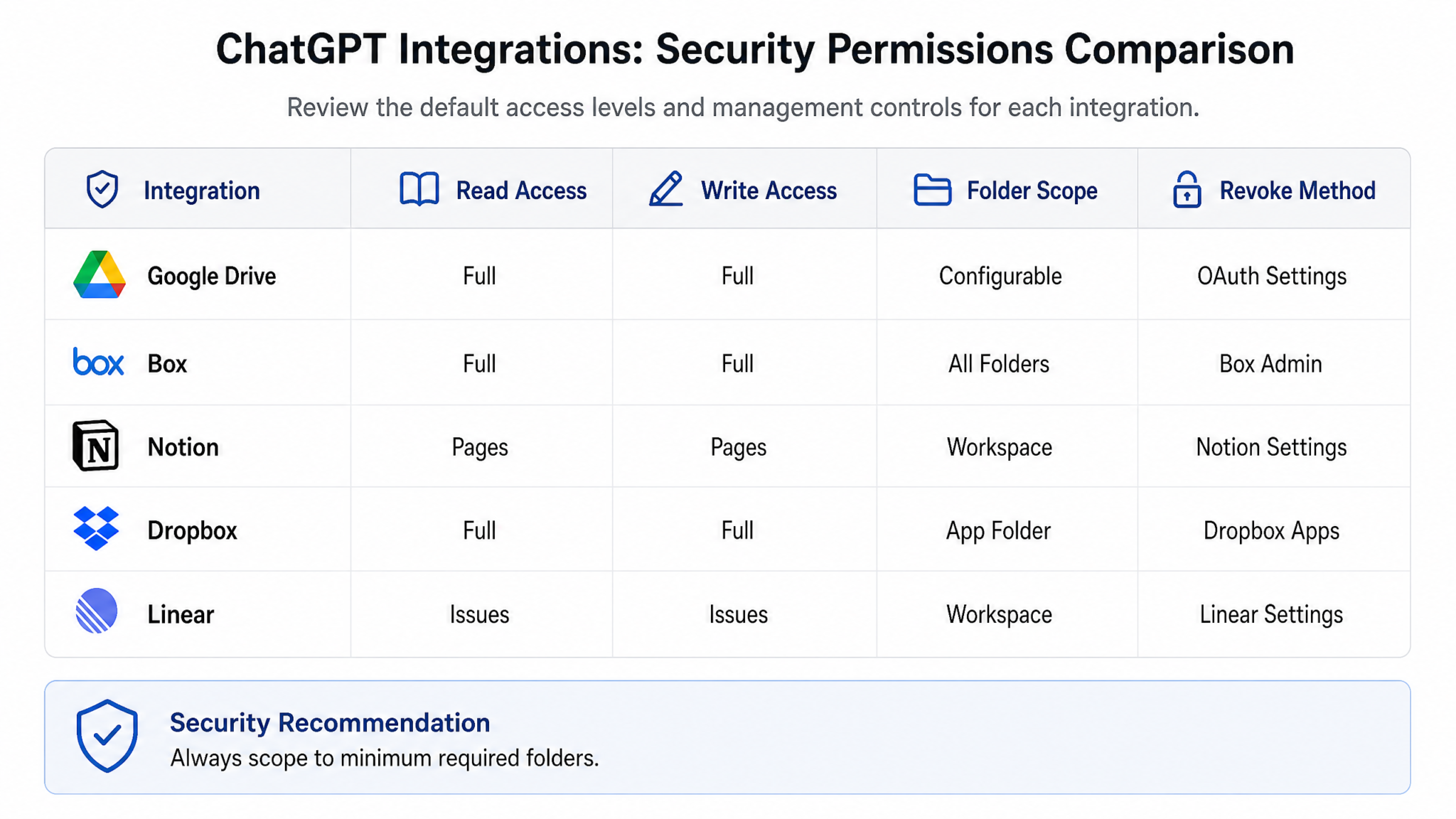
Scoping Permissions to Specific Folders
The principle of least privilege applies directly to your Drive integration configuration. Grant ChatGPT access to only the folders it needs for your intended workflows. A practical tiered approach:
| Use Case | Recommended Folder Scope | Folders to Exclude |
|---|---|---|
| Meeting notes and project docs | /Work Projects, /Meeting Notes | /Personal, /Finance, /Legal |
| Research compilation | /Research | All client-confidential folders |
| Content production | /Content, /Marketing | /HR, /Contracts, /Payroll |
| Full professional use | /Work (all work folders) | /Personal Finance, /Medical, /Legal |
Revoking Access
You can revoke ChatGPT’s Drive access at any time through two independent paths, and best practice is to use both to ensure complete disconnection. The first path is within ChatGPT itself: navigate to Settings → Integrations → Google Drive → Disconnect. This removes the active token from ChatGPT’s side. The second path — and the more authoritative one — is through your Google Account directly. Navigate to myaccount.google.com, select Security, then Third-party apps with account access. Find the OpenAI/ChatGPT entry and click Remove Access. This revokes the OAuth token at the Google level, ensuring no residual access persists regardless of what ChatGPT’s interface shows. Repeat this second step whenever you change Google accounts, change roles at an organization, or end employment somewhere.
Audit Trail and Activity Monitoring
Google Drive maintains an activity log accessible by navigating to drive.google.com and clicking the information panel (the lowercase i icon) on any file or folder. This shows a chronological list of all actions taken on that item — views, edits, creations, and moves — including actions taken by connected apps like ChatGPT. For Google Workspace accounts, administrators have access to the Drive Audit log in the Google Workspace Admin Console, which provides organization-wide visibility into all file access events including those initiated through third-party OAuth connections. This creates an auditable record of every file ChatGPT reads or modifies.
Configuration Checklist: Step 6
- ☑ Folder scope reviewed and limited to necessary directories
- ☑ Training data opt-out confirmed under Data Controls settings
- ☑ Google Account third-party app access reviewed
- ☑ Drive activity log access confirmed for audit purposes
- ☑ Sensitive folders (Finance, Legal, Personal) explicitly excluded from scope
- ☑ Revocation procedure documented for future reference
Step 7: Enterprise Considerations and Google Workspace Deployment
Google Workspace Admin Controls
In Google Workspace environments, individual users cannot connect third-party OAuth apps unless the domain administrator has explicitly allowed this. The relevant setting lives in the Google Workspace Admin Console under Security → Access and Data Control → API Controls → Manage Third-Party App Access. Administrators can configure one of three states: allow all third-party apps (not recommended for enterprise), allow only apps that have been individually approved on a whitelist (recommended), or block all third-party app access (maximum restriction). To enable ChatGPT Drive integration for your organization, an administrator must add OpenAI’s client ID to the approved apps list.
Team-Wide Deployment Strategy
Rolling out the ChatGPT Drive integration across a team or department requires a structured approach to avoid security gaps and ensure consistent usage. A phased deployment model works well:
- Phase 1 — Pilot (Weeks 1–2): Select 3–5 technically capable users who volunteer to test the integration. Define the specific use cases to pilot (meeting notes, research summaries). Document findings and friction points.
- Phase 2 — Policy development (Week 3): Based on pilot findings, draft a Drive integration usage policy covering approved folder structures, naming conventions, data classification restrictions, and required account settings (training opt-out, etc.).
- Phase 3 — Training rollout (Week 4): Conduct a team training session using real examples from the pilot. Distribute a one-page quick reference guide covering the three most important workflows for your team’s specific context.
- Phase 4 — Full deployment (Week 5+): Open access to all eligible team members. Establish a feedback channel for issues and use-case sharing. Schedule a 30-day review to assess adoption and refine policy.
Compliance Requirements and Data Classification
Organizations operating under compliance frameworks — HIPAA, SOC 2, GDPR, ISO 27001, FedRAMP — need to conduct a data classification assessment before enabling Drive integration. The core question is: do any files within the proposed Drive scope contain data regulated under applicable compliance frameworks? If yes, that data likely needs to remain outside the integration scope until a formal Data Processing Agreement (DPA) is executed with OpenAI and legal review confirms the arrangement meets regulatory requirements. OpenAI provides a DPA for Enterprise customers — obtain this through your OpenAI account manager before processing any regulated data.
DLP Policy Considerations
Google Workspace’s built-in Data Loss Prevention (DLP) policies can be configured to flag or block specific content types from being accessed by third-party apps. Work with your IT security team to review whether existing DLP rules may interfere with ChatGPT Drive integration — particularly rules that scan for patterns like credit card numbers, Social Security numbers, or healthcare identifiers in Drive files. If such files exist within a folder you want ChatGPT to access, either exclude those specific files or create a Drive label classification that your DLP policy uses to block third-party access to labeled files while allowing access to unlabeled ones. Deploying ChatGPT Enterprise in Regulated Industries
Shared Drive Considerations
Google Workspace Shared Drives (formerly Team Drives) have different permission models than personal My Drive folders. Whether ChatGPT can access files in a Shared Drive depends on both your own access level within that Shared Drive and the organization’s API access policies for Shared Drives. Test Shared Drive access specifically during your pilot phase, and note that creating files in a Shared Drive through ChatGPT may require Contributor or Manager-level Shared Drive membership rather than just View access.
Configuration Checklist: Step 7
- ☑ Google Workspace Admin Console OAuth whitelist updated
- ☑ Data classification assessment completed for Drive contents
- ☑ DPA obtained from OpenAI if regulated data is in scope
- ☑ DLP policy review completed with IT security
- ☑ Pilot group selected and deployment phase plan documented
- ☑ Shared Drive access levels verified and documented
- ☑ Usage policy drafted and reviewed by legal/compliance
Comparing ChatGPT Drive Integration with Box, Notion, and Dropbox Integrations
Google Drive is not the only cloud storage option available for ChatGPT integration. Understanding how the alternatives compare helps you make the right choice for your existing infrastructure and workflow requirements.
Feature Comparison Table
| Feature | Google Drive | Box | Notion | Dropbox |
|---|---|---|---|---|
| Read native documents | Yes (Docs, Sheets, Slides) | Yes (Box Docs, Office files) | Yes (Pages, Databases) | Limited (Dropbox Paper) |
| Create new files | Yes | Yes | Yes (Pages) | Limited |
| Folder management | Full | Full | Page hierarchy only | Full |
| Spreadsheet analysis | Native (Sheets) | Via Box Skills | Limited (Database tables) | Via Office Online |
| Enterprise DLP controls | Advanced (Workspace) | Advanced (Box Shield) | Basic | Moderate |
| Permission granularity | Folder-level | Folder and item-level | Page and workspace-level | Folder-level |
| Audit logging | Drive Activity API | Box Events API (granular) | Basic activity log | Team activity log |
| Offline availability | Limited | Limited | N/A | Full desktop sync |
| Best for | Google Workspace teams | Regulated industries | Knowledge management teams | File-heavy creative teams |
Google Drive vs. Box
Box competes most directly with Google Drive for enterprise file management, and its ChatGPT integration offers some distinct advantages in compliance-sensitive environments. Box Shield — Box’s built-in DLP and threat detection layer — provides more granular content inspection than Google’s equivalent, making Box the preferred choice for industries with strict data residency requirements. Box’s item-level permissions model (where individual files can have different access controls from their parent folder) adds a layer of security granularity that Google Drive’s folder-first model lacks. However, for teams already living in Google Workspace, the seamless ecosystem integration of Google Drive — shared calendars, Gmail threads, Google Meet recordings all flowing into the same Drive — creates a productivity coherence that Box cannot match without substantial configuration effort.
Google Drive vs. Notion
The ChatGPT–Notion integration operates differently from the Drive integration because Notion is fundamentally a structured knowledge base rather than a file storage system. Where Google Drive excels at storing and retrieving diverse file types, Notion excels at structured, interconnected knowledge — databases, linked pages, filtered views. The ChatGPT–Notion integration is particularly powerful for teams that use Notion as their primary project management and documentation hub. ChatGPT can create and update Notion pages, populate database entries, and query structured properties in ways that feel native to Notion’s data model. For teams that run their operational knowledge in Notion and store file assets in Drive, using both integrations simultaneously — ChatGPT can reference from Drive and write summaries into Notion — creates a particularly powerful combined workflow.
Google Drive vs. Dropbox
Dropbox’s ChatGPT integration is currently more limited than the Drive integration, with the primary strength being Dropbox’s robust desktop sync for file-heavy workflows involving large binary assets (video projects, design files, large datasets). Dropbox Paper, the native document creation tool, is readable by ChatGPT through the integration, but Dropbox’s lack of a native spreadsheet application (it relies on Microsoft Office Online integration) means Sheets-equivalent workflows are less smooth. For creative professionals whose primary assets are non-text files synced through Dropbox, the integration’s value is somewhat reduced — the real power of the ChatGPT Drive integration shines brightest with text-based document workflows, which is where Google Drive has the strongest native tooling.
Master Configuration Checklist
Use this comprehensive checklist to confirm your ChatGPT Google Drive integration is fully and correctly configured before relying on it for professional workflows.
Initial Setup
- ☑ ChatGPT Plus, Team, or Enterprise account confirmed active
- ☑ Google Drive connector found in ChatGPT Integrations panel
- ☑ OAuth flow completed and Google account verified on consent screen
- ☑ All OAuth permission scopes reviewed and understood
- ☑ Folder scope configured to minimum necessary directories
- ☑ Connected account email visible in Integrations panel
Reading Capability Verification
- ☑ Natural language file search returns correct results
- ☑ Direct folder path file access confirmed
- ☑ Google Doc reading and summarization tested
- ☑ Google Sheet reading and data analysis tested
- ☑ Google Slides reading tested
- ☑ PDF reading confirmed (OCR applied to any scanned PDFs)
Writing Capability Verification
- ☑ New Google Doc created from conversation content
- ☑ New Google Sheet created with structured data
- ☑ File saved to specified folder path confirmed
- ☑ File naming convention working as expected
- ☑ Formatted document (headings, lists, tables) created correctly
Organization Capability Verification
- ☑ New folder created through conversation
- ☑ File moved between folders successfully
- ☑ Folder structure template created or documented
Security Configuration
- ☑ Training data opt-out configured (Settings → Data Controls)
- ☑ Sensitive folders excluded from scope
- ☑ Google Account third-party apps list reviewed
- ☑ Drive activity log access confirmed
- ☑ Revocation procedure for both ChatGPT and Google sides documented
Enterprise Configuration (if applicable)
- ☑ Workspace Admin OAuth whitelist updated
- ☑ Data classification assessment completed
- ☑ DPA obtained from OpenAI if regulated data in scope
- ☑ DLP policy review with IT security completed
- ☑ Team usage policy documented and distributed
- ☑ Pilot group completed and findings documented
Conclusion: A New Operating Model for Knowledge Work
The ChatGPT Google Drive integration is not simply a convenience feature — it represents a fundamental shift in the operating model for knowledge work. When the friction between thinking, writing, and filing collapses to near zero, the nature of what AI assistance can do for your work changes entirely. Meeting notes no longer accumulate in notebooks or ephemeral chat messages; they become searchable, shareable Drive documents within seconds. Research sessions produce not just conversational answers but organized, retrievable knowledge assets. Project documentation goes from a week of coordinated effort to a focused afternoon of generation and review.
The key to realizing this potential is moving through the setup deliberately — as this tutorial has guided you — rather than treating it as a plug-and-play feature that works optimally on default settings. Scoping your folder permissions correctly, configuring your data handling preferences, establishing consistent naming conventions, and building your first two or three reliable workflows are the steps that transform the integration from a novelty into infrastructure. Complete Guide to ChatGPT Custom Instructions for Workflow Automation
The comparison with Box, Notion, and Dropbox integrations makes clear that Google Drive’s advantage is its combination of native document richness (Docs, Sheets, Slides), ecosystem coherence within Google Workspace, and the depth of folder-level control available through the integration. Teams on other platforms have viable paths, but for the hundreds of millions of active Google Workspace users globally, this integration lands in the center of an already-familiar workflow rather than requiring a new system to be adopted.
Start small. Connect Drive, scope it to a single project folder, run the meeting notes workflow for one week, and measure the time you reclaim. Then expand deliberately — add research workflows, project documentation generation, and client deliverable production. Each step compounds the return. The checklist at the end of this tutorial is your roadmap from setup to full integration. Work through it methodically, and within a single working week you will have a fundamentally more capable, more organized, and more efficient document workflow than you have ever had before.
