
How to Connect ChatGPT to Your Entire Tool Stack: Complete Playbook for Box, Notion, Linear, Dropbox, and 20+ App Integrations with Write Access
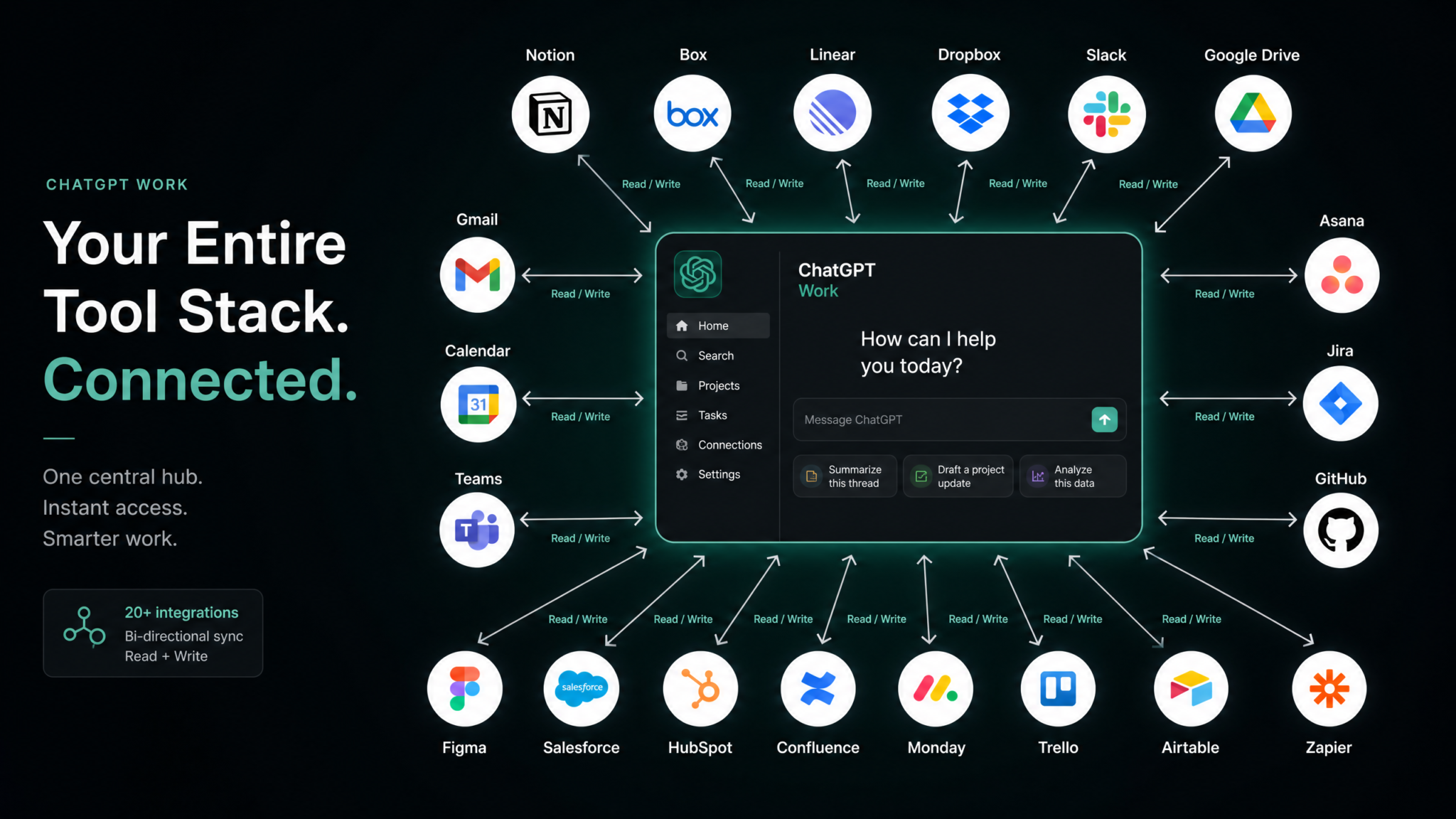
The era of ChatGPT as a standalone chat interface is over. In 2024 and beyond, ChatGPT operates as a connected intelligence layer — reading from your tools, writing back to them, and orchestrating workflows that used to require a full operations team. With ChatGPT’s native connectors for Notion, Box, Linear, Dropbox, and dozens of other platforms, you can now move from conversation to committed action: summaries written directly into your Notion workspace, Linear issues created from a single prompt, files uploaded to Box without leaving your chat window. This playbook gives you the complete blueprint to connect ChatGPT to your entire tool stack, configure write access safely, and build automation chains that compound your productivity every single day.
Phase 1: Audit Your Current Tool Stack
Why a Tool Audit Comes Before Any Connection
The single biggest mistake teams make when rolling out ChatGPT integrations is rushing to connect everything at once. They authorize their entire SaaS stack over a weekend, only to discover three weeks later that ChatGPT has write access to production project folders, a shared marketing calendar, and a legal contract database simultaneously — with no scoping, no approval gates, and no audit trail. A structured audit prevents this. It gives you a clear map of what you have, what ChatGPT can currently reach, and where you need tighter guardrails before granting write permissions.
Step 1: Build a Complete Tool Inventory
Start by listing every SaaS tool your team actively uses. This is broader than you think. Most organizations discover 30–60% more tools than they originally estimate once they factor in department-specific subscriptions and individual accounts. Use this inventory template as your starting framework:
| Tool Name | Category | Primary Users | Data Sensitivity | ChatGPT Connector Available | Priority Tier |
|---|---|---|---|---|---|
| Notion | Knowledge / Docs | All Teams | Medium | Yes (Native) | Tier 1 |
| Linear | Project Management | Engineering / PM | Medium | Yes (Native) | Tier 1 |
| Box | File Storage | All Teams | High | Yes (Native) | Tier 1 |
| Dropbox | File Storage | Design / Marketing | Medium | Yes (Native) | Tier 1 |
| Slack | Communication | All Teams | Medium | Via Connector API | Tier 2 |
| GitHub | Code Repository | Engineering | High | Yes (Native) | Tier 1 |
| Jira | Project Management | Engineering | Medium | Via Plugin | Tier 2 |
| Salesforce | CRM | Sales | Very High | Via Plugin | Tier 3 |
| Google Drive | File Storage | All Teams | High | Via Plugin | Tier 2 |
| Figma | Design | Design | Low | Via Plugin | Tier 2 |
| HubSpot | Marketing / CRM | Marketing / Sales | High | Via Plugin | Tier 3 |
| Asana | Project Management | Ops / Marketing | Low | Via Plugin | Tier 2 |
Step 2: Identify Which Tools Have ChatGPT Connectors
OpenAI’s native connector ecosystem as of 2024 includes Notion, Box, Linear, Dropbox, GitHub, Microsoft OneDrive, SharePoint, and several others as first-party integrations. These differ from community-built plugins in a critical way: native connectors go through OpenAI’s verified integration process, meaning they receive consistent OAuth token handling, have defined scope boundaries, and are officially supported in ChatGPT Work and Teams plans. Third-party plugins (available through the GPT store or via custom Actions) can also provide write access to tools like Asana, HubSpot, Jira, and Salesforce, but they require additional vetting before you grant write permissions.
As of the latest connector releases, here is the confirmed write-access capability matrix:
| Connector | Read Access | Write Access | Delete Access | Scope Granularity |
|---|---|---|---|---|
| Notion | Yes | Yes | No (Archive only) | Workspace / Database / Page |
| Box | Yes | Yes | Configurable | Folder-level |
| Linear | Yes | Yes | No | Team / Project |
| Dropbox | Yes | Yes | No | Folder-level |
| GitHub | Yes | Yes (Issues/PRs) | No | Repository |
| OneDrive | Yes | Yes | No | Folder-level |
Step 3: Prioritize by Workflow Impact
Assign every tool in your inventory to one of three priority tiers based on two factors: frequency of use in daily work and the volume of manual work you currently do to move information into that tool. Tier 1 tools are those you touch every day and where ChatGPT automation would eliminate real friction. For most knowledge work teams, this means Notion (documentation), Linear or Jira (task tracking), and Box or Dropbox (file management). Tier 2 tools are high-value but lower-frequency — communication tools, design platforms, secondary CRMs. Tier 3 tools hold sensitive data (financial records, legal documents, customer PII) and should be approached only after your permission architecture is thoroughly tested on Tier 1.
Audit Checkpoint: Before proceeding to Phase 2, you should have a complete inventory spreadsheet, every tool categorized by tier, and a written decision on whether each tool gets read-only or write access from ChatGPT. Make this decision explicit — do not leave it ambiguous.
Phase 2: Connect Core Productivity Apps
With your audit complete, you’re ready to begin connecting. This phase covers the four flagship integrations in detail: Notion, Box, Linear, and Dropbox. Each has its own OAuth flow, permission model, and scoping options. Follow these steps sequentially for each tool.
Connecting Notion: OAuth Setup, Workspace Selection, and Write Scope
Step 1: Initiate the Connection from ChatGPT Settings
Navigate to your ChatGPT interface. In the left sidebar or settings menu, locate Connectors or Integrations (exact labeling depends on your plan — ChatGPT Plus, Work, or Teams). Click Add Connector and select Notion from the list. You will be redirected to Notion’s OAuth authorization page.
Step 2: Select Your Workspace Carefully
If you belong to multiple Notion workspaces (a common scenario for freelancers, consultants, or people with both personal and company accounts), the OAuth page will ask which workspace to authorize. This is one of the most important decisions in the setup process. Authorizing your entire company workspace gives ChatGPT access to every page and database within it — which may include sensitive strategy documents, HR databases, or financial models. Instead, consider creating a dedicated Notion workspace or a dedicated “ChatGPT Integration” section within your existing workspace and limiting the OAuth authorization to that scope.
Step 3: Configure Page-Level Permissions
Notion’s integration model lets you specify exactly which pages and databases the integration can access. After completing the OAuth flow, go to your Notion workspace settings, navigate to Settings → Connections, find the ChatGPT integration, and click Access granted to. From here, add specific pages and databases — for example, your Meeting Notes database, your Sprint Planning page, and your Product Roadmap database — rather than granting top-level workspace access.
Step 4: Configure Write Scope
Within the ChatGPT connector settings (after returning from OAuth), verify that the write scope is appropriately set. The Notion connector supports the following write operations: creating new pages in specified databases, updating existing page properties, appending content blocks to existing pages. For most workflows, you want all three. If you are connecting a read-only reference database (like a company glossary), explicitly set that connection to read-only within ChatGPT’s connector settings panel.
Notion Configuration Checklist:
- OAuth completed with correct workspace selected
- Only specific pages/databases are granted access (not full workspace)
- Write scope confirmed for databases that receive ChatGPT output
- Test write operation: ask ChatGPT to create a test page in your designated database
- Verify the test page appears correctly in Notion with expected formatting
- Remove or archive the test page once confirmed
Connecting Box: Folder Access and Upload Permissions
Step 1: Authorize via Box OAuth 2.0
Select Box from the ChatGPT connectors panel. The Box OAuth flow will ask for your Box credentials and, depending on your Box account type, may require admin approval if you’re on a Business or Enterprise plan. Individual Box users can self-authorize. Business account users should consult their Box admin before proceeding.
Step 2: Scope to Specific Folders
Box’s integration model works at the folder level. After authorization, you can configure which folders ChatGPT can read from and write to. Navigate to ChatGPT Connector Settings → Box → Folder Permissions. Best practice is to create a dedicated ChatGPT Outputs folder in Box specifically for AI-generated content. This creates a clean boundary: ChatGPT writes only to this folder, and humans decide whether to move content elsewhere. This approach also makes auditing trivial — everything in that folder came from ChatGPT.
Step 3: Configure Upload Permissions
Box distinguishes between creating new files, editing existing files, and managing folder structure. For most ChatGPT use cases, you need file creation permissions (uploading new documents, PDFs, text files) but not folder restructuring permissions. Set the permission level to Upload Only for sensitive folders where you want ChatGPT to add files but not modify anything already there.
Connecting Linear: Team and Project Selection, Issue Creation
Step 1: OAuth with Linear Workspace
Linear’s connector is particularly powerful for engineering and product teams because it allows ChatGPT to create fully-formed issues, complete with titles, descriptions, priority levels, labels, and assignees — all from a single conversational prompt. After initiating the OAuth flow, authorize ChatGPT with your Linear workspace.
Step 2: Select Teams and Projects
Linear organizes work into Teams (groups of people) and Projects (time-bound initiatives). In the ChatGPT connector settings for Linear, specify which teams ChatGPT can create issues in. A recommended approach: grant access to a dedicated AI-Intake team in Linear where ChatGPT-generated issues land for human review before being triaged into actual sprint teams. This creates a natural quality gate without blocking productivity.
Step 3: Configure Issue Creation Permissions
Verify that the integration has permission to set issue properties: title, description, priority, labels, and assignee. Also confirm whether ChatGPT should be able to create sub-issues or only top-level issues. For most teams starting out, top-level issues only is the right default. Sub-issue creation can be enabled later once you’ve validated the quality of ChatGPT’s issue decomposition.
Connecting Dropbox: Folder Sync and File Creation
Step 1: Dropbox OAuth Authorization
The Dropbox connector follows a similar OAuth pattern. One important note: Dropbox’s API offers two permission models — full Dropbox access and app folder access. Always choose app folder access during the OAuth authorization if the option is presented. This restricts ChatGPT to a designated /Apps/ChatGPT/ folder rather than your entire Dropbox.
Step 2: Configure Folder Structure for Outputs
Within the ChatGPT-designated Dropbox folder, create a logical structure before you start using the integration. A useful default structure:
/Apps/ChatGPT/
  /Research/
  /Meeting-Summaries/
  /Drafts/
  /Shared-Outputs/
This pre-organization means that when you instruct ChatGPT to “save this research to Dropbox,” you can specify a subfolder path and files will land where you expect them.
Step 3: Test File Creation
Prompt ChatGPT: “Create a text file called test-connection.txt in my Dropbox with the content ‘Connection verified on [today’s date]’.” Verify the file appears in your Dropbox within 30 seconds. If it does not, check the connector authorization status and ensure Dropbox is not blocking the OAuth token due to security policies.
Phase 3: Configure Write Permissions Safely
Write access is enormously powerful and proportionally risky. A misconfigured integration that grants ChatGPT write access to your company’s contract storage or financial models is a serious operational problem. This phase covers the security architecture for keeping write permissions safe without sacrificing productivity.
The Principle of Least Privilege, Applied to AI Integrations
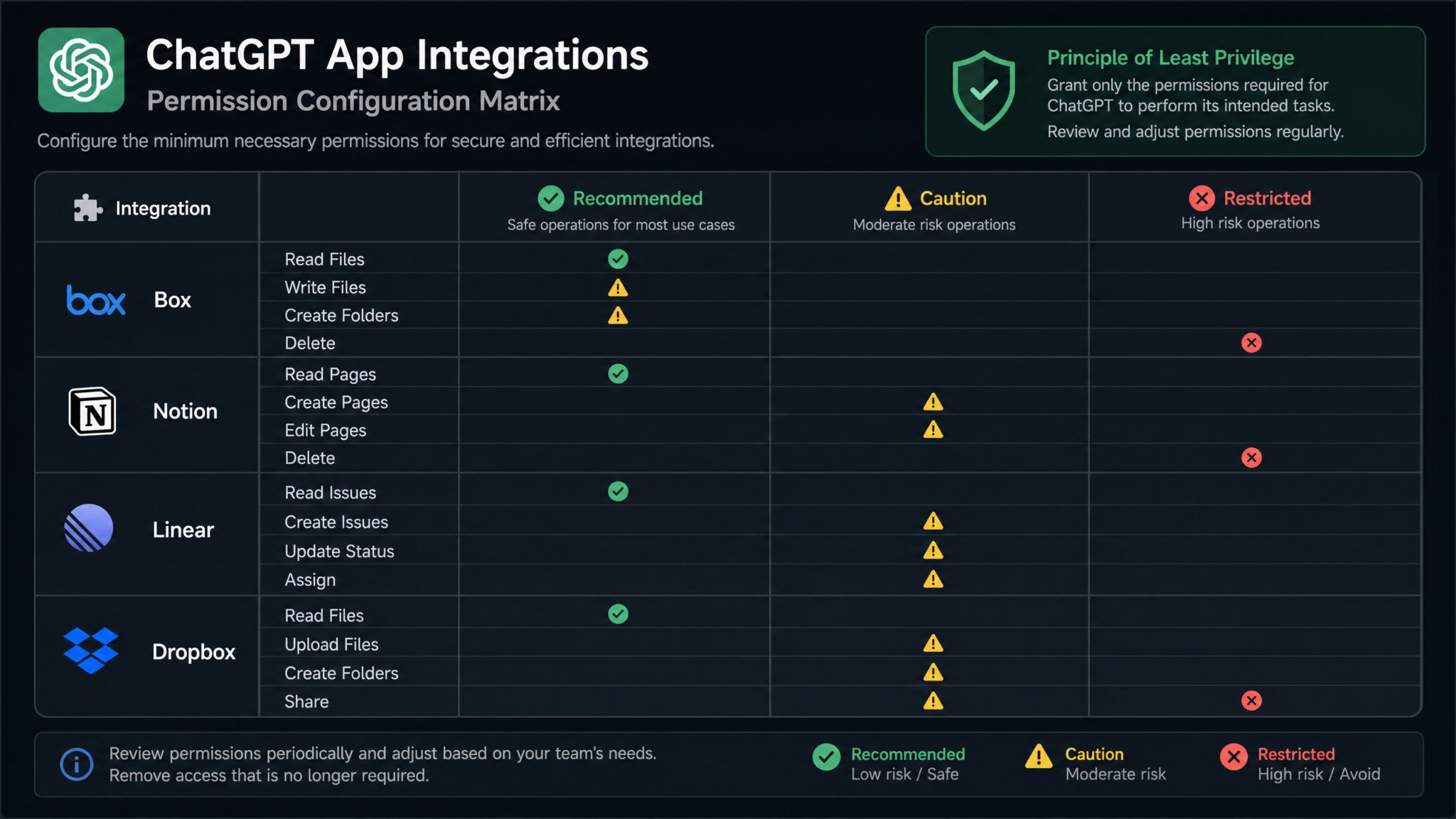
The principle of least privilege (PoLP) states that any system — human or automated — should have access to the minimum resources it needs to complete its function, and nothing more. Applied to ChatGPT integrations, this means:
- Scope write access to specific containers: folders, not drives; databases, not workspaces; projects, not organizations
- Separate write targets from authoritative sources: ChatGPT should write to draft areas, not directly to published or live documents in most cases
- Time-box elevated permissions: if you need to temporarily grant broader write access for a specific project, set a calendar reminder to review and reduce that access when the project ends
- Never grant delete permissions during initial rollout: archive, deprecate, or move functions are acceptable escalation paths; permanent deletion never is
Scoping Write Access to Specific Folders, Projects, and Teams
Each connector has a different mechanism for scoping write access:
| Connector | Scoping Mechanism | Recommended Write Scope | Access to Avoid |
|---|---|---|---|
| Notion | Per-page integration access | Specific databases only | Full workspace access |
| Box | Folder-level permissions | Dedicated AI-output folder | Root-level folder access |
| Linear | Team and project selection | Intake/triage team only | Direct access to sprint teams |
| Dropbox | App folder vs. full access | App folder only | Full Dropbox access |
| GitHub | Repository selection | Non-main branches only | Direct main/production access |
Setting Up Approval Workflows for Sensitive Operations
For operations where ChatGPT writes to tools that feed into real business processes — creating issues that become sprint work, uploading documents that get shared with clients, updating CRM records — you should implement an approval workflow. There are three practical approaches:
Approach 1: The Staging Area Model
ChatGPT writes all output to a designated staging area (a specific Notion database with an “AI-Generated / Pending Review” status, a specific Linear team labeled “AI Intake,” a specific Box folder called “Review Queue”). A human reviews the content and manually promotes it to its final destination. This is the highest-safety approach and is recommended for any integration involving client-facing or production-critical content.
Approach 2: The Notification Gate
ChatGPT writes directly to the target location but simultaneously sends a notification (via Slack, email, or a connected communication tool) to a designated reviewer. The content is live but the reviewer has a clear window to edit or remove it within a defined SLA — say, two hours. This approach is appropriate for internal documentation and low-stakes task creation.
Approach 3: The Explicit Confirmation Model
Within your ChatGPT workflow, you build a manual confirmation step. After ChatGPT drafts the output and presents it to you in the chat window, it asks for explicit confirmation before writing to the connected tool. This is the most friction-preserving approach and is useful when you’re still calibrating the quality of ChatGPT’s output for a particular workflow.
Permission Audit Schedule
Write access to connected tools should not be set-and-forgotten. Implement a quarterly permission audit:
- Review all active connectors in ChatGPT settings
- For each connector, confirm the scope matches current operational needs
- Review the audit log (covered in Phase 6) for any unexpected write operations
- Revoke write access for any tool that has not been actively used in 60+ days
- Re-evaluate whether any Tier 2 tools have earned Tier 1 status or vice versa
ChatGPT Enterprise Security and Data Privacy Configuration Guide
Phase 4: Build Cross-App Automation Chains
Individual tool connections are useful. Cross-app automation chains are transformative. When ChatGPT can read context from one tool, process it, and write outputs to multiple tools simultaneously — all triggered by a single conversation — the compounding productivity gain is dramatic. This phase provides detailed workflow blueprints for the most valuable cross-app chains.
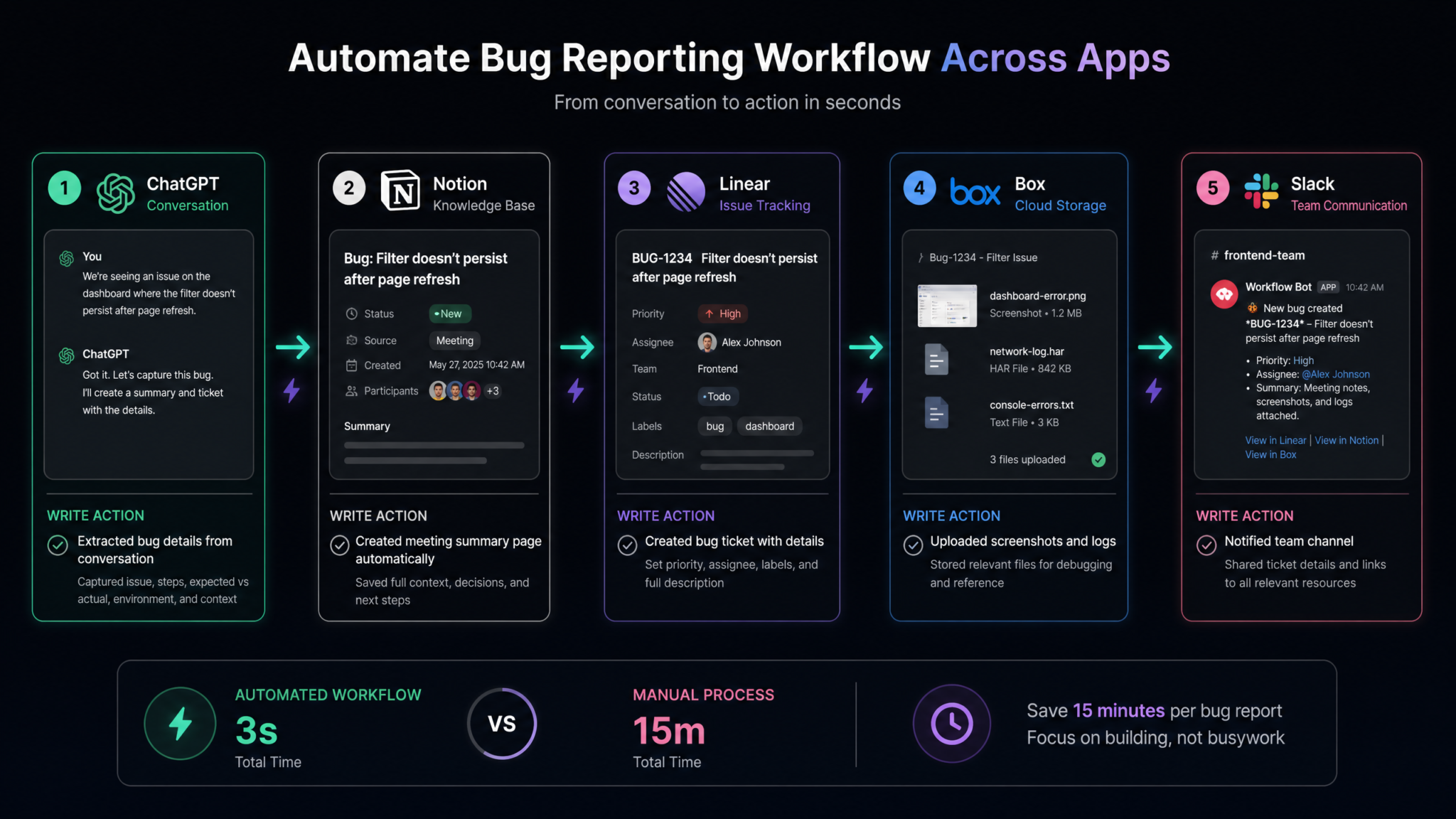
Workflow Blueprint 1: Meeting Transcript → Notion Summary → Linear Action Items → Box Archive
This is the flagship cross-app workflow for product and engineering teams. Here is how it works in practice:
Trigger: You paste a meeting transcript (or share a recording link if you have a transcription connector) into ChatGPT.
Step 1 — Processing: ChatGPT analyzes the transcript and structures it into: a one-paragraph executive summary, a bulleted list of decisions made, a list of action items (each with owner and deadline if mentioned), and a list of open questions.
Step 2 — Write to Notion: ChatGPT writes the formatted meeting summary to your designated Notion meeting notes database, creating a new page with the meeting date, participants, and all structured content as page body.
Step 3 — Write to Linear: ChatGPT creates individual Linear issues for each action item identified. Each issue includes: title (the action item), description (context from the meeting), suggested assignee (based on who was mentioned in the discussion), and priority label.
Step 4 — Archive to Box: ChatGPT uploads the full original transcript as a .txt file to your designated Box folder under /Meeting-Archives/[Year]/[Month]/.
Prompt Template:
Here is the transcript from our [meeting name] on [date].
Please:
1. Create a meeting summary page in my Notion Meeting Notes database
2. Create Linear issues for each action item identified
3. Upload this transcript to Box under /Meeting-Archives/2024/

[PASTE TRANSCRIPT]
This single prompt replaces what previously required 20–45 minutes of manual post-meeting work.
Workflow Blueprint 2: Research Conversation → Notion Document → Dropbox Share
This workflow is ideal for content teams, analysts, and consultants who do substantial research within ChatGPT and need that research formalized and distributed.
Trigger: After completing a research conversation with ChatGPT (competitive analysis, market sizing, technical investigation), you invoke the workflow.
Step 1 — Document Generation: ChatGPT synthesizes the research conversation into a structured document: executive summary, key findings, methodology, sources referenced (with proper caveats about AI-generated research), and recommended next steps.
Step 2 — Write to Notion: The document is written to a Notion research database, tagged with relevant topics, and linked to any related existing pages.
Step 3 — Export to Dropbox: A formatted version of the document is saved to Dropbox as a .pdf or .docx in your /Research/Shared/ folder, where it becomes accessible for sharing with stakeholders who don’t use Notion.
Workflow Blueprint 3: Bug Report Conversation → Linear Issue → GitHub Issue
For engineering teams, this workflow bridges customer-facing bug descriptions into properly formatted engineering tickets:
Trigger: A developer or support person pastes a raw bug report into ChatGPT.
Step 1 — Structured Analysis: ChatGPT formats the bug report into: environment details, steps to reproduce, expected vs. actual behavior, potential impact assessment, and suggested severity level.
Step 2 — Linear Issue Creation: A fully-structured Linear issue is created in the engineering team with the above components and appropriate labels (bug, severity, affected area).
Step 3 — GitHub Issue Mirror: If the team uses GitHub Issues for public bug tracking, a mirror issue is created in the relevant repository.
Workflow Blueprint 4: Strategy Session → Structured Plan → Multi-App Distribution
For leadership and strategy teams, this workflow captures the output of planning conversations and distributes structured deliverables across the organization:
Trigger: After a strategy or OKR planning conversation in ChatGPT
Outputs Generated:
- OKR framework page written to Notion company strategy space
- Individual team-level Linear projects created with initial milestone issues
- Executive summary PDF uploaded to Box company-wide folder
- Working document exported to Dropbox for offline access
Building Your Own Automation Chains
The pattern underlying all these workflows is: Context In → Process → Multi-Target Write. When designing your own chains, answer these three questions:
- What is the input? (Transcript, conversation, raw notes, customer feedback, data dump)
- What structured outputs does this input generate? (Summary, tasks, document, analysis, report)
- Which tool is the best home for each output type? (Tasks → Linear/Jira; Documents → Notion; Files → Box/Dropbox; Code → GitHub)
Building Custom ChatGPT GPTs for Team Workflow Automation
Phase 5: Set Up Team-Wide Integrations
Individual integrations are powerful. Team-standardized integrations are essential infrastructure. When every person on your team connects ChatGPT to the same tools in the same way with the same scoping decisions, you get consistent outputs, predictable permissions, and the ability to share workflows as reusable team assets.
Admin Configuration for ChatGPT Work and Teams Plans
ChatGPT Work and Teams plans include an admin console that gives workspace administrators centralized control over integrations. As the workspace admin, navigate to Admin → Integrations to access the following controls:
- Approved Connector List: Specify which connectors team members are permitted to authorize. This prevents individuals from connecting ChatGPT to unapproved SaaS tools that haven’t been vetted.
- Mandatory Connectors: For tools that are core to team workflows (typically Notion, Linear), you can configure these as default connections that are pre-authorized for all team members.
- Permission Boundaries: Set maximum permission levels per connector. For example, you can configure a policy stating that the Box connector can never be granted delete permissions, regardless of what individual users attempt to configure.
- Connector Audit Log: Review a log of which connectors each team member has authorized and when.
Standardizing Which Apps Are Connected
Based on your Phase 1 audit and your organization’s tooling decisions, create an official ChatGPT Connector Standard document. This document should specify:
Access 40,000+ AI Prompts for ChatGPT, Claude & Codex — Free!
Subscribe to get instant access to our complete Notion Prompt Library — the largest curated collection of prompts for ChatGPT, Claude, OpenAI Codex, and other leading AI models. Optimized for real-world workflows across coding, research, content creation, and business.
- Which connectors are approved for all team members to use
- Which connectors require manager or admin approval before use
- Which connectors are prohibited (typically tools containing PII, financial data, or legal documents until proper governance is in place)
- The required scoping configuration for each approved connector (which folder, which database, which team in Linear)
- The write permission level permitted for each connector
This document prevents the “permission sprawl” that undermines AI governance programs — situations where 50 people have each configured ChatGPT integrations differently, creating 50 different permission profiles and no consistent security posture.
Managing Permissions Across Team Members
In team environments, integration permissions intersect with role-based access control (RBAC) in the underlying tools. A junior team member’s ChatGPT instance should not have write access to the same Notion databases as a senior knowledge manager. Implement ChatGPT integration permissions that mirror your existing RBAC policies:
| Role | Notion Write Access | Linear Write Access | Box Write Access | Dropbox Write Access |
|---|---|---|---|---|
| Individual Contributor | Personal workspace only | Team intake queue only | Personal folder only | Personal folder only |
| Team Lead | Team space + personal | Assigned team + intake | Team folder + personal | Team folder + personal |
| Manager | Dept. space + team spaces | All managed teams | Department folder | Department folder |
| Admin / Director | Full workspace (scoped) | All teams | Company-wide folder | Company-wide folder |
Onboarding New Team Members to Standard Integrations
Build ChatGPT connector setup into your standard employee onboarding flow. Create an onboarding checklist that includes:
- Log in to ChatGPT with company SSO credentials
- Navigate to Connectors and authorize Notion (link to specific workspace and database access instructions)
- Authorize Linear with team assignment to the correct intake queue
- Authorize Box with access to personal and team folders only
- Complete a test workflow (e.g., create a test Notion page via ChatGPT and a test Linear issue)
- Review the team’s ChatGPT Connector Standard document
ChatGPT Teams Plan vs. Enterprise: Which Is Right for Your Organization
Phase 6: Monitor and Audit
Once ChatGPT has write access to your tools, monitoring is not optional — it is foundational. Write operations create real artifacts in real systems that real people rely on. Understanding what ChatGPT has written, where, and when allows you to catch errors, measure impact, and identify the next automation opportunities.
Tracking What ChatGPT Writes to Your Tools
Each connected tool has its own mechanism for tracking writes from external integrations:
Notion: Pages and databases created or modified by the ChatGPT integration show “Created by ChatGPT Integration” or “Last edited by ChatGPT Integration” in the page history. You can filter your Notion databases by the “Created by” property to view all AI-generated content. For comprehensive tracking, add a standard property to all Notion databases that receive ChatGPT writes: a Source select property with options including “ChatGPT,” “Manual,” “Imported,” and “Template.”
Linear: Issues created via the API integration are tagged with the integration source. In your Linear workspace, you can filter issues by creator to view all ChatGPT-created issues. Add a standard label “ai-generated” to all issues created via ChatGPT for easy filtering and reporting.
Box: Box’s Activity Log (available in Business and Enterprise plans) records every file upload, creation, and modification with the integration name as the actor. Set up a Box Activity Stream notification that alerts your admin whenever the ChatGPT integration performs a write operation outside the designated AI output folder.
Dropbox: Dropbox’s file history tracks all additions and modifications. For team accounts, the admin console provides activity logs. Set up file notifications for the ChatGPT-designated folder so stakeholders are informed of new additions in real time.
Audit Logs: What to Track and How Often
Implement a monthly integration audit covering the following metrics:
- Volume metrics: How many items (pages, issues, files) did ChatGPT create in each connected tool this month?
- Quality metrics: Of the ChatGPT-created items, what percentage were used as-is vs. edited before use vs. discarded?
- Error rate: How many ChatGPT write operations resulted in formatting errors, wrong folder destinations, or duplicate content?
- Coverage metrics: Which workflows are being used most? Which connectors are actively generating value vs. sitting idle?
- Permission creep check: Have any new write permissions been granted since the last audit that weren’t in the approved configuration?
Usage Analytics: Identifying Automation Opportunities
Your audit data is also a goldmine for workflow optimization. Analyze patterns:
- If a particular type of Notion page (meeting summaries, project briefs, research docs) is being created via ChatGPT at high volume and high quality, consider building a dedicated GPT or prompt template for that workflow
- If certain Linear issues created by ChatGPT consistently need significant human editing before use, the prompt template for that workflow needs refinement
- If a particular Box folder is filling up rapidly with ChatGPT-generated content, you may need to implement archiving rules or review whether all of that content is genuinely useful
How to Build Custom GPTs That Write Directly to Business Tools
Real-World Use Cases by Role
Product Manager
Product managers operate at the intersection of strategy, engineering, and design — which means they’re constantly translating information between contexts and formats. With a fully connected ChatGPT stack, the PM workflow looks like this:
- Customer interview synthesis: Paste interview notes into ChatGPT → structured insight document written to Notion research database → customer pain points converted to Linear feature requests → full interview notes archived in Box
- Sprint planning preparation: Review current Linear roadmap in ChatGPT → generate sprint proposal with prioritized issues → write sprint brief to Notion → create individual Linear issues for the proposed sprint
- PRD drafting: Discuss feature requirements in ChatGPT → generate full PRD structure → write to Notion product specs database with all sections populated → create linked Linear epic with milestone issues
Estimated time saved: 8–12 hours per week for a typical PM, based on the elimination of manual documentation, issue creation, and cross-tool information transfer.
Software Developer
Developers benefit most from the GitHub, Linear, and Notion integrations in combination:
- Bug triage: Paste error logs or bug reports into ChatGPT → structured diagnosis written to Notion technical notes → Linear bug issue created with reproduction steps → GitHub issue created for public tracking
- Code review documentation: Discuss a complex code change in ChatGPT → technical decision rationale written to Notion architecture decision records (ADR) database → Linear issue updated with documentation link
- Incident post-mortem: Describe the incident timeline in ChatGPT → structured post-mortem document written to Notion → action items created as Linear issues → full incident report archived in Box
Designer
Designers often use Dropbox or Box for asset storage and Notion for design documentation. The key workflows:
- Design brief creation: Discuss project requirements in ChatGPT → structured design brief written to Notion design workspace → brief exported as PDF to Dropbox client folder
- Design review notes: Paste feedback from design review session into ChatGPT → organized feedback document written to Notion → revision tasks created as Linear issues assigned to the designer
- Asset organization: Describe a batch of design assets in ChatGPT → organized folder structure and naming convention document written to Notion → organization applied to Dropbox folder structure via ChatGPT commands
Marketing Manager
Marketing teams generate high volumes of content and need efficient ways to manage research, approvals, and distribution:
- Campaign planning: Develop campaign strategy in ChatGPT → full campaign brief written to Notion → individual campaign tasks created in Linear → brief archived in Box for client or stakeholder access
- Content research: Complete competitive research conversation in ChatGPT → research report written to Notion content database → report exported to Dropbox for team sharing
- Performance analysis: Discuss performance data in ChatGPT → structured analysis and recommendations written to Notion → follow-up optimization tasks created in Linear
Troubleshooting Common Connection Issues
Issue 1: OAuth Authorization Fails or Times Out
Symptoms: The OAuth redirect page shows an error, the authorization window closes without completing, or ChatGPT shows the connector as “Disconnected” immediately after authorization.
Causes and Solutions:
- Browser cookie/cache issue: Clear browser cache and cookies, then retry the OAuth flow in an incognito/private window
- SSO conflict: If your organization uses SSO for the target app (Notion, Box, etc.), ensure you’re logged into the correct SSO session in the browser before initiating OAuth
- Admin approval required: For Business/Enterprise accounts on Box and Notion, the OAuth flow requires admin approval. Contact your system administrator to approve the ChatGPT integration in the app’s admin console
- Token expiry: OAuth tokens have expiration windows. If you completed authorization days ago and the connection is now broken, re-authorize by disconnecting and reconnecting the integration
Issue 2: ChatGPT Can Read But Not Write to Connected Tool
Symptoms: ChatGPT successfully retrieves information from Notion or Box but returns an error when attempting to create pages or upload files.
Causes and Solutions:
- Insufficient OAuth scope: The original authorization may have been completed with read-only scope. Disconnect the integration and re-authorize, ensuring write permissions are explicitly requested during the OAuth flow
- Notion page-level permissions: The specific database or page you’re trying to write to hasn’t been granted integration access. In Notion, go to the database, open settings, and add the ChatGPT integration under Connections
- Box folder permissions: The target folder may have restricted upload permissions. Verify folder settings in Box and ensure the ChatGPT integration account has Contributor or Co-Owner role on that folder
Issue 3: Content Written to Wrong Location
Symptoms: ChatGPT writes content to the correct tool but the wrong database, folder, or project.
Solutions:
- Be explicit in your prompts about the target location using the exact name of the database, folder, or project
- In ChatGPT settings, set default write targets for each connector so ambiguous prompts resolve to the correct location
- For critical workflows, include the target path in your prompt template: “Write this to the ‘Meeting Notes’ database in Notion, specifically in the ‘Engineering Team’ section”
Issue 4: Formatting Issues in Notion
Symptoms: Content appears in Notion but formatting is stripped, headings are rendered as plain text, or table structures are broken.
Solutions:
- Specify the output format explicitly in your prompt: “Format this as a Notion page with H2 headings for each section and a bulleted list for action items”
- For complex formatting (tables, code blocks, callouts), ask ChatGPT to preview the structure in the chat window before writing to Notion
- Notion’s API has known limitations with certain block types. If a specific block type consistently fails, use plain text as a fallback and format manually
Issue 5: Linear Issues Created with Incorrect Properties
Symptoms: Issues appear in Linear but are missing labels, have wrong priority, or land in the wrong team.
Solutions:
- Include all required properties in your prompt: “Create a Linear issue in the Engineering team with priority High, label Bug, and assign to the current sprint”
- Verify that the labels and priority levels you’re referencing match exactly what exists in your Linear workspace (Linear is case-sensitive for label names)
- Review the connector’s configured default team in ChatGPT settings to ensure it points to the correct Linear team
Issue 6: Dropbox Connection Works for Files but Not Folders
Symptoms: ChatGPT can create files in Dropbox but cannot create new folders or write to subfolders.
Solutions:
- Verify the authorization was completed with app folder access scope, which includes subfolder creation
- Pre-create the target subfolders in Dropbox manually rather than relying on ChatGPT to create them dynamically — this eliminates a common point of failure in folder-creation operations
- Check Dropbox team settings (for business accounts) to ensure the integration is not blocked from creating new folders by a team policy
Configuration Checklists and Workflow Templates
Master Pre-Launch Checklist
Before going live with connected integrations in a team environment, complete every item on this checklist:
- ☐ Tool inventory completed and all apps assigned to Tier 1, 2, or 3
- ☐ ChatGPT Connector Standard document drafted and approved by stakeholders
- ☐ Notion integration authorized with page-level (not workspace-level) scope
- ☐ Box integration authorized with folder-level scope; dedicated AI output folder created
- ☐ Linear integration authorized with AI intake team designated
- ☐ Dropbox integration authorized with app folder scope (not full Dropbox)
- ☐ GitHub integration authorized with repository-level scope and non-main branch default
- ☐ All write permissions scoped to staging/intake areas (not live production content)
- ☐ Approval workflow model selected (staging area, notification gate, or explicit confirmation)
- ☐ Test workflow executed and verified for each connected tool
- ☐ Admin connector policy configured in ChatGPT Teams admin console
- ☐ Onboarding documentation updated to include connector setup instructions
- ☐ First quarterly permission audit scheduled in team calendar
- ☐ Audit log monitoring configured for each connected tool
Individual Connector Setup Checklists
Notion Connector Checklist
- ☐ Correct workspace selected during OAuth
- ☐ Only required databases granted integration access (not full workspace)
- ☐ Write scope confirmed (create pages, update properties, append blocks)
- ☐ Source property added to all target databases for AI-content tracking
- ☐ Test page created and verified
- ☐ Default write target configured in ChatGPT connector settings
Box Connector Checklist
- ☐ Business/Enterprise admin approval obtained if required
- ☐ Folder-level scope configured (not root access)
- ☐ AI output folder created at
/ChatGPT-Outputs/ - ☐ Upload-only permission set for sensitive shared folders
- ☐ Activity Log monitoring configured
- ☐ Test file upload executed and verified
Linear Connector Checklist
- ☐ AI intake team created in Linear for staging ChatGPT-generated issues
- ☐ Connector scoped to intake team only (not all teams)
- ☐ “ai-generated” label created in Linear workspace
- ☐ Issue creation test executed and verified
- ☐ Issue review process documented for intake team
Dropbox Connector Checklist
- ☐ App folder access selected (not full Dropbox)
- ☐ Subfolder structure pre-created in
/Apps/ChatGPT/ - ☐ File creation test executed and verified
- ☐ Team sharing permissions configured for
/Shared-Outputs/subfolder
Workflow Prompt Templates
Template 1: Meeting Summary Workflow
You have access to my Notion, Linear, and Box connectors.

Process this meeting transcript:
1. Create a new page in my Notion "Meeting Notes" database with:
   - Title: "[Meeting Name] - [Date]"
   - Summary section (2-3 paragraphs)
   - Decisions Made section (bulleted list)
   - Action Items section (table with: item, owner, deadline)
   - Open Questions section

2. For each action item, create a Linear issue in my "AI Intake" team with:
   - Title: [Action item description]
   - Description: [Context from the meeting]
   - Priority: [Infer from urgency signals in transcript]
   - Label: "ai-generated"

3. Upload the raw transcript to Box at /ChatGPT-Outputs/Meeting-Archives/

TRANSCRIPT:
[Paste transcript here]
Template 2: Research Document Workflow
Based on our research conversation above, please:

1. Create a research report in my Notion "Research" database:
   - Title: [Topic] Research Report - [Date]
   - Executive Summary (3-4 sentences)
   - Key Findings (numbered list with explanations)
   - Implications and Recommendations
   - Limitations and Caveats (important: note where claims are AI-generated estimates)
   - Suggested Next Steps

2. Save a copy to Dropbox at /Research/[Topic]/

Please confirm each write operation as you complete it.
Template 3: Bug Report to Issue Workflow
Convert this bug report into structured engineering tickets.

Create a Linear issue in my "Engineering AI Intake" team with:
- Title: [Clear bug description, max 60 chars]
- Description formatted as:
  ## Environment
  ## Steps to Reproduce
  ## Expected Behavior
  ## Actual Behavior
  ## Impact Assessment
  ## Suggested Severity
- Labels: "bug", "ai-generated"
- Priority: [Infer from impact assessment]

If a GitHub repository is involved, also create a corresponding GitHub issue in the [repository name] repo with the same structured content.

BUG REPORT:
[Paste report here]
Quarterly Permission Audit Template
Use this structured review every 90 days to maintain healthy integration hygiene:
QUARTERLY CHATGPT INTEGRATION AUDIT
Period: [Start Date] to [End Date]
Reviewer: [Name]
Date Completed: [Date]

CONNECTOR STATUS REVIEW
[ ] Notion: Active / Inactive | Scope: [Current scope] | Last write: [Date] | Action required: Y/N
[ ] Box: Active / Inactive | Scope: [Current scope] | Last write: [Date] | Action required: Y/N
[ ] Linear: Active / Inactive | Scope: [Current scope] | Last write: [Date] | Action required: Y/N
[ ] Dropbox: Active / Inactive | Scope: [Current scope] | Last write: [Date] | Action required: Y/N
[ ] GitHub: Active / Inactive | Scope: [Current scope] | Last write: [Date] | Action required: Y/N

VOLUME METRICS (this quarter)
- Notion pages created via ChatGPT: ___
- Linear issues created via ChatGPT: ___
- Box files uploaded via ChatGPT: ___
- Dropbox files created via ChatGPT: ___

QUALITY METRICS
- Content used as-is: ___%
- Content edited before use: ___%
- Content discarded: ___%

PERMISSION CHANGES SINCE LAST AUDIT
[List any new scopes granted or removed]

WORKFLOW PERFORMANCE
- Highest-value workflow this quarter: ___
- Workflow requiring optimization: ___
- New workflow opportunities identified: ___

ACTIONS FOR NEXT QUARTER
[ ] [Action item 1]
[ ] [Action item 2]
[ ] [Action item 3]
Putting It All Together: Your 30-Day Rollout Plan
The six phases in this playbook are most effective when implemented progressively rather than simultaneously. Here is a practical 30-day rollout timeline:
| Week | Focus | Key Milestones |
|---|---|---|
| Week 1 | Audit and Foundation | Complete tool inventory, build Connector Standard doc, create staging areas in all Tier 1 tools |
| Week 2 | Individual Connections | Connect and test Notion, Box, Linear, Dropbox for 2-3 power users; validate write operations |
| Week 3 | Automation Chains | Build and test the 3-4 highest-priority cross-app workflows; gather feedback from pilot users |
| Week 4 | Team Rollout and Monitoring | Onboard full team using standard connector configuration; configure audit logging; schedule first quarterly review |
The organizations getting the most value from ChatGPT integrations are not those with the most connections — they are those with the most thoughtfully scoped connections, the most consistently applied permission architecture, and the clearest workflows for how AI output moves through their systems. Start with discipline, expand with confidence, and audit with regularity. Your connected ChatGPT stack will compound in value with every workflow you automate and every tool you bring into the ecosystem.
The Complete Guide to ChatGPT Connectors and Native Integrations in 2024
