
How to Set Up ChatGPT Scheduled Tasks for Automated Daily Briefings, Reports, and Workflow Triggers
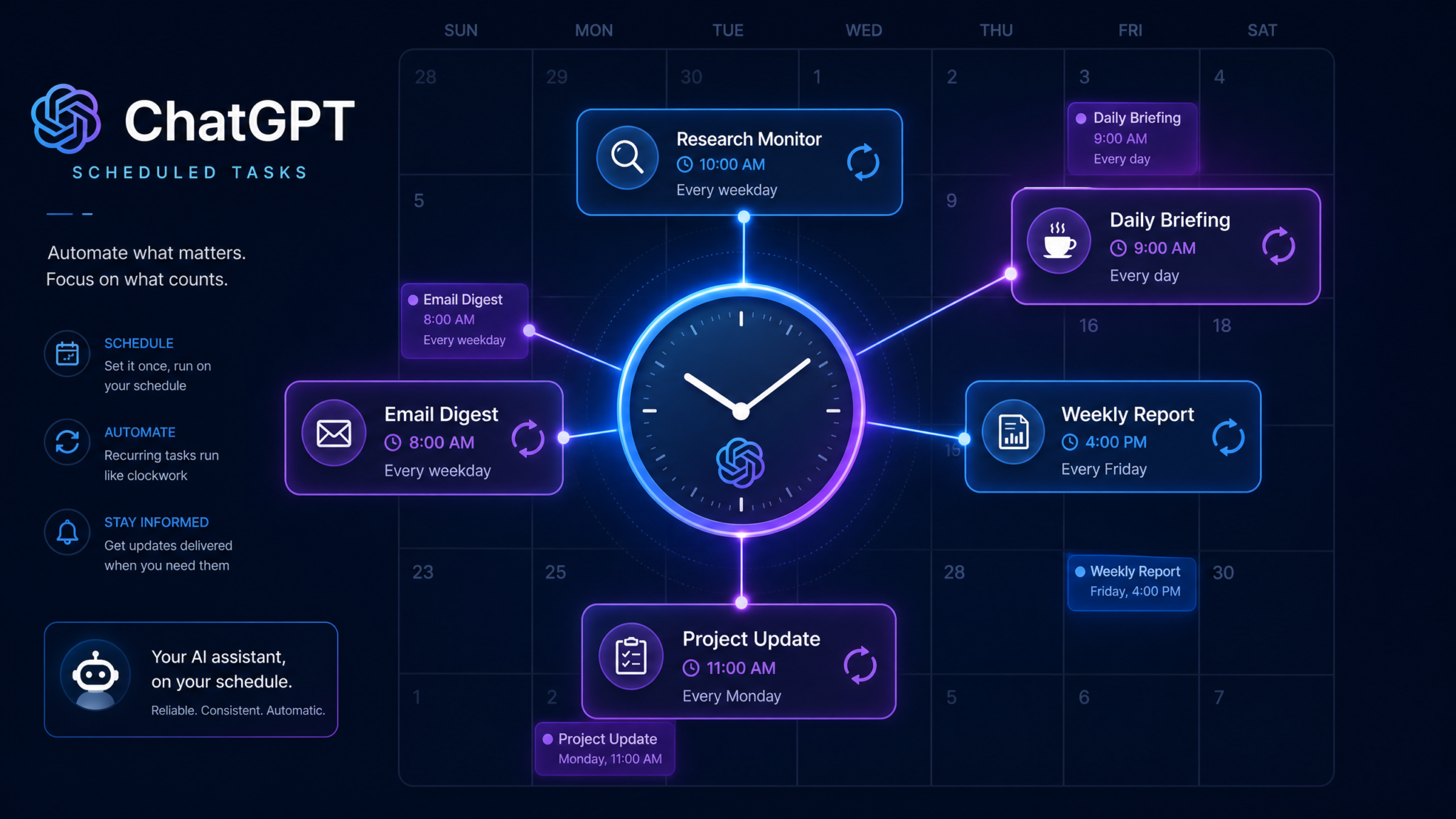
ChatGPT Scheduled Tasks — rolled out to Go, Plus, and Pro subscribers in July 2026 — fundamentally change how professionals interact with AI. Instead of opening ChatGPT every morning to manually request your news digest, ask for a project status summary, or prompt a competitor analysis, you configure a task once and the system runs it automatically on your chosen schedule, delivering results directly to your inbox, your connected calendar, or your ChatGPT conversation thread. This guide walks through every layer of that capability: from first-time setup to advanced chaining patterns that rival lightweight RPA tools.
What Are ChatGPT Scheduled Tasks?
ChatGPT Scheduled Tasks is a native automation layer built directly into the ChatGPT platform, distinct from third-party bridges like Zapier or Make. Rather than relying on an external orchestration service to call the API, Scheduled Tasks live inside your ChatGPT account, inherit your connected integrations, and execute with access to the same memory and context that your manual conversations use.
The feature was announced in early 2026 as part of OpenAI’s broader push toward agentic workflows and became generally available to paying subscribers in July 2026. The core concept is deceptively simple: you write a prompt, you specify a schedule (a time, a day of the week, a recurrence interval), and ChatGPT executes that prompt autonomously at the scheduled moment — with or without you being at your keyboard.
How Scheduled Tasks Differ from Manual Prompts
When you type a prompt interactively, ChatGPT responds within the current session context, and the conversation thread anchors the output. Scheduled Tasks, by contrast, operate as headless conversations. They run without a live session, and their outputs can be:
- Appended to a designated conversation thread (visible the next time you open ChatGPT)
- Delivered as an email to your verified address
- Sent to a connected integration endpoint (Google Workspace, Slack, Notion, etc.)
- Stored in a named “task output” history accessible from your Tasks dashboard
Crucially, Scheduled Tasks can be given access to live data connectors — Browse, your connected Gmail, Google Calendar, and third-party integrations — so the output reflects real-time information rather than the model’s training cutoff. A morning briefing task, for example, can pull today’s top headlines via Browse, check your Calendar API for appointments, and synthesize the weather from a connected weather service, all in a single automated run.
The Architecture Behind the Feature
Under the hood, each Scheduled Task is stored as a task object in OpenAI’s task registry. The object contains the prompt template, the schedule definition (a cron-style expression translated from a natural-language or structured UI input), the tool permissions granted to that task, the output destination configuration, and a retry policy. When the trigger fires, OpenAI’s orchestration layer spins up a model instance, injects the prompt along with any live context the task is authorized to fetch, runs the completion, and routes the output to the configured destination.
This is meaningfully different from, say, scheduling a Zapier automation that calls the ChatGPT API — because the task runs with your full account context, including memory, custom instructions, and integration authentication, without any third-party intermediary.
Plan Availability and Quotas per Tier
Scheduled Tasks are exclusive to paid subscribers. The feature is not available on the free tier. Here is a breakdown of what each plan includes as of the July 2026 rollout:
| Feature | Go ($9/mo) | Plus ($20/mo) | Pro ($200/mo) |
|---|---|---|---|
| Active Scheduled Tasks | Up to 5 | Up to 20 | Unlimited |
| Minimum Schedule Interval | Daily | Hourly | Every 15 minutes |
| Output Destinations | ChatGPT thread only | Thread + Email | Thread, Email, Integrations |
| Tool Access in Tasks | Browse only | Browse + Integrations | Browse + Integrations + Code Interpreter |
| Task History Retention | 7 days | 30 days | 90 days |
| Model Used for Tasks | GPT-4o mini | GPT-4o | o3 or GPT-4o (selectable) |
| Conditional Triggers | No | Basic (if-then) | Advanced (multi-branch) |
| Task Chaining | No | Up to 3 steps | Up to 10 steps |
Go plan users should think of Scheduled Tasks as a lightweight briefing tool — excellent for a daily news summary delivered to your ChatGPT inbox. Plus users unlock the most practically useful configuration for professionals: email delivery, integration access, and hourly granularity. Pro users get the full suite, including the ability to use o3 for complex reasoning tasks and run multi-step chains that behave like mini-workflows.
Important: Task runs count against your message quota. Each scheduled execution consumes messages equivalent to the prompt complexity and the tools invoked. Pro users operate under a much higher monthly quota, which is why high-frequency Pro tasks (running every 15 minutes) remain practical within normal usage patterns.
First-Time Setup: Enabling the Feature
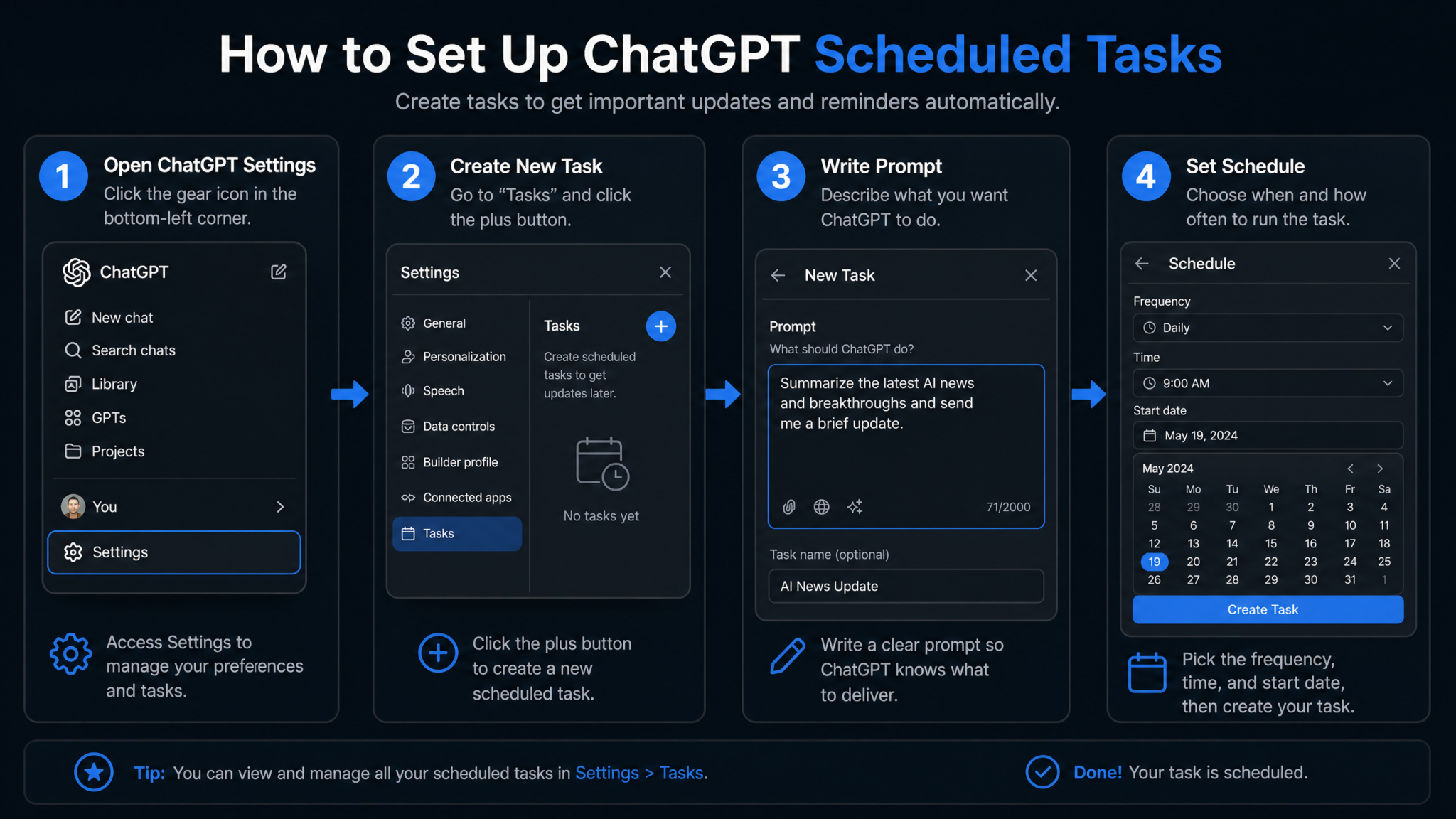
Before creating your first task, you need to verify that the feature is activated on your account and that the necessary integrations are authorized. Follow these steps:
Step 1 — Locate the Tasks Dashboard
In the ChatGPT web interface, click your profile icon in the lower-left corner, then select My Tasks from the context menu. Alternatively, in the left sidebar, look for the Scheduled Tasks section which appears below your pinned conversations once the feature is enabled for your account.
Step 2 — Authorize Integrations (Plus and Pro)
Navigate to Settings → Integrations. Here you will see all available first-party connectors. For the workflows covered in this guide, authorize:
- Google Workspace — covers Gmail, Google Calendar, Google Drive
- Slack — for team notification outputs
- Notion — for saving formatted reports to a workspace
- Microsoft 365 — covers Outlook and Teams if your organization uses the Microsoft stack
Step 3 — Configure Email Delivery
Under Settings → Notifications → Scheduled Task Outputs, verify the email address where task outputs should be delivered. You can add up to three delivery addresses on Plus and an unlimited number on Pro.
Step 4 — Review Custom Instructions
Your Custom Instructions from your main ChatGPT settings are injected into every Scheduled Task by default. Review them before creating tasks — if your custom instructions say something like “always respond in casual language,” that preference will apply to your professional reports unless you override it at the task level.
Scheduling Syntax: Daily, Weekly, and Custom Intervals
The Tasks dashboard accepts schedule definitions in three formats: natural language, structured UI selectors, and a cron-style advanced input for Pro users who need precise control.
Natural Language Scheduling
The most accessible method is simply typing your intent. ChatGPT’s task creation interface interprets phrases like:
Every weekday at 7:30 AM in my local timezoneEvery Monday at 9 AMEvery day at 6 PMEvery Sunday evening at 8 PMEvery 4 hours during business hours, Monday through Friday
Structured UI Selector
For users who prefer a visual interface, the task creation modal provides dropdowns for Frequency (Once, Hourly, Daily, Weekly, Monthly), Day(s) of the week, Time, and Timezone. This is the recommended approach for most Plus users.
Cron-Style Advanced Syntax (Pro)
Pro users can switch to the Advanced Schedule tab and enter cron expressions directly:
# Run every weekday at 7:30 AM UTC
30 7 * * 1-5

# Run every Monday and Thursday at 9 AM UTC
0 9 * * 1,4

# Run every 2 hours between 8 AM and 6 PM on weekdays
0 8-18/2 * * 1-5

# Run on the first day of every month at 8 AM UTC
0 8 1 * *

# Run every 15 minutes (Pro minimum interval)
*/15 * * * *
The cron parser in the Tasks system uses standard five-field POSIX cron syntax. The timezone for cron execution defaults to UTC unless you specify otherwise in the task settings panel.
Building Your Daily Morning Briefing
The daily morning briefing is the showcase use case for Scheduled Tasks and the most requested workflow by productivity-focused users. A well-designed briefing task replaces the fragmented morning ritual of checking multiple apps by synthesizing everything into a single, readable summary.
Components of an Effective Morning Briefing
- News headlines — top stories from your industry or general news
- Weather summary — current conditions and forecast for your location
- Calendar review — today’s meetings, their attendees, and preparation notes
- Priority email summary — unread high-priority messages from Gmail
- Task list — open items from connected project management tools
- Market data — stock or crypto prices if relevant to your role
Step-by-Step Configuration
Step 1: Open the Tasks dashboard and click Create New Task.
Step 2: Name the task — e.g., “Daily Morning Briefing.”
Step 3: Set the schedule — “Every weekday at 6:45 AM” in your timezone.
Step 4: Enable tools — toggle on Browse, Google Calendar integration, Gmail integration.
Step 5: Write the prompt (see template below).
Step 6: Set output destination — Email to your primary address + append to “Morning Briefing” conversation thread.
Morning Briefing Prompt Template
You are my personal executive assistant. Every weekday morning, produce
a structured Daily Briefing in the following format. Use real-time data
where tools are available.

## Daily Briefing — {current_date}, {day_of_week}

### 📰 Top News (5 items)
Browse for today's top headlines in [YOUR INDUSTRY/TOPIC]. For each:
- Headline (linked if available)
- 1-sentence summary
- Why it matters to me professionally

### 🌤 Weather — [YOUR CITY]
Current conditions, today's high/low, and any weather alerts.

### 📅 Today's Calendar
Pull from my Google Calendar. List all events today with:
- Event name and time
- Attendees (first names only)
- 1-sentence preparation note per meeting

### 📧 Priority Emails (unread, last 12 hours)
From my Gmail, summarize unread emails marked Important or from
starred contacts. Format: Sender → Subject → One-line summary.
Flag any emails requiring a response today.

### ✅ Today's Focus
Based on my calendar and emails, suggest my top 3 priorities for today.

Output format: Clean email-style HTML. Tone: Professional, concise.
No filler text. Use emojis for section headers only.
This prompt is deliberately structured with explicit section headers and output format instructions because, in a headless scheduled context, there is no interactive back-and-forth to clarify format preferences mid-run. The more deterministic your prompt, the more consistent your outputs across runs.
Automating Weekly Report Generation
Weekly reports are one of the highest-value but most time-consuming recurring tasks for managers and individual contributors alike. A properly configured Scheduled Task can reduce report generation from 45 minutes to zero active effort on your part.
Weekly Marketing Performance Report
Every Monday at 8:00 AM, generate my Weekly Marketing Performance Report
for the prior week (Monday through Sunday).

## Weekly Marketing Report — Week of {week_start_date}

### Performance Summary
Browse for any publicly available data about [YOUR BRAND/PRODUCT] mentions,
press coverage, or social media engagement this past week.

### Content Performance (from connected analytics)
If Google Analytics is connected, summarize:
- Top 5 pages by sessions this week vs. last week
- Overall organic traffic trend (up/down X%)
- Top traffic sources

### Email Campaign Metrics
From Gmail, locate any forwarded campaign performance reports
in my inbox from the past 7 days and extract key metrics.

### Action Items for This Week
Based on the data above, propose 3 concrete actions to improve
performance next week.

### Notable Observations
Any anomalies, spikes, or trends worth flagging.

Format: Executive summary style. Use a comparison table where data
allows. Keep to under 600 words. Output as structured HTML email.
Weekly Engineering Team Standup Summary
Every Friday at 4:30 PM, generate a Weekly Engineering Summary
for distribution to stakeholders.

Pull context from:
- My Google Calendar (all meetings this week tagged "Engineering")
- Any emails in my Gmail labeled "eng-updates" received this week

Structure:
## Engineering Weekly Summary — {date_range}

### Completed This Week
### In Progress / Carry-Overs
### Blockers and Escalations
### Next Week Preview
### Key Decisions Made

Tone: Professional, suitable for a non-technical executive audience.
Length: 300-400 words maximum.
Do not include any sensitive personnel information.
Output to: Email + Notion integration (page: "Eng Weekly Log")
Automated Research and Competitor Monitoring
Research monitoring is where Scheduled Tasks with Browse enabled become genuinely powerful. You can configure tasks that scan the web for specific signals — competitor announcements, regulatory changes, new research publications, keyword mentions — and deliver curated intelligence on a schedule.
Competitor Intelligence Monitor
Schedule: Every Tuesday and Friday at 7:00 AM

You are a competitive intelligence analyst. Browse the web and compile
a Competitor Intelligence Digest covering the following companies:
[COMPETITOR_1], [COMPETITOR_2], [COMPETITOR_3]

For each company, look for activity in the past 72 hours across:
- Official blog/newsroom
- Press release wires (PR Newswire, Business Wire)
- LinkedIn company pages
- Product update pages or changelogs

Report format:

## Competitor Intelligence — {date}

For each company:
**[Company Name]**
- Activity found: [Yes/No]
- Summary of activity (2-3 sentences if found)
- Potential implications for our business (1 sentence)
- Source URL

If no significant activity found for a company, say:
"No notable updates in the past 72 hours."

Flag with 🔴 any activity that appears to be a direct competitive move
(pricing change, feature launch, partnership announcement).

Tone: Analytical and neutral. No speculation beyond what sources state.
Academic Research Alert
Schedule: Every Monday at 8:00 AM

Browse Google Scholar, arXiv, and PubMed for papers published in the
past 7 days matching these topics:
- [YOUR RESEARCH TOPIC 1]
- [YOUR RESEARCH TOPIC 2]
- [YOUR RESEARCH TOPIC 3]

For each relevant paper found (up to 8 papers total):
- Title and authors
- Publication venue / preprint server
- 2-sentence abstract summary
- Why it is relevant to my work
- Direct link

Prioritize papers by relevance to my work, not by citation count.
If fewer than 3 papers are found, note that explicitly rather than
padding with tangentially related results.

Output: Email digest with subject line "Research Alert — {date}"
How to Use ChatGPT Browse for Real-Time Research and Analysis
Creating an Email Digest Task
The email digest task connects to your Gmail (or Outlook, for Microsoft 365 users) and synthesizes your inbox into actionable intelligence at configurable intervals. This is arguably the most immediately time-saving application for knowledge workers who receive high email volume.
Morning Inbox Triage Digest
Schedule: Every weekday at 7:00 AM

Access my Gmail inbox. Review all unread emails received since
5:00 PM yesterday (local time).

Categorize emails into these buckets:

## 📬 Inbox Digest — {date}, {time}

### 🔴 Action Required Today (respond or complete by EOD)
For each: Sender | Subject | What action is needed | Suggested deadline

### 🟡 Review This Week (important but not urgent)
For each: Sender | Subject | 1-line summary

### 🟢 FYI — No Action Needed
List as: Sender → Subject (one line each, no summaries needed)

### 🗑 Likely Safe to Archive
Newsletters, automated notifications, or marketing emails not
requiring attention.

### 📊 Stats
Total unread: X
Action required: X
New threads vs. replies: X/X

Important rules:
- Never summarize email body content that appears confidential
  or contains passwords/credentials
- Flag any emails from my boss ([BOSS_EMAIL]) with ⭐
- If an email thread has more than 3 replies, summarize the
  thread, not just the latest message
End-of-Day Email Wrap-Up
Schedule: Every weekday at 5:30 PM

Review my Gmail for emails sent by me today. Summarize:

## Sent Mail Summary — {date}

- Total emails sent: X
- Key threads I initiated: [list]
- Emails awaiting reply (sent by me, no response yet): [list with
  subject and recipient]
- Any follow-ups I should send tomorrow morning: [suggestions]

Then review my calendar for tomorrow and list my first 3 meetings
with start times and attendee counts.

End with: "Tomorrow's first task: [first calendar event name] at [time]"

Keep this digest under 250 words. Delivery: Email only.
Project Status Updates and Team Summaries
For project managers and team leads, the most tedious recurring work is often synthesizing disparate status information into a coherent summary. Scheduled Tasks can replace much of this mechanical aggregation work.
Weekly Project Status Email to Stakeholders
Schedule: Every Friday at 3:00 PM

Generate a Project Status Update email ready to send to stakeholders.

Context sources to pull from:
- My Google Calendar this week (meetings with project name in title)
- Gmail emails labeled "project-[PROJECT_NAME]" from this week

## [PROJECT NAME] — Weekly Status Update
### Week Ending {Friday_date}

**Overall Status:** [synthesize from context — use Red/Yellow/Green]

**Summary (2 sentences for executives):**

**Milestones This Week:**
- Completed: [list]
- Missed/Delayed: [list with reason if mentioned in emails/notes]

**Next Week Plan:**
- [3-5 bullet points]

**Risks & Issues:**
[List any blockers or concerns mentioned in emails this week]

**Budget Note:**
[Only include if budget-related emails exist this week]

**Prepared by:** [MY NAME]
**Next update:** {following_Friday_date}

Tone: Professional, factual, non-defensive.
Format as a clean HTML email body.
If insufficient context is available from connected sources to fill
a section, write "Awaiting input" for that section — do not fabricate.
Connecting Gmail, Google Calendar, and Other Integrations
The value of Scheduled Tasks scales directly with the number of authoritative data sources the task can access. A briefing that only uses Browse for public web content is useful; a briefing that also pulls your private calendar, inbox, and project management tool is transformational. Here is how to connect the key integrations.
Google Workspace Integration
Navigate to Settings → Integrations → Google Workspace. Click Connect and complete the Google OAuth flow. You will be asked to grant the following scopes:
gmail.readonly— required for inbox digest taskscalendar.readonly— required for calendar pull tasksdrive.readonly— optional, enables document summarization tasks
After authorization, you can verify the connection by asking ChatGPT manually: “What meetings do I have tomorrow?” If it returns accurate data, the integration is active and ready for task use.
Notion Integration
The Notion connector requires you to install the ChatGPT integration from within Notion’s Settings → Integrations → ChatGPT panel, then authorize it back in ChatGPT settings. Once connected, your tasks can write output to specified Notion pages or databases using instructions like:
Append the output of this task to the Notion page titled
"Weekly AI Digest" in my "Operations" workspace.
Slack Integration
The Slack connector allows tasks to post output to a specified channel. After OAuth authorization, reference it in your task output settings:
Deliver output to: Slack channel #daily-briefings
Also deliver to: Email
Webhook Output (Pro)
Pro users can configure a webhook endpoint as an output destination. This enables integration with any system that accepts HTTP POST requests — including internal tools hosted at custom domains like ops.yourproject.io or staging environments at api.myapp.dev:
Output destination: Webhook
Endpoint: https://api.myapp.dev/chatgpt-tasks/incoming
Authentication: Bearer token (stored in task secrets)
Payload format: JSON
Managing, Editing, and Deleting Existing Tasks
As your task library grows, effective management becomes important. The Tasks dashboard provides a central view of all your configured tasks with their status, last run time, next run time, and run history.
Task Status Indicators
| Status | Meaning | Action Required |
|---|---|---|
| 🟢 Active | Task is running on schedule normally | None |
| 🟡 Degraded | Last run completed with warnings (e.g., integration temporarily unavailable) | Check last run log |
| 🔴 Failed | Last run did not complete successfully | Review error, retry or fix prompt/integration |
| ⏸ Paused | Task manually paused by user | Resume when ready |
| ⏰ Scheduled | Task created but has not yet run for the first time | None — waiting for first trigger |
Editing an Existing Task
Click the task name in the dashboard, then select Edit Task. You can modify the prompt, schedule, tools, and output destination independently. Changes take effect from the next scheduled run — they do not trigger an immediate re-run.
Access 40,000+ AI Prompts for ChatGPT, Claude & Codex — Free!
Subscribe to get instant access to our complete Notion Prompt Library — the largest curated collection of prompts for ChatGPT, Claude, OpenAI Codex, and other leading AI models. Optimized for real-world workflows across coding, research, content creation, and business.
Manually Triggering a Task
To test a task or run it outside its schedule, use the Run Now button in the task detail view. This is invaluable during initial setup to verify that your prompt produces the expected output before trusting it to run autonomously at 6:45 AM.
Archiving vs. Deleting
Rather than deleting tasks you might want to revive later, use Archive. Archived tasks retain their configuration and run history but do not execute. Delete only tasks you are certain you will never use again, as deletion is permanent and the run history is purged along with the task object.
Best Practices for Prompt Design in Scheduled Contexts
Writing prompts for scheduled autonomous tasks requires a fundamentally different mindset than writing prompts for interactive conversations. In a live conversation, you can clarify, redirect, and iterate. In a scheduled task, the prompt runs exactly as written, with no human in the loop to correct course.
1. Be Explicit About Date and Time References
Avoid relative terms like “yesterday” or “this week” without anchoring them to a computed reference. Use tokens like {current_date}, {last_7_days}, or instruct the model to compute the range: “Retrieve data from the 7 days prior to today’s date.” Without this, a task that runs at midnight may treat “today” differently than one running at noon.
2. Define Output Format Exhaustively
Specify the exact output structure — section headers, word count limits, tone, and format (plain text, HTML, Markdown). A task that outputs clean HTML is ready to send as an email; one that outputs unformatted prose requires manual editing. Since you will not be there to reformat it, make the format non-negotiable in the prompt.
3. Include Graceful Fallback Instructions
What should the task do if Browse returns no results? If the calendar is empty? If an integration is temporarily unavailable? Address these explicitly:
If no news articles are found for today, write:
"No significant headlines found at time of task run.
Browse may be experiencing issues — verify manually."
Do not omit the section or fabricate headlines.
4. Constrain the Model’s Scope
Scheduled tasks benefit from tight scope constraints. A task prompt that says “summarize my emails” leaves too much room for interpretation. A prompt that says “summarize unread emails received in the 12 hours before this task runs, from senders in my Starred Contacts list, in bullet format, maximum 300 words” produces consistent, predictable output.
5. Separate Configuration from Content in Long Prompts
For complex tasks, lead with a clearly delineated configuration block:
--- TASK CONFIGURATION ---
Task name: Weekly Competitor Monitor
Run context: Automated, no user present
Output destination: Email + Slack #competitive-intel
Tone: Analytical, neutral
Length: Maximum 500 words
Date range to cover: 7 days prior to today

--- TASK INSTRUCTIONS ---
[Your actual instructions here]
6. Use a Persona for Consistent Tone
Assigning a consistent persona (“You are my executive assistant,” “You are a senior data analyst”) anchors the model’s output style across runs more reliably than tone adjectives alone.
7. Version Your Prompts
When you make significant changes to a task prompt, note the version in a comment at the top of the prompt (or in the task description field). This is invaluable when comparing output quality across weeks:
# Prompt v2.3 — Updated 2026-08-15
# Change: Added email triage section, removed weather (redundant)
Advanced ChatGPT Prompt Engineering Techniques for Professionals
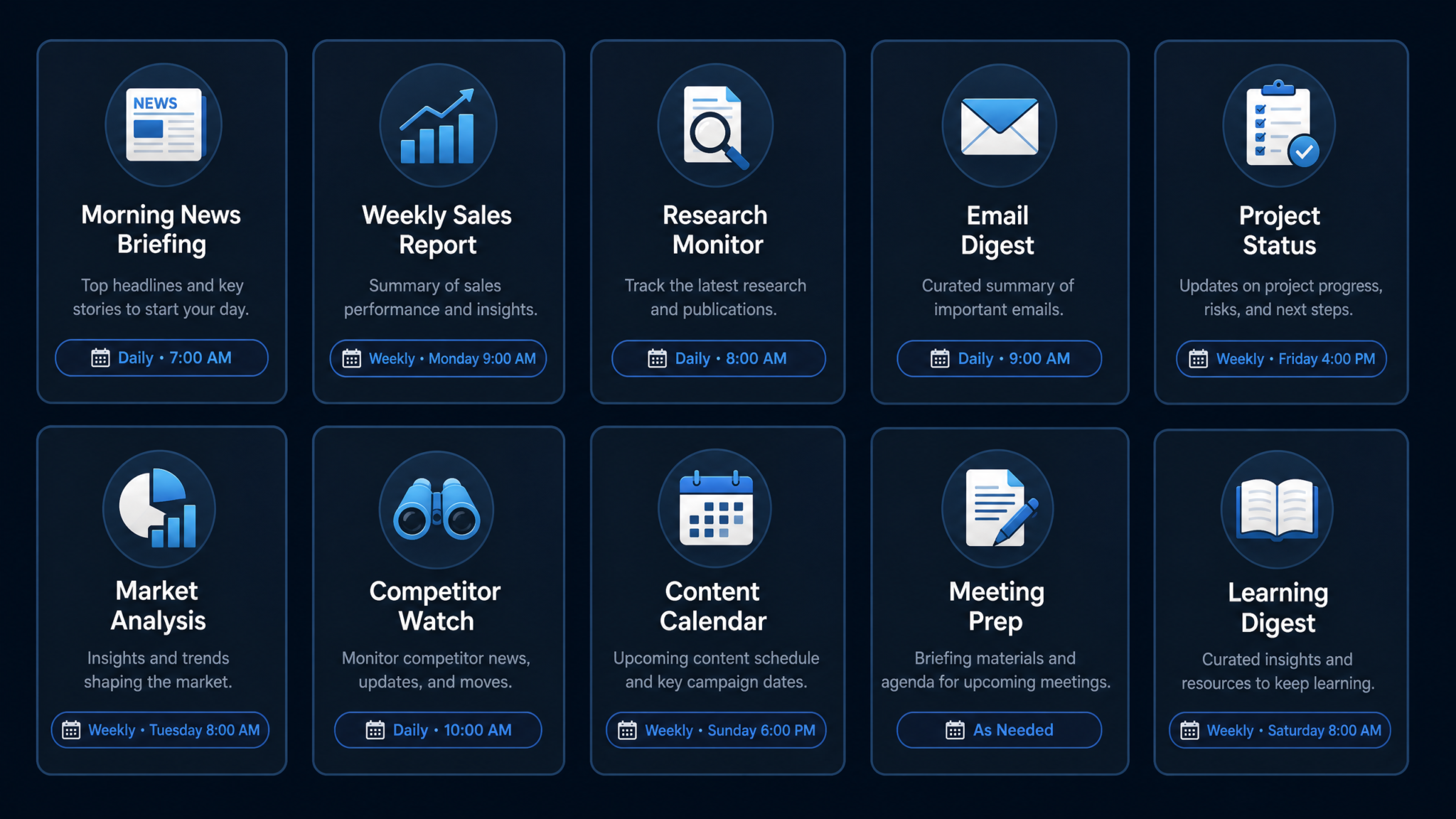
10 Ready-to-Use Scheduled Task Templates with Exact Prompts
Template 1: Executive Daily Briefing (Weekdays, 6:45 AM)
Covered in detail in the morning briefing section above. Schedule: 45 6 * * 1-5
Template 2: Friday Afternoon Week-in-Review
Schedule: Every Friday at 4:00 PM

Produce a personal Week in Review for the week ending today.

## My Week in Review — {week_ending_date}

**Wins this week:** (based on calendar meetings completed + email context)
**Challenges encountered:** (flag any delayed meetings, rescheduled events)
**Emails sent vs. received ratio:** (from Gmail stats if available)
**Meetings attended:** (count from Calendar)
**Most time-consuming recurring activity this week:**

**One reflection for next week's improvement:**

Keep to 250 words. Personal, reflective tone. Not for distribution.
Template 3: Daily Stock/Crypto Market Open Alert (Weekdays, 9:00 AM)
Schedule: Every weekday at 9:00 AM (markets open)

Browse for current prices and overnight changes for:
[TICKER_1], [TICKER_2], [TICKER_3], [CRYPTO_1]

Format:
## Market Open — {date}
| Asset | Current Price | 24h Change | 7d Change | Notable News |
For any asset with >3% movement, add a brief explanation from news.
End with a 1-sentence macro sentiment note (risk-on / risk-off).
Output: Email + conversation thread.
Template 4: Monthly Content Calendar Planning
Schedule: First day of each month at 9:00 AM

You are a content strategist. Generate a Content Calendar Scaffold
for the upcoming month ({next_month_name} {year}).

Browse for:
- Upcoming industry events, conferences, or dates relevant to [YOUR NICHE]
- Major holidays or awareness days this month

Produce a 4-week content calendar with:
- 3 content ideas per week (blog, social, email — one each)
- Content hook for each idea
- Recommended publish day
- Any tie-ins to real-world events from your research

Format as a table. Append to Notion page "Content Calendar {year}".
Template 5: Daily SEO Ranking Pulse
Schedule: Every weekday at 8:00 AM

Browse and attempt to retrieve current Google ranking data for
[YOUR DOMAIN] targeting these keywords:
[KEYWORD_1], [KEYWORD_2], [KEYWORD_3]

Note: Exact rank positions may require a dedicated rank tracker.
If direct ranking data is unavailable via Browse, instead:
- Search each keyword and note whether [YOUR DOMAIN] appears
  in the first page of results
- Summarize any competitors appearing prominently
- Flag any SERP feature changes (new featured snippet, news box, etc.)

Output: Brief table + 2-sentence summary. Delivery: Email.
Template 6: Bi-Weekly Team Meeting Prep
Schedule: Every other Monday at 8:30 AM

Prepare a Team Meeting Agenda for today's [MEETING NAME] meeting.

From my Google Calendar, retrieve the meeting details (time, attendees).
From Gmail, retrieve any threads in the past 14 days with
subject containing "[PROJECT NAME]" or from meeting attendees.

Generate:
## [MEETING NAME] Agenda — {date}
**Meeting time:** [from Calendar]
**Attendees:** [from Calendar]

### Standing Agenda Items
1. Progress updates (5 min each person)
2. Blockers — open discussion (10 min)
3. Decisions needed today (list from email context)
4. Action items from last meeting (list any open items)

### New Business (suggested from email context)
[List 2-3 items derived from recent email threads]

### Parking Lot
[Items raised but deferred]

Format as a shareable document. Deliver to Notion and Email.
Template 7: Daily Personal Finance Digest
Schedule: Every morning at 7:30 AM

Browse for:
- Current USD exchange rates for [CURRENCY_1], [CURRENCY_2]
- Today's economic calendar events (Fed announcements, CPI releases, etc.)
- Any financial news relevant to [YOUR INVESTMENT FOCUS]

## Personal Finance Digest — {date}
**Exchange Rates:** [table]
**Economic Events Today:** [list with times]
**Notable Financial News:** [3 items max, 1-sentence each]
**Action required:** [only if a specific event warrants attention]

Under 200 words. Professional tone. No financial advice — factual only.
Template 8: Weekly Newsletter Draft
Schedule: Every Thursday at 10:00 AM

You are a newsletter editor. Generate a draft newsletter for my
[NEWSLETTER NAME] audience of [DESCRIBE AUDIENCE].

Browse for this week's most significant developments in [YOUR TOPIC AREA].

## [Newsletter Name] — Issue #{auto_increment_or_date}
**Subject line options:** (give 3 options, A/B testable)

**Opening hook (2 sentences):**

**This Week's Main Story:**
[300 words, journalistic style, based on browsed content]

**Quick Hits (3-5 items):**
[Bullet format, 1-2 sentences each]

**Worth Reading:**
[2-3 external links with brief descriptions from browsed content]

**Closing line:**
[Warm, consistent with publication voice: {YOUR VOICE DESCRIPTION}]

Append draft to Google Drive document "Newsletter Drafts {year}".
Flag as DRAFT — not for direct sending without human review.
Template 9: Daily Customer Support Trend Summary
Schedule: Every weekday at 5:00 PM

Review emails received today in Gmail inbox labeled "support-inbox".

## Support Trend Summary — {date}

**Total support emails received today:** X
**New tickets:** X
**Resolved threads:** X

**Top 3 issue categories today:**
1. [Category]: X tickets — brief description of the core issue
2. [Category]: X tickets
3. [Category]: X tickets

**Any recurring issue (3+ tickets on same topic):**
Flag with 🚨 and propose a draft FAQ entry or product fix recommendation.

**Avg response time (if visible from thread timestamps):**

Deliver to Slack #support-ops channel.
Template 10: Quarterly Business Review Prep
Schedule: 15th of the last month of each quarter (March, June, September, December) at 9:00 AM

You are a business analyst preparing for a Quarterly Business Review.

Compile a QBR Preparation Document:

## QBR Prep — Q{quarter} {year}

### Performance vs. Goals
From my emails and calendar this quarter, identify any references to
targets, OKRs, or KPIs and list what was mentioned:
[Goal] → [Result mentioned in communications]
(If insufficient data, write "Requires manual input from team")

### Key Achievements This Quarter
(Synthesize from email/calendar context)

### Key Challenges and Lessons Learned

### Strategic Questions for Leadership Discussion
(Generate 5 thoughtful questions based on the above)

### Recommended Q{next_quarter} Priorities
(3-5 suggestions based on patterns identified)

Deliver to Notion "QBR {year}" database and Email.
Length: 600-800 words. Format: Executive presentation notes style.
How to Use ChatGPT for Business Strategy and Decision Making
Troubleshooting Common Issues
Issue: Task Shows “Failed” Status
The most common causes of task failure, in order of frequency:
- Integration token expired — OAuth tokens for Gmail, Calendar, and other services expire. Re-authorize the integration under Settings → Integrations.
- Prompt exceeded context window — If your task prompt is very long and the connected integration returns a large amount of data (e.g., 500 unread emails), the combined input may exceed the model’s context window. Fix: Add constraints like “limit to 20 most recent emails” or “summarize no more than 10 calendar events.”
- Browse unavailable — Browse occasionally returns errors due to upstream connectivity issues. Add a fallback instruction: “If Browse is unavailable, note this in the output and deliver what is possible from connected integrations only.”
- Quota exceeded — If your plan’s message quota is exhausted, tasks will fail until the quota resets. Upgrade your plan or reduce task frequency.
Issue: Task Runs But Output Is Empty
This typically occurs when the prompt contains a condition that evaluates to “nothing to report” but lacks an explicit fallback. Your prompt should always include a minimum output instruction:
If no data is found for any section, write:
"[Section name]: No data available at {run_time}."
Never return a completely empty response.
Issue: Task Delivers Inconsistent Formatting
The model occasionally deviates from requested formatting, especially in longer output tasks. Strengthen formatting compliance by leading the prompt with explicit constraints and using a validation statement:
CRITICAL FORMATTING RULES (follow exactly on every run):
1. Use ## for section headers, ### for subsections
2. Never use bold for regular sentences — only for labels
3. Every section must be present, even if the content is
   "No data available"
4. Final output must be valid HTML only — no Markdown
Issue: Calendar Data Not Pulling Correctly
Verify that the Google Calendar integration has the correct account linked. Users with multiple Google accounts sometimes find that the connected account is not the primary calendar account. Check under Settings → Integrations → Google Workspace → Manage and confirm the account email shown.
Issue: Email Digests Arriving Hours Late
Task execution operates in UTC by default. If you set a task to run at “7:00 AM” without specifying a timezone, it will run at 7:00 AM UTC — which may be afternoon or evening in your actual timezone. Always explicitly set timezone in your task configuration or use cron expressions with timezone offset documentation.
Advanced Patterns: Chaining Tasks and Conditional Triggers
For Plus and Pro users, Scheduled Tasks support two advanced automation patterns that significantly expand the automation ceiling: task chaining and conditional triggers.
Task Chaining
Task chaining allows the output of one task to serve as input context for a subsequent task. This is configured in the task’s Chain Settings panel, where you can reference a previous task by its ID and specify how its output should be injected.
A practical chain example for a content team:
--- CHAIN STEP 1 (runs Monday 8 AM) ---
Task: "Weekly Content Research"
Action: Browse for top 10 articles published this week about [TOPIC].
Output: JSON array of {title, url, summary} saved to task output buffer.

--- CHAIN STEP 2 (runs Monday 8:05 AM, after Step 1) ---
Task: "Weekly Content Brief Generator"
Input context: Output from "Weekly Content Research" task
Action:
Given the following articles from this week's research:
{CHAIN_INPUT_FROM: weekly_content_research}

Generate a content brief for our team:
1. The most important trend to cover this week
2. Three specific article angles we could write
3. A suggested headline for each angle
4. Competitor articles we should be aware of (from the research)

Output: Notion page "Content Brief {week_of}" + Email to content team
Conditional Triggers (Plus: Basic / Pro: Advanced)
Conditional triggers allow a task to execute different prompt branches based on evaluated conditions. On Plus, the logic is simple if-then. On Pro, multi-branch logic with AND/OR operators is available.
Plus — Basic Conditional Example
Run this task every weekday at 8:00 AM.

CONDITION CHECK (evaluate first):
Browse for news about [YOUR COMPANY NAME] published today.

IF news articles found:
  Generate a Media Monitoring Alert:
  - Headline and source for each article
  - Tone assessment (positive/neutral/negative)
  - Recommended response (monitor / draft response / escalate to PR)
  - Deliver to: Email + Slack #media-monitoring with subject "⚠️ Media Alert"

IF NO news articles found:
  Output only: "No media mentions found for {date}. No action required."
  Deliver to: Slack #media-monitoring only (no email)
Pro — Multi-Branch Conditional Example
Run every weekday at 9:00 AM.

STEP 1 — Evaluate conditions:
A: Browse for news about [COMPANY] — any articles today? (Yes/No)
B: Check Gmail for emails from [KEY_CLIENT_DOMAIN] — any received
   since midnight? (Yes/No)
C: Check Google Calendar — any meetings today tagged "investor"? (Yes/No)

STEP 2 — Execute based on conditions:

IF A=Yes AND C=Yes:
  Generate FULL crisis-prep briefing (500 words) covering media
  mentions + investor meeting talking points. Deliver: Email (High Priority)

IF A=Yes AND C=No:
  Generate media monitoring summary only. Deliver: Email (Normal)

IF A=No AND B=Yes:
  Generate client email summary with suggested responses.
  Deliver: Email + Notion "Client Communications Log"

IF A=No AND B=No AND C=Yes:
  Generate investor meeting prep notes from calendar context.
  Deliver: Email

IF A=No AND B=No AND C=No:
  Output: "All clear — no media, client, or investor activity.
  Have a productive day."
  Deliver: Slack only
The multi-branch conditional pattern essentially creates a mini-triage system that replaces multiple separate monitoring tasks with a single intelligent task that allocates your attention proportionally to what actually matters each day.
Advanced Pattern: Accumulating Task with Weekly Synthesis
Pro users can build a pattern where daily tasks accumulate outputs to a shared buffer (a Notion database or a designated Google Drive document), and a weekly synthesis task reads the full week’s accumulated data to generate a higher-level summary:
--- DAILY TASK (M-F, 5:30 PM) ---
Append today's activity log entry to Notion database
"Daily Activity Log" with columns:
Date | Key events (from Calendar) | Key emails (from Gmail) |
Mood/energy (self-assessed: ask me to rate 1-5) |
Main accomplishment | Main frustration

--- WEEKLY SYNTHESIS TASK (Sunday 8 PM) ---
Read all entries from the Notion "Daily Activity Log" database
from the past 7 days.

Generate my Weekly Personal Retrospective:
- Productivity patterns (which days were most/least productive)
- Recurring frustrations worth addressing
- Top accomplishments worth celebrating
- One behavioral experiment to try next week

Tone: Warm, coaching, non-judgmental.
Length: 400 words. Deliver: Email only.
Final Thoughts
ChatGPT Scheduled Tasks represent one of the most consequential quality-of-life improvements OpenAI has shipped for knowledge workers. The shift from reactive to proactive AI — where the system surfaces intelligence to you without prompting — changes the fundamental value proposition of having an AI subscription from a tool you remember to use to an infrastructure layer that runs in the background.
The users who will extract the most value are those who invest upfront in prompt quality. A poorly designed scheduled task is worse than no task at all — it creates noise rather than signal, erodes trust in the outputs, and requires manual cleanup. But a well-crafted task, refined over a few weeks of iteration, becomes genuinely indispensable: it knows your cadence, your priorities, and your information diet, and it surfaces exactly what you need when you need it.
Start with one task — the morning briefing is the recommended starting point for most users — and run it manually a few times using the Run Now feature before setting it to live schedule. Refine the prompt until the output is consistently usable without editing. Then expand to a second task. Build incrementally rather than configuring ten tasks at once and then troubleshooting all of them simultaneously.
The ten templates in this guide provide a complete starting library. Each can be adapted by replacing the bracketed variables with your specific context, tools, and preferences. As your task library matures, explore chaining and conditional patterns to build workflows that genuinely rival dedicated automation tools — but with the added dimension of the model’s reasoning and writing capabilities layered on top of the raw data aggregation.
ChatGPT Agentic Workflows and Autonomous AI Task Execution Guide
The era of passive AI assistance — where you come to the model — is giving way to active, scheduled intelligence that meets you where your day begins. Configure it thoughtfully, and it will compound in value every single morning.
