
ChatGPT Sites represents one of the most significant shifts in how non-technical users and developers alike can build and deploy functional web applications. Announced as part of OpenAI’s expanding ecosystem in 2025 and refined through 2026, Sites allows anyone with a ChatGPT account to describe an application in plain English and receive a fully hosted, shareable web app within minutes — no IDE, no terminal, no deployment pipeline required. This isn’t a glorified template builder; it’s a genuine full-stack generation engine that writes HTML, CSS, JavaScript, and even backend logic, then hosts the result on OpenAI’s infrastructure. Whether you’re a product manager who needs a quick internal tool, a freelancer building client prototypes, or a developer who wants to skip boilerplate, understanding Sites deeply will change how you work.

What Is ChatGPT Sites and How Does It Differ from Canvas?
ChatGPT Sites is a dedicated web application builder embedded directly into the ChatGPT interface. Unlike the Canvas feature, which is a collaborative document and code editor designed for iterative writing and coding within a session, Sites is specifically architected for the output artifact: a deployable, publicly accessible web application with its own URL. When you use Canvas, you’re editing a document or code file that lives inside your ChatGPT workspace. When you use Sites, you’re producing something that exists on the open web and can be shared with anyone, embedded in other pages, or used as a live product.
The distinction matters for workflow. Canvas is ideal when you want to work on code collaboratively with the model, copy it to your own environment, and deploy it yourself. Sites collapses the build-deploy cycle into a single conversation. The underlying model (GPT-4o and later versions) generates the application code, OpenAI’s infrastructure compiles and serves it, and you receive a live link. Subsequent edits to the app happen through continued conversation — you describe what you want changed, and the model updates the deployed artifact accordingly.
Sites supports applications that range from static informational pages to interactive tools with client-side logic, form handling, data visualization, API integrations, and persistent state via browser storage. For applications requiring a true server-side database with user authentication and multi-user data persistence, Sites has architectural constraints that we’ll cover in the limitations section. Understanding what falls inside and outside those boundaries is essential for setting realistic expectations before you begin building.
How to Access ChatGPT Sites in 2026
Access to ChatGPT Sites is available to ChatGPT Plus, Team, and Enterprise subscribers. As of 2026, OpenAI has also extended limited Sites access to free-tier users with usage caps, allowing them to build and deploy up to two active Sites per month. Here’s the exact access path:
- Open ChatGPT at chat.openai.com and ensure you’re logged into an eligible account tier.
- Start a new conversation and look for the “Sites” option in the tool selector — it appears as a globe or web icon in the input toolbar alongside tools like DALL-E, Code Interpreter, and Browse.
- Alternatively, navigate to chatgpt.com/sites from your dashboard, where you’ll see a dedicated Sites management panel listing all your active deployments, their URLs, traffic statistics, and edit options.
- Select “New Site” from the Sites dashboard or simply activate the Sites tool within a chat and begin describing your application.
Once you’re inside a Sites-enabled conversation, the interface shifts subtly. A preview pane opens on the right side of the screen (similar to the Canvas split-view), showing a live render of your application as it’s being generated. The left side remains the chat interface where you continue to issue instructions. This dual-pane layout is your primary workspace throughout the build process. You can toggle between “Preview” mode, which shows the rendered app, and “Code” mode, which shows the underlying HTML/CSS/JS that Sites has generated — a feature that’s invaluable for developers who want to inspect or understand what’s being built.
The Core Build Workflow: From Description to Deployed App
The workflow in ChatGPT Sites follows a clear pattern: describe, preview, refine, deploy. Each phase has specific techniques that dramatically affect output quality, and understanding them separates users who get mediocre results from those who ship polished applications on their first attempt.
Phase 1: The Initial Prompt — Describing Your Application
Your initial prompt is the most important input in the entire process. Vague prompts produce generic apps; specific, structured prompts produce apps that are immediately close to your vision. The model responds to context about purpose, audience, functionality, and aesthetic. Here is a framework for structuring your initial Sites prompt:
Prompt Framework: [App Type] + [Core Functionality] + [Target User] + [Key Features] + [Visual Style] + [Data/Content Details]
Let’s look at concrete examples across different application categories:
Example Prompt 1: Internal Business Tool
Build a project status tracker for a small marketing team.
The app should let users add projects with a name, owner,
due date, and status (Not Started, In Progress, Review, Done).
Display projects in a Kanban-style board with color-coded
columns. Include a filter by owner and a progress summary
at the top showing total projects and percentage complete.
Use a clean, professional design with a dark navy sidebar
and white cards. All data should persist in localStorage.
Example Prompt 2: Customer-Facing Tool
Create a mortgage payment calculator for first-time homebuyers.
Include inputs for home price, down payment (dollar and
percentage toggle), loan term (15 or 30 years), and
interest rate. Show monthly payment broken down into
principal, interest, taxes (estimated at 1.2% annually),
and insurance (estimated at $150/month). Display an
amortization schedule table for the full loan term.
Add a comparison feature that shows two scenarios side
by side. Design should be friendly and approachable,
using green as the primary accent color.
Example Prompt 3: Portfolio/Showcase Page
Build a portfolio site for a UX designer named Alex Chen.
Include sections: hero with name and tagline, about with
a 3-column skills grid, a filterable project gallery
(filter by category: Mobile, Web, Branding), a process
section with numbered steps, testimonials carousel,
and a contact form. Use a minimal design with lots of
white space, Inter font, and a coral (#FF6B6B) accent
color. Make it fully responsive. Add smooth scroll
animations on section entry.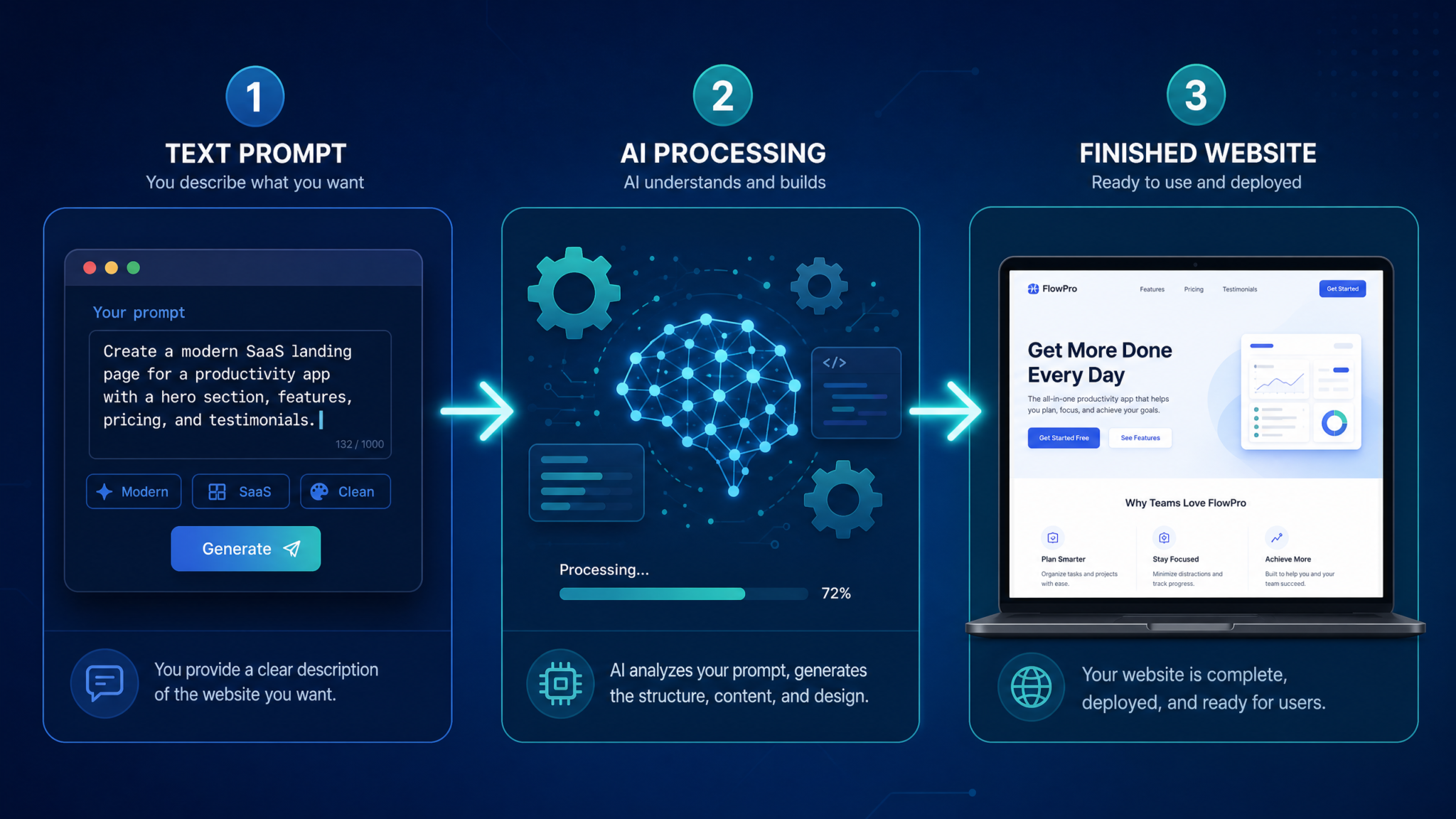
Phase 2: Iterative Refinement Through Conversation
After the initial generation, you’ll almost never have a finished product. The refinement phase is where Sites truly shines, because you can describe changes in plain language rather than editing code. Effective refinement prompts are specific about what to change, what to keep, and why. Here are patterns that work reliably:
| Refinement Type | Weak Prompt | Strong Prompt |
|---|---|---|
| Visual Change | “Make it look better” | “Increase the card border radius to 12px, add a subtle box shadow (0 2px 8px rgba(0,0,0,0.1)), and add 8px more padding inside each card” |
| Functionality | “Add a search” | “Add a search bar above the project list that filters in real-time by project name and owner as the user types, with a clear button that resets the filter” |
| Content | “Change the text” | “Replace all placeholder lorem ipsum text with realistic marketing agency content — project names like ‘Q4 Campaign Launch’, ‘Brand Refresh’, ‘Social Media Audit’” |
| Responsive | “Make it mobile” | “On screens below 768px, collapse the Kanban columns into a single vertical list, stack the filter controls, and make the header font size 20px” |
| Performance | “Make it faster” | “Debounce the search input handler by 300ms and lazy-load the amortization table only when the user clicks ‘Show Full Schedule’” |
One advanced technique is to ask Sites to explain its implementation decisions before making changes. Prompting with “Explain how the current localStorage persistence works, then add the ability to export all projects as a CSV file” gives the model context to make changes that are consistent with existing code architecture rather than introducing conflicts.
Phase 3: Deploying and Getting Your URL
Deployment in ChatGPT Sites is not a separate step — it’s continuous. Every time the model generates or updates your application, the preview pane reflects the live state of your deployment. When you’re satisfied with the result, click the “Publish” button in the Sites interface. This action makes your app publicly accessible at a URL in the format chatgpt.com/s/[unique-identifier] or, for named sites, chatgpt.com/sites/[your-site-name].
You can control visibility settings at the time of publishing: Public (anyone with the link can access), Unlisted (accessible by link but not indexed or discoverable), or Private (only accessible when logged into your ChatGPT account). For internal tools and prototypes, Unlisted is typically the appropriate choice. For public-facing products, Public with a custom domain (covered below) is the standard configuration.
Customization Options in ChatGPT Sites
Sites offers several layers of customization, from high-level design direction to granular code-level control. Understanding each layer helps you decide how much control to exert at each stage.
Design System Customization
You can establish a design system at the beginning of your build by providing explicit design tokens. This is especially valuable if you’re building multiple Sites that need to share a visual identity, or if you’re building for a client with an existing brand guide. Here’s an example of a design system prompt:
Before building the app, establish these design tokens
and use them consistently throughout:
- Primary color: #2563EB (blue)
- Secondary color: #10B981 (green)
- Danger/error: #EF4444 (red)
- Background: #F8FAFC
- Surface (cards): #FFFFFF
- Text primary: #1E293B
- Text secondary: #64748B
- Border: #E2E8F0
- Border radius: 8px for cards, 6px for inputs, 4px for badges
- Font: System font stack (-apple-system, BlinkMacSystemFont, 'Segoe UI')
- Base font size: 14px
- Spacing unit: 4px (use multiples: 4, 8, 12, 16, 24, 32, 48)
Integrating External Libraries and APIs
Sites-generated applications can reference external JavaScript libraries via CDN links. This dramatically expands what’s possible within the Sites architecture. You can instruct the model to use Chart.js for data visualization, Leaflet.js for maps, Papa Parse for CSV processing, or any other library available on a CDN. For example:
Add a bar chart showing monthly revenue data using Chart.js
(load it from cdnjs.cloudflare.com). The chart should use
the brand colors defined earlier, have a legend, tooltips
on hover, and animate on page load. Use this sample data:
Jan: 42000, Feb: 38000, Mar: 51000, Apr: 67000, May: 71000,
Jun: 58000.
For API integrations, Sites can generate client-side fetch calls to external APIs. This works well for public APIs that don’t require server-side authentication (or where you’re comfortable with API keys being visible in client-side code — which is appropriate for some use cases like internal tools). You can instruct Sites to integrate with weather APIs, currency conversion services, public data sources, or even OpenAI’s own API for AI-powered features within your app. The Complete ChatGPT API Integration Masterclass: Building Production Applications with the Responses API in 2026
Custom Domains
ChatGPT Sites supports custom domain mapping for Plus and higher tier users. To connect a custom domain:
- Navigate to your Sites dashboard and select the site you want to configure.
- Click “Settings” and then “Custom Domain.”
- Enter your desired domain (e.g.,
tools.yourcompany.comorcalculator.yourbrand.com). - OpenAI provides a CNAME record value that you add to your domain’s DNS settings through your registrar (GoDaddy, Namecheap, Cloudflare, etc.).
- DNS propagation typically takes 15–60 minutes, after which your Site is accessible at your custom domain with HTTPS automatically provisioned via Let’s Encrypt.
Custom domains are particularly valuable for client-facing tools, because they allow you to deliver a polished product experience without exposing the ChatGPT branding in the URL. A client receiving estimate.yourdesignstudio.com has a fundamentally different experience than one receiving chatgpt.com/s/abc123.
Real Examples of Applications Built with ChatGPT Sites
Understanding what’s actually been built with Sites — not hypothetically but by real users — calibrates your expectations and sparks ideas. Here are documented categories of applications with specific implementation notes:
1. SaaS Prototype and MVP Validation Tools
Startup founders have used Sites to build clickable prototypes of their SaaS products in hours rather than weeks. A common pattern is building a fully functional demo that uses localStorage as the “database,” allowing investors or potential customers to interact with the product as if it were real. One founder in the project management space built a complete task management interface with team assignment, priority levels, due dates, and a dashboard view — all in a single ChatGPT Sites session. The app was used in 40 investor demos before a line of production code was written.
2. Internal Business Tools
Operations teams have found Sites invaluable for building tools that would otherwise require months in an IT backlog. Examples include: shift scheduling tools that calculate labor costs, inventory trackers with low-stock alerts, client onboarding checklists with progress tracking, expense categorization tools that parse pasted data, and meeting agenda builders with time allocation calculators. These tools use localStorage for data persistence, which is appropriate for single-user or small-team scenarios where data doesn’t need to be shared across devices or users. The Complete Guide to OpenAI’s ChatGPT Small Business Program: AI Training, Mentorship, and Growth Tools for Entrepreneurs
3. Educational Tools and Calculators
Teachers, tutors, and educational content creators have built quiz engines, flashcard apps, grade calculators, unit converters with explanations, and subject-specific interactive tools. A high school math teacher built a quadratic formula visualizer that shows the parabola updating in real-time as students adjust coefficients — a tool that would have required a developer or a paid platform subscription to create through traditional means.
4. Client-Facing Marketing Tools
Marketing agencies have deployed Sites as value-add tools for clients: ROI calculators, pricing configurators, savings estimators, and assessment tools that capture leads. These work particularly well because they can be embedded via iframe in existing websites, meaning the Sites URL can be hidden from end users entirely. A digital marketing agency built a “SEO Audit Score” tool that accepts a URL and industry category, then presents a detailed (pre-calculated, content-based) audit report — the tool generates leads by requiring an email address before displaying results, stored in a simple form submission that triggers a mailto link.
5. Personal Productivity Apps
Power users have built personal dashboards, habit trackers, reading list managers, journaling tools, budget trackers, and goal-setting frameworks — all persisted in localStorage and accessible from any browser tab. The advantage over tools like Notion or Airtable for these use cases is complete customization: the app does exactly what the user wants, with no features they don’t need and no subscription fee.
ChatGPT Sites vs. Traditional No-Code Tools: A Detailed Comparison
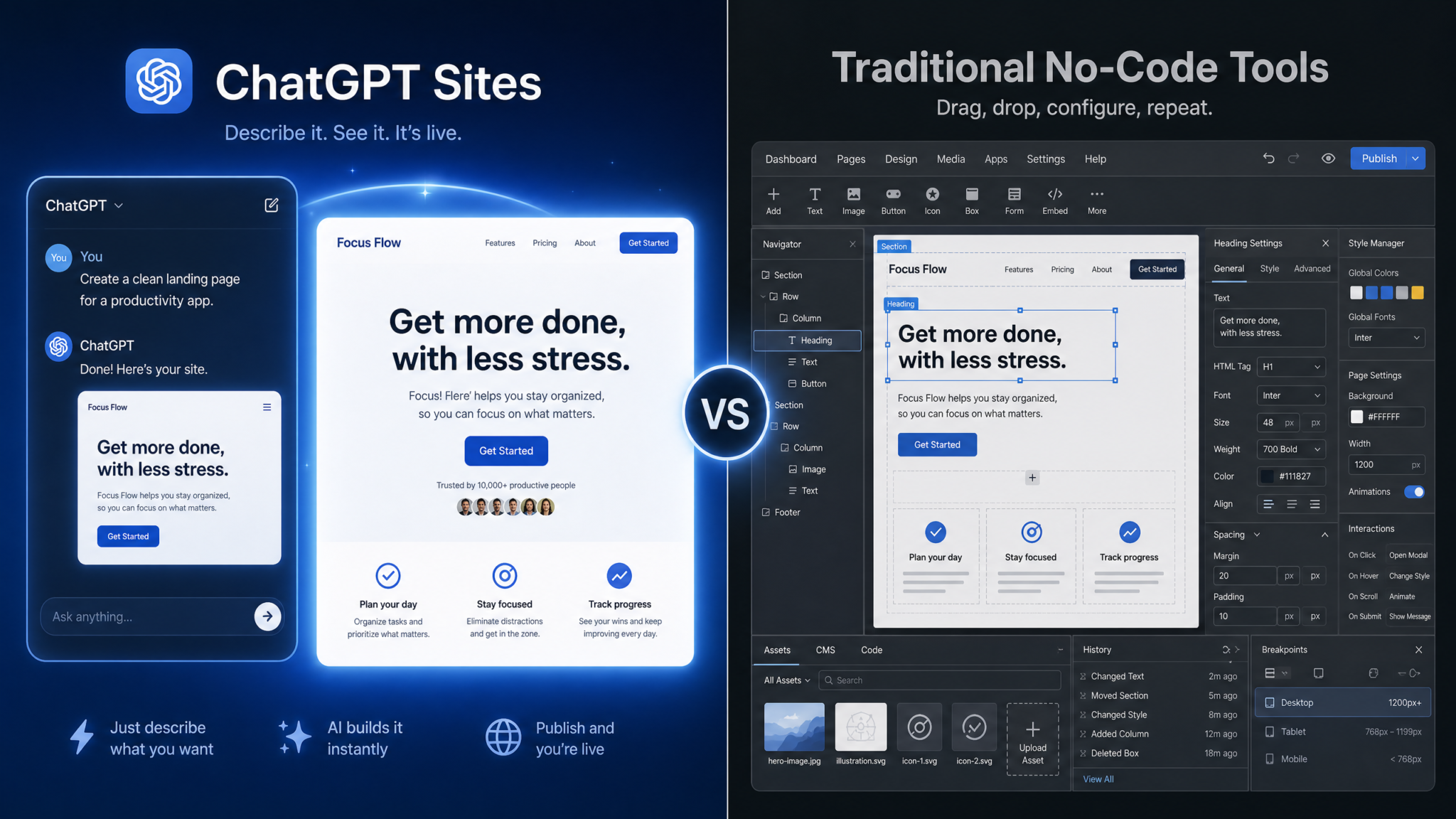
The no-code market has been disrupted by AI-native builders, but traditional tools still hold advantages in specific scenarios. Here’s an honest comparison to help you decide when Sites is the right choice and when it isn’t:
| Dimension | ChatGPT Sites | Webflow | Bubble | Glide/Softr |
|---|---|---|---|---|
| Time to first deploy | 5–15 minutes | 2–8 hours | 4–16 hours | 30–90 minutes |
| Learning curve | Near zero (natural language) | Medium–High | High | Low–Medium |
| Backend/Database | localStorage only (client-side) | None native (CMS for content) | Full backend database | Airtable/Google Sheets |
| Multi-user data | Not supported natively | Limited (CMS) | Full support | Full support |
| Custom code | Full access (AI-generated) | Limited embed | Limited | Very limited |
| Cost | Included in ChatGPT Plus ($20/mo) | $14–$212/mo | $29–$529/mo | $25–$99/mo |
| Custom domain | Yes (Plus+) | Yes | Yes | Yes |
| SEO optimization | Basic (static content) | Excellent | Good | Limited |
| Version control | Conversation history | Built-in versioning | Built-in versioning | Limited |
| Collaboration | Share conversation | Team collaboration | Team collaboration | Team collaboration |
The key insight from this comparison is that ChatGPT Sites occupies a distinct niche: it’s the fastest path from idea to deployed app for single-user or small-team tools that don’t require server-side data persistence. For applications where multiple users need to read and write shared data (a CRM, a team project tracker where all team members see each other’s updates in real-time, a marketplace), Sites is not the right primary tool — though it can be used to build the frontend that connects to an external backend API.
For developers who want the best of both worlds, a powerful pattern has emerged: use ChatGPT Sites to build the frontend and UX, then connect it to Supabase, Firebase, or Airtable via their client-side JavaScript SDKs. Sites can generate the integration code for these services when you provide your API keys and data schema. This hybrid approach gives you the speed of Sites for UI generation with the full database capabilities of a dedicated backend service. How to Build a Multi-Agent Workflow with ChatGPT Work and GPT-5.6 Terra — Connecting Gmail, Slack, and GitHub for Automated Project Management
Understanding the Limitations of ChatGPT Sites
No tool is right for every job, and Sites has genuine architectural and practical limitations that you need to understand before committing to it for a project:
Data Persistence Limitations
localStorage is the primary persistence mechanism for Sites-generated apps. localStorage is browser-specific, meaning data stored by a user on Chrome on their laptop is not accessible when they open the same URL on their phone or in Firefox. It’s also limited to approximately 5–10MB per origin, which is sufficient for most tool-type applications but not for apps that store large datasets. There is no built-in user authentication, meaning you cannot build apps where different users have separate data views without integrating an external auth service.
Server-Side Logic Constraints
Sites generates client-side applications. There is no server-side code execution, no cron jobs, no webhooks that trigger on a schedule, and no persistent server-side state. Applications that require email sending, background processing, file storage, or server-side API calls with protected credentials are outside the native scope of Sites. These capabilities require external service integrations (Zapier webhooks, email service APIs called from the client, etc.).
Traffic and Hosting Limits
OpenAI’s Sites hosting has traffic limits that vary by account tier. Plus accounts receive a generous but finite bandwidth allocation. For applications that go viral or receive sustained high traffic, you may need to export the generated code and host it on your own infrastructure (Vercel, Netlify, GitHub Pages). The code export feature in Sites makes this straightforward — you can download a ZIP of all generated files and deploy them anywhere that serves static HTML.
Complex State Management
While Sites can generate surprisingly sophisticated applications, very complex state management scenarios — real-time collaborative editing, complex form wizards with branching logic across dozens of steps, applications with highly interdependent component states — sometimes produce code with subtle bugs that are difficult to fix through natural language prompts alone. In these cases, switching to Code mode, inspecting the generated JavaScript, and providing specific code-level corrections is more effective than iterating through natural language alone.
Advanced Tips for Getting Better Results from ChatGPT Sites
After extensive use, several techniques consistently produce higher-quality outputs and faster iteration cycles:
Tip 1: Use the “Spec First” Approach
Before writing a single line of your build prompt, ask ChatGPT to help you write the spec. Prompt: “I want to build [app description]. Help me write a detailed specification I can use to build this with ChatGPT Sites, including all features, data structures, UI components, and edge cases.” Review and refine the spec, then use it as your build prompt. This front-loads the thinking and produces dramatically better first-generation results.
Tip 2: Define Data Structures Explicitly
For any app that manages data, define your data structures explicitly in the prompt rather than letting the model infer them. Compare:
// Weak: "Build a contact manager"

// Strong: "Build a contact manager. Each contact has this structure:
{
  id: uuid,
  firstName: string,
  lastName: string,
  email: string,
  phone: string (optional),
  company: string (optional),
  tags: string[] (e.g., ['client', 'prospect', 'vendor']),
  notes: string (optional),
  createdAt: ISO timestamp,
  lastContactedAt: ISO timestamp (optional)
}
Store contacts as an array in localStorage under the key 'contacts_v1'."
Explicit data structures produce consistent, well-organized code that’s easier to extend and debug. They also prevent the model from making arbitrary decisions about field naming and types that you’ll want to change later.
Access 40,000+ AI Prompts for ChatGPT, Claude & Codex — Free!
Subscribe to get instant access to our complete Notion Prompt Library — the largest curated collection of prompts for ChatGPT, Claude, OpenAI Codex, and other leading AI models. Optimized for real-world workflows across coding, research, content creation, and business.
Tip 3: Request Accessibility Features Explicitly
Sites-generated apps don’t automatically include accessibility features unless you ask. For any app that might be used by a broad audience, include in your prompt: “Ensure all interactive elements have appropriate ARIA labels, all images have alt text, the color contrast ratio meets WCAG AA standards, and the app is fully navigable by keyboard.” This is especially important for client-facing tools where accessibility compliance may be a legal requirement.
Tip 4: Use Progressive Enhancement for Complex Features
Rather than requesting all features in your initial prompt, build the core functionality first and add features progressively. This mirrors good software development practice and produces better Sites results because each generation is focused on a smaller, well-defined scope. A typical progression might be:
- Session 1: Core data model + basic CRUD interface
- Session 2: Filtering, sorting, and search
- Session 3: Data visualization and reporting
- Session 4: Export functionality and print views
- Session 5: Polish — animations, empty states, error handling, loading states
Tip 5: Request Error Handling and Edge Cases Explicitly
Generated apps often handle the happy path well but miss edge cases. After your core build is complete, prompt: “Review the app and add comprehensive error handling: empty state messages when there’s no data, validation errors on all form inputs with specific error messages, confirmation dialogs before destructive actions (delete), and graceful handling of localStorage being unavailable or full.” This single prompt can transform a prototype into a production-quality tool. The Complete Prompt Engineering Stack for 2026: 7 Tools Evaluated
Tip 6: Leverage the Code View for Targeted Fixes
When a natural language refinement produces unexpected results or breaks something that was working, switch to Code view and read the actual implementation. Then prompt with specific code references: “In the renderProjects function, the filter logic on line 47 is using strict equality for status comparison but the status values include trailing spaces — fix this by trimming the status value before comparison.” Code-specific prompts like this are far more reliable for surgical fixes than describing the symptom and hoping the model identifies the right fix.
Tip 7: Build Reusable Component Libraries
If you build multiple Sites, establish a personal component library by saving successful prompt patterns for commonly needed UI elements: data tables with sorting and pagination, modal dialogs, toast notification systems, form validation patterns, responsive navigation headers. When you need these components in a new Site, you can include them in your initial prompt: “Use the same modal dialog pattern as my previous project — a semi-transparent overlay with a white centered card, close button in the top right, and keyboard-accessible (Escape key closes).”
Exporting and Migrating Your Sites App
One concern users reasonably have about building on ChatGPT Sites is vendor lock-in. OpenAI has addressed this with a code export feature that gives you complete ownership of everything generated. To export:
- Open your Site in the Sites dashboard or within the chat where it was built.
- Click the “…” menu and select “Export Code.”
- Download the ZIP file containing all HTML, CSS, and JavaScript files.
- The exported code is standard, dependency-free (unless you used CDN libraries) HTML/CSS/JS that runs in any browser or can be hosted on any static hosting platform.
For deploying exported Sites code to Vercel (the most common migration target), the process is straightforward: create a new Vercel project, drag and drop the exported files into the Vercel dashboard, and your app is live on Vercel’s infrastructure within 30 seconds. You can then connect a custom domain through Vercel’s interface and benefit from Vercel’s more generous bandwidth limits and global CDN. This migration path makes ChatGPT Sites a viable starting point even for projects that will eventually need production-grade hosting. The Complete Guide to OpenAI’s New Responses API: How to Build Multi-Step AI Agents with Web Search, File Analysis, and Computer Use Capabilities
ChatGPT Sites for Developers: Beyond No-Code
While Sites is marketed toward non-technical users, developers who use it strategically can significantly accelerate their workflows. The key insight is that Sites excels at generating UI boilerplate and interaction logic — exactly the parts of frontend development that are tedious and time-consuming but not intellectually challenging. A developer’s time is better spent on architecture, performance optimization, and business logic than writing CSS grid layouts and form validation handlers.
A productive developer workflow with Sites looks like this: use Sites to generate the complete UI layer with realistic sample data, export the code, integrate it with your actual backend (replacing localStorage calls with API calls), and deploy to your own infrastructure. For a typical CRUD application, this workflow can reduce frontend development time by 60–80% compared to writing from scratch, while still giving you full control over the final codebase.
Developers can also use Sites as a rapid prototyping tool for user testing. Building a clickable prototype in Sites takes a fraction of the time of building in React or Vue, and the result is good enough to run genuine user tests with. Insights from those tests can then inform the production implementation, avoiding the classic problem of building the wrong thing with high-quality code.
Security Considerations When Using ChatGPT Sites
Building on any platform requires thinking about security, and Sites has specific considerations that users need to understand:
API Key Exposure: Any API keys included in your Sites prompt will be embedded in client-side JavaScript and visible to anyone who inspects the page source. Never include production API keys with write access or billing implications in a Sites app that’s publicly accessible. Use read-only API keys where possible, or implement an API proxy through a service like Cloudflare Workers if you need to protect sensitive credentials.
Data in localStorage: Data stored in localStorage is accessible to any JavaScript running on the same origin and is not encrypted. Don’t store sensitive personal information, passwords, or confidential business data in a Sites app’s localStorage without explicit encryption logic (which you can request Sites to implement using the Web Crypto API).
Input Sanitization: Sites-generated apps generally include basic input sanitization, but for any app that displays user-entered content in the DOM, explicitly request XSS protection: “Ensure all user-entered content is sanitized before being inserted into the DOM — use textContent instead of innerHTML for user data, and escape any HTML special characters.”
Content Security Policy: For higher-security applications, request that Sites include a Content Security Policy meta tag that restricts which external resources can be loaded, reducing the risk of content injection attacks.
The Future of ChatGPT Sites: What’s Coming
Based on OpenAI’s development trajectory and public communications through 2026, several capabilities are either in beta or on the roadmap for Sites:
- Native backend integration: OpenAI is piloting a managed database service for Sites that would provide simple key-value and relational storage without requiring external services, enabling multi-user data persistence natively.
- Authentication primitives: Basic username/password and OAuth (Sign in with Google) authentication flows are in testing, which would enable personalized experiences within Sites apps.
- Real-time collaboration: WebSocket-based real-time features for collaborative tools are on the roadmap, which would make Sites viable for tools like shared whiteboards, collaborative documents, and live dashboards.
- Template marketplace: A community marketplace for Sites templates is planned, where users can share and monetize successful app templates.
- Analytics integration: Native analytics showing user engagement, session duration, and interaction events within Sites apps, without requiring external analytics tools.
These additions, if delivered, would close the gap between Sites and more established no-code platforms significantly. The current limitations are real but not permanent, and building expertise with Sites now positions you to leverage these capabilities as they become available.
Frequently Asked Questions About ChatGPT Sites
Q: Can I use ChatGPT Sites to build an e-commerce store that accepts payments?
Sites can generate the frontend UI for an e-commerce store, including product listings, a shopping cart, and a checkout form. However, payment processing requires server-side code to securely handle payment credentials and communicate with payment processors like Stripe. The recommended approach is to use Stripe’s client-side JavaScript library (Stripe.js) with Stripe Checkout or Payment Links, which handles the payment processing externally. Sites can generate the integration code to redirect users to Stripe Checkout and handle success/cancel redirects. For a full e-commerce solution with inventory management and order tracking, Sites is best used as the frontend layer connected to a backend like Shopify’s Storefront API or a custom API.
Q: Will my ChatGPT Sites app disappear if I cancel my ChatGPT Plus subscription?
Based on OpenAI’s current terms, active Sites remain accessible for 30 days after a subscription downgrade, giving you time to export the code and migrate to alternative hosting. After the grace period, Sites on the free tier are subject to the free tier’s usage limits (two active Sites). It’s strongly recommended to export your Sites code regularly as a backup, regardless of your subscription status. The export function is always available and gives you a complete, self-contained copy of your application.
Q: How does ChatGPT Sites handle responsive design — do I need to specify mobile layouts?
Sites generates responsive CSS by default, using media queries and modern CSS layout techniques (Flexbox and CSS Grid) that adapt to different screen sizes. However, the default responsive behavior may not match your specific requirements. For complex layouts, it’s worth explicitly stating your responsive requirements: specify which elements should stack vertically on mobile, what the breakpoints should be (typically 768px for tablet, 480px for mobile), and any mobile-specific interactions (like swipe gestures for carousels). After generation, use your browser’s developer tools (F12 > device toolbar) to test the responsive behavior and describe specific adjustments needed.
Q: Can multiple people collaborate on building a ChatGPT Site?
Collaboration in Sites currently happens at the conversation level. You can share a ChatGPT conversation with your Sites build (using the “Share” feature), allowing others to view the build history and the resulting app. However, only the conversation owner can make edits. For team collaboration, the current best practice is to export the code and use a version control system like GitHub, then re-import for further AI-assisted development. OpenAI’s Team and Enterprise plans include shared workspace features that allow multiple team members to access and edit the same Sites projects, with change history tracked at the conversation level.
Q: What’s the maximum complexity of application that ChatGPT Sites can realistically handle?
The practical complexity ceiling for a single Sites session is roughly equivalent to a mid-sized single-page application: 10–15 distinct views or screens, 5–8 data entity types, complex filtering and sorting, data visualization with 3–4 chart types, and 2–3 external API integrations. Beyond this complexity, the generated code tends to become unwieldy — the model may lose track of earlier architectural decisions, introduce naming inconsistencies, or generate conflicting logic. For more complex applications, the recommended approach is to build in modules: create separate Sites for distinct functional areas, then combine them through iframe embedding or by exporting and merging the code manually. Applications in the 15,000–30,000 lines of generated JavaScript range are where most users hit the practical ceiling of what Sites can reliably produce and maintain through natural language prompts alone.
Article by Markos Symeonides, ChatGPT AI Hub. Last updated 2026.
