
By Markos Symeonides | April 2, 2026
Introduction to OpenAI Codex Plugins and Their Significance
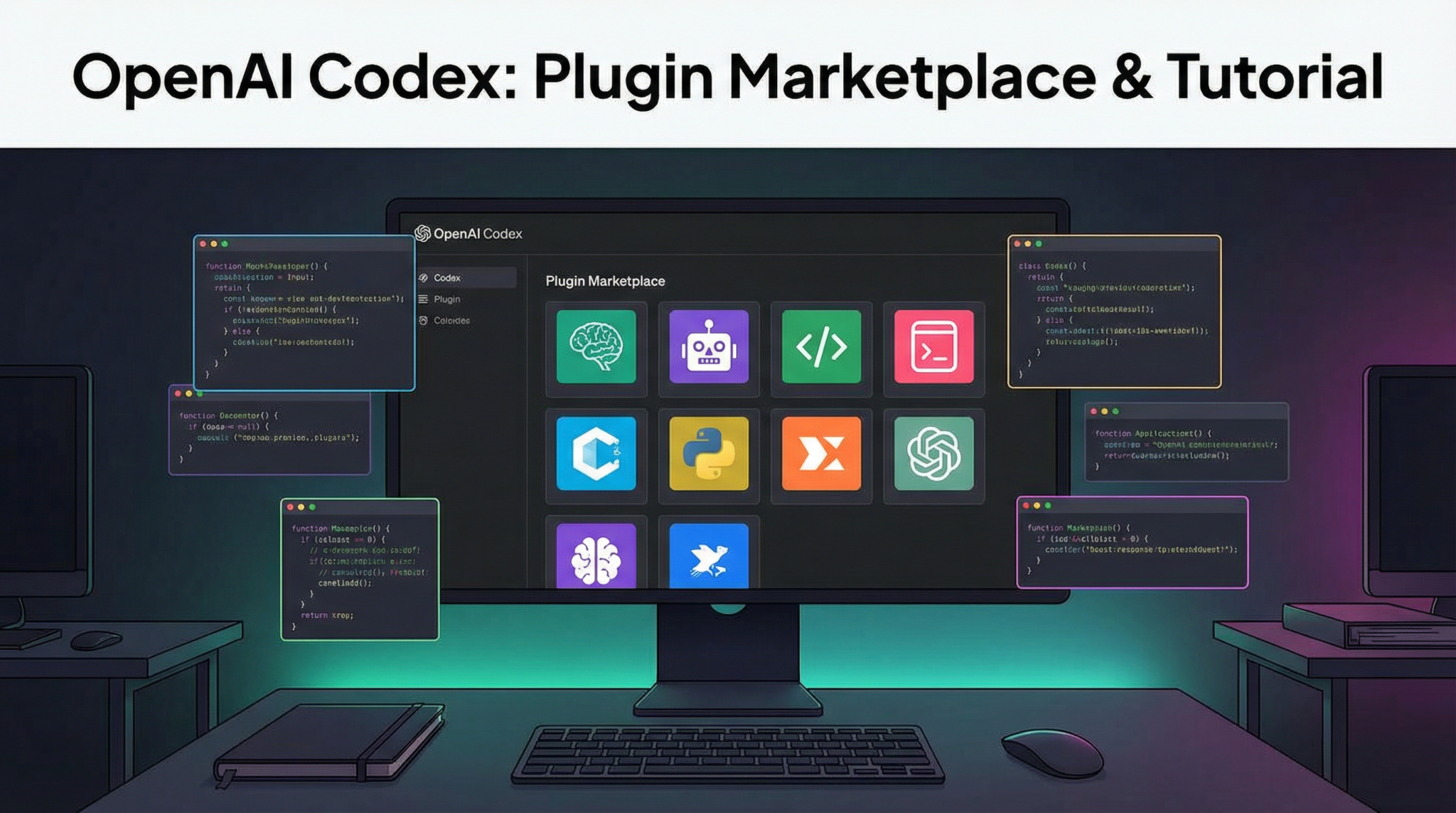
OpenAI Codex Plugins, launched in March 2026, represent a transformative leap in AI-assisted software development. These plugins extend Codex’s capabilities by enabling seamless integration with external tools, APIs, and services, effectively turning AI from a code generation assistant into a versatile development partner capable of orchestrating complex workflows.
Why do Codex Plugins matter? Traditional AI coding assistants generate code snippets based on user prompts, but lack the ability to interact dynamically with third-party services or execute multi-step processes autonomously. Codex Plugins bridge this gap by providing modular extensions that can be installed and managed within the Codex environment, empowering developers to automate routine tasks, integrate CI/CD pipelines, query databases, or even control cloud infrastructure — all within a unified AI-driven interface.
This tutorial will provide a comprehensive, practical guide on leveraging the full potential of Codex Plugins through the new Windows Codex app, powered by GPT-5.4, detailing how to install, configure, and optimize your AI development workflow using these plugins.
Getting Started with the Windows Codex App
Availability and Features
As of March 2026, the Codex app is natively available on Windows for all ChatGPT subscription plans that include Codex access. This Windows client offers a rich graphical interface that consolidates plugin management, multi-agent orchestration, and real-time code assistance into a seamless experience.
Key highlights include:
- Dedicated Plugins section with a searchable library for effortless discovery
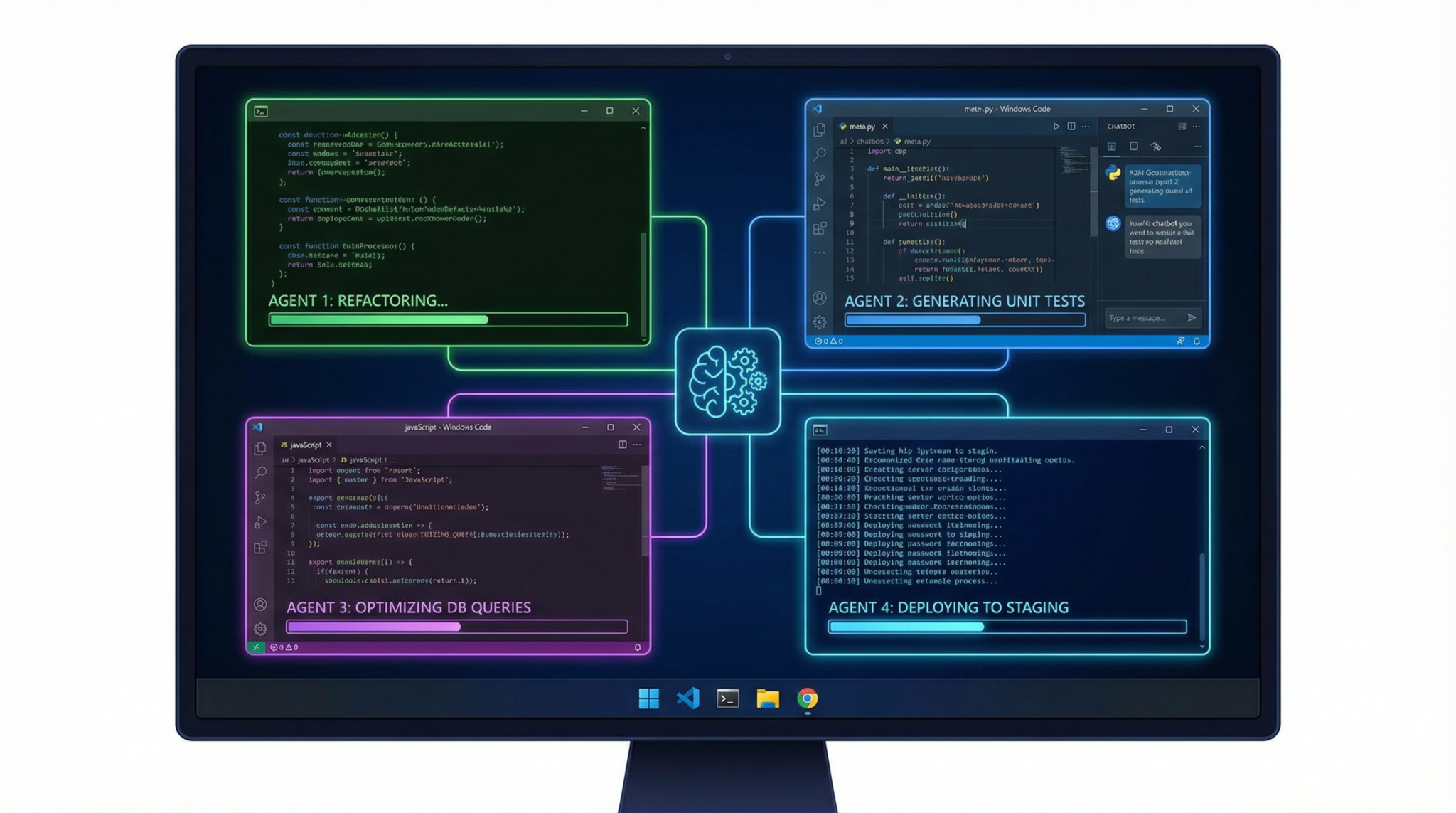
- Support for running multiple parallel Codex agents to handle concurrent tasks
- Integration with MCP (Modular Connector Protocol) servers enabling external tool interoperability
- Security research preview features to audit and sandbox plugin behavior
Accessing the Plugins Section
- Launch the Codex app on your Windows machine.
- Sign in using your OpenAI credentials linked to your ChatGPT plan with Codex.
- Navigate to the sidebar and select the “Plugins” tab.
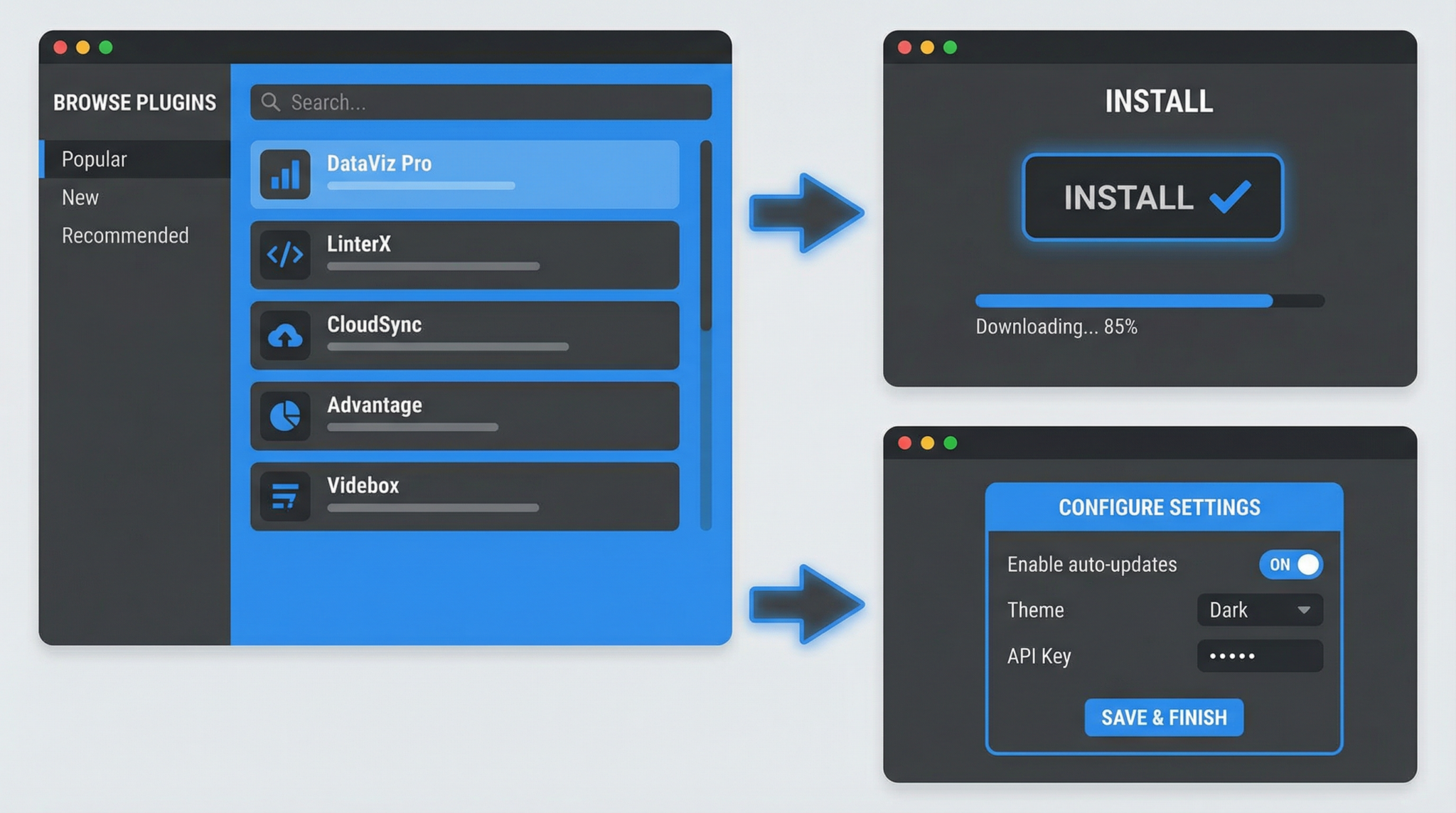
- Use the search bar at the top of the Plugins section to find plugins by name, category, or functionality.
- Browse curated collections and featured plugins to discover new tools tailored for various development needs.
The plugin library is continuously updated with contributions from the community and official OpenAI releases, ensuring a broad selection of utilities from API connectors to code formatters and deployment tools.
Installing and Using Codex Plugins: Step-by-Step
This section walks through installing your first Codex plugin and demonstrates practical usage examples.
Step 1: Choose a Plugin to Install
For this tutorial, we will install the GitHub Issue Manager plugin, which allows Codex agents to create, read, and update GitHub issues directly from your development environment.
Step 2: Installation Process
- In the Plugins tab, search for
GitHub Issue Manager. - Click the plugin tile to open its detailed description, including permissions and API scopes.
- Click Install to add the plugin to your Codex environment.
- Authenticate with GitHub credentials when prompted to grant necessary access rights.
- Wait for the installation confirmation message before proceeding.
Step 3: Using the Plugin with Codex Agents
- Open a new Codex agent chat session.
- Invoke the plugin by specifying commands such as
"Create a new issue titled 'Bug in login flow' with description 'User cannot log in after password reset'". - Codex will process the request and interact with the GitHub API via the plugin to create the issue.
- Verify the issue’s creation by navigating to your GitHub repository.
This interaction exemplifies how plugins empower Codex agents to perform real-world, API-driven tasks beyond static code generation.
How Codex Plugins Integrate with External Tools via MCP Servers
Codex Plugins rely on MCP (Modular Connector Protocol) servers, a standardized communication layer that facilitates secure, bidirectional data exchange between Codex agents and external systems.
MCP servers act as intermediaries that expose APIs or services in a way compatible with Codex plugin interfaces. Developers and organizations can deploy their own MCP servers to connect proprietary tools or cloud services, extending Codex’s reach.
For example, an MCP server could expose a Jenkins CI environment’s API, enabling Codex agents to trigger builds, check statuses, or analyze logs programmatically through installed plugins.
This modular architecture ensures flexibility, security, and scalability, allowing plugin developers to build custom connectors without modifying the core Codex app.
Running Multiple Parallel Codex Agents on Windows
The Windows Codex app supports concurrent execution of multiple Codex agents, enabling multitasking across various projects or workflows.
- Launch the Codex app and open the Agents panel.
- Click New Agent to initiate a fresh agent session.
- Assign unique names or tags to agents for easy identification.
- Each agent can load different combinations of plugins depending on the task.
- Interact with agents independently or coordinate workflows by sharing context via plugin-enabled APIs.
This parallelism dramatically increases productivity by allowing automated script execution, simultaneous code reviews, and multi-service orchestration without switching contexts.
GPT-5.4: The Core Model Powering Codex in 2026
Behind the scenes, the Codex app is powered by GPT-5.4, OpenAI’s state-of-the-art language model optimized for code understanding, generation, and reasoning.
GPT-5.4 introduces advanced capabilities such as:
- Enhanced contextual awareness enabling deeper comprehension of complex codebases
- Improved multi-modal understanding supporting code, documentation, and even UML diagrams
- Greater precision in plugin command execution reducing errors in API interactions
- Security-aware reasoning assisting in identifying potential vulnerabilities during code generation
This model upgrade is pivotal for Codex Plugins to function reliably, especially when managing external integrations and executing multi-step commands.
Exploring Codex Security Research Preview Features
OpenAI has introduced Security research preview features in the Codex app to help developers audit and sandbox plugin behaviors.
These features include:
- Permission visualization: A detailed map of plugin requests and granted permissions
- Behavioral simulation: Running plugins in isolated environments to observe interactions without affecting live systems
- Automated threat detection: AI-driven analysis to flag suspicious API calls or unexpected data flows
Developers and security teams can leverage these tools to ensure that plugins comply with organizational policies and do not introduce vulnerabilities.
Codex Plugin for Claude Code: Enabling Cross-Platform Interoperability
The Codex plugin for Claude Code, Anthropic’s advanced coding AI, facilitates cross-platform interoperability by allowing Codex agents to delegate or share code generation tasks with Claude-powered environments.
This plugin enables workflows such as:
- Leveraging Claude Code’s unique style or domain expertise within Codex projects
- Comparing outputs from GPT-5.4 and Claude Code to enhance code quality through ensemble techniques
- Synchronizing plugin-enabled automation scripts across OpenAI and Anthropic platforms
This cross-compatibility expands development options and fosters collaborative AI-assisted coding ecosystems.
Practical Workflow Examples Using Codex Plugins
Example 1: Setting Up a Team Environment
- Use the
TeamSyncplugin to manage shared coding standards and synchronize environment variables across team members. - Install the plugin on every team member’s Codex app instance.
- Configure centralized settings via an MCP server that connects to your team’s project management tools.
- Codex agents automatically enforce style guides, update dependencies, and propagate configuration changes.
Example 2: Reading Terminal Output Programmatically
- Install the
TerminalReaderplugin that interfaces with Windows PowerShell or Command Prompt via MCP. - Instruct a Codex agent to execute build scripts and parse output logs for errors or warnings.
- Codex can then generate reports, suggest fixes, or trigger reruns based on terminal feedback.
Example 3: Automating Repetitive Tasks
- Use the
TaskSchedulerplugin to define automation rules such as nightly test runs, code formatting, and deployment triggers. - Configure time-based or event-driven triggers within the plugin’s settings.
- Codex agents will autonomously execute these tasks using integrated toolchains and report status updates.
Tips and Best Practices for Maximizing Codex Plugin Efficiency
- Regularly update plugins: Plugin developers frequently release patches and enhancements to improve compatibility and security.
- Audit plugin permissions: Use the security preview features to review and minimize access scopes.
- Leverage multi-agent workflows: Distribute tasks intelligently across agents to prevent bottlenecks.
- Isolate critical workflows: Run sensitive operations in sandboxed environments to reduce risk.
- Engage with the community: Participate in forums and plugin repositories to discover new tools and contribute improvements.
Access 40,000+ AI Prompts for ChatGPT, Claude & Codex — Free!
Subscribe to get instant access to our complete Notion Prompt Library — the largest curated collection of prompts for ChatGPT, Claude, OpenAI Codex, and other leading AI models. Optimized for real-world workflows across coding, research, content creation, and business.
Conclusion
OpenAI Codex Plugins mark a new era in AI-assisted development by enabling modular, extensible, and secure integrations with external tools and services. The Windows Codex app, powered by GPT-5.4 and equipped with advanced features such as multi-agent support and security previews, provides a robust platform for developers to enhance productivity and automate complex workflows.
By mastering plugin installation, external service integration, and multi-agent orchestration, developers can unlock unprecedented AI-driven capabilities tailored to their unique project needs.
To further inform your understanding of AI-powered development tools, our Claude Code vs OpenAI Codex in 2026: The Definitive Comparison Guide for AI-Powered Development offers an in-depth comparison of the latest features, performance metrics, and suitability for different coding tasks, helping you choose the most effective AI assistant for your projects.

