
Mastering ChatGPT Canvas: The Complete Workflow Guide for Document Editing, Code Review, and Real-Time Collaboration in 2026
ChatGPT Canvas: The Complete Playbook for Collaborative AI Document and Code Editing
ChatGPT Canvas represents OpenAI’s most significant interface evolution since the launch of ChatGPT itself. Rather than burying your work in an endless scroll of chat messages, Canvas gives you a persistent, side-by-side editing environment where documents and code evolve in real time alongside your conversation. For professionals who have been wrestling with ChatGPT’s linear chat interface — copying and pasting outputs, losing track of revisions, struggling to maintain context across long writing projects — Canvas is a fundamental shift in how AI-assisted work gets done. This playbook covers everything: how Canvas works under the hood, how it compares to competing tools from Anthropic and Google, 15 production-ready workflow templates, and the power-user techniques that separate casual users from Canvas experts.
What Is ChatGPT Canvas?
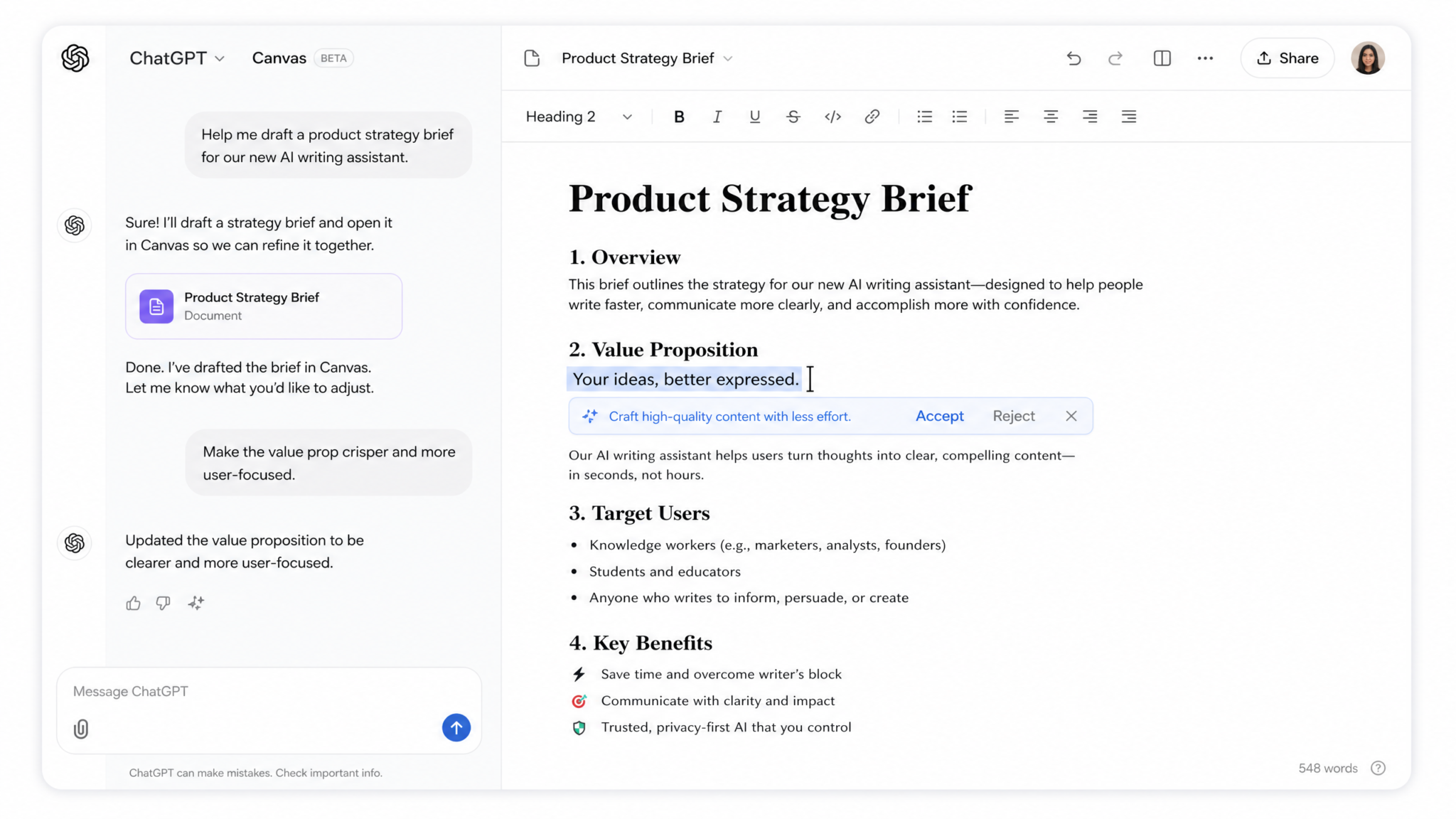
Canvas is a dual-pane collaborative editing interface embedded within ChatGPT that opens alongside your conversation window. When activated, it displays a live document or code file on the right side of your screen while your chat history remains accessible on the left. Unlike a simple text output that appears in the chat stream and disappears as you scroll, a Canvas document is a persistent artifact — it maintains its state throughout your session, accumulates revisions, and can be directly manipulated both by you and by GPT-4o in real time.
OpenAI launched Canvas in October 2024, initially as a beta feature for ChatGPT Plus and Team subscribers, before rolling it out to Enterprise accounts and, subsequently, free-tier users with limitations. The system is built on top of GPT-4o and uses a specialized prompt-routing layer that recognizes when a task is suited to a persistent document context versus a standard conversational response. This routing is not purely rule-based — the model dynamically decides when to open Canvas based on the nature of the request, though users can also trigger it explicitly.
The Core Architecture: What Makes Canvas Different
At the technical level, Canvas maintains what OpenAI describes as a “document context window” — a representation of the current document state that is fed back into the model with each interaction. When you ask GPT-4o to “make the third paragraph more concise,” the model receives both your instruction and the full current document, allowing it to make targeted edits rather than regenerating the entire document from scratch. This is meaningfully different from simply pasting text into the chat input and asking for revisions.
The document context is also used to maintain structural awareness. Canvas understands that a document has sections, that code has functions and classes, and that changes should respect the existing architecture of the content. This means the model can identify specific lines, paragraphs, or code blocks and modify them surgically without disrupting surrounding content — a capability that regular chat interactions simply cannot replicate with the same reliability.
Document Types Canvas Supports
Canvas is designed to handle two primary content types, each with its own tooling layer:
- Written Documents: Blog posts, reports, essays, proposals, emails, legal drafts, marketing copy, technical documentation, SOPs, and any long-form prose content
- Code Files: Python, JavaScript, TypeScript, HTML, CSS, SQL, Bash, Go, Rust, Java, C/C++, and most mainstream programming languages with syntax-aware highlighting
Within each category, Canvas surfaces specific shortcut tools in a toolbar that appears when you hover over the document. For written documents, these include reading level adjustment, length modification, final polish, emoji addition, and suggestion mode. For code, the toolbar offers adding comments, adding logs, fixing bugs, porting to another language, and code review mode.
ChatGPT Plus vs Free: Feature Comparison Guide
How Canvas Differs from Regular Chat
The differences between Canvas and standard ChatGPT interactions run deeper than just the visual layout. Understanding these differences is essential for deciding when to use Canvas and when a regular chat interaction is more efficient.
Persistent Document State
In regular chat, every response is a discrete output. If you ask ChatGPT to write a blog post, it produces text that appears in the chat stream. If you then ask it to revise the introduction, it typically rewrites the entire post, or you have to copy-paste the original text back into a new prompt. There is no “document” — just a series of text blocks in a conversation history.
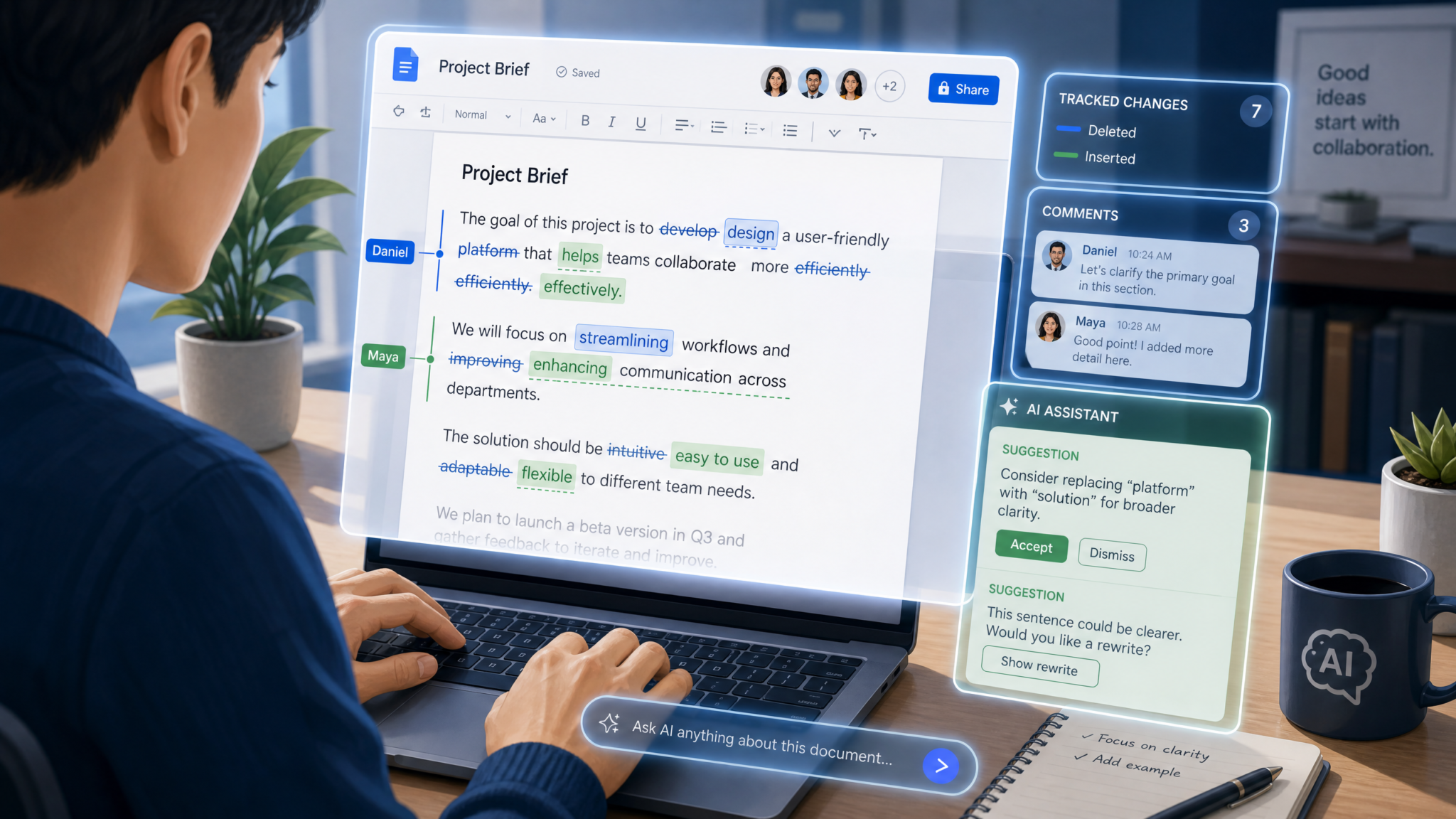
Canvas changes this by creating a single, authoritative document object that both you and the model can see and modify. When the model makes changes, you see them applied inline, with a visual diff-style highlighting that shows what was added, removed, or modified. The document does not reset between interactions — it accumulates all changes in sequence, maintaining coherence across dozens of editing cycles.
Inline Editing and Precision Control
One of Canvas’s most powerful features is the ability to highlight a specific section of text or a specific block of code and ask GPT-4o to address only that selection. This mimics the workflow of highlighting text in a word processor and right-clicking for editing options. You can select a single sentence and ask for three alternative phrasings, or highlight a function and ask for a performance review without touching the rest of the file.
This precision is not just a convenience — it fundamentally changes the quality of AI assistance. When the model knows it should only touch lines 45–67 of a 300-line Python file, it maintains the surrounding code’s integrity in a way that full-document regeneration cannot guarantee.
Version History and Revision Control
Canvas maintains a version history within the session, accessible via a clock/history icon in the Canvas toolbar. Each time the model makes significant changes, a snapshot is created. You can scroll back through previous versions of the document, compare states, and restore earlier versions if a round of edits went in the wrong direction. This is not a full Git-style version control system — versions are session-scoped and do not persist after the conversation is closed — but it provides meaningful undo/redo capability beyond a simple Ctrl+Z.
For professionals working on important documents, this means you can experiment aggressively — ask Canvas to completely restructure a section, evaluate the result, and roll back instantly if you prefer the original. The cognitive freedom this creates is significant: you stop treating each edit as a risk to be managed and start treating the document as a sandbox for improvement.
Direct Text Editing by the User
Canvas is also a live text editor for you, not just for the AI. You can click anywhere in the Canvas document and type directly, just as you would in Google Docs or Notion. This means your workflow doesn’t require switching between the chat input and a separate document — you can type a sentence, then ask GPT-4o to continue it, then type another paragraph yourself, building a document collaboratively in real time.
Activating and Using Canvas
How to Trigger Canvas
Canvas can be activated in three ways:
- Explicit Request: Type “open in Canvas,” “use Canvas,” or “create a Canvas document” in your prompt. Example: “Write a project proposal for a SaaS onboarding system. Open this in Canvas.”
- Automatic Activation: GPT-4o will automatically open Canvas when it detects that a task involves creating or substantially editing a long-form document or code file. Requests that typically trigger automatic Canvas activation include: writing articles over ~500 words, creating code files with multiple functions, drafting structured documents like reports or SOPs, and refactoring existing code blocks.
- Manual Toggle: In the ChatGPT interface, there is a Canvas icon (a document/pencil icon) in the message composition area that you can click to force Canvas mode before sending your message.
Interface Layout and Navigation
Once Canvas is active, the interface splits into two panels:
- Left Panel (Chat): Your conversation history and the input field. This remains fully functional — you can continue asking questions, issuing commands, or having the model explain what it just changed.
- Right Panel (Canvas Document): The live document or code file. This panel has its own toolbar at the top with document controls and shortcut buttons. The document scrolls independently from the chat.
The Canvas toolbar contains: an undo button, a version history button, a copy-to-clipboard button, a share button, a fullscreen toggle, and the context-sensitive shortcut tools (reading level, length, etc. for documents; add comments, fix bugs, etc. for code).
Keyboard Shortcuts and Efficiency Controls
- Ctrl/Cmd + Shift + C: Toggle Canvas open/closed
- Ctrl/Cmd + Z in Canvas: Undo your own text edits within the document
- Highlighting text + right-click: Surfaces an inline context menu with quick actions
- Escape: Deselects any highlighted text in Canvas and returns focus to chat input
- Ctrl/Cmd + A in Canvas panel: Selects all text in the Canvas document
A practical efficiency note: when you want the model to respond in the chat rather than modify the Canvas document, frame your message as a question rather than a command. “How would you restructure the executive summary?” tends to produce a chat response with suggestions, while “Restructure the executive summary” will trigger a direct Canvas edit. Mastering this distinction lets you preserve your current document state while exploring options conversationally before committing to changes.
How to Write Better ChatGPT Prompts for Professional Writing
Document Editing Workflows in Canvas
Building Long-Form Documents from Scratch
The most efficient Canvas workflow for long documents is the outline-first approach. Start by asking Canvas to generate a structured outline, then expand each section iteratively. This preserves your ability to redirect the structure before investing in full prose generation.
Step 1: "Create a Canvas document with a detailed outline for a
3,000-word guide on enterprise SaaS security best practices.
Include 6 main sections with 3 subsections each."

Step 2: Review the outline in Canvas, directly edit any section
headings you want to change.

Step 3: "Expand Section 2: Identity and Access Management into
full prose. Maintain a technical but accessible tone for
IT managers."

Step 4: Repeat for each section, using inline selection to
request revisions on specific paragraphs as needed.
Editing and Reformatting Existing Documents
To edit a document you’ve already written, paste it into a new Canvas session via the explicit trigger: “Open this document in Canvas and help me improve it: [paste document].” Canvas will load your content as the base document and you can immediately begin issuing targeted instructions.
Formatting restructuring is particularly powerful in Canvas. You can ask the model to convert a wall-of-text email into a structured memo with headers, transform a bulleted list into prose paragraphs, or convert a narrative report into a table-based summary — and see the transformation applied directly to the document rather than receiving a separate output you need to compare against the original.
Reading Level and Tone Adjustment
The reading level toolbar button (for document Canvas) opens a slider that lets you adjust content from Grade 5 through Post-Graduate. This is not simply swapping vocabulary — the model restructures sentence complexity, adjusts the assumption of background knowledge, and modifies explanatory depth. For content teams producing materials for different audience segments, this is a transformative efficiency feature: write once at expert level, then generate audience-appropriate variants directly in Canvas.
Using Canvas for Structured Editing at Scale
For documents exceeding 4,000 words, Canvas can struggle with maintaining full context across the entire document (a known limitation discussed later). The workaround is section-based editing: work through the document in chunks, using the “focus on Section X” framing to keep the model’s attention where you need it. You can also use the inline selection feature to manually scope each editing instruction to a specific portion of the text.
Code Review and Editing in Canvas
Syntax Highlighting and Code Navigation
Canvas renders code with full syntax highlighting for all supported languages, making it genuinely readable rather than a monospace wall of text. The model automatically detects the language from the code structure or file extension you specify in your prompt, and highlights keywords, strings, comments, operators, and types with appropriate color coding.
For code files, Canvas also provides line number references in both the document and in the model’s chat responses. When GPT-4o says “I modified the authenticate_user function on lines 34–52,” those line numbers correspond to the actual Canvas document, not to some internal representation. This makes navigating code reviews and understanding the model’s changes dramatically more efficient.
Inline Code Suggestions and Refactoring
The code review workflow in Canvas is substantially more powerful than asking ChatGPT to “review this code” in a regular chat. Specific techniques include:
- Function-level review: Select a specific function and ask “Review this function for performance issues and edge cases”
- Refactoring with preservation: “Refactor this class to use dependency injection without changing the public API”
- Bug isolation: Select a code block and ask “This section is producing a NullPointerException. Identify and fix the issue”
- Style standardization: “Apply PEP 8 style guidelines to the entire document”
- Documentation generation: Use the “Add Comments” toolbar button to automatically generate inline comments for every function and class
The Add Logs Feature for Debugging
The “Add Logs” toolbar shortcut is one of Canvas’s most underrated code features. It analyzes your code and strategically inserts logging statements (using the appropriate logging library for your language — console.log for JavaScript, logging.debug for Python, etc.) at key points: function entry/exit, loop iterations, conditional branches, and error handling blocks. For debugging complex code, this can save significant time compared to manually identifying where to add instrumentation.
Cross-Language Code Porting
The “Port to Another Language” toolbar option opens a language selector and translates the entire code file into the target language while preserving structure, comments, and logic. This is particularly useful for teams migrating codebases or developers learning a new language by seeing familiar code rewritten in it. The translation is not mechanical — Canvas maintains idiomatic patterns for the target language rather than producing a literal word-for-word conversion.
Collaboration Features in Canvas
Sharing Canvas Sessions
Canvas documents can be shared via a link using the share button in the Canvas toolbar. As of the current release, sharing creates a read-only snapshot of the Canvas document at the point of export — recipients can read and copy the content but cannot edit it within the Canvas interface directly. This makes Canvas sharing appropriate for reviewing and delivering polished outputs, not for real-time multi-user co-editing (a limitation that distinguishes it from Google Docs).
For teams using ChatGPT Team or Enterprise plans, shared Canvas links are persistent and remain accessible to any member of the workspace with the link, allowing asynchronous review workflows where one person generates a Canvas document and colleagues can access the same version.
Suggestion Mode
One of Canvas’s most collaboration-friendly features is Suggestion Mode, accessible via the toolbar. When activated, the model’s changes are displayed as tracked changes rather than applied edits — additions appear in green with underline formatting, deletions appear in red with strikethrough, and you can accept or reject each suggestion individually by clicking the checkmark or X next to each change. This mirrors the “Track Changes” workflow familiar from Microsoft Word and is especially valuable when using Canvas to review legal documents, contracts, or academic papers where every word change requires deliberate approval.
Commenting and Annotation
You can add comments to specific sections of a Canvas document by highlighting text and selecting “Add Comment” from the inline context menu. Comments appear as side annotations linked to the highlighted text. You can also ask GPT-4o to “add a comment explaining the reasoning behind this section” for AI-generated annotations — particularly useful for code documentation where the model can explain non-obvious implementation decisions.
ChatGPT for Teams: Enterprise Features and Best Practices
Advanced Canvas Techniques
Using Canvas with Custom GPTs
Canvas is available within Custom GPTs built on GPT-4o, opening powerful possibilities for specialized editing workflows. A Custom GPT configured with specific instructions about your organization’s style guide, technical vocabulary, or regulatory requirements will apply those parameters to all Canvas editing sessions. For example, a legal firm’s Custom GPT might enforce jurisdiction-specific language requirements, flag prohibited phrases, and maintain a particular citation format — all applied automatically whenever Canvas is used within that GPT.
To enable Canvas in a Custom GPT, the GPT builder must ensure the model is set to GPT-4o (Canvas is not available on older model versions) and should include explicit instructions about when to use Canvas. Example system prompt addition:
When the user requests document creation, contract drafting,
code writing, or substantial text editing tasks, use Canvas
to display the output. Apply [Company Name] style guidelines
to all document content. Use formal register and active voice
throughout. Flag any content that may conflict with GDPR
compliance requirements by adding an inline comment.
Canvas and Iterative Prompt Chaining
Advanced users leverage Canvas as the persistent output layer for complex multi-step prompt chains. The workflow involves breaking a complex document task into a sequence of specialized prompts, each building on the previous Canvas state:
Access 40,000+ AI Prompts for ChatGPT, Claude & Codex — Free!
Subscribe to get instant access to our complete Notion Prompt Library — the largest curated collection of prompts for ChatGPT, Claude, OpenAI Codex, and other leading AI models. Optimized for real-world workflows across coding, research, content creation, and business.
Chain Example: Technical White Paper Production

Prompt 1: "Create the document structure and executive summary
for a white paper on zero-trust network architecture for
mid-market enterprises."

[Review Canvas, adjust structure directly]

Prompt 2: "Now expand the Technical Architecture section.
Reference the executive summary's framing for consistency."

[Review, select specific paragraphs for refinement]

Prompt 3: "Identify any claims in this document that require
citations and add [CITATION NEEDED] placeholders."

Prompt 4: "Review the entire document for consistent use of
technical terminology. Create a glossary at the end."

Prompt 5: "Apply final polish: ensure all section transitions
are smooth, the tone is consistent throughout, and the document
reads as a unified piece rather than assembled sections."
Canvas + DALL-E and Multimodal Workflows
While Canvas itself is text-only, you can use it in conjunction with image generation within the same ChatGPT session. A common workflow involves drafting a content piece in Canvas, then requesting image generation in the chat for accompanying visuals, then returning to Canvas to add image placement instructions or alt text. The image URLs generated by DALL-E can be referenced in the Canvas document for future placement in a CMS.
Canvas vs Artifacts (Anthropic Claude) vs Gemini Docs: Comparative Analysis
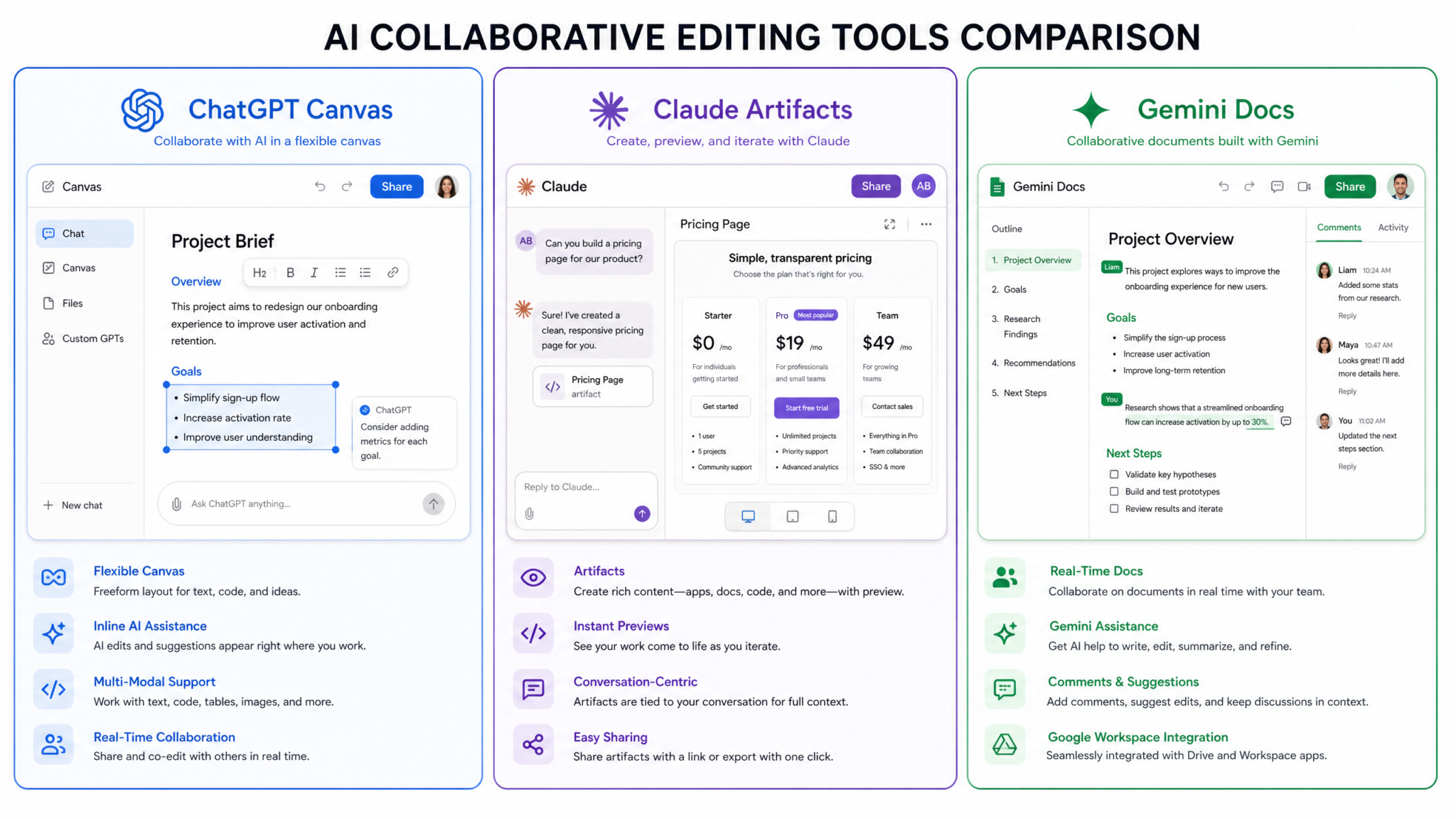
The AI collaborative editing space now has three major players: OpenAI Canvas, Anthropic’s Claude Artifacts, and Google Gemini’s document workspace. Here is a detailed comparison across key dimensions:
| Feature | ChatGPT Canvas | Claude Artifacts | Gemini Docs |
|---|---|---|---|
| Persistent Document | Yes, session-scoped | Yes, session-scoped | Yes, Google Drive integrated |
| Inline Editing by User | Yes, full text editor | Limited | Yes, full Google Docs features |
| Version History | Yes, session-scoped snapshots | No | Yes, full Google Docs history |
| Code Support | Excellent (syntax highlight, tools) | Excellent (live preview) | Basic |
| Live Code Execution | No (Canvas only; use Code Interpreter separately) | Yes (Artifacts renders HTML/JS live) | No |
| Suggestion Mode | Yes | No | Yes (native Google Docs) |
| Sharing | Read-only link | Copy/export only | Full Google Docs sharing |
| Cross-session Persistence | No (session only) | No | Yes (Google Drive) |
| Custom GPT/Agent Integration | Yes | Via Projects | Via Gems |
| Reading Level Adjustment | Yes (built-in slider) | No | No |
Where Canvas Leads
Canvas’s strengths over Claude Artifacts center on its role as a true document editor rather than an output viewer. Artifacts is optimized for creating rendered outputs — you can preview a React component or see formatted HTML — but direct user editing within an Artifact is limited. Canvas treats the document as a collaborative workspace where human and AI edits are equally first-class. Canvas also has more sophisticated document-specific shortcut tools (the reading level slider, in particular, has no equivalent in competing tools).
Where Claude Artifacts Leads
Artifacts has a decisive advantage in live code execution and preview. When you create a JavaScript application or an HTML page in an Artifact, you see it rendered live in the preview pane. Canvas has no equivalent — it displays code as text only. For front-end development, interactive prototyping, and data visualization work, Artifacts’ live preview is a substantial differentiator.
Where Gemini Docs Leads
Gemini’s integration with Google Drive gives it a persistence and sharing advantage that neither Canvas nor Artifacts can match. Documents created in Gemini Docs exist as real Google Docs files, with full version history, multi-user real-time collaboration, comments, and all native Google Docs formatting. For teams already embedded in the Google Workspace ecosystem, this native integration eliminates the copy-paste workflow that Canvas and Artifacts require.
Claude vs ChatGPT: Which AI Is Better for Professional Use?
15 Canvas Workflow Templates
Template 1: Blog Post Production Pipeline
- Prompt: “In Canvas, create an SEO-optimized outline for a 2,000-word blog post on [topic]. Include H2s, H3s, and a meta description.”
- Review and edit the outline directly in Canvas
- Prompt: “Expand each section into full paragraphs. Maintain a conversational, expert tone.”
- Select the introduction, prompt: “Rewrite this to open with a compelling statistic or story hook.”
- Use Reading Level tool to calibrate for target audience
- Prompt: “Add internal link placement suggestions as inline comments”
Template 2: Code Refactoring Session
- Paste legacy code into Canvas: “Open this code in Canvas. It’s a Python 2 script I need to migrate to Python 3.”
- Use “Fix Bugs” toolbar to address syntax incompatibilities
- Prompt: “Identify any deprecated Python 2 patterns and modernize them”
- Use “Add Comments” toolbar to document the refactored code
- Select the main function, prompt: “Add type annotations throughout”
- Prompt: “Port the final version to Python 3 with proper f-strings and pathlib”
Template 3: Contract Review and Markup
- Open contract in Canvas: “Review this contract in Canvas using Suggestion Mode”
- Prompt: “Identify all clauses that favor the counterparty and add comment annotations explaining the risk”
- Prompt: “Suggest alternative language for the limitation of liability clause that protects our interests”
- Review suggestions individually, accepting or rejecting each
- Prompt: “Generate a one-page executive summary of key terms and identified risks”
Template 4: Technical Documentation Sprint
- “Create Canvas documentation for this API endpoint: [paste endpoint specs]”
- Prompt: “Add request/response examples for each parameter”
- Prompt: “Add an error codes table at the end”
- Select the authentication section, prompt: “Expand this with a step-by-step authentication walkthrough”
- Use “Add Comments” (code mode) to annotate the example code blocks
Template 5: Resume and Cover Letter Tailoring
- Open master resume in Canvas
- Paste target job description in chat: “Tailor this resume for the following job description without fabricating experience”
- Review changes in Suggestion Mode, accepting relevant modifications
- Prompt: “Generate a matching cover letter in a new Canvas session that references the tailored resume content”
- Use Reading Level tool to calibrate tone for industry
Template 6: Research Report Compilation
- “Create a Canvas report template for a competitive analysis: executive summary, methodology, findings per competitor, strategic recommendations”
- Fill in research data directly in Canvas using text editing
- Prompt: “Based on the data I’ve entered, generate insights for the strategic recommendations section”
- Prompt: “Create a comparison table from the findings data and insert it after the methodology section”
- Prompt: “Apply final polish and ensure consistent formatting throughout”
Template 7: Email Campaign Development
- “Create a 5-email drip campaign in Canvas for [product/service]. Include subject lines, preview text, and body copy for each email.”
- Select Email 1, prompt: “Increase urgency in the CTA without being aggressive”
- Select all subject lines, prompt: “A/B test alternatives: create a second subject line variant for each email”
- Use Reading Level to ensure 8th-grade readability
- Prompt: “Add personalization placeholder variables throughout (first name, company, etc.)”
Template 8: SOP (Standard Operating Procedure) Creation
- “Create a Canvas SOP document for [process]. Include purpose, scope, responsibilities, step-by-step procedure, and quality checkpoints.”
- Edit steps directly in Canvas to reflect actual workflow
- Prompt: “Add a decision tree for the troubleshooting section”
- Prompt: “Generate a training checklist at the end for new employee onboarding”
- Prompt: “Review for compliance language and flag any steps that need legal review with comments”
Template 9: Data Analysis Report Generation
- Paste CSV data summary or statistics into chat
- “Open Canvas and create a data analysis report. Include an executive summary, methodology, key findings with data tables, and limitations.”
- Prompt: “Create structured data tables from the raw numbers I provided”
- Prompt: “Generate business interpretation paragraphs for each data finding”
- Prompt: “Add a recommendations section based on the patterns in the data”
Template 10: Product Requirements Document (PRD)
- “Create a Canvas PRD for [feature/product]. Use the standard format: Overview, Goals, User Stories, Functional Requirements, Non-Functional Requirements, Success Metrics.”
- Edit user stories directly in Canvas
- Prompt: “Convert the functional requirements section into a prioritized table with MoSCoW classification”
- Prompt: “Add acceptance criteria for each user story”
- Prompt: “Identify technical dependencies and add a risks section”
Template 11: Academic Paper Editing
- Paste draft paper into Canvas
- Prompt (Suggestion Mode): “Review this paper for logical flow and argument coherence. Suggest improvements without changing my core arguments.”
- Select abstract, prompt: “Rewrite to conform to [target journal] abstract format: background, methods, results, conclusion”
- Prompt: “Identify where additional citations are needed and add [CITE] placeholders”
- Use Reading Level tool to calibrate academic register
Template 12: Startup Pitch Deck Script
- “Create a Canvas document with a 12-slide pitch deck script for [startup]. Include speaker notes for each slide.”
- Select the Problem slide script, prompt: “Make this more visceral and emotionally resonant for investors”
- Prompt: “Review the financial projections section. Flag any claims that need supporting data.”
- Prompt: “Add three potential investor questions and suggested answers after each major section”
- Use Length tool to ensure each slide script is under 90 seconds of speaking time
Template 13: Unit Test Generation
- Open application code in Canvas
- Prompt: “Generate a comprehensive unit test file for this code using pytest. Cover happy paths, edge cases, and error conditions.”
- Select a specific test function, prompt: “Add parametrized test cases covering boundary values”
- Prompt: “Add mock objects for all external dependencies”
- Use “Add Comments” toolbar to document test intent for each test class
Template 14: Grant Proposal Writing
- “Create a Canvas grant proposal for [project] targeting [funding organization]. Include all standard sections.”
- Prompt: “Review the needs statement against the funder’s stated priorities: [paste priorities]. Align language accordingly.”
- Select budget narrative section, prompt: “Ensure this conforms to federal grant budget justification requirements”
- Prompt: “Add evaluation metrics that demonstrate measurable impact”
- Prompt: “Final review: check for compliance with the [specific grant] RFP requirements and flag any gaps as comments”
Template 15: Codebase Onboarding Documentation
- Paste key code files one by one into Canvas sessions
- Prompt: “Generate a developer onboarding guide for this codebase. Explain the architecture, key components, data flow, and getting started steps.”
- Prompt: “Add a glossary of project-specific terms and conventions”
- Prompt: “Create a troubleshooting FAQ based on common issues visible in the code (error handling, edge cases)”
- Prompt: “Generate a contribution guidelines section covering code style, testing requirements, and PR process”
ChatGPT Code Interpreter: Complete Guide for Data Professionals
Limitations and Workarounds
Context Window Constraints with Long Documents
Canvas operates within GPT-4o’s context window, and for very long documents (exceeding approximately 8,000–10,000 words), the model begins to lose awareness of content in earlier sections. This manifests as inconsistent terminology, repeated information, or edits to later sections that conflict with established content in earlier ones. The workaround is section-based editing: explicitly scope every instruction to a specific section, and periodically ask the model to “review for consistency with the executive summary and opening sections” to re-anchor its awareness of the full document.
No Cross-Session Persistence
Canvas documents do not survive session closure. When you close a ChatGPT conversation, the Canvas content is not saved as a distinct file — only the chat history (with the Canvas content embedded as text) persists if you have chat history enabled. For important documents, always export Canvas content before closing: use the copy-to-clipboard button or manually select all and copy. Several third-party browser extensions have been developed to auto-export Canvas content, though these are not officially supported by OpenAI.
No Real-Time Multi-User Collaboration
Canvas does not support simultaneous editing by multiple users. The shared link feature creates a read-only snapshot, not a live collaborative session. Teams requiring real-time co-editing should use Canvas to produce a polished draft, then export it to Google Docs, Notion, or another collaborative platform for team review and iteration.
Limited Formatting Control
Canvas handles heading levels (H1–H3), bold, italics, lists, and code blocks, but does not support more complex formatting like tables-within-tables, custom fonts, color coding, or layout elements like columns. For documents requiring rich formatting, Canvas works best as a content drafting tool with final formatting applied in a dedicated word processor or design tool.
No File Import
As of the current release, you cannot directly import a .docx, .pdf, or .txt file into Canvas. Documents must be pasted as text into the chat with a Canvas trigger instruction. For PDFs, this requires either manual copy-pasting or using ChatGPT’s document upload feature (which processes the document in the chat, not directly into Canvas). A common workaround is: upload the document via the attachment feature, ask GPT-4o to “extract the full text and open it in Canvas,” which effectively transfers the content into Canvas format.
Canvas Doesn’t Execute Code
Canvas is a code editor, not a code execution environment. Code in Canvas cannot be run within the interface — for execution, you need to use ChatGPT’s Code Interpreter (Advanced Data Analysis) feature, which operates in a separate sandboxed Python environment outside of Canvas. Power users sometimes maintain parallel sessions: Canvas for code writing and editing, and a Code Interpreter session for testing and validation.
Tips for Power Users
Force Canvas for Any Output
You can force Canvas mode for any text output, including short outputs, by appending “in Canvas” to any request: “Summarize this article in Canvas,” “Write three variations of this headline in Canvas.” This is useful even for shorter content when you want the ability to compare versions or make inline edits.
Use the “Review” Framing for Non-Destructive Feedback
When you want GPT-4o’s assessment of your Canvas document without triggering edits, ask explicitly: “Review the Canvas document and tell me in the chat what the three biggest structural weaknesses are.” This generates a conversational analysis in the left panel without touching your document, letting you decide which issues to address and in what order.
Anchoring the Model to Your Style
At the start of any Canvas session, paste a 1–2 paragraph sample of your authentic writing in the chat and say: “This is a sample of my writing style. Maintain this voice and style in all Canvas editing you do in this session.” The model will reference this sample throughout the session, producing edits that feel consistent with your existing voice rather than defaulting to generic AI prose patterns.
Creating Document Templates for Repeated Use
While Canvas doesn’t persist between sessions, you can create a “template prompt” — a single message that includes your document structure, style instructions, and required sections — and save it in a tool like Notion or a text file. Pasting this template prompt at the start of each session instantly creates a pre-structured Canvas document, eliminating setup time for recurring document types.
Combining Canvas with ChatGPT Projects
ChatGPT’s Projects feature (available to Plus subscribers) allows you to maintain persistent context across conversations. When you use Canvas within a Project, the Project’s system instructions apply to all Canvas sessions within it. This means you can configure a Project with your company’s style guide, preferred document templates, and domain-specific vocabulary once, and have those settings automatically apply every time you open Canvas within that Project.
The “Explain Changes” Prompt Pattern
After any substantial Canvas edit by the model, use: “In the chat, explain the main changes you made and the reasoning behind each one.” This creates a change log in your conversation history that documents the editorial decisions made throughout your session — useful for content workflows where you need to justify or document your editing rationale.
Using Canvas as a Diff Tool
You can use Canvas to compare two versions of a document by loading the original in Canvas, then prompting: “Here is a revised version of this document: [paste]. Identify and highlight all differences between the Canvas version and the version I just pasted, showing them as tracked changes.” The model will generate a marked-up version showing every addition and deletion between the two drafts.
Frequently Asked Questions About ChatGPT Canvas
Is Canvas available on the free ChatGPT plan?
Yes, Canvas is available to free-tier ChatGPT users, but with limitations. Free users access Canvas through GPT-4o with usage caps — once the daily GPT-4o limit is reached, Canvas interactions fall back to GPT-3.5, which does not support Canvas and will revert to standard chat responses. For consistent Canvas access without interruption, a ChatGPT Plus subscription ($20/month) is recommended, which provides significantly higher GPT-4o usage limits and priority access during peak hours.
Can I use Canvas on mobile (iOS/Android)?
Canvas is available in the ChatGPT mobile app on both iOS and Android, but the experience is substantially more limited than desktop. The dual-pane layout collapses to a single-pane view on mobile screens, with a toggle to switch between chat and Canvas document views. Inline text editing is supported, but some toolbar shortcuts and the version history panel can be difficult to access on smaller screens. For serious document work, desktop is strongly recommended. The Canvas mobile experience is primarily useful for reviewing and making minor edits to documents initiated on desktop.
Does Canvas work with the ChatGPT API?
Canvas is a frontend interface feature built into the ChatGPT web application and mobile apps — it is not available through the ChatGPT API or the OpenAI Completions API. Developers building applications via the API do not have access to the Canvas document management layer. However, the underlying capability (GPT-4o making targeted edits to a document provided in the prompt) can be replicated via the API using a prompt architecture that includes the current document state and explicit editing instructions, though this requires custom implementation of the state management logic that Canvas handles automatically.
How do I prevent Canvas from opening automatically when I don’t want it?
GPT-4o’s automatic Canvas activation can sometimes trigger when you’d prefer a regular chat response — for example, when asking for a short code snippet you just want to copy quickly rather than open in a full editing session. To prevent automatic Canvas activation, add explicit framing to your prompt: “Answer in the chat (no Canvas needed):” or “Quick response: [your request].” You can also rephrase requests as questions rather than directives — “What would a Python function for this look like?” tends to generate a chat response, while “Write a Python function for this” often triggers Canvas.
Can Canvas handle non-English languages?
Yes, Canvas works with all languages that GPT-4o supports, which includes most major world languages and many regional languages. Document editing in Canvas — including the toolbar shortcut functions like Reading Level adjustment and Final Polish — functions in the document’s target language. However, some of the automatic Canvas activation triggers (where the model decides to open Canvas based on request type) are more reliably calibrated for English-language requests. For non-English workflows, it is recommended to explicitly request Canvas using “open in Canvas” language in your prompt, or to use the manual Canvas toggle button, to ensure consistent activation regardless of the language of your content or instructions.
