
How to Migrate from GitHub Copilot to OpenAI Codex CLI: Complete Developer Transition Guide

In recent months, many developers have found themselves facing a difficult choice. GitHub Copilot, once a reliable and relatively affordable AI coding assistant, has shifted its pricing model dramatically—from a flat $29/month to a token-based billing system that can easily exceed $750 per month for heavy users. This steep increase has motivated a significant number of developers and teams to explore alternatives that offer more predictable costs and greater control over their AI coding workflows.
One such alternative is the OpenAI Codex CLI, a command-line interface tool that leverages OpenAI’s powerful Codex models directly. This guide will provide a detailed, step-by-step tutorial on how to transition from GitHub Copilot to OpenAI Codex CLI. We’ll cover why developers are switching, the differences in workflows, installation and configuration, feature mappings, cost comparison, IDE integration, and tips to ensure a smooth transition without productivity loss.
This guide is aimed at developers, technical leads, and AI enthusiasts who want to take full control of their AI coding experience without being locked into expensive subscription models.
Why Choose OpenAI Codex CLI?
OpenAI Codex CLI offers a flexible, transparent, and programmable interface that appeals to developers who prefer more granular control over AI-generated code. Unlike Copilot’s opaque token usage, Codex CLI allows you to monitor and manage your API calls directly, enabling budget-conscious usage. For example, Codex’s pricing model is based on tokens consumed rather than a flat monthly fee, but developers can set usage caps or integrate cost monitoring tools to avoid surprises.
Moreover, Codex supports multiple programming languages such as Python, JavaScript, Go, Ruby, and more, with the ability to customize prompts tailored to specific coding contexts. This versatility empowers developers to create custom scripts or automation workflows that are impossible with a fixed IDE plugin like Copilot.
Installing and Configuring OpenAI Codex CLI
To get started, you first need to install the CLI tool. Assuming you have Node.js installed, run:
npm install -g @openai/codex-cliNext, you need an OpenAI API key, which you can obtain by signing up for an account at OpenAI Platform. Store your API key securely and then configure the CLI by running:
codex-cli config set apiKey YOUR_OPENAI_API_KEYThis sets up authentication so the CLI can communicate with OpenAI’s servers. You can verify your configuration by running:
codex-cli config getwhich should display your current API key and associated settings.
Mapping GitHub Copilot Features to Codex CLI Commands
GitHub Copilot’s in-editor suggestions can be emulated through Codex CLI by leveraging prompt engineering. For instance, to generate a function that reverses a string in Python, you can run:
codex-cli complete --language python --prompt "Write a Python function to reverse a string."The CLI returns the relevant code snippet, which you can then add to your codebase. For inline suggestions or code completions, you can integrate Codex CLI into your editor’s keybindings or utilize terminal multiplexer tools like tmux to quickly request completions without breaking your development flow.
Practical Tips for Streamlining Your Workflow
- Batch requests: Instead of making frequent single-line completions, batch your prompts to reduce API latency and manage token usage more efficiently.
- Use prompt templates: Create reusable prompt templates for common coding tasks, such as generating tests, documentation, or boilerplate code.
- Local caching: Implement local caching of generated snippets to avoid redundant API calls, saving both time and cost.
- Automate with scripts: Combine Codex CLI with shell scripts or task runners (like Make, npm scripts, or Python scripts) to automate repetitive coding chores.
Cost Comparison and Budgeting
While GitHub Copilot’s new pricing may reach up to $750/month or more for power users, OpenAI Codex CLI’s pay-as-you-go API model allows more granular control. As of mid-2024, Codex charges approximately $0.0004 per 1,000 tokens for the davinci-codex engine. To put this in perspective, a typical function generation uses around 100–300 tokens, costing roughly $0.00004 to $0.00012 per request.
Developers can set hard API usage limits through environment variables or OpenAI’s dashboard, ensuring they never exceed their budget. This transparency is especially valuable for startups and freelancers who need to optimize costs without sacrificing AI capabilities.
Integrating Codex CLI with Popular IDEs
Though Codex CLI is command-line-based, it can be integrated into many editors via custom scripts or plugins. For example, in Visual Studio Code, you can create a task that runs Codex CLI commands and inserts output directly into your code files. Alternatively, you can use the VSCode terminal panel to interact with Codex CLI and manually paste code snippets.
Other editors like Vim or Emacs benefit from shell command mappings or plugins that invoke Codex CLI asynchronously, allowing AI-assisted coding without leaving the editor environment. This flexibility ensures that developers can maintain their preferred workflows while gaining powerful AI assistance.
Table of Contents
- Why Developers Are Switching from GitHub Copilot
- Workflow Differences Between Copilot and OpenAI Codex CLI
- Installation and Configuration of OpenAI Codex CLI
- Feature Mapping: Inline Suggestions vs Agentic Tasks
- Cost Comparison at Different Usage Levels
- IDE Integration Differences
- Tips for a Smooth Transition
- Common Pitfalls and How to Avoid Them
- Conclusion
Why Developers Are Switching from GitHub Copilot
Developers are increasingly exploring alternatives to GitHub Copilot due to factors such as pricing models, flexibility, and control over AI-assisted coding. For example, many users have reported that Copilot’s subscription fees, which start at $10 per month, can become costly for teams or heavy individual users. In contrast, OpenAI Codex CLI offers a pay-as-you-go model, charging based on actual token usage, which can significantly reduce costs for those who use AI assistance intermittently.
Additionally, Copilot’s integration is primarily focused on inline suggestions, which some developers find limiting when working on complex tasks that require broader context or multi-step operations. OpenAI Codex CLI supports agentic workflows, allowing developers to script multi-turn prompts and chain commands, effectively turning the AI into a programmable assistant. This enables more sophisticated automation, such as generating entire modules or refactoring large codebases with guided prompts.
Privacy is another concern driving the switch. Copilot sends code snippets to GitHub servers, which raises questions about proprietary code exposure. OpenAI Codex CLI can be configured to run within controlled environments with API keys managed internally, giving teams better control over data security. Several enterprises have adopted Codex CLI for this reason, especially in regulated industries like finance and healthcare.
Workflow Differences Between Copilot and OpenAI Codex CLI
GitHub Copilot integrates directly into popular IDEs like Visual Studio Code, providing instant inline code completions and suggestions as you type. While this is convenient for quick coding, it can sometimes interrupt the developer’s flow or generate suggestions that require multiple edits. In contrast, OpenAI Codex CLI operates through a command-line interface, where developers issue explicit commands or scripts to generate code snippets, explanations, or perform code transformations.
This model encourages a more deliberate interaction with the AI, making it ideal for batch operations or when working on larger architectural changes. For instance, you could execute a command such as:
codex generate --prompt "Refactor this React component to use hooks instead of classes" --file MyComponent.jsThis command-based approach also supports chaining multiple commands in shell scripts to automate complex codebase modifications, such as:
codex generate --prompt "Add logging to all API calls in src/api" --dir src/api && codex generate --prompt "Write unit tests for the updated API functions" --dir tests/apiSuch workflows are less feasible in Copilot, which focuses on line-by-line suggestions rather than holistic code generation tasks.
Installation and Configuration of OpenAI Codex CLI
Setting up the OpenAI Codex CLI is straightforward but requires some command-line proficiency. After installing via npm with npm install -g openai-codex-cli, you need to configure your API key, which is obtained from the OpenAI dashboard. It’s important to securely store this key; using environment variables is recommended:
export OPENAI_API_KEY="your_api_key_here"Advanced users can customize the CLI behavior through a configuration file, ~/.codexrc, where parameters like default model (e.g., code-davinci-002), temperature, and max tokens can be set. For example:
{
  "model": "code-davinci-002",
  "temperature": 0.2,
  "max_tokens": 512
}
This setup ensures consistent outputs tuned to your coding style and project needs. Additionally, the CLI supports proxy settings and retry logic for stable performance in corporate networks.
Feature Mapping: Inline Suggestions vs Agentic Tasks
GitHub Copilot excels at providing inline suggestions, completing code snippets as you type, which is helpful for routine coding tasks and boilerplate code. However, these suggestions are limited to the immediate context and usually require manual acceptance or edits. OpenAI Codex CLI, on the other hand, enables agentic tasks—multi-step, context-aware operations performed via scripting or commands.
For example, an agentic task might involve generating documentation for an entire project folder by running:
codex generate --prompt "Generate comprehensive markdown documentation for all functions in the src/ folder" --dir src/ --output docs/API.mdThis capability facilitates automation beyond simple code completion, such as batch refactoring, bulk testing, or creating scaffolding for new features. The CLI’s flexibility allows integration into CI/CD pipelines, enabling automated code reviews or style enforcement powered by AI.
Cost Comparison at Different Usage Levels
Cost efficiency is a major consideration when choosing between Copilot and OpenAI Codex CLI. Copilot charges a flat rate, while Codex CLI’s cost depends on the number of tokens processed. For heavy users, Copilot may seem cost-effective, but for sporadic or project-based use, the pay-per-use model saves money.
As an example, generating 10,000 tokens per month with Codex CLI might cost around $0.02 per 1,000 tokens, totaling approximately $0.20, compared to Copilot’s $10 subscription. For teams automating large codebases, costs scale linearly but can be optimized by batching requests.
It’s also worth considering that Codex CLI allows fine-tuning token usage via parameters like max_tokens and prompt engineering, enabling cost control without compromising output quality.
IDE Integration Differences
While GitHub Copilot integrates seamlessly with IDEs such as Visual Studio Code, JetBrains IDEs, and Neovim, offering real-time inline completions, OpenAI Codex CLI requires manual invocation from the terminal or integration scripts. However, developers can create custom wrappers or plugins to bridge this gap.
For instance, a VS Code task can be configured to run Codex CLI commands, allowing partial integration:
{
  "version": "2.0.0",
  "tasks": [
    {
      "label": "Generate React Hook",
      "type": "shell",
      "command": "codex generate --prompt 'Convert this class component to a functional component using hooks' --file src/MyComponent.js",
      "problemMatcher": []
    }
  ]
}
This approach combines CLI power with IDE convenience, though it requires some setup and scripting knowledge.
Tips for a Smooth Transition
To transition smoothly from Copilot to OpenAI Codex CLI, start by identifying repetitive tasks that benefit from batch processing. Gradually replace inline completions with scripted commands to build familiarity. Leverage detailed prompt engineering to tailor Codex outputs precisely, and monitor token usage to optimize costs.
Also, consider integrating Codex CLI into existing build or deployment pipelines to automate code quality checks or documentation generation, which can streamline workflows significantly.
Common Pitfalls and How to Avoid Them
Common pitfalls include underestimating the learning curve of command-line tools, leading to frustration. Avoid this by spending time with the documentation and experimenting in small projects first. Additionally, improper prompt design can produce irrelevant or verbose outputs; refining prompts iteratively improves results.
Another issue is neglecting API key security—always use environment variables or secret managers and avoid hardcoding keys. Finally, be mindful of token limits per request; breaking large tasks into smaller chunks often yields better performance and cost control.
Conclusion
While GitHub Copilot remains a powerful tool for inline AI assistance, OpenAI Codex CLI offers enhanced flexibility, cost control, and automation capabilities, appealing to developers seeking more agency over their AI workflows. With thoughtful setup and prompt engineering, Codex CLI can transform coding practices, enabling smarter, scalable development processes.
Why Developers Are Switching from GitHub Copilot
GitHub Copilot revolutionized developer workflows by offering AI-powered code completions and suggestions directly inside popular IDEs like VS Code. However, the recent move to a token-based billing model has introduced unpredictability and high costs for power users.
- Pricing Shock: Copilot’s new pricing can spike beyond $750/month for developers who frequently rely on AI code completions. This contrasts sharply with the previous flat rate of $29/month. For example, a developer working on multiple complex projects with thousands of code completions daily might accumulate tens of thousands of tokens, each token roughly equating to 4 characters of text, quickly driving up costs. This steep increase is especially burdensome for freelancers and small startups with tight budgets.
- Limited Control: The token-based system abstracts away usage, making it difficult for developers to budget or optimize their AI usage. Unlike traditional subscription models, users cannot easily predict how their monthly costs will fluctuate based on their coding habits or project complexity. There is also no built-in dashboard showing token consumption per file or feature, limiting actionable insights to reduce expenses.
- Privacy and Data Concerns: With Copilot’s cloud-based model, some developers have concerns over code privacy and data handling. Since code snippets and prompts are sent to remote servers, sensitive or proprietary code might be exposed to third-party systems. This is a critical consideration for industries bound by compliance standards such as GDPR, HIPAA, or corporate NDAs. Some organizations have expressed reluctance to adopt Copilot without clearer guarantees on data retention and access policies.
- Desire for Customization: OpenAI Codex CLI offers more direct control over prompts, model selection, and usage, enabling tailored workflows. Developers can customize prompt templates to fit specific coding standards, languages, or project requirements. For instance, one might configure the CLI to prioritize generating unit tests in Python or refactor legacy JavaScript code. Additionally, users can select from various Codex models with different performance and cost profiles, optimizing for either speed or budget.
These factors have led to a growing trend of developers migrating to OpenAI Codex CLI or similar tools that provide granular control and cost transparency.
Practical Tips for Managing AI-assisted Coding Costs
To mitigate the impact of token-based billing, developers can adopt several practical strategies:
- Optimize Prompt Length: Since tokens are counted based on input and output text length, carefully crafting concise prompts reduces token consumption. Avoid verbose comments or unnecessary context in requests.
- Batch Requests: Instead of making multiple small calls, developers can batch code generation tasks to maximize the value per token spent. For example, generating a full function or module in one prompt is more cost-efficient than piecemeal completions.
- Set Thresholds and Alerts: Using CLI tools with built-in usage tracking allows setting token consumption limits and alerts, preventing surprise bills.
- Local Caching: Implement local caching of AI-generated snippets to avoid redundant calls. Reusing previously generated code blocks reduces unnecessary token usage.
Example: Using OpenAI Codex CLI for Cost-effective Code Generation
The OpenAI Codex CLI can be integrated seamlessly into existing workflows. Here’s a sample command that generates a Python function to parse JSON data:
openai api completions.create -m code-davinci-002 -p "Write a Python function to parse a JSON string and return a dictionary." --max-tokens 100Developers can adjust the --max-tokens parameter to control output length and thus token cost. Additionally, scripting repeated tasks allows automation of code scaffolding while monitoring token expenditure.
Comparing Copilot and Codex CLI Usage Metrics
Where GitHub Copilot hides token metrics within its UI, Codex CLI exposes detailed usage statistics. For example, after a session, running:
openai api usage.list --start-date 2024-05-01 --end-date 2024-05-31returns daily token consumption, enabling developers to analyze trends and adjust their usage patterns. This transparency is invaluable for teams aiming to integrate AI assistance without compromising budget constraints.
Ultimately, while GitHub Copilot remains a powerful tool for accelerating development, the shift to token-based billing and limited transparency has motivated many users to explore more customizable and cost-effective alternatives like OpenAI Codex CLI, fostering a new wave of AI-assisted coding workflows that balance productivity with financial control.
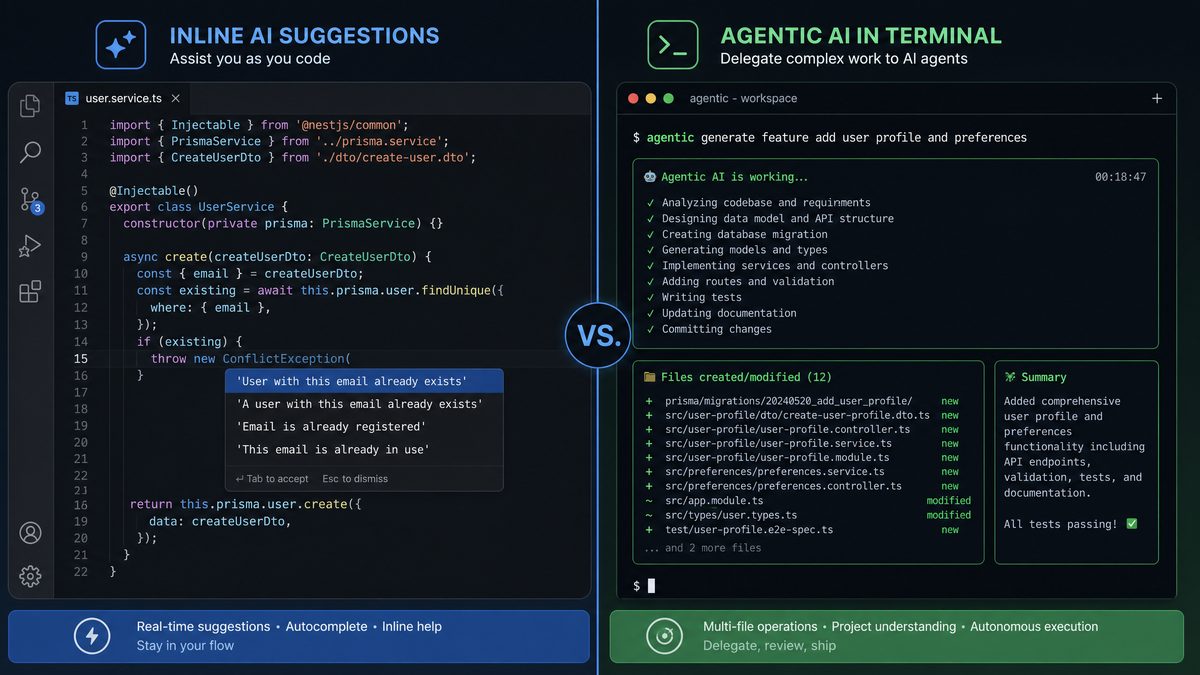
Workflow Differences Between Copilot and OpenAI Codex CLI
Understanding the workflow differences is critical before making the switch. GitHub Copilot is deeply integrated into IDEs, offering inline suggestions as you type. OpenAI Codex CLI, by contrast, is a command-line tool that requires a different interaction paradigm.
| Aspect | GitHub Copilot | OpenAI Codex CLI |
|---|---|---|
| Interaction Mode | Inline, real-time code completions within IDE | Command-based input, prompt-response cycle via CLI |
| Automation Scope | Suggests code snippets as you type | Supports complex agentic tasks (code generation, refactoring, explanation) |
| Customization | Limited to settings inside IDE plugin | Full prompt control, model parameters, multiple model options |
| Cost Control | Token usage abstracted, unpredictable billing | Direct token usage monitoring and budgeting |
| Integration | Native IDE plugins (VS Code, JetBrains) | Standalone CLI, requires scripting or external integration |
Example Workflow with OpenAI Codex CLI
In OpenAI Codex CLI, you interact by providing prompts and receiving generated code or explanations. For example:
1. Write a prompt describing the desired code:
"Generate a Python function to sort a list of tuples by the second element."

2. Run the CLI command:
codex-cli --prompt "Generate a Python function to sort a list of tuples by the second element."

3. Review the output in your terminal and copy into your codebase.
This contrasts with Copilot’s inline suggestions as you type, requiring a mental shift but offering much greater control over what you generate.
Practical Tips for Using OpenAI Codex CLI Effectively
To maximize productivity with OpenAI Codex CLI, craft clear and detailed prompts that specify the programming language, functionality, constraints, and any stylistic preferences. For example, instead of a vague prompt like "Create a sorting function", use "Write a Python function that sorts a list of dictionaries by the key 'age' in descending order." This precision helps Codex produce more accurate code snippets.
Additionally, you can leverage the CLI’s ability to set model parameters such as temperature and max tokens. A lower temperature (e.g., 0.2) will yield more deterministic outputs suitable for production code, while a higher temperature (e.g., 0.8) encourages creative code generation, useful for brainstorming or prototyping.
For example, a command adjusting temperature might look like:
codex-cli --prompt "Generate a JavaScript debounce function" --temperature 0.3 --max-tokens 150OpenAI Codex CLI also supports chaining commands via shell scripting or automation tools. You could create a script that sequentially generates multiple functions, refactors existing code, or generates documentation. For instance, integrating Codex CLI with make or bash scripts can automate repetitive coding tasks and embed AI assistance into your development pipeline.
Cost Management and Monitoring
Unlike GitHub Copilot, where token usage is abstracted and billing can be unpredictable, the OpenAI Codex CLI provides explicit token counts per request. This transparency allows developers to monitor usage in real-time and set budgets accordingly. For example, you can use the CLI’s verbose mode to log token consumption, enabling you to optimize prompt length and model parameters to stay within cost targets.
To illustrate, a typical usage summary might include:
- Prompt tokens: 50
- Completion tokens: 100
- Total tokens: 150
By tracking these metrics over time, you can identify which requests to optimize or batch, helping manage API spend effectively.
Integration Considerations
While GitHub Copilot seamlessly integrates with popular IDEs like VS Code or JetBrains, OpenAI Codex CLI operates as a standalone tool. However, this independence enables flexible integration with various workflows. For example, developers can embed Codex CLI calls within continuous integration pipelines to auto-generate test cases, or connect it with chatbots and internal tooling through scripting.
Moreover, since Codex CLI outputs plain text, it can easily be piped into other command-line utilities for formatting or further processing. For example, combining Codex CLI with jq for JSON manipulation or sed for text replacement empowers advanced workflows.
Here is an example of piping Codex output to grep to filter for function definitions:
codex-cli --prompt "Generate Python functions for basic math operations" | grep "def "This flexibility means you can tailor Codex CLI usage to your specific development environment and automation needs, making it a powerful tool for developers comfortable with command-line interfaces.
Maximizing the output quality of AI models requires carefully crafted prompts tailored to specific professional workflows. Our detailed collection in Codex CLI Prompts Masterclass: 40 Advanced Prompts for Multi-Agent Development, Code Review, and CI/CD Automation provides battle-tested prompt templates that professionals can immediately apply to their daily work, covering everything from initial ideation to final deliverable production.
Access 40,000+ AI Prompts for ChatGPT, Claude & Codex — Free!
Subscribe to get instant access to our complete Notion Prompt Library — the largest curated collection of prompts for ChatGPT, Claude, OpenAI Codex, and other leading AI models. Optimized for real-world workflows across coding, research, content creation, and business.
Installation and Configuration of OpenAI Codex CLI
Getting started with OpenAI Codex CLI involves installing the tool, setting up API credentials, and configuring your environment.
Step 1: Install OpenAI CLI
The OpenAI CLI is distributed via npm and requires Node.js (v16+) installed.
npm install -g openaiStep 2: Obtain OpenAI API Key
Sign up or log in at OpenAI API Keys and generate a new API key. Keep this key secure.
Step 3: Configure API Key
Set the environment variable in your shell:
export OPENAI_API_KEY="your_api_key_here"Alternatively, you can place this in your shell profile (e.g., .bashrc, .zshrc). For Windows PowerShell:
setx OPENAI_API_KEY "your_api_key_here"Step 4: Verify Installation
Test that the CLI is installed and configured by running a simple prompt:
openai api completions.create -m code-davinci-002 -p "def hello_world():" -M 100If you receive a code completion, your installation is successful.
Step 5: Optional Configuration
- Set default model (e.g.,
code-davinci-002orcode-cushman-001). - Configure default max tokens and temperature for completions.
- Write shell aliases or scripts to speed up common tasks.
The Codex CLI represents a paradigm shift in how developers interact with AI coding assistants directly from their terminal environment. Our step-by-step walkthrough in The Complete Guide to AI Coding Agents in 2026: Codex vs Claude Code vs Gemini CLI vs Cursor covers the complete setup process, advanced configuration options, and real-world workflow integrations that enable developers to leverage AI-powered code generation without leaving their preferred development environment.
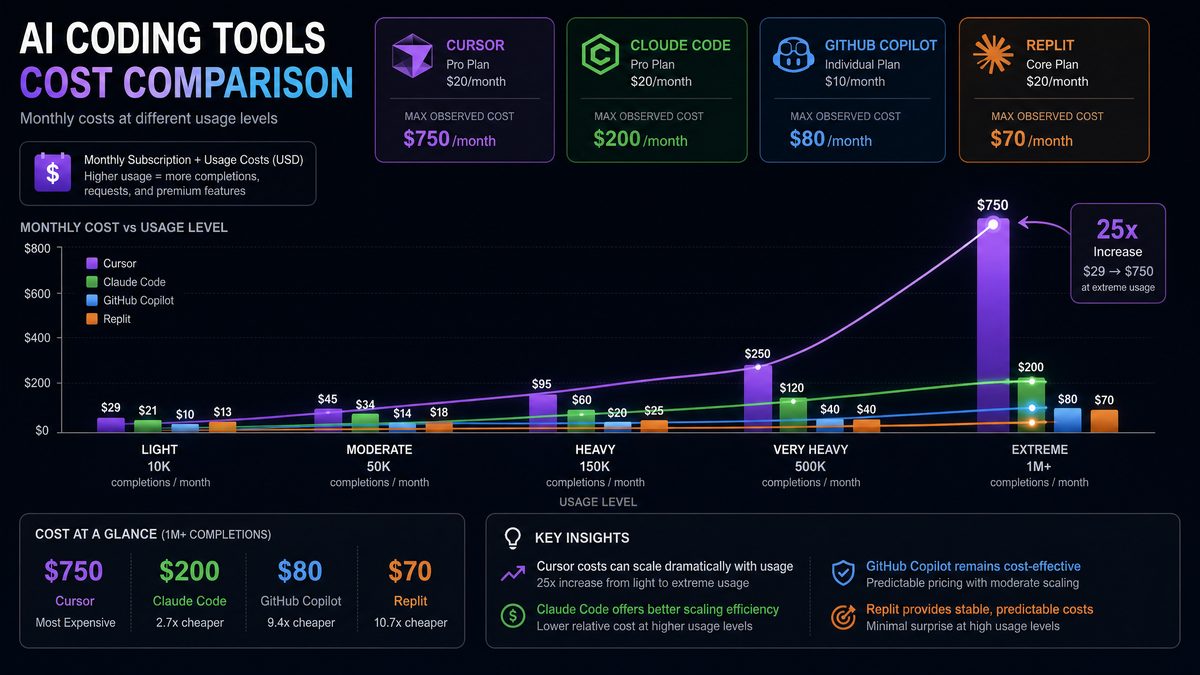
Feature Mapping: Inline Suggestions vs Agentic Tasks
GitHub Copilot primarily offers inline code completions and suggestions as you type. OpenAI Codex CLI supports a broader set of agentic tasks that can be scripted or invoked on demand. Understanding how features map between the two helps developers replicate and extend their workflows.
| Feature | GitHub Copilot | OpenAI Codex CLI Equivalent |
|---|---|---|
| Inline Code Completion | Real-time suggestions inside IDE | Prompt-based code generation using CLI commands |
| Code Explanation | Limited or via Copilot Chat | Explicit prompt: “Explain this code snippet” via CLI |
| Code Refactoring | Partial suggestions inline | Targeted prompts for refactoring tasks |
| Multi-line Completions | Supported in-context | CLI accepts multi-line prompts and returns large completions |
| Language Support | Broad, with IDE context | Extensive, requires specifying language in prompt |
Example: Generating a Function to Reverse a String
openai api completions.create -m code-davinci-002 -p "Write a JavaScript function that reverses a string." -M 150This command returns a complete function you can paste directly into your codebase.
Example: Explaining a Code Snippet
openai api completions.create -m code-davinci-002 -p "Explain this Python code:\n\n def factorial(n):\n return 1 if n == 0 else n * factorial(n-1)" -M 150The CLI will return a human-readable explanation useful for documentation or learning.
The Codex CLI represents a paradigm shift in how developers interact with AI coding assistants directly from their terminal environment. Our step-by-step walkthrough in How to Build a Multi-Agent Workflow with Codex CLI: From Planning to Production covers the complete setup process, advanced configuration options, and real-world workflow integrations that enable developers to leverage AI-powered code generation without leaving their preferred development environment.
Cost Comparison at Different Usage Levels
Cost is the most critical factor motivating many developers to switch. Below is a comparison based on token usage patterns.
| Usage Level | GitHub Copilot Cost | OpenAI Codex CLI Cost (approx.) | Notes |
|---|---|---|---|
| Light User: ~10k tokens/month | $29/month (flat) | ~$0.02 per 1k tokens → $0.20 | Codex CLI significantly cheaper |
| Moderate User: ~100k tokens/month | $29/month | ~$2.00 | Cost remains low; strong savings |
| Heavy User: ~1M tokens/month | $750+ (estimated spike) | ~$20 | OpenAI pricing is far more affordable and predictable |
Note: Pricing is based on OpenAI’s published rates for code-davinci-002 as of June 2024: approximately $0.02 per 1,000 tokens for completions.
Developers can also optimize costs by:
- Choosing smaller, cheaper Codex models (e.g.,
code-cushman-001). - Reducing max tokens per request.
- Batching requests when possible.
IDE Integration Differences
GitHub Copilot benefits from deep IDE integration, providing seamless inline suggestions. OpenAI Codex CLI is standalone but can be integrated into IDEs through custom scripting and extensions.
Copilot Integration Highlights
- Installed as plugin/extension in VS Code, JetBrains, Neovim.
- Real-time, inline completions as you type.
- Context-aware suggestions based on file and project.
Codex CLI Integration Strategies
- Custom Scripts: Developers can write shell scripts or Node.js scripts that invoke Codex CLI and pipe output into editor buffers.
- Editor Macros: Map keyboard shortcuts in editors like Vim or Emacs to trigger Codex CLI commands.
- Third-Party Plugins: Community-built plugins exist to bridge Codex CLI with editors (though less mature than Copilot).
- Copilot Chat Replacement: CLI can be wrapped in chat-like interfaces for interactive coding assistance.
Example: Simple Integration with VS Code Tasks
{
  "version": "2.0.0",
  "tasks": [
    {
      "label": "Generate Code with Codex CLI",
      "type": "shell",
      "command": "openai api completions.create -m code-davinci-002 -p \"${input:prompt}\" -M 200",
      "problemMatcher": []
    }
  ],
  "inputs": [
    {
      "id": "prompt",
      "type": "promptString",
      "description": "Enter your coding prompt"
    }
  ]
}
This task can be triggered to generate code based on a prompt you enter, outputting results in the terminal panel.
Tips for a Smooth Transition
- Start Small: Begin by using Codex CLI for isolated tasks rather than replacing Copilot entirely.
- Automate Common Tasks: Write scripts and aliases for frequent prompts to speed up usage.
- Maintain Context: Include relevant code snippets in prompts to provide Codex with enough context.
- Test Outputs: Always review generated code carefully to avoid bugs or security issues.
- Budget Monitoring: Use OpenAI’s API usage dashboard to monitor token consumption and costs.
- Community Resources: Engage with forums and GitHub repositories for community-built tools and tips.
Common Pitfalls and How to Avoid Them
- High Latency: CLI calls may be slower than inline suggestions. Mitigate by caching outputs or batching requests.
- Context Loss: Without IDE integration, you must manually provide sufficient context in prompts.
- Token Limits: Be aware of max token limits per request (typically 4,000 tokens for Codex models).
- API Rate Limits: Avoid hitting OpenAI API rate limits by spacing requests or upgrading your subscription.
- Security: Never share your API key and avoid sending sensitive code to the API when possible.
- Prompt Engineering: Poorly crafted prompts lead to low-quality outputs. Invest time in learning prompt design.
Conclusion
The migration from GitHub Copilot to OpenAI Codex CLI represents a shift from a convenient but costly and opaque AI coding assistant to a flexible, cost-efficient, and highly customizable toolset. While the workflow and integration paradigms differ significantly, the OpenAI Codex CLI empowers developers with direct API access, allowing them to tailor AI assistance to their exact needs.
By following the steps outlined in this guide—from installation and configuration to adapting workflows and monitoring costs—developers can achieve substantial savings and greater control over their AI coding experience. Although the transition requires some initial effort and adjustment, the long-term benefits in cost, customization, and privacy make OpenAI Codex CLI a compelling alternative for serious developers.
We encourage developers to experiment with CLI scripting, integrate Codex into their preferred editors, and participate in the growing community to share best practices and tools.
For further exploration, consider checking out our related resources on , , and .
Authored by Markos Symeonides
