How to Use the New Codex Desktop App for Full-Stack Development: Computer Use, In-App Browser, Memory, and Plugin Workflows

How to Use the New Codex Desktop App for Full-Stack Development: Computer Use, In-App Browser, Memory, and Plugin Workflows
Introduction: Codex’s Expansion Beyond a Coding Assistant to a Full Software Development Lifecycle Partner
The Codex desktop application has evolved from a code-completion and snippet generator into a comprehensive partner for full-stack development workflows. This transformation is not merely incremental; it integrates deep desktop-level capabilities such as native computer control, an in-app browser for live feedback on frontends (including localhost iterations), integrated image generation for UI and game assets, persistent memory for multi-session context, plugin integration with enterprise tools, and advanced automation to reduce manual toil throughout the software development lifecycle (SDLC).
In this tutorial we will provide a step-by-step, highly technical guide for developers and engineering teams looking to adopt Codex’s new capabilities. We cover configuration, practical usage patterns, sample command sets, secure SSH and remote development practices, plugin management (including MCP servers and connectors for Jira, GitLab, Neon DB, and Databricks), and automated PR review pipelines built on top of Codex’s advanced reasoning and code-execution capabilities.
Audience: This guide assumes familiarity with Git, SSH, terminal workflows, basic web development (localhost, ports), and CI/CD concepts. It is suitable for individual developers, engineering leads, DevOps engineers, and platform teams evaluating Codex as part of their developer experience stack.
Understanding Background Computer Use: How Codex Interacts with Desktop Applications (macOS, Windows) Natively
Overview of Background Computer Use
Codex’s background computer use refers to the app’s ability to interact with local system resources and applications in a controlled, auditable manner. This capability allows the app to: run shell commands, open files, control local development servers, manipulate windows, and in some deployments, script GUI interactions. The goal is to let Codex act as an assistant that can perform tasks on your machine while preserving security, user control, and transparency.
Key Components and Architecture
- Agent Runtime: A local agent embedded in the Codex desktop app that executes approved commands and interfaces with OS APIs (macOS Accessibility, Windows UIAutomation).
- Permission Model: Fine-grained permission prompts, explicit allow/deny logs, and session-based approvals for sensitive operations.
- Sandboxing and Audit Trails: Whitelisted directories, ephemeral logs, and cryptographic signatures of actions for later review.
- Integration Layer: Pluggable modules for terminal control, file I/O, window management, and inter-process messaging (IPC).
macOS: Granting Accessibility and Full Disk Access
On macOS, Codex requires specific entitlements to control other applications or to send keyboard and mouse events. The recommended steps are:
- Open System Settings > Privacy & Security.
- Grant Accessibility permission to Codex (so it can manipulate application windows and control UI elements when necessary).
- Grant Full Disk Access only if you want Codex to read arbitrary project files, or ensure you instead specify the directories you trust.
- For terminal and shell execution, verify Codex’s agent is signed and review the action logs in the app’s Security tab.
Example verifying permissions via terminal:
# Check that the tcc database lists Codex
sqlite3 ~/Library/Application\ Support/com.apple.TCC/TCC.db "SELECT * FROM access WHERE client LIKE '%Codex%';"
Windows: Developer Mode, UAC, and PowerShell Integration
On Windows, Codex uses a combination of PowerShell, optional WSL2 integration, and UI Automation APIs. Steps to enable full functionality:
- Enable Developer Mode from Settings > Update & Security > For developers.
- Grant Codex administrative rights if you intend to allow it to open privileged sockets or start privileged services.
- Install and configure Windows Subsystem for Linux (WSL2) for seamless Linux-compatible terminal commands and devbox parity.
Sample PowerShell command to verify Code Signing and execution policy:
Get-AuthenticodeSignature "C:\Program Files\Codex\codex.exe"
Get-ExecutionPolicy -List
Interactive Terminal and Multiplexer Integration
Codex can manage terminal tabs and multiplexers (tmux, Windows Terminal panes, iTerm2 windows). It can open terminals, send commands, capture output, and persist command history. The architecture separates “command planning” (what to do) from “command execution” (actually running shell commands), allowing you to review and approve actions.
Example: Opening a dev server and tailing logs in separate tabs (macOS using iTerm2 scripting):
# Pseudocode executed by Codex agent with user approval
osascript -e 'tell application "iTerm2"
  create window with default profile
  tell current session of current window
    write text "cd ~/projects/myapp && npm run dev"
  end tell
  split horizontally
  tell second session
    write text "cd ~/projects/myapp && tail -f logs/development.log"
  end tell
end tell'
Security and Least-Privilege Principles
Key security practices:
- Use ephemeral credentials for actions that require token exchange (no long-lived secrets stored by default).
- Limit Codex’s working directories to project folders. Avoid granting blanket disk access unless absolutely necessary.
- Enable per-session approval prompts for potentially destructive operations (rm -rf, database migrations).
- Review and export audit logs for team compliance.
Practical Examples: Safe Automation Patterns
Below is a typical safe pattern for applying a database migration through Codex with explicit approval:
- Codex proposes the command sequence based on detected migration files.
- It computes a dry-run and presents the expected SQL operations to you.
- You approve a single-run execution token; Codex executes the command with that token and logs the output.
The In-App Browser: Commenting Directly on Pages and Iterating on Frontend Designs on Localhost
Why an In-App Browser?
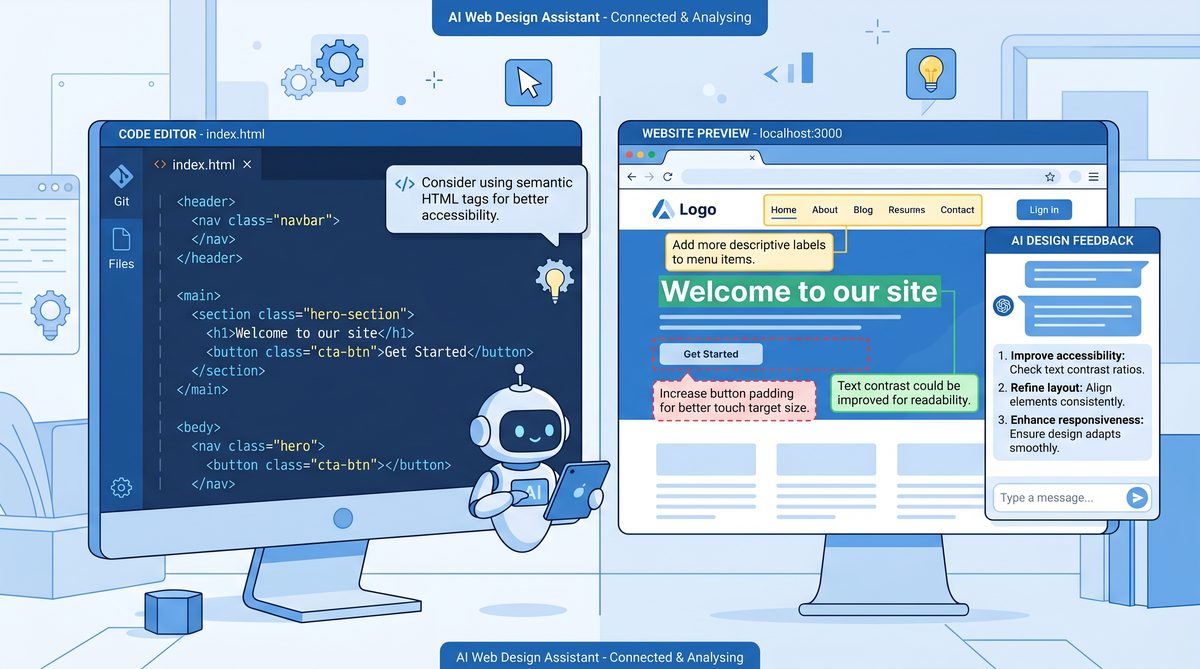
The in-app browser converts Codex from an external advisor into an active participant in frontend development. It allows the app to:
- Open and inspect pages, including localhost servers, without context-switching to an external browser.
- Annotate DOM nodes, provide inline suggestions, and create patch-ready changes to frontend code.
- Record a sequence of UI interactions to reproduce bugs and to generate integration tests (end-to-end snippets).
How It Works: DevTools, DOM Hooks, and Source Mapping
The in-app browser is tightly coupled with development tools:
- DevTools Integration: It exposes DOM, CSS, and network panels to Codex so the assistant can reason about layout issues, accessibility violations, and performance bottlenecks.
- Source Maps: By relying on source maps (provided by build tools like Vite, Webpack), Codex maps DOM elements back to original TypeScript/JSX or SASS/SCSS sources to propose code edits precisely where needed.
- Patch Generation: When you accept a UI suggestion, Codex generates a patch (git-friendly) to modify the source file, with a PR-ready commit message and inline explanation.
Step-by-Step: Commenting on a Localhost Page
- Start your frontend dev server (e.g., npm run dev). Ensure the server binds to 127.0.0.1 or a discoverable interface.
- Open the in-app browser in Codex and navigate to http://localhost:3000 (or your port).
- Select or hover an element; Codex will show an overlay indicating the mapped source file and line number.
- Use the comments pane to leave an instruction, e.g., “Reduce padding on .product-card and add aria-label to the purchase button.”
- Codex will propose changes with diffs; review the diff and approve to commit to a local branch.
Example: Codex producing a patch suggestion:
--- a/src/components/ProductCard.tsx
+++ b/src/components/ProductCard.tsx
@@ -23,7 +23,8 @@ export function ProductCard({ product }) {
-
+
...
-
+
}
Iterating on Frontend Designs
Codex assists iterative design by enabling rapid prototyping:
- Generate multiple visual variants directly in the in-app browser using the image generator to create mocked hero images or icons.
- Swap assets on the page temporarily to review visual impact without committing to code.
- Use snapshots to record visual diffs across iterations — useful for visual regression testing.
Accessibility and Automated Suggestions
While inspecting a page, Codex can run a11y audits (leveraging rules similar to axe-core). It surfaces violations and provides concrete fixes mapped to source files. Example suggestions include:
- Missing contrast — propose color tokens and show exact contrast ratios.
- Missing ARIA roles or labels — add attributes with suggested text.
- Focus order issues — recommend DOM restructuring and keyboard navigation fixes.
Programmatic Interaction and Test Case Recording
Codex can record a sequence of interactions and export them to test frameworks (Cypress, Playwright). The exported test includes selectors, waits, and assertions. Example Playwright export:
import { test, expect } from '@playwright/test';
test('purchase flow', async ({ page }) => {
await page.goto('http://localhost:3000');
await page.click('text=Buy');
await expect(page.locator('.confirmation')).toHaveText('Thank you for your purchase');
});
Visual Asset Generation: Using gpt-image-1.5 to Create and Iterate on UI Mockups and Game Assets
Capabilities of gpt-image-1.5
gpt-image-1.5 is optimized for UI-centric image generation with a focus on reproducibility, prompt-driven control, and multi-variant outputs. It supports:
- High-fidelity UI mockups and iconography.
- Iterative prompts with conditional adjustments (color palette, layout, aspect ratio).
- Seed-based generation for reproducibility and deterministic outcomes for design sign-off.
Integration Patterns: From Prompt to Asset in Codex
The typical flow when generating a UI asset in Codex is:
- Developer describes the desired asset (e.g., “a minimalist dashboard header with a company logo on the left and user avatar on the right”).
- Codex maps the description to a prompt template optimized for UI output and offers variants (color, typography, spacing).
- You choose a variant, and Codex generates a PNG/SVG and an export-ready SIZING/STYLE token mapping.
- Codex can insert the generated asset into the project directory, update imports, and produce a diff for commit.
Prompt Engineering: Practical Examples
Good prompts for UI assets are structured and explicit. Example prompts:
- “Design a 1200x200px dashboard header in flat material style: left-aligned company wordmark (blue #0A74DA), right-aligned circular user avatar placeholder, subtle shadow, and 16px padding. Export as SVG with transparent background.”
- “Create four 1:1 avatar placeholders (64px) using pastel gradients. Provide hex palette and SVG assets.”
Iterative Variant Workflow
When refining a generated asset, Codex allows parameterized reruns. You can supply delta instructions like:
- “Increase contrast between background and wordmark.”
- “Convert the logo to monochrome and add a navy border radius 8px.”
These delta prompts are applied to the previous generation seed, enabling consistent visual identity across iterations.
Asset Formats, Metadata, and Design Token Mapping
Codex outputs assets in multiple formats and generates associated metadata useful for design systems:
Format
Use Case
Metadata Generated
SVG
Icons, logos, vector UI components
Color tokens, viewBox, layer names
PNG
Raster mockups, placeholder images
Dimensions, DPI, compression settings
WEBP
Compressed assets for web delivery
Compression ratio, alpha channel support
Embedding Generated Assets into a Project
Codex can automatically:
- Place assets under assets/generated or src/assets.
- Update CSS/SCSS variable definitions with new tokens (e.g., –brand-primary: #0A74DA).
- Create a Git commit and open a PR branch with a descriptive message such as “chore(ui): add dashboard header variants from gpt-image-1.5”.
Example generated commit message produced by Codex:
chore(ui): add generated dashboard header assets
- Add SVG header variants (variant-a, variant-b)
- Update tokens: --brand-primary: #0A74DA
- Insert placeholder import in AppHeader component

Leveraging Codex Plugins and MCP Servers: Managing Jira (Atlassian Rovo), GitLab, Neon, and Databricks
Plugin Ecosystem Overview
Plugins extend Codex with integrations to enterprise tools and data platforms. Plugins can be installed per-user or packaged centrally by organizations using an MCP (Managed Connector Platform) server. The MCP server acts as a secure gateway that mediates API access, enforces policies, and provides centralized credential management.
MCP Server Architecture
An MCP server typically implements the following responsibilities:
- OAuth token exchange and refresh orchestration.
- Role-based access controls (RBAC) and permission auditing.
- Request rate limiting and caching for large APIs (e.g., Databricks jobs or GitLab merge request lists).
- Plugin manifests and versioning to ensure consistent behavior across developer desktops.
Plugin Setup Examples
Jira (Atlassian Rovo) Integration
Use cases include creating tickets from Codex prompts, updating issue statuses, and linking PRs to issues. Typical flow:
- Install the Jira plugin and connect via MCP or direct OAuth depending on org policy.
- Authorize scopes: read:issue, write:issue, read:user, comment:issue.
- Codex can suggest Jira tickets from context (e.g., open PRs, failing tests), draft ticket descriptions, and attach traces or logs.
Example: Creating a Jira ticket using a Codex-generated template:
Summary: Layout regression on ProductCard - mobile breakpoint
Description:
- Observed at 320px width: avatar overlaps title
- Steps to reproduce:
1. Open /products on localhost:3000
2. Resize to mobile viewport
- Suggested fix: adjust .product-card flex-direction at max-width: 480px
GitLab Integration
GitLab plugin workflows include creating branches, opening merge requests (MRs), applying Codex reviews, and automating MR pipelines. Codex can read MR diffs and annotate security-sensitive changes or suggest improvements based on static analysis and test results.
Feature
Codex Usage
Benefit
Auto-generated MR descriptions
Summarize changes and list related issues
Faster, consistent MR metadata
Review automation
Run static analysis scripts and annotate diffs
Early feedback without human round-trips
Neon (Serverless Postgres) Integration
Codex can query Neon, propose schema migrations, scaffold ORM models, and perform safe data-modifying operations through explicit approval. Typical capabilities include:
- Propose SQL migrations with dry-run and rollback scripts.
- Generate ORM model snippets and type definitions.
- Run queries and present summarized results in tabular format within Codex.
# Example SQL migration produced by Codex
BEGIN;
ALTER TABLE users ADD COLUMN last_seen_at timestamptz;
UPDATE users SET last_seen_at = COALESCE(last_seen_at, now());
COMMIT;
Databricks Integration
For data engineering and ML use cases, Codex interacts with Databricks to:
- Trigger jobs and collect logs.
- Infer appropriate cluster configurations based on job metadata.
- Generate notebooks with reproducible code and attach tests.
Authentication and Least-Privilege Access via MCP
MCP servers enable teams to apply the principle of least privilege. Typical configuration steps:
- Register Codex as a client in your identity provider (IdP) and configure MCP to exchange tokens.
- Create service accounts in the target platforms with narrowly-scoped roles.
- Use short-lived tokens and refresh through MCP to prevent token leakage.
Example Plugin Workflow: Linking a GitLab MR to a Jira Ticket
- Codex detects a failing test in a branch and suggests creating a Jira ticket.
- Upon approval, Codex creates a ticket and posts a link in the MR description.
- Codex can then add MR comments that summarize the ticket and request QA review, including exact steps to reproduce captured from the in-app browser.
Organizations can customize templates and approval gates—MCP mediates these policies so that plugin behavior is consistent across the team.
While the Codex Desktop App excels at technical development workflows, its capabilities extend far beyond traditional coding tasks. Our comprehensive exploration of how Codex is transforming non-technical knowledge work roles demonstrates how professionals in legal, finance, HR, and operations are leveraging the same platform for research, analysis, and document automation without writing a single line of code.
Advanced Workflows: SSH Connections to Remote Devboxes, Managing Multiple Terminal Tabs, and Automated PR Reviews
SSH Connections and Remote Development
Codex supports connecting to remote devboxes over SSH for heavy workloads, reproducible environments, or when using GPU-accelerated resources. The typical architecture includes:
- Codex local agent initiating an SSH tunnel or invoking an SSH client that proxies commands to the remote host.
- Optional remote Codex agent installation for richer interaction (file-level actions, remote terminal multiplexing).
- Session recording and reversible actions (to support audits and rollback).
Secure SSH Setup and Best Practices
Recommended steps for secure SSH:
- Use SSH keys protected by a passphrase and integrate with an OS keychain (ssh-agent or macOS Keychain).
- Enable two-factor for remote hosts and avoid root login via SSH.
- Use bastion hosts or VPNs for corporate networks; Codex can manage bastion hops transparently.
Example SSH config suitable for Codex-managed sessions:
Host devbox
HostName devbox.company.internal
User dev
IdentityFile ~/.ssh/id_ed25519_codex
ProxyJump bastion.company.internal
ServerAliveInterval 60
ForwardAgent yes
Managing Multiple Terminal Tabs and Sessions
Codex coordinates multiple terminal sessions to maintain context. Use cases include:
- One tab running the dev server (npm/yarn), second tab tailing logs, third tab running tests.
- Parallel builds across microservices where Codex collects outputs and summarizes failures.
- Named session snapshots that let you save the exact set of commands and open files for future resumption.
Codex can export session scripts to tmuxinator or a Docker Compose-based dev environment so team members get identical setups. Example tmuxinator config generated by Codex:
name: myapp
windows:
- dev:
layout: even-vertical
panes:
- cd ~/projects/myapp && npm run dev
- cd ~/projects/myapp && yarn tail:logs
- cd ~/projects/myapp && npm test -- --watch
Automated PR Reviews
Codex can run automated reviews on pull requests or merge requests, combining static analysis, test results, style guides, and security checks. The process is:
- On MR creation, Codex runs a pipeline that includes linting, unit tests, and a security scan.
- Codex attaches inline comments where code smells, performance regressions, or security issues are found.
- It proposes actionable fixes with code patches and unit-test suggestions.
Automated Review Report Example
Check
Result
Action
ESLint
2 errors
Fix indentation and unused variable in src/utils/format.ts
Unit Tests
3 failed
Provide suggested mock and test adjustments
Security Scan
High severity: SQL injection risk
Use parameterized queries in db/queries/user.ts
Example: Codex Creating a PR Review with Fix Suggestions
When Codex finds a security issue it can attach a suggested patch and a short justification for reviewers:
Suggested change:
- Replace string concatenation with parameterized query to prevent SQL injection.
Patch:
--- a/src/db/queries/user.ts
+++ b/src/db/queries/user.ts
@@ -12,7 +12,8 @@ export const getUserByEmail = async (email) => {
- const query = `SELECT * FROM users WHERE email = '${email}'`;
- return db.query(query);
+ const query = 'SELECT * FROM users WHERE email = $1';
+ return db.query(query, [email]);
}
Custom Automation Hooks
Teams can define hooks so that Codex runs selected workflows at PR events such as opening, updates, or labeling. Codex supports webhook-style triggers and can orchestrate complex flows such as:
- Run a heavy static analysis only on label “deep-analysis”.
- Run targeted e2e tests when a PR touches specific frontend paths.
- Automatically assign reviewers based on directory ownership heuristics.
Memory and Automations: Preserving Context Across Threads, Scheduling Future Work, and Context-Aware Daily Suggestions
Conceptual Model of Memory
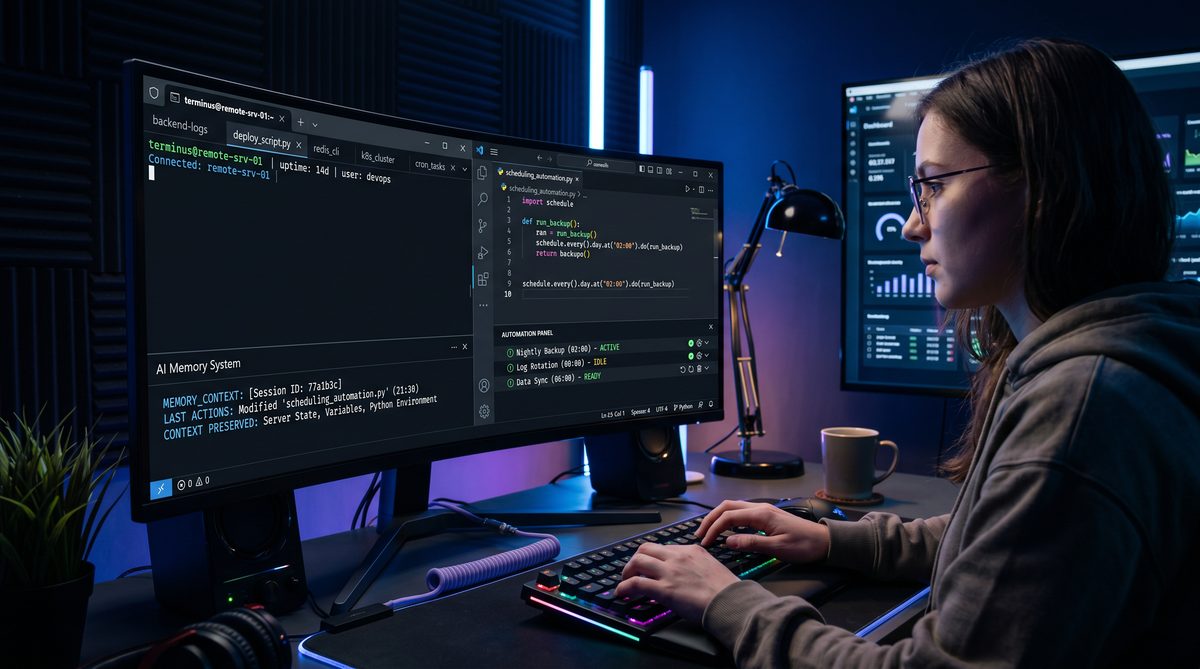
Codex memory stores structured knowledge about user preferences, project metadata, and ongoing work items so the assistant can provide context-aware suggestions. Memory is not a flat log — it is organized into typed records such as:
- Project profile (repo URL, stack, ports, key commands)
- User preferences (code style, timezone, notified channels)
- Task and ticket references (active tickets, blocked PRs)
- Design decisions (selected tokens, approved color palette)
Memory is local-first and optionally synchronized with org-level MCP servers depending on policy. All memory accesses are visible and auditable.
Use Cases: Daily Standup and Context-Aware Suggestions
Codex can generate a daily briefing that aggregates data from memory, PR status, CI results, and scheduled calendar events. Example briefing content:
- “Good morning — You have 3 PRs awaiting review; PR #342 is blocked by failing integration tests.”
- “Suggested focus: fix the failing auth tests that are delaying release v1.4.2.”
This briefing is generated by combining memory (who you are, your role), active tasks, and static repository health metrics.
Persistent Context Across Threads
When you open a new Codex thread or conversation, the assistant can load relevant memory entries to avoid re-explaining context. Mechanisms include:
- Context keys — a set of tags like project:myapp, feature:payment, priority:high.
- Ephemeral vs persistent memory flags — certain notes are marked ephemeral (e.g., “temporary debug note”) and will not be used after 24 hours unless promoted.
- Memory versioning — changes to memory records are tracked with timestamps and author metadata.
Automations: Scheduling, Triggers, and Actions
Automations are first-class constructs that let you schedule tasks or trigger them on events. Types of automations include:
- Time-based (e.g., “Run nightly performance benchmark at 2 AM”).
- Event-based (e.g., “If MR labeled security, run SAST and block merge”).
- Conditional (e.g., “When a PR targeting main has > 10 commits and no review, assign reviewer”).
Automation Rule Example (YAML)
name: nightly-benchmark
trigger:
schedule: "0 2 * * *" # 02:00 UTC
actions:
- run: ./scripts/benchmark.sh
- upload: results/benchmark-$(date +%F).json -> s3://company-benchmark
- notify: channel:#engineering
conditions:
- repo: myapp
- env: staging
Context-Aware Daily Suggestions
Codex uses memory and recent activity to prioritize suggestions such as:
- Code review recommendations based on historical reviewer workload.
- Refactoring suggestions triggered by frequent TODOs in the codebase.
- Proactive security checks when certain sensitive files are modified.
For example, if memory shows you prefer Redux Toolkit slices for state, Codex may propose converting legacy reducer logic to a slice pattern when it detects similar code.
The voice interaction capabilities within Codex’s desktop environment complement the broader ecosystem of conversational AI development. Our step-by-step tutorial on building real-time voice agents with ChatGPT’s Advanced Voice Mode and GPT-5.5 provides the complete implementation guide for developers looking to create production-grade voice interfaces that integrate with Codex’s automation workflows.
Managing Memory: Privacy Controls and Exportable Data
Memory can be managed via an interface to:
- Search memory entries and purge specific records.
- Export memory entries for audits (CSV/JSON) or for transferring to another team member.
- Apply retention policies: auto-delete ephemeral notes after N days, persist long-term decisions until manual purge.
Security, Privacy, and Compliance Considerations
Least Privilege and Role Separation
Never grant blanket permissions. Use MCP and RBAC to limit plugin capabilities. Example roles:
- Developer: read/write to repositories, create temporary tokens.
- Reviewer: read-only access plus comment capabilities on MRs.
- Ops: run deployment automations and view logs.
Audit Logs and Transparent Action Histories
Codex maintains an immutable audit trail of actions performed by the agent, including:
- Executed commands with timestamps.
- Generated patches and who approved them.
- External API calls made through plugins.
Data Residency and Encryption
For organizations with strict compliance requirements, Codex supports:
- On-premises MCP deployment to keep tokens and metadata in the organization’s network.
- End-to-end encryption of sensitive artifacts managed by Codex.
- Configurable retention and deletion policies inline with GDPR/CCPA.
Handling Secrets and Credential Rotation
Codex avoids storing long-lived secrets in plaintext. Best practices include:
- Using short-lived tokens issued by the MCP or IdP for API access.
- Integrating with secret managers (HashiCorp Vault, AWS Secrets Manager) for runtime retrieval.
- Prompt-based approvals for sensitive operations (a human must approve DB writes or production deployments).
Troubleshooting and Performance Tuning
Common Issues and Resolutions
- In-App Browser Not Loading Localhost: Check whether the dev server is bound to 127.0.0.1 vs 0.0.0.0 and ensure firewalls permit loopback. For macOS with private network protections, grant network access to Codex.
- SSH Connection Failures: Verify SSH config, ensure the agent forwards keys if needed, and check known_hosts entries for host key mismatches.
- Plugin Authorization Errors: Inspect MCP logs for token exchange errors; confirm OAuth scopes and redirect URIs match.
- Image Generation Output Too Large: Use export settings to reduce resolution or request SVG outputs for vector assets.
Performance Tuning Tips
- Enable local caching for heavy static analysis to reduce repeated computation.
- Throttle automatic background tasks during active development to conserve CPU.
- Use remote devboxes for resource-intensive tasks (e.g., model fine-tuning or large image generation batches).
Logging and Diagnostic Tools
Codex provides in-app diagnostic exports with the following contents:
- Agent action log (commands executed, responses).
- Plugin request flows and MCP server logs.
- Performance report including memory and CPU usage snapshots.
Exporting diagnostics can be critical when diagnosing issues with enterprise integrations such as Databricks or Neon.
Access 40,000+ AI Prompts for ChatGPT, Claude & Codex — Free!
Subscribe to get instant access to our complete Notion Prompt Library — the largest curated collection of prompts for ChatGPT, Claude, OpenAI Codex, and other leading AI models. Optimized for real-world workflows across coding, research, content creation, and business.
Appendices: Reference Commands, Examples, and Tables
Appendix A: Useful Terminal Commands
Task
Command (macOS/Linux)
Command (Windows PowerShell)
Start dev server
npm run dev
npm run dev
Tail logs
tail -f logs/development.log
Get-Content logs\development.log -Wait
SSH to devbox
ssh devbox
ssh devbox
Run tests
npm test — –watch
npm test — –watch
Appendix B: Sample CI Automation Snippet (GitLab)
stages:
- lint
- test
- review
lint:
stage: lint
script:
- npm ci
- npm run lint
test:
stage: test
script:
- npm run test -- --ci
codex-review:
stage: review
script:
- |
# Trigger Codex review job via MCP API
curl -X POST https://mcp.company.internal/api/review \
-H "Authorization: Bearer $MCP_TOKEN" \
-d '{"repo":"$CI_PROJECT_PATH","pr":$CI_MERGE_REQUEST_IID}'
when: manual
Appendix C: Example Git Workflow with Codex
- Work on feature branch: git checkout -b feat/payment-retry
- Make code changes; use Codex to run local tests and get inline suggestions.
- Commit changes: git commit -am “feat(payment): add retry logic for transient failures”
- Push branch and open PR: git push origin feat/payment-retry; Codex opens MR with description and links to related Jira tickets.
- Codex attaches automated review and suggested fixes; implement and re-run checks.
- Merge when checks pass and reviewer sign-off is present.
Conclusion
The new Codex desktop app redefines developer tooling by bridging AI-assisted reasoning with direct access to local and remote development environments. Its capabilities for background computer use, in-app browser inspection and patching, visual asset generation with gpt-image-1.5, rich plugin support via MCP servers, robust SSH/remote devbox workflows, automated PR reviews, and context-preserving memory make it a powerful ally across the SDLC.
Adoption requires careful attention to security and governance — favor least-privilege configurations, audit trails, and explicit approvals. When deployed with proper controls, Codex can reduce repetitive tasks, accelerate design and review cycles, and standardize cross-team workflows.
We encourage teams to pilot Codex in a controlled environment, experiment with automation rules for low-risk tasks first, and gradually expand its privileges as confidence grows. The combined product capabilities provide a path toward a more integrated, context-aware, and efficient development lifecycle.
Further Reading and Next Steps: Implement a small pilot integrating Codex with one repo and one plugin (e.g., GitLab) and enable a single automation (nightly benchmark or MR review). Measure developer time saved, review turnaround, and security outcomes. Iterate on policies using MCP server controls and refine memory retention policies based on team feedback.