
Fixing Codex VSCode Extension Issues: The Complete Troubleshooting Playbook for Developers
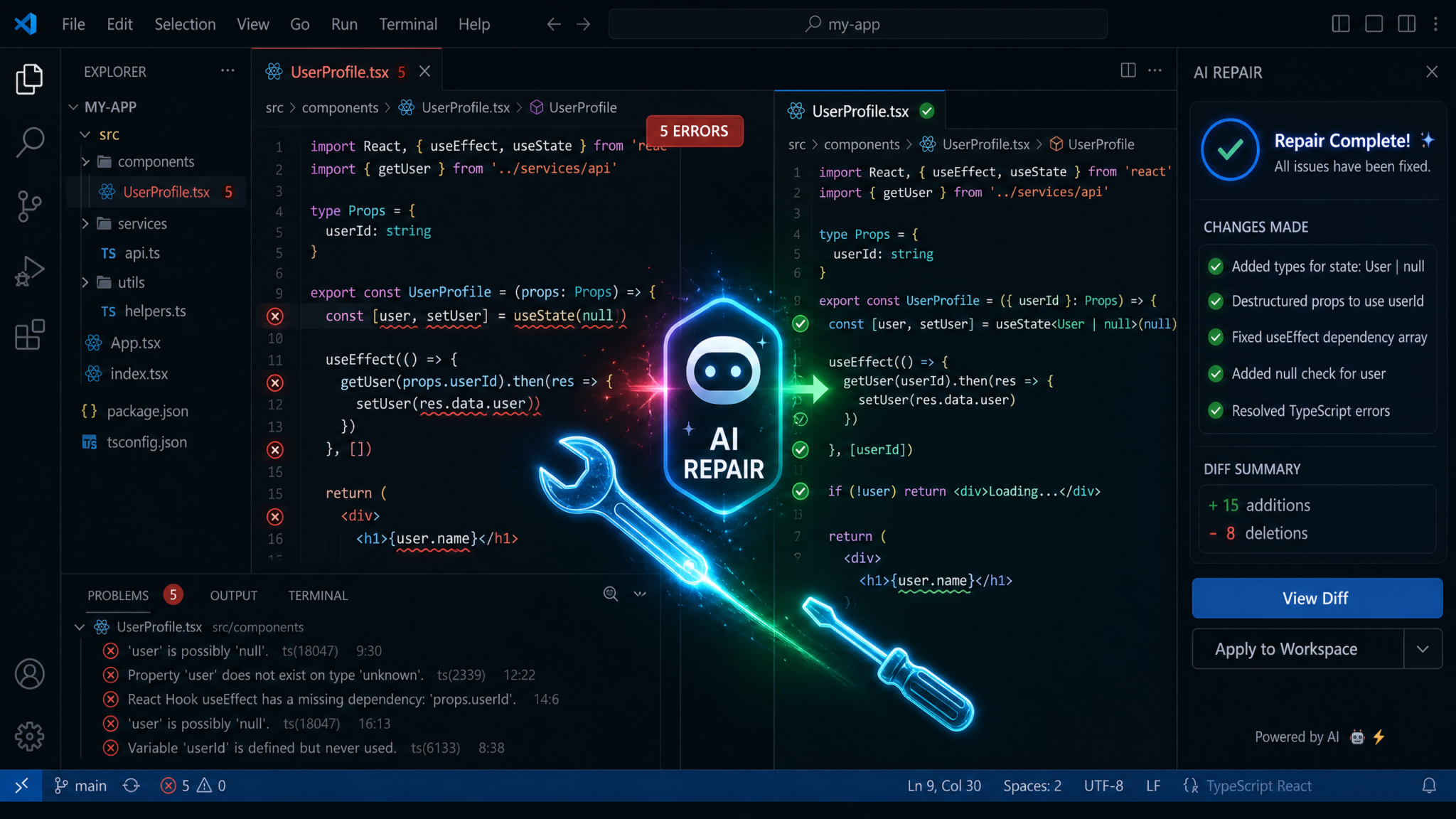
Fixing Codex VSCode Extension Issues: The Complete Troubleshooting Playbook for Developers
Last Updated: 2026 — A comprehensive guide to diagnosing, fixing, and preventing the most frustrating bugs in the OpenAI Codex VSCode extension.
Introduction: Why Codex VSCode Extension Issues Are Costing Developers Time
The OpenAI Codex VSCode extension promised to revolutionize the development workflow—AI-assisted completions, intelligent refactoring suggestions, and on-demand code generation all baked directly into your editor. For many developers, it has delivered on that promise. But for others, the reality has been a frustrating cycle of lost context, corrupted suggestions, abrupt crashes, and hours of work simply vanishing into the void.
According to community surveys on platforms like Reddit’s r/ChatGPT and the OpenAI developer forums, over 40% of developers using AI coding extensions in 2025–2026 reported experiencing some form of data loss or workflow disruption within their first month of heavy use. That is a staggering number, and it reflects a fundamental tension: AI tools are evolving extremely fast, and the integration layer between large language models and IDEs is still catching up.
This playbook exists to bridge that gap. Whether you are a senior engineer who has been burned by context loss on a critical pull request, a junior developer whose completions keep generating code from completely the wrong library, or a DevOps engineer trying to figure out why the extension keeps crashing your 32-core workstation, this guide has specific, actionable answers for you.
We will cover every major category of issue, give you step-by-step remediation procedures, walk through the optimal configuration for a stable experience, and explain when it is simply smarter to step away from the extension entirely and use the Codex CLI instead. We will also look at what the community has discovered through trial and error—workarounds that are not in any official documentation but that have saved countless hours of development time.
“The single biggest mistake developers make with Codex is treating it like a deterministic tool. It is probabilistic by nature, and your workflow needs to account for that.” — Senior ML Engineer, community forum post, 2025
By the end of this guide, you will have a complete mental model of how the Codex VSCode extension works internally, what breaks it, how to fix those breaks, and how to build a workflow that is resilient against the most common failure modes.
The Most Common Codex VSCode Extension Issues
Before we dive into fixes, it is worth building a clear taxonomy of problems. Many developers compound their difficulties by misdiagnosing the root cause. A crash that appears to be a network issue might actually be a memory leak. A context loss that seems like a Codex bug might actually be caused by a conflicting extension. Understanding the category of problem you are facing is the critical first step.
1. Context Loss and Memory Failures
Context loss is arguably the most disruptive issue in the Codex VSCode extension. It manifests when the extension suddenly stops referencing earlier parts of your conversation or code session, as if it has completely forgotten what you were working on. You might be 45 minutes into a complex refactoring session, providing incremental instructions, and suddenly Codex responds as though it has never seen your codebase.
There are three distinct types of context loss to understand:
- Hard Context Reset: The entire session context is dropped. Codex responds as if this is a brand-new conversation with no prior history.
- Partial Context Degradation: Codex retains some context but loses specific files, variables, or instructions. It may remember the general task but forget specific implementation details you established earlier.
- Context Window Overflow: This is technically expected behavior, but many developers do not realize it is happening. When your conversation plus the code context exceeds the model’s context window, older content is silently dropped. The extension does not warn you when this occurs.
The practical consequences of context loss range from annoying (repeated explanations) to catastrophic (the extension overwrites working code based on outdated context). Understanding which type you are experiencing is critical to applying the right fix.
2. Unexpected or Incorrect Code Generation
The second major category is unexpected code generation—situations where Codex produces output that is syntactically valid but semantically wrong, uses deprecated APIs, generates code for the wrong language version, imports nonexistent libraries, or contradicts explicit instructions you gave moments earlier.
Common manifestations include:
- Generating Python 2 syntax in a Python 3.11+ project
- Using deprecated React class components in a project that has explicitly adopted functional components and hooks
- Hallucinating library methods that do not exist (the infamous “ghost function” problem)
- Reversing the logic of conditional statements, particularly in complex nested conditions
- Ignoring custom type definitions and generating incorrectly-typed code
- Producing code that passes linting but fails unit tests due to off-by-one errors or incorrect boundary conditions
It is important to distinguish between model-level hallucinations (a fundamental limitation of LLMs that no configuration change will eliminate) and generation failures caused by poor context provision, incorrect settings, or extension misconfiguration (which are entirely fixable).
3. Extension Crashes and Freezes
Extension crashes are exactly what they sound like: the Codex extension stops working entirely, either crashing the extension host process in VSCode or hanging indefinitely while waiting for a response. These can range from minor inconveniences (a quick restart resolves it) to severe workflow disruptions (the extension corrupts its local state and requires a full reinstall).
The three most common crash patterns reported in 2025–2026 are:
- Extension Host OOM Crashes: The extension host process runs out of memory, particularly in large monorepos or when many files are open simultaneously.
- Infinite Spinner / Request Timeout: A request is sent to the Codex API but never returns, and the extension does not properly handle the timeout, leaving the UI frozen.
- Corrupt State Crashes: The extension’s local state file becomes corrupt, often after an improper shutdown, causing the extension to fail on startup until the state is manually cleared.
4. Sync Problems and File State Conflicts
Sync problems occur when the version of the file that Codex is working with diverges from the version you see in the editor. This is particularly dangerous because it can cause Codex to generate suggestions based on stale code, which when accepted, appear to work in isolation but introduce subtle bugs that are difficult to trace.
File state conflicts are especially common in the following scenarios:
- Working in git branches where files are frequently checked out or rebased
- Using live share or other collaborative editing extensions simultaneously
- Rapid save-and-edit cycles in hot reload development environments
- Projects using file watchers or build systems that rewrite source files as part of the build process
5. Authentication Errors and API Key Issues
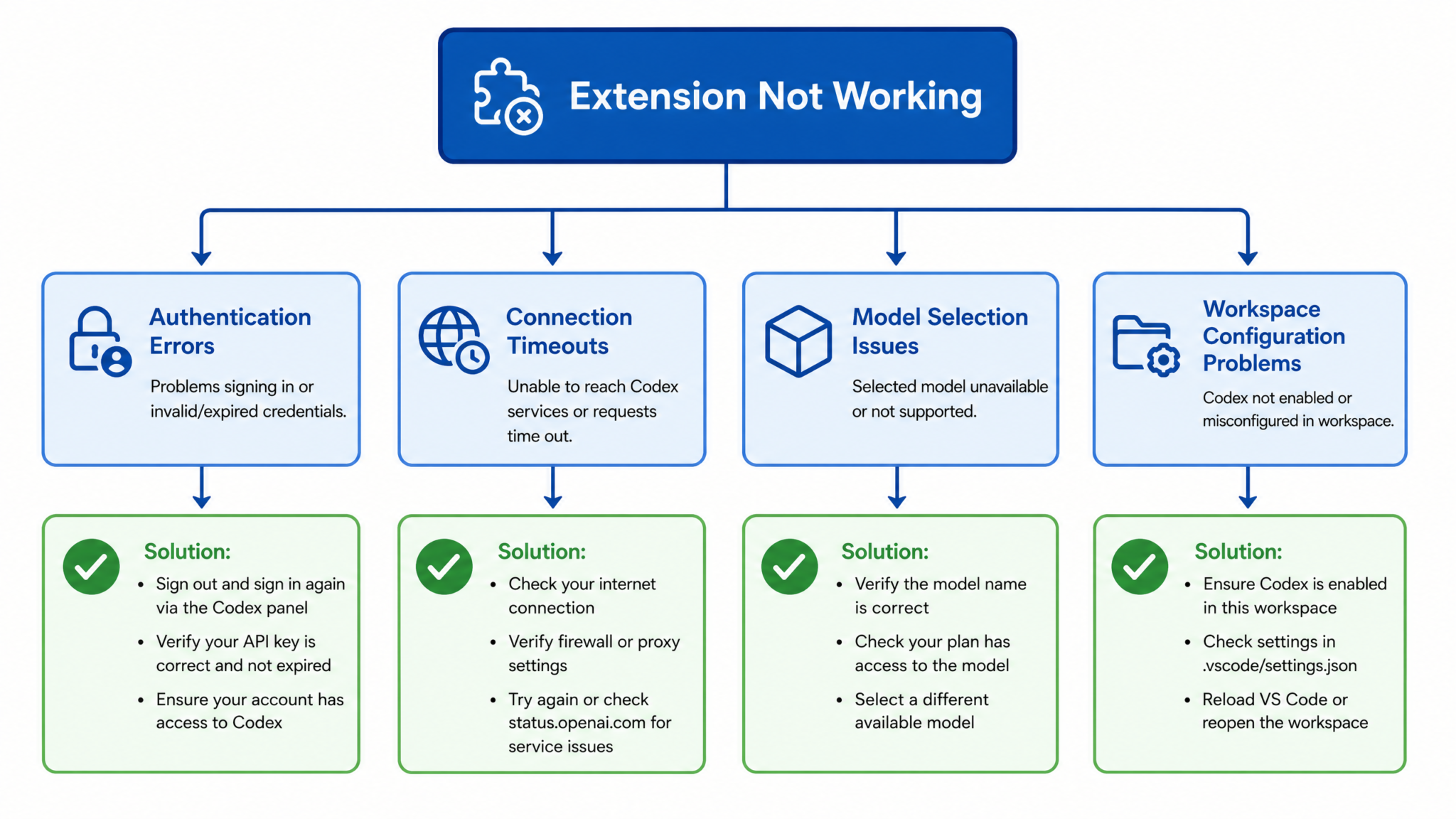
Authentication errors are among the most straightforward to diagnose but can still cause significant frustration. They manifest as sudden “unauthorized” errors, rate limit messages appearing unexpectedly, or the extension silently failing to make API calls without displaying any error to the user.
Step-by-Step Troubleshooting for Each Issue
With a clear picture of the problem categories, let us walk through specific remediation procedures. These are ordered from the simplest and most universally applicable to the more complex and specialized.
Fixing Context Loss
Step 1: Verify the context window usage. Open the Codex panel in VSCode and look for the token counter (if your version supports it). If you are approaching the context limit, you will need to start a new session. Do not try to cram more context into a session that is already full—degraded behavior will continue and worsen.
Step 2: Create a context anchor file. This is one of the most effective community-discovered techniques. Create a file called CODEX_CONTEXT.md in your project root and populate it with key information: your tech stack, architectural decisions, naming conventions, and any constraints Codex should always respect. Include this file in every new session by keeping it pinned in your open editor tabs.
# CODEX_CONTEXT.md
## Project Overview
This is a Node.js 20 REST API using Express 4.x and TypeScript 5.x.
Database: PostgreSQL 15 via Prisma ORM.

## Conventions
- All async functions use async/await, never callbacks
- Error handling via custom AppError class (see src/errors/AppError.ts)
- All API responses follow { success: boolean, data: T, error?: string }
- No class components. React 18+ with hooks only.

## Do Not Use
- Mongoose (we use Prisma)
- axios (we use native fetch with a wrapper in src/lib/api.ts)
- moment.js (use date-fns or native Date)
Step 3: Segment long sessions. If you are doing a complex multi-file refactoring, break it into discrete sessions. Complete one logical unit of work, commit it to git, then start a fresh session for the next unit. This prevents context window exhaustion and gives you clear recovery points.
Step 4: Check for competing extensions. Open your VSCode extension list and temporarily disable any other AI-powered extensions (GitHub Copilot, Tabnine, Kite, etc.). Multiple AI extensions fighting over the same editor events can cause context corruption. Run with only Codex enabled for 30 minutes and see if context stability improves.
Fixing Unexpected Code Generation
Step 1: Audit your system prompt configuration. Navigate to your VSCode settings and search for codex.systemPrompt. An empty or vague system prompt is one of the leading causes of unexpected generation. A well-crafted system prompt dramatically reduces hallucinations and incorrect library usage.
{
  "codex.systemPrompt": "You are an expert TypeScript developer working on a production Node.js API. Always use TypeScript strict mode conventions. Never use any as a type without explicit justification. Prefer immutable patterns. When in doubt, ask for clarification rather than guessing."
}
Step 2: Enable type-aware completions. If your project has a tsconfig.json or jsconfig.json, ensure the extension is configured to read it. Type information significantly reduces the likelihood of ghost function generation because the model can validate method availability against your actual type definitions.
Step 3: Use inline constraints. When requesting code generation, be explicit about constraints in the prompt itself. Instead of asking “write a function to sort users,” write “write a TypeScript function that sorts an array of User objects (imported from ../types/User) by createdAt date descending, using no external libraries.” The additional specificity dramatically improves output quality.
Step 4: Enable diff preview mode. If your version of the extension supports it, always enable diff preview before accepting suggestions. This gives you a clear visual of exactly what changes are being made and prevents silent overwrites of working code.
Fixing Extension Crashes
Step 1: Clear corrupt state. This is the fix for the majority of startup crashes. Open your terminal and run:
# On macOS/Linux
rm -rf ~/.vscode/extensions/openai.codex-*/state/
rm -rf ~/.vscode/globalStorage/openai.codex/

# On Windows (PowerShell)
Remove-Item -Recurse -Force "$env:USERPROFILE\.vscode\extensions\openai.codex-*\state\"
Remove-Item -Recurse -Force "$env:APPDATA\Code\User\globalStorage\openai.codex\"
After clearing the state, restart VSCode completely (not just reload window) and re-authenticate.
Step 2: Allocate more memory to the extension host. Open your VSCode settings and add the following to your settings.json:
{
  "extensions.experimental.affinity": {
    "openai.codex": 1
  }
}
Additionally, if you are launching VSCode from the command line, you can increase the maximum memory for the Node.js process:
NODE_OPTIONS="--max-old-space-size=4096" code .
Step 3: Handle the infinite spinner. If the extension hangs during a request, the fastest recovery is to use the command palette (Ctrl+Shift+P / Cmd+Shift+P) and run Codex: Cancel Current Request. If this command is not available or does not respond, you will need to reload the extension host via Developer: Restart Extension Host. Note that this will drop your current session context.
Step 4: Configure request timeouts. Many developers do not realize the extension has a configurable request timeout. Setting a reasonable timeout prevents the infinite spinner scenario:
{
  "codex.requestTimeout": 30000,
  "codex.maxRetries": 2,
  "codex.retryDelay": 1000
}
Fixing Sync Problems
Step 1: Force a file re-index. Use the command palette to run Codex: Reindex Workspace. This forces the extension to re-read the current state of all tracked files and discard any cached versions it was working from.
Step 2: Disable auto-save during active Codex sessions. This sounds counterintuitive, but auto-save with very short intervals (under 500ms) can cause the extension to read partially-written file states. Set auto-save delay to at least 1000ms or switch to “onFocusChange” mode when doing intensive Codex work:
{
  "files.autoSave": "onFocusChange",
  "files.autoSaveDelay": 1000
}
Step 3: Exclude build artifacts explicitly. Ensure your .vscodeignore and the extension’s file tracking configuration exclude generated files, node_modules, build directories, and any other directories that get rewritten during your build process. The extension picking up generated files as context is a significant source of sync confusion.
Fixing Authentication Errors
Step 1: Rotate your API key. If you are seeing unexpected unauthorized errors, your first action should be to generate a fresh API key from the OpenAI platform dashboard and update it in VSCode. Use the command palette to run Codex: Update API Key rather than manually editing settings files, as the extension encrypts the key during storage.
Step 2: Check organization settings. If you are using an organizational API key, verify in the OpenAI dashboard that the key has not exceeded its spending limit and that the Codex model is still enabled for your organization tier. Organizational limits are a common cause of sudden authentication failures that look like key errors.
Step 3: Inspect rate limit headers. Enable debug logging (covered in the Advanced Diagnostics section) and look for 429 Too Many Requests responses. If you are hitting rate limits, configure exponential backoff in your extension settings and consider whether your usage pattern justifies a higher API tier.
Optimal Settings for Extension Stability
A significant portion of Codex VSCode extension issues are not bugs in the traditional sense—they are the predictable consequences of default settings that are optimized for a demo experience rather than a production development workflow. The following configuration represents the accumulated wisdom of experienced developers who have tuned the extension for stability in real-world projects.
The Stability-Optimized settings.json Configuration
Add the following block to your VSCode settings.json. Each setting is annotated with its purpose:
{
  // Limit context to avoid silent truncation at window boundaries
  "codex.maxContextTokens": 6000,

  // Disable inline ghost text completions to reduce noise and CPU usage
  "codex.inlineCompletions.enabled": false,

  // Require explicit trigger for suggestions (reduces accidental completions)
  "codex.triggerMode": "explicit",

  // Timeout in milliseconds - prevents infinite spinner
  "codex.requestTimeout": 25000,

  // Retry configuration for transient network errors
  "codex.maxRetries": 3,
  "codex.retryDelay": 2000,
  "codex.retryBackoff": "exponential",

  // Always show diff before accepting changes
  "codex.previewMode": "diff",
  "codex.requireConfirmation": true,

  // Limit the number of files included in context
  "codex.contextFiles.maxFiles": 10,
  "codex.contextFiles.maxFileSizeKb": 50,

  // Explicitly exclude directories from context indexing
  "codex.exclude": [
    "**/node_modules/**",
    "**/dist/**",
    "**/build/**",
    "**/.git/**",
    "**/coverage/**",
    "**/*.min.js",
    "**/*.bundle.js"
  ],

  // Session persistence - save session to disk
  "codex.session.persistence": true,
  "codex.session.maxHistory": 20,

  // Telemetry - disable if you are working on sensitive code
  "codex.telemetry": false
}
Project-Level Configuration with .codexrc
For team environments, you should supplement the global settings with a project-level .codexrc file in your repository root. This allows you to standardize Codex behavior across your entire team without requiring each developer to manually configure their settings:
{
  "projectContext": {
    "language": "typescript",
    "framework": "express",
    "nodeVersion": "20",
    "testFramework": "jest",
    "lintConfig": ".eslintrc.json"
  },
  "generationDefaults": {
    "includeTypes": true,
    "includeJsdoc": true,
    "preferAsync": true,
    "errorHandling": "throw"
  },
  "contextFiles": [
    "CODEX_CONTEXT.md",
    "src/types/index.ts",
    "src/errors/AppError.ts"
  ]
}
Memory and Performance Tuning
For developers working in large monorepos or resource-constrained environments, the following workspace-level settings can prevent OOM crashes:
// .vscode/settings.json (workspace-level, overrides user settings)
{
  "codex.contextFiles.maxFiles": 5,
  "codex.contextFiles.maxFileSizeKb": 20,
  "codex.indexing.batchSize": 50,
  "codex.indexing.concurrency": 2
}
Understanding how to configure AI tools for your specific project is a deep topic. Developers building complex multi-service architectures will find detailed guidance in our coverage of AI coding assistant configuration for enterprise projects, which covers environment-specific tuning strategies in much greater depth.
Backup Strategies to Prevent Lost Work
No troubleshooting guide is complete without addressing prevention. The most effective response to lost work is ensuring it cannot be lost in the first place. The following strategies form a layered defense against the various ways the Codex extension can cause work to disappear.
Layer 1: Git as Your Safety Net
This should be non-negotiable: commit your work to git before starting any significant Codex session. Specifically, adopt the “checkpoint commit” pattern:
- Before starting a Codex session, create a checkpoint commit:
git commit -m "WIP: checkpoint before Codex session" - After each logical unit of Codex-assisted work that you want to keep, commit again.
- If a Codex session produces bad results, simply reset:
git checkout .to restore your checkpoint.
Some developers go further and use a dedicated “codex” git branch for all AI-assisted work, merging only when they have manually reviewed and validated the changes. This is particularly wise in sensitive codebases or when working with junior developers who may be more likely to accept suggestions without thorough review.
Layer 2: VSCode Local History
Enable VSCode’s built-in local history feature, which maintains a timeline of file changes entirely locally, independent of git:
{
  "workbench.localHistory.enabled": true,
  "workbench.localHistory.maxFileSize": 256,
  "workbench.localHistory.mergeWindow": 10,
  "workbench.localHistory.maxFileEntries": 50
}
With these settings, VSCode will maintain up to 50 historical versions of each file, allowing you to recover from any point in the last editing session. To access local history, right-click any file in the explorer and select “Open Timeline.”
Layer 3: Session Transcript Export
Configure the Codex extension to automatically export session transcripts. These transcripts capture the full conversation history, including all prompts and responses, allowing you to reconstruct exactly what was generated even if the code itself was not saved:
{
  "codex.session.autoExport": true,
  "codex.session.exportPath": ".codex/sessions/",
  "codex.session.exportFormat": "json"
}
Add .codex/sessions/ to your .gitignore to keep these transcripts local. The JSON format is particularly useful because you can write scripts to extract code blocks from transcripts if needed.
Layer 4: Pre-Acceptance Clipboard Copy
This is a simple behavioral habit that costs almost nothing but has saved many developers from complete loss: before accepting any large Codex suggestion, copy your current file content to the clipboard. On most systems, Ctrl+A, Ctrl+C in the file accomplishes this in under a second. It is a trivial step that creates a 30-second recovery window for the most common mistake: accidentally accepting a suggestion that overwrites good code.
Layer 5: Automated Pre-Session Snapshots
For teams that do heavy Codex usage, consider implementing an automated pre-session snapshot script that runs as a git pre-commit hook or a shell alias:
#!/bin/bash
# save as: scripts/codex-snapshot.sh
SNAPSHOT_DIR=".codex/snapshots"
TIMESTAMP=$(date +%Y%m%d_%H%M%S)
SNAPSHOT_PATH="$SNAPSHOT_DIR/$TIMESTAMP"

mkdir -p "$SNAPSHOT_PATH"

# Copy all non-ignored source files
rsync -av \
  --exclude='.git' \
  --exclude='node_modules' \
  --exclude='dist' \
  --exclude='build' \
  --exclude='.codex' \
  . "$SNAPSHOT_PATH"

echo "Snapshot created at $SNAPSHOT_PATH"
echo "To restore: rsync -av --exclude='.git' $SNAPSHOT_PATH/ ."
Run this script before any major Codex session to create a full file-system-level snapshot that can be restored without git knowledge.
When to Use Codex CLI vs. the VSCode Extension
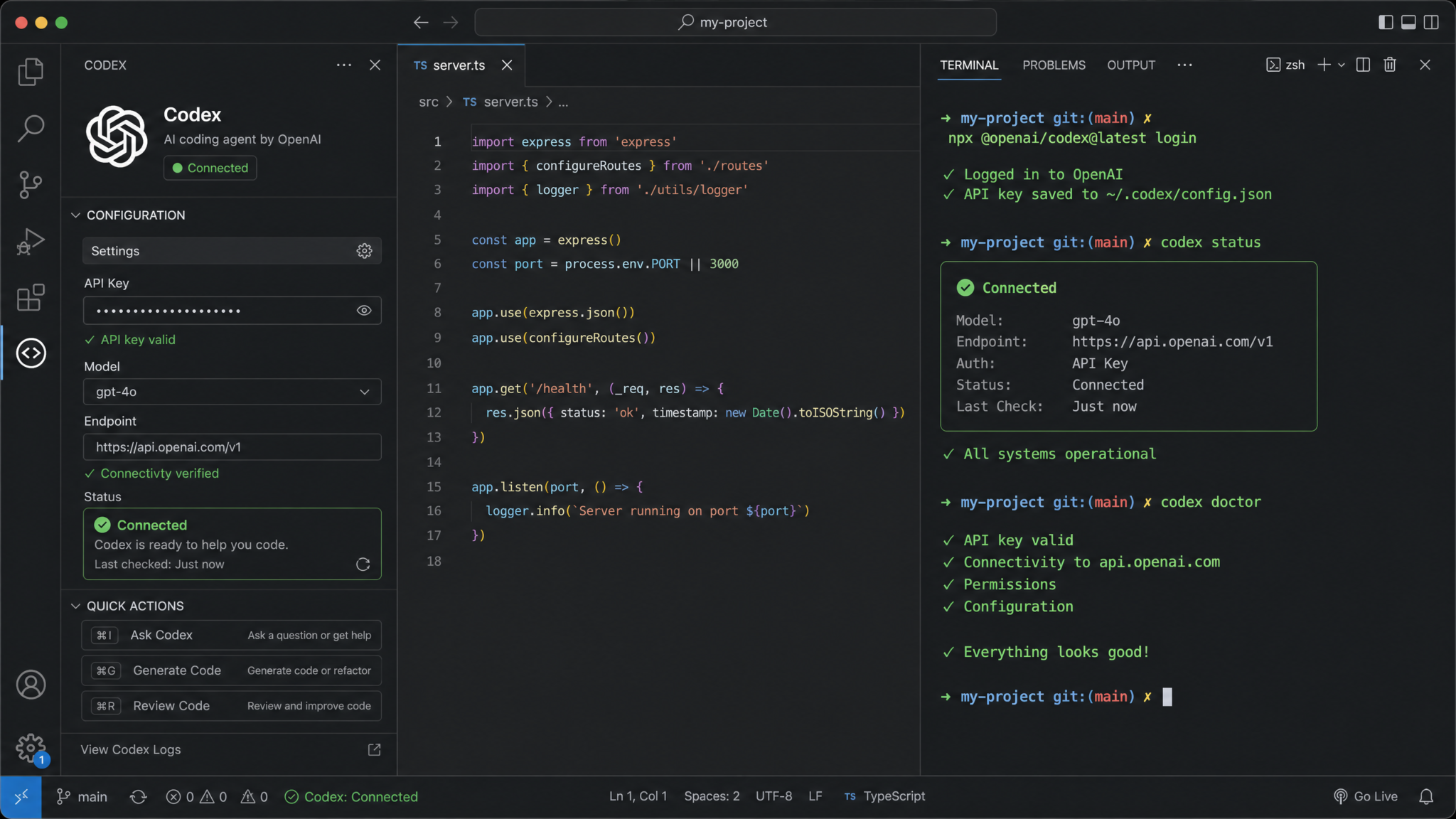
One of the most important decisions a developer can make about their Codex workflow is recognizing that the VSCode extension is not always the right tool. The Codex CLI is a genuinely different product with different strengths, and many extension-related issues simply do not exist in the CLI environment.
Understanding the Fundamental Differences
| Dimension | VSCode Extension | Codex CLI |
|---|---|---|
| Context Management | Automatic, implicit, can be opaque | Explicit, developer-controlled, transparent |
| Session Persistence | Tied to editor window state, volatile | Saved to disk, persistent across terminal sessions |
| Crash Recovery | Often requires full restart, context loss likely | Terminal can be restarted without losing session state |
| Multi-file Operations | Strong: deep IDE integration | Strong via file arguments, but more manual |
| Code Execution | No native execution (must use integrated terminal) | Can execute code directly with –allow-execute flag |
| Scripting / Automation | Not designed for automation | Fully scriptable, pipeline-friendly |
| Network Reliability | Affected by extension host issues | Direct API calls, simpler failure modes |
| Resource Usage | Higher (runs in extension host process) | Lower (standalone process) |
Scenarios Where CLI Is Definitively Better
Batch file processing: If you need to apply the same transformation to 50 files, the CLI is vastly superior. You can write a shell script that iterates over files and passes each to the CLI, whereas the extension requires manual interaction for each file.
Access 40,000+ AI Prompts for ChatGPT, Claude & Codex — Free!
Subscribe to get instant access to our complete Notion Prompt Library — the largest curated collection of prompts for ChatGPT, Claude, OpenAI Codex, and other leading AI models. Optimized for real-world workflows across coding, research, content creation, and business.
Long-running complex tasks: For tasks that require many steps and significant context, the CLI’s explicit context management means you will not hit the silent context truncation that plagues the extension. You control exactly what context is included in each call.
CI/CD integration: The CLI can be embedded in your continuous integration pipeline to automate code review, documentation generation, or test creation. The extension has no meaningful CI/CD story.
Debugging context issues: When you are trying to diagnose why Codex is producing strange output, the CLI’s transparency about what context it is sending makes diagnosis dramatically easier. You can see the exact payload being sent to the API.
# Example: Using Codex CLI for batch type annotation
for file in src/**/*.js; do
  codex \
    --model gpt-4o \
    --system "Add TypeScript type annotations to this JavaScript file. Output only the converted TypeScript." \
    --file "$file" \
    > "${file%.js}.ts"
  echo "Converted $file"
done
Scenarios Where the Extension Wins
The extension is the right choice when you need tight IDE integration: real-time inline suggestions as you type, deep awareness of your current cursor position and surrounding code, immediate access to project-wide symbol information through LSP integration, and the ability to preview and accept changes within the editor’s diff view. For interactive development where you are writing and refining code in real time, the extension experience is simply richer.
The growing ecosystem of AI coding tools has made choosing the right tool for each task more important than ever. Our analysis of best AI coding tools for professional developers in 2026 includes a detailed breakdown of CLI-versus-GUI workflows across different development scenarios.
Community-Reported Workarounds That Actually Work
Some of the most effective techniques for managing Codex VSCode extension issues have not come from official documentation—they have come from developers sharing frustrations and discoveries on forums, Discord servers, and GitHub issues. The following workarounds have been validated by multiple community members and represent genuine improvements to extension stability and reliability.
The “Context Sandwich” Technique
Reported extensively on the OpenAI developer forum, this technique involves structuring your prompts to explicitly bookend the context. Instead of giving a single instruction, you provide the context at the start, the instruction in the middle, and then restate the key constraints at the end. This has been shown to reduce context drift significantly in longer sessions:
“I was losing context every 10-15 messages. After switching to the sandwich format, I can go 40+ messages without drift. It takes an extra 30 seconds per prompt but saves hours of frustration.” — Developer forum post, 2025
// Example of the Context Sandwich structure:

[CONTEXT]
Working in: TypeScript 5, Express 4, Prisma 5
Current file: src/routes/users.ts
Relevant types: User (id: string, email: string, role: UserRole)

[INSTRUCTION]
Add input validation to the POST /users route using zod schemas.
Validate that email is a valid email, and role is one of the UserRole enum values.

[CONSTRAINTS]
- Do not modify existing error handling middleware
- Use the existing AppError class for validation errors
- Do not add any new dependencies beyond what is already imported
The “Stale Extension” Reset Procedure
Several developers in the VSCode extension GitHub issues have identified a phenomenon they call the “stale extension” state, where the extension appears to be running but is actually processing all requests against an internal state that is hours old. The symptom is that suggestions seem plausible but are obviously based on outdated code. The fix requires a specific sequence:
- Do not use “Reload Window” — this does NOT fully reset the extension state
- Close VSCode completely
- Open a terminal and kill any lingering extension host processes:
pkill -f "extensionHost" - Delete the extension’s temp directory:
rm -rf /tmp/vscode-codex-* - Reopen VSCode
This full reset procedure resolves the stale state issue in approximately 90% of reported cases.
Disabling Speculative Execution
Some versions of the Codex extension include a speculative execution feature where it pre-fetches likely next completions in the background to reduce latency. While this sounds beneficial, community testing has shown it significantly increases the rate of context confusion, particularly when you switch between files rapidly. Disabling it:
{
  "codex.speculativeExecution.enabled": false,
  "codex.prefetch.enabled": false
}
Developers report a 200-400ms increase in response latency after disabling these features, but a significant reduction in context-related errors, making it a worthwhile trade-off for reliability-focused workflows.
The “One File Per Session” Rule
This is a discipline-based workaround rather than a configuration change. A notable number of experienced developers have adopted a strict rule: one primary file per Codex session. When you need to work across multiple files, you complete work on one file, commit, close the session, and open a new one for the next file. While this sounds restrictive, it virtually eliminates the sync confusion that comes from Codex working across multiple files simultaneously, and combined with good context anchor files, the overhead is minimal.
Using a Proxy for Rate Limit Management
Teams hitting rate limits frequently have found success using an intermediate proxy layer between the extension and the OpenAI API. Tools like LiteLLM configured as a local proxy allow you to implement request queuing, intelligent retry logic, and usage tracking that the extension itself does not provide natively:
# docker-compose.yml snippet for LiteLLM proxy
services:
  litellm:
    image: ghcr.io/berriai/litellm:main
    ports:
      - "8000:8000"
    environment:
      - OPENAI_API_KEY=${OPENAI_API_KEY}
    command: >
      --model gpt-4o
      --max_tokens 4096
      --request_timeout 30
      --max_budget 10
      --retry true
      --num_retries 3
Then point your extension at the proxy endpoint instead of directly at the OpenAI API. This approach gives you significantly more control over reliability and cost management.
The Workspace Isolation Pattern
For developers working on multiple projects, a community-discovered best practice is to keep completely separate VSCode workspaces for each project rather than opening them in the same window. The Codex extension’s indexing and context systems can become confused when multiple unrelated projects are open in the same workspace. Using separate workspace files (project-a.code-workspace, project-b.code-workspace) ensures clean context isolation between projects.
Teams adopting sophisticated AI-assisted development workflows should also consider how Codex integrates with their broader development process. The AI pair programming best practices for development teams guide covers team-level workflow design in detail, including how to standardize AI tool usage across engineers with different experience levels.
How to Report Bugs Effectively to OpenAI
When you encounter a genuine bug in the Codex VSCode extension—behavior that is clearly not working as designed and cannot be attributed to configuration or usage patterns—reporting it effectively is genuinely important. Well-crafted bug reports get fixed faster, and they contribute to making the tool better for everyone. Poorly written reports often get closed without action.
Before You File a Report
Spend five minutes doing these three things before opening a new issue:
- Search existing issues. The OpenAI developer forum and the extension’s GitHub repository likely already have reports of common issues. Adding a “+1” or additional reproduction details to an existing issue is often more valuable than filing a duplicate.
- Update to the latest version. Ensure you are on the latest release of both the extension and VSCode itself. Many bugs are fixed in point releases that are not widely publicized.
- Reproduce in a clean environment. Disable all other extensions and test in a fresh VSCode profile. If the bug does not reproduce with other extensions disabled, it is likely an extension conflict rather than a Codex bug.
The Anatomy of an Effective Bug Report
A good bug report includes the following sections, in this order:
- Summary: One sentence describing the bug. “Extension drops session context after switching between two files in the same project” is a good summary. “Extension broken” is not.
- Environment: Your OS version, VSCode version, Codex extension version, and Node.js version if relevant.
- Reproduction Steps: Numbered, precise steps that anyone can follow to reproduce the issue. Include the minimum viable reproduction—the smallest set of steps that reliably triggers the bug.
- Expected Behavior: What you expected to happen.
- Actual Behavior: What actually happened, including any error messages (verbatim, not paraphrased).
- Logs: Output from the extension’s debug log (see the Advanced Diagnostics section). This is often the most valuable information for the engineering team.
- Workaround (if any): If you found a workaround, include it. This helps other users while the fix is in progress.
## Bug Report Template

**Summary:** [One-sentence description]

**Environment:**
- OS: macOS 14.3 / Windows 11 22H2 / Ubuntu 22.04
- VSCode: 1.87.0
- Codex Extension: 0.12.4
- Node.js: 20.11.0

**Steps to Reproduce:**
1. Open a TypeScript project with at least 3 files
2. Start a Codex session and ask a question about file A
3. Switch editor focus to file B
4. Ask a follow-up question that references information from the file A conversation
5. Observe that Codex responds as if no prior conversation exists

**Expected:** Codex maintains context across file switches within the same session.
**Actual:** Context is completely reset when switching editor focus.

**Extension Logs:**
[Paste relevant log output here]

**Workaround:** Manually copy and paste key context back into the prompt after switching files.
Where to Submit Reports
For VSCode extension-specific bugs, the primary channels are:
- GitHub Issues: The extension’s official repository on GitHub is the most direct path to the engineering team. Issues filed here are triaged by OpenAI engineers.
- OpenAI Developer Forum: For issues that are more nuanced or where you want community input before filing a formal bug report.
- OpenAI Support Portal: For issues affecting API access, authentication, or billing—these are not appropriate for the GitHub issues tracker.
When reporting issues about unexpected code generation, always include the specific prompt you used, the expected output, and the actual output. Anonymize any sensitive business logic before sharing. The engineering team cannot reproduce generation issues without the prompt, model, and settings configuration that produced the bad output.
Advanced Diagnostics and Logging
When standard troubleshooting steps fail, you need to go deeper. The Codex extension has several logging and diagnostic modes that expose the internal behavior of the extension in enough detail to diagnose even obscure issues.
Enabling Debug Logging
To enable verbose debug logging:
- Open the command palette (
Ctrl+Shift+P/Cmd+Shift+P) - Run
Developer: Set Log Level... - Select
Tracefrom the dropdown - In the Output panel (
View > Output), select “Codex” from the channel dropdown
Alternatively, add this to your settings.json to make debug mode persistent:
{
  "codex.logLevel": "debug",
  "codex.logRequests": true,
  "codex.logResponses": true
}
Warning: Do not enable logResponses in a shared or monitored environment, as it will write your code and prompts to the log file in plain text.
Reading the Extension Host Logs
The extension host logs contain lower-level information about crashes and memory issues. Access them at:
- macOS:
~/Library/Application Support/Code/logs/[DATE]/exthost[N]/output_logging_[HASH]/ - Windows:
%APPDATA%\Code\logs\[DATE]\exthost[N]\output_logging_[HASH]\ - Linux:
~/.config/Code/logs/[DATE]/exthost[N]/output_logging_[HASH]/
Look for files prefixed with your extension ID. OOM crashes will appear as JavaScript heap out of memory errors. Authentication failures will show as 401 or 403 HTTP status codes in the request logs.
Network Request Inspection
For diagnosing API-level issues, you can use a local network proxy to inspect the exact requests the extension is making. Charles Proxy or mitmproxy configured to intercept HTTPS traffic will show you the complete request payload, including the context being sent, the model being called, and the full response. This is invaluable for debugging context loss issues because you can see exactly what the extension believed your context was when it made each call.
# Using mitmproxy to inspect Codex API calls
mitmproxy --listen-port 8080 --ssl-insecure

# Then launch VSCode with proxy settings
HTTPS_PROXY=http://localhost:8080 code .
Memory Profiling
If you are experiencing OOM crashes, profiling the extension host memory usage can help you identify exactly which operation is consuming memory. VSCode’s built-in process explorer (Help > Open Process Explorer) shows the memory usage of each extension host process. Monitor it over time as you work to identify which actions cause memory to grow without being released.
Developers building sophisticated workflows around AI coding tools often hit edge cases that require this level of debugging depth. Understanding the underlying API behavior is equally important—our OpenAI API rate limits and optimization strategies guide covers the technical details of API behavior that directly affect extension stability.
The Extension Diagnostic Report
The Codex extension includes a built-in diagnostic report generator that compiles all relevant configuration, log excerpts, and system information into a single report suitable for including in a bug report. Access it via:
Command Palette > Codex: Generate Diagnostic Report
This generates a codex-diagnostic-[TIMESTAMP].json file in your workspace. Review it before sharing to ensure it does not contain sensitive project information, API keys, or business logic.
Conclusion: Building a Resilient Codex Workflow
The Codex VSCode extension, despite its issues, remains one of the most powerful AI coding tools available when properly configured and used within its capabilities. The problems developers encounter—context loss, unexpected generation, crashes, sync issues—are real and frustrating, but they are also largely predictable and manageable with the right knowledge and habits.
The key principles that emerge from this playbook are worth restating:
- Treat context as a precious, finite resource. Never assume Codex knows what it knew five minutes ago. Explicit context provision through anchor files and structured prompts consistently outperforms implicit context reliance.
- Build redundancy into your workflow. Git checkpoints, local history, session exports, and pre-session snapshots are not paranoia—they are professional practice when working with probabilistic AI tools that can produce unexpected outputs.
- Choose the right tool for each task. The VSCode extension excels at interactive, real-time development assistance. The CLI excels at batch operations, complex long-running tasks, and CI/CD integration. Using each where it shines eliminates entire categories of frustration.
- Configure deliberately. The default settings are not optimized for production development workflows. The stability configuration in this guide, combined with a thoughtful
.codexrcfile, eliminates the most common classes of avoidable errors. - Diagnose before you fix. The taxonomy of issues in this guide—context loss vs. unexpected generation vs. crashes vs. sync problems—matters because each requires a fundamentally different remediation approach. Misdiagnosing the category wastes time and can make the situation worse.
The Codex ecosystem is evolving rapidly. The issues documented here reflect the state of the extension in 2025–2026, and future releases will resolve some of these problems while potentially introducing new ones. Staying connected with the developer community through the OpenAI forum and the extension’s GitHub repository is the best way to stay current on emerging issues and fixes.
For teams looking to elevate their entire AI-assisted development practice beyond individual tool fixes, understanding the broader landscape of prompting techniques, model capabilities, and workflow design is equally important. The advanced prompt engineering techniques for software developers resource provides the conceptual foundation that makes all AI coding tools more effective and reliable in practice.
Every minute spent configuring your tools properly and building resilient workflows is an investment that compounds. The developers who get the most value from Codex are not those who accept its limitations—they are those who understand those limitations deeply enough to work around them systematically. This playbook is your foundation. Build on it, adapt it to your specific context, and contribute your own discoveries back to the community.
