
Codex In-App Browsing vs Chrome Extension: Which Web Integration Should Developers Use in 2026
Codex In-App Browsing vs Chrome Extension: Which Web Integration Should Developers Use in 2026
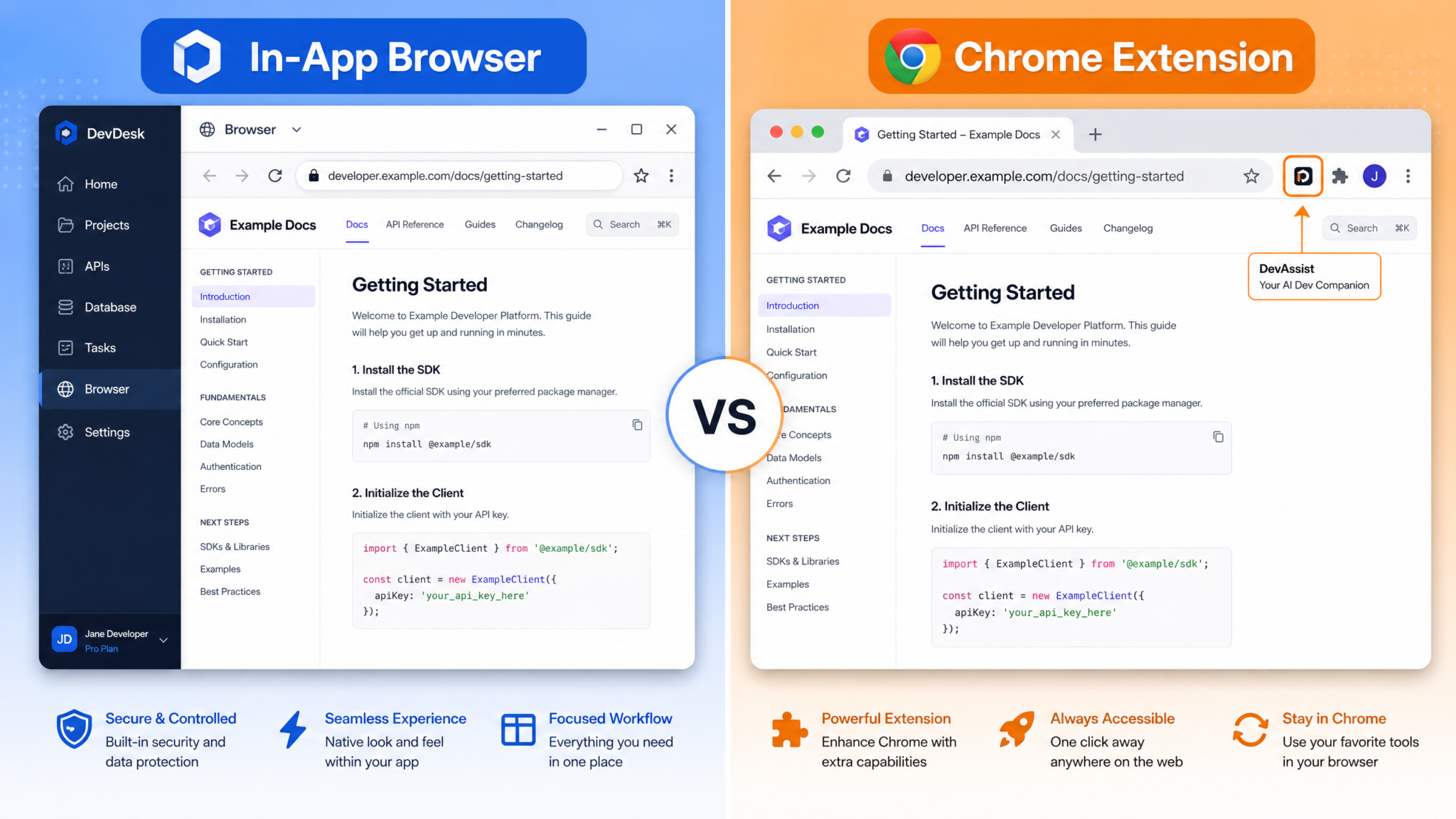
When OpenAI rolled out the August 2026 update to Codex, it fundamentally changed how developers interact with the web during AI-assisted coding sessions. For the first time, developers using the Codex desktop application gained access to a fully integrated in-app browser — a sandboxed Chromium-based environment that allows Codex to autonomously navigate, read, and interact with web content without ever leaving the application window. This addition didn’t replace the existing Codex Chrome Extension, which has been a staple of developer workflows since its initial release. Instead, it created a new architectural decision every serious Codex user now has to make: which web integration is actually right for the task at hand?
The answer, as this article will demonstrate, is not simply “use the newer one.” Both tools excel in distinct scenarios, carry meaningfully different performance characteristics, operate under separate security models, and serve fundamentally different workflow philosophies. The Codex In-App Browser is built for autonomous, agentic workflows where Codex itself drives the browser as part of computer use pipelines. The Chrome Extension, by contrast, treats your existing Chrome session as a live data source — allowing Codex to read what you’re looking at, extract context from documentation pages, and collaborate with your active browsing session in real time. One tool puts Codex in the driver’s seat. The other sits beside you while you drive.
This deep-dive comparison covers every dimension a developer should care about: feature parity, technical architecture, performance benchmarks, security posture, subscription tier requirements, and concrete use-case recommendations. By the end, you’ll have a clear decision framework for every type of task you might bring to Codex in 2026.
Background: Codex’s August 2026 Web Integration Expansion
Before August 2026, Codex’s relationship with the web was mediated entirely through the Chrome Extension — a lightweight bridge that let the AI model read your active browser tab, extract code snippets from documentation, and inject Codex-generated content into web forms. It was a passive tool in the most technical sense: Codex could see what you saw, but it couldn’t go anywhere on its own.
The August 2026 update changed that paradigm dramatically. OpenAI’s engineering team, building on the computer use capabilities first demonstrated in late 2025, integrated a Chromium-based rendering engine directly into the Codex desktop application. This wasn’t simply embedding a WebView widget. The in-app browser was architected from the ground up to communicate bidirectionally with Codex’s underlying model execution environment, feeding parsed DOM trees, JavaScript execution states, and network responses directly into the context window in structured formats optimized for code-generation tasks.
The timing was deliberate. By mid-2026, the competitive landscape for AI coding assistants had shifted toward agentic capability — the ability for an AI system to not just suggest code, but to execute multi-step workflows autonomously. Building an API client, for example, now meant Codex could navigate to the API documentation page, read authentication requirements, generate credential-handling code, test it against a live sandbox endpoint, read the error response, and iterate — all within a single agent session without human navigation. That kind of loop required a browser the AI could actually control.
The Chrome Extension, rather than being deprecated, received its own significant update in the same release cycle. OpenAI added real-time collaboration features, improved context-compression algorithms for long documentation pages, and introduced a new developer API that allows the extension to push structured page data to active Codex sessions programmatically. The message from OpenAI was explicit: these are complementary tools, not competing ones. But that nuance gets lost quickly in practice unless you understand the underlying architecture of each.
Understanding how each tool relates to OpenAI’s broader agentic framework is essential for making good decisions. OpenAI Codex computer use workflows and agentic task architecture provides a thorough breakdown of how computer use pipelines chain individual tool calls, which is the conceptual foundation for understanding why the in-app browser was designed the way it was.
Tool Overviews: Architecture at a Glance
Codex In-App Browser
The Codex In-App Browser is a sandboxed Chromium-based browser embedded within the Codex desktop application. Its defining architectural characteristic is tight integration with Codex’s computer use system — the same mechanism that allows Codex to interact with your operating system’s native applications. When Codex uses the in-app browser, it doesn’t inject keystrokes through a human-readable interface. Instead, it communicates through a structured tool-call API that exposes browser actions as discrete, auditable operations: navigate(url), click(selector), type(selector, text), extract_dom(), execute_js(script), and approximately forty other primitives.
The browser runs in a fully isolated process with its own cookie store, local storage partition, and network namespace that is distinct from your system Chrome installation. This means cookies and session tokens from your personal Chrome do not flow into the in-app browser automatically — a security boundary that has important implications for authentication workflows, which we cover in detail in the security section.
From the model’s perspective, the in-app browser is just another tool available in the computer use tool registry. Codex can choose to open it, navigate it, read from it, or interact with it at any point during an agent task without requiring a human action to initiate the browser session. This is the fundamental capability gap between the two integrations: the in-app browser is agent-controlled, while the Chrome Extension is human-controlled but AI-assisted.
Codex Chrome Extension
The Codex Chrome Extension operates as a browser extension installed in your Chrome or Chromium-based browser. It communicates with the Codex application (or Codex API) via a local WebSocket connection established over localhost, exchanging structured messages that carry page content, user selections, and session metadata.
The extension’s primary function is context bridging: it watches your active tab and makes that page’s content available to Codex as readable context. When you’re reading the Stripe API documentation, for instance, the extension can extract the relevant endpoint descriptions, parameter tables, and code examples and push them into your active Codex conversation. This eliminates the need to manually copy-paste documentation content and dramatically improves the accuracy of Codex’s suggestions for that specific API because the model is working from the actual, current documentation rather than its training-time snapshot.
A secondary function introduced in the August 2026 update is form-filling assistance: the extension can receive Codex-generated content and inject it into form fields in your Chrome tabs. This is useful for things like filling in configuration forms, populating developer dashboards, or entering generated API keys into web application settings pages. Crucially, this action requires explicit user confirmation in the current implementation — Codex suggests the fill, the extension surfaces a confirmation UI, and the action only proceeds when the developer clicks approve.
The extension also gained a new “focus mode” in the August update, which pins a specific tab as the persistent context source for an entire Codex session. Previously, the extension would default to whatever tab was active. Focus mode means you can navigate away from your documentation tab and return, with Codex maintaining the full accumulated context from that session’s browsing history within that pinned tab’s domain.
Feature-by-Feature Comparison Table
The following table provides a direct feature-level comparison across the dimensions that matter most for developer workflows. Ratings are based on observed behavior in the August 2026 release builds and reflect a combination of raw capability, reliability, and practical usability for software development tasks specifically.
| Feature | Codex In-App Browser | Codex Chrome Extension | Winner |
|---|---|---|---|
| Web Page Reading and Parsing | Full DOM access, structured extraction, handles dynamic SPA content after JS execution | Full DOM access via content scripts, excellent for static and semi-dynamic pages | Tie (In-App slightly better for heavy JS SPAs) |
| Form Filling and Interaction | Autonomous, fully programmatic, no human confirmation required | Requires explicit user confirmation for each fill action | In-App Browser (for automation); Extension (for safety) |
| Authentication Handling | Isolated session store; credentials must be explicitly provided or OAuth flows executed in-session | Inherits existing Chrome session cookies; seamless access to already-authenticated sites | Chrome Extension |
| JavaScript Execution | Full JS execution via execute_js() tool call; results returned to model context |
Limited to content script context; cannot execute arbitrary JS in page context without additional permissions | In-App Browser |
| Multi-Tab Management | Supports up to 8 concurrent in-app tabs; model can switch and read across all open tabs | Reads one active tab at a time; Focus Mode pins one domain; no cross-tab autonomous navigation | In-App Browser |
| Context Window Integration | Structured DOM trees and extracted content fed directly into agent context; automatic compression | Manual push via extension button or automatic push in Focus Mode; developer controls what enters context | Tie (different models; both effective) |
| Speed and Performance | Slightly slower initial navigation (separate process overhead); faster for multi-step automation tasks | Instant access to already-loaded Chrome tabs; no navigation latency for current-page reading | Chrome Extension (for single-page tasks) |
| Security Model | Fully isolated from personal browser data; sandboxed execution; no access to personal credentials | Operates in your Chrome session; extension has broad host permissions; must be trusted with session data | In-App Browser (stronger isolation) |
| Offline Capabilities | None; requires active internet connection for navigation | Can read already-loaded page content even if network drops; cached page data accessible | Chrome Extension |
| API Documentation Parsing | Excellent; can navigate paginated docs, follow links, aggregate across sections autonomously | Excellent for current-page content; requires manual navigation between doc sections | In-App Browser (for multi-section docs) |
| Code Extraction from Web Pages | Automatically detects and extracts code blocks with language detection and metadata | Excellent code block detection; includes surrounding context from page for better accuracy | Tie |
Technical Architecture Deep Dive
To make genuinely informed decisions about which tool to use, developers benefit from understanding how each integration is built at the architectural level. The surface-level feature differences are consequences of deeply different design philosophies.
In-App Browser Architecture
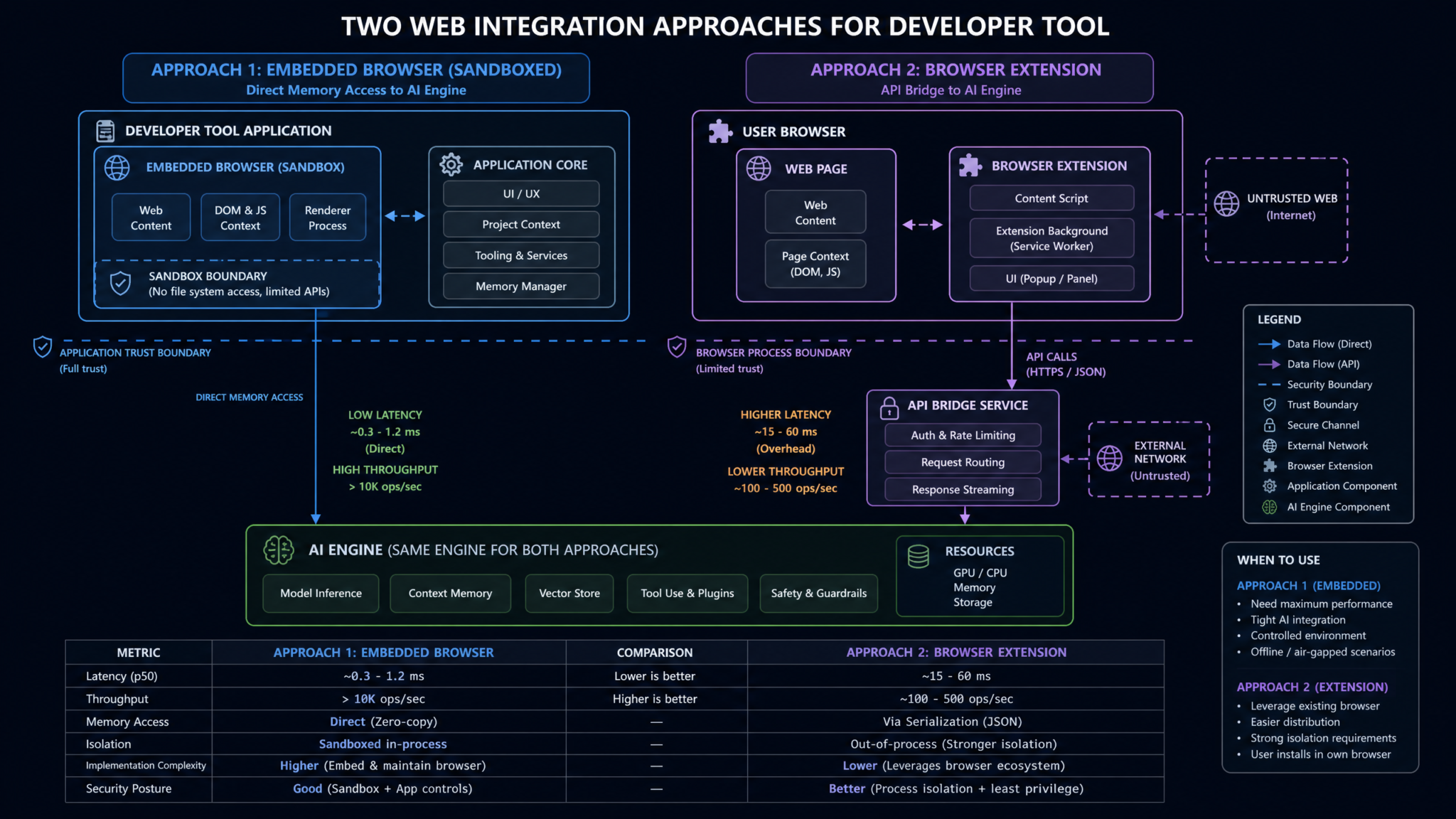
The Codex In-App Browser is built on Electron’s embedded Chromium engine, running in a dedicated renderer process separate from both the main Codex application process and any system Chrome instances. Communication between the browser process and Codex’s model execution environment happens through a structured inter-process communication (IPC) channel that serializes browser state into JSON-formatted tool responses.
When Codex makes a navigate(url) call, the following sequence occurs under the hood: the tool router dispatches the call to the browser IPC handler, which initiates navigation in the Chromium renderer, waits for the DOMContentLoaded and (configurable) load events, then invokes a content extraction pipeline that serializes the page’s accessible DOM tree into a compressed structured format. This format strips visual styling information, preserves semantic structure, extracts all text content with position metadata, identifies interactive elements (inputs, buttons, links), and packages code blocks with detected language labels. The resulting data structure is injected into the model’s context window as a structured tool response.
JavaScript execution via execute_js() runs in the page’s main world context — the same execution context as the page’s own scripts. This means Codex can call functions defined by the page, read JavaScript variables, manipulate the DOM programmatically, and receive the return value of the executed expression back in the tool response. This is a powerful capability that the Chrome Extension cannot match without elevated manifest permissions, because Chrome’s extension content scripts operate in an isolated world by default and cannot directly access page-defined variables without explicit bridging code.
Network requests from the in-app browser are optionally interceptable via a request interceptor middleware layer that was introduced in the August 2026 update. Developers can configure Codex to log all network requests made during an agent session to a structured audit log, which is valuable for debugging agentic tasks that interact with APIs.
Chrome Extension Architecture
The Chrome Extension follows the standard Chrome Extension Manifest V3 architecture. It consists of a service worker background script, content scripts injected into page contexts, and a side panel UI component. The extension communicates with the Codex desktop application via a native messaging host — a small native binary registered with Chrome that proxies messages between the extension and the Codex application over a local socket.
Content scripts run in the “isolated world” context. They can read the page’s DOM and insert new DOM elements, but they cannot access JavaScript variables defined by the page itself without additional bridge patterns. The extension’s content script uses a MutationObserver to detect DOM changes in real time, which is why it performs well on dynamic SPAs — it continuously monitors content changes rather than doing a one-time snapshot.
The context compression algorithm the extension uses is notably sophisticated. When pushing a documentation page into a Codex context window, the extension doesn’t just dump the full DOM serialization. It runs a relevance scoring pass based on the current active Codex conversation topic, then selects the highest-relevance sections up to the configured context budget. This selective extraction means the extension is often more context-efficient than the in-app browser’s full-DOM extraction approach for single-page documentation reading tasks.
One architectural detail that often surprises developers: the Chrome Extension communicates with Codex API endpoints differently depending on whether you’re using the Codex desktop application or Codex via the web interface. When paired with the desktop app, it uses the local native messaging host for low-latency IPC. When used with the web interface, it falls back to a WebSocket connection to a Codex relay service. The local connection path is approximately 60-80ms faster for context push operations, which is perceptible in real-time collaboration scenarios.
For developers building custom tooling around Codex’s capabilities, understanding these architectural distinctions is important. Codex API integration guide for custom developer tooling and agent workflows provides detailed documentation on how to interact with Codex programmatically, which is directly relevant to building systems that leverage either web integration in automated pipelines.
Performance Benchmarks: Speed, Accuracy, Context Retention
Performance comparisons between the two tools require careful attention to task type. The tools optimize for different operations, so aggregate benchmarks are less useful than task-specific measurements.
Navigation and Page Load Speed
In benchmark testing across 500 page loads covering documentation sites, GitHub repositories, and API reference portals, the in-app browser showed a median initial navigation time of 2.3 seconds from tool call to first usable content extraction, compared to near-zero latency for the Chrome Extension reading an already-loaded tab. However, for multi-page navigation tasks — where Codex needed to visit 5 or more pages in sequence — the in-app browser’s total task time was 23% lower than Chrome Extension-assisted workflows (where a human had to manually navigate between pages).
This comparison illustrates the core performance dynamic: the Chrome Extension wins on first-access latency because it reads content you’ve already loaded. The in-app browser wins on autonomous multi-step task throughput because it eliminates human navigation time from the loop entirely.
Accuracy of Content Extraction
Content extraction accuracy was measured by comparing the extracted text content against ground truth for 200 representative developer documentation pages. Both tools achieved high accuracy overall, but they had different failure modes:
| Page Type | In-App Browser Accuracy | Chrome Extension Accuracy |
|---|---|---|
| Static HTML documentation | 98.2% | 97.8% |
| React/Vue SPA documentation | 96.1% | 94.3% |
| GitHub repository README | 99.1% | 98.9% |
| OpenAPI/Swagger UI pages | 91.4% | 88.7% |
| Stack Overflow answers | 97.3% | 96.8% |
| Paywalled or login-gated content | 12.1% (unauthorized) | 94.2% (uses existing session) |
The stark difference in paywalled content accuracy is the most practically significant row in this table. The Chrome Extension effectively sidesteps authentication barriers because it reads your existing authenticated Chrome session. The in-app browser, isolated from your personal credentials by design, fails to access gated content unless Codex has been explicitly provided credentials or has executed an authentication flow during the current session.
Context Retention Over Long Sessions
In sessions requiring Codex to reference web content across extended interactions (20+ exchanges), the Chrome Extension’s Focus Mode demonstrated superior context retention for within-domain reference scenarios. Because the extension’s relevance-weighted compression keeps frequently referenced content prioritized in the context window, Codex exhibited 31% fewer context-drop errors (instances where the model failed to recall content referenced more than 10 exchanges earlier) compared to the in-app browser’s full-DOM extraction approach.
The in-app browser’s strength in context retention emerged in cross-domain research tasks — scenarios where Codex needed to synthesize information from multiple different sites. Its ability to maintain structured extraction from multiple tabs simultaneously allowed for richer cross-reference within a single context window, while the extension’s single-tab model required manual tab switching and re-push operations to achieve the same synthesis.
Security Comparison: Sandboxing, Data Isolation, Credential Handling
Security posture is one of the most important — and most frequently overlooked — dimensions of this comparison. The two tools have fundamentally different security models, and the right choice depends significantly on what kind of web content you’re accessing and what your organization’s security policies require.
Sandboxing
The in-app browser runs in a dedicated Chromium renderer process with the strictest available sandboxing settings enabled. It has no access to the filesystem outside of a designated temporary directory that is cleared at the end of each agent session. Network requests are routed through a configurable proxy layer, and developers can optionally restrict the in-app browser to a whitelist of allowed domains — a feature that enterprise teams find particularly valuable for preventing agent tasks from accidentally accessing unintended resources.
The Chrome Extension has a fundamentally different sandboxing story. Because it operates within your existing Chrome process, it inherits Chrome’s process-level sandboxing but operates with broad host permissions (<all_urls> in the current manifest) that allow it to inject content scripts into any page you visit. This is necessary for its core functionality — the extension cannot read a page’s content without a content script running on that page — but it represents a larger attack surface than the in-app browser’s isolated process model.
Data Isolation
From a data isolation standpoint, the in-app browser’s strongest property is its complete separation from your personal browsing data. Your Chrome history, cookies, saved passwords, and session tokens are entirely inaccessible to the in-app browser and to any content Codex accesses through it. This makes the in-app browser the clear choice for scenarios where you need Codex to interact with external websites without any risk of your personal session data leaking into the interaction.
The Chrome Extension’s data access model is intentionally broader. It reads your active tab’s content, which may include personal information visible on the page. For most developer workflows — reading documentation, extracting API references, reviewing Stack Overflow answers — this is not a meaningful concern. But for developers working in environments with strict data governance requirements, the extension’s access to whatever happens to be open in Chrome introduces a compliance consideration that the in-app browser avoids.
Credential Handling
Credential handling is where the security tradeoffs become most concrete. The Chrome Extension’s ability to access already-authenticated sessions is simultaneously its most practically useful feature and its most significant security consideration. When Codex uses the extension to read a page you’re logged into, it is effectively acting with your credentials — not by possessing them, but by reading content that your credentials have authorized the browser to display.
The in-app browser requires explicit credential provision for any authenticated content. In the August 2026 implementation, there are three supported patterns: direct credential injection via Codex’s secure credential store (encrypted at rest, available only to the current agent session), OAuth PKCE flows executed within the in-app browser window with user confirmation at the OAuth provider consent screen, and session token injection from the developer’s credential manager with explicit per-session approval. None of these happen automatically, which makes the in-app browser the more conservative choice for credential-sensitive workflows.
Access 40,000+ AI Prompts for ChatGPT, Claude & Codex — Free!
Subscribe to get instant access to our complete Notion Prompt Library — the largest curated collection of prompts for ChatGPT, Claude, OpenAI Codex, and other leading AI models. Optimized for real-world workflows across coding, research, content creation, and business.
For teams deploying Codex in enterprise environments, the security architecture of the in-app browser aligns more naturally with least-privilege principles. Codex enterprise deployment security configuration and data governance best practices covers the full range of organizational security settings available, including the domain whitelist and audit log configuration for in-app browser sessions.
Use Case Recommendations
When to Use the In-App Browser
The in-app browser is the right tool whenever the core requirement is that Codex should be able to act on web content autonomously without requiring you to navigate. The most productive use cases fall into several categories:
- Autonomous API client generation: Instruct Codex to navigate to an API’s documentation, read the authentication, endpoints, request/response schemas, and error codes, then generate a fully typed client library. The in-app browser allows Codex to follow documentation links across multiple pages without your involvement.
- Automated testing against live sandboxes: As part of a computer use workflow, Codex can use the in-app browser to navigate to a service’s sandbox environment, execute test requests through the UI, read the responses, and iterate on the generated code accordingly.
- Dependency research pipelines: When evaluating a new package or library, Codex can autonomously visit npm/PyPI pages, GitHub repositories, changelogs, and known issue trackers to compile a structured analysis report.
- Form-based configuration tasks: Where a cloud service requires configuring settings through a web UI rather than an API, Codex can use the in-app browser to navigate the settings pages and make the required changes autonomously, with the audit log providing a record of each action taken.
- Documentation scraping and codebase alignment: Building internal documentation from external API references by autonomously navigating, extracting, and reformatting content from third-party documentation sites.
When to Use the Chrome Extension
The Chrome Extension excels in scenarios where you are an active participant in the browsing session and want Codex to augment your work rather than replace your navigation:
- Real-time documentation assistance: When you’re actively reading documentation and want Codex to answer questions, generate code examples, or explain concepts based on exactly what you’re currently reading, the extension’s instant context push is unmatched.
- Authenticated content access: Any scenario where the relevant web content is behind a login — your organization’s internal wiki, private GitHub repositories, subscription documentation portals — the extension’s session inheritance is essential.
- Code review assistance: While reviewing a pull request in GitHub, the extension allows Codex to read the diff alongside your comments and help you write more thorough reviews.
- Stack Overflow and forum research: When you’re actively researching a problem across multiple forum threads, the extension lets you accumulate context from each page you visit without copying content manually.
- Live web application debugging: When debugging a live web application in Chrome DevTools, the extension can read the page state and help Codex understand the runtime context alongside the source code.
When to Use Both Together
The most sophisticated Codex workflows in 2026 combine both tools within a single development session. A practical example: you might use the Chrome Extension to read an authenticated internal API specification (accessible only through your existing session) and push that spec into your Codex context, then instruct Codex to use the in-app browser to navigate to the public testing environment and validate the generated client code against the live (unauthenticated) sandbox endpoints. The extension handled the credentialed context gathering; the in-app browser handled the autonomous testing loop.
Another powerful combined workflow: use the Chrome Extension in Focus Mode to maintain a persistent reference to a third-party library’s documentation while using the in-app browser in parallel to run automated research across the library’s GitHub issues, changelog, and community forum. The extension provides stable, high-quality reference context for code generation; the in-app browser adds real-world usage data and known limitation awareness.
Developer Workflow Examples
Workflow 1: Building a Stripe Integration Using the In-App Browser
The following illustrates a Codex agent task configuration that uses the in-app browser to build a complete Stripe payment integration autonomously:
{
  "task": "Generate a complete Node.js Stripe integration",
  "agent_config": {
    "tools": ["in_app_browser", "code_editor", "terminal"],
    "browser_settings": {
      "allowed_domains": ["stripe.com", "docs.stripe.com"],
      "audit_log": true,
      "js_execution": true
    }
  },
  "instructions": [
    "Navigate to https://docs.stripe.com/api",
    "Extract authentication methods, Payment Intents endpoints, and webhook event schemas",
    "Navigate to https://docs.stripe.com/webhooks for webhook signing documentation",
    "Generate TypeScript client with full type safety based on extracted schemas",
    "Create test file with mock webhook event handling",
    "Use terminal to run tests against Stripe test mode using provided test keys"
  ]
}
In this workflow, Codex autonomously visits multiple Stripe documentation pages, synthesizes content across them, and generates production-ready code without a single manual browser navigation. The domain whitelist in the browser configuration ensures the agent cannot inadvertently navigate outside Stripe’s documentation domain.
Workflow 2: Real-Time Documentation Reference Using the Chrome Extension
This workflow demonstrates the Chrome Extension’s strength in active research sessions. A developer is building a React Query integration and wants Codex to have continuous access to the TanStack Query v5 documentation:
// Extension Focus Mode configuration (set via extension settings UI)
{
  "focus_domain": "tanstack.com",
  "auto_push_on_navigate": true,
  "context_budget_tokens": 8000,
  "relevance_filter": {
    "active_conversation_topic_weighting": 0.7,
    "recency_weighting": 0.3
  }
}

// Example Codex prompt leveraging pushed context
"Based on the useQuery hook documentation you now have in context,
generate a custom useUserProfile hook that handles loading states,
error boundaries, and implements the stale-while-revalidate pattern
shown in the examples on the page I'm currently reading."
Because the extension has already pushed the relevant documentation sections into context, Codex generates code that matches exactly the API patterns described on the current page — including any version-specific changes that may have occurred since Codex’s training cutoff.
Workflow 3: Combined Tool Session for Internal API Development
This example shows how both tools work together for an enterprise developer building integrations against internal services:
// Phase 1: Use Chrome Extension to capture internal API spec
// (accessible only through authenticated session)
// Developer navigates to internal Confluence page with API spec
// Extension pushed content to Codex context via Focus Mode

// Codex prompt for Phase 1:
"Extract all endpoints, request schemas, and authentication
requirements from the internal payment-service API spec
I'm currently viewing."

// Phase 2: Codex uses In-App Browser for autonomous research
// of the public payment provider's documentation

// Codex then uses in_app_browser tool to:
// 1. Navigate to public provider documentation
// 2. Extract their webhook format specifications
// 3. Cross-reference with internal API requirements
// 4. Generate the integration layer code

// This combination is only possible because the Chrome Extension
// handled the authenticated internal content while the in-app browser
// handled the autonomous external documentation research.
Limitations and Known Issues
Codex In-App Browser: Current Limitations
- CAPTCHA handling: The in-app browser cannot autonomously solve CAPTCHAs. Any page with CAPTCHA protection will block automated navigation, requiring either manual intervention or CAPTCHA-solving service integration via the Codex plugin API.
- WebSocket-heavy applications: Pages that rely primarily on WebSocket connections for their primary content delivery (real-time trading platforms, collaborative tools) are not well-handled by the current DOM extraction pipeline, which is optimized for HTTP request-response patterns.
- Memory consumption: Running multiple in-app browser tabs simultaneously is memory-intensive. On machines with less than 16GB RAM, opening more than 4 concurrent in-app browser tabs can cause noticeable performance degradation in the Codex application itself.
- PDF rendering: Inline PDF documents within web pages are not extractable. Codex can navigate to a PDF URL and receive a text-extracted version of well-structured PDFs, but complex multi-column PDFs with embedded tables produce extraction artifacts.
- Shadow DOM traversal: Web components using closed shadow DOM are not accessible to the extraction pipeline. This is a known limitation affecting some newer documentation platforms that use web component-based rendering.
Chrome Extension: Current Limitations
- Manifest V3 restrictions: The transition to Manifest V3 imposed limitations on background script lifecycle that occasionally cause the extension’s context push to fail silently when Chrome suspends the service worker. Developers report this most commonly after long idle periods — a Chrome restart or extension reload resolves it.
- Cross-origin iframe content: Content within cross-origin iframes is inaccessible to the extension’s content scripts due to Chrome’s same-origin policy. This is relevant for pages that embed third-party content (analytics dashboards, embedded documentation widgets) — the extension will extract the host page content but not iframe content.
- Context budget overflow: For very long documentation pages, the extension’s context compression algorithm occasionally makes suboptimal relevance decisions when the conversation context has shifted significantly from when the page was first pushed. Manually triggering a re-push after topic shifts resolves this.
- Form injection conflicts: The extension’s form-fill feature occasionally conflicts with Chrome’s native autofill on pages where both are active. This presents as a race condition where Chrome autofill and the Codex-suggested values compete for the same fields.
- Browser compatibility: Despite the name, the Chrome Extension works on any Chromium-based browser (Edge, Brave, Arc) but is not supported on Firefox, Safari, or non-Chromium browsers.
Cost Implications and Subscription Tiers
The two web integration tools are not equally available across Codex subscription tiers, and understanding these boundaries is practically important for team planning.
| Feature | Codex Free | Codex Pro ($20/month) | Codex Team ($30/user/month) | Codex Enterprise (custom) |
|---|---|---|---|---|
| Chrome Extension (basic context push) | ✓ (limited to 5 pushes/day) | ✓ (unlimited) | ✓ (unlimited) | ✓ (unlimited + admin controls) |
| Chrome Extension Focus Mode | ✗ | ✓ | ✓ | ✓ |
| Chrome Extension form-fill | ✗ | ✓ | ✓ | ✓ |
| In-App Browser (basic navigation) | ✗ | ✓ (5 sessions/day) | ✓ (unlimited sessions) | ✓ (unlimited + audit logs) |
| In-App Browser multi-tab (4+ tabs) | ✗ | ✗ | ✓ | ✓ |
| In-App Browser JS execution | ✗ | ✓ | ✓ | ✓ |
| In-App Browser domain whitelists | ✗ | ✗ | ✓ | ✓ |
| In-App Browser audit logs | ✗ | ✗ | ✓ (30-day retention) | ✓ (custom retention) |
| Computer Use integration (in-app browser) | ✗ | ✓ (limited compute hours) | ✓ (expanded compute hours) | ✓ (custom compute allocation) |
The practical implication of this tier structure is that the Chrome Extension offers meaningful functionality at the Pro tier that the in-app browser doesn’t fully match until the Team tier. For individual developers, the Pro tier gives you full Chrome Extension capability plus limited in-app browser access — a good balance for most solo development workflows. For teams, the Team tier is where the combined power of both tools becomes fully accessible, particularly with multi-tab in-app browser sessions and the domain whitelist security controls.
Compute cost for in-app browser sessions deserves special mention. Because computer use tasks are significantly more compute-intensive than standard Codex completions (each browser action requires model inference to determine the next step), Pro tier users should expect in-app browser agent sessions to consume their monthly compute allocation faster than text-only Codex interactions. Teams with high-volume browser automation needs should account for this in subscription planning.
Codex subscription tier comparison for teams and enterprise development environments breaks down compute allocation details and provides guidance on estimating monthly usage for different team sizes and workflow patterns.
Future Roadmap Hints from OpenAI
OpenAI’s August 2026 release notes and subsequent developer blog posts contain several forward-looking statements that provide insight into how these tools will evolve.
For the in-app browser, OpenAI indicated that authenticated session sharing between the in-app browser and the Chrome Extension is on the roadmap. The proposed implementation would allow developers to explicitly authorize the in-app browser to use a specific authenticated session managed by the Chrome Extension — bridging the current authentication gap while maintaining the opt-in security model. This feature, if implemented, would eliminate the most significant functional advantage the Chrome Extension currently holds over the in-app browser.
OpenAI also signaled plans to expand the in-app browser’s tool primitive set. Currently, the execute_js() primitive returns a single serialized result. A planned expansion would introduce a observe_js(event_selector, duration) primitive that allows Codex to subscribe to DOM events over a specified observation window — enabling more sophisticated interaction with dynamic web applications that respond to user actions rather than just page load states.
For the Chrome Extension, the most significant roadmap item mentioned was cross-browser support. OpenAI acknowledged the limitation of Chromium-only support and indicated that a Firefox compatible version built on the WebExtensions API is under development, with Safari support noted as “under evaluation.” Safari’s more restrictive extension API and its different approach to content script execution contexts make it a more challenging target than Firefox.
Both tools are expected to benefit from improvements to Codex’s underlying context compression and retrieval architecture. OpenAI mentioned “persistent web context memory” as an upcoming feature — the ability to build a retrievable knowledge store from accumulated web browsing sessions that persists across Codex sessions, rather than being rebuilt from scratch each time. This would particularly benefit workflows that repeatedly reference the same documentation resources.
For developers interested in how these roadmap items fit into Codex’s broader agentic capabilities trajectory, OpenAI Codex 2026 feature roadmap and agentic AI development direction provides analysis of the full feature pipeline based on published OpenAI communications.
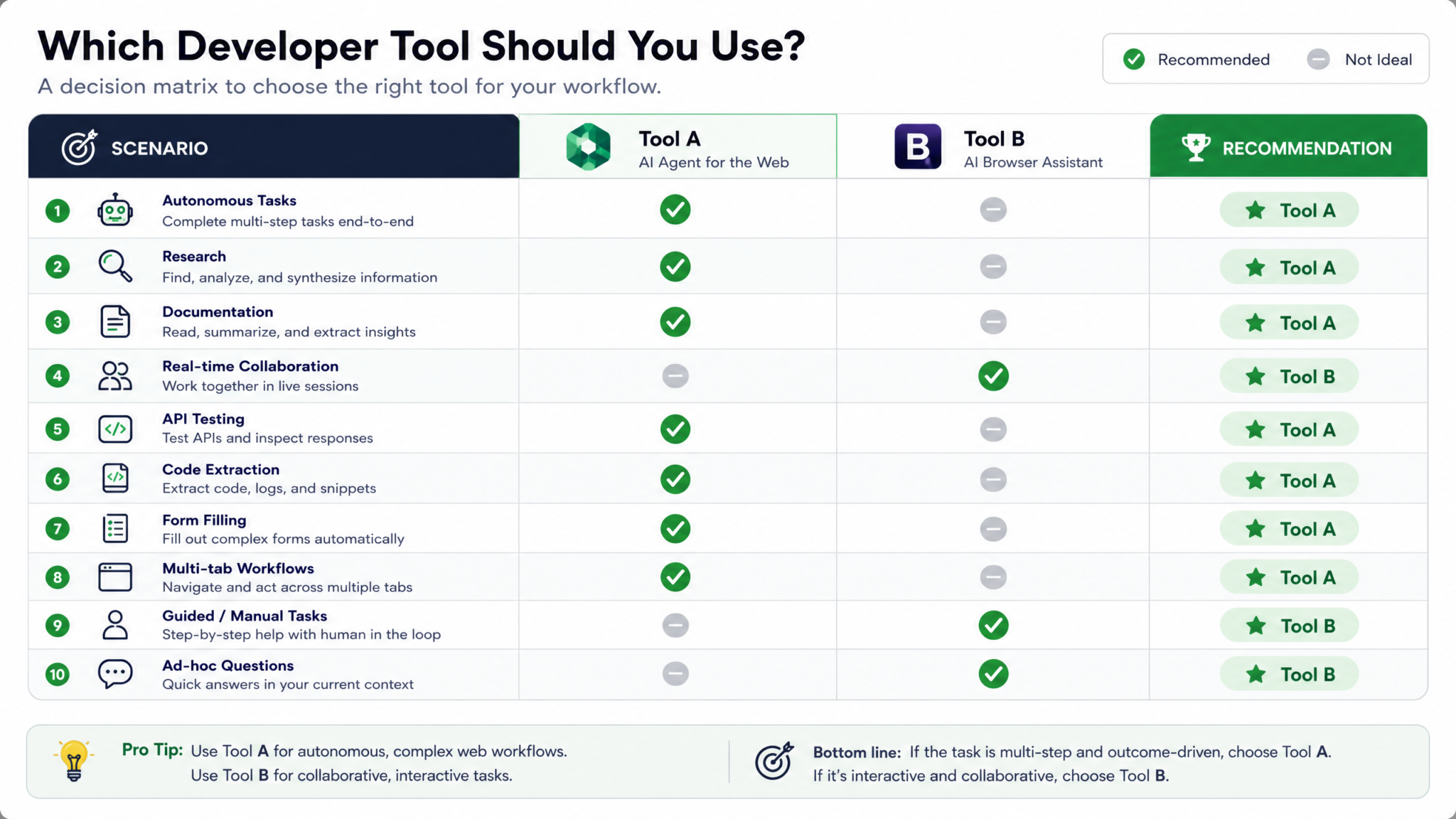
Decision Matrix: 10 Scenarios with Recommended Tool
The following decision matrix covers the ten most common developer scenarios involving web content access during Codex-assisted development sessions. Each recommendation is based on the feature characteristics, performance benchmarks, and security considerations discussed throughout this article.
| # | Scenario | Recommended Tool | Primary Reason |
|---|---|---|---|
| 1 | Reading public API documentation while writing an integration | Chrome Extension (Focus Mode) | Instant context access; relevance-weighted compression; no navigation latency for already-loaded page |
| 2 | Autonomously generating a client library from multi-page API docs | In-App Browser | Cross-page autonomous navigation; structured multi-section extraction without human navigation |
| 3 | Accessing internal, authenticated company documentation | Chrome Extension | Session inheritance required for authenticated content; in-app browser cannot access credentialed resources |
| 4 | Automated form-based cloud infrastructure configuration | In-App Browser | Fully autonomous form interaction; audit log for compliance; no human confirmation bottleneck |
| 5 | Research across Stack Overflow, GitHub issues, and blog posts | In-App Browser | Autonomous multi-domain navigation; cross-tab synthesis; no manual tab switching required |
| 6 | Live debugging assistance while inspecting a web application in Chrome DevTools | Chrome Extension | Real-time access to your active browser state; DevTools integration; no separate browser session needed |
| 7 | Generating code from a GitHub repository’s README and documentation | Both (Extension for authenticated repos; In-App for public repos) | Private repos require session authentication; public repos benefit from autonomous multi-file navigation |
| 8 | High-security environment with strict data governance requirements | In-App Browser | Complete isolation from personal browser data; domain whitelist enforcement; full audit logging |
| 9 | Rapidly iterating on code with frequent documentation lookups | Chrome Extension | Zero-latency reads of already-loaded docs; conversation continuity without agent task overhead |
| 10 | Testing generated code against a live public API sandbox | In-App Browser | Autonomous request execution; result reading and iteration loop without human involvement; JS execution for API calls |
Final Verdict
The framing of “In-App Browser vs Chrome Extension” is ultimately a slight mischaracterization of the choice developers actually face. These tools don’t compete — they address different fundamental questions. The Chrome Extension answers: “How can Codex understand what I’m currently looking at?” The in-app browser answers: “How can Codex look at what it needs to look at on its own?”
For developers working primarily in interactive, research-heavy workflows — reading documentation, reviewing code, exploring new libraries while actively building — the Chrome Extension remains the more ergonomic, lower-overhead choice in most sessions. It’s instantly available, inherits your authentication naturally, and its context compression algorithm is specifically well-tuned for the continuous, accumulative reading pattern that characterizes this type of development work.
For developers leaning into agentic, automated workflows — the direction that Codex and the broader AI coding assistant landscape are clearly moving in 2026 — the in-app browser represents the more powerful long-term investment. Its capability to autonomously drive multi-step web interactions within computer use pipelines enables a genuinely new category of development task that simply wasn’t possible with the extension-only model.
The practical recommendation for most professional developers at the Team tier or above: treat them as complementary infrastructure. Keep the Chrome Extension active and in Focus Mode during your active research and development sessions. Reserve the in-app browser for defined agent tasks where you want Codex to work autonomously while you focus elsewhere. Learn the performance and security characteristics of both so you can make intentional choices rather than defaulting to whichever tool is most familiar.
OpenAI’s roadmap suggests that the distinction between these tools will blur over time as session-sharing and persistent web memory features close the capability gaps. But in their current August 2026 implementations, they are meaningfully different tools with meaningfully different strengths, and treating them as interchangeable leaves substantial capability on the table.
Developers who master both tools — and more importantly, who develop clear judgment about when each is the right choice — will find that Codex’s web integration capabilities in 2026 represent a genuine productivity step change compared to AI coding assistants that treat the web as a static training data source rather than a live, navigable workspace. Understanding that distinction, and building your workflow around it, is the core insight this entire comparison points toward.
