
ChatGPT Computer History: OpenAI’s New Feature Turns Your Mac Activity Into a Searchable AI Timeline
OpenAI has crossed a threshold that felt theoretical just eighteen months ago. On August 13, 2026, the company quietly shipped a feature called Computer History inside the ChatGPT Desktop app for macOS — and it represents arguably the most significant step toward genuinely persistent, context-aware AI assistance that any major AI lab has shipped to consumers. Rather than starting every conversation from scratch, ChatGPT can now reference a private, encrypted timeline of everything you have done on your Mac: the apps you opened, the documents you edited, the websites you visited, and the terminal commands you ran. The feature is entirely opt-in, runs entirely on-device, and sends nothing to OpenAI’s servers. But its implications stretch far beyond its cautious debut.
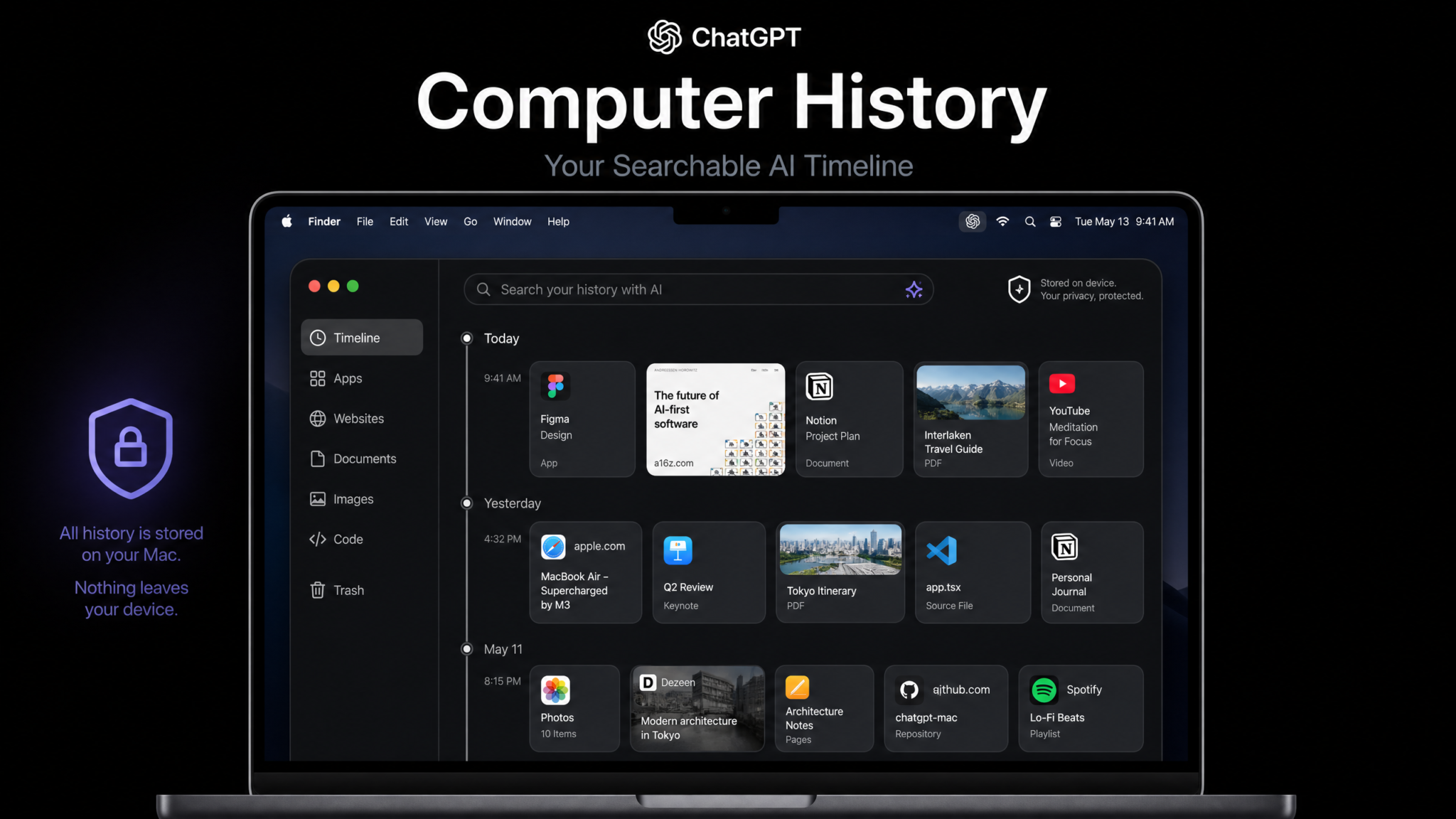
What Is Computer History and Why It Matters
The fundamental problem with every AI assistant that existed before August 2026 was amnesia. You could spend three hours debugging a complex Rust memory error inside VS Code, then open ChatGPT and ask a follow-up question — and the model would have absolutely no idea what you had just been working on. You were forced to re-paste code, re-explain context, re-describe the project structure. Multiply that friction across an eight-hour workday and it becomes a significant tax on the very productivity that AI assistants are supposed to unlock.
Computer History is OpenAI’s answer to that problem. It is a persistent, local index of your Mac activity that the ChatGPT Desktop app builds continuously in the background. Think of it as a private, searchable diary of your computing sessions — one that ChatGPT and Codex can consult automatically when you ask questions, without you needing to manually copy and paste anything. The experience shift is profound: instead of asking “here is my code, what is wrong,” you can ask “what was I debugging in Rust yesterday afternoon?” and get a precise, useful answer.
This is not a screenshot archive. It is not a video recording. It is a structured, metadata-level index: app names, window titles, URLs, document paths, and code file activity — assembled into a queryable timeline that lives encrypted on your local drive. The distinction matters enormously from a privacy standpoint, and OpenAI has gone to significant lengths to make that architecture clear in its documentation.
The feature is currently available exclusively on macOS, requires the ChatGPT Desktop app version 2.6.0 or later, and demands an Apple Silicon Mac (M1 or newer) running macOS Sequoia 15.4 or higher. Windows support has been announced for Q4 2026. Linux is listed as “under consideration.”
Whether you trust it, use it, or avoid it entirely, Computer History is a meaningful inflection point in how AI assistants relate to the humans who use them. It deserves a thorough examination.
How OpenAI Shipped It: August 13, 2026
The launch was notable for its deliberate quietness. OpenAI did not hold a press conference. There was no product keynote. Instead, the company published a detailed technical blog post at 9:00 AM Pacific time on August 13, 2026, pushed an app update through the Mac App Store and the direct download channel simultaneously, and let users discover the feature through the app’s updated Settings panel. It was a strategy that felt consciously designed to contrast with Microsoft’s turbulent rollout of Windows Recall in 2024 — a feature that arrived with enormous fanfare, then was rapidly pulled back amid privacy backlash before a quieter, more limited re-release.
OpenAI’s head of product, in a post on X, framed the approach directly: “We wanted Computer History to arrive with substance rather than spectacle. The privacy architecture had to be right before we talked about the experience.” That architectural groundwork, it turns out, had been in development for over fourteen months under the internal codename Project Meridian — a name that leaked in a job posting for an “on-device ML infrastructure engineer” back in June 2025 and was widely speculated about in AI research communities.
The rollout itself was phased. On August 13, all ChatGPT Plus, Pro, and Team subscribers on eligible hardware received access to the toggle in Settings. Enterprise accounts were given a separate administrative control panel allowing IT departments to enable or disable the feature fleet-wide before individual users could access it — a detail that enterprise customers had specifically requested after the Windows Recall rollout demonstrated how much corporate IT departments care about controlling AI memory features before employees activate them. Free-tier users were placed on a waitlist, with OpenAI stating that wider availability would follow “as we validate the on-device performance envelope across a broader range of hardware configurations.”
The update also shipped a new companion framework called the ChatGPT Context API, a local API that third-party applications can call to voluntarily contribute structured context to the Computer History index. Several developer tools — including Nova from Panic, the Raycast AI launcher, and the Linear project management app — announced same-day integrations, suggesting that OpenAI had been coordinating with ecosystem partners for months ahead of the public release.
Technical Architecture: How the Local Index Actually Works
Understanding what Computer History actually does technically requires understanding what it explicitly does not do. It does not take screenshots. It does not record your screen. It does not use optical character recognition to read the contents of documents you are viewing. It operates entirely at the metadata and structure layer — and this distinction is the load-bearing architectural choice that separates it from Microsoft’s Recall implementation.
The system runs as a background service called chatgpt-ctx-daemon, which you can observe in Activity Monitor once the feature is enabled. This daemon uses macOS Accessibility APIs and the native NSWorkspace framework to observe application-level events. Every time a window becomes active, loses focus, or changes title, the daemon logs a structured record. Every time Safari, Chrome, Firefox, or Arc switches to a new URL, the daemon captures that URL and the page title. Every time a document path becomes the active file in an application that supports the Context API or the standard NSDocument protocol, the daemon logs the file path and the application name.
The captured records are stored in a local SQLite database located at ~/Library/Application Support/ChatGPT/ComputerHistory/timeline.db. The database is encrypted at rest using AES-256, with the encryption key stored in the user’s macOS Keychain. The key never leaves the device. Because it lives in Keychain, it is protected by the user’s login credentials and, on supported hardware, by the Secure Enclave.
The indexing layer sits on top of this raw timeline database. OpenAI ships a compact on-device embedding model — approximately 180 million parameters, optimized for Apple Neural Engine — that converts activity records into vector embeddings stored in a local vector store. This is what makes the timeline searchable in natural language rather than only queryable by exact match. When you ask Codex “what was I reading about Kubernetes networking last Tuesday,” the system does not do a keyword search; it performs a semantic similarity search across the embedded timeline records.
The embedding model runs entirely locally. The vector store is updated incrementally as new events arrive, using a sliding-window architecture that processes events in batches every ninety seconds during periods of low CPU utilization. OpenAI’s technical documentation specifies that the daemon is designed to yield CPU and memory resources when foreground applications exceed specified usage thresholds, which is the primary mechanism for limiting battery impact during intensive work sessions.
When you send a message to ChatGPT or issue a command to Codex, the client performs a local retrieval step before sending your query to the server. The most relevant timeline records — typically the top fifteen to twenty context windows ranked by semantic similarity and recency — are attached to the API request as structured context. This context is processed by the model alongside your message, but it is treated as ephemeral request context: it is not stored by OpenAI, not used for training, and not retained after the API call completes.
Key architecture summary: The raw activity data never leaves your device. The embedding model runs locally on the Neural Engine. Only the top-ranked, user-relevant excerpts travel to OpenAI servers as part of a standard API request — subject to the same data handling policies as any other ChatGPT conversation.
What Gets Captured — And What Does Not
OpenAI has published a detailed specification of exactly what the Computer History daemon captures and what it deliberately excludes. This specificity is itself a product decision — the company clearly learned from the ambiguity that surrounded Windows Recall’s initial descriptions of what it did and did not record.
What Is Captured
- App names and window titles: When you switch to Xcode and the window title reads “MyProject — ContentView.swift,” that app name and window title are logged with a timestamp.
- URLs visited in supported browsers: Full URLs and page titles from Safari, Chrome, Firefox, Arc, and Brave. This is opt-in per browser and requires granting the ChatGPT app Accessibility permissions for each browser.
- Document file paths: The full path to any document opened in an
NSDocument-based application (Pages, Numbers, Keynote, TextEdit, Preview) or any application that has implemented the ChatGPT Context API. - Code files edited: For VS Code, Cursor, Xcode, JetBrains IDEs, and Vim/Neovim (via a plugin), the daemon captures the file path and the application name. It does not capture the file contents unless you explicitly use the “Share file with ChatGPT” function.
- Terminal session context: For Terminal.app and iTerm2, the daemon captures the working directory and window title. It does not capture the text of commands typed unless the user enables the optional “Terminal command capture” setting, which requires an additional explicit permission grant.
- Active application durations: How long you spent in each application and document, enabling timeline queries like “what did I spend the most time on last Monday.”
What Is Explicitly Not Captured
- The contents of documents, emails, or messages — only paths and titles
- Passwords, credit card numbers, or any field identified as a secure text input by macOS
- Screen contents or pixel data of any kind
- Audio from meetings or calls
- Activity in applications on the user’s blocklist
- Activity during macOS Screen Time “Downtime” periods
- Activity in Private Browsing windows in any supported browser
- Content from apps that have declared themselves as privacy-sensitive using the
NSPrivacySensitiveAppentitlement — banking apps, health apps, and password managers typically use this
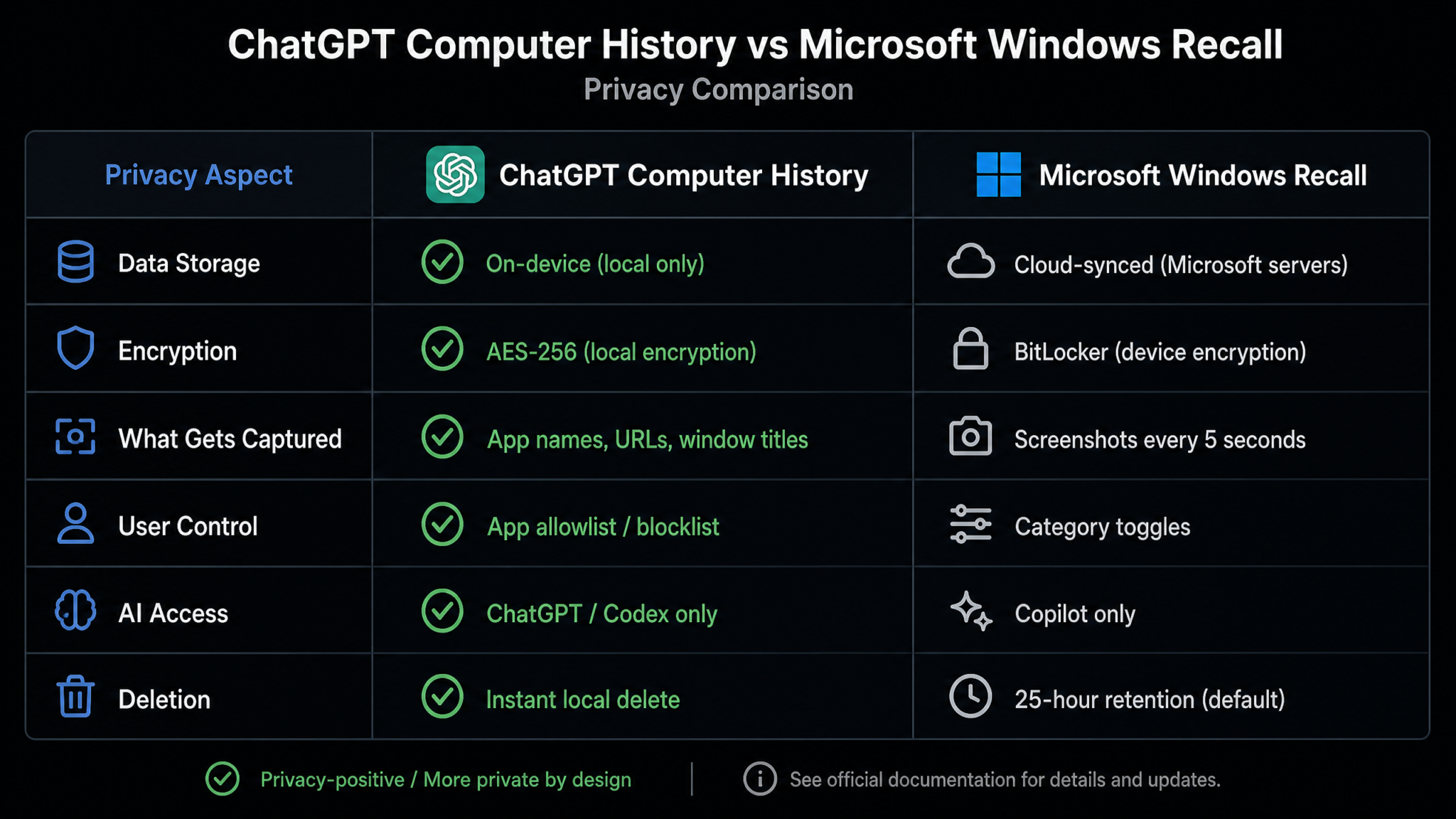
The distinction between capturing file paths and capturing file contents is crucial and worth dwelling on. If you open a document containing sensitive customer data, Computer History will log that the file /Users/you/Documents/Q3_Customer_Data.xlsx was active in Numbers for forty minutes on a Tuesday morning. It will not log what was inside that spreadsheet. Whether logging the existence and path of sensitive files is itself a privacy risk is a legitimate question — and one that enterprise security teams will be evaluating carefully in the weeks following the launch.
Privacy Architecture: On-Device, Encrypted, User-Controlled
Privacy is the axis on which Computer History lives or dies as a product. OpenAI appears to understand this viscerally, and the privacy architecture reflects a level of deliberateness that is worth documenting in detail.
Data Residency and Encryption
All captured data — the raw timeline database, the vector embeddings, the index metadata — lives exclusively on the user’s local storage. The encryption uses AES-256 for the SQLite database and the vector store. The Keychain-stored encryption key is tied to the user’s macOS user account; it is not accessible to other user accounts on the same machine, and it is not backed up to iCloud Keychain (OpenAI explicitly disabled iCloud Keychain sync for this key class).
Time Machine backups of the timeline database are encrypted within the backup using the existing Time Machine encryption, so your activity history can be backed up safely if you have encrypted Time Machine enabled — but the data is only accessible if someone has both the backup and your Mac login credentials.
Network Architecture
The Computer History daemon has no network interface. It cannot make outbound connections. This is enforced at the macOS App Sandbox level: the daemon process is sandboxed with network access explicitly revoked in its entitlements. This is verifiable using tools like codesign -d --entitlements - /Applications/ChatGPT.app to inspect the entitlement declarations. Security researchers were examining these entitlements within hours of the launch, and the results were shared broadly on Hacker News and the r/MachineLearning subreddit.
User Controls
The user control surface is extensive by design. OpenAI has implemented what it describes as a “minimum capture” philosophy: the feature captures only what is explicitly needed for the use case, provides granular controls for every dimension of that capture, and defaults to less capture rather than more. Key controls include:
- Per-app allowlist/blocklist: You can specify exactly which applications the daemon monitors. Every application is listed individually; you can enable or disable tracking for each one.
- Per-browser URL capture: Browser URL logging is off by default for all browsers. You must explicitly enable it per browser.
- Pause capture: A single-click “Pause Computer History” option appears in the ChatGPT menu bar icon. While paused, no activity is logged. The pause persists until manually resumed or until the next login, depending on your preference setting.
- Time-range deletion: You can delete your Computer History for any specified time range through Settings > Computer History > Manage Data. Deletion is immediate and permanent — the records and their embeddings are both purged.
- Full deletion: “Delete All Computer History” removes the entire database and vector store and resets the daemon to a fresh state.
- Retention window: You can set a rolling retention period — 7 days, 30 days, 90 days, or unlimited — after which records are automatically deleted. The default is 30 days.
OpenAI has also committed to a third-party privacy audit of the Computer History system, with results to be published within ninety days of launch. This is a meaningful commitment and one that will be closely watched by privacy advocates.
How to Enable and Configure Computer History
The feature does not enable itself. There are multiple deliberate friction points designed to ensure that users who activate Computer History are making an informed, intentional choice rather than accidentally opting in.
Step 1: Update the ChatGPT Desktop App
Computer History requires ChatGPT Desktop app version 2.6.0 or later. Open the app and navigate to ChatGPT menu > Check for Updates. If you installed from the Mac App Store, updates arrive through the standard App Store update mechanism. The app will display the version number in the About panel; confirm you see 2.6.0 or higher before proceeding.
Step 2: Navigate to Computer History Settings
Open the ChatGPT Desktop app. Press ⌘, to open Preferences, or navigate through the menu to ChatGPT > Settings. In the left sidebar of the Settings panel, you will see a new entry: Computer History, marked with a shield icon. Click it.
The Computer History settings panel opens with the feature toggled off. You will see a two-paragraph description of what the feature does and a link to the full privacy documentation. Below that is the main toggle: Enable Computer History.
Step 3: Grant Required Permissions
When you toggle Computer History on for the first time, macOS will present a series of permission dialogs:
- Accessibility Access: Required for the daemon to observe window focus changes and active application data. Click “Open System Settings” when prompted, then enable ChatGPT in Privacy & Security > Accessibility.
- Automation (optional): Required for the optional Terminal command capture feature. This is a separate prompt presented only if you enable that sub-feature.
- Full Disk Access (optional): Presented only if you enable document path capture for applications outside the standard
NSDocumentecosystem.
Step 4: Configure the App Allowlist
After granting permissions, the Settings panel will display a list of all installed applications on your Mac, organized by category. Each application has a toggle. By default, apps are categorized into groups: Developer Tools, Productivity, Creative, Communication, Browsers, and Other. There are master toggles for each category, and individual overrides for each app within a category.
Communication apps — Mail, Messages, FaceTime, Slack, Discord, Zoom — are toggled off by default and carry a warning icon indicating they contain potentially sensitive personal communications. OpenAI is explicitly nudging users away from logging these apps. You can enable them, but you have to consciously override the default.
Step 5: Set Your Retention Period and Review Schedule
At the bottom of the Computer History settings panel, set your rolling retention period. For most users, 30 days provides an excellent balance of historical context and storage footprint. Developers working on long-running projects may prefer 90 days. If you are privacy-sensitive and want Computer History purely for same-week recall, 7 days is appropriate.
OpenAI also provides an optional “Weekly Review” notification — a summary sent on Sunday evenings that shows a high-level breakdown of your tracked activity for the week, giving you an opportunity to spot anything unexpected and delete records before they age further into the retention window.
What Codex Can Do With Your Activity Timeline
Codex, OpenAI’s AI-powered coding assistant integrated into the ChatGPT Desktop app, is the primary beneficiary of Computer History’s timeline data — and also the use case that makes the feature’s value proposition most concrete for technical users.
Automatic Project Context Recall
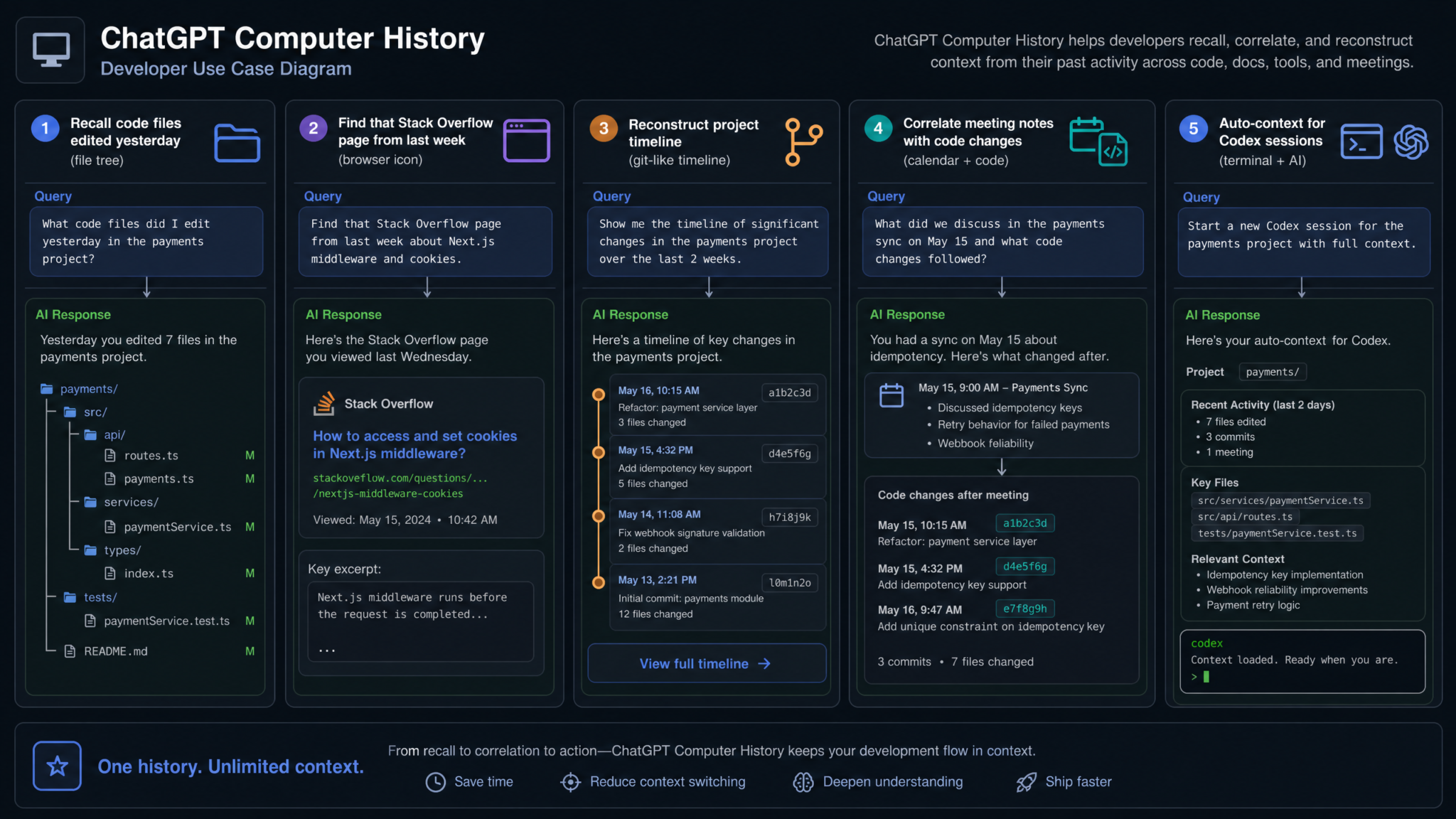
Suppose you spent Monday afternoon working in a repository called payment-service inside VS Code, editing files across multiple directories, running tests in the integrated terminal, and referencing the Stripe API documentation in your browser. On Tuesday morning, you open ChatGPT and type: “Help me continue what I was working on yesterday with the payment service.” Without Computer History, this query lands in a void — the model has no idea what payment service, what codebase, what problem. With Computer History enabled, Codex has retrieved from the local timeline: the file paths you edited, the documentation URLs you visited, the test output you were reviewing. The response is immediately specific, actionable, and grounded in your actual work context.
Retroactive Code Research
One of the most practically useful capabilities is retroactive lookup. Developers frequently encounter a situation where they remember reading about a solution — a Stack Overflow answer, a GitHub issue, a blog post — but cannot remember where. With Computer History tracking browser URLs, you can ask Codex: “I was reading something last week about solving Rust lifetime errors with Rc and RefCell — what was I looking at?” The system retrieves the URLs and page titles from the timeline, and Codex can present them directly. This is faster and more precise than browser history search, and it works across multiple browsers simultaneously.
Terminal Command History Across Sessions
When the optional Terminal command capture is enabled, Codex gains the ability to recall terminal sessions with precision. Queries like “what was the Docker Compose command I ran to spin up the staging environment two Fridays ago” become answerable. This capability specifically addresses a common developer frustration: shell history is per-session and has finite depth, and commands from weeks ago are typically lost. Computer History creates a persistent, searchable record of terminal activity that persists across reboots and new terminal sessions.
Meeting-to-Work Correlation
A subtler but valuable capability emerges from the interaction between calendar apps and the Computer History timeline. If you have Calendar.app tracked (it is in the Communication category, off by default), Computer History logs meeting event titles and times. Codex can then correlate meeting records with subsequent work activity. “What files did I work on after the architecture review meeting on August 15th” becomes a query that Computer History can answer by cross-referencing meeting records and the file activity timeline that followed them.
Project Timeline Reconstruction
For software projects that span weeks or months, Computer History enables a form of automatic project archaeology. You can ask Codex to reconstruct a timeline of your work on a specific project — when you started editing which files, when you were researching dependencies, when your browser activity suggests you were debugging versus building versus reviewing. This reconstructed timeline can be used to write retrospectives, fill out time tracking tools, or simply understand your own work patterns.
Developer Use Cases: Automatic Context for Coding Sessions
The developer community has been the most immediate and enthusiastic adopter of Computer History since the August 13 launch. Several specific use cases have emerged from early user reports that illustrate the feature’s practical value beyond the marketing descriptions.
Cross-Repository Context
Modern software development frequently involves multiple related repositories — a monorepo with service subdirectories, or separate frontend and backend repositories that need to be worked on in tandem. When working across repositories in the same session, developers previously had to manually re-establish context every time they switched between Codex conversations. With Computer History, a single session that spans myapp.dev/frontend and myapp.dev/api repositories is indexed as continuous work, and Codex can reason across both contexts without manual re-pasting.
Dependency Research Traceability
When evaluating new dependencies or libraries, developers typically spend significant time reading documentation, comparing alternatives on GitHub, and reading discussions on forums. Computer History captures all of this browser activity, creating a traceable research record. Later, when you need to justify a technology choice to a colleague or document why you selected one library over another, the research history is queryable: “What were the libraries I was comparing when evaluating state management for the React rewrite last month?”
Bug Investigation History
Bug investigations frequently involve visiting many URLs, opening many files, and running many commands in a non-linear order. After the bug is fixed, reconstructing the investigation path — for a post-mortem, for documentation, or to help a colleague with a similar issue — is tedious because the activity was spread across browser tabs, terminal sessions, and editor windows. Computer History assembles that investigation path automatically, making post-mortems significantly richer and more accurate.
Onboarding Documentation Generation
A creative use case reported by several engineering managers in early community discussions: using Computer History to help generate onboarding documentation for codebases. A senior developer who has Computer History enabled can walk through the key paths and files in a new project, then ask Codex: “Based on what I was looking at today while exploring the authentication module, write an onboarding guide for new engineers covering the files and concepts I encountered.” The resulting documentation reflects the actual paths and files, not a generic template.
Comparing Computer History to Microsoft Windows Recall
It is essentially impossible to discuss Computer History without examining Microsoft Windows Recall, the feature that pioneered this category — and the privacy controversy that accompanied it. The comparison is instructive and reveals how significantly the two implementations differ in their architectural philosophy, despite their surface-level similarity.
Access 40,000+ AI Prompts for ChatGPT, Claude & Codex — Free!
Subscribe to get instant access to our complete Notion Prompt Library — the largest curated collection of prompts for ChatGPT, Claude, OpenAI Codex, and other leading AI models. Optimized for real-world workflows across coding, research, content creation, and business.
| Feature | ChatGPT Computer History | Microsoft Windows Recall |
|---|---|---|
| Data type captured | Metadata: app names, window titles, URLs, file paths | Screenshots: full pixel capture of screen at regular intervals |
| Content reading | No — file paths and titles only | Yes — OCR extracts text from screenshots |
| Storage location | Local only | Local only (post-privacy-update) |
| Encryption | AES-256, key in macOS Secure Enclave | AES-256, key in TPM |
| Network transmission | Only top-ranked excerpts as request context | None (local processing) |
| Private browsing excluded | Yes — automatically excluded | Yes (after initial controversy) |
| Sensitive app exclusion | Yes — via entitlement declaration | Partial — DRM-protected content only initially |
| Default state | Off — must explicitly enable | On by default on Copilot+ PCs (initial release) |
| Storage requirement | ~1-3 GB per 30 days depending on activity | ~25 GB allocated for screenshot archive |
| Search method | Semantic vector search using local ML model | Keyword and semantic search over OCR’d screenshot text |
| AI integration | Native ChatGPT and Codex context | Windows Copilot integration |
| Hardware requirement | Apple Silicon (M1+) | Copilot+ PC (NPU requirement) |
The most significant architectural difference is the data type captured. Windows Recall takes screenshots — actual pixel representations of your screen — and then uses OCR to extract text from those images. This means Recall can, in principle, capture the contents of any window: email bodies, message threads, documents, even terminal output. The initial version did not adequately filter sensitive content from screenshots, leading to the well-documented security research by Cybersecurity researcher Kevin Beaumont in May 2024 demonstrating that Recall’s database was trivially readable by malware with standard user-level access.
Computer History never takes screenshots. It cannot capture document contents because it does not attempt to. This is not a technical limitation — it is an architectural decision that OpenAI made deliberately, and it results in a system that captures dramatically less information per unit time, stores dramatically less data per day, and presents a dramatically smaller attack surface if the local database were somehow compromised.
The tradeoff is capability. Windows Recall, because it captures actual screen content, can answer queries like “what was the text of that email I read last Tuesday.” Computer History cannot. It can tell you that you were in Mail for twenty minutes last Tuesday morning and that the window title was “Re: Q3 Budget Review,” but it cannot tell you what the email said. Whether that tradeoff favors privacy-safety or utility will depend on the individual user’s priorities.
The default-state decision is also revealing. Recall launched enabled by default on Copilot+ PCs; Computer History launches disabled by default and requires navigating a multi-step settings flow to activate. This is a deliberate choice to favor privacy over engagement metrics, and it will likely result in Computer History having lower adoption numbers than it would with a different default — a tradeoff OpenAI appears willing to make.
Concerns and Limitations
No feature of this nature arrives without legitimate concerns. Several deserve serious examination rather than dismissal.
Storage Requirements
Early testing by users on the MacRumors and 9to5Mac forums suggests that Computer History consumes approximately 1.2 to 3.1 gigabytes per 30-day retention window, depending on activity intensity. The vector store contributes the majority of this footprint; the raw timeline database is relatively compact. For developers on MacBook Air models with 256 GB of base storage, this is non-trivial. OpenAI’s documentation acknowledges the storage footprint and recommends that users with less than 64 GB of free disk space use the 7-day retention window to manage consumption.
Battery Impact
The daemon’s incremental indexing approach is designed to minimize battery impact, but users on battery power during intensive work sessions have reported approximately a 4-7% increase in CPU-attributed power draw during indexing windows. OpenAI has stated that the daemon will be further optimized in subsequent releases and that a future update will add an “aggressive power savings” mode that delays indexing entirely until the device is on AC power.
False Sense of Completeness
Because Computer History captures metadata rather than content, there is a risk that users will trust it to be more complete than it actually is. A timeline that shows “user was editing PaymentController.swift for 45 minutes” does not capture which specific lines were changed, which bugs were introduced, or which logic was refactored. Using Computer History to reconstruct the specifics of past work requires careful understanding of what the timeline does and does not contain.
The Accessibility Permission Surface
The Accessibility permission that Computer History requires is one of the most powerful permissions in macOS — it allows an application to observe UI events across the entire system. While OpenAI’s sandbox constraints are designed to limit what the daemon can do with that permission, the granting of Accessibility access to any application should give security-conscious users pause. Organizations with strict macOS security policies should evaluate this carefully before allowing fleet-wide deployment.
What It Cannot Capture — Yet
Computer History currently has no capability to capture context from iOS or iPadOS devices, cross-device web activity, or calendar event contents. The Windows client, when it ships in Q4 2026, will use a separate implementation due to the different OS APIs available. Synchronization of Computer History data across devices — maintaining a unified timeline across a MacBook and a Windows workstation, for instance — is not currently supported and would require OpenAI to build a cross-device sync architecture that either involves server-side storage (a significant privacy expansion) or encrypted peer-to-peer sync (a significant engineering challenge). Neither has been announced.
Enterprise Security Considerations
In corporate environments, the question of what happens to Computer History data when an employee leaves — or when a device is reassigned — requires clear policy. OpenAI provides MDM configuration profiles that allow enterprise IT teams to disable Computer History system-wide, enforce maximum retention windows, and require deletion of the timeline database before device wipe. These controls should be integrated into enterprise device management policies before the feature is made available to employees.
ChatGPT Enterprise Security Controls and Data Governance Guide
Community Reaction and Early Impressions
The community response to Computer History has been notably more positive than the initial response to Windows Recall — a comparison that has been made repeatedly in the comments threads and forum discussions that have emerged since the August 13 launch. The difference in reception appears to track directly with the difference in implementation, particularly the metadata-only capture approach and the disabled-by-default setting.
On Hacker News, the launch discussion thread became one of the highest-engagement threads of August 2026, accumulating over 1,100 comments within the first 48 hours. The dominant sentiment was cautious optimism — many developers expressed genuine enthusiasm for the use case while probing the technical implementation with the skepticism typical of the community. Several security researchers quickly analyzed the daemon’s entitlements and sandbox configuration, reporting back that the network-access restriction was genuine and not bypassed by any known mechanism. One researcher, posting as quartermoon_, summarized: “I’ve spent three hours trying to find a way this data leaves the device involuntarily. I cannot find one. That doesn’t mean it’s impossible — it means they did the work.”
Privacy advocates were more divided. The Electronic Frontier Foundation published a measured analysis within 48 hours, acknowledging the privacy-conscious architecture while raising concerns about the Accessibility permission surface and recommending that users read the full technical documentation before enabling the feature. The EFF specifically called out the third-party Context API as a potential privacy expansion vector: if applications begin sending richer context to the local index through that API, the metadata-only capture philosophy could gradually erode as the ecosystem evolves.
On Reddit’s r/ChatGPT subreddit, the most upvoted comments were practical user reports — people sharing specific queries they had run against their timeline and the results they received. One developer posted a screenshot of asking Codex to reconstruct their work session from the previous day to write a commit message, calling it “the most useful AI feature I’ve used all year.” Another user reported enabling Computer History, working for a week, then running a query against their own timeline and being “mildly disturbed by how accurately it described my work patterns” — a reaction that captures both the power and the uncanny quality of the feature.
Security researchers at Trail of Bits announced they had begun an independent analysis of the Computer History implementation and expected to publish findings within 60 days. Their preliminary statement was positive but noted they were specifically interested in evaluating edge cases in the Keychain integration and testing whether the daemon’s sandbox constraints held under adversarial conditions.
Among iOS developers specifically — a community that has long felt that macOS-first AI tooling underserved them — there was a mixture of appreciation for the macOS implementation and frustration that no iOS or iPadOS equivalent was mentioned in the launch documentation. Several developers working on cross-platform apps noted that their iOS Simulator activity was partially captured (as it runs within Xcode on macOS), but that their actual iPhone testing and device usage was entirely invisible to the timeline.
OpenAI Product Roadmap 2026 Key Announcements and Feature Timeline
What This Means for the Future of AI Assistants with Persistent Memory
Computer History is best understood not as a finished product but as the first credible consumer implementation of a concept that AI researchers have been describing for years: the personal AI context engine. The idea is simple in principle but technically demanding in practice — an AI assistant that has genuine continuity with your work, your history, and your context, rather than being perpetually amnesiac.
What makes Computer History significant in the context of this broader trajectory is that it demonstrates a path to persistent memory that does not require centralizing your data on an AI company’s servers. The architecture proves that it is possible to give an AI assistant meaningful memory while keeping the underlying data under the user’s exclusive control. Whether that architecture remains intact as the feature matures — as the Context API ecosystem grows, as cross-device sync becomes a user demand, as enterprise customers push for centralized management — is the genuinely open question.
The Memory Modality Spectrum
It is helpful to think about AI assistant memory as existing on a spectrum of modalities:
- Conversation memory: What the AI remembers within a single conversation. All current AI assistants have this.
- Cross-conversation memory: Persistent facts and preferences stored across sessions. ChatGPT’s existing Memory feature covers this.
- Activity memory: A timeline of what the user has done at the application and OS level. This is what Computer History adds.
- Content memory: A semantic index of the actual contents of documents, emails, and other artifacts. This is the next frontier — and the most privacy-sensitive.
- Environmental memory: Context from IoT devices, location data, calendar, and physical environment. The far future of AI context.
Computer History advances AI assistants from level two to level three on this spectrum. It is a meaningful step — arguably a leap — but it is explicitly not level four. OpenAI has designed the system to stop at metadata and paths, not at content. The question of whether a future version will move toward content indexing (with appropriate consent and encryption architecture) is one that the company will face as users inevitably request it. “Can you remember what that contract said, not just that I opened it” is a natural extension of the current capability, and it will be asked.
Competition and Ecosystem Implications
Computer History’s launch effectively hands every other AI assistant company a product roadmap item they cannot ignore. Google’s Gemini, which has the advantage of deep integration with Google Workspace and Chrome, has a natural path toward a similar feature using cloud-side activity data rather than on-device indexing. Apple Intelligence, embedded in macOS, has access to OS-level activity data that is even more complete than what third-party apps can access via Accessibility APIs. The competitive pressure created by Computer History’s release will accelerate development across the ecosystem.
The interesting race is not who ships the feature — it is who ships it with the most trusted privacy architecture. Computer History has raised the bar by demonstrating that metadata-level, encrypted, on-device indexing is feasible and can deliver meaningful utility. Any competitor who ships a version that centralizes more data, captures more content, or defaults to enabled will face immediate comparison and criticism measured against the bar OpenAI has now established.
The Personalization Paradox
There is a deeper philosophical tension underlying Computer History that is worth naming: the more complete and accurate an AI assistant’s memory of you becomes, the more useful it becomes — and the more it begins to function as a mirror of your habits, productivity patterns, and work behavior. For most users, that is an asset. For some users in some contexts — people subject to legal discovery, people in surveillance-sensitive professions, people concerned about domestic surveillance — the existence of a detailed activity timeline, however well-encrypted, represents a risk they may rationally choose not to accept.
The responsible design of persistent AI memory requires acknowledging this paradox rather than resolving it. OpenAI’s implementation acknowledges it through the disabled-by-default setting, the extensive retention controls, the immediate-deletion capability, and the explicit documentation of what is captured. These are the right design choices, and they should be the standard against which future implementations of persistent AI memory are evaluated.
What the Next Twelve Months Will Look Like
Based on the launch documentation, public roadmap hints, and the logical trajectory of the feature, the following developments are likely in the twelve months following the August 2026 launch:
- A Windows implementation of Computer History built on Windows Activity APIs, shipping in Q4 2026 with feature parity to the Mac version where OS APIs permit
- An expanded Context API ecosystem with integrations from major productivity tools including Notion, Obsidian, Linear, and GitHub Desktop
- Cross-device activity correlation, likely implemented via encrypted sync through the user’s existing cloud storage (iCloud, OneDrive) rather than through OpenAI servers
- A “Smart Summarization” layer that distills the raw timeline into higher-level project and task summaries, reducing the cognitive load of the raw metadata view
- Potential expansion toward document content indexing for files the user explicitly opts in — an “index this folder” capability that would move the feature toward level four on the memory spectrum
What OpenAI has shipped with Computer History is, in the long view, a foundation. The metadata-only, on-device, encrypted architecture is the scaffolding on which a genuinely context-aware AI assistant will be built. The question of how much context, from how many sources, under what level of user control, managed with what level of transparency — these are the design questions that will define the next generation of AI assistant products. Computer History has made the first credible answers to those questions concrete and observable. The AI assistant industry will be responding to those answers for the foreseeable future.
Conclusion
ChatGPT Computer History is a carefully engineered answer to the most persistent frustration in everyday AI assistant use: the inability to pick up where you left off. By building a private, encrypted, metadata-level index of your Mac activity and making it searchable by ChatGPT and Codex, OpenAI has delivered a genuine capability improvement that users will feel immediately in the quality and relevance of AI responses to work-related queries.
The feature’s architecture reflects lessons learned — visibly and explicitly — from the Windows Recall controversy. The disabled-by-default setting, the network-access-revoked daemon, the metadata-only capture scope, the granular user controls, and the third-party privacy audit commitment collectively represent a privacy-conscious design philosophy that sets a new standard for persistent AI memory products.
Concerns remain legitimate: the Accessibility permission surface is powerful, enterprise deployment requires careful policy consideration, and the long-term evolution of the Context API ecosystem could expand the feature’s data capture scope in ways that require ongoing vigilance. These concerns deserve the scrutiny they are receiving.
But taken as a whole, Computer History represents meaningful progress toward the AI assistant that professionals — and especially developers — have actually wanted: one that remembers, one that understands context without being told, and one that makes the sum of your computing activity more accessible to you rather than more accessible to anyone else. That is the right direction, built in the right way, at the right moment. The feature deserves both the enthusiasm and the careful examination it is receiving.
