
Introduction: Codex Now Available on ChatGPT Mobile (June 2026)
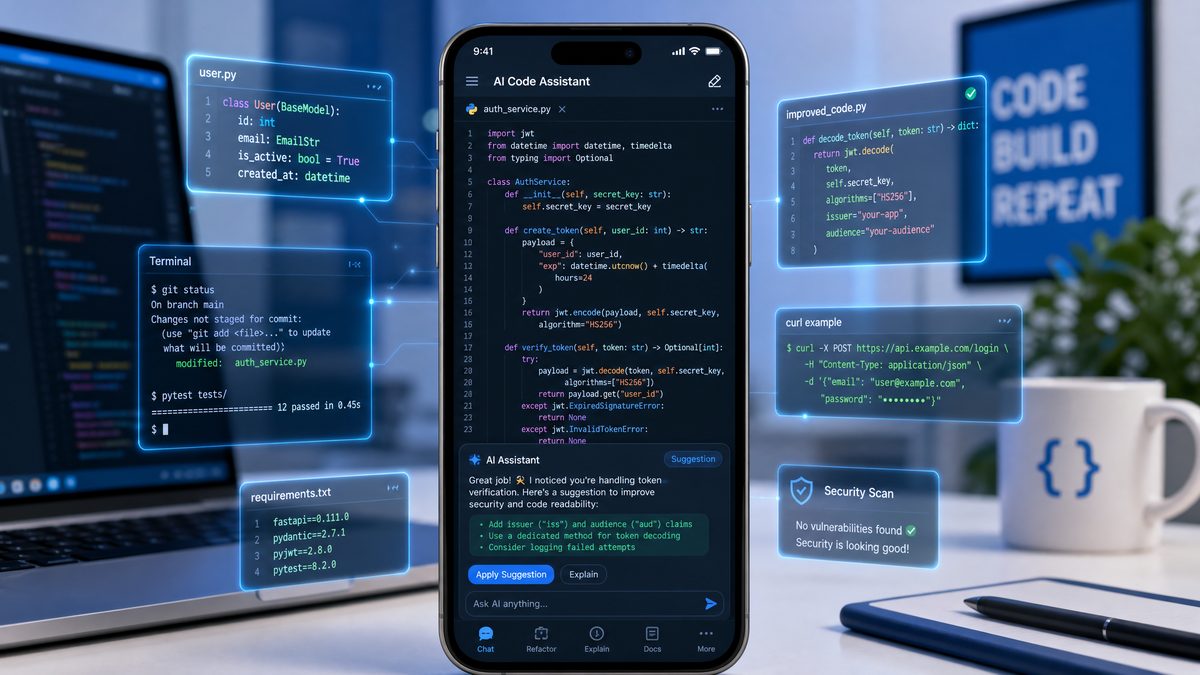
In June 2026, OpenAI officially integrated Codex into the ChatGPT mobile app, bringing powerful AI-driven coding assistance directly to your smartphone and tablet. This milestone enables developers, AI practitioners, and software engineers to leverage OpenAI’s advanced code generation and understanding capabilities without needing a desktop environment. Whether you’re fixing bugs on the go, reviewing code snippets, or scaffolding entire projects, Codex on mobile offers unprecedented flexibility and productivity for modern workflows.
Codex, originally launched as a standalone API and embedded in the desktop ChatGPT Plus experience, now empowers users with real-time code generation, debugging help, and architectural guidance—all from their pocket. This tutorial will walk you through the setup, usage, and best practices to maximize Codex’s potential on your mobile device.
Setup Requirements: What You Need to Get Started
Before diving into Codex on your mobile device, ensure you meet the following requirements to unlock full functionality:
- ChatGPT Plus or Pro Subscription: Access to Codex is gated behind the Plus or Pro tiers. The Plus plan currently costs $20/month, while Pro starts at $50/month with enhanced concurrency and priority access. Without an active subscription, Codex features will be inaccessible.
- Latest ChatGPT Mobile App: Update your iOS or Android ChatGPT app to version 6.2 or later. The Codex integration relies on the latest UI and backend infrastructure enabled in these versions. Older versions will not display Codex options.
- Stable Internet Connection: Since Codex leverages cloud-based LLMs, a reliable internet connection is essential for responsive code generation and analysis.
Once these prerequisites are met, you’re ready to explore Codex’s mobile capabilities.
Step-by-Step: How to Access Codex from Your Mobile Device
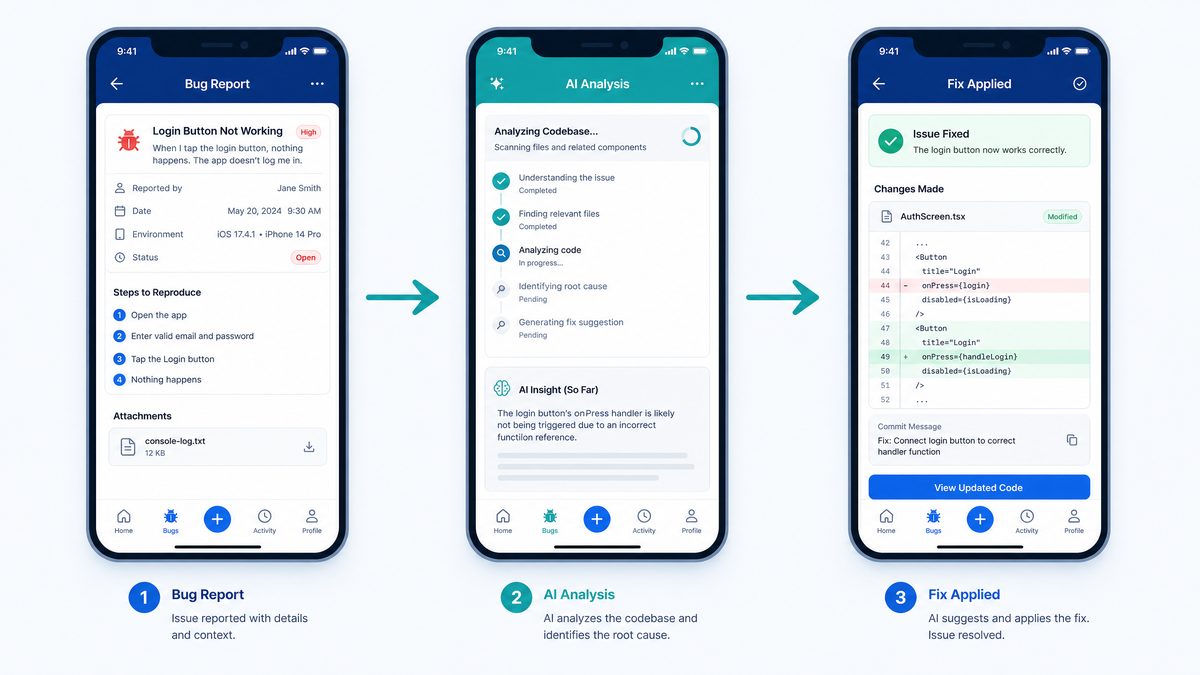
Accessing Codex on the ChatGPT mobile app involves a few straightforward steps designed to streamline your coding experience:
- Launch the ChatGPT Mobile App: Open the updated app on your smartphone or tablet.
- Log In with Your Plus/Pro Account: Ensure you are signed in with the subscription account that includes Codex access.
- Navigate to the Model Selector: Tap the top-left profile icon or settings gear, then select the model dropdown.
- Choose “GPT-4 Codex” or “GPT-4 with Code” Mode: From the model list, select the Codex-enabled GPT-4 variant. This activates the code generation and understanding features.
- Start Coding Queries: Enter your programming questions, code snippets, or requests for bug fixes directly into the chat input.
- Use Inline Code Blocks: You can insert code blocks using triple backticks (“`) or the mobile app’s “code” input option for better formatting and interpretation.
Following these steps will put you in direct conversation with Codex’s AI engine, ready to assist with a broad spectrum of coding tasks.
Use Cases: What You Can Do With Codex on Mobile
Codex’s integration on mobile unlocks a variety of practical use cases for developers and AI practitioners. Here are some key scenarios where Codex shines:
Quick Bug Fixes
Encounter a bug in your code while away from your workstation? Simply paste the problematic snippet into the chat and ask Codex to identify and fix the issue. For example:
Here's my Python function that throws an error when input is empty. Can you fix it?

def reverse_string(s):
    return s[::-1]

print(reverse_string(""))  # Throws an error
Codex can suggest a robust fix that handles empty inputs gracefully.
Code Reviews
Paste code blocks to get AI-powered review comments, identifying anti-patterns, security vulnerabilities, or performance improvements. For instance:
Can you review this JavaScript function for best practices?

function fetchData(url) {
  fetch(url)
    .then(response => response.json())
    .then(data => console.log(data))
    .catch(error => console.error(error));
}
Codex will highlight potential improvements such as using async/await or enhanced error handling.
Architecture Decisions
Mobile is perfect for conceptual discussions on system design. Ask Codex for architectural patterns or module breakdowns tailored to your project constraints:
I’m building a microservices backend for an e-commerce app. Suggest a scalable architecture with Python and Node.js services.
Codex will outline service responsibilities, communication protocols, and deployment strategies, helping you validate ideas on the fly.
Project Scaffolding
Generate boilerplate code or entire folder structures for frameworks like React Native, Flask, or Express directly from your phone. Example request:
Generate a React Native project scaffold with navigation, authentication, and Redux state management.
Codex returns a detailed codebase outline and sample files that you can later integrate into your IDE or GitHub repository.
Mobile-Specific Tips: Voice-to-Code and Photo-to-Code Features
To fully leverage mobile Codex, OpenAI has introduced innovative input methods tailored for small-screen devices:
Voice-to-Code Dictation
Use your phone’s microphone to dictate code snippets or programming questions. The ChatGPT app supports voice input with syntax-aware parsing, so you can say “define a Python function that returns the factorial of a number,” and Codex will generate the corresponding code.
Tips for effective voice coding:
- Speak clearly and use common programming keywords like “def,” “class,” “loop,” “if statement.”
- Use the pause button to separate logical code blocks or statements.
- Review and edit the transcribed code before submitting for generation.
Photo-to-Code: Snap Whiteboard Diagrams or Handwritten Notes
The app’s camera integration enables you to capture whiteboard sketches, UML diagrams, or handwritten pseudocode. Codex will analyze the image using OCR and convert the visual information into executable code or structured comments.
For example, snapping a class diagram of a banking system can prompt Codex to generate corresponding Python classes with attributes and methods.
Best practices for photo-to-code usage:
- Ensure good lighting and focus for clear image capture.
- Use standard UML or diagramming conventions for better recognition.
- Verify and refine the generated code after conversion.
Limitations Compared to Desktop Codex Usage
While mobile Codex is powerful, some differences and constraints remain relative to desktop environments:
| Feature | Mobile Codex | Desktop Codex |
|---|---|---|
| Context Window Size | Up to 8,000 tokens (approx. 6,000 words) | Up to 32,000 tokens (approx. 24,000 words) |
| File Access | Limited to text input & photo OCR; no direct filesystem access | Direct integration with local files and IDE plugins |
| Sandbox Environment | No code execution or debugging sandbox; code must be tested externally | Supports code execution, debugging, and inline test runs |
| Multi-file Project Handling | Sequential chat-based multi-file editing; manual file management | Integrated multi-file project context with advanced navigation |
| Performance | Dependent on mobile device and network speed; occasional latency | Generally faster and more responsive with desktop hardware |
Understanding these limitations helps set realistic expectations and encourages hybrid workflows that combine mobile flexibility with desktop power when necessary.
Best Practices for Mobile Coding Workflows
To optimize your productivity when using Codex on mobile, consider these actionable best practices:
- Segment Large Codebases: Break your projects into smaller modules or components to fit within token limits and ease code review.
- Leverage Voice and Photo Inputs: Use voice dictation for quick snippets and photo-to-code for complex diagrams, reducing manual typing.
- Maintain Clear Prompts: Provide explicit instructions and context in your chat queries to get precise code generation and fixes.
- Iterate Incrementally: Use iterative prompting to refine code in steps rather than large monolithic requests.
- Use Code Blocks for Formatting: Always format code using triple backticks or the code input option to improve AI interpretation and readability.
- Keep Security in Mind: Avoid sharing sensitive or proprietary code in the chat to protect intellectual property.
Additionally, combine mobile Codex sessions with desktop IDEs or CI pipelines for testing and deployment.
Integrating with GitHub and Code Repositories From Mobile
While the ChatGPT mobile app doesn’t natively support direct GitHub repository cloning or push/pull operations, you can still integrate Codex-generated code into your repositories efficiently:
- Generate Code Snippets in Chat: Use Codex to scaffold functions, modules, or fixes.
- Copy Code to Your Mobile Code Editor: Use apps like GitHub Codespaces, GitPod mobile, or dedicated IDEs such as Acode or Termux.
- Commit and Push Changes: From your mobile IDE, commit and push changes to GitHub or other Git repositories.
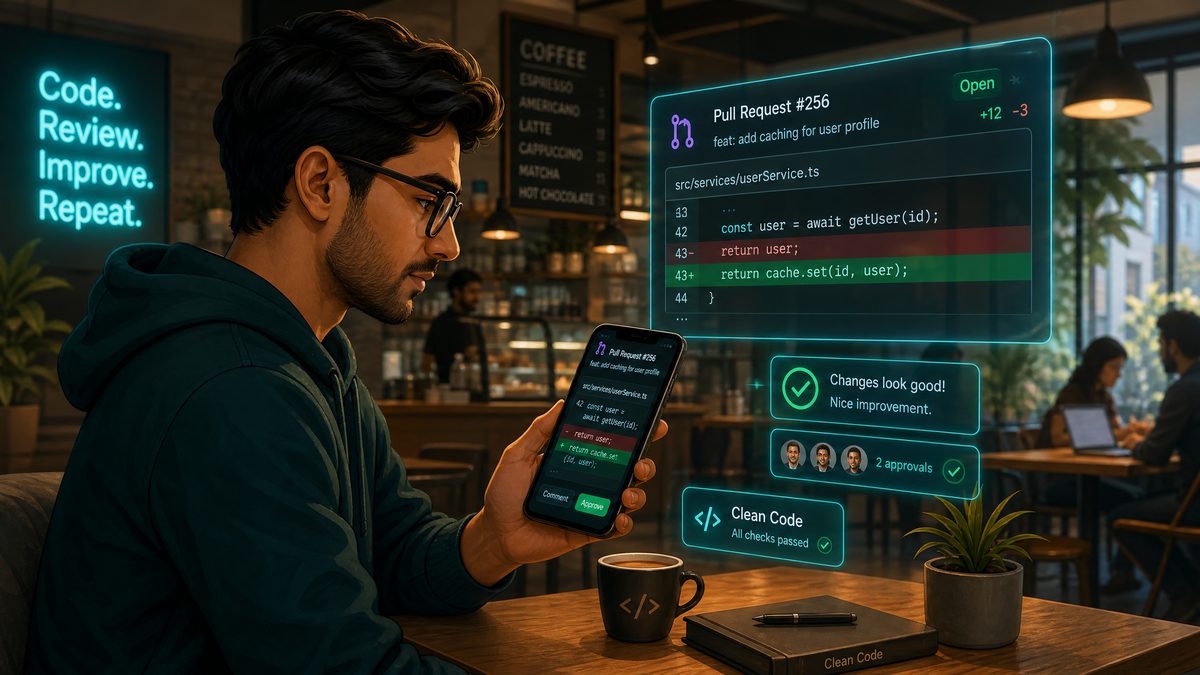
- Use GitHub Mobile App for Reviews: Switch to the GitHub app to perform code reviews, merge pull requests, and manage issues on the go.
Here is a practical example workflow that combines Codex with GitHub on mobile:
1. Ask Codex: "Generate a Python function to parse JSON logs and filter errors."
2. Review and copy the generated code.
3. Open your GitHub Codespaces session on mobile.
4. Paste the code into log_parser.py.
5. Commit with message: "Add error filtering function for JSON logs."
6. Push to your feature branch.
7. Open GitHub app to create a pull request for team review.
This hybrid approach allows you to maintain a robust development cycle even when away from your desktop environment.
Advanced Prompt Engineering Techniques for Codex on Mobile
Mastering the art of prompt engineering is essential to unlock Codex’s full potential on mobile devices. Unlike desktop environments where you might have more space and time to experiment, mobile interactions demand concise yet effective communication with the AI. One effective technique is to frame your prompts with clear context, desired output formats, and specific constraints. For example, instead of asking “Write a sorting function,” specify “Write a Python function that sorts a list of integers in ascending order using the merge sort algorithm, with comments explaining each step.”
Another technique involves chaining prompts to iteratively build complex solutions. Start by asking Codex to generate a base function, then follow up with prompts to optimize, add error handling, or extend features. This incremental approach prevents overwhelming the model with large requests and aligns well with the mobile app’s token limits.
Using examples in your prompts can also aid Codex in understanding your requirements. Providing sample input-output pairs within your query helps the model generate more accurate and tailored code. For instance, “Create a function that reverses a string. Example: input ‘hello’ should return ‘olleh’.” This specificity reduces ambiguity and leads to higher quality outputs.
Additionally, specifying the programming language explicitly in your prompt is crucial, especially when working across multiple languages. Phrases like “in JavaScript” or “using Python’s asyncio library” help guide Codex to the correct syntax and idioms. Lastly, when requesting explanations or code reviews, instruct Codex to be thorough and highlight potential pitfalls, security concerns, or performance bottlenecks to gain deeper insights.
Debugging Strategies Using Codex on Mobile
Debugging code on a mobile device can be challenging due to screen size and limited local testing facilities, but Codex can significantly streamline this process. When you encounter an error, start by describing the problem to Codex with as much detail as possible, including error messages, stack traces, and the context in which the error occurs. For example, “My Python script throws a ‘KeyError’ when accessing a dictionary; here’s the snippet.” This information allows Codex to pinpoint the issue and suggest precise fixes.
Leverage Codex’s capability to suggest alternative approaches to problematic code sections. You can ask for refactoring suggestions to improve code readability and maintainability, which often helps in preventing bugs from creeping in. For example, request “Refactor this nested loop to reduce complexity and improve performance.”
Since mobile environments lack integrated debuggers, you can simulate test cases by asking Codex to generate unit tests for your functions. For instance, “Write unit tests in pytest for this function that calculates factorial.” These tests can then be run later on a desktop or cloud-based environment, ensuring code correctness without extensive local setup.
Another useful strategy is to use Codex to generate detailed logs or debug statements within your code. Prompt it with requests such as “Add logging to this function to trace variable values and execution flow.” This practice facilitates remote debugging and helps you understand the runtime behavior more effectively.
Finally, maintaining an iterative dialog with Codex, where you test small code changes and seek incremental improvements, makes debugging on mobile more manageable and less error-prone.
Security Considerations When Using Codex on Mobile
While Codex is a powerful coding assistant, security must remain a top priority, especially when coding on mobile devices that may be less secure than desktops. First, avoid sharing sensitive credentials, API keys, proprietary algorithms, or confidential business logic in chat prompts. Since your queries are processed on OpenAI’s servers, exposing sensitive information could lead to unintended data leaks.
When requesting code generation involving security-critical operations—such as authentication, encryption, or data validation—always review the output carefully. Codex can generate code snippets that follow common patterns but may not account for the latest security best practices or vulnerabilities. For example, if you request “Generate a login function,” verify that it uses secure password hashing methods like bcrypt or Argon2 and implements proper session management.
Be aware of the risks associated with photo-to-code features. If capturing images of code or diagrams containing sensitive information, ensure that images are stored securely and deleted promptly after processing. Use encrypted storage solutions on your device to minimize exposure.
Additionally, when integrating Codex-generated code into your repositories or production environments, perform thorough code reviews and automated security scans using tools like static analyzers or dependency checkers. This layered approach helps identify potential backdoors or vulnerabilities introduced inadvertently.
Finally, maintain good mobile security hygiene by using device encryption, biometric locks, and secure network connections (preferably VPNs) when coding or transmitting code snippets. These steps collectively reduce the attack surface and protect your intellectual property while leveraging AI capabilities on the go.
Extending Codex Usage With Mobile Automation and Shortcuts
One of the exciting ways to enhance your mobile Codex experience is by integrating it with mobile automation tools such as iOS Shortcuts or Android’s Tasker. By creating customized workflows, you can automate repetitive coding tasks, streamline prompt inputs, or trigger code generation based on contextual triggers. For example, you could create a shortcut that sends the contents of your clipboard directly to Codex with a pre-filled prompt requesting code review or bug fixes, saving time on manual typing.
Furthermore, automation workflows can combine multiple steps such as generating code snippets, saving results to cloud storage, and notifying you via messaging apps once outputs are ready. This is especially useful for developers who juggle multiple projects or prefer asynchronous interactions with Codex on mobile. For instance, a Tasker profile can trigger Codex to generate API client code whenever you copy a new API endpoint specification to your clipboard.
Another practical use case is setting up voice-activated commands that leverage Codex’s voice-to-code capabilities. By linking voice assistants like Siri or Google Assistant with Codex prompts, you can verbally request coding help without opening the app. For example, saying “Hey Siri, ask Codex to generate a Python web scraper for this URL” can initiate a chain that returns the requested code snippet to your phone.
To maximize these integrations, familiarize yourself with your mobile OS’s automation features and experiment with combining Codex APIs or app intents with third-party services. This approach transforms your mobile device into a powerful AI-driven coding workstation tailored to your personal workflow preferences.
Collaborative Coding and Pair Programming on Mobile Using Codex
Mobile Codex also facilitates collaborative coding and pair programming sessions, enabling developers to co-create and troubleshoot code remotely with AI assistance. Using the ChatGPT mobile app’s sharing features, you can export chat transcripts or code snippets to team communication tools such as Slack, Microsoft Teams, or email. This fosters asynchronous collaboration where feedback and AI-generated suggestions can be reviewed by teammates without requiring everyone to be online simultaneously.
Access 40,000+ AI Prompts for ChatGPT, Claude & Codex — Free!
Subscribe to get instant access to our complete Notion Prompt Library — the largest curated collection of prompts for ChatGPT, Claude, OpenAI Codex, and other leading AI models. Optimized for real-world workflows across coding, research, content creation, and business.
Moreover, when paired with screen sharing or remote desktop apps, Codex on mobile can act as a real-time coding partner during live pair programming sessions. For example, one developer can share their screen and codebase while another uses their mobile device to query Codex for alternative implementations, debugging tips, or documentation generation. This dynamic can accelerate problem solving and knowledge transfer, especially in distributed teams.
Additionally, Codex supports generating comprehensive documentation and code comments, which are invaluable for collaborative projects on mobile. By prompting Codex to “Write detailed docstrings for this function” or “Explain this algorithm in simple terms,” you ensure that your team maintains high code quality and clarity, even when working remotely from mobile devices.
To facilitate smooth collaboration, establish conventions for sharing Codex outputs and integrating them into your version control workflows. Combining mobile Codex with cloud IDEs or shared repositories further enhances team productivity by maintaining synchronization between AI-assisted coding efforts and overall project management.
Optimizing Mobile Coding Sessions with Context Management
Effective context management is critical when working with Codex on mobile devices due to the limited token window and the sequential nature of chat interactions. To optimize your coding sessions, it’s advisable to maintain concise but comprehensive context in each prompt. You can achieve this by summarizing previous discussions or code snippets when continuing a coding thread to keep Codex aware of relevant information without exceeding token limits.
Using naming conventions and consistent identifiers throughout your code snippets helps Codex maintain coherence across multiple interactions. For instance, if you’re developing a module with several related functions, reference function names and variables explicitly in your prompts to reduce ambiguity.
Additionally, you can leverage the app’s chat history feature to scroll back and copy previous outputs or inputs, allowing you to reintroduce important details into new prompts. For larger projects, consider maintaining an external note or snippet manager on your device to organize code segments, which can then be selectively input into Codex for focused assistance.
Developing a habit of modular prompt design—breaking complex tasks into smaller, discrete queries—helps maintain clarity and prevents token overflow. For example, start by asking Codex to generate a helper function, then separately request integration code or testing scripts. This approach also facilitates easier debugging and iterative refinement on mobile.
Finally, be mindful of session timeouts and plan your interactions accordingly. Saving important code outputs externally prevents loss of work and enables seamless continuation of coding sessions across devices if needed.
Leveraging Codex for Cross-Platform Mobile App Development
Codex on mobile is particularly advantageous for developers targeting cross-platform mobile applications, such as those built with React Native, Flutter, or Xamarin. You can request platform-specific code snippets or UI components optimized for both iOS and Android within the same session, accelerating development cycles.
For example, asking Codex to “Generate a Flutter widget for a login screen with form validation and error messages” will produce reusable Dart code tailored to best practices. Similarly, you can request platform-adaptive styling or native module integrations by specifying your target platform and desired functionality.
Codex also assists in generating bridging code for platform channels or native APIs, which are often complex and verbose when written manually. For instance, you might prompt, “Write a React Native module to access the device’s camera with permission handling on Android and iOS.”
Moreover, Codex can help optimize performance by suggesting lazy loading strategies, efficient state management patterns (e.g., using Redux or MobX), and asynchronous data fetching techniques suited for mobile environments.
By leveraging Codex on your mobile device, you can rapidly prototype UI/UX concepts, test out API integrations, and iterate on core functionality while traveling or away from your primary development machine. This flexibility enhances productivity and reduces time-to-market for cross-platform mobile apps.
Conclusion
OpenAI Codex integration in the ChatGPT mobile app marks a transformative step for developers seeking AI-assisted coding on the go. By meeting the subscription and app requirements, utilizing mobile-specific features like voice and photo inputs, and understanding the platform’s limitations, you can unlock a powerful, flexible coding assistant in your pocket.
Whether you’re debugging, designing architectures, or scaffolding projects, Codex on mobile empowers you to maintain productivity anywhere. For deeper dives into advanced Codex usage and workflows, explore
For professionals looking to maximize their AI productivity, our comprehensive guide on Codex Sites Prompts Masterclass: 40 Advanced Prompts for Building SaaS Dashboards, Internal Tools, and Client Portals provides dozens of tested, production-ready prompts that deliver consistent results across complex workflows and real-world business scenarios.
and
Developers seeking hands-on implementation guidance will find our detailed walkthrough on The Death of $29/Month AI Coding: How Token-Based Billing Is Reshaping Developer Tools in 2026 invaluable for understanding the complete setup process, configuration options, and best practices for production deployment.
. For mobile app updates and feature releases, see
Organizations evaluating their AI strategy should review our comprehensive analysis in OpenAI’s ChatGPT Super App: How Codex, Atlas Browser, and ChatGPT Are Merging Into One Platform, which provides actionable insights on implementation approaches, performance expectations, and integration patterns for enterprise environments.
