
How to Set Up Codex Computer Use on Windows — Remote Desktop Automation, Task Scheduling, and Workflow Integration
Codex Computer Use on Windows: A Complete, Practical Tutorial
Published: July 17, 2026 | Author: Markos Symeonides
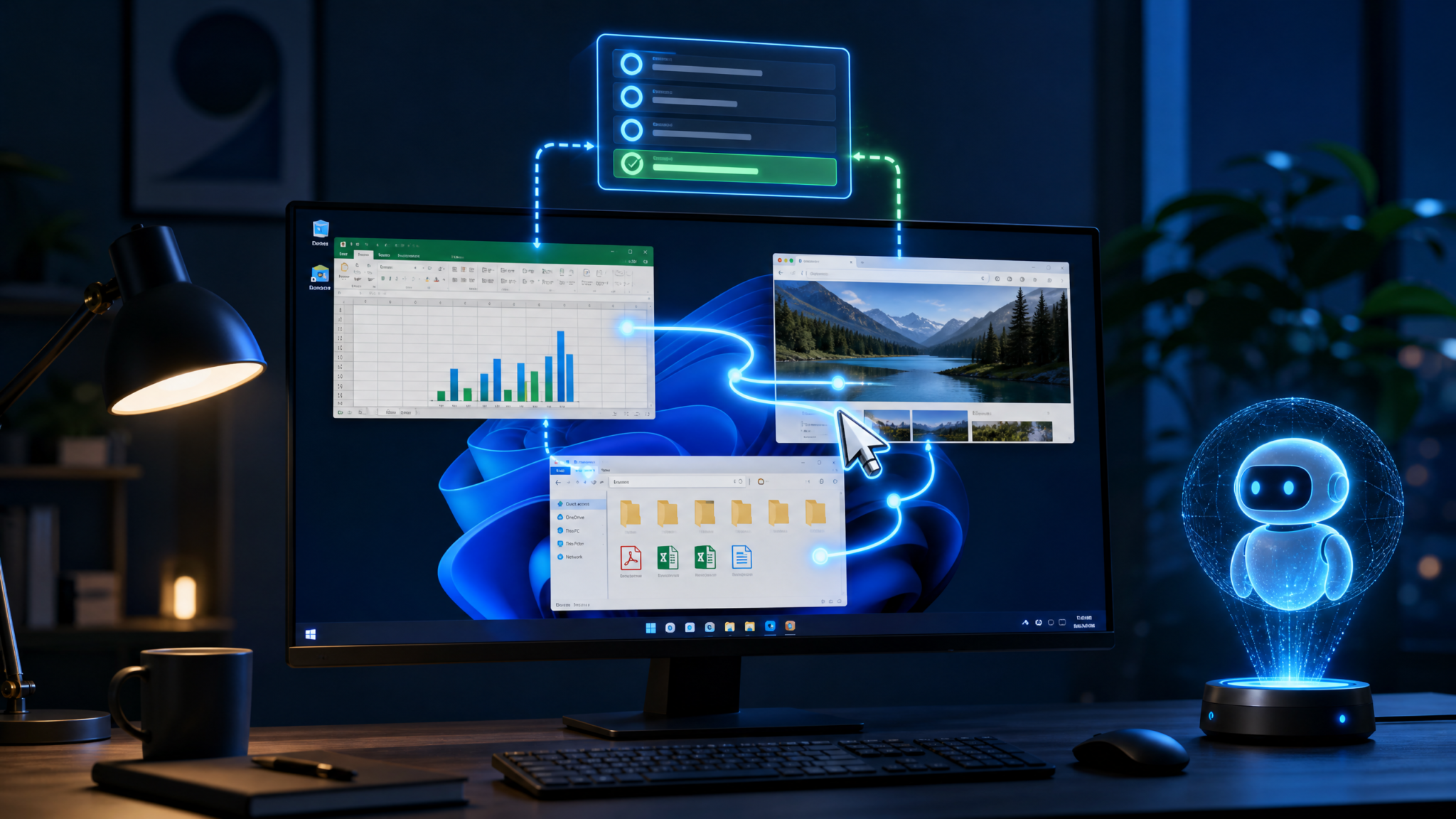
Codex Computer Use is a paradigm shift in desktop automation. Instead of writing brittle scripts keyed to window titles and pixel offsets, an AI agent observes the Windows desktop and performs human-like actions—clicking, typing, scrolling, dragging, and reading on-screen content—while reasoning about tasks end-to-end. This tutorial is a comprehensive, Windows-first guide for setting up and using Computer Use from installation to advanced orchestration. We will cover prerequisites, configuration, the runtime interface, scheduling, workflow integration, robust examples (Excel, browsers, file ops), security, troubleshooting, and when to prefer traditional scripting.
Computer Use was previewed by OpenAI alongside GPT-4o on May 13, 2024 as a “computer-use” capability enabling agents to control and read applications with user consent. While availability and APIs evolve, the core ideas—event-driven actions, sandboxed sessions, human-in-the-loop approvals, and integrated reasoning—have remained consistent since the 2024 previews. This tutorial is grounded in those capabilities and in practical Windows automation patterns you can implement today. For additional context on how this capability compares to prompt-only agents and classic RPA, see our internal analysis at
For additional context on related AI capabilities and workflows, our comprehensive resource on Codex Remote Computer Use: The Complete Prompting Masterclass for Desktop Automation provides practical guidance and implementation strategies that complement the techniques discussed in this article.
What Is Codex Computer Use and How It Differs from Traditional Automation
Codex Computer Use is an agent capability that interacts with a real Windows desktop: it sees what is on the screen, translates natural-language goals into structured actions (mouse/keyboard/UI), and requests permission to read or manipulate content where needed. Conceptually, it’s halfway between prompt-only question answering and enterprise RPA:
- Like RPA: It drives real apps (desktop and browser) and sequences UI actions.
- Unlike RPA: It understands intent, adapts to UI changes, reads on-screen text and images, and can ask for clarifications in natural language.
- Like scripting: It can run deterministic commands and file operations.
- Unlike scripting: It handles unstructured UI, image-based flows, and ambiguous instructions via reasoning and on-screen perception.
Key Concepts
- Desktop agent runtime: A local runtime that executes tool calls (move mouse, click, type, scroll, key combos, capture screen) and streams events/logs. The agent does not get raw system access; it issues requests that the runtime enforces within your Windows user session or sandbox.
- Consent gates: Sensitive operations (reading the screen, opening a file, pasting the clipboard) can require explicit end-user approval per session or per request.
- Action traces: A time-stamped log of agent actions for auditability and rollback analysis.
- Multi-modal reasoning: The agent uses text and vision to interpret on-screen elements—labels, icons, table gridlines, and error dialogs.
- Human-in-the-loop stops: You can design guardrails so the agent pauses when encountering unknown domains, MFA prompts, or irreversible actions.
How It Differs From Traditional Automation
| Dimension | Computer Use (AI Agent) | Traditional RPA | Scripting (PowerShell/Python) |
|---|---|---|---|
| UI Robustness | Adaptive via vision + language; tolerates layout shifts | Selector/pixel fragile; requires frequent updates | N/A for UI; best for CLI/API |
| Task Complexity | End-to-end reasoning; can clarify requirements | Deterministic flows; limited to predefined branches | Strong for deterministic logic and data transforms |
| Setup Time | Fast; prompt-driven; minimal wiring | Heavier tooling; recorder + selector design | Fast if APIs exist; slow if forced to do UI |
| Transparency & Logs | Human-readable action traces; ask/approve steps | Execution logs; less natural explanations | Script logs; no UI rationale |
| Best Use Cases | Cross-app tasks, messy UIs, ad-hoc workflows | Stable, high-volume, fixed UI processes | Data/file ops, APIs, infra automation |
In short: use Computer Use when the workflow depends on real applications and the UI changes too often for brittle selectors. Preserve scripting for CLI/API-heavy tasks and use RPA for high-volume, highly regulated, unchanging UIs.
System Requirements and Prerequisites for Windows
These requirements target a reliable, production-ready setup on Windows 11, and a workable setup on late Windows 10 builds. The agent performs human-like actions, so the machine must be treated like a first-class user endpoint with power, input, and display correctly configured.
Supported Windows Versions
- Windows 11 Pro or Enterprise, 22H2 or 23H2 builds recommended (arm64 or x64; x64 preferred for tooling compatibility).
- Windows 10 Pro or Enterprise, 22H2 (supported but less ideal due to older windowing behaviors).
Hardware
- CPU: 4+ physical cores (8+ threads preferred) for smooth concurrent browsing and Excel automation.
- RAM: 16 GB minimum; 32 GB recommended when driving multiple apps (Excel + browser + PDF).
- Disk: SSD with at least 25 GB free for temp captures, logs, and Office caches.
- GPU: Optional but helpful for fast UI rendering; any modern integrated GPU suffices.
- Display: A real or virtual monitor at 1920×1080 or higher. If headless, attach a dummy HDMI adapter or enable a virtual display driver. Computer Use needs a visible framebuffer.
Software
- Microsoft Office Desktop (Excel) if you plan to automate spreadsheets (M365 Apps for enterprise, 2021 LTSC, or current M365 Monthly Enterprise channel).
- Microsoft Edge or Chrome (latest stable).
- PowerShell 7.4+ (recommended for scripting; “pwsh” in PATH).
- Python 3.11.x or 3.12.x and pip for orchestration code; Node.js 20 LTS for JavaScript examples.
- VC++ 2015–2022 Redistributable and .NET Framework 4.8 if requested by dependencies.
Accounts, Access, and Keys
- OpenAI API access (Organization + Project keys). Computer Use capability may be gated; ensure your account or org has the feature enabled or use an approved partner runtime. See
For additional context on related AI capabilities and workflows, our comprehensive resource on How to Migrate from the OpenAI Assistants API to the Responses API: A Complete Developer Guide with Code Examples provides practical guidance and implementation strategies that complement the techniques discussed in this article.
for broader context.
- A Windows user account dedicated to automation, with local admin only if required (discussed under Security). Sign-in must not be blocked by MFA without a human in the loop.
- Network egress to OpenAI endpoints and the domains used by your target web apps.
Optional but Useful
- Windows Sandbox or a VM (Hyper-V/VMware/VirtualBox) for isolation.
- Dummy HDMI or a virtual display for headless servers.
- Windows Task Scheduler access for recurring automations.
Install Core Tools with Winget
winget install --id Microsoft.PowerShell --source winget -e
winget install --id Python.Python.3.12 --source winget -e
winget install --id OpenJS.NodeJS.LTS --source winget -e
winget install --id Microsoft.Edge --source winget -e
winget install --id Microsoft.VCRedist.2015+.x64 --source winget -e
Verify versions:
pwsh --version        # Expect 7.4.x
python --version      # Expect 3.12.x (or 3.11.x)
node --version        # Expect v20.x LTS
Step-by-Step Setup Guide (Installation, Configuration, Permissions)
In practice you have two viable paths on Windows:
- Official Computer Use runtime (if you have access): install the vendor-provided desktop agent that registers with your OpenAI project and exposes the local screen, input, and file tools under consent gates.
- Community “shim” executor (fallback): a local process that maps agent tool calls to Windows actions (keyboard/mouse, OCR, screenshots). While less feature-complete, it’s sufficient for development and many internal tasks.
We’ll document both. Where details differ, we’ll clearly label the path.
1) Environment Variables and Key Management
Set your OpenAI key and project environment. In PowerShell:
$env:OPENAI_API_KEY = "<your_api_key>"
$env:OPENAI_ORG = "<your_org_id>"      # optional
$env:OPENAI_PROJECT = "<your_project_id>" # optional
Persist for future sessions via System Properties > Environment Variables, or a secure secret manager. Never hardcode keys in scripts or task scheduler XML.
2) Install the OpenAI SDKs
Python and Node examples are provided throughout. Install both SDKs (or choose one):
pip install --upgrade openai==1.* websockets pillow opencv-python pytesseract pyautogui pywin32 uiautomation mss
npm i openai@^4.0.0 ws
Notes:
openaiPython SDK 1.x series introduced the Responses/Assistants v2 clients in 2024; APIs evolve, so consult release notes for method names.pyautogui,uiautomation, andpywin32allow Windows input control and UIA-backed interactions for the shim path.pytesseractrequires Tesseract OCR installed (optional if your runtime already supports text extraction). You can install Tesseract via winget:winget install --id UB-Mannheim.TesseractOCR.
3) Official Computer Use Runtime (If Available)
If your org has access to the official desktop runtime:
- Run the installer provided by your vendor or OpenAI partner.
- Launch the “Computer Use” agent and sign in with your org/project credentials.
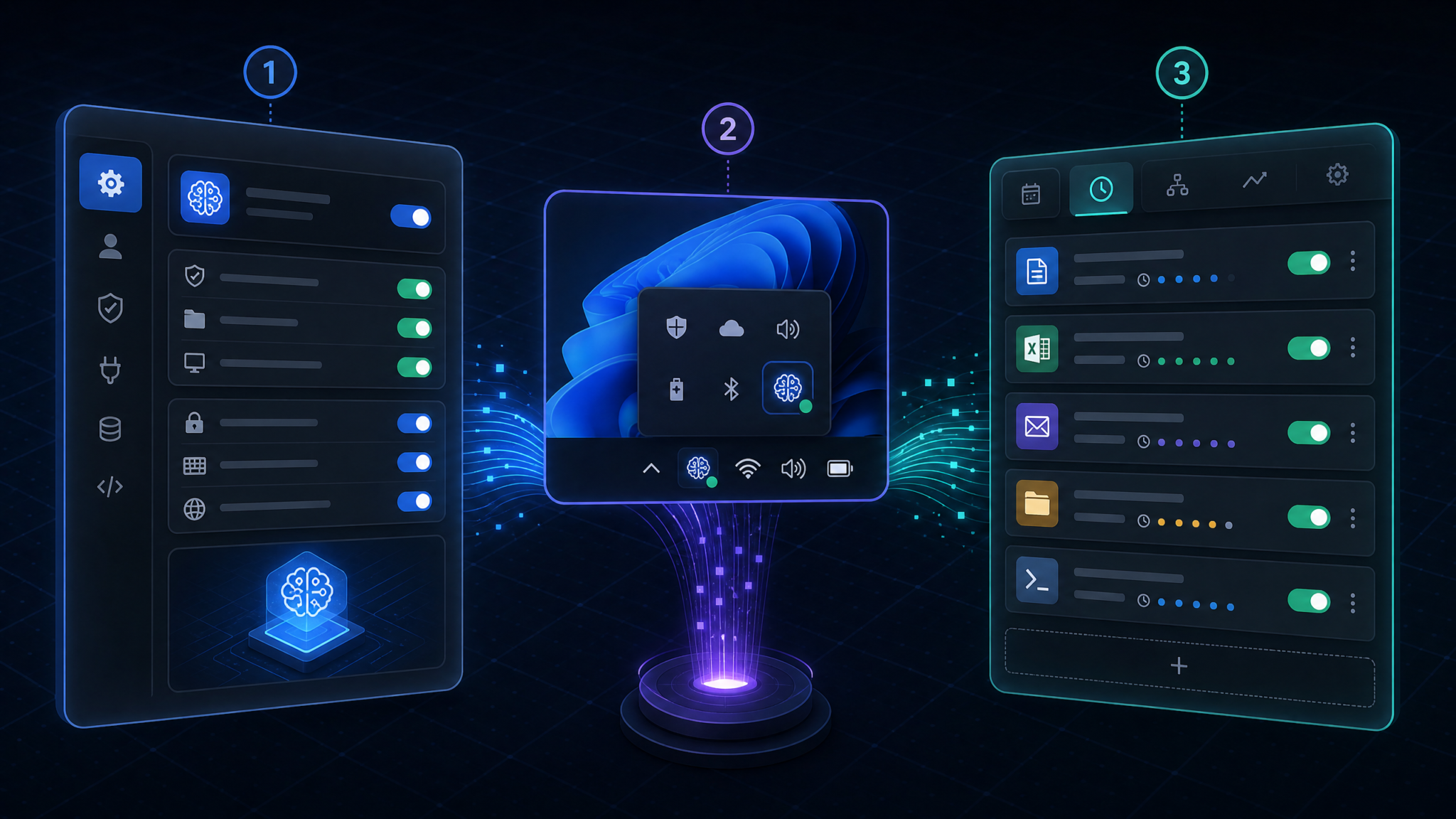
- Grant Windows permissions it requests: screen capture, input control, file access, clipboard (opt-in), and accessibility APIs.
- Configure default consent policy: auto-approve non-sensitive actions, require confirmation for screen reading, file open, secret fields, and purchases.
- Note the local port or WebSocket URL that the runtime uses for event streaming (e.g.,
ws://127.0.0.1:8025) and the agent identifier it displays.
The runtime typically shows a small control panel with: start/stop session, pause input, view logs, and sensitivity overlays for protected apps (e.g., masking passwords in Microsoft Edge). We’ll detail the interface in a later section.
4) Community Shim Executor (Fallback Path)
If you lack runtime access, you can develop with a shim that maps agent tool calls into Windows actions. Below is a minimal Python executor that subscribes to AI tool calls (over HTTP polling for simplicity) and executes them locally.
import time, base64, io, os, json
import pyautogui, uiautomation as uia
from PIL import ImageGrab
import openai

openai.api_key = os.environ.get("OPENAI_API_KEY")

# Safety: slow down to look human and avoid misclicks.
pyautogui.PAUSE = 0.2
pyautogui.FAILSAFE = True

def take_screenshot():
    img = ImageGrab.grab()  # full screen
    buf = io.BytesIO()
    img.save(buf, format='PNG')
    return base64.b64encode(buf.getvalue()).decode('utf-8')

def execute_action(action):
    t = action.get("type")
    args = action.get("args", {})
    if t == "mouse_move":
        x, y = args["x"], args["y"]
        pyautogui.moveTo(x, y, duration=0.15)
    elif t == "click":
        button = args.get("button", "left")
        clicks = args.get("clicks", 1)
        pyautogui.click(button=button, clicks=clicks)
    elif t == "scroll":
        pyautogui.scroll(args.get("amount", -500))
    elif t == "type":
        text = args["text"]
        pyautogui.typewrite(text, interval=0.02)
    elif t == "hotkey":
        pyautogui.hotkey(*args["keys"])  # e.g., ["win","r"]
    elif t == "sleep":
        time.sleep(args.get("seconds", 1))
    else:
        print("Unknown action:", t)

def request_next_actions(goal, context):
    # Pseudocode: using Responses API with a "computer" tool
    # We send a screenshot so the model can reason about the UI.
    screenshot_b64 = take_screenshot()
    content = [
        {"type":"input_text", "text": goal},
        {"type":"input_image", "image_base64": screenshot_b64, "mime_type":"image/png"}
    ]
    # NOTE: Schema differs by SDK version; treat as illustrative.
    resp = openai.responses.create(
        model="gpt-4o",
        input=content,
        tools=[{"type":"computer"}],
        tool_choice="auto",
        metadata={"context": json.dumps(context)}
    )
    return resp

def run_session(goal):
    context = {"approved_read": True}
    while True:
        resp = request_next_actions(goal, context)
        # Extract tool calls. Adjust for your SDK's structure.
        tool_calls = getattr(resp, "output", [])
        if not tool_calls:
            print("No actions; stopping.")
            break
        stop = False
        for item in tool_calls:
            if item.type == "message":
                print("Assistant:", item.content[0].text)
            elif item.type == "tool_call" and item.tool.type == "computer":
                action = item.tool.action  # schema illustration
                if action["type"] == "finish":
                    stop = True
                else:
                    execute_action(action)
        if stop:
            break
        time.sleep(0.5)

if __name__ == "__main__":
    run_session("Open Excel, load C:\\Data\\sales.xlsx, filter to 2025, and export to PDF on Desktop.")
Important: the above is an illustrative skeleton. The real SDK surfaces tool calls, messages, and events with different property names depending on version. Treat the program flow—capture, ask for actions, execute, loop—as the invariant pattern, and adapt field names to your SDK release.
5) Windows Permissions and Settings
- Display: Ensure a real or virtual monitor. On headless servers, plug a dummy HDMI dongle, or configure a virtual display via GPU driver tools.
- UAC prompts: Running as an admin may spawn elevated apps that the non-elevated automation cannot control. Prefer non-admin apps or start the runtime elevated (with care).
- Focus stealing: Disable aggressive focus-stealing policies; Computer Use expects stable focus when typing.
- Sleep and lock: Set “Never” sleep for AC power. If using RDP, prevent session lock and disable “Turn off display” timers.
- Input locales: Use a stable keyboard layout (e.g., EN-US) to avoid key mismatches.
6) Sanity Check
Run a simple goal like “open Notepad and type Hello.” Verify the pointer moves, Notepad opens, and text appears correctly. If clicks offset from targets, adjust DPI scaling to 100–125% and retest.
Understanding the Computer Use Interface and Controls
Whether you use an official runtime or a shim, a few UI concepts are universal:
Control Panel Basics
- Start/Stop Session: Start a new controlled session. Stopping clears ephemeral caches and revokes prior approvals.
- Pause/Resume Input: Temporarily blocks mouse/keyboard injection if you need to take manual control.
- Live View: Preview what the agent “sees” (screen capture at reduced FPS). Sensitive regions may be blurred.
- Consent Gate Toggles: Buttons to approve “Read screen,” “Read clipboard,” “Open file,” “Type password.” These can be set per request or for the entire session.
- Action Log: Time-stamped entries such as “mouse_move(1024, 120)”, “click(left)”, “type(‘Report 2026’)”. Errors and retries are highlighted.
- Privacy Overlays: Mask patterns over fields tagged as secrets (password boxes, credit card numbers).
Core Actions the Agent Uses
| Action | Arguments | Typical Use | Notes |
|---|---|---|---|
| mouse_move | x, y | Hover menus, align to buttons | May be followed by click or drag |
| click | button, clicks | Open apps, press buttons, select | Left/right/double |
| drag | from (x1,y1) to (x2,y2) | Resize panes, drag files | Hold-move-release |
| type | text | Enter data, search fields | Respects current focus |
| hotkey | keys[] | Ctrl+C/V, Alt+Tab, Win+R | Layouts matter |
| scroll | amount | Read long pages, lists | Positive/negative |
| wait_ui | pattern/timeout | Wait for loading spinners | Vision- or UIA-based |
| read_screen | region | Capture text, parse tables | May require approval |
In addition to low-level actions, the agent can propose higher-level intents like “Open Excel” or “Navigate to Settings > Accounts.” The runtime maps these to sequences of atomic actions. The agent uses its current screenshot plus a short memory of recent screens to decide the next atomic step.
Human-in-the-Loop Controls
- Auto-approval lists: Declare apps and domains the agent can read/control without prompts (e.g., “Excel,” “Internal CRM”).
- Ask-once-per-session: The first attempt to read the screen triggers a permission dialog; subsequent reads are allowed for that session only.
- Per-request prompts: Enable for sensitive apps (bank portals, password managers) to ensure explicit consent every time.
- Kill switch: A hotkey (e.g., Ctrl+Alt+Esc) that instantly stops action injection.
Remote Desktop Automation: Controlling Applications, Clicking, Typing, Reading Screens
Let’s get hands-on. We’ll demonstrate robust interaction patterns that work across Excel, browsers, and the Windows shell.
Launching Apps Reliably
Use Win+R for deterministic launching instead of searching the Start menu:
# Python shim snippet
execute_action({"type":"hotkey","args":{"keys":["win","r"]}})
execute_action({"type":"type","args":{"text":"excel"}})
execute_action({"type":"type","args":{"text":"\n"}})  # Enter
execute_action({"type":"sleep","args":{"seconds":2}})
Alternatively, ask the agent to find the Start button and search; it’s more flexible but slower under load.
Focusing Windows and Navigating
Use Alt+Tab with short sleeps to switch focus. In structured automations, you can locate window by title using UI Automation (UIA):
import uiautomation as uia

def focus_window_by_title(substr):
    win = uia.WindowControl(searchDepth=1, NameRegex=f".*{substr}.*")
    if win.Exists(3):
        win.SetActive()
        return True
    return False

focus_window_by_title("Excel")
Typing vs. Pasting
Typing is universal but slower; pasting is faster but may trigger protected fields. For large text blocks, consider writing to a temp file and importing via the app’s UI to avoid clipboard exposure.
Reading the Screen
Reading uses either the runtime’s built-in capture and OCR or a shim like Tesseract:
from PIL import ImageGrab
import pytesseract

box = (200, 300, 900, 700)  # left, top, right, bottom
img = ImageGrab.grab(bbox=box)
text = pytesseract.image_to_string(img)
print(text)
Agents typically combine screenshot + LLM vision to interpret the UI (e.g., “the Export button is gray”). In guarded environments, the runtime requests your approval before capturing screen pixels for AI analysis.
Clicking Precisely
For high precision on variable DPI systems, let the agent propose coordinates based on on-screen context, then the runtime converts logical coordinates to physical. If rolling your own shim, retrieve display scaling to correct coordinates:
import ctypes

def get_scaling_factor():
    # Windows scale as percentage (100, 125, 150)
    shcore = ctypes.windll.shcore
    dpi = ctypes.c_uint()
    shcore.GetDpiForSystem(ctypes.byref(dpi))
    return dpi.value / 96.0

scale = get_scaling_factor()  # 1.0, 1.25, 1.5
Text Entry Patterns
- Use Ctrl+A then type to fully replace a field.
- Use Tab/Shift+Tab to navigate forms rather than clicking exact coordinates.
- For password boxes, rely on human-approved typing (not clipboard).
Reliability Tactics
- Waits: Prefer visual waits (spinner disappears) over fixed sleeps. If using UIA, wait until a control becomes enabled.
- Retries: Reattempt a click if the subsequent screen does not match expectations.
- Guardrails: Before destructive actions (deletes), ask the agent to summarize intent and request approval.
Task Scheduling: Setting Up Recurring Automated Workflows
Windows Task Scheduler is the simplest way to trigger recurring Computer Use runs: nightly report generation, weekly portal downloads, or daily CRM updates.
Create a Scheduled Task
Suppose run_session.py takes a text goal and an optional workflow ID. We’ll schedule it every weekday at 6:30 AM:
schtasks /Create /TN "CodexDailyReports" /TR "pwsh -File C:\\Automation\\start.ps1" /SC WEEKLY /D MON,TUE,WED,THU,FRI /ST 06:30 /RU DOMAIN\\AutoUser /RP <password> /F
Where start.ps1 is:
$env:OPENAI_API_KEY = (Get-Content C:\Secure\openai.key | ConvertTo-SecureString | ConvertFrom-SecureString) # Example only; use a KMS/secret store
$goal = "Generate today's Excel revenue report from C:\Data\sales.xlsx, email PDF via Outlook to [email protected]."
python C:\Automation\run_session.py --goal "$goal" --workflow "daily-revenue"
For hardened setups, use “Run only when user is logged on” to ensure a visible desktop, or configure an unattended RDP console session with a virtual display. Consider Windows Sandbox for per-run isolation if application state drift is a problem.
Task Conditions
- Wake the computer: Check “Wake the computer to run this task.”
- No sleep: Ensure sleep is disabled during the window.
- Retry on failure: In Settings, set “If the task fails, restart every 5 minutes up to 3 times.”
Logging and Alerting
- Redirect stdout/stderr to a log file, or write structured logs (JSON lines) for each action.
- Use Windows Event Log for high-fidelity auditing: write an event when a run starts/ends and on critical consent gates.
- Integrate with email/Slack to notify on failures or manual approval blocks. See
For additional context on related AI capabilities and workflows, our comprehensive resource on The Codex Prompt Engineering Playbook: 15 Prompts for Optimizing AI-Generated Code Quality, Reducing Hallucinations, and Improving Test Coverage provides practical guidance and implementation strategies that complement the techniques discussed in this article.
for design patterns.
Workflow Integration: Connecting Computer Use with Other Codex Features
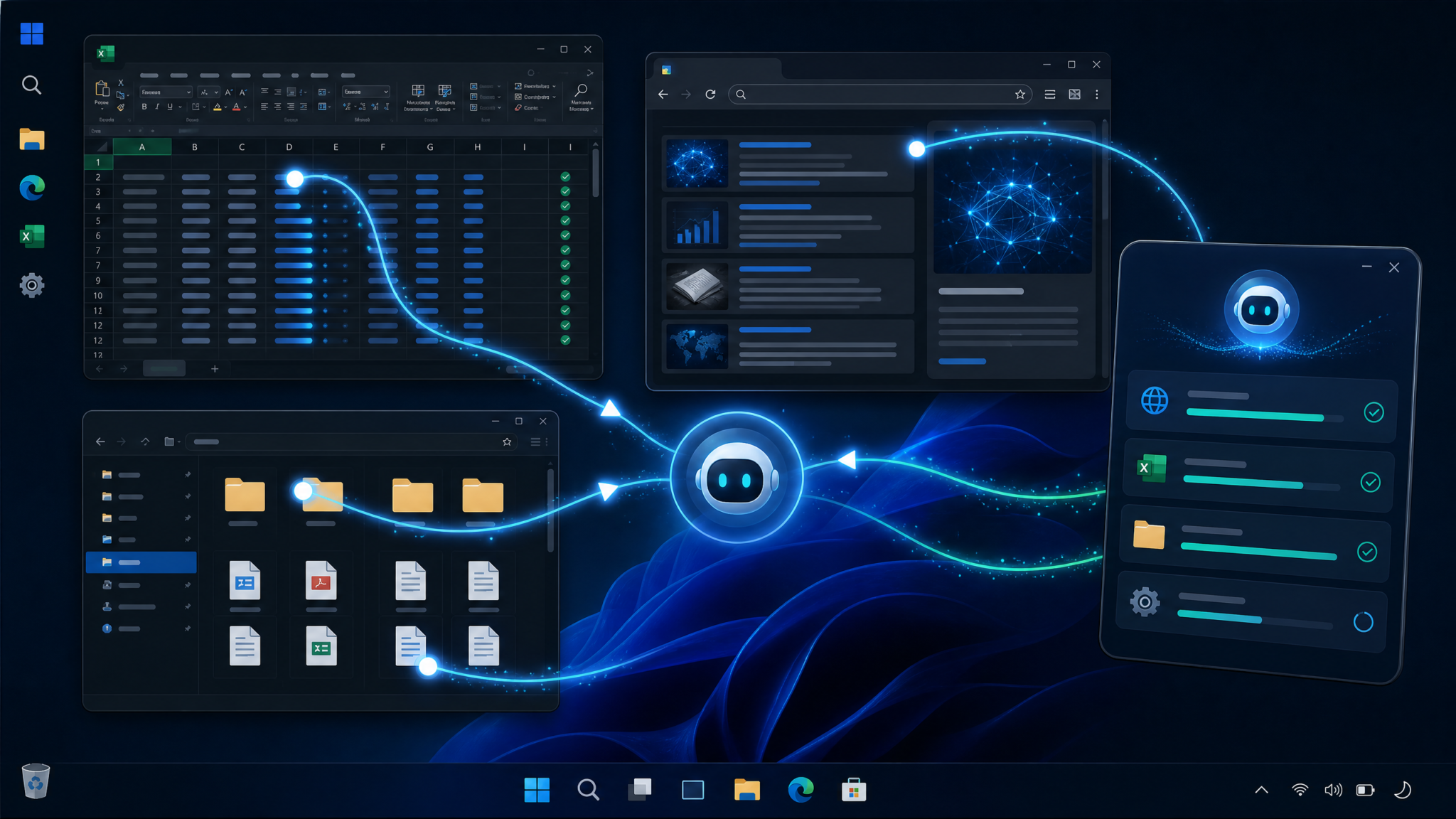
Computer Use is most powerful when combined with complementary tools:
- Code interpreter / Python sandbox: Parse CSVs, perform analytics, and output structured artifacts.
- File search / retrieval: Ground the agent with local files and corporate knowledge bases.
- Custom functions (Tool Calling): Expose internal APIs (e.g., a reporting endpoint) so the agent can mix UI and direct API calls, choosing the best path per step.
Here’s an illustrative Python orchestration where an agent downloads a portal CSV via Computer Use, then hands off analysis to a local Python function tool, and returns to Computer Use to email results via Outlook.
import os, json, time
import openai

openai.api_key = os.environ["OPENAI_API_KEY"]

tools = [
  {"type": "computer"},  # UI control
  {
    "type": "function",
    "function": {
      "name": "analyze_sales_csv",
      "description": "Compute daily totals and trend deltas",
      "parameters": {
        "type":"object",
        "properties": {
          "path": {"type":"string"}
        },
        "required":["path"]
      }
    }
  }
]

def analyze_sales_csv(path:str):
    import csv, statistics
    totals = []
    with open(path, newline='') as f:
        r = csv.DictReader(f)
        for row in r:
            totals.append(float(row["revenue"]))
    return {
        "count": len(totals),
        "sum": sum(totals),
        "avg": statistics.mean(totals) if totals else 0
    }

def run_workflow():
    goal = ("Open Edge, navigate to https://portal.acme.local/reports, "
            "login if needed, download today's CSV to C:\\Data\\inbound, "
            "then ask to analyze it.")
    resp = openai.responses.create(
        model="gpt-4o",
        input=[{"type":"input_text","text": goal}],
        tools=tools,
        tool_choice="auto"
    )
    # Pseudocode loop to handle tool calls:
    while True:
        for item in resp.output:
            if item.type == "tool_call":
                if item.tool.type == "computer":
                    # forward to desktop runtime; omitted for brevity
                    pass
                elif item.tool.type == "function" and item.tool.name == "analyze_sales_csv":
                    result = analyze_sales_csv(item.tool.arguments["path"])
                    # Submit tool result back:
                    resp = openai.responses.create(
                        model="gpt-4o",
                        input=[{"type":"input_text","text": json.dumps(result)}],
                        tools=tools,
                        tool_choice="auto"
                    )
                    break
        # exit condition detection omitted

run_workflow()
The model decides when to call the function versus the computer tool. With a robust set of functions, the agent can avoid fragile UI sequences (e.g., uploading via a web form) and use APIs when available, while still relying on Computer Use for places where no API exists.
Practical Examples
Example 1: Automating Excel Reports
Goal: Open an Excel workbook, filter data, create a pivot, and export a PDF named “Revenue Report <date>” to the Desktop.
Prompt Engineering for Reliability
Provide structured intent to the agent:
Objective:
- Open "C:\Data\sales.xlsx"
- Filter "Year" = 2025; "Region" = EMEA
- Create a PivotTable: Rows=Product, Values=SUM(Revenue)
- Format as currency with 0 decimals
- Export active sheet to PDF on Desktop

Constraints:
- If Excel is not installed, ask me what to do
- Before export, show me a screenshot to approve

Notes:
- Keyboard layout EN-US
- DPI scaling 125%
Action Flow
- Launch Excel with Win+R → “excel”.
- Ctrl+O, type path, Enter to open workbook.
- Use Excel’s funnel icon or Data > Filter to set filters; rely on on-screen text recognition to identify “Year” and “Region” headers.
- Insert > PivotTable from Table/Range; agent selects appropriate range.
- Drag fields in PivotTable Fields pane: “Product” to Rows, “Revenue” to Values.
- Right-click Values > Number Format > Currency (0 decimals).
- File > Export > Create PDF; pick Desktop; confirm filename with date.
Excel-Specific Tips
- When opening files, prefer Ctrl+O then direct path typing to avoid explorer navigation fragility.
- If the agent struggles with the PivotTable Fields pane, fall back to a Power Query refresh plan or a prebuilt pivot in the template that the agent refreshes and exports.
- For heavy analysis, combine with a Python function tool that ingests
sales.xlsxdirectly, generates a chart, and the agent inserts the chart image into Excel before export. SeeAdvanced users can extend these workflows through multi-agent architectures. Our comprehensive guide on How to Build Multi-Agent Workflows with OpenAI Codex: Automating 8-Hour Tasks with Parallel Agent Orchestration explains how to coordinate multiple AI agents for complex, concurrent development tasks.
.
Script Skeleton for Approval-before-Export
# Pseudocode: ask for final confirmation with a screenshot
def review_and_export():
    # Agent composes the sheet
    screenshot_b64 = take_screenshot()
    approval = ask_human("Proceed with export?", screenshot_b64)
    if approval == "yes":
        # Continue via Computer Use: File > Export > PDF
        pass
    else:
        # Ask for corrections or exit
        pass
Example 2: Browser Tasks with MFA
Goal: Log into an internal portal, navigate to Reports, export CSV, and upload a processed file back. Challenges include MFA and file pickers.
Strategies
- MFA: Configure the run so that a human approves the login screen and completes MFA while the agent waits on a consent gate.
- Downloads: Preconfigure Edge to “Ask where to save” off and default to a known folder (e.g.,
C:\Data\inbound). - Uploads: Use keyboard navigation in the file picker: paste path, Enter.
Edge Configuration via Registry (Optional)
reg add "HKCU\Software\Policies\Microsoft\Edge" /v "PromptForDownloadLocation" /t REG_DWORD /d 0 /f
reg add "HKCU\Software\Policies\Microsoft\Edge" /v "DownloadDirectory" /t REG_SZ /d "C:\Data\inbound" /f
Agent Flow
- Open Edge → navigate to portal URL.
- Detect login fields; type username; wait for approval to type password.
- Pause for MFA; human completes; agent resumes when reports page appears.
- Click “Export CSV”; ensure file appears in inbound folder.
- Hand off to function tool to process CSV; agent returns to upload result via “Upload” button.
Failure Handling
- If the portal layout changes, agent asks clarifying questions (“I see ‘Data Center’ instead of ‘Reports.’ Should I proceed there?”).
- On 2FA failures, agent retries once; on second failure, aborts and notifies.
Example 3: File Management at Scale
Goal: Nightly dedupe of a shared drive folder, zip old files, and archive to a monthly directory. Best done with a function tool or PowerShell, but sometimes you must navigate Explorer for business sign-off or to follow a manual policy.
Explorer-First Flow
- Win+E, navigate to
\\fileserver\drop. - Sort by name; identify duplicate suffixes (“(1)”).
- Delete duplicates after confirmation screenshot.
- Select files older than 90 days; right-click → Send to → Compressed (zipped) folder.
- Move the zip to
\\fileserver\archive\2026-07.
Prefer PowerShell for Reliability
# Function tool example the agent can call instead of clicking
param([string]$Root="C:\Data\drop",[string]$Archive="C:\Data\archive\2026-07")

# Remove duplicates like "file (1).ext"
Get-ChildItem $Root -File -Recurse | Where-Object { $_.Name -match " \(\d+\)\." } | Remove-Item -Force

# Zip files older than 90 days
$old = Get-ChildItem $Root -File | Where-Object { $_.LastWriteTime -lt (Get-Date).AddDays(-90) }
if ($old) {
    $zip = Join-Path $Root "archive-$((Get-Date -Format yyyyMMdd)).zip"
    Compress-Archive -Path $old.FullName -DestinationPath $zip -Force
    Move-Item $zip $Archive
}
The agent can mix both: verify with Explorer for a human’s visual confirmation, then call the PowerShell function to execute at machine speed.
Security Considerations and Best Practices
Desktop automation expands your attack surface. Treat the automation host like a privileged workstation with layered defenses.
Principle of Least Privilege
- Create a dedicated Windows account with the minimal rights needed. Avoid local admin unless necessary (e.g., driver installs).
- Use UAC properly: either run the runtime elevated and automate only non-elevated apps, or design flows to avoid elevation.
Network and Segmentation
- Place the host in a segmented VLAN with egress restricted to required domains.
- Restrict inbound RDP access; use Just-in-Time access if available.
Key Management
- Store API keys in a secret manager or Windows Credential Manager. Never embed in scripts or task XML.
- Rotate keys regularly; scope by project.
Consent and Data Minimization
- Keep “read screen” consent scoped to known apps or time-bounded per session.
- Mask or block sensitive apps entirely (e.g., password managers) during automation runs.
Audit and Forensics
- Log all action traces with timestamps, including which human granted which consent.
- Retain minimal screenshots for error triage; purge after SLA windows.
Isolation
- Windows Sandbox or a persistent VM with snapshots reduces drift and blast radius.
- Run different workflows on separate VMs to limit cross-process interference and secrets exposure.
Troubleshooting Common Issues
No Screen or Black Frames
- Attach a dummy HDMI adapter or enable a virtual display driver. Many GPUs need an active display to render.
- Disable “Turn off display” in Power & sleep settings.
Clicks Offset from Targets
- Set DPI scaling to 100–125% consistently and reboot.
- Ensure the runtime is DPI-aware; if not, disable high DPI scaling override on the executable (Properties → Compatibility).
UAC/Elevation Problems
- Elevation spawns a separate desktop the agent cannot control. Either elevate the runtime too or avoid elevated prompts during runs.
RDP Session Locks
- Automation fails when the session locks. Use “console” sessions, disable lock timers, or a local service that attaches to the physical console.
Slow or Inconsistent OCR
- Use UI Automation when possible (native control names/values).
- Increase screenshot region resolution; turn off ClearType only if it improves OCR materially.
Clipboard and Input Locale
- If pasted text is garbled, verify keyboard layout. Force EN-US for runs.
- Use Unicode-friendly input paths for non-ASCII characters.
Browser Download Prompts
- Disable “Ask where to save”; predefine the download directory as shown earlier.
Excel File Locks
- Close background Excel instances (Task Manager) before runs.
- Open files read-only if multiple processes contend.
Advanced Patterns: Chaining Multiple Computer Use Tasks
Real automations span multiple applications and checkpoints. Build reliable chains using a state machine with checkpoints, retries, and human approvals at risk points.
State Machine Skeleton
from enum import Enum, auto
import json, time

class Stage(Enum):
    START = auto()
    DOWNLOAD = auto()
    VERIFY = auto()
    ANALYZE = auto()
    EXPORT = auto()
    EMAIL = auto()
    DONE = auto()
    FAIL = auto()

state = {"stage": Stage.START.name, "retries": 0}

def persist():
    with open("state.json","w") as f: f.write(json.dumps(state))

def run():
    try:
        while True:
            s = Stage[state["stage"]]
            if s == Stage.START:
                # open browser, navigate
                state["stage"] = Stage.DOWNLOAD.name
            elif s == Stage.DOWNLOAD:
                # download CSV via Computer Use
                state["stage"] = Stage.VERIFY.name
            elif s == Stage.VERIFY:
                # present screenshot; wait for human "OK"
                state["stage"] = Stage.ANALYZE.name
            elif s == Stage.ANALYZE:
                # call function tool; produce summary
                state["stage"] = Stage.EXPORT.name
            elif s == Stage.EXPORT:
                # open Excel; export PDF
                state["stage"] = Stage.EMAIL.name
            elif s == Stage.EMAIL:
                # open Outlook; attach and send
                state["stage"] = Stage.DONE.name
            elif s == Stage.DONE:
                break
            persist()
            time.sleep(0.2)
    except Exception as e:
        state["stage"] = Stage.FAIL.name
        persist()
        raise

run()
Checkpointing and Idempotency
- Write files with unique names (timestamped) to avoid overwriting partial outputs.
- After a crash, resume from the last stage using the persisted state.
Adaptive Plans
Give the agent a playbook with fallbacks, for example: “If the web API for report download is available, use the function tool; otherwise, navigate the browser UI.” The agent selects the path contextually. You can include business rules like “don’t email if the revenue total delta exceeds 20%—ask for human review.”
Limitations and When to Use Traditional Scripting Instead
Computer Use is not a silver bullet. Prefer traditional scripting when:
- An official API exists for the task (downloading reports, posting data).
- Throughput and determinism are paramount (thousands of records per minute).
- The UI is highly regulated and changes rarely (classic RPA sweet spot).
- You cannot permit screen reading or input control due to compliance.
Decision Matrix
| Scenario | Best Approach | Why |
|---|---|---|
| Download monthly CSV from a stable API | Function tool / Script | Faster, reliable, easier to monitor |
| Operate legacy WinForms app with no API | Computer Use | Vision + input control handles UI-only processes |
| Massive data transform | Script (Python/Pandas) | Memory-safe, vectorized operations |
| Occasional ad-hoc desktop tasks | Computer Use | Fast to implement; flexible |
Configuration Examples and Snippets
Minimal JSON Policy for Consent Gates
{
  "auto_approve": {
    "apps": ["EXCEL.EXE", "msedge.exe", "explorer.exe"],
    "actions": ["mouse_move", "click", "type", "scroll"]
  },
  "prompt_approve": {
    "actions": ["read_screen", "read_clipboard", "open_file", "type_password"]
  },
  "blocked": {
    "apps": ["keepass.exe", "1password.exe"]
  }
}
Node.js Event Loop Sketch
import OpenAI from "openai";
const client = new OpenAI({ apiKey: process.env.OPENAI_API_KEY });

async function loop(goal) {
  let done = false;
  while (!done) {
    const screenshotB64 = await captureBase64Png(); // implement local capture
    const resp = await client.responses.create({
      model: "gpt-4o",
      input: [
        { type: "input_text", text: goal },
        { type: "input_image", image_base64: screenshotB64, mime_type: "image/png" }
      ],
      tools: [{ type: "computer" }],
      tool_choice: "auto"
    });
    for (const item of resp.output ?? []) {
      if (item.type === "message") console.log(item.role, item.content?.[0]?.text);
      if (item.type === "tool_call" && item.tool.type === "computer") {
        const a = item.tool.action;
        if (a.type === "finish") { done = true; break; }
        await executeLocally(a); // translate to Windows input
      }
    }
  }
}
Windows Task Scheduler XML (Advanced)
<Task xmlns="http://schemas.microsoft.com/windows/2004/02/mit/task" version="1.2">
  <Triggers>
    <CalendarTrigger>
      <ScheduleByWeek>
        <WeeksInterval>1</WeeksInterval>
        <DaysOfWeek><Monday/><Tuesday/><Wednesday/><Thursday/><Friday/></DaysOfWeek>
      </ScheduleByWeek>
      <StartBoundary>2026-07-17T06:30:00</StartBoundary>
    </CalendarTrigger>
  </Triggers>
  <Principals>
    <Principal id="Author">
      <UserId>DOMAIN\\AutoUser</UserId>
      <LogonType>Password</LogonType>
      <RunLevel>LeastPrivilege</RunLevel>
    </Principal>
  </Principals>
  <Settings>
    <MultipleInstancesPolicy>IgnoreNew</MultipleInstancesPolicy>
    <DisallowStartIfOnBatteries>false</DisallowStartIfOnBatteries>
    <StopIfGoingOnBatteries>false</StopIfGoingOnBatteries>
    <RunOnlyIfNetworkAvailable>true</RunOnlyIfNetworkAvailable>
    <WakeToRun>true</WakeToRun>
  </Settings>
  <Actions Context="Author">
    <Exec>
      <Command>pwsh</Command>
      <Arguments>-File C:\Automation\start.ps1</Arguments>
      <WorkingDirectory>C:\Automation</WorkingDirectory>
    </Exec>
  </Actions>
</Task>
Operational Tips for Windows
- Profiles: Create an “Automation” Windows user profile with pinned apps and a clean taskbar. Remove distractions (Teams auto-start, notifications).
- Office: Set Excel trust center macros policy; disable add-ins that show modal popups at launch.
- Edge: Disable first-run experience and sign-in prompts for the automation profile.
- Fonts: Use standard fonts to improve OCR reliability (Segoe UI, Calibri).
- Time: Sync NTP to avoid timestamp-related failures in reports.
End-to-End Example: Daily Finance Report
This canonical workflow demonstrates chaining Computer Use, function tools, and human approvals.
Requirements
- Excel installed and licensed.
- Access to finance portal (browser) and an SMTP relay or Outlook.
- Shared drive for archiving PDFs.
Plan
- Open Edge → portal → login (human approves password typing and completes MFA).
- Download “revenue_today.csv” to C:\Data\inbound.
- Call Python function tool to compute totals, variance from yesterday, and a short summary paragraph.
- Open Excel template; import CSV; paste summary into a text box.
- Export PDF; save to C:\Data\archive\YYYY-MM\.
- Open Outlook; compose email with PDF attached; CC stakeholders; human approves final send.
Guardrails
- Mask password fields; require explicit “type_password” approval.
- Require “final_send” confirmation with a screenshot of the draft email.
- Abort if the variance exceeds 25% unless a human overrides.
Sample Orchestrator Snippet
# Within your loop, add a safety check after analysis:
result = analyze_sales_csv("C:\\Data\\inbound\\revenue_today.csv")
if result["sum"] > 1.25 * result["yesterday_sum"]:
    screenshot = take_screenshot()
    if ask_human("Variance > 25%. Proceed to send?", screenshot) != "yes":
        raise Exception("Send aborted by operator")
Governance and Change Management
- Version locks: Pin SDK and runtime versions; test upgrades in a staging VM.
- Change windows: Apply Office/browser updates during maintenance windows; re-baseline UIs.
- Documentation: Keep a runbook with screenshots of expected UI states and fallbacks.
- Incident response: Maintain the kill switch and emergency stop procedures.
FAQ
Is Codex Computer Use available to all OpenAI customers?
Computer Use was previewed with GPT-4o in May 2024 and has seen phased rollouts since. Availability depends on your organization’s access and the current API/runtime programs. If you don’t have the official runtime, you can prototype with a local executor (shim) that follows the same event-action pattern.
Do I need a GPU for Computer Use on Windows?
No. A GPU is optional. The heaviest work is UI rendering and occasional vision analysis. A modern CPU with integrated graphics is sufficient for typical desktop tasks. That said, GPU acceleration helps for high-resolution screens and multiple simultaneous apps.
Can Computer Use type passwords and handle MFA?
Yes, but only with explicit approval. Password fields should be typed (not pasted) under a consent gate. MFA remains a human-in-the-loop step; the agent can wait and resume after the user completes it.
How does this differ from RPA tools?
Traditional RPA relies on exact selectors or coordinates and preprogrammed flows. Computer Use adds vision and language understanding, enabling it to adapt to moderate UI changes and clarify ambiguous instructions. It is better for ad-hoc and cross-app tasks; RPA still wins for unchanging, high-volume processes with strong compliance requirements.
What about headless servers without monitors?
Attach a dummy HDMI adapter or configure a virtual display. Computer Use requires an active framebuffer to see and act. Also disable display sleep and session lock.
Can I combine APIs and Computer Use?
Yes. Expose internal APIs as function tools so the agent can choose APIs when exactness and speed are required, and fall back to UI control when no API exists. This hybrid approach is often the most robust. See
For additional context on related AI capabilities and workflows, our comprehensive resource on How to Use GPT-5.3-Codex for Self-Improving Code: Recursive AI Development Patterns and Practical Implementation provides practical guidance and implementation strategies that complement the techniques discussed in this article.
How do I ensure repeatability?
Use state machines with checkpoints, idempotent file naming, robust waits (UIA or vision-based), and pinned versions of tools. Involve a human gate for irreversible actions.
What are typical failure modes?
Display/DPI mismatches, UAC elevation desktop switches, session locks, browser download prompts, and unexpected popups. Address them with the troubleshooting playbook in this article and pre-configuration steps.
Access 40,000+ AI Prompts for ChatGPT, Claude & Codex — Free!
Subscribe to get instant access to our complete Notion Prompt Library — the largest curated collection of prompts for ChatGPT, Claude, OpenAI Codex, and other leading AI models. Optimized for real-world workflows across coding, research, content creation, and business.
Conclusion
Codex Computer Use brings human-speed flexibility to Windows automation by letting an AI agent see and act on real applications. With the right environment (stable display, permissions, SDKs), good guardrails (consent gates, kill switch), and an orchestration pattern (state machine, function tools, scheduling), you can automate complex, cross-application workflows—from Excel reports to browser tasks—without brittle selectors or excessive scripting. When APIs exist, use them; when only the UI is available, Computer Use closes the gap. For deeper dives into orchestration patterns and safety, see
Advanced users can extend these workflows through multi-agent architectures. Our comprehensive guide on How to Build Multi-Agent Workflows with OpenAI Codex: Automating 8-Hour Tasks with Parallel Agent Orchestration explains how to coordinate multiple AI agents for complex, concurrent development tasks.
and the Assistants context at
For additional context on related AI capabilities and workflows, our comprehensive resource on How to Migrate from the OpenAI Assistants API to the Responses API: A Complete Developer Guide with Code Examples provides practical guidance and implementation strategies that complement the techniques discussed in this article.
