
Mastering ChatGPT’s New Agent Mode for Deep Research: A Comprehensive Tutorial
Introduction to Agent Mode
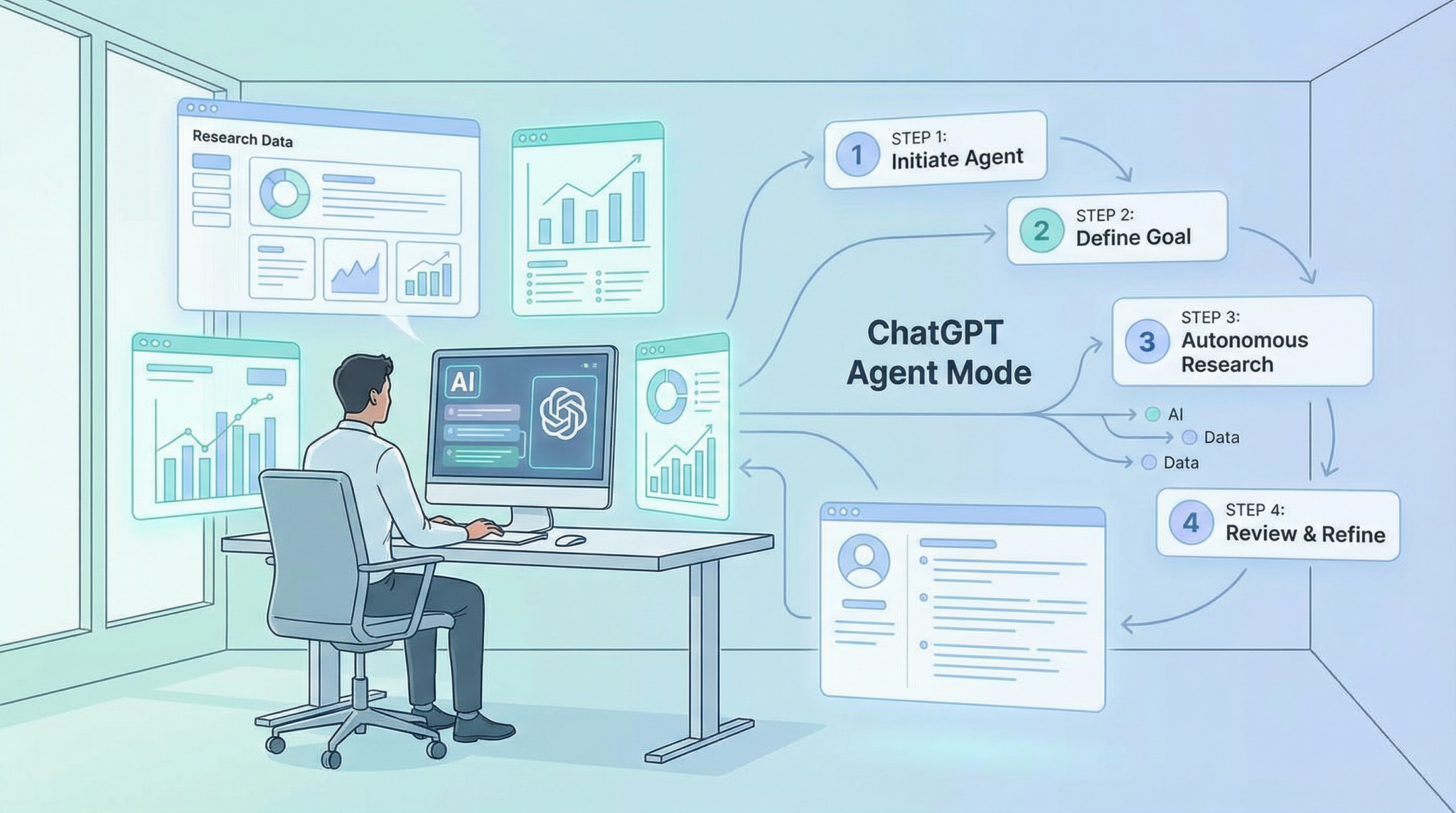
ChatGPT’s Agent Mode is the latest advancement in AI-assisted deep research capabilities. Designed to replace the legacy deep research mode, Agent Mode leverages enhanced multi-step reasoning, autonomous task management, and dynamic resource integration to empower users to perform complex, multi-layered research tasks with unprecedented ease and accuracy. Whether you are an academic researcher, a content creator, or a data analyst, Agent Mode offers a robust environment for deep dives into intricate topics.
Unlike the older system, Agent Mode acts more like a virtual research assistant that can autonomously gather, analyze, and synthesize information from multiple sources, while allowing user-driven customization and control over the research process.
Why Switch from Legacy Deep Research Mode?
The legacy deep research mode, while powerful for its time, had several limitations that Agent Mode now overcomes. Here’s why upgrading is highly recommended:
- Autonomy: Agent Mode can independently manage multi-step research workflows without constant user input.
- Source Diversity: It integrates data from a wider range of up-to-date sources, increasing accuracy and depth.
- Context Retention: Maintains a richer context over longer sessions, enabling more coherent and connected insights.
- Customization: Users can fine-tune the agent’s behavior and prioritize research goals with specific instructions.
- Speed and Efficiency: Optimized algorithms reduce the time needed to complete complex queries.
Transitioning to Agent Mode will future-proof your research workflows and unlock new possibilities for automated knowledge discovery.
Getting Started with Agent Mode
Before you dive into using Agent Mode, ensure you meet these prerequisites:
- ChatGPT Plus Subscription: Agent Mode is available exclusively to Plus subscribers or enterprise users.
- Updated Interface: Make sure your ChatGPT interface is updated to the latest version that supports Agent Mode.
- Stable Internet Connection: Agent Mode relies on live data integration and cloud processing.
Once ready, follow these initial steps to activate Agent Mode:
- Log into your ChatGPT Plus account at ChatGPT.
- Navigate to the sidebar and locate the Modes dropdown menu.
- Select Agent Mode from the list. The interface will reload with the Agent Mode workspace.
- Familiarize yourself with the new layout, especially the task queue panel on the right and the research context window on the left.
Step-by-Step Guide to Using Agent Mode
This section provides a detailed walkthrough to help you harness the full potential of Agent Mode in your research projects.
Step 1: Define Your Research Objective
Start by clearly specifying the research question or topic you want to explore. A well-defined objective guides the agent’s autonomous workflow effectively.
- Use concise and descriptive language.
- Example prompt: “Investigate recent breakthroughs in renewable energy storage technologies.”
Step 2: Configure Research Parameters
Agent Mode allows you to customize how the agent conducts the research:
- Source Preferences: Choose preferred databases, journals, news outlets, or web sources.
- Depth Level: Select from surface-level summaries to deep-dive analyses.
- Timeframe: Limit the research to recent data or historical context as needed.
Adjust these settings in the Research Settings tab accessible via the left sidebar.
Step 3: Initiate the Research Task
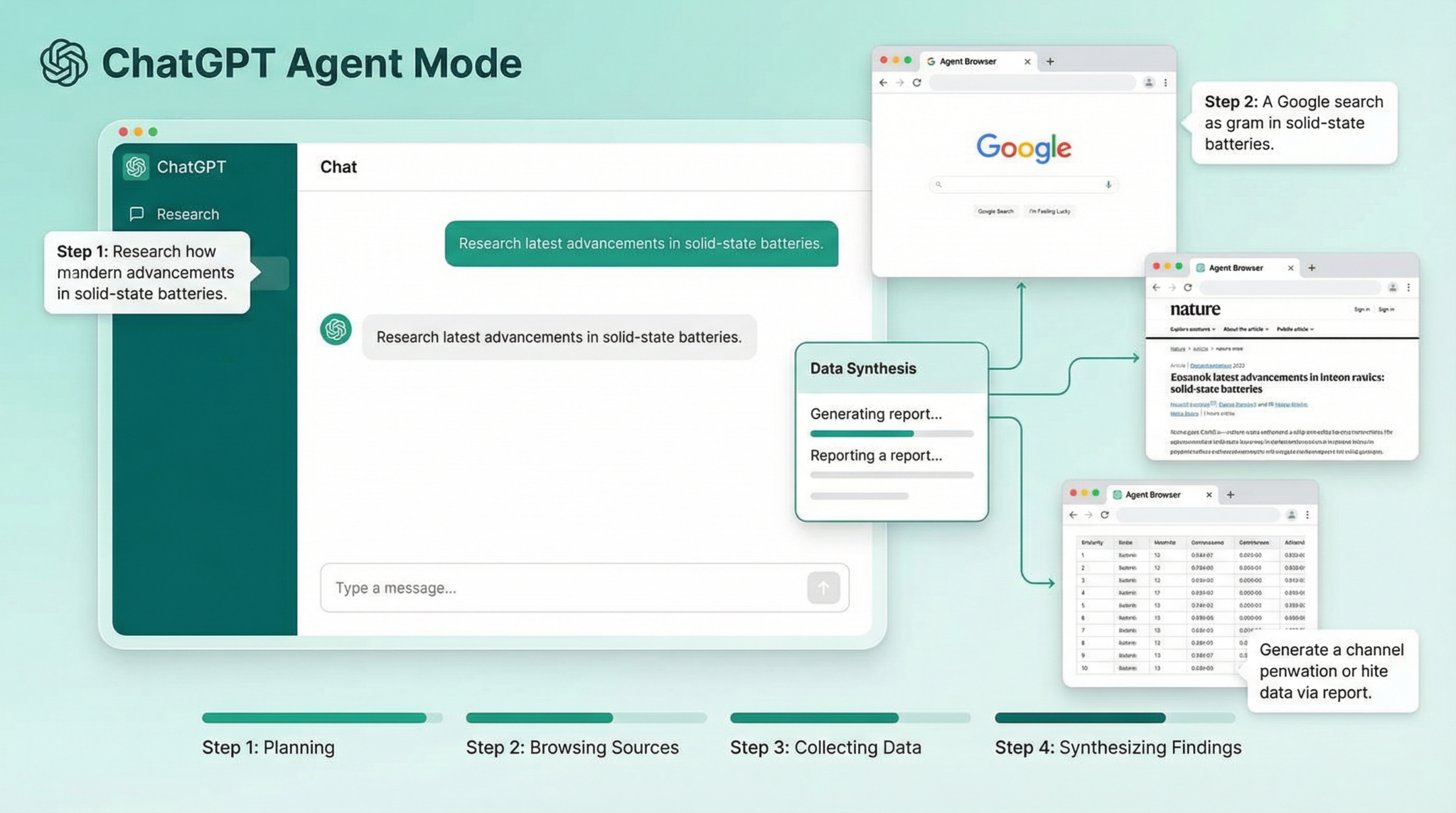
Enter your research objective into the main input box and hit Start Research. Agent Mode will:
- Break down the task into smaller subtasks.
- Search across selected sources autonomously.
- Summarize and cross-reference findings.
You can monitor progress in the Task Queue Panel, which shows each subtask’s status in real-time.

Step 4: Interact and Refine
Agent Mode supports dynamic interaction during research:
- Request Clarifications: Ask follow-up questions to deepen or redirect the investigation.
- Add Constraints: Introduce new parameters if you want to narrow focus.
- Pause and Resume: Temporarily halt the agent to review interim results before continuing.
Use the chat interface like a conversation with a research assistant.
Step 5: Review and Export Results
Once the agent completes the research, it generates a comprehensive report including:
- Executive summary
- Detailed findings with citations
- Relevant charts and data tables
- Suggested next steps or related topics
You can export this report in multiple formats such as PDF, DOCX, or Markdown for easy integration into your projects.
Step 6: Save and Reuse Research Templates
For recurring research themes, save your configuration as a template. This feature accelerates future projects by preserving source preferences, depth settings, and workflow steps.
Pro Tips to Maximize Your Research Efficiency
To get the most out of Agent Mode, consider these expert recommendations:
- Use Specific Keywords: Provide precise terms to help the agent focus on relevant content.
- Leverage Contextual Prompts: Provide background or previous research snippets to improve continuity.
- Set Milestones: Break complex topics into phases and evaluate progress incrementally.
- Combine with External Tools: Import data from spreadsheets or APIs to enrich agent analysis.
- Monitor Resource Usage: Agent Mode can be resource-intensive; periodically check your session limits.
- Use the Notion Prompt Library for inspiration: Incorporate proven prompt structures to guide Agent Mode effectively.
Troubleshooting Common Issues
Despite its robustness, Agent Mode may occasionally encounter challenges. Here’s how to address frequent problems:
Issue 1: Agent Mode Not Loading or Crashing
- Clear your browser cache and cookies.
- Ensure your internet connection is stable.
- Try switching browsers or updating to the latest version.
- If the problem persists, disable browser extensions that may interfere with scripts.
Issue 2: Research Results Are Incomplete or Irrelevant
- Refine your initial prompts for clarity and specificity.
- Adjust source preferences to include trusted or niche databases.
- Increase the depth level in Research Settings.
- Interact mid-task to guide the agent away from irrelevant paths.
Issue 3: Export Function Not Working
- Check for browser pop-up blockers preventing file downloads.
- Try exporting in a different format.
- Reload the session and attempt export again.
Issue 4: Task Queue Stuck or Progress Not Updating
- Pause and restart the task.
- Refresh the browser tab.
- Contact support if the issue continues, providing your session ID.
Access 40,000+ AI Prompts for ChatGPT, Claude & Codex — Free!
Subscribe to get instant access to our complete Notion Prompt Library — the largest curated collection of prompts for ChatGPT, Claude, OpenAI Codex, and other leading AI models. Optimized for real-world workflows across coding, research, content creation, and business.
Conclusion
ChatGPT’s new Agent Mode represents a paradigm shift in how deep research can be conducted using AI. By combining autonomous task management, enhanced contextual understanding, and customizable workflows, Agent Mode replaces and significantly improves upon the legacy deep research mode. Following this comprehensive tutorial will help you unlock the full power of Agent Mode, making your research faster, more accurate, and more insightful.
Remember to leverage advanced prompting techniques and explore our free Prompt Library with 40,000+ prompts to continuously improve your interactions with ChatGPT. Embrace the future of AI-driven research today with Agent Mode!
© 2026 ChatGPT AI Hub. All rights reserved.

