
Most ChatGPT users only scratch the surface. In 2026, ChatGPT includes powerful features like Canvas for document editing, Projects for organized workflows, persistent Memory, Custom GPTs, Work Mode for autonomous tasks, and Codex for code generation—yet fewer than 20% of subscribers use them regularly. To use ChatGPT like a power user, focus on these advanced features: learn to structure prompts for Canvas and Projects, enable and curate Memory, build Custom GPTs tailored to repeatable workflows, leverage Work Mode for multi-step automation, and apply Codex plus the Data Analysis tools to create, test, and debug code or complex analyses; combine these features into repeatable templates and monitor outputs with versioning and checks to maintain accuracy and efficiency.

How this guide is organized
This guide explains 15 advanced ChatGPT features in 2026 with practical, step-by-step examples, configuration tips, and real-world workflows you can implement today. Each feature section includes: what it is, why it matters, concrete examples, prompt templates, pitfalls to avoid, and shortcuts or keyboard/UI tricks where relevant. Use the table below as a quick map to the sections you want to dive into first.
| Feature | Primary Use | Time to Master |
|---|---|---|
| Canvas | Collaborative document editing and multi-turn composition | 1–2 weeks of focused practice |
| Projects | Organize related conversations, assets, and outputs | Several sessions to operationalize |
| Memory | Persistent personalization across sessions | Configure in 30–60 minutes; refine ongoing |
| Custom GPTs | Build role-specific assistants with custom logic | 1–3 days to prototype |
| Work Mode | Autonomous task execution and plan-following | A few experiments to calibrate |
Feature 1: Canvas — collaborative document editing
What it is: Canvas is ChatGPT’s integrated WYSIWYG-style editor that supports multi-block text, tables, images, and embedded logic, allowing the model to edit, reorganize, and transform live document content in place.
Why Canvas matters
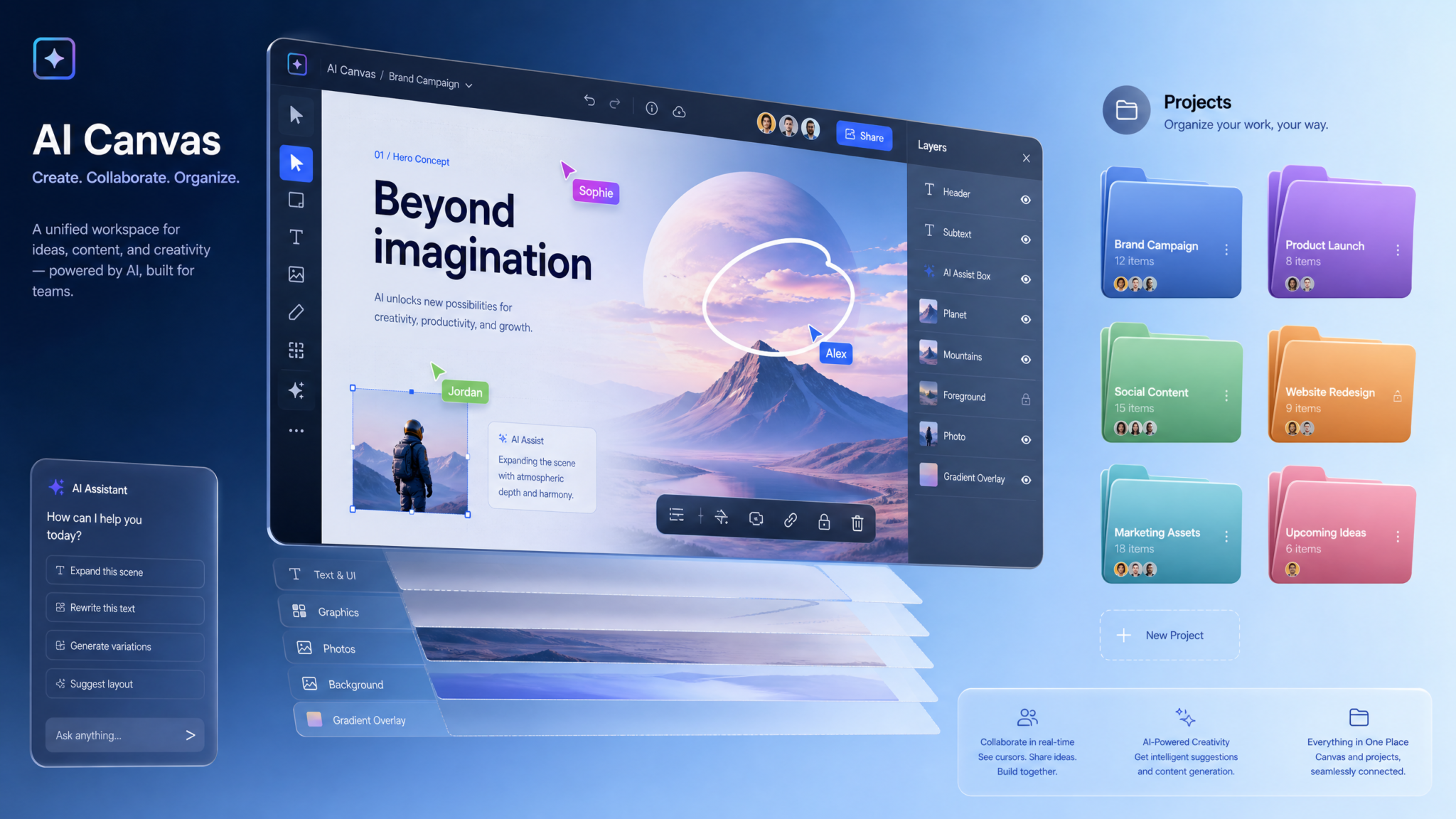
Canvas turns ChatGPT from a chat-only assistant into a co-authoring environment where you iteratively draft and refine single-source documents (reports, proposals, launch plans). Unlike back-and-forth chat, Canvas preserves document structure, supports block-level operations, and lets you request structural edits that apply to the whole document context.
Practical example: Drafting a product PRD in Canvas
Step-by-step:
- Create a new Canvas and paste your initial PRD outline: Purpose, Audience, Success Metrics, Requirements, Timeline.
- Ask ChatGPT: “Expand Success Metrics with three measurable KPIs and provide acceptance criteria for each.” The model will insert a new structured section with bullets and acceptance tests.
- Use block commands: select the Requirements block and ask, “Convert these bullet items into a Jira-style backlog with priority labels and estimated story points.” ChatGPT will restructure the block accordingly.
- Request a view change: “Show me a one-page executive summary generated from the PRD.” Canvas will synthesize a condensed block and you can accept or iterate.
- Export: use Canvas export options (Markdown, DOCX, PDF) or snapshot a revision to keep a versioned copy.
Prompt templates for Canvas
- Template for expansion: “Expand the following heading into a 250–350 word section with examples and a short executive summary: [PASTE BLOCK].”
- Template for reformatting: “Reformat the selected block into a 2-column pros/cons table and add a recommended action with reasoning.”
- Template for role-play edit: “Act as a legal reviewer and mark any clauses in this contract draft that require clarification or risk mitigation, annotating inline.”
Tips and best practices
- Work in small blocks. Ask for one change per request to keep deterministic results and enable clear undo steps.
- Use headings consistently; Canvas uses structure to orient edits and summarize documents.
- Keep a revision habit: snapshot major changes with a timestamped comment to enable rollback and auditing.
- When collaborating, assign each collaborator a color/comment tag — ask ChatGPT to summarize unresolved comments when you’re ready to finalize.
Common pitfalls and how to avoid them
- Overloading a single prompt with too many transformation requests produces mixed results—chain edits instead.
- Relying solely on model-generated factual statements—verify data with sources and include citations in Canvas with explicit prompt “Add sources for each factual claim.”
- Losing track of tone—lock a style guide block in Canvas by telling ChatGPT: “Maintain tone: concise, professional, user-centric.” Reapply before major edits.
Feature 2: Projects — organize conversations by topic
What it is: Projects is an organizational layer that groups conversations, Canvases, files, and Custom GPTs into a single workspace for a discrete initiative (product launch, research program, client engagement).
Why Projects matter
Projects reduce context switching and surface relevant memory, files, and GPT configurations automatically for the task at hand. You can also assign roles, share assets with collaborators, and create project-level prompts that seed every conversation within that scope.
Practical example: Using Projects for a marketing campaign
- Create a Project named “Q3 Product Launch — Marketing.”
- Attach team members and upload target assets: brand guidelines, audience personas, competitor analysis PDFs.
- Create a Project Prompt: “Every conversation in this Project should produce marketing-ready copy aligned to our brand voice: voice=conversational, length=50–120 words, CTA=sign-up link or product demo request.”
- Open a Canvas inside the Project to draft email sequences; ChatGPT will automatically surface Project assets (personas) and suggest tailored subject lines and KPIs.
- Tag conversations as “Ideas,” “Drafts,” “Final” and link final items to a release checklist inside the Project.
Project prompt templates and automation
- Project seed prompt: “Project context: [one-paragraph summary]. Default output format: H2 headings with bullets. When asked for campaigns, include 3 metrics to track.”
- Automated daily summary: “Every day at 9 AM, generate a 3-bullet summary of Project progress from conversations created in the last 24 hours.”
Tips for structure and governance
- Define a Project template: sections (Research, Drafts, Approvals, Assets, Releases). Reuse template when spinning up similar Projects.
- Use tags consistently—two to four tags per conversation to enable quick filtering and saved views.
- Set permissions: restrict editing of final Canvases and create an approval flow using comments and a “sign-off” checklist block.
Common pitfalls
Storing everything in one Project creates noise—archive conversations weekly and keep an index Canvas for navigation. Use Project prompts to minimize scope drift by instructing ChatGPT to ask clarifying questions whenever input is ambiguous.
Feature 3: Memory and Personalization settings
What it is: Memory is ChatGPT’s persistent storage that retains user preferences, ongoing project context, personal profile details, and recurring facts you want the assistant to remember across sessions. Personalization settings allow you to control what the model stores and how it uses it.
Why Memory matters
Memory lets the assistant maintain continuity without reloading context on every new conversation. Proper configuration reduces repetitive prompts and enables personalized outputs (e.g., “write in my company’s voice” without re-supplying brand guidelines each time).
How to configure Memory effectively
- Open Memory settings and review suggested categories: Work role, Preferred writing style, Ongoing projects.
- Enable only what you need. For sensitive information (passwords, PII), disable memory storage for those fields or mark them as non-persistent.
- Populate memory with structured entries: “Work role: Product Marketing Manager at Acme Corp. Preferred tone: Direct, friendly. Typical audience: mid-market SaaS decision-makers.”
- Use explicit prompts to reference memory by key: “Using my memory entry ‘Preferred tone’, rewrite this paragraph to match tone.”
- Review memory periodically: run “List my active memory entries” and prune outdated facts.
Practical example: Personalized email drafts
Step-by-step:
- Save memory entry: “Favorite sign-off: ‘Cheers, [FirstName]’”.
- Upload a brand voice brief to Project memory or link to it.
- Prompt: “Draft a follow-up email to a lead who attended our webinar. Use my saved tone and sign-off, 3 succinct bullets of value, and a CTA to book a demo.” The assistant will incorporate memory-specified sign-off and tone automatically.
Privacy, auditing, and “forget” controls
- Use the Memory audit to see when each entry was last used and which outputs referenced it.
- Use explicit “forget” commands: “Forget my preferred sign-off” will remove that entry from memory immediately.
- For teams, enforce memory governance with role-based policies: personal memories remain private; shared memories require explicit approval.
Common pitfalls
- Over-personalizing: too many fine-grained memory entries can create rigid outputs. Group preferences into broader categories (tone, audience, role).
- Stale memory: periodically validate memory-driven facts—especially contact info, active projects, or fiscal year dates.
Feature 4: Custom GPTs — building and using
What it is: Custom GPTs are user-created assistants with tailored system prompts, tool access, and behavior rules. They can be specialized for tasks like legal review, email triage, interview coaching, or customer support flows.
Why Custom GPTs matter
Custom GPTs let teams encapsulate repetitive workflows, enforce stylistic and legal constraints, and reuse domain knowledge without re-specifying it every time. They can expose a simplified UI with custom form inputs and output templates, making the assistant accessible to non-technical users.
Step-by-step: Build a Custom GPT for onboarding emails
- Choose “Create Custom GPT” and name it “OnboardMailer.”
- Set a concise system instruction: “You are OnboardMailer, an assistant that writes 3-step onboarding emails tailored to industry and user persona. Keep tone welcoming, include 2 resource links, and a one-line CTA.”
- Define form fields the user will fill: “New hire name”, “Role”, “Start date”, “Team doc link”.
- Configure constraints: “Do not include salary or PII in outputs. Maximum length: 150 words.”
- Attach assets: company tone guide, standard resource links, benefit summary as static content the GPT can access.
- Test: enter sample values and iterate on the system instruction until outputs are consistently correct.
- Publish and share to the team with usage instructions and a short training checklist.
Advanced customizations
- Tool integrations: enable file reading or API calls (calendar or HR system) to auto-fill data like start date or manager name.
- Response templates: add multiple output formats (email, Slack message, checklist) selectable by a form switcher.
- Guardrails: include rejection criteria in the system prompt to avoid disallowed content or legal phrases.
Practical examples and templates
Template for system prompt for a policy reviewer GPT:
System instruction: You are PolicyGuardian. For every submitted policy, produce (1) a 3-bullet summary, (2) a list of ambiguous clauses with suggested rewordings, and (3) a red/yellow/green risk rating. Do not change legal wording without flagging for legal review.
Tips
- Iterate quickly: build a Minimum Viable GPT with 2–3 templates and refine based on team feedback.
- Document expected inputs and outputs inside the Custom GPT so non-creators can use it without trial-and-error.
- Version your GPT: when making significant changes, create a new version with notes on behavior differences.
For more advanced uses and examples of custom assistants in enterprise settings, see
For a deeper exploration of this topic and related AI capabilities, our comprehensive resource on How to Build Real-Time Voice Agents with ChatGPT’s Advanced Voice Mode and GPT-5.5: Complete Implementation Guide provides additional context, practical examples, and actionable strategies that complement the techniques discussed in this article.
Feature 5: Work Mode — autonomous task execution
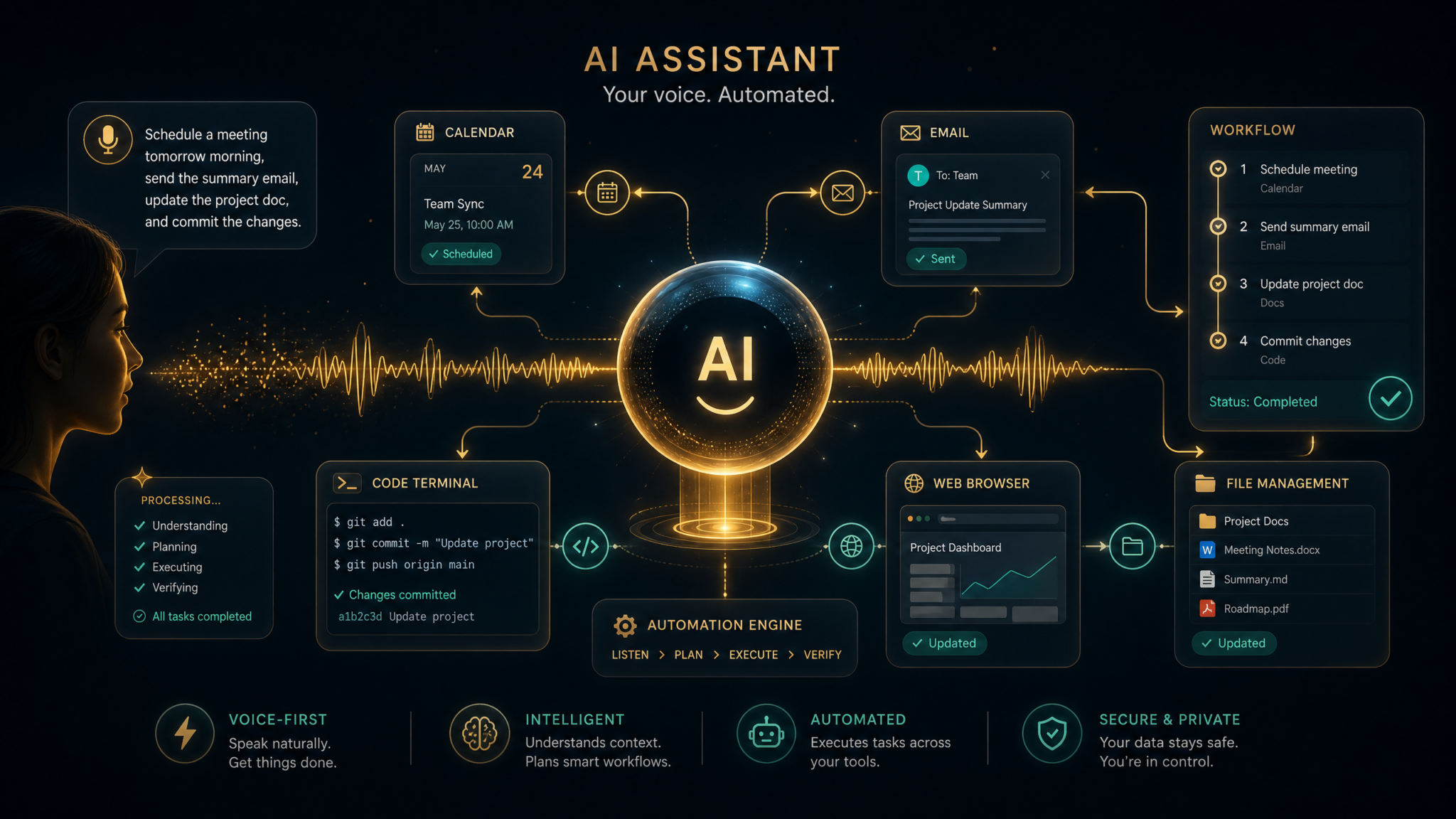
What it is: Work Mode enables ChatGPT to plan and execute multi-step tasks autonomously, invoking sub-tasks, calling tools, and following a plan while reporting progress. Think of it as a supervised automation layer that sits between a single-prompt assistant and a full RPA tool.
Why Work Mode matters
Work Mode frees you from micromanaging each step. For tasks like “audit these 12 contracts for non-standard termination clauses” or “compile market research and present a 5-slide summary”, Work Mode can break the task into steps, run sub-steps (file analysis, web lookups, summarization), and return a consolidated result with a progress log.
Walkthrough: Use Work Mode to prepare a competitive feature matrix
- Prompt: “Work Mode: Create a competitive feature matrix for products A, B, and C. Steps: (1) list product features from vendor docs, (2) extract presence/absence and strengths, (3) score each feature 1–5 and justify, (4) generate a one-page executive summary.”
- Allow the assistant to ask clarifying questions about sources, scoring rubric, and time budget.
- Grant tool access if needed (file reading, web browsing). Configure maximum parallelism: e.g., process two vendor docs at a time.
- Monitor the progress pane: you’ll see tasks queued, completed, and outputs for each step. Intervene if a step needs reconfiguration.
- Once complete, request a final validation pass with “Check all scores against the scoring rubric and flag any justifications that lack direct evidence.”
Prompt pattern for Work Mode
Work Mode: Objective: [Describe outcome]. Constraints: [time limit, format, sources]. Steps: 1) [subtask], 2) [subtask]... Error handling: [what to do on failure]. When done: produce [deliverable format].
Best practices and controls
- Define explicit stop conditions and error handling—tell Work Mode what to do if a source is unavailable or ambiguous.
- Use short time budgets for experiments to avoid long runs that produce noise.
- Enable progress logs and request checkpoints after each major step to allow human review.
- Scale safely: when connecting to sensitive systems, limit Work Mode’s access scope and require manual approval for high-risk actions.
Common pitfalls
- Too broad objectives: Work Mode performs best with clearly defined outputs and verification steps.
- Letting it act without evidence: always require citations or logs for decisions made autonomously.
Feature 6: Codex — code generation and debugging
What it is: Codex is ChatGPT’s specialized capability for writing, refactoring, and debugging code across multiple languages and frameworks. In 2026, it supports live execution (where available), linting integrations, and test generation.
Why Codex matters
Codex reduces the time to prototype, implement, and iterate on code. A power user can use Codex to scaffold projects, generate unit tests, translate code between languages, and fix logic errors faster than manual development when paired with proper verification and test automation.
Practical example: Build a REST endpoint with tests
Objective: Create a Python Flask endpoint /api/summary that accepts POST with JSON {text: string} and returns a 3-sentence summary and sentiment score.
- Prompt to Codex: “Create a Flask app with route /api/summary that uses the ‘transformers’ library to perform text summarization and ‘vaderSentiment’ for sentiment. Include unit tests using pytest. Add instructions to run in a virtualenv.”
- Ask for code only, then paste into your editor and run tests. If an import fails, ask Codex to provide a requirements.txt and dockerfile.
- Request a refactor: “Refactor the summarization step to use batching when text > 10,000 characters and add rate limiting decorator for the endpoint.”
- Generate tests for edge cases: empty text, very long text, malformed JSON.
Prompt examples and patterns
- Scaffolding: “Generate a minimal Node.js Express app with TypeScript that includes route validation using zod and basic logging.”
- Refactor request: “Refactor to reduce cyclomatic complexity and add type annotations; identify any potential exceptions and handle them gracefully.”
- Debugging: “Given this failing test and stack trace [paste], identify the minimal change to fix the bug and explain why.”
Testing strategy when using Codex
- Always generate unit tests and integration tests along with the code. Ask Codex to output test coverage targets.
- Use static analysis tools (linters) and configure Codex to conform to them: “Ensure code passes flake8/ESLint with default settings.”
- For security-sensitive code, run a security scan (SAST) and ask Codex to remediate flagged issues.
Advanced debugging workflows
When a test fails, provide Codex with the minimal failing test and stack trace. Use iterative prompts like:
"The test 'test_process_input' fails with Traceback: [stack trace]. Show a step-by-step diagnosis, propose two minimally-invasive fixes, and provide the updated code for each fix."
Tips and caveats
- Codex adds value for scaffolding and repetitive patterns; always enforce review by a human engineer before production deployment.
- Use deterministic seed prompts when you need reproducible outputs (explicit instructions, fixed library versions).
- When connecting to external APIs or keys, do not paste secrets into prompts—use placeholders instead and document how to supply them securely in CI/CD.
Feature 7: Advanced Voice Mode — real-time audio
What it is: Advanced Voice Mode allows real-time audio input and output with accurate transcription, multi-speaker recognition, and voice-timbre customization. It supports low-latency streaming and real-time command invocation.
Why Advanced Voice Mode matters
This feature makes ChatGPT usable in meetings, interviews, and hands-free workflows such as driving or workshops. It also enables natural multi-turn voice interactions where the assistant maintains context across turns without manual re-typing.
Practical examples
- Meeting summarization: Start a voice session, ask the assistant to capture action items and assign owners in real-time. After the meeting, request an action-item Canvas export.
- Interview coaching: Run a mock interview via voice; the assistant times responses, provides real-time feedback, and records suggestions on phrasing and examples.
- Hands-free coding: Dictate code structure and logic step-by-step; use Codex to translate spoken instructions into code snippets in an open Canvas.
Prompt patterns and session controls
When starting a voice session, seed context explicitly: “Voice session: role=note taker, format=action-item list with owner and deadline. Only capture items explicitly called out as action items.”
Tips for clean transcripts and accurate audio control
- Use short, declarative sentences when interacting by voice to improve transcription quality.
- When multiple speakers talk, instruct the assistant to mark “Speaker 1/2” rather than attempt names unless names are introduced and confirmed.
- Use “pause” and “resume” voice commands to allow the assistant to process long segments before responding.
Privacy considerations
Obtain consent before recording participants. Configure retention settings for voice transcripts and remove or mark transcripts as ephemeral when required by privacy policy.
Feature 8: Image Generation with DALL·E — advanced prompting
What it is: Integrated DALL·E image generation lets you create visuals from text prompts, refine compositions, and iterate on prompts using an image-to-image and inpainting workflow.
Why this matters
As visuals become a first-class part of content and product design, DALL·E integration within ChatGPT simplifies ideation and iteration without separate tools. You can generate assets, ask for variations, and embed images directly into Canvases for rapid prototyping.
Advanced prompting techniques
- Use structured prompts: “Subject: female scientist in a modern lab. Style: photorealistic, 35mm prime, bokeh background. Lighting: softbox from upper-left. Color palette: teal and warm neutrals. Usage: hero image for blog post.”
- Prompt chaining: generate a base image, then ask for targeted changes: “Keep composition but change the lab coat color to navy and replace background props with sustainable-tech items.”
- Inpainting: upload an image and instruct the assistant: “Replace the poster on the wall with a graph showing growth—use a muted color scheme and include ‘Q4 +15%’ as text.”
- Multiple variants and ranking: request 8 variants and ask ChatGPT to rank them by “brand alignment” with short rationales.
Practical example: Create a hero image for a case study
- Prompt: “Create 6 hero image concepts for a SaaS case study featuring remote teams collaborating. Include composition notes and color palette for each.”
- Pick concept #2 and request an intermediate-res render. Provide feedback: “Less contrast on background figures, increase foreground subject prominence by 15%.”
- Use inpainting to add brand logo into a corner with 40% opacity and provide SVG or high-contrast variants for accessibility.
Tips for commercial and brand usage
- Keep a style guide with example prompts for on-brand outputs. Use those templates to seed new prompts for consistent results.
- Save seeds and variation parameters (aspect ratio, camera settings, filters) in a Canvas so you can reproduce or batch-generate images later.
- Run an accessibility check: ensure contrast ratios and legibility meet WCAG standards when adding text overlays.
Feature 9: File Analysis — PDFs, spreadsheets, code
What it is: File Analysis lets ChatGPT ingest files (PDFs, DOCX, XLSX, CSV, ZIP of code) and extract structured summaries, transformations, or code review comments. It supports querying large documents and performing selective extraction.
Why File Analysis matters
Handling uploaded files directly saves time and preserves fidelity of original content. You can mine long reports, transform spreadsheets into pivot tables, or request code audits without manual copy-paste.
Practical example: Analyze a 120-page research PDF
- Upload the PDF to a Project and ask: “Summarize the methodology and list all experiments and sample sizes in a table with page references.”
- Ask follow-ups: “Extract all quantitative findings related to retention and present them as CSV rows with the metrics and confidence intervals.”
- Request a critique: “Identify methodological limitations mentioned and any missing controls.”
Spreadsheet workflows
Common tasks and prompt patterns:
- Pivot transformation: “Create a pivot table from this sheet grouping by ‘region’ and summing ‘ARR’ and ‘churn’.”
- Data cleaning: “Standardize date formats to ISO and flag rows with missing customer IDs, outputting a ‘dirty rows’ sheet.”
- Formula generation: “Add a column ‘LTV’ using formula LTV = (ARPA / churn_rate) * gross_margin; implement as XLSX formula.”
Codebase analysis
- Bulk upload a repo zip and prompt: “Search the codebase for areas where database transactions are not wrapped with retries; suggest three fixes.”
- Security scan: “List all uses of eval or exec and explain risks with proposed replacements.”
- Refactor suggestions: “Find functions longer than 200 lines and propose a refactor plan with function boundaries and tests.”
Tips and guardrails
- Large files: when uploading very large files, ask ChatGPT to summarize by chunk: “Process pages 1–30, then 31–60…” to avoid timeouts and keep traceability.
- Preserve provenance: always ask for page or line references for extracted claims—”Include page:line references for each quote.”
- Use the “annotate file” feature where available to place comments inline that collaborators can review later.
Feature 10: Web Browsing — effective search prompts
What it is: Web Browsing allows ChatGPT to query live web sources for up-to-date information, cite URLs, and aggregate findings. It supports search operator hints, result summarization, and multi-source comparison.
Why web browsing matters
For anything requiring current facts—market data, regulatory updates, news analysis—web browsing lets ChatGPT provide real-time answers and procedural steps based on the latest information. It’s essential for competitive analysis, regulatory compliance, and live intelligence.
How to craft effective browsing prompts
- Be explicit about date ranges and source types: “Search for articles from Q1 2026 about ‘zero-trust for IoT’ from reputable security vendors and academic papers.”
- Use operator hints: “Prefer content from ‘site:.gov’ and ‘site:.edu’ and exclude opinion pieces with ‘op-ed’ in the title.”
- Ask for a source reliability rating: “For each source, provide a one-sentence reliability rating and reason.”
Practical example: Competitive pricing check
- Prompt: “Search competitors X, Y, Z for published pricing pages and extract base product price, overage fees, and enterprise discounts. Return results as a comparative table with source URLs and publish date.”
- Follow-up: “Flag any pricing pages that have been updated in the last 30 days and summarize the change.”
- Use the output to update a pricing Canvas and notify the team through Project-level automation.
Tips for verification and source quality
- Always ask for direct quotes and page references for key claims; cross-check important facts against at least two reliable sources.
- When browsing social media or forums, instruct ChatGPT to rate confidence and label content as “user-generated” or “official.”
- Beware of paywalled content—ask ChatGPT to only use accessible sources unless you provide credentials via an integration.
For advanced prompt tactics and sample queries updated for 2026, see
For a deeper exploration of this topic and related AI capabilities, our comprehensive resource on ChatGPT Ads Custom Audiences: How OpenAI’s New Targeting Tools Change Digital Marketing in 2026 provides additional context, practical examples, and actionable strategies that complement the techniques discussed in this article.
Feature 11: Data Analysis — code interpreter for charts
What it is: The Code Interpreter (Data Analysis) combines file analysis with a runtime environment to execute code (Python, R where supported) on your uploaded data and produce charts, statistical summaries, and machine learning prototypes.
Access 40,000+ AI Prompts for ChatGPT, Claude & Codex — Free!
Subscribe to get instant access to our complete Notion Prompt Library — the largest curated collection of prompts for ChatGPT, Claude, OpenAI Codex, and other leading AI models. Optimized for real-world workflows across coding, research, content creation, and business.
Why Data Analysis matters
Rather than hand-conducting data wrangling and plotting locally, the Data Analysis tool lets you iterate quickly with the assistant: ask for a chart, ask it to tweak visual encoding, and request further statistical tests — all in the same session.
Practical example: Cohort retention chart and analysis
- Upload your CSV of user signups and activity events.
- Prompt: “Create a 12-week cohort retention matrix and produce a heatmap PNG. Include retention rates per cohort and highlight cohorts underperforming by >10% compared to baseline.”
- Ask follow-up: “Run a survival analysis comparing cohorts A and B and output p-values and a brief interpretation for stakeholders.”
- Request presentation assets: “Produce a one-slide PNG summarizing the key findings and attach the underlying CSV with annotations.”
Prompt patterns and analysis templates
- Exploratory prompt: “Provide descriptive statistics (mean, median, standard deviation) and three charts (histogram, boxplot, time-series) for ‘revenue’ column.”
- Model prototyping: “Train a simple forecast model for monthly MRR using ARIMA, show predictions for the next 6 months with confidence intervals, and include the model’s parameters and RMSE.”
- Visualization tweaks: “Change the color palette to our brand teal and add annotations for spikes on dates [list].”
Best practices
- Include a reproducibility block: ask for the exact code the assistant used and a requirements.txt to reproduce results locally.
- Validate model-driven claims with out-of-sample tests where possible and ask the assistant to provide confidence intervals or p-values for claims.
- Request both machine-readable outputs (CSV/JSON) and human-friendly visuals (PNG/SVG) for distribution.
Feature 12: Custom Instructions — system-level personalization
What it is: Custom Instructions are persistent system-level fields you fill out to tell ChatGPT how to behave and what to know about you or your project. Unlike Memory which stores facts, Custom Instructions define how outputs should be formatted, tone rules, and default behaviors.
Why Custom Instructions matter
Use them to create consistent outputs across sessions and projects. While Memory provides facts, Custom Instructions provide directives such as “Always include a TL;DR” or “Prioritize concision and practical next steps first.”
Practical examples and templates
- Instruction: “I want concise, actionable answers with a one-sentence summary at the top, then a 3-point action list. Avoid verbosity.”
- Instruction: “When generating code, always include a short explanation of the approach and at least one unit test.”
- Instruction: “For user-facing copy, use second-person voice, 6th-grade reading level, and avoid industry jargon.”
How to combine Custom Instructions with Memory and Projects
Strategy:
- Set Custom Instructions for global behavior (tone, format).
- Use Project prompts for task-specific framing.
- Use Memory for persistent facts about you or your team.
This layered approach ensures consistency and reduces the need to restate formatting rules in every prompt.
Tips and pitfalls
- Avoid conflicting directives across Custom Instructions and Project prompts—test the final behavior with a canonical prompt.
- Document your Custom Instructions in a shared location for teams so everyone understands the global defaults.
Feature 13: Scheduled Tasks and Reminders
What it is: Scheduled Tasks let you run ChatGPT prompts or workflows on a schedule (daily standups, weekly summaries, monthly audits) and deliver results to email, Slack, or Project inboxes. Reminders tie to Memory or Projects, surfaced at times you configure.
Why scheduling matters
Scheduling automates repetitive knowledge work: reporting, monitoring, and routine content generation. Paired with Work Mode, scheduled tasks can run semi-autonomously and alert humans only on exceptions.
Practical example: Weekly project health report
- Create a Project-level scheduled task: “Every Monday 8 AM, compile all ‘Final’ and ‘Draft’ items created or updated in the last 7 days and produce a 5-bullet summary with top risks.”
- Configure delivery: send summary to Slack channel #project-q3 and attach PDF export of the Canvas with comments.
- Set exception rules: if the number of open risks > 3, include the stakeholder contact list and suggest immediate mitigation steps;
- Test the schedule and adjust frequency and filters to reduce noise.
Scheduling templates and automation tips
- Daily digest template: “Top 3 priority items, any blocked tasks, and one recommended action for today.”
- Monthly audit template: “List new memory entries added this month and recommend which ones to keep or archive.”
- Failure handling: configure retries and escalation channels for scheduled tasks that fail due to missing inputs.
Privacy and compliance
When scheduling outputs that contain PII or sensitive business metrics, configure retention and delivery only to authorized recipients and log audit trails for compliance.
Feature 14: API and Integrations
What it is: ChatGPT’s API and integrations let you embed advanced assistant capabilities into internal tools, CI/CD pipelines, and customer-facing products. In 2026, integration options include webhooks, connectors for Slack/Teams, calendar integration, and OAuth-based access for enterprise systems.
Why integrations matter
APIs let you scale the assistant beyond the ChatGPT UI by embedding it where your team already works: CRM, ticketing systems, dashboards. This enables automated summaries, contextual suggestions, and in-app assistant interactions tailored to specific workflows.
Practical example: Auto-summarize support tickets
- Create a webhook integration between your ticketing system and ChatGPT API.
- On ticket creation, post the ticket content to an API endpoint that calls ChatGPT with a system prompt: “You are SupportSummarizer. Provide a 2-sentence summary, likely root cause, proposed triage labels, and five-sentence response draft.”
- Use the assistant’s output to populate the ticket summary field and suggested response; a human agent reviews and sends.
- Log the assistant changes in the ticket activity for traceability.
API design patterns and prompts
- Idempotent prompts: design prompts such that repeated API calls with the same input return stable output (include deterministic seeds and fixed system instructions).
- Human-in-the-loop: always include verification steps where the assistant suggests actions but requires human approval for high-risk operations.
- Rate limiting and batching: batch low-priority requests and handle backoff to avoid hitting rate limits on spikes.
Security and governance
- Use OAuth and service accounts for integrations and rotate keys regularly.
- Log request/response pairs and store only the minimum required data; for sensitive content, use ephemeral sessions or redact PII before transmission.
- Establish a governance policy for model usage and monitor for anomalous API usage patterns.
Feature 15: Keyboard Shortcuts and UI Tricks
What it is: The ChatGPT UI in 2026 includes advanced keyboard shortcuts, command palettes, multi-select conversation actions, and UI-level operators like “pin”, “link to Canvas”, and “spawn process” to speed up navigation and repetitive tasks.
Why UI shortcuts matter
Savvy use of UI features reduces friction and saves minutes every day. For power users, chaining shortcuts and templates transforms ChatGPT from a passive tool to an active part of your productivity stack.
Essential keyboard shortcuts and command palette commands
- Command palette (Ctrl/Cmd+K): jump to Projects, search conversations, or run saved prompts.
- Quick insert (Ctrl/Cmd+Shift+I): insert a saved template into an active Canvas block.
- Cycle drafts (Alt+Up/Down): move between draft versions in a Canvas.
- Spawn quick GPT (Ctrl/Cmd+Shift+G): open a mini Custom GPT with prefilled form fields for fast micro-tasks.
UI tricks and power-user habits
- Create a “starter Canvas” with shortcuts to commonly used templates and keep it as a pinned item in each Project.
- Use multi-select to bulk-tag conversations and execute Project actions like “archive”, “export”, or “assign reviewer”.
- Enable compact mode for dense workflows and expand to full Canvas mode when producing final artifacts.
- Use “Search within Project” rather than global search when context is narrow–it returns more relevant results faster.
Putting It All Together — power user workflow
Objective: Convert an incoming RFP into a final proposal document, ready for client delivery, using a repeatable ChatGPT-powered workflow that leverages Canvas, Projects, Memory, Custom GPTs, Work Mode, Codex, File Analysis, Web Browsing, Data Analysis, Scheduled Tasks, and Integrations.
Step-by-step end-to-end workflow
- On RFP receipt, create a Project “RFP — [Client Name]” with team members assigned and a Project prompt that seeds brand voice and response format.
- Upload the RFP PDF and supporting files to the Project and use File Analysis: “Extract requirements, deadlines, and mandatory deliverables into a requirements Canvas with page references.”
- Enable Memory entries for the client: “Client: [Name]. Industry: [Industry]. Decision-makers: [roles]” so the assistant personalizes subsequent outputs.
- Spawn a Custom GPT “Proposal Drafter” that accepts input fields (scope, target price, timeline) and outputs a multi-section proposal with pricing tables and a 1-page executive summary.
- Start Work Mode: plan required actions — gather competitor signals (Web Browsing), fetch pricing benchmarks (Data Analysis on uploaded market data), draft technical approach (Codex for architecture diagrams and code snippets), and compile case studies (File Analysis + Canvas composition).
- Iterate drafts in Canvas: ask the assistant to produce a “client-friendly” version and an “internal technical appendix” version; tag them accordingly.
- Run a compliance and redline pass with a legal Custom GPT: “Flag any clauses that imply acceptance of liability beyond $X or that require perpetual data access.”
- Schedule a stakeholder review: use Scheduled Tasks to notify reviewers and attach the Canvas snapshot; gather comments and use the assistant to synthesize feedback.
- Finalize: export the proposal to PDF and use the Integration API to upload it to your CRM record and create a follow-up reminder in the client’s calendar.
- Post-delivery: set a scheduled task to compile the demo and feedback notes into the Client Memory entry after the kickoff meeting, ensuring continuity.
Workflow templates and roles
- Template: “RFP → Project setup → File extraction → Draft 1 (Canvas) → Technical appendix (Codex) → Legal review (Custom GPT) → Stakeholder review → Finalize → Upload/Integrate.”
- Role matrix: Project owner (set Project prompt, Memory entries), Draft owner (edit Canvas), Legal reviewer (use Custom GPT), Tech lead (validate Codex outputs), Ops (schedule deliveries and integrations).
Quality control and versioning
- Use Canvas revision snapshots as version control. Name snapshots with semantic tags (v1-draft, v1-legal, v1-final).
- Require explicit source annotations for all factual claims. Use a final “evidence check” Work Mode step to validate all claims against cited sources.
- Maintain an “audit Canvas” that lists all automated steps taken (which GPTs ran, which files processed) for compliance and postmortem analysis.
FAQ — Frequently Asked Questions
Q: How quickly can I become a ChatGPT power user?
A: You can adopt core power-user habits (Custom GPTs, Canvas, Memory basics) within a week of regular use. Mastering advanced workflows (Work Mode automation, Codex-driven production, API integrations) typically takes several weeks of deliberate practice and iteration with real tasks. Prioritize one new feature each week and build a tiny production workflow to learn how features interact.
Q: Are these features available on all subscription tiers?
A: Feature availability varies by plan and organization settings. Many advanced capabilities (Work Mode, Codex with live execution, some integrations, scheduled tasks) are gated behind business or pro tiers. For enterprise customers, features can be enabled or restricted by admins. Always check your account settings and the product changelog for the latest availability.
Q: How do I ensure accuracy when ChatGPT generates code, legal text, or data analysis?
A: Implement a human-in-the-loop review for any high-stakes content. For code, require unit tests and static analysis; for legal text, have a licensed attorney review outputs and use the assistant to draft redlines rather than final contracts; for data analysis, demand reproducible code (request the exact code and environment) and cross-validate key findings with independent tools or samples.
Q: How do I manage privacy and security when using Memory, file uploads, and integrations?
A: Configure Memory and retention settings conservatively. Redact or preprocess sensitive data before upload. Limit integrations to authorized service accounts, use least-privilege OAuth scopes, and maintain audit logs for API calls and scheduled tasks. For regulated data, consult your compliance team before enabling file analysis or persistent memory for that content.
Q: Can I automate ChatGPT outputs into my existing tools (Slack, JIRA, CRM)?
A: Yes. Use the API and native connectors to push outputs into Slack channels, create JIRA tickets from Canvas items, or attach final documents to CRM records. Design the integration to include metadata (who approved, which GPT generated it) and require manual verification for any action that can change workflow state.
Q: What are the best verification practices for web browsing and file analysis?
A: Ask ChatGPT to (1) include source URLs and timestamps for every factual claim, (2) rate the reliability of each source, and (3) cross-check high-impact claims against two independent primary sources. For file analysis, require the assistant to include exact page/line references for extracted claims and produce machine-readable outputs (CSV/JSON) for independent verification.
Q: How can teams collaborate efficiently with ChatGPT features?
A: Use Projects as the primary collaboration workspace, define clear Project prompts and templates, and use Custom GPTs for role-specific tasks. Maintain a shared “starter Canvas” with templates and a “governance Canvas” that documents approved system prompts, Memory usage rules, and integration policies. Use scheduled tasks to keep stakeholders aligned and minimize duplicate work.
Q: What are practical limits for Work Mode and autonomous execution?
A: Work Mode is excellent for multi-step analysis and bounded automation but should not be used to take irreversible actions without human approval. Limit Work Mode runs by time budget and require checkpoints for high-risk steps. For repeated autonomous tasks, implement monitoring and alerts to detect drift or unexpected outputs.
Appendix — prompt library, templates, and quick reference
Canvas prompt templates
- Executive summary: “From the following document [paste block], produce a 130–170 word executive summary that states the main recommendation, three supporting points, and one risk.”
- Checklist generator: “Convert this project plan into a task checklist with owners and ETA in ISO date format.”
Custom GPT system instruction templates
- Proposal assistant: “You are ProposalPro. For any RFP content provided, produce a full proposal with executive summary, scope, timeline, pricing table, and appendices. Always include assumptions and a one-line risk statement.”
- Legal redliner: “You are RedlineBot. Identify high-risk clauses and propose alternative wording. Provide citations for suggested law-relevant references.”
Work Mode plan template
Work Mode:
Objective: [clear deliverable]
Constraints: [deadline, format, sources allowed]
Steps:
  1) [Discovery and data collection]
  2) [Draft composition]
  3) [Validation and testing]
  4) [Finalize and export]
Checkpoints: after steps 2 and 3
Deliverable format: [Canvas/DOCX/PDF, charts as PNG]
Error handling: [retry, escalate to human, partial output]
Codex prompt templates
- Build endpoint: “Write a Flask endpoint ‘/api/process’ that validates input schema, handles errors gracefully, logs requests with request-id, and includes two pytest tests.”
- Refactor: “Refactor this function for readability and performance; include a brief summary of changes and updated tests.”
Data Analysis prompts
- Exploratory: “Show top 10 correlations with ‘revenue’ and provide scatter plots for each strong correlation (>0.6).”
- Forecast: “Train a forecast model for monthly users using the last 36 months and output 12-month prediction with 95% confidence intervals.”
Final checklist for power users
- Enable and curate Memory entries for the facts you want ChatGPT to remember.
- Create a Project template and use Projects for each discrete initiative.
- Build one Custom GPT for a repetitive task and iterate on it until outputs are consistent.
- Practice Canvas operations: block edits, snapshots, export flows.
- Automate one scheduled report and ensure it has human verification points.
- Integrate ChatGPT outputs into one key system (Slack, JIRA, or CRM) with explicit metadata and audit logs.
- Always require tests and human review for code, legal, and data analysis outputs.
Start by choosing one feature above to adopt this week, build a small, repeatable workflow around it, and expand your toolset incrementally. The true multiplier effect comes from combining features—Canvas for composition, Custom GPTs for repeatability, Memory for continuity, and Work Mode to orchestrate automation—then integrating outputs into the systems where your team operates.
Want more walkthroughs, prompt libraries, and enterprise examples? Check our advanced resources and case studies:
For a deeper exploration of this topic and related AI capabilities, our comprehensive resource on How to Use ChatGPT Work to Build Websites and Presentations Without Code provides additional context, practical examples, and actionable strategies that complement the techniques discussed in this article.
