
How to Use Claude Code’s New Computer Use Feature: Complete CLI Tutorial for 2026
Mastering Claude Code’s Revolutionary ‘Computer Use’ Feature: A Comprehensive Tutorial
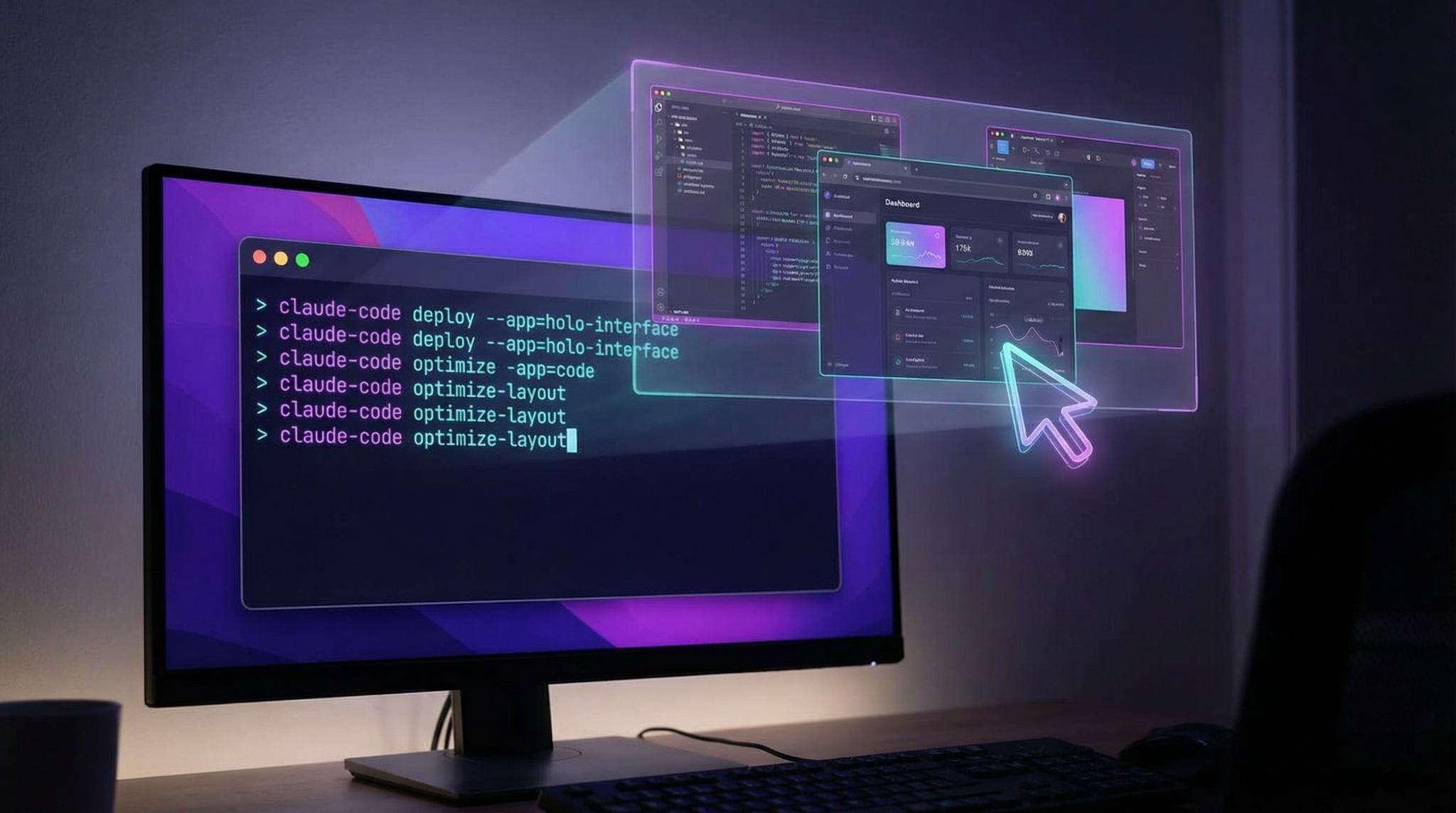
In Q1 2026, Anthropic launched a groundbreaking update to Claude Code—its AI programming assistant—introducing the highly anticipated ‘Computer Use’ feature. This enhancement allows Claude to directly interact with your local machine, opening native applications, clicking through graphical user interfaces (GUIs), and making code changes from the command line interface (CLI). This tutorial provides an exhaustive exploration of this powerful capability, offering deep technical insights, detailed workflows, troubleshooting strategies, and advanced configuration options.
Introduction to Claude Code’s ‘Computer Use’ Feature
Before this update, Claude Code primarily functioned as a language model AI that could generate and explain code, debug, and simulate CLI commands virtually. With ‘Computer Use,’ Claude now bridges the gap between AI-generated instructions and real-world execution on your actual system. This means Claude can:
- Open and control native applications (e.g., text editors, browsers, terminals).
- Navigate GUIs by clicking buttons, menus, and form elements.
- Execute and test code changes directly from your terminal.
This capability is powered by a secure, sandboxed interface that allows Claude to interact with the OS environment while maintaining strict user control and security boundaries.
Technical Architecture Overview
The ‘Computer Use’ feature integrates with your OS via a specialized agent—a lightweight daemon—that listens for Claude’s commands over a secured IPC (Inter-Process Communication) channel. This agent translates AI instructions into executable system calls and GUI automation commands.
- Agent Daemon: Runs locally, mediates between Claude and system APIs.
- Command Parser: Converts natural language commands into actionable system instructions.
- GUI Automation Layer: Utilizes OS-native frameworks (e.g., AppleScript on macOS, UI Automation on Windows, and xdotool on Linux) to perform clicks, keystrokes, and window management.
- CLI Command Executor: Runs shell commands and scripts with sandboxed privilege controls.
This modular architecture ensures flexibility across platforms and strong security isolation.
Getting Started: Installation and Setup
To unlock the ‘Computer Use’ feature, you must install the latest Claude Code CLI client and its associated system agent. Let’s walk through the setup process step-by-step.
Step 1: Install the Latest Claude Code CLI
Ensure you have Node.js v20+ and Python 3.11+ installed, as they are prerequisites.
# Install Claude Code CLI globally via npm
npm install -g claude-code-cli@latest
Verify installation:
claude-code --version
# Should output: 1.5.0 or later
Step 2: Install the Computer Use Agent
The agent is platform-specific. Use the appropriate installer below.
- macOS:
# Download and install the macOS agent
curl -O https://downloads.anthropic.com/claude-computer-use-agent-macos.dmg
sudo hdiutil attach claude-computer-use-agent-macos.dmg
sudo cp -r /Volumes/ClaudeAgent/ClaudeAgent.app /Applications/
sudo /Applications/ClaudeAgent.app/Contents/MacOS/install.sh
- Windows:
# Download and run the Windows installer
Invoke-WebRequest https://downloads.anthropic.com/claude-computer-use-agent-win.exe -OutFile claude-agent.exe
.\claude-agent.exe /S
- Linux (Ubuntu/Debian):
# Download and install .deb package
wget https://downloads.anthropic.com/claude-computer-use-agent-linux.deb
sudo dpkg -i claude-computer-use-agent-linux.deb
sudo systemctl enable claude-agent
sudo systemctl start claude-agent
Step 3: Authenticate Claude with Your Machine
For security, Claude requires explicit user authentication before controlling your system.
claude-code auth login
# Follow the prompted OAuth flow to grant permissions
Once authenticated, verify agent connectivity:
claude-code agent status
# Expected output: Agent is running and connected
Step 4: Enable Computer Use Mode
Activate the feature globally or per session in the CLI.
claude-code config set computerUse true
# or for a single session
claude-code --computer-use
Now Claude can receive commands that interact with your system.
How Claude Opens Native Applications and Navigates the UI
Launching Applications via Command
Claude can open any installed application by its system-recognized name or executable path. For example, to open VS Code:
claude-code "Open Visual Studio Code"
This command is translated into a system-level call:
- macOS:
open -a "Visual Studio Code" - Windows:
start code - Linux:
code &
Interacting with UI Elements
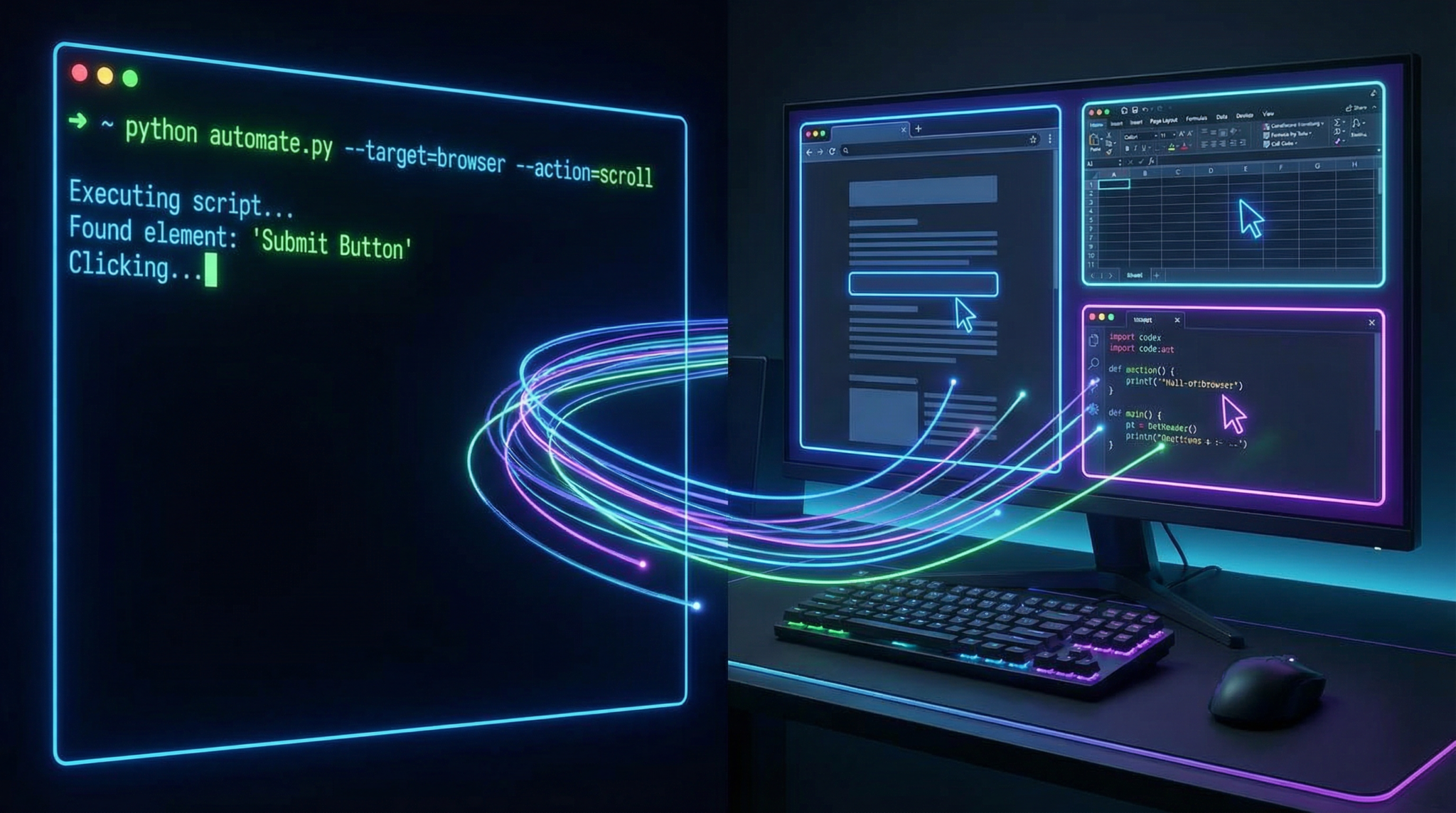
Claude employs GUI automation bindings to simulate user interactions. It can click buttons, fill out form fields, select menus, and scroll pages. For example, to open the “Settings” menu in a native app:
claude-code "Click the Settings menu in Visual Studio Code"
The system agent queries window handles and UI element trees, identifies the target element by label or position, and performs the click event. This process leverages OS accessibility APIs:
- macOS: Accessibility Inspector and AppleScript
- Windows: UI Automation (UIA) framework
- Linux: AT-SPI and xdotool
Example CLI command for macOS AppleScript execution:
osascript -e 'tell application "System Events" to click menu item "Settings" of menu "Code" of menu bar 1 of application process "Visual Studio Code"'
Complex GUI Navigation Example
Imagine automating a multi-step workflow: opening a browser, navigating to a URL, logging in, and opening developer tools.
claude-code <Claude breaks down each step into discrete OS automation calls, executing them sequentially with error checking and retry logic.
Leveraging Claude to Test Code Changes Directly from the CLI
Running and Validating Code Edits
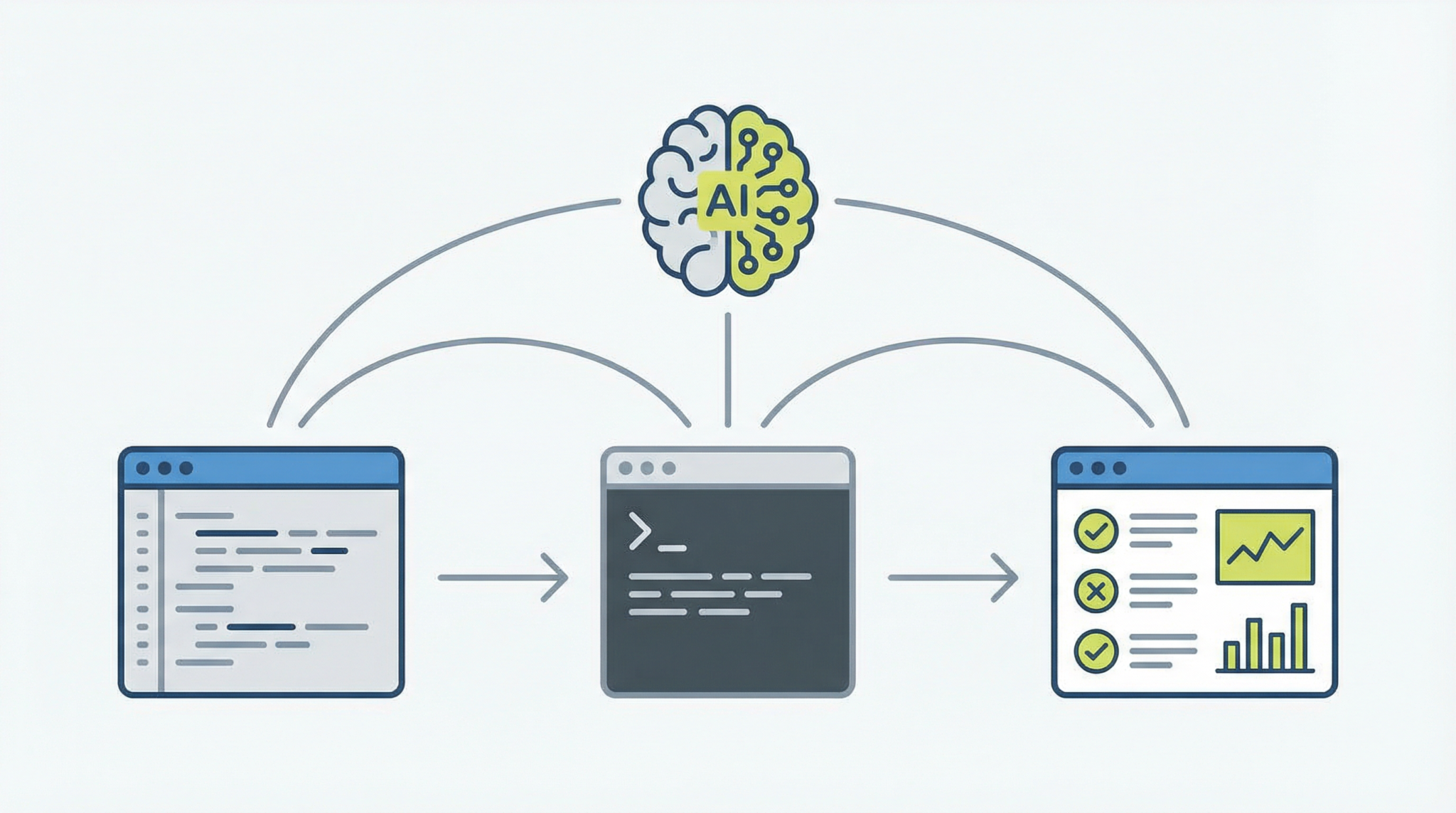
One of the most powerful aspects of ‘Computer Use’ is Claude’s ability to modify code files and test changes seamlessly. For example, after generating a patch, Claude can save the file, run tests, and report results.
claude-code <This translates to:
nano src/main.py
# User or agent edits file as per Claude's instructions
pytest tests/
Claude captures the test output, analyzes failures, and can suggest fixes iteratively.
Terminal Commands Integration
The CLI allows direct command execution:
claude-code run "git status"
claude-code run "npm install && npm test"
You can chain commands for complex workflows:
claude-code run "git checkout feature-branch && code src/feature.js"
Claude monitors and reports terminal output in real time, enabling interactive debugging sessions.
Example: Full Development Cycle Automation
Automate a cycle involving code editing, building, testing, and deployment:
claude-code <Claude intelligently handles conditional logic based on command results.
Troubleshooting Common Issues with ‘Computer Use’
Agent Connection Failures
- Symptom: Claude cannot connect to the system agent.
- Resolution:
- Verify agent is running:
claude-code agent status - Restart the agent daemon:
- macOS:
sudo launchctl stop com.anthropic.claudeagent && sudo launchctl start com.anthropic.claudeagent - Windows: Restart “Claude Agent” service via Services.msc
- Linux:
sudo systemctl restart claude-agent
- macOS:
- Check for firewall or security software blocking communication ports (default 3921 TCP/UDP).
- Verify agent is running:
Permission Denied Errors
- Cause: Agent lacks necessary OS permissions for GUI automation or file access.
- Fix:
- On macOS, enable Accessibility permissions for the Claude Agent in System Preferences → Security & Privacy → Privacy → Accessibility.
- On Windows, run agent with Administrator privileges.
- On Linux, ensure user belongs to the “input” and “sudo” groups if necessary.
UI Element Not Found
- Explanation: Claude cannot locate the target UI component due to dynamic interfaces or labeling differences.
- Solutions:
- Use explicit coordinates or XPath selectors where supported.
- Update the application to a stable version with consistent UI elements.
- Manually inspect UI element identifiers using OS accessibility tools.
Security Considerations and Best Practices
Granting an AI agent control over your system introduces critical security implications. Claude Code’s architecture incorporates multiple safeguards:
- Explicit User Consent: Every session requires user authentication and permission grants.
- Sandboxed Execution: Agent operates with least privilege necessary and restricted file system access.
- Command Whitelisting: Dangerous commands are blocked or require additional confirmation.
- Audit Logs: All actions are logged locally for review and forensic analysis.
- Session Timeout: Idle sessions automatically disconnect to prevent unauthorized use.
As a user, follow these best practices:
- Regularly audit agent permissions and revoke unnecessary access.
- Use strong authentication methods (e.g., hardware tokens, biometrics).
- Isolate sensitive workflows in virtual machines or containers when possible.
- Keep the Claude Code CLI and agent updated with security patches.
Advanced Configuration and Customization
Custom Command Mapping
You can extend Claude’s native OS command repertoire by defining custom mappings for frequently used workflows. Create a JSON file custom-commands.json:
{
  "openSlack": {
    "mac": "open -a Slack",
    "win": "start slack",
    "linux": "slack &"
  },
  "runTests": {
    "all": "pytest tests/ --maxfail=3 --disable-warnings"
  }
}
Load this configuration:
claude-code config import custom-commands.json
Invoke the commands:
claude-code run "openSlack"
claude-code run "runTests"
Adjusting Agent Behavior
The claude-agent.conf file located in your user directory allows fine-tuning:
- Timeouts: Set maximum wait times for UI responses.
- Retry Attempts: Number of retries for failed commands.
- Logging Levels: Set verbosity for debugging.
- Security Policies: Define command blacklists or restricted apps.
Example snippet:
{
  "uiTimeout": 8000,
  "maxRetries": 3,
  "logLevel": "debug",
  "restrictedCommands": ["rm -rf /", "shutdown"]
}
Integrating with Continuous Integration (CI) Pipelines
Claude’s CLI can be embedded into CI workflows to automate testing, code reviews, and deployment validation:
# Example GitHub Actions step
- name: Run Claude automated tests
  run: |
    claude-code auth login --token ${{ secrets.CLAUDE_TOKEN }}
    claude-code run "pytest --maxfail=1 --disable-warnings"
This integration leverages Claude’s ability to interpret test results and propose fixes, streamlining developer productivity.
Complex Workflow Example: End-to-End Web App Update and Validation
This example demonstrates using Claude to open an IDE, modify code, run tests, deploy, and verify deployment status through a browser.
claude-code <Claude manages this intricate process by coordinating GUI actions, CLI commands, conditional logic, and validation checks, all within a single session.
Conclusion
Claude Code’s ‘Computer Use’ feature represents a paradigm shift in AI-assisted programming by enabling direct interaction with your local machine. By mastering application launching, GUI navigation, and CLI integration, developers can significantly accelerate workflows, automate repetitive tasks, and perform complex testing and deployment cycles with minimal manual intervention.
While the power of this feature is immense, understanding its architecture, configuration, and security implications is critical to harnessing it safely and effectively.
For further insights on integrating AI-assisted coding tools into your development environment, explore our detailed analyses on Anthropic’s Claude Code Pricing Overhaul: What the OpenClaw Cutoff Means for Developers in 2026 and the latest advancements in How to Use ChatGPT Voice in Apple CarPlay: Complete Setup and Hands-Free AI Guide for 2026.
Access 40,000+ AI Prompts for ChatGPT, Claude & Codex — Free!
Subscribe to get instant access to our complete Notion Prompt Library — the largest curated collection of prompts for ChatGPT, Claude, OpenAI Codex, and other leading AI models. Optimized for real-world workflows across coding, research, content creation, and business.

