
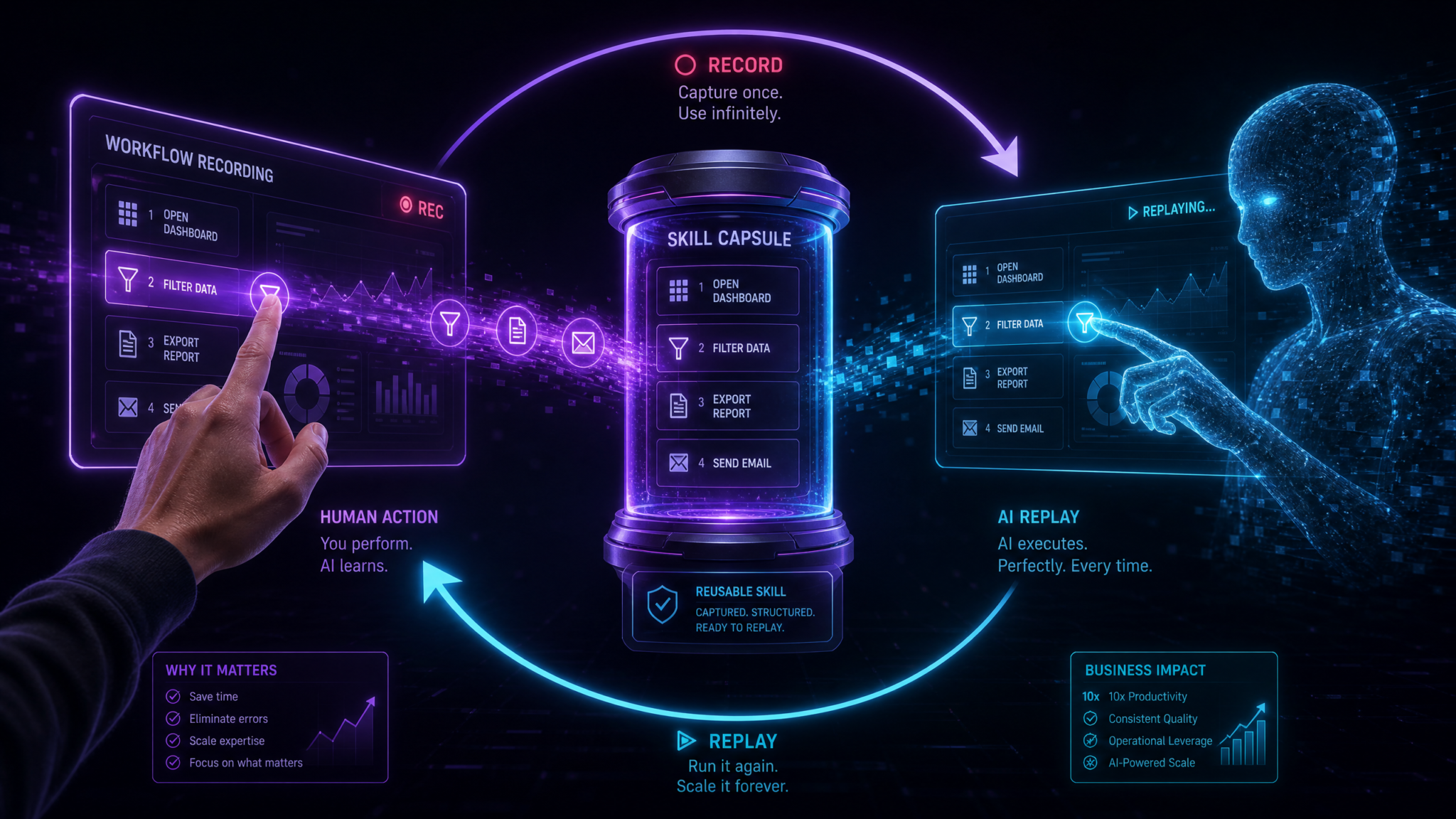
Codex Record & Replay: Turning Demonstrated Workflows into Reusable Skills
A complete, step‑by‑step tutorial for Enterprise and Education users on macOS. Learn how to record a workflow once, convert it into a reusable Codex skill, edit and test it, and deploy it to your organization.
1. Overview and key facts
Record & Replay is a new feature in the Codex app for macOS that lets you demonstrate a workflow once and automatically generate a reusable skill that Codex can replay and adapt. Instead of writing detailed step-by-step instructions or describing complex interactions, you show Codex how the task should be performed — Record & Replay captures browser actions, desktop interactions, and steps taken with installed plugins, then turns those recordings into a skill that can be reused and refined.
Key facts at a glance:
- Platform: Codex app for macOS.
- Available to: Enterprise and Education (Edu) customers. Not available to personal/free consumer accounts at launch.
- Functionality: Demonstrate a repeatable workflow once; Codex generates a skill that can guide its actions through similar tasks.
- Input modalities: Computer Use (system-level interactions), browser actions, and installed plugins can be captured.
- Requirement: Computer Use must be available and enabled to use Record & Replay.
- Initial geographic availability: Excludes the European Union (EU), the United Kingdom (UK), and Switzerland at initial launch.
- Managed deployments: If administrators disable Computer Use for users, Record & Replay will also be disabled for those users.
This tutorial assumes you are using a supported macOS machine, have the Codex desktop app installed, and that your organization provides a Codex Enterprise or Education account. Throughout this guide, you’ll learn how to capture reliable recordings, edit and parameterize the generated skill, test variations, and distribute the final skill to team members with appropriate governance.
2. Prerequisites and account setup
Before you begin recording workflows with Record & Replay, make sure you meet the following prerequisites. Skipping these steps is the most common cause of recordings failing or replays not working consistently.
2.1 System requirements
- macOS: A modern macOS release supported by the Codex desktop app. Check your organization’s guidance for exact versions, but generally macOS 12 (Monterey) or later is recommended for full compatibility.
- Codex desktop app: The latest version of the Codex macOS app with Record & Replay support installed. Enterprise admins can push this update via managed deployment tools.
- Network: Stable internet access for Codex to authenticate, access plugins, and sync skills with your organization.
2.2 Account and licensing
- Account type: Your Codex account must be an Enterprise or Education (Edu) user — Record & Replay is available to these account types at launch.
- Permissions: You must have permission to create and save organization-level skills if you plan to share the generated skill broadly. If you’re unsure, check with your admin.
- Geographic availability: If you work in the EU, UK, or Switzerland, Record & Replay may not be available initially. Confirm availability with your account team.
2.3 Computer Use and system permissions
Record & Replay relies on the Codex “Computer Use” capability, which allows the app to interact with your machine—capture actions, control the mouse/keyboard, and integrate with other installed applications. This must be available and enabled for the feature to work.
- Enable Computer Use: In the Codex app settings, enable Computer Use. If Computer Use is not visible, your deployment may have disabled it via management policy. For managed deployments, note that disabling Computer Use at the admin level also disables Record & Replay for users.
- macOS permissions: You will need to grant Codex accessibility and screen recording permissions in macOS System Preferences (System Settings). When prompted:
- Open System Preferences → Privacy & Security.
- Grant Accessibility (for simulating input and controlling UI elements).
- Grant Screen Recording (so the app can capture and interpret visual context).
- Plugins and browser integration: If your workflow uses browser plugins or Codex plugins, ensure they are installed and authorized before recording. Plugin availability will be captured during recording so the generated skill can include plugin calls.
2.4 Practical preparations before recording
- Choose a stable environment: Use a predictable test account and avoid transient data. For web-based workflows, use a consistent browser window size and known test data.
- Close unnecessary windows: Minimize visual changes that could confuse selectors or visual matching during replay.
- Document input variables: Know which values should be parameterized (e.g., customer names, dates, IDs) so you can replace them during editing.
3. Recording your first workflow (step by step)
This section walks you through recording a simple workflow and saving it as a Codex skill. The example used here is generic: logging into a web portal, filling a short form, and exporting a report. Apply the same principles to other workflows.
3.1 Quick overview
High-level flow:
- Enable Computer Use and grant macOS permissions.
- Open Codex and start a new Record & Replay session.
- Perform the workflow while Codex records your actions.
- Stop the recording and review the generated skill.
- Save the skill and run a test replay.
3.2 Detailed steps
Step 1 — Prepare your environment
Before starting: sign into any web portals, open the applications you will interact with, and position windows consistently. If you will use a browser, use one profile or private window dedicated to testing to avoid unexpected session states.
Step 2 — Enable Computer Use and permissions
- Open the Codex app on macOS.
- Go to Settings → Computer Use and confirm it is enabled. If you do not see this option, check with your admin because managed deployments may disable it.
- If prompted by macOS, grant Accessibility and Screen Recording permissions to Codex. Open System Preferences → Privacy & Security, then add Codex to Accessibility and Screen Recording.
Step 3 — Start a Record & Replay session
- In Codex, click New Skill (or New Project) and select the Record & Replay option.
- Give the recording session a descriptive name like “Portal – Export Monthly Report (initial recording)”.
- Optional: add a short description that lists expected inputs, outputs, and any assumptions.
- Click Start Recording. Codex will display a minimal recording overlay to indicate that it is capturing actions.
Step 4 — Perform the workflow
Perform the exact sequence of actions you would like Codex to replicate. Keep the sequence stable and avoid unnecessary clicks. While recording:
- Click UI elements, enter text, select menu items, and navigate pages exactly as a human would.
- Avoid long pauses or repeated corrective actions; if you make a mistake, you can either stop and re-record or continue and later edit the generated steps.
- If your workflow uses a plugin (for example, a data enrichment plugin), interact with it as normal; the plugin calls will be captured as part of the recording.
- For browser actions, use consistent window size and positioning to make visual selectors more robust.
Step 5 — Stop and save the recording
- When you finish the sequence, click Stop Recording in the Codex overlay or the Codex app.
- Codex will analyze the captured events and present a generated skill preview with a sequence of steps, textual descriptions, and detected inputs/outputs.
- Review the preview and click Save as Skill. Give the skill a final name and choose whether to save it to your personal workspace or make it available to your organization from the start.
Step 6 — Initial review of the generated skill
After saving, Codex opens the new skill editor. It will show the recorded steps, detected variables (for example, form fields that received text input), annotations for plugin calls, and any screenshots or visual references used to build selectors.
- Mouse clicks and their UI context (for visual or DOM-based selectors).
- Keystrokes and text inputs (captured as values and candidate variables).
- Navigation events (URL changes, page loads).
- Plugin invocations and parameters passed to plugins.
- Contextual screenshots to help build visual selectors.
Step 7 — Run the skill once to validate
- Use the “Run” button in the skill editor to replay the recorded sequence in the same environment you recorded it in.
- Watch for obvious failures (e.g., click landed in wrong place, element not visible). The replay UI will show logs and screenshots of each step.
- If the run succeeds, you have a working baseline. If it fails, take notes and proceed to the editing guidance in the next section.
This completes a first recording cycle. The generated skill provides a starting point you will refine to make it robust for real-world use.
4. Editing the generated skill
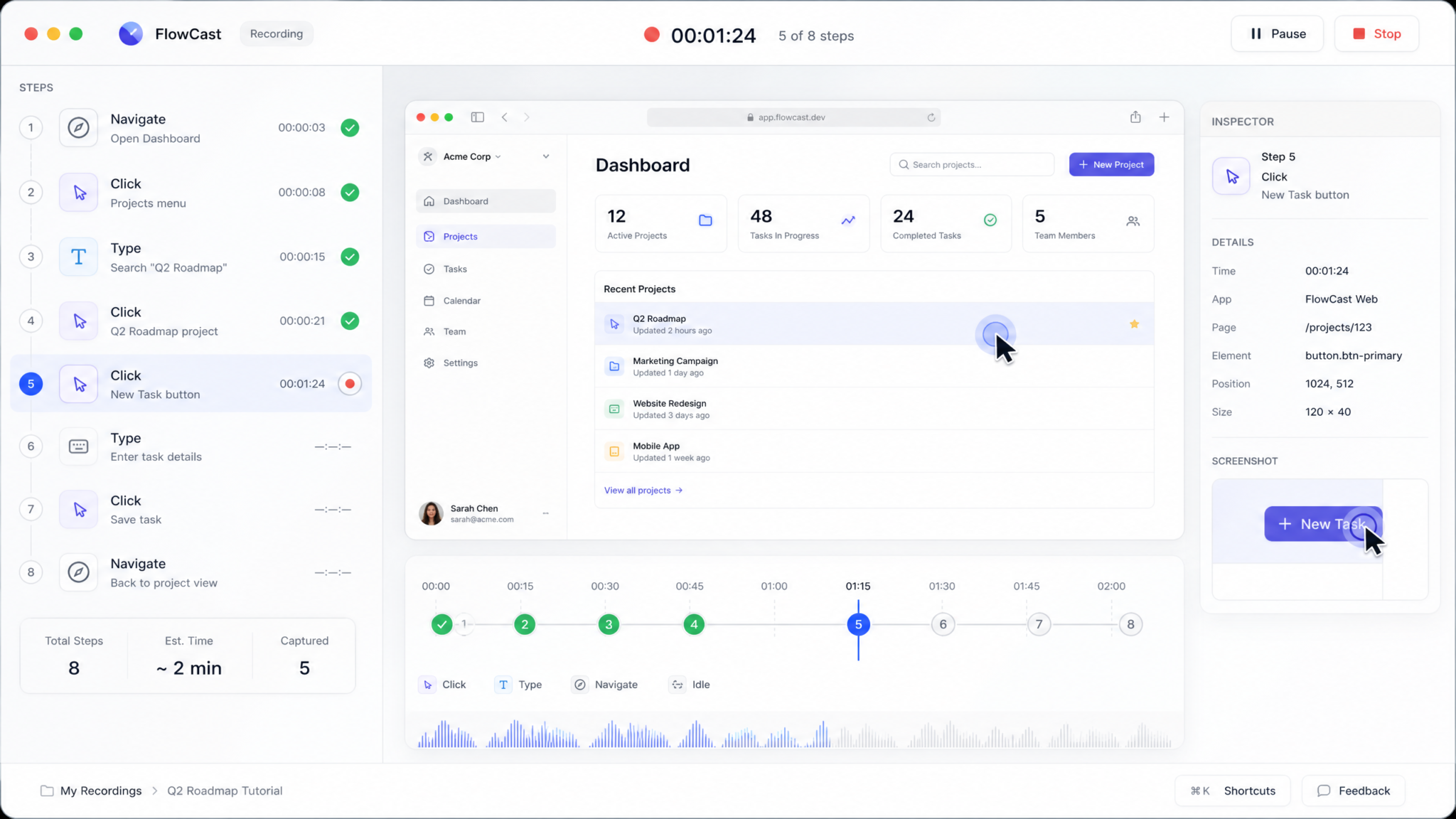
After the initial recording, Codex generates a skill that mirrors your actions. Editing is where you transform a raw recording into a robust, parameterized skill suitable for production use. The editor offers both visual and textual ways to make changes. The following topics cover common editing tasks and methods to make the skill resilient and reusable.
4.1 Understanding the generated structure
The generated skill typically includes:
- Step list: A sequential list of steps that replicate your actions (clicks, inputs, plugin calls, navigation).
- Detected variables: Values the recorder noticed (form fields, IDs, filenames). These are candidates to parameterize.
- Selectors and heuristics: For each UI action, the recorder will propose a selector — this may be a DOM selector, a positional reference, or a visual screenshot-based selector.
- Error handling suggestions: If the recorder observed potential failure points (popups, optional dialogs), it may surface an error-handling prototype (try/catch or conditional step).
- Plugin calls: Where plugins were used, the invocation and parameters will be included as native steps in the sequence.
4.2 Parameterizing inputs
To reuse a recorded workflow across different inputs (for example, different customer names, dates, or IDs), convert literal values into parameters.
- Open the step that contains the literal value (e.g., a text input).
- Select “Convert to Parameter” or “Create Variable” and give it a meaningful name (e.g., customer_id, report_date).
- Define the parameter type and validation rules (string, date, number, regex). Optionally provide a default value for quick testing.
- When saving the skill, set the parameter visibility (private, required, optional) and provide help text so team members know how to use it.
4.3 Improving selectors and resilience
Selectors derived from a single recording can be brittle. Improve reliability by using more robust selectors and by adding explicit wait conditions.
- Prefer stable attributes: Use element IDs, data-attributes, or ARIA labels where available rather than visual coordinates.
- Use relative selectors: Target elements relative to nearby stable anchors when direct attributes are not reliable.
- Visual fallback: For non-DOM applications or complex UI, a screenshot-based visual selector with tolerance can be used; tune image similarity thresholds to reduce false positives.
- Wait strategies: Add step-level waits for network idle, element visibility, or specific text. Avoid fixed-time sleeps where possible; prefer condition-based waits.
4.4 Adding control flow
Simple linear recordings rarely cover all edge cases. Add control flow to handle branches such as optional dialogs, captcha-like flows, or multiple navigation paths.
- Conditionals: Insert an if/else to handle optional UI elements. Example: If a “Confirm” dialog appears, click Confirm; otherwise continue.
- Loops: Use loops for repetitive processing (e.g., iterate over rows in a table, paginate until no more results).
- Retries: Wrap fragile steps in retry blocks with exponential backoff.
- Timeouts and fallback actions: Provide fallback navigation steps in case primary navigation fails.
4.5 Integrating plugins and API calls
If the recording included plugin interactions, the generated skill will show plugin steps. You can edit plugin parameters, add new plugin calls, or swap plugins for alternatives.
- Validate plugin access: Ensure the plugin is available to users who will run the skill and that any API keys or tokens are configured at the organization or user level.
- Parameterize plugin inputs: Treat plugin inputs as parameters where appropriate (for example, a lookup key or an export format).
- Post-processing: Add steps that process plugin outputs (map to CSV, transform JSON, or store results in a database).
4.6 Adding documentation and metadata
For team consumption and future maintenance, add clear documentation:
- Skill description: Purpose, expected inputs, outputs, and preconditions.
- Step comments: Short notes on why each step exists and what assumptions it makes.
- Change log: When publishing to the team, include a release note to summarize changes and migration instructions.
4.7 Example edit: parameterize a username field
Walkthrough:
- Find the step that types the username string “[email protected]”.
- Click “Convert value” → Create Parameter → name it “username”.
- Set parameter type: string. Default value: “[email protected]” (for testing).
- Update the skill description to state: “Provide a username or leave default for test account.”
- Run the skill with a different username to confirm the parameter is applied correctly.
4.8 Safety edits and role restrictions
If a step could cause irreversible changes (deleting data, sending emails), mark it as needing elevated permissions or require an explicit confirmation parameter. Use role-based access to restrict who can run destructive skills.
5. Testing and iterating
Thorough testing is essential before deploying skills broadly. Iteration cycles will make the skill robust across environments and edge cases. This section outlines testing strategies, diagnostics, and iteration patterns.
5.1 Testing types
- Unit test (single run): Execute the skill with a single set of inputs to validate core behavior.
- Parameterized test (input matrix): Run the skill with different combinations of inputs to validate parameter handling.
- Stress and scale testing: If a skill processes multiple records, test with larger datasets to identify performance or rate-limit issues.
- Regression tests: When editing or upgrading a skill, re-run previous successful tests to confirm no regressions.
5.2 Safe test environment
Always run tests in an environment with test accounts or sandbox data to avoid impacting production systems. Use dedicated test credentials and sample datasets.
5.3 Logging, snapshots and diagnostics
Codex records logs, screenshots, and step-level diagnostics for each replay. Use these assets to find and fix failures quickly.
- Step logs: Review detailed logs showing actions, response times, and return values.
- Screenshots: Look at screenshots taken during each replay step to identify UI mismatches or overlays blocking clicks.
- Selector traces: For DOM-based actions, inspect which selector was used and whether it matched multiple elements.
5.4 Iteration loop
- Run the skill and observe failures or flaky behavior.
- Identify the failing step and inspect screenshots and logs.
- Update selectors, waits, or control flow as necessary.
- Re-run the test; if successful, add additional test cases for other inputs.
- Repeat until the skill runs reliably across all test scenarios.
5.5 Handling dynamic content and race conditions
Dynamic UIs (client-side rendering, lazy-loaded elements) often require wait conditions or different selector strategies.
- Wait for stable text or attributes rather than arbitrary delays. For example, wait until an element’s innerText includes “Ready”.
- Use polling timeouts for elements that appear unpredictably; set a sensible timeout to avoid long hangs.
- When data loads via XHR, wait for network idle or monitor a specific API call if possible.
5.6 Similarity thresholds for visual matching
If the skill uses screenshot-based selectors, tune the image similarity threshold. Too strict and minor UI updates will break; too loose and you risk false positives. Use a combination of DOM selectors and visual fallbacks for best stability.
5.7 Acceptance criteria and success indicators
Define what “success” means for each skill. For example:
- A report file is downloaded and validated by checksum or filename pattern.
- Form submission returns a confirmation message with a predictable structure.
- Extracted data matches expected schema and sample values.
5.8 Regression prevention
- Version your skill each time you make changes.
- Attach automated tests to the skill where possible; re-run them after edits.
- Keep a changelog and highlight breaking changes that require downstream updates.
6. Deploying to your team
Once a skill is robust, you can share it across your organization. Deployment options range from publishing to an internal skill library to packaging the skill with documentation and permissions. The following guidance covers common deployment models and governance considerations for Enterprise and Edu teams.
6.1 Publication models
- Private workspace: Keep the skill private for personal use or limited testing.
- Team share: Share with a specific team or group within the organization.
- Organization catalog: Publish to the enterprise skill store for broad availability with governance controls (recommended for widely used skills).
6.2 Permission management
Decide who can:
- Run the skill: Users who need the capability.
- Edit the skill: Developers or automation authors responsible for maintenance.
- Publish or unpublish: Administrators who manage the enterprise catalog.
6.3 Versioning and release process
Adopt a simple release process:
- Create a release branch or version tag when the skill passes tests.
- Publish the version to the team catalog and include release notes.
- Monitor initial usage and roll up fixes quickly if issues arise.
6.4 Documentation and training
Provide the following with every published skill:
- User guide: How to run the skill, required inputs, and expected outputs.
- Admin guide: Permissions required, plugin prerequisites, and data retention policies.
- Quick start video or GIF: Short visual demonstration of running the skill for non-technical users.
6.5 Governance and auditing
Enterprise teams should track who runs skills and why. Build auditing and monitoring into your deployment process:
- Audit logs: Keep records of skill runs, inputs provided, and outputs generated for compliance purposes.
- Access reviews: Periodically verify who has run or edited sensitive skills.
- Data retention: Ensure outputs containing personal data are handled according to policy.
6.6 Rollout strategies
- Staged rollout: Publish to a pilot team first, collect feedback, then expand to the full org.
- Training sessions: Host live or recorded sessions to demonstrate the skill and common gotchas.
- Support channel: Provide an internal support channel for early adopters to report issues.
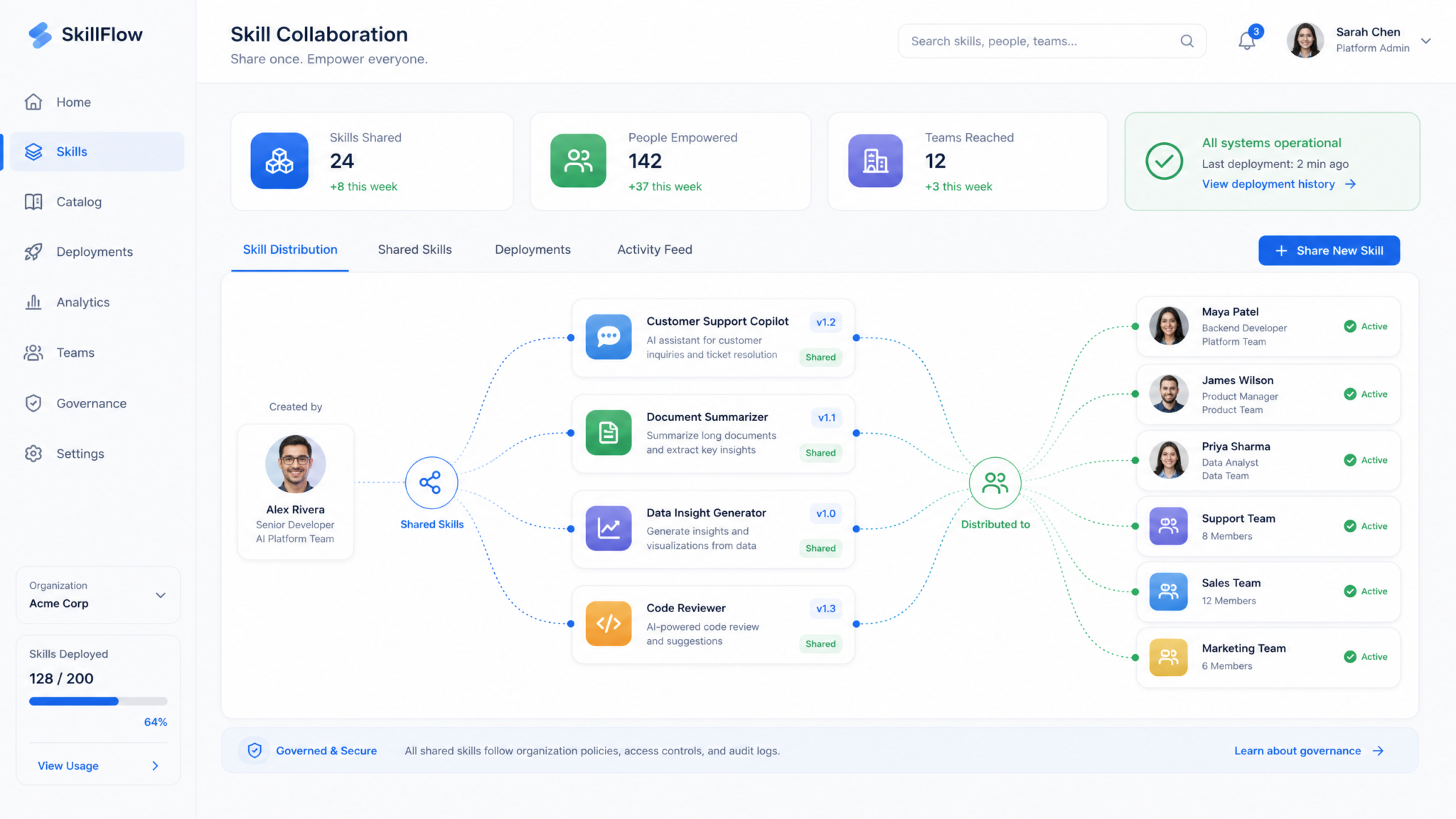
6.7 Special considerations for managed deployments
In managed (MDM) environments administrators control Computer Use and related capabilities. If Computer Use is disabled at the admin level, Record & Replay will not be available to users. Coordinate with your MDM and security team to enable Carbon Use and Record & Replay where appropriate; provide risk assessments and allowlists to expedite approvals.
6.8 Measuring adoption and ROI
Track metrics to demonstrate value:
- Number of runs per week/month.
- Time saved per run compared to manual execution.
- Error rates before and after automation.
- User satisfaction and maintenance overhead.
Sharing success stories and quantitative metrics will help justify expanding Codex skills to other teams.
7. Best practices
Follow these best practices to ensure that your Record & Replay skills are robust, secure, and maintainable.
7.1 Design for stability and reproducibility
- Limit UI-dependent steps where possible; prefer programmatic integrations or plugin-based calls for critical actions.
- Use stable selectors and avoid absolute coordinates.
- Parameterize inputs and keep defaults for quick tests.
- Favor idempotent operations; design skills so repeated runs do not cause unintended side effects.
7.2 Keep skills modular
Break complex workflows into smaller, composable skills that can be chained. Modularity simplifies testing and makes maintenance easier when parts of the workflow change.
7.3 Secure data handling
- Never hardcode secrets: Use organization-managed secrets or environment variables for API keys and credentials.
- Mask or redact sensitive outputs in logs and screenshots when they contain PII or confidential data.
- Limit access to skills that handle sensitive operations using role-based permissions.
7.4 Document assumptions and preconditions
Document expected UI states, required browser versions, plugin availability, and account privileges. This reduces failure caused by environment drift.
7.5 Use stable test data
Maintain a small set of representative test accounts and datasets. Automation should be validated against these data sets regularly.
7.6 Monitor and maintain
Websites and applications change frequently. Schedule periodic checks of critical skills and run health tests on a cadence (daily/weekly) for production-critical automations.
7.7 Keep a human-in-the-loop for risky tasks
For destructive or high-impact tasks (deleting data, submitting legal documents), require a human confirmation step or limit execution to designated operators.
7.8 Naming conventions
Adopt clear naming conventions for skills, parameters, and variables. Example pattern: Department_Function_Description_v1 (e.g., Finance_Export_AR_Transactions_v1).
8. Common patterns with Record & Replay
Below are three common automation patterns and guidance on how to build them using Record & Replay: form filling, data extraction, and report generation. Each pattern includes design notes and practical tips to make the skill robust.
8.1 Form filling
Use case: Automate entering structured data into web forms (onboarding, ticket creation, data entry).
Design approach
- Parameterize all user-supplied fields (name, email, ID, date) and provide validation rules.
- Use stable selectors (input[name=”email”], data attributes, or ARIA labels).
- Add error handling for client-side validation messages and retry logic for temporary issues.
Recording tips
- Record a successful form submission end-to-end using sample data.
- Capture edge cases (missing optional fields, validation messages) separately or add conditional steps to handle them.
- Avoid recording form corrections; instead record a clean, correct submission and add validation checks in the editor for incomplete data.
Replay tips
- After filling and submitting, wait for a confirmation element (success message or new URL) rather than relying on a fixed wait.
- If the form offers autosave or inline validation, ensure the skill waits for the element state to reflect completion.
8.2 Data extraction
Use case: Extract structured data from web pages (tables, product listings, search results).
Design approach
- Identify the DOM structure for the items you want to extract (rows, columns, attribute-based selectors).
- Use loops to iterate over item lists and extract fields into structured outputs (CSV, JSON).
- Handle pagination through looped navigation until a stopping condition is reached (no next button, or a max page limit).
Recording tips
- Record a simple iteration over a single page including extracting one item and saving its fields; then parameterize the loop in the editor.
- Capture sample entries for different layouts if the site alternates presentation styles.
Post-processing tips
- Normalize extracted data (trim whitespace, parse dates, coerce types) before exporting.
- Validate schema and discard rows that do not meet minimum criteria.
8.3 Report generation and distribution
Use case: Generate a periodic report (export data, format it, and share via email or upload to a storage location).
Design approach
- Break the process into stages: data extraction, transformation, formatting, export, and distribution.
- Parameterize the reporting period, destination location, and recipients.
- Add steps to verify a successful export (file exists, correct size or checksum).
Recording tips
- Record the process with a small time window first to validate the entire end-to-end flow.
- Record plugin interactions if you use Codex plugins to format or push files to cloud storage.
Distribution tips
- Use organization-managed storage plugins for secure file storage and access control.
- For distribution via email, use templates with parameterized subjects and body text to avoid accidental leaks of sensitive data.
For additional automation concepts and examples, see
For a deeper exploration of this topic, our comprehensive article on 15 writing Prompts for Claude Code — Copy-Paste Ready for Production Workflows provides detailed implementation strategies, real-world benchmarks, and step-by-step workflows that complement the techniques discussed in this section.
and
For a deeper exploration of this topic, our comprehensive article on Claude Code Automation: How to Automate Tasks Hands-Free with AI provides detailed implementation strategies, real-world benchmarks, and step-by-step workflows that complement the techniques discussed in this section.
for broader pattern references. If you manage an organization, consult
For a deeper exploration of this topic, our comprehensive article on OpenAI Launches Skills.sh — The npm for AI Agent Skills provides detailed implementation strategies, real-world benchmarks, and step-by-step workflows that complement the techniques discussed in this section.
for governance and scaling strategies.
9. Troubleshooting
Common issues and how to diagnose and resolve them.
Issue: Record & Replay option not visible in Codex
- Cause: Computer Use is not available or disabled for your account or region.
- Fixes:
- Confirm you are using an Enterprise or Education account; consumer accounts may not have the feature.
- Check Codex settings to see if Computer Use is available and enabled.
- If you are in the EU, UK, or Switzerland, the feature may not be available at initial launch; contact your account team.
- If you are in a managed deployment, consult your admin—Computer Use may be disabled by policy.
Issue: Recording fails to capture plugin actions
- Cause: The plugin was not installed, or the plugin requires additional authorization.
- Fixes:
- Install and authorize the plugin in the Codex app and in any required third-party service.
- Re-record only the plugin-related steps if necessary, or insert plugin calls manually in the editor.
Issue: Replay clicks the wrong element or nothing happens
- Cause: Selector mismatch due to UI changes or window size differences.
- Fixes:
- Inspect the failing step’s selector and update it to use stable attributes.
- Use relative or text-based selectors as fallbacks.
- Expand timeouts or add a wait for element visibility.
- If the UI is different on replay, ensure the environment (browser, profile, screen resolution) matches the recording.
Issue: Permissions dialog blocks the action
- Cause: An OS dialog (like a file chooser or an authentication prompt) interrupts the flow.
- Fixes:
- Record an explicit path through the dialog and add logic to handle alternate prompt states.
- Where possible, avoid OS dialogs by using direct API integrations or pre-configured resource paths.
Issue: Sensitive data appears in logs or screenshots
- Cause: The skill captured PII or confidential values during recording.
- Fixes:
- Edit the skill to mask or redact sensitive values in logs and screenshots.
- Use parameterized variables for any secrets and mark them as sensitive so they are not logged.
Issue: Skill works on the recorder’s machine but fails elsewhere
- Causes include environment drift, missing plugins, or insufficient permissions.
- Fixes:
- Standardize environment: document browser version, screen resolution, installed plugins, and any required credentials.
- Ensure users have the necessary permissions to run the skill (both in Codex and in target systems).
- Use environment variables or organization-managed secrets to supply credentials consistently.
Diagnostic checklist
- Is Computer Use enabled and does the app have macOS accessibility and screen recording permissions?
- Is the failing step using a stable selector?
- Are plugins used in the skill installed and authorized for all users?
- Are inputs parameterized and validated before use?
- Are logs and screenshots helpful for diagnosing the failure?
Access 40,000+ AI Prompts for ChatGPT, Claude & Codex — Free!
Subscribe to get instant access to our complete Notion Prompt Library — the largest curated collection of prompts for ChatGPT, Claude, OpenAI Codex, and other leading AI models. Optimized for real-world workflows across coding, research, content creation, and business.
10. Frequently asked questions (FAQ)
Is Record & Replay available on Windows or Linux?
At launch, Record & Replay is a feature of the Codex app for macOS. Windows and Linux support may be added in future releases. Check your organization’s release announcements for updates.
Who can use Record & Replay?
The feature is available to Enterprise and Education (Edu) users of the Codex app. Personal or consumer accounts may not have access at initial release.
Does Record & Replay require special permissions in macOS?
Yes. Record & Replay relies on the Codex Computer Use capability, so you must grant the Codex app Accessibility and Screen Recording permissions in macOS System Preferences. Administrators in managed environments may need to allow these permissions centrally.
What if Computer Use is disabled by my organization?
For managed deployments, administrators can disable Computer Use. When it is disabled for a user or group, Record & Replay will also be disabled. Contact your administrator to request an exception or discuss risk and control measures.
Why are EU, UK, and Switzerland excluded from initial availability?
Privacy and regulatory considerations influence initial geographic availability. At launch, Record & Replay is not available in the EU, UK, and Switzerland. Availability may change over time; consult your account team for updates.
Where are recordings stored?
Recordings and generated skills are stored in Codex’s workspace associated with your account. Depending on your organization’s configuration, skills can be saved to personal workspaces, team spaces, or the enterprise skill catalog. Audit logs and run artifacts may be retained according to your organization’s data retention policy.
Can I edit the generated skill after recording?
Yes. The generated skill is editable. You can change selectors, parameterize values, add control flow, modify plugin calls, and update documentation. Typical workflows require editing to make the skill robust.
Can skills call external APIs or integrate with company systems?
Yes. Skills can include plugin calls and API interactions if plugins are available. Use organization-managed secrets for API authentication and follow your security policies when integrating with internal systems.
How do I handle updates when the target application changes?
When UIs change, edit the affected selectors or add alternate selector strategies. Maintain versioning and regression tests. For frequent UI changes, consider integrating with APIs or backend services where possible to reduce fragility.
Can Record & Replay capture keyboard shortcuts and complex input sequences?
Yes. The recorder captures keystrokes, keyboard shortcuts, mouse movements, and plugin interactions. When replaying, Codex will reproduce these inputs and can simulate complex sequences reliably given proper permissions and consistent environment settings.
What security measures are in place for sensitive data captured during recording?
Codex provides options to mark parameters as sensitive, redact logs/screenshots, and restrict access to skills that handle sensitive data. Follow organizational data-handling policies and consult your security team to define appropriate access controls.
How do I roll back to a previous version of a skill?
Use the skill versioning interface in Codex to revert to a previous version. Keep a changelog with release notes to explain why rollbacks are necessary and document any data migration concerns.
What happens if I run a skill and it fails halfway through?
The run will stop and report the error with logs and screenshots. You can inspect the failure, update the skill to add retry logic or error handling, and re-run. For long-running or high-impact tasks, consider adding an explicit checkpoint and a rollback or recovery path.
Where can I learn more about designing automations and enterprise practices?
Consult your organization’s automation playbooks and the internal resources linked earlier, such as
For a deeper exploration of this topic, our comprehensive article on OpenAI Launches Skills.sh — The npm for AI Agent Skills provides detailed implementation strategies, real-world benchmarks, and step-by-step workflows that complement the techniques discussed in this section.
, for governance templates, naming conventions, and scaling best practices. Explore broader automation patterns in
For a deeper exploration of this topic, our comprehensive article on 15 writing Prompts for Claude Code — Copy-Paste Ready for Production Workflows provides detailed implementation strategies, real-world benchmarks, and step-by-step workflows that complement the techniques discussed in this section.
and
For a deeper exploration of this topic, our comprehensive article on Claude Code Automation: How to Automate Tasks Hands-Free with AI provides detailed implementation strategies, real-world benchmarks, and step-by-step workflows that complement the techniques discussed in this section.
for theory and additional examples.
11. Appendices
Appendix A — Pre-recording checklist
- macOS version compatible with Codex app.
- Codex desktop app installed and updated.
- Enterprise or Education Codex account.
- Computer Use enabled in Codex settings; macOS Accessibility and Screen Recording permissions granted.
- Required plugins installed and authenticated.
- Test environment set up with predictable data.
- Document list of inputs to parameterize and fields to extract.
- Window sizes and display settings standardized for the recording session.
Appendix B — Skill deployment checklist
- Skill passes unit and parameterized tests.
- All inputs parameterized and validated.
- Logging and redaction configured for sensitive data.
- Permissions set appropriately for run/edit/publish.
- Release notes prepared and user documentation written.
- Pilot deployment completed and feedback acted on.
- Audit logging enabled for production runs.
Appendix C — Glossary
| Term | Definition |
|---|---|
| Computer Use | The Codex capability that permits system-level interaction with macOS for recording and replaying mouse, keyboard, and screen actions. |
| Record & Replay | A Codex app feature that captures demonstrations of workflows and converts them into reusable automation skills. |
| Skill | A packaged automation in Codex that encapsulates steps, parameters, and control flow to perform a task. |
| Plugin | An extension or integration that extends Codex’s capabilities with specialized actions, API calls, or data connectors. |
| Selector | A method for identifying UI elements (DOM, visual, or positional) used to target actions during replay. |
