

Since its inception, OpenAI Codex has materially changed the way developers interact with machines by interpreting natural language into code. In 2026, OpenAI has introduced a groundbreaking feature that extends Codex’s capabilities beyond code generation — the ability to directly interact with desktop environments by seeing, clicking, and typing. This new computer use feature enables users to automate virtually any desktop task with unprecedented precision and ease.
This comprehensive guide will explore the full spectrum of OpenAI Codex’s computer use capabilities, outlining how it perceives screen content, executes mouse and keyboard actions, and integrates into everyday workflows. Whether you are a developer, automation enthusiast, or business professional, mastering this feature will dramatically enhance productivity and open new horizons for AI-driven automation.
⚡ The Brief
- What: Key lessons from Code with Claude 2026 on moving from standalone LLM calls to full agentic workflows.
- Who it’s for: Engineers, founders, and platform teams experimenting with Claude agents and orchestrated workflows.
- Key takeaways: What worked in real demos: planning, memory, tool use, error handling, and human-in-the-loop patterns.
- Pricing / cost angle: Highlights the engineering and infra tradeoffs between simple chatbots and always-on agent systems.
- Bottom line: Start with one well-scoped agentic workflow that ships value end-to-end before scaling to multi-agent meshes.
Understanding OpenAI Codex’s Computer Use Feature
The 2026 update to OpenAI Codex introduces a novel interaction paradigm: AI-driven desktop control. Unlike traditional automation tools that rely on predefined macros or scripting languages, Codex now interprets natural language prompts to perform visual and interactive tasks on the user’s desktop environment. This includes:
- Seeing: Analyzing and understanding visual elements on the screen, such as windows, buttons, text fields, and icons.
- Clicking: Simulating mouse movements and clicks to interact with graphical user interface (GUI) elements.
- Typing: Inputting text into fields or applications programmatically, enabling form completion, command entry, or document editing.
This shift transforms Codex from a pure code interpreter into a full-fledged AI-powered virtual assistant capable of automating complex desktop workflows without requiring manual scripting or screen-recording macros.
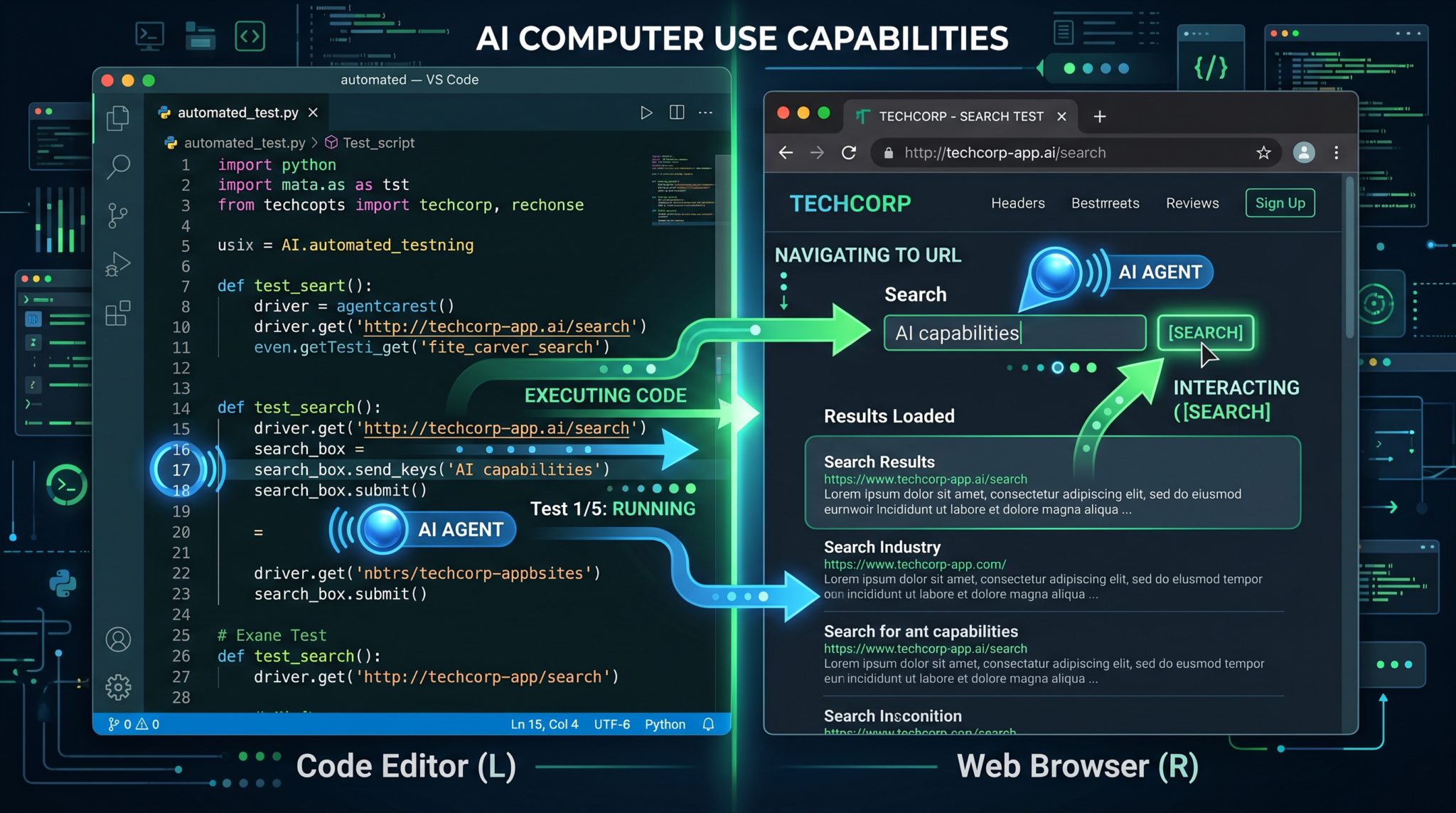
How OpenAI Codex Sees Your Desktop: Visual Recognition and Interpretation
The cornerstone of Codex’s new computer use feature is its advanced visual recognition system. It leverages state-of-the-art computer vision models integrated with language understanding to interpret what is displayed on the screen. This includes:
- GUI Element Detection: Codex identifies buttons, menus, dialogs, text boxes, images, and other interface components by analyzing pixel data and contextual clues.
- Text Recognition and Extraction: Optical Character Recognition (OCR) is applied to read on-screen text, including dynamic content such as notifications, error messages, and form labels.
- Contextual Understanding: Beyond raw recognition, Codex understands the function and role of elements based on their appearance and surrounding text, allowing it to choose appropriate actions.
For example, if a user instructs Codex to “open the settings menu,” it visually locates the settings icon or menu item on the screen and targets it for interaction. This visual grounding enables Codex to operate effectively across diverse applications and window layouts without needing explicit application APIs or integrations.
Executing Mouse Actions: Precision Clicking and Navigation
Once Codex identifies the relevant interface elements visually, it performs precise mouse operations to interact with them. This includes:
- Pointing and Clicking: Codex calculates the coordinates of target elements and simulates mouse movement and clicks, including single clicks, double clicks, and right clicks.
- Click-and-Drag Gestures: For operations such as selecting text, moving windows, or resizing elements, Codex can perform drag gestures by holding and moving the mouse cursor accordingly.
- Scrolling and Hovering: Codex can scroll through pages or menus and hover over elements to trigger tooltips or menus before clicking.
This functionality allows users to automate tasks that require complex navigation, such as filling out multi-step forms, managing files via drag-and-drop, or interacting with software that lacks scripting interfaces.
Typing Automation: Intelligent Text Input and Command Execution
Typing is another critical dimension of Codex’s computer use capabilities. Codex simulates keyboard input to enter text, execute commands, or manipulate documents. Key features include:
- Context-Aware Text Entry: Codex can type exactly what the user requests, including variable data, formatted text, or command sequences.
- Keyboard Shortcut Simulation: It supports complex keyboard shortcuts, such as Ctrl+C, Alt+Tab, or custom application shortcuts, enabling rapid task execution.
- Dynamic Text Editing: Codex can edit existing text by moving the cursor, selecting content, deleting, or inserting additional information as directed.
For instance, a user can instruct Codex to “open a new document in the text editor, type the meeting notes, and save the file as ‘Project_Update.txt’,” and Codex will perform all those steps seamlessly.
Practical Applications of OpenAI Codex Computer Use in 2026
The combination of seeing, clicking, and typing unlocks a vast array of practical applications across industries and personal productivity:
- Automated Data Entry: Codex can extract information from emails, spreadsheets, or PDFs and input it into CRM systems, invoicing platforms, or databases.
- Software Testing and QA: Automated GUI testing becomes more intuitive, as Codex can navigate through software interfaces, validate outputs, and log results.
- Customer Support Automation: Codex can handle repetitive desktop tasks such as ticket classification, form filling, and response drafting.
- Personal Workflow Optimization: Routine tasks like file organization, email management, or report generation can be fully automated using natural language commands.
By enabling natural language interaction with virtually any desktop application, Codex reduces the need for specialized automation tools or manual scripting expertise.
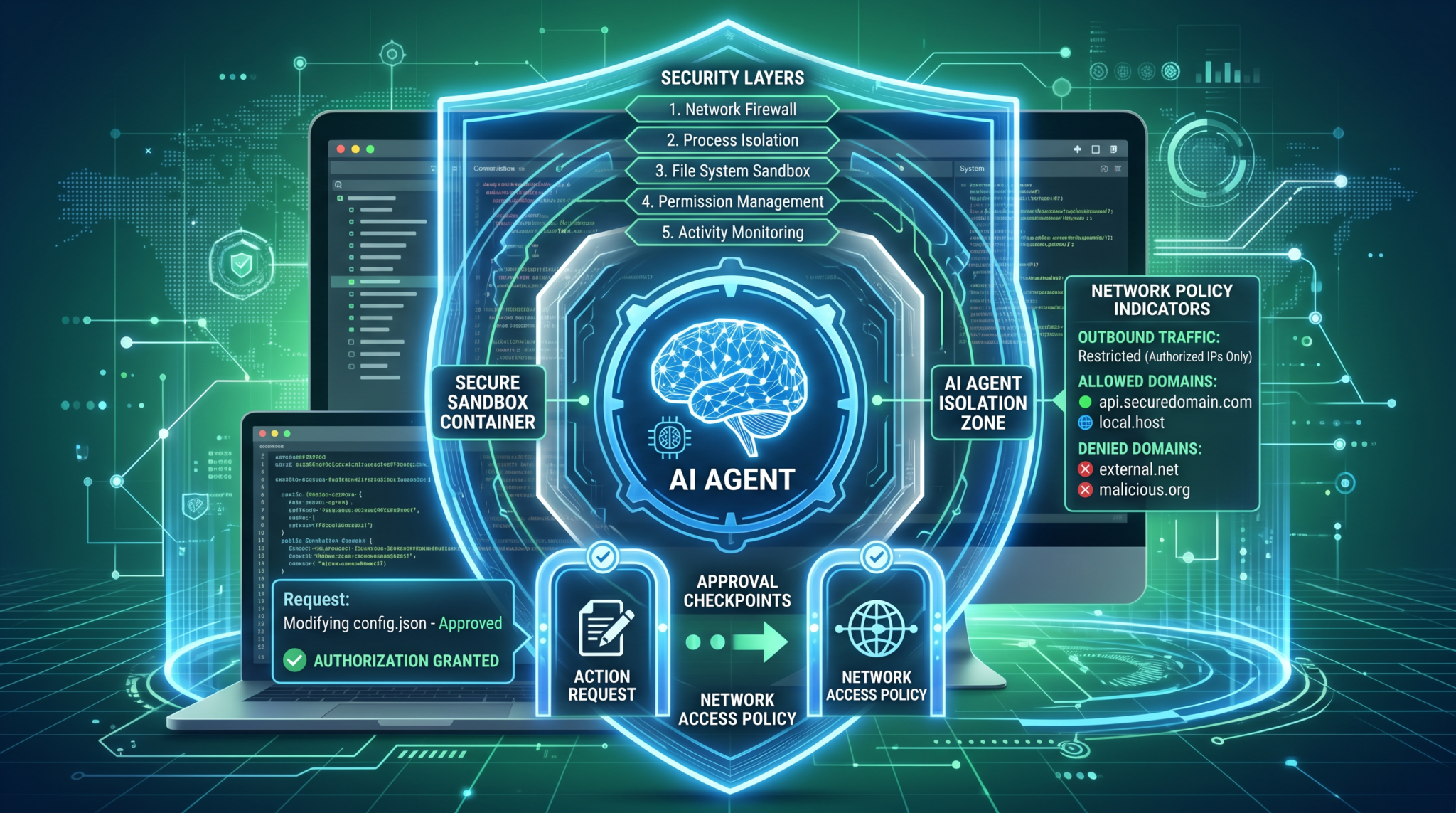
Getting Started: Setting Up OpenAI Codex for Desktop Automation
To leverage Codex’s computer use feature, users need to configure a few components to ensure smooth operation and security:
- Installation: Install the Codex desktop client or integrate the Codex API with your automation platform.
- Permissions: Grant necessary permissions for screen capture, input simulation (keyboard and mouse), and accessibility services to enable visual recognition and interaction.
- Environment Calibration: Configure Codex to recognize your display setup, including multiple monitors, scaling factors, and color profiles, to optimize visual accuracy.
- Security Settings: Adjust security policies to restrict Codex’s access scope, ensuring sensitive data remains protected during automation workflows.
Once set up, you can start issuing natural language commands or develop scripts that combine Codex’s computer use with traditional code generation for complex automation sequences.
Best Practices for Crafting Effective Automation Prompts
Maximizing Codex’s desktop automation requires clear and context-rich prompts. Consider the following best practices when interacting with Codex:
- Be Specific: Describe the task in detail, including the application name, target elements, and expected outcomes.
- Use Sequential Instructions: Break down multi-step processes into ordered commands so Codex can execute them reliably.
- Include Visual Context: Mention the appearance or position of interface elements to help Codex accurately identify them (e.g., “click the blue ‘Submit’ button in the top right corner”).
- Validate and Iterate: Test your commands in a controlled environment and refine prompts to improve precision and robustness.
Effective prompting aligns Codex’s AI reasoning with your intent, minimizing errors and maximizing efficiency.
Integrating Codex Automation with Existing Workflows
OpenAI Codex’s computer use feature can be integrated with other automation and productivity tools to create comprehensive solutions. For example:
- API Orchestration: Combine Codex-driven desktop automation with cloud APIs for data retrieval, processing, or reporting.
- RPA Platforms: Embed Codex as a visual interaction engine within Robotic Process Automation (RPA) workflows to handle GUI tasks that traditional RPA bots struggle with.
- Custom Software Development: Use Codex alongside your development environment to prototype UI automation scripts rapidly and embed AI-powered interactions into applications.
If you want to learn more about advanced prompting techniques, we have a comprehensive guide that covers the CTF method. Additionally, exploring AI-driven workflow automation can provide insights on combining Codex with other AI tools for end-to-end automation.
Security and Privacy Considerations
As Codex gains direct control over desktop environments, it is critical to address security and privacy concerns:
- Data Privacy: Ensure that sensitive information displayed on the screen is protected and that Codex’s access is limited to trusted applications and contexts.
- Access Controls: Use role-based permissions and authentication to restrict who can deploy Codex automation and what tasks it can perform.
- Audit Trails: Maintain logs of Codex’s actions to allow monitoring, compliance, and troubleshooting.
- Malicious Use Prevention: Implement safeguards to prevent misuse of Codex’s powerful desktop control capabilities, such as sandboxing and anomaly detection.
OpenAI continues to enhance Codex’s security framework to balance powerful automation with responsible usage.
The Future of AI-Powered Desktop Automation
The integration of seeing, clicking, and typing capabilities marks a significant milestone in AI-driven automation. Looking ahead, we can anticipate several exciting developments:
- Multimodal Interaction: Combining voice commands, gesture recognition, and eye tracking to make desktop control even more intuitive.
- Adaptive Learning: Codex will learn from user behavior and personalize automation strategies to optimize efficiency.
- Cross-Device Synchronization: Seamless automation that spans desktops, laptops, mobile devices, and IoT ecosystems.
- Collaborative AI Agents: Multiple Codex-powered assistants working together to handle complex workflows in real time.
As these innovations unfold, mastering the current Codex computer use feature will position you at the forefront of AI-powered productivity.
For those interested in exploring deeper integration strategies, our article on AI integration best practices offers valuable insights.
Conclusion
OpenAI Codex’s 2026 computer use feature, with its capabilities to see, click, and type, ushers in a new era of desktop automation. By harnessing advanced visual recognition and precise input simulation, Codex enables users to automate complex, multi-application workflows through natural language commands without traditional scripting hurdles.
This guide has outlined the foundational concepts, practical applications, setup processes, and best practices necessary to unlock the full potential of Codex’s desktop automation. As AI continues to evolve, embracing these tools will be essential for maintaining competitive advantage and achieving unprecedented levels of productivity.
Frequently Asked Questions
What is an agentic workflow?
A workflow where an AI agent plans, executes, and adjusts a sequence of actions to achieve a goal, not just answer a single prompt.
How is an agent different from a chatbot?
A chatbot responds turn by turn, while an agent keeps state, calls tools, and can continue working without constant human prompts.
Do I need a multi-agent setup from day one?
No. Most teams start with a single well-scoped agent and later add more agents as the use case matures.
What tooling do I need for agentic systems?
You need orchestration (planner), memory, logging/observability, and reliable tool/API integrations.
How do I keep agents safe and aligned?
Use clear system policies, strict tool permissions, logging, and human-in-the-loop checkpoints for high-impact actions.
Where should I pilot agentic workflows?
Start with internal workflows that have clear success criteria and low external risk, such as dev tooling or internal support.
Access 40,000+ AI Prompts for ChatGPT, Claude & Codex — Free!
Subscribe to get instant access to our complete Notion Prompt Library — the largest curated collection of prompts for ChatGPT, Claude, OpenAI Codex, and other leading AI models. Optimized for real-world workflows across coding, research, content creation, and business.
Access Free Prompt Library