
The Unified ChatGPT Desktop App: A Complete Guide to Work, Codex, and Atlas in One Experience
Author: Markos Symeonides | Date: July 10, 2026
OpenAI has consolidated its desktop lineup into a single, unified ChatGPT application. What used to be separate experiences—Work for everyday productivity, Codex for software development, and Atlas for deep research—now live under one roof. This guide walks you through everything you need to know: what changed and why, how to install the new app, how to navigate the redesigned interface, how to get the most out of Work and Codex modes, how Atlas’ deep reasoning is now woven throughout, how to choose the right model tier (Sol, Terra, or Luna), how to deploy it at scale, and how it stacks up against alternatives.
1. Overview: What Changed and Why
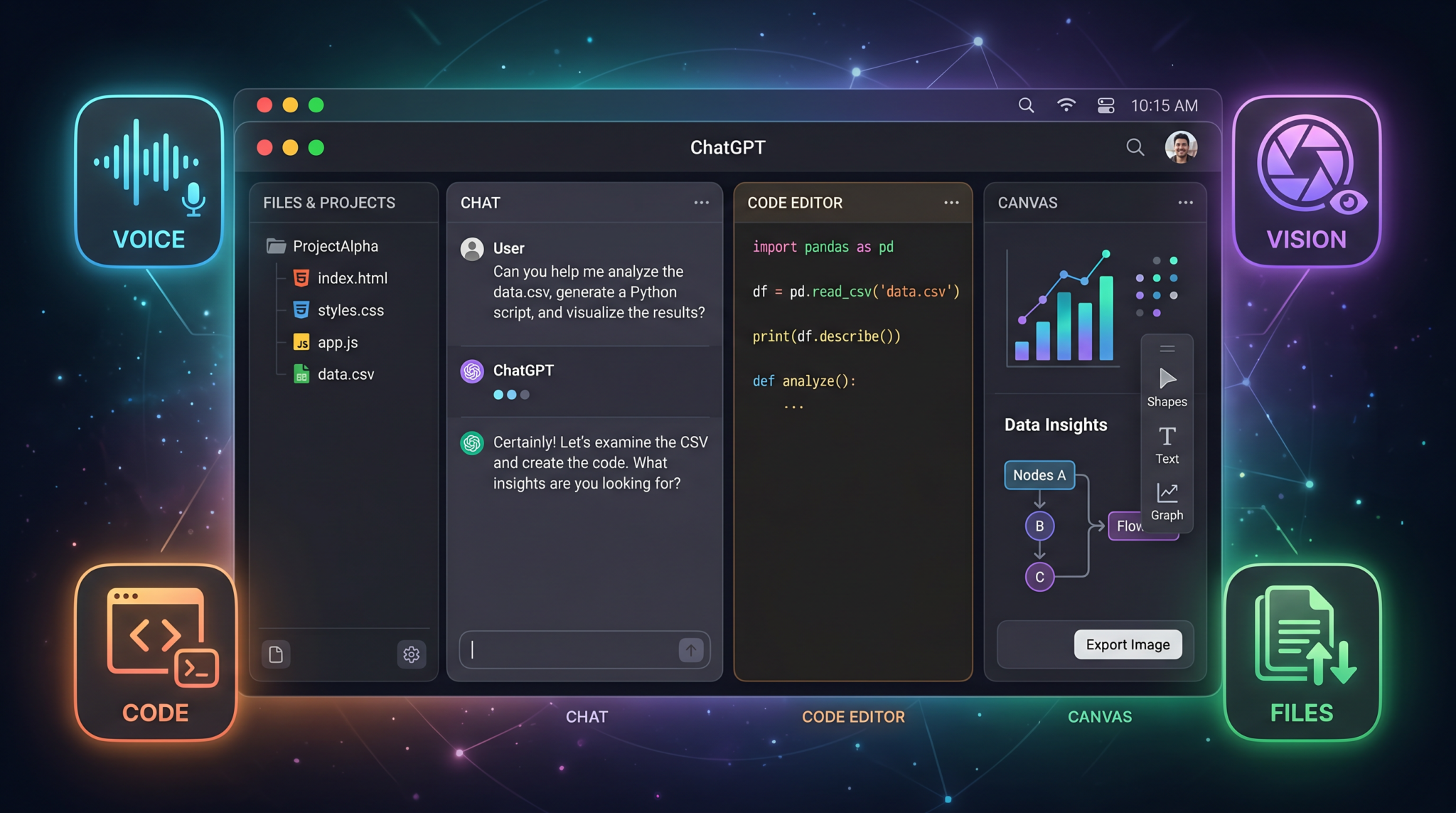
On July 9, 2026, OpenAI announced a major shift in its desktop product lineup: the consolidation of Codex and Atlas into the ChatGPT desktop app. The unified app now surfaces two primary modes—Work and Codex—that together cover the full spectrum of everyday and expert workflows. The result is a streamlined experience with fewer silos, shared memory and resources, and a single place to configure models, privacy, and enterprise controls. In this super app strategy, OpenAI has reimagined the desktop as the hub for personal productivity, software development, and research-grade reasoning.
From three to one. Instead of juggling multiple installations, logins, and learning curves, users can now launch a single application and switch contexts instantly. ChatGPT Work focuses on content creation and everyday tasks—documents, presentations, wikis, email drafts, websites, and lightweight data work—while Codex is tailored to developers, enabling autonomous coding sessions, repository operations, environment-aware debugging, and CI/CD orchestration. Atlas, OpenAI’s deep reasoning and research agent, is no longer a separate product; it’s an integrated layer enhancing both modes with long-horizon planning, literature synthesis, and advanced analytical capabilities.
Super app logic. The move aligns with OpenAI’s broader “super app” direction: consolidate adjacent tools into a cohesive platform so users can design, build, deploy, and iterate without hopping across apps. The value compounds with shared memory, cross-mode workspaces, unified file and data connectors, and consistent governance and security. This also simplifies enterprise deployment—IT teams can manage a single package with one set of policies and audit trails.
Model tiers: GPT-5.6 Sol, Terra, and Luna. Under the hood, the unified app is powered by GPT-5.6 across three selectable performance tiers:
- Sol: the flagship tier for complex, multimodal and long-context work; maximizes quality and depth.
- Terra: the balanced tier for day-to-day tasks; a strong default when you need speed, quality, and cost-efficiency.
- Luna: the lightweight tier optimized for responsiveness and privacy-sensitive flows, with smaller context windows and tighter resource footprints.
Competing landscape. The unified ChatGPT desktop app now contends directly with Claude Desktop (and its collaborative Claude Cowork features) and Microsoft’s evolving Copilot suite across Windows and Microsoft 365. Each takes a different stance on autonomy, collaboration, and on-device capabilities. OpenAI’s bet is a deep, integrated agent that can move fluidly between narrative work, data manipulation, software delivery, and research-grade reasoning, all under cohesive governance.
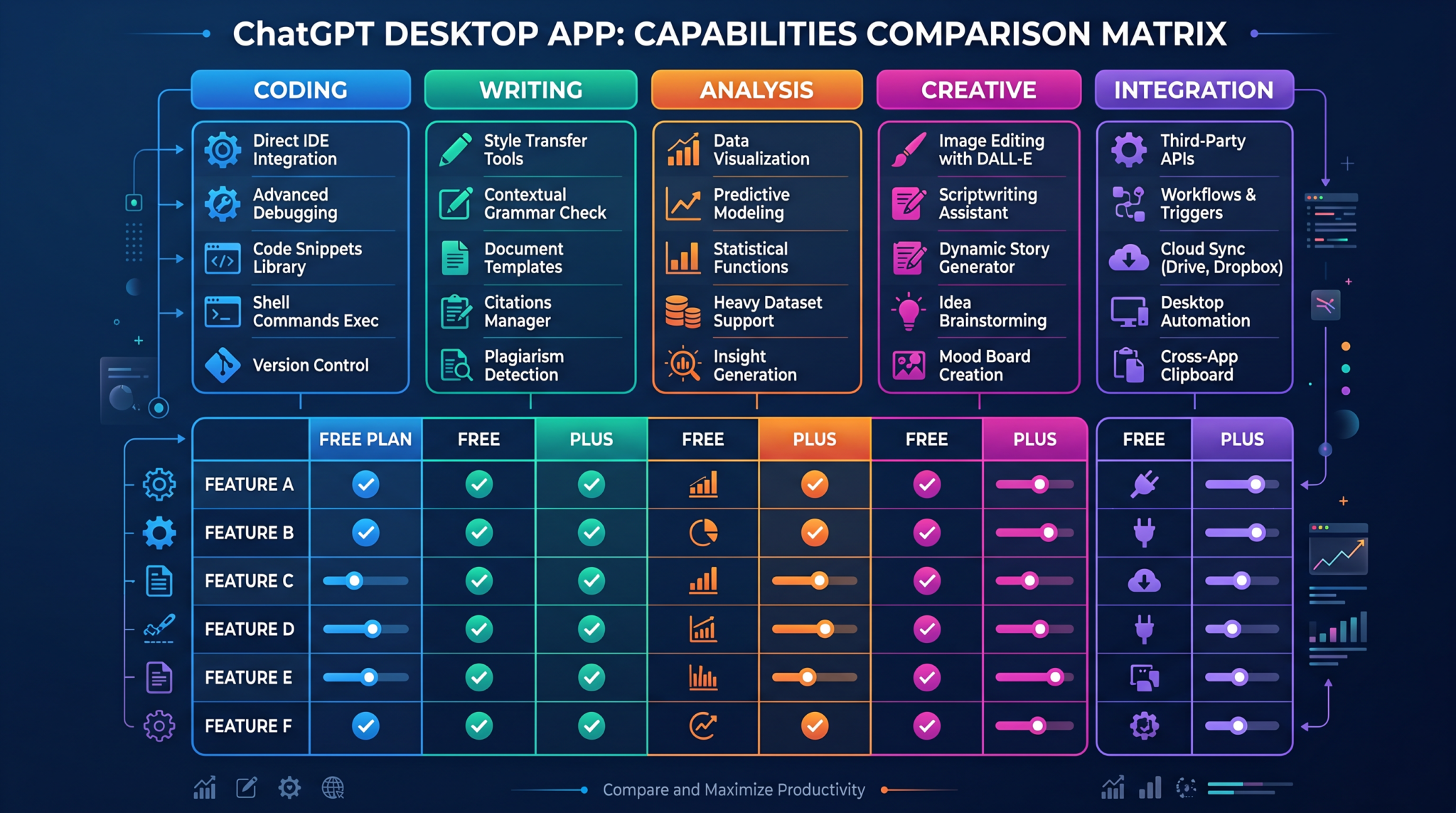
The short version: fewer apps, fewer barriers, and more continuity—designed to let you start in Work, drill into Codex, or lean on Atlas-grade reasoning wherever you are.
For a deeper exploration of this topic, our comprehensive article on The Complete Guide to ChatGPT and Codex Shared Context: Memory, Projects, and Cross-Platform Workflows provides detailed analysis, practical examples, and actionable strategies that complement the concepts discussed in this section.
2. Installation and System Requirements
The unified ChatGPT desktop app ships as a single installer per operating system, with automatic updates and centralized configuration. While the exact package names and availability may vary by region and organization settings, the onboarding experience is consistent across platforms.
Supported platforms and channels
- Operating systems: Current releases target mainstream desktop platforms. Availability and cadence of updates are governed by your organization’s IT policy if you are on a managed plan.
- Distribution: You can obtain the installer from your OpenAI account portal or your enterprise software catalog if your company distributes managed builds.
- Update channels:
- Stable: General availability with full QA coverage.
- Preview: Early access to features with faster iteration; recommended for test environments.
- Enterprise-managed: Updates gated by admin approval and staged rollouts.
Minimum and recommended specifications
AI workloads vary widely. For smooth performance across Work and Codex, aim for the following:
- CPU: Recent multi-core processor.
- Memory: Minimum 8 GB; 16 GB recommended for large documents, presentations, or multi-repo coding sessions.
- Storage: 2–4 GB for the app and caches; more for datasets, repos, and media. SSD strongly recommended.
- GPU: Optional; the app does not require a dedicated GPU. Some local acceleration features may leverage supported GPUs where available.
- Network: Reliable broadband; enterprise environments may require VPN access to reach internal repos and services.
Network and permissions
- Outbound connectivity: The app requires secure outbound access to OpenAI services. Enterprise firewalls may need to allowlist relevant endpoints.
- File system permissions: Grants access to user-selected folders for documents, projects, and repos. Sandbox permissions control what the agent can read and write.
- Integrations: OAuth flows for cloud storage, calendars, task trackers, and developer platforms like Git-based hosts. Admin consent may be required.
Installation flow
- Download the installer from your OpenAI account portal or enterprise app store.
- Run the installer with user or admin privileges per your environment.
- Sign in with your OpenAI account or SSO provider. If your organization enforces SSO, you’ll be routed to your identity portal.
- First-launch setup: Choose default mode (Work or Codex), configure model tier defaults (Sol, Terra, Luna), and set initial privacy preferences (data retention, training opt-out settings).
- Connect services: Optionally link drives, repos, calendars, and team spaces. You can skip and connect later from Settings.
3. The New Interface: Navigating Work vs. Codex Modes
The unified app centers on two main modes you can toggle at any time from the left sidebar or via the mode switcher at the top of the window:
- Work: Content creation, documents, slides, websites, knowledge bases, task and meeting aids, and light analytics.
- Codex: Development environments, autonomous coding, repository orchestration, debugging, test generation, and CI/CD coordination.
High-level layout
- Sidebar: Mode toggle (Work/Codex), Recents, Favorites, Spaces (shared and private), and Integrations.
- Canvas: The main conversation and artifact surface (documents, slides, diagrams, code, and notebooks). Artifacts are live and revisable.
- Context panel: On the right, a collapsible pane with References, Files, Memory, Models, and Tasks in flight.
- Command bar: A universal launcher (Cmd/Ctrl+K) for quick actions—switch mode, open projects, run automations, insert templates, or trigger agents.
- Status strip: Bottom edge with model tier indicator (Sol/Terra/Luna), tokens/compute budget, and environment indicators (e.g., linked repo, branch, sandbox state).
Mode switching, continuity, and shared memory
Switching from Work to Codex preserves context. If, for example, you draft a product spec in Work and then jump to Codex, the app can align a new branch or repository plan directly from that document, citing sections as requirements. Shared memory and references ensure the agent understands project vocabulary, constraints, stakeholders, and deadlines across modes.
Atlas everywhere
Atlas’ deep reasoning appears as optional “Depth” controls on tasks and as a planning overlay in complex sessions. When enabled, the agent allocates extra thinking budget to reasoning, exploration, and synthesis before it executes. In Work, this can mean better outlines and literature surveys; in Codex, it translates to clearer architecture choices and safer migrations.
4. Work Mode Deep Dive: Capabilities, Use Cases, Limitations
Work mode is designed for users who primarily create, organize, and share content. It’s a powerful authoring surface that blends a chat-driven workflow with living artifacts that are easy to export, publish, or hand off to a team.
Core capabilities
- Documents: Generate, edit, and format documents with citations, embedded media, and tables. The agent can transform rough notes into polished narratives, executive summaries, or SOPs.
- Presentations: Compose slide decks from an outline, import content from documents, and generate speaker notes. You can request style variants, color themes, and iconography aligned to a brand kit.
- Websites and microsites: Create simple, static multi-page sites—campaign pages, product explainers, event hubs—that you can export as HTML/CSS bundles or publish via your organization’s hosting pipeline.
- Knowledge bases and wikis: Build living documentation with sections, tags, and cross-links. The agent can refactor sprawling docs into cleaner structures and insert inline definitions of terms.
- Email and comms: Draft email sequences, announcements, and release notes. Pull in actions and dates from calendars and task trackers to keep messages precise.
- Data-informed writing: Import CSVs or connect to spreadsheets to generate charts and summarize insights. Create “explainers” that tie visuals back to your narrative.
- Templates and styles: Save custom templates for docs and slides. Enforce brand guidelines for tone, typography, and colors. Teams can publish shared templates for consistent outputs.
Everyday workflows
- Content production: Blogs, whitepapers, one-pagers, and FAQs. Ask the agent to rewrite, condense, or localize content for regions.
- Project and product management: PRDs, roadmaps, release notes, and retrospectives. Use Atlas-powered planning to structure milestones and risk sections.
- Sales and marketing: Pitch decks, battlecards, solution briefs, and campaign sites. Generate versions tuned to buyer personas or industry verticals.
- Operations: Policies, SOPs, training manuals, and handbooks. Convert dense, legacy PDFs into searchable, maintainable wikis.
- Education: Syllabi, lesson plans, reading guides, and formative assessments. Align outputs to learning objectives and standards.
The canvas and artifacts
Work artifacts live in the same canvas as the conversation that shapes them. You can ask for a change and watch the artifact update live—no switching apps. Document sections can be locked for review or opened to collaborators in Spaces. Versioning is automatic; you can roll back or branch an artifact when exploring alternate drafts.
Import, transform, and export
- Import: Upload docs, slides, and spreadsheets. The agent will extract structure and content, creating a working outline for edits.
- Transform: Rework tone, voice, and structure; convert a document into a slide deck or a web page; generate translations and glossaries.
- Export: Save as DOCX, PDF, or HTML; package a microsite; or sync to team repositories and CMS systems via connectors your admin has enabled.
Collaboration and governance
- Spaces: Shared folders with permissions (viewer, editor, owner). Invite teammates and stakeholders.
- Approvals: Request reviews with due dates; the agent can summarize diffs and unresolved comments.
- Brand and compliance: Enforce templates and disclaimers; require citation for external claims; apply legal footers automatically.
Limitations and best practices
- Factuality: Always review claims, especially statistics and regulatory language. Use citations and link to sources.
- Templates vs. originality: Templates accelerate work but can homogenize voice. Periodically refresh prompts and brand guidance.
- Data size: Extremely large datasets are better handled in analytics tools. Use Work’s summarization to produce narratives from those tools’ outputs.
- Design depth: The presentation generator covers common patterns. For custom motion and complex visual systems, export and finish in a dedicated design suite.
For a deeper exploration of this topic, our comprehensive article on GPT-5.6 Gets US Government Approval: Inside the Sol, Terra, and Luna Model Family provides detailed analysis, practical examples, and actionable strategies that complement the concepts discussed in this section.
5. Codex Mode Deep Dive: Autonomous Coding and Repo Integration
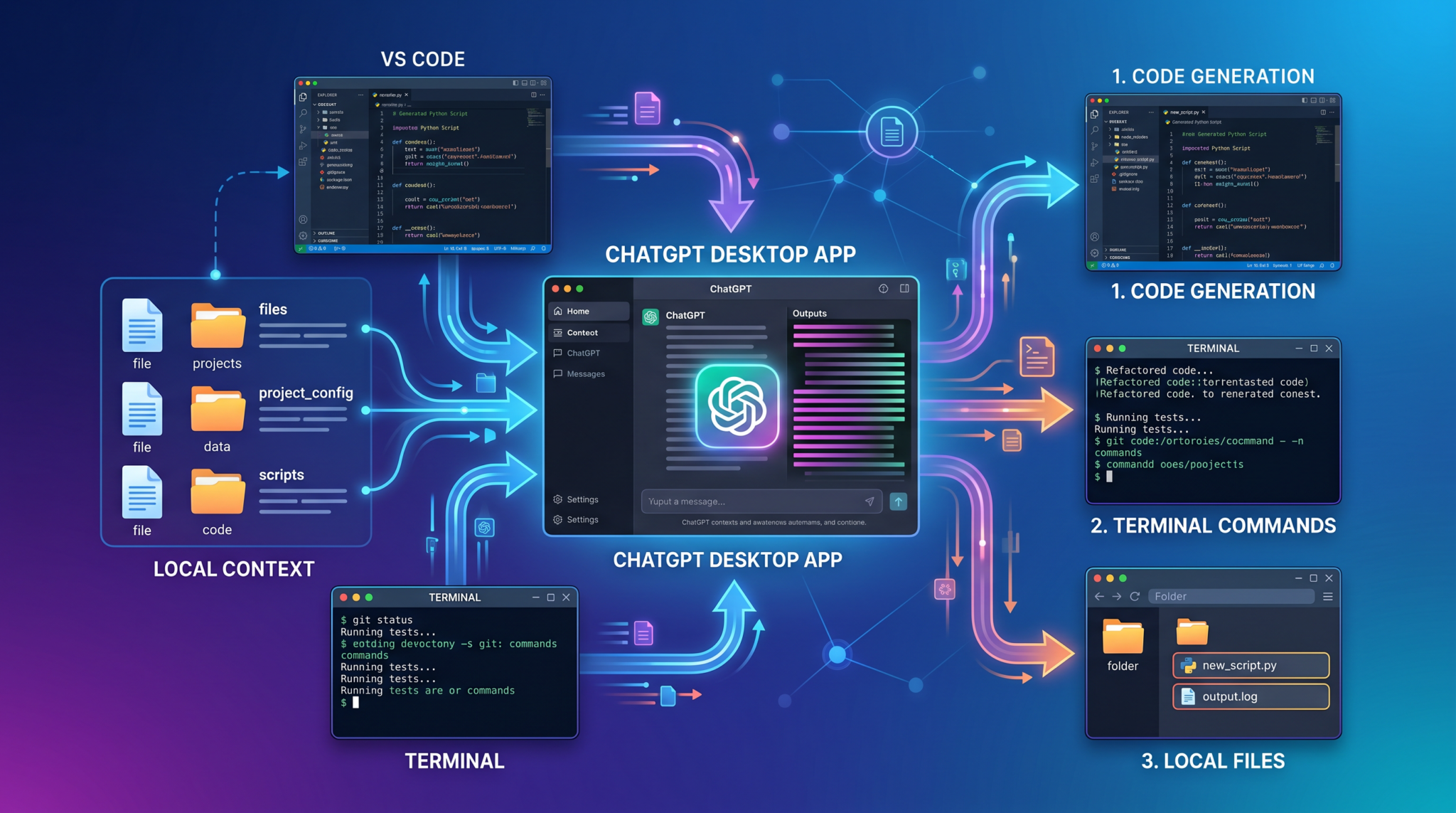
Codex mode transforms the desktop app into a development cockpit. It connects to your repositories, understands branches and CI/CD pipelines, and can carry out multi-step coding tasks with supervision controls. Whether you’re triaging bugs, scaffolding a greenfield service, or migrating a framework, Codex aligns code changes to explicit goals and tests.
Autonomous coding sessions
In Codex, you define a task and boundaries: repositories, branches, languages, and risk tolerance. The agent then plans a sequence—read, design, implement, test, and propose changes. You can set gates such as “require review after design” or “no direct pushes to protected branches.” Atlas-enhanced planning comes into play for refactors and migrations, where architectural decisions and dependency analysis are critical.
- Scoping: Limit access to specific directories or microservices. The agent operates within a sandbox with read/write constraints.
- Plan preview: Before editing, get a proposed plan: files to change, new modules, tests, and potential side effects.
- Execution: The agent edits files, runs linters and unit tests in a containerized environment, and collects artifacts (logs, screenshots, coverage reports).
- Review: Inspect diffs with explanations, see failing tests and fixes proposed, and iterate or approve for PR.
- PR creation: Generate a pull request with a structured description, linked issues, and migration notes. The agent updates changelogs and documentation if allowed.
Repository integration
- Git hosts: Connect Git-based hosts through OAuth or personal/ephemeral tokens per your security policies. Configure per-repo permissions.
- Branch strategy: Default to feature branches per task. Protection rules are respected; direct pushes to main are blocked unless explicitly allowed.
- CI/CD awareness: The agent recognizes your pipelines (e.g., unit tests, integration tests, lint, build, deploy). It can re-run failed steps and analyze logs to propose fixes.
- Code owners and approvals: Codex tags reviewers based on CODEOWNERS and project metadata. It summarizes changes for each owner’s area.
Development environments
- Local sandboxes: Spin up ephemeral environments per task, with language runtimes and dependencies declared in a manifest. The agent can execute code securely.
- Container profiles: Save images for common stacks. Codex selects the right profile based on repo signals and your settings.
- Secrets and env vars: Use secure store integrations. The agent never persists secrets in code or logs; redaction policies apply to transcripts.
Debugging and diagnostics
- Reproduction steps: For issues, Codex reconstructs repro steps, creates a failing test where possible, and iterates until green.
- Log and trace analysis: Paste logs or connect to observability tools via permitted APIs. The agent clusters errors and suggests likely root causes.
- Performance tuning: Run microbenchmarks, profile hotspots, and propose targeted changes with before/after metrics captured in the session.
Testing and quality gates
- Test generation: Unit, property-based, and snapshot tests depending on language and framework. Coverage targets can be enforced.
- Static analysis: Integrate linters and SAST tools. Codex interprets findings and proposes remediations.
- Policy checks: Enforce license, dependency, and security policies. Block PRs that violate constraints and propose compliant alternatives.
Architecture, migrations, and multi-repo work
For large changes—framework upgrades, API schema evolutions, or modularization—Atlas-level planning in Codex is invaluable. The agent builds a “change graph,” mapping dependencies and sequencing steps to minimize downtime. It can stage PRs across multiple repos, coordinate version bumps, and generate migration guides for humans to follow. You keep visibility of assumptions and rollback strategies.
Human-in-the-loop controls
- Intervention points: Require sign-offs at plan, design, test, and PR stages. Adjust per project risk profiles.
- Budgeting: Set compute and time ceilings per task; the agent will pause for approval when a task exceeds its budget.
- Audit trail: Every action is logged: files read, commands run, tests executed, and permissions used—critical for compliance.
Best practices
- Start narrow: For new teams, begin with triage and small fixes to calibrate expectations and policies.
- Codify conventions: Teach Codex your style guides and architectural patterns via repo docs and templates.
- Measure outcomes: Track PR cycle time, defect rates, and test coverage changes to verify impact.
- Keep humans close: Preserve context by pairing developers with the agent on complex decisions, especially in security-sensitive code.
For a deeper exploration of this topic, our comprehensive article on The Complete Guide to ChatGPT and Codex Shared Context: Memory, Projects, and Cross-Platform Workflows provides detailed analysis, practical examples, and actionable strategies that complement the concepts discussed in this section.
6. Atlas Integration: Deep Research and Reasoning Tasks
Atlas, previously a standalone research and deep-thinking agent, is now a capability layer across both modes. It is designed for tasks where structured exploration, multi-source synthesis, and long-horizon planning matter as much as final outputs.
Where Atlas helps in Work
- Literature reviews: Outline domains, triangulate findings, and surface areas of consensus and debate. The agent proposes structures and potential pitfalls.
- Analytical reports: When summarizing datasets or market analyses, Atlas can suggest robust framing—assumptions, limitations, and confidence qualifiers.
- Argument mapping: For policy docs or strategy memos, Atlas can create argument trees, identify counterpoints, and propose evidence to seek.
Where Atlas helps in Codex
- Design justification: In architectural proposals, Atlas frames tradeoffs and risks, helping you compare alternatives before implementation.
- Migration plans: For multi-step upgrades, Atlas sequences steps, dependencies, and rollback triggers.
- Exploratory diagnostics: When root causes are unclear, Atlas suggests targeted experiments and reading plans for logs and traces.
Depth controls and traceability
- Depth slider: Allocate more time and compute to planning. Useful for high-stakes documents and complex refactors.
- Citations and artifacts: Request citations, structured outlines, tables of evidence, and rationale summaries to aid review and governance.
- Reproducible sessions: Export planning artifacts alongside outputs for audit and future re-use in similar tasks.
Boundaries and expectations
- Authority and verification: Atlas accelerates exploration but does not replace domain review. Validate claims and data paths.
- Compute cost: Deeper planning uses more resources. Reserve for tasks where the payoff is clear.
- Privacy: When working with sensitive material, ensure that citations and summaries adhere to organizational data policies.
7. Model Selection: Choosing Between Sol, Terra, and Luna
The model tier you choose affects speed, cost, and capability. The app lets you set a default per mode and override per session or artifact.
GPT-5.6 Sol
- Best for: Complex writing, large-context synthesis, intricate codebases, cross-repo migrations, deep research.
- Strengths: Highest reasoning depth, best long-form coherence, strongest code generalization, robust multimodal handling.
- Tradeoffs: Higher latency and cost relative to other tiers.
GPT-5.6 Terra
- Best for: Everyday documents, standard coding tasks, issue triage, presentations, and balanced workloads.
- Strengths: Strong quality-speed balance; good default for most teams and individuals.
- Tradeoffs: Slightly shallower depth than Sol in edge cases and very large contexts.
GPT-5.6 Luna
- Best for: Rapid interactions, privacy-sensitive drafts, lightweight code edits, and quick transformations.
- Strengths: Fastest responses, resource-efficient; useful when you need snappy iteration or stricter data locality.
- Tradeoffs: Smaller context windows and reduced depth; escalate to Terra or Sol for complex tasks.
How to choose per task
- Start with Terra for general productivity and typical development needs.
- Escalate to Sol when dealing with long documents, multi-repo refactors, or research deliverables with higher rigor.
- Drop to Luna for speed runs—quick rewrites, refactors in a single file, or small content changes.
Auto-tiering and cost controls
- Auto-tiering: Enable the app to escalate or de-escalate model tiers mid-session based on task complexity and your policies.
- Budgets: Set monthly or per-project usage ceilings, with alerts and automatic fallbacks to lower tiers when nearing limits.
8. Keyboard Shortcuts and Power-User Features
Power users can dramatically accelerate their workflows with shortcuts, the command bar, and automation.
Access 40,000+ AI Prompts for ChatGPT, Claude & Codex — Free!
Subscribe to get instant access to our complete Notion Prompt Library — the largest curated collection of prompts for ChatGPT, Claude, OpenAI Codex, and other leading AI models. Optimized for real-world workflows across coding, research, content creation, and business.
Global navigation
- Cmd/Ctrl+K: Command bar—open projects, switch mode, run automations.
- Cmd/Ctrl+1: Switch to Work mode.
- Cmd/Ctrl+2: Switch to Codex mode.
- Cmd/Ctrl+Shift+F: Global search across conversations and artifacts.
- Cmd/Ctrl+Alt+M: Toggle model tier picker.
Editing and artifact controls
- Cmd/Ctrl+Enter: Submit prompt or apply changes to the active artifact.
- Cmd/Ctrl+Shift+S: Save artifact snapshot (version checkpoint).
- Cmd/Ctrl+Shift+E: Export artifact (select format).
- Cmd/Ctrl+Shift+L: Toggle References panel.
Codex accelerators
- Cmd/Ctrl+Shift+N: New autonomous coding task.
- Cmd/Ctrl+.: Pause/resume agent execution.
- Cmd/Ctrl+Shift+D: Open diff viewer.
- Cmd/Ctrl+Shift+T: Run tests in sandbox.
Work accelerators
- Cmd/Ctrl+Shift+P: New presentation from outline.
- Cmd/Ctrl+Shift+W: New website/microsite.
- Cmd/Ctrl+Shift+R: Re-style artifact (apply brand template).
Automations and templates
- Command bar actions: Create custom actions (e.g., “Summarize this doc to 1 page,” “Generate PRD template”).
- Scheduled runs: Automate periodic updates (e.g., daily standup summary from issues and commits).
- Snippets and macros: Save reusable prompts and transformations mapped to hotkeys.
Context curation
- Pin references: Lock key documents, specs, or code files so the agent prioritizes them during tasks.
- Scopes: In Codex, define code scopes and trust levels per session; in Work, constrain sources to specific folders or spaces.
- Memory hygiene: Periodically review memory entries to keep the agent aligned with current conventions and vocabulary.
9. Enterprise Deployment and Team Management
The unified app simplifies enterprise administration: one desktop package, one policy plane, and shared controls across Work and Codex.
Identity and access
- SSO: Integrate with your identity provider for single sign-on and MFA requirements.
- SCIM provisioning: Automate user and group management, including role-based permissions.
- RBAC: Assign roles (User, Editor, Maintainer, Admin) and fine-grained permissions (e.g., connect repos, publish sites, approve PRs).
Policy controls
- Data retention: Set retention windows, data residency, and training data sharing defaults at the workspace or org level.
- Model tier policies: Restrict Sol usage to certain teams; enforce Luna for sensitive projects with stricter data boundaries.
- Network and egress: Define allowed connectors and destinations; enable proxy settings and inspection in regulated environments.
- Sandboxing: Control local execution rights, file system scopes, and container profiles available to Codex.
Compliance and audit
- Logging: Centralize event logs for prompts, file access, repo actions, and exports with unique session IDs.
- Approvals: Enforce multi-step approvals for publishing artifacts or merging PRs.
- Legal holds: Freeze relevant conversations and artifacts for investigations without halting other work.
Team spaces and workflows
- Spaces: Organize teams by function or project; assign default templates and model tiers per space.
- Shared templates: Maintain approved document, slide, and code templates to standardize outputs.
- Onboarding packs: Auto-provision new members with memory seeds (glossaries, style guides), connectors, and snippets.
Change management
- Pilot groups: Validate new features in preview channels before org-wide rollout.
- Training: Provide best practices on agent supervision, code review with Codex, and document governance in Work.
- Metrics: Track adoption, output quality, PR throughput, and time saved to quantify impact.
10. Privacy, Data Handling, and Security Settings
By unifying the desktop experience, OpenAI has also unified privacy and security configuration, making it easier for individuals and admins to align settings with their risk posture.
User-level controls
- Data sharing: Choose whether your data contributes to model improvements where applicable; enterprise defaults may override.
- Local cache: Control how artifacts and intermediate items are cached on device; enable encrypted cache and periodic purge.
- Session privacy: Mark sessions as sensitive to restrict connectors and block external citations or links.
- Export redaction: Apply automatic redaction of PII or secrets on export of documents or transcripts.
Organization-level controls
- Residency and routing: Set data residency and routing constraints per team or project.
- Connector whitelists: Allow only sanctioned cloud drives, repo hosts, and observability tools.
- Secrets handling: Enforce usage of enterprise secret managers; prohibit inline secrets in prompts or code.
- Model segregation: Restrict model tiers by sensitivity; prefer Luna or isolated processing for high-secrecy projects.
Sandbox execution and least privilege
- File system scopes: Limit agent read/write paths to specific project directories.
- Network scopes: Disallow outbound calls except to approved domains when running local tests or scripts.
- Ephemeral credentials: Prefer short-lived tokens for repo and service access with automatic revocation after tasks.
Transparency and auditability
- Event trails: Persistent logging of key actions, including repository interactions, build runs, and exports.
- Citations and sources: For Work outputs, request citations to facilitate human verification and compliance checks.
- Data subject access: Tools to fulfill access and deletion requests per regulatory requirements where applicable.
11. Migration Guide: From Old ChatGPT Desktop to the New Unified App
Moving to the unified app should feel familiar but more cohesive. Here’s how to bring your history, artifacts, and settings along with minimal friction.
Before you begin
- Back up: Export critical documents, conversation transcripts, and code snippets that you want to preserve independently.
- Note policies: Record privacy, retention, and model preferences; ensure you can re-apply in the new app.
- Check connectors: Confirm enterprise connectors are approved in your new environment.
Installing the unified app
- Install the new desktop app following your organization’s process.
- Sign in via SSO or your OpenAI account.
- On first launch, opt in to import data from previous ChatGPT Desktop, Codex, and Atlas where available.
What migrates automatically
- Conversations: Recent chats and pinned sessions migrate to the unified history, tagged by mode.
- Artifacts: Saved documents, slides, and code artifacts appear in your personal space; version metadata retains timestamps.
- Settings: Model tier preferences, theme, keyboard shortcuts, and memory entries transfer when compatible.
- Connectors: OAuth tokens for approved connectors may carry over; some require re-consent per policy.
Mapping old concepts to the new model
- ChatGPT Desktop (legacy): General chats and documents are now Work artifacts and Work sessions.
- Codex (legacy): Projects, repos, and agents map to Codex projects, Repo integrations, and Autonomous tasks.
- Atlas (legacy): Research spaces and plans map to Depth-enabled sessions and Planning artifacts across modes.
Manual steps you may need
- Recreate templates: If your team used custom templates, import or rebuild them in the new template manager.
- Re-link repos: Some repository connections may require fresh tokens or updated scopes.
- Review memory: Remove stale conventions and update domain glossaries to fit current projects.
Common pitfalls
- Policy mismatches: Enterprise defaults may differ; re-check data sharing and residency.
- Broken references: If documents referenced moved drives or repos, reattach sources for best performance.
- Automation drift: Scheduled jobs and macros might need new permissions; test critical automations post-migration.
Validation checklist
- Can you open and edit recent Work artifacts?
- Are your key repos visible in Codex, with correct branch protections?
- Do your preferred model tiers appear and respect policies?
- Are atlas-level depth settings available when needed?
- Do exports, PR creation, and approvals function as expected?
12. Comparison with Claude Desktop and Copilot
OpenAI’s unified desktop app enters a competitive field led by Anthropic’s Claude Desktop (with Claude Cowork collaboration) and Microsoft’s Copilot ecosystem. Each brings strengths, integrations, and philosophies about autonomy and governance. Here’s a high-level comparison to orient your choice.
| Dimension | ChatGPT Unified Desktop | Claude Desktop (+ Cowork) | Copilot (Desktop/365) |
|---|---|---|---|
| Modes and scope | Two-mode design (Work, Codex) with Atlas integrated for deep reasoning | General assistant with strong writing and analysis; Cowork emphasizes collaboration | Productivity-focused across Microsoft 365 and Windows; strong in-suite integrations |
| Developer autonomy | Codex: autonomous coding, repo integration, CI/CD awareness, multi-repo coordination | Strong code assistance; autonomy depth varies by setup | Code assistance with strong IDE and Azure ties; autonomy dependent on configuration |
| Content authoring | Work: documents, slides, websites, wikis with brand kits and artifact-first canvas | Excellent long-form drafting and summarization; collaboration via Cowork | Deep integration with Word, PowerPoint, Teams; familiar enterprise channels |
| Deep reasoning | Atlas capabilities permeate planning, research, and architecture | Strong analytical reasoning; productized collaboration patterns | Reasoning shaped by Microsoft ecosystem data and connectors |
| Model options | GPT-5.6 Sol (flagship), Terra (balanced), Luna (lightweight) | Claude model family; tiers vary by plan | Copilot models and Azure OpenAI configurations |
| Governance | Unified policy plane across modes; fine-grained RBAC, audit trails, and sandbox controls | Enterprise controls available; specifics vary by deployment | Rich compliance and data controls aligned with Microsoft 365 |
| Cross-artifact continuity | Seamless flow between Work and Codex with shared memory and references | Strong conversation continuity; artifact systems vary by stack | Continuity within Microsoft 365 artifacts; dev workflows externalized |
| Extensibility | Connectors for repos, storage, and dev tooling; automations and macros | API and partner integrations; collaboration-first features | AppSource and Graph integrations across Microsoft 365 and Azure |
When to choose what
- Choose ChatGPT Unified if you want a single agent that can move from narrative work to non-trivial coding and research without leaving the app, with strong autonomy and shared governance.
- Choose Claude Desktop if collaborative drafting is your primary need and your team benefits most from conversational co-creation patterns.
- Choose Copilot if you are deeply invested in Microsoft 365 and Windows, prioritizing native integrations and enterprise controls within that ecosystem.
Putting It All Together: A Day in the Life
To illustrate the unified app’s value, imagine a product manager and a developer moving through a typical release week:
- The PM starts a Work session to draft a strategy brief, pulling insights from last quarter’s metrics and customer interviews. Atlas-enhanced depth surfaces risks, assumptions, and competitor angles. The PM exports a slide deck and schedules a review.
- A developer picks up the plan in Codex, linking the target repos and setting an autonomous task to implement a feature flag and API changes. The agent proposes a phased migration, writes tests, and opens PRs across two services, tagging code owners.
- As feedback arrives, the PM updates the brief. The agent revises slides and a microsite for the new feature, ensuring brand compliance and adding a FAQ section.
- After approvals, the developer merges the PRs. CI/CD pipelines pass. The agent generates release notes and a minimal migration guide for customer success.
Throughout, both users work in a single app, switching modes as needed, with model tiers adapting to task complexity and budgets, and governance ensuring safe, compliant operations.
Troubleshooting and FAQs
Why don’t I see Codex mode?
If you don’t see Codex, your organization may have restricted access or you’re on a plan that doesn’t include development features. Contact your admin or check your plan details.
My PRs are blocked—what gives?
Branch protection and policy checks might be preventing merges. Review your project’s protection rules, required reviews, and policy gates in the app’s Repo settings.
Why is my session “rate-limited” when using Sol?
Sol uses more compute. If budgets or org limits are reached, the app will pause or recommend switching to Terra or Luna. Adjust budgets or enable auto-tiering.
Can I disable local code execution?
Yes. Admins can globally disallow local execution in Codex and force all tests to run in remote sandboxes with stricter egress controls.
How do I keep my brand voice consistent?
Create a brand kit with voice guidelines, approved terminology, and sample paragraphs. Save it as a template and pin it to relevant spaces so the agent prioritizes it.
Best Practices Checklist
- Choose Terra by default; escalate to Sol for depth and drop to Luna for speed-sensitive tasks.
- Keep memory curated: update glossaries and conventions quarterly.
- Constrain scopes: narrow repos and folders to reduce risk and sharpen outputs.
- Use approvals for high-stakes changes: plan, design, tests, and PR merges.
- Enable citations for externally facing content; verify facts before publishing.
- Track metrics: PR cycle time, coverage, content review time, and overall time saved.
- Run pilot groups for new features; scale up after measuring impact and stability.
Roadmap Signals to Watch
- Deeper on-device capabilities: Expect evolving local acceleration and offline-friendly features, especially aligned with Luna.
- Richer automations: More triggers and scheduling granularity for reporting and dev workflows.
- Expanded connectors: Additional first-party integrations for repos, analytics, and publishing pipelines as enterprises standardize on the unified app.
- Advanced collaboration: More granular roles within Spaces and live co-editing improvements for artifacts.
Conclusion
The unified ChatGPT desktop app is more than a bundling exercise. It’s a deliberate re-architecture that merges authoring, software delivery, and deep reasoning under one coherent interface and policy plane. Work mode empowers non-coders to produce, publish, and govern content efficiently. Codex gives developers a capable, supervised partner that understands repositories, pipelines, and quality gates. Atlas enriches both with the planning depth complex problems demand. Combined with a clear model tier strategy—Sol for depth, Terra for balance, Luna for speed and privacy—the result is a flexible super app that adapts to the breadth of modern knowledge work.
Whether you’re a startup founder drafting a strategy and scaffolding your backend in a weekend, a product team running a multi-repo migration with staged PRs, or an enterprise rolling out standardized templates and governance to thousands of users, the unified app’s core promise is the same: reduce friction, increase clarity, and keep humans in command of powerful, context-aware agents.
