
How to Use OpenAI’s Atlas Browser: The Agentic Web Browser Integrated Into ChatGPT
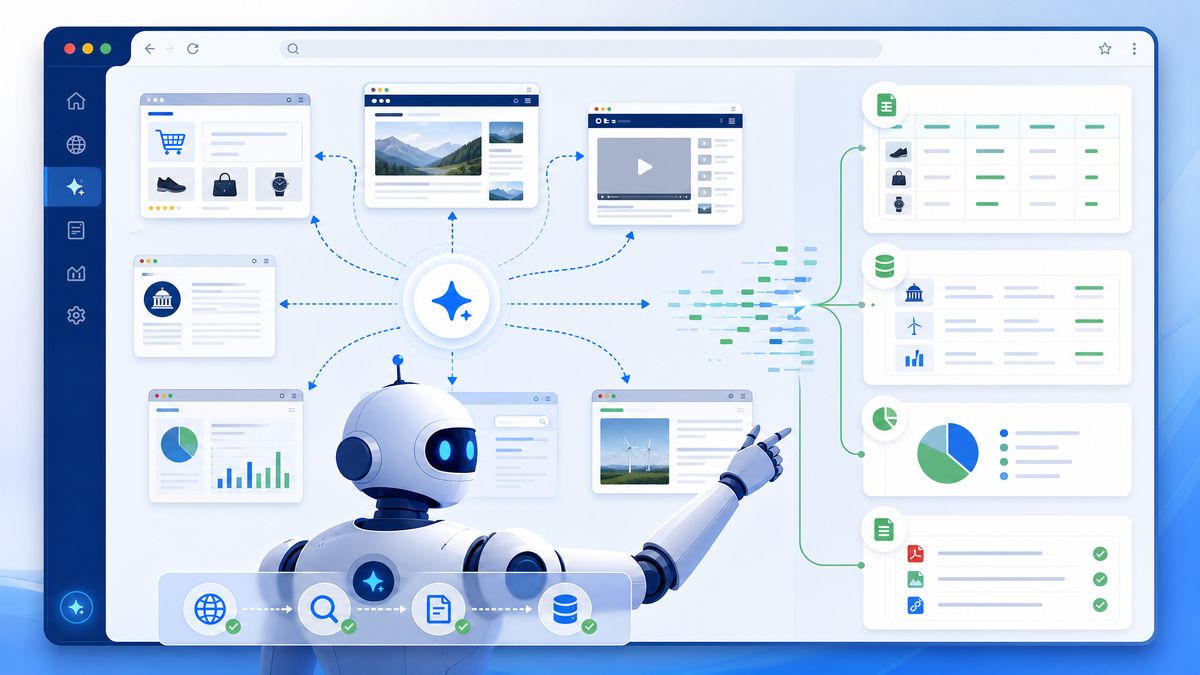
In 2026, OpenAI unveiled a groundbreaking innovation in AI-assisted browsing — the Atlas browser. Built directly into the ChatGPT desktop app for Mac, Atlas redefines how we interact with the web by combining autonomous web browsing capabilities with the conversational power of ChatGPT. This tutorial provides an exhaustive guide on understanding, accessing, and making the most of the Atlas browser, empowering users to automate research, perform data extraction, and much more with unprecedented ease.
What is the Atlas Browser?
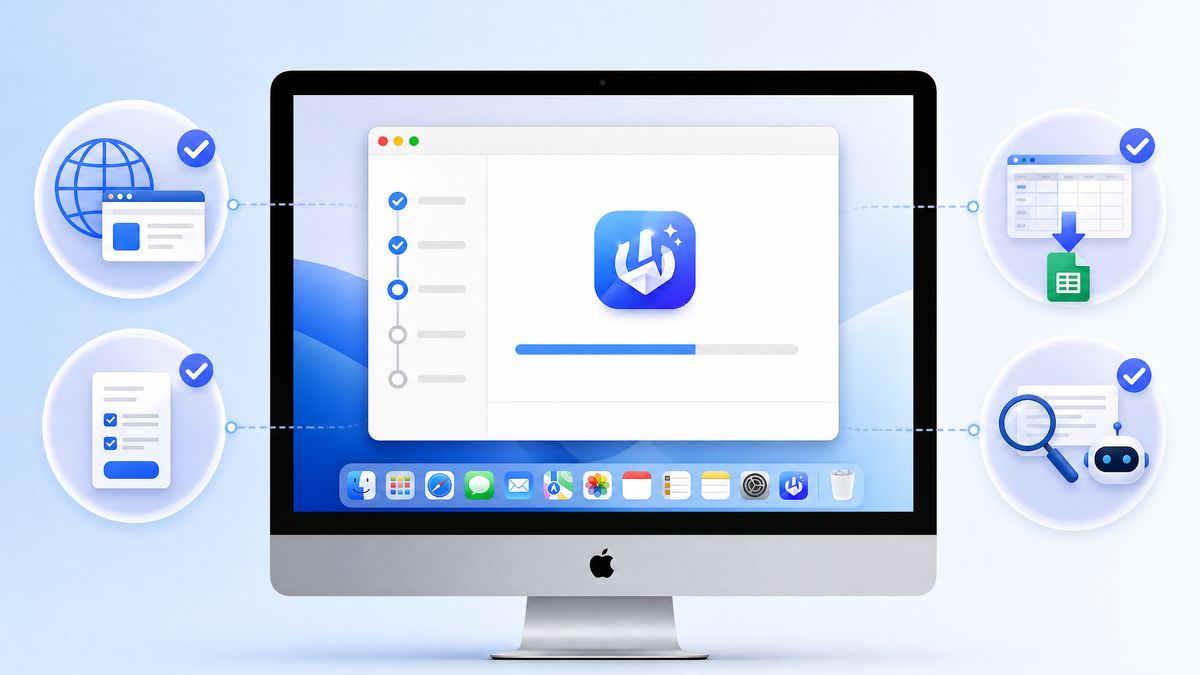
An AI-Powered Autonomous Web Browser
Atlas is an AI-powered autonomous web browser seamlessly integrated into the ChatGPT desktop application. Unlike traditional browsers that require manual navigation and user input for each task, Atlas operates as an intelligent agent capable of independently exploring websites, filling out forms, extracting data, capturing screenshots, and synthesizing information — all while maintaining a conversational interface.
Built Into ChatGPT Desktop
Specifically designed for the ChatGPT desktop app on Mac, Atlas transforms ChatGPT from a static language model into a dynamic assistant capable of real-time web interactions. This integration allows users to leverage OpenAI’s latest advancements in natural language processing and autonomous agent technology without switching between different tools or interfaces.
Why Atlas Matters
Traditional web browsing requires users to manually search for information, switch between tabs, and perform repetitive tasks such as form filling or data copying. Atlas automates these workflows, freeing users from tedious tasks and enabling them to focus on analysis and decision-making. It represents a significant leap toward what many call the next frontier in AI — autonomous agents that can navigate and interact with the internet on our behalf.
How to Access Atlas Browser

Availability and Platform Requirements
As of May 2026, the Atlas browser is exclusively available on the ChatGPT desktop application for Mac. This targeted launch allows OpenAI to optimize the user experience and performance on a stable, controlled environment before expanding to other platforms such as Windows and mobile devices.
Step 1: Download and Install ChatGPT Desktop for Mac
To access Atlas, first ensure you have the latest version of the ChatGPT desktop app installed on your Mac. You can download it from the official OpenAI website or the Mac App Store.
Step 2: Sign In or Create an OpenAI Account
Launch the app and sign in using your OpenAI credentials. If you don’t have an account, the app provides an easy signup process. An active subscription plan may be required to access Atlas, depending on OpenAI’s tiered offerings.
Step 3: Enable Atlas Browser in Settings
Once logged in, navigate to the “Settings” menu and locate the “Experimental Features” or “Beta Features” tab. Enable the Atlas browser toggle to activate the autonomous browsing capabilities within ChatGPT.
Step 4: Launch a New Atlas Session
Return to the main chat interface and select the Atlas browser mode from the mode selector dropdown or sidebar. This switches ChatGPT into agentic browsing mode, ready to autonomously explore the internet for your queries.
Key Capabilities of the Atlas Browser
Autonomous Web Browsing
Atlas can independently navigate websites, follow links, and interact with page elements based on natural language instructions. For example, you can instruct Atlas to “visit the latest articles on climate change from major news outlets” and it will perform the browsing and retrieval without manual direction.
Multi-Tab Research
Atlas supports opening and managing multiple tabs simultaneously, enabling comprehensive research workflows. It can cross-reference information across different pages, summarize content, and compile findings into a single cohesive report.
Form Filling and Submission
Atlas is capable of automatically filling out web forms with provided or inferred data and submitting them. This is invaluable for automating repetitive tasks such as job applications, surveys, or online registrations.
Data Extraction and Structuring
One of Atlas’s most powerful features is its ability to extract structured data from unstructured web pages. Whether it’s tables, product listings, or financial data, Atlas can parse, organize, and export this information for your use.
Screenshot and Image Analysis
Atlas can capture screenshots of web pages and perform analysis on images, including optical character recognition (OCR) and content description. This enhances use cases where visual data is critical.
Step-By-Step Setup Guide for First-Time Users
Step 1: Update ChatGPT Desktop App
Before starting, ensure your ChatGPT desktop app is updated to version 6.0 or later to support Atlas. Check for updates via the app menu or system notifications.
Step 2: Enable Atlas Feature
Access the app’s settings, find the “Atlas Browser” option, and toggle it on. You may be prompted to restart the app for changes to take effect.
Step 3: Open a New Atlas Chat
On the main screen, click “New Chat” and select “Atlas Browser” mode. This switches ChatGPT’s context to enable web interactions.
Step 4: Grant Permissions
Atlas requires network permissions to browse the web autonomously. A prompt will appear requesting your approval to access the internet on your behalf. Approve to proceed.
Step 5: Test with a Simple Query
Try a simple command such as “Search for the top news headlines today and summarize them.” Atlas will perform the browsing, extract data, and present a summary.
Step 6: Explore Advanced Commands
Once comfortable, experiment with multi-tab research, form automation, or data extraction by instructing Atlas accordingly. For example, “Collect pricing data from these e-commerce sites and export it as a CSV.”
Use Cases of Atlas Browser
Research Automation
Atlas excels at automating complex research tasks that typically require manual browsing, note-taking, and synthesis. Academics, journalists, and analysts can leverage Atlas to gather up-to-date information, generate summaries, and compile reports swiftly.
Competitive Intelligence
Businesses can use Atlas to monitor competitor websites, track pricing changes, analyze product launches, and extract relevant market data automatically. This enables timely and informed strategic decisions.
Data Gathering and Extraction
Atlas can scrape large volumes of web data, including tables, listings, and reports, then organize it into usable formats. This capability is especially useful for market research, lead generation, or financial analysis.
Form Automation
Repetitive form filling can be delegated to Atlas, which autonomously inputs data, submits forms, and even handles multi-step processes such as registrations or bookings. This saves significant time and reduces human error.
How Atlas Differs From Regular Web Browsing in ChatGPT
While ChatGPT has supported web browsing capabilities since 2024, Atlas introduces a new paradigm of autonomy and interactivity.
Autonomy vs. Manual Browsing
Traditional ChatGPT web browsing requires user prompts for every navigation step, limiting efficiency. Atlas acts as an autonomous agent, capable of deciding its browsing path based on high-level instructions without constant user input.
Multi-Tab and Parallel Processing
Regular browsing in ChatGPT is sequential and single-threaded. Atlas supports multiple concurrent tabs and synthesizes information across them, enabling complex workflows that were previously impossible.
Enhanced Interaction With Web Elements
Unlike basic browsing, Atlas can interact with dynamic web elements, including buttons, dropdowns, and forms, mimicking human browsing behavior. This is essential for automation tasks.
Data Extraction and Image Analysis
Atlas includes built-in tools for structured data extraction and image analysis, extending beyond simple text retrieval that ChatGPT’s browsing previously handled.
Privacy and Security Considerations
With great power comes the need for cautious handling of privacy and security.
Data Handling
Atlas processes web data locally within the ChatGPT desktop app, minimizing data transmission to external servers beyond what is necessary for AI model inference. However, users should be aware that any data accessed or generated may be stored in their ChatGPT conversation history.
Permission Controls
The app requires explicit permission to access the internet and interact with web pages. Users can revoke these permissions at any time via system settings or the ChatGPT app.
Safe Browsing Practices
Atlas respects OpenAI’s content and usage policies, avoiding harmful or malicious sites. Users should still exercise caution when requesting Atlas to visit unknown or untrusted websites to mitigate exposure to phishing or malware.
Data Privacy
OpenAI employs strong encryption and data protection measures to safeguard user sessions. Sensitive information should never be shared within Atlas sessions unless necessary and trusted.
Tips for Writing Effective Atlas Prompts
Be Clear and Specific
Atlas responds best to precise instructions. Instead of “Find information about renewable energy,” try “Visit the top 5 recent articles on renewable energy from Scientific American and summarize key innovations.”
Use Stepwise Instructions
If your task is complex, break it down into smaller steps or stages. For example, “First, collect product prices from these sites. Then, compare and rank them by value.”
Specify Output Formats
Atlas can export data in various formats such as CSV, JSON, or plain text. Specify your desired output clearly: “Extract the list of conference dates and export as a CSV file.”
Request Confirmation for Critical Actions
When automating form submissions or sensitive operations, ask Atlas to confirm actions before proceeding: “Fill out the survey form but ask me to confirm before submission.”
Leverage Contextual Awareness
Atlas retains context within a session. You can build on previous actions without restating details, enabling fluid, conversational workflows.
Limitations and Workarounds
Current Limitations
- Platform Restriction: Available only on Mac desktop app as of now.
- Site Compatibility: Some dynamic or heavily scripted websites may not be fully accessible or interactable.
- Session Timeout: Long-running sessions may timeout or require refresh.
- Complex Forms: Multi-factor authentication and CAPTCHA challenges cannot be fully automated.
- Resource Consumption: Autonomous browsing uses more system resources than traditional ChatGPT chats.
Workarounds
For unsupported websites, try simpler URLs or static versions of pages. For multi-factor authentication, perform manual steps then resume Atlas automation. To reduce resource use, limit the number of open tabs and close sessions when finished.
Integration with Codex for End-to-End Automation Workflows
A unique advantage of Atlas is its seamless integration with OpenAI Codex, the AI system specialized in code generation.
Combining Web and Code Automation
Users can instruct Atlas to gather data autonomously and then pass this data to Codex within the same ChatGPT session to generate scripts, automate data processing, or create custom tools.
Example Workflow
For instance, you could instruct Atlas to scrape product pricing from competitor websites, then ask Codex to write a Python script that analyzes price trends or updates your internal database automatically.
Benefits of Integration
- Streamlines complex workflows from data acquisition to actionable insights.
- Minimizes manual handoffs between browsing and coding tasks.
- Enables non-developers to create sophisticated automation with natural language prompts.
Getting Started
To leverage this integration, simply enable both Atlas browser and code generation features in ChatGPT desktop settings. Then, within an Atlas session, prompt Codex by specifying coding tasks related to the data Atlas extracts.
Atlas Browser vs Traditional ChatGPT Web Browsing – Detailed Comparison
Since 2024, ChatGPT has offered basic web browsing capabilities, allowing users to retrieve real-time information from the internet. However, these traditional browsing features require users to provide step-by-step instructions for each navigation or data retrieval action. In contrast, Atlas Browser introduces a fully autonomous browsing agent with significantly enhanced capabilities. Understanding the differences between these two modes can help users select the right tool for their needs.
Autonomy and User Interaction
Traditional ChatGPT browsing is largely reactive, dependent on the user to specify every link to follow or page to visit. Users must guide ChatGPT through each step, making it suitable for simpler or highly specific queries. Atlas, by contrast, operates proactively. It interprets high-level goals, autonomously plans browsing paths, and decides which links to click or forms to fill without constant user direction. This agentic behavior allows more complex, multi-step workflows to be executed seamlessly.
This autonomy reduces the burden on users to micromanage browsing and enables more natural language interactions that mirror human delegation. While traditional browsing is ideal for quick lookups or small tasks, Atlas shines in scenarios requiring comprehensive data collection or automation.
Multi-Tab Support and Parallelism
Traditional ChatGPT browsing is limited to a single browsing context, meaning that all navigation occurs sequentially within one tab. Users must wait for one page to load and extract information before moving on. Atlas supports multiple tabs running in parallel, allowing simultaneous exploration of different sources. This multi-threaded browsing accelerates research and data gathering, enabling cross-referencing between pages and synthesis of diverse information streams.
For example, Atlas can open tabs for multiple news sites, compare their coverage of an event, and generate a unified summary, all autonomously. Traditional browsing requires manual switching and concatenation of results.
Interaction With Complex Web Elements
Basic ChatGPT browsing can retrieve textual content but has limited ability to interact with dynamic or interactive web elements such as buttons, dropdowns, or complex forms. Atlas is designed to simulate human-like interactions, including clicking buttons, selecting options from dropdown menus, scrolling, and submitting multi-step forms. This capability enables automation of tasks such as online registrations, surveys, or e-commerce workflows, which are not feasible with traditional browsing.
Moreover, Atlas can handle asynchronous content loading and respond to page changes dynamically, whereas traditional browsing lacks this sophistication.
Data Extraction and Image Processing
While traditional ChatGPT browsing primarily focuses on textual content retrieval, Atlas incorporates advanced data extraction and image analysis features. It can parse tables, lists, and structured data from complex web pages, exporting this data in user-specified formats like CSV or JSON. Additionally, Atlas supports optical character recognition (OCR) on images and screenshots, enabling analysis of visual information such as graphs, charts, or scanned documents.
This makes Atlas uniquely suited for data-intensive tasks, whereas traditional browsing serves better for straightforward information lookups.
Advanced Atlas Workflows for Business Teams
Atlas’s autonomous browsing and data extraction capabilities unlock powerful new workflows tailored for business environments. Teams can leverage Atlas to streamline repetitive tasks, improve data accuracy, and accelerate decision-making processes.
Automated Market and Competitor Analysis
Business teams can instruct Atlas to continuously monitor competitor websites, pricing changes, product launches, and customer reviews. By setting up scheduled Atlas sessions or running multi-tab research commands, teams receive aggregated, structured reports summarizing competitive insights. This reduces manual monitoring overhead and ensures timely strategic responses.
For instance, Atlas can scrape multiple e-commerce platforms for competitor pricing, track promotional campaigns, and generate comparative dashboards. These reports can be automatically fed into business intelligence tools via Codex-generated integration scripts.
Lead Generation and CRM Data Enrichment
Sales teams often require fresh leads and detailed contact information for outreach. Atlas can visit industry-specific directories, company websites, or social media profiles to gather contact details, company descriptions, and recent news. It can then populate CRM systems by automating web form submissions or generating importable data files.
Additionally, Atlas can qualify leads by extracting relevant attributes such as company size, product offerings, or recent funding rounds. This enables sales teams to prioritize efforts and tailor communications effectively.
Customer Support Automation and Ticket Triage
Customer support teams can deploy Atlas to autonomously review customer forums, social media mentions, or support ticket portals for emerging issues or frequently asked questions. Atlas can summarize these data points, categorize them by urgency or topic, and even draft initial response templates for human agents to review and send.
This workflow accelerates issue detection and response times, improving customer satisfaction and reducing workload on support staff.
Custom Workflow Integration and Reporting
Business teams can combine Atlas with internal software systems by leveraging its integration with Codex. For example, after data extraction, Codex can generate scripts to format reports, update databases, or trigger notifications in collaboration platforms like Slack or Microsoft Teams. This end-to-end automation capability enables seamless workflows that reduce manual handoffs across departments.
Troubleshooting Common Atlas Issues
Despite its advanced capabilities, Atlas is a complex system and users may encounter occasional issues. Below are common problems and practical troubleshooting steps to ensure smooth operation.
Issue: Atlas Fails to Load or Launch Properly
Symptoms: Atlas mode is not selectable, the browser crashes on launch, or the app freezes.
Solutions:
- Verify that your ChatGPT desktop app is updated to version 6.0 or later, as earlier versions do not support Atlas.
- Restart the ChatGPT app and your Mac to clear any temporary glitches.
- Ensure that Atlas is enabled in the “Experimental Features” or “Beta Features” settings.
- Check for macOS system updates that may improve compatibility.
- If the problem persists, consider reinstalling the ChatGPT app from the official source.
Issue: Atlas Cannot Access Certain Websites or Web Pages
Symptoms: Atlas reports errors when trying to visit specific URLs or hangs indefinitely loading a page.
Solutions:
- Some websites use advanced anti-bot measures, CAPTCHAs, or require multi-factor authentication that Atlas cannot bypass. When prompted, provide manual input or consider alternative data sources.
- Try accessing simpler or static versions of the site (e.g., mobile versions or cached pages).
- Verify that your internet connection is stable and that firewall or VPN settings are not blocking Atlas’s browsing traffic.
- If a page requires login, manually authenticate in a separate browser, then provide Atlas with session cookies or credentials when possible.
Issue: Data Extraction Is Incomplete or Incorrect
Symptoms: Extracted tables or lists are missing entries, malformed, or inconsistent with the webpage content.
Solutions:
- Use clear and specific prompts instructing Atlas what data to extract and how to format it.
- For dynamic content, add instructions to wait for page loading or scrolling to the relevant section.
- Test extraction commands on simpler pages to isolate if the issue is page complexity or prompt ambiguity.
- Report persistent extraction errors to OpenAI support so the Atlas model can be improved.
Issue: Atlas Form Filling or Submission Fails
Symptoms: Forms are not filled correctly, submissions fail, or multi-step forms stall.
Solutions:
- Ensure your prompts include all necessary form data explicitly or allow Atlas to infer missing information carefully.
- Break complex form submissions into smaller steps and request confirmation before proceeding to the next.
- Manually complete CAPTCHAs or multi-factor authentication steps when prompted.
- Check for form changes on the website that might require updating your instructions.
Issue: Performance Degradation or High Resource Usage
Symptoms: ChatGPT app becomes slow, unresponsive, or causes high CPU/memory consumption.
Solutions:
- Limit the number of simultaneous tabs opened within Atlas sessions.
- Close sessions and export data regularly to avoid long-running session timeouts.
- Restart the app periodically to clear cached data and memory.
- Ensure your Mac meets recommended hardware specifications for running ChatGPT and Atlas smoothly.
Getting Further Help
If you encounter unresolved issues, consult OpenAI’s official support channels, community forums, or the in-app help resources. Providing detailed descriptions of your use case, prompts, and error messages will assist support teams in diagnosing problems effectively.
Advanced Use Cases: Leveraging Atlas for Complex Projects
Automated Academic Literature Reviews
Academics and researchers often spend countless hours manually gathering and reviewing scholarly articles. Atlas can revolutionize this process by autonomously navigating academic databases such as Google Scholar, JSTOR, or PubMed. For example, by instructing Atlas to “Collect the latest 50 papers on CRISPR gene editing from Google Scholar, extract abstracts, citation counts, and publication dates, then summarize the main research trends,” researchers can significantly reduce the time spent on literature reviews.
Atlas excels in identifying relevant papers, extracting bibliographic information, and compiling summaries that highlight key themes. Moreover, it can export this information in reference manager-friendly formats such as BibTeX or RIS, facilitating seamless integration into academic workflows. This capability allows researchers to focus on analysis and hypothesis development rather than data gathering.
Real-Time Financial Market Monitoring
Financial analysts and traders require up-to-date market data from a multitude of sources, including news outlets, stock exchanges, and social media platforms. Atlas can be programmed to autonomously monitor multiple financial websites like Bloomberg, Reuters, Yahoo Finance, and even Twitter feeds for specific ticker symbols or market events.
For instance, an instruction like “Monitor the latest news for Tesla and extract stock price changes, analyst ratings, and CEO statements from the past 24 hours” will prompt Atlas to scan relevant pages, extract structured data, and compile a concise report. This aggregated information can then be handed off to Codex to generate trading signals or alerts based on custom criteria, enhancing decision-making speed and accuracy.
Customer Support and Lead Qualification Automation
Sales and customer support teams can harness Atlas to automate initial outreach and lead qualification processes. By instructing Atlas to “Visit the websites of prospective clients in this industry list, gather contact information, recent news, and product offerings,” businesses can quickly prepare personalized outreach campaigns.
Furthermore, Atlas can fill out web forms to request demos or information on behalf of salespeople, track responses, and update CRM systems via Codex-generated scripts. This reduces manual data entry and accelerates the sales funnel, enabling teams to focus on high-value interactions and closing deals.
Implementation Details: Behind the Scenes of Atlas’ Autonomous Browsing
Architectural Overview
Atlas is built upon a sophisticated combination of large language models, reinforcement learning algorithms, and a custom browser engine embedded within the ChatGPT desktop environment. The browser engine is designed to interpret and manipulate the Document Object Model (DOM) of web pages, enabling interaction with dynamic content, form elements, and AJAX-driven interfaces.
The autonomous agent architecture leverages reinforcement learning from human feedback (RLHF) and multi-modal inputs to make real-time decisions on navigation, link selection, and data extraction strategies. This allows Atlas to balance exploration and exploitation intelligently, adjusting its behavior based on the success of prior actions within the browsing session.
Natural Language to Action Mapping
When a user issues a command, Atlas parses the natural language request into a structured task tree. This tree breaks down high-level objectives into granular browsing actions such as clicking links, entering text, scrolling, and scraping specific elements. The system uses a combination of semantic parsing and context-aware language understanding to maintain coherence throughout multi-step workflows.
For example, a request like “Find the latest pricing for iPhone 15 on Amazon and Best Buy, then compare and export as CSV” results in Atlas opening separate tabs for Amazon and Best Buy, locating relevant product pages, extracting pricing data, and formatting it accordingly. The entire process is orchestrated autonomously, with error handling and fallback strategies if one site is temporarily inaccessible.
Handling Dynamic and Complex Web Content
Modern websites frequently employ asynchronous data loading, infinite scrolling, and CAPTCHAs to deter automated scraping. Atlas addresses these challenges through a hybrid approach that includes:
- DOM Mutation Observers: To detect changes in page content and trigger data extraction accordingly.
- Simulated User Interactions: Such as mouse movements and timed scrolling to mimic human behavior and avoid detection.
- Selective Pausing: Allowing Atlas to wait for dynamic content to load before taking action.
- Manual Intervention Prompts: When encountering CAPTCHAs or multi-factor authentication, Atlas requests user input to proceed.
These techniques enable Atlas to operate effectively on complex, modern web pages while maintaining compliance with ethical browsing standards.
Practical Advice: Getting the Most Out of Atlas in Your Workflow
Designing Effective Multi-Step Commands
To harness Atlas’s full potential, plan your tasks by outlining clear, sequential steps. Begin with data discovery, then move on to extraction, processing, and output formatting. For example, a complex command might look like this:
“First, visit the official websites of the top five smartphone manufacturers. Then, extract specifications and pricing for their latest models. Next, compare features side-by-side and generate a summary table in markdown format.”
This structured approach helps Atlas allocate resources efficiently and reduces the chance of errors or incomplete data collection.
Utilizing Exported Data for Further Analysis
Atlas’s ability to export data in CSV, JSON, or other formats opens opportunities for integration with spreadsheets, databases, or data visualization tools like Tableau or Power BI. After extraction, consider importing the data into these platforms to create dashboards, track trends, or perform advanced analytics.
For example, a market researcher can instruct Atlas to gather competitor pricing data weekly and export it as CSV. Then, using automated workflows powered by Codex, they can update internal pricing models or trigger alerts when significant deviations occur.
Maintaining Session Efficiency and Stability
Given Atlas’s resource-intensive nature, managing open tabs and session length is crucial for optimal performance. Close unnecessary tabs when tasks are complete and periodically save your work or export data to avoid loss due to session timeouts.
Additionally, regularly update the ChatGPT app to benefit from performance improvements and bug fixes related to Atlas. If you encounter unexpected behavior, restarting the app or clearing session history can often resolve transient issues.
Collaborative Workflows with Atlas
Teams can use Atlas collaboratively by sharing session transcripts or exported datasets. For instance, a research team might have one member run Atlas to gather data, then share the results with analysts who further process it. OpenAI is actively exploring multi-user session management features to enhance collaborative capabilities in future releases.
Access 40,000+ AI Prompts for ChatGPT, Claude & Codex — Free!
Subscribe to get instant access to our complete Notion Prompt Library — the largest curated collection of prompts for ChatGPT, Claude, OpenAI Codex, and other leading AI models. Optimized for real-world workflows across coding, research, content creation, and business.
Conclusion
The OpenAI Atlas browser is a transformative tool that brings true autonomous web browsing and interaction capabilities to ChatGPT users. By combining intelligent navigation, data extraction, form automation, and integration with Codex, Atlas empowers users to automate and innovate like never before. While currently limited to the Mac desktop app, its potential applications span research, business intelligence, and software automation. By following this comprehensive tutorial, you can confidently harness Atlas’s full capabilities to enhance your productivity and creativity.
For more information on related AI tools and workflows, check out our guides on
Teams already building with Codex Sites can deepen their implementation knowledge through How to Build and Deploy Interactive Web Apps with Codex Sites: Step-by-Step Tutorial, which covers advanced deployment patterns, interactive component creation, and production-ready web application architectures using OpenAI’s integrated development platform.
,
Teams already building with Codex Sites can deepen their implementation knowledge through Codex Sites Prompts Masterclass: 40 Production-Ready Prompts for Building Web Apps, Dashboards, and Tools, which covers advanced deployment patterns, interactive component creation, and production-ready web application architectures using OpenAI’s integrated development platform.
, and
AWS-native organizations can learn how to deploy GPT-5.5 through their existing cloud infrastructure in How to Use GPT-5.5 on Amazon Bedrock: Complete AWS Integration Tutorial, which provides step-by-step integration guides for Amazon Bedrock, including IAM configuration, endpoint setup, and cost management within AWS environments.
.
