
ChatGPT Voice for Work and Codex: Complete Guide to Hands-Free AI Collaboration on Desktop
ChatGPT Voice for Work and Codex: Complete Guide to Hands-Free AI Collaboration on Desktop
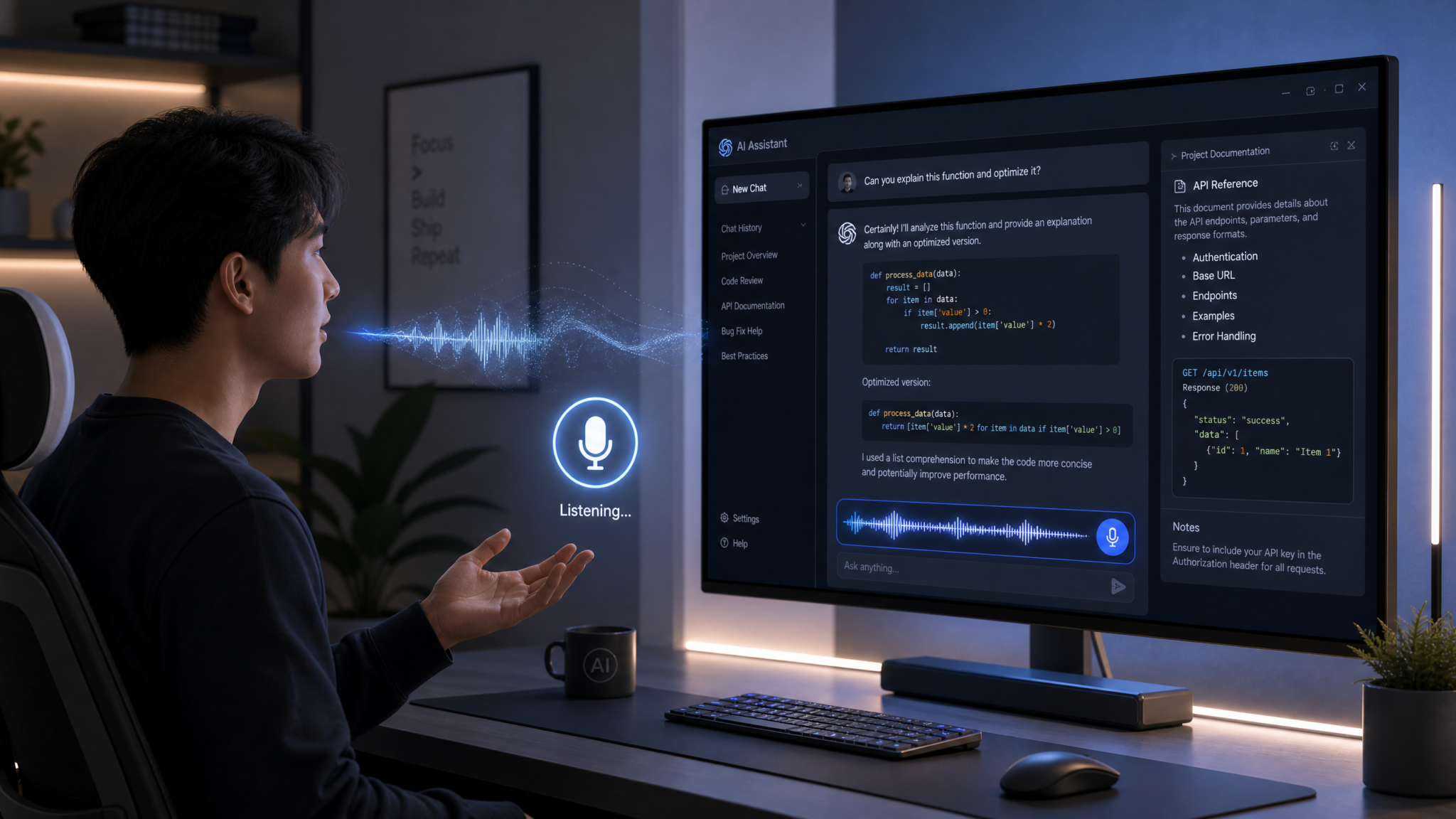
The way developers and knowledge workers interact with AI has fundamentally shifted. When OpenAI integrated native Voice capabilities into both ChatGPT Work and Codex desktop applications in August 2026, it did not simply add a microphone button to an existing interface. It introduced a hands-free collaboration paradigm that allows you to think out loud, redirect AI mid-task, and maintain coding or document workflows without ever touching a keyboard. Whether you are deep in a debugging session, drafting a strategic memo, or navigating an unfamiliar codebase, voice interaction removes the friction between your thoughts and the AI’s output in ways that text input simply cannot match.
What Changed in August 2026: Voice Arrives on Desktop
Prior to the August 2026 update, ChatGPT Voice existed primarily as a mobile feature — a useful novelty for hands-free queries during a commute, but not something that professional developers or business analysts could integrate into serious workflows. The desktop integration changed this categorically. OpenAI’s engineering team rebuilt the voice pipeline from scratch using a low-latency audio streaming architecture that processes spoken input in near real-time, delivering responses with less than 400 milliseconds of end-to-end delay under normal network conditions.
The integration landed simultaneously in two desktop environments: ChatGPT Work, the enterprise-focused productivity suite aimed at knowledge workers, analysts, and content teams, and Codex, the specialized AI coding environment that pairs natural language understanding with deep integration into development toolchains. Both environments now share the same voice interface engine, though they expose it through context-aware features that suit each product’s purpose. In Codex, voice triggers code generation, refactoring commands, and repository navigation. In Work, it drives document creation, data analysis prompts, and meeting intelligence workflows.
What makes this rollout significant beyond the surface feature is the underlying model coordination. When you speak to Codex, the voice signal is not simply transcribed and fed as text into a language model. The voice module maintains a real-time context window that includes your current file, recent git history, and any test output visible on screen. This means the AI understands not just what you said, but what you are looking at when you said it. The same principle applies in Work, where voice commands interact with open documents, spreadsheet data ranges, and calendar context simultaneously.
Understanding the full capabilities and limitations of this system is essential for any professional who wants to use it effectively. This guide walks through every major aspect of the integration, from initial setup to advanced workflow patterns, with practical examples you can start using immediately.
For those who are newer to how the Codex environment itself functions as a coding assistant, the foundational mechanics of ChatGPT Codex AI coding assistant setup and features provide important context before diving into voice-specific capabilities.
How Voice Interaction Works: Architecture and Real-Time Design
The Live Voice Interface
The voice interface in both Work and Codex desktop applications uses a persistent audio session rather than a push-to-talk model. Once activated, it maintains an open microphone connection that applies continuous voice activity detection, meaning you do not need to hold a button or click anything to begin speaking. The system detects when you have finished a phrase based on a combination of acoustic pause detection and semantic completeness signals. If you pause mid-sentence but have not completed a grammatical thought, the system waits rather than prematurely cutting off your input.
This is a deliberate design choice that differentiates the experience from earlier voice assistants. Traditional voice interfaces treated every pause as a signal to process and respond. ChatGPT Voice on desktop uses a predictive listening model that factors in whether your spoken fragment constitutes an actionable instruction. When you say “Add a function that — actually, wait, first let me explain the context” the system recognizes the self-correction and does not attempt to execute the partial instruction.
Natural Interruption as a First-Class Feature
One of the most consequential design decisions in this implementation is how it handles interruptions. When the AI is speaking a response aloud and you begin talking, the system does not require you to wait for a pause or press a stop button. It detects your voice immediately, suppresses its own audio output, and begins processing your new input within milliseconds. This is technically challenging because it requires the system to distinguish your interruption from its own speaker output, which is handled through acoustic echo cancellation and speaker diarization at the hardware driver level.
The practical effect is that voice conversation with Codex and Work feels genuinely interactive rather than transactional. You can say “explain what this function does” and if the AI begins with information you already know, you can immediately say “skip that, focus on the error handling part” and it will redirect without awkward delays or conflicts. This natural back-and-forth creates a collaboration rhythm that is closer to talking with a knowledgeable colleague than operating a voice-controlled command system.
Real-Time Screen Context Coordination
The voice module does not operate in isolation from the visual interface. A screen context agent runs in parallel with the audio processing pipeline, continuously indexing what is visible in the application window. In Codex, this means the voice system always knows which file is open, which lines are selected, what the last error message was, and what branch you are working on. In Work, it maintains awareness of document cursor position, selected cells in a spreadsheet, and the current slide in a presentation.
This coordination enables commands like “fix the issue on the highlighted lines” or “summarize the data in the selected range” without requiring you to verbally describe what you are looking at. The system resolves those references automatically using the screen context agent’s output. When context is ambiguous — for example, if you have multiple files open — the system will ask a brief clarifying question rather than guessing, which significantly reduces costly misdirected actions.
| Component | Function | Latency Contribution |
|---|---|---|
| Voice Activity Detector | Determines when speech starts and ends | ~20ms |
| Audio Streaming Pipeline | Compresses and transmits audio chunks | ~50ms |
| Speech-to-Context Model | Transcribes and resolves screen references | ~120ms |
| Task Execution Layer | Runs code actions, edits documents, calls APIs | ~80–200ms |
| Text-to-Speech Response | Synthesizes spoken reply | ~60ms |
Setting Up ChatGPT Voice on Desktop
macOS Setup
On macOS, ChatGPT Voice requires version 3.2 or later of the ChatGPT desktop application, which unified the Work and Codex interfaces into a single launcher. Once you have the correct version installed, navigate to Settings → Voice & Audio → Enable Desktop Voice. macOS will prompt you to grant microphone access through the system privacy dialog — you must allow this for the entire application, not just specific features, because the screen context agent also uses audio APIs for echo cancellation calibration.
After granting permissions, you will see a Voice Calibration screen that runs a brief acoustic test. This captures your voice profile, which the system uses to tune voice activity detection thresholds for your specific environment. If you work in a noisy office, the calibration will set a higher detection threshold to avoid false triggers from background conversation. The calibration takes approximately 90 seconds and should be rerun whenever you change your physical environment significantly — for example, if you switch from a quiet home office to an open-plan workspace.
The activation shortcut on macOS defaults to Command + Shift + V, which activates the persistent voice session. You can also configure a wake word through Settings → Voice & Audio → Wake Word Configuration, though this is disabled by default due to the privacy implications of continuous microphone monitoring that wake word detection requires. The voice indicator appears as a small waveform icon in the menu bar and in the application toolbar, changing color to indicate active listening, processing, and speaking states.
Windows Setup
Windows setup follows a similar path through the application settings, but with additional configuration options through the Windows Audio Service. Navigate to Settings → Voice & Audio → Enable Desktop Voice in the ChatGPT application, then open Windows Sound Settings to verify the correct input device is selected. A common issue on Windows is that the system defaults to a lower-quality audio input when multiple microphones are present — for example, a built-in webcam mic may take precedence over a dedicated desk microphone. Explicitly selecting your preferred input device in both Windows Sound Settings and the ChatGPT application’s audio configuration will resolve this.
Windows users should also ensure that the Exclusive Mode setting for their microphone is disabled in Windows Sound properties. Exclusive Mode can cause conflicts where the ChatGPT application’s echo cancellation driver and the Windows audio stack attempt to control the microphone simultaneously, resulting in degraded recognition quality or intermittent dropout. The activation shortcut on Windows defaults to Ctrl + Shift + V.
Codex-Specific Configuration
If you are using voice primarily for coding workflows in Codex, there are additional configuration options under Settings → Codex → Voice Interaction → Code Mode. This setting adjusts how the voice system handles technical terminology. In standard mode, the speech recognition model optimizes for natural language comprehension. In Code Mode, it applies a technical vocabulary expansion that improves recognition of programming keywords, function names, variable naming conventions, and framework-specific terms. Testing showed recognition accuracy for technical terms improved from approximately 84% in standard mode to 97% in Code Mode for common programming vocabularies including Python, JavaScript, TypeScript, Rust, and Go.
Voice Commands for Coding Tasks
Dictating Code Changes
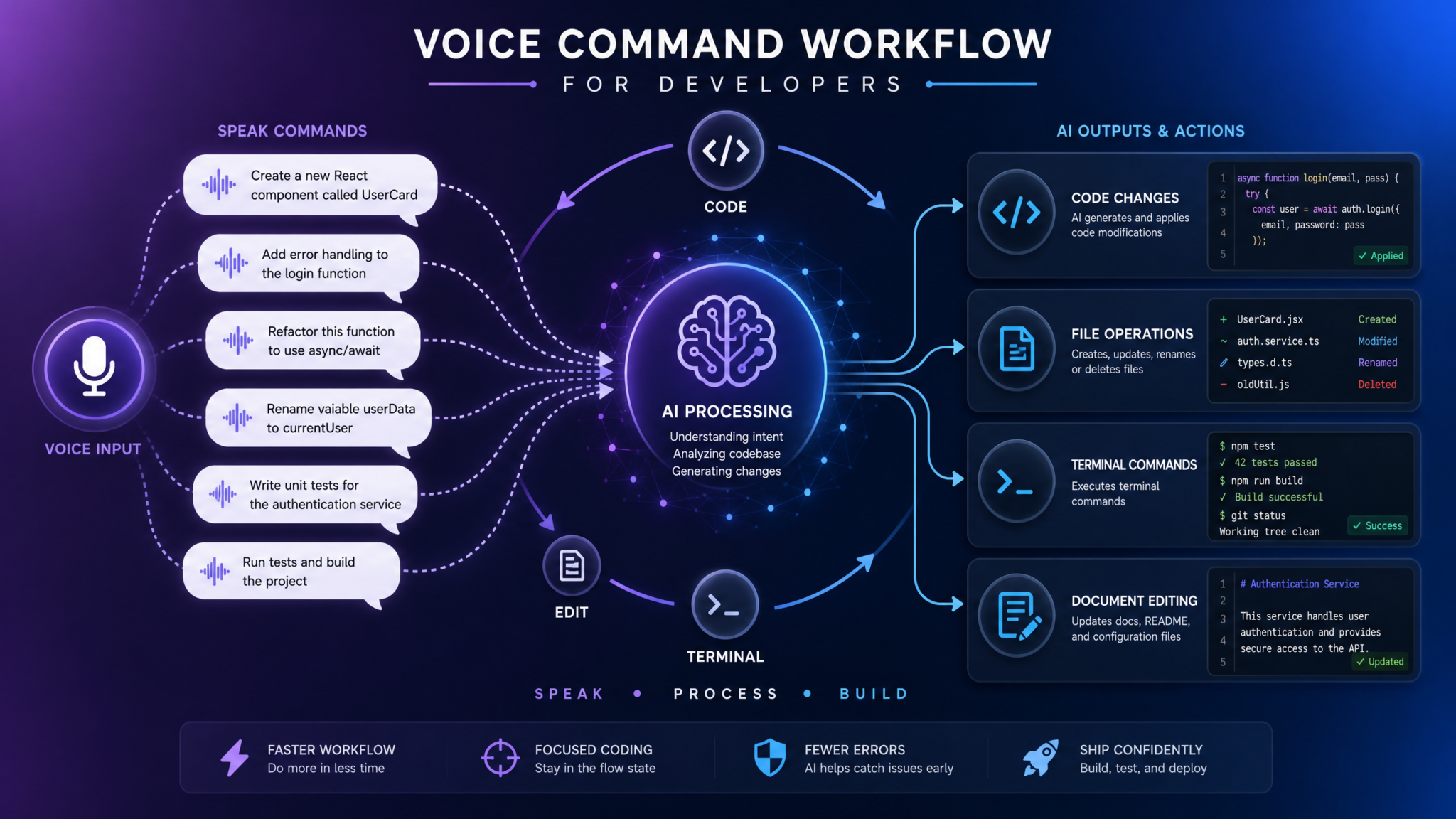
Dictating code changes is one of the highest-value applications of voice in Codex, particularly for experienced developers who can articulate what they want in precise terms. Rather than typing out a function character by character, you describe it conversationally. The system uses your description, the surrounding code context, and any relevant project patterns it has indexed to generate appropriate code inline.
Effective dictation commands are specific about behavior without specifying implementation syntax. Compare these two approaches:
- Less effective: “Write a function” — too vague, will generate a generic filler response
- More effective: “Add a private async function below the current class called fetchUserPreferences that takes a userId string, calls the preferences service endpoint, handles network errors with a retry of up to three times, and returns a typed UserPreferences object or null on failure”
The second phrasing gives Codex enough behavioral specification to generate production-quality code immediately. The system will confirm the generated code aloud — describing what it created and flagging any assumptions it made — before inserting it into the file. You can then say “looks good, insert it” to accept or “wait, add input validation for the userId before the fetch call” to refine before insertion.
Reviewing Pull Requests by Voice
Pull request review by voice integrates with the Codex PR review panel, which surfaces diffs, comments, and CI status in a structured view. When you open a PR in Codex and activate voice, you can navigate through changed files and request analysis without scrolling or clicking. Commands like “walk me through the changes in the authentication module” prompt the system to summarize the diff in that file, highlight non-obvious changes, and flag potential issues it detected.
You can add review comments entirely by voice. Saying “add a comment on the database call in fetchUserData saying this should use a connection pool reference rather than creating a new connection per request” will generate a formatted review comment anchored to the relevant line. Voice-based PR review is particularly fast for large pull requests because you can ask for high-level summaries first — “what is the overall scope of this PR and are there any obvious risks” — and then drill into specific files verbally based on what concerns you.
Navigating Codebases Hands-Free
Codebase navigation by voice works through semantic description rather than requiring you to remember exact file paths or function names. You can say “find the function that handles payment processing” and Codex will locate the relevant file and function, navigate to it in the editor, and give you a brief spoken summary of what it does. Similarly, “show me everywhere this function is called” triggers a reference search and reads out the caller locations with relevant context snippets.
Navigation commands support chaining, which makes exploration efficient. You can say “go to the UserService class, then show me the method that validates JWT tokens, then find all places where an expired token error is thrown” as a single continuous instruction and Codex will execute the sequence in order, narrating each step. This is significantly faster than manually clicking through a file tree and using text search when you are exploring an unfamiliar codebase to understand a specific behavior.
For teams adopting AI-assisted development practices, understanding how voice navigation integrates with broader Codex capabilities connects directly to ChatGPT Codex autonomous coding agent workflow guide which covers the agentic task execution model that powers navigation and refactoring.
Running and Debugging with Voice Commands
Voice commands for running and debugging leverage Codex’s integrated terminal and test runner connections. You can say “run the tests for the checkout module and tell me if anything fails” to execute the relevant test suite and get a spoken summary of results. If tests fail, Codex reads out the failure messages and offers immediate analysis: “The test for applyDiscount is failing because the expected return type is a number but the function currently returns a string. Do you want me to fix the type conversion?”
Debugging sessions benefit enormously from voice when you are tracing through execution step by step. Rather than repeatedly clicking through a debugger UI, you can say “step into this function”, “show me the value of the order object at this point”, or “set a breakpoint at every database call in this file”. These commands map to debugger actions and evaluations in real time.
Voice Commands for Work Tasks
Document Creation and Editing
Document creation by voice in ChatGPT Work operates through what the product team calls a directed dictation model. Unlike simple voice-to-text transcription, directed dictation allows you to mix content dictation with formatting instructions and structural commands in a single continuous voice stream. You might say “create a project proposal document, heading Project Scope, then write a paragraph explaining that this project will deliver a new customer portal by Q2 2027 with the following key features — then add a bulleted list starting with single sign-on integration, mobile-responsive design, real-time order tracking” without pausing to switch between modes.
The system parses structural commands like “heading”, “bulleted list”, “bold this”, “new paragraph”, and “table with three columns” from the content stream and applies them as formatting instructions. Editing existing documents by voice is equally capable — you can say “find the section about budget estimates and add a note that figures are subject to CFO approval” and the system will locate the section, append the note with appropriate formatting, and confirm the change.
Data Analysis Requests
When you have a spreadsheet or data file open in Work, voice becomes a remarkably fast interface for analysis. Rather than writing formulas or constructing SQL queries manually, you describe the analysis you need. Saying “calculate the month-over-month revenue growth rate for each product category in this spreadsheet and create a summary table at the bottom” will trigger an analysis workflow that reads the data, performs the calculation, and inserts a formatted results table.
For more complex analytical questions — “which customer segments showed the highest churn risk based on the engagement metrics in this dataset” — Work generates an analysis plan, executes it using its data processing capabilities, and presents findings both visually in the document and as a spoken summary. You can then drill into specific findings verbally: “tell me more about the enterprise segment churn pattern and what variables correlate most strongly with it.”
Meeting Preparation and Follow-Ups
Meeting intelligence is one of the most practically powerful voice applications in Work. Before a meeting, you can say “prepare a briefing document for my 3pm meeting about the Q4 product roadmap, pulling in the relevant context from the roadmap document I worked on last week and the stakeholder priorities we discussed in the team notes.” The system retrieves relevant context from your document history, synthesizes a briefing, and reads it to you — useful when you are commuting or getting ready.
Post-meeting follow-ups are equally streamlined. If you have meeting notes open, saying “create action items from these notes, assign owners where mentioned, and draft a follow-up email I can send to attendees” generates a structured action item list and a ready-to-review email draft in one voice command. You can then review the draft by having it read to you and refine specific parts verbally before sending.
Email Drafting and Scheduling
Email drafting by voice supports full composition, tone adjustment, and send instructions. You can say “draft an email to the engineering leadership team explaining that the deployment has been delayed to next Thursday due to a third-party dependency issue, keep the tone professional but direct, and include the three risk mitigation steps we discussed” and receive a draft that you refine through additional voice commands before approving the send.
Scheduling by voice connects to your calendar integration, allowing commands like “find a two-hour block next week where both the product and engineering teams are free and schedule a roadmap review, send invites with the agenda from the roadmap document.” The system checks availability, proposes options for your approval, and handles the scheduling once you confirm.
Natural Language Patterns That Work Best with Voice
Effective voice interaction with both Codex and Work follows several patterns that consistently produce better results than ad hoc phrasing. Understanding these patterns shortens the learning curve significantly.
The Specification-First Pattern
Lead with what you want to achieve, not how you think it should be done. Instead of “write a for loop that iterates through users and checks each one”, say “filter the users list to include only active users who have logged in within the last 30 days.” The behavioral specification gives the AI more latitude to choose the most appropriate implementation pattern for your codebase.
The Context Anchor Pattern
When your request involves a specific location in a document or codebase, anchor it explicitly. “In the authentication service, specifically in the token validation method” is better than “in the authentication code.” Explicit anchoring reduces the need for the system to make assumptions about where you want changes applied.
The Constraint Enumeration Pattern
State your constraints before your request rather than after. “Without modifying the existing API interface and maintaining backward compatibility with clients on version 2.0, refactor the payment processing flow to use the new provider SDK” is more effective than stating the request first and adding constraints as afterthoughts, because the constraints shape the approach from the beginning rather than requiring a revision pass.
The Scope Qualification Pattern
When you want analysis rather than action, say so explicitly. “Explain what this code does without changing anything” or “analyze these meeting notes and tell me what you would suggest for action items but don’t create a document yet” prevents the AI from taking premature action when you are still in an exploratory mode.
| Pattern | Example Phrasing | Common Mistake | Result Improvement |
|---|---|---|---|
| Specification-First | “Filter users to active, 30-day login” | “Write a loop to check users” | ~40% fewer revisions |
| Context Anchor | “In the token validation method specifically” | “In the auth code somewhere” | ~60% fewer misplacements |
| Constraint Enumeration | State constraints before the request | Add constraints as afterthoughts | ~35% fewer rework cycles |
| Scope Qualification | “Analyze but don’t change” | Unspecified intent triggers action | ~75% fewer unintended edits |
Interruption Handling: Redirecting Mid-Response
Knowing when and how to interrupt the AI during a voice session is a skill that experienced users develop quickly. The system supports several types of mid-response redirections, each with slightly different phrasing conventions that signal your intent.
Clarification Interruptions
When the AI is explaining or generating something and you realize it is working from a mistaken assumption, interrupting with a clarification phrase stops the current response and incorporates your correction. Say “hold on” or “actually, that’s not quite right” followed immediately by the correction. The system recognizes these as clarification signals and restarts its response integrating the new information rather than continuing on the wrong path.
Scope Reduction Interruptions
If the AI begins a response that is more comprehensive than you need, you can redirect scope by saying “just focus on the database part” or “skip the background, get to the fix.” This signals a scope reduction and the system narrows its response to the specified area without treating the interruption as a complete restart.
Priority Pivot Interruptions
When a more urgent task arises during an ongoing response — for example, you see a new critical error in your terminal while Codex is explaining a refactoring approach — you can pivot completely by saying “actually, we need to deal with something more urgent first.” The system will pause, confirm it is saving the current thread context, and switch to your new priority. You can return to the previous thread by saying “let’s go back to what we were discussing before” and it will restore context.
These interruption mechanics are substantially different from how earlier voice systems worked, where interruption typically resulted in lost context and required starting over from the beginning. The conversation state management model that powers the Work and Codex voice experience is closely related to ChatGPT persistent memory and conversation state management which explains how context is maintained across sessions and task pivots.
Multi-Modal Workflows: Combining Voice with Screen Context
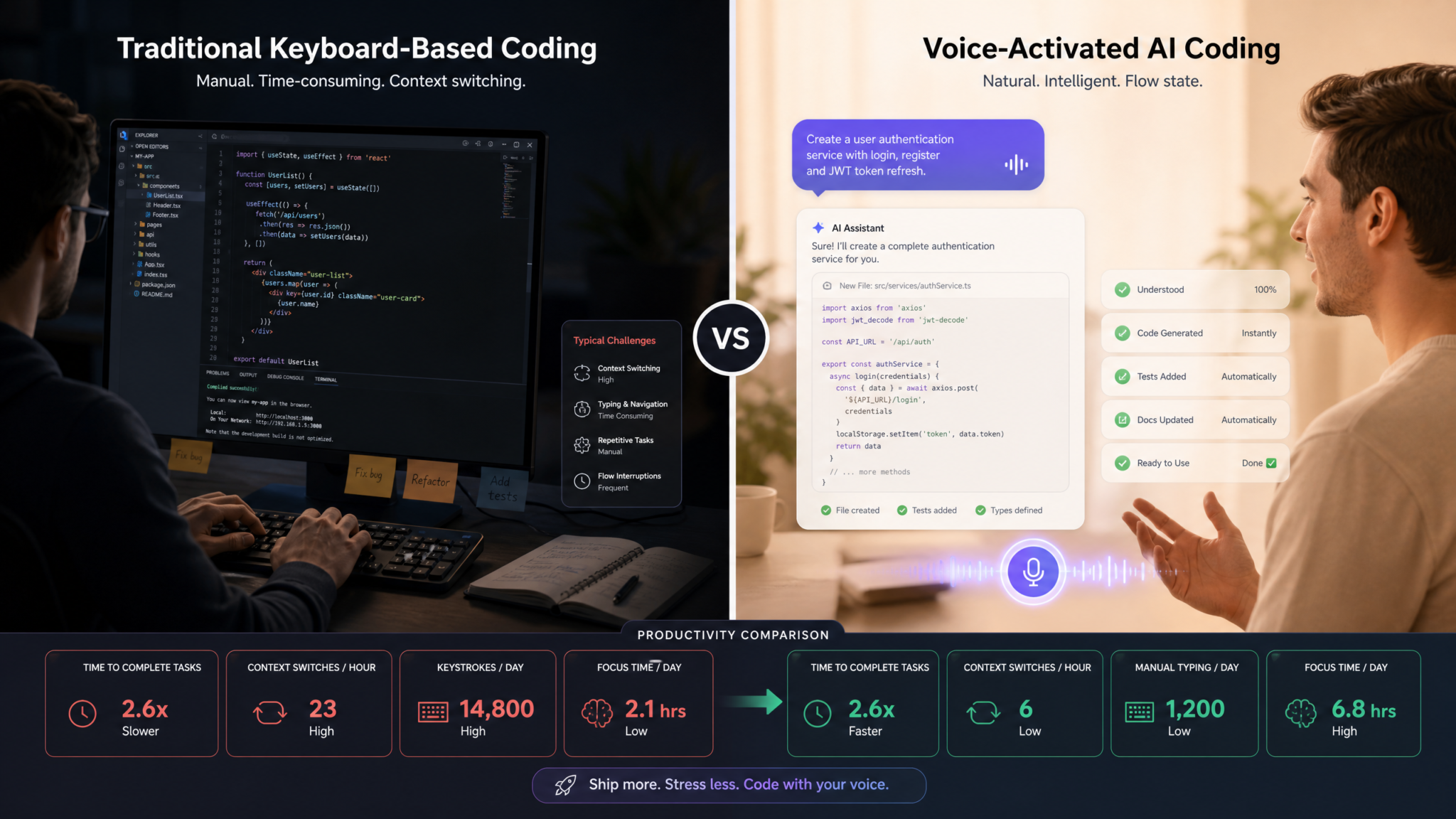
The most powerful workflows in both Codex and Work are not pure voice interactions but hybrid multi-modal sessions where you use a combination of voice, mouse selection, and screen context to direct the AI with maximum precision and minimum effort.
The Select-and-Speak Pattern
Highlight a block of code or a paragraph of text using your mouse, then activate voice and describe what you want done with that selection. The screen context agent registers the selection and your voice command applies specifically to the selected content. This is particularly powerful for targeted refactoring: select a messy function, say “clean this up for readability and add inline documentation”, and Codex rewrites exactly that function without touching surrounding code.
The Screen-Referenced Analysis Pattern
When you have a visual output — a chart, a test results panel, an error log — that you want the AI to analyze, simply say “look at what’s on screen and explain what this means for our deployment decision.” The screen context agent captures a snapshot of the visible content and the voice query is answered with reference to that visual context. This works for error messages, data visualizations, code diffs, and any other content visible in the application window.
The Document-and-Voice Synthesis Pattern
In Work, open multiple related documents — for example, a requirements specification and a draft technical proposal — and use voice to direct synthesis across them. Saying “compare the requirements in the spec document on the left with what we have committed to in the proposal on the right and identify any gaps” triggers a cross-document analysis that would otherwise require significant manual effort.
The Context-Seeded Prompt Pattern
Before beginning a complex voice session in Codex, use the standard interface to open relevant files, run relevant tests, and get any relevant output visible on screen. This seeds the screen context agent with maximum relevant information before you start speaking. Then switch to voice and your commands can reference all of that context without having to describe it verbally. The preparation phase takes 30 seconds and can save minutes of explanatory dictation during the session.
Accessibility Benefits for Developers with RSI and Mobility Challenges
For developers experiencing Repetitive Strain Injury (RSI), carpal tunnel syndrome, or other mobility limitations, voice interaction with Codex represents a potentially transformative accommodation. The ability to continue coding through voice when keyboard use is painful or impossible has kept more than a few developers in the profession who might otherwise have been forced out due to injury.
RSI Management and Voice-First Development
RSI-related injuries among software developers are more prevalent than widely acknowledged. Estimates from occupational health studies suggest that between 15% and 35% of professional developers experience clinically significant RSI symptoms at some point in their careers. Traditional accommodations — ergonomic keyboards, voice dictation tools, mouse alternatives — have helped, but they have typically created hybrid workflows that still required significant keyboard interaction for complex coding tasks.
Voice in Codex addresses this gap by enabling genuinely complex coding tasks without keyboard input. A developer managing an RSI flare-up can conduct an entire morning of productive coding work — writing new functions, reviewing pull requests, navigating the codebase, running tests, and committing code — with minimal to no keyboard use. This is not a degraded version of the coding experience; for tasks where the developer knows clearly what they want to build, voice interaction can actually be faster than typing.
Accessibility Configuration Options
Under Settings → Accessibility → Voice Interaction, several configurations specifically support users with accessibility needs. The Extended Pause Tolerance setting increases the voice activity detection patience window, allowing users who speak more slowly or with frequent pauses due to fatigue or other conditions to dictate without the system prematurely cutting off their input. The Simplified Confirmation setting replaces the default verbal confirmation prompts with single-word responses, reducing the vocal effort required to accept or reject suggestions.
The system also supports external voice control software integration through a dedicated API layer. Users who rely on Dragon NaturallySpeaking, Voice Control on macOS, or Windows Speech Recognition can route commands through those systems into Codex and Work, maintaining their existing voice control configurations while gaining access to the AI collaboration features. This interoperability was a deliberate design decision to serve users who have already invested significantly in configuring voice control for their specific needs.
Cognitive Accessibility Benefits
Voice interaction also provides benefits for developers and knowledge workers with certain cognitive processing differences, including ADHD and dyslexia. The ability to express thoughts conversationally rather than translating them into precise typed syntax reduces cognitive load in ways that can significantly improve productivity and reduce frustration. For individuals with dyslexia who struggle with the character-by-character precision that programming syntax demands, voice interaction that accepts high-level behavioral descriptions and handles syntactic details automatically can be genuinely enabling.
Privacy and Security Considerations for Voice-Activated AI
Enabling a persistent microphone connection to an AI service in a professional environment raises legitimate privacy and security concerns that should be carefully considered and actively managed.
What Is Transmitted and When
By default, the ChatGPT Voice system transmits audio only during active voice sessions — periods where the microphone is explicitly activated through the keyboard shortcut, toolbar button, or configured wake word. The system does not maintain a continuous audio stream to OpenAI’s servers when voice is inactive. Audio processing for wake word detection, if enabled, occurs locally on the device using an on-device model that does not transmit audio until it detects the wake phrase. OpenAI’s documentation confirms that no audio is retained on their servers beyond the processing window required to generate a response, and voice sessions are subject to the same enterprise data retention and processing policies that govern text interactions.
Enterprise Security Controls
For organizations with strict data handling requirements, several enterprise controls are available through the ChatGPT Work admin console. Administrators can disable wake word functionality entirely across the organization, require explicit activation for every voice session, restrict voice interaction to specific user groups, and configure whether voice sessions are logged in the organization’s audit trail. Organizations in regulated industries — healthcare, finance, legal — should review their compliance requirements specifically for voice data before enabling the feature at scale.
Screen Context and Sensitive Data
The screen context agent that enables voice commands to reference on-screen content captures periodic snapshots of the application window. These snapshots are processed locally to extract structural and textual context, and only the extracted context — not raw screenshots — is transmitted to the language model. However, this means that any sensitive data visible in the application when you make a voice request will be included in the context sent to OpenAI’s processing infrastructure. Developers working with credentials, customer PII, or other sensitive data should ensure that sensitive information is not visible on screen during voice sessions, or use the Screen Context Privacy Mode setting that limits context capture to code structure without transmitting text content.
The security model for voice-activated AI in development environments touches on the broader question of AI access control in enterprise settings, which is covered comprehensively in ChatGPT enterprise security policies and data governance guide for organizations implementing AI governance frameworks.
Performance Tips: Microphone Setup, Noise Cancellation, and Latency Reduction
Microphone Selection and Placement
The single most impactful factor in voice recognition accuracy is microphone quality and positioning. The built-in microphones in most laptops produce acceptable results in very quiet environments but degrade significantly in typical office conditions. A dedicated USB or XLR desktop microphone placed 6 to 12 inches from your mouth at a slight off-axis angle (to reduce plosive sounds on letters like P and B) will dramatically improve recognition accuracy for technical vocabulary, particularly for the precise pronunciation of code identifiers and framework names.
Microphones consistently recommended by developers using voice coding workflows include the Blue Yeti USB in cardioid mode, the Shure MV7, and for higher-budget setups, the Rode NT-USB Mini. All of these provide excellent directional pickup patterns that reduce ambient noise pickup without requiring a separate acoustic treatment of your workspace.
Access 40,000+ AI Prompts for ChatGPT, Claude & Codex — Free!
Subscribe to get instant access to our complete Notion Prompt Library — the largest curated collection of prompts for ChatGPT, Claude, OpenAI Codex, and other leading AI models. Optimized for real-world workflows across coding, research, content creation, and business.
Noise Cancellation Configuration
Both macOS and Windows offer system-level noise cancellation that can be applied to microphone input before it reaches the ChatGPT application. On macOS, Krisp or Apple’s built-in noise cancellation (available in FaceTime and accessible through system audio settings on Apple Silicon Macs) works well. On Windows, NVIDIA RTX Voice or the Krisp plugin provides real-time noise cancellation with minimal latency addition.
Within the ChatGPT application itself, Settings → Voice & Audio → Noise Handling offers three modes: Passive (relies on system-level noise handling), Active (applies an additional application-level filter), and Adaptive (automatically switches between modes based on detected noise levels). Active mode adds approximately 30ms of latency but can meaningfully improve recognition accuracy in noisy environments. Adaptive mode is recommended for most users as it provides the benefit only when needed.
Network and Latency Optimization
Voice interaction performance is more sensitive to network latency than text interaction because the conversational rhythm of voice feels broken when delays exceed approximately 500ms. If you are experiencing noticeable delays, several steps can help. First, ensure you are on a wired ethernet connection rather than WiFi — this alone typically reduces round-trip latency by 20–40ms and eliminates the intermittent spikes that WiFi can introduce. Second, check that no other applications are performing significant network activity during voice sessions, particularly large file transfers or video calls that compete for bandwidth.
The ChatGPT application includes a built-in latency diagnostic tool under Settings → Voice & Audio → Performance Diagnostics that measures end-to-end response time and identifies whether latency is originating from audio processing, network transmission, or model inference. This is useful for identifying the specific bottleneck when voice sessions feel sluggish.
Comparison with Siri, Google Assistant, and Alexa for Developers
Developers evaluating voice AI options for their workflow deserve an honest comparison of what ChatGPT Voice in Codex and Work actually offers relative to the established general-purpose voice assistants they already use.
| Capability | ChatGPT Voice (Codex/Work) | Siri | Google Assistant | Alexa |
|---|---|---|---|---|
| Code generation by voice | Full support with context awareness | Not supported | Not supported | Not supported |
| Codebase navigation | Semantic navigation with file/function awareness | Not supported | Not supported | Not supported |
| Document editing by voice | Directed dictation with formatting commands | Basic dictation only | Basic dictation only | Limited |
| Natural interruption | Full acoustic interruption support | Partial | Partial | Limited |
| Screen context awareness | Full application context | Limited app integration | Limited app integration | No |
| Technical vocabulary | Specialized Code Mode vocabulary | General language only | General language only | General language only |
| Multi-step task execution | Full agentic execution chains | Single-step actions | Limited multi-step | Limited multi-step |
| Enterprise privacy controls | Comprehensive admin controls | Apple enterprise MDM | Google Workspace admin | Limited |
The fundamental difference between ChatGPT Voice in Codex and Work versus general-purpose assistants is depth versus breadth. Siri, Google Assistant, and Alexa are designed to handle thousands of different use cases at a shallow level. ChatGPT Voice in Codex is designed to handle a narrower set of professional tasks — specifically coding and knowledge work — at a depth that supports genuinely complex professional work. A general-purpose assistant might set a timer or play music on demand; ChatGPT Voice in Codex can refactor a legacy authentication system while you explain your constraints in natural language.
The lack of cross-application voice capabilities in ChatGPT Voice is the most significant limitation relative to Siri and Google Assistant, which can interact with third-party applications through OS-level integration. ChatGPT Voice is currently confined to the ChatGPT application itself. OpenAI has signaled that expanded OS-level integration similar to what is described in ChatGPT computer use and OS integration capabilities is on the roadmap, which would significantly close this gap.
15 Practical Voice Workflow Examples with Exact Phrases to Use
The following examples are drawn from real-world professional use cases. Each includes the exact phrase pattern you would speak, what happens in response, and why this workflow delivers value over text-based interaction.
1. Starting a New Feature (Codex)
Phrase: “Create a new module called invoiceGenerator that exports a function buildInvoice taking a CartObject and CustomerProfile, returning an Invoice type. Follow the same structure as the orderProcessor module.”
Codex generates a new file with the correct structure, inferred types, and module pattern matching your existing code. Time saved: approximately 8 minutes of manual scaffolding.
2. Explaining an Unfamiliar Codebase (Codex)
Phrase: “Give me a five-minute tour of this codebase starting with the entry point, focusing on data flow between the frontend and backend.”
Codex navigates through files verbally, summarizing each layer. Equivalent to onboarding documentation that rarely exists.
3. Quick Bug Investigation (Codex)
Phrase: “I’m seeing a null pointer exception in the order service but only in production. Show me anywhere in this codebase where an order object could be returned as null without being checked.”
Codex runs a semantic search, identifies vulnerable locations, and reads them out with context, dramatically accelerating root cause analysis.
4. Writing Test Coverage (Codex)
Phrase: “Look at the discountService file and write unit tests for all the edge cases in the applyBulkDiscount function, including negative quantities, expired vouchers, and stacked discounts.”
Codex analyzes the function, identifies edge cases, and generates a complete test suite with descriptive test names.
5. Committing with a Meaningful Message (Codex)
Phrase: “Stage all the changes in the payment module and write a conventional commit message that accurately describes what we changed in this session.”
Codex stages files, reviews the diff, and generates a precise conventional commit message — far better than hastily typed “fix stuff” messages.
6. Executive Summary Generation (Work)
Phrase: “Read the quarterly performance report and write a three-paragraph executive summary suitable for a board audience, emphasizing the revenue growth story and the two risk areas we identified.”
Work generates an appropriately toned, focused summary instantly rather than requiring a separate writing session.
7. Meeting Agenda Creation (Work)
Phrase: “Create a 60-minute meeting agenda for tomorrow’s product strategy review, pulling the open decision items from the product roadmap document and leaving 15 minutes for Q&A at the end.”
Work synthesizes an agenda from document context, structured correctly and ready to send.
8. Spreadsheet Analysis (Work)
Phrase: “Looking at the sales data in this spreadsheet, calculate the sales velocity trend for each regional team over the last six months and highlight any teams whose velocity is declining.”
Work analyzes the data, performs calculations, and annotates the spreadsheet with findings and conditional formatting in one command.
9. Sensitive Email Drafting (Work)
Phrase: “Draft an email to the vendor explaining that we are terminating the contract at the end of the quarter due to service level failures. Keep it professional, reference the SLA violations from the last three months, and don’t close the door on future business.”
Work drafts a carefully balanced professional communication that would otherwise require careful manual drafting.
10. Architecture Decision Review (Codex)
Phrase: “We’re deciding between a microservices architecture and a modular monolith for the new billing system. Based on the current codebase size and team structure visible in the project settings, what would you recommend and why?”
Codex analyzes the project context and provides a structured recommendation rather than a generic answer.
11. Accessibility Review (Codex)
Phrase: “Review the current frontend components for WCAG 2.1 AA compliance issues and tell me which components need the most urgent attention.”
Codex scans component files and provides a prioritized accessibility audit with specific issues and suggested fixes.
12. Performance Profiling Direction (Codex)
Phrase: “The dashboard is loading slowly and we think it’s a database query issue. Guide me through profiling this step by step using the instrumentation we already have in place.”
Codex identifies existing instrumentation points and walks you through a systematic profiling session verbally.
13. Research Synthesis (Work)
Phrase: “I have six competitor analysis documents open. Synthesize their key differentiators into a comparison matrix organized by feature category and note where our product has the clearest advantage.”
Work reads all six documents and creates a structured competitive intelligence matrix — hours of manual synthesis in seconds.
14. Code Documentation Sprint (Codex)
Phrase: “Go through every public function in the utilities directory that is missing a JSDoc comment and add documentation for each one based on the function’s implementation.”
Codex systematically adds missing documentation across an entire directory, a tedious task that voice-directed automation handles perfectly.
15. End-of-Day Summary (Work + Codex)
Phrase: “Summarize what I worked on today across both my coding session and my documents, create a brief standup-style summary I can paste into our team channel, and list any open issues I should pick up tomorrow.”
Both applications contribute context to generate an accurate daily summary that would otherwise require manual reconstruction from memory. This cross-application coordination is possible when both Work and Codex are open simultaneously and the voice session has access to both contexts.
Final Thoughts
ChatGPT Voice for Work and Codex is not a convenience feature layered onto existing functionality. It is a fundamentally different interaction modality that, when properly configured and practiced, allows developers and knowledge workers to engage with AI collaboration at the speed of thought rather than the speed of typing. The real productivity gains come not from individual commands but from sustained sessions where the voice interface allows you to maintain creative and analytical momentum without the constant mechanical interruption of keyboard and mouse interaction.
The setup investment is modest — quality microphone, acoustic calibration, a few hours learning the language patterns that work best. The return on that investment accumulates quickly, particularly for professionals who are tackling complex tasks where the ability to think out loud and have the AI respond in kind accelerates both the quality and speed of work. For developers managing RSI or other physical constraints, the technology offers something more important than productivity: a pathway to continued technical work that might otherwise not be accessible.
As OpenAI continues expanding the OS-level integration capabilities of both applications, voice interaction will become even more capable — extending beyond the application boundary to orchestrate actions across the broader development environment. The patterns and habits you build now with voice interaction inside Codex and Work will translate directly to that expanded future capability. Investing in learning to work effectively by voice today is not just about what voice can do now; it is about being ready for what it will do next.
For those ready to push into more advanced territory, understanding how voice connects to the broader agentic capabilities of the platform is valuable context. The evolving roadmap for ChatGPT autonomous task execution and tool use, covered in detail in ChatGPT agentic task execution and autonomous workflow capabilities, shows where voice-directed AI collaboration is heading over the next product cycle.
