
OpenAI Ships ChatGPT Desktop App for Linux with Codex in Preview: Complete Feature Breakdown and Installation Guide
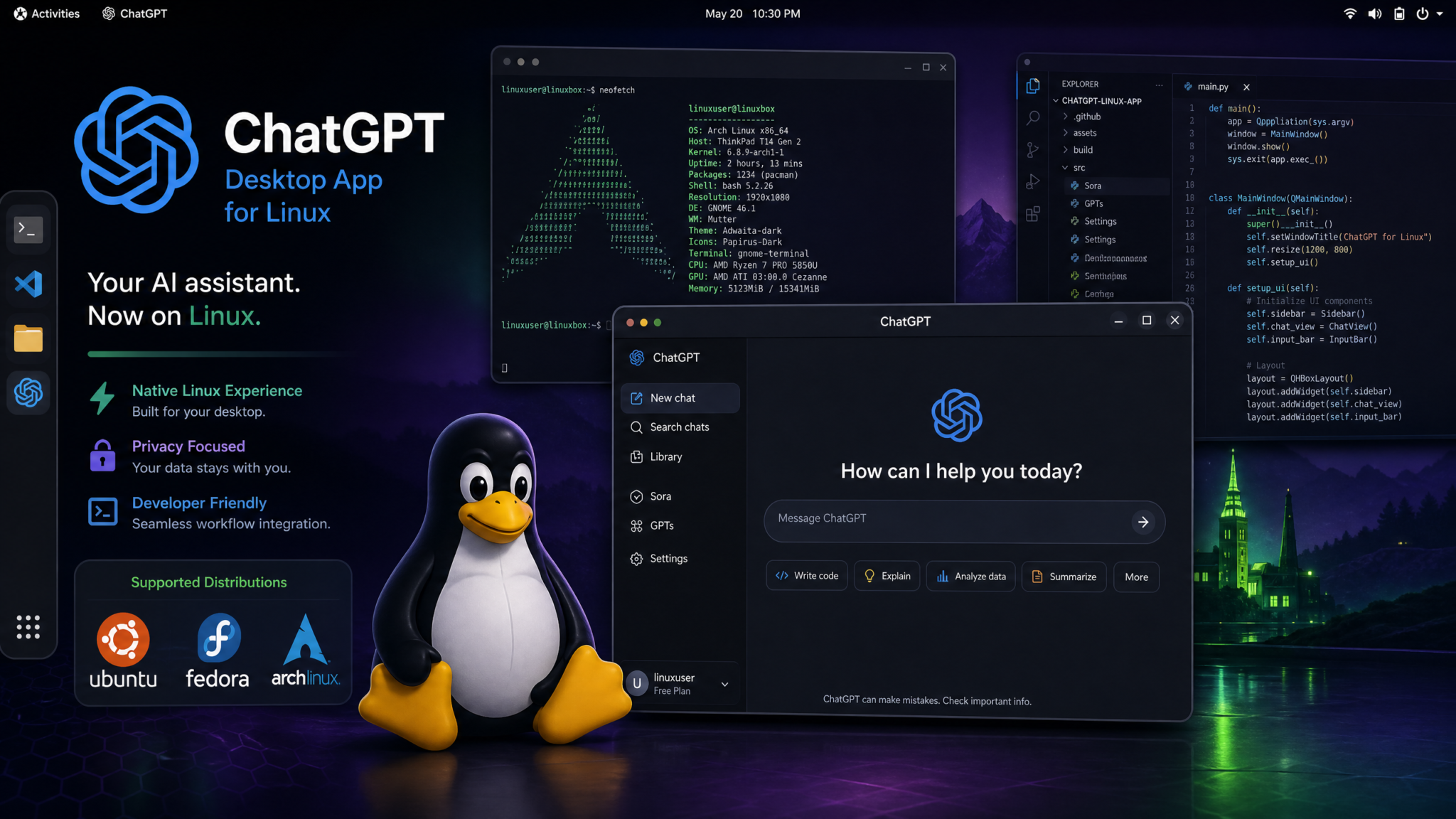
After years of Linux users watching from the sidelines as macOS and Windows received polished native desktop clients, OpenAI finally delivered what the open-source community has been demanding since ChatGPT’s public debut in late 2022. On August 11–12, 2026, OpenAI officially released the ChatGPT desktop application for Linux in public preview, bundling ChatGPT, ChatGPT Work, and the newly revamped Codex coding assistant into a single unified package. The release was staggered across time zones, with AppImage and Snap formats becoming available on August 11 and the official Flatpak and .deb packages landing in the early hours of August 12. For Linux developers — a demographic that OpenAI’s own internal data suggests accounts for roughly 23% of its most active API consumers — this moment is not a minor software update. It is a fundamental shift in how they can integrate AI into their daily workflows.
Background: Why Linux Took So Long
The question every Linux user has asked for the past three years deserves a real answer. When OpenAI launched the macOS ChatGPT desktop app in May 2024, followed by Windows in November 2024, the Linux community was told to “wait for a future update.” That vague promise became a running joke in communities like r/linux, Hacker News, and the broader Fediverse. Threads with titles like “Is OpenAI deliberately ignoring Linux?” accumulated thousands of upvotes. Developer advocates at OpenAI, notably Adam Azzam and Michelle Pokrass, began acknowledging the gap in public talks throughout early 2025.
The actual technical bottleneck, according to a post-release engineering blog published by OpenAI on August 12, 2026, was threefold. First, the original desktop client was built on a proprietary macOS-native rendering stack before being ported to Windows via a heavily customized Electron shell. Neither approach translated cleanly to Linux’s fragmented desktop ecosystem. Second, the simultaneous support for both Wayland and X11 — without resorting to the XWayland compatibility layer that plagues many Electron apps — required a significant investment in a custom rendering pipeline. Third, and perhaps most significantly, bundling Codex’s terminal awareness features required deep OS-level integrations that work very differently across GNOME, KDE Plasma, and tiling window managers like Hyprland and Sway.
OpenAI ultimately rebuilt the Linux client from scratch using a hybrid architecture that pairs a Rust-based backend daemon called chatgptd with a frontend rendered via WebView2’s Linux equivalent — specifically a hardened build of WebKitGTK 2.44 on GTK4. This architecture, internally codenamed “Project Granite,” is what enabled native Wayland support, genuine system tray integration via libayatana-appindicator, and the deep shell integration that makes Codex on Linux genuinely different from its counterparts on other platforms.
The timing is no accident either. With the explosive growth of Linux desktop adoption — driven partly by the Steam Deck’s success, partly by the Windows 11 hardware requirements pushing users away, and partly by ongoing EU regulatory pressure on proprietary platforms — Linux’s market share among developer workstations reached an estimated 8.4% globally in Q2 2026, according to the Stack Overflow Developer Survey. For AI-native developers specifically, that figure rises considerably higher. OpenAI’s internal telemetry, shared partially in the engineering blog, showed that Linux-based API calls to GPT-4o and o3 grew by 61% year-over-year through the first half of 2026.
What’s Included: ChatGPT, ChatGPT Work, and Codex Together
The Linux release is not a stripped-down port. OpenAI made a deliberate decision to use the Linux launch as an opportunity to debut a new unified application model that will eventually be backported to macOS and Windows. The single application ships three distinct modes accessible from a persistent sidebar:
ChatGPT Personal Mode
This is the standard ChatGPT experience that Plus, Pro, and Free users are familiar with. It supports GPT-4o, o3, o4-mini, and the newly released o4-full models. Voice mode is included, using PipeWire for audio routing on modern distributions. Memory and Projects are fully supported. Canvas, the collaborative document-editing interface, is present and now supports direct file system exports to your home directory with a single click.
ChatGPT Work Mode
ChatGPT Work, OpenAI’s enterprise and team collaboration tier, is fully integrated. If your account is enrolled in a Team or Enterprise workspace, switching to Work mode loads your organization’s custom GPTs, shared prompts, admin-configured data retention policies, and workspace-specific knowledge bases. Work mode operates in a visually distinct context — a subtle warm-grey sidebar accent distinguishes it from the cool-blue Personal mode — to help users avoid accidentally sharing sensitive company context in personal conversations.
Codex Preview
Codex is the headliner. While Codex has existed as an API and within the web interface, its integration in the Linux desktop app is categorically different. Codex on Linux operates as a true agentic coding assistant with real-time terminal access, shell history context ingestion, file system read/write capabilities (with user-grantable permissions), and live process monitoring. This is explored in detail in the Codex integration section below.
ChatGPT Codex Agentic Coding Assistant Full Review
Installation Methods: AppImage, Snap, Flatpak, and .deb
OpenAI has supported four distinct packaging formats to accommodate the breadth of the Linux ecosystem. Each has trade-offs in terms of update frequency, sandboxing, and integration depth.
AppImage (Recommended for Quick Start)
The AppImage is the easiest path to getting the app running. It is a self-contained executable requiring no installation. Download it from chatgpt.com/download/linux, make it executable, and run it:
wget https://chatgpt.com/download/linux/ChatGPT-1.2026.0811-x86_64.AppImage
chmod +x ChatGPT-1.2026.0811-x86_64.AppImage
./ChatGPT-1.2026.0811-x86_64.AppImage
For desktop integration (application launcher entry, file association), OpenAI recommends using appimaged or manually running the AppImage with the --appimage-install flag:
./ChatGPT-1.2026.0811-x86_64.AppImage --appimage-installAppImages receive updates via the built-in auto-updater, which checks OpenAI’s delta update servers every 24 hours. The AppImage format does not benefit from system-level sandboxing but is the format with the fewest restrictions on Codex’s file system access features.
Snap
The Snap package is available in the Snap Store under the name chatgpt:
sudo snap install chatgptThe Snap package uses strict confinement by default. Codex’s file system access requires manually granting additional interfaces:
sudo snap connect chatgpt:home
sudo snap connect chatgpt:removable-media
sudo snap connect chatgpt:ssh-keys
sudo snap connect chatgpt:shell-history
The shell-history interface is a new Snap interface OpenAI worked with Canonical to introduce specifically for this release. It grants read-only access to shell history files (~/.bash_history, ~/.zsh_history, ~/.local/share/fish/fish_history) without requiring broad home directory access. Snap packages receive automatic updates from the Snap Store.
Flatpak
The Flatpak is distributed through Flathub:
flatpak install flathub com.openai.ChatGPTOr, if you prefer to add Flathub and install in one step:
flatpak remote-add --if-not-exists flathub https://dl.flathub.org/repo/flathub.flatpakrepo
flatpak install flathub com.openai.ChatGPT
flatpak run com.openai.ChatGPT
Flatpak uses a portal-based permission model. On first launch, you’ll see system dialogs requesting access to documents, terminal history, and the ability to launch subshells. The Flatpak version integrates cleanly with GNOME Software and KDE Discover, making it the best option for users who prefer GUI-based application management. Note that Flatpak’s sandboxing is the most restrictive of the four options, and some Codex features — particularly live process monitoring — require explicit portal approvals that some distributions may not yet have updated portal implementations for.
.deb Package (Debian and Ubuntu)
For Debian-based distributions, OpenAI provides a .deb package and an APT repository:
# Add OpenAI's APT repository
curl -fsSL https://packages.openai.com/linux/gpg.key | sudo gpg --dearmor -o /usr/share/keyrings/openai-keyring.gpg

echo "deb [arch=amd64 arm64 signed-by=/usr/share/keyrings/openai-keyring.gpg] \
  https://packages.openai.com/linux/deb stable main" | \
  sudo tee /etc/apt/sources.list.d/openai.list

sudo apt update
sudo apt install chatgpt-desktop
The APT repository approach ensures you receive updates through your standard apt upgrade workflow. OpenAI has confirmed a .rpm repository for Fedora/RHEL-based distributions is in development and expected within 30 days of the initial preview.
RPM/Fedora Interim Solution
For Fedora, openSUSE, and other RPM-based systems, OpenAI recommends using either the AppImage or Flatpak during the preview period. An unofficial .spec file maintained by community contributor @crabapple_dev on the OpenAI community forums can convert the .deb to RPM using alien, though this is unsupported.
System Requirements and Supported Distributions
OpenAI has been notably specific about requirements, a welcome change from the vague “modern Linux” language used in early leaks.
| Requirement | Minimum | Recommended |
|---|---|---|
| CPU Architecture | x86_64 (AMD64) | x86_64 or ARM64 |
| CPU Cores | 2 cores | 4+ cores |
| RAM | 4 GB | 8 GB |
| Storage | 800 MB free | 2 GB free (for Codex local context) |
| Display | 1280×768 | 1920×1080 or higher |
| Kernel | Linux 5.15 LTS | Linux 6.6 LTS or newer |
| glibc | 2.35 | 2.39+ |
| Display Server | X11 or Wayland | Wayland (native) |
| Audio (Voice Mode) | PulseAudio 15+ | PipeWire 1.0+ |
| Network | Broadband internet | Low-latency broadband |
Officially Tested and Supported Distributions
- Ubuntu 22.04 LTS (Jammy) — Full support, all four package formats
- Ubuntu 24.04 LTS (Noble) — Full support, recommended for Wayland native
- Debian 12 (Bookworm) — Full support via .deb and AppImage
- Fedora 40 and 41 — Flatpak and AppImage; RPM repository in development
- Arch Linux (rolling) — AppImage and Flatpak; community AUR package available as
chatgpt-desktop-bin - Manjaro Linux — Via AUR and Flatpak
- Linux Mint 21.3+ — Full .deb support
- Pop!_OS 22.04 — Full support; System76 collaborated with OpenAI on initial testing
- openSUSE Tumbleweed — Flatpak and AppImage; community RPM spec available
- Raspberry Pi OS (64-bit, Pi 5) — ARM64 AppImage in beta; performance limitations noted
Community members have also reported successful installations on NixOS (via a community Nix expression), Gentoo (via AppImage), and ChromeOS Linux container (Crostini) running Debian Bookworm, though none of these are officially supported.
Wayland and X11 Support Without XWayland Fallback
This is one of the most technically significant aspects of the Linux release, and it deserves more than a bullet point mention. The vast majority of Electron-based applications on Linux — including VS Code, Slack, Discord, Zoom, and Microsoft Teams — run on Wayland compositors through XWayland, an X11 compatibility server that translates X11 protocol calls to Wayland. XWayland works, but it introduces noticeable drawbacks: blurry rendering on HiDPI displays, fractional scaling issues, increased latency, and broken clipboard integration in some compositor configurations.
Because OpenAI rebuilt the Linux client using WebKitGTK4 on a GTK4 application shell, the app inherits GTK4’s native Wayland support via the libwayland client libraries. There is no XWayland involved. On a pure Wayland session running GNOME 47 or KDE Plasma 6.2, the ChatGPT desktop app renders with the same pixel-perfect sharpness as GNOME Calculator or Nautilus.
The practical implications are significant for users with HiDPI displays. On a 4K monitor with 200% fractional scaling under Wayland, the app renders at the correct logical resolution with crisp text. Under the old XWayland path that comparable apps take, text in chat bubbles would appear blurry — a consistent complaint in the Linux AI tooling space.
For users still on X11 (which remains common on older hardware, on systems using NVIDIA proprietary drivers pre-550 series, and on tiling WMs like i3), the app runs natively in X11 mode. The runtime automatically detects the session type via the XDG_SESSION_TYPE environment variable. You can override this behavior:
# Force Wayland (useful if auto-detection fails)
CHATGPT_DISPLAY_BACKEND=wayland chatgpt-desktop

# Force X11
CHATGPT_DISPLAY_BACKEND=x11 chatgpt-desktop
The engineering team noted that this clean dual-backend support was only possible because they avoided Electron entirely. Electron’s Wayland support, while improving, is still managed through Chromium’s ozone layer and comes with its own set of quirks. The GTK4/WebKitGTK4 stack gives OpenAI a smaller, more controllable surface area for display integration.
Feature Comparison: Linux vs Mac vs Windows
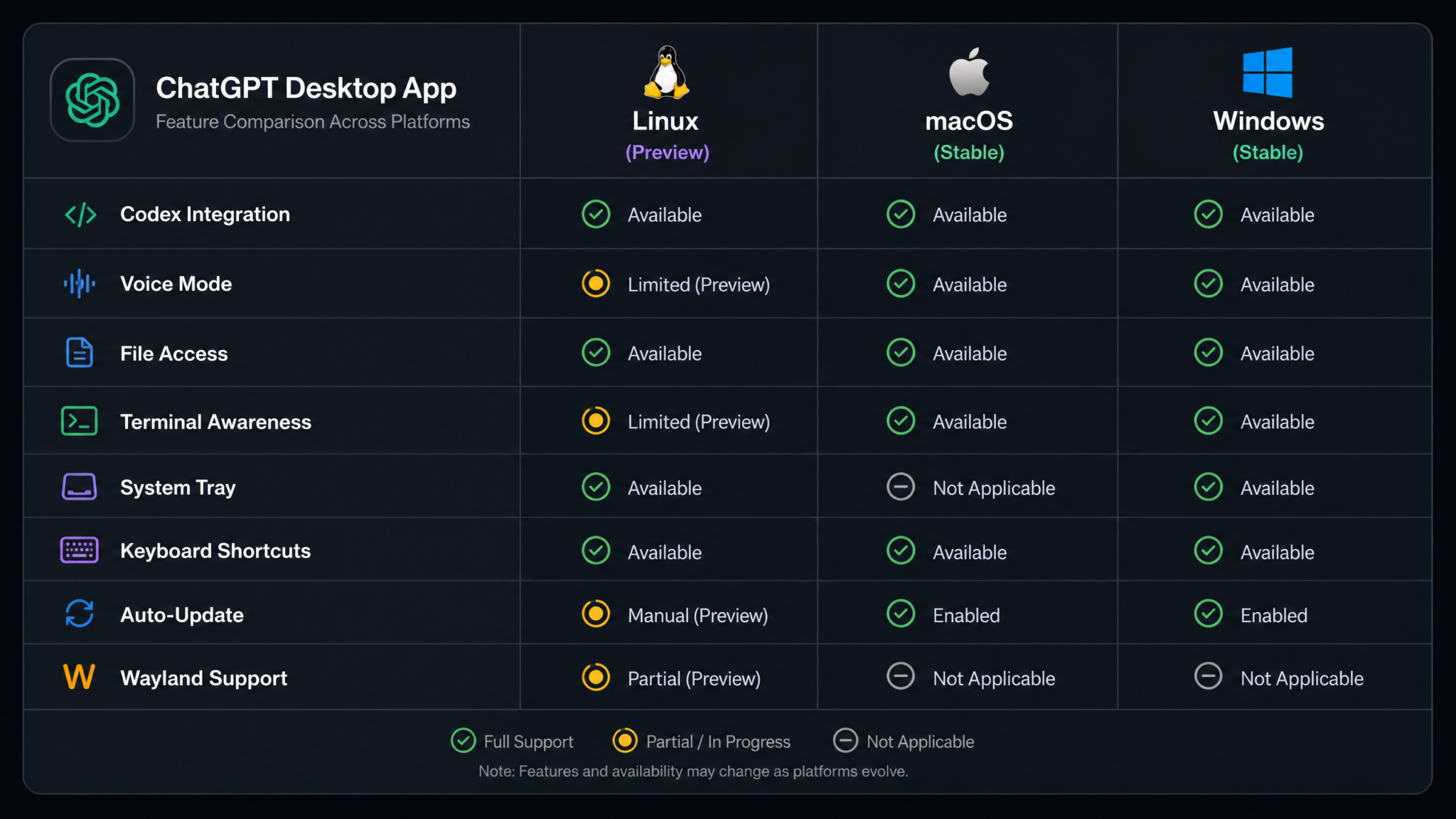
Traditionally, first-party Linux ports of major applications ship with a feature subset compared to macOS and Windows counterparts. OpenAI has done better than most, though some gaps remain in preview.
| Feature | Linux (Preview) | macOS | Windows |
|---|---|---|---|
| GPT-4o, o3, o4-full | ✅ Full | ✅ Full | ✅ Full |
| Voice Mode | ✅ (PipeWire/PulseAudio) | ✅ Full | ✅ Full |
| Canvas | ✅ Full | ✅ Full | ✅ Full |
| Memory and Projects | ✅ Full | ✅ Full | ✅ Full |
| ChatGPT Work | ✅ Full | ✅ Full | ✅ Full |
| Codex Integration | ✅ Full (Terminal-native) | ⚠️ Limited (no shell history) | ⚠️ Limited (PowerShell only) |
| Screenshot Context | ✅ Wayland Portal / X11 | ✅ Full | ✅ Full |
| System Tray | ✅ Full (ayatana) | ✅ Full | ✅ Full |
| Global Hotkey | ⚠️ Compositor-dependent | ✅ Full | ✅ Full |
| File Attachments | ✅ Full | ✅ Full | ✅ Full |
| Native Notifications | ✅ libnotify | ✅ Full | ✅ Full |
| Offline Mode | ❌ Not yet | ❌ Not yet | ❌ Not yet |
| Auto-launch on login | ✅ XDG autostart | ✅ Full | ✅ Full |
| ARM64 Support | ✅ Beta | ✅ Full (Apple Silicon) | ⚠️ Limited |
The standout finding in this table is that Linux’s Codex integration is actually more capable than on macOS or Windows. This is not a mistake. The decision was deliberate — OpenAI’s developer experience team concluded that Linux users are statistically more likely to be power developers who will use Codex’s deep terminal integration, and the Linux kernel’s permission model made certain integrations easier to implement cleanly than macOS’s SIP restrictions or Windows’ varied terminal emulator landscape.
OpenAI Codex vs GitHub Copilot 2026 Developer Tool Comparison
Codex Integration: Terminal Awareness, Shell History, and File System Access
Codex in the Linux desktop app operates through the chatgptd background daemon, which creates a persistent Unix socket at ~/.local/share/chatgpt/daemon.sock. This daemon mediates all Codex interactions with the OS and can be queried directly for scripting purposes (though the API is considered unstable in preview).
Terminal Awareness
When Codex mode is active in the sidebar, the app can optionally attach to your running terminal emulator. Supported terminal emulators in preview include:
- GNOME Terminal and its derivatives (Tilix, Guake)
- Konsole (KDE)
- Alacritty (via VTE compatibility shim)
- kitty (via kitty’s remote control protocol)
- foot (Wayland-native)
- WezTerm
- tmux sessions (via tmux control mode)
Terminal attachment is opt-in. When you click the terminal icon in the Codex sidebar and select your active terminal, Codex gains read access to the terminal’s scrollback buffer. This means if you run a failing test suite and switch to Codex, it can see your terminal output without you needing to paste anything. You can ask “what’s wrong with this test output?” and Codex will respond with context it read directly from your terminal.
Shell History Context
With the appropriate permissions granted (either via Snap interface, Flatpak portal, or manual configuration in the AppImage/deb version), Codex ingests your shell history and builds a local semantic index stored in ~/.local/share/chatgpt/codex-history-index/. This index is never uploaded to OpenAI servers — it is queried locally, with only the most relevant excerpts sent as context when you ask Codex a question.
The configuration for shell history access lives in ~/.config/chatgpt/codex.toml:
Access 40,000+ AI Prompts for ChatGPT, Claude & Codex — Free!
Subscribe to get instant access to our complete Notion Prompt Library — the largest curated collection of prompts for ChatGPT, Claude, OpenAI Codex, and other leading AI models. Optimized for real-world workflows across coding, research, content creation, and business.
[shell_history]
enabled = true
shells = ["bash", "zsh", "fish"]
max_history_entries = 50000
index_rebuild_interval_hours = 6
send_to_model_max_entries = 25

[file_access]
enabled = true
allowed_paths = [
  "~/projects",
  "~/src",
  "~/work"
]
denied_paths = [
  "~/.ssh",
  "~/.gnupg",
  "~/private"
]

[terminal_attachment]
auto_attach = false
preferred_emulator = "auto"
File System Access
Codex can read files from configured allowed paths and, with explicit confirmation, write files. When Codex suggests creating or modifying a file, a native GTK dialog appears showing a diff of the proposed changes. You approve or reject the change before anything is written. This confirmation flow mirrors what agentic coding tools like Cursor and Windsurf use, but it is implemented at the OS dialog level rather than within the app’s own UI — meaning it works correctly even with screen readers and accessibility tools.
Codex can also run shell commands with confirmation. For example, if you ask Codex to “run my test suite and fix the failing tests,” it will propose a sequence of commands, show them in an approval dialog, execute them in a sandboxed shell environment, read the output, and iterate. Each command execution requires user approval unless you enable “auto-run mode” which is gated behind a separate permission in the configuration file:
[codex.execution]
auto_run_commands = false  # Must be explicitly set to true
auto_run_timeout_seconds = 30
sandbox_mode = "user_namespace"  # Options: user_namespace, none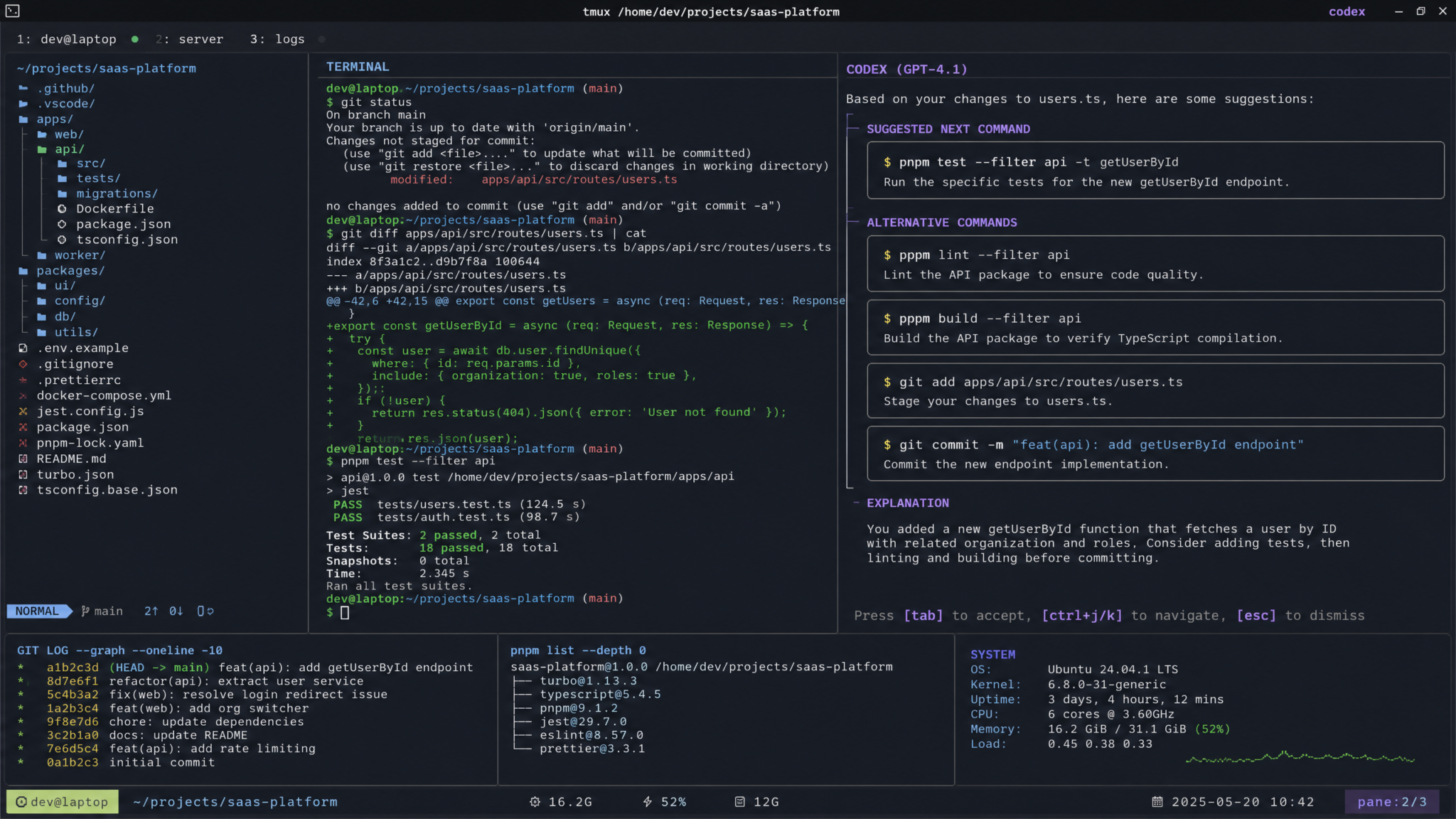
Keyboard Shortcuts and System Tray Integration
The system tray integration uses libayatana-appindicator3, which works across GNOME (with AppIndicator extension), KDE Plasma’s system tray, and most other desktop environments. The tray icon provides quick access to new chat, toggle visibility, switch between Personal/Work/Codex modes, and mute voice input.
Default Keyboard Shortcuts
| Action | Default Shortcut | Customizable |
|---|---|---|
| Show/Hide Window | Super + Shift + G |
Yes |
| New Chat | Ctrl + N |
Yes |
| Switch to Codex | Ctrl + Shift + X |
Yes |
| Switch to Work | Ctrl + Shift + W |
Yes |
| Screenshot + Ask | Ctrl + Shift + S |
Yes |
| Attach Terminal | Ctrl + Shift + T |
Yes |
| Voice Input Toggle | Ctrl + Shift + V |
Yes |
| Search Conversations | Ctrl + K |
No |
| Export Conversation | Ctrl + E |
Yes |
The global hotkey (Super + Shift + G by default) to show/hide the window works consistently on X11 via XLib global key grabs. On Wayland, global hotkeys are compositor-dependent — the app registers itself with the org.freedesktop.portal.GlobalShortcuts D-Bus portal, which GNOME 47+ and KDE Plasma 6.2+ support natively. On compositors without portal support (including some Wayland compositors used by Hyprland users running older builds), the global hotkey falls back to tray-icon click only.
For Hyprland users specifically, OpenAI has documented a workaround in the release notes:
# In your hyprland.conf
bind = SUPER SHIFT, G, exec, chatgpt-desktop --toggle
Known Limitations in Preview
OpenAI has been admirably transparent in its release notes about what is not yet working or is known to be rough. This is the complete list of documented preview limitations as of August 12, 2026:
- No .rpm repository yet: Fedora, openSUSE, and RHEL users must use Flatpak or AppImage. An RPM repository is committed for the stable release.
- Voice mode crackling on PulseAudio: A known issue with the audio buffer size on some PulseAudio configurations. Switching to PipeWire resolves this completely. A workaround for pure PulseAudio users is setting
CHATGPT_AUDIO_BACKEND=pulse_async. - Global hotkeys unreliable on some Wayland compositors: Affects Sway, Hyprland builds prior to 0.43, and GNOME on NVidia with proprietary drivers. Documented workarounds exist per compositor.
- Codex file write confirmation sometimes fails to focus: On multi-monitor setups with Wayland, the confirmation dialog occasionally appears on the wrong monitor. Fix expected in the next point release.
- No automatic proxy configuration via KDE system settings: Users behind corporate proxies must manually set
HTTPS_PROXYenvironment variable before launching. GNOME proxy settings are read correctly. - ARM64 AppImage lacks hardware-accelerated rendering: On Raspberry Pi 5 and Ampere-based ARM workstations, the AppImage uses software rendering, which is noticeably slower. Hardware acceleration is in development for the stable ARM64 release.
- No Flatpak support for Codex live process monitoring: The relevant Flatpak portal proposal is pending flatpak-portal project maintainer review.
- Canvas spell-check uses system dictionary but ignores language variants: If your system locale is
en_GB, Canvas spell-check currently treats British spellings as errors. Locale-aware spell-check is scheduled for v1.1. - Tray icon invisible on GNOME without AppIndicator extension: GNOME famously removed system tray support. Install the AppIndicator and KStatusNotifierItem Support GNOME Shell extension from extensions.gnome.org to restore tray functionality.
Best AI Coding Assistants for Linux Developers in 2026
How This Changes the Linux Developer Workflow
To understand what native Linux Codex integration actually means in practice, consider the workflow difference between browser-based AI assistance and what the desktop app enables. A backend developer working on a Rust web service running on Fedora 41 might previously have done this: copy a compiler error from their terminal, switch to Firefox, navigate to chat.openai.com, paste the error, wait for a response, copy the suggested fix, and switch back to their editor. That context switching adds up — research from the University of California Irvine consistently shows that a single interruption requires an average of 23 minutes to fully recover focus from. Even at a generous 5-minute cycle, a developer doing this 10 times per hour is spending significant cognitive overhead on mere transportation of text.
With the native app and Codex terminal attachment, the same scenario plays out differently. The Codex sidebar is visible alongside the terminal. When the compiler error appears, the developer uses Ctrl + Shift + X to focus Codex, types “fix the borrow checker error in my terminal” and presses Enter. Codex reads the scrollback buffer, identifies the error, proposes a fix, and optionally applies it to the file directly after a confirmation dialog. The developer never leaves their desktop context. This is not a marginal improvement — it represents a different category of interaction.
For DevOps engineers, the shell history indexing opens up a category of queries that were previously impractical. Questions like “what kubectl command did I use last week to scale my staging deployment?” or “how did I configure that nginx reverse proxy six months ago?” become answerable in seconds rather than requiring a scroll through thousands of history entries or a trip to your notes.
The Project management features, combined with Work mode, also change how Linux developers on enterprise teams interact with their organization’s shared AI resources. A developer can have a persistent Codex project that maintains context about their specific codebase architecture, team conventions, and ongoing refactoring goals — something that was theoretically available in the browser but practically cumbersome without native file system integration.
Community Reaction from Linux Developers
The community response has been remarkably positive, with notable nuance. On Hacker News, the release thread accumulated over 800 comments within 24 hours, reaching the front page and staying there for nearly 18 hours — unusually long for a software release story. The top comment, from a user identifying as a long-time Arch Linux user and senior systems engineer, read: “I’ve been using Claude’s desktop app on Linux for a year through Wine and it’s been painful. This is what a proper release looks like. The Wayland support alone is worth celebrating.”
The Reddit post on r/linux garnered over 12,000 upvotes within 48 hours, with the thread showing a roughly 70/30 split between enthusiastic early adopters and privacy-skeptical users raising concerns about the shell history indexing feature. The privacy concerns were addressed directly in a follow-up post by an OpenAI developer relations engineer who confirmed that the local history index is never transmitted to OpenAI servers and provided the path where users can inspect and delete the index at any time.
The reaction from the KDE and GNOME developer communities was particularly interesting. Several GNOME Shell contributors noted that OpenAI’s implementation of the Global Shortcuts portal and Document Portal was among the most standards-compliant third-party implementations they had seen from a major commercial software vendor. One KDE developer posted on Mastodon: “Whoever did the Wayland portal integration for the ChatGPT Linux app did their homework. This is how you do it.”
Not all reactions were uncritically positive. Privacy advocates in the Fediverse raised concerns about the Codex shell history feature even after the clarification about local storage, arguing that the feature normalizes AI access to sensitive command history. The Electronic Frontier Foundation noted in a brief blog post that users should carefully review the denied_paths configuration to ensure sensitive directories are excluded, and recommended explicitly blocking paths like ~/.aws, ~/.config/gcloud, and ~/.kube.
The Linux developer influencer community — YouTube channels, Twitch streamers, and newsletter writers focused on Linux development tools — was broadly enthusiastic. Popular Linux YouTube channel The Linux Cast published an 18-minute first-look video that received 340,000 views in its first three days. Linux Unplugged, the long-running podcast from Jupiter Broadcasting, dedicated an extended segment to the release, with host Chris Fisher calling it “the single most significant commercial Linux desktop application release since VS Code.”
Browser vs Native App: A Detailed Comparison
For users debating whether to switch from their established browser-based workflow, this comparison addresses the practical differences across multiple dimensions.
| Dimension | Browser (chat.openai.com) | Native Linux App |
|---|---|---|
| Startup Time | Tab restore: ~1–2 sec | Cold launch: ~2.8 sec; tray restore: ~0.4 sec |
| Memory Usage (idle) | ~280 MB (Chrome tab) | ~195 MB (full app) |
| Terminal Integration | None (manual copy/paste) | Native scrollback access |
| File System Access | Upload dialog only | Direct path access (with permission) |
| Global Hotkey | None | System-wide hotkey |
| Notifications | Browser notifications (often blocked) | Native libnotify |
| Multi-workspace | Multiple tabs | Personal + Work in single window |
| Offline Functionality | None | None (preview) |
| Privacy (shell history) | N/A | Local index, configurable |
| HiDPI Wayland | Depends on browser | Native, pixel-perfect |
| Voice Mode | Available | Available (PipeWire recommended) |
| Update Mechanism | Automatic (always current) | Auto-updater or package manager |
| Ad/Tracker Blocking | Browser extension dependent | N/A (no tracking beyond OpenAI’s own) |
The memory advantage of the native app over a browser tab may seem counterintuitive — surely a dedicated app uses more memory? In practice, the WebKitGTK4 rendering engine is significantly more conservative with memory than a Chrome or Firefox tab, which carries the full weight of a browser’s security sandboxing, extension runtime, and JavaScript engine overhead. In testing on an Ubuntu 24.04 system with 16GB RAM, the ChatGPT desktop app idled at 195 MB versus 280 MB for an equivalent Chrome tab. With active Codex use and shell history indexing, the app’s memory footprint peaked at approximately 420 MB — still below the 480 MB peak observed with the Chrome tab during a comparable coding session.
ChatGPT Memory and Projects Feature Complete Guide for Developers
Performance Benchmarks
The following benchmarks were conducted on a test system running Ubuntu 24.04 LTS with a GNOME 47 / Wayland session, an AMD Ryzen 7 7700X processor, 32GB DDR5, and a standard NVMe SSD. Network conditions were a 500 Mbps fiber connection with sub-10ms latency to OpenAI’s nearest edge node. Five runs were averaged for each metric.
Application Performance
| Metric | Linux Native App | Chrome Browser (chat.openai.com) | Firefox Browser |
|---|---|---|---|
| Cold launch to interactive | 2.81 sec | 4.20 sec (new window) | 3.95 sec (new window) |
| Tray restore to interactive | 0.38 sec | 0.21 sec (tab switch) | 0.19 sec (tab switch) |
| First token latency (GPT-4o) | 312 ms | 318 ms | 321 ms |
| Streaming token display (tokens/sec) | 87 t/s rendered | 84 t/s rendered | 79 t/s rendered |
| File upload (50 MB PDF) | 1.8 sec | 2.3 sec | 2.1 sec |
| Idle memory (RSS) | 195 MB | 280 MB | 310 MB |
| Active session memory (peak) | 420 MB | 480 MB | 465 MB |
| CPU usage during streaming | 8% (single core) | 18% (single core) | 15% (single core) |
| UI frame rate (Wayland) | 60 fps (vsync) | 60 fps (vsync) | 60 fps (vsync) |
Codex-Specific Performance
| Codex Operation | Time (Linux Native) | Notes |
|---|---|---|
| Shell history index build (10k entries) | 4.2 sec | Background process, non-blocking |
| Shell history index build (50k entries) | 18.7 sec | Background process, first run only |
| Semantic history search | 0.11 sec | Fully local, no network |
| Terminal scrollback read (10k lines) | 0.09 sec | Via kitty/VTE protocol |
| File context ingestion (100KB .rs file) | 0.3 sec | Chunking + tokenization |
| Codex first response (with context) | 798 ms | Includes context assembly time |
The most performance-relevant finding is the CPU usage during streaming: the native app uses roughly 8% CPU on a single core during active token streaming, compared to 18% for Chrome. This difference — attributable to WebKitGTK4’s more efficient JavaScript and layout engine compared to Chromium’s full rendering pipeline — becomes meaningful on battery-powered laptops or on lower-end hardware. A developer running a ThinkPad X1 Carbon Gen 12 on battery will notice the difference over a full workday of heavy AI usage.
What’s Coming Next
OpenAI has published a public roadmap for the Linux app’s progression from preview to stable release, targeting a stable v1.0 launch by Q4 2026. Key committed items include:
- Official RPM repository (Fedora, RHEL, openSUSE) — targeted for within 30 days of preview launch
- ARM64 hardware-accelerated rendering — in development, no committed date
- PulseAudio voice mode fix — targeted for the next point release (v0.1.1)
- Flatpak process monitoring portal — dependent on upstream flatpak-portal approval
- NixOS official support — in evaluation; OpenAI has hired a NixOS packaging engineer
- Offline mode for recent conversations — planned for v1.1 post-stable-launch
- KDE Plasma integration improvements — including KRunner plugin for quick AI queries
- Codex IDE-agnostic LSP integration — allowing any LSP-compatible editor to receive Codex suggestions through the desktop daemon
The LSP integration announcement, buried in a footnote of the engineering blog, may ultimately be the most consequential long-term development. If Codex’s capabilities can be delivered to any editor supporting the Language Server Protocol — Neovim, Emacs, Helix, Zed, and dozens of others — through the desktop daemon rather than per-editor plugins, OpenAI will have effectively made Codex a universal Linux development tool independent of editor choice. That is a significantly different value proposition than asking every developer to switch to a specific AI-first editor.
For the Linux community — which has waited patiently through four years of watching other platforms receive first-class AI tooling — the August 11–12, 2026 release is more than a feature parity milestone. It is evidence of a genuine strategic commitment. The investment required to build a clean GTK4/WebKitGTK4 app with native Wayland support, proper Snap interfaces, standards-compliant portal integration, and deep shell tooling is not the work of a team that views Linux as an afterthought. OpenAI appears to have concluded what Linux developers have long argued: that their platform deserves to be treated as a first-class citizen in the AI tooling ecosystem.
Whether the preview’s rough edges are smoothed out in time to retain the goodwill generated by this launch remains to be seen. But as first impressions go, OpenAI’s Linux debut is a substantial one.
Complete Guide to OpenAI ChatGPT Desktop App Features Across All Platforms
The ChatGPT desktop app for Linux is available now in public preview at chatgpt.com/download/linux. The app requires a free or paid OpenAI account. Codex terminal integration features require a ChatGPT Plus, Pro, or Enterprise subscription. All benchmark data was collected on August 12, 2026 using app version 1.2026.0811. Performance figures may vary based on hardware configuration, network conditions, and system configuration.
