
How to Run Codex Tasks from iPhone Across Windows and Linux: Attachments, Priority View, Queued Prompts, and Approvals
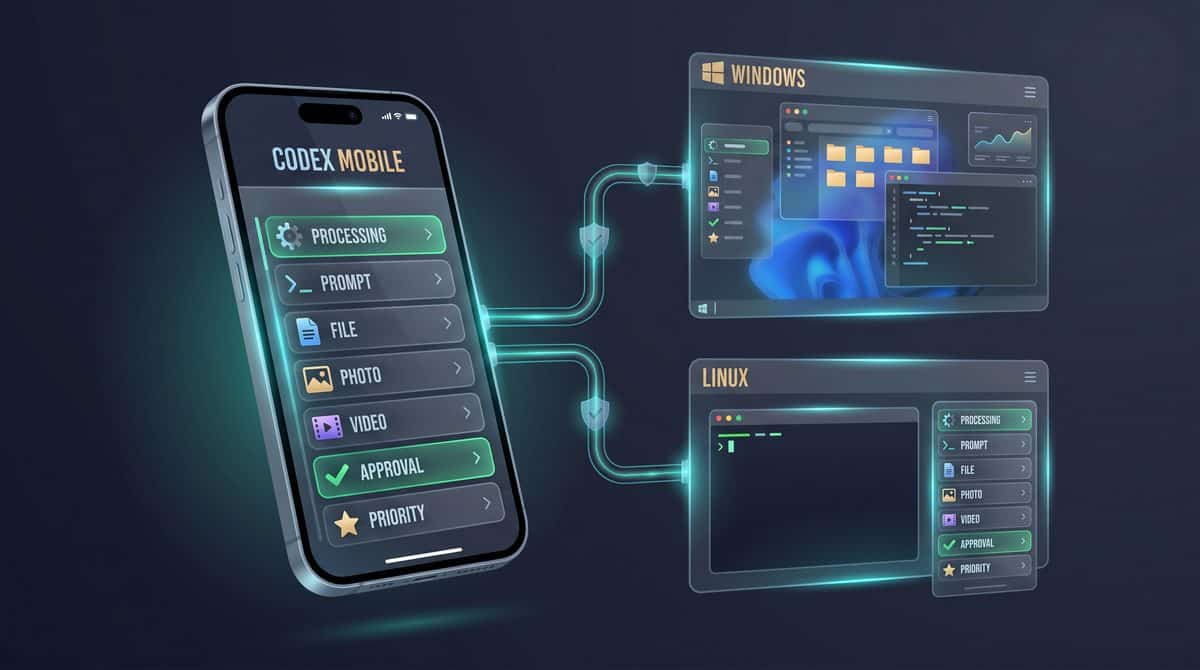

What changed in ChatGPT for iOS 1.2026.237 for Codex operators
OpenAI’s September 1, 2026 release notes describe a practical shift for developers using Codex from an iPhone: the mobile app can now participate more reliably in a cross-host workflow where the phone starts, monitors, edits, and responds to tasks running through a connected desktop or server host. The documented iOS release, ChatGPT for iOS 1.2026.237, adds cross-host attachment handling, Photo Library video support, a Priority view for urgent task states, synchronized queued prompts, clearer long-running task timing, thread ID copying, and several reliability fixes around reconnection, stuck Send states, missing approvals, task-list loading, and project visibility.
This tutorial treats the iPhone as the control surface and the Windows or Linux machine as the execution environment. In that model, your phone is not replacing the repository checkout, terminal context, build tools, package manager, or local credentials on the connected host. Instead, the iPhone becomes the place where you attach evidence, queue instructions, triage Codex progress, answer blocking questions, and decide whether a proposed change should continue. That distinction matters because mobile convenience does not remove the need for deterministic host setup, clean repository state, reviewable diffs, and explicit approval boundaries.
OpenAI’s release notes state that attachments now work across connected Windows and Linux hosts. For teams that keep repositories on developer laptops, cloud workstations, lab machines, or controlled Linux build boxes, this means an iPhone can be used to provide supporting files to a Codex task while the connected host remains responsible for the actual workspace. A product manager can attach a screen recording from an iPhone, a founder can send a photo of a broken onboarding flow, and an engineer can queue a reproduction note while the Windows or Linux host keeps the working tree, tests, and build artifacts in one place.
The practical workflow is especially useful when the task starts away from the desk but must still land in a real development environment. For example, a developer can capture a mobile regression as a video, attach it from the Photo Library, ask Codex to inspect the relevant repository on the connected Linux host, and later approve or revise the next step from the Priority view. The useful mental model is “mobile orchestration, host execution,” not “phone-based development.” If the host is offline, misconfigured, pointed at the wrong branch, or missing permissions, the iPhone cannot compensate for that operational gap.
For OpenAI Codex Mobile, How to Use Codex on ChatGPT Mobile: Complete Guide to AI Coding From Your Phone is the most relevant adjacent resource. The complete Codex-on-mobile guide covers phone-based setup, task launch, and monitoring, supplying the foundation for the newer iOS cross-host attachment and Priority-view workflow described in this tutorial.
For Codex Remote Development, How to Set Up Codex SSH Remote Development: Run AI Coding Agents on Any Server from Your Desktop is the most relevant adjacent resource. The SSH remote-development tutorial explains how Codex reaches a server or desktop environment, which is the operating prerequisite for selecting a connected Windows or Linux host from the iPhone app.
The cross-host operating model: iPhone as controller, Windows or Linux as the working host
A cross-host Codex session has at least three moving parts: the iPhone app where you interact with the task, the connected Windows or Linux host where the task’s repository and tools live, and the Codex service path that synchronizes task state, prompts, attachments, updates, and responses between them. The September 1 release notes do not publish a low-level protocol diagram, so operators should avoid assuming details about transport internals, storage location, retention rules, or exact synchronization timing beyond what OpenAI explicitly states.
The safest operational interpretation is that the connected host remains the source of truth for development context. Before sending a task from iPhone, confirm which host is connected, which repository is open, which branch is checked out, and whether any uncommitted local work could be overwritten, misread, or mixed into Codex’s changes. This is particularly important for Windows developers who may have multiple clones under different paths, WSL-backed projects, or IDE-specific working directories, and for Linux operators who may run several service branches or containerized checkouts on the same machine.
OpenAI specifically names Windows and Linux in the attachment improvement, so this tutorial treats those as the verified connected-host targets for the cross-host attachment behavior. The release notes do not say that every host type, every remote desktop setup, every container runtime, or every filesystem bridge behaves identically. If your organization uses dev containers, network-mounted workspaces, restricted corporate endpoints, or jump-box workflows, test with a non-production repository before relying on mobile-attached files in an incident or release-critical workflow.
| Component | Operational role | Preflight question |
|---|---|---|
| iPhone running ChatGPT for iOS 1.2026.237 | Starts or continues Codex tasks, attaches files, queues prompts, monitors updates, and responds to blockers. | Is the app updated, signed in to the intended account, and able to stay online long enough to submit or edit the instruction? |
| Connected Windows host | Provides the repository, shell environment, dependencies, and local development context for the task. | Is the correct project open, with a clean or intentionally dirty working tree, and are Windows-specific path or shell assumptions understood? |
| Connected Linux host | Provides the repository, build/test tooling, service scripts, and often CI-like local behavior. | Is the host reachable, are required tools installed, and is the active branch safe for Codex to inspect or modify? |
| Codex task thread | Maintains the task conversation, updates, queued prompts, approvals, and thread identifier. | Can the team identify the task later, copy the thread ID if needed, and distinguish running tasks from unread or response-required tasks? |
Attachment changes: files, recent photos, and Photo Library videos
OpenAI states that attachments now work across connected Windows and Linux hosts and that Photo Library videos are supported. In practice, this expands the types of evidence you can send from an iPhone into a host-based coding workflow. A video can show an animation bug, a checkout failure, an accessibility issue, a race condition triggered by taps, or a native mobile crash sequence more clearly than a written description. A photo can capture a device state, kiosk display, embedded system panel, handwritten QA note, or field observation that would otherwise be delayed until someone returned to a desktop.
The release notes also say users can press and hold the attachment control for recent photos. That detail matters during debugging because recent screenshots and recordings are often the most relevant artifacts. A support engineer who just reproduced a failure can attach the newest screen capture without first organizing files on a desktop. A marketer reviewing a landing page implementation can attach a short video showing copy overflow or layout shift. A founder testing onboarding can capture the moment a call-to-action fails and send it directly into the Codex task that is already connected to the application repository.
Do not treat attachment support as a substitute for repository evidence. The best mobile attachment gives Codex observable symptoms; the host repository still supplies the implementation context. A strong task pairs the file with a precise instruction: identify the visible failure, inspect the likely code path, propose a minimal patch, and run the relevant test or build command on the connected host. A weak task says only “fix this” and forces the agent to infer platform, expected behavior, acceptance criteria, and risk tolerance from a visual artifact.
Example mobile prompt to send with a Photo Library video:

I attached a screen recording of the checkout page on iPhone.
Use the connected Linux host repository as the source of truth.
Please:
1. Identify the visible UI failure in the recording.
2. Inspect the checkout frontend code paths likely responsible.
3. Propose the smallest safe fix.
4. Do not change payment, tax, or order-submission logic without asking first.
5. Before editing, summarize the files you expect to touch and the test command you plan to run.
This example is intentionally bounded. It tells Codex where to look, how to use the attached artifact, which domain is sensitive, and when to stop for review. The September 1 release notes mention fewer missing approvals and fewer stuck Send states, but they do not say that approvals can be skipped or that sensitive changes are automatically safe. For production systems, payment flows, authentication, infrastructure, data migrations, customer messaging, or credential handling, require an explicit human decision before state-changing work proceeds.
Priority view: triage running work, unread updates, and response-required tasks
OpenAI’s release notes say the new Priority view elevates running tasks, unread updates, and tasks awaiting a response. That is a meaningful change for mobile operation because the iPhone is frequently used in short attention windows: between meetings, while commuting, during an incident handoff, or away from the primary workstation. Instead of scanning a long task list manually, operators can focus on work that is active, newly changed, or blocked on them.
A practical triage rule is to handle response-required tasks first, running tasks second, and unread updates third. Response-required tasks may be waiting for clarification, authorization, or a decision about whether to continue. Running tasks may be consuming host time or approaching a point where review will be needed. Unread updates may simply report progress, but they can also reveal a failed test, unexpected file discovery, or a request to narrow scope. The Priority view does not remove the need to read carefully; it helps decide what deserves attention first.
Teams should agree on what counts as an approval from mobile. A quick “yes” may be acceptable for running a local unit test, formatting changed files, or inspecting a log. It is usually not acceptable for deploying to production, rotating credentials, sending customer communications, modifying billing logic, deleting data, or changing access controls. If a task is awaiting a response and the requested action has operational or security impact, answer with a bounded approval such as “You may inspect and propose a patch, but do not apply database migrations or call external services.”
Queued prompts and background sending: useful, but not a license to be vague
OpenAI states that queued prompts synchronize with the connected host, remain editable, and can send while the app is in the background. This is one of the most practical mobile changes because it lets you draft the next instruction before the current task reaches a stopping point. If you notice a missing acceptance criterion, remember a test command, or want Codex to avoid a risky subsystem, you can queue that instruction and revise it before it is sent.
The editable nature of queued prompts should change how teams write mobile instructions. Instead of firing off several fragmented messages, draft one complete next step, then refine it while the task continues. Include the target branch, relevant file or module names, test expectations, and approval boundary. If you are interrupted, the ability to send while the app is in the background can reduce friction, but it should not be interpreted as a guarantee that every network condition, host state, or approval sequence will complete perfectly.
A safe queued prompt is specific enough to prevent unnecessary exploration and constrained enough to avoid accidental scope expansion. For example, “After the current inspection, only modify the validation message component and its test. If you find the issue is in shared pricing logic, stop and ask before editing.” That instruction gives Codex a next action while preserving human control over higher-risk areas. It also gives reviewers a clear record of what was authorized from the phone.
What the changelog confirms—and what it does not
The official notes confirm several user-visible behaviors: cross-host attachments for connected Windows and Linux hosts, Photo Library video support, recent-photo access by pressing and holding the attachment control, Priority view surfacing running tasks, unread updates, and response-required tasks, editable queued prompts that synchronize with the connected host, background sending, live working time for long-running tasks, and task menus that can copy the thread ID. They also confirm reliability improvements around task-list loading, disappearing projects, reconnection, stuck Send states, missing approvals, long-response streaming, and side-chat retention until closed.
The same notes do not confirm unlimited attachment sizes, specific video formats, exact upload timing, offline completion, support for every host configuration, guaranteed recovery from every disconnect, or permission to bypass approval controls. They also do not define enterprise retention, audit export, endpoint behavior, or administrative policy controls for this feature set. If those issues matter for your organization, treat them as implementation questions to validate through your own environment and official OpenAI documentation rather than assumptions derived from a mobile changelog.
The reliability language should be read carefully. “Stronger reconnection behavior” and fewer stuck or missing states are meaningful improvements, but they do not eliminate the need for defensive operation. If a task appears duplicated, stale, or inconsistent after a network interruption, pause before approving further changes. Copy the thread ID from the task menu when escalation or audit tracking is needed, verify the host repository state, and compare any proposed diff against the intended branch before continuing.
Preflight checklist before running Codex tasks from iPhone
Use this checklist before depending on the iPhone-to-host workflow for real work. It is designed for Windows and Linux connected hosts because those are the host families explicitly named in OpenAI’s attachment update. Run the checklist once for each host and repeat it before high-risk tasks, release work, incident response, or changes involving customer data, credentials, payments, infrastructure, or production systems.
| Check | What to verify | Decision rule |
|---|---|---|
| iOS app update | Confirm the iPhone is running ChatGPT for iOS 1.2026.237 or later if your organization requires the September 1 mobile behavior. | Do not troubleshoot missing Priority, queued prompt, or attachment behavior until the app version is verified. |
| Host connectivity | Confirm the intended Windows or Linux host is connected and associated with the correct project or repository context. | If there is any doubt about which host is active, stop and verify before attaching files or sending instructions. |
| Repository state | Check branch name, uncommitted changes, pending merges, generated files, and test baseline on the host. | Use a clean branch for normal work; if local changes are intentional, mention them explicitly in the prompt. |
| Permissions | Confirm Codex should be allowed to inspect the relevant files and that any requested edits are within the operator’s authority. | Require explicit approval for production-impacting, security-sensitive, external, or irreversible actions. |
| Attachment readiness | Prepare screenshots, photos, logs, or Photo Library videos with enough context to explain the issue. | Pair every attachment with expected behavior, observed behavior, and the boundary of acceptable changes. |
| Network reliability | Check that the iPhone and host both have stable connectivity for task submission, updates, and responses. | If connectivity is weak, draft conservatively, avoid high-risk approvals, and verify task state after reconnection. |
For first use, choose a low-risk repository and perform a full rehearsal: attach a small screenshot or video, send a bounded prompt, queue a follow-up, let the app background briefly, return through Priority view, and copy the thread ID. The point of the rehearsal is not to benchmark Codex; it is to prove that your account, iPhone app, connected Windows or Linux host, repository permissions, and team review habits work together before a real task depends on them.
Set up the iPhone task correctly before Codex touches the host

OpenAI’s documented ChatGPT for iOS 1.2026.237 Codex behavior makes the iPhone a practical controller for work running on connected Windows and Linux hosts, but the setup step still determines whether the task lands in the right repository with the right evidence. Treat the mobile composer as a remote-control surface, not as proof that Codex already knows your project, branch, working directory, or attachment intent.
For Codex Cross Platform Workflow, OpenAI Codex 2026: Remote SSH, Hooks, and Mobile Steering — Complete Developer Guide is the most relevant adjacent resource. The remote SSH, hooks, and mobile-steering guide shows how Codex work moves across machines, helping readers design a reliable phone-to-host handoff rather than treating the iOS client as an isolated coding environment.
Recommendation: Before sending any mobile Codex task that can modify files, include an explicit first instruction that Codex must report the connected host, repository root, current working directory, and Git status before making changes. This adds a cheap confirmation checkpoint and gives you a clear place to stop the run if the iPhone task was aimed at the wrong environment.
1. Select the connected Windows or Linux host intentionally
- Open the Codex task area in ChatGPT for iOS. Start from the place where your connected Codex hosts and project tasks are visible, rather than from a stale notification or an old side conversation. OpenAI notes reliability improvements around task-list loading and reconnect behavior, but those improvements do not remove the need to confirm the active destination yourself.
- Choose the host that owns the repository you want to change. If your organization connects both Windows and Linux machines, use the host identity shown in the app as the source of truth. Do not infer the host from the last task in the list, a recent attachment, or the operating system mentioned in an older prompt.
- Confirm that the project displayed for the host matches the task. A host can have multiple repositories or working directories, and a mobile prompt such as “fix the failing tests” is unsafe unless it names the repository and path. If the project list looks incomplete or recently changed, pause and let the task list finish reconnecting before composing.
- Open the target task or create a new task only after the host is correct. For unrelated work, create a separate task rather than continuing an old thread. Continuing an old thread can import assumptions about frameworks, file names, branches, or prior instructions that do not apply to the new project.
- Use the task menu thread ID only for support or audit correlation. OpenAI notes that task menus can copy the thread ID. The thread ID is useful when you need to correlate an issue, but it is not a substitute for naming the host, repository, and working directory in the task brief.
If you are operating across a Windows desktop and a Linux build machine, name the host class in the prompt even when the app already shows it. For example, “On the connected Linux host for the API repository…” or “On the connected Windows host for the Electron client…” gives the agent and the reviewer a plain-language check against accidental cross-host execution.
2. Use a setup table before sending the first prompt
| Setup item | What to verify on iPhone | Safe prompt wording | Failure this prevents |
|---|---|---|---|
| Connected host | The selected host is the Windows or Linux machine that actually contains the target repository. | “Use the connected Linux host for the payments API.” | Running investigation or edits on a similarly named repository on another machine. |
| Repository | The visible project or task context corresponds to the repository you intend to inspect. | “Target repository: payments-api. Do not use files from other repositories.” |
Pulling context from a previous mobile task in a different project. |
| Working directory | The task brief states the expected root or subdirectory before any command runs. | “First run pwd and confirm you are in /srv/payments-api.” |
Applying changes in a nested package, generated directory, or old checkout. |
| Branch state | The prompt asks Codex to inspect Git status before editing. | “Before edits, show git status --short and stop if there are unrelated local changes.” |
Overwriting another developer’s uncommitted work or mixing task changes. |
| Attachments | Each file, image, or video has a stated role in the prompt. | “Use checkout-error.mov only to understand the UI sequence; do not treat it as a file to commit.” |
Codex guessing whether an attachment is evidence, input data, fixture material, or design reference. |
| Approval boundary | The prompt says which actions require your explicit response. | “Do not install packages, run destructive commands, or change production configuration without asking.” | Allowing a vague mobile prompt to escalate into environment changes you did not review. |
| Queue behavior | Queued prompts remain editable and synchronize with the connected host, according to OpenAI’s release notes. | “If this prompt queues, keep it as a draft until I confirm the host and repository.” | A background-send prompt landing after you switched mental context to another project. |
3. Attach files, Photo Library videos, and recent photos with explicit intent
OpenAI states that attachments now work across connected Windows and Linux hosts in ChatGPT for iOS 1.2026.237, and that Photo Library videos are supported. Use that capability for evidence-heavy debugging: crash recordings, UI reproduction videos, screenshots, log excerpts, CSV samples, failing test output, or a small design asset. Do not attach secrets, credential files, customer data, or production dumps unless your organization’s policy and permissions explicitly allow that handling.
- Tap the attachment control only after confirming the host. This keeps the attachment associated with the task destination you intend to use. If you attach first and then notice the wrong host, remove the attachment and start again in the correct project context.
- Choose files when the artifact is already a document. Use file attachments for logs, configuration snippets, test output, JSON samples, or small source references. In the prompt, say whether Codex should read the attachment as evidence, compare it with repository files, or use it to create a test fixture.
- Choose Photo Library video when motion matters. Use a video when the bug depends on timing, navigation order, animation, loading state, or a sequence of taps. Describe the expected and actual behavior in the task brief because a video alone may not identify the intended product rule.
- Press and hold the attachment control for recent photos. OpenAI documents this shortcut for recent photos. Use it when you just captured a screenshot of an error, dialog, stack trace, or UI state and want to attach it without browsing the full library.
- Name each attachment in the task brief. If the app displays attachment names, reuse them. If the name is generic, describe it positionally, such as “the first attached screenshot showing the Windows path error” or “the attached Photo Library video showing the checkout spinner.”
Attachments should narrow the task, not expand it. A prompt that says “see attached” gives Codex too much room to infer the problem. A better prompt states what the attachment proves, where to look in the repository, and which actions are out of scope until you approve them.
4. Write an attachment-aware task brief
A good mobile Codex brief has five concrete parts: destination, verification command, attachment map, requested outcome, and approval boundary. This structure is more important on iPhone than on a desktop because small screens make it easier to miss the active host, and queued prompts can remain editable while synchronizing with the connected host.
Recommended task-brief structure:

1. Destination:
   Host type, repository name, expected working directory.

2. Verification:
   Commands Codex should run before edits, such as pwd and git status.

3. Attachment map:
   What each attachment is and how it should be used.

4. Work request:
   The specific investigation, code change, test, or explanation required.

5. Approval boundary:
   Actions that require a response before proceeding.
Use the verification step to force a visible pause before mutation. If the task is purely investigative, you can ask Codex to inspect and summarize without editing. If the task may change code, require Codex to confirm the working directory and branch condition first, then proceed only if those values match your stated destination.
5. Example task brief: Linux API bug with attached log file
Example — attachment-aware Linux task brief:

Use the connected Linux host for the payments-api repository.

Before making any changes:
1. Run pwd and confirm the working directory is /srv/payments-api.
2. Run git status --short.
3. Stop and ask me if there are unrelated local changes or if the directory is not /srv/payments-api.

Attachment map:
- The attached file api-500-log.txt is a production-like error excerpt for investigation only.
- Do not commit the log file.
- Do not infer customer data beyond what is shown in the excerpt.

Task:
Find the code path that can produce the error shown in api-500-log.txt when POST /v1/checkout is called with a missing coupon field. Propose the smallest fix, add or update a test if the repository already has an appropriate test structure, and summarize the files changed.

Approval boundary:
Do not install packages, change deployment configuration, run database migrations, or contact external services without asking first.
This brief tells Codex exactly how to use the attachment and exactly what not to do with it. It also prevents a cross-project context error by naming the Linux host, repository, and expected directory before allowing any edits.
6. Example task brief: Windows client issue with Photo Library video
Example — iPhone Photo Library video for a Windows-hosted UI task:

Use the connected Windows host for the desktop-client repository.

Before edits:
1. Confirm the repository root and show the current working directory.
2. Run git status --short.
3. If the active project is not desktop-client, stop and ask me to redirect the task.

Attachment map:
- The attached Photo Library video shows the settings panel flickering after I toggle dark mode twice.
- Use the video to understand the reproduction sequence: open Settings, toggle Dark Mode on, toggle it off, then reopen Settings.
- Do not add the video to the repository.

Task:
Inspect the settings UI state management code and identify why the panel flickers after the second toggle. If the cause is clear, make a minimal code change and add a regression test only if the existing test setup supports this interaction. If the cause is not clear, report the most likely files and the next manual reproduction step.

Approval boundary:
Ask before changing build tooling, package versions, installer configuration, or OS-specific scripts.
The phrase “Windows host” matters because path handling, shell behavior, UI tooling, and package scripts can differ from a Linux repository. The video gives Codex a behavioral trace, but the prompt still describes the reproduction sequence so the agent does not have to infer product intent solely from frames.
7. Verify repository and working directory inside the task
Do not rely on visual project names alone when a task can edit files. Ask Codex to run non-destructive inspection commands and echo the result before changing code. The exact commands depend on the environment, but the decision rule is consistent: if the host, repository root, or Git status does not match the prompt, the task should stop and ask for a response.
Example — verification-only first prompt:

Before doing any investigation or edits, verify the destination.

Report:
- Connected host type as shown in the task context, if available.
- Current working directory from pwd or the host-appropriate equivalent.
- Repository root, if this is a Git checkout.
- git status --short output.
- Current branch name, if available.

Do not modify files yet. Stop after reporting this information and wait for my confirmation.
This verification-only prompt is useful when you are unsure whether the iPhone app has reconnected to the expected host or when you are returning from a notification. OpenAI describes stronger reconnection behavior in the release notes, but stronger reconnection is not the same as a guarantee that every operator will notice a wrong project before sending a queued prompt.
8. Avoid accidental cross-project context
Cross-project context usually enters through human shorthand, not through an obvious UI failure. Phrases like “same issue as before,” “apply that fix here,” or “use the attached screenshot” are risky when you have been moving between a Windows client, a Linux service, and a documentation repository. Replace shorthand with the repository name, directory, file area, and attachment role every time you start a distinct unit of work.
- Start a new task for a new repository. Do not continue a thread from one project merely because it has useful background. Summarize the relevant background in the new task instead.
- Do not mix unrelated attachments. Remove screenshots, videos, or logs that belong to the previous project before sending the new prompt.
- Make queued prompts self-contained. Because OpenAI says queued prompts synchronize with the connected host, remain editable, and can send while the app is in the background, write each queued prompt as though it may execute after you have mentally moved on to another task.
- Use explicit stop conditions. Include “stop and ask me” rules for wrong directory, dirty working tree, missing tests, package installation, production configuration, or external service access.
- Separate evidence from instructions. A screenshot can show an error, but it should not silently become the full specification for a code change.
The practical rule is simple: if a reviewer could not identify the intended host, repository, working directory, attachment purpose, and approval boundary from the prompt alone, the task is not ready to send from iPhone. Mobile convenience is valuable precisely when the brief is explicit enough to survive background sending, reconnection delays, and cross-host multitasking.
Run and triage Codex work from iPhone without losing operational control

Once the iPhone can reach the intended Windows or Linux host and the task brief is written, the operator’s job changes from “send a prompt” to “manage a queue of potentially state-changing work.” OpenAI’s documented iOS update for Codex version 1.2026.237 adds mobile workflow features that make that possible: Priority view elevates active and blocked work, queued prompts remain editable and synchronize with the connected host, prompts can send while the app is in the background, long-running tasks show live working time, task menus can copy the thread ID, and side chats remain retained until closed. Treat these as control-surface improvements, not as permission to run vague tasks unattended.
The practical operating model is simple: use the iPhone for short, well-scoped decisions; use the connected Windows or Linux host for inspection, local reproduction, credentials, risky file operations, or anything requiring a full terminal view. A mobile task should be able to answer one operational question: “Can Codex safely continue with the information and authority it already has?” If the answer is no, the correct action is not to approve by reflex; it is to edit, pause, ask for clarification, or move the work back to desktop.
Read Priority view as an incident queue, not a notification inbox
OpenAI states that Priority view elevates three categories of Codex tasks: running tasks, unread updates, and tasks awaiting a response. That ordering is useful because each category maps to a different operational risk. Running tasks may be consuming time or approaching an action boundary; unread updates may contain changed assumptions, failed commands, test results, or proposed diffs; response-required tasks are blocked until a human supplies information or authorization.
For Codex Task Management, Codex Background Tasks Masterclass: 30 Production-Ready Prompts for Autonomous Code Review, Refactoring, and Continuous Improvement is the most relevant adjacent resource. The Codex background-tasks masterclass provides supervised patterns for autonomous review, refactoring, and continuous improvement, making it a practical companion to Priority-view triage and unread-update handling.
| Priority signal | What it usually means | First mobile check | Safe next action |
|---|---|---|---|
| Running task | Codex is actively working or waiting on execution results. | Check live working time and latest visible step. | Let it continue only if the task scope is still accurate and bounded. |
| Unread update | Codex has produced new information, a patch, an error, or a question embedded in progress. | Read the most recent update before reviewing older commentary. | Respond with a correction, ask for a summary, or move to desktop if inspection is needed. |
| Awaiting response | Codex needs a human decision, missing detail, or approval before continuing. | Identify whether the request is informational or permission-bearing. | Answer low-risk clarification questions; use bounded approval for sensitive actions. |
Use live working time to decide whether to intervene
Long-running tasks now show live working time, according to OpenAI’s release notes. That timer is most useful as a drift detector. A three-minute lint fix that has been running for twenty minutes may be stuck in an unexpected install, broad search, repeated test failure, or dependency problem. Conversely, a repository-wide refactor, test matrix run, or multi-step reproduction may legitimately take longer. The timer does not prove failure by itself; it tells you when to ask Codex to summarize what it is doing before giving it more authority.
A good mobile intervention is short and diagnostic. Ask for current objective, files touched, commands already run, and the next intended step. Avoid asking Codex to “keep going” when you do not understand why it is still working. If the response says it is blocked on credentials, environment setup, missing binaries, private package access, or host-specific behavior that you cannot inspect from iPhone, move to desktop. If it says it is running a known test command and has not requested new permission, you can usually continue monitoring.
Sample mobile check-in prompt:
Before taking any further action, summarize:
1. The current objective.
2. The files or directories you have inspected or changed.
3. The last command you ran and its result.
4. The next command or edit you plan to make.
5. Whether you need human approval, credentials, or desktop inspection.
Edit queued prompts before they become bad work
OpenAI’s iOS update says queued prompts synchronize with the connected host, remain editable, and can send while the app is in the background. That combination is powerful and risky. It means you can line up work while away from the workstation, but it also means a weak prompt can become an active instruction after you switch apps. Before relying on background sending, review queued prompts for target host, repository, branch, attachments, constraints, and forbidden actions.
Edit queued prompts when the task uses ambiguous pronouns such as “this,” “that file,” or “the bug,” especially if multiple attachments or repositories are in play. Edit again when a prompt assumes a platform-specific path without naming the host. A Windows-oriented task should not leave Codex guessing whether paths are PowerShell, WSL, Git Bash, or a Linux remote. A Linux-oriented task should not rely on a screenshot without saying what behavior the screenshot demonstrates. The queue is not merely a backlog; it is the last place to correct intent before work begins.
Background sending is best reserved for prompts that are deterministic and reversible: read logs, inspect a failing test, summarize a diff, identify candidate files, or prepare a patch without applying risky changes. Do not depend on background sending for tasks that require immediate supervision, such as migrations, deletion, secret rotation, production deploy preparation, or broad dependency upgrades. OpenAI notes improved reliability around stuck Send states and missing approvals, but the documented improvement should not be interpreted as a guarantee that every network, host, or app lifecycle interruption will be harmless.
Choose send, queue, edit, pause, approve, or desktop deliberately
The following matrix gives a practical decision rule for mobile operators. It is intentionally conservative because an iPhone screen is a narrow control plane: it is excellent for triage and bounded decisions, but weaker for reviewing large diffs, terminal history, environment state, and sensitive prompts. Use it as a shared team rule if multiple people run Codex against the same Windows or Linux hosts.
| Action | Use when | Avoid when | Mobile operator instruction |
|---|---|---|---|
| Send now | The prompt is specific, low-risk, and scoped to inspection, summarization, or a small reversible edit. | The task may alter production, credentials, permissions, billing, deployment state, or external systems. | Send only after naming host, repo, branch, expected output, and stop condition. |
| Queue | The task is valid but does not need immediate attention, and background sending would not create supervision risk. | The task depends on a decision you have not yet made or an attachment you have not verified. | Queue with an explicit priority and a “do not proceed beyond” boundary. |
| Edit | The prompt is almost correct but lacks a path, platform, test command, attachment explanation, or approval boundary. | The underlying task is unsafe or you cannot determine the target host. | Edit before send; do not rely on Codex to infer missing operational context. |
| Pause | The task is running too long, the objective has drifted, or a reconnection/update leaves uncertainty about what happened. | You have verified the task is executing a known safe command and has a clear expected completion. | Ask for status and intended next step before allowing more work. |
| Approve | The requested action is bounded, necessary, reviewed, and within your authority. | The request is broad, irreversible, credential-related, externally visible, or poorly explained. | Approve one named action with limits, not a category of future actions. |
| Move to desktop | You need to inspect a large diff, terminal state, local app behavior, secrets handling, build artifacts, or host configuration. | The decision is a simple clarification or read-only next step. | Copy the thread ID, record the reason, and continue from the workstation. |
Handle approvals as bounded authorizations
A response-required task may be asking for ordinary clarification, but it may also be asking for approval. Keep those categories separate. A clarification answer supplies information: “Use the Linux host,” “the failing test is in the payments module,” or “the video shows the Windows client freezing after login.” An approval grants authority: “Run this command,” “modify these files,” or “apply this patch.” Treat approvals as audit events, even when the interface makes them feel conversational.
For AI Coding Approval Workflows, How to Embed Codex in an Internal Operations Dashboard with App-Server, MCP Tools, Streaming, and Human Approvals is the most relevant adjacent resource. The app-server dashboard tutorial details streaming status, MCP tools, and human approvals, offering the architectural counterpart to reviewing a mobile task before authorizing consequential changes.
Bounded approval template:
Approved action:
Host:
Repository / branch:
Allowed command or edit:
Files or directories in scope:
Explicitly not approved:
Stop after:
Report back with:
If an approval prompt appears after a reconnection or app backgrounding event, slow down. OpenAI describes reliability improvements for reconnection behavior, stuck Send states, and missing approvals, but the notes do not say failures are impossible. When the sequence of events is unclear, ask Codex to restate what has already happened, what remains pending, and whether any previous request may have been partially submitted. If uncertainty remains, move to desktop and inspect the host state before approving more work.
Use copied thread IDs as handoff and audit handles
Task menus can copy the thread ID, according to the release notes. That identifier is operationally valuable when mobile work crosses into team coordination, desktop follow-up, or incident review. Copy the thread ID before switching devices, asking another engineer to review, or recording why you paused a task. The ID is not a substitute for a summary, but it prevents the common failure mode where a teammate receives a vague message such as “check the Codex task from earlier.”
A useful handoff note contains the thread ID, host, repository, current status, pending decision, and risk reason. For example, “Thread ID copied from mobile; Linux host; billing-api repo; Codex found failing test and wants to update migration fixtures; approval not granted because diff needs desktop review.” That note lets another operator resume with context instead of reconstructing the task from notifications and partial memory.
Handoff note example:
Thread ID: [paste copied thread ID]
Host: Windows or Linux host name used in the task
Repository / branch:
Current state: running / unread update / awaiting response / paused
Last safe observation:
Pending request from Codex:
Decision needed:
Reason mobile review is or is not sufficient:
Keep side chats useful, but do not let them become hidden state
OpenAI says side chats are retained until closed. That is helpful when you are comparing a task’s main thread with a narrower question, such as interpreting an error message, drafting a test command, or clarifying what an attached video shows. Retention reduces accidental loss while you move between tasks. It does not mean a side chat should become the only place where critical decisions live.
When a side chat produces a decision that changes the task, copy the conclusion back into the main task thread or into your team’s tracking system. Examples include approving a narrower command, rejecting a proposed patch direction, identifying that a Photo Library video belongs to a different bug, or deciding to switch from Windows to Linux reproduction. If you close a side chat later, the main thread should still contain enough context for another operator to understand why the task changed direction.
A safe five-minute triage routine for mobile Codex operations
Use this routine when you open the app and see multiple Codex items in motion. First, enter Priority view and identify which tasks are running, unread, or awaiting response. Second, handle response-required items before ordinary unread updates, but only after classifying the request as clarification or approval. Third, inspect long-running tasks by live working time and ask for a status summary if the duration is inconsistent with the expected work. Fourth, review queued prompts for host, scope, attachments, and stop conditions before they send. Fifth, copy thread IDs for any task that needs desktop review, team handoff, or audit follow-up.
The routine should end with one of three states for every important task: continuing safely, paused pending human review, or moved to desktop. Do not leave high-risk items in a mental “I’ll remember this” state. Mobile operation works best when every prompt and approval leaves a visible trail: what was requested, what was allowed, what was denied, and what must happen next on the connected host.
- Scan Priority view: separate running tasks, unread updates, and response-required tasks before opening low-importance threads.
- Classify each blocker: decide whether Codex needs information, authority, or desktop inspection.
- Check elapsed work: use live working time to detect drift, loops, or unexpected environment problems.
- Fix queued prompts: edit vague or unsafe queued instructions before background sending turns them into active work.
- Bound approvals: approve one named action at a time, with host, scope, and stop condition.
- Preserve handoff context: copy the thread ID and write a short status note when another device or person must take over.
Operational warning: improved task-list loading, stronger reconnection behavior, fewer disappearing projects, fewer stuck Send states, and fewer missing approvals are reliability improvements, not absolute safety guarantees. If the app, network, or host state makes it unclear whether a prompt was submitted or an action ran, pause the workflow and verify from the connected host before sending another instruction.
This mobile discipline is especially important when attachments are involved. A video from the Photo Library, a recent photo selected through the attachment control, or a log file from a connected host can make a task feel self-explanatory, but Codex still needs explicit direction. Tie each attachment to the decision you want: reproduce the behavior shown in the video, compare the log to the failing test, inspect the screenshot for the exact error string, or ignore unrelated files. The safer the attachment instruction, the less likely a queued or background-sent prompt will drift into exploratory work you did not intend to authorize.
Recover when the mobile task state looks wrong
OpenAI’s September 2026 notes describe reliability improvements for ChatGPT for iOS 1.2026.237, including stronger reconnection behavior, fewer stuck Send states, fewer missing approvals, smoother long-response streaming, faster task-list loading, and fewer disappearing projects. Treat those as risk reductions, not guarantees. A mobile Codex session still depends on the iPhone app, network state, the connected Windows or Linux host, task state on the server, repository state on disk, and any approval workflow in the middle.
The safest recovery rule is simple: before resending, approving, or changing the task brief, determine whether the existing task is still alive. If a task has a copied thread ID, a visible working-time counter, an unread update, or a response-required state in Priority view, assume Codex may still be acting until you verify otherwise. Duplicate sends can create conflicting edits, duplicate test runs, or two agents trying to modify the same repository path.
| Symptom | Likely operational risk | First recovery action |
|---|---|---|
| Send appears stuck | The prompt may be unsent, queued, or already accepted but not reflected in the app. | Wait briefly, reopen the task list, check Priority view, and avoid tapping Send repeatedly. |
| Approval prompt is missing | Codex may be blocked on a sensitive step, but the mobile UI has not surfaced it. | Refresh task state, inspect the connected host if available, and do not assume approval was granted. |
| Task update looks stale | The app may be showing an old transcript or delayed stream. | Compare the visible working time, latest message, and repository state before intervening. |
| Project briefly disappears | Task-list loading or project synchronization may be incomplete. | Let the list reload, search by project or thread ID if available, and avoid recreating the project. |
| Long answer stops mid-stream | The stream may be delayed while the task continues, or the response may have paused. | Wait for a final state or ask for a concise checkpoint only after confirming the task accepts input. |
Use a controlled reconnect sequence
When the iPhone loses connectivity, switches networks, sleeps, or the app is backgrounded during a queued prompt, OpenAI says queued prompts synchronize with the connected host and can send while the app is in the background. That behavior is useful for mobile work, but it also means your first question after reconnect should be, “What state is the existing task in?” rather than “How do I send this again?”
- Return to the task list before opening a new prompt. The September release notes say task-list loading is faster, but a fast list can still be temporarily incomplete on a poor connection.
- Open Priority view and look for running work, unread updates, or response-required tasks. Those categories are explicitly elevated by the iOS update and should be treated as the primary recovery surface.
- Check whether the queued prompt is still editable. If it is editable, read it carefully; do not assume it was never transmitted unless the UI clearly indicates that.
- Copy the thread ID from the task menu when you need a handoff. A thread ID is more reliable than “the Windows task from this morning” when an administrator or teammate must inspect the same work.
- Move to the Windows or Linux host for destructive or ambiguous recovery. If repository files may have changed, inspect the working tree directly before approving additional edits.
The Codex changelog for 0.153.0 also documents a conservative reconnect model for the terminal UI: drafts and transcripts are preserved when an app-server connection drops, while uncertain or queued submissions remain paused for review. That host-side behavior reinforces the same operating principle for iPhone users: preserve the draft, review the state, and avoid automatic replay when you cannot prove what was already submitted.
Clear stuck Send states without creating duplicate work
A stuck Send state is most dangerous when the prompt includes a broad instruction such as “fix everything and commit it.” If the send eventually succeeds twice, two overlapping runs may compete for the same files or produce inconsistent summaries. Narrow prompts reduce the blast radius, but recovery still requires discipline.
Recommended recovery procedure: wait long enough to rule out a transient mobile-network delay, then navigate back to the task list and Priority view. If the task appears as running or unread, open it and inspect the latest visible message. If the prompt remains editable in the queue, revise it into an idempotent checkpoint request instead of sending a second full instruction.
Recommended replacement for an uncertain resend:

Before making any new changes, report current state only:
- Did you receive my previous instruction?
- What files, if any, have you modified?
- What command is currently running, if any?
- What approval are you waiting for, if any?
Do not edit files, run migrations, install packages, or commit changes in this response.
For Codex Long Running Tasks, Codex Enterprise Prompts Masterclass: 40 Production-Ready Prompts for Long-Running Agent Workflows is the most relevant adjacent resource. The enterprise prompt masterclass focuses on long-running Codex agents, progress checkpoints, and production constraints, extending this tutorial’s mobile launch-and-monitor workflow into durable multi-hour execution.
Handle missing approvals as blocked work, not silent consent
OpenAI’s release notes say the iOS update has fewer missing approvals, but “fewer” does not mean “impossible.” If Codex says it needs permission, or if the work logically requires a sensitive action, the absence of a visible approval card should not be interpreted as approval. Examples include installing dependencies, touching credentials, changing production configuration, sending external communications, deleting files, running destructive database operations, or pushing code to a shared branch.
When an approval seems missing, first refresh the task and inspect Priority view for response-required items. If the approval is still absent, move to the connected host or ask Codex for a non-mutating status report. The right fallback is not “go ahead”; it is a bounded clarification that asks what action is pending, why it is needed, what files or systems it affects, and what safer alternative exists.
Sample approval-recovery prompt:

I do not see an approval prompt on mobile.
Do not proceed with the sensitive action yet.
Describe the exact pending action, the target files or commands, the risk, and the smallest safe alternative.
Wait for explicit approval before continuing.
For enterprise administrators, the audit value is in the boundary: who approved what, for which repository, on which host, and under what constraints. A mobile tap should not be the only record for a production-impacting decision; copy the thread ID and capture the approved scope in the task transcript or your internal change system.
Diagnose stale updates and disappearing-project history
Stale updates usually show up as a mismatch between what the iPhone displays and what you expect from the host. The app may show an old message, the working-time counter may not match recent activity, or a side chat may appear current while the main task is not. The September notes specifically mention reliability improvements for stale-feeling areas such as task-list loading, project visibility, reconnection, and streaming, but operators should still verify state before acting.
- If a project disappears, do not recreate it immediately. Recreating or reattaching context can increase confusion if the original project reappears after synchronization.
- If a task looks frozen, check for unread updates in Priority view. The update may have landed in the elevated queue rather than the place you were watching.
- If the mobile transcript is uncertain, inspect the repository on the Windows or Linux host. Commands such as a version-control status check are better evidence than a stale chat surface.
- If you must hand off, use the copied thread ID. A precise handle prevents teammates from investigating the wrong project or host.
Side-chat retention until closed is useful during recovery because it preserves auxiliary reasoning, notes, or clarifying questions while you inspect the main task. The operational warning is that side chats can become hidden state if they contain instructions that never made it into the actual Codex task. If a side chat contains a decision, restate the decision in the main task before relying on it.
Read long-response streaming carefully
OpenAI says long-response streaming is smoother in the iOS release. Smoother streaming improves readability, but it does not prove the task is complete, committed, tested, or safe to deploy. A long answer can pause while Codex is still composing, while the network buffers output, or while the task waits for a decision.
Do not interrupt a long response merely because the last visible paragraph has not changed for a moment. Instead, watch for final-state cues: a completed summary, a request for approval, an explicit error, or a new prompt field that clearly accepts input. If the response is long and you need to regain control, ask for a compact checkpoint rather than a new implementation instruction.
Sample streaming checkpoint:

Pause new work and summarize in 10 bullets:
1. Current objective
2. Files changed
3. Commands run
4. Test results
5. Known failures
6. Pending approvals
7. Uncommitted changes
8. Risks
9. Recommended next step
10. Whether you are waiting for me
Protect screenshots, recent photos, and Photo Library videos
The iOS update expands attachment handling across connected Windows and Linux hosts and supports Photo Library videos. That makes mobile evidence collection practical: you can attach a crash video, a screen recording, a photo of a device state, or a log screenshot from the phone. It also increases the chance of sending secrets, customer data, internal URLs, access tokens, email addresses, device identifiers, or regulated information to the wrong task.
Recommended secure-handling workflow: crop before attaching, redact secrets before upload, prefer text logs over screenshots when feasible, and name the attachment’s purpose in the task brief. If a video shows multiple apps or notifications, trim it to the failing action. If a screenshot includes credentials, rotate the credential rather than relying only on visual redaction, because copies may already exist in photo backups, local caches, or team ticketing systems.
For enterprise environments, define a mobile attachment policy before using cross-host Codex workflows. The policy should state which repositories may receive customer screenshots, whether production logs can be attached, who may upload screen recordings, how long evidence is retained in internal systems, and when security review is required. The OpenAI notes confirm attachment support; they do not replace your organization’s data-classification, retention, or incident-response obligations.
Respect the operational boundary of iPhone-driven Codex work
An iPhone is a convenient controller, not a substitute for repository hygiene, CI, endpoint monitoring, secrets management, or peer review. Use mobile Codex operation for triage, bounded edits, evidence-driven bug reports, and supervised follow-up. Move to desktop or host-level inspection when the task touches production configuration, complex merge conflicts, failing migrations, release signing, credential rotation, or multi-service debugging.
The most reliable mobile workflow is intentionally boring: attach only relevant evidence, queue precise prompts, triage Priority view, approve only bounded actions, copy thread IDs for handoff, and verify changes on the connected Windows or Linux host before merging or deploying. That procedure aligns with OpenAI’s documented improvements while still assuming that networks drop, UI state can lag, approvals can be missed, and long-running work needs human supervision.
Conclusion: run mobile Codex tasks like controlled remote operations
ChatGPT for iOS 1.2026.237 makes Codex more practical from an iPhone by supporting cross-host attachments for Windows and Linux, Photo Library videos, recent-photo attachment shortcuts, Priority view, editable synchronized queued prompts, background sending, live working time, copyable thread IDs, and reliability improvements around reconnects, stuck sends, approvals, project visibility, and streaming. The practical gain is not that mobile operation becomes failure-free; it is that operators have better surfaces for triage, recovery, and handoff.
If you remember one recovery rule, make it this: never convert uncertainty into another broad instruction. Convert uncertainty into a status check, verify the host state, preserve the thread ID, and require explicit approval for sensitive work. That discipline lets founders move quickly, developers avoid duplicate edits, operators maintain auditability, marketers attach useful visual evidence safely, and administrators keep mobile convenience inside enterprise control boundaries.
Access 40,000+ AI Prompts for ChatGPT, Claude & Codex — Free!
Subscribe to get instant access to our complete Notion Prompt Library — the largest curated collection of prompts for ChatGPT, Claude, OpenAI Codex, and other leading AI models. Optimized for real-world workflows across coding, research, content creation, and business.
Useful Links
- OpenAI product release notes — official source for the ChatGPT for iOS Codex update covering cross-host attachments, Priority view, queued prompts, live working time, thread IDs, and reliability improvements.
- OpenAI ChatGPT and Codex changelog — official changelog entry for Codex updates, including reconnect-related behavior and release-specific implementation notes.
