
On May 21, 2026, OpenAI announced an innovative feature called Codex Appshots, marking a significant advancement in AI-human interaction by enabling AI models to perceive and understand real-time visual and textual context directly from macOS desktop applications. This article, authored by Markos Symeonides, delves deeply into the technical architecture, usage paradigms, and practical implications of Codex Appshots, a tool designed to enhance productivity, automation, and AI assistance on Apple’s desktop platform.
Introduction to Codex Appshots
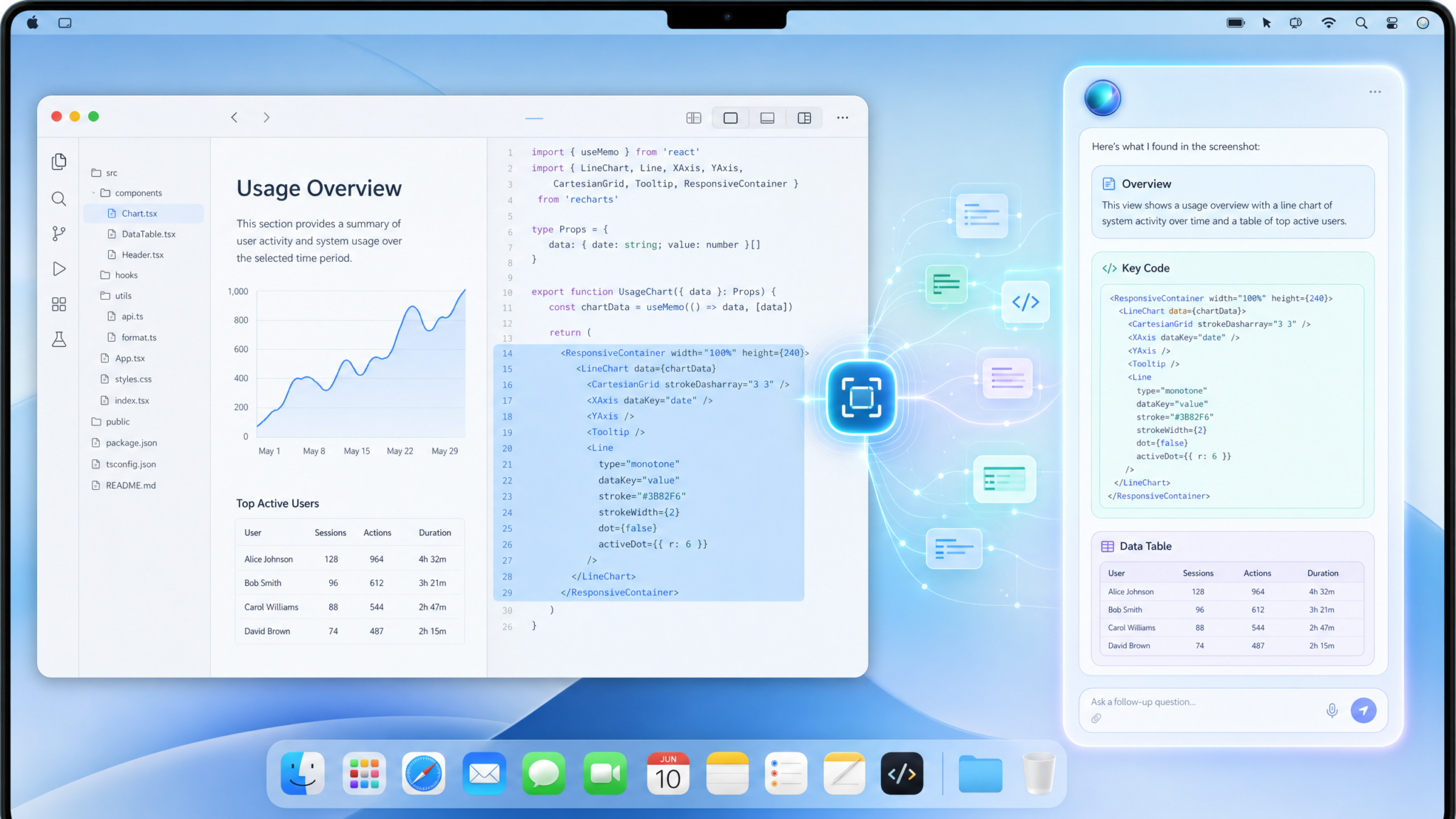
OpenAI’s Codex has long been recognized for its ability to generate code and understand natural language instructions. The introduction of Appshots extends Codex’s capabilities beyond text and code input, giving it “eyes” — the ability to see and interpret the graphical user interface (GUI) of macOS applications in real-time. This is revolutionary because it bridges the gap between AI and real-time desktop context, allowing for more intuitive, context-aware assistance.
Codex Appshots provides both a visual capture (screenshots of app windows) and an offscreen textual extraction (the actual text content from apps, even if not visible on screen). This dual-mode context capture enables AI to understand not only what the user sees but also underlying information that may be hidden or obscured. This capability opens up a wide array of advanced AI use cases including context-aware coding, UI automation, and accessibility enhancements.
What Makes Codex Appshots Revolutionary?
Traditional AI assistants operate purely on text input or explicit user commands without any direct understanding of the user’s UI environment. Codex Appshots changes this paradigm by providing a synchronized visual-textual snapshot of the app context, allowing AI to:
- Understand complex app layouts and UI states.
- Extract semantic meaning from both visible and hidden text elements.
- Generate code and automation scripts tailored to the exact UI state.
- Assist users in workflows that require visual context, such as form filling, data summarization, and error diagnosis.
Incorporating multimodal inputs (image + text) enables Codex to transcend the limitations of purely language-based AI, effectively giving it “eyes” to see and interpret the dynamic desktop environment.
How Codex Appshots Works: An Overview
The core concept of Codex Appshots is straightforward yet technically complex: when a user presses Command-Command on macOS, the system captures a snapshot of the active application window, including a high-fidelity screenshot and a textual data dump of the app’s content. This composite context is then attached to Codex’s input prompt, enhancing the AI assistant’s understanding of the user’s environment.
Technical Workflow of Command-Command Trigger
- User action: The user double-taps the Command key (
⌘) on their Mac keyboard. - System event: macOS intercepts this shortcut via a dedicated accessibility API integration, ensuring compatibility across sandboxed apps.
- Capture process: The system captures a pixel-perfect screenshot of the currently focused app window, including window chrome (borders, title bar).
- Text extraction: Parallel to the visual capture, offscreen text is extracted using native accessibility interfaces (AXUIElement APIs), which collect textual content, metadata, and UI element hierarchy.
- Packaging: The screenshot and textual data are encoded and packaged as part of the Codex API request.
- Transmission: The package is transmitted securely to OpenAI’s cloud backend for Codex processing.
- Response: Codex processes the combined visual-textual context and responds with context-aware instructions, suggestions, or automation scripts.
Detailed Breakdown of Each Step
1. Command-Command Detection: The detection is implemented at the system level using macOS’s CGEventTap API, which monitors keyboard input globally. The double Command press within a short time interval triggers the capture sequence.
2. Window Identification: The system queries the current application’s key window using NSApp.keyWindow and retrieves its window ID via CGWindowListCopyWindowInfo. This ensures the exact window is targeted even if multiple overlapping windows exist.
3. High-Resolution Screenshot Capture: Utilizing Apple’s ScreenCaptureKit, the system captures the window image at the native display resolution, preserving Retina quality and visual fidelity. The captured image includes window decorations, shadows, and transparency.
4. Offscreen Text Extraction via Accessibility API: The system uses the AXUIElement API to traverse the UI element tree of the target window. This involves recursively querying UI elements to extract their textual content, attributes (like font size, color), and position coordinates, including text obscured by scrolling or tabs.
5. Data Serialization: The screenshot is encoded as a PNG in base64 format to ensure lossless compression, while the textual content and UI metadata are serialized into structured JSON format. This JSON includes hierarchical relationships, enabling AI to understand UI layout and grouping.
6. Secure API Packaging: Both data streams are packaged into a single encrypted payload using TLS over HTTPS, with additional message authentication to prevent tampering.
7. AI Backend Processing: The Codex multimodal model receives the payload, extracts features from the image and text, fuses the representations, and generates a context-aware response.
Why Combine Screenshot and Offscreen Text?
The synergy between visual and textual data is critical. Screenshots provide the AI with the exact visual state of the app, including colors, layout, and UI elements, which is essential for tasks like identifying buttons or icons. However, screenshots alone lack semantic understanding—textual content hidden behind tabs or scrollable areas would be invisible. Extracting offscreen text fills this gap by capturing the underlying content programmatically.
| Aspect | Screenshot | Offscreen Text Extraction |
|---|---|---|
| Data Type | Pixel image (PNG format) | Structured text with UI metadata (JSON/XML) |
| Content Captured | Visual UI elements, colors, layout | All textual content, including hidden or clipped text |
| Use Cases | Visual recognition, button identification, layout analysis | Text search, semantic understanding, accessibility |
| Limitations | Cannot identify text semantics or hidden text | May miss non-text elements or complex graphics |
Integrating Codex Appshots with Locked Computer Use
One of the groundbreaking features of Codex Appshots is its seamless integration with macOS’s Locked Computer Use mode, allowing AI assistance even when the computer is locked or remotely accessed. This capability enables secure, privacy-conscious AI interactions without requiring the user to unlock their machine.
How Locked Computer Use Works with Codex Appshots
- Secure context capture: Even when the screen is locked, the system can securely capture app window data if the user has explicitly authorized this in privacy settings.
- Privacy safeguards: Sensitive content is masked or redacted based on user preferences and app-specific policies before transmission.
- Remote control compatibility: Codex Appshots supports remote desktop control scenarios, enabling AI to assist users via remote sessions with live visual context.
This integration extends the usability of Codex Appshots for remote work, IT support, and secure automation tasks, preserving privacy and security standards.
Security Model for Locked Screen Access
The locked screen mode adheres to strict security constraints:
- Access requires explicit user consent granted once during initial setup.
- Applications running in the background are sandboxed, ensuring no leakage of unrelated data.
- Redaction policies apply dynamic filters to mask sensitive information such as passwords, personal data fields, or confidential documents before data leaves the device.
- Audit logs track all captures and transmissions for user review.
Use Case: Remote IT Support During Lock Screen
Imagine a scenario where a user’s Mac is locked due to inactivity, but an IT technician needs to troubleshoot a background app issue remotely. With Codex Appshots enabled for locked use, the technician can instruct Codex to analyze the app state and provide actionable diagnostics or scripts without compromising password fields or sensitive content, preserving security while accelerating problem resolution.
Step-by-Step Guide: Using Codex Appshots on macOS
Below is a detailed walkthrough to activate and utilize Codex Appshots effectively on your Mac.
1. Enabling Codex Appshots
- Ensure your Mac is running macOS 14.2 or later, as this feature requires the latest OS-level accessibility APIs.
- Open the System Preferences > Security & Privacy > Privacy tab.
- Navigate to Accessibility and enable permissions for the OpenAI Codex client.
- In the Screen Recording section, enable permissions for the Codex client to allow screenshot capture.
- Configure privacy preferences for Locked Computer Use under the Privacy tab by enabling Allow Codex Appshots during lock screen.
2. Capturing App Window Context
Once permissions are granted, use the following steps to capture context:
- Focus the target application window on your desktop.
- Press the Command key twice rapidly (Command-Command).
- The system will instantaneously capture both the screenshot and offscreen text in the background.
- A notification will confirm that the Appshot has been attached to Codex.
3. Interacting with Codex Using Appshots
After attaching the app context, you can issue natural language queries or commands to Codex. For example:
User Prompt: "Please find the latest invoice number visible in the current window and generate a summary email draft referencing it."Codex will analyze the combined visual and textual data from the app window and respond accordingly:
Codex Response:
"The latest invoice number shown is INV-20260521-123. Here's a draft email:

Subject: Invoice INV-20260521-123 Summary

Dear Finance Team,

Please find attached the summary of invoice INV-20260521-123 as shown in the current application window..."
4. Automating Appshots Capture via Script
Advanced users can automate Codex Appshots captures within custom workflows. Below is a conceptual shell script leveraging AppleScript and a command-line HTTP client to programmatically trigger capture and send data:
#!/bin/bash

# AppleScript command to simulate Command-Command keypress
osascript -e 'tell application "System Events" to key code 55 using {command down}'
osascript -e 'tell application "System Events" to key code 55 using {command down}'

# Wait for capture to complete
sleep 2

# Assuming the capture is saved to a predefined directory
CAPTURE_PATH="$HOME/Library/Application Support/OpenAI/CodexAppshots/latest.png"
TEXT_PATH="$HOME/Library/Application Support/OpenAI/CodexAppshots/latest_text.json"

# Encode files to base64
SCREENSHOT_BASE64=$(base64 "$CAPTURE_PATH")
TEXT_BASE64=$(base64 "$TEXT_PATH")

# Construct JSON payload
PAYLOAD=$(cat <<EOF
{
  "screenshot": "$SCREENSHOT_BASE64",
  "offscreenText": "$TEXT_BASE64"
}
EOF
)

# Send payload to Codex API
curl -X POST https://api.openai.com/v1/codex/appshots \
  -H "Authorization: Bearer $OPENAI_API_KEY" \
  -H "Content-Type: application/json" \
  -d "$PAYLOAD"
Technical Architecture of Codex Appshots
Understanding Codex Appshots requires insight into its underlying system architecture, which combines macOS APIs, advanced image processing, and natural language understanding models.
1. macOS Accessibility & Screen Capture APIs
The feature leverages macOS’s robust accessibility framework (AXUIElement API) to extract UI element trees and textual content from applications. This API enables querying hierarchical UI components, their attributes, and content, supporting diverse app types including native Cocoa apps, web views, and even some cross-platform frameworks.
ScreenCaptureKit, introduced in macOS 14, facilitates high-performance, low-latency screenshot capture of specified windows or screen regions. It supports capturing windows with transparency, layered effects, and Retina display scaling, ensuring the AI receives pixel-perfect visual input.
2. Data Encoding and Transmission
Once captured, screenshots are compressed into lossless PNGs, while textual data is serialized into JSON objects detailing the UI hierarchy, text content, and metadata such as font, color, and position coordinates.
Both payloads are bundled using a secure, encrypted protocol before being sent to OpenAI’s Codex API endpoint. The payload schema ensures integrity and allows the AI backend to reconstruct the exact visual and textual scene. The protocol supports chunked uploads to accommodate large screenshots or complex UI trees without exceeding request size limits.
3. AI Backend Processing
On the server side, a multimodal Codex variant processes the combined data:
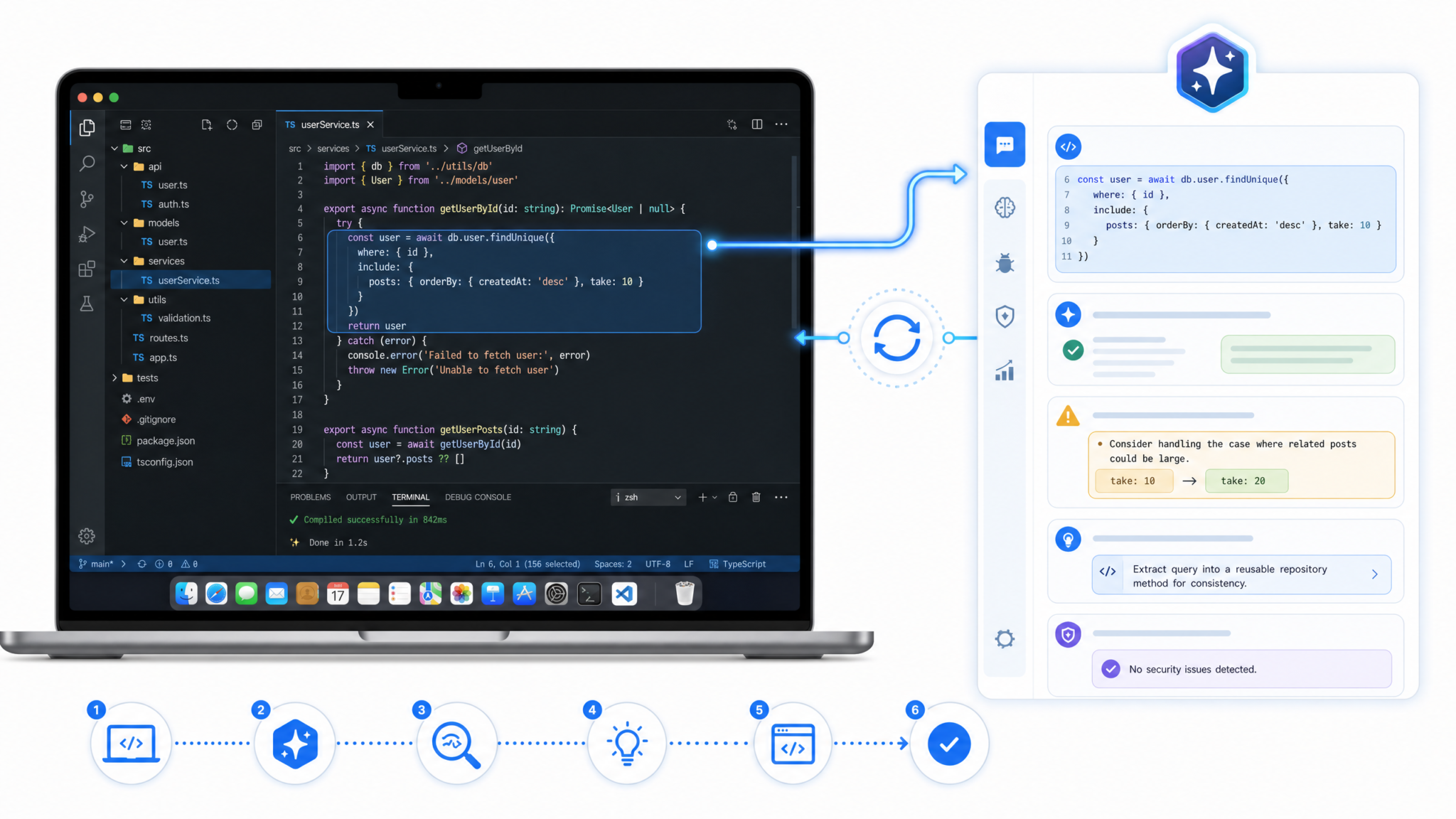
- Image encoder: A convolutional neural network (CNN) extracts visual features from the screenshot, detecting UI elements, colors, and spatial layout.
- Textual encoder: A transformer-based model processes the serialized UI text, capturing semantic relationships and context.
- Multimodal fusion: The outputs of both encoders are combined using cross-attention mechanisms to build a unified contextual representation that merges visual and linguistic clues.
- Generation module: The fused representation feeds into the Codex language generation head to produce relevant code, instructions, or explanations.
Model Architecture Diagram (Simplified):
| Component | Function | Model Type |
|---|---|---|
| Image Encoder | Extracts visual features from screenshot | CNN (ResNet variant) |
| Text Encoder | Processes offscreen text and UI metadata | Transformer (BERT/GPT-based) |
| Cross-Attention Fusion | Combines image and text embeddings | Transformer-based multimodal fusion layer |
| Language Generation Head | Generates code, instructions, or explanations | GPT-style autoregressive decoder |
4. Security and Privacy Considerations
Codex Appshots incorporates several layers of security:
- End-to-end encryption of all data between client and server using TLS 1.3 protocols.
- User-controlled masking of sensitive UI elements before transmission, configurable via privacy settings.
- Granular permission controls for app and system-level access, requiring explicit consent.
- On-device ephemeral caching to prevent local data leakage, with automatic deletion after use.
- Compliance with GDPR and CCPA data privacy regulations, with data retention policies aligned to user agreements.
Developers can implement additional security layers such as network-level firewalls, VPN tunneling, and API request rate limiting to safeguard data flows.
Practical Use Cases of Codex Appshots
The practical implications of Codex Appshots span multiple domains, from software development and IT support to accessibility and productivity enhancement. Below is an in-depth analysis of key use cases with real-world examples.
1. Software Development and Debugging
Developers can leverage Codex Appshots to generate code snippets based on visual UI context, accelerating the development workflow. For example, capturing an interface and asking Codex to produce automation scripts or test cases that interact with specific buttons or forms.
Use Case Example: A developer working on a macOS application can capture the UI state of a settings panel and request Codex to generate SwiftUI code that replicates the visible layout and functionality. This reduces manual effort and ensures consistency.
Automation Test Case Generation: QA engineers can capture app windows and have Codex generate UI automation scripts using frameworks like XCTest or Appium, based on the exact visible UI elements.
2. Enhanced Customer Support
Support agents can remotely capture user app windows and receive AI-generated troubleshooting guidance, reducing resolution times and improving user satisfaction. Codex Appshots can analyze error dialogs, log windows, or configuration panels and suggest next steps or fixes.
Remote Session Example: During a remote support call, the technician requests the user to press Command-Command to send an Appshot. Codex analyzes the app state and provides tailored troubleshooting commands or scripts to resolve common issues.
3. Accessibility Improvements
For users with disabilities, Codex Appshots can interpret complex UI layouts and generate simplified textual summaries or voice commands, improving accessibility.
For instance, visually impaired users can receive verbal descriptions of the current app window, including buttons, text fields, and notifications, enabling smoother navigation and interaction.
4. Automated Documentation
By capturing app state and extracting textual content, Codex Appshots can automatically generate context-rich documentation, changelogs, or usage instructions. This can save significant time in maintenance and onboarding.
| Use Case | Description | Benefit |
|---|---|---|
| Automated UI Testing | Generate test scripts from app screenshots and UI text. | Speeds up QA cycles and reduces manual effort. |
| Remote Troubleshooting | Capture user app state securely during support calls. | Improves accuracy & speed of issue resolution. |
| Contextual Code Generation | Produce code snippets tailored to current app UI. | Enhances developer productivity and reduces errors. |
| Accessibility Summaries | Provide textual or voice descriptions of UI for disabled users. | Improves usability and inclusivity. |
| Automated Documentation | Generate changelogs and usage guides from app states. | Reduces manual documentation overhead. |
Example Code Snippet: Integrating Codex Appshots in a macOS App
Below is a simplified Swift example demonstrating how a macOS app might programmatically trigger the Command-Command capture and send data to the Codex API. This example includes detailed comments and error handling to guide developers.
import Cocoa
import Foundation

class CodexAppshotsManager {
    let codexAPIEndpoint = URL(string: "https://api.openai.com/v1/codex/appshots")!
    let apiKey = "YOUR_OPENAI_API_KEY"

    func captureAppWindowAndSend() {
        guard let window = NSApp.keyWindow else {
            print("No active window to capture.")
            return
        }

        // 1. Capture screenshot
        guard let screenshotData = captureWindowScreenshot(window: window) else {
            print("Failed to capture screenshot.")
            return
        }

        // 2. Extract offscreen text
        let offscreenText = extractWindowText(window: window)

        // 3. Prepare payload
        let payload: [String: Any] = [
            "screenshot": screenshotData.base64EncodedString(),
            "offscreenText": offscreenText
        ]

        // 4. Send to Codex API
        sendToCodex(payload: payload)
    }

    private func captureWindowScreenshot(window: NSWindow) -> Data? {
        let windowID = CGWindowID(window.windowNumber)
        guard let image = CGWindowListCreateImage(.null, .optionIncludingWindow, windowID, .bestResolution) else {
            return nil
        }
        let bitmapRep = NSBitmapImageRep(cgImage: image)
        return bitmapRep.representation(using: .png, properties: [:])
    }

    private func extractWindowText(window: NSWindow) -> String {
        // Placeholder: Would use AXUIElement APIs for real extraction
        // For demo, returning a static string
        return "Sample extracted offscreen text from window contents."
    }

    private func sendToCodex(payload: [String: Any]) {
        var request = URLRequest(url: codexAPIEndpoint)
        request.httpMethod = "POST"
        request.addValue("Bearer \(apiKey)", forHTTPHeaderField: "Authorization")
        request.addValue("application/json", forHTTPHeaderField: "Content-Type")

        do {
            let jsonData = try JSONSerialization.data(withJSONObject: payload, options: [])
            request.httpBody = jsonData

            let task = URLSession.shared.dataTask(with: request) { data, response, error in
                if let error = error {
                    print("Error sending to Codex: \(error)")
                    return
                }
                if let data = data, let responseStr = String(data: data, encoding: .utf8) {
                    print("Codex response: \(responseStr)")
                }
            }
            task.resume()
        } catch {
            print("Failed to serialize payload: \(error)")
        }
    }
}
Prompt Engineering for Codex Appshots
To maximize the effectiveness of Codex Appshots, users and developers should craft prompts that explicitly reference the attached app window context. Here are some best practices:
- Explicit reference: Start prompts with "Based on the current app window content," or "Using the attached screenshot and text," to signal Codex to utilize the multimodal input.
- Clear task description: Specify what you want Codex to perform—e.g., "Extract all invoice numbers," "Generate automation script for the visible form," or "Summarize the displayed data table."
- Context constraints: If needed, add constraints like "Ignore non-text UI elements" or "Focus only on the top section of the window."
- Stepwise instructions: For complex tasks, break down instructions into steps to help Codex produce accurate responses.
Example prompt:
"Based on the attached app window screenshot and extracted text, identify all clickable buttons labeled ‘Submit’ and generate a Python script using PyAutoGUI to click each one sequentially."Advanced Prompt Patterns
For developers integrating Codex Appshots into automation pipelines, consider prompts that instruct Codex to generate code with embedded error handling or logging, for example:
"Using the current app window context, generate a SwiftUI test case that clicks the ‘Confirm’ button and verifies the appearance of a success message. Include assertions and error handling."Limitations and Future Directions
While Codex Appshots is a powerful new tool, it has some limitations worth noting:
- Performance overhead: Capturing and processing screenshots and offscreen text introduces latency, which might impact rapid workflows. Optimization efforts are underway to minimize delays.
- Complex UI elements: Highly dynamic or custom-rendered UI elements (e.g., OpenGL, Metal-based views) might not yield accurate text extraction due to lack of accessibility metadata.
- Privacy concerns: Users must carefully manage permissions and be aware of what data is shared with AI services. It is recommended to review privacy settings periodically.
- Platform limitation: Currently, Codex Appshots is exclusive to macOS 14.2 and later. Expanding support to Windows and Linux is planned.
Future Enhancements
- Real-time Continuous Context Streaming: Enabling continuous capture and transmission of app context to support live AI assistance during workflows.
- Cross-Platform Support: Extending Appshots to Windows and Linux desktops, leveraging platform-specific accessibility APIs.
- Deep Integration with Automation Tools: Collaborations with AppleScript, Shortcuts, and third-party automation frameworks to streamline AI-driven workflows.
- Improved UI Element Recognition: Incorporating advanced computer vision techniques to better understand custom UI components and graphics.
- User Feedback Loop: Integrating feedback mechanisms to allow users to correct or refine AI interpretations, improving model accuracy over time.

Stay Ahead with ChatGPT AI Hub
Get exclusive tutorials, prompt libraries, and breaking AI news delivered to your inbox every week.
Summary and Conclusion
Codex Appshots represents a paradigm shift in AI-human interaction on desktop platforms by granting AI models practical “eyes” on the user’s app environment. By combining high-resolution screenshots with offscreen textual extraction, OpenAI has created a powerful context engine enabling sophisticated, context-aware AI assistance on macOS.
This feature not only enhances productivity and automation but also opens new avenues for accessibility and remote collaboration. As adoption grows, developers and users alike will find Codex Appshots indispensable for bridging the gap between natural language AI and the complex visual world of desktop applications.
For detailed technical specifications, developer guides, and integration tutorials, please refer to the related resources on ChatGPT prompting and explore advanced use cases at OpenAI Codex developer guide. To understand the broader implications of AI context-awareness, see also autonomous coding agents.
Article by Markos Symeonides.
