
How to Build a ChatGPT Codex Browser Automation Pipeline: Web Scraping, Form Filling, and Data Extraction Without Code

ChatGPT Codex’s browser automation capabilities represent a fundamental shift in how developers and non-technical professionals interact with the web. Rather than writing Selenium scripts, Playwright configurations, or Puppeteer boilerplate, you can now instruct Codex in plain English to navigate websites, extract structured data, fill out forms, and export results — all from within the Codex desktop environment. This tutorial walks through every layer of that pipeline: from initial setup and authentication handling to scheduling recurring extractions and exporting clean datasets in CSV or JSON format.
Whether you’re a developer looking to prototype automation workflows faster, a data analyst who needs to pull competitor pricing daily, or a product manager automating internal form submissions, this guide provides concrete, tested prompts and configurations you can adapt immediately. Every example in this article has been structured around real-world use cases with exact natural language instructions you can copy and modify.
Understanding Codex Browser Automation: Architecture and Capabilities
Codex’s in-app browser automation operates through a sandboxed Chromium instance that Codex controls programmatically based on your natural language instructions. Unlike traditional browser automation frameworks that require you to write explicit selector-based code, Codex interprets your intent and generates the underlying automation logic — including element identification, wait conditions, error handling, and retry logic — automatically. The system uses a combination of DOM inspection, visual understanding, and contextual reasoning to interact with web pages the way a human would.
The architecture consists of three primary layers: the instruction layer (your natural language prompts), the execution layer (the Chromium browser instance with Codex-generated automation code), and the output layer (structured data returned in your specified format). Codex maintains session state across steps, which means it can log into a site in step one and use that authenticated session for all subsequent extraction steps — a capability that eliminates one of the most painful aspects of traditional scraping pipelines.
Current capabilities include full DOM interaction (clicking, typing, scrolling, hovering), JavaScript execution for dynamic content, screenshot capture for visual verification, cookie and session management, multi-tab navigation, file download handling, and structured data extraction from tables, lists, and semi-structured page content. Codex also supports conditional logic in natural language — you can instruct it to “if the login fails, retry with the backup credentials” without writing a single line of explicit control flow. For developers already familiar with browser automation concepts, understanding ChatGPT Codex agent capabilities and task orchestration provides important context for how these browser tasks fit into larger agentic workflows.
| Capability | Traditional Selenium/Playwright | Codex Browser Automation |
|---|---|---|
| Setup time | 30–120 minutes (driver install, dependencies, boilerplate) | Under 5 minutes (Codex desktop app) |
| Selector management | Manual CSS/XPath selectors, breaks on DOM changes | Intent-based targeting, auto-adapts to layout changes |
| Authentication handling | Manual cookie injection or credential scripting | Natural language credential passing with session persistence |
| Dynamic content (JS-rendered) | Requires explicit wait conditions and async handling | Automatically waits for page state stabilization |
| Error recovery | Must code try/catch blocks and retry logic | Describe fallback behavior in natural language |
| Output formatting | Requires additional parsing and serialization code | Request CSV, JSON, or Markdown directly in prompt |
| Maintenance burden | High — selectors and scripts break frequently | Low — intent-based approach handles minor site changes |
Setting Up the Codex Desktop Environment for Browser Automation
Before writing your first automation prompt, you need to configure the Codex desktop application correctly. Download the latest version of the Codex desktop app from the OpenAI website — browser automation features are only available in the desktop client, not the web interface, because they require access to a local Chromium instance and file system for output storage. Ensure you’re running at minimum version 1.4.0, as earlier versions have limited browser interaction capabilities and lack the session persistence features covered in this tutorial.
Once installed, navigate to Settings → Browser Automation and enable the browser agent toggle. You’ll see options for browser window mode (headless vs. visible), default output directory for exported files, and network proxy configuration. For initial setup and debugging, keep the browser in visible mode so you can watch Codex navigate in real time and catch any issues with page interaction. Switch to headless mode once your pipeline is validated and you’re running it on a schedule.
Configure your output directory to a location with write permissions — a dedicated folder like ~/codex-exports/ works well. Set up subdirectories for different project types: ~/codex-exports/scraping/, ~/codex-exports/forms/, and ~/codex-exports/scheduled/. This organization becomes important when you’re running multiple automation pipelines and need to keep outputs separated. The Codex desktop app respects this directory structure when you reference it in your prompts.
For sites requiring authentication, create a credentials file at ~/.codex/credentials.json with the following structure:
{
  "credentials": {
    "site_key_1": {
      "url": "https://example.com/login",
      "username": "[email protected]",
      "password": "your_password",
      "mfa_secret": "OPTIONAL_TOTP_SECRET"
    },
    "site_key_2": {
      "url": "https://another-site.com/signin",
      "username": "[email protected]",
      "password": "password123"
    }
  }
}
Codex references this file when you use the credentials: parameter in your prompts, keeping sensitive information out of your prompt history. The file is stored locally and never transmitted to OpenAI servers — only the automation instructions themselves are processed by the model. Enable the Secure Credentials Mode in settings to ensure this behavior is enforced.
Writing Effective Natural Language Instructions for Web Scraping
The quality of your natural language instructions directly determines the reliability of your automation pipeline. Vague instructions produce brittle automations that fail on edge cases; precise, structured instructions produce robust pipelines that handle real-world page variations gracefully. The most effective Codex automation prompts follow a consistent structure: target specification (what site and page), action sequence (what to do step by step), data specification (what to extract and how to structure it), and output instruction (format and destination).
Here is a practical example for scraping product listings from an e-commerce site:
Navigate to https://example-store.com/products/laptops

Wait for the product grid to fully load (look for product cards with
prices visible).

For each product card on the page:
- Extract: product name, current price, original price (if shown),
  star rating (out of 5), number of reviews, availability status,
  and product URL

If there is a "Next Page" or pagination control, continue to the
next page and repeat extraction until you've processed all pages
or reached page 10, whichever comes first.

Output the results as a CSV file with headers:
product_name, current_price, original_price, rating, review_count,
availability, product_url

Save to ~/codex-exports/scraping/laptops_[TODAY_DATE].csv

If any field is not available for a product, use "N/A" as the value.
Notice several important elements in this prompt: the explicit wait condition prevents premature extraction from partially-loaded pages, the per-item field list ensures consistent column structure, the pagination instruction with a safety limit prevents infinite loops, the filename uses a date variable for automatic versioning, and the null handling instruction prevents malformed CSV rows. These details transform a simple request into a production-ready scraping instruction.
For news aggregation and content monitoring, the prompt structure adapts slightly:
Go to https://techcrunch.com/category/artificial-intelligence/

Extract all article listings visible on the page without scrolling
(above the fold and in the main content area only — ignore sidebar
and recommended articles).

For each article, extract:
- headline (full text)
- author name
- publication date and time
- article URL
- excerpt or summary (first 150 characters of the preview text)
- any tags or category labels shown

Output as JSON array with objects using these keys:
headline, author, published_at, url, excerpt, tags

Save to ~/codex-exports/scraping/techcrunch_ai_[TIMESTAMP].json

Do not include duplicate articles if the same headline appears
multiple times on the page.
The deduplication instruction at the end is particularly important for news sites that often feature the same article in multiple sections. Codex handles this by comparing headline strings before adding items to the output array, eliminating a post-processing step you’d otherwise need to handle manually.

Form Filling Workflows: Automating Repetitive Data Entry
Form automation is one of the highest-value use cases for Codex browser automation, particularly for business workflows involving CRM data entry, survey submissions, job applications, or internal tool interactions. The key distinction between form automation and simple web scraping is that form automation requires Codex to interact with the page state — clicking inputs, typing values, selecting dropdown options, handling file uploads, and submitting forms — rather than passively reading content.
Access 40,000+ AI Prompts for ChatGPT, Claude & Codex — Free!
Subscribe to get instant access to our complete Notion Prompt Library — the largest curated collection of prompts for ChatGPT, Claude, OpenAI Codex, and other leading AI models. Optimized for real-world workflows across coding, research, content creation, and business.
A foundational form filling example involves submitting lead data to a CRM contact form. Here’s a complete prompt for this workflow:
I have a CSV file at ~/data/new_leads.csv with columns:
first_name, last_name, email, company, phone, notes

For each row in the CSV file:
1. Navigate to https://crm.mycompany.com/contacts/new
2. If not already logged in, use credentials: company_crm
3. Fill in the form fields:
   - "First Name" field → first_name value
   - "Last Name" field → last_name value
   - "Email Address" field → email value
   - "Company" field → company value
   - "Phone Number" field → phone value
   - "Notes" text area → notes value
   - "Lead Source" dropdown → select "Web Import"
4. Click the "Save Contact" button
5. Wait for the confirmation message "Contact saved successfully"
6. Log the result: [row_number], [email], SUCCESS or FAILURE

After processing all rows, save the log to:
~/codex-exports/forms/crm_import_log_[TODAY_DATE].txt

If a row fails (no confirmation within 10 seconds), log it as FAILURE
and continue to the next row — do not stop the entire batch.
This prompt demonstrates several advanced form automation patterns: credential reference by key name, field mapping from CSV columns to form labels, dropdown selection, success verification via confirmation message, per-row result logging, error tolerance with continuation behavior, and batch logging with date-stamped output. The failure handling instruction is critical — without it, a single failed submission would halt your entire batch import.
For more complex forms involving conditional fields (fields that appear only when certain options are selected), Codex handles the dynamic form state naturally:
Navigate to https://insurance-portal.com/quote-request

Fill out the quote request form:
- "Coverage Type" dropdown → select "Business"
  (this should reveal additional business-specific fields)
- "Business Name" → "Acme Technologies LLC"
- "Industry" dropdown → select "Technology/Software"
- "Annual Revenue" → "2500000"
- "Number of Employees" → "45"
- "Years in Business" → "7"
- "Primary Coverage Needed" checkboxes → check "General Liability"
  and "Professional Liability"
  (checking these may reveal coverage limit fields)
- If "General Liability Limit" field appears → enter "1000000"
- If "Professional Liability Limit" field appears → enter "2000000"
- "Contact Email" → "[email protected]"
- "Contact Phone" → "555-867-5309"

Click "Get Quote" and capture the full quote results page as:
1. A screenshot saved to ~/codex-exports/forms/insurance_quote.png
2. The quoted premium amounts extracted as JSON saved to
   ~/codex-exports/forms/insurance_quote_data.json
The conditional field handling (“If X field appears → enter Y”) is a natural language pattern that Codex interprets as conditional logic, automatically checking for element presence before attempting to interact with it. This approach gracefully handles forms where field visibility depends on earlier selections — a common pattern in complex business forms that traditionally requires significant extra code to handle in Selenium or Playwright.
Developers building internal tooling will find Codex particularly useful for automating interactions with legacy web applications that lack APIs. For more context on how Codex handles complex multi-step workflows beyond browser automation, see building multi-step agentic workflows with ChatGPT Codex.
Data Extraction from Tables, Dynamic Pages, and Paginated Content
Structured data extraction from HTML tables is one of Codex’s most reliable capabilities, but the real power emerges when dealing with JavaScript-rendered tables, infinite scroll pages, and content hidden behind tab or accordion components. This section covers extraction patterns for each of these scenarios with tested prompts.
For standard HTML tables, a basic extraction prompt is straightforward, but adding precision dramatically improves output quality:
Navigate to https://finance-site.com/market-data/etf-screener

The page contains a large data table of ETF listings.

Wait until the table has loaded and shows at least 20 rows
(the table may take 3-5 seconds to populate with data).

Extract ALL rows from the main data table (not the header row,
not any summary rows at the bottom). The table columns are:
Ticker, Fund Name, Category, AUM (millions), Expense Ratio,
YTD Return, 1-Year Return, 3-Year Return, Dividend Yield

If the table has column sorting controls, do NOT click them —
extract data in the current default sort order.

If the table shows "1-50 of 847 results" style pagination:
- Extract the current page
- Click "Next" to advance
- Extract each subsequent page
- Stop after 20 pages maximum or when no "Next" button exists

Combine all pages into a single CSV file:
~/codex-exports/scraping/etf_data_[TODAY_DATE].csv

Include the header row only once at the top of the file.
The instruction to avoid clicking sort controls prevents accidentally changing the data order mid-extraction, which would cause duplicate or missing rows. The explicit column naming helps Codex correctly identify which table cells map to which output fields, even when the table uses complex header structures with merged cells or icons.
For JavaScript-rendered content that loads on scroll (infinite scroll pages), the approach requires explicit scroll instructions:
Navigate to https://linkedin.com/search/results/people/?keywords=data+engineer
(Use credentials: linkedin_account)

This is an infinite scroll page. To extract all visible results:
1. Extract the currently visible profile cards (name, title, company,
   location, connection degree, profile URL)
2. Scroll down by 800 pixels
3. Wait 2 seconds for new content to load
4. Extract any NEW profile cards that weren't captured in previous steps
5. Repeat scroll-wait-extract cycle until either:
   - No new profiles appear after two consecutive scrolls
   - You have extracted 200 profiles
   - A "See more results" button appears (click it and continue)

Output as JSON array:
~/codex-exports/scraping/linkedin_data_engineers_[TIMESTAMP].json

Each object should have: name, title, company, location,
connection_degree, profile_url
For pages with content organized in tabs or accordions — common in product pages, documentation sites, and dashboards — Codex needs explicit instructions to reveal hidden content:
Navigate to https://saas-product.com/pricing

This page has a pricing table with a toggle between "Monthly" and
"Annual" billing.

Step 1: Make sure "Monthly" pricing is selected. Extract all plan
details: plan name, monthly price, all features listed under each plan,
user limit, storage limit, support tier.

Step 2: Click the "Annual" or "Yearly" toggle. Wait for prices to update.
Extract the same fields again with the annual pricing.

If there are additional plan tiers hidden behind a "See all features"
expand button under any plan, click it to reveal the full feature list
before extracting.

Output as a structured JSON file with two top-level keys:
"monthly_plans" and "annual_plans", each containing an array of
plan objects.

Save to ~/codex-exports/scraping/pricing_data_[TODAY_DATE].json
Handling Authentication: Login Flows, MFA, and Session Management
Authentication is the most common point of failure in browser automation pipelines, and Codex provides several mechanisms to handle different authentication patterns reliably. Understanding which approach to use for each authentication type prevents the majority of automation failures in production pipelines.
For standard username/password login flows, the credentials file approach covered in the setup section is the recommended method. Here’s how to reference it in a complete pipeline prompt:
Authentication sequence for dashboard.salesforce.com:

1. Navigate to https://login.salesforce.com
2. Use credentials: salesforce_prod
   (username and password from credentials file)
3. After entering credentials and clicking "Log In", watch for:
   - Successful login: URL changes to *.salesforce.com/home or similar
   - MFA prompt: a screen asking for a verification code
   - CAPTCHA: a visual challenge (flag this as REQUIRES_MANUAL_INTERVENTION)
   - Error message: capture the error text and log it

4. If MFA prompt appears:
   Use the TOTP secret from the credentials file to generate the
   current 6-digit code and enter it in the verification field.

5. Once authenticated, verify login success by checking that the
   user avatar or account name is visible in the top navigation.

6. Proceed to: https://dashboard.salesforce.com/reports/custom/q3-pipeline
   Extract the pipeline report table (all rows and columns visible).

Save session cookies after successful login so subsequent runs
within 24 hours can skip the login step if cookies are still valid.
The session cookie persistence instruction at the end is particularly valuable for pipelines that run multiple times per day — it prevents triggering suspicious login activity alerts that many enterprise platforms implement when they detect repeated login attempts from the same IP. Codex stores session cookies in an encrypted local file and checks their validity before attempting a fresh login.
For OAuth-based authentication (Google, GitHub, Microsoft), the flow requires navigating through the OAuth consent screen:
Navigate to https://app.notion.so/login

Click "Continue with Google" button.

In the Google account selection screen that appears:
- If the account [email protected] is listed, click it
- If not listed, click "Use another account" and enter:
  email: [email protected]
  password: (from credentials: google_workspace)

After Google OAuth redirects back to Notion, verify that the
Notion workspace "MyCompany Finance" is visible.

If a "Select workspace" screen appears, click "MyCompany Finance".

Once in the workspace, navigate to the database titled
"Q4 Budget Tracker" and extract all rows.
For sites using IP-based or device-based trust (where the first login from a new device triggers an email verification), Codex can handle the email verification step if you also grant it access to a webmail account:
Navigate to https://banking-portal.com/login
Enter credentials: banking_portal

If a "Verify your device" or "Check your email" prompt appears:
1. Open a new tab and navigate to https://mail.google.com
2. Use credentials: gmail_account
3. Look for the most recent email from banking-portal.com
   (subject will contain "verification" or "confirm")
4. Extract the 6-digit verification code from the email body
5. Return to the banking portal tab
6. Enter the verification code in the verification field
7. Check "Remember this device" if that option is present
8. Click "Verify" or "Continue"
This multi-tab authentication pattern demonstrates Codex’s ability to maintain context across browser tabs — a capability that enables complex authentication flows that would require significant orchestration code in traditional automation frameworks. Teams building enterprise automation should also review enterprise security considerations for AI-powered automation pipelines before deploying these patterns in production environments with sensitive credentials.
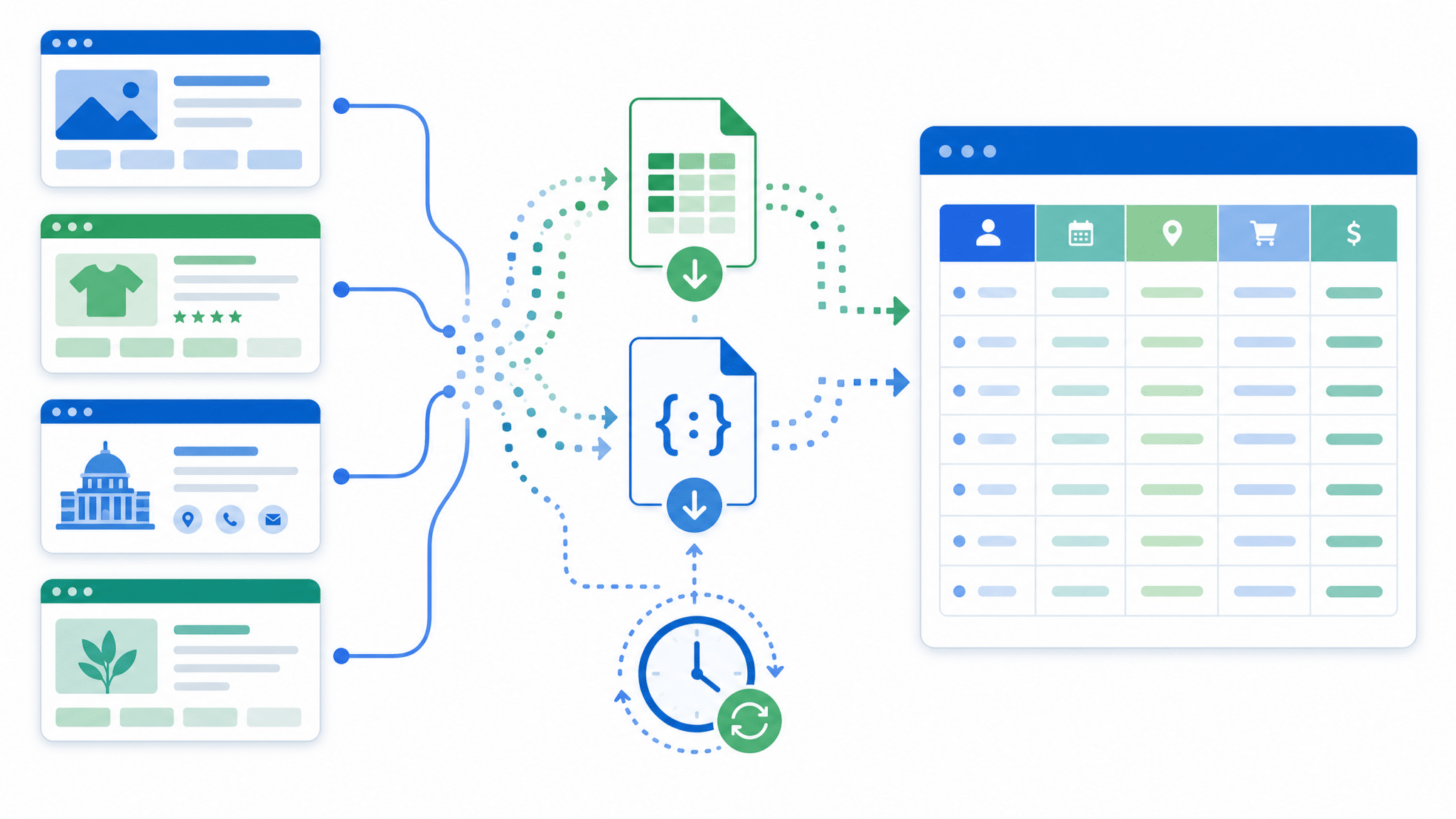
Scheduling Recurring Extractions: Automation Pipelines That Run on Their Own
A single manual extraction is useful, but the real value of browser automation comes from pipelines that run automatically on a schedule — pulling competitor prices every morning, extracting job postings every hour, or archiving dashboard reports every Friday afternoon. Codex desktop supports scheduled automation through its built-in scheduler, which integrates with the operating system’s task scheduling (cron on macOS/Linux, Task Scheduler on Windows).
To configure a scheduled extraction, navigate to Codex Desktop → Automations → New Scheduled Task. You’ll define three components: the schedule (using cron syntax or the visual schedule builder), the automation prompt (the same natural language instructions you’d use manually), and the notification settings (email or Slack webhook on completion or failure).
Here is a complete scheduled automation configuration for daily competitor price monitoring:
SCHEDULE: 0 7 * * 1-5
(Runs at 7:00 AM, Monday through Friday)

AUTOMATION NAME: Competitor Price Monitor - Daily

PROMPT:
Navigate to https://competitor-a.com/products/enterprise-plans
Extract the pricing table: plan name, monthly price, annual price,
user limits for all visible plans.
Save to ~/codex-exports/scheduled/competitor_a_[TODAY_DATE].json

Navigate to https://competitor-b.com/pricing
Extract all plan tiers with prices and feature counts.
Save to ~/codex-exports/scheduled/competitor_b_[TODAY_DATE].json

Navigate to https://competitor-c.com/plans
Extract pricing data from the comparison table.
Save to ~/codex-exports/scheduled/competitor_c_[TODAY_DATE].json

After all three sites are extracted, create a combined summary file:
~/codex-exports/scheduled/pricing_summary_[TODAY_DATE].csv

The summary CSV should have columns:
competitor, plan_name, monthly_price, annual_price, user_limit,
extraction_timestamp

ON COMPLETION: Send webhook notification to [SLACK_WEBHOOK_URL]
with message: "Daily pricing extraction complete. Files saved to
~/codex-exports/scheduled/. Rows extracted: [TOTAL_ROW_COUNT]"

ON FAILURE: Send webhook with error details and screenshot of
the failing page.

RETRY POLICY: If any individual site extraction fails, retry that
site twice with 60-second intervals before marking as failed.
Continue with remaining sites regardless of individual failures.
The retry policy and failure isolation instructions are essential for production scheduled automations. Without them, a single site being temporarily unavailable would cause your entire pipeline to fail and leave you without data from the sites that were accessible. The per-site retry with continuation ensures maximum data collection even on unreliable days.
For weekly report generation, a more complex scheduled automation might combine extraction with data transformation:
SCHEDULE: 0 9 * * 1
(Runs at 9:00 AM every Monday)

AUTOMATION NAME: Weekly Analytics Dashboard Export

PROMPT:
Navigate to https://analytics.mycompany.com
Use credentials: analytics_dashboard

Navigate to Reports → Weekly Summary
Set the date range to "Last 7 days"
(today is [TODAY_DATE], so set end date to today and start date
to 7 days ago)

Extract the following data tables:
1. "Traffic Overview" table → save as traffic_[WEEK_START].csv
2. "Top Pages" table (show all rows, not just top 10) →
   save as top_pages_[WEEK_START].csv
3. "Conversion Funnel" table → save as conversions_[WEEK_START].csv
4. "Revenue by Channel" table → save as revenue_[WEEK_START].csv

All files save to ~/codex-exports/scheduled/weekly/[WEEK_START]/

Take a full-page screenshot of the dashboard before extracting:
~/codex-exports/scheduled/weekly/[WEEK_START]/dashboard_screenshot.png

After extraction, navigate to Reports → Export → Email Report
Enter recipient: [email protected]
Subject: "Weekly Analytics Report - Week of [WEEK_START]"
Click Send.

Log total rows extracted per table to:
~/codex-exports/scheduled/weekly/[WEEK_START]/extraction_log.txt
Notice the use of date variables like [TODAY_DATE], [WEEK_START], and [TIMESTAMP] throughout these prompts. Codex resolves these variables at runtime, so you write the prompt once and it generates correctly dated filenames and date range selections every time it runs. The available date variables include [TODAY_DATE] (YYYY-MM-DD format), [TIMESTAMP] (YYYY-MM-DD_HH-MM-SS), [WEEK_START] (Monday of the current week), [MONTH] (current month as YYYY-MM), and [YEAR].
| Schedule Pattern | Cron Expression | Use Case |
|---|---|---|
| Every weekday at 7 AM | 0 7 * * 1-5 |
Daily competitor monitoring, morning data pulls |
| Every hour during business hours | 0 9-17 * * 1-5 |
Real-time inventory or price tracking |
| Every Monday at 9 AM | 0 9 * * 1 |
Weekly report generation, weekly data archiving |
| First day of month at 6 AM | 0 6 1 * * |
Monthly billing data extraction, monthly reports |
| Every 15 minutes | */15 * * * * |
Near-real-time monitoring, alert triggers |
| Weekdays at 8 AM and 5 PM | 0 8,17 * * 1-5 |
Twice-daily snapshots for change detection |
Exporting Data to CSV and JSON: Formatting, Validation, and Integration
The output layer of your automation pipeline determines how usable your extracted data is downstream. Poorly formatted exports require manual cleaning before they can be loaded into databases, spreadsheets, or analytics tools. Codex supports direct output to CSV, JSON, JSONL (newline-delimited JSON), XML, and Markdown table formats, and you can specify formatting requirements with considerable precision in your prompts.
For CSV exports destined for database import or spreadsheet analysis, specify encoding, delimiter, quoting behavior, and null handling explicitly:
Output the extracted data as a CSV file with these specifications:
- Encoding: UTF-8 with BOM (for Excel compatibility)
- Delimiter: comma
- Quote character: double-quote
- Escape character: backslash
- Line endings: CRLF (Windows-compatible)
- Include header row as first line
- Null/missing values: empty string (no "NULL" or "N/A" text)
- Numbers: no thousands separator, decimal point as period
- Dates: ISO 8601 format (YYYY-MM-DD)
- Prices: numeric only, no currency symbols or commas
  (e.g., 1299.99 not $1,299.99)

Save to ~/codex-exports/scraping/products_[TODAY_DATE].csv
The UTF-8 BOM specification is frequently overlooked but critically important when the CSV will be opened directly in Excel — without it, non-ASCII characters (accented letters, currency symbols, Chinese/Japanese characters) display as garbled text. The numeric formatting instructions for prices prevent a common issue where “$1,299.99” gets imported as a text field rather than a numeric value.
For JSON exports that will be consumed by APIs or loaded into document databases, specify the schema structure:
Output the extracted data as a JSON file with this schema:

{
  "metadata": {
    "source_url": "[URL_EXTRACTED_FROM]",
    "extraction_timestamp": "[ISO_8601_TIMESTAMP]",
    "total_records": [COUNT],
    "extraction_status": "complete" | "partial",
    "pages_processed": [COUNT]
  },
  "data": [
    {
      "id": "[AUTO_INCREMENT_INTEGER]",
      "product_name": "string",
      "price": number,
      "currency": "USD",
      "in_stock": boolean,
      "categories": ["string", "string"],
      "extracted_at": "[ISO_8601_TIMESTAMP]"
    }
  ]
}

Validate that all required fields are present for each record.
If a required field cannot be extracted, include the field with
a null value and add the record to a "validation_warnings" array
in the metadata object.

Save to ~/codex-exports/scraping/products_[TODAY_DATE].json
Also save a validation report to:
~/codex-exports/scraping/products_[TODAY_DATE]_validation.txt
The metadata wrapper with extraction timestamp, record count, and status is invaluable for downstream consumers of your data — it lets them verify data freshness, detect partial extractions, and audit the pipeline without examining the data records themselves. The validation warnings mechanism surfaces data quality issues without blocking the export, letting you review and address them separately.
For integrating Codex extraction outputs directly into other tools, Codex supports several post-export actions:
After saving the CSV file, perform these integration actions:

1. GOOGLE SHEETS UPLOAD:
   Open https://sheets.google.com in a new tab
   Use credentials: google_workspace
   Navigate to the spreadsheet: "Competitor Pricing Tracker"
   (URL: https://docs.google.com/spreadsheets/d/[SHEET_ID])
   Click on the tab named "Raw Data"
   Select cell A1
   Delete all existing content in the sheet
   Import the CSV file: File → Import → Upload →
   select ~/codex-exports/scraping/products_[TODAY_DATE].csv
   Choose "Replace current sheet" and "No conversion"
   Click Import Data

2. WEBHOOK NOTIFICATION:
   Send a POST request to https://hooks.zapier.com/hooks/catch/[ID]/
   with JSON body: {
     "event": "extraction_complete",
     "file_path": "~/codex-exports/scraping/products_[TODAY_DATE].csv",
     "record_count": [TOTAL_RECORDS],
     "timestamp": "[ISO_8601_TIMESTAMP]"
   }
This pattern — extract, save locally, then push to a cloud destination — creates a reliable pipeline with a local backup at each stage. If the Google Sheets upload fails, your data is still safe in the local CSV file. The Zapier webhook trigger can then kick off additional automation steps in your broader workflow ecosystem.
Five Complete Practical Examples with Exact Prompts
The following five examples represent complete, production-ready automation pipelines covering the most common business use cases. Each prompt is written to be used directly in Codex desktop with minimal modification — replace the placeholder URLs, credentials keys, and field names with your actual values.
Example 1: Job Posting Aggregator
AUTOMATION: Daily Tech Job Aggregation

Navigate to https://jobs.lever.co/search?team=Engineering
Extract all job postings: title, company, location (remote/hybrid/onsite),
department, posted date, application URL.

Navigate to https://boards.greenhouse.io/embed/job_board?for=company
Extract: role title, team, location, employment type, posting date, URL.

Navigate to https://www.linkedin.com/jobs/search/?keywords=software+engineer&location=Remote
(Use credentials: linkedin_account)
Extract the first 3 pages of results: job title, company, location,
posted time ago, job URL, easy apply indicator (yes/no).

Combine all sources into one JSON file:
~/codex-exports/scheduled/jobs_[TODAY_DATE].json

Deduplicate by job URL. Add a "source" field to each record
indicating which site it came from.

Flag any postings with "Senior" or "Staff" in the title with
"seniority": "senior" in the JSON object.
Example 2: SaaS Metrics Dashboard Extraction
Navigate to https://app.chartmogul.com
Use credentials: chartmogul_account

Navigate to Metrics → MRR
Set date range: last 90 days
Extract the MRR trend data table (date, mrr_value, change, change_percent)
Save to ~/codex-exports/saas/mrr_90days_[TODAY_DATE].csv

Navigate to Metrics → Churn
Same 90-day range
Extract: date, churned_mrr, churn_rate_percent
Save to ~/codex-exports/saas/churn_90days_[TODAY_DATE].csv

Navigate to Metrics → New Business
Extract: date, new_mrr, new_customers
Save to ~/codex-exports/saas/new_business_90days_[TODAY_DATE].csv

Navigate to Customers → All
Filter by "Status: Active"
Export all customer records using the built-in export button if available.
If no export button: extract visible columns (name, mrr, plan, since_date,
country) with pagination until all records captured.
Save to ~/codex-exports/saas/active_customers_[TODAY_DATE].csv
Example 3: Government Data Portal Extraction
Navigate to https://data.gov/dataset/[specific-dataset]

The page shows a dataset with a preview table and download options.

First, check if a direct CSV download link exists (look for
"Download" or "Export" buttons near the table).

If direct download exists:
- Click the CSV download link
- Wait for download to complete
- Move the downloaded file to ~/codex-exports/gov/[dataset_name]_[TODAY_DATE].csv

If no direct download:
- Extract data from the preview table
- Navigate through all pages of the preview
- Reconstruct the full dataset as CSV
- Save to ~/codex-exports/gov/[dataset_name]_[TODAY_DATE].csv

Also extract the dataset metadata from the page:
- Dataset title
- Publisher/agency
- Last updated date
- Data dictionary/column descriptions (if shown)
- License type
Save metadata to ~/codex-exports/gov/[dataset_name]_metadata_[TODAY_DATE].json
Example 4: E-commerce Order Management Automation
Navigate to https://admin.shopify.com/store/[store-name]
Use credentials: shopify_admin

Navigate to Orders → All Orders
Filter: Status = "Unfulfilled", Date = "Last 7 days"

For each unfulfilled order on the page:
Extract: order_number, customer_name, customer_email,
order_date, total_value, items_ordered (name + quantity),
shipping_address, shipping_method

If there are more than 50 orders, paginate through all pages.

Save the complete order list to:
~/codex-exports/forms/unfulfilled_orders_[TODAY_DATE].csv

Then, for orders where total_value > 500:
- Click into each order
- Add a note: "Priority fulfillment - high value order"
- Click "Save" after adding the note
- Log the order number as processed in:
  ~/codex-exports/forms/priority_orders_processed_[TODAY_DATE].txt
Example 5: Academic Research Aggregation
Navigate to https://scholar.google.com/scholar?q=large+language+models+reasoning&as_ylo=2024

Extract all search results on the first 5 pages:
- Paper title
- Authors (all listed)
- Publication venue (journal/conference name)
- Publication year
- Citation count
- Abstract snippet (first 200 characters shown)
- Link to paper or PDF

For each result that shows a PDF link, note the PDF URL separately.

Navigate to https://arxiv.org/search/?query=large+language+models+reasoning&searchtype=all&start=0
Extract results from first 3 pages:
- Title
- Authors
- Submission date
- Abstract (full text shown in search results)
- arXiv ID
- Categories/tags

Combine both sources, deduplicate by title (fuzzy match —
titles that are 90%+ similar should be considered duplicates).

Save to ~/codex-exports/research/llm_reasoning_papers_[TODAY_DATE].json

Sort the final JSON array by citation count descending
(papers with no citation data sort to the end).
These five examples cover the spectrum from simple single-site extraction to multi-source aggregation with deduplication and post-extraction data manipulation. Each prompt includes the specific details — field names, file paths, pagination behavior, error handling — that separate reliable production automations from fragile one-off scripts. For teams looking to extend these patterns into full workflow automation, exploring integrating Codex automation outputs with Zapier and Make.com workflows provides the next layer of integration capability.
Troubleshooting Common Browser Automation Issues
Even well-written automation prompts encounter issues in production. Understanding the most common failure modes and their solutions dramatically reduces debugging time and improves pipeline reliability. The following covers the five most frequent issues encountered in Codex browser automation and their resolution patterns.
Issue 1: Element not found / interaction fails on dynamic pages. This occurs when Codex attempts to interact with an element before it has fully rendered. The solution is to add explicit wait conditions to your prompt: “Wait until the element with text ‘Load More’ is visible before clicking” or “Wait for the table to contain at least 10 rows before extracting.” For pages with complex loading states, add: “If the page shows a loading spinner, wait for it to disappear before proceeding.” Codex interprets these as intelligent wait conditions rather than fixed time delays, which makes your automation more robust across varying network conditions.
Issue 2: CAPTCHAs blocking automation. Modern sites increasingly deploy bot detection that triggers CAPTCHAs for automated browsers. Codex handles simple image-based CAPTCHAs through visual understanding, but reCAPTCHA v3 (invisible, behavior-based) and hCaptcha require different strategies. Include in your prompt: “If a CAPTCHA appears that cannot be solved automatically, take a screenshot, save it to ~/codex-exports/errors/captcha_[TIMESTAMP].png, and pause the automation with a notification.” This creates a human-in-the-loop checkpoint rather than a silent failure. For frequently CAPTCHA-blocked sites, consider using the site’s official API if available, or a CAPTCHA solving service integration.
Issue 3: Session expiration mid-extraction. Long-running extractions on paginated sites can encounter session timeouts after 20–30 minutes. Add session validation instructions: “Every 10 pages, verify that you’re still logged in by checking for the user avatar or account menu. If the session has expired, re-authenticate using credentials: [key] and resume from the last successfully extracted page.” This creates automatic session refresh without restarting the entire extraction from page one.
Issue 4: Inconsistent data formatting across pages. Sites that display data differently on different pages (prices with and without currency symbols, dates in mixed formats, numbers with and without commas) produce messy CSV outputs. Add normalization instructions to your prompt: “Normalize all prices to decimal numbers without currency symbols. Convert all dates to YYYY-MM-DD format. Remove commas from numbers. If a value cannot be normalized to the expected format, preserve the original value and add it to a ‘normalization_warnings’ list in the output metadata.” This defers format inconsistencies to a reviewable warnings list rather than corrupting your dataset.
Issue 5: Rate limiting and IP blocking. Aggressive scraping triggers rate limiting on most sites. Build politeness delays into your prompts: “Between each page navigation, wait a random delay between 2 and 5 seconds. Between each site in the multi-site extraction, wait 30 seconds.” Randomized delays are more effective than fixed delays at avoiding bot detection heuristics. For sites with strict rate limits, add: “If you receive a 429 (Too Many Requests) response or see a ‘slow down’ message, wait 60 seconds before retrying. After three consecutive rate limit responses, stop and log the current progress.” This prevents your IP from being permanently blocked while preserving the data collected so far.
| Issue | Symptom | Solution Approach | Prevention |
|---|---|---|---|
| Element not found | Automation stops mid-page, no data extracted | Add explicit wait conditions for element visibility | Always specify wait conditions for dynamic content |
| CAPTCHA block | Extraction halts at challenge page | Screenshot + pause + human-in-loop notification | Use API endpoints where available; add politeness delays |
| Session expiry | Redirected to login mid-extraction | Periodic session validation + auto re-auth | Set session check interval based on site timeout policy |
| Data format inconsistency | Mixed formats in output CSV/JSON | Inline normalization instructions + warnings log | Specify exact output format for every field type |
| Rate limiting | 429 errors, blank pages, or IP block | Randomized delays + exponential backoff | Never extract more than 1 page per 3 seconds on public sites |
| Stale selectors | Wrong data extracted after site redesign | Use semantic descriptions instead of CSS selectors | Reference elements by visible text/label, not DOM structure |
Advanced Patterns: Combining Browser Automation with Codex Code Generation
The most powerful Codex automation pipelines combine browser-based data extraction with Codex’s code generation capabilities to create end-to-end data workflows. Rather than treating browser automation as a standalone tool, you can use extracted data as input to Codex-generated analysis scripts, creating pipelines that extract, transform, analyze, and report without leaving the Codex environment.
A practical example: extract pricing data from five competitor sites, then use Codex to generate a Python analysis script that calculates your pricing position, identifies gaps, and produces a formatted report. The prompt structure for this combined workflow looks like this:
PHASE 1 - EXTRACTION:
[Run the competitor pricing extraction prompts as described above]
Save all outputs to ~/codex-exports/analysis/raw/

PHASE 2 - ANALYSIS CODE GENERATION:
Generate a Python script that:
1. Reads all CSV files from ~/codex-exports/analysis/raw/
2. Normalizes prices to USD (use exchange rates from
   ~/codex-exports/analysis/raw/exchange_rates.json if present)
3. Calculates: our price position (percentile rank) for each
   product category, price gaps where we're more than 15% above
   or below median competitor pricing, and plans where we offer
   fewer features at higher prices
4. Outputs a summary report as both:
   - ~/codex-exports/analysis/pricing_analysis_[TODAY_DATE].html
     (formatted HTML report with tables and highlights)
   - ~/codex-exports/analysis/pricing_analysis_[TODAY_DATE].json
     (structured data for dashboard integration)

PHASE 3 - EXECUTION:
Run the generated Python script.
If it fails with an error, debug and fix the script, then re-run.
Confirm successful completion by checking that both output files exist
and contain data.
This three-phase pattern — extract via browser, generate analysis code, execute and verify — represents the full potential of Codex as an end-to-end automation platform. The browser automation handles the data acquisition that would previously require either manual work or complex scraping infrastructure, while the code generation handles the analysis that would require a data engineer to write custom scripts. Together, they create capabilities that previously required a full data engineering team to maintain.
For teams building more sophisticated data pipelines, consider combining these extraction patterns with vector database ingestion for semantic search over extracted content, or with LLM-based classification to automatically categorize and tag extracted records. These advanced integration patterns are covered in depth in the Codex documentation for agentic data workflows and represent the frontier of what’s possible with natural language-driven automation today.
The evolution of Codex browser automation continues rapidly — new capabilities including video recording of automation sessions, multi-agent parallel extractions (running multiple browser instances simultaneously for faster large-scale scraping), and native database write support are in active development. Building your automation pipelines using the natural language instruction patterns in this guide positions you to take advantage of these capabilities as they become available, since the instruction-based approach is inherently forward-compatible with new underlying capabilities without requiring you to rewrite your automation logic.
