
How to Use ChatGPT on WhatsApp in 2026: Complete Setup Guide for Personal, Business, and Group Chat Integration
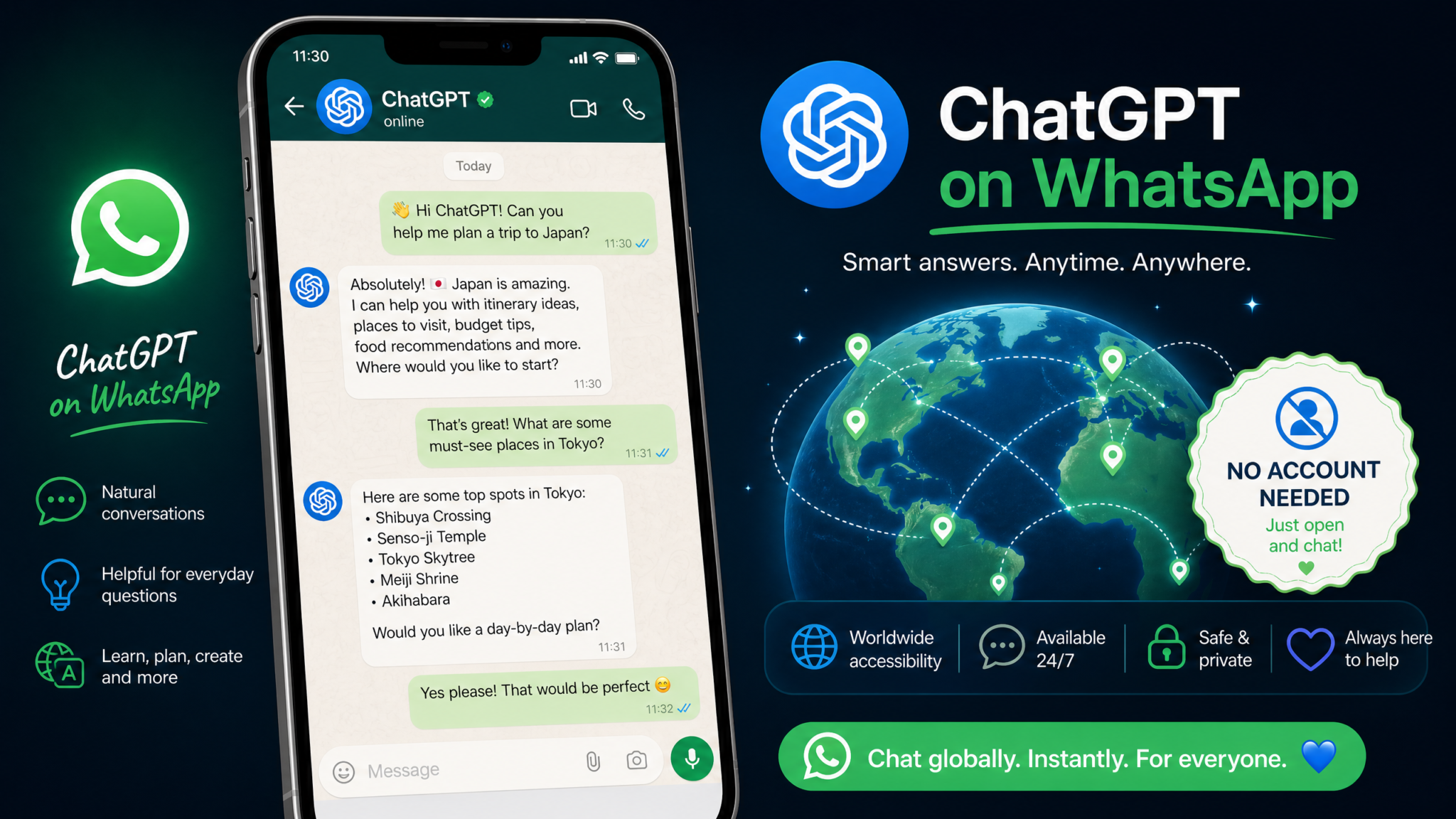
WhatsApp has become the most widely used messaging platform on the planet, with over 3 billion active users sending more than 100 billion messages every single day. In 2026, OpenAI’s decision to bring ChatGPT natively into that ecosystem — through a dedicated WhatsApp number, voice message support, and image analysis capabilities — represents one of the most consequential AI deployments in consumer history. Whether you want to ask a quick question, automate customer service replies, or add an AI assistant to a group conversation, ChatGPT on WhatsApp removes every barrier that previously required a browser, an app download, or even an OpenAI account. This guide walks you through every step of the process, from saving the contact number to understanding exactly what data OpenAI sees on the other end.
Background: How ChatGPT Arrived on WhatsApp — and Almost Left
OpenAI launched its WhatsApp integration in December 2024 as part of a broader holiday campaign designed to demonstrate that powerful AI assistance does not require a dedicated app. The pitch was simple: save a number, send a message, get an answer. No sign-up screen, no email verification, no subscription paywall for basic usage. For the roughly 1.5 billion smartphone users in emerging markets who had never downloaded the ChatGPT app but already used WhatsApp daily, this was a genuinely transformative moment.
By the first quarter of 2025, the WhatsApp channel had accumulated tens of millions of unique users, many of whom had never interacted with ChatGPT through any other surface. Usage was particularly strong across Brazil, India, Indonesia, Nigeria, and Mexico — countries where WhatsApp effectively functions as the default internet for many users.
The EU Suspension and July 2026 Restoration
The story took a complicated turn in late 2025 when the European Commission, acting under the Digital Markets Act (DMA), opened a formal investigation into Meta’s data practices related to third-party integrations on WhatsApp. The core concern was whether messages sent by EU citizens to OpenAI’s WhatsApp bot were being processed in ways consistent with GDPR and the DMA’s interoperability provisions. Meta, categorized as a designated gatekeeper under the DMA, faced scrutiny over whether it had given OpenAI preferential access to its messaging infrastructure in ways that disadvantaged competing AI services.
OpenAI voluntarily suspended the WhatsApp service for EU users in January 2026 while negotiations with regulators continued. The suspension lasted approximately six months, affecting users across all 27 EU member states and triggering significant media coverage about the tension between AI accessibility and digital regulation.
In July 2026, the European Commission issued a formal interoperability order under Article 7 of the DMA, requiring Meta to open WhatsApp’s infrastructure to qualifying AI providers under a standardized API framework — while simultaneously confirming that OpenAI’s existing integration, once updated to include specific consent flows for EU users and enhanced data minimization practices, could resume. ChatGPT on WhatsApp returned to EU users on July 14, 2026, with a one-time consent screen that asks users to acknowledge that their messages will be processed by OpenAI’s servers outside WhatsApp’s standard end-to-end encryption boundary. More on exactly what that means in the privacy section below.
For users outside the EU, the service had continued uninterrupted throughout this period, and the July 2026 update simply brought minor UI refinements to the consent language that were rolled out globally for consistency.
Step 1: Adding ChatGPT to WhatsApp — No Account Required
The Official Number
OpenAI operates ChatGPT on WhatsApp through a single verified business number. The number is +1 (800) 242-8478 — which spells 1-800-CHATGPT on a standard telephone keypad. This same number also handles voice calls, which we cover in the dedicated phone section later in this guide. The WhatsApp integration and the voice call service share the same number, making it easy to remember.
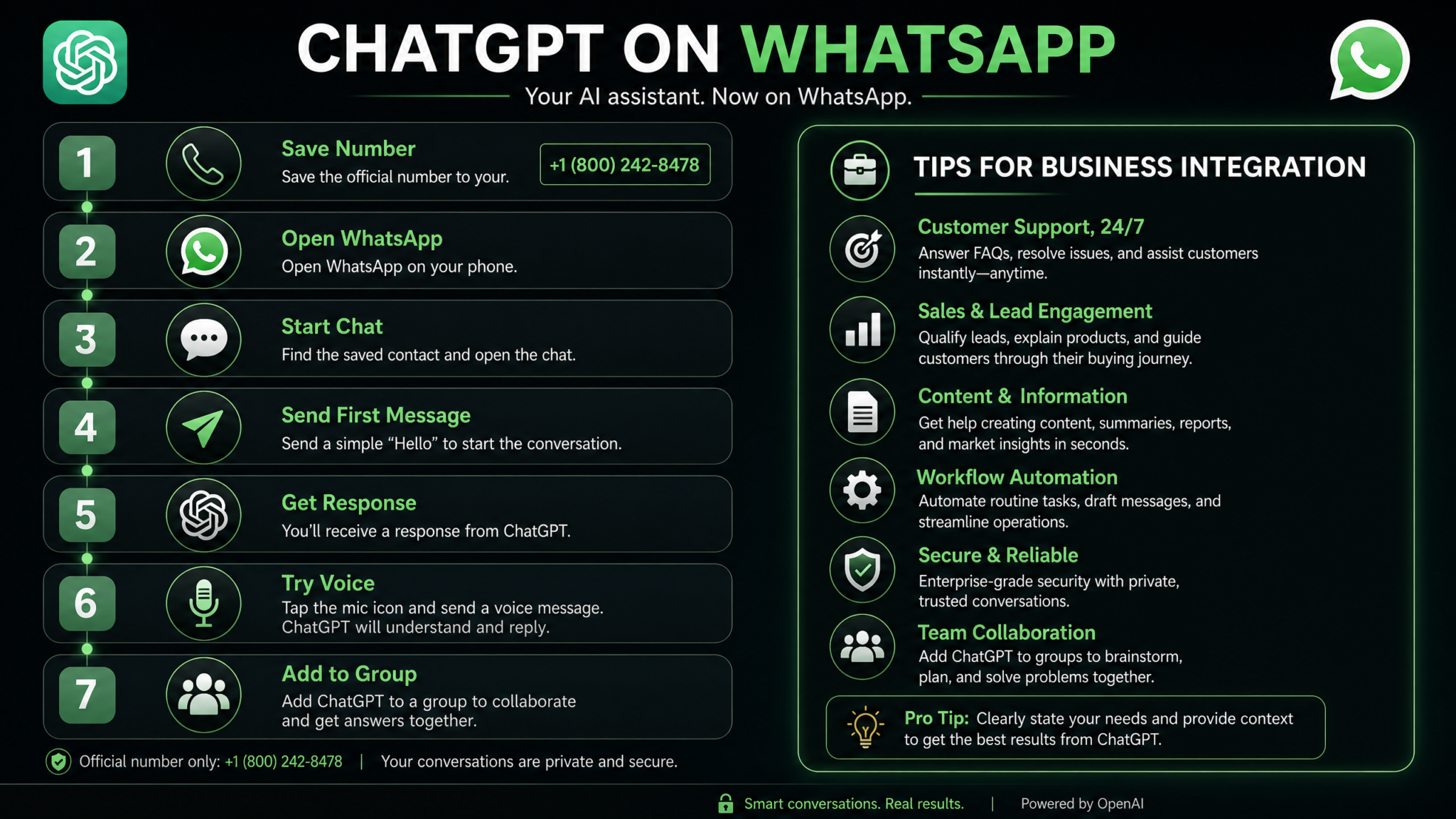
To add ChatGPT to your WhatsApp contacts:
- Open your phone’s Contacts app (not WhatsApp directly). Create a new contact and name it whatever makes sense to you — “ChatGPT”, “AI Assistant”, or simply “GPT” all work fine.
- Enter the number: +1 800 242 8478. Make sure you include the country code (+1) even if you are located in the United States. WhatsApp requires full international format.
- Save the contact and return to WhatsApp. Open the app, tap the compose/new chat icon, and you should see the contact appear in your list. If you do not see it immediately, use the search bar and type “ChatGPT” or the digits of the number.
- Tap on the contact to open a new chat. You will see a green verified checkmark next to the name, indicating this is an officially verified WhatsApp Business account belonging to OpenAI.
- Send your first message. There is no setup wizard, no account linking, and no password required. Type anything — “Hello” or a real question — and ChatGPT will respond, typically within two to five seconds.
What the Verified Badge Means
The green checkmark visible on the ChatGPT WhatsApp profile is a Meta-issued verification badge, distinct from the blue tick you may have seen on individual WhatsApp accounts. It confirms that Meta has independently verified that this phone number belongs to OpenAI, Inc. and that the account operates as an official business entity. This matters because scammers periodically create fake AI chatbots on WhatsApp using similar-sounding names. Always confirm the green checkmark before sending sensitive requests.
Alternative: Use the Direct Link
If you are reading this article on a mobile browser, you can initiate the chat without manually saving the contact. Navigate to wa.me/18002428478 in your mobile browser, and WhatsApp will prompt you to open the conversation directly. You can optionally save the contact afterward from within the chat screen.
EU Users: The Additional Consent Screen
If your WhatsApp account is registered with an EU phone number (country codes +43 through +49, +33, +34, +39, +48, and so on), your first message to ChatGPT will trigger a consent screen before the conversation begins. This screen, displayed within WhatsApp’s native UI, explains that your messages will leave WhatsApp’s end-to-end encrypted environment and be processed by OpenAI. You must tap “I Agree” to continue. This consent is stored and you will not see the screen again unless you clear your WhatsApp data or reinstall the app.
Step 2: Understanding What ChatGPT Can Actually Do on WhatsApp
Before you start relying on the WhatsApp integration for serious tasks, it is important to have a clear picture of its capability envelope. The WhatsApp version of ChatGPT is powered by the same underlying model family as the main ChatGPT application, but the interface imposes certain constraints based on what WhatsApp supports as a messaging platform.
Text Conversations
Text is the core modality and it works exactly as you would expect. You can carry on multi-turn conversations, ask follow-up questions, request clarifications, and get responses formatted with line breaks and basic structure. One important nuance: WhatsApp does not support markdown rendering in the same way a web browser does. ChatGPT is aware of this and adapts its output formatting — you will not typically see raw asterisks or hash symbols bleeding through into replies. Headers appear as bold text, bullet points as dashes or plain text lists.
Voice Messages
This is one of the most useful features for users in markets where voice messaging is the preferred mode of communication. You can record a WhatsApp voice note and send it to ChatGPT. The system uses OpenAI’s Whisper speech recognition to transcribe your audio, then processes the transcribed text through the language model and sends back a text response. As of mid-2026, responses are text-only — ChatGPT does not send back audio replies on WhatsApp, though this capability is under development.
Voice messages work best in quiet environments. Whisper handles accented English extremely well, and as of the current model version, supports transcription in over 90 languages including Arabic, Hindi, Swahili, Tagalog, and Vietnamese.
Image Analysis
You can send photos directly to ChatGPT on WhatsApp and receive analysis. Common use cases include identifying plants and animals, reading text in images, analyzing charts or graphs, getting feedback on photos, identifying car parts, reading nutrition labels, and troubleshooting error messages captured via screenshot.
To use image analysis, simply send a photo as you would to any WhatsApp contact. You can add a caption to provide context — for example, a photo of a dish with the caption “What are the main ingredients in this?” The model processes the image and caption together and provides a relevant response, typically within four to eight seconds depending on image size.
What Is Not Supported
- File uploads: PDFs, Word documents, spreadsheets, and other file types cannot be processed. WhatsApp’s infrastructure for document delivery does not plug into OpenAI’s file analysis pipeline.
- Image generation: DALL-E and other image generation features are not available on WhatsApp. You cannot request ChatGPT to create an image for you in this channel.
- Code interpreter / data analysis: The Advanced Data Analysis (formerly Code Interpreter) feature that allows the ChatGPT web app to run Python code and produce charts is not available.
- Video analysis: You can send video files via WhatsApp, but ChatGPT will not analyze video content. It may acknowledge receipt but cannot extract meaningful information from video.
- Custom GPTs: The GPT Store and any custom GPTs you may have created or subscribed to are not accessible through WhatsApp.
Step 3: Personal Use Cases That Genuinely Save Time
The WhatsApp integration shines brightest in exactly the scenarios where you previously would have had to stop what you were doing, open a browser, and navigate to a website. Here are the personal use cases where it delivers the most practical value.
Quick Questions and Factual Lookups
Ask anything you would ask a search engine, but get a direct conversational answer instead of a list of links to parse. “What time is it in Jakarta right now?” “How many grams of protein are in 100g of chickpeas?” “What is the capital of Burkina Faso?” “Who wrote One Hundred Years of Solitude?” These queries take seconds and the responses are direct, accurate, and conversational.
For time-sensitive or rapidly changing information (stock prices, live sports scores, breaking news), ChatGPT on WhatsApp has access to web browsing in the same way the main ChatGPT app does as of the 2026 model update. This is a significant improvement over the 2024 launch, when the WhatsApp bot operated on a knowledge cutoff without live web access.
Real-Time Translation
WhatsApp is used extensively for international communication, and ChatGPT makes translation frictionless. You can paste text in any language and ask for a translation, or you can forward a message someone sent you and ask what it says. The model handles not just literal translation but also explains idioms, slang, and cultural context when you ask.
A particularly powerful workflow: receive a message in Portuguese, forward it to the ChatGPT contact, type “translate this and explain any idioms,” get your response, compose your reply in English, ask ChatGPT to translate it to formal Portuguese, then copy and paste the result back to the original conversation. The entire round-trip takes under two minutes.
Writing Assistance
Draft messages, emails, cover letters, complaints, apology notes, social media captions, and more. Send ChatGPT your rough draft with a note like “Make this sound more professional” or “Shorten this to under 280 characters for Twitter” and get a polished version back. This is particularly useful in professional contexts where you need to send an important message in a second language.
Math, Calculations, and Unit Conversions
Ask complex arithmetic questions, solve equations, convert currencies (with live rates if web browsing is enabled), convert units of measurement, calculate tips and splits for restaurant bills, or work out mortgage payment estimates. For students, this is essentially a mobile tutoring session — you can photograph a math problem and ask for a step-by-step solution with explanations.
Recommendations and Decision Support
Trying to decide between two products? Describe them and ask for a comparison. Planning a trip and want restaurant recommendations in a specific city? Ask. Need a gift idea for a specific type of person with a specific budget? Describe the situation. Looking for a book similar to one you just finished? Ask for ten recommendations with one-sentence descriptions of each. These conversational queries are exactly where language models excel, and they work just as well over WhatsApp as they do in a dedicated app.
Language Learning
Tell ChatGPT you are learning Spanish at an intermediate level and ask it to respond to all your messages in Spanish but correct any mistakes you make. This turns your WhatsApp chat into an on-demand language practice partner that is available at 3am when no human tutor would be. Voice messages make this particularly valuable — record yourself speaking in the target language and ask for feedback on grammar and pronunciation guidance.
Step 4: Business Integration — WhatsApp Business, Automation, and FAQ Handling
For businesses already using WhatsApp Business or the WhatsApp Business API, the ChatGPT ecosystem opens up significant automation opportunities. It is important to distinguish between two different scenarios here: using the public ChatGPT WhatsApp number for your own staff’s productivity, versus integrating AI responses into your own WhatsApp Business account for customer-facing automation.
Scenario A: Staff Productivity Using the Public ChatGPT Number
The simplest form of business integration requires nothing more than ensuring your team knows the ChatGPT WhatsApp number and understands how to use it effectively. Customer service representatives can use it to draft response templates on the fly, generate translations for international customers, summarize long chat threads, and look up product specifications. Sales teams can use it to prepare for client calls, research companies, or draft personalized outreach messages.
For small businesses, this zero-setup integration can deliver meaningful productivity gains without any technical implementation. A practical starting point: hold a 20-minute team session demonstrating the five most useful prompts for your specific industry, save them in a shared note, and encourage staff to experiment.
Scenario B: Adding AI to Your Own WhatsApp Business Account
If you run a WhatsApp Business account and want ChatGPT to help automatically respond to incoming customer messages, you need to work through the WhatsApp Business API (now officially called the WhatsApp Business Platform, operated through Meta’s Cloud API). This requires either a Meta Business Account with API access or working with a Meta Business Solution Provider (BSP).
The integration architecture looks like this:
- Customer sends a message to your WhatsApp Business number.
- Meta’s Cloud API receives the incoming message and sends it as a webhook payload to your server.
- Your server forwards the message content to OpenAI’s Chat Completions API along with a system prompt defining your business context, tone, and rules.
- OpenAI returns a response, which your server sends back through the WhatsApp Business API to the customer.
You do not need to write this infrastructure from scratch. Several platforms have productized this integration. Tools like Twilio’s WhatsApp integration, 360dialog, WATI, and Landbot all offer no-code or low-code interfaces that connect your WhatsApp Business account to OpenAI’s API without requiring custom server development. For a small e-commerce business, a basic setup on one of these platforms can be operational within a single afternoon.
Crafting Effective System Prompts for Customer Service
The quality of your AI customer service experience depends almost entirely on the system prompt you provide to the OpenAI API. A well-crafted system prompt should include:
- Business identity: Your company name, what you sell, and your core value proposition.
- Tone guidelines: “Always respond in a friendly but professional tone. Use the customer’s first name if available. Keep responses under 150 words unless the customer explicitly asks for more detail.”
- FAQ content: Paste your most commonly asked questions and their answers directly into the system prompt. Include shipping times, return policies, pricing, and store hours.
- Escalation rules: “If a customer expresses frustration, apologizes for the inconvenience and offer to transfer them to a human agent. Never make commitments about specific order delivery dates without checking inventory.”
- Boundaries: “Do not discuss competitor products. Do not offer discounts unless the customer provides a valid promo code. Do not comment on political or social topics.”
FAQ Handling at Scale
For businesses that receive high volumes of repetitive questions, WhatsApp AI integration can dramatically reduce the load on human agents. A mid-sized online retailer processing 500 customer messages per day might find that 60-70% of those messages are variations of ten or fifteen core questions. With a well-configured system prompt, an AI integration can handle those questions accurately and consistently, freeing human agents to focus on complex complaints, refunds, and high-value inquiries.
The key metric to track is containment rate — the percentage of conversations that are fully resolved by the AI without requiring human intervention. World-class implementations achieve containment rates of 65-80% for e-commerce and utility sectors. Benchmarking your containment rate weekly and iteratively improving your system prompt based on failure cases is the most reliable path to a high-performing implementation.
How to Build a WhatsApp Chatbot Using the OpenAI API and Meta Cloud API
Step 5: Adding ChatGPT to Group Chats
One of the most entertaining and productive features of the WhatsApp integration is the ability to add ChatGPT as a participant in group conversations. This opens up collaborative use cases that are genuinely different from anything available in a traditional AI app interface.
How to Add ChatGPT to a Group
- Open the group chat you want to add ChatGPT to.
- Tap the group name at the top to open Group Info.
- Tap “Add Participants.”
- Search for the ChatGPT contact you saved earlier (+1 800 242 8478).
- Select it and tap the green checkmark to confirm.
ChatGPT will appear in the group’s participant list. All group admins must have agreed to add the contact; if you are not an admin, you will need admin privileges or another admin will need to perform this step.
The @Mention Trigger System
Once ChatGPT is in a group, it does not respond to every message — that would make it an extremely disruptive presence in active group conversations. Instead, it uses a trigger system: ChatGPT only responds when a group member explicitly @mentions it in a message, exactly the same way you would tag another participant.
To invoke ChatGPT in a group, type @ followed by the contact name you saved. For example: “@ChatGPT what’s the weather going to be like in Lisbon this weekend?” or “@ChatGPT can you summarize the key points from what we’ve been discussing above?”
ChatGPT reads the recent context of the group conversation to understand what has been discussed, though its context window is limited. For very long group conversations, it may only have access to the most recent exchanges, so providing specific context in your @mention is always a good practice.
Practical Group Use Cases
Friend and family groups: Settle trivia disputes instantly. Ask for dinner recommendations when the group can’t decide. Get quick translations for content shared in international groups. Have ChatGPT explain a meme or cultural reference that some members might not understand.
Work teams: Use ChatGPT to quickly draft meeting agendas, summarize decisions made during the conversation, generate action item lists, or look up technical information during discussions. This is particularly useful for remote teams distributed across time zones who use WhatsApp for informal collaboration.
Study groups: Ask ChatGPT to explain concepts being discussed, generate practice questions on a topic the group is studying, or verify whether a piece of information someone shared is accurate.
Group Chat Moderation
ChatGPT can play a passive moderation-adjacent role in group chats, but it is important to set expectations correctly. It does not proactively flag or remove content — WhatsApp does not grant third-party contacts any administrative privileges within groups. What ChatGPT can do is respond to direct requests from group members: someone could @mention it and ask it to fact-check a claim, translate a message for context, or explain why a specific piece of advice being discussed might be problematic.
Some group administrators establish informal norms around this — for example, in groups focused on health information, members agree that any significant medical claim gets fact-checked by @mentioning ChatGPT. This is entirely user-driven and not an automated moderation system.
Step 6: Privacy and Data Handling — What You Need to Know
This is the section that matters most for anyone using ChatGPT on WhatsApp for personal, confidential, or business-sensitive conversations. The privacy picture is nuanced and requires understanding both Meta’s role and OpenAI’s role in the data pipeline.
End-to-End Encryption: What It Covers and What It Doesn’t
WhatsApp uses end-to-end encryption (E2EE) for all messages, meaning that in a conversation between two human users, Meta itself cannot read the content of your messages. The encryption keys exist only on the devices involved in the conversation.
However, when you send a message to ChatGPT on WhatsApp, the dynamic changes fundamentally. For ChatGPT to read and respond to your message, the content of that message must be decrypted — and it is, at OpenAI’s receiving infrastructure. Your message travels encrypted from your device to Meta’s servers, is decrypted at the handoff point to OpenAI’s API (or to Meta’s infrastructure that communicates with OpenAI), and is then processed by OpenAI’s systems.
WhatsApp’s official documentation describes this by saying that messages to certain business accounts, including those using automated responses, “may be read by the business.” In this case, the “business” reading your messages is OpenAI. The E2EE guarantee that protects messages between human users does not apply to messages sent to AI-powered business accounts on WhatsApp.
What Data OpenAI Receives and Retains
According to OpenAI’s data processing addendum for the WhatsApp integration, the following data is transmitted to OpenAI’s servers when you use ChatGPT on WhatsApp:
- The text content of your messages
- Voice message transcriptions (audio is transcribed by Whisper, and the text is processed; the original audio file is deleted after transcription)
- Image data when you send photos for analysis
- A session identifier that allows ChatGPT to maintain conversational context within a single session
What OpenAI does not receive: your phone number (this is hashed before transmission), your WhatsApp contact list, your message history with other contacts, or any metadata about your WhatsApp usage patterns outside the ChatGPT conversation.
By default, OpenAI retains conversation data from the WhatsApp integration for 30 days for safety and quality monitoring purposes. Unlike the main ChatGPT app, there is currently no user-facing interface to delete this data early, request conversation history, or opt out of data retention — though OpenAI’s privacy team can process such requests submitted via their official privacy email. EU users have additional rights under GDPR, including the right to erasure, which can be exercised through the same channel.
Is ChatGPT Using Your WhatsApp Conversations to Train Its Models?
OpenAI’s current policy, as stated in the WhatsApp integration terms, is that conversations through the WhatsApp channel are not used for model training by default. This is consistent with the API usage terms that apply to developers using OpenAI’s API directly. Unlike conversations on the free ChatGPT web interface (where users can opt out but where training use is the default), the WhatsApp integration operates under API-equivalent terms where the default is no training use.
Access 40,000+ AI Prompts for ChatGPT, Claude & Codex — Free!
Subscribe to get instant access to our complete Notion Prompt Library — the largest curated collection of prompts for ChatGPT, Claude, OpenAI Codex, and other leading AI models. Optimized for real-world workflows across coding, research, content creation, and business.
What to Avoid Sending
Given the data handling realities above, exercise caution with the following types of information in WhatsApp ChatGPT conversations:
- Full credit card or bank account numbers
- Social security numbers, passport numbers, or other government ID details
- Passwords or security credentials
- Medical information you would not want associated with any external service
- Commercially sensitive business information covered by NDA
- Legal strategy discussions
ChatGPT Privacy Settings Complete Guide — What Data OpenAI Stores and How to Delete It
Step 7: Limitations Compared to the Full ChatGPT App
Understanding what the WhatsApp integration cannot do is as important as understanding what it can. The WhatsApp channel is best understood as a highly convenient entry point for common tasks — not a replacement for the full ChatGPT experience for power users.
No Persistent Memory
The full ChatGPT app introduced persistent memory in 2024, allowing the model to remember facts about you across separate conversations — your job, preferences, family situation, ongoing projects, and so on. On WhatsApp, each conversation session is effectively stateless. ChatGPT has context within a single continuous chat thread, but it has no memory of previous conversations. If you told it last week that you are vegetarian and now ask for recipe recommendations, it will not remember the dietary preference unless you mention it again.
No Custom Instructions
The main ChatGPT interface allows users to set “Custom Instructions” — persistent directives that shape every response. For example: “Always respond concisely. I am an experienced software engineer, so you do not need to explain basic programming concepts. I prefer Python over other languages.” These customizations do not transfer to WhatsApp. Every interaction starts from a blank system-level context.
No File Uploads
As noted in the capabilities section, you cannot upload PDFs, spreadsheets, Word documents, or other files for analysis. This is one of the most significant limitations for professional use cases. If you need to analyze a contract, extract data from a spreadsheet, or summarize a research paper, you will need to use the main ChatGPT app at chat.openai.com or the mobile app.
No Image Generation
DALL-E 3 and other image generation capabilities are not available on WhatsApp. Requests for image creation will be acknowledged and declined with an explanation, directing users to the main app.
No Advanced Data Analysis
The Code Interpreter / Advanced Data Analysis feature that allows ChatGPT to write and execute Python code — producing charts, cleaning data, running statistical analyses — is not available in the WhatsApp channel.
No Access to the GPT Store
Custom GPTs built by third-party developers and available through OpenAI’s GPT Store are not accessible via WhatsApp. You always interact with the base ChatGPT model, not any specialized vertical version.
Rate Limits
Free usage of ChatGPT on WhatsApp is limited, though OpenAI has not published exact numbers. Heavy users will encounter rate limit messages, especially during peak hours. These limits are significantly lower than those for paid ChatGPT Plus subscribers using the main app. Waiting a few minutes and retrying typically resolves temporary rate limit errors. There is no paid tier available specifically for the WhatsApp channel — if you need higher throughput, you need to use the main app or API directly.
1-800-CHATGPT: AI Access Without a Smartphone
Running in parallel with the WhatsApp integration, OpenAI maintains a voice telephone service accessible by calling 1-800-242-8478 (1-800-CHATGPT). This service is available to anyone with access to a telephone — landline or mobile — and requires no internet connection, no smartphone, and no account.
The phone service uses OpenAI’s real-time voice API, the same technology that powers the Advanced Voice Mode in the main ChatGPT app. You can have a natural back-and-forth conversation with the AI, and the experience quality is surprisingly high — latency is typically under one second, and the voice sounds natural and human-like.
Practical Applications for the Phone Service
Accessibility for elderly users: For individuals who are not comfortable with smartphones or apps, a familiar phone call to a single memorable number provides access to AI assistance that would otherwise be inaccessible.
Low-connectivity environments: Calling from a basic mobile phone in a rural area with poor data connectivity but acceptable voice signal is entirely practical. This has real implications for agricultural communities, emergency situations, and developing market contexts.
Hands-free use cases: While driving (through a car’s hands-free calling system), cooking, exercising, or performing physical tasks where looking at a screen is impractical.
Limitations of the Phone Service
The phone call interface is voice-only — you cannot send images, share documents, or receive formatted text responses. Complex multi-step answers may be harder to follow aurally than they would be in written form. Call quality depends heavily on your phone signal and the ambient noise level in your environment. There is also no persistent call history — once you hang up, the conversation is gone. International callers should be aware that standard international calling rates to US numbers apply unless you use a VoIP service with a US number prefix.
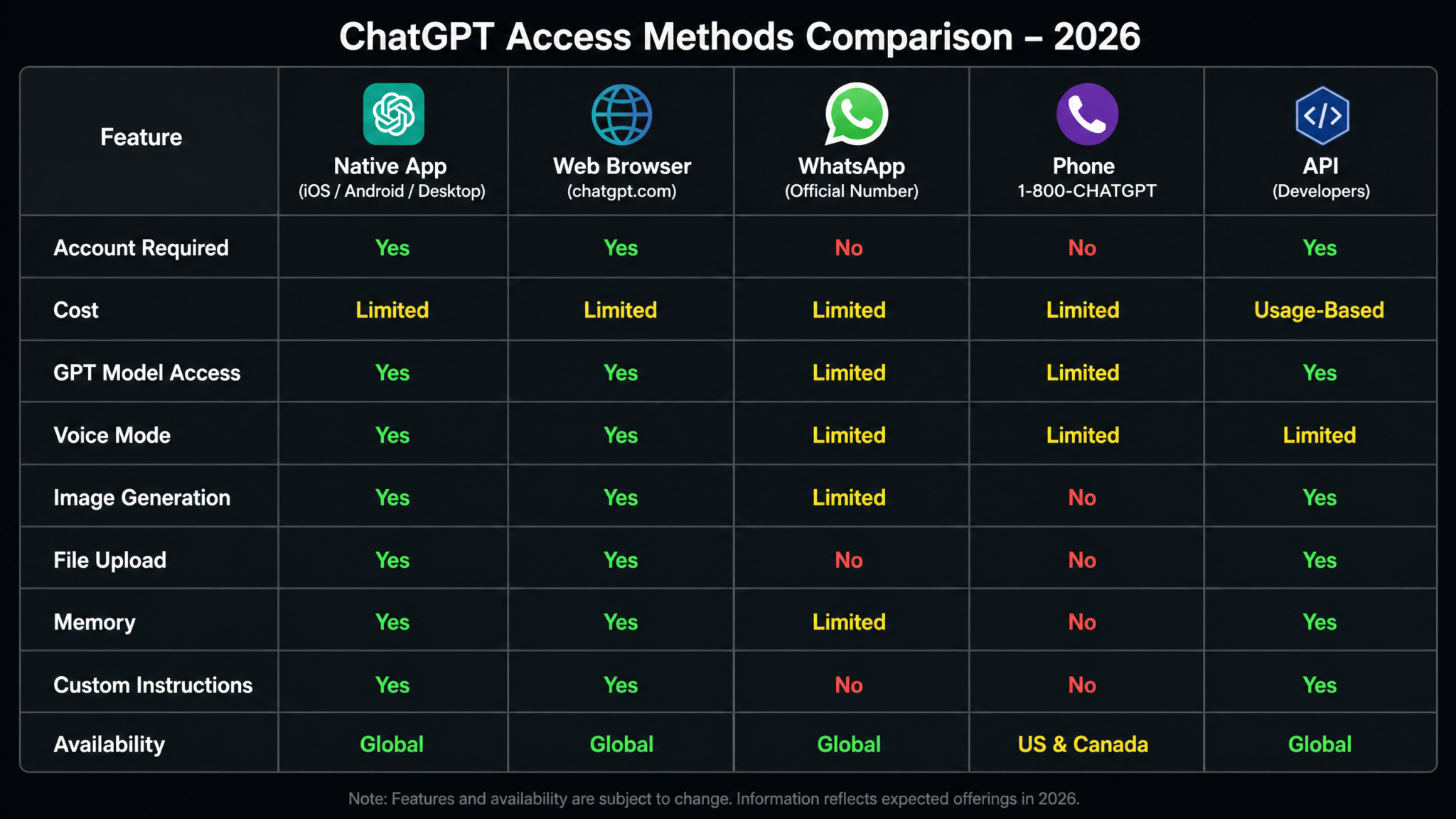
Comparison Table: Every Way to Access ChatGPT in 2026
| Feature | ChatGPT App (Mobile) | ChatGPT Web (Browser) | WhatsApp Integration | Phone (1-800-CHATGPT) | OpenAI API |
|---|---|---|---|---|---|
| Account Required | Yes | Yes (free tier available) | No | No | Yes (paid) |
| Cost | Free / $20/mo Plus | Free / $20/mo Plus | Free (rate limited) | Free (carrier rates apply) | Pay-per-token |
| Text Conversation | ✅ Full | ✅ Full | ✅ Full | ✅ Voice only | ✅ Full |
| Voice Interaction | ✅ Advanced Voice Mode | ✅ Advanced Voice Mode | ✅ Voice notes (text response) | ✅ Full two-way voice | ✅ Realtime API |
| Image Analysis | ✅ | ✅ | ✅ | ❌ | ✅ |
| Image Generation | ✅ (Plus) | ✅ (Plus) | ❌ | ❌ | ✅ (DALL-E API) |
| File Uploads (PDF etc.) | ✅ | ✅ | ❌ | ❌ | ✅ (Assistants API) |
| Web Browsing | ✅ | ✅ | ✅ | ✅ | ✅ (with tool use) |
| Persistent Memory | ✅ | ✅ | ❌ | ❌ | ✅ (custom) |
| Custom Instructions | ✅ | ✅ | ❌ | ❌ | ✅ (system prompt) |
| Custom GPTs / GPT Store | ✅ | ✅ | ❌ | ❌ | ✅ (Assistants) |
| Advanced Data Analysis | ✅ (Plus) | ✅ (Plus) | ❌ | ❌ | ✅ (code execution) |
| Group Chat Support | ❌ | ❌ | ✅ | ❌ | ✅ (custom build) |
| End-to-End Encryption | ❌ | ❌ (TLS only) | ⚠️ Partial (see privacy section) | ❌ | ❌ (TLS only) |
| Best For | Power users, daily AI work | Long-form, complex tasks | Quick access, emerging markets, groups | Voice-first, no smartphone | Developers, businesses |
Troubleshooting: Fixing the 12 Most Common Problems
Even with a well-established integration, users regularly encounter the same predictable issues. Here are the solutions to the problems that appear most frequently.
1. ChatGPT Is Not Responding to My Messages
First, verify you have the correct number saved: +1 800 242 8478. Then check that the contact shows the green verified badge in the WhatsApp chat. If the badge is missing, the number may not be recognized as verified in your region — try deleting and re-adding the contact. Also check your phone’s internet connection. If you are on a metered data plan, ensure WhatsApp has not been restricted in your mobile data settings.
2. I See a “Too Many Requests” Error
You have hit the rate limit for free usage. Wait 15-30 minutes before sending another message. If you consistently hit rate limits, this is a signal that you are a power user who would benefit from a paid ChatGPT subscription through the main app or API, as the WhatsApp channel does not offer a paid tier with higher limits.
3. Voice Messages Are Not Being Transcribed Correctly
Transcription accuracy is affected by: background noise, distance from the microphone, speaking pace, and heavy dialect. Try recording in a quieter environment and speaking closer to your phone’s microphone. If you are using a language other than English and getting poor results, try enabling your phone’s language detection by explicitly saying the language name at the start of your voice message.
4. Image Analysis Is Not Working
Ensure you are sending images directly as photos (not as documents, which WhatsApp treats differently). Very large image files may time out — WhatsApp compresses images by default when sent through standard photo sharing, which actually helps with processing speed. If you are sending images as files (uncompressed), try sending them as regular photos instead.
5. ChatGPT Was Added to My Group but Does Not Respond to @Mentions
Check that the contact name you saved matches exactly what you are typing after the @ symbol. WhatsApp’s @mention system is case-sensitive in some implementations. Also verify that the ChatGPT contact is still shown as a group member — if they were inadvertently removed by another admin, they will not receive messages.
6. EU Users: The Consent Screen Keeps Reappearing
The consent screen resets when you clear WhatsApp’s data, reinstall the app, or use WhatsApp on a new device. This is by design under the DMA requirements. If you are switching devices, you will need to re-consent on the new device. There is no way to pre-accept consent in a way that persists across device changes.
7. Responses Are Cut Off Mid-Sentence
WhatsApp imposes a character limit on messages sent through the Business API (approximately 4,096 characters per message). If ChatGPT’s response exceeds this length, it will be truncated. To avoid this, ask for shorter responses explicitly: “Answer in under 200 words” or “Give me a brief summary.” For genuinely complex topics requiring long responses, the main ChatGPT app is a better tool.
8. I Cannot Find the ChatGPT Contact After Saving It
WhatsApp occasionally has a delay in recognizing newly saved contacts, especially on Android. Close and reopen WhatsApp after saving the contact. On iOS, ensure WhatsApp has permission to access your contacts in Settings > Privacy > Contacts. If you added the contact through WhatsApp’s built-in search rather than your phone’s contact app, try re-saving it through the native Contacts app.
9. ChatGPT Is Giving Outdated Information
While web browsing is enabled for the WhatsApp integration, it is not used for every query — only when the model determines that current information is relevant. For topics where you specifically need the latest data (today’s news, current prices, recent events), include words like “current,” “today,” “as of now,” or “latest” in your query to signal that real-time web lookup is needed.
10. Messages Are Delivered but Show Only One Checkmark, Never Two
A single grey checkmark in WhatsApp indicates the message was sent from your device but not yet received on the other end. If it stays at one checkmark for more than a few minutes, there may be a temporary issue with OpenAI’s WhatsApp endpoint. Check OpenAI’s status page at status.openai.com for any reported outages. This is rare but does occur during maintenance windows.
11. I Want to Reset the Conversation Context
Unlike the main ChatGPT app, there is no “New Chat” button on WhatsApp. To reset the context — for example, to start a completely different topic without the model being influenced by earlier messages — simply tell ChatGPT: “Please ignore our previous conversation in this thread. Starting fresh: [your new question].” This is not a perfect reset but works well in practice.
12. The Service Is Blocked on My Corporate Network or Device
Some enterprise mobile device management (MDM) configurations block WhatsApp entirely, and some corporate networks block the IP ranges used by OpenAI’s servers. If WhatsApp otherwise works but ChatGPT specifically does not respond, the issue may be network-level filtering. In this case, using ChatGPT through your organization’s approved enterprise tools or through the web interface on an unmanaged network is the better path. For corporate AI deployments, direct OpenAI API integration through your IT team’s approved architecture is the appropriate solution.
OpenAI API Enterprise Integration Guide — Setup, Security, and Rate Limit Management
Final Verdict: Is WhatsApp the Best Way to Use ChatGPT?
The honest answer depends entirely on who you are and what you need from AI assistance.
For the hundreds of millions of users in markets where WhatsApp is the primary digital communication tool, and where the friction of downloading a new app, creating an account, and learning a new interface is a genuine barrier to AI access, the WhatsApp integration is not just convenient — it is potentially transformative. The ability to access sophisticated AI assistance through a tool you already use dozens of times per day, with no account creation, no additional app, and no learning curve, genuinely democratizes AI access in a way that no previous deployment has matched at this scale.
For business users who need ChatGPT for quick tasks during the workday — drafting messages, translating content, getting quick research, settling factual questions — the WhatsApp integration is a perfectly capable tool that requires no IT involvement or procurement process to adopt.
For power users who rely on ChatGPT for deep work — analyzing documents, generating images, using custom GPTs, leveraging persistent memory and custom instructions — the WhatsApp channel is better understood as a supplement rather than a primary interface. It handles the quick and casual; the main app handles the serious and complex.
What the WhatsApp integration definitively demonstrates is that the most important factor in AI adoption is not capability — it is accessibility. OpenAI’s most sophisticated model, delivered through the interface that 3 billion people already use daily, reaches an audience that no dedicated app ever could. As the EU’s July 2026 interoperability order takes effect more broadly across the messaging landscape, we can expect similar integrations to arrive across other major platforms, each extending the reach of AI assistance further into the daily workflows of ordinary users worldwide.
The bottom line: save the number, send a message, and form your own opinion. At zero cost and two minutes of setup, the downside risk is nonexistent. And for many people who try it, the WhatsApp ChatGPT integration will become the AI interaction they reach for most often — not because it is the most powerful option available, but because it is the one that is already there.
ChatGPT vs Google Gemini vs Claude — Complete 2026 Feature and Performance Comparison
