
⚡ The Brief
- What it is: Claude Design is an AI-driven platform powered by Opus 4.7, designed for rapid prototyping and mockup creation.
- Who it’s for: Ideal for startup founders, product managers, and designers seeking efficient design tools without extensive graphic design skills.
- Key takeaways: Offers intuitive design capabilities, collaboration tools, and versatile export options, including Canva and HTML integration.
- Pricing/Cost: Pricing details are not specified, but it aims to democratize design, making professional-grade tools accessible.
- Bottom line: Claude Design revolutionizes early-stage product visualization, enabling fast, efficient, and high-quality design iterations.
✓ Instant access✓ No spam✓ Unsubscribe anytime
In the fast-paced world of product development, the ability to rapidly conceptualize, prototype, and iterate on designs is paramount. Founders, product managers, and design teams are constantly seeking tools that can accelerate this process without compromising on quality or clarity. Enter Claude Design, a groundbreaking new offering from Anthropic, powered by the formidable Opus 4.7 large language model. Launched on April 17, 2026, Claude Design is poised to revolutionize how we approach early-stage product visualization, offering an intuitive, AI-driven platform for creating everything from basic wireframes to sophisticated mockups and compelling pitch decks.
This comprehensive guide will delve deep into the capabilities of Claude Design, providing a step-by-step tutorial on how to leverage its advanced features for rapid prototyping and mockup generation. We’ll explore its innovative web capture tool, its robust collaboration functionalities, and its versatile export options, including direct integration with Canva, PDF, and even HTML. Whether you’re a startup founder looking to visualize your next big idea, a product manager aiming to articulate complex features, or a designer seeking to streamline your workflow, Claude Design offers a powerful suite of tools to bring your visions to life with unprecedented speed and efficiency.
The core philosophy behind Claude Design is to democratize design, enabling individuals without extensive graphic design backgrounds to produce professional-grade visual assets. By harnessing the contextual understanding and creative generation capabilities of Opus 4.7, Claude Design can interpret natural language prompts, analyze existing designs, and generate new visual elements with remarkable accuracy and aesthetic coherence. This capability significantly reduces the time spent on manual design tasks, allowing teams to focus more on strategic thinking and user experience.
Understanding Claude Design’s Core Capabilities and AI Engine
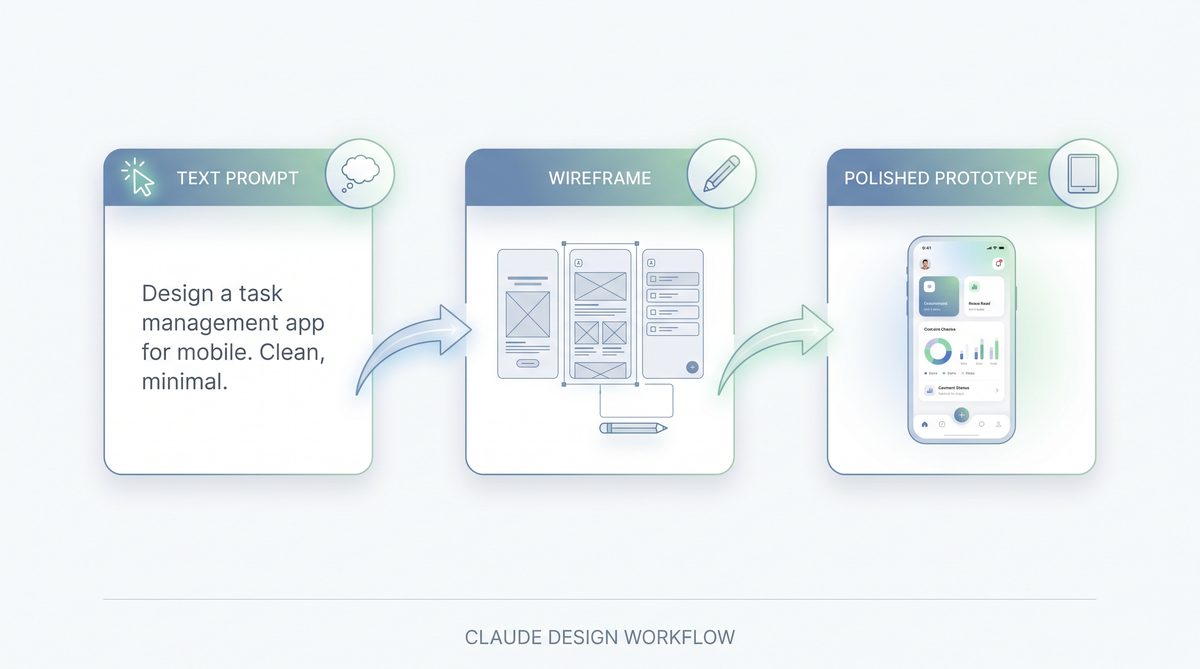
At the heart of Claude Design lies Anthropic’s state-of-the-art large language model, Opus 4.7. This advanced AI is not merely a text generator; it possesses a sophisticated understanding of visual design principles, user interface (UI) patterns, and user experience (UX) best practices. This deep comprehension allows Claude Design to go beyond simple template-filling, enabling it to create intelligent, contextually relevant designs from natural language descriptions.
The Power of Opus 4.7 in Design Generation
Opus 4.7’s role in Claude Design is multifaceted:
- Natural Language Processing (NLP) for Design: Users can describe their desired design elements, layouts, or even entire application flows using plain English. Opus 4.7 interprets these descriptions, understanding the intent, context, and desired aesthetic. For instance, a prompt like “Create a mobile app login screen with a dark theme, social login options, and a ‘Forgot Password’ link” will be translated into a visually coherent design.
- Contextual Understanding: The AI understands common UI/UX patterns. If you ask for a “dashboard for a SaaS analytics tool,” it will automatically include elements like charts, key performance indicators (KPIs), navigation menus, and filtering options, knowing what constitutes a functional and aesthetically pleasing dashboard.
- Design System Integration: Opus 4.7 has been trained on vast datasets of design systems, component libraries, and best practices from leading companies. This allows it to generate designs that adhere to modern design standards, ensuring consistency and usability.
- Iterative Refinement: Users can provide feedback directly on the generated designs. Opus 4.7 can then understand these instructions (“Make the buttons larger,” “Change the color scheme to pastels,” “Add a search bar to the header”) and apply the changes intelligently, iterating on the design in real-time. This iterative loop dramatically shortens the design cycle.
- Visual Coherence and Aesthetics: Beyond functionality, Opus 4.7 is capable of generating designs with a strong sense of visual balance, hierarchy, and aesthetic appeal. It can suggest color palettes, typography pairings, and spacing that contribute to a polished look and feel.
Key Features for Rapid Prototyping
Claude Design is packed with features specifically engineered to accelerate the prototyping process:
- AI-Powered Canvas: The central workspace where all design activities take place. It’s an intelligent canvas that responds to natural language prompts and drag-and-drop interactions.
- Component Library: A rich, AI-curated library of UI components (buttons, input fields, navigation bars, cards, etc.) that can be easily customized and assembled. Opus 4.7 can suggest relevant components based on the design context.
- Smart Layouts and Grids: Claude Design offers intelligent layout tools that automatically align and distribute elements, ensuring professional-looking designs without manual pixel pushing.
- Interactive Prototypes: Users can link screens and add basic interactions (e.g., click on a button to navigate to another screen) to create clickable prototypes. This is invaluable for user testing and stakeholder presentations.
- Design Versioning: Keep track of different design iterations, allowing teams to revert to previous versions or compare changes over time.
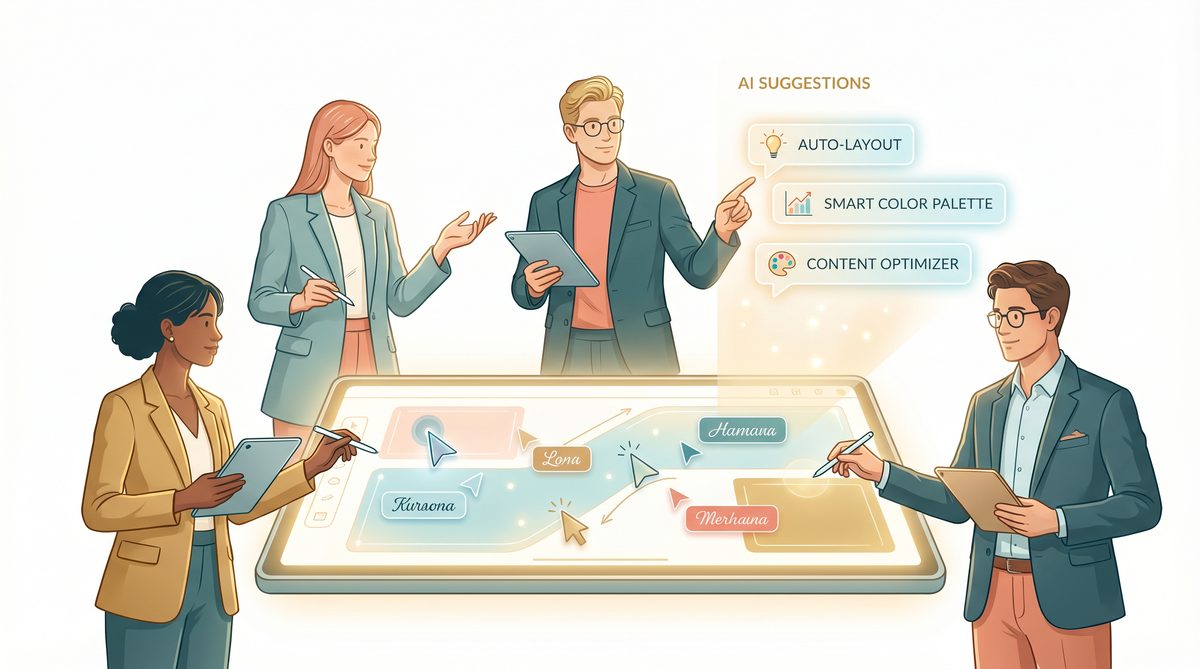
- Real-time Collaboration: Multiple users can work on the same design simultaneously, with changes reflected in real-time. This fosters seamless teamwork and reduces communication overhead.
The synergy between Opus 4.7’s generative capabilities and Claude Design’s intuitive interface means that even complex design tasks can be broken down into simple, manageable steps. This empowers non-designers to contribute meaningfully to the visual development of a product, fostering a more inclusive and efficient product development lifecycle. The ability to rapidly generate and iterate on visual concepts means that product ideas can be validated much earlier in the development process, reducing risk and ensuring that resources are allocated effectively. This early validation is particularly crucial for startups and new product initiatives where agility and speed to market are critical determinants of success.
Step-by-Step Guide: Creating Your First Mockup with Claude Design
Get Free Access to 40,000+ AI Prompts
Join 40,000+ AI professionals. Get instant access to our curated Notion Prompt Library with prompts for ChatGPT, Claude, Codex, Gemini, and more — completely free.
Get Free Access Now →No spam. Instant access. Unsubscribe anytime.
Let’s dive into the practical application of Claude Design. This section will walk you through the process of creating a basic mobile application mockup, demonstrating the core functionalities and AI assistance available.
Step 1: Setting Up Your Project
Upon logging into Claude Design, you’ll be greeted with a dashboard.
- Create New Project: Click on the “New Project” button. You’ll be prompted to name your project (e.g., “E-commerce Mobile App”).
- Choose a Starting Point: Claude Design offers several starting points:
- Blank Canvas: Start from scratch, ideal for highly customized designs.
- Template: Select from a library of pre-built templates for common use cases (e.g., “Web Dashboard,” “Mobile Onboarding,” “Marketing Landing Page”).
- AI-Generated Initial Layout: Provide a text prompt, and Opus 4.7 will generate an initial layout. This is often the fastest way to begin.
- Import Existing Design: Upload a Sketch, Figma, or Adobe XD file to continue working on an existing project.
- Initial Prompt: In the text box, enter a description like: “Design a mobile app for an online bookstore. Start with a home screen featuring a prominent search bar, categorized book listings, and a personalized recommendation section. Use a clean, modern aesthetic with a light theme.”
- Generate: Click “Generate.” Opus 4.7 will process your request and, within seconds, present you with an initial home screen mockup.
Step 2: Refining the Home Screen with AI Prompts
Now that you have an initial layout, you can refine it using natural language commands or direct manipulation.
- Direct Text Prompts: In the AI prompt bar (usually located at the top or bottom of the canvas), try these commands:
- “Change the search bar to a rounded rectangle with a magnifying glass icon.”
- “Add a carousel for featured new releases above the category section.”
- “Make the book listing cards larger and include author name and rating.”
- “Adjust the color palette to use soft blues and grays.”
- “Add a bottom navigation bar with icons for Home, Search, Cart, and Profile.”
- Component Customization: Click on any element (e.g., a button, a text block). A properties panel will appear on the right, allowing you to manually adjust:
- Text: Change content, font, size, color.
- Colors: Fill, border, shadow colors.
- Sizing & Positioning: Width, height, X/Y coordinates.
- Borders & Corners: Radius, stroke width.
- Shadows: Apply drop shadows for depth.
Step 3: Creating Additional Screens and Linking Them
A complete prototype requires multiple screens and navigation between them.
- Add New Screen: In the left-hand panel, locate the “Pages” or “Screens” section and click “Add New Screen.” You can choose a blank canvas or prompt Opus 4.7 again. Let’s prompt: “Design a product detail page for a book, including cover image, title, author, price, description, ‘Add to Cart’ button, and user reviews.”
- Generate: Claude Design will generate the product detail page.
- Link Screens (Prototyping Mode):
- Switch to “Prototype Mode” (usually an icon resembling a play button or link).
- Select the “Add to Cart” button on your Home Screen.
- Drag a connection line from this button to the newly created Product Detail Page.
- Choose the interaction type (e.g., “On Click,” “Navigate To,” “Slide In Right”).
Step 4: Leveraging the Web Capture Tool
One of Claude Design’s most innovative features is its web capture tool. This allows you to import elements or entire layouts from existing websites or applications, which can then be deconstructed and used as inspiration or building blocks for your own designs.
- Access Web Capture: In the toolbar, find the “Web Capture” icon (often a camera or screenshot icon).
- Enter URL: A modal will appear where you can paste a URL. For instance, paste the URL of a popular e-commerce site like “amazon.com” or “etsy.com.”
- Capture Options: You might have options to capture the entire page, a specific section, or even analyze the page’s design system. Choose “Capture entire page.”
- AI Analysis: Opus 4.7 will then analyze the captured page, breaking it down into editable components. It identifies elements like headers, footers, navigation, product cards, and their associated styles.
- Import and Edit: The captured elements will be imported onto your canvas or into a dedicated “Captured Assets” library. You can now drag and drop these elements, modify their text, colors, and layout, and use them as inspiration. For example, you might capture Amazon’s product review section and adapt its structure for your bookstore app. This tool is invaluable for competitive analysis and quickly adopting proven design patterns.
Step 5: Collaborating with Your Team
Claude Design is built for teamwork.
- Invite Collaborators: In the top right corner, click the “Share” or “Invite” button. Enter the email addresses of your team members and assign them roles (e.g., Editor, Viewer).
- Real-time Editing: Once invited, team members can access the project simultaneously. You’ll see their cursors moving around the canvas, and changes will appear instantly.
- Comments and Feedback: Select an element or an area on the canvas and click the “Comment” icon. You can leave notes, ask questions, and tag specific team members. This streamlines feedback loops and reduces reliance on external communication channels.
- Version History: Regularly check the “Version History” panel. Claude Design automatically saves versions, allowing you to see who made what changes and revert if necessary. This is crucial for managing design iterations and ensuring accountability.
Step 6: Exporting Your Mockups and Pitch Decks
Once your mockups are complete, Claude Design offers versatile export options.
- Export to PDF:
- Go to “File” > “Export” > “PDF.”
- Choose your desired pages/screens to include.
- Select quality settings (e.g., “High Resolution for Printing,” “Web Optimized”).
- This is perfect for sharing static mockups with stakeholders or for inclusion in formal documentation.
- Export to Canva:
- This is a unique integration for presentation and marketing materials.
- Go to “File” > “Export” > “Canva Presentation” or “Canva Graphic.”
- Claude Design will convert your screens into editable Canva slides or design elements.
- This allows founders and product managers to quickly turn their mockups into compelling pitch decks or marketing visuals without rebuilding them from scratch. Opus 4.7 intelligently maps design elements to Canva’s component library, maintaining fidelity.
- Export to HTML/CSS:
- For developers or for creating basic static websites, this is a game-changer.
- Go to “File” > “Export” > “HTML/CSS (Basic Structure).”
- Claude Design generates clean, semantic HTML and CSS code based on your design. While not production-ready for complex applications, it provides a solid foundation for front-end development, allowing developers to quickly understand the layout and styling. This significantly bridges the gap between design and development, accelerating the handoff process.
- The generated HTML will be structured logically, using appropriate tags (e.g.,
<header>,<nav>,<section>,<div>), and the CSS will be well-organized, making it easier for developers to work with.While Claude Design excels at visual prototyping, understanding the underlying capabilities of the AI driving such tools can further enhance your design workflow; for a deeper dive into the advanced intelligence powering these innovations, explore our Claude Mythos Preview: Inside Anthropic’s Most Powerful AI Model Yet, which details the sophisticated AI model behind these powerful applications.
- Share Prototype Link:
- Click the “Share Prototype” button.
- Generate a public or password-protected link to your interactive prototype.
- This is ideal for user testing, gathering feedback from remote teams, or presenting live demos.
By following these steps, you can harness the full potential of Claude Design to rapidly create, refine, and share your product ideas. The intuitive interface combined with the powerful AI backend makes it an indispensable tool for anyone involved in the early stages of product development. The ability to quickly move from concept to a tangible, interactive prototype significantly reduces time-to-market and enhances the overall quality of the final product by allowing for more thorough testing and iteration.
Advanced Techniques for Founders and Product Managers
While the basic functionalities of Claude Design are powerful, founders and product managers can leverage several advanced techniques to maximize its utility for strategic planning, stakeholder communication, and product validation.
1. Leveraging AI for User Flow Generation
Beyond individual screens, Claude Design, powered by Opus 4.7, can assist in generating entire user flows. Instead of designing screen by screen, think about the user journey.
- Prompting Full Journeys: Instead of “Design a login screen,” try “Generate a complete user onboarding flow for a new user, including sign-up, email verification, pro
While Claude Design excels at generating rapid prototypes and mockups based on your detailed prompts, understanding the underlying capabilities and limitations of AI models is crucial for effective utilization. For a deeper dive into the advanced potential and ethical considerations surrounding powerful AI, explore our article Inside Claude Mythos Preview: Why Anthropic Built an AI Model Too Powerful to Release, which sheds light on the complexities developers face when pushing the boundaries of artificial intelligence.
and a personalized welcome screen.” Opus 4.7 will attempt to create a sequence of interconnected screens based on common UX patterns. - Scenario-Based Design: Describe a user scenario: “A user wants to find a specific book, add it to their cart, and complete the purchase. Design the screens for this checkout flow, including shipping, payment, and order confirmation.” This helps visualize complex interactions and identify potential pain points early.
Beyond its prowess in visual design, Claude’s underlying AI capabilities are equally powerful for development; for a deeper dive into leveraging its advanced features for coding, explore our comprehensive tutorial on using Claude Opus 4.7 for advanced software engineering tasks, where we detail its application in generating code, debugging, and optimizing development workflows.
- A/B Testing Variations: Request variations of a specific screen or flow. “Create two versions of the product detail page: one with a large ‘Buy Now’ button and reviews below, and another with reviews integrated higher up and a smaller ‘Add to Cart’ button.” This allows for quick visualization of different design hypotheses for A/B testing.
2. Dynamic Pitch Deck Creation
The integration with Canva is powerful, but Claude Design itself can be used to assemble compelling visual narratives for pitch decks.
- Storyboarding with Screens: Arrange your mockups in a sequence that tells a story. Each screen can represent a key feature or a step in the user journey.
- Adding Explanatory Text and Annotations: Use Claude Design’s text tools to add headlines, bullet points, and brief descriptions directly on or beside your mockups to explain their purpose and value proposition. Opus 4.7 can even suggest compelling copy for these annotations based on the screen’s content.
- Highlighting Key Features: Use shapes, arrows, and callouts to draw attention to critical elements on your mockups. For example, circle a unique feature on your dashboard mockup and add a text box explaining its benefit.
- Exporting to Presentation Formats: Beyond Canva, export your sequenced screens as a PDF presentation. This allows you to walk investors or stakeholders through your product vision with clear, visual aids. The ability to quickly generate visually rich presentations from functional mockups is a significant time-saver for founders.
3. Utilizing AI for Design System Exploration
Even if you don’t have a formal design system, Claude Design can help you establish one or explore different visual styles.
- Style Guide Generation: Prompt Claude Design to “Generate a basic style guide based on the current project, including primary colors, typography, and button styles.” Opus 4.7 can extract these elements and present them in a structured format.
- Theme Switching: Experiment with different themes: “Apply a minimalist theme,” “Switch to a brutalist aesthetic,” or “Use a corporate blue and white theme.” The AI will intelligently adjust colors, fonts, and component styles across your entire project.
- Component Library Customization: Modify existing components in the library and save them as your own custom components. For example, if you frequently use a specific type of card layout, customize it once and save it to your project’s library for consistent reuse.
4. Advanced Web Capture and Component Dissection
The web capture tool is more than just a screenshot utility.
- Deconstructing Competitors: Capture competitor websites or apps. Ask Opus 4.7 to “Analyze the captured page for its primary navigation structure and call-to-action placement.” The AI can provide insights into their design choices.
- Extracting Specific Elements: Instead of capturing an entire page, use the tool to grab specific sections like a pricing table, a hero section, or a testimonial block. Claude Design will attempt to convert these into editable components, allowing you to learn from and adapt existing successful designs. This is particularly useful for understanding market trends and best pra
While Claude Design excels at rapid visual prototyping, understanding the underlying capabilities and limitations of the AI powering such tools is crucial for maximizing their potential; for a deeper dive into the cutting-edge advancements and strategic considerations surrounding Anthropic’s most powerful AI, be sure to explore our comprehensive article on Claude Mythos Preview: Inside Anthropic’s Most Powerful AI Model and Why It’s Being Restricted, which sheds light on the very technology that could shape the future of AI-driven design tools.
ul>5. Integrating with Development Workflows (HTML/CSS Export Deep Dive)
The HTML/CSS export is a powerful bridge to development. While not a full-fledged code generator for complex applications, it provides significant value.
- Developer Handoff: Exporting to HTML/CSS facilitates a smoother handoff to front-end developers. They get a clear visual representation alongside the basic structural code, reducing ambiguity. The generated CSS might include variables for colors and fonts, making it easier to integrate into a larger design system.
- Rapid Static Page Creation: For simple landing pages, marketing sites, or internal tools, the generated HTML/CSS can serve as a near-ready starting point. Developers can then enhance the interactivity and integrate backend logic.
- Understanding AI’s Code Interpretation: For those interested in how AI translates design to code, examining the generated HTML/CSS can be an educational experience, offering insights into Opus 4.7’s understanding of web semantics and styling.
While this article focuses on leveraging Claude Design for efficient rapid prototyping and mockup creation, those interested in the foundational technology driving such capabilities will find valuable insights in our in-depth preview of Claude Mythos, Anthropic’s most powerful AI model to date, which delves into the advancements making sophisticated design interpretation possible.
6. User Testing and Feedback Loops
Claude Design enhances the user testing process.
- Clickable Prototypes for Usability Testing: Create interactive prototypes and share them with potential users. Observe how they navigate through the app and identify areas of confusion or friction. Claude Design can even integrate with some external user testing platforms by providing a direct share link.
- Iterating Based on Feedback: Gather feedback (either through comments in Claude Design or from user testing sessions). Use natural language prompts to apply these changes directly: “Users found the checkout button hard to find. Make it more prominent and place it at the bottom of the screen.” Opus 4.7 can often implement these changes with minimal manual effort.
By mastering these advanced techniques, founders and product managers can transform Claude Design from a simple mockup tool into a strategic asset that drives product innovation, streamlines communication, and accelerates time-to-market. The AI’s ability to quickly generate, iterate, and adapt designs based on complex prompts and feedback empowers non-designers to play a more active and impactful role in the visual development process.
Comparing Claude Design with Traditional Tools
Get Free Access to 40,000+ AI Prompts
Join 40,000+ AI professionals. Get instant access to our curated Notion Prompt Library with prompts for ChatGPT, Claude, Codex, Gemini, and more — completely free.
Get Free Access Now →No spam. Instant access. Unsubscribe anytime.
To fully appreciate the value proposition of Claude Design, it’s helpful to compare it against traditional design and prototyping tools. This comparison highlights where Claude Design excels and where traditional tools still hold an edge.
| Feature/Category | Claude Design (Opus 4.7) | Figma/Sketch/Adobe XD (Traditional) |
|---|---|---|
| Core Design Paradigm | AI-driven generative design, natural language prompting, rapid iteration. Focus on speed and conceptualization. | Manual, pixel-perfect design. Vector-based editing, precise control over every element. Focus on final pixel fidelity. |
| Learning Curve | Very low. Intuitive interface, natural language makes it accessible to non-designers. | Moderate to high. Requires understanding of design principles, layers, vectors, and specific tool functionalities. |
| Initial Design Speed | Extremely fast. AI can generate initial layouts, screens, or even entire flows from text prompts in seconds. | Slow to moderate. Requires manual setup of artboards, grids, and placement of initial components. |
| Iteration Speed | Very fast. AI can apply global changes, adjust layouts, or modify elements based on natural language feedback instantly. | Moderate. Requires manual selection and adjustment of multiple elements, though components/styles speed this up. |
| Fidelity & Precision | Good for mockups and prototypes. May require minor manual tweaks for pixel-perfect alignment in later stages. | Excellent. Designed for pixel-perfect control, fine-tuning of spacing, typography, and visual details. |
| Component Library | AI-curated and generated components. Can customize and save project-specific components. | User-created or external libraries (e.g., UI kits). Requires manual assembly and maintenance. |
| Collaboration | Real-time, multi-user editing with integrated comments. | Real-time, multi-user editing with integrated comments (Figma excels here). |
| Prototyping | Basic to intermediate interactive prototypes with screen linking and common transitions. | Advanced interactive prototypes with complex animations, conditional logic, and micro-interactions. |
| Web Capture Tool | Unique feature. Captures live web pages and attempts to convert them into editable components. | Not available natively. Requires manual screenshotting and re-creation. |
| Export Options | PDF, Canva, HTML/CSS (basic structure), shareable prototype links. | Image formats (PNG, JPG, SVG), PDF, CSS snippets (less structured than Claude Design’s HTML/CSS), developer handoff tools (e.g., Zeplin plugins). |
| Use Case Suitability | Rapid ideation, early-stage mockups, pitch decks, user flow visualization, non-designer involvement, quick design exploration. | Detailed UI/UX design, design system creation, high-fidelity prototypes, final design handoff to developers. |
| Target User | Founders, Product Managers, Marketers, Business Analysts, Junior Designers, anyone needing quick visual concepts. | UI/UX Designers, Graphic Designers, Design System Architects, Front-end Developers. |
When to Choose Claude Design:
- Early-Stage Ideation: When you need to quickly visualize an idea or concept without getting bogged down in design details.
- Founder/PM-Led Design: When a non-designer needs to create compelling visuals for pitches, internal discussions, or initial user testing.
- Rapid Prototyping: For quickly generating clickable prototypes to test user flows and gather feedback.
- Competitive Analysis & Inspiration: Using the web capture tool to analyze and adapt elements from existing products.
- Bridging Design & Business: For creating pitch decks and marketing visuals directly from mockups via Canva integration.
- Accelerated Developer Handoff (Basic): Providing a starting point with generated HTML/CSS for simple layouts.
When Traditional Tools are Still Preferred:
- High-Fidelity Design: For creating pixel-perfect, production-ready UI designs.
- Complex Interactions & Animations: When advanced prototyping with intricate animations and conditional logic is required.
- Comprehensive Design Systems: For building and maintaining large, scalable design systems with detailed documentation.
- Brand Guidelines Adherence: When strict adherence to established brand guidelines and precise visual consistency is paramount.
- Advanced Vector Graphics: For creating custom icons, illustrations, or complex vector shapes.
- Developer Handoff (Advanced): For detailed specs, redlines, and advanced code export for complex components.
In essence, Claude Design complements traditional tools rather than fully replacing them. It serves as an incredibly powerful accelerator in the early and middle stages of the product development lifecycle, democratizing access to design capabilities. For high-fidelity, production-ready design, specialized tools like Figma or Sketch remain the industry standard. The ideal workflow often involves starting with Claude Design for rapid concept validation and then transitioning to a traditional tool for detailed refinement and final implementation, or directly to development with the HTML/CSS export as a starting point for simpler projects.
The innovation of Claude Design lies in its ability to significantly reduce the barrier to entry for design, enabling more individuals within an organization to contribute visually to product development. This leads to faster iteration cycles, earlier validation of ideas, and ultimately, more user-centric products. The ongoing advancements in AI, particularly models like Opus 4.7, suggest that the capabilities of tools like Claude Design will continue to grow, blurring the lines between AI-generated concepts and human-refined masterpieces.
Access 40,000+ AI Prompts for ChatGPT, Claude & Codex — Free!
Subscribe to get instant access to our complete Notion Prompt Library — the largest curated collection of prompts for ChatGPT, Claude, OpenAI Codex, and other leading AI models. Optimized for real-world workflows across coding, research, content creation, and business.
Access Free Prompt LibraryUseful Links
- Anthropic Claude Official Page
- Anthropic News and Updates
- Canva Official Website
- Figma Official Website
- Sketch Official Website
- Adobe XD Official Website
- Nielsen Norman Group – Usability Testing
- Interaction Design Foundation – Design Systems
- MDN Web Docs – Learn HTML
- MDN Web Docs – Learn CSS
Frequently Asked Questions
What is Claude Design's primary function?
Claude Design is primarily used for rapid prototyping and mockup generation. It leverages AI to create wireframes, mockups, and pitch decks quickly and efficiently, streamlining the design process for teams.
How does Claude Design integrate with other tools?
Claude Design offers versatile export options, allowing integration with platforms like Canva, PDF, and HTML. This flexibility facilitates seamless collaboration and presentation of design assets across various formats.
What AI technology powers Claude Design?
Claude Design is powered by Anthropic's Opus 4.7, a large language model with advanced capabilities in understanding visual design principles and generating contextually relevant designs from natural language prompts.
Who can benefit from using Claude Design?
Startup founders, product managers, and designers can benefit from Claude Design. It democratizes design, enabling users without extensive graphic design backgrounds to produce professional-grade visual assets efficiently.
What makes Claude Design unique?
Claude Design's uniqueness lies in its AI-driven approach, which interprets natural language prompts to generate accurate and aesthetically coherent designs, significantly reducing manual design tasks and enhancing strategic focus.
When was Claude Design launched?
Claude Design was launched on April 17, 2026. It represents a significant advancement in AI-driven design tools, offering innovative features for rapid prototyping and mockup generation.
🕐 Instant∞ Unlimited🎁 Free
