
OpenAI Adds Zendesk and OneNote Plugins to ChatGPT and Codex: What the Beta Changes for Support and Knowledge Work
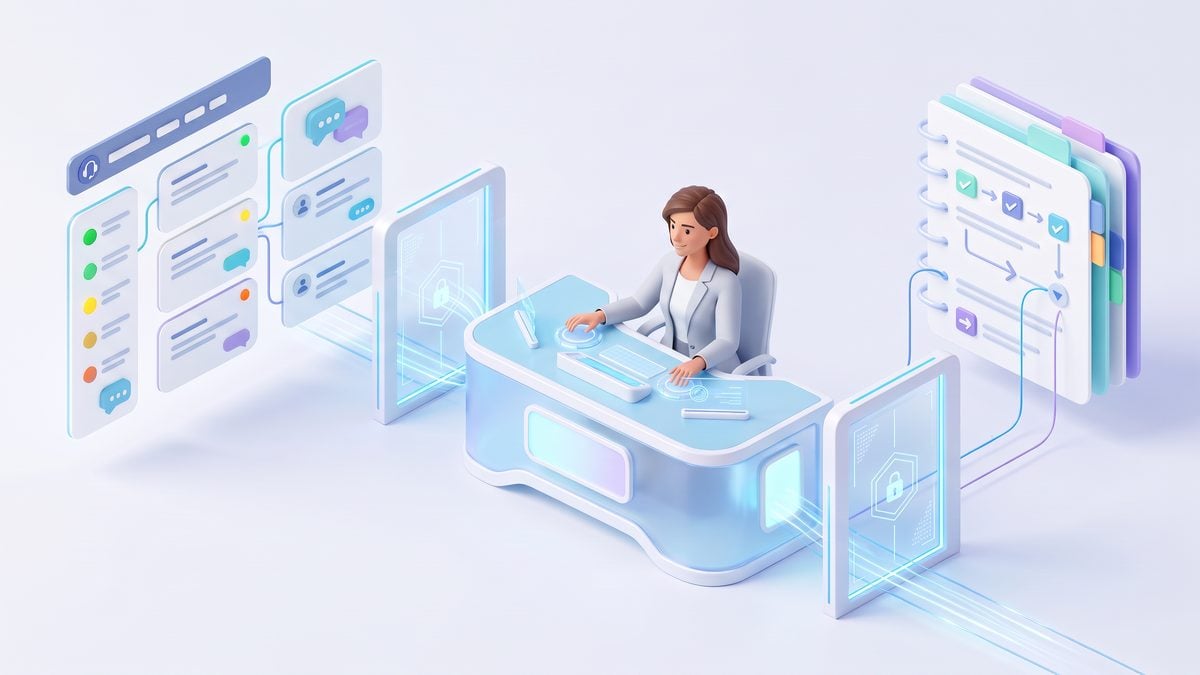

OpenAI’s September 3 beta brings Zendesk and OneNote into ChatGPT and Codex workflows
OpenAI’s September 3, 2026 release notes add two beta plugins that matter for operational teams: an OpenAI-developed Zendesk plugin for support work and an OpenAI-developed OneNote plugin for note and knowledge workflows. The release is not a blanket bridge into a company’s customer-support system or Microsoft knowledge estate. OpenAI describes both plugins as connected-account integrations whose capabilities depend on the user’s own authorization, the product surface, workspace settings, rollout status, and the permissions already present in Zendesk or Microsoft.
The Zendesk plugin is designed to help users review support tickets and customer history, find relevant knowledge, and prepare replies in ChatGPT and Codex. That framing is important for support leaders because “prepare replies” is not the same as automatically sending replies. A model-assisted draft still has to be treated as a proposed response that may require human review, workspace approval, and a supported write action before anything changes in Zendesk.
The OneNote plugin is designed for a different operational loop: finding and summarizing notes, gathering decisions and action items, and creating or updating notes through supported actions. That makes it relevant to knowledge-management teams, meeting-heavy product groups, implementation teams, and engineering organizations that use OneNote as a working memory layer. OpenAI’s documentation also warns that notebook type matters: personal notebooks, Microsoft 365 group notebooks, and SharePoint site notebooks are not interchangeable from an integration-behavior perspective.
The practical headline is that OpenAI is extending ChatGPT and Codex from standalone reasoning surfaces into permission-bounded work systems. For administrators, the key question is not “Can ChatGPT access Zendesk or OneNote?” but “Which signed-in user connected which account, what can that account already see, which actions are supported on this surface, and what approvals are required before a write occurs?” That distinction should shape pilots, access reviews, support QA procedures, and knowledge-base governance.
This tutorial explains how to set up ChatGPT Connectors with scheduled tasks across Slack, Google Drive, Jira, and more than 20 third-party apps for agentic background workflows. The full analysis in How to Set Up ChatGPT Connectors for Automated Workflows: Integrating Slack, Google Drive, Jira, and 20+ Third-Party Apps with Scheduled Tasks extends this section’s ChatGPT Connected Apps discussion because it directly contextualizes ChatGPT’s connected-app model, which is the relevant framework for understanding new Zendesk and OneNote integrations.
Release facts: what OpenAI announced and what it does not imply
| Release fact | What OpenAI says the plugin is for | Operational boundary | Admin or user takeaway |
|---|---|---|---|
| Zendesk plugin beta announced September 3, 2026 | Review support tickets and customer history, find relevant knowledge, and prepare replies in ChatGPT and Codex. | Installing or connecting the plugin does not grant additional Zendesk permissions or expose all support data. | Start pilots with read-only verification prompts before testing any reply or record-changing workflow. |
| OneNote plugin beta announced September 3, 2026 | Find and summarize notes, collect decisions and action items, and create or update notes through supported actions. | Connecting OneNote does not expand Microsoft permissions, and support can vary by notebook type and action. | Require users to identify the exact notebook, section, page, and intended change before approving writes. |
| Connected-account authorization model | Each member connects their own Zendesk or Microsoft account. | One user’s authorization should not be treated as shared workspace access for every other user. | Review permissions at the source system as well as in ChatGPT workspace controls. |
| Read and write actions differ | Search, summarize, and draft tasks are separate from sending, updating, creating, or copying content. | A readable ticket or notebook page does not automatically mean the plugin can edit it. | Separate read-only analysis prompts from approval-required write prompts in team procedures. |
| Beta availability | OpenAI lists the plugins in current release notes and help documentation. | Availability and capabilities depend on product surface, workspace settings, rollout, account permissions, and supported actions. | Do not promise every user in an organization that the same plugin actions will appear or work identically. |
This table is deliberately conservative because the release changes workflow reach, not the underlying authority model. A support agent who cannot see a restricted Zendesk queue should not gain that queue through ChatGPT. A program manager who can read a OneNote notebook in one Microsoft context should not assume that every create, update, or copy operation is supported for that notebook through the plugin.
The Zendesk plugin is a support-assistance layer, not a permission bypass
OpenAI’s Zendesk help documentation describes the plugin as a way to review tickets and customer history, find relevant knowledge, and prepare replies. Those capabilities map to common support workflows: summarizing a long case, identifying prior customer interactions, locating likely knowledge-base material, drafting a response for an agent, or packaging an escalation with context. The useful pattern is that ChatGPT or Codex can reduce the time spent reading and composing, while Zendesk remains the system that governs what the user can access and change.
The connected-account model is the first control point. Each user authorizes their own Zendesk account, and OpenAI states that users work only with support information available to that connected account. That means a team should not treat the plugin as a shared service account unless OpenAI and Zendesk administration explicitly support that pattern in a documented way. The safer assumption is individual accountability: the visible tickets, customer history, and allowable actions are bounded by the agent’s existing Zendesk permissions.
OpenAI also recommends beginning with a read-only verification request. For example, a support operations lead could instruct pilot users to ask whether the plugin can locate a specific ticket they are already allowed to see and summarize its status without changing anything. That test confirms basic connectivity and scope without creating customer-visible changes, altering fields, or sending a message. It also gives administrators a clean way to distinguish “the plugin cannot reach this data” from “the user does not have source-system permission.”
The most important operational distinction is between preparing a reply and sending a reply. A drafted response can be reviewed for accuracy, tone, policy compliance, and completeness before it is copied or submitted through a supported workflow. Sending a reply or changing a ticket is a separate operation that must be supported by the app, allowed by the workspace and connected Zendesk account, and satisfy approval requirements. Support leaders should therefore design prompts and procedures that default to draft-only outputs unless the agent explicitly requests a supported write action and reviews the target.
Operational warning: A generated support reply should be treated as a proposed artifact, not as a customer communication. Before any response is sent, the agent should verify the ticket, customer identity, cited policy, promised remedy, and any refund, security, legal, or account-change language according to the organization’s normal QA rules.
The OneNote plugin is a knowledge-work tool with notebook-scope constraints
OpenAI’s OneNote documentation positions the plugin around finding and summarizing notes, collecting decisions and action items, and creating or updating notes through supported actions. In practice, that makes the beta useful for turning scattered meeting notes into structured follow-ups, summarizing project discussions, or updating a planning page after a decision is confirmed. The integration can be valuable precisely because OneNote content is often semi-structured and distributed across notebooks, sections, and pages.
The boundary is that connecting OneNote does not expand Microsoft permissions. If the connected Microsoft account cannot access a notebook or page in Microsoft’s own permission model, the plugin should not be described as a way around that limitation. OpenAI’s documentation further notes that personal notebook workflows are limited to notebooks owned by the connected Microsoft account, and personal notebooks shared by another person may not appear. Microsoft 365 group and SharePoint site notebooks use separate supported shared-notebook workflows.
Knowledge-management teams should pay close attention to the difference between “I can see this in OneNote” and “this plugin operation supports this notebook type.” OpenAI’s documentation states that access in Microsoft’s product does not guarantee every plugin operation supports that notebook type. That matters when a user asks ChatGPT to copy notes, update a decision log, or create a new page in a shared location. The user may have read visibility while the requested write path is unsupported, disallowed, or subject to additional review.
For write or copy operations, OpenAI advises users to identify the exact notebook, section, page, and intended change, review the target before approval, and avoid repeating an uncertain copy until its outcome is checked. That last point is an anti-duplication rule. If a copy request appears to stall or returns an uncertain result, the user should inspect the destination before trying again, because repeating a write-like request can create duplicate pages, conflicting notes, or confusing partial updates if the first action actually completed.
Read operations, write operations, and approvals must be designed separately
The Zendesk and OneNote beta plugins both support a pattern that enterprise teams should formalize: read first, draft second, write last. Read operations include finding tickets, retrieving customer history available to the connected account, locating knowledge, finding notes, summarizing pages, and extracting action items. These tasks are still sensitive because they can expose customer data or internal notes to the signed-in user’s ChatGPT session, but they do not by themselves change the source system.
Draft and analysis operations sit in the middle. A Zendesk reply draft, escalation summary, macro suggestion, OneNote decision summary, or proposed page update can be reviewed before any source system is modified. This is the safest default mode for early pilots because it lets teams evaluate quality, grounding, tone, and permission scope without customer-visible or repository-like side effects. It also creates a natural checkpoint for human approval.
Write operations are categorically different. Sending a support reply, changing a Zendesk record, creating a OneNote page, updating a note, or copying material into another location should be treated as an action requiring explicit target selection and review. OpenAI’s documentation frames these actions as dependent on supported capabilities, workspace and account permissions, product surface, rollout, and approval requirements. Administrators should not infer that because a plugin can summarize a record, it can safely or automatically alter that record.
This guide covers using the Codex desktop app for full-stack development, including computer use, an in-app browser, memory, and plugin workflows. The full analysis in How to Use the New Codex Desktop App for Full-Stack Development: Computer Use, In-App Browser, Memory, and Plugin Workflows extends this section’s Codex Plugin Workflows discussion because it is the closest match for readers who need background on how Codex plugins fit into practical developer workflows.
Availability is not the same as guaranteed access for every workspace or user
OpenAI lists the Zendesk and OneNote plugins in its September 3 release materials and related help articles, but the company describes the release as beta and repeatedly ties capabilities to product surface, workspace settings, rollout, and connected-account permissions. This means a feature can be officially documented while still not being usable by every person in an organization at the same time or in the same way.
For founders and department leads, the practical interpretation is that rollout planning needs a discovery phase. A responsible pilot should document which users can connect, which product surfaces they are using, which read requests work, which write requests are available, what approval prompts appear, and where source-system permissions block access. That inventory is more reliable than assuming that a release-note entry means uniform availability across web, desktop, ChatGPT, Codex, every workspace, and every account.
Enterprise administrators should also separate availability from authorization. A workspace may allow a plugin, but the connected Zendesk or Microsoft account still defines the user’s underlying data reach. Conversely, a user may have access in Zendesk or Microsoft, but a specific plugin action may be unavailable because the action is not supported on the current surface, the rollout has not reached that account, or workspace settings restrict it. Both layers must be true for a successful workflow.
Why this beta matters for support and knowledge teams
The Zendesk beta targets a high-volume operational pain point: support agents spend substantial time reading case history, locating relevant policy or knowledge content, and composing replies that still need judgment. If the plugin is used within its documented limits, it can help agents produce better-prepared drafts and faster context summaries without changing the rule that Zendesk permissions and human review govern customer-impacting action.
The OneNote beta targets a different bottleneck: organizational memory often lives in meeting notes, project pages, and shared notebooks that are hard to search and convert into decisions. A bounded OneNote workflow can help teams extract decisions and action items, summarize discussion history, and propose updates to the right page. The risk is not the summary itself; the risk is letting vague prompts modify the wrong notebook, duplicate uncertain copy operations, or treat read visibility as edit authority.
The shared lesson is that connected plugins are most useful when teams write operating rules before scaling usage. A good first-week policy can be simple: use read-only prompts for verification, ask for citations or source identifiers where the surface provides them, keep generated replies and note updates in draft form, name the exact target before any write, and require the user to review the final action. Those rules align the beta with existing support QA and knowledge-governance practices instead of replacing them with assumptions.
Zendesk beta workflow: connect the right tenant, verify read access, then draft with approvals

OpenAI describes the Zendesk plugin as an OpenAI-developed beta integration for reviewing support tickets and customer history, finding relevant knowledge, and preparing replies in ChatGPT and Codex. The practical change for support teams is not that ChatGPT receives broad Zendesk visibility; it is that an authorized user can ask ChatGPT or Codex to work with the Zendesk information already available to that user, subject to product surface, workspace settings, rollout state, Zendesk permissions, and any applicable approval requirements.
The safest rollout pattern is to treat the plugin as a permission-bounded assistant that begins with read-only discovery. OpenAI’s Zendesk help guidance recommends starting with a read-only verification request, because that confirms the connection, the selected tenant, the signed-in Zendesk identity, and the reachable ticket scope before anyone asks for a draft reply or a record-changing action. This matters in enterprises where agents, leads, contractors, and escalation engineers often have different Zendesk roles, queue memberships, brand access, or customer-history visibility.
Connection workflow: start with the organization’s Zendesk subdomain
The Zendesk setup detail that will prevent many failed connections is the tenant-subdomain entry. OpenAI says setup uses only the organization’s Zendesk subdomain, without the protocol and without .zendesk.com. If a company’s Zendesk address is normally entered by employees as a full browser URL, the value needed for this setup is the tenant label portion only, not the complete address. Users should not add https://, a trailing slash, paths, query strings, or the Zendesk domain suffix.
| Setup item | Operational rule | Why it matters |
|---|---|---|
| Zendesk tenant | Enter only the organization’s Zendesk subdomain, excluding protocol and .zendesk.com. |
A malformed tenant value can send the user into the wrong setup path or cause authorization to fail before permissions are evaluated. |
| User authorization | Each member connects and authorizes their own Zendesk account. | Installing the plugin does not create a shared service identity or give one agent another agent’s Zendesk permissions. |
| Initial test | Begin with a read-only verification request. | The team can confirm ticket visibility and customer-history access without changing any Zendesk record. |
| Reply drafting | Use the plugin to prepare a reply, then review it before any send action. | Preparing a reply is not the same thing as sending it, and any send or change action must be separately supported and approved where required. |
The first-party-versus-custom listing distinction is also important during setup. OpenAI’s Zendesk article states that if setup asks for a client ID or secret, the user may have selected a custom or bring-your-own-connector listing instead of the OpenAI-developed Zendesk plugin. For administrators and support-operations owners, that is a clear troubleshooting branch: stop the setup, confirm the intended OpenAI-developed listing, and do not improvise credentials for a custom integration unless the organization has deliberately designed and approved that path.
Individual authorization prevents accidental shared access
OpenAI’s guidance is explicit that each user authorizes their own Zendesk account. That means a support lead connecting Zendesk does not automatically connect Zendesk for every agent, and an agent’s connection does not inherit the support lead’s broader access. The connected account boundary should shape every governance decision: a prompt that works for a senior escalation owner may return less information for a frontline agent, not because the plugin is broken, but because the underlying Zendesk account can see less.
Administrators should document this as a feature of the access model rather than as an exception. A support team can ask every pilot participant to run the same read-only verification prompt, then compare whether each role can see the expected queues, ticket history, and knowledge references. If a user cannot access a ticket through the plugin, the first diagnostic question should be whether that same user can access the ticket directly in Zendesk under the same account.
This enterprise case study explores self-improving customer-support agents built around Claude Dreaming, offering a useful contrast with the new Zendesk plugin’s narrower permission-bounded review, drafting, and approved-action model. The full analysis in How Enterprise Teams Are Using Claude Dreaming to Build Self-Improving Customer Support Agents extends this section’s Customer Support AI Automation discussion because the target is specifically about AI-driven customer support, while the bridge prevents readers from confusing an autonomous-agent case study with the beta Zendesk plugin’s documented scope.
Recommended read-only verification request
A read-only verification request should avoid drafting, sending, updating, tagging, closing, or escalating anything. Its purpose is to establish that ChatGPT or Codex can reach Zendesk through the connected user’s account and can report what it found without modifying records. The request should name a ticket, queue, or limited search scope that the user is already authorized to review in Zendesk.
Recommended verification prompt:
Using my connected Zendesk account, perform a read-only check only.
Confirm whether you can access ticket [ticket identifier or limited queue/search scope].
Do not draft a customer reply, do not update the ticket, and do not change any Zendesk record.
Return:
1. The ticket or result set you were able to access.
2. The customer or requester history that is visible to my connected account.
3. Any relevant knowledge articles or help-center references you can find.
4. Any access limitations or missing information you detect.
This prompt is intentionally conservative. It asks for ticket visibility, customer history, knowledge lookup, and access limitations, but it prohibits reply drafting and record changes. A team can use it as a preflight check before allowing agents to ask for summaries, suggested next steps, or draft responses.
Ticket review and customer-history review should preserve evidence
OpenAI says the plugin is designed to help review support tickets and customer history. In practice, a useful ticket review should separate the customer’s current ask, the factual timeline, prior interactions, policy-relevant details, and unresolved questions. A strong review request should also ask the assistant to distinguish ticket evidence from inference, because customer-support mistakes often come from filling in missing context rather than from summarizing what is actually in the record.
A support lead can require agents to ask for an evidence-first summary before any draft reply. For example, the agent can request a timeline of the customer’s issue, the last confirmed troubleshooting step, the customer’s latest sentiment, and the open decision that the agent needs to make. The output should identify which facts came from the current ticket, which came from customer history, and which are not visible to the connected Zendesk account.
Evidence-first review prompt:
Review this Zendesk ticket and visible customer history using my connected account.
Do not change any record and do not prepare a final reply yet.
Produce:
- Current customer request in one sentence.
- Chronological timeline of relevant events.
- Prior tickets or interactions that materially affect this case.
- Known facts, unknowns, and assumptions to avoid.
- Knowledge articles that appear relevant, with a note on why each applies.
- Recommended next action for a human agent to review.
This approach is useful for escalations because it gives a senior reviewer a compact case file without hiding the uncertainty. It is also useful for quality programs because it creates a repeatable structure for checking whether agents are relying on current ticket facts, older customer history, or an unsupported assumption.
Knowledge lookup should be bounded to the actual case
OpenAI lists finding relevant knowledge as one of the Zendesk plugin’s intended uses. The operational risk is that “find knowledge” can become an overly broad search that returns generic policy, outdated articles, or information that does not match the customer’s product, plan, region, or error state. A better prompt binds the knowledge lookup to the ticket facts and asks the assistant to explain why each candidate source is relevant.
Support teams should ask for knowledge lookup in two passes when accuracy matters. The first pass identifies candidate articles or references visible through the connected account. The second pass asks the assistant to map specific article guidance to the customer’s facts and to flag any mismatch. This two-pass method reduces the chance that a plausible article title becomes an unsupported answer.
| Knowledge task | Good instruction | Operational warning |
|---|---|---|
| Find candidate articles | Search for knowledge that matches the ticket’s product, symptom, and current status. | Do not assume a top search result is authoritative for the case without checking the article’s conditions. |
| Map article to ticket | Explain which ticket facts each article supports and which facts are still missing. | A knowledge match can be partial; agents should not overstate policy or technical certainty. |
| Prepare agent guidance | Turn the relevant article into a short internal recommendation for human review. | Internal reasoning and customer-facing language should remain separate until the reply is approved. |
Reply preparation is drafting, not sending
The most important boundary for support organizations is that preparing a reply is not sending it. OpenAI’s Zendesk guidance distinguishes finding or summarizing a ticket from sending a reply or changing a record, and states that sending or changing must be supported by the app, allowed by the workspace and account, and satisfy approval requirements. Teams should therefore label reply output as “draft,” “proposed,” or “for agent review” until a human completes the approved send path.
A reply-preparation prompt should include the desired tone, policy constraints, known facts, unresolved questions, and the exact audience. It should also ask the assistant not to invent concessions, refunds, engineering timelines, account-specific commitments, or policy exceptions unless those are present in the ticket record or supplied by the agent. This is especially important when customer history includes frustration or repeated contact, because a more apologetic tone can still be inaccurate if it promises an action the business has not approved.
Draft-only reply prompt:
Prepare a customer-facing draft reply for this Zendesk ticket.
Do not send the reply and do not update the ticket.
Use only facts visible in the ticket, customer history, and relevant knowledge sources.
If a fact is missing, ask for it instead of assuming it.
Return:
1. A concise draft reply.
2. A bullet list of source facts used.
3. Any policy or knowledge references relied on.
4. Items a human agent must verify before sending.
This pattern gives agents usable language while preserving accountability. The assistant can accelerate structure, clarity, and tone, but the agent remains responsible for validating facts, checking account-specific obligations, and using the organization’s approved Zendesk workflow to send anything to the customer.
Supported changes and approvals need a separate operating rule
OpenAI’s help article warns that sending a reply or changing a record is separate from finding or summarizing a ticket. A support organization should translate that warning into a written rule: read-only analysis is allowed for pilot users after connection verification, draft preparation is allowed when labeled as draft-only, and any record-changing request requires the user to identify the target record, the exact proposed change, the business reason, and the approval path that applies.
The approval requirement is not just a product checkbox; it is an operational control. A record change can affect customer communication, reporting, SLA measurement, escalation ownership, or compliance review. If a supported action is available on one product surface but not another, or for one Zendesk role but not another, teams should not treat that as inconsistent behavior to work around. They should treat it as a scope boundary to document.
| Workflow stage | Default risk level | Recommended control |
|---|---|---|
| Ticket summary | Lower, if read-only and scoped | Require ticket identifier, no record changes, and evidence separation. |
| Customer-history synthesis | Moderate, because history may influence commitments | Ask for visible facts only and flag missing or inaccessible history. |
| Knowledge lookup | Moderate, because irrelevant policy can mislead agents | Require article-to-fact mapping and human review. |
| Draft reply | Moderate to high, depending on case sensitivity | Label as draft-only, list source facts, and require agent verification before sending. |
| Record change or send action | Higher | Use only supported actions that are allowed by workspace settings, Zendesk permissions, and approval requirements. |
Troubleshooting: diagnose listing, tenant, account, surface, and permissions in that order
When the Zendesk plugin does not behave as expected, the fastest diagnostic path starts with setup identity rather than model behavior. First, confirm that the user selected the OpenAI-developed Zendesk plugin rather than a custom or bring-your-own-connector listing; OpenAI notes that a request for client ID or secret is a sign the user may be in the custom path. Second, confirm the tenant subdomain was entered in the required shortened format.
Third, verify that the user authorized the intended Zendesk account. Many support workers have multiple identities across production, sandbox, vendor, or regional systems, and the plugin operates through the connected account rather than an abstract team entitlement. Fourth, test the same ticket directly in Zendesk under that account. If the user cannot see the ticket in Zendesk, the plugin should not be expected to surface it.
Fifth, check workspace settings, product surface, and rollout status. OpenAI says availability and capabilities depend on the product surface, workspace settings, rollout, and the connected user’s Zendesk permissions. A feature visible in one ChatGPT or Codex context should not be assumed to exist in every other context, and administrators should avoid promising uniform behavior until they have tested the exact surface and user role combination they plan to support.
- Confirm the selected listing is the OpenAI-developed Zendesk plugin, not a custom connector path requesting client credentials.
- Re-enter the Zendesk tenant as the subdomain only, excluding protocol, domain suffix, slashes, and paths.
- Ask the user to confirm the Zendesk account they authorized is the account they normally use for the relevant tickets.
- Run a read-only verification prompt against a ticket the user can access directly in Zendesk.
- If the ticket is missing, compare direct Zendesk access, queue membership, customer-history visibility, workspace controls, product surface, and rollout eligibility.
- If a draft can be prepared but not sent, treat that as a normal separation between reply preparation and supported send or change actions, not as evidence that the draft was sent.
What support leaders should pilot before expanding usage
A responsible Zendesk beta pilot should include representative roles rather than only administrators. Include a frontline agent, a senior escalation owner, a support-operations manager, and a knowledge-base maintainer if those roles exist in the organization. Each participant should connect their own account, run the same read-only verification, summarize the same type of ticket within their permitted scope, and prepare a draft-only reply for human review.
The pilot should measure workflow quality rather than attempting to prove broad automation. Useful review criteria include whether the assistant preserved ticket facts, correctly identified visible customer history, found relevant knowledge, avoided unsupported assumptions, produced a reply that matched policy, and clearly flagged what the agent needed to verify. A draft that sounds polished but omits uncertainty should fail the pilot standard.
Support administrators should also decide where ChatGPT and Codex fit in the daily operating model. ChatGPT may be the natural surface for conversational case review and reply drafting, while Codex may be relevant for technical-support teams that need to connect ticket context with software-development or repository work. OpenAI’s announcement covers both ChatGPT and Codex, but teams should still validate which actions are available in the exact surface, workspace, and account configuration they plan to use.
Bottom line for Zendesk teams
The Zendesk plugin beta gives support teams a structured way to bring ticket review, customer-history synthesis, knowledge lookup, and draft preparation into ChatGPT and Codex. Its value depends on respecting the boundaries OpenAI documents: each user authorizes their own Zendesk account, the plugin does not expand Zendesk permissions, setup requires the correct tenant subdomain format, and record-changing actions are separate from read-only analysis and draft preparation.
For most organizations, the right first milestone is not autonomous support resolution. It is a reliable read-only workflow that produces evidence-based summaries and draft-only customer replies that agents can verify. Once that is working, administrators can decide which supported changes, if any, should be enabled under workspace controls, Zendesk permissions, and explicit approval requirements.
OneNote beta workflow: search narrowly, extract decisions with page evidence, and write only after target review

OpenAI describes the OneNote plugin as a way to find and summarize notes, collect decisions and action items, and create or update notes through supported actions in ChatGPT and Codex. The practical change is not that ChatGPT suddenly has broad access to every notebook a company has ever shared; the change is that eligible users can connect their own Microsoft account and ask for permission-bounded note work inside the conversation or coding workflow. That distinction matters for meeting-heavy teams because the highest-value OneNote tasks are usually not “summarize everything,” but “find the three pages from last week’s launch review, extract only decisions and owners, and update the agreed project log after I approve the target.”
The safest starting assumption is that OneNote search should be scoped as tightly as a database query. A broad request such as “search my notes for migration risks” may retrieve pages from stale projects, personal notes, or similarly named initiatives if the connected account can see them and the surface supports that search. A bounded request names the notebook, section, date range, project label, meeting name, customer, or page title pattern. For example, a knowledge manager could ask: “In the notebook I own for the Q4 support deflection project, search only the ‘Weekly reviews’ section for pages dated September 1 through September 7, then summarize decisions and unresolved action items with the source page title for each item.”
Bounded searches also reduce governance ambiguity. When the user states the target notebook, section, and page family, reviewers can evaluate whether the prompt is aligned with the user’s role and whether the requested information is appropriate for the task. In an enterprise workspace, this can be the difference between a defensible productivity workflow and a vague cross-notebook discovery request that is difficult to audit. OpenAI’s OneNote documentation emphasizes that capabilities depend on account, workspace, product surface, rollout, and Microsoft permissions; a well-bounded prompt makes those constraints visible instead of burying them inside a conversational request.
This prompt guide shows how to use ChatGPT for meeting notes, including summaries, action items, follow-ups, and decision tracking. The full analysis in 20 ChatGPT Prompts for AI-Powered Meeting Notes: Summaries, Action Items, Follow-Ups, and Decision Tracking extends this section’s AI Meeting Notes Workflow discussion because it matches the OneNote and knowledge-work angle by giving readers a concrete workflow for turning notes into organized outputs.
Search should return evidence, not just a polished summary
Decision and action-item extraction is useful only when the output can be traced back to the underlying note page. A meeting recap that says “Engineering approved the new migration plan” is weaker than an extraction that says the decision came from a specific page, section, meeting date, and quoted or paraphrased supporting line. The user should ask ChatGPT or Codex to include source-page references for each decision, open question, dependency, and assigned action. If the interface provides clickable references, the reviewer should use them; if it provides page names or locations, the reviewer should still open the destination in OneNote before relying on the extracted item.
A recommended extraction format is deliberately evidence-heavy: decision, status, owner, due date, source notebook, source section, source page, and uncertainty note. The uncertainty note is important because OneNote pages often contain informal shorthand, copied agendas, and contradictory follow-ups. If the notes say “likely move API migration to Friday” in one place and “final date pending SRE review” later on the page, the model should not convert that into a firm decision. Ask it to classify the item as “confirmed,” “proposed,” “blocked,” or “unclear,” and to preserve ambiguity instead of resolving it without evidence.
Recommended read-only OneNote prompt

Search only the notebook and section I specify below. Do not update or create any notes.
Notebook: [exact notebook name]
Section: [exact section name]
Pages/date range: [page titles or dates]

Return:
1. Decisions, each with source page title and supporting note excerpt or paraphrase.
2. Action items, each with owner, due date if present, and source page title.
3. Open questions, each with the meeting or page where it appears.
4. Items that look uncertain or contradictory; do not convert them into decisions.
5. Pages searched and pages skipped, if the plugin can determine that.

If you cannot access a notebook, section, or page, say so explicitly rather than inferring content.
This prompt keeps the first run read-only and forces the output to disclose both scope and uncertainty. It also avoids a common failure pattern in knowledge work: using a beautifully written synthesis as if it were a source of record. In a support operations review, product launch meeting, or incident retrospective, the source page is the record; the generated extraction is a working layer that should remain reviewable.
Personal notebooks have ownership limits that affect what users can find
OpenAI’s OneNote help states that personal notebook workflows are limited to notebooks owned by the connected Microsoft account, and that personal notebooks shared by another person may not appear. This is one of the most important deployment details for executives, assistants, project managers, and support leads who rely on delegated or shared personal notebooks. A user may be able to open a colleague’s personal notebook inside Microsoft’s product experience, but that does not mean every OneNote plugin operation will expose that notebook or support writes to it.
The operational rule is simple: if the workflow depends on a personal notebook, confirm ownership before designing the prompt. A chief of staff who wants ChatGPT to maintain an executive’s shared personal planning notebook may discover that the notebook is visible in OneNote but not available through the plugin’s personal-notebook workflow. In that case, the team should not try to work around the limitation with vague prompts. It should move the operational notebook into a supported shared-notebook structure if appropriate, or keep the plugin workflow limited to notebooks owned by the connected user.
Ownership limits also affect incident reconstruction and audit tasks. If a manager asks for “all notes Alice shared with me about the outage,” the plugin may not be able to search Alice’s personal notebooks through the personal workflow, even when the manager has some Microsoft-side access. The safer prompt is to name notebooks owned by the connected account first, then separately test whether a Microsoft 365 group or SharePoint site notebook workflow is supported for the shared material. When the result is incomplete, the output should say “not searched” rather than silently presenting a partial record as complete.
Group and SharePoint notebooks need separate workflows
Microsoft 365 group notebooks and SharePoint site notebooks are common in enterprise knowledge management because they attach notes to teams, projects, departments, or collaboration sites instead of one person’s personal notebook. OpenAI’s OneNote guidance says these notebooks use separate supported shared-notebook workflows. That wording should be taken literally: a user’s ability to open a SharePoint-backed notebook in Microsoft 365 does not prove that every plugin operation, including search, create, update, or copy, is supported for that notebook type in the current surface.
For group and SharePoint notebooks, the best pilot pattern is a three-step access check. First, run a read-only request that names the exact shared notebook and section and asks whether the plugin can locate it. Second, ask for a narrow summary of one known page whose contents the user can verify. Third, attempt a low-risk supported write only after identifying the exact notebook, section, page, and intended change. This sequence separates Microsoft access, plugin visibility, and write capability instead of assuming they are the same permission.
This article explains how enterprise AI governance is evolving in 2026, with attention to Microsoft Purview, OpenAI compliance tools, data protection, and operational risk management. The full analysis in How Enterprise AI Governance Is Evolving in 2026: From Microsoft Purview to OpenAI’s Built-In Compliance Tools extends this section’s Microsoft 365 AI Governance discussion because it is the strongest governance-oriented companion for a Microsoft 365-related integration such as OneNote in enterprise environments.
Enterprise administrators should document which OneNote storage patterns are approved for AI-assisted workflows. A practical policy might allow read-only extraction from project group notebooks, permit append-only updates to designated action-log pages, and prohibit writes to executive personal notebooks unless the connected user owns the notebook and the destination is reviewed before approval. The goal is not to block note automation; it is to make ownership, retention, audience, and update rights visible before the assistant changes a record that others rely on.
Permissions and actions: what the OneNote plugin should and should not be assumed to do
| Workflow | Permission or scope condition | Recommended user instruction | Operational warning |
|---|---|---|---|
| Find pages | The connected Microsoft account must have applicable access, and the notebook type must be supported for the product surface and rollout. | Name the exact notebook, section, page title pattern, date range, or project term before searching. | Do not treat absence of results as proof that no note exists; the notebook may be outside the supported workflow or account scope. |
| Summarize notes | The plugin can summarize accessible notes when the capability is available in the user’s workspace and surface. | Ask for page-level references, uncertainty flags, and a list of searched pages. | A summary is not a source of record; verify important claims against the underlying OneNote page. |
| Extract decisions | The relevant pages must be searchable or otherwise available to the connected account through the supported workflow. | Request decision, status, owner, date, source page, and supporting note excerpt or paraphrase. | Do not allow the model to turn tentative language into a confirmed decision without evidence. |
| Extract action items | The note content must include enough information to identify owner, task, and due date; missing fields should remain blank or marked unknown. | Ask for separate lists of assigned tasks, unassigned follow-ups, blockers, and due dates. | Do not invent owners or deadlines to make the table complete. |
| Create a new note | The action must be supported, the user must have sufficient Microsoft rights, and workspace or product controls must allow the operation. | Specify destination notebook, section, proposed page title, and complete content before approving. | Review the target and content before approval; connection does not expand Microsoft permissions. |
| Update an existing note | The page must be accessible and editable through the supported workflow for the connected account. | Prefer append-only updates with timestamp, author, source pages, and “AI-assisted draft reviewed by user” language if your policy requires it. | Read access does not guarantee edit access, and access in OneNote does not guarantee every plugin operation supports that notebook type. |
| Copy or move content | The source and destination must both be available through supported actions, and the user must identify the exact destination. | After approval, verify the destination page or section before retrying or asking for another copy. | An accepted copy request is not proof that the copy completed; repeating an uncertain copy can create duplicates or conflicting records. |
Safe append and update patterns for shared knowledge pages
For most teams, append-only updates are safer than in-place rewrites. A project action log, customer escalation notebook, or incident follow-up page can accept a new dated section that preserves the previous record while adding reviewed decisions and action items. This pattern reduces accidental deletion, makes review easier, and gives humans a clear diff to inspect before approving the write. A good append request names the destination page and says exactly where the new content should go, such as “append under the heading ‘September 7 review’” or “add a new section at the top named ‘AI-assisted extraction reviewed on September 8.’”
In-place updates should be reserved for pages that are designed to be current-state records, such as a status tracker or FAQ draft, and even then the user should ask the assistant to show the proposed change before applying it. A safe workflow is: search and extract; prepare a proposed update; display the destination notebook, section, page, heading, and new text; require user approval; then perform the supported action if available. If the model cannot confirm the destination, the user should stop and open OneNote manually rather than approving a write to an ambiguous page.
Recommended write-review prompt

Using the decisions and action items already extracted, prepare a proposed append-only update.
Do not write yet.

Destination:
Notebook: [exact notebook name]
Section: [exact section name]
Page: [exact page title]
Placement: [top of page / under heading / end of page]

Before asking for approval, show:
1. The exact destination you will update.
2. The complete text to append.
3. The source pages used.
4. Any uncertainty or missing owner/date.
5. Whether this is create, append, or update.

If any destination detail is uncertain, stop and ask me to clarify.
This pattern is especially useful when OneNote is used as a cross-functional memory system. Support leaders may append weekly ticket-deflection decisions to a knowledge-base planning notebook; product managers may add agreed follow-ups to a launch-readiness page; customer-success teams may capture customer commitments after an account review. In each case, the write should be narrow, visible, and reversible by normal OneNote review practices rather than hidden inside a broad “update the notes” instruction.
Copy verification is mandatory when the outcome is uncertain
OpenAI’s OneNote operational guidance warns users to avoid repeating an uncertain copy until its outcome is checked. This is a small instruction with large operational consequences. Copy operations are vulnerable to ambiguity because they involve at least two locations: a source page or section and a destination notebook, section, or page. If the request is accepted but the user cannot verify the destination, repeating the same request may create duplicate pages, partial copies, or inconsistent action logs.
The correct response to uncertainty is verification, not repetition. After a copy or create action, the user should ask for the destination status if the product can provide it, then open the notebook or destination page directly in OneNote where possible. If the page is not visible, the next prompt should be diagnostic: “Check whether the target page exists in the specified notebook and section; do not create another copy.” Only after the user confirms that no copy was completed should the team retry, and the retry should use the same exact destination details with an explicit note that it is a second attempt after verification.
Copy verification should also be part of operating policy for shared notebooks. When a team uses a SharePoint site notebook as the source of record, a duplicate or misplaced copy can mislead downstream users who search by page title. A verification checklist should record the source page, destination notebook, destination section, expected page title, timestamp, initiating user, and confirmation status. If the outcome remains uncertain, the record should be marked unresolved rather than silently retried by another person.
A practical OneNote pilot should start with read-only extraction, then one controlled write path
The lowest-risk pilot is a single meeting-note workflow with clear scope: one owned personal notebook or one supported group or SharePoint notebook, one section, one recurring meeting series, and one destination action-log page. For the first week, users should run only read-only searches and compare extracted decisions against source pages. During the second week, they can prepare proposed append-only updates without writing. Only after reviewers are comfortable with scope, evidence, and uncertainty handling should the team allow a supported create or update action with explicit approval.
The pilot should measure process quality rather than unsupported performance claims. Track whether prompts named the correct notebook, whether decisions had source-page references, whether action items preserved missing fields instead of inventing them, whether users reviewed destinations before writes, and whether uncertain copy outcomes were verified before retry. These checks align with OpenAI’s stated constraints: the connection does not expand Microsoft permissions, personal notebook workflows are ownership-limited, shared notebooks use separate workflows, and availability depends on the account, workspace, product surface, rollout, and Microsoft permission state.
For knowledge-management teams, the headline is that the OneNote plugin can make meeting memory more usable when treated as a governed assistant. It is best used to search bounded note sets, extract decisions with evidence, prepare action logs, and propose narrow updates. It should not be treated as a universal notebook crawler, an automatic editor, or proof that every shared OneNote surface is equally supported. The difference between those two operating models will determine whether the beta becomes a reliable knowledge workflow or another source of duplicated and unverified notes.
Operational implications: where the beta can change work, and where it should not change policy
OpenAI’s Zendesk and OneNote beta is most useful when teams treat it as a permission-bounded assistant inside existing support and knowledge workflows, not as a new system of record. According to OpenAI’s plugin documentation, Zendesk access depends on the connected user’s Zendesk permissions, workspace settings, product surface, and rollout state; OneNote access similarly depends on Microsoft permissions, workspace controls, surface support, and rollout. That means the immediate operational opportunity is faster evidence gathering and draft preparation, while the risk is assuming that a summary, copy, update, or draft represents a completed business action.
| Team | Highest-value opportunity | Recommended first use | Boundary to enforce |
|---|---|---|---|
| Support operations | Review ticket context, customer history, and relevant knowledge before an agent writes a response. | Read-only ticket summaries with cited ticket fields, prior interaction notes, and candidate knowledge references. | A prepared reply is not a sent reply; agents must review, edit, and approve any customer-facing message. |
| Customer success | Connect support history to renewal, onboarding, or escalation preparation without manually scanning every ticket. | Account health briefings that separate confirmed ticket evidence from inferred sentiment or risk. | Do not treat unavailable Zendesk history as nonexistent; the connected account may not have permission to see all records. |
| Product management | Aggregate concrete pain points from tickets and meeting notes into product feedback themes. | Weekly read-only synthesis of tickets and OneNote decisions, with source references and unresolved questions. | Do not create roadmap commitments from generated summaries without stakeholder validation and source review. |
| Engineering | Turn support evidence into clearer bug reports, reproduction notes, and escalation packages. | Structured incident or bug handoff drafts that list observed behavior, affected customers, logs requested, and missing diagnostics. | Do not let the assistant fill gaps with assumptions; missing evidence should remain explicitly marked as missing. |
| Program management | Extract decisions, action items, owners, and deadlines from meeting notes while keeping source pages visible. | Decision-register drafts from OneNote pages, followed by a controlled update to the approved program page. | For writes or copies, users should identify the exact notebook, section, page, and intended change before approval. |
The practical distinction is between acceleration and authority. The plugins can help a user locate records, summarize context, prepare replies, collect decisions, and create or update notes through supported actions, but OpenAI’s documentation does not say that installing either plugin expands Zendesk or Microsoft permissions. A rollout plan should therefore preserve the authority of existing ticket queues, knowledge bases, notebook owners, approval policies, and workspace administrators.
This guide explains Codex approval policies as auditable controls for human-in-the-loop approvals, automated guardrails, and enterprise AI autonomy management. The full analysis in The Complete Guide to Codex Approval Policies — Controlling AI Autonomy in Enterprise Environments extends this section’s Human Approval for AI Agents discussion because it directly supports discussion of when AI agents should require human review before acting in connected tools or Codex workflows.
Rollout checklist for a controlled beta pilot
- Name the pilot workflow before enabling broad usage. Select one Zendesk workflow, such as read-only ticket context review before reply drafting, and one OneNote workflow, such as decision extraction from a specific program notebook. Avoid starting with multiple write paths because failures become harder to attribute.
- Confirm eligibility and surface support. OpenAI describes the release as beta and notes that availability and capabilities depend on rollout, workspace settings, product surface, account permissions, and the connected service. Record where the plugin is expected to appear, who should test it, and which users are intentionally excluded.
- Use individual authorization only. Each member connects their own Zendesk or Microsoft account. Do not design a shared “team” authorization pattern unless the underlying service, workspace policy, and security team explicitly approve that account model outside the plugin.
- Begin with a read-only verification request. For Zendesk, ask the assistant to find a ticket the user already knows they can access and summarize non-sensitive fields. For OneNote, ask it to locate a known page in an owned or supported shared notebook and return the page title, section, and a short summary.
- Document the permission baseline. Capture the user role, Zendesk group or view access, Microsoft notebook ownership or shared-notebook type, workspace settings, product surface, and date of the test. This baseline prevents later confusion between a plugin issue and a normal permission boundary.
- Separate read prompts from write prompts. Maintain approved prompt templates for summarization, evidence extraction, and draft preparation separately from templates that request a ticket update, note creation, or note modification.
- Require target review before writes. For OneNote updates or copies, the user should name the notebook, section, page, and intended change, then review the target before approving. For Zendesk changes, the user should identify the ticket or record, the exact proposed field or reply, and the business reason.
- Define stop conditions. Pause the pilot if users report missing records that should be visible, unexpected write targets, repeated uncertain copy outcomes, drafts that invent facts, or approval prompts that users do not understand.
Audit evidence administrators should collect during the beta
Audit evidence should prove that the pilot respected existing permissions and human review, not merely that the assistant produced useful text. For each pilot task, record the user identity, connected service, product surface, request category, source record or notebook scope, output type, whether a write was requested, whether approval was required, and the final user action. This evidence helps support leaders distinguish a successful summary from a completed reply and helps knowledge managers distinguish a proposed note update from an applied update.
| Evidence item | Why it matters | Example of acceptable pilot record |
|---|---|---|
| Connected account identity | Shows that the plugin used the user’s own Zendesk or Microsoft permissions. | Agent connected with their own support account; program manager connected with their own Microsoft account. |
| Scope requested | Confirms the task was bounded to a ticket, account, notebook, section, page, or date range. | “Summarize ticket 12345 and the last three related interactions visible to me.” |
| Source references | Allows reviewers to check whether the summary is grounded in available records. | Ticket IDs, page titles, section names, or decision-note dates captured in the pilot log. |
| Approval event or user confirmation | Separates generated drafts from actions that were reviewed and intentionally submitted. | Agent approved final reply in the support workflow after editing; note owner approved page update after reviewing the target. |
| Failure classification | Prevents teams from mislabeling permission limits as model errors or product bugs. | “Notebook shared by another person did not appear in personal notebook workflow; retested with supported shared-notebook workflow.” |
Approval boundaries: what humans must still own
Support leaders should keep customer-facing communication under human control. OpenAI says the Zendesk plugin can prepare replies, but sending a reply or changing a record is separate from finding or summarizing a ticket and must be supported by the app, allowed by workspace and account settings, and satisfy approval requirements. A safe operating rule is simple: the assistant may draft, compare, classify, and suggest; the accountable agent decides what the customer receives and what the system of record stores.
Knowledge-management teams should apply the same rule to OneNote writes. OpenAI says the OneNote plugin can create or update notes through supported actions, but access in Microsoft’s product does not guarantee every plugin operation supports that notebook type, and read access does not guarantee edit access. When the assistant proposes a copy or update, the user should verify the exact destination and should not repeat an uncertain copy until the outcome has been checked.
Recommended approval boundary: Allow read-only summaries and draft preparation during the first pilot phase. Permit write actions only after the user names the exact target, reviews the proposed change, confirms the destination, and records whether the action completed.
Failure modes to expect before scaling
- Permission mismatch: A user expects to see a Zendesk ticket, customer history, or OneNote notebook that their connected account cannot access through the supported workflow. The correct response is to check account permissions and notebook type, not to ask another user to expose content through a prompt.
- Surface mismatch: A task works in one product surface but not another because OpenAI states capabilities depend on product surface and rollout. Pilot notes should identify where each test was run.
- Draft mistaken for action: A support reply appears complete, but it has not been sent. Require agents to confirm the final send step in Zendesk or the supported workflow.
- Copy uncertainty: A OneNote copy or update request is accepted but the user is not certain it completed. OpenAI’s guidance is to check the status or destination before retrying, because repeating an uncertain operation can create duplicates or inconsistent notes.
- Overbroad summaries: The assistant produces a polished account narrative without enough source evidence. Require outputs to separate confirmed facts, missing information, and suggested follow-up.
- Governance drift: Teams begin with read-only analysis but gradually allow unsupported record changes. Use a written approval matrix and review pilot logs weekly.
Measurable pilot criteria for expansion decisions
A beta pilot should advance only when it improves operational quality without weakening permission discipline. Choose a small number of metrics that reviewers can verify from ticket records, notebook history, and pilot logs. Avoid unsupported productivity claims; measure local outcomes against the team’s own baseline.
| Criterion | Measurement method | Expansion rule |
|---|---|---|
| Grounding quality | Review a sample of summaries and drafts for correct ticket IDs, page references, customer facts, and missing-information labels. | Expand only if reviewers can trace material claims back to visible sources. |
| Approval compliance | Compare write requests against pilot logs and human approval records. | Do not expand if users cannot explain which actions require approval. |
| Permission correctness | Test known accessible and known inaccessible records with pilot users. | Expand only if access behavior matches connected-account expectations and exceptions are understood. |
| Operational usefulness | Survey agents, CSMs, PMs, engineers, and program managers on whether outputs reduce rework or improve handoff clarity. | Expand the specific workflow, not the whole plugin, when the team can name the repeatable task that improved. |
| Failure recovery | Run tabletop tests for missing notebook, wrong ticket scope, uncertain copy, and unsupported surface scenarios. | Expand only if frontline users know the escalation path and stop condition. |
What this beta does not establish
This beta does not establish that ChatGPT or Codex can access every Zendesk ticket, every customer history record, or every OneNote notebook in an organization. OpenAI’s documentation ties access to the connected account and relevant workspace, rollout, surface, and service permissions. It also does not establish that all read and write actions are available in every workspace or on every product surface.
The beta does not establish autonomous support automation. Preparing a Zendesk reply is not the same as sending it, and changing a ticket or record remains a separate action subject to support from the app, workspace and account controls, and approval requirements. Similarly, creating or updating OneNote pages should not be treated as a general-purpose write capability across all notebook types.
The beta also does not replace enterprise governance. Administrators still need role design, connected-app policy, user training, audit review, and escalation rules for incorrect summaries or uncertain writes. The strongest near-term pattern is human-reviewed acceleration: faster context gathering, better drafts, cleaner handoffs, and more consistent decision capture inside permission boundaries that already exist.
Conclusion: use the beta to tighten workflows, not loosen controls
OpenAI’s Zendesk and OneNote plugins can make ChatGPT and Codex more useful for real support and knowledge work because they bring ticket context, customer history, relevant knowledge, meeting notes, decisions, and action items closer to the place where users draft and reason. The operational win is not full automation; it is a shorter path from evidence to reviewed output. Teams that start with read-only verification, require source-backed summaries, separate drafts from actions, and log approvals will learn faster and carry less governance risk.
The best expansion decision is workflow-specific. A support organization may be ready to broaden ticket-summarization prompts while keeping reply submission manual. A product team may adopt weekly feedback synthesis while requiring PM review before roadmap language appears in shared notes. A program-management office may approve decision extraction but delay automated page updates until notebook scope and copy verification are reliable. That discipline matches the beta’s actual shape: useful connected assistance, bounded by the user’s permissions and the organization’s controls.
Access 40,000+ AI Prompts for ChatGPT, Claude & Codex — Free!
Subscribe to get instant access to our complete Notion Prompt Library — the largest curated collection of prompts for ChatGPT, Claude, OpenAI Codex, and other leading AI models. Optimized for real-world workflows across coding, research, content creation, and business.
Useful Links
- OpenAI product release notes
- OpenAI Help: Zendesk plugin
- OpenAI Help: OneNote plugin
- ChatGPT release notes
