
The Complete Guide to OpenAI Codex Desktop App for Windows in 2026
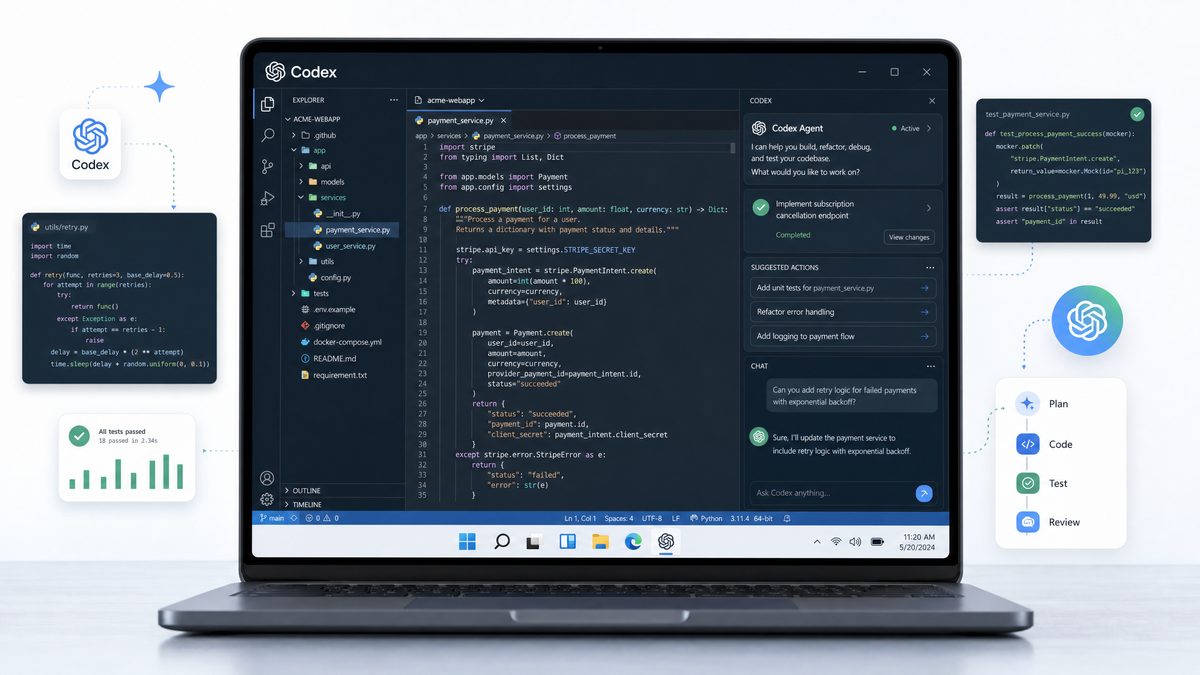
Since its inception, OpenAI Codex has transformed the way developers and tech professionals interact with AI-driven code generation and automation. In 2026, OpenAI has released the Codex Desktop App for Windows, marking a significant evolution in accessibility, functionality, and integration of AI-powered coding assistants. This comprehensive guide will delve deeply into the features, architecture, and real-world applications of the Codex Desktop App, with detailed technical insights and practical examples to help you harness its full potential.
Overview of OpenAI Codex Desktop App for Windows
The OpenAI Codex Desktop App is a native Windows application designed to bring the power of Codex directly to your desktop environment. Unlike its previous cloud-based or browser-dependent incarnations, the desktop app offers enhanced performance, seamless integration with the Windows OS, and new capabilities that leverage local resources for expanded AI functionality.
At its core, the app allows developers, engineers, and power users to generate, debug, and optimize code through natural language prompts, but now augmented with multi-agent collaboration, computer control capabilities, and novel features such as AI pets and a built-in file explorer.
Key Features and Innovations
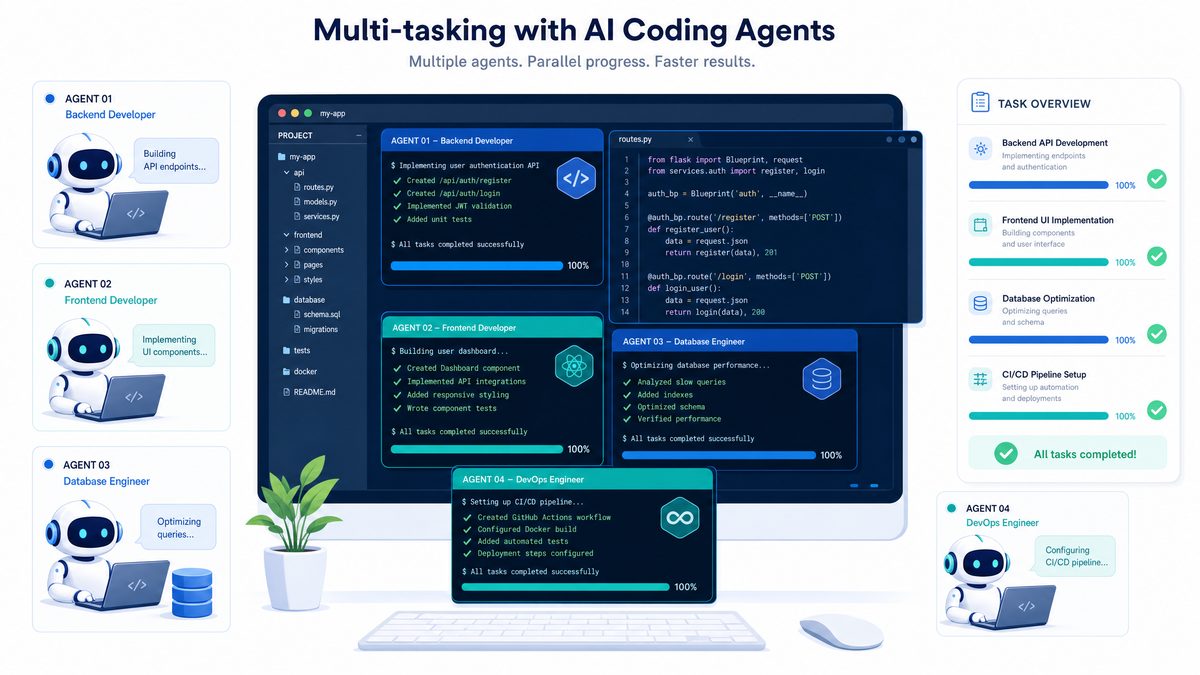
- Multi-tasking with AI Agents: Run multiple specialized AI agents simultaneously, each handling distinct tasks like code generation, documentation, testing, or system monitoring. This feature introduces a modular approach to AI assistance, where agents can communicate and coordinate to tackle complex workflows efficiently.
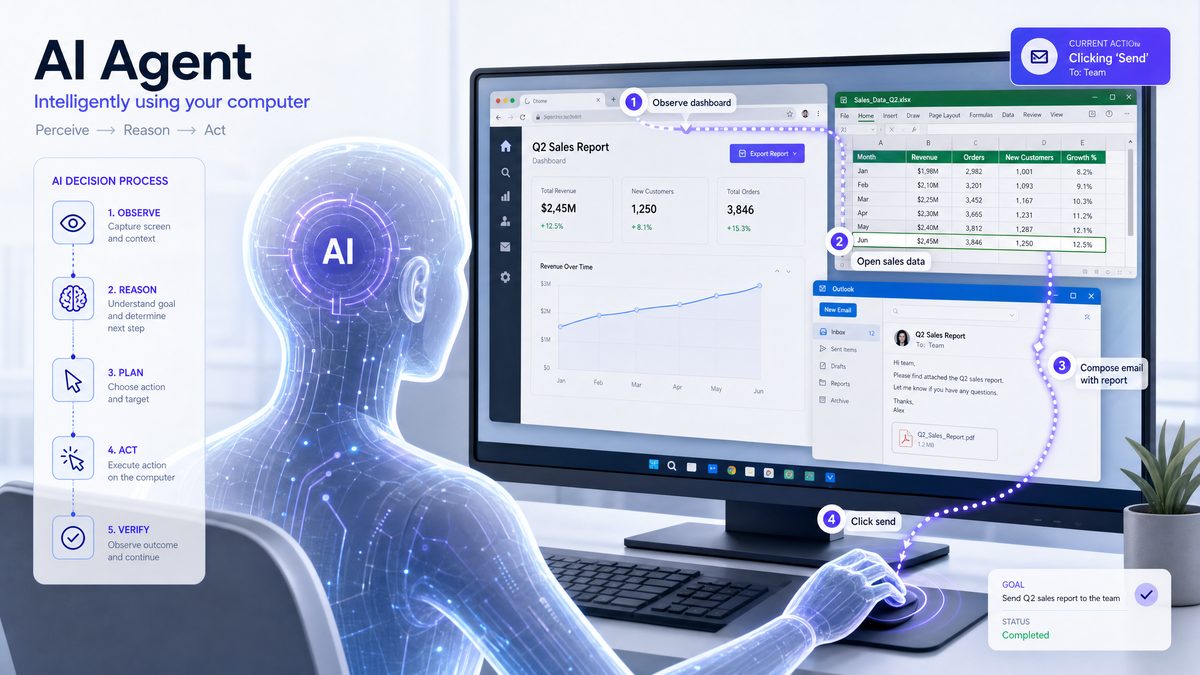
- Computer Use Capabilities: The AI can interact with your Windows system directly, opening files, running scripts, and managing resources under user supervision. This unprecedented level of integration allows AI to become an active participant in your development environment rather than a passive suggestion engine.
- AI Pets: Interactive AI companions powered by Codex that assist with productivity, reminders, and learning, blending utility with a novel user experience. These agents learn your habits and adapt their behavior to provide context-aware assistance that goes beyond coding.
- File Explorer Integration: Native file browsing and manipulation tools embedded in the app, enabling AI-assisted file management and code navigation. The AI can perform complex queries and batch operations, streamlining project maintenance and exploration.
- Work Type Selector: Configurable work modes tailored to different professional domains such as software development, data science, automation, and more. This customization allows the AI to prioritize relevant tasks, tools, and behaviors for your specific needs.
These features collectively redefine how AI assistants operate in a desktop context, bridging the gap between cloud AI and local computing environments. The app’s design philosophy centers on enhancing developer productivity while respecting user control, privacy, and system security.
System Requirements and Installation
The Codex Desktop App is optimized for Windows 11 and later versions, requiring at least 16GB of RAM, a quad-core processor, and a stable internet connection for hybrid local-cloud AI processing. These requirements ensure smooth multitasking between AI agents and seamless interaction with both local and cloud resources.
Detailed Hardware Recommendations:
- Processor: Intel i5 10th generation or AMD Ryzen 5 3000 series and above for adequate parallel processing capabilities.
- Memory: Minimum 16GB RAM; 32GB recommended for heavy workloads involving large codebases or multiple agents running simultaneously.
- Storage: SSD with at least 10GB free space for installation and caching AI data locally.
- Network: Reliable broadband connection supporting TLS-encrypted API calls and data synchronization.
- Graphics: Dedicated GPU not required, but hardware acceleration support improves UI responsiveness.
Installation Process: The installation can be performed via the Microsoft Store or direct download from OpenAI’s official website. The setup wizard guides users through API key configuration, user authentication, and preference settings. Advanced users can configure proxy settings, enable offline caching modes, and select default work types during setup.
Security Note: During installation, the app requests permissions to interact with the Windows API and access system files. All permissions are granular and can be revoked or modified later to suit security policies.
Technical Architecture and AI Agent Framework
The underlying architecture of the Codex Desktop App is a hybrid model combining local computation with cloud AI services. This approach balances performance, privacy, and scalability in ways that were previously unavailable in AI coding assistants.
Hybrid Local-Cloud Model Explained
While the core AI models powering Codex remain hosted in OpenAI’s cloud infrastructure, the desktop app includes a local runtime environment that handles:
- Pre-processing of user input and context management, including parsing natural language requests and maintaining session state across multiple agents.
- Execution of AI agent orchestration and task scheduling, ensuring agents operate concurrently without resource conflicts.
- Secure interfacing with Windows OS for file management and system commands, mediated by a sandboxed abstraction layer to prevent unauthorized access.
This division allows for faster interactions and reduces latency, as well as granting users more control over their data and workflows. The local runtime leverages Microsoft’s Windows Subsystem for Linux (WSL) for certain scripting operations, enabling seamless execution of both Windows-native and Linux-based tools within the same environment.
Technical Deep Dive: The local runtime is implemented in a modular microservices architecture using .NET 7.0 and Rust components for performance-critical modules. Inter-agent communication uses a high-throughput asynchronous message bus based on gRPC with end-to-end encryption, ensuring secure and low-latency coordination.
Multi-Agent System Design
A breakthrough feature in the 2026 release is the multi-agent system. Instead of a monolithic AI assistant, Codex runs multiple specialized agents in parallel, each optimized for specific tasks:
| Agent Name | Primary Function | Technical Capabilities | Typical Use Cases |
|---|---|---|---|
| CodeGen Agent | Code generation and completion | Supports 20+ programming languages, context-aware code synthesis, syntax validation, and style enforcement through pluggable linters. | Writing functions, generating boilerplate, refactoring, adapting code to different frameworks. |
| Debug Agent | Error detection and debugging assistance | Static code analysis using abstract syntax trees (AST), runtime error interpretation from logs, breakpoint recommendations, and automated test case generation. | Bug fixing, performance optimization, identifying security vulnerabilities. |
| Doc Agent | Documentation creation and summarization | Natural language summarization, inline comments generation, API docs creation, and multilingual translation support for documentation. | Project documentation, onboarding materials, generating changelogs. |
| FileOps Agent | File system interaction and management | File search with regex and semantic queries, content indexing using vector databases, batch operations, permission management, and integration with Git version control. | Codebase navigation, resource organization, managing large monorepos. |
| Task Scheduler Agent | Automation and task orchestration | Workflow automation, script scheduling with cron-like precision, system monitoring using performance counters, and alerting. | DevOps automation, recurring maintenance tasks, CI/CD pipeline management. |
These agents communicate through an inter-process messaging system secured with end-to-end encryption, ensuring both speed and privacy. The architecture supports dynamic loading and unloading of agents, enabling users to customize their assistant’s capabilities per project requirements.
Example Scenario: Suppose you are developing a web application in Python and JavaScript. The CodeGen Agent can generate backend API endpoints in Python Flask, while the Debug Agent monitors for runtime exceptions in your local environment. Simultaneously, the FileOps Agent indexes your project files, and the Task Scheduler Agent automates test suite runs every hour. All this occurs concurrently, with real-time updates presented in a unified dashboard.
Integration with Windows OS Capabilities
One of the most exciting technical advancements is Codex’s ability to interface with the Windows OS. This is achieved through a secure abstraction layer that mediates AI-driven commands to the system, such as:
- Opening, editing, and saving files through the File Explorer integration with support for drag-and-drop and context menu extensions.
- Executing PowerShell and command prompt scripts for automation, with safeguards such as execution policy checks, sandboxed environments, and user confirmation prompts.
- Managing windows and applications contextually based on user workflow, including switching focus, resizing windows, and launching development tools like Visual Studio or VS Code.
- Monitoring system performance and resources to optimize AI task scheduling, adjusting agent priorities dynamically to avoid system overload.
This system leverages the Windows API and .NET integration, allowing Codex to act as a powerful assistant capable of managing complex development environments and workflows.
Security Architecture: The OS integration layer runs under a least-privilege user context and uses Windows Integrity Mechanism (UAC) prompts for critical operations. Additionally, all AI commands are logged with timestamps and permission levels, providing an audit trail that can be reviewed by the user or system administrators.
Example Use Case: A developer asks, “Run the build script and open the output folder.” The FileOps Agent triggers the build script execution via PowerShell, monitors the process, and upon completion, commands the OS to open File Explorer focused on the output directory, all orchestrated seamlessly.
Innovative Features and User Experience Enhancements
The Codex Desktop App is more than just an AI coding assistant; it is a productivity ecosystem designed to adapt to diverse user needs. Here we explore the standout new features introduced in 2026.
AI Pets: A Novel Approach to AI Assistance
The AI Pets feature introduces anthropomorphic AI agents that live within the app environment. These pets serve multiple purposes:
- Personalized Assistance: Learning user habits to proactively suggest shortcuts, reminders, and learning resources. For example, if you often forget to add comments, your AI pet might remind you or offer to auto-generate them.
- Interactive Learning: Engaging users with coding challenges, tips, and motivational nudges. The pets use spaced repetition algorithms to help reinforce learning over time.
- Emotional Engagement: Providing a companion-like presence to reduce cognitive load and combat developer burnout, with customizable personalities ranging from energetic to calm to match user preferences.
Technically, AI Pets are stateful agents with persistent memory and adaptive learning models that evolve based on user interaction patterns. They utilize reinforcement learning from user feedback to improve assistance quality continually. The pets are rendered with lightweight 3D animations using DirectX 12, enabling smooth performance without significant resource overhead.
Example Interaction: During a late-night coding session, your AI pet notices increased error rates and suggests a short break, links to relevant documentation, or offers to review your recent code for potential improvements.
File Explorer Integration and Enhanced File Management
The embedded File Explorer offers a powerful interface for browsing, searching, and manipulating project files with AI assistance. Key technical details include:
- Contextual file suggestions based on ongoing code tasks, leveraging semantic analysis of open files and recent edits.
- Natural language queries to locate files, e.g., “Show me all Python scripts modified last week.” The system uses a combination of metadata indexing and content-based search with vector embeddings.
- Batch renaming, content refactoring, and permission adjustments through AI commands, implemented via atomic file system transactions to prevent inconsistent states.
- Version control integration to display file history and facilitate commits, compatible with Git, Mercurial, and SVN repositories.
This integration vastly reduces the friction of navigating large codebases and managing project resources, especially in complex or legacy systems.
Advanced Example: Suppose you want to refactor a legacy JavaScript module spread across multiple files. Using the FileOps Agent, you can issue a command like, “Find all functions named ‘calculate’ and rename them to ‘compute’,” and the system will safely perform this across the codebase, creating a backup and staging changes for review in Git.
Work Type Selector: Tailoring AI to Your Domain
Users can choose from several predefined work modes within the app, each adjusting the AI’s behavior, priorities, and interface to better fit domain-specific workflows:
| Work Type | Description | Optimized AI Behaviors | Example Applications |
|---|---|---|---|
| Software Development | Focused on code generation, debugging, and documentation | Prioritizes CodeGen and Debug Agents, enhanced syntax checking, integration with IDEs, and automated testing support. | Web apps, desktop software, APIs, game development |
| Data Science | Emphasizes data processing, visualization, and analysis | Integrates with Jupyter, prioritizes data-related code snippets, supports SQL query generation, and visualization libraries like Matplotlib and D3.js. | Machine learning models, data pipelines, exploratory data analysis |
| Automation | Focuses on scripting and process orchestration | Activates Task Scheduler and FileOps Agents, PowerShell support, and cross-platform scripting capabilities. | DevOps, system administration, CI/CD pipelines |
| Education | Designed for learning and tutoring through interactive coding | Enables AI Pets and Doc Agent for explanations and challenges, supports step-by-step code walkthroughs and quizzes. | Programming courses, self-learning, coding bootcamps |
Switching work types dynamically adjusts the app interface and agent priorities, making Codex a versatile tool for a broad spectrum of professionals. Additionally, users can create custom work types by configuring agent weights, adding plugins, or defining domain-specific knowledge bases.
Practical Use Cases and Real-World Implications
The introduction of the Codex Desktop App for Windows has profound implications on software development workflows, team collaboration, and productivity paradigms.
Enhanced Developer Productivity
By enabling local code generation with multi-agent support and direct OS interaction, developers can:
- Rapidly prototype features without context switching between IDEs, browsers, and documentation.
- Automate repetitive tasks such as code formatting, testing, and deployment scripting using the Task Scheduler Agent and PowerShell integration.
- Leverage AI Pets to maintain coding discipline and reduce burnout by suggesting breaks and providing motivational feedback.
- Improve code quality through continuous feedback loops involving CodeGen, Debug, and Doc Agents working in concert.
Case Study: A mid-sized software company integrated the Codex Desktop App into their daily workflow. Developers reported a 30% reduction in bug resolution time due to the Debug Agent’s precise error localization and suggested fixes. Automated documentation generation improved onboarding efficiency by 40%, as new hires could quickly understand legacy codebases.
Collaborative and Distributed Team Workflows
While the app is a single-user tool, it integrates seamlessly with cloud-based version control and communication platforms such as GitHub, GitLab, and Microsoft Teams. The agents can:
- Generate commit messages based on code changes and issue tickets.
- Create pull request summaries and highlight potential merge conflicts before submission.
- Suggest merge conflict resolutions by analyzing divergent code branches.
- Integrate with CI/CD pipelines to trigger automated tests and deployments.
This tight integration fosters smoother collaboration in distributed teams, reducing the cognitive load on developers and streamlining code reviews.
Example: In a remote team, the Codex Desktop App’s Task Scheduler Agent automatically triggers nightly builds and reports results via chatbots integrated into Slack or Microsoft Teams. When conflicts are detected, the Debug Agent notifies affected developers with detailed suggestions, accelerating resolution.
Security and Privacy Considerations
Operating AI assistants with system-level permissions poses risks that OpenAI has mitigated through multiple layers of security:
- Permission prompts for sensitive operations ensure users retain control over AI actions that affect critical system components.
- End-to-end encrypted agent communications prevent interception and tampering of messages between AI agents and cloud APIs.
- Local data caching with user-controlled retention policies allows sensitive information to remain on-device, reducing exposure to external threats.
- Audit logs of AI-driven system interactions provide transparency and enable forensic analysis in case of anomalies.
- Regular security updates and vulnerability patches are delivered automatically through the Microsoft Store or app update mechanisms.
Developers are encouraged to follow best practices for API key management, including using environment variables, encrypted credential stores, and rotating keys periodically. For sensitive enterprise environments, OpenAI offers on-premises deployment options with customizable security policies.
Impact on Education and Skill Development
The AI Pets and interactive learning modes introduce a new paradigm in coding education. Students can receive instant feedback, personalized challenges, and contextual explanations, accelerating learning and reducing dependence on human tutors.
These features are particularly beneficial in remote or asynchronous learning environments, where immediate instructor support is limited. The AI Pets adapt to individual learning styles, offering encouragement or additional exercises tailored to areas needing improvement.
Moreover, the Work Type Selector enables learners to experiment across domains with tailored AI guidance, fostering multi-disciplinary skill growth. For example, a student interested in both data science and web development can switch contexts seamlessly within the same app.
Case Study: An online coding bootcamp integrated the Codex Desktop App into its curriculum, resulting in a 25% increase in course completion rates and improved student satisfaction scores. The AI Pets were cited as particularly motivating, reducing learner anxiety and promoting consistent practice.
For more on AI-assisted learning environments, refer to How to Use OpenAI Codex Computer Use: Step-by-Step Tutorial for 2026.
Comparative Analysis: Codex Desktop App vs. Previous Versions and Competitors
To understand the advancements of the 2026 Codex Desktop App, it is useful to compare it against its predecessors and other AI coding tools available in the market.
| Feature | Codex Web/Cloud (Pre-2026) | Codex Desktop App (2026) | Competitor AI Tools (2026) |
|---|---|---|---|
| Platform | Cloud-based, browser-dependent | Native Windows app with hybrid local-cloud model | Mostly cloud-based; some desktop clients emerging |
| Multi-Agent Support | Single-agent model | Multi-agent architecture with specialized roles | Limited or no multi-agent features |
| Computer Use / OS Integration | Minimal or none | Full Windows OS integration for file and process management | Partial, mainly through plugins or extensions |
| AI Pets / Interactive Companions | Not available | Fully integrated AI Pets with persistent memory | Rare or experimental |
| File Explorer Integration | Basic file upload/download support | Embedded AI-driven file explorer with advanced search and manipulation | Typically requires external tools |
| Work Type Selector | Generic AI model | Configurable work modes tailored to domains | Usually one-size-fits-all approach |
| Security & Privacy | Data sent fully to cloud servers | Hybrid model with local caching, encrypted communications, and user controls | Varies widely; often cloud-centric |
This comparison highlights how the Codex Desktop App has set a new standard for AI code assistants in 2026. Its hybrid architecture, multi-agent system, and deep OS integration distinguish it from competitors that generally rely on cloud-only models with limited desktop functionality.
Competitors like GitHub Copilot remain powerful but do not offer the same level of system integration or multi-agent collaboration. Emerging tools are exploring AI companions and local runtime environments but are yet to match Codex’s maturity and feature set.
For a more detailed exploration of AI architectures, see AI Coding Agents in 2026: Codex vs Claude Code vs Gemini — Which Wins?.
Getting Started: Step-by-Step Usage Guide
To maximize your experience with the Codex Desktop App, follow these detailed steps from installation to advanced usage:
- Installation and Setup: Download from the official source, run the installer, and configure API authentication credentials securely. During setup, enable optional features like AI Pets and File Explorer integration based on your preference.
- Familiarize with the Interface: Explore the multi-agent dashboard, AI Pets panel, and the embedded File Explorer. The dashboard displays active agents, their current tasks, and notifications.
- Select Your Work Type: Choose the appropriate mode based on your current project or role. You can adjust this at any time via the settings panel.
- Interact with AI Agents: Use natural language or code snippets to send requests. For example, “Generate a Python function to parse JSON files,” or “Find and fix SQL injection vulnerabilities in this code.” The app supports voice input as an experimental feature.
- Leverage File Explorer: Perform searches like “Find all TODO comments in JavaScript files” or batch rename files using AI commands. Use filters to narrow down results by file type, modification date, or version control status.
- Use AI Pets: Engage with your AI pet for coding tips, reminders, or motivational support during long sessions. Customize appearance and personality traits through the settings menu.
- Automate Tasks: Schedule scripts and workflows via the Task Scheduler Agent to reduce manual overhead. Examples include nightly builds, automated code formatting, or scheduled backups.
- Review and Iterate: Use Debug and Doc Agents to refine code quality and maintainability. Accept or reject suggestions and provide feedback to improve AI accuracy over time.
This workflow ensures you take full advantage of the app’s capabilities, boosting productivity and code quality.
Advanced Tips: Power users can create custom agent workflows using the built-in SDK to script complex multi-agent interactions. Integration with popular IDEs is planned, allowing seamless context sharing and command execution.
For advanced scripting and customization, consult the developer SDK documentation and community resources at Claude Opus 4.7 for Software Engineering: The Complete 2026 Guide.
Future Directions and Roadmap
OpenAI plans to continuously evolve the Codex Desktop App, with upcoming features including:
- Cross-platform Support: Expanding to macOS and Linux desktops. This will involve adapting OS integration features to native APIs and ensuring consistent multi-agent performance across platforms.
- Enhanced Collaborative Features: Real-time multi-user AI sessions and shared agent workspaces to facilitate pair programming and group code reviews with AI assistance.
- Deeper IDE Integrations: Plugins for Visual Studio, JetBrains suite, and VS Code to embed Codex agents contextually, providing inline suggestions and debugging support without leaving the IDE.
- Custom Agent Creation: Allowing users to develop and deploy their own specialized AI agents within the app framework, fostering a marketplace of community-contributed agents tailored to niche workflows.
- Improved Privacy Controls: More granular data management options, offline AI capabilities to reduce cloud dependency, and enhanced encryption standards to meet enterprise compliance.
- Multimodal Input and Output: Supporting voice commands, code sketches, and visual debugging tools, along with richer AI Pets interactions through augmented reality (AR) interfaces.
These developments will further solidify Codex’s role as an indispensable AI assistant for technology professionals worldwide. OpenAI encourages community feedback and contributions to guide the evolution of the app’s features and usability.
Access 40,000+ AI Prompts for ChatGPT, Claude & Codex — Free!
Subscribe to get instant access to our complete Notion Prompt Library — the largest curated collection of prompts for ChatGPT, Claude, OpenAI Codex, and other leading AI models. Optimized for real-world workflows across coding, research, content creation, and business.
Useful Links
- OpenAI Codex Official Blog
- Microsoft Windows App Development Documentation
- PowerShell Team Blog
- JetBrains AI Assistant Overview
- Jupyter Project
- GitHub Copilot
- .NET Documentation
- Python File Handling Tutorial
- Best Practices for Securing API Keys in Desktop Apps
