
How to Automate Workflows with the Codex Chrome Extension

The landscape of web development and browser-based automation has undergone a paradigm shift How to Build a Research Assistant with OpenAI Codex in 2026: Step-by-Step with the introduction of the OpenAI Codex Chrome extension. As developers, we constantly seek tools that minimize context switching, streamline repetitive tasks, and enhance our overall productivity. The Codex Chrome extension serves as a bridge between the powerful natural language processing capabilities of OpenAI’s Codex model and the dynamic environment of the modern web browser. This comprehensive tutorial will guide you through the intricacies of setting up, configuring, and utilizing the Codex Chrome extension to automate workflows, test web applications, and pull context seamlessly across multiple tabs.
In today’s fast-paced development cycles, the ability to translate natural language instructions into executable code directly within the browser is not just a convenience; it is a significant competitive advantage. Whether you are a frontend engineer debugging complex UI states, a QA specialist writing automated test scripts, or a full-stack developer managing multiple API endpoints, the Codex extension offers a versatile toolkit tailored to your needs. By integrating directly into your browser, it eliminates the friction of copying and pasting code snippets between your IDE and the browser console, allowing for a more fluid and intuitive development experience.
Throughout this tutorial, we will explore the foundational concepts of the Codex model, delve into the installation and configuration process of the Chrome extension, and examine practical, real-world use cases. We will cover everything from basic DOM manipulation How to Use OpenAI Codex /goal for Autonomous Multi-Hour Coding Sessions in 2026 to advanced cross-tab context sharing How to Build a Voice-Powered AI Application with OpenAI’s GPT-Realtime-2 API: Complete Developer Tutorial and automated testing strategies. By the end of this guide, you will possess the knowledge and skills necessary to leverage the full potential of the Codex Chrome extension, transforming the way you interact with the web and significantly accelerating your development workflows.
Before we dive into the technical details, it is essential to understand the underlying architecture of the Codex model. Built upon the GPT-3 architecture, Codex has been specifically fine-tuned on a vast corpus of publicly available source code. This extensive training enables it to understand and generate code in numerous programming languages, with a particular proficiency in JavaScript, Python, and HTML/CSS. When integrated into the Chrome browser, this capability is unleashed directly upon the Document Object Model (DOM), allowing developers to interact with web pages using natural language commands. This seamless integration is what makes the Codex Chrome extension a truly revolutionary tool for web automation.
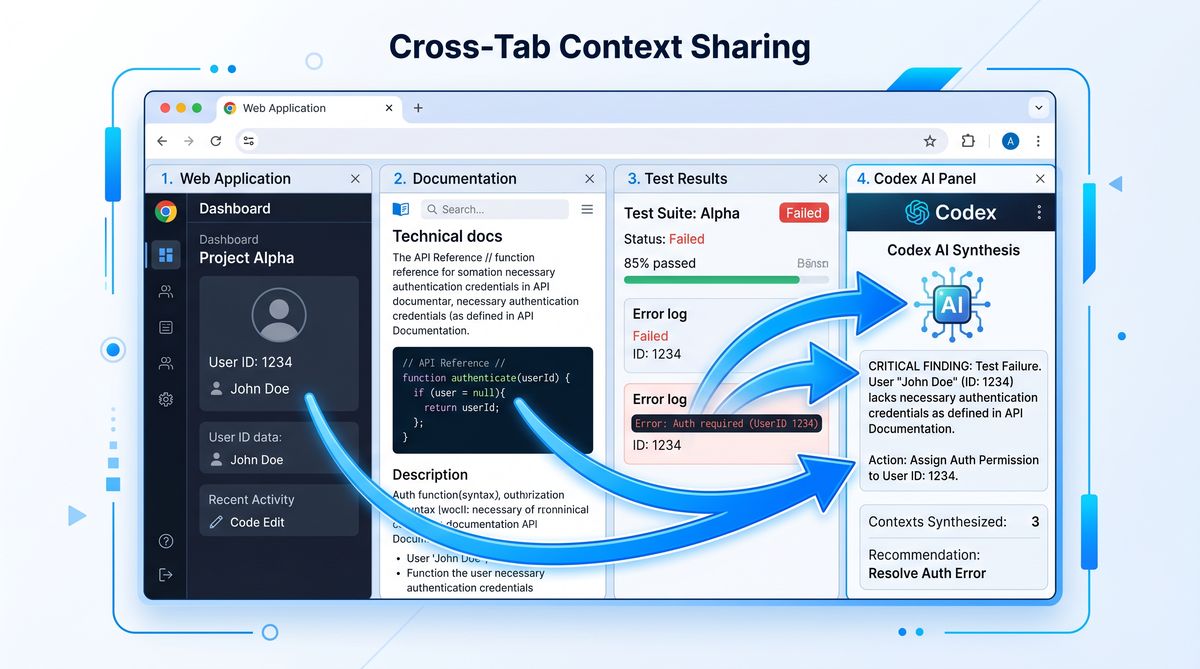
Furthermore, the extension’s ability to maintain context across different tabs and sessions is a game-changer for complex workflows. Imagine researching an API documentation in one tab, writing the integration code in another, and testing the implementation in a third. The Codex extension can seamlessly pull information from the documentation tab and apply it to the code generation process, significantly reducing the cognitive load on the developer. This cross-tab context awareness is a key feature that we will explore in depth later in this tutorial.
Setting Up the Codex Chrome Extension
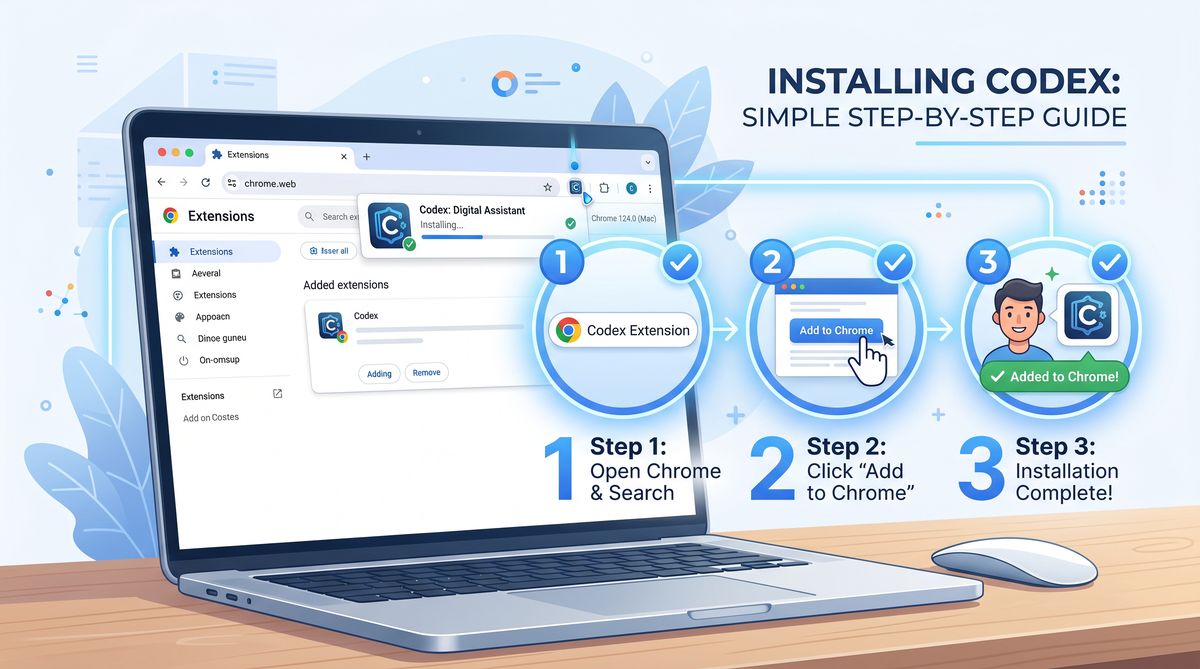
The first step towards automating your browser workflows is the installation and configuration of the Codex Chrome extension. While the process is straightforward, paying attention to the configuration details is crucial for optimal performance and security. The extension requires access to your OpenAI API key to communicate with the Codex model, and it also needs specific permissions to interact with the web pages you visit. In this section, we will walk through the installation process step-by-step and discuss the best practices for managing your API credentials and extension permissions.
Installation and Authentication
To begin, navigate to the Chrome Web Store and search for the official OpenAI Codex extension. Once located, click the “Add to Chrome” button and grant the necessary permissions. After the installation is complete, you will notice a new icon in your browser’s extension toolbar. Clicking this icon will open the extension’s interface, where you will be prompted to enter your OpenAI API key. It is highly recommended to create a dedicated API key specifically for the extension, allowing you to monitor its usage and revoke access independently if necessary.
Security is paramount when dealing with API keys, especially those that grant access to powerful models like Codex. Ensure that you never hardcode your API key in any scripts or share it publicly. The extension securely stores your key locally within the browser’s encrypted storage. Once authenticated, you can customize the extension’s settings, such as the default model engine (e.g., code-davinci-002 or gpt-3.5-turbo-instruct), the maximum token limit for generated responses, and the temperature parameter, which controls the creativity and determinism of the output.
Configuring Permissions and Scope
The Codex extension requires permission to read and modify the data on the websites you visit. This is necessary for it to analyze the DOM, extract context, and execute generated code. However, granting broad permissions can pose a security risk. It is advisable to configure the extension to only run on specific sites or to require a manual click to activate on each new domain. This granular control ensures that the extension only interacts with the web pages you explicitly authorize, protecting your privacy and preventing unintended code execution.
Additionally, you can configure the extension’s keyboard shortcuts for quick access. Assigning a global shortcut to open the Codex command palette allows you to invoke the model instantly without reaching for the mouse. This small optimization can significantly speed up your workflow, especially when you are deep in a coding session. We will explore how to use the command palette effectively in the subsequent sections.
Understanding the extension’s limitations is also crucial. While Codex is incredibly powerful, it is not infallible. It may occasionally generate incorrect or suboptimal code, especially when dealing with highly complex or poorly documented APIs. Therefore, it is essential to review and understand the generated code before executing it, particularly in production environments. The extension should be viewed as an intelligent assistant that augments your capabilities, rather than a complete replacement for human judgment and expertise.
Automating Browser-Based Developer Tasks
With the extension installed and configured, we can now explore its core functionality: automating browser-based tasks. The true power of the Codex extension lies in its ability to translate natural language commands into executable JavaScript code that interacts directly with the current web page. This capability opens up a wide range of possibilities, from simple DOM manipulation and data extraction to complex form filling and UI testing. In this section, we will examine several practical examples of how to leverage Codex for everyday developer tasks.
DOM Manipulation and Data Extraction
One of the most common use cases for the Codex extension is interacting with the Document Object Model (DOM). Instead of manually inspecting elements and writing verbose `document.querySelector` statements, you can simply instruct Codex to perform the desired action. For example, you can open the Codex command palette and type: “Extract all the links from the main navigation menu and log them to the console as a JSON array.” Codex will analyze the page structure, identify the navigation menu, and generate the corresponding JavaScript code to extract the URLs and text content of the links.
This capability is particularly useful for web scraping and data extraction tasks. You can instruct Codex to parse complex tables, extract specific data points based on CSS classes or data attributes, and format the output into a structured format like CSV or JSON. This eliminates the need to write custom scraping scripts for every new website, saving significant time and effort. Furthermore, Codex can handle dynamic content loaded via AJAX, ensuring that you capture the most up-to-date information.
Let’s consider a scenario where you need to extract product information from an e-commerce website. You can instruct Codex: “Find all product cards on this page. For each card, extract the product name, price, and image URL. Return the data as an array of objects.” Codex will generate the necessary code to iterate over the product elements, extract the requested data, and structure it accordingly. This automated approach is far more efficient and less error-prone than manual data entry or writing brittle scraping scripts.
Form Filling and UI Interaction
Another powerful application of the Codex extension is automating form filling and UI interactions. This is invaluable for testing web applications, automating repetitive data entry tasks, and creating custom browser macros. You can instruct Codex to fill out complex forms with specific data, click buttons, select options from dropdown menus, and even simulate keyboard events. For instance, you can command: “Fill out the registration form with dummy data, select ‘United States’ from the country dropdown, check the terms and conditions box, and click the submit button.”
Codex will generate the JavaScript code to locate the corresponding input fields, populate them with the specified data, and trigger the necessary events to simulate user interaction. This capability can significantly accelerate the testing process, allowing you to quickly verify the functionality of forms and UI components without manual intervention. Moreover, you can combine multiple commands to create complex automation sequences, effectively building custom browser macros tailored to your specific workflows.
When automating UI interactions, it is important to consider the asynchronous nature of modern web applications. Elements may not be immediately available in the DOM, or actions may trigger network requests that take time to complete. Codex can generate code that utilizes `async/await` and `MutationObserver` to handle these asynchronous scenarios gracefully, ensuring that your automation scripts are robust and reliable. We will delve deeper into advanced testing strategies in the following sections.
Pulling Context Across Tabs
One of the most innovative features of the Codex Chrome extension is its ability to pull context across multiple browser tabs. This feature addresses a common pain point for developers: the need to constantly switch between documentation, API references, and the actual development environment. By allowing Codex to access information from other open tabs, you can significantly streamline your workflow and reduce cognitive load. In this section, we will explore how to leverage cross-tab context sharing to enhance code generation and problem-solving.
Integrating Documentation and API References
Imagine you are integrating a new third-party API into your web application. Typically, this involves reading the API documentation in one tab, copying the endpoint URLs and payload structures, and pasting them into your code editor in another tab. With the Codex extension, you can automate this process. You can open the API documentation in one tab and your development environment in another. Then, you can instruct Codex: “Based on the API documentation in the ‘Stripe API Reference’ tab, write a fetch request to create a new customer with the email ‘[email protected]’.”
Codex will analyze the content of the specified tab, extract the relevant information (such as the endpoint URL, required headers, and payload structure), and generate the corresponding JavaScript code in your current tab. This seamless integration of documentation and code generation eliminates the need for manual copying and pasting, reducing the risk of errors and accelerating the development process. This feature is particularly beneficial when working with complex or poorly documented APIs, as Codex can often infer the correct usage patterns from the available context.
Furthermore, cross-tab context sharing can be used to troubleshoot errors and debug code. If you encounter an error message in your browser console, you can open a new tab and search for the error on Stack Overflow or GitHub. Then, you can instruct Codex: “Analyze the error message in the console and suggest a fix based on the solutions discussed in the ‘Stack Overflow’ tab.” Codex will synthesize the information from both tabs and provide a targeted solution, saving you the time and effort of manually sifting through search results.
Managing Complex Workflows
Cross-tab context sharing is not limited to documentation and error resolution; it can also be used to manage complex, multi-step workflows. For example, you might have a tab open with a design mockup, another tab with a Jira ticket detailing the requirements, and a third tab with your development environment. You can instruct Codex: “Generate the HTML and CSS for the hero section based on the design mockup in the ‘Figma’ tab, ensuring that it meets the accessibility requirements specified in the ‘Jira’ tab.”
By providing Codex with access to multiple sources of truth, you can ensure that the generated code is accurate, compliant, and aligned with the project requirements. This holistic approach to code generation significantly improves the quality and consistency of your output. However, it is important to note that cross-tab context sharing requires careful management of your open tabs. Having too many tabs open can overwhelm the model and lead to inaccurate or irrelevant results. It is advisable to keep only the necessary tabs open and clearly specify the target tab in your instructions.
The ability to pull context across tabs transforms the Codex extension from a simple code generator into an intelligent development assistant. By seamlessly integrating information from various sources, it empowers developers to work more efficiently, solve problems faster, and build higher-quality web applications. As the Codex model continues to evolve, we can expect even more sophisticated cross-tab capabilities, further blurring the lines between the browser and the IDE.
Advanced Automated Testing Strategies
Automated testing is a critical component of modern software development, ensuring the reliability and stability of web applications. The Codex Chrome extension can significantly enhance your testing workflows by automating the creation and execution of test scripts directly within the browser. In this section, we will explore advanced strategies for leveraging Codex to build robust and comprehensive automated test suites, covering everything from unit testing to end-to-end (E2E) testing.
Generating Test Assertions and Mocks
Writing test assertions and creating mock data can be tedious and time-consuming. The Codex extension can automate these tasks, allowing you to focus on the core logic of your tests. You can instruct Codex to generate assertions based on the expected behavior of a specific component or function. For example, you can command: “Write a Jest test suite for the `calculateTotal` function, including assertions for edge cases such as empty arrays and negative values.” Codex will generate the necessary test boilerplate and assertions, saving you valuable time.
Furthermore, Codex can generate realistic mock data for your tests. Instead of manually creating JSON objects or arrays, you can instruct Codex: “Generate an array of 10 mock user objects, each containing a name, email, and randomly generated UUID.” This capability is particularly useful when testing components that rely on complex data structures or external APIs. By automating the generation of test assertions and mock data, the Codex extension streamlines the testing process and encourages developers to write more comprehensive test suites.
When generating test code, it is important to provide Codex with clear and specific instructions. The more context you provide, the more accurate and relevant the generated code will be. You can also use the extension to refactor existing test suites, improving their readability and maintainability. For instance, you can instruct Codex: “Refactor this test suite to use async/await instead of promises, and extract the common setup logic into a `beforeEach` block.”
End-to-End (E2E) Testing in the Browser
End-to-End (E2E) testing involves verifying the functionality of a web application from the user’s perspective, simulating real-world interactions and workflows. The Codex extension is uniquely positioned to facilitate E2E testing directly within the browser. You can instruct Codex to generate scripts that navigate through your application, interact with UI elements, and verify the expected outcomes. For example, you can command: “Write a Puppeteer script that logs into the application, navigates to the dashboard, creates a new project, and verifies that the project appears in the list.”
While Codex can generate the core logic for E2E tests, it is often beneficial to integrate it with established testing frameworks like Cypress or Playwright. You can use the extension to generate the specific interaction commands (e.g., `cy.get(‘.submit-btn’).click()`) and then incorporate them into your existing test suite. This hybrid approach combines the speed and convenience of Codex with the robustness and reporting capabilities of dedicated testing frameworks.
To illustrate the capabilities of the Codex extension in generating test scripts, consider the following comparison of different testing approaches:
| Testing Approach | Manual Effort | Codex Assistance | Best Use Case |
|---|---|---|---|
| Manual Testing | High | None | Exploratory testing, visual QA |
| Traditional Scripting | Medium | Low | Complex, highly customized test scenarios |
| Codex-Assisted Scripting | Low | High | Rapid test generation, boilerplate creation, DOM interaction |
As demonstrated in the table, leveraging the Codex extension significantly reduces the manual effort required for test scripting, making it an ideal tool for rapid test generation and DOM interaction. By incorporating Codex into your testing workflows, you can increase test coverage, identify bugs earlier in the development cycle, and ultimately deliver higher-quality web applications.
The integration of AI into the testing process represents a significant leap forward in software development. The Codex Chrome extension empowers developers to write better tests faster, freeing up valuable time to focus on building innovative features and improving the user experience. As AI models continue to advance, we can expect even more sophisticated testing capabilities, further automating the quality assurance process.
Best Practices and Security Considerations
While the Codex Chrome extension offers immense power and convenience, it is essential to use it responsibly and securely. Integrating an AI model directly into your browser introduces new attack vectors and potential vulnerabilities. In this section, we will discuss best practices for using the extension safely and effectively, ensuring that you maximize its benefits while minimizing the associated risks.
Securing Your API Credentials
As mentioned earlier, your OpenAI API key is the gateway to the Codex model. It is crucial to protect this key from unauthorized access. Never hardcode your API key in any scripts, configuration files, or public repositories. The Codex extension securely stores your key within the browser, but you should still exercise caution. If you suspect that your key has been compromised, revoke it immediately from the OpenAI dashboard and generate a new one.
Furthermore, consider implementing usage limits and billing alerts on your OpenAI account. The Codex model can consume a significant number of tokens, especially when processing large amounts of context or generating complex code. Setting usage limits ensures that you do not incur unexpected charges if the extension is used excessively or maliciously. Regularly monitoring your API usage can also help you identify any anomalous activity.
It is also advisable to use a dedicated API key specifically for the Chrome extension. This allows you to isolate the extension’s usage from your other applications and services. If you need to revoke access for the extension, you can do so without affecting your other integrations. This principle of least privilege is a fundamental security practice that should be applied whenever dealing with API credentials.
Reviewing Generated Code
The most critical best practice when using the Codex extension is to thoroughly review and understand the generated code before executing it. While Codex is highly capable, it is not perfect. It can generate code that is inefficient, insecure, or simply incorrect. Executing untrusted code directly in your browser can lead to cross-site scripting (XSS) vulnerabilities, data breaches, and other security incidents.
Always treat the generated code as a suggestion rather than a final solution. Carefully examine the logic, check for potential vulnerabilities, and ensure that the code aligns with your project’s coding standards. Pay particular attention to code that interacts with sensitive data, modifies the DOM, or makes network requests. If you are unsure about the safety or functionality of the generated code, do not execute it.
In addition to manual review, consider using static analysis tools and linters to automatically identify potential issues in the generated code. These tools can detect common security vulnerabilities, coding errors, and style violations, providing an additional layer of defense. By combining manual review with automated analysis, you can significantly reduce the risk of introducing vulnerabilities into your application.
By adhering to these best practices and security considerations, you can harness the power of the Codex Chrome extension safely and effectively. The extension is a powerful tool that can significantly enhance your productivity, but it must be used with caution and respect for the potential risks. As you become more familiar with the extension, you will develop an intuition for when to rely on its suggestions and when to exercise independent judgment.
Useful Links
- OpenAI Codex Official Announcement
- Chrome Web Store – Extensions
- MDN Web Docs: Document Object Model (DOM)
- Jest Testing Framework Documentation
- Puppeteer Official Documentation
Access 40,000+ AI Prompts for ChatGPT, Claude & Codex — Free!
Subscribe to get instant access to our complete Notion Prompt Library — the largest curated collection of prompts for ChatGPT, Claude, OpenAI Codex, and other leading AI models. Optimized for real-world workflows across coding, research, content creation, and business.
