
Comprehensive Guide to Using Goal Mode in OpenAI Codex (v0.133+)
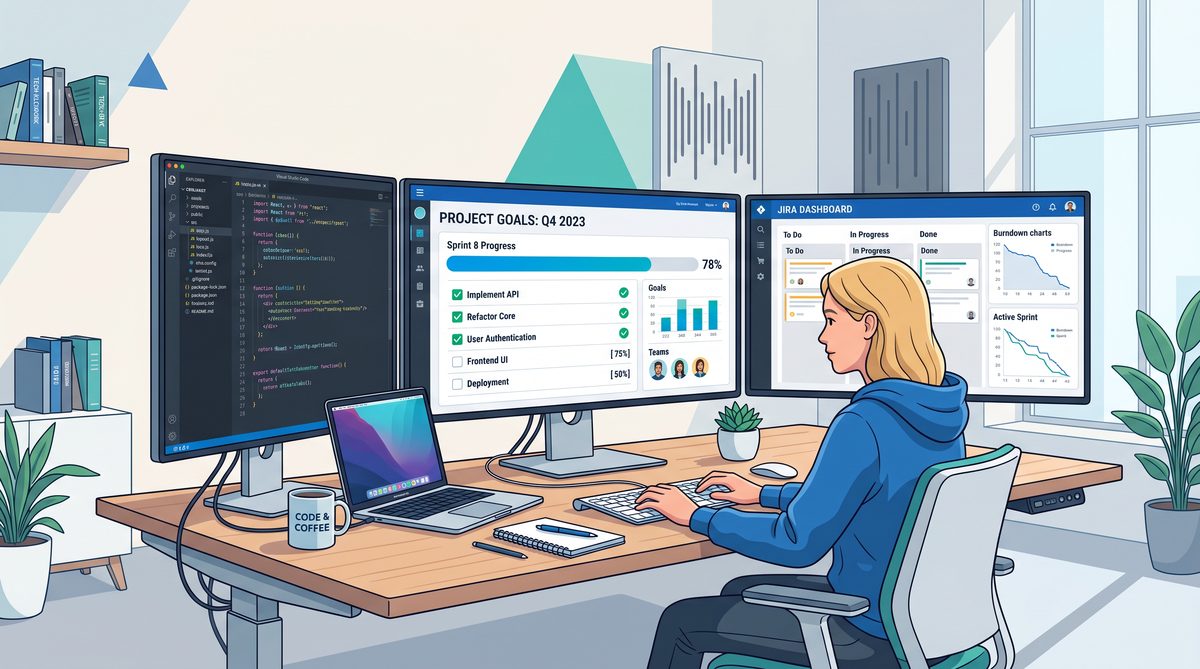
OpenAI Codex, renowned for its powerful AI-assisted code generation, introduced an exciting new feature in version 0.133+: Goal Mode. This innovative mode allows developers to specify a target or objective, enabling the AI to track progress over multiple interactions and deliver results that align closely with overarching goals rather than fragmented, single-turn responses.
In this in-depth tutorial, we will explore what Goal Mode is, how it tracks progress throughout your interaction, how to enable and configure it in both the CLI and IDE environments, and walk through a detailed, practical example of automating a full project setup from scratch using Goal Mode. Whether you’re a developer, AI practitioner, or coding enthusiast, this guide is tailored to help you leverage this new capability to streamline your workflows and enhance productivity.
1. What Is Goal Mode in OpenAI Codex?
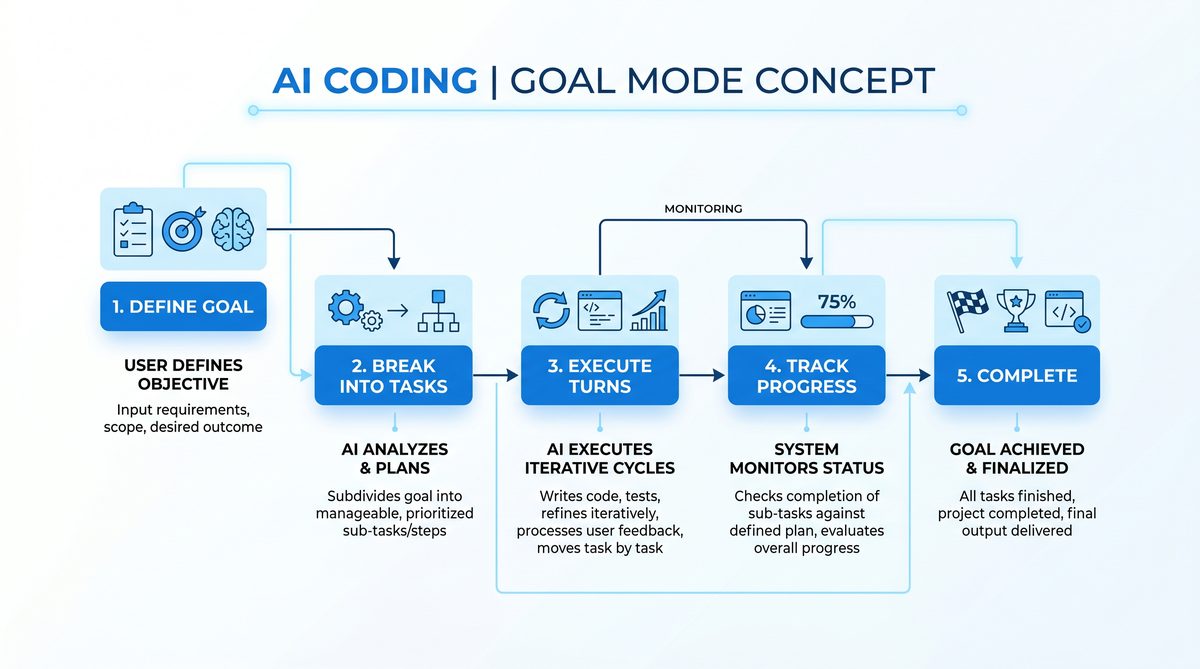
Goal Mode is a contextual interaction paradigm introduced by OpenAI Codex in version 0.133 and above, designed to facilitate multi-turn conversations while maintaining awareness of an overarching task or objective. Unlike the traditional request-response pattern, Goal Mode enables the AI to:
- Understand your long-term goal: The AI keeps track of what you want to accomplish rather than just answering isolated queries.
- Track intermediate progress: As you engage in multiple turns, the system evaluates which parts of the goal have been completed and what remains.
- Adapt and re-plan: The AI dynamically adjusts its responses based on the current progress towards your goal to provide context-aware suggestions.
Goal Mode effectively transforms Codex into a collaborative coding assistant that can “remember” the project context and your final objectives across turns, making complex automation tasks more manageable.
- Efficient project automation through a persistent goal state.
- Reduced need to constantly restate context with each request.
- Better planning and execution of multi-step coding tasks.
How Goal Mode Differs From Regular Mode
In the standard Codex mode, each interaction is treated independently – the AI generates code or suggestions based solely on the immediate prompt without maintaining a holistic state.
Goal Mode, on the other hand, preserves the goal context server-side across turns, enabling the agent to recognize what has been accomplished and what still needs action. This means you can:
- Issue a broad goal like “Set up a Python Flask web app with a Docker container.”
- Receive step-wise help executing various phases, while Codex references the initial goal continually.
This persistent goal tracking is especially powerful for complex projects that require multiple stages of setup and code generation.
To better understand how this works, next we will cover how to activate and configure Goal Mode on your system.
2. Enabling Goal Mode in the Codex CLI and IDEs
Starting from version 0.133+, Goal Mode needs to be explicitly enabled in both CLI and IDE environments. Here’s how you can get started:
2.1 Enabling Goal Mode in the CLI
The Codex CLI allows you to interact with the AI using terminal commands. To enable Goal Mode, follow these steps:
- Upgrade to the latest Codex CLI: Ensure you have version 0.133 or newer.
- Start a session with Goal Mode enabled by adding the
--goal-modeflag: - Provide your goal at the beginning of the interaction:
pip install --upgrade openai-codex-clicodex-cli chat --goal-modeEnter your goal: Automate a full Python Flask web project setup including Docker configurationOnce enabled, the CLI interfaces with the Codex API such that your goal is tracked through all active turns in this session.
2.2 Enabling Goal Mode in IDE Plugins
If you’re using Codex with popular IDEs such as VS Code or JetBrains IDEs, enabling Goal Mode also involves activating specific settings in the plugin:
- Open the Codex plugin settings panel in your IDE.
- Navigate to the interaction mode section.
- Select Goal Mode instead of Regular mode.
- Input your goal in the prompt or dedicated goal input field.
For example, in VS Code:
- Open Command Palette (Ctrl+Shift+P or Cmd+Shift+P on macOS)
- Search for
Codex: Start Goal Mode Sessionand select it - Type your project goal and press Enter
Your IDE’s Codex plugin will then maintain the goal context as you write prompts and request code completions or suggestions.
2.3 Important CLI Flags and Settings
| Flag | Description | Example Usage |
|---|---|---|
--goal-mode |
Enables Goal Mode for the current interactive session. | codex-cli chat --goal-mode |
--goal "Your goal here" |
Sets your specific goal in a single CLI command. | codex-cli chat --goal-mode --goal "Build a Flask app with Docker" |
--session-id <id> |
Resume or continue a previous goal mode session by providing a session ID. | codex-cli chat --goal-mode --session-id abc123 |
Using the session ID helps persist your goal context over multiple terminal sessions or IDE restarts.
For more detailed configuration options, refer to the official OpenAI Codex documentation
Goal Mode was first introduced as an experimental feature in Codex v0.133, alongside remote computer control and the plugin marketplace; our detailed breakdown of the v0.133 release covers the full feature set and initial configuration steps. Read the full article: OpenAI Codex v0.133: Goals, Remote Control, Plugin Marketplace, and iOS Push Notifications.
.
3. How Goal Mode Tracks Progress Across Active Turns
Goal Mode incorporates an advanced tracking mechanism that continuously evaluates your multi-turn interaction to understand which parts of your goal have been addressed and what still remains. Here’s an overview of how it works internally:
3.1 Goal State Management
When you provide a goal, Codex creates a goal state object on the backend. This object contains a structured representation of your target, including subtasks, dependencies, and metadata.
- Initial Goal Parsing: The AI parses your goal statement to extract actionable tasks and expected outputs.
- Task Segmentation: The goal is divided into smaller modules or steps to guide incremental progress.
- Progress Marker: After every interaction, the system marks completed or in-progress tasks within the goal state.
3.2 Contextual Awareness in Responses
Unlike traditional responses that only rely on the immediate prompt, Goal Mode responses are contextualized against your full goal state. This means the AI will:
- Suggest code or instructions to advance incomplete tasks.
- Refrain from repeating or revisiting completed elements unless explicitly asked.
- Offer insights on next logical steps or alternatives when bottlenecks arise.
3.3 Example of Goal Progression
Consider a goal: Automate a full Python Flask project setup including Docker configuration. Your interaction might span multiple turns:
- Turn 1: “Generate a basic Flask app skeleton.” (Codex creates app.py and requirements.txt)
- Turn 2: “Add Dockerfile and docker-compose.yml.” (Codex generates Docker config files, aware app skeleton exists)
- Turn 3: “Write instructions for running the container.” (Codex outputs README steps, knowing prior parts done)
At each turn, the AI looks at your goal’s progress markers to provide relevant output that moves the overall project forward efficiently.
3.4 Session Management
Goal Mode also supports saving and resuming progress via API session tokens, so your workflow can be persistent across days or team members.
If working in teams, you can share the session ID and goal, enabling collaborative coding around a centralized objective.
Learn more about session management and goal state persistence here:
Understanding how Goal Mode executes tasks requires knowledge of the underlying GPT-5.5 architecture that powers Codex, including its sandboxed execution environment and multi-turn reasoning capabilities explained in our technical deep-dive. Read the full article: How GPT-5.5 Powers OpenAI Codex: Architecture, Sandboxing, and Real-World Agent Workflows.
.
4. Step-by-Step Example: Automating a Full Project Setup Using Goal Mode
Now that you understand what Goal Mode is and how it functions, let’s walk through a detailed example. We will automate setting up a simple but complete Python Flask project, including environment, Docker, and documentation.
Step 1: Start Goal Mode Session
Using the CLI:
codex-cli chat --goal-mode --goal "Create a Python Flask web app with Docker container setup, including README and entrypoint script"The system acknowledges and sets your goal:
Goal Mode session started.
Tracking goal: Create a Python Flask web app with Docker container setup, including README and entrypoint script.
Step 2: Generate Flask App Skeleton
Your first prompt:
Create a basic Flask app with a single route "/" that returns "Hello World".Codex responds with:
app.py:

from flask import Flask

app = Flask(__name__)

@app.route("/")
def hello():
    return "Hello World"

if __name__ == "__main__":
    app.run(host="0.0.0.0", port=5000)
It also generates requirements.txt:
Flask==2.1.1Step 3: Add Docker Configuration
Your next prompt:
Create a Dockerfile to containerize the Flask app, exposing port 5000.Codex generates:
Dockerfile:

FROM python:3.9-slim

WORKDIR /app

COPY requirements.txt .

RUN pip install -r requirements.txt

COPY . .

CMD ["python", "app.py"]

EXPOSE 5000
Then ask:
Create a docker-compose.yml file to run the container.Codex creates:
docker-compose.yml:

version: '3'
services:
  web:
    build: .
    ports:
      - "5000:5000"
Step 4: Add Entrypoint Script and README
Prompt:
Create an entrypoint.sh script to start the Flask app setting environment variables.Codex returns:
entrypoint.sh:

#!/bin/bash
export FLASK_APP=app.py
export FLASK_RUN_HOST=0.0.0.0
flask run
Make sure to set executable permissions:
chmod +x entrypoint.shNext prompt:
Create a README.md explaining how to run the app with Docker.Codex writes:
# Flask Dockerized App

This project contains a simple Flask web app containerized with Docker.

## Running with Docker

```bash
docker-compose up --build
```

Access the app at `http://localhost:5000`.
Step 5: Verify and Finalize
Prompt:
Provide a script to run automated tests on the Flask app endpoint.Codex generates tests using pytest:
test_app.py:

import pytest
from app import app

@pytest.fixture
def client():
    return app.test_client()

def test_hello_world(client):
    response = client.get("/")
    assert response.data == b"Hello World"
    assert response.status_code == 200
Prompt:
Update requirements.txt to include pytest.requirements.txt:
Flask==2.1.1
pytest==7.1.2
Step 6: Wrap Up and Save Session
Once your project setup is automated, you can save your session via a command:
codex-cli save-session --session-id your_session_idThis persists your goal state and progress for resumed work later.
Alternatively, share the session ID with collaborators for joint development. More details on team workflows using Goal Mode can be found here:
Once you have Goal Mode configured, you can dramatically expand its utility by combining it with advanced prompt patterns; our collection of 25 enterprise-grade Codex prompts provides ready-to-use templates for infrastructure automation, data pipelines, and cross-team coordination. Read the full article: 25 Advanced OpenAI Codex Prompts for Enterprise Workflows.
.
Conclusion
Goal Mode in OpenAI Codex (v0.133+) represents a game-changing feature that empowers developers to work with AI in a more goal-oriented, context-preserving manner. By enabling Goal Mode in your CLI or IDE, you unlock the ability to perform complex, multi-step coding tasks, automate project setups, and maintain progress transparently across multiple turns.
This tutorial covered what Goal Mode is, how it tracks your progress, how to activate it in your tools, and demonstrated a comprehensive example automating a full Python Flask project with Docker and testing. By incorporating Goal Mode into your development workflow, you can significantly accelerate coding efficiency and improve collaboration.
For further technical insights on configuring Codex for secure automated development, including sandbox rules and auto-review settings, see our guide on How to Configure Codex Auto-Review Mode and Sandbox Rules for Secure AI-Assisted Development.
Useful Links
- OpenAI Codex Official Documentation
- OpenAI Codex CLI GitHub Repository
- VS Code Command Palette
- Docker Compose Official Documentation
- Flask Web Framework Documentation
- Pytest Testing Framework
- Using OpenAI Codex in VS Code
- OpenAI Codex Blog Announcement
- VS Code OpenAI Codex Extension
Access 40,000+ AI Prompts for ChatGPT, Claude & Codex — Free!
Subscribe to get instant access to our complete Notion Prompt Library — the largest curated collection of prompts for ChatGPT, Claude, OpenAI Codex, and other leading AI models. Optimized for real-world workflows across coding, research, content creation, and business.
