
In today’s interconnected world, the ability to remotely and securely control desktop environments unlocks immense productivity and operational efficiencies. Leveraging AI models like OpenAI’s Codex for remote computer use, especially on locked desktops such as macOS systems, presents an advanced frontier in desktop automation. This masterclass, authored by Markos Symeonides, dives deep into the art and science of prompting Codex to orchestrate desktop applications remotely and securely from your mobile device. Whether you are a developer, system administrator, or power user, this comprehensive guide will empower you to build robust, error-resilient automation workflows that run seamlessly even on locked computers.

Understanding Codex Remote Computer Use
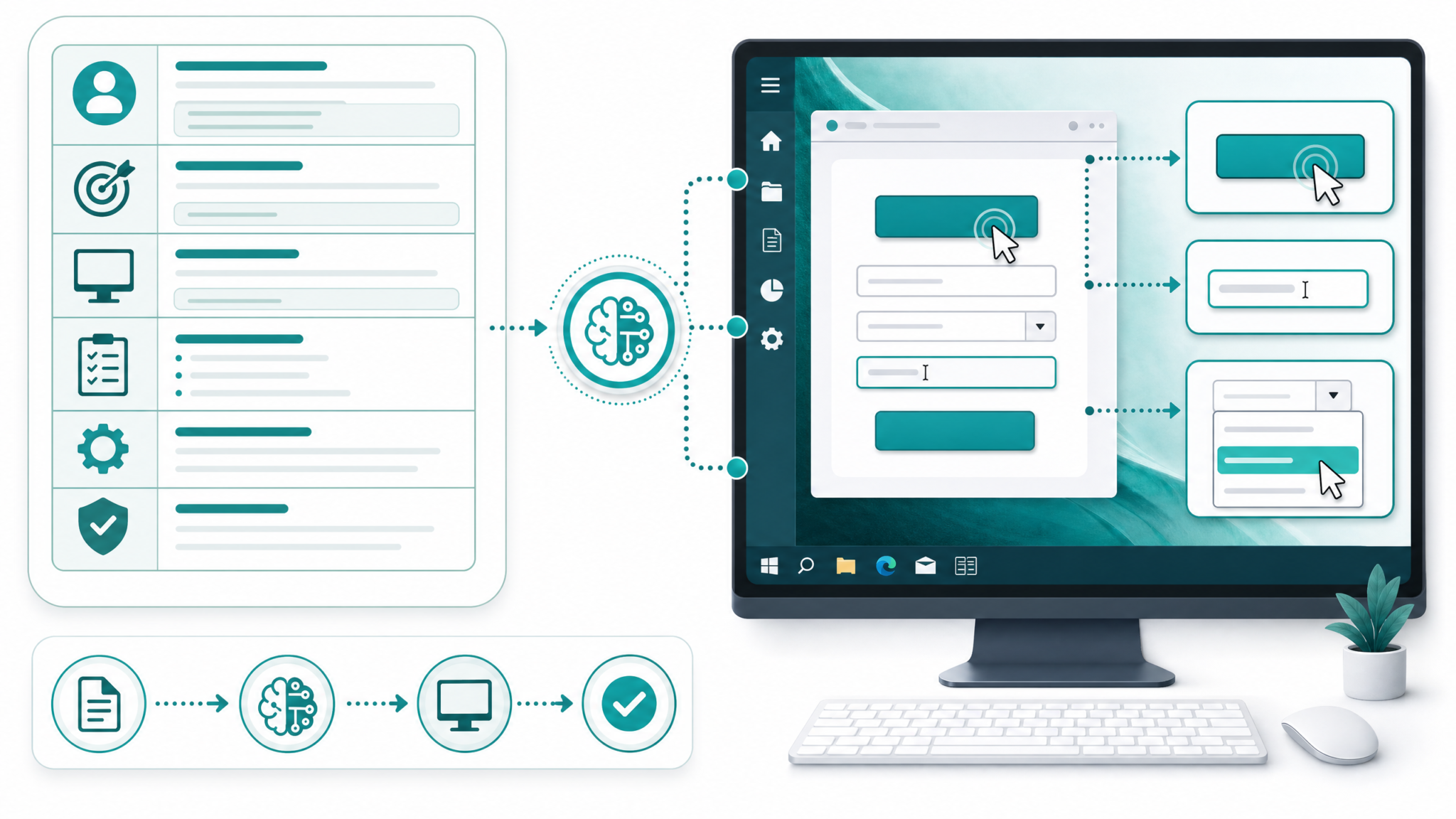
OpenAI’s Codex is a powerful AI model trained to understand and generate programming code, bridging natural language and executable instructions. When harnessed for remote computer use, Codex acts as an intelligent intermediary that interprets your high-level commands and translates them into precise automation scripts or API calls that manipulate desktop applications.
Remote computer use with Codex involves sending prompts that:
- Describe the desired action in plain English or structured commands.
- Instruct Codex to generate code snippets or scripts (e.g., AppleScript, Python with automation libraries) to execute on the target machine.
- Implement error handling and recovery logic for resilient execution.
- Ensure security constraints are respected, especially when the desktop is locked.
Key Challenges in Remote Desktop Automation on Locked Macs
- Security Restrictions: macOS enforces strict security when the screen is locked, preventing unauthorized UI access. This means that traditional GUI automation techniques like simulating keystrokes or mouse clicks often fail when the desktop is locked. Automation scripts must rely on background APIs or system services instead.
- Authentication: Ensuring that remote commands do not bypass authentication or escalate privileges without consent. Automation workflows must respect user credentials and system policies to avoid security breaches.
- UI Accessibility: Limited access to GUI elements when the user session is inactive. Apple’s Accessibility framework restricts access to UI elements when the screen is locked, leading to limitations for GUI-based automation tools like AppleScript or Accessibility APIs.
- Error Recovery: Handling unexpected states, network failures, or application crashes gracefully. Network interruptions or app unresponsiveness require scripts to include retry logic and robust error reporting.
- Latency and Feedback: Managing asynchronous communication between the mobile device and desktop. Ensuring commands are executed in order and their output is transmitted securely back to the user is essential for reliable automation.
Effectively prompting Codex to navigate these challenges requires a blend of precise natural language instructions, structured coding logic, and security best practices.
Deep Dive: macOS Security Model Impact on Automation
macOS’s security model is designed to protect user data and system integrity. When the screen is locked, the system suspends or restricts access to input events and GUI automation. Key security layers affecting automation include:
- Screen Lock State: Prevents GUI events and disables Accessibility APIs for UI scripting.
- System Integrity Protection (SIP): Limits root-level modifications and injection of code into system processes.
- Automation Permissions: System prompts require user consent for apps/scripts to control other apps.
Therefore, automation must leverage background-accessible system APIs or pre-authorized daemons running with appropriate privileges.
Setting Up Your Environment for Codex Remote Automation
Before diving into advanced prompting techniques, you must prepare your Mac and remote environment for seamless Codex-driven automation. This preparation includes system configuration, security hardening, and installation of necessary tools.
Prerequisites
- macOS Version: Catalina 10.15 or later recommended for better scripting support and security features.
- Remote Access Setup: Enable SSH access with key-based authentication. Configure firewall rules to allow SSH only from trusted IPs or VPN.
- Automation Permissions: Grant accessibility permissions to automation tools (e.g., AppleScript, Automator, or Python scripts using PyObjC). This is done via System Preferences > Security & Privacy > Privacy > Accessibility.
- Secure Communication: Use SSH tunneling or VPN to secure remote commands from your mobile device. Avoid exposing management ports directly to the internet.
- Codex API Access: Obtain API keys from OpenAI and install necessary SDKs on your mobile client or intermediary server. Keep your API keys secure and rotate periodically.
Installing Supporting Tools
To maximize Codex capabilities, you should install and configure the following tools on your Mac:
- osascript: The command-line tool for executing AppleScript scripts. Pre-installed on macOS but ensure it is functional and accessible.
- Python 3: Install via Homebrew (
brew install python) or the official Python installer. Python will serve as a versatile scripting platform. - Automation libraries such as
pyobjc(Python binding to macOS APIs) andappscriptfor AppleScript interaction. Install with pip:pip3 install pyobjc appscript - Configure a local or cloud-based service that receives Codex-generated code and executes it securely on the target Mac. This can be a custom REST API or a launch agent daemon.
Step-by-Step: Granting Accessibility Permissions to Python Scripts
- Open System Preferences > Security & Privacy > Privacy tab.
- Select Accessibility in the left sidebar.
- Click the lock icon and authenticate with your password.
- Click the + button and add your Python interpreter binary (e.g., /usr/local/bin/python3).
- Ensure the checkbox next to the Python interpreter is checked.
- Restart any running Python scripts to apply the permissions.
Security Hardening
Given the sensitive nature of remote control on locked computers, follow these best practices to secure your automation environment:
- SSH Key Pairs: Use key-based SSH authentication with strong passphrases. Disable password-based login in
/etc/ssh/sshd_configby settingPasswordAuthentication no. - Command Restrictions: Configure limited user roles or restricted shells (e.g.,
rbash) that only allow executing specific automation scripts. - Multi-Factor Authentication (MFA): Employ MFA on your mobile device controlling Codex prompts for additional security.
- Activity Logging: Enable detailed logs for all remote sessions and automation executions. Use tools like
auditdor syslog forwarding. - Regular Audits: Periodically review logs and system configurations for anomalies or unauthorized access attempts.
Formulating Effective Prompts for Codex Remote Computer Use
Codex responds best to precisely crafted prompts. The goal is to translate your intent into unambiguous instructions that Codex can convert into executable code for your Mac. Effective prompts reduce iteration cycles and improve script reliability.
Prompt Structure Best Practices
- Context: Begin with a comprehensive description of the environment, including macOS version, locked screen status, and security constraints.
- Instructions: Specify the target programming language or scripting framework (AppleScript, Python with PyObjC, shell script).
- Constraints: Mention limitations such as no GUI interactions, no user input, or required asynchronous handling.
- Expected Output: Define desired return values, output format, or logging requirements.
- Examples: Provide sample inputs or partial code snippets to guide Codex towards the correct implementation style.
Prompt Template Example
"""
You are an expert macOS automation assistant. Generate an AppleScript that opens the Mail app and fetches the count of unread emails. The script must be able to run when the screen is locked, with no user interaction. Include error handling to retry up to 3 times if Mail does not respond. Provide clear comments.
"""
Detailed Prompting for Locked Screen Automation
macOS restricts GUI script execution when the screen is locked. Codex prompts should instruct generating scripts that use background APIs or system services instead of UI manipulation. For instance, instead of scripting UI clicks, use the Mail app’s AppleScript dictionary or system frameworks accessible via PyObjC.
Example prompt snippet:
"""
Generate a Python script using PyObjC that accesses the Mail framework to count unread emails without GUI interaction. The script must work when the user session is locked.
Include retry logic and write results to a log file.
"""
Comparison Table: AppleScript vs Python for Locked Screen Automation
| Aspect | AppleScript | Python (PyObjC) |
|---|---|---|
| Accessibility when Screen Locked | Limited; GUI scripting often blocked | Better access via system APIs, less GUI dependence |
| Complexity | Simple syntax; limited error handling | More complex; robust error management |
| Extensibility | Limited to AppleScript dictionaries | Can access full macOS frameworks |
| Debugging | Basic via Script Editor | Advanced debugging tools available |
| Performance | Fast for simple tasks | Better suited for complex workflows |
Implementing Remote Automation Workflows: Step-by-Step
This section elaborates an end-to-end workflow from mobile device prompt to execution on a locked Mac, emphasizing security and reliability.
Step 1: Compose the Prompt on Mobile
Using a secure app or terminal on your phone, draft a detailed prompt as per the template above. When composing, consider including:
- Task description: What action or information you want retrieved or modified.
- Target scripting language: AppleScript for native automation or Python for advanced interfacing.
- Security context: Mention that the script must work when the screen is locked.
- Error handling requirements: Number of retries, logging, fallback actions.
- Output format: Plain text, JSON, or log file path.
Step 2: Send Prompt to Codex API
Use OpenAI’s API endpoint to submit your prompt and receive generated code. Here is a robust Python example that includes error checking and token management:
import openai
import os

# Set your OpenAI API key securely
openai.api_key = os.getenv('OPENAI_API_KEY')

prompt_text = """
You are an expert macOS automation assistant. Generate an AppleScript that opens the Mail app and fetches the count of unread emails. The script must be able to run when the screen is locked, with no user interaction. Include error handling to retry up to 3 times if Mail does not respond. Provide clear comments.
"""

try:
    response = openai.Completion.create(
        engine="code-davinci-002",
        prompt=prompt_text,
        max_tokens=600,
        temperature=0.2,
        top_p=1,
        frequency_penalty=0,
        presence_penalty=0
    )
    generated_code = response.choices[0].text.strip()
    print("Generated Automation Script:\n", generated_code)
except Exception as e:
    print(f"Error during API call: {e}")
This snippet ensures you handle API exceptions gracefully and respects best practices such as environment variable usage for API keys.
Step 3: Securely Transfer Generated Code to Mac
Transfer the generated script to the locked Mac using secure methods such as:
- SSH File Transfer: Use
scporrsyncover SSH with key authentication.scp generated_script.scpt user@mac-ip-address:/Users/username/scripts/ - Encrypted Cloud Storage: Upload to a private, encrypted cloud folder synced to Mac (e.g., iCloud Drive with encryption).
- Automation Agents: Use a pre-configured launch agent daemon on the Mac that listens on a local socket or message queue for incoming scripts.
Step 4: Execute Script with Proper Privileges
Run the script in a context that bypasses UI lock limitations by using background API calls or system daemons. Execution methods include:
- AppleScript via osascript:
osascript /Users/username/scripts/generated_script.scpt - Python scripts: Run with appropriate environment variables and permissions. For example:
python3 /Users/username/scripts/generated_script.py - Launch Agents or Daemons: Use
launchdto schedule or listen for commands and execute scripts automatically.
Step 5: Capture Output and Errors
Scripts should log output and errors to files or system logs accessible remotely. Example logging to a file in AppleScript:
do shell script "echo 'Script executed successfully at ' & (current date) & '\n' >> /Users/username/automation.log"
For Python, use the logging module:
import logging

logging.basicConfig(filename='/Users/username/automation.log',
                    level=logging.INFO,
                    format='%(asctime)s %(levelname)s: %(message)s')
logging.info('Script started')
Step 6: Iterate with Error Recovery Logic
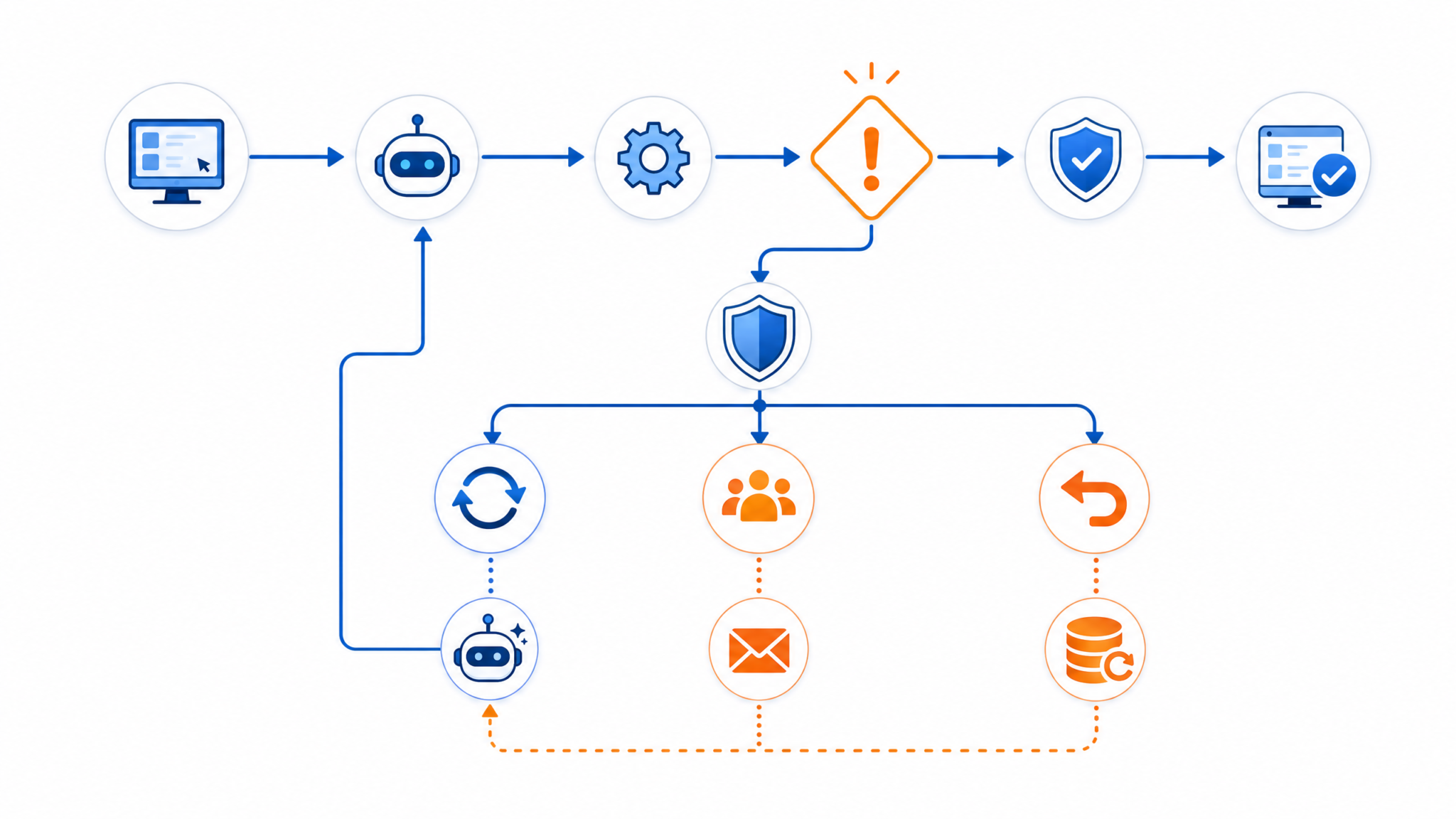
If execution fails, Codex-generated scripts should include retry mechanisms, fallback procedures, or notification triggers. For example, use exponential backoff for retries and send alert emails if failures persist.
Designing Robust Error Recovery Rules in Codex Prompts
Automations are only as good as their ability to handle failures gracefully. When prompting Codex, embed explicit instructions for error detection, logging, and fallback strategies to minimize downtime and ensure reliability.
Common Error Scenarios and Strategies
| Error Type | Description | Recovery Strategy | Example Code Snippet |
|---|---|---|---|
| Application Unresponsive | Target app does not respond to script commands within timeout. | Retry command after fixed delay; restart app if retry limit exceeded; log failure. |
|
| Permission Denied | Script lacks accessibility or automation permissions. | Log error; notify administrator; halt execution to prevent further errors. |
|
| Network Timeout | Remote connection drops or delays during command transfer. | Re-establish SSH connection; queue commands until connection is restored. | N/A (network-level management) |
| Script Syntax Error | Generated code contains syntax or runtime errors. | Validate code before execution; request regeneration from Codex with error details. |
|
Prompting Codex for Error Handling
Example prompt segment embedding error handling:
"""
Generate an AppleScript that opens Safari and navigates to a URL. If Safari does not respond, retry up to 3 times with a 5-second delay. If still failing, log the error to a file and exit gracefully.
Include explanatory comments.
"""
Embedding Logging and Notifications
Codex can generate scripts that write detailed logs or send notifications (e.g., email or push alerts) upon failures.
Example AppleScript snippet with logging:
-- AppleScript example snippet
try
    tell application "Safari"
        open location "https://example.com"
    end tell
on error errMsg number errNum
    do shell script "echo 'Error: " & errMsg & "' >> /Users/username/automation.log"
    return
end try
Example Python snippet for sending email alert on failure:
import smtplib
from email.message import EmailMessage

def send_alert(subject, body):
    msg = EmailMessage()
    msg.set_content(body)
    msg['Subject'] = subject
    msg['From'] = '[email protected]'
    msg['To'] = '[email protected]'

    with smtplib.SMTP('smtp.yourdomain.com') as server:
        server.login('user', 'password')
        server.send_message(msg)

try:
    # automation code
except Exception as e:
    send_alert('Automation Failure', str(e))
Advanced Techniques for Locked Screen Automation
Unlocking full automation potential on locked Macs requires advanced scripting strategies and leveraging macOS frameworks beyond simple GUI scripting.
Using Background APIs Instead of GUI Scripting
Codex can generate scripts that interact directly with system APIs to bypass GUI limitations. For example, using NSWorkspace to launch and manage applications programmatically without user interface interaction.
Example Python snippet with PyObjC:
from AppKit import NSWorkspace

workspace = NSWorkspace.sharedWorkspace()
app_path = "/Applications/Mail.app"

# Open Mail app
workspace.launchApplication_(app_path)
Similarly, AppleEvents can be sent directly to apps for manipulation without relying on Accessibility APIs.
Creating Persistent Automation Agents
Design launch agents or daemons that run with system privileges and listen for Codex-generated commands. These agents can execute scripts on-demand and handle authentication and logging centrally.
Sample launchd plist snippet to run a Python automation agent:
{
  "Label" : "com.user.automationagent",
  "ProgramArguments" : ["/usr/local/bin/python3", "/Users/username/automation_agent.py"],
  "RunAtLoad" : true,
  "KeepAlive" : true,
  "StandardOutPath" : "/Users/username/automation_agent.log",
  "StandardErrorPath" : "/Users/username/automation_agent_error.log"
}
Prompt Example for Automation Agent Code
"""
Generate a Python script that runs as a launch agent on macOS. It listens on a local Unix socket for commands from a remote client and executes AppleScript commands accordingly. Include robust error handling, command validation, and logging.
"""
This architecture allows your mobile device to send commands to a persistent agent that executes automation safely, even when the screen is locked.
Real-World Examples and Use Cases
Here we explore detailed examples to solidify concepts and provide practical templates for your own automation tasks.
Example 1: Remote Email Processing on Locked Mac
Prompt:
"""
Generate a Python script using PyObjC to check unread emails in Apple Mail on macOS Catalina. The script must work when the screen is locked, retry failed attempts 3 times, and log results to a file.
Include detailed comments and error handling.
"""
Generated script snippet (simplified):
import time
from Foundation import NSAppleScript

script_source = '''
try
    tell application "Mail"
        set unreadCount to count (every message of inbox whose read status is false)
    end tell
    return unreadCount
on error errMsg
    return "error: " & errMsg
end try
'''

log_path = '/Users/username/email_log.txt'

for attempt in range(3):
    script = NSAppleScript.alloc().initWithSource_(script_source)
    result, error = script.executeAndReturnError_(None)
    if error is None:
        with open(log_path, 'a') as f:
            f.write(f'Unread emails: {result.stringValue() if result else "0"} at {time.ctime()}\n')
        break
    else:
        with open(log_path, 'a') as f:
            f.write(f'Attempt {attempt+1} failed: {error}\n')
        time.sleep(5)
else:
    with open(log_path, 'a') as f:
        f.write(f'All attempts failed at {time.ctime()}\n')
Example 2: Remote File Backup Triggered from Phone
Prompt:
"""
Create an AppleScript that initiates a Time Machine backup on a Mac remotely, running even when the screen is locked. Include error handling that logs failures.
"""
Sample AppleScript snippet:
try
    do shell script "/usr/bin/tmutil startbackup --auto"
on error errMsg
    do shell script "echo 'Backup failed: ' & errMsg & '\n' >> /Users/username/backup.log"
end try
In this example, the script triggers a Time Machine backup using macOS built-in command-line utility and logs errors if the backup fails. This script can be executed remotely via SSH or automation agents.
Best Practices for Secure Mobile-to-Desktop Automation
To ensure your remote automation workflows are secure and reliable, adhere to the following guidelines:
- Encrypted Communication Channels: Always employ SSH tunnels, VPNs, or HTTPS APIs to transmit commands and data securely.
- Least Privilege Principle: Limit Codex-generated scripts to the minimal necessary permissions and avoid running as root unless absolutely required.
- Audit Trails: Maintain detailed logs of all automation activities. Use centralized logging solutions to detect suspicious behavior.
- Up-to-Date Systems: Keep macOS, automation tools, and security software updated with the latest patches.
- Testing: Extensively test your scripts in both locked and unlocked states to ensure reliability before production deployment.
- Prompt Quality: Continuously refine your prompts to Codex to reduce errors and improve maintainability.
Integrating Codex with Existing Remote Management Tools
Codex can complement traditional remote management solutions by generating customized automation scripts dynamically, allowing for responsive and context-aware workflows.
Combining with SSH and Launch Agents
Use Codex to generate scripts that are then executed via SSH sessions or triggered by launch agents. This integration enables complex workflows beyond manual scripting by automating script generation and execution.
Example workflow:
- Compose prompt on mobile device.
- Generate automation script with Codex API.
- Transfer script via SCP.
- Trigger execution via SSH command or launch agent listener.
- Retrieve logs or results.
API Wrappers for Automation
Create RESTful APIs on your Mac that receive Codex-generated commands and execute them securely. This abstracts command execution behind an authenticated, sandboxed interface.
Example architecture:
- Mobile device sends prompt to Codex and obtains script.
- Script sent to Mac’s API endpoint via HTTPS.
- API validates input, executes script within sandbox.
- Results sent back to mobile client as JSON.
Implementing such APIs can be done with lightweight frameworks like Flask or FastAPI in Python, combined with proper authentication and input validation.
Debugging and Monitoring Codex-Driven Automation
Effective debugging is crucial to maintain robust automation pipelines. Codex-generated code, while powerful, can sometimes produce imperfect scripts. Implementing structured monitoring and debugging practices is essential.
Logging Strategies
- Timestamped Logs: Include timestamps in logs to correlate events with system state and network conditions.
- Separate Logs: Maintain distinct logs for errors, warnings, and successful executions to facilitate analysis.
- Remote Aggregation: Use centralized logging solutions (e.g., ELK stack, Graylog) to collect and analyze logs from multiple machines.
Interactive Debugging Techniques
Prompt Codex to generate scripts with verbose output or interactive mode for testing purposes. For example, include debug print statements or log every step of the automation:
"""
Generate an AppleScript that performs task X and logs each step with timestamps.

Include verbose comments and error outputs.
"""
Monitoring Tools
- macOS Console: Use for real-time log streaming and system diagnostics.
- Third-Party Services: Integrate with Datadog, Splunk, or similar for alerting and anomaly detection.
- Alerts: Set up email or push notifications for critical failures or suspicious activity detected in logs.
building autonomous coding agents
Future Directions and Innovations in Codex Remote Automation
Emerging trends point towards more seamless, AI-driven remote computer control:
- Multi-modal Prompts: Combining voice commands, textual input, and visual context (screenshots or video) to allow richer, more intuitive automation control.
- Context-Aware Automation: Codex dynamically adjusting scripts based on real-time system state, environment variables, or user presence.
- Enhanced Security Integration: AI-assisted anomaly detection during automation to prevent unauthorized or unintended actions.
- Cross-Platform Automation: Unified prompts enabling control of heterogeneous systems (macOS, Windows, Linux) through a single AI interface.
- Self-Healing Automation Workflows: Codex generating fallback and recovery scripts autonomously when failures are detected.
Staying abreast of these developments will enable you to continuously refine your remote automation strategies and leverage AI advancements.
Stay Ahead with ChatGPT AI Hub
Get exclusive tutorials, prompt libraries, and breaking AI news delivered to your inbox every week.
Conclusion
Mastering Codex Remote Computer Use for locked desktop automation combines technical expertise, security awareness, and creative prompting skills. By carefully designing prompts that consider macOS security constraints, leveraging system APIs, and embedding robust error recovery, you can unlock powerful remote control capabilities accessible even from your mobile device. This masterclass has provided you with deep technical insights, practical examples, and best practices to elevate your remote automation workflows to a professional standard.
Continue experimenting with Codex, refine your prompts, and build resilient automation agents to harness the full potential of AI-driven remote desktop control.
Article by Markos Symeonides.
