
OpenAI Unifies ChatGPT and Codex Into a Single Desktop App — What Changes for Users in July 2026

OpenAI folds ChatGPT and Codex into a single desktop app: modes, backlash, and a new bet on consolidation
Published: July 17, 2026 — Author: Markos Symeonides
In a decisive shift for its consumer and developer lineups, OpenAI has unified ChatGPT and Codex into a single desktop application with a dual-mode model designed to reconcile conversational assistance and production-grade software work. The change, announced in early July and now rolling out globally on macOS and Windows, centralizes features across writing, code generation, data analysis, and automation in one binary, one updater, and one identity layer. OpenAI positions the move as a simplification—reducing fragmentation, speeding feature delivery, and cutting operational overhead—while providing developers with tighter loops between ideation, coding, and execution.
But the consolidation has exposed product seams. Users are learning the new “Chat” versus “Work” distinction; enterprises are digesting the licensing grid; and developers who built muscle memory on standalone Codex are renegotiating toolchains. The release also includes a whimsical opt-in “Pet” feature that has generated outsized controversy in forums and Slack communities, overshadowing some of the very real technical improvements—usage profiles, inline visualizations, faster local previews, and a midsummer mobile update labeled 1.2026.188 that brings the same dual-mode concept to phones.
Key takeaways
- OpenAI has combined ChatGPT and Codex into a single desktop app with two primary modes: Chat (conversational tasks) and Work (code, data, automation, and reproducible runs).
- The interface introduces a top-level mode switch, per-thread usage profiles, inline visualizations, a command palette, and tighter project scoping.
- Community reception is mixed: praise for performance and cohesion; confusion around default mode behavior; backlash to the optional “Pet” feature.
- Developers face a migration from standalone Codex configs to Work-mode projects; OpenAI is offering compatibility shims and CLI redirects.
- Enterprises gain more granular policy controls but need to update deployment scripts, SCIM mappings, and MDM profiles.
- Competitors Claude Desktop, Cursor, and Windsurf face a stronger integrated challenger; a feature-by-feature comparison shows OpenAI closing gaps in editor-like workflows.
The announcement: what changed, when it landed, and why OpenAI is doing this now
OpenAI began teasing the move in June and formalized it in July, deploying a desktop application that replaces two separate install and update streams. Practically, the new binary identifies itself as a unified ChatGPT desktop client with a first-run screen that asks users to choose a default mode. Under the hood, OpenAI is unifying telemetry, identity, and entitlements across consumer, Pro, Team, and Enterprise accounts, while joining code execution, tools, and shared memory into a single orchestration layer. The company says the consolidation reduces redundancy—e.g., two sidebars, two settings schemas, two caches—and accelerates development by shipping features to a single substrate rather than maintaining parallel stacks.
The strategic logic isn’t just operational. In 2025–2026, generative AI competition shifted from “many small tools” to “fewer, fully integrated assistants” spanning chat, code, media, and workflow automation. For OpenAI, combining ChatGPT’s reach with Codex’s developer gravitas creates a unified brand and sharper platform gravity. It also sets the stage for deeper integration on mobile and for enterprise governance—two areas where fragmentation had been especially painful. The July drop is the first release that reflects that integration end-to-end: entitlement checks, environment scoping, project lifecycles, and even the way the app renders visualizations inside the conversation stream.
OpenAI’s rationale—simplify for users, unify for speed—tracks a broader industry theme: assistants growing from “bot-in-a-box” to multi-modal, multi-surface systems with consistent identity and policy. Unifying ChatGPT and Codex is OpenAI’s clearest move yet to own that path, and to make good on its pitch that one assistant can help you think, write, and build in the same place. For readers who followed our coverage of separate tools, see also
Understanding how these capabilities compare across different AI platforms provides valuable context for tool selection. Our head-to-head comparison in Claude Opus 4.7 vs OpenAI Codex for Indie Shipping: Which Should You Choose in 2026? evaluates the strengths and trade-offs of competing approaches.
and
For developers looking to integrate these capabilities directly into their code editor, our comprehensive walkthrough on The Complete Guide to the New ChatGPT Desktop App: Work, Codex, and Atlas Unified covers inline editing workflows, context sharing between files, and seamless task handoff between the IDE extension and the full Codex environment.
for historical context.
Inside the new app: Chat mode vs Work mode
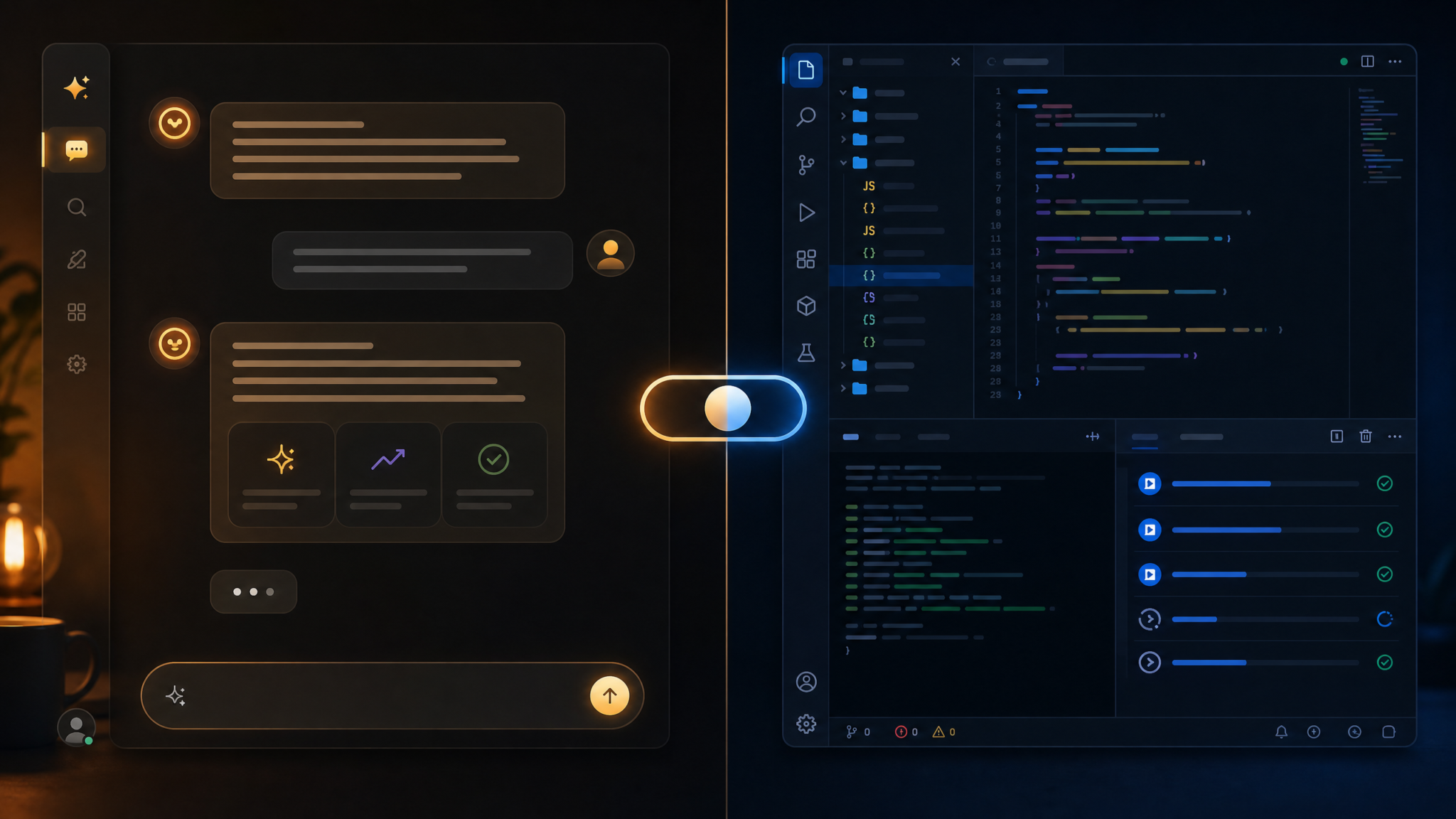
The unified app presents two primary modes, visible in a persistent toggle at the top of the left sidebar. The choice influences UI layout, tool availability, permission prompts, and even the default sampling strategies for the underlying models.
Chat mode: conversational assistance and generalist tasks
Chat mode is a streamlined environment optimized for natural language interactions. It foregrounds message threading, quick actions (summarize, translate, brainstorm), and content composition with structured outputs like outlines and drafts. The visible affordances are familiar to ChatGPT users: a single input box with system tones, a right-rail for attachments, and per-thread memory controls. In the unified app, Chat mode now borrows a few Work-mode capabilities selectively—like attaching small data files and previewing inline charts—while keeping execution and tool usage constrained unless explicitly approved.
Notable behaviors in Chat mode:
- Context windows are tuned for narrative cohesion rather than maximum code-carrying capacity.
- Lightweight attachments are analyzed in-memory without opening persistent projects.
- Inline visualizations render as tappable cards with accessible alt-text and provenance in the thread metadata.
- “Usage profiles” default to a modest compute and memory footprint, designed for responsiveness and battery efficiency on laptops.
Work mode: code, data, and reproducible runs
Work mode is the evolution—and, in OpenAI’s words, the replacement—of standalone Codex. It exposes project contexts, reproducible runs, richer toolchains, and integrations with local file systems (sandboxed), terminals, and environments. The input box supports slash commands and a palette for tools, datasets, and tests. Messages are typed the same way, but the UI arranges content into three columns when expanded: the thread, a project explorer, and outputs (logs, visualizations, unit test results).
Key Work-mode capabilities:
- Project scoping: Threads are bound to a named project with versioned artifacts: code files, notebooks, datasets, and run logs.
- Tools: Code interpreter, test runner, HTTP client, database connectors, and shell access (permissioned and sandboxed).
- Reproducibility: Run capsules capture prompts, tool invocations, inputs, and outputs with a hash to make sharing stable.
- Usage profiles: Per-project configurations that tune resource budgets, execution timeouts, vector store access, and visibility of organization data.
- Inline visualizations: Charts, tables, diffs, and model cards render in-stream; clicking opens a split-pane debugger for code cells.
OpenAI situates Work mode as the “single pane” where coding, data wrangling, documentation, and validation live, acknowledging that developers still prefer first-class IDEs but arguing that Work mode covers the 70% case end-to-end. The app’s Command Palette (Cmd/Ctrl+K) surfaces tools, files, unit tests, and recent runs, and supports fuzzy navigation between projects and threads.
How the interface has changed
From two separate apps with different conventions to one consistent façade, the interface changes are tangible. The top-level differences:
- One sidebar: a unified left rail holds recents, starred threads, and pinned projects. A compact dropdown switches between personal, team, and enterprise spaces.
- Mode switch: a prominent toggle at the top—Chat and Work—changes the canvas layout, defaults, and visible tools.
- Command Palette: universal across both modes, but with mode-specific entries (e.g., “Run tests” appears only in Work).
- Thread metadata: a pill-shaped indicator shows the active usage profile and tool permissions, replacing two different badges in the old apps.
- Attachment handling: one panel for all attachments—images, CSV, JSON, code files—replacing separate attachment drawers.
- Run capsules: visual blocks representing executed sequences; they capture provenance and allow re-run or fork in one click.
Under Settings, the unified app introduces a clear organization: Account, Devices, Memory, Workspaces, Profiles, Tools, Privacy, and About. “Profiles” is new, reflecting a first-class concept that permeates the release. For long-time Codex users, the file explorer and terminal now live in a collapsible right pane that opens automatically in Work mode when tool usage begins.
Search is better integrated, finally indexing content across both conversation text and project files. Combined with filters—mode, date, tool used—it’s meaningfully faster to retrieve that “SQL snippet from last month’s ETL tuning” or the “brainstormed outline on climate finance” without remembering which app it lived in.
User reactions: speed, confusion about modes, and the “Pet” distraction
The initial community reaction is a mix of appreciation for consolidation and speed, and frustration with cognitive overhead. Many users welcomed having one app to update and one shared memory across contexts, reducing context fragmentation. However, a notable portion reported confusion when the app auto-switched modes based on detected intent, sometimes landing them in Work mode unexpectedly after pasting code, or vice versa when they expected a code run but got an essay draft.
Representative comments from public community threads and developer chats reflect the split:
- “I love the unified history and the command palette. It finally feels like one assistant, not two cousins.”
- “Auto-detect shoved me into Work mode when I pasted a snippet, and I didn’t notice the tool permission prompts—wasted a couple of minutes wondering why nothing executed.”
- “The default Chat layout hides the project tree even when a project is bound, which feels like a regression from Codex.”
- “Performance is better. Switching between threads is snappier and the inline charts are slick—but please give me a hard lock to stay in Work mode.”
OpenAI anticipated some of this friction and included a Settings toggle to disable auto-mode switching entirely or to require explicit confirmation. The company’s release notes also point to “primary intent cues” (keywords, slash commands, file types) that trigger a gentle prompt rather than a forced switch. Still, out of the gate, unclear transitions remain the most cited source of confusion. Power users recommend binding keyboard shortcuts for “Toggle Mode” and “Open Project Tools” to make mode borders more visible, especially during the first week of acclimation. See our ongoing primers on
For additional context on related AI capabilities and workflows, our comprehensive resource on The Big Prompt Engineering Story: What July 13’s News Means for Developers provides practical guidance and implementation strategies that complement the techniques discussed in this article.
and
For additional context on related AI capabilities and workflows, our comprehensive resource on Codex Appshots: How OpenAI’s New Feature Gives AI Eyes on Your Mac Desktop provides practical guidance and implementation strategies that complement the techniques discussed in this article.
for strategies that reduce friction.
The “Pet” feature: whimsy meets workplace reality
The optional “Pet” feature—an animated companion that perches in the corner of the app, offers micro-tips, celebrates milestones, and occasionally gamifies streaks—has drawn swift and loud feedback. While clearly intended as a lighthearted “coach,” the Pet’s default-on behavior for consumer accounts and its nudge patterns struck a nerve with developers and knowledge workers. Complaints cluster around two poles: distraction in professional contexts, and concerns about telemetry or attention capture.
What the Pet actually does:
- Suggests shortcuts or tools contextually (e.g., “Try /test to create a unit harness”).
- Surfaces health checks (“This run used a deprecated package, click to auto-upgrade”).
- Offers gentle praise or streaks after successful runs or writing sprints.
- Can be turned off at three levels: per thread, per device, or account-wide.
Public feedback has been pointed:
- “I don’t want a Tamagotchi in my build pipeline.”
- “Pet is cute, but defaulting it to on in Work mode was a mistake.”
- “If it’s just a tooltip engine, why the mascot? Make it a status bar like every other pro tool.”
OpenAI responded within days by shipping a minor update that relocates Pet behaviors into a tidy status area in Work mode and makes “Off” the default for enterprise-managed devices. For regulated environments, admin controls can now hard-disable Pet globally.
Technical changes under the hood: usage profiles, inline visualizations, and July’s mobile update 1.2026.188
The unification isn’t just a skin. Three technical pillars stand out: usage profiles, inline visualizations, and a synchronized mobile rev that aligns user experience across devices.
Usage profiles
Profiles are named configurations attached to threads and projects that define resource budgets, tool access, context retention, and data boundaries. You might keep a “Light” profile for quick chat and drafting, and a “Project: Analytics” profile for threaded, tool-heavy work with larger context windows, R/Python interpreters, and access to company datasets (subject to policy).
A profile schema looks like this:
{
  "name": "Project: Analytics",
  "mode": "work",
  "model": "gpt-4.x-code",
  "context_window": 192000,
  "tools": ["code_interpreter", "http_client", "db_connector", "viz"],
  "timeouts": {
    "tool": 180,
    "run": 900
  },
  "resource_budgets": {
    "cpu_ms": 80000,
    "memory_mb": 4096,
    "gpu": "none"
  },
  "data_access": {
    "vector_store": "org:finance-vs",
    "files": ["project://*", "local://datasets/q2/*.csv"],
    "network": "allowlisted"
  },
  "governance": {
    "pii_redaction": true,
    "org_memory_access": "read_only",
    "audit_logging": "enhanced"
  },
  "default": false
}
In the UI, switching profiles changes the thread halo color and updates a header chip that anyone in a shared workspace can see. Profiles are shareable entities—admins can publish org-level defaults; teams can set shared profiles for projects. Profiles also determine “auto-archive” behaviors, especially helpful for heavy Work projects that might otherwise clutter personal histories.
Inline visualizations
The new inline viz stack standardizes how charts, tables, diffs, and even media previews render in the flow of conversation. Any tool that emits structured data can register a renderer. Visualization blocks include a provenance footer with a run capsule ID and a “View code” link that opens the code cell in the split pane. Charts respect high-contrast and reduced motion settings, an overdue accessibility step for developer tools.
A minimal example in Work mode that turns a CSV into a quick chart:
# In Work mode, attach sales.csv and say:
Load the dataset and show a monthly revenue chart by region.

# The agent might generate and execute Python like:
import pandas as pd
import altair as alt

df = pd.read_csv("project://datasets/sales.csv", parse_dates=["date"])
df["month"] = df["date"].dt.to_period("M").astype(str)

chart = alt.Chart(df).mark_line(point=True).encode(
    x="month:T",
    y="revenue:Q",
    color="region:N",
    tooltip=["month", "region", "revenue"]
).interactive()

# The app renders 'chart' inline, with a run capsule footer.
Inline diffs are similarly helpful when the agent edits files. Rather than pasting walls of code, the agent emits a file-edit capsule with a unified or side-by-side diff; users can click “Apply,” “Apply with review,” or “Discard.”
Mobile update 1.2026.188
OpenAI is releasing a synchronized mobile update—build 1.2026.188—that introduces the Chat/Work dichotomy to iOS and Android. The update adds per-thread profile chips, small inline charts, and a “Quick Actions” bar accessory. On phones, Work mode is scope-limited: it can open project contexts that exist on desktop, run lightweight tools, and annotate runs, but anything requiring filesystem or long runtimes prompts a “Send to desktop” action. Notifications are smarter, bundling run completions and test failures with context previews. Settings include a new “Default mode per surface” toggle so users can keep phones in Chat mode by default but still rejoin Work runs when needed.
The mobile release uses the same entitlement and profile system, reducing drift between surfaces. For teams that live in Slack or Teams, the app’s notifications now carry deep links that open the appropriate thread and profile on desktop by default, minimizing cross-surface friction.

For developers: life after standalone Codex
OpenAI has been explicit: standalone Codex is deprecated in favor of Work mode. The company offers a migration period with compatibility shims, CLI redirects, and documentation to help developers re-anchor their workflows inside the unified app. The changes land at three layers: UX, CLI, and API.
UX and keyboarding
Developers accustomed to Codex’s keyboard-first flow have a few reflexes to re-learn. The command palette is the home for tool invocation and navigation, replacing Codex’s slash-only commands. Unit tests, run logs, and file explorers live in the right pane by default; key chords exist to collapse them. Auto-mode switching can be turned off to prevent surprise transitions. And the project binding indicator, while subtle, is important: it signals when file edits, runs, and visualizations are being recorded under a named project versus a scratch thread.
CLI changes
The old codex CLI is being replaced by a unified chatgpt CLI with subcommands for work. OpenAI includes a symlink on install that preserves codex <command> with warnings for 90 days. New flows look like this:
# Start a new project and open in Work mode
chatgpt work init --project my-forecasting-app --template python-analytics

# Run tests
chatgpt work test --project my-forecasting-app

# Execute a run capsule by ID
chatgpt work run --capsule 8c1a3f1 --profile "Project: Analytics"

# Add a dataset to the project store
chatgpt work add-dataset ./data/sales_q2.csv --as datasets/sales_q2.csv

# Migrate a Codex workspace to Work mode (one-time)
chatgpt work migrate --from-codex ~/.codex/workspaces/forecasting
CLI output mirrors the desktop’s run capsule model and prints direct deep links to the desktop app. Cached artifacts and logs live in a single location under a unified ~/.chatgpt directory instead of ~/.codex and separate caches.
API migration: from Codex endpoints to unified runs
On the API side, projects and runs are now first-class primitives tied to the same identity as the desktop app. Code-generation and execution flows that previously hit Codex-specific endpoints move to a unified responses-and-runs model. A minimal Python migration might look like:
from openai import OpenAI

client = OpenAI()

# Create or select a project context
project = client.projects.create_or_get(name="my-forecasting-app")

# Define a run with tools and a usage profile
run = client.runs.create(
    project_id=project.id,
    profile="Project: Analytics",
    messages=[
        {"role": "user", "content": "Create an ARIMA model for sales.csv and plot a 3-month forecast."}
    ],
    tools=[
        {"type": "code_interpreter", "env": "python-3.11"},
        {"type": "viz"},
        {"type": "file_access"}
    ]
)

# Stream tokens and tool events
with client.runs.stream(run.id) as stream:
    for event in stream:
        if event.type == "tool_call":
            # Approve or deny sensitive tool usage if needed
            stream.approve(event.id)
        elif event.type == "viz":
            print("Visualization available at:", event.payload["capsule_url"])
        elif event.type == "message":
            print(event.delta, end="")
Note the explicit selection of a profile and the separation between text messages and tool events. In the unified model, the same “run capsule” that appears in the desktop UI is addressable via API, making it easier to mix ad hoc runs in the UI with scheduled or CI-bound runs in code.
Practical migration tips
- Turn off auto-mode switching for your first week; bind a hotkey to toggle modes and open the project tools pane.
- Import your Codex workspaces via Settings → Workspaces → Import; the importer maps shell and interpreter settings.
- Migrate any “helper prompts” into reusable snippets bound to a profile; Work mode supports team-shared snippets.
- Use the CLI’s –dry-run on migrate to preview changes; ensure test harnesses execute in the new run model.
- Adopt the new run capsule IDs in your dev notes—these are the canonical handles across UI, CLI, and API.
Enterprise implications: licensing, deployment, and admin controls
The unification brings clarity to licensing but requires enterprise admins to touch multiple systems—SSO, SCIM, MDM, and endpoint management. The core change is a mode-aware entitlement model and more granular policy bundles.
Licensing and entitlements
OpenAI now distinguishes seats by mode access and tool bundles:
- Chat-only: Conversational mode with standard models, no persistent project tooling.
- Chat+Work: Full access to Work mode tools, profiles, and project scoping.
- Work-Restricted: Work mode available but with limited toolset (e.g., no shell, limited HTTP).
Enterprises can mix seat types within one org and assign at the team or user level. Profiles can be published as “org defaults” to ensure security posture and data boundaries are enforced in both modes. The pet feature is set to Off by default on enterprise-managed devices and can be hard-disabled.
Deployment and device management
The new desktop app ships as signed packages for macOS and Windows with silent install and managed updates. OpenAI provides mobileconfig and plist keys for macOS and ADMX templates for Windows to control behavior. A representative MDM payload might look like:
{
  "com.openai.chatgpt": {
    "DefaultMode": "work",
    "AllowedModes": ["chat", "work"],
    "DisableAutoSwitch": true,
    "Profiles": {
      "OrgDefault": {
        "Enforce": true,
        "ProfileName": "Org: Standard Work"
      }
    },
    "Tools": {
      "AllowShell": false,
      "AllowHTTP": true,
      "AllowDBConnectors": ["psql", "mssql"]
    },
    "Privacy": {
      "TelemetryLevel": "minimal",
      "DisablePet": true,
      "BlockOrgMemoryWrite": false
    },
    "Updates": {
      "Channel": "stable",
      "DeferDays": 7
    }
  }
}
Admins can pre-bind org memory, restrict vector stores by namespace, and enforce that runs with sensitive tools always require explicit user approval. The unified install also reduces the need to manage two separate cert chains and updaters.
Directory and identity
With one app, SSO and SCIM mapping becomes simpler. User mode entitlements derive from SCIM group membership; profiles can reference those entitlements to allow or deny certain tools. The admin console now shows per-mode usage, top projects, and run capsule counts for audit. Alerts notify when any policy-blocked tool is requested in a Work thread, helping IT catch configuration gaps.
Data governance
Profiles and projects become the key governance handles. Admins can define and lock org-level profiles (e.g., “Org: Restricted Work”) that limit network calls, block shell access, require log redaction, and force audit-level logging. For regulated environments, runs can be set to “no external calls” with a restricted interpreter and a read-only project filesystem. The same controls apply across desktop and mobile, preventing data from casually spilling across surfaces.
How it stacks up against Claude Desktop, Cursor, and Windsurf
Unifying chat and code in one desktop lens puts OpenAI into direct comparison with rivals that have staked out strong positions in coding and assistant flows. The table below summarizes the current state of play from the vantage point of the July release.
| Product | Modes | Editor/IDE depth | Inline visualizations | Project scoping | Enterprise admin controls | Offline/Local execution | Learning curve |
|---|---|---|---|---|---|---|---|
| OpenAI (Unified ChatGPT) | Chat, Work | Medium (not full IDE) | Yes (charts, diffs, logs) | First-class projects, run capsules | Granular profiles, MDM, SCIM | Limited; sandboxed tools | Moderate (mode concepts) |
| Claude Desktop | Single conversational surface | Light (hooks to editors) | Partial (tables, some charts) | Lightweight topics/threads | Standard SSO, fewer MDM hooks | Limited | Low |
| Cursor | Editor-first | High (VS Code fork) | Yes (diffs, test outputs) | Repo-scoped | Growing; team workspaces | Local runs possible | Moderate (editor paradigms) |
| Windsurf | Workflow-first | Medium-high (task graphs) | Strong workflow viz | Project/task graphs | Team features; evolving admin | Some local steps | Moderate |
OpenAI’s unified app wins on cross-surface consistency and enterprise policy maturity, especially with profiles and MDM keys, while ceding depth to editor-embedded tools like Cursor for code navigation and refactors. The inline visualization and run capsule model is a strength for explainability and collaboration, and the mobile alignment (1.2026.188) narrows a gap many competitors still have: phones as serious participation devices in code/data workflows.
Practical guidance for users transitioning to the unified app
Moving from two apps to one means unlearning habits and setting new defaults. The following playbook minimizes friction during the first week.
Day 1: Mode hygiene and keyboard setup
- Disable auto-mode switching in Settings to prevent surprise transitions; re-enable after you’ve developed instincts.
- Bind hotkeys for “Toggle Mode,” “Command Palette,” and “Open Project Tools.”
- Set a default mode per device (Work on desktop; Chat on mobile) to reduce cognitive load.
Day 2: Profile creation
- Create a “Light” profile for Chat-mode drafting: shorter context window, no tools, minimal logging.
- Create a “Project: <Name>” profile for each active Work project with needed tools and budgets.
- Add a shared team profile for standardized tests and approvals; publish it to your workspace.
Day 3–4: Workspace migration
- Import Codex workspaces via Settings; validate that interpreter and shell permissions map correctly.
- Refactor helper prompts into reusable snippets; pin them to your Command Palette for recall.
- Adopt run capsule IDs in your notes and tickets; they’re the stable reference for re-runs and reviews.
Day 5: Inline visualization and review flows
- Use inline diffs to review agent edits; try “Apply with review” to accept hunks selectively.
- Test charts on small datasets and validate footers; provenance and run IDs should be present.
- Try mobile continuity: pick up a run on your phone and leave review comments; verify deep links work.
Day 6–7: Tighten policies and team conventions
- Lock profiles for shared projects to prevent accidental tool use or network calls.
- Document team conventions: default profiles, approval gates for tool usage, and run capsule naming.
- For enterprise admins: push MDM policies that set defaults and turn Pet off globally in Work contexts.
Hands-on examples for Work mode: code, data, and tests
Below are concrete examples to help you anchor Work-mode practices.
Example 1: Data ingest and forecast
# Prompt
Load datasets/sales_q2.csv, compute a 3-month forecast per region using Prophet, and plot results.

# The agent will likely:
# 1) Write Python to load data
# 2) Install prophet if missing (with approval)
# 3) Fit models and emit charts per region
# 4) Produce a report cell with summary stats
Example 2: Web service scaffolding
# Prompt
Bootstrap a FastAPI service with endpoints:
# - POST /predict accepts JSON features and returns probabilities
# - GET /health returns status

# Ask the agent to:
# 1) Create a src/fastapi_app/main.py
# 2) Add a tests/ directory with pytest cases
# 3) Provide a Dockerfile
# 4) Run tests and output results inline
Example 3: Unit tests as a guardrail
# Prompt
Generate pytest tests for src/feature_engineering.py covering edge cases on missing values and outliers.
Then run tests and summarize failures with suggested patches.

# Use "Apply with review" on file diffs to selectively accept changes.
Example 4: HTTP client runs for integration checks
# Prompt
Call the staging API at https://staging.example.com/v1/items (GET),
then POST a sample item. Use the built-in HTTP tool and include headers:
X-Env: staging, Authorization: Bearer <token>.

# Expect an approval prompt before the first network call.
Enterprise feature matrix
| Capability | Where to configure | Notes |
|---|---|---|
| Default mode (Chat/Work) | MDM key: DefaultMode | Can be locked per device fleet; user override optional |
| Auto-mode switching | MDM key: DisableAutoSwitch | Set to true to prevent intent-based flips |
| Profiles (org default) | Admin console → Profiles | Publish locked profiles with enforced tools and budgets |
| Tool allow/deny | MDM keys: Tools.*, Admin console → Policies | Shell and network can be disabled or allowlisted |
| Telemetry level | MDM key: TelemetryLevel | Minimal, Standard, Enhanced; defaults vary by tier |
| Pet feature | MDM key: DisablePet | Enterprise default Off; can be forced Off |
| Audit logs | Admin console → Audit | Run capsules include tool approvals and network calls |
| SCIM group mapping | Admin console → Directory | Map groups to seat types and mode entitlements |
What this means for OpenAI’s product strategy
Pulling ChatGPT and Codex into one app is a signal about where OpenAI is heading. The company wants to be the primary surface where knowledge work and software work mingle. That means doubling down on:
- Identity and policy as platform: Profiles, entitlements, and run capsules as the connective tissue across surfaces and orgs.
- Editor-adjacent, not editor-supplanting: Enough Work-mode depth to capture planning, scaffolding, and testing, while playing nicely with VS Code, JetBrains, and terminal workflows.
- Cross-surface continuity: Desktop as the command center; mobile as a capable participant (reviewing, approving, annotating).
- Enterprise posture: Making governance obvious and fine-grained so CIOs say “yes” to widescale deployment.
The Pet feature, while minor, shows another strategic thread: OpenAI experimenting with coaching and habit formation mechanics, even if the first iteration misjudged expectations in pro contexts. Expect the Pet to morph into a subdued “status coach” with less anthropomorphism and more telemetry-driven health checks over time.
Industry context: consolidation is here
OpenAI’s unification is part of a broader consolidation wave. The early years of generative AI saw tool proliferation; 2025–2026 has seen a roll-up into fewer, more opinionated assistants that traverse chat, code, and workflow surfaces. The reasons are durable:
- Users want less friction: one memory, one history, one updater.
- Vendors want faster shipping: one substrate to extend across features and surfaces.
- Enterprises want governability: one policy model that spans modes and devices.
Consolidation also creates product risks—mode confusion and “do-everything” sprawl. OpenAI’s two-mode stance is a bet that clear conceptual boundaries can be taught, and that users will trade a small learning curve for a reduction in cognitive tax over time. Competitors will press advantages where they have sharper vertical focus (e.g., Cursor’s deep editor integration). OpenAI will counter with breadth, polish, and administrability.
Addressing common pain points: Q&A-style fixes
Below are concrete fixes for issues raised most often in early use.
Stop the app from switching modes when I paste code
Open Settings → Modes and disable “Auto-switch based on intent.” Optionally, set “Prompt before switching” so the app asks before flipping. Bind a hotkey to “Toggle Mode” to make intentional changes explicit.
Make Work mode feel more like Codex
Open the right pane by default (View → Project Tools), enable “Show file tree when project bound,” and add slash commands back into your palette favorites. Import your Codex snippets and set your Work profile as the default on desktop.
Turn off the Pet—everywhere
Settings → Privacy & A11y → Pet → Off. On enterprise-managed devices, IT can enforce Off via MDM. For shared threads, per-thread toggles exist under the thread header menu.
Recover a run that failed due to a blocked tool
Open the run capsule, review the “Approvals” section, and grant the needed tool temporarily or adjust your profile. Re-run the capsule; the system carries forward prior state unless the profile forbids persistence.
Use mobile productively without running jobs there
On mobile build 1.2026.188, tap into Work threads to review logs, leave comments, and approve tool requests. For heavy runs, tap “Send to desktop.” Set mobile default to Chat mode in Settings to avoid accidental Work-mode starts on the go.
Share a result with colleagues without exposing raw data
Use run capsules’ “Publish” option to produce a redacted share that hides sensitive inputs and PII per profile rules. Team members can fork the capsule in a sandbox without touching your original dataset.
Map SCIM groups to mode entitlements
In the admin console, link SCIM groups to seat types (Chat-only, Chat+Work, Work-Restricted). Publish an org default profile that enforces tool boundaries appropriate for each group.
Recreate a reproducible environment for a bug report
Copy the run capsule ID into your ticket. Teammates click through, view exact tool versions and code, and re-run. Add “Freeze tools and deps” to the capsule before sharing to prevent drift.
Comparison deep-dive: features and gaps
Beyond surface-level checks, here’s a finer-grained capabilities matrix to understand where OpenAI’s unified app leads or lags for common enterprise tasks.
| Use case | OpenAI Unified | Claude Desktop | Cursor | Windsurf |
|---|---|---|---|---|
| Ad hoc analysis with reproducible sharing | Strong (run capsules, viz) | Moderate (threads) | Moderate (notebooks via editor plugins) | Strong (workflow graphs) |
| Repo-scale code refactors | Light (not IDE) | Light | Strong (editor-native) | Moderate |
| Audit and policy enforcement | Strong (profiles, MDM, audit) | Moderate | Moderate | Moderate |
| Cross-device continuity | Strong (desktop + mobile 1.2026.188) | Moderate | Moderate | Moderate |
| Onboarding non-developers | Moderate (mode learning curve) | Strong (single surface) | Light | Moderate |
| Long-running data jobs | Moderate (sandboxed, with approvals) | Light | Strong (via local tools) | Strong (task orchestration) |
Security, privacy, and explainability in the unified model
Profiles and run capsules aren’t just UX; they’re explainability primitives. Each capsule carries a provenance footer: model version, tools invoked, approvals granted, hashes of inputs, and a re-run handle. For regulated industries, this is the evidence trail. With the unified app, these same artifacts are visible on desktop, callable via API, and referenced in admin audit logs. Inline visualizations include a “View code” link to show the generating cell—no magical charts without source.
Privacy controls are more granular. Users can set memory to “Off” per thread and per profile; organizations can disable org memory writes while still allowing read-only recall (useful for terminology and style guides in Chat mode). Telemetry settings now differentiate between UI usage metrics and tool execution logs, the latter of which can be minimized if policy demands.
What to watch next: roadmap signals
OpenAI is unlikely to stop at a two-mode world. Signals to watch:
- Richer IDE bridges: deeper LSP hooks, better diff resolution, and tighter Git flows from Work mode.
- Project secrets management: standardized ways to store and rotate tokens without leaving the app.
- Workflow scheduling: turn run capsules into scheduled jobs, blurring lines with orchestration tools.
- Assistant collaboration: multiple agents or roles within a project, each with profile-bound permissions.
- Subdued coaching: Pet evolves into a context bar with health checks and policy hints, especially in enterprise.
Developer snippet gallery: common migrations
Migrating a Codex prompt to a reusable Work snippet
# Old (Codex note)
"When I say 'scaffold fastapi', create a minimal FastAPI app with tests and Dockerfile."

# New (Work snippet JSON)
{
  "name": "scaffold fastapi",
  "mode": "work",
  "profile": "Project: Services",
  "prompt": "Create a minimal FastAPI app with /health and /predict, add tests, and a Dockerfile.",
  "tools": ["code_interpreter", "http_client"],
  "approvals": ["http_client"]
}
Approving tools programmatically in CI
# Pseudocode: auto-approve HTTP tool during CI
run = client.runs.create(...)

with client.runs.stream(run.id) as stream:
    for e in stream:
        if e.type == "tool_call" and e.tool == "http_client":
            if env == "ci" and is_allowlisted(e.request.url):
                stream.approve(e.id)
            else:
                stream.deny(e.id)
Publishing a redacted capsule
# After creating a run
client.runs.publish(
    run_id=run.id,
    redaction_rules={"pii": "mask", "files": ["datasets/*"]},
    visibility="workspace"
)
Community etiquette and team conventions in a modeful world
Teams succeed when they establish a shared mental model. Suggestions:
- Always label project-bound threads with a profile chip; don’t do production-adjacent work in a “Light” chat thread.
- Require approvals for network and shell tools in shared profiles; keep approvals visible in run capsules.
- Use descriptive names for run capsules (“Q2 Forecast v1”)—they’re now your handoff objects.
- Document Pet behavior expectations—Off for most shared Work threads; optional for personal Chat threads.
The human factor: cognitive load and the case for two modes
It’s fair to ask whether the app could have stayed single-surface. Two modes add a mental tax: users must learn when they’re conversing and when they’re building. But the benefits are substantial: clearer permissions, cleaner UI for writing, and a powerful canvas for reproducible, tool-heavy work. OpenAI’s bet is that a little up-front learning yields long-term fluency, reducing fragmentation and accidental tool use. Early user reports suggest that once auto-mode is tamed and hotkeys are ingrained, the new flow “clicks.”
FAQs
How do I choose which mode the app opens in by default?
Go to Settings → Modes and set a per-device default. Many users set Work on desktop for build-focused sessions and Chat on mobile for lightweight tasks. Enterprises can enforce defaults via MDM keys.
Can I turn off auto-mode switching entirely?
Yes. In Settings → Modes, disable “Auto-switch based on intent.” You can also set “Prompt before switching” to keep a guardrail while you train new habits.
What happens to my old Codex workspaces?
They remain accessible for a limited migration window. Use Settings → Workspaces → Import to bring them into Work mode. The importer maps interpreters and shell permissions, and generates run capsules for prior execution logs.
Is the Pet feature required?
No. It’s optional and can be turned off per-thread, per-device, or account-wide. On enterprise-managed devices, admins can hard-disable it globally.
How do profiles affect privacy and data access?
Profiles define tool access, network rules, and data stores. A strict profile can prevent external calls and disable org memory writes, while a more permissive profile can enable broader resources. Choose and lock profiles appropriate for your context.
Can I run long jobs on mobile?
Not directly. Mobile build 1.2026.188 lets you review runs, approve tools, annotate outputs, and kick off light tasks, but heavy or filesystem-bound jobs prompt you to “Send to desktop.”
How do I share results without exposing sensitive data?
Publish a run capsule with redaction rules and workspace-only visibility. The recipient can fork and re-run in a sandbox, preserving your original data boundaries.
What if I prefer my IDE for everything?
Use Work mode for planning, scaffolding, and tests, then move to your editor as needed. The unified app doesn’t aim to replace full IDEs; it aims to accelerate the 70% of tasks where AI excels at scaffolding and analysis, while keeping runs reproducible and reviewable.
Access 40,000+ AI Prompts for ChatGPT, Claude & Codex — Free!
Subscribe to get instant access to our complete Notion Prompt Library — the largest curated collection of prompts for ChatGPT, Claude, OpenAI Codex, and other leading AI models. Optimized for real-world workflows across coding, research, content creation, and business.
Bottom line
By uniting ChatGPT and Codex in one desktop app, OpenAI isn’t just tidying its product line; it’s committing to a platform where writing, analysis, and building happen side by side, governed by consistent profiles and surfaced through explainable run capsules. The two-mode approach takes practice, and the Pet misstep shows how delicate pro workflows can be. Yet the core gains—single install, shared memory, inline visualizations, and a synchronized mobile experience—make a strong case that the future assistant is one app with many faces, not many apps with overlapping ones.
If you’re transitioning this week, pick defaults, create two or three profiles you trust, and turn off auto-switching until you’re comfortable. For enterprises, get your MDM and SCIM mappings in shape, publish an org default profile, and set the Pet to Off in Work contexts. OpenAI’s consolidation is a bet that less is more—and with discipline and a few admin toggles, it might be right. For deeper background and techniques that carry over, see
Enterprise teams deploying these capabilities at scale must consider governance and compliance requirements. Our guide on White House Asks OpenAI to Delay GPT-5.6 Public Release: What the Safety Pause Means for Enterprise AI Roadmaps and Deployment Timelines covers the essential security frameworks and access controls needed for production AI deployments.
.
