
How to Save Your DALL-E GPT Images Before August 30: Complete Migration Guide to ChatGPT Images
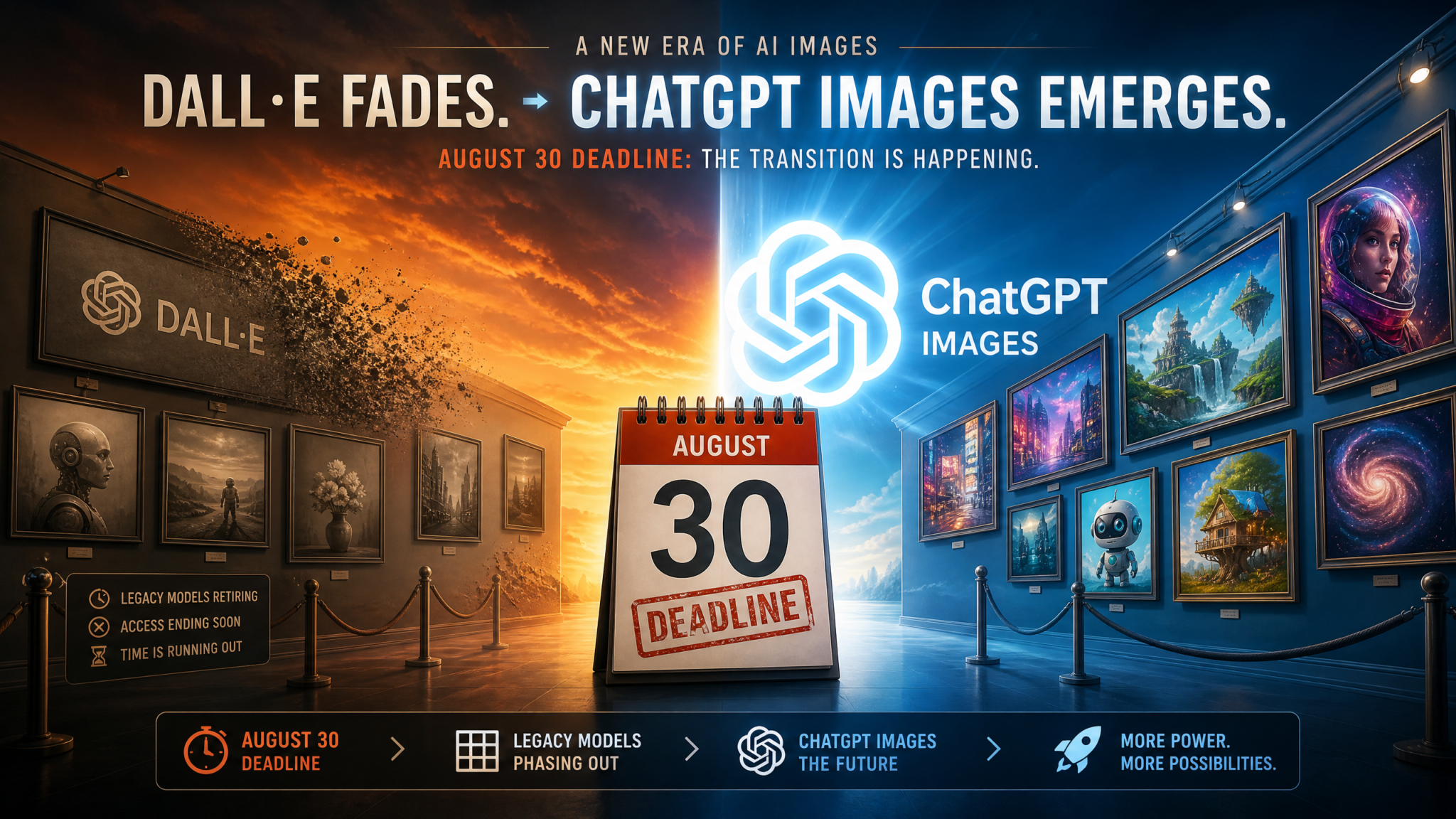
OpenAI has officially announced the retirement of the DALL-E GPT — the dedicated image generation GPT available in the ChatGPT GPT Store — effective August 30, 2026. If you have months or years of AI-generated artwork, product mockups, marketing visuals, or creative experiments stored in DALL-E GPT conversations, those images will become inaccessible once the GPT is retired. This guide walks you through every step of saving your images, migrating your workflow to ChatGPT Images (OpenAI’s replacement feature), and ensuring you never lose a single pixel of your creative work.
Why OpenAI Is Retiring the DALL-E GPT
The DALL-E GPT launched as one of OpenAI’s first-party GPTs in the ChatGPT GPT Store, offering users a conversational interface for generating images using the DALL-E 3 model. For a period, it was one of the most popular GPTs on the platform, accumulating millions of users who used it for everything from professional design work to personal creative projects.
OpenAI’s decision to retire the DALL-E GPT on August 30, 2026 is not about deprecating the underlying image generation technology — quite the opposite. The move reflects a strategic consolidation of image generation capabilities directly into ChatGPT Images, which is OpenAI’s natively integrated image creation system powered by their latest generation model. Rather than maintaining a separate GPT wrapper around image generation, OpenAI has rebuilt the functionality from the ground up as a core ChatGPT feature.
The Technical and Strategic Reasons Behind the Decision
Several factors converged to make this retirement inevitable:
- Model architecture consolidation: ChatGPT Images runs on a newer, more capable model architecture than DALL-E 3, which powered the retiring GPT. Maintaining two parallel systems for image generation was creating technical debt and user confusion.
- Native integration advantages: When image generation is baked into the base ChatGPT experience rather than accessed through a separate GPT, OpenAI can offer deeper context awareness, better conversation continuity, and tighter integration with other modalities like code execution and web browsing.
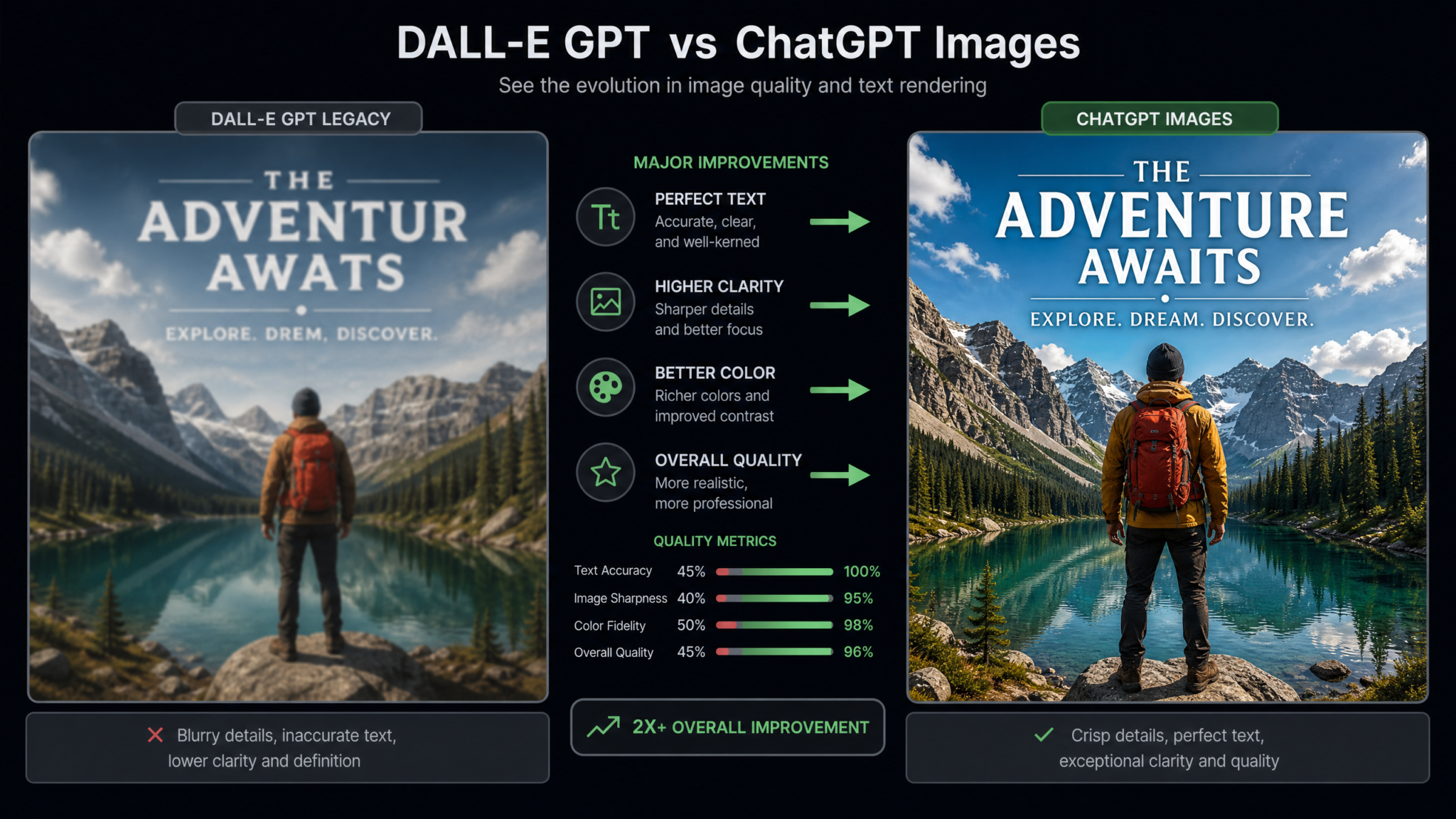
- Quality gap: The newer ChatGPT Images model significantly outperforms DALL-E 3 on benchmarks for text rendering accuracy, photorealism, style consistency, and complex compositional scenes. Keeping users on an older system would mean keeping them on an inferior product.
- GPT Store strategy shift: OpenAI has been recalibrating the GPT Store, moving away from first-party GPTs that simply wrap existing capabilities and focusing the store on third-party integrations that provide genuinely unique value. A first-party image generation GPT no longer fits this vision now that the capability is native.
OpenAI has been transparent about this reasoning. In their announcement, they emphasized that “ChatGPT Images delivers a superior experience in every dimension, and we want all users to benefit from the improved capabilities rather than continuing to use a legacy interface.”
The Exact Retirement Timeline
Here is what OpenAI has officially communicated:
| Date | Event | Impact on Users |
|---|---|---|
| Now through August 29, 2026 | DALL-E GPT remains functional | Full access to generate images and view conversation history |
| August 30, 2026 | DALL-E GPT retired | GPT becomes inaccessible; new generations impossible |
| Post-August 30 | Conversation history retention period | Limited window to access old conversations (exact duration TBD) |
| TBD (likely 90 days post-retirement) | Full data purge | All DALL-E GPT conversation data permanently deleted |
The critical takeaway: do not assume your conversation history will be accessible indefinitely after August 30. OpenAI’s data retention policies for retired GPTs have historically included a post-retirement access window, but that window closes. Once the data is purged, there is no recovery path.
What You Risk Losing After August 30
Before diving into the download process, it is worth understanding exactly what types of data are at stake. Many users significantly underestimate how much valuable content they have stored in DALL-E GPT conversations.
Image Assets at Risk
- Marketing and brand visuals — product concept art, promotional banners, social media imagery
- Architectural and design mockups — interior concepts, product design iterations, UI inspiration
- Illustration projects — character designs, book cover concepts, editorial artwork
- Personal creative work — artistic experiments, portrait reimaginings, fantasy scenes
- Reference images — visual references used to establish style guides or creative direction
- Iterative generations — multiple versions of the same concept showing creative evolution
The Hidden Value: Your Prompt Library
Beyond the images themselves, your DALL-E GPT conversation history contains something potentially more valuable than any individual image: your refined prompt library. Every successful prompt you crafted, every iteration that finally produced the result you wanted, every style description that unlocked a breakthrough visual — all of that is stored in your conversation history. Losing your prompts may be harder to recover from than losing the images, because images can theoretically be regenerated if you have the prompts.
According to a survey of AI art creators conducted in early 2025, the average active DALL-E GPT user had between 400 and 2,000 images stored across their conversation history, with power users accumulating upward of 10,000 images. Even at the conservative end, that represents a significant creative archive worth protecting.
Step 1: Finding All Your DALL-E GPT Conversations
The first challenge is locating every conversation you have ever had with the DALL-E GPT. Unlike a dedicated app with a clean gallery view, your images are distributed across potentially hundreds of individual chat threads in the ChatGPT sidebar.
Using the ChatGPT Search Function
ChatGPT’s conversation search is your first tool. Follow these steps:
- Log into ChatGPT at chat.openai.com
- Click the search icon (magnifying glass) in the left sidebar
- Search for “DALL-E” to surface conversations that mentioned the GPT by name
- Search for common image-related terms you use: “photorealistic”, “illustration”, “logo”, “portrait”
- Search for your own recurring style keywords if you use consistent descriptors
Note that ChatGPT’s search indexes conversation titles and message content. If a conversation was auto-titled without obvious image keywords, it may not surface in keyword searches. This is why the data export method (covered in Step 3) is the most reliable approach for comprehensive coverage.
Filtering by GPT Source
ChatGPT allows you to filter conversations by which GPT was used. In the left sidebar:
- Look for a filter or sort option near the conversation list (this UI element varies by interface version)
- If available, filter by “DALL-E GPT” or “GPTs” to show only GPT-sourced conversations
- Scroll through the complete filtered list and note conversation dates to estimate your total archive span
Estimating Your Archive Scope
Before starting downloads, do a quick audit. Open five to ten DALL-E GPT conversations spread across different date ranges and count the images in each. Calculate an average, then multiply by your estimated total conversation count. This gives you a rough image count and helps you plan how much storage space you will need and how long the download process will take.
A typical DALL-E GPT conversation contains between 4 and 20 images. If you have 200 conversations averaging 8 images each, you are looking at approximately 1,600 images, which at roughly 2-4MB per PNG image will require around 4-6GB of storage.
Step 2: Manual Image Download Methods
Manual downloading is straightforward for users with modest image archives. For larger archives, you will want to combine manual methods with the automation approach covered later.
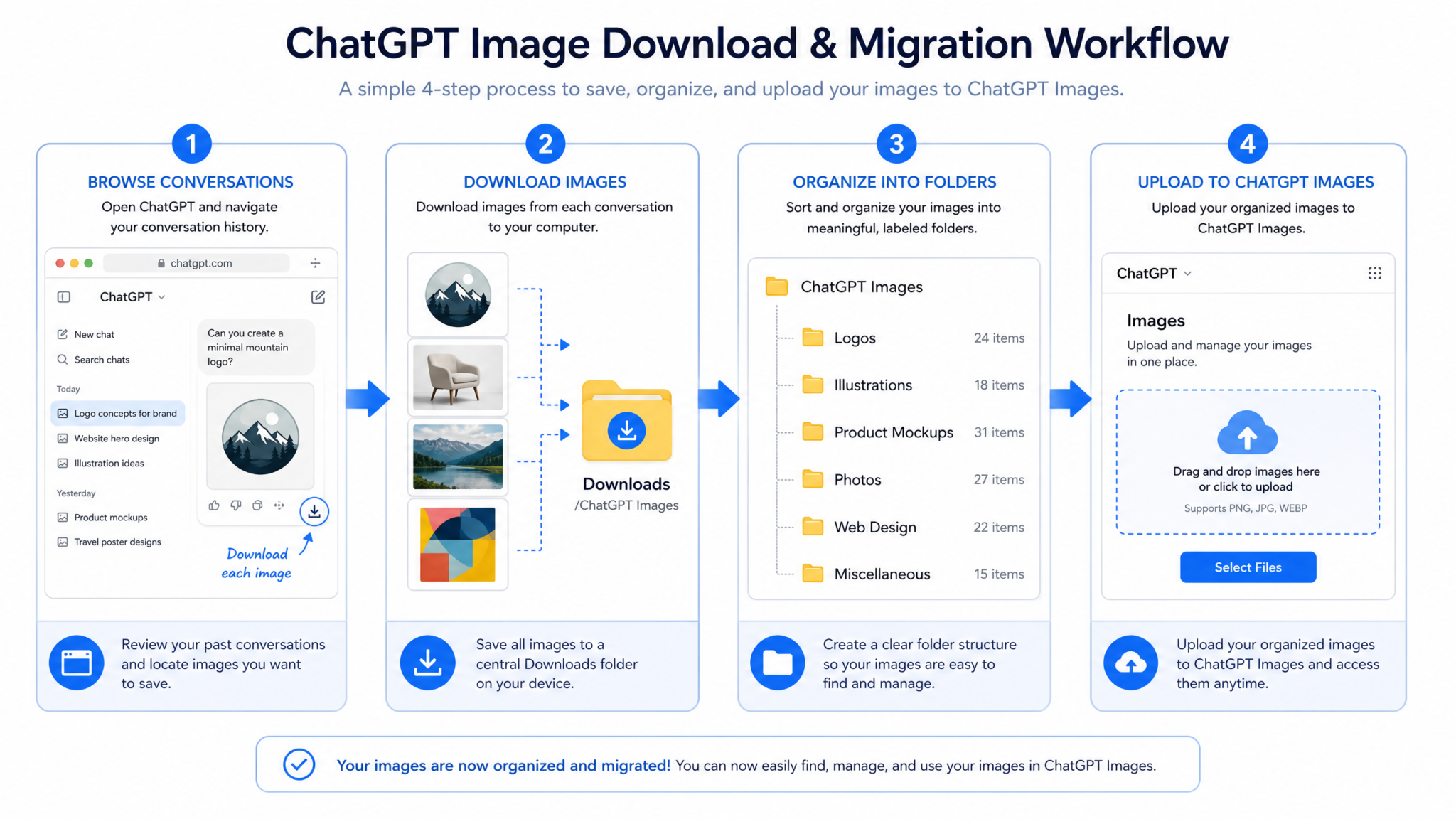
Downloading Individual Images from the ChatGPT Interface
- Open the conversation containing the image you want to save
- Hover over the image — a small toolbar should appear with download and share options
- Click the download icon (downward arrow) to save the image to your default downloads folder
- Alternatively, right-click on the image and select “Save Image As…” to choose a specific save location
- Rename the file immediately with a descriptive name that includes the date and a keyword — e.g.,
20250615_modernist_logo_v3.png
Organizing Downloads as You Go
Establish a folder structure before you start downloading. A logical structure prevents the chaos of hundreds of files in a single folder:
DALLE_Archive/
├── 2024/
│   ├── Q1_2024/
│   ├── Q2_2024/
│   ├── Q3_2024/
│   └── Q4_2024/
├── 2025/
│   ├── Q1_2025/
│   └── Q2_2025/
├── Projects/
│   ├── Brand_Work/
│   ├── Personal_Art/
│   └── Client_Projects/
└── Prompts/
    └── prompt_archive.txt
Saving Prompts Alongside Images
For each conversation or batch of downloads, copy the prompts into a companion text file. A simple naming convention keeps things paired:
20250615_modernist_logo_v3.png
20250615_modernist_logo_v3_prompt.txt
The prompt text file should contain the full prompt, any style modifiers, the aspect ratio or size settings, and any follow-up prompts used for refinements. This becomes your recipe card for recreating or adapting the image in ChatGPT Images later.
Browser Extensions That Streamline Manual Downloads
Several browser extensions can accelerate manual downloading by batch-saving all images on a page:
- Image Downloader (Chrome/Firefox): Scans the current page for all images and lets you select and download them in bulk. Works well on ChatGPT conversation pages.
- Bulk Image Downloader: More feature-rich option with filtering by image dimensions, format, and URL patterns.
- DownAlbum: Originally designed for social media galleries but works on any page with multiple images.
When using browser extensions, filter by image dimensions to exclude UI elements — DALL-E generated images are typically at least 512×512 pixels, so setting a minimum dimension filter of 400px on each side will exclude icons and interface graphics.
Step 3: Using OpenAI’s Official Data Export Tool
OpenAI provides a built-in data export feature that allows you to download a complete archive of your ChatGPT data, including conversation history. This is the most comprehensive method for ensuring you capture every conversation, including ones you might overlook during manual browsing.
Requesting Your Data Export
- Log into ChatGPT and click your profile icon in the top-right corner
- Select “Settings” from the dropdown menu
- Navigate to the “Data Controls” tab
- Find the “Export Data” section
- Click “Export” — OpenAI will prepare your archive and email a download link to your registered email address
- The preparation time varies from a few minutes to several hours depending on the size of your data
- Download the ZIP file from the link in the email promptly — export links typically expire within 24 hours
Understanding the Export Archive Structure
When you unzip the export file, you will find a structure similar to this:
chatgpt_export_[username]_[date]/
├── conversations.json
├── message_feedback.json
├── model_comparisons.json
├── user.json
└── dalle_generations/ (if present)
    ├── gen_[id]_[timestamp].png
    └── ...
The conversations.json file is the most important. It contains the complete text of every conversation, including every prompt you submitted to the DALL-E GPT. However, there is an important caveat: the data export may not include the actual image files in all cases. OpenAI’s export policy for generated images has varied, and in many exports, images are represented by URL references rather than embedded files.
Extracting Image URLs from conversations.json
If your export contains image URLs rather than files, you will need to extract and download those URLs. Here is a Python script to do exactly that:
import json
import os
import re
import requests
from pathlib import Path
from urllib.parse import urlparse

# Load the conversations export
with open('conversations.json', 'r', encoding='utf-8') as f:
    data = json.load(f)

# Create output directory
output_dir = Path('extracted_images')
output_dir.mkdir(exist_ok=True)

# Track downloaded images and prompts
prompt_log = []
image_count = 0

for conversation in data:
    conv_id = conversation.get('id', 'unknown')
    conv_title = conversation.get('title', 'untitled').replace('/', '_')

    # Create conversation-specific directory
    conv_dir = output_dir / f"{conv_id[:8]}_{conv_title[:40]}"
    conv_dir.mkdir(exist_ok=True)

    messages = conversation.get('mapping', {})

    for msg_id, msg_data in messages.items():
        message = msg_data.get('message', {})
        if not message:
            continue

        content = message.get('content', {})
        parts = content.get('parts', [])
        role = message.get('author', {}).get('role', '')

        # Capture user prompts
        if role == 'user':
            for part in parts:
                if isinstance(part, str) and len(part) > 10:
                    prompt_log.append({
                        'conversation': conv_title,
                        'prompt': part
                    })

        # Find image URLs in assistant responses
        if role == 'assistant':
            for part in parts:
                if isinstance(part, dict):
                    # Check for image content type
                    if part.get('content_type') == 'image_asset_pointer':
                        asset_pointer = part.get('asset_pointer', '')
                        # Handle file-service URLs
                        if 'file-service' in asset_pointer or \
                           'oaiusercontent' in asset_pointer:
                            try:
                                response = requests.get(
                                    asset_pointer,
                                    timeout=30,
                                    stream=True
                                )
                                if response.status_code == 200:
                                    filename = f"image_{image_count:04d}.png"
                                    filepath = conv_dir / filename
                                    with open(filepath, 'wb') as img_file:
                                        for chunk in response.iter_content(8192):
                                            img_file.write(chunk)
                                    image_count += 1
                                    print(f"Downloaded: {filepath}")
                            except Exception as e:
                                print(f"Failed to download {asset_pointer}: {e}")

# Save prompt archive
with open(output_dir / 'all_prompts.json', 'w', encoding='utf-8') as f:
    json.dump(prompt_log, f, indent=2, ensure_ascii=False)

print(f"\nComplete! Downloaded {image_count} images.")
print(f"Saved {len(prompt_log)} prompts to all_prompts.json")
Save this script as extract_dalle_images.py, place it in the same directory as your conversations.json export file, and run it with python extract_dalle_images.py. Ensure you have the requests library installed (pip install requests).
Important Note on URL Expiration
Image URLs in OpenAI’s data export are not permanent. They are signed URLs that typically expire within 1 to 7 days of the export being generated. This means you must run the extraction script immediately after downloading your export. If you wait a week and then try to download the images, many of the URLs will return 403 or 404 errors. Do not delay this step.
Step 4: Automation Scripts for Bulk Downloading
For users with large archives, manual downloading is impractical. The following automation approaches can dramatically accelerate the process. Always ensure you are only automating access to your own data and operating within OpenAI’s terms of service.
Browser-Based Automation with JavaScript
This script can be run in your browser’s developer console while viewing a DALL-E GPT conversation. It automatically identifies all images on the page and downloads them sequentially:
// Run in browser console on a ChatGPT conversation page
// Downloads all DALL-E generated images visible on the current page

(async function downloadDALLEImages() {
    // Find all image elements that are DALL-E generations
    // Generated images typically have specific URL patterns
    const allImages = document.querySelectorAll('img');
    const dalleImages = Array.from(allImages).filter(img => {
        const src = img.src || '';
        const naturalWidth = img.naturalWidth;
        const naturalHeight = img.naturalHeight;
        // Filter for large images (generations are typically 1024px+)
        return (
            naturalWidth >= 512 &&
            naturalHeight >= 512 &&
            (src.includes('oaiusercontent') ||
             src.includes('file-service') ||
             src.includes('openai'))
        );
    });

    console.log(`Found ${dalleImages.length} DALL-E images on this page`);

    if (dalleImages.length === 0) {
        console.log('No DALL-E images found. Try scrolling to load all messages first.');
        return;
    }

    // Get conversation title for file naming
    const titleEl = document.querySelector('[data-testid="conversation-title"]') ||
                    document.title;
    const convTitle = typeof titleEl === 'string'
        ? titleEl
        : (titleEl?.textContent || 'dalle_export');
    const safeTitle = convTitle.replace(/[^a-zA-Z0-9_-]/g, '_').substring(0, 30);

    // Download each image with a delay to avoid rate limiting
    for (let i = 0; i < dalleImages.length; i++) {
        const img = dalleImages[i];
        const src = img.src;

        try {
            const response = await fetch(src);
            const blob = await response.blob();
            const url = URL.createObjectURL(blob);

            const a = document.createElement('a');
            a.href = url;
            a.download = `${safeTitle}_${String(i + 1).padStart(3, '0')}.png`;
            document.body.appendChild(a);
            a.click();
            document.body.removeChild(a);
            URL.revokeObjectURL(url);

            console.log(`Downloaded image ${i + 1}/${dalleImages.length}`);

            // 800ms delay between downloads
            await new Promise(resolve => setTimeout(resolve, 800));

        } catch (error) {
            console.error(`Failed to download image ${i + 1}: ${error.message}`);
        }
    }

    console.log('Download complete for this conversation!');
})();
To use this script: open a DALL-E GPT conversation, scroll to the bottom to ensure all messages have loaded, open your browser’s developer tools (F12 or Cmd+Option+I on Mac), navigate to the Console tab, paste the script, and press Enter.
Python Script for Batch Conversation Processing
For users comfortable with Python, the following script works with your exported conversations.json to create a comprehensive local archive with organized folders and a searchable prompt index:
import json
import os
import re
import requests
import time
from pathlib import Path
from datetime import datetime

def sanitize_filename(name, max_length=50):
    """Remove unsafe characters and truncate for filesystem compatibility."""
    safe = re.sub(r'[<>:"/\\|?*\x00-\x1f]', '_', name)
    return safe[:max_length].strip('_')

def timestamp_to_date(timestamp):
    """Convert Unix timestamp to readable date string."""
    if timestamp:
        return datetime.fromtimestamp(timestamp).strftime('%Y%m%d_%H%M%S')
    return 'unknown_date'

def extract_and_download(conversations_file, output_dir='dalle_archive'):
    """Main extraction function."""

    output_path = Path(output_dir)
    output_path.mkdir(exist_ok=True)

    with open(conversations_file, 'r', encoding='utf-8') as f:
        conversations = json.load(f)

    print(f"Processing {len(conversations)} conversations...")

    stats = {
        'conversations_processed': 0,
        'images_downloaded': 0,
        'images_failed': 0,
        'prompts_extracted': 0
    }

    master_prompt_index = []

    for conv in conversations:
        conv_id = conv.get('id', 'no_id')
        conv_title = conv.get('title', 'Untitled Conversation')
        create_time = conv.get('create_time', 0)

        date_str = timestamp_to_date(create_time)
        safe_title = sanitize_filename(conv_title)
        conv_folder_name = f"{date_str}_{safe_title}"
        conv_path = output_path / conv_folder_name

        messages = conv.get('mapping', {})
        conv_images = []
        conv_prompts = []

        # Extract messages in chronological order
        for msg_id, msg_data in messages.items():
            msg = msg_data.get('message')
            if not msg:
                continue

            role = msg.get('author', {}).get('role', '')
            content = msg.get('content', {})
            parts = content.get('parts', [])
            msg_time = msg.get('create_time', 0)

            # Collect user prompts
            if role == 'user':
                for part in parts:
                    if isinstance(part, str) and len(part.strip()) > 5:
                        conv_prompts.append(part.strip())
                        stats['prompts_extracted'] += 1

            # Collect image references
            if role == 'assistant':
                for part in parts:
                    if isinstance(part, dict):
                        content_type = part.get('content_type', '')
                        if content_type in ['image_asset_pointer', 'image']:
                            url = (part.get('asset_pointer') or
                                   part.get('url') or
                                   part.get('image_url', {}).get('url'))
                            if url:
                                conv_images.append({
                                    'url': url,
                                    'timestamp': msg_time
                                })

        # Skip conversations with no images
        if not conv_images:
            continue

        conv_path.mkdir(exist_ok=True)

        # Save prompts for this conversation
        if conv_prompts:
            prompts_file = conv_path / 'prompts.txt'
            with open(prompts_file, 'w', encoding='utf-8') as f:
                f.write(f"Conversation: {conv_title}\n")
                f.write(f"Date: {date_str}\n")
                f.write("=" * 60 + "\n\n")
                for i, prompt in enumerate(conv_prompts, 1):
                    f.write(f"Prompt {i}:\n{prompt}\n\n")

            master_prompt_index.append({
                'conversation_id': conv_id,
                'title': conv_title,
                'date': date_str,
                'prompts': conv_prompts,
                'image_count': len(conv_images)
            })

        # Download images
        for idx, img_data in enumerate(conv_images):
            img_url = img_data['url']
            img_timestamp = timestamp_to_date(img_data['timestamp'])
            img_filename = f"img_{idx + 1:03d}_{img_timestamp}.png"
            img_path = conv_path / img_filename

            # Skip if already downloaded
            if img_path.exists():
                continue

            try:
                headers = {
                    'User-Agent': 'Mozilla/5.0 (compatible; DataExport/1.0)'
                }
                response = requests.get(
                    img_url,
                    headers=headers,
                    timeout=45,
                    stream=True
                )

                if response.status_code == 200:
                    with open(img_path, 'wb') as f:
                        for chunk in response.iter_content(chunk_size=8192):
                            f.write(chunk)
                    stats['images_downloaded'] += 1
                    print(f"  ✓ {img_filename}")
                else:
                    stats['images_failed'] += 1
                    print(f"  ✗ Failed ({response.status_code}): {img_url[:60]}")

                # Respectful rate limiting
                time.sleep(0.5)

            except requests.RequestException as e:
                stats['images_failed'] += 1
                print(f"  ✗ Error: {str(e)[:60]}")

        stats['conversations_processed'] += 1

    # Save master prompt index
    index_file = output_path / 'master_prompt_index.json'
    with open(index_file, 'w', encoding='utf-8') as f:
        json.dump(master_prompt_index, f, indent=2, ensure_ascii=False)

    # Print summary
    print("\n" + "=" * 60)
    print("EXTRACTION COMPLETE")
    print("=" * 60)
    print(f"Conversations processed: {stats['conversations_processed']}")
    print(f"Images downloaded:       {stats['images_downloaded']}")
    print(f"Images failed:           {stats['images_failed']}")
    print(f"Prompts extracted:       {stats['prompts_extracted']}")
    print(f"Output directory:        {output_path.absolute()}")

    return stats

if __name__ == '__main__':
    extract_and_download('conversations.json')
Run this script with: python dalle_archive.py
Step 5: Verifying Your Download Is Complete
Once you have completed your downloads, verification is essential. A corrupted or incomplete download might not be apparent until you actually need the files months or years later.
Image Integrity Checks
Run this simple verification script to check all downloaded PNG files for corruption:
from PIL import Image
from pathlib import Path
import sys

def verify_image_archive(archive_dir):
    """Verify all PNG files in the archive are valid and uncorrupted."""
    archive_path = Path(archive_dir)
    png_files = list(archive_path.rglob('*.png'))

    print(f"Checking {len(png_files)} PNG files...")

    corrupt = []
    zero_size = []
    valid = 0

    for png_path in png_files:
        # Check for zero-byte files
        if png_path.stat().st_size == 0:
            zero_size.append(str(png_path))
            continue

        # Attempt to open and verify the image
        try:
            with Image.open(png_path) as img:
                img.verify()
            valid += 1
        except Exception as e:
            corrupt.append({'file': str(png_path), 'error': str(e)})

    print(f"\nValid images:    {valid}")
    print(f"Zero-byte files: {len(zero_size)}")
    print(f"Corrupt files:   {len(corrupt)}")

    if zero_size:
        print("\nZero-byte files (re-download needed):")
        for f in zero_size[:10]:
            print(f"  {f}")

    if corrupt:
        print("\nCorrupt files (re-download needed):")
        for item in corrupt[:10]:
            print(f"  {item['file']}: {item['error']}")

    return len(corrupt) == 0 and len(zero_size) == 0

if __name__ == '__main__':
    directory = sys.argv[1] if len(sys.argv) > 1 else 'dalle_archive'
    success = verify_image_archive(directory)
    print("\n✓ Archive verified successfully!" if success else "\n✗ Issues found. Re-download flagged files.")
You will need the Pillow library: pip install Pillow
Cross-Checking Against Your Conversation Count
Manually spot-check your archive against your live ChatGPT conversations. Pick ten conversations at random, count the images in the live interface, then verify the same count appears in your archive folder. A greater than 5% discrepancy suggests incomplete downloads that need attention.
Understanding ChatGPT Images vs. DALL-E GPT
Before you start recreating or adapting your work in ChatGPT Images, it is important to understand the meaningful differences between the two systems. The transition is not simply a cosmetic change — there are genuine capability improvements and some workflow adjustments to account for.
Core Capability Improvements in ChatGPT Images
| Capability | DALL-E GPT (DALL-E 3) | ChatGPT Images (New Model) |
|---|---|---|
| Text rendering in images | Inconsistent; often garbled at longer lengths | Significantly improved; readable multi-word text |
| Style consistency across generations | Moderate; requires detailed prompting for consistency | Higher; better at maintaining style across iterations |
| Maximum resolution | 1024×1024 (standard), 1024×1792 or 1792×1024 | Higher resolution output with more aspect ratio options |
| Photorealism | Good | Excellent; improved lighting and material rendering |
| Complex compositional scenes | Moderate accuracy on multi-element compositions | Better spatial reasoning and object placement |
| Image editing/inpainting | Limited within conversation context | Native edit mode with selection tools |
| Conversational context | Good within the GPT conversation | Deeper integration with full ChatGPT conversation context |
Prompt Language Differences
One of the most practical differences is in how each system interprets prompts. DALL-E 3 was trained to follow natural language prompts with a tendency to add its own creative interpretation. The ChatGPT Images model follows prompts more literally and precisely, which is generally an improvement but requires some adjustment from users accustomed to DALL-E 3’s behavior.
Key prompt language shifts:
- Be more explicit about style: ChatGPT Images is literal. If you want an oil painting look, say “oil painting with visible brushstrokes” rather than relying on general terms like “painted.”
- Lighting descriptions matter more: The new model responds exceptionally well to specific lighting instructions — “golden hour side lighting,” “studio three-point lighting,” “overcast diffuse light.”
- Text in images: You can now actually specify text content in images with reasonable accuracy. Include it clearly: “include the text ‘Open AI Hub’ in bold sans-serif font at the bottom right”
- Negative prompting: Unlike some other models, ChatGPT Images does not use traditional negative prompts. Instead, specify what you do want rather than what you do not want.
Migrating Your Prompts to ChatGPT Images
Your saved prompt library from the DALL-E GPT is your most valuable migration asset. Most prompts will work in ChatGPT Images with minor or no modifications, but some prompts will benefit from intentional adaptation to leverage the new model’s strengths.
The Prompt Conversion Framework
Use this four-step framework when converting an existing DALL-E GPT prompt for ChatGPT Images:
- Test the original prompt unchanged. Start by pasting your existing prompt verbatim into ChatGPT Images. In many cases, the result will be comparable or better, and no further adaptation is needed. Do not optimize what is not broken.
- Assess the result against your original. If the output is different in undesirable ways, identify specifically what changed — composition, style, mood, color palette, or detail level.
- Adjust language to be more explicit. If the style or mood drifted, add more specific descriptors. Replace vague stylistic terms with concrete descriptions of the visual elements you actually want.
- Leverage new capabilities. Once you have matched your original output quality, consider whether the new model’s capabilities — better text rendering, more precise composition control — could actually improve on your original intent.
Common Prompt Adaptations
Here are specific adaptations for common DALL-E GPT prompt types:
For portraits and character art:
// Original DALL-E GPT prompt:
"A young woman with auburn hair in a fantasy setting, ethereal"

// Adapted for ChatGPT Images:
"Portrait of a young woman with auburn wavy hair, soft natural
lighting from the left, fantasy forest background with soft bokeh,
ethereal atmosphere with subtle light particles, detailed facial
features, photorealistic style, cinematic framing"
For product visualization:
// Original DALL-E GPT prompt:
"Minimalist product photo of a glass water bottle"

// Adapted for ChatGPT Images:
"Professional product photography of a transparent glass water
bottle with metallic cap, white studio background, soft-box
lighting from 45-degree angle, subtle shadow on the surface below,
crisp focus, commercial photography style, no text"
For architectural visualization:
// Original DALL-E GPT prompt:
"Modern house exterior with a lot of windows"

// Adapted for ChatGPT Images:
"Exterior architectural render of a contemporary single-family
home, floor-to-ceiling glass facade, cantilevered upper floor,
surrounded by mature Japanese maple trees, golden hour lighting,
ultra-wide establishing shot, photorealistic architectural
visualization, dusk sky in background"
The pattern is consistent: add lighting specifics, clarify composition, describe style with concrete visual language, and specify what should not be in the image through inclusion rather than exclusion.
Recreating Your Best Images in ChatGPT Images
For your most important or frequently referenced images, going beyond prompt conversion to full recreation is worthwhile. The goal is to produce a ChatGPT Images version that matches or surpasses your originals.
The Image-to-Prompt Reverse Engineering Method
If you have the original image but cannot find the prompt, ChatGPT Images itself can help. Upload your downloaded DALL-E GPT image to ChatGPT and ask it to describe the image in the format of a detailed generation prompt:
Access 40,000+ AI Prompts for ChatGPT, Claude & Codex — Free!
Subscribe to get instant access to our complete Notion Prompt Library — the largest curated collection of prompts for ChatGPT, Claude, OpenAI Codex, and other leading AI models. Optimized for real-world workflows across coding, research, content creation, and business.
User: I'm going to upload an AI-generated image. Please analyze it
and write a detailed image generation prompt that would recreate
it as closely as possible. Include style, lighting, composition,
color palette, mood, and any notable visual elements.

[attach your DALL-E GPT image]
ChatGPT will generate a detailed prompt description that you can then use directly in ChatGPT Images to recreate the image. This reverse-engineering approach works surprisingly well for most image styles.
Building a Style Library in ChatGPT Images
One of the most powerful features of ChatGPT Images is its ability to maintain style consistency within a conversation thread. This means you can create a “style conversation” that anchors a particular aesthetic and then use it for generating new variations. This is especially useful for brand consistency work.
To establish a style anchor:
- Upload your best examples of a particular style (from your DALL-E GPT archive)
- Ask ChatGPT Images to analyze the common visual characteristics
- Generate a master style prompt that describes those characteristics
- Use that style prompt as a prefix for all future generations in that style
- Save the conversation thread as a dedicated style workspace
This approach gives you a much more robust style consistency system than was possible with DALL-E 3, where maintaining style across sessions required manual prompt engineering. ChatGPT Images Style Consistency Tips
Long-Term Backup Strategies for AI-Generated Art
The DALL-E GPT retirement is a valuable lesson in the ephemerality of cloud-based creative tools. Building a robust backup strategy for your AI-generated assets ensures you will not face this situation again with future tool transitions.
The 3-2-1 Backup Rule for AI Art
The classic 3-2-1 backup strategy applies perfectly to AI-generated image archives:
- 3 copies of your data: your working copy plus two backups
- 2 different storage media: for example, local hard drive plus cloud storage
- 1 offsite copy: at least one backup stored physically or logically separate from your primary location
A practical implementation for AI art archives:
| Copy | Location | Service Example | Update Frequency |
|---|---|---|---|
| Primary | Local external SSD | Samsung T7, WD My Passport | Real-time / daily |
| Backup 1 | Cloud storage | Backblaze B2, AWS S3 Glacier | Weekly automated sync |
| Backup 2 | Secondary cloud or NAS | Google Drive, Synology NAS | Monthly full backup |
Metadata Embedding for Future-Proofing
Embed your prompts directly into image metadata using tools like ExifTool. This means the prompt travels with the image file regardless of how it is organized or shared:
# Install ExifTool, then run:
# Embed prompt in image EXIF data
exiftool -Comment="DALLE_GPT: A photorealistic portrait of..." \
         -Artist="AI Generated via DALL-E GPT" \
         -Software="ChatGPT DALL-E 3" \
         your_image.png

# For batch processing an entire directory:
exiftool -Comment="Batch export from DALL-E GPT archive" \
         -Artist="AI Generated" \
         -r dalle_archive/
Embedding metadata ensures that even years from now, when folder structures have been reorganized and filenames have changed, the provenance and prompt for each image remains attached to the file itself. AI Image Metadata Management Best Practices
Establishing a Download-on-Generation Habit
The most effective long-term strategy is behavioral: download images immediately when generated, rather than relying on the platform to store them indefinitely. Every generation you care about should be downloaded within the same session it was created. Treat AI platform storage as temporary cache, not permanent archive. ChatGPT Images Workflow Optimization Guide
Using GitHub for Prompt Archives
For your prompt library specifically, a private GitHub repository is an excellent solution. Prompts are plain text, version-controllable, searchable, and free to store in bulk. A well-organized prompt repository also becomes a valuable creative resource over time:
dalle_prompts/
├── README.md
├── portraits/
│   ├── portrait_styles.md
│   └── character_designs.md
├── products/
│   ├── ecommerce_templates.md
│   └── brand_visuals.md
├── architecture/
│   └── residential_concepts.md
└── abstract/
    └── artistic_experiments.md
Timeline: What Happens After August 30, 2026
Understanding the post-retirement timeline helps you prioritize your migration efforts correctly.
Immediate Retirement Day (August 30)
On August 30, 2026, the DALL-E GPT will no longer be functional. Attempting to open or use it will likely result in a deprecation notice. You will not be able to generate new images through the DALL-E GPT interface. However, your conversation history should remain viewable in the ChatGPT sidebar for a post-retirement access window.
Post-Retirement Access Window
OpenAI historically provides a post-retirement data access period before permanently deleting data from retired services. Based on precedent with other retired features, this window is likely to be between 30 and 90 days. During this window, you can still view conversation history and attempt to download images, but image URL expiration may complicate downloads depending on how long after retirement you act.
Strongly recommended: Complete all downloads before August 30, not after. Treating the retirement date as your hard deadline for data access rather than as the start of a grace period is the safest approach.
What ChatGPT Images Offers as Your Permanent Home
After the transition, ChatGPT Images becomes your primary image generation interface within ChatGPT. OpenAI has committed to making ChatGPT Images a core, permanent feature rather than a potentially retirable GPT. It is deeply integrated into the base ChatGPT product, which makes it significantly less likely to be deprecated in the way standalone GPTs can be.
OpenAI is actively developing ChatGPT Images capabilities, with a public roadmap that includes improved video generation integration, better multi-image composition, enhanced editing tools, and API access improvements. Transitioning to ChatGPT Images is not just a migration out of necessity — it is an upgrade to a more capable, better-supported platform. ChatGPT Images Complete Feature Guide 2025
API Users: What Changes for DALL-E API Customers
If you have been using the DALL-E API directly in applications, the retirement of the DALL-E GPT in the consumer interface does not automatically affect your API access. OpenAI’s API deprecation schedules for the underlying models (DALL-E 3 API) are separate from the consumer GPT retirement. However, OpenAI has indicated that the latest image generation models accessible through the API are the same ones powering ChatGPT Images, so API users are encouraged to begin testing migration to the new API endpoints.
Frequently Asked Questions
Will my DALL-E GPT conversations disappear on August 30?
Your conversation history will likely remain visible for a post-retirement access period after August 30, but you should not count on this as a safety net. The DALL-E GPT will stop generating new images on that date, and the conversation history has an unspecified but finite retention window after retirement. Download everything before August 30 to be safe.
Is ChatGPT Images available on all subscription tiers?
ChatGPT Images availability depends on your subscription level. Paid tiers (Plus, Pro, Team, Enterprise) have full access including higher usage limits. Free tier users may have limited access or usage caps. Check your plan details at chat.openai.com/account for current specifics, as OpenAI updates these policies periodically.
Will my old DALL-E GPT prompts work in ChatGPT Images?
Most prompts will work with acceptable results without modification. The new model follows prompts more literally, which generally produces better results, though some prompts that relied on DALL-E 3’s creative interpretation may need slight adjustment. The prompt conversion framework detailed in this guide covers the most common adaptation scenarios.
Can I transfer my conversation history to ChatGPT Images?
There is no automatic conversation import feature. You will need to manually recreate important conversations by uploading reference images and submitting your saved prompts. For most users, the practical approach is to maintain your downloaded archive as a reference library and use ChatGPT Images for all new generation work going forward.
My data export download link expired. What do I do?
You can request a new data export at any time through Settings > Data Controls > Export Data. There is no limit on how many times you can request an export. Generate a fresh export and download it promptly — the 24-hour link expiration window means you should not delay once the email arrives.
The Python extraction script found URLs but most of them return 403 errors. Why?
OpenAI’s image URLs in data exports are signed time-limited URLs. If the export was downloaded more than a few days ago, the image URLs may have already expired. Request a fresh data export and run the extraction script immediately after downloading the fresh export archive.
Are AI-generated images I created with DALL-E GPT copyrightable?
Copyright law regarding AI-generated images remains an evolving area. In the United States, the Copyright Office has generally held that purely AI-generated images without sufficient human creative authorship are not copyrightable. However, images where significant human creative direction was applied may qualify for protection on the human-authored elements. Review OpenAI’s current usage policies and consult a legal professional for guidance specific to your use case, especially for commercial applications.
I have images in DALL-E GPT conversations that I shared with others. Do they need to download them too?
If images were shared via ChatGPT’s native share link feature, the shared link will also stop working once the DALL-E GPT is retired and conversation data is purged. Anyone who needs persistent access to those images should download them directly before the retirement date. Consider notifying collaborators who received shared links to download any images they need to retain.
Does ChatGPT Images support DALL-E 3 specifically, or is it a different model?
ChatGPT Images uses a newer generation model that is distinct from DALL-E 3. The underlying model is not publicly branded as DALL-E 4 by OpenAI but represents a significant generation advancement over DALL-E 3 in terms of image quality, text rendering, and instruction following. The DALL-E 3 model itself is still available via the OpenAI API for developers who need it specifically. OpenAI Image Model Comparison DALL-E 3 vs ChatGPT Images
What is the maximum number of images I can generate with ChatGPT Images per day?
Generation limits vary by subscription tier and are subject to change. OpenAI adjusts these limits periodically. Check your plan’s current limits in your account settings. ChatGPT Pro users generally have the highest limits, while Plus users have a moderate allowance that resets on a rolling basis.
Should I delete my DALL-E GPT conversations after migrating?
There is no pressing reason to delete them immediately. Until the retirement date, keeping the conversations in your ChatGPT history costs you nothing and gives you ongoing reference access. After you have confirmed your downloads are complete and verified, you can optionally delete the conversations to reduce sidebar clutter, but this is entirely optional.
Summary: Your Action Checklist
With the August 30, 2026 deadline in mind, here is your prioritized action checklist:
- Request your OpenAI data export immediately — go to Settings > Data Controls > Export Data now, before you do anything else. This captures a complete snapshot of your data.
- Download the export and run the extraction script within 24 hours of receiving the export email link.
- Manually download high-priority images from your most important conversations while the DALL-E GPT is still active.
- Set up your archive folder structure and organize downloads as they come in.
- Verify your archive integrity using the verification script provided above.
- Begin testing ChatGPT Images with your most frequently used prompts to assess how they perform without modification.
- Adapt key prompts using the conversion framework for any prompts that need adjustment.
- Set up your 3-2-1 backup system for your archive and establish a download-on-generation habit going forward.
- Complete all downloads before August 30 — do not rely on the post-retirement access window.
The DALL-E GPT served as many creators’ entry point into AI image generation. The work you created with it represents genuine creative and professional value worth preserving. With the steps in this guide, you can ensure every image survives the transition while setting yourself up for an even more capable workflow in ChatGPT Images. The migration requires some initial effort, but the combination of a properly archived prompt library and access to a more capable generation model positions you better than you were before the announcement.
Start your data export request today. August 30 is closer than it seems, and the worst possible outcome is discovering the deadline passed while your archive was still in the cloud.
