
How to Set Up ChatGPT Advanced Memory for Personalized Workflows: Complete Configuration Guide for Plus, Pro, and Team Users
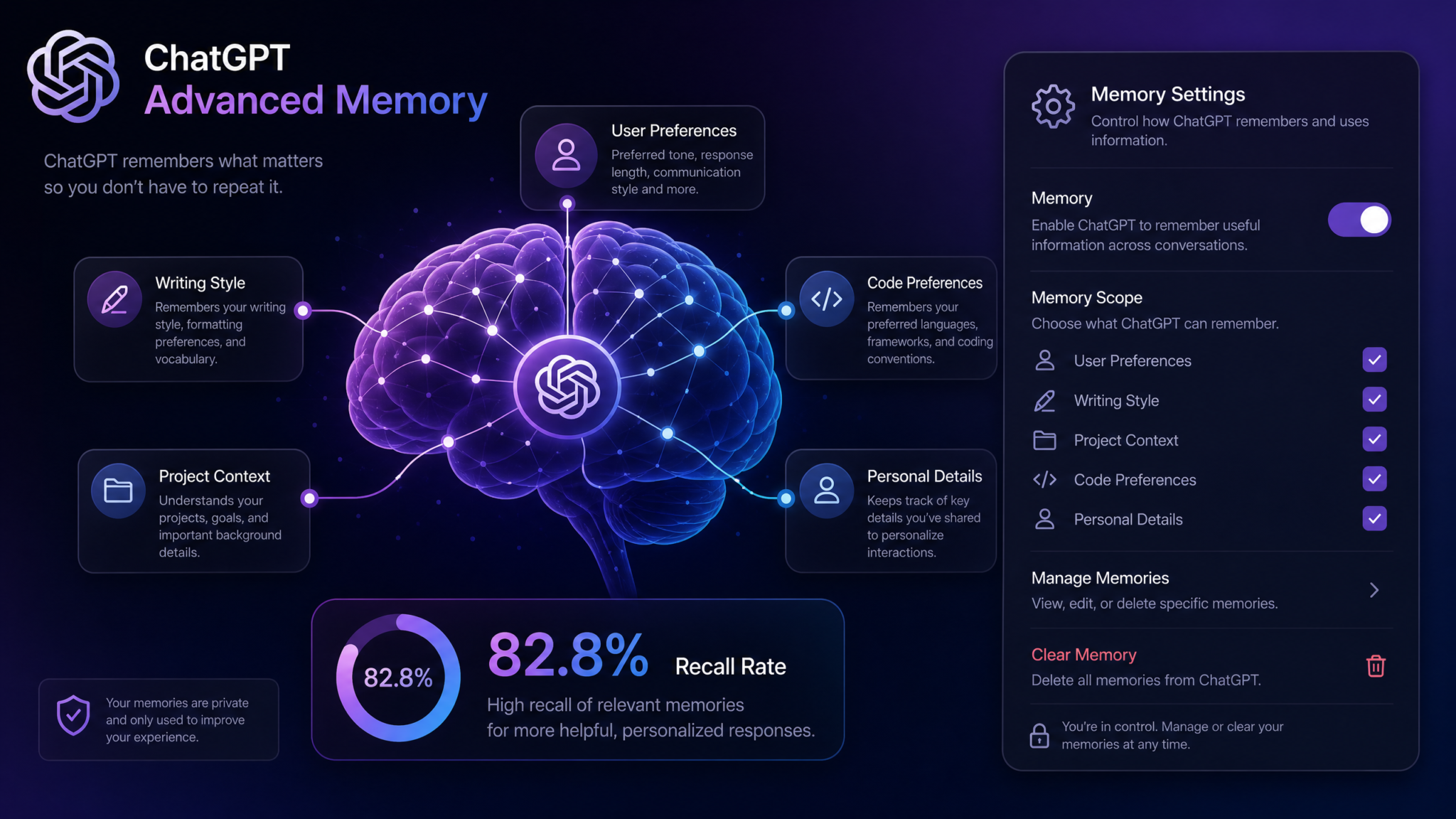
ChatGPT Advanced Memory transforms every conversation from a cold start into a continuation of an ongoing relationship with your AI assistant. After OpenAI’s Dreaming V3 update, memory recall accuracy climbed to an independently measured 82.8% — a significant leap that makes persistent context not just a convenience feature but a foundational productivity tool. Whether you are automating a writing workflow, maintaining consistent code style across sprints, or running a team that needs shared context, this complete configuration guide walks you through every setting, strategy, and safeguard you need to get maximum value from ChatGPT memory.
What Is ChatGPT Advanced Memory (And Why the Dreaming V3 Update Changed Everything)
At its core, ChatGPT Advanced Memory is a persistent storage layer that sits outside individual conversations. When memory is enabled, information gathered during your sessions — your name, your professional role, your preferred communication style, your recurring project names — is written to a memory bank that the model reads at the beginning of every new conversation. The result is an assistant that does not treat each session as a blank slate.
Before the Dreaming V3 update rolled out in early 2025, ChatGPT memory worked through a relatively blunt mechanism: the model would periodically write explicit notes about you, and those notes were inserted as a static text block into your system prompt. The recall was inconsistent. Users reported that the model would remember they preferred bullet points in one session and then revert to long prose paragraphs in the next. Relevance scoring was weak — the system sometimes surfaced a remembered preference from six months ago while ignoring a correction made last week.
Dreaming V3 changed the architecture substantially. Rather than treating memory as a flat list of text notes, OpenAI moved to a vectorized retrieval system that prioritizes memories by recency, frequency of reference, and semantic distance from the current conversation topic. The 82.8% recall accuracy figure measures how often the model correctly applies a stored preference or fact when that preference or fact is relevant to the current query — a much more meaningful benchmark than simply remembering that a memory exists. Think of it as the difference between knowing you put your keys somewhere and actually going to the right drawer on the first try.
The practical effect is dramatic. A software developer who has stored their preference for TypeScript strict mode, their team’s Git branching convention, and their preferred test framework will now find that ChatGPT consistently opens code suggestions with the right import structure, the right type annotations, and the right test runner — without being reminded in every prompt. A content marketer who has stored brand voice guidelines finds that first drafts are substantially closer to publishable quality.
The Architecture Behind Dreaming V3 Memory
Without diving into proprietary details, the Dreaming V3 system operates on three observable principles that should guide how you use it:
- Recency weighting: Memories you have created or confirmed recently score higher than older ones. Contradictions resolve in favor of the newer memory.
- Context relevance scoring: Not every memory is loaded for every conversation. The system retrieves the memories most semantically relevant to what you are currently working on. This matters for how you phrase your memory seeds.
- Explicit versus inferred separation: The system now distinguishes between things you explicitly asked it to remember and things it inferred from your behavior. These are stored with different confidence weights.
Understanding these three principles will let you seed, maintain, and troubleshoot your memory bank far more effectively than treating it as a simple notepad.
Memory Capabilities Across Free, Plus, Pro, Team, and Enterprise Tiers
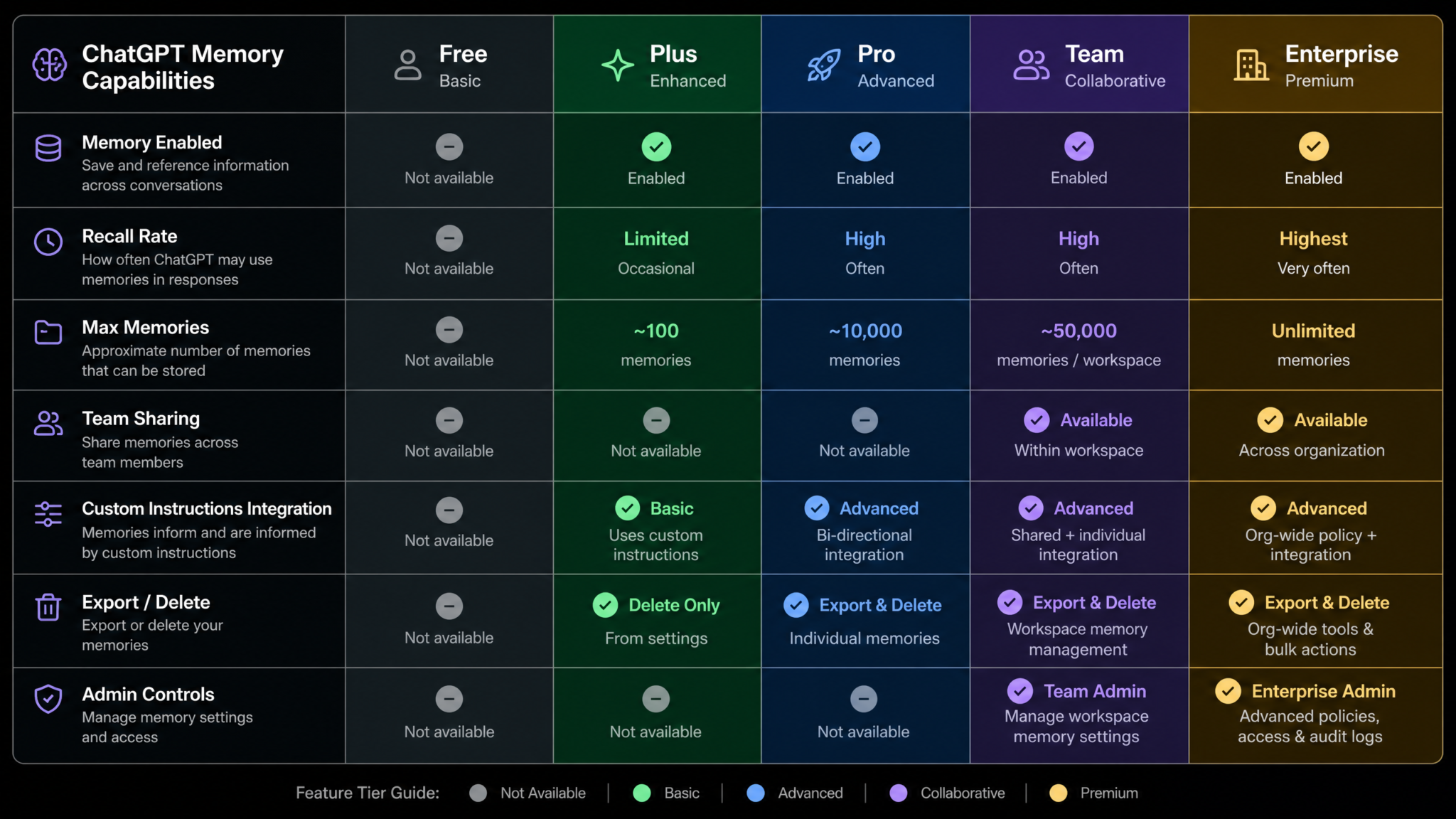
Not all ChatGPT subscription tiers get the same memory features. The table below summarizes the current capability landscape as of mid-2025. Understanding where you stand is essential before investing time in memory configuration.
| Feature | Free | Plus ($20/mo) | Pro ($200/mo) | Team | Enterprise |
|---|---|---|---|---|---|
| Basic Memory (explicit saves) | ✓ Limited | ✓ Full | ✓ Full | ✓ Full | ✓ Full |
| Inferred Preference Memory | ✗ | ✓ | ✓ | ✓ | ✓ |
| Dreaming V3 Recall Engine | ✗ | ✓ | ✓ | ✓ | ✓ |
| Memory Storage Capacity | ~50 entries | ~500 entries | Expanded (1,000+) | ~500 per user | Custom |
| Workspace Shared Memory | ✗ | ✗ | ✗ | ✓ Admin-controlled | ✓ Admin-controlled |
| Memory Export (JSON) | ✗ | ✓ | ✓ | ✓ | ✓ |
| API Memory Access | ✗ | ✗ | ✓ Beta | ✗ | ✓ |
| Custom Instructions Integration | ✓ | ✓ | ✓ | ✓ | ✓ |
Free tier users do get a simplified version of memory, but without the Dreaming V3 retrieval engine and without inferred preference storage, the experience is materially different — and significantly less useful for consistent workflows. This guide is primarily written for Plus, Pro, and Team subscribers, though Free users can follow the explicit memory management sections and benefit from those techniques.
Pro subscribers gain expanded storage capacity and, crucially, beta access to memory through the API — which opens up automation possibilities such as updating your memory bank from external tools or scripts. This is covered further in the advanced tips section.
ChatGPT Pro vs Plus Plan Comparison: Which Subscription Is Worth It
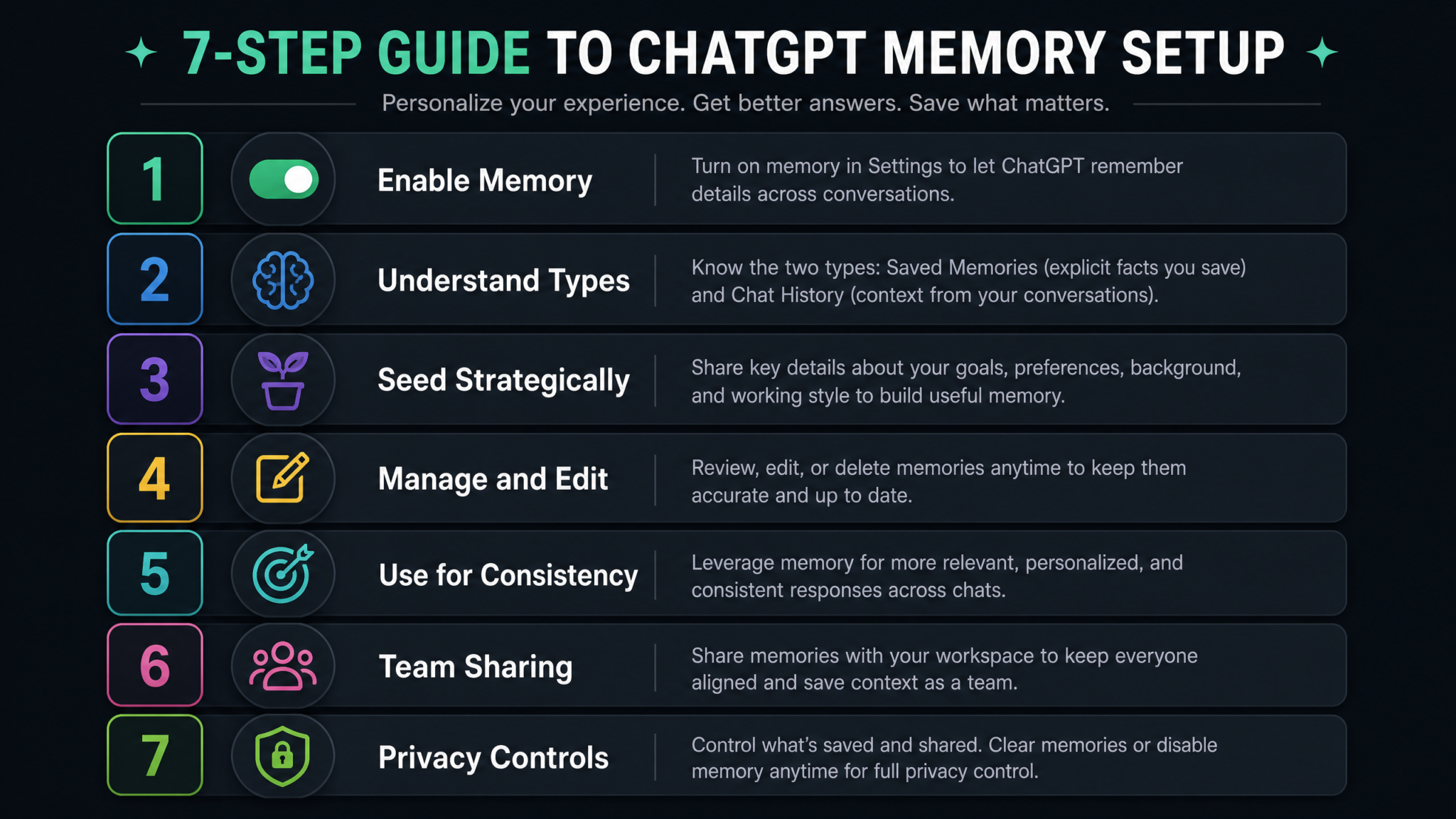
Step 1: Enable and Configure Memory Settings
Locating the Memory Settings Panel
Memory settings are not buried in an obscure submenu, but many users never find them because they look in the wrong place. Here is the exact navigation path on both desktop and mobile:
On Desktop (chat.openai.com or the desktop app):
- Click your profile icon or initials in the bottom-left corner of the sidebar.
- Select Settings from the popup menu.
- In the Settings modal, click the Personalization tab in the left navigation. This is the second tab from the top, below General.
- You will see a Memory section near the top of the Personalization panel, followed by a Manage Memories link and a series of toggles below it.
On the iOS and Android mobile apps:
- Tap the three horizontal lines (hamburger menu) in the top-left corner.
- Tap your account name at the bottom of the sidebar.
- Select Settings, then tap Personalization.
- The memory controls appear at the top of the Personalization screen.
What Each Toggle Does
Within the Personalization panel, you will encounter four memory-related controls. Understanding what each one actually does — not just what its label says — will help you configure them intelligently.
Memory Toggle (Master Switch)
This is the on/off switch for the entire memory system. When turned off, ChatGPT will not read from your memory bank, will not write new memories, and will treat every conversation as fresh. Important: Turning this off does not delete your stored memories. They persist in the database and will be re-activated when you switch memory back on. If you want to completely clear your memories, you must do so from the Manage Memories panel, which is a separate action.
Improve Model for Everyone Toggle
This toggle controls whether your conversations — including memory-enriched ones — contribute to OpenAI’s model training. This is separate from memory functionality. Turning this off does not disable memory; it only opts you out of contributing to training data. Most privacy-conscious users on paid plans turn this off. Note that this setting has no effect on Enterprise plans, where training data use is governed by a separate data processing agreement.
Personalized Responses Toggle (Inferred Memory)
This is the control for inferred preference memory — the Dreaming V3 feature that allows ChatGPT to observe patterns in your behavior and automatically write memory entries without you explicitly asking it to remember something. When enabled, if you consistently rewrite ChatGPT’s numbered lists into prose paragraphs, it will eventually infer and store “User prefers prose over bullet lists for analytical content.” When disabled, only explicitly requested memories are stored. For power users who want tight control over their memory bank, disabling this and manually seeding memories (covered in Step 3) often produces cleaner, more reliable results.
Memory Full Notification
This toggle controls whether ChatGPT alerts you when you are approaching your memory storage limit. It is best left enabled. When your memory bank fills up, the system begins replacing older, lower-confidence entries with new ones — a process that happens silently unless notifications are on. Losing a memory entry you rely on for a production workflow is a frustrating and avoidable problem.
Recommended Configuration by Use Case
| Use Case | Memory | Improve Model | Inferred Memory |
|---|---|---|---|
| Personal productivity & writing | On | Off | On |
| Professional / client work | On | Off | Off (manual only) |
| Software development | On | Off | On |
| Sensitive or confidential tasks | Off or selective | Off | Off |
| Learning and exploration | On | On or Off | On |
Step 2: Understand the Three Types of Memory
Effective memory management requires understanding not just that memories exist, but how they differ in origin, reliability, and behavior. ChatGPT Advanced Memory under Dreaming V3 operates with three distinct memory categories.
1. Explicit Saves
These are memories created by direct instruction. You say “Remember that my primary language for backend development is Go, not Python” and ChatGPT writes that to your memory bank. Alternatively, the model may prompt you: “Should I remember that you prefer Tailwind CSS over Bootstrap?” and you confirm.
Explicit saves carry the highest confidence weight in the Dreaming V3 system. They are the most stable and the most consistently applied. They are also the most transparent — you can see them clearly in the Manage Memories panel exactly as they were written.
Example explicit memory entries in the panel might look like:
“User works as a senior product manager at a B2B SaaS company. Primary metrics: ARR, NRR, activation rate.”
“User prefers responses in British English. Spellings: colour, organise, behaviour.”
“User’s main project is a customer onboarding redesign for Q3. Stakeholders: VP of Product, Head of Engineering, Customer Success Director.”
2. Inferred Preferences
These are memories the model writes autonomously, based on observed patterns in your behavior. If you consistently ask follow-up questions about implementation after receiving conceptual explanations, the model may infer and store “User prefers practical, implementation-focused answers over theoretical overviews.” If you always respond to a bulleted list by asking for a paragraph version, it infers your formatting preferences.
Inferred preferences are valuable because they capture your real working behavior rather than your self-reported preferences — which sometimes differ. However, they can also be wrong. An inference based on three similar requests may not represent your general preference, just your preference in that specific context. This is why periodic audits of your memory bank (covered in Step 4) are important.
In the Manage Memories panel, inferred preferences are not visually distinguished from explicit saves by default, which is a current limitation. The practical workaround is to conduct periodic reviews and correct any inferences that seem off.
3. Conversation Patterns
The newest and most sophisticated memory type introduced with Dreaming V3, conversation patterns are not stored as discrete text entries. Instead, they are encoded in the retrieval index as behavioral signals — statistical regularities that influence how the model responds to you even when no explicit memory entry matches the current conversation.
For example, if your conversations consistently involve reviewing drafts with skeptical, critical questions, the model may implicitly adjust its drafting style to pre-empt your typical objections — without that behavior being visible as a specific memory entry. This is the least transparent form of memory and the hardest to directly manage. The best approach is to use explicit corrections when you notice a persistent behavior you dislike, as corrections tend to override pattern signals.
ChatGPT Custom Instructions Complete Guide: System Prompt Strategies for Power Users
Step 3: Seed Your Memory Strategically
Seeding your memory — deliberately telling ChatGPT things about yourself and your work — is the highest-leverage action you can take with the memory system. A thoughtfully seeded memory bank dramatically reduces the friction in every subsequent interaction. Here is a systematic framework for doing it well.
The Five Categories of High-Value Memory Seeds
Category 1: Professional Identity
Tell ChatGPT who you are in the context of work. This is not about ego; it is about context that changes how useful a response can be. A response calibrated for a junior developer is not useful for a principal engineer, and vice versa. Example prompts to seed this category:
- “Please remember: I’m a full-stack developer with 8 years of experience. I work primarily in TypeScript, React, and Node.js. I am currently a tech lead managing a team of four on a fintech application.”
- “Remember that I’m a freelance copywriter specializing in SaaS product marketing. My clients are typically Series A to Series C B2B companies. I write primarily for email sequences, landing pages, and case studies.”
Category 2: Output Format Preferences
This is where many users get the most immediate ROI from memory. If ChatGPT consistently formats outputs in a way that requires editing before you can use them, seeding format preferences eliminates that friction entirely.
- “Remember: When I ask you to write anything, use short paragraphs of three sentences maximum. Use headers for anything longer than 400 words. Avoid bullet lists for narrative content but use them for action items and comparisons.”
- “For all code: use async/await rather than promise chains. Include TypeScript types even when I don’t specify. Add a brief comment block above each function explaining its purpose and parameters.”
Category 3: Project and Domain Context
For ongoing projects, seeding the key facts and vocabulary eliminates repetitive context-setting at the start of every session. You do not need to dump an entire specification into memory — just the terms, stakeholders, and decisions that would otherwise require re-explanation.
- “My main project: Building ‘Stacklane’, an AI-powered project management tool. Tech stack: Next.js 14, Supabase, OpenAI API, Vercel. Key features in development: smart task decomposition, automated standup summaries, integration with Linear.”
- “Remember: At my company, ‘the platform’ always refers to our core SaaS product, not our data infrastructure. ‘Infrastructure’ or ‘infra’ refers to AWS-based backend systems.”
Category 4: Communication Style and Tone
This affects how ChatGPT talks to you, not just what it produces for external use. If you find the default assistant tone too formal, too verbose, or too hedged, seeding style preferences calibrates the conversational experience itself.
- “In our conversations, be direct and concise. Don’t add disclaimers unless they are genuinely critical. Don’t start responses with phrases like ‘Certainly!’ or ‘Great question!’”
- “I prefer you to challenge my assumptions when you have strong reasons to. Don’t just validate what I say — push back when the evidence supports it.”
Category 5: Recurring Constraints
These are the things that would otherwise end up at the top of every prompt you write. Dietary restrictions, legal constraints, brand guidelines, or technical limitations that apply across many tasks.
- “All content I produce must comply with FCA financial promotion rules. Never suggest specific investment returns or use language that could constitute a financial recommendation.”
- “Our brand never uses the word ‘innovative’ or ‘revolutionary’. Our tone is confident but not hyperbolic.”
The Seeding Session: A Practical Approach
Rather than seeding memories ad-hoc over many weeks, the most efficient approach is to run a dedicated seeding session when you first set up memory — or when starting a major new project. Open a new conversation and tell ChatGPT: “I’m going to give you important context about myself and my work. Please create memory entries for each item as I describe them and confirm what you’ve stored after each one.”
Then go through your five categories systematically. After each item, review what ChatGPT confirms it has stored. If the stored entry does not accurately reflect what you intended, correct it immediately rather than letting an imprecise memory entry persist.
Step 4: Manage, View, Edit, and Delete Stored Memories
Accessing the Manage Memories Panel
To view and manage your stored memories, navigate to Settings > Personalization and click the “Manage memories” link. This opens a scrollable list of all memory entries currently stored for your account. Each entry appears as a short text block, typically one to three sentences, accompanied by a small three-dot menu icon on the right side.
The entries are listed in roughly reverse chronological order by default, with the most recently added or modified entries at the top. There is no native search or filter functionality as of mid-2025, which means managing a large memory bank requires scrolling. This is a known limitation and is reportedly on OpenAI’s product roadmap for improvement. For now, the practical workaround is to keep your memory bank organized by regularly auditing and pruning entries.
Editing a Memory Entry
Clicking the three-dot menu on any memory entry presents three options: Edit, Delete, and in some accounts, Mark as important. The Edit function opens the memory text in an inline text field where you can modify it directly. This is useful for correcting inaccuracies in inferred memories or updating entries when circumstances change.
For example, if a memory entry reads: “User prefers Python for data scripting tasks” and you have since switched primarily to R for statistical work, you would edit this to: “User prefers R for statistical analysis and Python for scripting and automation tasks.”
Edit with precision. A vague memory entry (“user likes concise writing”) is less useful than a specific one (“user wants responses under 300 words unless complexity requires more; always prefer one precise sentence over two vague ones”). When you are in the Edit panel, take the extra thirty seconds to make the entry as specific and actionable as possible.
Deleting Memory Entries
Deletion is permanent and immediate. There is no recycle bin or undo function. Before deleting an entry, consider whether editing it would serve better — especially for entries that are partially correct but outdated.
Delete entries that are:
- Completely outdated (a project that ended, a role you no longer hold)
- Conflicting with a newer entry you have added
- Inferred incorrectly and too far off to be worth editing
- Too vague to be useful and unlikely to become more specific
The Memory Audit Workflow
A monthly memory audit takes about five to ten minutes and prevents the silent accumulation of outdated or inaccurate entries that quietly degrade your experience. Here is a simple three-pass audit process:
- Accuracy pass: Read every entry and flag anything that is factually wrong or outdated.
- Relevance pass: Identify entries that are no longer relevant to your current work. Old project context, superseded technology preferences, and role information from a previous job.
- Specificity pass: Find entries that are too vague to be actionable and either sharpen them or delete them.
After the audit, run a short seeding session to add any new context your current work requires.
How to Write Better ChatGPT Prompts: Advanced Prompting Techniques That Actually Work
Step 5: Use Memory for Consistent Outputs
The real test of a well-configured memory bank is whether it produces measurably consistent outputs across different sessions without you having to repeat context. Here are the three highest-value consistency applications with specific memory configurations for each.
Writing Style Consistency
For writers, editors, and content marketers, inconsistent voice across sessions is one of the most frustrating ChatGPT problems. Memory solves it when properly configured. A complete writing style memory configuration might look like this:
Memory Entry 1: “User writes in a direct, confident editorial voice. Sentences are short to medium length. Active voice strongly preferred. No passive constructions unless essential for clarity.”
Memory Entry 2: “User’s content avoids jargon unless writing for a technical audience. Transitions between paragraphs should use logical connectives, not transitions like ‘Furthermore’ or ‘Moreover’.”
Memory Entry 3: “Headlines and subheadings: Sentence case always, not Title Case. Questions in headlines are acceptable. Puns are not.”
Memory Entry 4: “User writes for a UK-based audience. British English spellings and conventions. Date format: DD Month YYYY. Currency: GBP, not USD.”
Notice that these are specific, testable, and separated by concern. You can verify whether each one is being applied independently, which makes troubleshooting much easier when something goes wrong.
Code Preference Consistency
For developers, memory eliminates the repetitive preamble that every coding session otherwise requires. A developer working on a modern TypeScript web application might store:
Memory Entry: "All TypeScript code: strict mode enabled. Use interface over type where possible.
Prefer named exports over default exports. ESM module syntax, not CommonJS.
Error handling: always use typed Error subclasses, never throw strings.
Testing: Vitest for unit tests. Test file naming: *.test.ts adjacent to source file.
Styling: Tailwind CSS v3. No inline styles. No CSS modules unless specifically requested."
With this configuration, a prompt as simple as “Write a utility function that debounces an async API call” will produce correctly typed, correctly structured, correctly tested code without the developer specifying any of those requirements.
Project Context Continuity
For professionals managing ongoing projects, storing key decisions and context means each new session picks up from where the last ended, without pasting in a context block. Consider this project context memory set:
“Current project: API gateway migration for Northbrook Financial. Moving from monolithic Express.js to microservices. Week 6 of 16. Completed: auth service, rate limiting. In progress: billing service. Blocked: compliance sign-off on data residency for EU users.”
“Key constraint: all services must be deployable independently to AWS ECS. No Kubernetes until Phase 2. Current CDK version: 2.96.0.”
This kind of project memory makes ChatGPT a genuine long-running project collaborator rather than a stateless query tool.
Step 6: Team Memory Sharing on the Team Plan
The Team plan introduces workspace-level memory — a shared context layer that applies to all members of a workspace, separate from and in addition to each member’s individual memory. This is a powerful feature for teams that want to maintain consistent AI behavior across all members without requiring each person to independently seed their memory banks.
Access 40,000+ AI Prompts for ChatGPT, Claude & Codex — Free!
Subscribe to get instant access to our complete Notion Prompt Library — the largest curated collection of prompts for ChatGPT, Claude, OpenAI Codex, and other leading AI models. Optimized for real-world workflows across coding, research, content creation, and business.
How Workspace Memory Works
Workspace memory is administered by workspace owners and admins through the Team settings panel, accessible from the workspace switcher in the top-left of the ChatGPT interface. Within Team settings, the Workspace Memory section allows admins to create, edit, and delete memory entries that will be applied to all users in the workspace when they interact with ChatGPT.
These workspace memories are merged with each individual user’s personal memories at session start. When there is a conflict between a workspace memory entry and a personal memory entry on the same topic, workspace memory takes precedence by default. Admins can modify this hierarchy in the Advanced Memory Settings panel.
What to Store in Workspace Memory
Workspace memory is best used for team-level conventions and context that every member needs consistently applied:
- Brand voice and style guide: Tone, vocabulary restrictions, audience definitions, formatting standards for external communications.
- Technical conventions: Language versions, framework standards, naming conventions, deployment environments, repository structure.
- Company context: What the company does, who the customers are, key terminology and internal vocabulary, current strategic priorities.
- Compliance requirements: Legal constraints, regulatory context, data handling rules that apply to all AI-assisted work.
- Meeting and communication templates: How the team structures decision documents, RFCs, project briefs, or post-mortems.
Setting Up Team Memory: Step-by-Step
- Log in as a workspace owner or admin and navigate to Team settings via the workspace menu.
- Select Workspace Memory from the left navigation in Team settings.
- Click Add memory entry to open the entry editor.
- Write the memory entry. Keep entries specific and testable. Avoid entries that are so broad they become noise (e.g., “Be helpful and professional” adds no value over the model’s default behavior).
- Save the entry. It will appear in the workspace memory list and will be applied to all workspace users from their next session.
- Communicate the addition to your team. Users will not automatically know that workspace memory has been updated, so a brief message in your team channel prevents confusion when people notice behavioral changes.
Team Memory Governance Best Practices
Workspace memory can be a source of confusion if not managed well. The most common problem is conflicting entries — a personal memory contradicting a workspace memory — producing inconsistent behavior that is difficult to diagnose. Establish these governance practices:
- Designate one or two admins as memory owners responsible for auditing workspace memory monthly.
- Document workspace memory entries in an internal wiki alongside their rationale, so team members understand why certain behaviors are enforced.
- Create a Slack channel or equivalent for team members to flag when ChatGPT behavior seems unexpected — this is often the first signal that a memory conflict has developed.
- Avoid storing sensitive client names or confidential project details in workspace memory unless your workspace has appropriate access controls in place.
Step 7: Privacy Controls, Data Export, and Deletion
Memory introduces persistent data storage into your ChatGPT usage, which raises legitimate privacy questions. Understanding exactly what is and is not stored, and how to exercise your rights over that data, is essential for any professional use of the feature.
What Memory Actually Stores
The memory bank stores only the discrete memory entries — the text descriptions created from your conversations. It does not store your full conversation history, the raw transcripts from which memories were inferred, images or files you have shared (unless you explicitly ask it to remember something from them), or in-context information that was used but never committed to memory.
This means the memory system stores significantly less raw data than your conversation history, which (for users who have not opted out) is also stored by OpenAI. Memory entries are also not the same as your conversation history, which can be independently deleted from the Data Controls settings panel.
What Is Not Stored
- Temporary Project context that was used but never explicitly saved or inferred at sufficient confidence.
- Conversations from Temporary Chat sessions (where memory is explicitly disabled for that session).
- Contents of uploaded files, beyond what you specifically ask to be remembered.
- Browsing content retrieved during a session.
- Payment information, which is handled separately by Stripe and never touches the ChatGPT session layer.
Exporting Your Memory Data
Plus, Pro, and Team users can export their full memory bank as a JSON file. To do this:
- Navigate to Settings > Data Controls.
- Click Export data.
- In the export dialog, you will see checkboxes for what to include: Conversations, Memory, and Custom Instructions. Check Memory (and any others you want).
- Click Confirm export. OpenAI will send an email with a download link within a few hours.
- The downloaded archive contains a
memory.jsonfile with all entries, including timestamps of when each was created or last modified.
This export is useful for auditing what is stored, migrating context if you ever switch accounts, or simply maintaining a local backup of the context you have invested time in building.
Clearing All Memories
To delete all memories at once, go to Settings > Personalization > Manage memories and click Clear all memories at the bottom of the panel. This action is irreversible and immediate. All stored entries will be permanently deleted. The memory toggle will remain in its current state — clearing memories does not disable memory, it simply empties the bank.
Using Temporary Chat for Sensitive Sessions
For conversations involving sensitive information — client data, health information, financial details, personal matters you do not want persisted — use Temporary Chat mode. Access it from the top of the chat interface by clicking the ChatGPT logo or model selector and choosing Temporary Chat. In this mode, memory is not read and nothing is written to memory, regardless of your memory settings. The conversation also does not appear in your history.
ChatGPT Data Privacy Guide: What OpenAI Stores, How to Opt Out, and Enterprise Data Policies
Advanced Tips: Memory-Aware Prompting, Custom Instructions, and Troubleshooting
Memory-Aware Prompting
Even with a well-configured memory bank, the way you phrase prompts affects how much of your memory is retrieved and applied. Because the Dreaming V3 system uses semantic similarity to retrieve relevant memories, prompts that are semantically richer trigger more relevant memory retrieval.
Compare these two prompts for the same task:
Low memory-recall prompt: “Write something about our product launch.”
High memory-recall prompt: “Write a launch announcement email for our new analytics dashboard feature. This is for our existing B2B SaaS customers.”
The second prompt’s richer context triggers more memories: your writing style preferences, your B2B audience definitions, your brand voice guidelines, your email formatting preferences. The first prompt’s vagueness retrieves less because there is less semantic surface area to match against your memory bank.
A useful mental model: think of your memory bank as a library of relevant expertise, and think of your prompt as the search query into that library. More specific queries return more precise results.
Using Custom Instructions Alongside Memory
Custom Instructions (Settings > Personalization > Custom Instructions) and Memory serve overlapping but distinct purposes. Understanding the difference lets you use them synergistically rather than redundantly.
Custom Instructions are static text blocks that are injected into every conversation system prompt, regardless of content. They are ideal for:
- Universal behavioral rules that apply to every interaction without exception
- Formatting rules for ChatGPT’s conversational responses (how it talks to you)
- Hard constraints you never want overridden (legal, compliance, absolute style rules)
Memory is dynamic and context-sensitive. It is retrieved selectively based on relevance. It is ideal for:
- Project-specific context that is only relevant to some conversations
- Preferences that evolve over time
- Professional context that varies by task
The recommended architecture is: use Custom Instructions for your five to ten most universal, highest-priority rules that must apply everywhere, and use Memory for the rich, evolving, context-specific detail that makes outputs genuinely personalized. When the same rule appears in both places, it creates reinforcement rather than conflict — the model sees it both in the static system prompt and in the retrieved memory context.
Example Custom Instructions that complement a memory bank:
What would you like ChatGPT to know about you?
I am a senior software engineer. I always work in TypeScript. I prefer
concise, direct answers without unnecessary elaboration.

How would you like ChatGPT to respond?
Be direct. Skip preambles. Never start with "Certainly!" or similar.
When writing code, always include types. Use async/await, not callbacks.
The Custom Instructions establish the universal floor; the memory bank builds the detailed, project-specific context on top of it.
Troubleshooting When Memory Seems Wrong
The most common memory problems and their solutions:
Problem: ChatGPT ignores a preference you know is stored
Diagnosis: The stored entry may be too vague for semantic retrieval, or another memory entry may be conflicting with it. Solution: Open Manage Memories and search for the relevant entry. Rewrite it to be more specific and semantically rich. Check for contradictory entries and delete them.
Problem: ChatGPT applies an old preference that you have updated
Diagnosis: The old entry was not deleted when the new one was created, and both are being retrieved. Solution: Find and delete the old entry. When updating preferences, always delete the old entry rather than just adding a new one — the system will not automatically resolve “as of last month versus as of this month” conflicts in favor of recency if both entries exist.
Problem: Memory seems to work in some sessions but not others
Diagnosis: This is usually a symptom of over-reliance on inferred preferences rather than explicit saves, or of using Temporary Chat unintentionally. Solution: Convert your most important inferred preferences to explicit saves by editing the entries in Manage Memories (this makes them more stable). Verify you are not accidentally starting Temporary Chat sessions.
Problem: ChatGPT remembers something you did not intend to store
Diagnosis: Inferred memory picked up something from your conversation that you did not intend to persist. Solution: Delete the entry from Manage Memories. If this is a recurring problem, consider disabling inferred preferences (the Personalized Responses toggle) and relying on explicit saves only.
Problem: Memory works in the web interface but not the mobile app
Diagnosis: Memory settings are account-level and should sync across platforms. However, if you updated settings recently, the app may need a force-refresh. Solution: Force-close the app completely and reopen it. If the problem persists, log out and back in. If memory is still not applying in the app, check that the app is on the latest version — older app versions had a bug where memory toggles did not sync correctly from web changes.
Using the API to Interact with Memory (Pro and Enterprise)
Pro subscribers with beta API access can interact with their memory bank programmatically through the OpenAI API’s memory endpoint. This opens up sophisticated automation possibilities. For example, you can build a workflow where completing a project sprint in your project management tool at yourproject.io automatically sends a summary to your ChatGPT memory bank, updating the current project status without any manual action.
A basic example of writing a memory entry via the API:
POST https://api.openai.com/v1/memory
Authorization: Bearer YOUR_API_KEY
Content-Type: application/json

{
  "content": "Project Stacklane moved to v2 planning phase on 2025-07-01. \
  Core feature complete. Current focus: performance optimization and \
  third-party integrations. Launch target: Q4 2025.",
  "type": "explicit",
  "priority": "high"
}
This capability is still in limited beta and the API schema may change, but for power users who want to build truly integrated AI workflows, it represents a compelling direction for how personal AI context management will evolve.
ChatGPT API Integration Guide for Developers: Authentication, Rate Limits, and Advanced Usage
Memory Across Multiple Devices and Sessions
Memory is account-level, not device-level. Any memory created or modified on one device will be available across all your devices within a few seconds of synchronization. There is no per-device memory configuration. This means that if a colleague uses your account on their device for a shared project (not recommended for security reasons), any memories created in that session will persist to your account.
For teams sharing a ChatGPT account (which is a violation of OpenAI’s terms of service), this creates obvious contamination problems — another strong reason to use the Team plan, where each member has their own account with their own memory bank plus access to shared workspace memory.
Memory and GPT-4o vs. Other Models
Memory is applied at the session level regardless of which model you select for a conversation. Whether you are using GPT-4o, GPT-4o mini, or the o1 series reasoning models, your memory bank is loaded and applied consistently. However, in practice, GPT-4o and GPT-4 Turbo models tend to apply memory preferences more consistently than GPT-4o mini, which occasionally drops formatting preferences when dealing with highly structured tasks. If you are noticing inconsistent memory application, trying the conversation in GPT-4o rather than GPT-4o mini often resolves it.
Conclusion: Building Your Personalized AI Workflow
ChatGPT Advanced Memory, particularly in its Dreaming V3 form, represents a genuine shift in what AI-assisted work can feel like. The 82.8% recall rate is not just a benchmark number — it is the difference between an assistant that requires constant re-briefing and one that remembers what you care about, how you like to work, and what you are currently building.
The investment required to configure memory well is modest. A single seeding session of thirty to forty-five minutes, organized around the five categories outlined in Step 3, will produce an immediate and measurable improvement in output quality and consistency. A monthly five-minute audit keeps that investment compounding rather than decaying.
The key principles that separate effective memory users from frustrated ones are specificity over vagueness in memory entries, explicit saves over relying entirely on inferred preferences, regular audits to prevent the accumulation of outdated context, and the strategic combination of Custom Instructions and Memory to create a two-layer personalization system that is both universal and contextually adaptive.
For Team plan users, the additional layer of workspace memory transforms ChatGPT from an individual tool into a team-consistent asset — one where brand voice, technical conventions, and company context are automatically applied without each team member needing to individually configure their setup. The governance practices around workspace memory are as important as the technical configuration itself.
As OpenAI continues to develop the memory system — with expanded API access, improved search within the Manage Memories panel, and potentially richer memory types on the roadmap — the users who have invested in building and maintaining a well-structured memory bank will be the ones who get the most value from each improvement. The foundation you build today in your memory configuration is a compounding asset in your professional AI workflow.
