
⚡ The Brief
- What it is: Advanced prompting techniques for AI desktop agents like Codex and Claude Code enable these agents to automate complex tasks on your computer.
- Who it’s for: Developers and tech enthusiasts looking to leverage AI desktop agents for automating multi-step tasks and enhancing productivity.
- Key takeaways: Mastering advanced prompts can help bridge the gap between natural language and executable actions, enabling efficient desktop automation.
- Pricing/Cost: While specific costs vary, many AI tools like Codex and Claude Code may require subscriptions or usage-based fees.
- Bottom line: Effective prompting transforms desktop AI agents into powerful tools for automating workflows and enhancing digital workspace intelligence.
✓ Instant access✓ No spam✓ Unsubscribe anytime
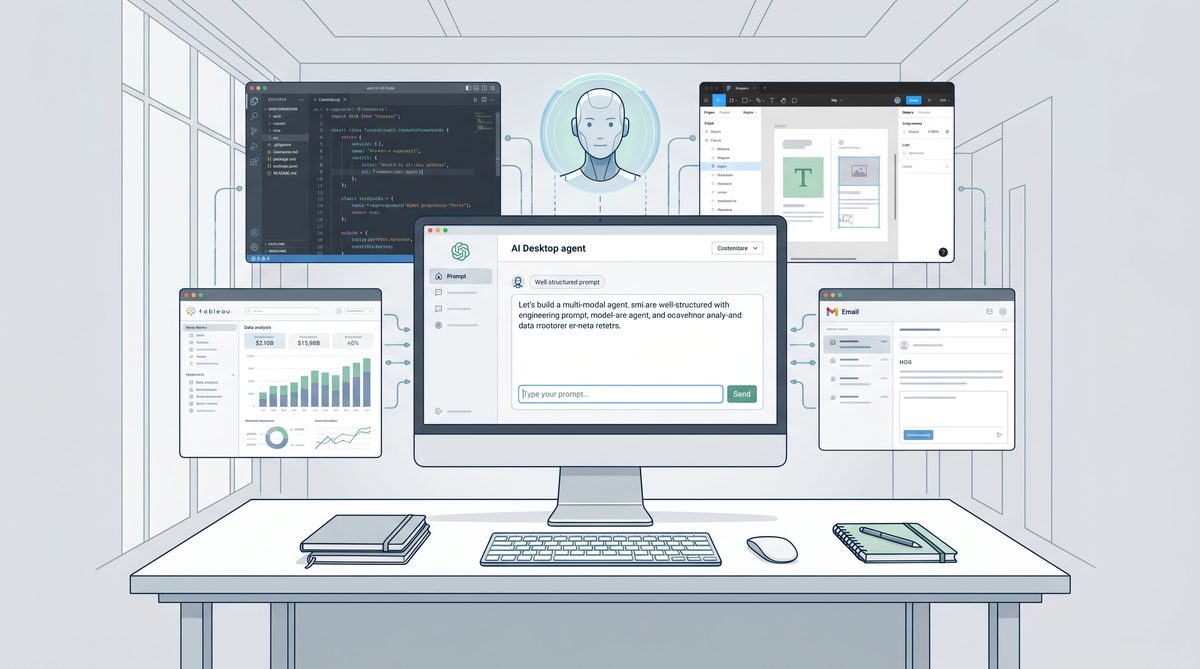
The landscape of artificial intelligence is rapidly evolving, moving beyond simple conversational interfaces to sophisticated agents capable of interacting directly with your desktop environment. This new frontier, particularly with advancements akin to OpenAI’s Codex principles and Anthropic’s Claude, promises a future where AI can automate complex, multi-step tasks across various applications on your personal computer. However, unlocking the full potential of these desktop AI agents requires a mastery of advanced prompting techniques. This comprehensive guide delves into the strategies, best practices, and nuanced approaches needed to effectively communicate with and control these powerful digital assistants.
The core challenge with desktop AI agents lies in bridging the gap between natural language instructions and precise, executable actions within a dynamic operating system. Unlike traditional chatbots that operate within a confined text-based environment, desktop agents must interpret commands, identify relevant applications, manipulate user interfaces, process visual information (like screen elements), and often generate code or scripts to achieve their goals. This necessitates a prompting paradigm that is not only clear and concise but also highly structured and context-aware. We will explore how to craft prompts that empower these agents to understand your intent, execute complex workflows, and recover from potential errors, transforming your desktop into a truly intelligent workspace.
Understanding the Paradigm Shift: From Text to Desktop Interaction
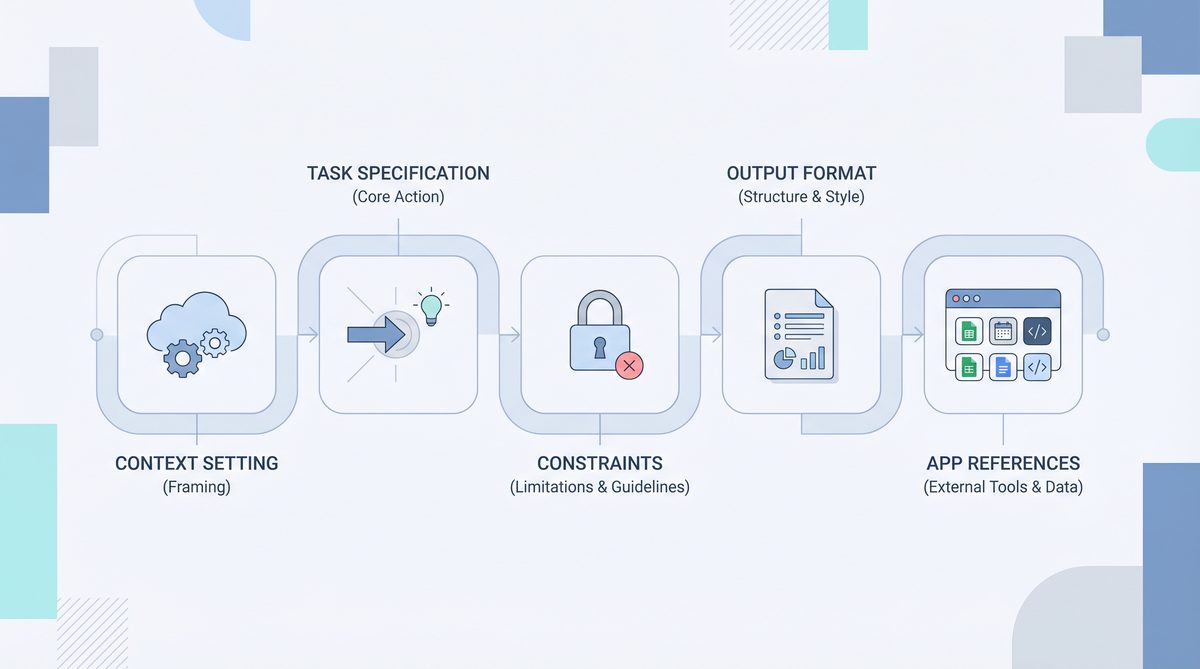
Traditional AI models, including many large language models (LLMs), primarily operate within a text-in, text-out framework. Their domain is information retrieval, content generation, summarization, and conversation. While incredibly powerful, they lack the ability to directly interact with the digital world beyond their textual interface. Desktop AI agents represent a significant paradigm shift. They are designed to perceive, reason about, and act upon the graphical user interface (GUI) and underlying operating system of your computer.
The Anatomy of a Desktop AI Agent
To effectively prompt these agents, it’s crucial to understand their architectural components and capabilities. While specific implementations vary, most desktop AI agents share common characteristics:
- Perception Module: This component allows the agent to “see” your screen. It uses techniques like OCR (Optical Character Recognition) to read text, object detection to identify UI elements (buttons, menus, text fields), and potentially even interpret visual cues like color and layout. This is analogous to how a human user perceives their desktop.
- Reasoning Engine: This is often powered by a sophisticated LLM (like a fine-tuned version of Codex or Claude) that takes the perceived information and your prompt as input. It then generates a plan of action, breaking down complex tasks into smaller, manageable steps. This engine is responsible for understanding your intent, inferring necessary actions, and anticipating potential outcomes.
- Action Module: Once a plan is formulated, the action module translates it into executable commands. This can involve simulating mouse clicks, keyboard inputs, launching applications, running scripts (e.g., Python, AppleScript, PowerShell), or interacting with APIs. This module is the agent’s “hands” on your computer.
- Memory and Context Management: Desktop agents need to maintain a persistent understanding of the ongoing task, previously executed steps, and the current state of the desktop. This memory allows them to follow multi-step instructions, refer back to earlier information, and adapt to changes in the environment.
- Feedback Loop: After performing an action, the agent observes the screen again to verify if the action was successful and if the desktop state has changed as expected. This continuous feedback loop is critical for self-correction and robust task execution.
Why Advanced Prompting is Essential
Given the complexity of desktop interaction, generic or ambiguous prompts will often lead to suboptimal results or outright failures. Advanced prompting is essential for several reasons:
- Precision and Ambiguity Reduction: Natural language is inherently ambiguous. On a desktop, ambiguity can lead to selecting the wrong button, entering data into the wrong field, or opening the wrong application. Precise prompting minimizes these risks.
- Multi-Step Task Orchestration: Many real-world tasks involve a sequence of actions across multiple applications. Advanced prompts guide the agent through these sequences, specifying the order, dependencies, and desired outcomes at each step.
- Application Specification: The agent needs to know which application to use for a given sub-task. Explicitly naming applications or describing their icons helps the agent navigate your system efficiently.
- Error Handling and Recovery: Even the best plans can encounter unexpected situations (e.g., an application crashing, a network error, a pop-up window). Advanced prompts can include instructions for how to handle these exceptions, making the agent more resilient.
- Contextual Awareness: Providing relevant context, such as the current state of a document, the goal of a project, or specific user preferences, allows the agent to make more informed decisions.
- Efficiency and Optimization: Well-crafted prompts can guide the agent towards the most efficient path, avoiding unnecessary steps or redundant actions.
The transition from text-only interactions to full desktop control is a monumental leap. It demands a new level of specificity and foresight in our prompts, treating the AI not just as a conversational partner, but as a highly capable, albeit literal, digital assistant operating in a complex, dynamic environment.
Best Practices for Multi-Step Tasks and Workflow Automation
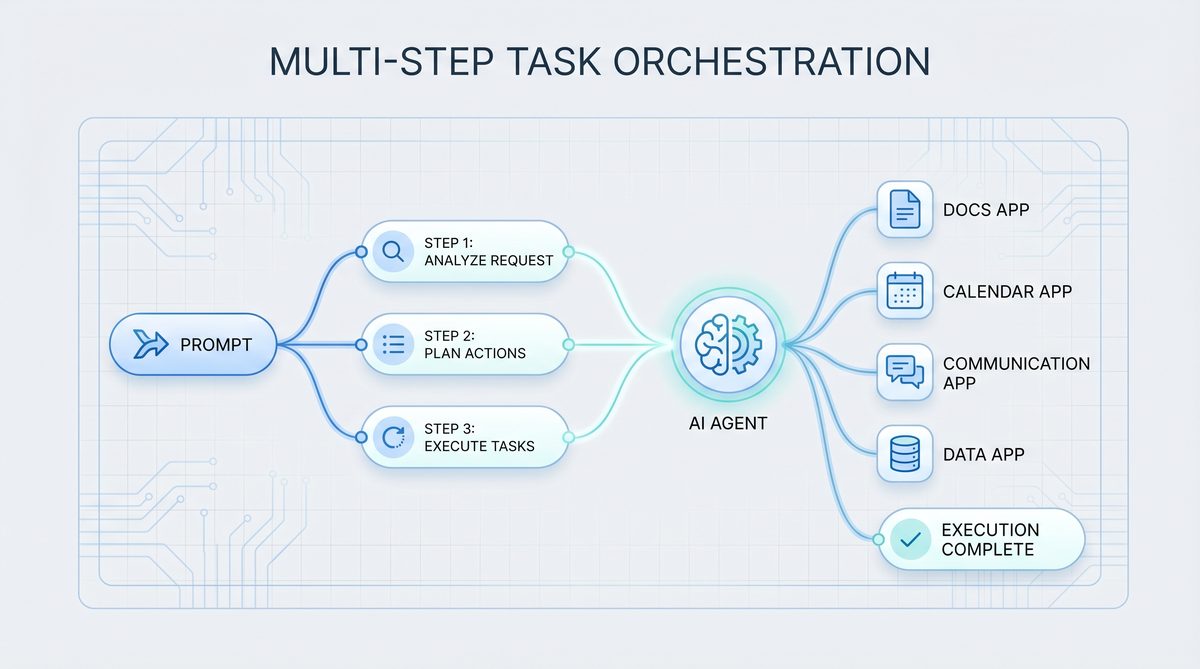
The true power of desktop AI agents shines when automating complex, multi-step workflows that span across various applications. Crafting prompts for such tasks requires a systematic approach, breaking down the problem into manageable components and clearly articulating the sequence of operations. This section outlines best practices for orchestrating multi-step tasks.
1. Deconstruct the Task into Atomic Steps
Before you even begin writing a prompt, perform a mental or written decomposition of the task. Break it down into the smallest, most fundamental actions. Think of it like writing a recipe or a programming algorithm.
- Example: “Download the latest sales report from Salesforce, extract specific data points, and email them to the marketing team.”
Decomposition:
- Open Chrome.
- Navigate to Salesforce login page.
- Log in to Salesforce (using stored credentials or prompting for them).
- Navigate to the Reports section.
- Locate and click on “Latest Sales Report Q4 2023”.
- Click the “Download” button, choosing CSV format.
- Wait for the download to complete.
- Open Excel.
- Open the downloaded CSV file in Excel.
- Identify columns ‘Product_ID’, ‘Revenue’, and ‘Region’.
- Filter data for ‘Region’ = ‘North America’.
- Copy the filtered data.
- Open Outlook.
- Compose a new email.
- Set recipient to ‘[email protected]’.
- Set subject to “Q4 2023 North America Sales Data”.
- Paste the copied data into the email body.
- Send the email.
This detailed breakdown forms the backbone of your prompt. The more granular you are in your own understanding, the more effectively you can guide the AI.
2. Use Clear, Imperative Language and Action Verbs
Avoid ambiguity. Use strong action verbs and direct commands. Imagine you are giving instructions to a very intelligent, but literal, intern.
- Instead of: “Maybe open the browser and find the report.”
- Use: “Launch Google Chrome. Navigate to ‘https://www.salesforce.com’. Log in. Go to ‘Reports’. Click on ‘Q4 2023 Sales Summary’. Download as CSV.”
3. Specify Applications Explicitly
Always tell the agent which application to use for each step. This eliminates guesswork and potential errors.
- Bad: “Open the sales data.” (The agent might not know if it’s a PDF, Excel, or web page, or which program to use.)
- Good: “Open the ‘Q4_Sales_Data.csv’ file using Microsoft Excel.” or “Navigate to the project management tool ‘Jira’ in your web browser.”
4. Provide Contextual Cues and UI Element Descriptions
Since the agent “sees” your screen, help it identify specific elements. This is especially crucial when buttons or links have similar names or are visually indistinct.
- Button Text: “Click the button labeled ‘Generate Report’.”
- Icon Description: “Click the small printer icon in the top right corner.”
- Position: “Click the ‘Save’ button located at the bottom-right of the dialog box.”
- Input Fields: “In the ‘Username’ text field, type ‘my_user_id’. In the ‘Password’ field, enter ‘secure_password123’.”
- Dropdown Menus: “Click the dropdown menu labeled ‘Export Format’, then select ‘PDF’.”
5. Define Conditional Logic and Error Handling
Real-world workflows are rarely linear. Incorporate ‘if-then’ statements and instructions for handling common issues.
- Conditional: “If a ‘Login Successful’ message appears, proceed. Otherwise, if a ‘Incorrect Password’ error is displayed, try logging in again with the alternative password ‘backup_pass’.”
- Error Recovery: “If the browser tab crashes, reopen Chrome and navigate to the previous URL. If a ‘Network Error’ pop-up appears, click ‘Retry’.”
- Timeouts: “Wait for 10 seconds for the report to load. If it doesn’t load, refresh the page.”
6. Specify Output and Verification Steps
Tell the agent what the desired outcome of the task is and how to verify its success.
- Output: “Save the generated PDF as ‘Project_Summary_2024.pdf’ to the ‘Documents/Reports’ folder.”
- Verification: “After saving, confirm the file ‘Project_Summary_2024.pdf’ exists in the ‘Documents/Reports’ folder. If it does not, report an error.”
- Data Extraction: “After opening the spreadsheet, extract the value from cell B5 and store it in a variable named ‘TotalRevenue’.”
7. Manage Context and State
Remind the agent of previous actions or current states, especially in longer interactions. This helps maintain coherence.
- “Recall the ‘TotalRevenue’ value extracted earlier. Now, open a new email and include this value in the body.”
- “Continue from where we left off, assuming the Excel file is still open.”
8. Use Delimiters for Clarity
When providing structured information or distinct steps, use delimiters (e.g., triple backticks, square brackets, numbered lists) to help the AI parse your prompt.
Perform the following steps:
1. Launch <Application: Google Chrome>.
2. Navigate to <URL: https://app.asana.com/>.
3. Log in using <Username: my_asana_user> and <Password: my_secure_asana_pass>.
4. Once logged in, go to <Project: 'Q3 Marketing Campaign'>.
5. Find the task titled <Task: 'Draft Social Media Posts'>.
6. <Action: Mark as 'Complete'>.
7. <Verification: Ensure the task status now shows 'Completed'>.
9. Iterative Refinement
Prompting for desktop agents is often an iterative process. Your first prompt might not be perfect. Run the task, observe the agent’s behavior, identify where it falters, and then refine your prompt with more specific instructions, error handling, or contextual clues. This is particularly important when dealing with complex or unfamiliar UI elements.
By meticulously applying these best practices, you can transform vague intentions into precise, executable instructions, empowering your AI desktop agent to automate even the most intricate workflows with accuracy and reliability. The ability to articulate these steps clearly is a skill that will become increasingly valuable in the age of AI-powered desktop automation.
As we delve into the nuances of crafting effective prompts for AI desktop agents, understanding the underlying principles of prompt engineering becomes paramount. For a deeper dive into practical applications and to refine your ability to guide these powerful models, explore our comprehensive guide on Prompt Engineering for AI Coding Agents: 30 Battle-Tested Prompts for Codex, Claude Code, and Cursor, which offers actionable strategies and examples directly applicable to enhancing your desktop automation workflows.
Specifying Applications and Navigating the Desktop Environment
One of the foundational challenges for desktop AI agents is correctly identifying and interacting with the myriad applications and UI elements on your computer. Your prompts must provide unambiguous guidance on which applications to use, how to launch them, and how to navigate within their interfaces. This section details strategies for effective application specification and desktop navigation.
Explicit Application Naming and Identification
Always name the application you intend the agent to use. Be as specific as possible, especially if you have multiple versions or similar-looking applications.
- Preferred: “Launch Microsoft Word.” “Open the PDF in Adobe Acrobat Reader.” “Switch to Google Chrome.”
- Less Preferred: “Open the document.” “Go to the internet.” (These are ambiguous and rely on the agent’s inference, which might not always be correct.)
If an application might not be immediately visible or might have a non-standard name, consider adding alternative identifiers or launch instructions:
- “Launch the application ‘VS Code’ (Visual Studio Code).”
- “If ‘Photoshop’ is not running, launch it from the Start Menu/Applications folder.”
Handling Application States: Launch, Switch, Close
Explicitly instruct the agent on the desired state of an application.
- Launch: “Launch Microsoft Excel.” “Open the ‘Calculator’ application.”
- Switch: “Switch focus to the ‘Slack’ application.” “Bring the ‘Firefox’ window to the foreground.” (This is crucial for multi-application workflows where the agent needs to move between programs.)
- Close: “Close the current Chrome tab.” “Close the ‘Settings’ application.” “Quit Microsoft Word without saving.”
Navigating Within Applications: UI Element Interaction
Once an application is open, the agent needs to interact with its user interface. This is where detailed descriptions of UI elements become paramount.
Text-Based Elements (Buttons, Labels, Menus)
Most UI elements have associated text. Use this text as the primary identifier.
- “Click the button labeled ‘File’.”
- “Select ‘New Document’ from the ‘File’ menu.”
- “In the text field next to the label ‘Search:’, type ‘project proposal’.”
- “Click the checkbox ‘Remember Me’.”
Icon-Based Elements
If an element is primarily an icon, describe it clearly.
- “Click the magnifying glass icon to search.”
- “Click the gear icon for settings.”
- “Click the floppy disk icon to save.”
Positional Cues (for ambiguous or unnamed elements)
When text or icon descriptions are insufficient, use relative positioning. This is often a fallback but can be very effective.
- “Click the button in the top-right corner of the window.”
- “In the dialog box, click the ‘OK’ button, which is usually on the bottom right.”
- “Click the third item from the top in the left sidebar.”
Keyboard Shortcuts and Hotkeys
For common actions, keyboard shortcuts are often more reliable and faster than mouse clicks.
- “Press ‘Ctrl+S’ to save the document.”
- “Use ‘Alt+Tab’ to switch to the previous application.”
- “Press the ‘Escape’ key to close the dialog.”
Scrolling and View Management
Desktop agents need to navigate content that extends beyond the current screen view.
- “Scroll down the web page until you see the ‘Contact Us’ section.”
- “Scroll the document to the very top.”
- “If the ‘Submit’ button is not visible, scroll down until it appears, then click it.”
Interacting with Fil
While we’re focusing on the immediate practicalities of advanced prompting for Codex and Claude Code in desktop automation, understanding the broader landscape of AI coding agents is crucial for long-term strategy. For a comprehensive look at how these tools, alongside Gemini Code Assist, are projected to evolve and compete in the coming years, be sure to explore The Complete Guide to AI Coding Agents in 2026: Codex vs Claude Code vs Gemini Code Assist, which offers valuable insights into their future capabilities and applications.
iesDesktop agents are inherently tied to the file system. Instruct them on file operations.
- Opening: “Open the file ‘report.docx’ located in ‘C:\\Users\\John\\Documents\\Projects’.”
- Saving: “Save the current document as ‘Final_Report.pdf’ to the folder ‘Downloads’.”
- Moving/Copying: “Move ‘image.png’ from ‘Desktop’ to ‘Pictures/Backup’.”
- Creating: “Create a new folder named ‘New Project Files’ in the ‘Documents’ directory.”
Always provide full or clear relative paths for file operations.
While this article delves into advanced prompting techniques for AI desktop agents like Codex and Claude Code, focusing on their integration and operational nuances, a deeper dive into the specific prompt engineering strategies for these powerful coding assistants, including Cursor, can be found in our comprehensive guide to 30 battle-tested prompts for AI coding agents, offering practical examples to maximize their potential.
Web Browser Navigation and Interaction
Web browsers are applications with their own unique interaction patterns.
- URLs: “Navigate to ‘https://www.openai.com/dashboard’.”
- Links: “Click the link with the text ‘Read More’.” “Click the link that points to ‘https://blog.openai.com’.”
- Forms: “Fill out the form: In the ‘Name’ field enter ‘Alice’, in the ‘Email’ field enter ‘[email protected]’, then click ‘Submit’.”
- Tab Management: “Open a new tab and go to ‘https://www.google.com’.” “Close the current tab.”
Operating System Level Interactions
Beyond applications, agents can interact with the OS itself.
- Taskbar/Dock: “Click the ‘Finder’ icon in the Dock.” “Open the ‘Start Menu’ and search for ‘Settings’.”
- Notifications: “Dismiss any new notifications that appear.”
- System Settings: “Open ‘System Preferences’ (macOS) / ‘Settings’ (Windows) and go to ‘Display’.”
By meticulously detailing application names, UI element descriptions, and interaction methods, you significantly reduce the ambiguity the AI agent faces. This precision allows the agent to execute tasks reliably and efficiently across your entire desktop environment, making it a truly powerful automation tool.
Managing Context and Memory for Sustained Interactions
🕐 Instant∞ Unlimited🎁 Free
One of the most significant advancements in modern AI, particularly with models like Claude, is their improved ability to manage and leverage context over longer interactions. For desktop AI agents, maintaining context is not just about remembering previous conversational turns; it’s about understanding the current state of the desktop, the active applications, the contents of open documents, and the overarching goal of a multi-step task. Effective context management is critical for robust, sustained, and intelligent desktop automation.
The Importance of Context in Desktop Automation
Without proper context, a desktop agent is merely a sequence of isolated commands. With context, it becomes a proactive and adaptive assistant. Consider these scenarios:
- Following a thread: If you tell an agent to “copy this text” after it just opened a document, “this text” refers to the document’s content. Without context, it wouldn’t know what “this” refers to.
- Error recovery: If an application crashes, the agent needs to remember the previous state and the task it was performing to attempt recovery.
- Conditional actions: “If the file already exists, ask me before overwriting.” This requires memory of a previous check and the ability to pause for user input.
- Personalization: Remembering user preferences (e.g., preferred file paths, default applications) allows for more tailored and efficient interactions.
Strategies for Providing and Managing Context in Prompts
1. Explicitly State the Overall Goal
Always start your interaction with a clear statement of the ultimate objective. This helps the agent understand the ‘why’ behind the individual steps.
- “My goal is to compile a weekly sales report for Q1 2024, extract key metrics, and generate a summary email.”
- “I need to onboard a new employee by setting up their accounts and sending them initial welcome documents.”
2. Maintain a “Mental Model” for the Agent
As you provide instructions, imagine the agent building a mental model of the desktop state. Help it keep this model accurate.
- “We are currently in the ‘Salesforce’ application, viewing the ‘Reports’ section.”
- “Remember that the downloaded CSV file is named ‘Q1_Sales.csv’ and is located in the ‘Downloads’ folder.”
- “The active window should now be Microsoft Excel.”
3. Reference Previous Outputs and Actions
Make it easy for the agent to connect current actions to past results.
- “Using the data we just extracted from the spreadsheet…”
- “Now that the email is drafted, attach the PDF report that was saved earlier.”
- “Referencing the ‘Total Revenue’ value we identified in step 3…”
4. Use Variables and Dynamic Parameters (if supported)
Some advanced agents might support a form of variable assignment within prompts, allowing you to name and reuse pieces of information.
- “Let ‘ReportPath’ be ‘C:\\Reports\\Monthly\\Jan_2024.xlsx’. Open the file at ‘ReportPath’.”
- “Extract the value from cell A1 and assign it to ‘CustomerName’. Then, use ‘CustomerName’ in the email subject.”
Even if explicit variable support isn’t there, you can simulate it by clearly stating the information and its “name” for the agent to remember.
5. Provide “Memory Refreshers” for Long Tasks
For very long or interrupted tasks, it can
While we’ve explored advanced prompting techniques for AI desktop agents like Codex and Claude, the principles of effective communication with large language models extend far beyond these specific applications. For developers keen on mastering the art of crafting precise and powerful instructions for AI, our ChatGPT Coding Masterclass Part 2: Prompt Engineering for Developers in the Era of GPT-5.3-Codex delves deeper into the intricacies of prompt engineering, offering invaluable insights for leveraging the latest GPT models in your development workflows.
o periodically summarize the current state or re-state the overall goal.- “To recap, we have downloaded the report and opened it in Excel. The next step is to filter the data.”
- “Just a reminder, our main objective is to prepare the Q1 financial summary.”
6. Define Explicit End States for Sub-Tasks
When a sub-task is completed, explicitly state its conclusion. This helps the agent mark that part of the process as done and move on.
- “The data extraction from Excel is now complete.”
- “The email has been successfully sent.”
7. Manage Confidential Information and Credentials
While desktop agents can handle login processes, it’s crucial to consider security. Prompts should ideally refer to securely stored credentials rather than explicitly stating them.
- “Log in to Salesforce using the securely stored credentials for ‘john.doe’.” (The agent would then access a secure credential store on your system.)
- “Enter the password for ‘my_account’ from the system’s password manager.”
Avoid putting sensitive information directly into prompts unless absolutely necessary and you understand the security implications.
This article delves into advanced prompting techniques specifically tailored for AI desktop agents leveraging models like Codex and Claude Code, exploring how to optimize their performance for complex coding tasks and system interactions. For a broader perspective on the evolving landscape of AI-powered development tools, you might also be interested in our complete guide to AI coding assistants in 2026, comparing Codex, Claude Code, and Gemini Code Assist.
The Agent’s Internal Context Model
Modern LLMs like Claude are designed with larger context windows and better attention mechanisms, allowing them to process and remember more information. Desktop agents leverage this by:
- Storing UI states: Remembering which application is active, what dialog boxes are open, and what elements are visible.
- Maintaining task history: A log of actions taken and their outcomes.
- Tracking extracted data: Storing values, text snippets, or file paths identified during the process.
Your prompting strategies should aim to align with and reinforce this internal context model, making it easier for the agent to reason accurately about its environment.
Practical Example: Context in Action
Consider a task: “Find all PDF invoices from January 2024 in my ‘Downloads’ folder, combine them into a single PDF, and upload it to Google Drive.”
Initial Prompt: “My main goal is to consolidate all January 2024 PDF invoices from my Downloads folder into one file and upload it to Google Drive.”
Step 1 (File Identification): “First, open ‘File Explorer’ (Windows) or ‘Finder’ (macOS). Navigate to the ‘Downloads’ folder. Search for all files ending with ‘.pdf’ that contain ‘invoice’ and ‘2024_01’ in their filename. List these files.”
Agent identifies: invoice_A_2024_01.pdf, invoice_B_2024_01.pdf, invoice_C_2024_01.pdf
Step 2 (Consolidation): “Now, using the list of files you just identified (invoice_A_2024_01.pdf, invoice_B_2024_01.pdf, invoice_C_2024_01.pdf), open a PDF merging application like ‘Adobe Acrobat Pro’ or ‘PDF-XChange Editor’. Combine these three PDFs into a single document. Save the combined file as ‘January_2024_Invoices_Combined.pdf’ in the ‘Documents/Invoices’ folder. Confirm the file path is ‘C:\\Users\\User\\Documents\\Invoices\\January_2024_Invoices_Combined.pdf’.”
Step 3 (Upload): “Next, open Google Chrome and navigate to ‘drive.google.com’. Log in if necessary. Once in Google Drive, go to the ‘Invoices’ folder. Upload the file ‘January_2024_Invoices_Combined.pdf’ from ‘C:\\Users\\User\\Documents\\Invoices’. After the upload is complete, confirm that the file is visible in the Google Drive ‘Invoices’ folder.”
In this example, the agent consistently leverages the context of the overall goal, the list of identified files, and the saved combined file’s path. Each step builds upon the previous one, demonstrating effective context management through explicit referencing and clear sequencing.
Mastering context management in your prompts elevates the AI desktop agent from a simple command executor to a truly intelligent and reliable partner in your daily digital tasks. It allows for more complex, resilient, and human-like automation.
Advanced Techniques: Code Generation, Self-Correction, and Human-in-the-Loop
Beyond basic multi-step instructions, the most sophisticated desktop AI agents, especially those inspired by Codex and Claude’s code generation capabilities, can leverage advanced techniques to handle more complex, dynamic, and even novel situations. These include generating code to interact with systems, self-correcting errors, and seamlessly integrating human oversight when needed.
Code Generation for Precise and Complex Actions
One of the hallmarks of advanced AI agents is their ability to generate and execute code. This moves beyond simulating mouse clicks to directly interacting with system APIs, scripting languages, and application-specific interfaces. This is particularly powerful for:
- Automating repetitive tasks: Scripting complex data manipulations in Excel, running batch processes, or automating web interactions via browser APIs.
- Interacting with command-line interfaces (CLIs): Executing system commands, managing files, or interacting with development tools.
- Accessing hidden functionalities: Many applications have functionalities exposed via APIs or scripting languages that are not easily accessible through the GUI.
- Dynamic data processing: Writing small scripts to parse, transform, or analyze data on the fly.
Prompting for Code Generation:
- Specify the language/environment: “Write a Python script to…”. “Generate an AppleScript to…”. “Use PowerShell to…”.
- Define inputs and outputs: “The script should take ‘C:\\data.csv’ as input and output ‘C:\\processed_data.json’.”
- Describe the logic: “Iterate through each row, if column B contains ‘error’, delete the row. Then save the modified CSV.”
- Provide examples: “For input ‘Name,Age Alice,30 Bob,25’, the output should be ‘[{‘Name’:’Alice’,’Age’:30},{‘Name’:’Bob’,’Age’:25}]’.”
- Constraints and libraries: “Ensure the Python script uses the ‘pandas’ library.” “The AppleScript should interact with ‘Microsoft Outlook’.”
- Execution instructions: “Execute this Python script. If it runs successfully, proceed. If there’s an error, report the full traceback.”
Example Prompt: “Write a Python script to read the Excel file ‘SalesData.xlsx’ from my ‘Documents’ folder. Filter the data to only include rows where the ‘Region’ column is ‘Europe’. Then, calculate the sum of the ‘Revenue’ column for these filtered rows. Print the total European revenue to the console. Use the ‘pandas’ library. If the script executes, capture the output. If it fails, provide the error message.”
Self-Correction and Adaptive Behavior
A truly advanced desktop agent doesn’t just execute instructions; it learns and adapts. Self-correction involves the agent identifying when an action has failed or produced an unexpected result, diagnosing the problem, and attempting an alternative solution.
Enabling Self-Correction through Prompting:
- Define success criteria: “After clicking ‘Submit’, I expect to see a ‘Submission Successful’ message. If any other message or an error page appears, flag it.”
- Suggest fallback strategies: “If clicking the ‘Login’ button fails, try pressing ‘Enter’ on the keyboard. If that also fails, refresh the page and try logging in again.”
- Request error reporting: “If any step fails or an unexpected dialog box appears, pause and report the exact error message or a screenshot of the unexpected element.”
- Allow for exploration: “If you can’t find the ‘Download’ button directly, look for a ‘More Options’ menu or a contextual right-click menu that might contain a download option.”
The agent’s internal reasoning engine (LLM) will analyze the observed discrepancy against the expected outcome and use its knowledge base to formulate a new plan or adjust the current one. This often involves re-perceiving the screen, re-evaluating the current state, and generating new actions.
Human-in-the-Loop (HITL) for Critical Decisions
While automation is powerful, some decisions require human judgment, ethical consideration, or access to information not available to the AI. Human-in-the-Loop strategies integrate human oversight into the automated workflow.
Prompting for HITL:
- Explicit approval points: “Before sending the email, pause and ask me for confirmation.” “Before deleting any files, present a list of files to be deleted and await my approval.”
- Decision points: “If the system presents multiple options for ‘Product Category’, and you cannot determine the best one, ask me to select from the list: [list options].”
- Error escalation: “If you encounter an error you cannot resolve after two attempts, notify me and provide a summary of the problem and the actions you’ve tried.”
- Sensitive operations: “When interacting with financial data, always require my explicit approval before making any changes.”
When the agent encounters a HITL trigger, it typically pauses, presents the relevant information (e.g., a question, a list of options, an error message, a screenshot), and waits for user input. This ensures that critical or uncertain steps are handled responsibly.
Table: Comparison of Prompting Paradigms for Desktop AI Agents
| Feature | Basic Prompting | Advanced Prompting (Multi-Step) | Expert Prompting (Code Gen, Self-Correction, HITL) |
|---|---|---|---|
| Task Complexity | Single, simple actions (e.g., “Open Word”) | Sequential tasks across apps (e.g., “Download, process, email”) | Dynamic, conditional, novel tasks requiring code or human judgment |
| Application Interaction | Direct commands for specific apps | Explicit app switching and UI element description | API interaction, scripting, deep application control |
| Error Handling | Minimal; often fails silently or stops | Basic “if-then” for common issues (e.g., “if X, then Y”) | Proactive error detection, diagnosis, self-correction attempts, human escalation |
| Context Management | Limited to current turn | Sequential memory, explicit referencing of previous steps/data | Deep understanding of task goal, desktop state, learned preferences, long-term memory |
| Flexibility/Adaptability | Low; rigid execution | Moderate; follows predefined paths | High; adapts to unexpected situations, generates new solutions |
| Required Prompt Detail | Low | Medium to High (detailed steps) | Very High (logic, conditions, desired outcomes, failure modes) |
| User Involvement | High (for each new command) | Medium (setup, occasional intervention) | Low for routine tasks; High for critical decision points (HITL) |
| Core Capability | Command execution | Workflow orchestration | Intelligent automation, problem-solving, code synthesis |
Ethical Considerations and Responsible Use
With greater power comes greater responsibility. When prompting advanced desktop agents, especially with code generation and system-level access:
Useful Links
- OpenAI Codex Official Documentation
- Claude Code Official Documentation
- OpenAI Prompt Engineering Guide
- Anthropic Prompt Engineering Best Practices
- OpenAI Codex GitHub Repository
- Claude Opus 4.7 Announcement
Access 40,000+ AI Prompts for ChatGPT, Claude & Codex — Free!
Subscribe to get instant access to our complete Notion Prompt Library — the largest curated collection of prompts for ChatGPT, Claude, OpenAI Codex, and other leading AI models. Optimized for real-world workflows across coding, research, content creation, and business.
Access Free Prompt Library- Security: Be extremely cautious about granting agents access to sensitive areas of your system or instructing them to handle confidential data without proper safeguards. Ensure credentials are handled securely.
- Unintended consequences: A generated script could have unforeseen side effects. Always test complex prompts in a controlled environment first.
- Transparency: Ensure the agent can explain its actions or provide logs, especially when performing complex or critical tasks.
- User consent: For shared systems or sensitive operations, ensure that users are aware of and consent to AI automation.
By combining clear instructions, robust error handling, intelligent self-correction, and strategic human
AI desktop agents are advanced software applications that use artificial intelligence to interact with your computer's operating system and applications. They automate tasks by interpreting natural language prompts and executing commands, often involving complex workflows across various software environments. Unlike chatbots, which operate within text-based environments, AI desktop agents interact directly with your computer's GUI and operating system. They can manipulate interfaces, process visual information, and execute scripts, making them capable of handling more complex and dynamic tasks. Advanced prompting involves crafting precise and structured natural language instructions that AI desktop agents can interpret and execute. This technique is essential for enabling agents to perform complex tasks, understand user intent, and navigate potential errors within a dynamic desktop environment. Context-awareness allows AI agents to understand the environment and nuances of the tasks they are performing. This capability is crucial for executing multi-step processes accurately, adapting to changes, and ensuring that the actions taken align with the user's intent and the system's current state. Examples of AI desktop agents include OpenAI's Codex and Anthropic's Claude Code. These agents are designed to automate tasks by interacting with your computer's applications and operating system, using advanced AI techniques to understand and execute user commands effectively. Developers can use AI desktop agents to automate repetitive coding tasks, streamline workflows, and enhance productivity. By leveraging advanced prompting techniques, developers can instruct these agents to perform complex operations, thus saving time and reducing the potential for human error.Frequently Asked Questions
What are AI desktop agents?
How do AI desktop agents differ from chatbots?
What is advanced prompting?
Why is context-awareness important for AI agents?
What are some examples of AI desktop agents?
How can developers benefit from AI desktop agents?
🕐 Instant∞ Unlimited🎁 Free
