
How to Process Large File Batches with ChatGPT Work: Complete Playbook for Document Analysis, Data Extraction, and Bulk Operations
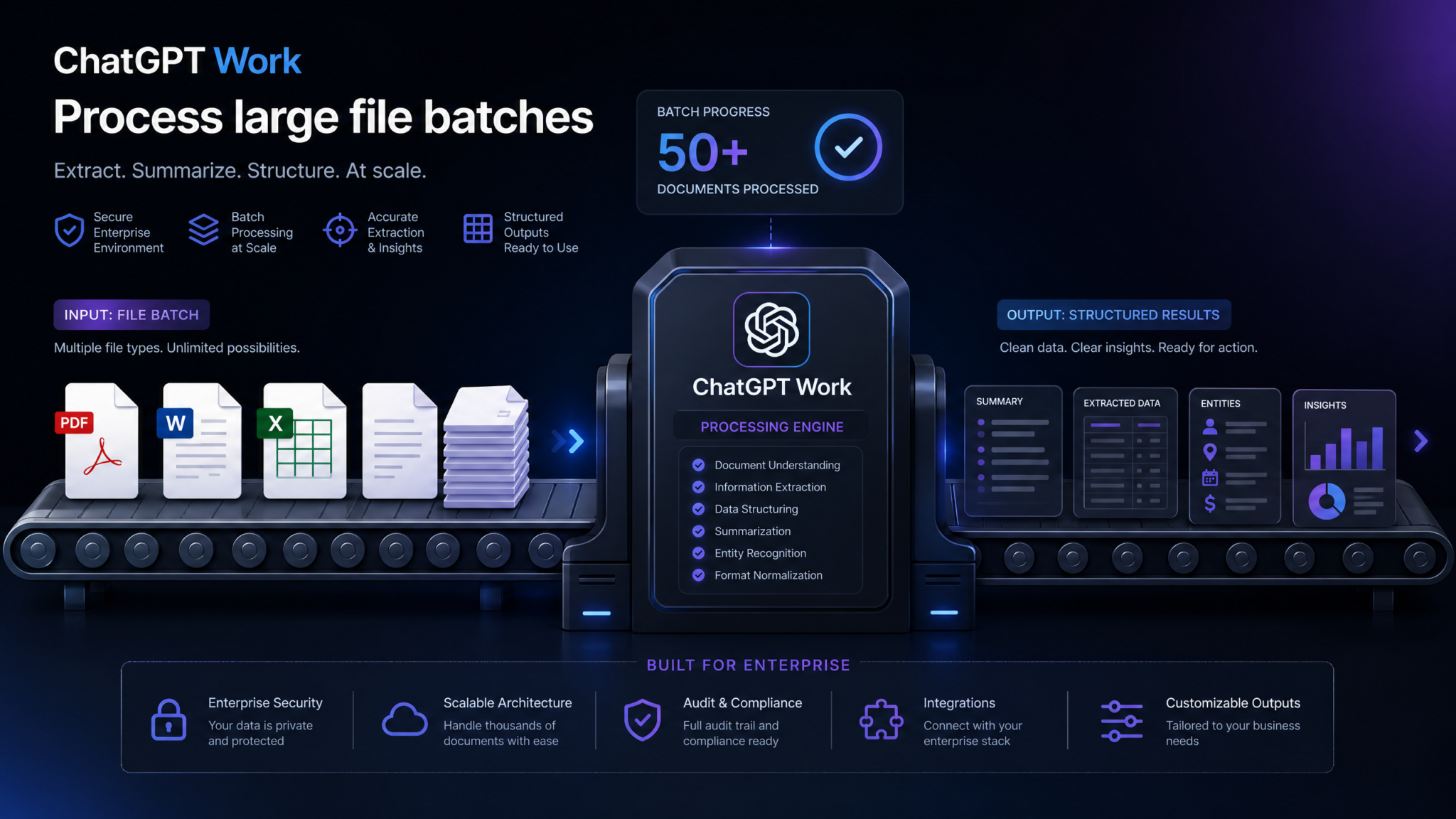
Enterprise document processing used to require a dedicated team of analysts, expensive OCR software, and weeks of manual effort. Today, ChatGPT Work — OpenAI’s enterprise-grade platform — transforms that equation entirely. Whether you’re processing 50 legal contracts before a merger deadline, extracting financial data from hundreds of invoices, or synthesizing research across an entire library of technical reports, ChatGPT Work gives knowledge workers a powerful, conversational interface for bulk document intelligence. This playbook walks you through every phase of that journey: from understanding the platform’s core capabilities to building production-grade workflows that integrate with your existing enterprise systems.
Phase 1: Understanding ChatGPT Work’s File Processing Capabilities
What ChatGPT Work Actually Does with Your Files
Before diving into workflows, it’s essential to build a precise mental model of what happens when you upload documents to ChatGPT Work. When a file is uploaded, the platform does not simply store a binary — it parses, tokenizes, and represents the document’s content within the model’s context window. For text-based files (PDFs, DOCX, TXT), this means the full textual content is extracted and made available for reasoning. For image-heavy files, the visual understanding capabilities of the underlying GPT-4o model are engaged. This distinction matters enormously when planning batch operations.
Understanding the difference between file parsing (converting raw bytes to readable content) and file reasoning (applying intelligence to that content) helps you design workflows that play to the platform’s strengths rather than fight its limitations.
Supported File Formats and Their Processing Characteristics
| Format | Processing Method | Best For | Known Limitations |
|---|---|---|---|
| PDF (text-based) | Text extraction layer | Contracts, reports, research papers | Multi-column layouts may reorder text |
| PDF (scanned) | Vision OCR via GPT-4o | Legacy documents, signed forms | Lower fidelity on handwritten text |
| DOCX / DOC | Direct text parse | Policy documents, proposals | Complex macros or tracked changes may be stripped |
| XLSX / CSV | Tabular data parse | Financial data, inventory lists | Very large sheets may be truncated beyond token limits |
| TXT / Markdown | Direct text parse | Logs, code files, notes | No semantic structure preserved |
| PPTX | Slide text extraction | Presentations, pitch decks | Embedded images in slides require vision processing |
| Images (PNG, JPG, WEBP) | Vision analysis | Charts, diagrams, scanned receipts | Dense tables in images have lower extraction accuracy |
| JSON / XML | Structured data parse | API exports, configuration files | Deeply nested structures may lose hierarchy at high depth |
File Size and Batch Upload Limits
As of 2025, ChatGPT Work (available under ChatGPT Enterprise and ChatGPT Team plans) supports the following operational limits, which are critical to internalize before designing any bulk processing pipeline:
- Per-file size limit: 512 MB for most file types; images capped at 20 MB per file
- Simultaneous file uploads per conversation: Up to 20 files in a single message
- Total files per conversation thread: Approximately 50 files before degraded performance is observed
- Effective token representation: A typical 50-page PDF consumes roughly 25,000–40,000 tokens when parsed
- Context window: GPT-4o’s 128,000-token context window is the ultimate ceiling for concurrent document processing
A practical rule of thumb: assume each standard business document (10–20 pages) consumes between 8,000 and 15,000 tokens. That means you can realistically keep 8–12 fully-loaded documents in active context simultaneously before chunking strategies become necessary.
Session Synchronization and Projects
One of ChatGPT Work’s most significant enterprise features is Projects — a persistent workspace that maintains file context across multiple sessions. Unlike standard conversations where context resets when you close the browser, a Project stores both uploaded files and conversation history, enabling multi-day batch processing workflows. Files added to a Project remain accessible for up to 30 days, making them ideal for ongoing document programs like monthly contract reviews or quarterly financial analysis cycles.
Session sync behavior is worth understanding precisely: files uploaded to a Project are not re-tokenized on every message. The platform caches the parsed representation, which means subsequent queries against the same file library are faster and cheaper in terms of compute. This makes iterative analysis — running multiple extraction passes against the same document set — highly practical.
Phase 2: Document Analysis Workflows
The Core Methodology: Tiered Analysis
Professional document analysis at scale follows a tiered structure. Attempting to extract every insight from every document simultaneously is a recipe for token overflow and incoherent outputs. Instead, apply a three-tier methodology:
- Tier 1 — Triage and Categorization: Pass all documents through a lightweight classification prompt to bucket them by type, urgency, and relevance.
- Tier 2 — Targeted Extraction: Apply specific extraction templates to each category, pulling only the fields required for downstream use.
- Tier 3 — Synthesis and Reporting: Combine extracted artifacts into summary documents, cross-document comparisons, and final deliverables.
Summarizing 50+ Documents: A Scalable Workflow
The naive approach — uploading all 50 files and asking “summarize everything” — will fail. You’ll either hit context limits or receive a diluted, incoherent output. The professional approach structures the operation as a pipeline:
Step 1: Batch Summarization Passes (Groups of 5–8)
Upload documents in batches of 5–8 and use a standardized summary prompt template. Consistency in your prompt is critical here — it creates structured outputs that can be programmatically combined later.
SUMMARIZATION TEMPLATE v1.0
===========================
For each of the [N] documents uploaded, produce a structured summary using the following schema:

Document Identifier: [filename or assigned ID]
Document Type: [report / contract / invoice / memo / other]
Primary Topic: [1-2 sentence statement]
Key Findings (max 5 bullet points):
  -
  -
  -
Key Entities (organizations, people, dates, amounts):
  -
Recommended Action / Priority Flag: [High / Medium / Low / None]
---
Repeat for each document. Do not combine summaries across documents.
Run this template across 6–7 batches for a 50-document corpus. Save each batch output as a separate text artifact — these become your Tier 2 inputs.
Step 2: Meta-Synthesis Pass
In a new conversation (or a second pass in your Project), paste all batch summaries and apply the synthesis prompt:
SYNTHESIS TEMPLATE v1.0
=======================
Below are structured summaries from [N] documents in the [corpus name] collection.

Tasks:
1. Identify the 3-5 dominant themes across the entire corpus
2. Flag any documents that appear contradictory or inconsistent with others
3. Identify the top 10 most frequently mentioned entities (orgs, people, or dates)
4. Produce an executive summary of 250-350 words suitable for a C-level audience
5. List the top 5 documents recommended for human review, with reasoning
Comparative Analysis Across Files
Comparative analysis is where ChatGPT Work genuinely shines above simple summarization tools. The model can simultaneously reason about relationships, contradictions, and patterns across multiple documents in a way that rigid rule-based systems cannot.
A highly effective pattern for legal or compliance teams is the Side-by-Side Contract Comparison Matrix. Upload two to four contracts and request a structured comparison:
COMPARATIVE ANALYSIS PROMPT
============================
Analyze the [N] contracts uploaded. For each of the following clauses,
create a comparison table showing how each contract addresses (or fails
to address) the clause:

Clauses to analyze:
- Termination rights (notice period, cause vs. convenience)
- Liability caps (absolute amount, as multiple of fees, uncapped)
- IP ownership (work-for-hire, license, joint ownership)
- Data privacy obligations (GDPR, CCPA, HIPAA references)
- Governing law and jurisdiction
- Amendment process

Output format: Markdown table with one row per clause and one column per contract.
Flag any clause where one contract imposes significantly more risk than others.
Creating Synthesis Reports
A synthesis report is the culminating artifact of a document analysis batch. The best synthesis reports produced with ChatGPT Work share three qualities: they are grounded in specific document references (citing document IDs or filenames), they surface actionable insights rather than mere summaries, and they are formatted for the intended audience.
Use the following structural template as a starting point for any synthesis report generation prompt:
SYNTHESIS REPORT GENERATION
============================
Based on the document summaries and extracted data provided, generate
a synthesis report with the following structure:

1. EXECUTIVE SUMMARY (200-250 words)
2. METHODOLOGY (how documents were analyzed, sample size, date range)
3. KEY FINDINGS — 5-7 numbered findings, each with:
   a. Finding statement
   b. Supporting evidence (cite document IDs)
   c. Business implication
4. RISK FLAGS (items requiring immediate human review)
5. RECOMMENDATIONS (ranked by priority)
6. APPENDIX: Document Inventory Table

Tone: Professional, direct. Audience: [specify role]
Avoid speculation beyond what the documents support.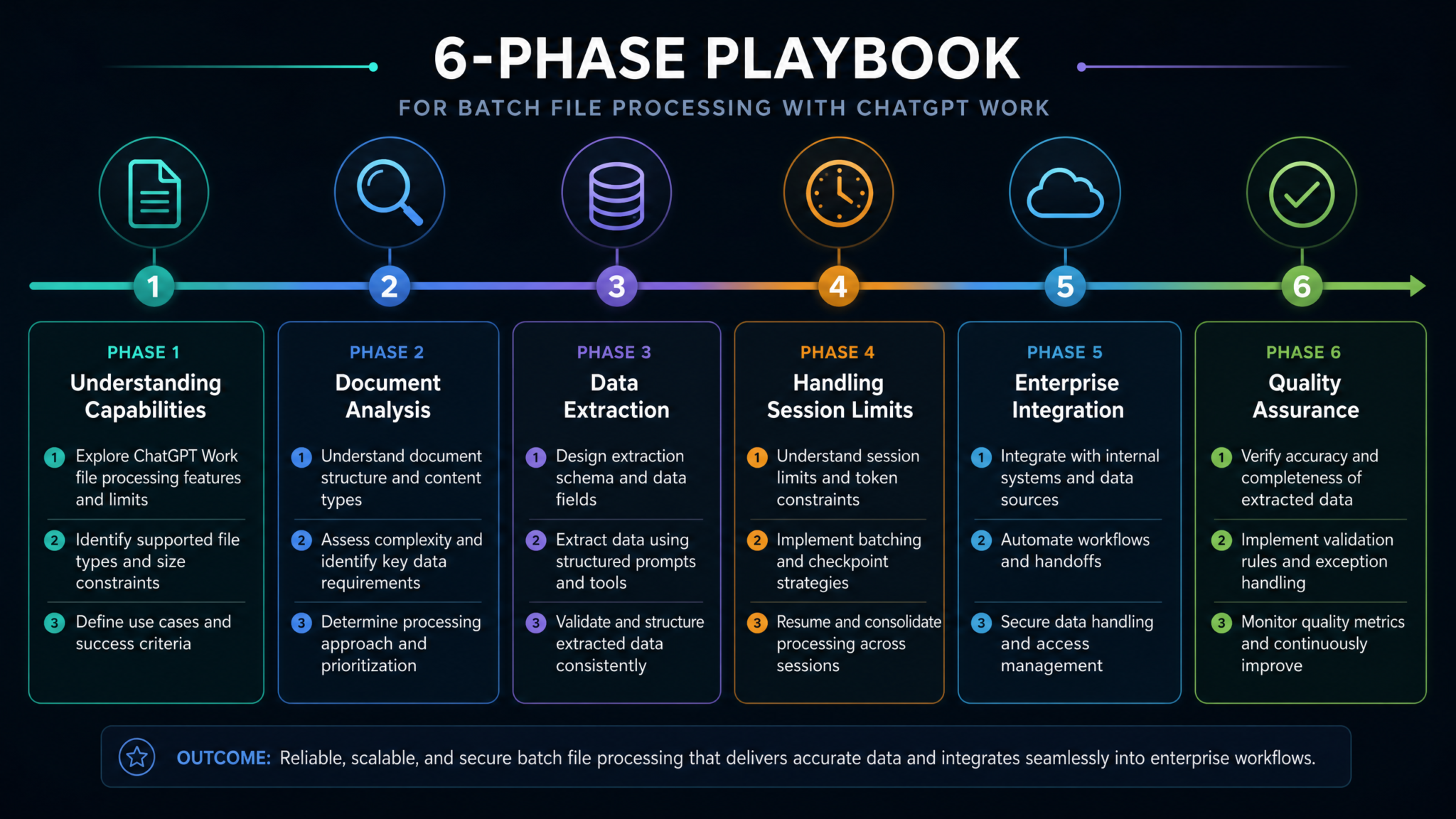
Phase 3: Data Extraction Patterns
The Structured Extraction Mindset
Data extraction is fundamentally different from document analysis. Where analysis seeks understanding and synthesis, extraction seeks specific, structured data points that can be written to a database, populated into a spreadsheet, or fed into a downstream system. This requires a different prompting discipline: precision over verbosity, schema-first thinking, and explicit handling of null or ambiguous values.
The gold standard output format for extraction operations is JSON or CSV. Both are machine-readable, compatible with virtually all downstream tools, and can be directly pasted into systems like Airtable, Google Sheets, or custom databases.
ChatGPT Structured Output and JSON Mode for Developers
Invoice Processing at Scale
Invoice extraction is one of the highest-ROI applications for ChatGPT Work in finance teams. A typical accounts payable workflow requires extracting 8–15 fields per invoice. Here’s a production-ready extraction prompt:
INVOICE EXTRACTION SCHEMA
=========================
For each invoice document uploaded, extract the following fields and
return as a JSON array. Use null for any field that cannot be determined
with confidence. Do not guess or infer values not explicitly stated.

Required fields per invoice:
{
  "invoice_id": "string",
  "vendor_name": "string",
  "vendor_address": "string",
  "invoice_date": "YYYY-MM-DD",
  "due_date": "YYYY-MM-DD or null",
  "po_number": "string or null",
  "line_items": [
    {
      "description": "string",
      "quantity": number,
      "unit_price": number,
      "line_total": number
    }
  ],
  "subtotal": number,
  "tax_amount": number,
  "total_amount": number,
  "currency": "ISO 4217 code",
  "payment_terms": "string or null",
  "extraction_confidence": "HIGH | MEDIUM | LOW"
}

Return a JSON array containing one object per invoice.
After the JSON, list any invoices where confidence is LOW and explain why.
The extraction_confidence field is not just cosmetic — it’s a quality gate. Any invoice flagged as LOW confidence should be routed to human review before payment processing. This single addition to your extraction schema can eliminate the majority of downstream errors.
Contract Clause Extraction
Legal teams processing high-volume contract portfolios — M&A due diligence, vendor onboarding, lease renewals — can dramatically accelerate their workflow with a clause extraction pipeline. The key design principle is to define your clause taxonomy upfront and remain consistent across all documents:
CONTRACT CLAUSE EXTRACTION
===========================
Document: [Contract filename]

Extract the following clause types. For each clause found, provide:
1. The verbatim text (first 150 words maximum)
2. Page number (if determinable)
3. Risk rating: GREEN (standard) / YELLOW (unusual) / RED (high risk)
4. One-sentence plain-English explanation

Target clauses:
- LIMITATION OF LIABILITY
- INDEMNIFICATION
- INTELLECTUAL PROPERTY ASSIGNMENT
- NON-COMPETE / NON-SOLICITATION
- TERMINATION FOR CONVENIENCE
- AUTOMATIC RENEWAL
- GOVERNING LAW
- FORCE MAJEURE
- DATA PROCESSING AGREEMENT (if present)
- AUDIT RIGHTS

If a clause type is absent from the contract, return: "NOT FOUND"
Output as structured JSON using clause type as the key.
Resume Parsing at Scale
HR and recruiting teams managing high-volume hiring pipelines can use ChatGPT Work to parse and standardize resumes into a consistent schema — a task that typically requires expensive ATS integrations. Process batches of 10–15 resumes per conversation and extract to a standard talent profile schema:
RESUME PARSING SCHEMA
=====================
For each resume uploaded, extract and return as JSON:

{
  "candidate_name": "string",
  "email": "string or null",
  "phone": "string or null",
  "location": "City, State/Country",
  "linkedin": "URL or null",
  "total_years_experience": number,
  "current_title": "string",
  "current_company": "string",
  "education": [
    {
      "degree": "string",
      "field": "string",
      "institution": "string",
      "year": number
    }
  ],
  "work_history": [
    {
      "title": "string",
      "company": "string",
      "start_date": "MM/YYYY",
      "end_date": "MM/YYYY or Present",
      "key_responsibilities": ["string"],
      "technologies_used": ["string"]
    }
  ],
  "skills": {
    "technical": ["string"],
    "soft": ["string"],
    "languages": ["string"]
  },
  "certifications": ["string"],
  "notable_achievements": ["string"]
}
Pulling Structured Data from Unstructured Documents
Not all documents arrive with the predictability of invoices or resumes. Research papers, meeting transcripts, customer survey responses, and field reports are inherently unstructured — yet they often contain high-value data points. The key technique here is semantic field targeting: rather than specifying field names that map to visual positions on a page, you describe what you’re looking for conceptually and let the model locate it.
UNSTRUCTURED EXTRACTION PROMPT
================================
This document is a [field research report / meeting transcript /
customer interview]. Extract the following data categories using
semantic understanding — the information may not be labeled explicitly.

Categories to extract:
1. PROBLEM STATEMENT: What problem or pain point is being described?
2. QUANTITATIVE CLAIMS: Any numbers, percentages, timelines mentioned
3. STAKEHOLDERS: Who is involved? What are their roles?
4. PROPOSED SOLUTIONS: Any solutions, workarounds, or recommendations mentioned
5. BLOCKERS: Any obstacles, risks, or concerns raised
6. SENTIMENT: Overall tone (positive / negative / neutral / mixed)
7. ACTION ITEMS: Any explicit next steps or commitments made

For each category, quote the source text that supports your extraction.
Phase 4: Handling Session Limits and Context Overflow
Recognizing the Warning Signs
Context overflow doesn’t announce itself with an error message — it degrades quietly. The first warning signs are subtle: the model begins summarizing earlier documents less accurately, begins contradicting itself across responses, or starts producing generic outputs that don’t reference specific document details. If you notice any of these patterns, assume you’ve exceeded your effective working context and apply a chunking strategy immediately.
The Document Chunking Decision Tree
Use the following decision framework when planning how to chunk a large document batch:
CHUNKING DECISION TREE
=======================

START: How many documents in your batch?

├── 1-8 documents (avg 20 pages each)
│   └── STRATEGY: Single-session processing. Upload all, proceed.
│
├── 9-20 documents
│   └── STRATEGY: Two-pass processing.
│       Pass 1: Upload in groups of 8-10. Extract to structured JSON.
│       Pass 2: Feed JSON summaries into synthesis session.
│
├── 21-50 documents
│   └── STRATEGY: Pipeline processing.
│       Create 4-6 batch sessions. Each session = one extraction pass.
│       Use Project to maintain naming convention across sessions.
│       Final synthesis session uses only intermediate outputs.
│
└── 51+ documents
    └── STRATEGY: Assembly line with intermediate artifacts.
        Phase A: Triage batches (10 docs each) → Categorization JSON
        Phase B: Extraction batches (8 docs each) → Extraction JSON
        Phase C: Synthesis from extraction outputs only
        Consider: Supplement with API-based pipeline for automation
Maintaining State Across Sessions with Projects
ChatGPT Work’s Projects feature is the primary mechanism for maintaining continuity in multi-session batch operations. Beyond simple file persistence, Projects allow you to establish a System Context Document — a file you upload once that defines your extraction schemas, naming conventions, quality standards, and workflow rules. Every session within that Project references this system context, ensuring consistent behavior across dozens of separate conversations.
Create a plain-text file called project-system-context.txt and include:
- The purpose of the document batch and business context
- All extraction schemas (JSON templates) being used in the project
- Naming conventions for all output artifacts
- Quality standards and confidence thresholds
- Glossary of domain-specific terms the model should recognize
- List of completed batches and their output artifact names (updated after each session)
The Rolling Summary Technique
For analytical operations that span many sessions, the rolling summary technique preserves continuity without requiring re-processing of source documents. After each session, ask the model to generate a Session Handoff Document:
SESSION HANDOFF GENERATION
============================
Before ending this session, generate a Session Handoff Document
for this project that includes:

1. DOCUMENTS PROCESSED THIS SESSION (filenames and batch IDs)
2. EXTRACTION OUTPUTS GENERATED (artifact names and locations)
3. KEY FINDINGS SO FAR (cumulative, updated)
4. ANOMALIES OR FLAGS RAISED (items needing human review)
5. PENDING BATCHES (documents not yet processed)
6. CONTEXT NOTES (anything the next session needs to know to
   maintain consistency)

Format as a structured plain-text document I can upload at the
start of the next session.Phase 5: Integration with Enterprise Systems
ChatGPT Work Connectors: The Integration Layer
ChatGPT Enterprise offers direct connectors to major enterprise content repositories, enabling documents to be ingested without manual upload workflows. As of 2025, supported native connectors include Microsoft SharePoint, OneDrive, Google Drive, Box, Dropbox, and Confluence. These connectors operate through OAuth authorization and do not require API keys or developer intervention for basic use cases.
Understanding the difference between connector types is critical for designing reliable pipelines:
| Connector | Sync Type | Granularity | Best Use Case | Limitations |
|---|---|---|---|---|
| SharePoint | On-demand + scheduled | Site, Library, Folder, File | Policy docs, compliance files | Requires SharePoint admin approval |
| Google Drive | On-demand | Drive, Folder, File | Team documents, Sheets exports | Google Workspace Docs converted to text only |
| Dropbox | On-demand | Folder, File | Creative briefs, external vendor files | No scheduled sync; manual trigger required |
| Box | On-demand + webhook-triggered | Folder, File, Collection | Legal document management | Enterprise plan required for webhook support |
| Confluence | On-demand | Space, Page, Page tree | Knowledge base analysis, wiki processing | Embedded macros not rendered |
Building Automated Ingestion Pipelines
For organizations that need truly automated batch processing — triggering analysis when new documents arrive rather than relying on manual workflow initiation — the ChatGPT API provides the necessary programmability. A practical architecture for a SharePoint-triggered pipeline might look like this:
AUTOMATED INGESTION ARCHITECTURE
==================================

[SharePoint Library]
      │
      ▼ (Power Automate trigger: "When a file is added")
[Azure Logic App / Power Automate Flow]
      │
      ├── Extract file metadata (name, type, size, created_by)
      ├── Download file binary
      ├── POST to internal preprocessing service at docs.yourproject.io/preprocess
      │     └── Validates format, checks size, assigns batch_id
      │
      ▼
[ChatGPT API - Assistants API with File Search]
      │
      ├── Upload file to OpenAI Files API
      ├── Attach to target Assistant with extraction instructions
      ├── Trigger run with extraction prompt template
      ├── Poll for completion (typically 15-90 seconds)
      │
      ▼
[JSON Extraction Output]
      │
      ├── Write to SharePoint List (structured metadata)
      ├── POST to internal tracking DB at api.yourproject.io/extractions
      └── Trigger Slack/Teams notification if confidence = LOW
This architecture is fully event-driven, scales horizontally, and provides complete audit trails for each document processed — a requirement in regulated industries.
Using the Assistants API for Persistent File Access
The OpenAI Assistants API with File Search (vector store) tool is the developer-facing counterpart to ChatGPT Work’s Project feature. For organizations building internal tools or integrations, the Assistants API allows you to maintain a persistent vector store of documents that can be queried across multiple API calls without re-uploading:
// Pseudo-code for Assistants API batch setup
// at api.yourproject.io/batch-processor

const vectorStore = await openai.vectorStores.create({
  name: "Q3_Contract_Batch",
  expires_after: { anchor: "last_active_at", days: 30 }
});

// Upload documents to vector store
const fileIds = await Promise.all(
  documentBatch.map(async (doc) => {
    const file = await openai.files.create({
      file: doc.buffer,
      purpose: "assistants"
    });
    return file.id;
  })
);

await openai.vectorStores.fileBatches.create(vectorStore.id, {
  file_ids: fileIds
});

// Create assistant with extraction instructions
const assistant = await openai.assistants.create({
  name: "Contract Extractor",
  model: "gpt-4o",
  tools: [{ type: "file_search" }],
  tool_resources: { file_search: { vector_store_ids: [vectorStore.id] } },
  instructions: extractionSystemPrompt
});
Phase 6: Quality Assurance and Validation
Why Extraction Quality Degrades — and How to Detect It
AI extraction is not infallible. Understanding the failure modes helps you build validation workflows that catch errors before they propagate downstream. The four primary failure modes in ChatGPT Work document extraction are:
- Hallucination under uncertainty: When a field value is ambiguous or absent, the model may infer a plausible but fabricated value. This is why explicit null handling instructions in extraction prompts are non-negotiable.
- Format normalization errors: Dates expressed as “the fifteenth of March, twenty-twenty-four” may not always normalize to ISO 8601 format. Currency amounts with non-standard formatting can be misread.
- Cross-document contamination: When processing multiple documents in a single session, details from Document A can bleed into the extraction for Document B, particularly for similar document types.
- OCR compounding errors: Scanned documents that contain OCR errors in the source text will propagate those errors through extraction. A vendor name of “Acme C0rp” (with a zero) may not match “Acme Corp” in your vendor master.
Building a Validation Workflow
A rigorous validation workflow operates at three levels: schema validation, business rule validation, and sampling-based human review.
Level 1: Schema Validation (Automated)
After every extraction run, pass the JSON output through a schema validator (JSON Schema, Pydantic, or Zod depending on your stack). This catches structural errors — wrong data types, missing required fields, values outside expected ranges — immediately and at zero marginal cost.
Level 2: Business Rule Validation (Automated)
Business rules are domain-specific logical checks that go beyond schema correctness. For invoice processing, examples include:
Access 40,000+ AI Prompts for ChatGPT, Claude & Codex — Free!
Subscribe to get instant access to our complete Notion Prompt Library — the largest curated collection of prompts for ChatGPT, Claude, OpenAI Codex, and other leading AI models. Optimized for real-world workflows across coding, research, content creation, and business.
- Sum of line item totals must equal subtotal (±$0.02 rounding tolerance)
- Invoice date must not be in the future
- Due date must be after invoice date
- Vendor name must exist in vendor master list
- Total amount must be within approved spending authority for the PO number referenced
Level 3: Sampling-Based Human Review (Manual)
No automated validation replaces human judgment entirely. A statistically sound sampling approach reviews 10–15% of all extractions, stratified by confidence level: review 100% of LOW confidence extractions, 25% of MEDIUM confidence, and 5% of HIGH confidence. Track error rates by document type and extraction field to continuously refine your prompts.
The Extraction QA Prompt
For high-stakes extraction batches, run a dedicated QA pass after initial extraction using a verification prompt:
EXTRACTION QA VERIFICATION PROMPT
===================================
Below is an extraction JSON produced from the attached document.
Please verify this extraction by:

1. Checking each extracted field against the source document
2. Rating accuracy: VERIFIED / CORRECTED / CANNOT_VERIFY
3. For any CORRECTED fields, provide the correct value and
   quote the source text that supports it
4. Flag any fields that appear in the document but were
   missed by the extraction
5. Assign an overall quality score: PASS / REVIEW / FAIL

[Paste extraction JSON]
[Upload source document]
Troubleshooting Common Issues
Issue 1: “Lost Document Viewing” — Files Upload but Content Isn’t Accessed
Symptom: You upload files and ask questions about them, but the model’s responses are generic and clearly not drawing from the document content.
Root causes and fixes:
- File is image-based PDF but vision processing isn’t engaged: Explicitly state in your prompt “Analyze the visual content of the PDF pages.” For scanned documents, uploading individual page images rather than the full PDF often improves fidelity.
- File upload failed silently: Check the file indicator in the conversation UI. Reload the conversation and re-upload. Large files (>50MB) can timeout on slow connections.
- Context already saturated by previous files: Start a new conversation. The model may be prioritizing earlier-uploaded files. Batch your uploads more aggressively.
Issue 2: Session Sync Failures in Projects
Symptom: Files visible in the Project file manager are not being referenced in new conversations within that Project.
Fixes:
- Explicitly reference the file by name in your prompt: “Using the document named ‘Q3_contracts.pdf’ in this Project…”
- Re-add the file to the conversation by attaching it directly from the Project file panel — don’t rely solely on passive project-wide availability for complex extraction tasks
- If the file was added more than 30 days ago, it may have expired. Re-upload and check the file expiry indicator.
Issue 3: Processing Timeouts on Large Files
Symptom: The model stops mid-response or returns an incomplete extraction when processing files larger than 200 pages or 10MB.
Fixes:
- Split large PDFs into 50-page segments using tools like PyPDF2, Adobe Acrobat, or online PDF splitters before uploading
- For XLSX files with many rows, export individual sheets or filtered subsets rather than the entire workbook
- Request extraction in explicit sections: “First, extract only the header information from all documents. Do not process line items yet.”
Issue 4: Inconsistent Output Format Across Batches
Symptom: Your extraction JSON uses different key names or nesting structures across different sessions, making programmatic combination difficult.
Fix: Always include your exact target JSON schema in the extraction prompt, not just a description of what you want. The model will conform to a provided schema far more reliably than it will infer a consistent structure from natural language instructions alone. Store your canonical schemas in your Project’s system context document.
ChatGPT Prompt Engineering for Consistent Structured Outputs
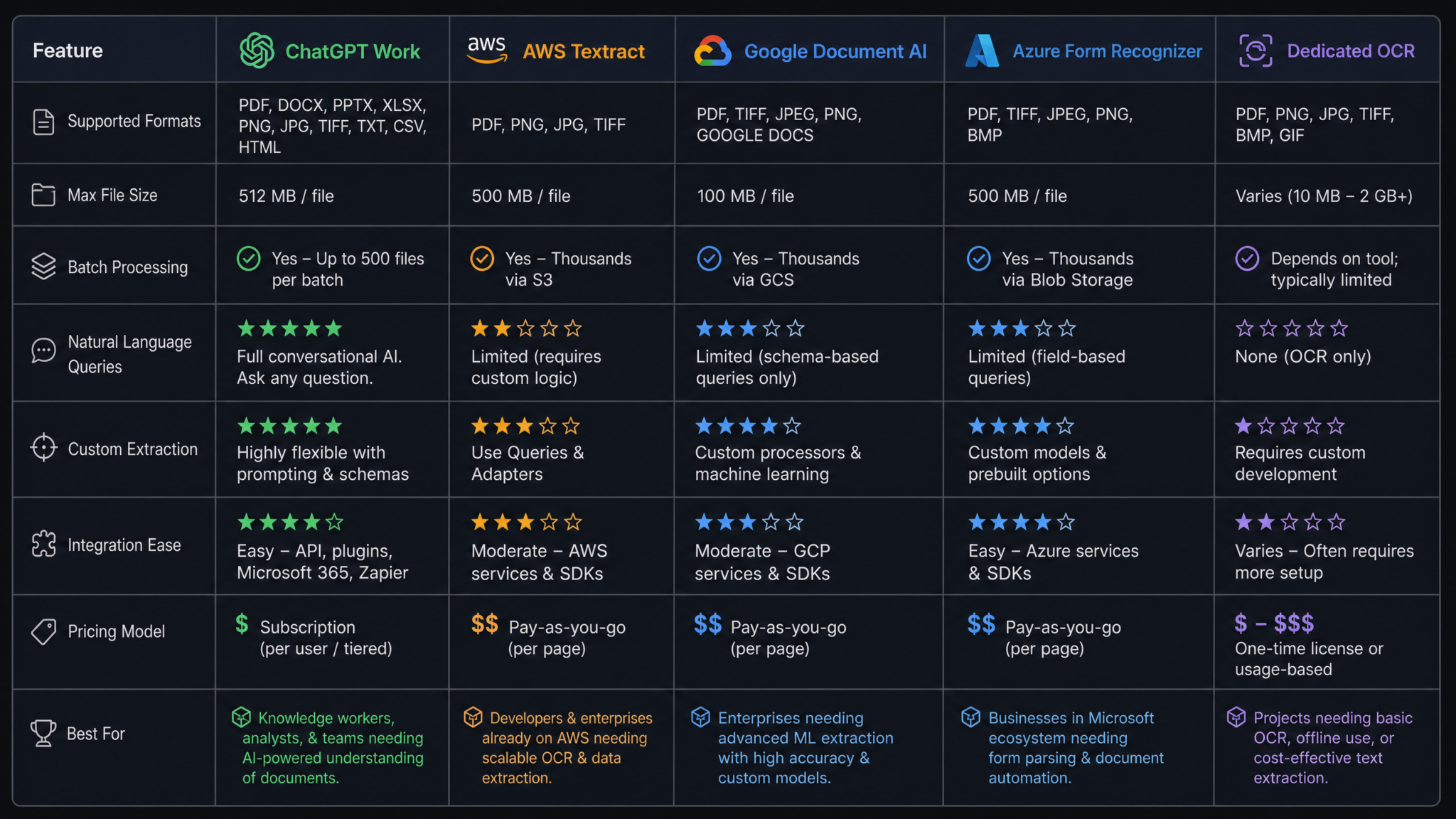
Comparison with Dedicated Document AI Tools
The Competitive Landscape
ChatGPT Work does not exist in a vacuum. AWS Textract, Google Document AI, and Azure Form Recognizer are purpose-built document processing services with years of production hardening. Understanding where ChatGPT Work outperforms and underperforms these tools is essential for making intelligent architectural decisions.
| Capability | ChatGPT Work | AWS Textract | Google Document AI | Azure Form Recognizer |
|---|---|---|---|---|
| Setup complexity | ⭐⭐⭐⭐⭐ (None) | ⭐⭐ (AWS config required) | ⭐⭐ (GCP project required) | ⭐⭐ (Azure resource required) |
| Pre-trained document models | General purpose | Invoices, W-2, medical | Invoices, receipts, ID docs | Invoices, receipts, contracts |
| Custom field extraction | ⭐⭐⭐⭐⭐ (Prompt-driven) | ⭐⭐⭐ (Custom model training) | ⭐⭐⭐ (Custom processor) | ⭐⭐⭐⭐ (Custom model) |
| Semantic understanding | ⭐⭐⭐⭐⭐ | ⭐⭐ (OCR-level only) | ⭐⭐⭐ | ⭐⭐⭐ |
| Throughput at scale (1000+ docs/day) | ⭐⭐⭐ (API required) | ⭐⭐⭐⭐⭐ | ⭐⭐⭐⭐⭐ | ⭐⭐⭐⭐⭐ |
| Cost per page (approx.) | ~$0.01-0.05 | ~$0.002-0.015 | ~$0.001-0.01 | ~$0.001-0.01 |
| Handling novel/unstructured docs | ⭐⭐⭐⭐⭐ | ⭐⭐ | ⭐⭐⭐ | ⭐⭐⭐ |
| Cross-document reasoning | ⭐⭐⭐⭐⭐ | ⭐ (Not supported) | ⭐ (Not supported) | ⭐ (Not supported) |
| Audit trail / compliance logging | ⭐⭐⭐ (Enterprise) | ⭐⭐⭐⭐⭐ | ⭐⭐⭐⭐⭐ | ⭐⭐⭐⭐⭐ |
| HIPAA / FedRAMP compliance | ⭐⭐⭐ (Enterprise BAA) | ⭐⭐⭐⭐⭐ | ⭐⭐⭐⭐⭐ | ⭐⭐⭐⭐⭐ |
Where ChatGPT Work Wins Decisively
ChatGPT Work’s advantages are most pronounced in scenarios involving:
- Unstructured or novel document types with no pre-trained model equivalent. A AWS Textract invoice model trained on standard US invoice formats will struggle with a non-standard supplier invoice from a Japanese trading company. ChatGPT Work handles it conversationally.
- Cross-document reasoning and synthesis. No dedicated document AI tool can compare contracts, identify contradictions across a corpus, or generate a narrative synthesis report. These require language understanding, not OCR.
- Zero-shot custom field extraction. Adding a new extraction field to a Textract custom model requires retraining on labeled examples. With ChatGPT Work, it requires adding one line to your prompt.
- Exploratory analysis where the extraction schema isn’t yet defined. Teams in early-stage discovery — figuring out what’s in a corpus before designing a formal extraction pipeline — get dramatically more value from ChatGPT Work’s conversational interface.
Where Dedicated Tools Win
Dedicated document AI services have clear advantages in:
- Raw throughput. Processing 50,000 invoices per day requires an asynchronous batch API and horizontal scaling that purpose-built services provide natively. ChatGPT Work’s API can be pushed to high throughput, but requires significant engineering effort.
- Bounding box and coordinate-level output. Textract and Form Recognizer return the exact pixel coordinates of every extracted field — critical for RPA workflows that need to click on document locations or for validation UIs that highlight extracted fields in context.
- Regulatory compliance out of the box. AWS, Google, and Azure all hold comprehensive compliance certifications (HIPAA, FedRAMP, SOC 2 Type II, ISO 27001) with no additional configuration. ChatGPT Enterprise requires a specific Data Processing Agreement and BAA for HIPAA use cases.
- Cost efficiency at massive scale. At 10 million pages per month, the per-page economics strongly favor dedicated OCR services over LLM-based processing.
Decision Framework: When to Use ChatGPT Work vs. Specialized Tools
The Five-Question Decision Flowchart
Use this framework when evaluating a new document processing requirement:
TOOL SELECTION DECISION FRAMEWORK
====================================

Q1: Is volume > 5,000 documents/day?
  YES → Consider dedicated document AI (Textract, Document AI, Form Recognizer)
        unless cross-document reasoning is required
  NO  → Continue to Q2

Q2: Does the task require cross-document reasoning or synthesis?
  YES → ChatGPT Work (or Assistants API for automation)
  NO  → Continue to Q3

Q3: Are document types predictable and consistent (invoices, W-2s,
    standard contracts)?
  YES → Evaluate pre-trained models in dedicated tools; likely more accurate
        and cost-efficient
  NO  → ChatGPT Work for flexible, prompt-driven extraction

Q4: Does your compliance posture require FedRAMP High, HIPAA with
    zero data retention, or government-specific certifications?
  YES → AWS Textract or Azure Form Recognizer (check specific certification
        level required)
  NO  → ChatGPT Enterprise with appropriate DPA in place

Q5: Does the team have developer resources to build and maintain
    ML pipelines?
  YES → Full spectrum of tools available; optimize for cost and accuracy
  NO  → ChatGPT Work is strongly preferred for its no-code/low-code
        accessibility and prompt-driven customization
The Hybrid Architecture Pattern
For many enterprises, the optimal solution is not a binary choice between ChatGPT Work and dedicated tools — it’s a hybrid architecture that uses each tool for what it does best:
Stage 1 (High-Volume Pre-processing): AWS Textract or Azure Form Recognizer handles raw OCR and structured field extraction for high-volume, standard-format documents (invoices, receipts, forms). This stage processes thousands of documents per day at low per-page cost.
Stage 2 (Intelligent Review and Enrichment): The structured output from Stage 1 is fed into ChatGPT Work (via API) for semantic enrichment — adding business context, flagging anomalies, performing cross-document analysis, and generating human-readable summaries.
Stage 3 (Exception Handling): Documents that fail Stage 1 extraction (low confidence, novel formats) are routed to ChatGPT Work for flexible, prompt-driven processing.
This hybrid pattern achieves the cost efficiency of dedicated tools for the high-volume predictable workload while leveraging ChatGPT Work’s superior reasoning capabilities for the long-tail complexity that inevitably exists in real enterprise document corpora.
Building Enterprise AI Pipelines with OpenAI Assistants API
Building Your First Production Batch Pipeline: A 30-Day Roadmap
For teams ready to move from experimentation to production, the following phased approach has proven effective across numerous enterprise deployments:
Week 1: Baseline and Schema Design
- Audit a sample of 50 representative documents from your target corpus
- Define your extraction schema with all required fields
- Test extraction prompts against 10 sample documents manually
- Establish baseline accuracy metrics for each extraction field
Week 2: Workflow Construction
- Build your Project in ChatGPT Work with system context document
- Create standardized prompt templates for each document type
- Build manual QA checklist and sampling protocol
- Process first 50-document batch and measure against baseline
Week 3: Integration and Automation
- Connect to your document repository (SharePoint, Google Drive, etc.)
- Build automation trigger (Power Automate, Zapier, or custom webhook)
- Set up output routing (database, spreadsheet, downstream system)
- Run end-to-end test with 100-document batch
Week 4: Quality Hardening and Handoff
- Implement schema validation and business rule checks
- Establish monitoring for extraction confidence distributions
- Document the workflow for operational handoff
- Train team members on exception handling procedures
- Set review cycle for prompt optimization (monthly recommended)
Prompt Maintenance: The Overlooked Operational Task
Extraction prompts are not “set and forget” artifacts. Document formats evolve, new edge cases emerge, and model behavior can shift slightly with platform updates. Treat your extraction prompt library as living operational documentation:
- Version-control all prompts (Git repository or SharePoint document library)
- Record the date of last validation and the accuracy metrics at that date
- Assign a prompt owner responsible for monitoring extraction quality
- Run regression tests on a held-out set of 20 “known good” documents whenever prompts are modified
- Log all user-identified extraction errors and review them monthly to identify prompt improvement opportunities
Security Considerations for Enterprise Document Processing
No enterprise document processing playbook is complete without a frank discussion of data security. When uploading documents to ChatGPT Work, understand the following:
- ChatGPT Enterprise data handling: Under the Enterprise plan, OpenAI commits to not training models on your data, and data is encrypted in transit and at rest. Review your organization’s specific DPA terms.
- Document sensitivity classification: Before uploading any document, verify it’s appropriate for cloud processing. Highly sensitive categories (trade secrets, M&A deal information, patient health information under HIPAA) should follow your organization’s specific data classification policy.
- PII scrubbing: For documents containing customer PII that isn’t required for the extraction task, consider applying a PII redaction pass (using a local tool or a privacy-focused API) before uploading to ChatGPT Work.
- Audit logging: Enable ChatGPT Enterprise’s admin audit logs and retain them according to your data retention policy. These logs record who uploaded what files and when — essential for compliance in regulated industries.
Future Capabilities on the Horizon
The document processing capabilities of ChatGPT Work are evolving rapidly. Based on OpenAI’s published research and platform roadmap signals, several capabilities are likely to materially change batch document processing workflows in the near term:
- Extended context windows: As context limits expand beyond 128K tokens, the need for chunking strategies diminishes. A 1 million-token context window would allow processing entire contract libraries in a single session.
- Native structured output enforcement: GPT-4o’s JSON mode is already a significant improvement, and further hardening of structured output reliability will reduce the need for post-processing validation.
- Computer use and document interaction: OpenAI’s operator-mode capabilities may eventually allow ChatGPT Work to interact with document management systems directly — navigating folder hierarchies, triggering exports, and writing extraction results back to source systems without API integration work.
- Multi-modal table extraction improvements: The current gap between ChatGPT Work and dedicated tools in dense table extraction from scanned documents is shrinking with each model iteration.
Organizations that build their document processing infrastructure on ChatGPT Work today — with clean schemas, well-documented prompts, and modular pipeline architectures — will be positioned to absorb these improvements with minimal rework. The investments you make in prompt quality, schema design, and validation infrastructure are durable regardless of the underlying model generation.
Document intelligence is no longer a capability reserved for organizations with dedicated ML engineering teams. With ChatGPT Work, any knowledge worker with a well-designed workflow can operate at a level of document processing sophistication that would have required a significant technology investment just three years ago. The playbook above gives you the structured foundation to build that capability — and the judgment to know when to reach for more specialized tools.
ChatGPT Enterprise Security and Data Governance Complete Guide
