
How to Set Up OpenAI Codex Windows Sandbox for Secure AI-Assisted Development
Published May 15, 2026 | By Markos Symeonides
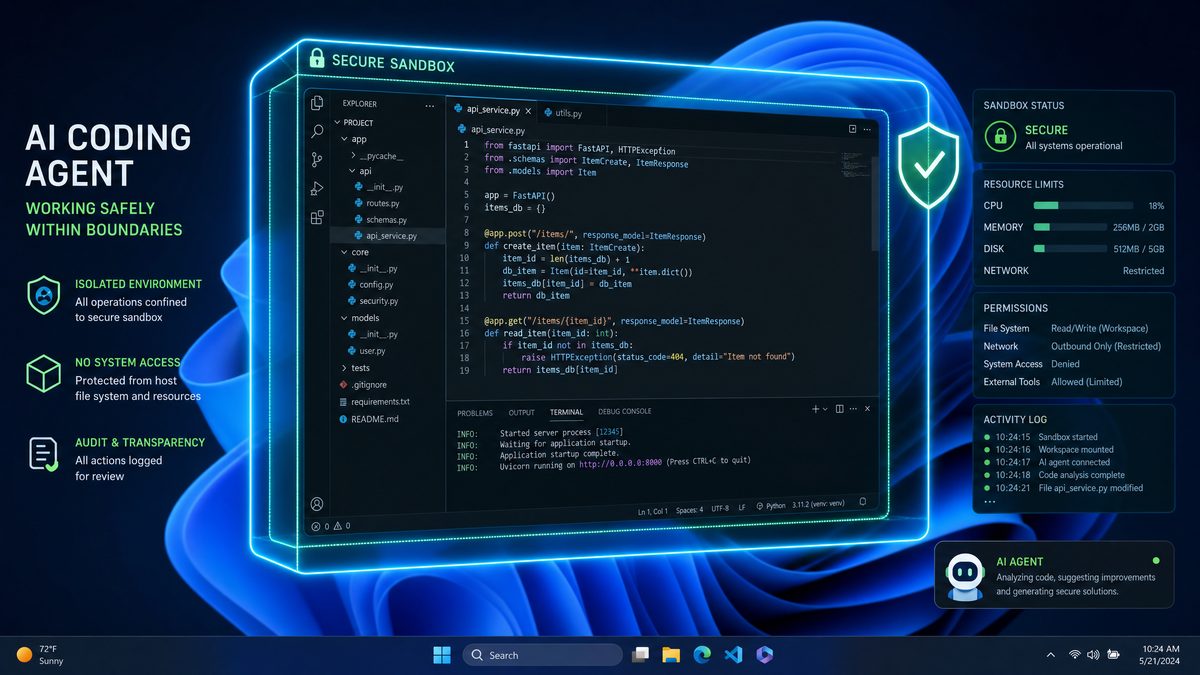
With the launch of the elevated Windows Sandbox tailored specifically for AI-assisted development on May 13, 2026, Microsoft and OpenAI have collaboratively transformed the security landscape for developers leveraging the power of OpenAI Codex. This new sandbox environment integrates advanced security features like write-restricted tokens, customizable Security Identifier (SID) configurations, and enhanced network isolation controls — all managed through an updated config.toml configuration file.
This comprehensive tutorial provides a step-by-step guide to setting up the OpenAI Codex Windows Sandbox, enabling developers to maximize security, isolation, and operational efficiency in AI coding workflows on Windows 11 and Windows 12 platforms.
Understanding the Elevated Windows Sandbox for OpenAI Codex
The elevated Windows Sandbox released in May 2026 marks a significant enhancement over the traditional Windows Sandbox feature. Unlike the standard sandbox which operates with limited privileges, this upgraded version is purpose-built to support AI coding agents such as OpenAI Codex. It grants controlled elevated access to critical system resources while maintaining strict isolation and security boundaries, crucial for safe AI-assisted development.
Some key differentiators of this sandbox compared to earlier models and Chrome Extension-based AI coding environments include:
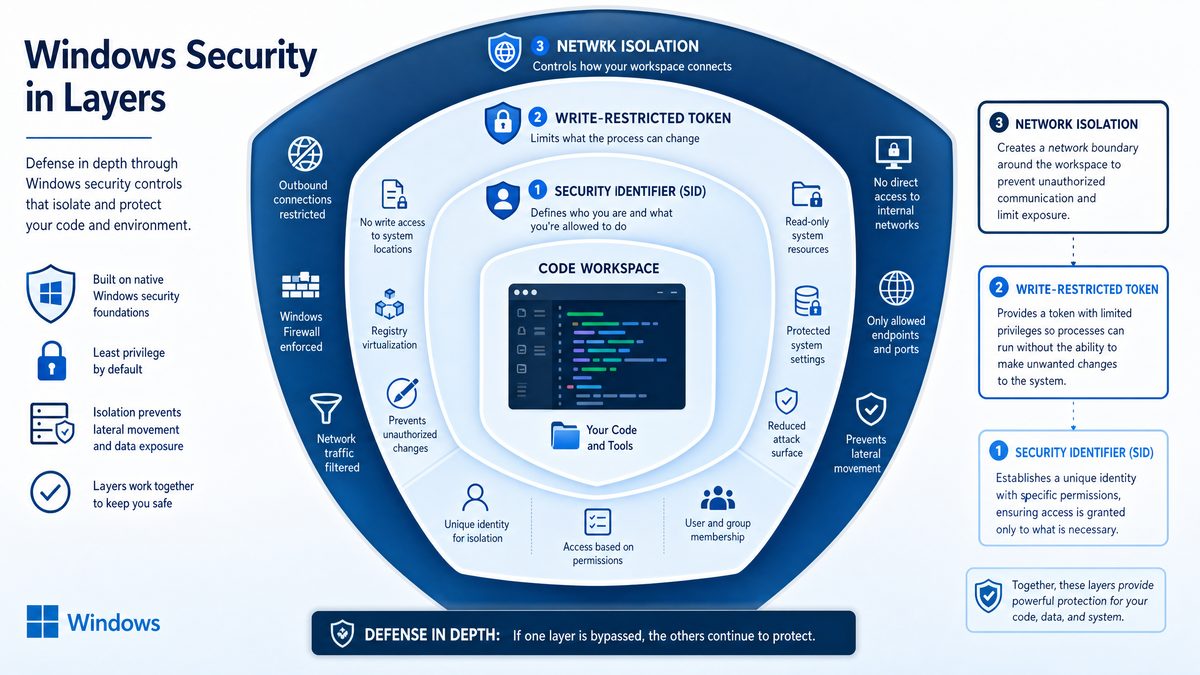
- Write-Restricted Tokens: These enable granular control over file system and registry write operations, dramatically reducing the attack surface for malicious activities.
- Customized SID Configuration: Each sandbox instance runs under a unique security context, preventing token replay attacks and privilege escalation.
- Network Isolation and Filtering: Fine-tuned network rules restrict AI agent communications exclusively to trusted endpoints, such as OpenAI’s official APIs.
- Enhanced
config.tomlManagement: A powerful configuration file that controls sandbox behavior, AI model integration, and resource allocation limits.
Unlike browser-based AI coding assistants limited by browser sandboxing and vulnerable to exploits, the Windows Sandbox functions at the OS kernel level, providing superior process and resource isolation for AI-assisted development.
Step 1: Installing the Elevated Windows Sandbox Feature
Prerequisites
Before proceeding, verify that your system meets the following requirements to support the elevated Windows Sandbox:
- Operating System: Windows 11 build 25300 or later, or Windows 12 preview build 26000+
- Hardware Support: Virtualization technology enabled in BIOS (Intel VT-x or AMD-V)
- OpenAI Codex SDK: Version 4.2.1 or newer, supporting sandbox integration
- Administrator Privileges: Necessary for installing and configuring sandbox features
Installing the Elevated Sandbox
The elevated Windows Sandbox is available as an optional feature. To install it:
- Launch PowerShell with Administrator rights.
- Execute the command:
Enable-WindowsOptionalFeature -Online -FeatureName "WindowsSandboxElevated" -All - Wait for the installation to complete, then reboot your system if prompted.
After installation, verify the sandbox by running WindowsSandboxElevated.exe from the system32 directory. A new sandbox window with an enhanced UI indicating elevated status and AI-assist readiness should appear.
Step 2: Configuring Write-Restricted Tokens for File and Registry Access
One of the standout security features of the elevated sandbox is the introduction of write-restricted tokens. These tokens allow OpenAI Codex to perform read and execute operations freely but restrict write or modification actions to explicitly authorized directories and registry keys.
How Write-Restricted Tokens Work
The sandbox generates a filtered access token with limited write permissions for the Codex AI process running inside the sandbox. Any attempt to write outside the defined paths triggers immediate access denials and logs the event within the Windows Security Audit subsystem.
Defining Write-Restricted Paths
Within your config.toml file, you specify the whitelist of directories and registry keys where write operations are permitted. For example:
write_restricted_paths = [
  "C:\\Users\\SandboxUser\\Projects\\CodexWork",
  "HKCU\\Software\\CodexSandbox"
]
This configuration ensures that Codex can only write to its designated project folder and specific registry keys, preventing unauthorized system modifications or data leakage.

Step 3: Custom SID Configuration for Enhanced Security Contexts
Windows Security Identifiers (SIDs) uniquely identify user and group accounts within the operating system. The elevated sandbox supports custom SID ranges, allowing each sandbox session to operate under a distinct security context. This feature is critical to prevent token replay attacks and privilege escalation vulnerabilities common in AI-assisted coding environments.
Generating and Assigning Custom SIDs
The sandbox management API can dynamically generate a unique SID for every session. Alternatively, you can define SID templates within config.toml using placeholders. For example:
sid_template = "S-1-5-21-1234567890-123456789-123456789-%SESSION_ID%"The placeholder %SESSION_ID% is replaced dynamically per sandbox instance, ensuring unique security tokens for each session.
Benefits of Custom SID Usage
- Isolates sandboxed AI processes from each other and the host operating system
- Mitigates risk of privilege escalation via token duplication or reuse
- Enhances auditability by associating actions with unique sandbox-specific SIDs
Step 4: Enabling Network Isolation and Filtering
Effective network isolation is essential for AI coding agents communicating with OpenAI APIs or cloud services. The elevated sandbox includes granular network filtering capabilities to restrict outbound connections exclusively to trusted endpoints.
Configuring Network Rules in config.toml
Specify allowed and blocked network domains or IP addresses. For example:
network_rules = {
  allow = [
    "api.openai.com",
    "auth.openai.com"
  ],
  block = [
    "*"
  ]
}
This configuration permits the Codex agent to access only OpenAI’s official API endpoints while blocking all other outbound connections, including unauthorized telemetry or third-party calls.
Enforcement and Monitoring
The sandbox enforces these network restrictions via the Windows Filtering Platform (WFP) at the kernel level, preventing any attempts to bypass rules. All network connection attempts are logged for audit purposes and can be reviewed in the Windows Event Viewer under the source SandboxNetwork.
Step 5: Finalizing config.toml Settings for OpenAI Codex Integration
The config.toml file serves as the core configuration for the elevated sandbox, managing sandbox behavior, security parameters, and OpenAI Codex integration details.
Sample config.toml Structure
[sandbox]
session_name = "CodexSandboxSession"
write_restricted_paths = [
  "C:\\Users\\SandboxUser\\Projects\\CodexWork",
  "HKCU\\Software\\CodexSandbox"
]
sid_template = "S-1-5-21-1234567890-123456789-123456789-%SESSION_ID%"
network_rules = { allow = ["api.openai.com", "auth.openai.com"], block = ["*"] }
resource_limits = { cpu = 2, memory_mb = 4096, disk_mb = 10240 }

[openai]
api_key = "YOUR_SECURE_API_KEY"
model = "codex-2026-advanced"
max_tokens = 512
temperature = 0.2
Key Configuration Parameters Explained
- session_name: Assigns an identifiable name to the sandbox session for easier logging and monitoring.
- write_restricted_paths: Specifies directories and registry keys where Codex has write permission.
- sid_template: Defines the unique security identifier pattern for sandbox sessions.
- network_rules: Whitelists or blacklists network endpoints for sandboxed AI communication.
- resource_limits: Caps CPU cores, memory (RAM), and disk space to prevent resource exhaustion attacks.
- openai.api_key: Securely inject your OpenAI API key. It is highly recommended to use environment variables or secure vaults instead of storing keys in plaintext.
- openai.model: Specifies the Codex model version optimized for 2026 AI development workflows.
- openai.max_tokens & temperature: Controls the output length and creativity level of Codex’s responses.
Step 6: Launching the OpenAI Codex Sandbox Environment
After completing installation and configuration, launch the sandbox with the following command:
WindowsSandboxElevated.exe --config "C:\\SandboxConfigs\\codex_sandbox_config.toml"The sandbox window will initialize with your specified parameters. OpenAI Codex runs inside this isolated environment, leveraging all configured security controls. Interaction with Codex can be performed through integrated terminals or IDE extensions communicating via the sandbox’s secure IPC channels.
Monitoring and Auditing Sandbox Activity
Use Windows Event Viewer alongside the sandbox’s built-in telemetry dashboard to audit file writes, network connections, and security token usage. This visibility provides unprecedented insight into AI coding agent activity on Windows.
Additional Security Best Practices
- Rotate API Keys Regularly: Employ services like Azure Key Vault or HashiCorp Vault to securely manage and rotate API keys, minimizing risks associated with long-lived credentials.
- Implement Multi-Factor Authentication (MFA): Enforce MFA for accounts managing sandbox configurations and OpenAI API access to enhance account security.
- Limit Sandbox Lifetime: Configure automatic sandbox termination after idle periods or task completion to reduce persistent exposure.
- Keep SDK and Sandbox Updated: Regularly apply monthly security patches for the OpenAI Codex SDK and Windows Sandbox to mitigate emerging vulnerabilities.
By following these best practices, developers and organizations can maintain a robust security posture while benefiting from AI-assisted coding capabilities.
Advanced Usage and Further Resources
This elevated Windows Sandbox setup represents a new standard for secure AI-assisted development on Windows, balancing elevated privileges with strong security controls.
For developers seeking to explore advanced scenarios, our extended guides cover topics such as:
- Multi-Sandbox Orchestration: Managing multiple sandbox instances for parallel AI coding workflows with isolated security contexts.
- Enterprise Security Integration: Integrating sandbox sessions with existing Active Directory and endpoint protection frameworks.
- Deep SID Management & Audit Log Analysis: Techniques for security teams to enforce compliance and investigate sandbox activity.
- AI Coding Agent Performance Tuning: Best practices for optimizing Codex responsiveness and resource usage within sandbox constraints.
Explore our detailed tutorials on:
- How to Use the OpenAI Codex Chrome Extension for Web Development in 2026 — leveraging browser-based AI assistance for real-time coding and website creation.
- Using OpenAI Codex Memory and Automations for Persistent Workflows — enabling more efficient, scheduled AI interactions and stateful coding sessions.
Conclusion
The elevated Windows Sandbox for OpenAI Codex, released in May 2026, is a landmark innovation for developers requiring secure, isolated environments to harness AI-assisted coding without compromising system integrity. By meticulously configuring write-restricted tokens, custom SIDs, network isolation, and the config.toml file, developers can safely unlock the full potential of Codex within Windows’ robust security framework.
As AI coding agents continue to evolve and become integral to software development, adopting sandbox technologies like this will be essential for organizations prioritizing security, compliance, and efficiency.
