
How to Use OpenAI Codex Memory and Scheduled Automations for Persistent AI Workflows
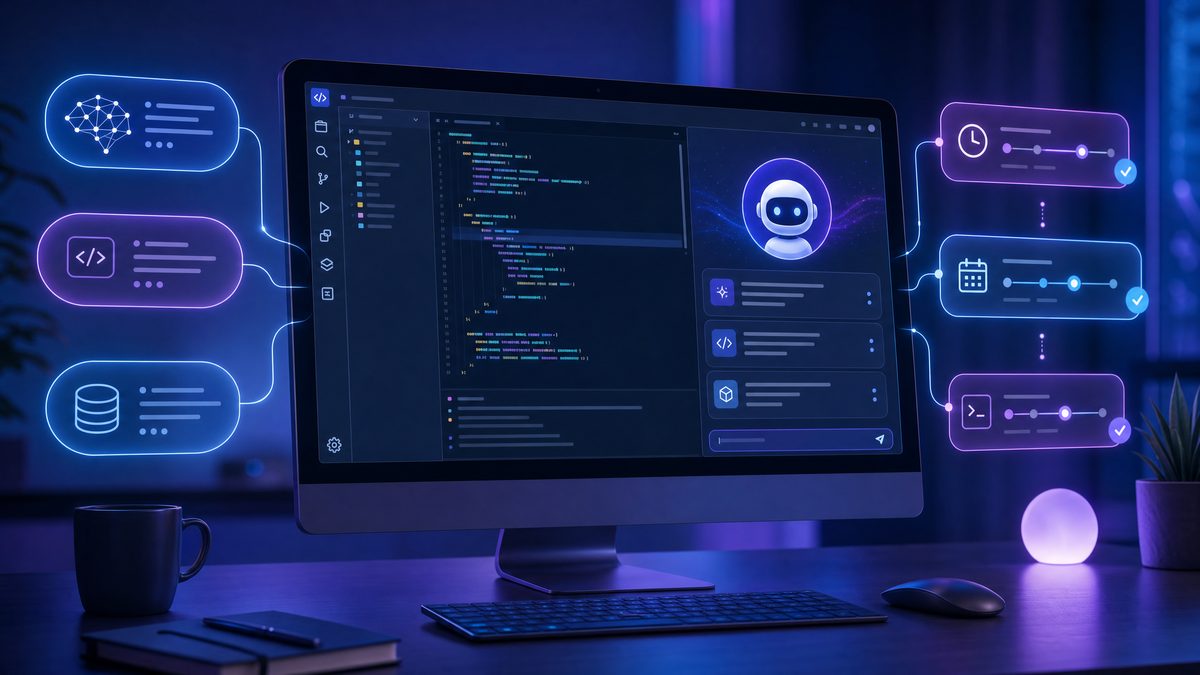
On April 16, 2026, OpenAI released a significant update to the Codex desktop app, introducing two powerful features—Memory and Scheduled Automations—that transform how developers and teams build persistent AI workflows. With over 3 million developers leveraging Codex weekly, these enhancements enable the AI to remember useful context from past interactions and autonomously manage ongoing tasks across days or weeks.
This comprehensive guide will walk you through harnessing these features with practical examples, setup instructions, and real-world use cases designed to boost your productivity and streamline complex workflows efficiently.
Understanding Codex’s New Memory Feature
The Memory feature fundamentally changes the way Codex interacts by retaining important context from previous sessions. Unlike traditional session-based AI interactions that require restating instructions or context every time, Codex now remembers:
- Personal preferences and stylistic corrections you’ve made
- Relevant project information gathered over time
- Details about your workflows that previously required manual input
This advancement means future tasks complete faster, with less need for elaborate custom instructions or repetitive context setup, enabling a more natural and efficient AI collaboration.

How Memory Works in Practice
Imagine you frequently ask Codex to generate documentation for your Python projects. Initially, you specify your preferred style, formatting rules, and common libraries you use. With Memory enabled, Codex stores these preferences. When you return to the project days later, Codex automatically applies your style without prompting.
Similarly, if you corrected Codex’s output multiple times to align with your team’s coding standards, these corrections persist. This eliminates repetitive fine-tuning and accelerates your workflow by making interactions smarter over time.
Setting Up Memory in Codex Desktop App
- Update to the Latest Version: Ensure your Codex desktop app is updated to the April 16, 2026 version or later.
- Enable Memory: Open the settings panel and toggle the “Memory” feature on.
- Customize Memory Scope: Choose whether memory applies globally, per project, or per conversation thread.
- Manage Stored Memories: Access the Memory Manager to review, edit, or delete stored context.
Once enabled, Codex will begin storing context automatically. You can also manually tag specific pieces of information to be remembered for greater control and precision.
Leveraging Scheduled Automations for Persistent Task Management
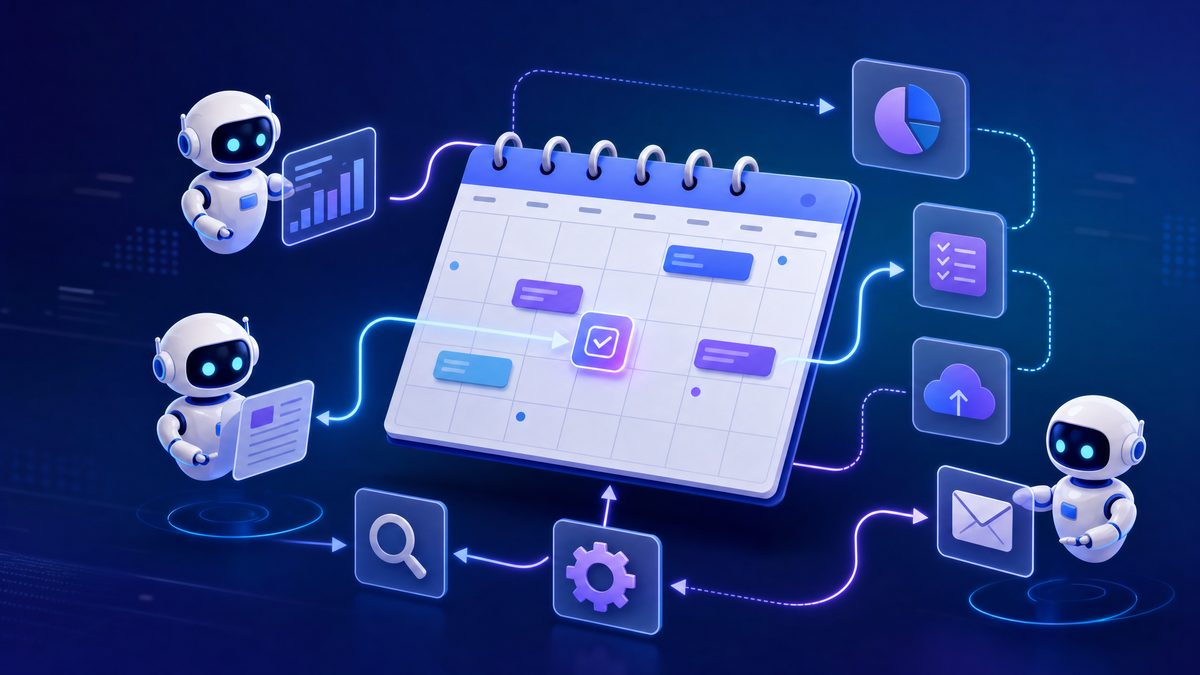
Scheduled Automations empower Codex to reuse conversation threads with preserved context and schedule future work independently. This introduces a new paradigm where AI can “wake up” at predetermined times to continue long-term tasks without user intervention.
Key Capabilities of Scheduled Automations
- Reuse Existing Conversations: Codex can pick up prior conversations with full knowledge of the context to avoid redundant explanations.
- Autonomous Scheduling: Codex can schedule tasks to run at any future date or interval, even days or weeks later.
- Cross-Platform Workflow Integration: Automations can interact with tools like Slack, Gmail, Notion, and code repositories.
Real-World Workflow Examples
Teams are already using Scheduled Automations for:
- Automatically landing open Pull Requests (PRs) after passing tests and approvals
- Following up on delegated tasks or pending approvals
- Monitoring conversations in Slack or Gmail and summarizing action items
- Tracking comments in Google Docs and generating prioritized task lists
How to Set Up Scheduled Automations
- Create or Select a Conversation Thread: Identify an existing thread you want Codex to continue or start a new one for an ongoing project.
- Define Automation Rules: In the Automations tab, specify triggers, schedules, and actions—such as “Check open PRs every weekday at 9 AM.”
- Link Relevant Plugins: Connect plugins like Atlassian Rovo for issue tracking, CircleCI for CI/CD status, or Microsoft Suite for document workflows.
- Enable Notifications (Optional): Set Codex to notify you of automation outcomes via preferred channels.
- Activate the Automation: Save and activate the automation to let Codex run tasks autonomously.
Codex’s ability to schedule and manage these tasks allows it to be a proactive partner, reducing the need for manual follow-ups and constant monitoring.
Proactive Daily Workflow Suggestions
By combining Memory, Scheduled Automations, and integrated plugins, Codex now offers proactive suggestions tailored to your current projects and priorities. When you start your workday, Codex can:
- Identify open comments in Google Docs or collaborative documents
- Pull relevant context from Slack channels, Notion databases, and your codebase
- Generate prioritized action lists highlighting critical tasks or blockers
This feature is especially valuable for teams juggling multiple projects and communication streams, ensuring no important tasks slip through the cracks.
Activating Proactive Suggestions
- Navigate to the “Dashboard” in the Codex desktop app.
- Enable “Proactive Suggestions” under preferences.
- Configure the data sources (Slack, Gmail, Notion, Google Docs) you want Codex to monitor.
- Set the timing for daily summaries or real-time alerts.
These suggestions leverage Codex’s memory and automation capabilities to provide actionable insights without overwhelming you with notifications.
Integrating Plugins to Enhance Workflow Automation
Codex supports over 90 plugins, enabling seamless integration with popular productivity and development tools including Atlassian Rovo, CircleCI, GitLab, Microsoft Suite, and more. This extensibility is crucial for building AI workflows that span multiple systems.
Using Plugins in Automations
When setting up a Scheduled Automation, you can:
- Trigger actions based on plugin data, like CI build statuses from CircleCI or issue updates from GitLab
- Pull contextual information to enrich Codex’s memory, such as recent Slack messages or Notion task lists
- Push updates or comments back into integrated platforms, streamlining communication and documentation
Example: Automating PR Reviews with GitLab Plugin
Here’s a practical example of combining Memory, Scheduled Automations, and plugins:
- Connect the GitLab plugin to Codex and authorize access to your repositories.
- Create an automation that checks for open PRs every morning.
- Codex reviews the PRs, cross-references related Slack discussions stored in Memory, and compiles a summary.
- Based on pre-set criteria (e.g., approvals, test status from CircleCI plugin), Codex can suggest or automatically merge PRs.
- Notifications are sent to the team with the PR status and any pending actions.
This workflow reduces manual overhead and accelerates code review cycles, improving team efficiency and code quality.
Step-by-Step Tutorial: Building a Persistent Follow-Up Workflow
Let’s create a persistent AI workflow that helps you follow up on tasks across Slack, Gmail, and Notion, using Codex’s Memory and Scheduled Automations.
Step 1: Setup and Enable Required Features
- Update Codex desktop app to the latest version (post-April 16, 2026).
- Enable Memory and Scheduled Automations in the settings.
- Connect Slack, Gmail, and Notion plugins via the integrations panel.
Step 2: Create a Follow-Up Conversation Thread
Start a new conversation in Codex titled “Task Follow-Up Assistant”. This thread will collect and manage all follow-up reminders efficiently.
Step 3: Define Automation Triggers and Actions
- In the Automations tab, create a new automation named “Daily Follow-Up Summary”.
- Set the trigger to run daily at 8:30 AM.
- Configure Codex to:
- Scan Slack channels for messages tagged with “follow-up” or unread mentions.
- Check Gmail for flagged or unanswered emails.
- Pull open tasks and comments from Notion pages assigned to you.
- Use Memory to recall previous follow-up outcomes and preferences on reminder timing.
- Generate a consolidated, prioritized action list.
- Send the summary to your preferred Slack channel or as an email.
Step 4: Test and Refine
Run the automation manually the first time to ensure it correctly pulls data and generates actionable insights. Adjust filters or priority rules as needed to maximize relevance.
Step 5: Monitor and Iterate
Leverage the Memory Manager to review how Codex stores follow-up context. Train Codex by correcting priorities or adding notes to improve future automation accuracy continually.
Maximizing Efficiency with Persistent AI Workflows
By combining Memory and Scheduled Automations, OpenAI Codex enables developers and teams to build AI workflows that are:
- Persistent: Continue complex tasks seamlessly over extended periods without losing context.
- Autonomous: Schedule and execute actions proactively, reducing manual oversight.
- Integrated: Connect with a wide range of tools and plugins to unify workflow management.
- Context-Aware: Use learned preferences and historical data to tailor outputs accurately.
These capabilities unlock new productivity levels, especially for distributed teams managing multiple projects and communication channels.
Additional Learning Resources
For deeper insights into integrating Memory and Scheduled Automations with your existing development environment, explore these authoritative resources:
- Running AI Coding Agents Safely: Enterprise Security Best Practices for Codex — advanced memory tagging and retrieval techniques.
- Building Company-Wide AI Agents with ChatGPT Enterprise and Codex in 2026 — scaling automation workflows in team settings.
- Running Codex Safely in Enterprise Environments: A Practical Guide for Engineering Leaders and Security Teams — mastering plugin integrations and custom connectors.
Access 40,000+ AI Prompts for ChatGPT, Claude & Codex — Free!
Subscribe to get instant access to our complete Notion Prompt Library — the largest curated collection of prompts for ChatGPT, Claude, OpenAI Codex, and other leading AI models. Optimized for real-world workflows across coding, research, content creation, and business.
Conclusion
The April 2026 update to OpenAI Codex marks a pivotal advance in AI-assisted development and productivity through Memory and Scheduled Automations. By remembering critical context and autonomously managing long-term tasks, Codex becomes a persistent partner capable of handling workflows that span days or even weeks.
Whether you’re a solo developer seeking to accelerate routine tasks or part of a team aiming to streamline collaborative processes, mastering these features will amplify your efficiency and reduce cognitive load.
Start by enabling Memory and setting up simple scheduled automations, then progressively integrate plugins and customize workflows to fit your unique needs. The result is a smarter, more responsive AI assistant that grows with your projects and proactively supports your goals.
Author: Markos Symeonides
Useful Links
- Official OpenAI Codex Blog
- OpenAI Codex Documentation
- ChatGPT AI Hub
- Notion Prompt Library Access
- Codex Plugins Directory
