
Building Custom AI Workflows with Claude’s Model Context Protocol (MCP) Server Integration
Author: Markos Symeonides
⚡ The Brief
- What: Key lessons from Code with Claude 2026 on moving from standalone LLM calls to full agentic workflows.
- Who it’s for: Engineers, founders, and platform teams experimenting with Claude agents and orchestrated workflows.
- Key takeaways: What worked in real demos: planning, memory, tool use, error handling, and human-in-the-loop patterns.
- Pricing / cost angle: Highlights the engineering and infra tradeoffs between simple chatbots and always-on agent systems.
- Bottom line: Start with one well-scoped agentic workflow that ships value end-to-end before scaling to multi-agent meshes.
1. What MCP Is and Why It Matters for Developers
Claude’s Model Context Protocol (MCP) is a powerful interface standard designed to extend the capabilities of AI models by enabling seamless integration with external tools and services. MCP servers act as intermediaries that allow Claude models to interact with custom workflows, data sources, and runtime environments beyond the native language model capabilities.
For developers, MCP opens a new horizon for building AI-powered applications that can perform complex, multi-step tasks involving real-time data, code execution, file manipulation, and external API calls — all orchestrated through the AI’s natural language interface.
Why is MCP important?
- Extensibility: MCP lets you link Claude to your own tooling ecosystem, creating bespoke workflows tailored to your needs.
- Interactive workflows: Build multi-step operations where the AI can request and process information dynamically.
- Improved automation: Automate repetitive or complex tasks by combining AI reasoning with external operations.
- Safety and control: Developers can define strict protocols for how the AI interacts with sensitive systems or APIs.
In this guide, we explore how to set up an MCP server connection, construct multi-step workflows that combine file operations, web search, and code execution, and apply best practices for error handling and security.
2. Setting Up Your First MCP Server Connection
Before building complex workflows, you need to establish a connection between Claude and your MCP server. This section walks you through setting up a minimal MCP server and connecting it to Claude using the MCP protocol.
Prerequisites
- Basic knowledge of HTTP servers and RESTful APIs
- Node.js or Python installed (examples use Node.js)
- Claude API access and an API key
Step 1: Create a Minimal MCP Server
MCP servers communicate over HTTP(S) and must implement a set of standardized endpoints. Here’s a minimal Node.js Express server example that supports the MCP handshake and a simple “ping” tool endpoint.
// minimal-mcp-server.js
const express = require('express');
const app = express();
app.use(express.json());

const PORT = 4000;

// MCP handshake endpoint
app.get('/mcp', (req, res) => {
  res.json({
    mcp_version: '1.0',
    name: 'Minimal MCP Server',
    description: 'A basic MCP server example.',
    tools: [
      {
        name: 'ping',
        description: 'Returns pong',
        parameters: []
      }
    ]
  });
});

// Tool execution endpoint
app.post('/mcp/tools/ping', (req, res) => {
  res.json({ result: 'pong' });
});

app.listen(PORT, () => {
  console.log(`MCP server listening on port ${PORT}`);
});
Step 2: Run Your MCP Server
Save the above code in minimal-mcp-server.js, then run:
node minimal-mcp-server.jsThis will start your MCP server locally on port 4000.
Step 3: Configure Claude to Use Your MCP Server
When making API calls to Claude, you specify the MCP server URL in your request configuration. For example, via a JSON config:
{
  "mcp_server_url": "http://localhost:4000/mcp"
}
Claude will then query your MCP server’s capabilities and invoke tools as needed during the session.
Step 4: Test the Connection
Send a prompt that triggers the ping tool via your client:
{
  "prompt": "Please ping the MCP server.",
  "mcp_server_url": "http://localhost:4000/mcp"
}
Claude should respond with something like: "pong", confirming the integration works.
Additional Example: Adding a Timestamp Tool
Let’s extend the minimal MCP server to add a tool that returns the current server timestamp. This example demonstrates how you can expand your MCP server tools easily.
// Extend minimal-mcp-server.js

// Add new tool definition in handshake
// ...
tools: [
  {
    name: 'ping',
    description: 'Returns pong',
    parameters: []
  },
  {
    name: 'get_timestamp',
    description: 'Returns the current server timestamp in ISO format',
    parameters: []
  }
]
// ...

// Tool execution endpoint for get_timestamp
app.post('/mcp/tools/get_timestamp', (req, res) => {
  const timestamp = new Date().toISOString();
  res.json({ result: timestamp });
});
After restarting the server, you can test this new tool similarly by sending a prompt asking Claude to invoke get_timestamp. This illustrates how easily you can extend your MCP server capabilities.
3. Building a Multi-Step Workflow Combining File Operations, Web Search, and Code Execution
One of MCP’s strengths is orchestrating complex workflows where Claude can call different tools sequentially or conditionally. Below, we build a workflow example combining:
- File operations (read/write local files)
- Web search (fetch live information)
- Code execution (run custom code snippets)
This example demonstrates how Claude can:
- Read a data file
- Search the web to enrich the data
- Execute code to analyze combined data
- Save the result back to disk
Step 1: Define the MCP Server with Multiple Tools
Extend your MCP server to support three tools: file_read, web_search, and code_execute.
// mcp-multitool-server.js
const express = require('express');
const fs = require('fs').promises;
const axios = require('axios');
const { exec } = require('child_process');
const app = express();
app.use(express.json());

const PORT = 4001;

// MCP handshake endpoint
app.get('/mcp', (req, res) => {
  res.json({
    mcp_version: '1.0',
    name: 'Multi-Tool MCP Server',
    description: 'Supports file read/write, web search, and code execution.',
    tools: [
      {
        name: 'file_read',
        description: 'Read a file from the server filesystem',
        parameters: [{ name: 'path', type: 'string', description: 'File path' }]
      },
      {
        name: 'web_search',
        description: 'Perform a web search and return results',
        parameters: [{ name: 'query', type: 'string', description: 'Search query' }]
      },
      {
        name: 'code_execute',
        description: 'Execute code snippet and return output',
        parameters: [{ name: 'code', type: 'string', description: 'Code to execute' }]
      }
    ]
  });
});

// Tool: file_read
app.post('/mcp/tools/file_read', async (req, res) => {
  const { path } = req.body;
  try {
    // Security: Prevent path traversal by restricting to a safe base directory
    const baseDir = __dirname + '/data';
    const fullPath = require('path').resolve(baseDir, path);
    if (!fullPath.startsWith(baseDir)) {
      throw new Error('Access denied: path traversal detected');
    }

    const content = await fs.readFile(fullPath, 'utf-8');
    res.json({ result: content });
  } catch (err) {
    res.status(500).json({ error: err.message });
  }
});

// Tool: web_search
app.post('/mcp/tools/web_search', async (req, res) => {
  const { query } = req.body;
  try {
    // For demo, use a free search API or mock results
    // Here we simulate a search by calling DuckDuckGo Instant Answer API
    const response = await axios.get('https://api.duckduckgo.com/', {
      params: { q: query, format: 'json', no_redirect: 1, no_html: 1, skip_disambig: 1 }
    });
    res.json({ result: response.data.AbstractText || 'No abstract found' });
  } catch (err) {
    res.status(500).json({ error: err.message });
  }
});

// Tool: code_execute
app.post('/mcp/tools/code_execute', (req, res) => {
  const { code } = req.body;
  // For security, only allow JavaScript eval in a sandboxed environment
  try {
    // WARNING: Never eval untrusted code in production!
    // This is a demo using a simple eval for trusted code only
    let output = eval(code);
    if (typeof output !== 'string') output = JSON.stringify(output);
    res.json({ result: output });
  } catch (err) {
    res.status(400).json({ error: err.message });
  }
});

app.listen(PORT, () => {
  console.log(`Multi-tool MCP server running on port ${PORT}`);
});
Step 2: Running the MCP Server
Save as mcp-multitool-server.js and run:
node mcp-multitool-server.jsYour MCP server is now listening on port 4001 with the defined tools.
Step 3: Example Workflow Prompt
When interacting with Claude, you can instruct it to use these tools in sequence. Below is an example JSON request to Claude’s API that includes the MCP server URL and a carefully crafted prompt:
{
  "prompt": "Step 1: Read the file at './input.txt' using the 'file_read' tool.\n\
Step 2: Extract keywords from the file content and perform a web search for each keyword using the 'web_search' tool.\n\
Step 3: Write a JavaScript snippet that analyzes the search results and file content to produce a summary.\n\
Step 4: Execute the snippet using 'code_execute' and save the summary to './output_summary.txt' (simulate saving by responding with the text).",
  "mcp_server_url": "http://localhost:4001/mcp"
}
Claude will then orchestrate calls to your MCP server tools to complete the multi-step process.
Step 4: Handling the File Save Simulation
Since our server does not implement file_write, instruct Claude to respond with the summary text, which you can then save yourself or add a file_write tool similarly.
Here’s an example of adding a file_write tool to your MCP server:
// Add to tools list in handshake:
{
  name: 'file_write',
  description: 'Write content to a file on the server',
  parameters: [
    { name: 'path', type: 'string', description: 'File path to write' },
    { name: 'content', type: 'string', description: 'Content to write' }
  ]
}

// Implement endpoint:
app.post('/mcp/tools/file_write', async (req, res) => {
  const { path, content } = req.body;
  try {
    const baseDir = __dirname + '/data';
    const fullPath = require('path').resolve(baseDir, path);
    if (!fullPath.startsWith(baseDir)) {
      throw new Error('Access denied: path traversal detected');
    }
    await fs.writeFile(fullPath, content, 'utf-8');
    res.json({ result: `File written to ${path}` });
  } catch (err) {
    res.status(500).json({ error: err.message });
  }
});
With this addition, Claude can fully automate the workflow, including writing files back to disk.
Additional Example: Parsing File Content and Dynamic Web Search
Here’s a more detailed example of how Claude might generate the JavaScript snippet for analyzing search results and file content:
// Example generated code snippet (executed by 'code_execute' tool)
const fileContent = `...file content here...`; // injected from file_read
const searchResults = [`...result1...`, `...result2...`]; // injected from web_search calls

// Simple analysis: count keyword occurrences and summarize search abstracts
function analyzeData(fileContent, searchResults) {
  const keywords = fileContent.match(/\\b\\w+\\b/g) || [];
  const keywordCounts = keywords.reduce((counts, word) => {
    word = word.toLowerCase();
    counts[word] = (counts[word] || 0) + 1;
    return counts;
  }, {});

  const summary = searchResults.join(' ');
  return {
    keywordCounts,
    summary
  };
}

const result = analyzeData(fileContent, searchResults);
JSON.stringify(result, null, 2);
Claude can embed this snippet dynamically based on the data it reads and the searches it performs, showcasing the power of combining code execution with external data sources.
4. Best Practices for Error Handling and Retry Logic in MCP Workflows
Robust error handling is essential for reliable AI workflows, especially when involving external tools via MCP. Here are practical approaches to manage errors and retries effectively.
1. Standardize Error Responses in MCP Tools
Ensure each MCP tool endpoint returns consistent error objects. For example:
{
  "error": "File not found",
  "code": 404
}
This allows Claude to detect failures and reason about recovery steps.
2. Use Explicit Retry Instructions in Prompts
Within your prompt, guide Claude to retry operations that fail transiently, such as network errors, by including instructions like:
“If a tool invocation fails due to a network error, retry up to 2 times before reporting failure.”
3. Implement Idempotent Tool Operations
Design tools so that repeated calls with the same inputs produce the same results without side effects. This simplifies retry logic and avoids data corruption.
4. Use Timeouts and Cancellation
MCP servers should implement timeouts to abort long-running operations and respond with errors that Claude can handle gracefully.
5. Log and Monitor MCP Server Activity
Maintain detailed logs of requests, responses, and errors. Use these logs for troubleshooting and improving reliability.
6. Example: Retrying a File Read on Error
Here is a snippet of pseudo-code logic that your MCP server or client could use to retry:
async function invokeToolWithRetry(toolName, params, retries = 2) {
  for (let attempt = 0; attempt <= retries; attempt++) {
    try {
      const response = await axios.post(`/mcp/tools/${toolName}`, params);
      if (response.data.error) throw new Error(response.data.error);
      return response.data.result;
    } catch (err) {
      if (attempt === retries) throw err;
      console.warn(`Retrying ${toolName} due to error: ${err.message}`);
      await new Promise(res => setTimeout(res, 1000 * (attempt + 1))); // Exponential backoff
    }
  }
}
7. Handling Partial Failures Gracefully
Sometimes, partial failures (e.g., one web search query fails while others succeed) can be handled by returning partial results and adding notes explaining what failed. In your MCP server, consider returning structured responses that include both results and error details:
{
  "result": {
    "successfulResults": [...],
    "failedQueries": [
      { "query": "example", "error": "Timeout" }
    ]
  }
}
This approach allows Claude to reason about incomplete data and decide how to proceed, such as retrying or summarizing only the available information.
8. Example: Prompt Guidance for Error Handling
Including explicit instructions in your prompts helps Claude manage errors effectively:
You are connected to an MCP server with tools that might occasionally fail due to network or file errors. If a tool call fails, retry it up to 2 times. If it still fails, notify me and proceed with the rest of the workflow using available data.
Combining prompt-level instructions with client-side retry logic ensures your MCP workflows remain robust and user-friendly.
5. Real-World Use Cases: Automated Code Review, Research Pipelines, Content Generation Systems
MCP unlocks many practical applications by enabling Claude to orchestrate external tools. Below are three example use cases.
Automated Code Review
Using MCP, you can integrate code linters, static analyzers, and test runners as tools Claude invokes during code review sessions.
- Workflow: Claude reads a pull request diff file (
file_read), runs static analysis tools (code_execute), and generates review comments. - Benefit: Accelerates code reviews, catches errors early, and provides detailed automated feedback.
Example: Integrating ESLint in an MCP Workflow
Here’s how you might set up a code_execute tool to run ESLint on JavaScript code snippets:
// Inside MCP server: code_execute endpoint enhanced for ESLint
const { exec } = require('child_process');
const path = require('path');
const fs = require('fs').promises;

app.post('/mcp/tools/code_execute', async (req, res) => {
  const { code, language, tool } = req.body;

  // Example: if tool is 'eslint', write code to temp file and run ESLint
  if (tool === 'eslint' && language === 'javascript') {
    const tempFilePath = path.resolve(__dirname, 'temp', 'temp_code.js');
    try {
      await fs.writeFile(tempFilePath, code, 'utf-8');
      exec(`npx eslint ${tempFilePath} -f json`, (error, stdout, stderr) => {
        if (error) {
          res.status(500).json({ error: stderr || error.message });
        } else {
          try {
            const lintResults = JSON.parse(stdout);
            res.json({ result: lintResults });
          } catch (parseErr) {
            res.status(500).json({ error: 'Failed to parse ESLint output' });
          }
        }
      });
    } catch (writeErr) {
      res.status(500).json({ error: writeErr.message });
    }
  } else {
    // Fallback: simple eval or other execution
    try {
      let output = eval(code);
      if (typeof output !== 'string') output = JSON.stringify(output);
      res.json({ result: output });
    } catch (err) {
      res.status(400).json({ error: err.message });
    }
  }
});
In this setup, Claude can analyze code diffs by invoking ESLint through MCP, then use the results to write automated review comments.
Research Pipelines
Combine web search, document retrieval, and summarization tools via MCP to automate literature reviews and data gathering.
- Workflow: Claude queries academic databases (
web_search), downloads papers (file_read), and creates summaries (code_executeor internal generation). - Benefit: Saves researchers time by automating tedious search and note-taking tasks.
Example: Automating Literature Review with MCP
Suppose you have an MCP tool that interfaces with an academic API like Semantic Scholar or arXiv. Claude can:
- Use
web_searchto find relevant papers on a topic. - Download abstracts or full text via
file_reador a custom API tool. - Summarize findings using
code_executeor directly through Claude’s natural language capabilities.
This pipeline can be triggered by a prompt like:
"Find the latest research on transformer model optimization. For each top paper, download the abstract, then summarize the key contributions."
This reduces manual effort in synthesizing large volumes of academic content.
Content Generation Systems
Integrate external databases or CMS APIs as MCP tools to enable Claude to generate content informed by up-to-date data.
- Workflow: Claude queries product databases (
web_searchor custom API tools), generates marketing copy (code_executeor model generation), and writes files or updates CMS entries. - Benefit: Dynamic, context-aware content generation tailored to real-time data.
Example: Dynamic Product Description Generation
Imagine an e-commerce platform where product information is stored in an external database exposed through an MCP tool:
- Claude uses a
db_queryMCP tool to fetch latest product specs and user reviews. - Generates engaging product descriptions using internal generation or
code_executefor templating. - Updates the CMS via a
cms_updateMCP tool.
This workflow automates content updates to ensure freshness and SEO optimization without manual intervention.
These examples illustrate how MCP enables complex, domain-specific AI workflows by bridging Claude with your existing tools and infrastructure.
6. Performance Optimization and Cost Management Tips
Building efficient MCP workflows helps reduce latency and control API costs. Here are strategies to optimize your usage.
1. Minimize Tool Calls
Design prompts to batch multiple operations into fewer tool calls where possible. For example, instead of reading many small files individually, read a directory listing and batch-read files.
2. Cache Results
Cache expensive tool results (e.g., web search results) either server-side or in your application to avoid redundant calls.
3. Use Appropriate Model Sizes
For less complex tasks, consider smaller or cheaper Claude models if supported, balancing performance and cost.
4. Monitor Usage and Set Limits
Track API usage and set quotas to avoid unexpected bills. Use monitoring tools to detect unusually high usage patterns.
5. Optimize Code Execution
For code execution tools, sandbox and optimize the runtime environment to reduce execution time.
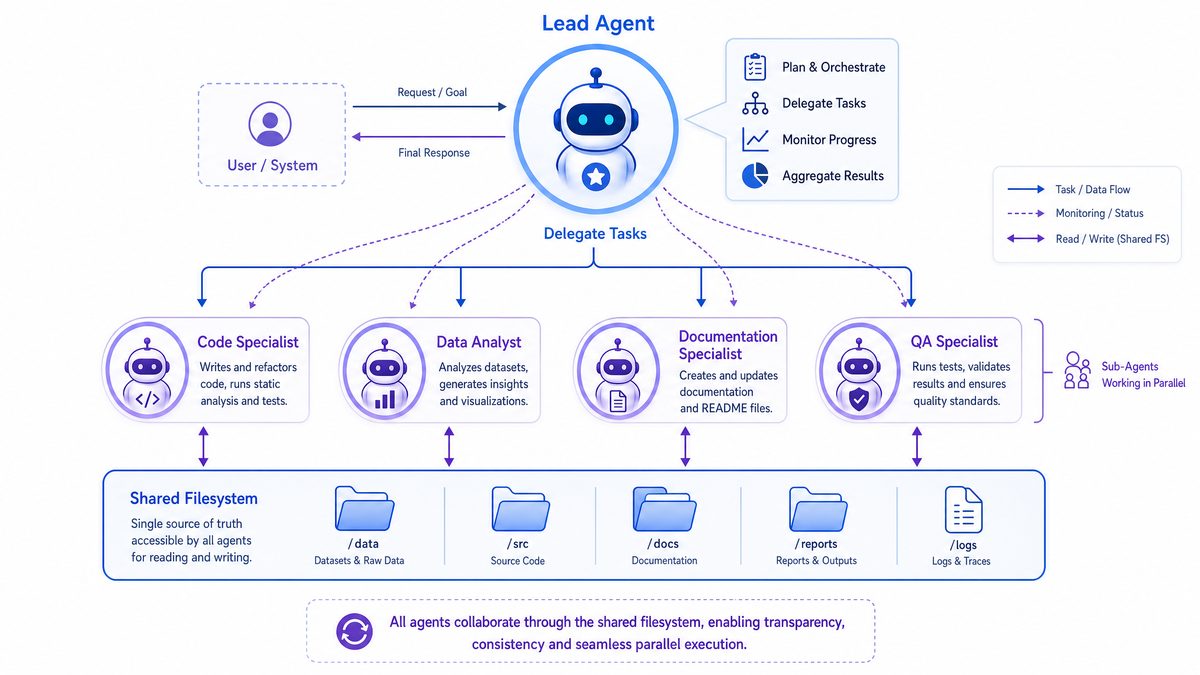
6. Parallelize Independent Steps
Where workflow steps do not depend on each other, execute them in parallel to reduce overall latency.
7. Example: Cache Wrapper for MCP Tool Calls
const cache = new Map();

async function cachedToolCall(toolName, params) {
  const key = JSON.stringify({ toolName, params });
  if (cache.has(key)) {
    console.log(`Cache hit for ${toolName} with params:`, params);
    return cache.get(key);
  }
  const result = await invokeToolWithRetry(toolName, params);
  cache.set(key, result);
  return result;
}
This caching strategy reduces redundant calls for identical queries, significantly improving performance and saving costs.
8. Example: Batching Multiple File Reads
Instead of reading files one by one, create a batch file_read_batch tool:
// Add to handshake tools:
{
  name: 'file_read_batch',
  description: 'Read multiple files at once',
  parameters: [{ name: 'paths', type: 'array', description: 'Array of file paths' }]
}

// Implement endpoint:
app.post('/mcp/tools/file_read_batch', async (req, res) => {
  const { paths } = req.body;
  const baseDir = __dirname + '/data';
  try {
    const results = {};
    for (const p of paths) {
      const fullPath = require('path').resolve(baseDir, p);
      if (!fullPath.startsWith(baseDir)) {
        throw new Error('Access denied: path traversal detected');
      }
      try {
        results[p] = await fs.readFile(fullPath, 'utf-8');
      } catch {
        results[p] = null; // or error message
      }
    }
    res.json({ result: results });
  } catch (err) {
    res.status(500).json({ error: err.message });
  }
});
Batching reduces overhead and speeds up workflows involving multiple file reads.
7. Security Considerations When Exposing Tools via MCP
MCP servers often expose powerful operations that can impact system security. Follow these best practices:
1. Authentication and Authorization
Protect MCP endpoints with authentication mechanisms such as API keys, OAuth tokens, or mutual TLS. Enforce role-based access control (RBAC) to restrict which users or services can invoke specific tools or operations.
Example: Using API keys in Express middleware:
// Simple API key middleware
const API_KEY = process.env.MCP_API_KEY;

app.use('/mcp', (req, res, next) => {
  const key = req.headers['x-api-key'];
  if (key !== API_KEY) {
    return res.status(401).json({ error: 'Unauthorized' });
  }
  next();
});
2. Input Validation and Sanitization
Validate all inputs rigorously to prevent injection attacks or unintended system commands. Use whitelists for file paths, sanitize strings, and reject invalid characters.
For example, disallow path traversal by normalizing paths and ensuring they stay within allowed directories (as shown in previous file operations examples).
3. Sandbox Code Execution
Run code execution tools in isolated sandboxes with strict resource limits to avoid privilege escalation or server compromise. Consider using containerization (Docker), virtual machines, or restricted JavaScript sandboxes like vm2 for Node.js.
Example: Using vm2 to sandbox JavaScript code execution:
const { VM } = require('vm2');

app.post('/mcp/tools/code_execute', (req, res) => {
  const { code } = req.body;
  try {
    const vm = new VM({
      timeout: 1000,
      sandbox: {}
    });
    const output = vm.run(code);
    res.json({ result: output });
  } catch (err) {
    res.status(400).json({ error: err.message });
  }
});
4. Limit File System Access
Restrict file operations to specific directories and prevent path traversal attacks by sanitizing file path parameters. Avoid exposing sensitive system files or configuration directories.
Tip: Use Node.js’s path.resolve and check that resolved paths start with your base directory.
5. Network Access Control
Limit outbound network calls from MCP tools to approved domains and IPs to reduce risks of data exfiltration or SSRF (Server-Side Request Forgery) attacks.
For example, restrict web_search tool calls to trusted APIs only and validate URLs before issuing requests.
6. Logging and Auditing
Maintain audit logs of all MCP tool invocations, including requester identity, timestamps, tool parameters, and results or errors. Audit logs are essential for forensic analysis, compliance, and detecting suspicious activities.
Ensure logs do not store sensitive data in plaintext and apply appropriate retention policies.
7. Regular Security Updates
Keep your MCP server dependencies and infrastructure updated to patch vulnerabilities promptly. Subscribe to security advisories for frameworks and libraries you use.
8. Threat Models and Specific Risks
Considering common threat models helps you design MCP servers resilient to attacks:
- Unauthorized Access: Attackers gaining access to MCP endpoints could execute arbitrary commands or read sensitive files. Mitigate with strong authentication and authorization.
- Code Injection: Malicious inputs causing arbitrary code execution. Mitigate with sandboxing and input sanitization.
- Path Traversal: Accessing files outside allowed directories. Mitigate with strict path resolution and validation.
- Denial of Service (DoS): Excessive or expensive operations exhausting server resources. Mitigate with rate limiting, timeouts, and resource quotas.
- Data Exfiltration: Unauthorized outbound network calls leaking data. Mitigate with network egress controls and request filtering.
- Man-in-the-Middle (MitM) Attacks: Intercepting MCP communications. Mitigate with HTTPS and secure transport.
Regularly perform security testing, including penetration tests and code reviews, to uncover and fix vulnerabilities.
By adopting these security measures, you ensure your MCP workflows remain safe and reliable in production environments.
8. Troubleshooting MCP Server Integration
Integrating MCP servers with Claude can involve various challenges. This section provides troubleshooting tips to diagnose and resolve common issues.
1. MCP Server Not Responding or Connection Refused
- Verify that your MCP server is running and listening on the correct port.
- Check firewall rules or network settings blocking access.
- Confirm that the MCP server URL specified in your Claude API request is correct and reachable.
- Use tools like
curlor Postman to test your MCP endpoints independently.
2. Claude Does Not Detect MCP Server Capabilities
- Ensure that the MCP handshake endpoint (
/mcp) returns a valid JSON object withmcp_versionandtoolsarray. - Check for any syntax errors or missing fields in the handshake response.
- Look for HTTP errors or redirects that may interfere with handshake discovery.
3. Tool Invocation Returns Errors or Unexpected Results
- Verify the tool endpoint URL matches the MCP protocol (
/mcp/tools/{toolName}). - Check that request parameters match the expected schema.
- Inspect server logs for error messages or stack traces.
- Test tool endpoints independently with sample payloads to isolate problems.
- Ensure your tools handle edge cases and unexpected inputs gracefully.
4. Code Execution Tool Fails or Throws Exceptions
- Check that the code sent to the
code_executetool is syntactically correct and safe to run. - Use sandboxing libraries and configure timeouts to prevent infinite loops or crashes.
- Log errors and return clear error messages to help debugging.
5. File Operations Fail Due to Permissions or Path Issues
- Confirm your MCP server process has appropriate read/write permissions on the target directories.
- Sanitize and validate file paths to prevent path traversal.
- Check that file paths are relative to your base directory and do not reference parent directories.
- Use absolute path resolution in your server code to avoid ambiguity.
6. Web Search Tool Returns No or Irrelevant Results
- Verify the external API used by your
web_searchtool is functioning and accessible. - Check API keys or rate limits if applicable.
- Ensure your MCP tool parses and returns relevant parts of the search API response.
- Consider fallback mechanisms or alternative APIs if one fails.
7. Debugging Tips
- Enable verbose logging on your MCP server to capture incoming requests and outgoing responses.
- Use network inspection tools to monitor HTTP traffic between Claude and your MCP server.
- Test individual MCP tools manually before integrating with Claude.
- Incrementally build and test your workflow, starting with simple tools and adding complexity.
8. Example: Debugging a Tool Invocation Failure
// Use curl to test tool endpoint
curl -X POST http://localhost:4001/mcp/tools/file_read \
-H "Content-Type: application/json" \
-d '{"path": "input.txt"}'

# Check response for errors or content
9. Updating and Restarting MCP Server
After making changes to your MCP server code, restart the server to apply updates. Consider using tools like nodemon during development for automatic restarts.
Following these troubleshooting steps will help ensure a smooth MCP integration experience.
