
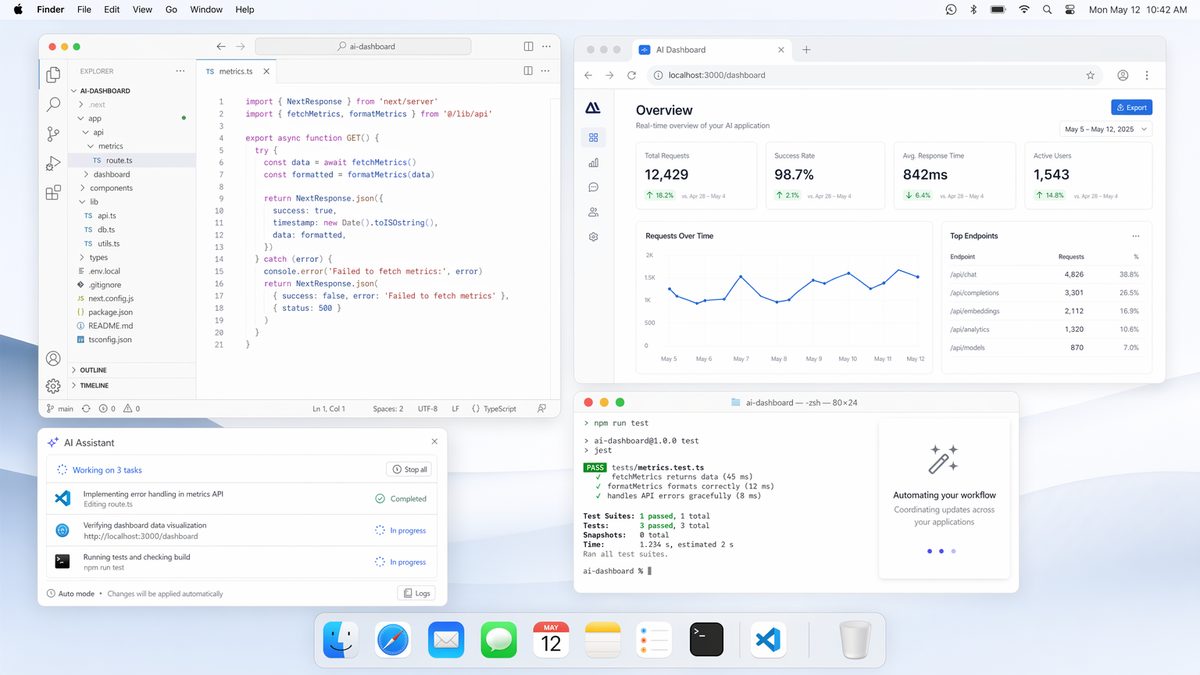
The advent of large language models (LLMs) has fundamentally shifted our interaction with computers. What began with text generation has rapidly evolved into sophisticated tools capable of understanding and executing complex instructions. Among these advancements, OpenAI’s Codex has consistently pushed the boundaries of AI-driven automation, particularly for developers. With its latest iteration, Codex 3.0, a new paradigm emerges for desktop automation, especially for macOS users, introducing groundbreaking features like multi-cursor operation and advanced contextual memory.
✓ Instant access✓ No spam✓ Unsubscribe anytime
This comprehensive tutorial delves deep into harnessing the power of OpenAI Codex 3.0 to automate your desktop environment. We’ll explore the underlying mechanisms, practical applications, and best practices for integrating this cutting-edge technology into your daily workflow. Our focus will be on macOS, given the specific enhancements introduced for this platform, but the principles discussed can often be adapted to other environments.
The promise of Codex 3.0 is not merely to execute commands but to understand intent, adapt to dynamic environments, and learn from user interactions. Imagine an AI assistant that can not only open applications and navigate file systems but also interact with graphical user interfaces (GUIs) in a human-like manner, performing tasks that traditionally required direct mouse and keyboard input. This is the future Codex 3.0 ushers in.
Understanding OpenAI Codex 3.0’s Desktop Automation Capabilities
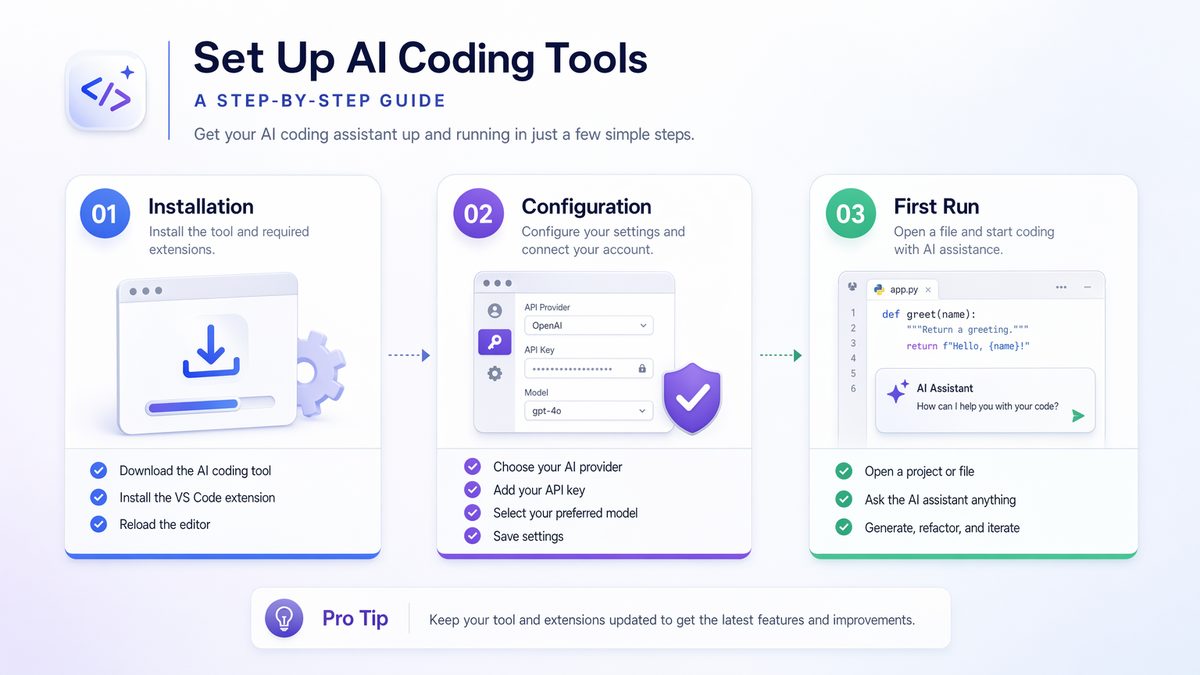
OpenAI Codex 3.0 represents a significant leap forward from its predecessors. While earlier versions excelled at code generation and understanding natural language programming queries, Codex 3.0 introduces a robust framework for interacting with operating systems at a deeper, more contextual level. For macOS, this involves leveraging a combination of accessibility APIs, advanced vision models, and a refined natural language understanding (NLU) engine.
At its core, Codex 3.0’s desktop automation capabilities are built upon three pillars: enhanced perception, intelligent action, and persistent memory.
Enhanced Perception: Vision Models and Accessibility APIs
To automate a desktop, an AI needs to “see” and “understand” the screen. Codex 3.0 achieves this through a sophisticated integration of computer vision models and macOS’s native accessibility APIs. The vision models analyze screen captures, identifying UI elements, text, images, and their spatial relationships. This allows Codex to perceive the visual layout of applications, much like a human user would.
Simultaneously, Codex 3.0 taps into macOS’s Accessibility API (AXUIElement). This API provides programmatic access to the UI hierarchy of running applications, exposing information about buttons, text fields, windows, and their states. By combining visual cues with structured accessibility data, Codex gains a comprehensive understanding of the desktop environment, far beyond what simple pixel analysis could offer.
For instance, if you instruct Codex to “click the ‘Save’ button,” it doesn’t just look for a button with “Save” written on it. It identifies the button within the context of the active application, understands its role in the current workflow (e.g., saving a document), and can even infer its state (e.g., disabled if no changes have been made). This contextual awareness is crucial for reliable automation.
Intelligent Action: Multi-Cursor Operation
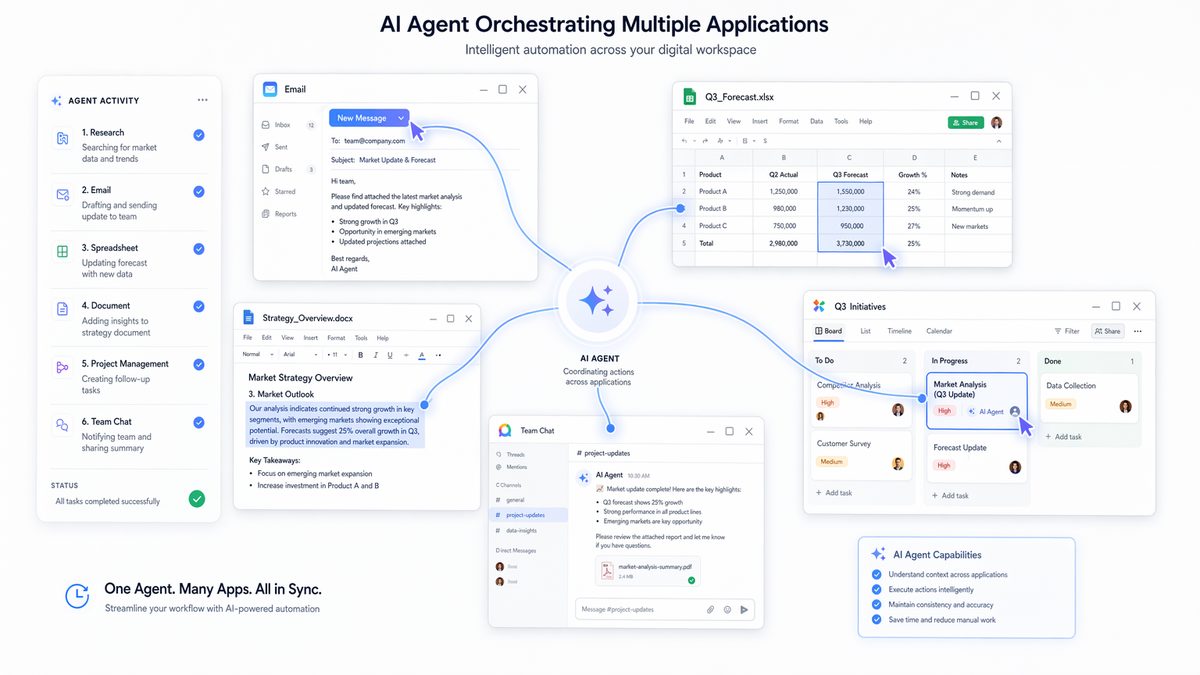
One of the most revolutionary features in Codex 3.0 for macOS is multi-cursor operation. Traditional automation tools are often limited to simulating a single user’s mouse and keyboard inputs. Codex 3.0 breaks this barrier by allowing the AI to control multiple virtual cursors and input streams simultaneously. This is not just about moving two mouse pointers; it’s about executing parallel, coordinated actions across different applications or even within the same complex application.
Consider a scenario where you need to copy data from a spreadsheet, paste it into a web form, and simultaneously update a project management tool. With multi-cursor operation, Codex 3.0 can orchestrate these actions in parallel. One virtual cursor might be selecting cells in Numbers, another typing into a Safari form, and a third interacting with a Jira client — all without interfering with each other or the user’s primary input device.
This capability is powered by a virtual input layer that abstracts physical input devices. Codex 3.0 can generate synthetic mouse events (clicks, drags, scrolls) and keyboard events (keypresses, text input) that are then injected into the macOS input system. The multi-cursor aspect is managed by assigning different “automation agents” to distinct virtual input streams, allowing for true parallel task execution. This is particularly powerful for complex data processing, real-time monitoring, and multi-application workflows.
Persistent Memory: Contextual Understanding and Learning
Previous AI models often suffered from a lack of persistent memory, treating each interaction as a fresh start. Codex 3.0 addresses this with advanced contextual memory, allowing it to retain information about past interactions, user preferences, and the state of the desktop environment across sessions. This means Codex can learn from your habits, adapt to your workflow, and perform tasks more intelligently over time.
The memory system stores several types of information:
- Task History: Records of previously executed commands and their outcomes.
- Environmental State: Information about open applications, window positions, active documents, and file system states.
- User Preferences: Learned preferences for how certain tasks should be performed (e.g., always saving files to a specific directory, preferred browser for web tasks).
- Semantic Understanding: A deeper understanding of the meaning behind user instructions, allowing for more robust error recovery and adaptation to ambiguous commands.
This persistent memory enables Codex to handle multi-step tasks that span hours or even days, picking up where it left off. It can infer context from previous commands, reducing the need for explicit instructions. For example, if you ask Codex to “summarize the document I was just working on,” it will recall which document was active and proceed with the summarization task without you needing to specify the file path again.
Setting Up Your macOS Environment for Codex 3.0 Automation
Before diving into practical automation, it’s crucial to properly configure your macOS environment to allow Codex 3.0 to operate effectively and securely. This involves granting necessary permissions and understanding the interaction model.
Prerequisites
- macOS Monterey (12.0) or later: Codex 3.0 leverages specific macOS APIs and features introduced in recent versions.
- Codex 3.0 Client Application/SDK: You will need access to the official OpenAI Codex 3.0 client application or SDK for macOS. This is typically distributed through an early access program or developer portal.
- Python 3.8+ (for SDK users): If you’re using the Python SDK, ensure you have a compatible Python installation.
- Stable Internet Connection: Codex 3.0 relies on cloud-based AI models for processing, so a reliable connection is essential.
Granting Accessibility Permissions
For Codex 3.0 to interact with your desktop UI, it requires extensive accessibility permissions. This is a critical security measure in macOS, ensuring that applications cannot arbitrarily control your computer without explicit consent.
- Go to
System Settings>Privacy & Security>Accessibility. - Click the
+button under “Allow the applications below to control your computer.” - Navigate to your Applications folder and select the “OpenAI Codex” application (or the specific client you are using).
- Ensure the checkbox next to the OpenAI Codex application is checked.
- You may also need to grant similar permissions under
Input MonitoringandScreen Recording, depending on the full scope of Codex’s features you intend to use. Screen recording is essential for its vision models to perceive the UI.
Security Note: Granting accessibility permissions gives an application significant control over your system. Only grant these permissions to trusted applications like the official OpenAI Codex client. Be mindful of the data you expose to the AI, especially when dealing with sensitive information.
Authentication and API Keys
If you’re using the Codex 3.0 SDK or a client that requires API access, you’ll need to configure your OpenAI API key. This key authenticates your requests and links them to your OpenAI account for usage tracking and billing.
Typically, you would set your API key as an environment variable:
export OPENAI_API_KEY="sk-YOUR_API_KEY_HERE"Or, if using the Python SDK, you might set it programmatically:
import openai
openai.api_key = "sk-YOUR_API_KEY_HERE"
Always store your API keys securely and avoid hardcoding them directly into your scripts, especially if they are shared or publicly accessible.
Practical Applications: Automating Workflows with Codex 3.0
Let’s explore some concrete examples of how to leverage Codex 3.0 for desktop automation on macOS. We’ll focus on scenarios that highlight multi-cursor operation and contextual memory.
Scenario 1: Data Extraction and Entry Across Multiple Applications
Imagine you need to extract specific data points from a PDF report, input them into a web-based CRM, and then create a corresponding entry in a local spreadsheet. This is a perfect use case for Codex 3.0’s multi-cursor and contextual memory.
Instruction to Codex:
"Open the PDF report 'Q3_Sales_Report.pdf' located in my 'Documents/Reports' folder. Find the 'Total Revenue' and 'New Customers Acquired' figures. Then, open Safari, navigate to 'https://your-crm-dashboard.app/new_entry', log in using my saved credentials, and enter these figures into the 'Revenue' and 'Customers' fields, respectively. Finally, open Numbers, create a new row in the 'Sales_Log.numbers' spreadsheet, and add today's date, the report name, and the extracted figures. Confirm completion."How Codex 3.0 Processes This:
- Contextual Memory: Codex first consults its memory for the location of “Q3_Sales_Report.pdf” and “Sales_Log.numbers.” It also recalls your saved CRM credentials.
- File System Interaction: It executes a command (e.g.,
open /Users/youruser/Documents/Reports/Q3_Sales_Report.pdf) to launch the PDF in Preview or your default PDF viewer. - Vision and NLU (PDF Extraction): Codex uses its vision models to scan the PDF content. It identifies text blocks, understands the semantic meaning of “Total Revenue” and “New Customers Acquired,” and extracts the corresponding numerical values.
- Multi-Cursor Operation (Parallel Web Navigation): While still processing the PDF, a second virtual cursor can simultaneously launch Safari, navigate to the CRM URL, and start the login process using remembered credentials.
- GUI Interaction (Web Form): Once logged in, Codex uses its perception to identify the ‘Revenue’ and ‘Customers’ input fields on the web page and types in the extracted data. It handles potential UI variations or loading delays.
- Multi-Cursor Operation (Numbers Spreadsheet): A third virtual cursor can be activated to open Numbers, locate “Sales_Log.numbers,” and navigate to the correct sheet.
- GUI Interaction (Numbers): Codex identifies the last row, inserts a new one, and then populates the cells with today’s date (which it can generate), “Q3_Sales_Report.pdf,” and the extracted revenue and customer figures.
- Confirmation: Once all tasks are complete, Codex might provide a verbal confirmation or a notification on your screen.
For developers looking to integrate AI coding tools into their workflow, our detailed analysis of OpenAI Codex Computer Use Feature: The Complete Guide to AI-Powered Desktop Automation provides practical implementation strategies and configuration tips that complement the capabilities discussed in this article.
Scenario 2: Automated Code Review and Refactoring Assistant
For developers, Codex 3.0 can act as an intelligent coding assistant, going beyond simple code generation to active code review and refactoring.
Instruction to Codex:
"Open the project 'MyWebApp' in VS Code. Navigate to 'src/components/UserDashboard.js'. Analyze the 'render' method for potential performance bottlenecks or unoptimized JSX. Suggest improvements, apply them, and then run the unit tests for this component. If tests pass, commit the changes with a message 'Refactor: Optimize UserDashboard render'. If tests fail, revert changes and notify me."How Codex 3.0 Processes This:
- Application Launch and Navigation: Codex launches VS Code and, using its understanding of VS Code’s UI and file system, opens the specified project and file. It can use the command palette or direct file navigation.
- Code Analysis (NLU & Vision): Codex reads the code in the editor, understanding the programming language (e.g., JavaScript/React) and the context of the
rendermethod. It identifies patterns that could lead to performance issues (e.g., unnecessary re-renders, complex calculations in render). - Suggestion Generation and Application: Based on its analysis, Codex generates optimized code suggestions. It then uses its multi-cursor capabilities to precisely select and replace the relevant code blocks within VS Code. This might involve typing new code, refactoring existing lines, or adding memoization techniques.
- Terminal Interaction (Testing): Codex opens an integrated terminal in VS Code (or a separate Terminal app), navigates to the project directory, and executes the unit test command (e.g.,
npm test src/components/UserDashboard.js). - Output Analysis and Conditional Action: Codex monitors the terminal output for test results.
- If tests pass, it uses Git commands (
git add .,git commit -m "Refactor: Optimize UserDashboard render") via the terminal or VS Code’s Git integration. - If tests fail, it uses Git commands (
git reset --hard HEADorgit checkout -- src/components/UserDashboard.js) to revert the changes and then triggers a notification.
- If tests pass, it uses Git commands (
- Contextual Memory Update: Codex updates its memory with the outcome of the task and the changes made (or reverted).
For developers looking to integrate AI coding tools into their workflow, our detailed analysis of The Rise of AI Coding Agents: How Codex and Claude Code Are Replacing Traditional Development Workflows provides practical implementation strategies and configuration tips that complement the capabilities discussed in this article.
Scenario 3: Automated Content Curation and Publishing
For content creators, Codex 3.0 can streamline the process of curating information, generating content, and publishing it across platforms.
Instruction to Codex:
"Browse the top 5 articles on 'AI ethics' from Google News. Summarize each article into 3 bullet points. Then, open my 'Content Drafts.pages' document, append these summaries, and generate a draft blog post title and a short introductory paragraph based on these summaries. Finally, open my WordPress dashboard in Chrome, navigate to 'Add New Post', and paste the title and intro paragraph. Save as draft."How Codex 3.0 Processes This:
- Web Browsing (Multi-tab): Codex launches Chrome, navigates to Google News, searches for “AI ethics,” and then opens the top 5 articles in separate tabs using multiple virtual cursors.
- Information Extraction & Summarization: For each tab, Codex analyzes the content of the article, identifies key points, and generates a concise 3-bullet-point summary using its NLP capabilities. This happens efficiently across tabs.
- Document Interaction (Pages): Codex opens the “Content Drafts.pages” document. It then navigates to the end of the document and pastes each summary.
- Content Generation (NLU): Based on the collected summaries, Codex generates a compelling blog post title and an introductory paragraph. It draws upon its vast training data to ensure high-quality, relevant text.
- Web Publishing (WordPress): Using another virtual cursor, Codex navigates to the WordPress dashboard in Chrome, finds the “Add New Post” section, and then pastes the generated title and introduction into the respective fields.
- GUI Interaction (Saving Draft): Codex locates and clicks the “Save Draft” button within the WordPress interface.
- Contextual Memory: The details of the curated articles, summaries, and the draft post are stored in Codex’s memory for future reference or follow-up tasks.
For developers looking to integrate AI coding tools into their workflow, our detailed analysis of How to Use OpenAI Codex Computer Use: A Complete Setup and Workflow Tutorial provides practical implementation strategies and configuration tips that complement the capabilities discussed in this article.
Advanced Techniques and Best Practices
Leveraging Contextual Cues
The more context you provide, the better Codex will perform. Instead of just “click button,” try “click the ‘Submit’ button in the ‘Login’ dialog.” Codex 3.0 excels at understanding spatial and semantic relationships.
Handling Ambiguity and Error Recovery
Codex 3.0’s contextual memory allows for more robust error recovery. If a UI element isn’t found or an action fails, Codex can often infer alternative approaches or ask for clarification. You can also explicitly instruct it on error handling:
"If the file 'report.xlsx' is not found, create a new empty spreadsheet named 'report.xlsx' and then proceed."Integrating with Scripting Languages
While natural language is powerful, for highly complex or repetitive tasks, combining Codex with traditional scripting languages (like Python with AppleScript or shell commands) can offer the best of both worlds. Codex can orchestrate the execution of your scripts, passing parameters and interpreting their outputs.
For example, you might ask Codex to:
"Run the Python script 'data_processor.py' with input file 'raw_data.csv'. Once it completes, open the output file 'processed_data.csv' in Excel."Codex handles the command execution and subsequent GUI interaction.
Building Custom Automation Routines
For frequently performed tasks, you can define “automation routines” or “macros” within the Codex client. These are essentially named sequences of instructions that Codex can execute on demand. This allows you to abstract complex workflows into simple, memorable commands.
"Define routine 'Daily Report Generation': Open 'Analytics.app', export last 24 hours data to CSV, open 'ReportTemplate.docx', import CSV data, save as 'DailyReport_YYYY-MM-DD.docx', and email to team."Later, you can just say: "Execute Daily Report Generation."
Debugging and Monitoring
Codex 3.0 clients often include robust logging and monitoring tools. Pay attention to these logs to understand how Codex interprets your commands, what actions it takes, and where it encounters difficulties. This feedback loop is crucial for refining your instructions and improving automation reliability.
Some clients may offer a “debug mode” where Codex explains its reasoning for each action before executing it, allowing you to intercept and correct misinterpretations.
Limitations and Future Directions
Current Limitations
- Ambiguity in Natural Language: While greatly improved, natural language can still be ambiguous. Overly vague instructions may lead to unexpected results. Precision is key.
- Dynamic UI Changes: Rapidly changing or highly custom UIs can still challenge Codex’s vision models and accessibility API integration. Major application updates might require retraining or adjustment of instructions.
- Performance Overhead: Processing screen captures, running vision models, and maintaining contextual memory requires computational resources. Complex, continuous automation might impact system performance.
- Security Concerns: Granting extensive permissions to an AI assistant always carries inherent security risks. Ensuring the integrity of the Codex client and understanding its data handling policies is paramount.
- Complex Decision Making: While Codex can make conditional decisions, highly abstract or subjective decision-making processes still require human oversight. It excels at execution, not necessarily strategic planning.
Future Directions
The trajectory of Codex 3.0 points towards even more sophisticated desktop integration:
- Deeper OS Integration: Tighter integration with macOS system services beyond just accessibility, potentially offering more direct control over system preferences, network settings, and hardware.
- Proactive Automation: Moving from reactive (command-driven) to proactive automation, where Codex anticipates user needs and suggests or performs tasks without explicit instruction, based on learned patterns and context.
- Enhanced Human-AI Collaboration: More seamless hand-offs between human and AI control, allowing users to intervene, correct, or take over tasks at any point.
- Multi-Modal Input: Integration with voice commands, gestures, and even biometric inputs for a richer interaction experience.
- Personalized Learning: More granular personalization of the AI’s behavior based on individual user styles, preferences, and feedback, leading to a truly bespoke automation experience.
Conclusion
OpenAI Codex 3.0, with its groundbreaking multi-cursor operation and advanced contextual memory, marks a pivotal moment in desktop automation for macOS users. It transforms the way we interact with our computers, enabling us to delegate complex, multi-application workflows to an intelligent AI assistant. By understanding intent, perceiving the visual and programmatic state of the desktop, and learning from past interactions, Codex 3.0 moves beyond simple scripting to a realm of true AI-driven productivity.
While there are still limitations to navigate, the current capabilities offer immense potential for developers, content creators, data analysts, and anyone looking to streamline their digital life. As we embrace this new era of intelligent automation, understanding the underlying mechanisms, setting up your environment correctly, and adopting best practices will be key to unlocking the full power of Codex 3.0 and shaping the future of human-computer interaction.
Useful Links
- OpenAI Codex Official Blog Post
- Apple Accessibility Programming Guide for macOS
- Apple Developer Documentation: NSRunningApplication
- macOS Monterey Official Page
- Apple Developer Documentation: Scripting Bridge Programming Guide
- OpenAI YouTube Channel
Access 40,000+ AI Prompts for ChatGPT, Claude & Codex — Free!
Subscribe to get instant access to our complete Notion Prompt Library — the largest curated collection of prompts for ChatGPT, Claude, OpenAI Codex, and other leading AI models. Optimized for real-world workflows across coding, research, content creation, and business.
Access Free Prompt Library🕐 Instant∞ Unlimited🎁 Free
