
How to Connect Multiple Google Accounts to ChatGPT for Gmail, Calendar, and Contacts: Complete Setup Tutorial

What changed on August 28, 2026
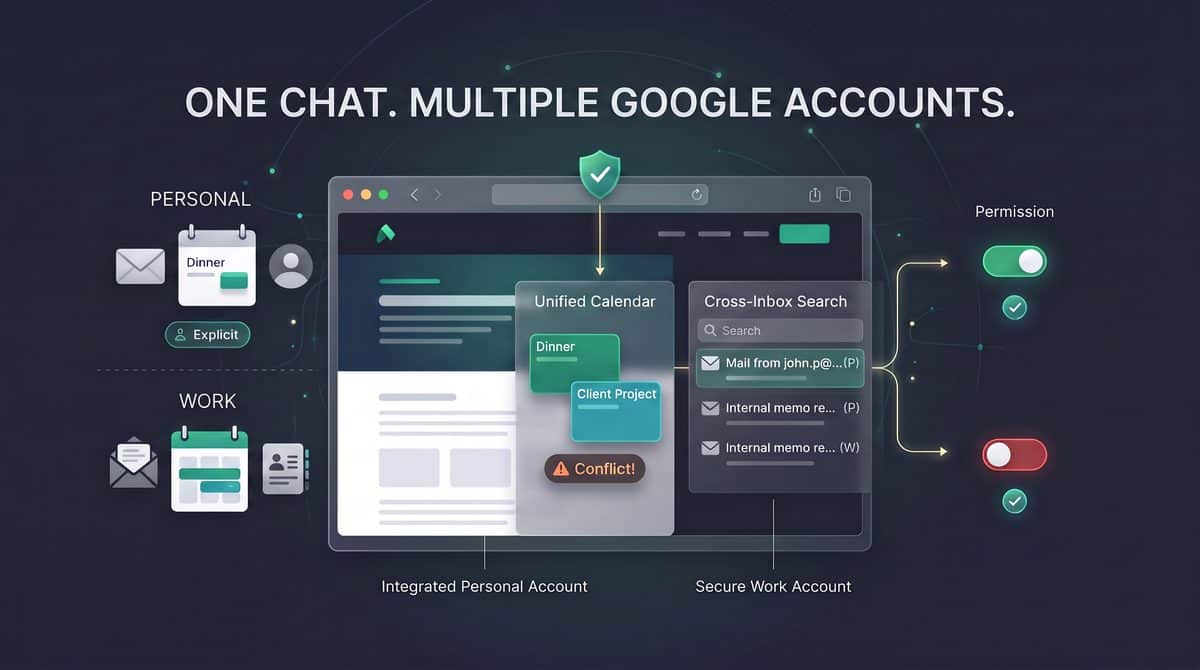
On August 28, 2026, OpenAI’s release notes added support for connecting multiple Google accounts to ChatGPT across Gmail, Google Calendar, and Google Contacts. The practical change is that a supported user can bring a personal Google account and a work Google account into the same ChatGPT conversation, then ask questions or request help that depends on information spread across those accounts. For example, a founder who keeps investor emails in a work inbox and school pickup events in a personal calendar can plan a realistic Thursday without manually copying both calendars into a prompt.
The release applies to supported ChatGPT Plus, Pro, Business, and Enterprise plans, and OpenAI lists availability on web, desktop, iOS, and Android. That plan and device statement is important for rollout planning: it means the capability is not described as limited to only one operating system or only the browser, but it also does not imply that every workspace policy, admin configuration, or regional rollout state will be identical for every user at the same moment. In an organization, treat “eligible plan” as the first gate and workspace approval as a separate operational gate.
This tutorial is written for users who need the feature to behave predictably across real personal-and-work boundaries. The setup is not just “connect another account.” The useful version is: name accounts clearly, understand what each connected Google service contributes, avoid mixing sensitive personal and corporate data without intent, and test prompts that force ChatGPT to use the right account. If you administer a Business or Enterprise workspace, the same workflow becomes a governance exercise: decide who may connect which Google accounts, what support staff should check when a connection fails, and how users should phrase requests so they do not accidentally ask ChatGPT to combine data that should remain separate.
The ChatGPT Google Workspace Integration decision in How to Connect Multiple Google Accounts to ChatGPT for Gmail, Calendar, and Contacts: Complete Setup Tutorial is easier to apply when teams also understand How to Use ChatGPT’s New Google Drive Integration: Complete Setup Guide for Reading, Writing, and Organizing Files Directly from Conversations. That article focuses specifically on how to Use ChatGPT’s New Google Drive Integration: Complete Setup Guide for Reading, Writing, and Organizing Files Directly from Conversations, providing the adjacent implementation, comparison, or governance context needed to use this section without treating the two topics as interchangeable.
The ChatGPT Gmail Workflows decision in How to Connect Multiple Google Accounts to ChatGPT for Gmail, Calendar, and Contacts: Complete Setup Tutorial is easier to apply when teams also understand How to Build Automated Workflows with GPT-5.5 Connected Apps: Gmail, Drive, and Calendar Integration. That article focuses specifically on how to Build Automated Workflows with GPT-5.5 Connected Apps: Gmail, Drive, and Calendar Integration, providing the adjacent implementation, comparison, or governance context needed to use this section without treating the two topics as interchangeable.
Who should use multiple Google accounts in ChatGPT
The strongest use case is the person whose work is already split across accounts. Consultants often receive client context in a business Gmail account while holding availability, travel, and family constraints in a personal Google Calendar. Operators may need to compare a shared company calendar with a founder’s personal availability before proposing meeting windows. Recruiters may want to draft replies from work email while checking a separate calendar used for interviews. In each case, the value comes from reducing context switching while preserving the ability to ask ChatGPT which account it is using for each piece of information.
A second use case is account separation by role rather than by personal identity. A small-business owner may have one Google account for operations, one for sales, and one for a nonprofit board role. Connecting multiple accounts can make it easier to reconcile scheduling conflicts, locate a specific thread, or identify a contact without opening several browser profiles. The safe operating rule is to keep the user’s prompt explicit: ask for “my sales Gmail” or “my nonprofit calendar” rather than “check my email,” especially when account names or email addresses look similar.
A third use case is mobile continuity. Because OpenAI lists web, desktop, iOS, and Android availability for the August 28 feature, a user can prepare account connections on one supported surface and then work where the actual task happens, subject to the normal rollout and account state. For example, an executive assistant might review tomorrow’s cross-account calendar conflicts on desktop, then ask a follow-up from a phone while walking between meetings. The tutorial later will still recommend testing each device you intend to use, because “available on iOS and Android” is not the same as “your organization has validated every mobile workflow.”
What Gmail, Calendar, and Contacts each add
Gmail is the source for message-level context: senders, subjects, threads, and the wording of prior communications that the user is permitted to access through the connected account. In practice, Gmail is useful for requests such as “find the latest message from this vendor,” “summarize the open items from the onboarding thread,” or “draft a reply based on the last exchange.” When multiple Gmail accounts are connected, the user should specify whether ChatGPT should search the personal inbox, the work inbox, or both, because a similar sender name can appear in more than one account.
Google Calendar is the source for availability and scheduled commitments. Its practical value is not only “what meetings do I have,” but also cross-account reasoning such as “find a two-hour window that does not conflict with my work calendar or my personal calendar.” If your personal calendar contains family, health, legal, or financial appointments, decide before setup whether you want that calendar available in the same ChatGPT conversations where work data is discussed. The feature enables combined use; it does not remove the need for judgment about which information belongs in which conversation.
Google Contacts is useful when names, email addresses, and relationship context matter. A user may remember “Maya from the design agency” but not her email address, or may need to distinguish two contacts with similar names across personal and company address books. Contacts can make prompts more natural, but it can also increase the risk of selecting the wrong person if users are vague. A practical safeguard is to ask ChatGPT to show the account and distinguishing contact detail it plans to use before drafting or acting on anything that depends on a specific person.
| Connected Google area | Best suited for | Preparation rule |
|---|---|---|
| Gmail | Finding threads, summarizing messages, drafting replies from prior context | Decide whether each inbox may be searched separately or together, and use account-specific wording in prompts. |
| Google Calendar | Checking availability, spotting conflicts, proposing meeting windows across accounts | Review sensitive calendar names and event visibility before combining personal and work scheduling requests. |
| Google Contacts | Resolving names, email addresses, and contact identity across address books | Require confirmation when similar names or multiple possible recipients appear. |
Privacy and permission preparation before you connect
Before connecting any Google account, identify the data boundary you are creating. A personal Gmail account may include bank alerts, medical scheduling emails, school communications, household logistics, and private contacts. A work Gmail account may include customer data, privileged legal discussions, confidential financial material, or regulated information. The August 28 release makes it possible to use personal and work accounts in the same conversation, but the user still needs to decide whether a given task should combine those sources or keep them separate.
Read the permission screen carefully during connection and do not treat it as a formality. The exact permission presentation can vary by account and service state, so the correct procedure is to review what is being requested at the moment you authorize access. If a requested permission does not match the workflow you intend to use, stop and confirm whether you are connecting the right Google account and the right service. In an enterprise environment, users should follow internal data-handling rules even when the product technically permits a connection.
For Business and Enterprise workspaces, administrators should prepare a short policy before encouraging adoption. A useful policy answers four questions: which user groups may connect Google accounts, whether personal accounts may be connected alongside company accounts, what categories of company information may not be used in ChatGPT conversations, and where users should report an account connection that appears wrong or overbroad. This is a recommendation for operational governance, not a claim that the August 28 release automatically enforces those categories for you.
Users should also prepare account labels outside ChatGPT. If your Google account display names are both “Alex” or both use the same profile photo, change what you can in Google or keep a written mapping nearby during setup. A practical mapping might be “[email protected] = Work Gmail and Work Calendar” and “[email protected] = Personal Gmail and Family Calendar.” Clear account identity matters because many mistakes in multi-account workflows are not caused by bad reasoning; they are caused by ambiguous account selection by the human at the start.
Operational warning: Do not connect a personal Google account to a work ChatGPT workspace just because the feature supports personal-and-work usage. Confirm your employer’s policy first, especially if the personal account contains sensitive family, financial, medical, legal, or identity information, or if the work account contains customer, employee, legal, security, or unreleased business information.
Preflight checklist for a clean setup
Use this checklist before starting the connection flow. It prevents most avoidable errors: connecting the wrong account, authorizing a service you do not need, testing with a sensitive email, or discovering during a live meeting that mobile access was not validated. Treat each item as a gate; if the answer is unclear, resolve it before connecting additional accounts.
- Confirm plan eligibility. Verify that the user is on a supported Plus, Pro, Business, or Enterprise plan. The August 28 release notes identify those plan families for the multi-Google-account capability.
- Confirm device coverage. Decide which surfaces the user will rely on: web, desktop, iOS, Android, or a combination. OpenAI lists the feature across all four, but you should still test the actual devices and app versions used by your team.
- List each Google account. Write down the exact email address, purpose, and owner of every account you plan to connect. Do not rely on profile photos or short display names.
- Select required services. Decide whether you need Gmail, Calendar, Contacts, or all three for each account. Avoid connecting services “just in case” if your workflow does not require them.
- Classify sensitive data. Identify categories that should not be mixed, such as personal medical appointments, customer contract negotiations, unreleased financial data, or legal correspondence.
- Check admin policy. For Business and Enterprise workspaces, confirm whether your organization allows connected Google apps and whether personal Google accounts are permitted in the workspace context.
- Prepare non-sensitive test cases. Choose a harmless email thread, a test calendar event, and a known contact for validation. Do not use a confidential customer issue as your first test.
- Define account names for prompts. Choose consistent language such as “work Gmail,” “personal Gmail,” “company calendar,” and “family calendar.” Use those labels in every cross-account request.
- Plan a disconnect path. Know where you will review and remove connected accounts if you authorize the wrong account or no longer need access. The exact interface can change, so verify this during setup rather than during an incident.
Recommended test prompts for the first session
After setup, begin with low-risk prompts that verify account separation. A good first Gmail test is: “Using only my work Gmail, find the most recent message from the test sender and summarize the subject line and date.” A good Calendar test is: “Using only my personal calendar, tell me whether I have a test event tomorrow.” A good Contacts test is: “Using my work contacts, identify the test contact named Jordan and ask me to confirm before using any email address.” These examples are recommendations for validation; they are not special product commands.
Once single-account tests succeed, try a cross-account planning prompt that is still non-sensitive: “Compare my work calendar and personal calendar for tomorrow and suggest two open 30-minute windows. Do not inspect Gmail.” This phrasing checks whether ChatGPT can follow service boundaries as well as account boundaries. If the response appears to use the wrong source, stop and troubleshoot the connection labels before asking for a real schedule, a customer reply, or a contact lookup.
Recommended account map before setup

Work Google account:
  Email: [email protected]
  Services to connect: Gmail, Calendar, Contacts
  Prompt label: "work Google account"

Personal Google account:
  Email: [email protected]
  Services to connect: Calendar only
  Prompt label: "personal calendar"

Boundary rule:
  Do not search personal Gmail in work-related conversations.
  Ask for confirmation before using any contact when names are similar.
The goal of the opening setup phase is to make the later connection steps mechanical. If you know which accounts are eligible, which services you need, what data should stay separate, and how you will test the result, the actual connection process becomes less error-prone. In the next section of the tutorial, you can proceed through the account connection flow with a clear plan instead of making privacy and workflow decisions while permission prompts are already on screen.
Step-by-step setup: connect your first and additional Google accounts

OpenAI’s August 28, 2026 release notes state that ChatGPT supports connecting multiple Google accounts across Gmail, Google Calendar, and Google Contacts for supported Plus, Pro, Business, and Enterprise plans on web, desktop, iOS, and Android. The practical goal of setup is not just to “sign in with Google,” but to create a repeatable account map so ChatGPT can distinguish your personal inbox, work calendar, and contact directories during the same conversation.
Interface note: The exact names of buttons, tabs, and connection cards can vary by ChatGPT client version and rollout state. The official setup path for supported app connections is through Settings > Apps; treat any labels such as “Connect,” “Manage,” “Google,” “Gmail,” “Calendar,” or “Contacts” as client-specific wording rather than guaranteed universal UI text.
1. Start with the account you will use most often
Connect the Google account that will be your default operational context first. For many users this is the work account, because work email, work meetings, and work contacts usually have stricter permission boundaries. For founders or consultants, the first account might instead be the account that receives customer emails and calendar invites. The first account matters because it becomes the reference point for your initial tests and because you will use its label as the baseline for later comparisons.
- Open ChatGPT in a supported client. The August 28 release covers web, desktop, iOS, and Android for supported Plus, Pro, Business, and Enterprise plans. If the apps area is not visible, retry in another supported client before assuming the feature is unavailable to your plan or workspace.
- Go to Settings > Apps. OpenAI’s help guidance for app-connected scheduled tasks uses this path for connecting supported apps. The visual location of Settings may differ between web, desktop, and mobile clients.
- Select the Google-related connection entry. The client may present one Google app entry or separate Gmail, Calendar, and Contacts surfaces depending on version. Do not assume that a visible Gmail connection automatically means Calendar and Contacts are authorized; verify each data type after connection.
- Choose the intended Google identity. In the Google sign-in or authorization flow, select the account you want to connect first. If your browser is already signed in to several Google identities, check the email address carefully before continuing.
- Review the authorization request before approving. Confirm that the request aligns with the Google services you intend to use in ChatGPT. If you only planned to test Calendar, do not casually approve broader access without understanding what you are enabling.
- Return to ChatGPT and confirm that the account appears as connected. The exact success label may vary. Record the connected email address, the client used, and the date in your own notes if this is a managed or business setup.
Recommended setup note: Use a small account register for the first session. A simple table prevents mistakes later when you ask ChatGPT to search one mailbox while planning around another calendar.
| ChatGPT label to use in prompts | Google account | Primary purpose | Data types to test | Admin approval needed? |
|---|---|---|---|---|
| Work Google | [email protected] | Customer email, work calendar, company contacts | Gmail, Calendar, Contacts | Confirm with workspace or Google admin if blocked |
| Personal Google | [email protected] | Personal scheduling and non-work messages | Gmail, Calendar, Contacts as needed | Usually individual approval, unless managed by an organization |
| Side Project Google | [email protected] | Investor, vendor, or project-specific coordination | Start with Calendar, add Gmail only if needed | Check domain policy if it is a managed Google Workspace account |
2. Create clear labels before connecting the second account
OpenAI’s release note says multiple Google accounts can be used in the same conversation, but it does not define a universal account-naming interface. Your safest approach is to maintain your own labels and use them explicitly in prompts. If your ChatGPT client exposes an account label, rename, or account-management field, you can align it with the same labels; if it does not, keep the labels in your prompt language and internal documentation.
Recommended label rules: Use labels that identify both the context and the Google service boundary. “Work Google” is better than “main,” and “Personal Gmail” is better than “home” because it tells ChatGPT and future reviewers what data source you intended. In a regulated or enterprise environment, avoid labels that expose sensitive project names, client names, legal matters, or financial events.
Recommended account labels:
- Work Google: company Gmail, company Calendar, company Contacts
- Personal Google: personal Gmail, personal Calendar, personal Contacts
- Board Google: board meeting Calendar and board-related Contacts
- Hiring Google: recruiting Gmail and interview Calendar

Avoid vague labels:
- Main
- Other
- Old account
- Important
Before connecting the second account, write down what the second account is allowed to contribute. For example, a personal account may be appropriate for family scheduling but not for work email retrieval. A work account may be appropriate for meeting availability but not for searching personal travel confirmations. This decision rule helps prevent accidental cross-context retrieval once both accounts are available in a single ChatGPT conversation.
3. Connect additional Google accounts one at a time
After the first account is confirmed, add the next Google account through the same app-connection area rather than trying to repair multiple issues at once. Connecting accounts one at a time gives you a clean failure boundary: if the second account cannot connect, you know the first account and client path are already working.
- Return to Settings > Apps. Use the same supported ChatGPT client if the first connection worked. If you switch from web to mobile or desktop, remember that visible UI wording may differ.
- Open the Google app connection management area. Look for the connected account list or add-account action, but do not rely on any specific wording unless your client displays it.
- Start a new Google authorization flow. If your browser automatically selects the first Google identity, cancel or change accounts before approval. A common setup mistake is reconnecting the same Google account instead of adding the second one.
- Select the second Google account deliberately. Confirm the email address on the Google screen and again after returning to ChatGPT.
- Record the intended label. If the interface supports naming, use the same label from your account register. If it does not, keep using the label in prompts.
- Run a narrow test before adding another account. Test one Gmail, Calendar, or Contacts query that should only return information from the newly connected account.
Operational warning: Do not connect every account simply because the feature supports multiple accounts. Each connected account expands the set of information that may be retrieved when you ask ChatGPT for inbox, calendar, or contact help. A cleaner setup is to connect only the Google identities that have a defined workflow, a clear label, and a successful verification test.
4. Verify Gmail access without exposing unnecessary content
Gmail verification should prove that ChatGPT can retrieve account-specific messages without requiring you to paste private email content into the chat. Use a harmless, recent, easy-to-identify message such as a newsletter, calendar notification, test email, or self-sent message. Avoid testing with legal, medical, financial, employee-relations, or customer-confidential messages.
Recommended Gmail test procedure: Send a test message to the account from another address with a unique subject line, wait for delivery, then ask ChatGPT to find that subject in the named account. This gives you a deterministic test that does not depend on fuzzy search or memory of old email.
Example Gmail verification prompt:
Use only my Work Google Gmail account.
Find the most recent email with the subject "ChatGPT multi-account setup test - Work".
Tell me the sender, received date, and whether the message exists.
Do not summarize unrelated messages.

Example cross-account negative test:
Use only my Personal Google Gmail account.
Check whether there is an email with the subject "ChatGPT multi-account setup test - Work".
If it is not present in that account, say that it was not found there.
Do not search my Work Google account for this prompt.
If ChatGPT reports that it cannot access Gmail, first confirm that the intended Google account is still listed as connected in the app settings area. Then confirm that Gmail was part of the connection you approved, because a Google connection used only for another service may not be sufficient for inbox retrieval. If the account is managed by an employer or school, an administrator policy may block or require approval for third-party app access.
5. Verify Calendar access with account-specific scheduling checks
Calendar verification should test both retrieval and account isolation. Create or identify a non-sensitive test event on one Google Calendar, then ask ChatGPT to retrieve it from that specific account. A good test event uses a neutral title, a short time window, and no confidential attendees or meeting notes.
Example Calendar verification prompt:
Use only my Work Google Calendar.
Look for an event titled "ChatGPT calendar setup test - Work" tomorrow between 9 AM and 5 PM.
Tell me whether you found it and list only the event time and calendar account used.

Example multi-calendar planning prompt:
Compare availability between my Work Google Calendar and Personal Google Calendar next Tuesday.
Do not read Gmail.
Return three 30-minute windows that are free on both calendars, if any.
When testing across multiple calendars, specify whether ChatGPT should compare accounts or retrieve from only one. A prompt such as “What meetings do I have tomorrow?” is ambiguous after multiple accounts are connected. A safer first-week habit is to write “Use my Work Google Calendar only” or “Compare Work Google Calendar and Personal Google Calendar” until you trust your labeling convention.
If Calendar retrieval works for one account but not another, treat it as an account-specific configuration issue rather than a general ChatGPT outage. Check whether the second Google identity is managed by a different organization, whether you approved Calendar access during its connection flow, and whether the event is on the account’s own calendar rather than a calendar shared from another identity. Do not assume that access to one Google account implies access to every shared calendar visible in Google’s native UI.
6. Verify Contacts access with low-risk contact lookups
Contacts verification is easiest when you use a test contact or a non-sensitive internal contact. The purpose is to confirm that ChatGPT can resolve names or contact records from the intended Google account without pulling from the wrong directory. In enterprise environments, contacts may include employees, vendors, customers, and distribution aliases, so keep the initial test narrow.
Example Contacts verification prompt:
Use only my Work Google Contacts.
Look for a contact named "ChatGPT Setup Test Contact".
If found, return the display name and the account you searched.
Do not return phone numbers or addresses.

Example Contacts isolation prompt:
Use only my Personal Google Contacts.
Check whether "ChatGPT Setup Test Contact" exists there.
Do not search Work Google Contacts.
For privacy, ask ChatGPT to return only the minimum fields needed to verify access. A test that returns “display name and account searched” is usually enough. If you need to verify email-address retrieval, use a dummy contact or a role-based address created for testing rather than a real customer or employee’s personal information.
7. Handle Business and Enterprise organization approval
For Business and Enterprise users, multi-account Google setup may involve two layers of approval: ChatGPT workspace configuration and Google organization policy. OpenAI’s August 28 release states that the feature supports Business and Enterprise plans, but support at the plan level does not guarantee that every individual user can connect every managed Google account without administrative controls in the path.
Recommended admin escalation workflow: If a connection attempt fails with an approval, policy, or authorization message, capture the account being connected, the ChatGPT workspace, the client used, the approximate time, and the exact wording of the block. Send that information to the relevant ChatGPT workspace owner or internal IT administrator. If the block appears on the Google authorization side, include the Google Workspace domain administrator or identity team.
| Symptom | Likely approval path to check | What the user should provide |
|---|---|---|
| Google account cannot be selected or authorization is blocked | Google Workspace third-party app or OAuth policy | Google account, domain, screenshot or exact error wording, requested service |
| Apps area is unavailable or connection option is missing | ChatGPT plan, rollout state, workspace settings, or client version | ChatGPT plan/workspace, client type, app version if visible, date and region if relevant |
| One Google account works but another managed account does not | Per-domain Google policy or per-workspace permission difference | Which account works, which fails, and whether both are personal or managed identities |
| Gmail works but Calendar or Contacts does not | Approved service scope or connection configuration | Which service was tested, prompt used, and whether that service was approved during connection |
The ChatGPT Connected Apps Security decision in How to Connect Multiple Google Accounts to ChatGPT for Gmail, Calendar, and Contacts: Complete Setup Tutorial is easier to apply when teams also understand 3 Enterprise Security Checks Before Deploying ChatGPT Work — Data Governance, Access Control, and Audit Compliance. That article focuses specifically on 3 Enterprise Security Checks Before Deploying ChatGPT Work — Data Governance, Access Control, and Audit Compliance, providing the adjacent implementation, comparison, or governance context needed to use this section without treating the two topics as interchangeable.
8. Test account-specific retrieval in one conversation
The August 28 release specifically enables personal and work accounts in the same conversation. That is useful for planning across calendars, reconciling personal and business travel, or finding the right contact while drafting an email. It also increases the need for explicit source instructions because a single conversation may now have access to more than one Google identity.
Run a three-part retrieval test after all intended accounts are connected. The first prompt checks one account, the second prompt checks the other, and the third prompt asks for a cross-account comparison with a narrow purpose.
Test 1: single-account retrieval
Use only my Work Google Gmail.
Find whether I received an email with subject "ChatGPT multi-account setup test - Work".
Return the account searched and whether it was found.

Test 2: second-account retrieval
Use only my Personal Google Gmail.
Find whether I received an email with subject "ChatGPT multi-account setup test - Personal".
Return the account searched and whether it was found.

Test 3: controlled cross-account use
Compare my Work Google Calendar and Personal Google Calendar for this Friday.
Find two 30-minute windows free on both calendars.
Do not read Gmail or Contacts for this request.
A successful test should show three behaviors: ChatGPT follows the named account boundary, it can retrieve from each connected account when asked, and it does not need unrelated Google services to complete a scoped task. If any result appears to use the wrong source, stop and correct the label or connection state before using the setup for real workflows.
9. Use service-specific prompts to avoid accidental overreach
Once multiple accounts are connected, service-specific prompting is a practical safety control. Instead of asking, “What did Alex send me and when can I meet them?”, split the task: first search the intended Gmail account, then check the intended Calendar account, then look up the intended Contacts account only if needed. This reduces the chance of mixing personal messages, work schedules, and contact data.
Safer staged workflow:
1. Use only Work Google Gmail. Find the latest email from Alex about the contract review.
2. Use only Work Google Calendar. Find three open 30-minute slots next week.
3. Use only Work Google Contacts. If Alex is in contacts, return the work email address only.

Avoid broad workflow:
Search all my Google accounts for Alex and schedule something.
This staged pattern is especially important for operators and enterprise administrators who may have delegated mailboxes, shared calendars, or multiple managed identities. Even when a broad prompt is convenient, a narrow prompt creates a better audit trail in the conversation and makes it easier to see which account and service were used for each answer.
10. Confirm setup is complete before using automation or recurring workflows
OpenAI’s August 25 help documentation for event-triggered tasks says supported Gmail activity can trigger scheduled tasks in ChatGPT Work for eligible users, and setup requires connecting a supported app under Settings > Apps. Before using any Gmail-triggered workflow, confirm that the correct Google account is connected and labeled, because shared or copied tasks use each recipient’s own permissions and connected apps rather than the creator’s credentials.
Recommended completion criteria: Treat setup as complete only after you can identify every connected Google account, explain why it is connected, verify Gmail, Calendar, and Contacts only where needed, and run at least one account-specific negative test. A negative test matters because it proves ChatGPT is not simply finding data somewhere else; it is respecting the account boundary you specified in the prompt.
- Account inventory complete: Every connected Google identity has a human-readable label and owner.
- Service purpose documented: Gmail, Calendar, and Contacts are enabled only where there is a clear workflow.
- Retrieval verified: Each account has at least one successful service-specific test.
- Isolation verified: At least one prompt confirms that a test item in one account is not retrieved from another account.
- Admin status known: Managed accounts have either been approved or documented as blocked by policy.
- Prompt convention adopted: Users know to specify “Work Google,” “Personal Google,” or another approved label in requests.
If you cannot meet those criteria, pause before relying on the connection for production scheduling, customer follow-up, recruiting coordination, finance workflows, or executive assistance. Multi-account access is most valuable when users can deliberately choose the right source; without labels and verification, it becomes easy to ask a convenient question and receive an answer from an unintended Google account.
Workflow prompts that keep each Google account in its lane

After you connect more than one Google account, the main operating skill is not “ask ChatGPT to search everything.” The safer pattern is to name the account scope, name the Google service, describe the allowed action, and require a verification summary before you act on the result. OpenAI’s August 28, 2026 release notes say ChatGPT supports multiple Google accounts across Gmail, Google Calendar, and Google Contacts on supported Plus, Pro, Business, and Enterprise plans across web, desktop, iOS, and Android; the release enables personal and work accounts in the same conversation, but it does not remove your responsibility to keep personal, client, regulated, or employer data separated.
Recommendation: create short account labels that you use consistently in prompts, such as Work Google, Personal Gmail, Client A Workspace, or Family Calendar. Do not rely on ChatGPT to infer which account you mean from a person’s name, a calendar title, or an email domain. If two connected accounts both include a contact named “Alex,” a calendar named “Travel,” or messages from the same vendor, account labels become the operational control that prevents a convenient workflow from becoming a data-mixing mistake.
Use a four-part prompt structure for every multi-account workflow
The most reliable prompt pattern is scope → source → task → validation. Scope states which account or accounts may be used. Source states whether ChatGPT should use Gmail, Calendar, Contacts, or a combination. Task describes the outcome you want. Validation tells ChatGPT what to report back so you can confirm the result without assuming the model used the right account or interpreted the right record.
Use only [ACCOUNT LABELS].
Use [Gmail / Calendar / Contacts / Gmail + Calendar / Calendar + Contacts].
Task: [specific action].
Before giving the final answer, list:
1. Which account(s) you used.
2. Which Google service(s) you checked.
3. Any records you could not confidently match.
4. What I should verify manually before sending, booking, or replying.
The AI Calendar Planning decision in How to Connect Multiple Google Accounts to ChatGPT for Gmail, Calendar, and Contacts: Complete Setup Tutorial is easier to apply when teams also understand How to Set Up ChatGPT Connectors for Automated Workflows: Integrating Slack, Google Drive, Jira, and 20+ Third-Party Apps with Scheduled Tasks. That article focuses specifically on how to Set Up ChatGPT Connectors for Automated Workflows: Integrating Slack, Google Drive, Jira, and 20+ Third-Party Apps with Scheduled Tasks, providing the adjacent implementation, comparison, or governance context needed to use this section without treating the two topics as interchangeable.
The Email Productivity Prompts decision in How to Connect Multiple Google Accounts to ChatGPT for Gmail, Calendar, and Contacts: Complete Setup Tutorial is easier to apply when teams also understand 25 ChatGPT Prompts for AI-Powered Email Management: Inbox Zero, Smart Replies, Follow-Up Tracking, and Email Workflow Automation. That article focuses specifically on 25 ChatGPT Prompts for AI-Powered Email Management: Inbox Zero, Smart Replies, Follow-Up Tracking, and Email Workflow Automation, providing the adjacent implementation, comparison, or governance context needed to use this section without treating the two topics as interchangeable.
Combined calendar planning across work and personal accounts
Combined calendar planning is the highest-value multi-account workflow because availability often spans both work and personal commitments. The safe prompt is not “plan my week.” A better prompt tells ChatGPT which calendars to inspect, what counts as immovable, which events may be treated as flexible, and what output format you need. This lets you use ChatGPT as a planning assistant without asking it to modify your calendar or make commitments on your behalf.
Use Calendar only. Check my Work Google and Personal Gmail calendars for next Tuesday through Friday.
Goal: find three possible 90-minute focus blocks for writing the Q4 planning memo.
Rules:
- Do not move or edit any events.
- Treat work meetings, doctor appointments, school pickup, and travel time as unavailable.
- Prefer blocks between 9:00 AM and 4:30 PM local time.
- Avoid placing focus time immediately after meetings labeled "interview," "board," or "customer."
Return a table with date, start time, end time, conflicting nearby events, and your confidence level.
Also state which account calendars you checked.
Validation step: compare the proposed blocks against the actual Calendar view before you rely on them. ChatGPT can help reason over the visible connected data, but you should still verify time zones, all-day events, private event labels, shared-calendar overlays, and last-minute changes. If your organization uses multiple calendars inside one Google account, include the calendar names in your prompt when possible so ChatGPT does not treat the account as a single undifferentiated schedule.
Cross-inbox search without collapsing account boundaries
Cross-inbox search is useful when you cannot remember whether a receipt, contract, itinerary, or introduction landed in personal Gmail or work Gmail. The right pattern is to ask for a search summary first, not a drafted reply. Keep the search narrow by sender, subject phrase, approximate date, attachment expectation, or known keywords, and require ChatGPT to group results by account.
Search Gmail in Work Google and Personal Gmail.
Find messages from the last 45 days that mention "ACME renewal" or "renewal quote."
Do not draft a reply yet.
Group findings by account. For each likely thread, show:
- account label
- sender
- approximate date
- subject
- one-sentence reason it may be relevant
- whether an attachment is indicated from the message context
If there are similar-looking threads in both accounts, call that out instead of merging them.
This pattern prevents a common error: treating two related threads as one conversation. A vendor may send a personal receipt to one account and a company invoice to another. A recruiter may use your personal email while a hiring panel uses your work account. A school, bank, airline, or conference organizer may send related but legally or operationally different messages to different inboxes. Your validation step is to open the candidate thread in the source account before quoting amounts, forwarding attachments, or taking action outside ChatGPT.
Contact disambiguation before composing or scheduling
Google Contacts becomes more valuable when multiple accounts are connected, but it also increases ambiguity. Many professionals have duplicate contacts: a colleague in work contacts, the same person in personal contacts, a former email address, a spouse or assistant with the same surname, or a vendor alias. Ask ChatGPT to disambiguate contacts before it uses a name in an email or scheduling workflow.
Use Contacts only in Work Google and Personal Gmail.
I need to identify the correct "Jordan Lee" for a work-related follow-up about the Atlas implementation.
Do not use Gmail message content yet.
List all plausible Jordan Lee contact records by account, including:
- account label
- organization or notes if available
- email domain
- phone presence only if useful for disambiguation
- why the record is likely or unlikely
Ask me to choose the correct contact before drafting anything.
Recommendation: separate disambiguation from content generation. First resolve the person; then search relevant Gmail threads; then draft. This sequence is slower than a single broad prompt, but it creates checkpoints. If you ask ChatGPT to “email Jordan about the contract” before you identify the right Jordan, the workflow may combine the wrong contact with the right context or the right contact with the wrong account.
Account-bounded drafting for Gmail replies
Account-bounded drafting means ChatGPT can use context from one Gmail account to help write a message intended for that same account, while excluding other accounts unless you explicitly allow them. This is the preferred workflow for employer, client, board, legal, recruiting, or financial communications because it reduces the chance that personal context or unrelated account data appears in a professional draft.
Use Gmail only in Work Google.
Find the latest thread with Priya Shah about the security review questionnaire.
Draft a reply in my voice that:
- answers only the questions already present in that thread
- does not mention anything from Personal Gmail
- does not invent dates, certifications, commitments, or attachments
- flags any question where the thread does not contain enough information
Return the draft plus a separate "needs verification" list.
Do not send the message.
The most important wording is “Do not send the message” and “needs verification.” The August 28 multi-account release note establishes connection support across Gmail, Calendar, and Contacts; it does not mean every draft is ready to send or that ChatGPT should be trusted to infer missing contractual facts. Treat ChatGPT’s output as a draft generated from connected context, then manually inspect the source thread, attachments, recipient list, and any claims before you send from Gmail.
Conflict detection across calendars and inbox evidence
Conflict detection is different from calendar planning. Planning asks for available slots; conflict detection asks whether two commitments, invitations, or implied deadlines collide. This workflow works best when you define the event or obligation, ask ChatGPT to inspect relevant Calendar accounts, and optionally let it search Gmail for supporting context such as travel confirmations or rescheduling emails.
Use Calendar in Work Google and Personal Gmail, and use Gmail only if needed to clarify travel or appointment details.
Check whether I have any conflicts with attending the "Customer Advisory Dinner" next Thursday from 6:00 PM to 9:30 PM.
Rules:
- Consider commute/travel buffers if existing calendar events imply a location change.
- Treat family, medical, and paid commitments as conflicts, not soft holds.
- Do not cancel, move, or reply to anything.
Return:
1. Direct conflicts.
2. Nearby events that create risk.
3. Which account and service produced each finding.
4. Questions I should answer before accepting the dinner.
Validation step: verify the final event details from the original invitation or source email. Calendar entries may be outdated, duplicated, tentative, or missing travel time. Gmail may contain a newer message that changes the location, and personal calendars may contain private entries with limited detail. Ask ChatGPT to label confidence and evidence source so you can distinguish a firm collision from a planning risk.
Personal and work separation rules
Personal/work separation should be explicit even when the workflow benefits from both accounts. A good rule is: use both accounts for availability, but only the relevant account for content. For example, it is reasonable to check both personal and work calendars before proposing meeting times, but a work email draft should usually use only work Gmail context. Similarly, a personal travel plan might account for work meetings as blocked time without exposing work message content in a personal email.
Use both Work Google Calendar and Personal Gmail Calendar only to determine availability.
For content, use only Personal Gmail.
Task: draft a reply to my friend Sam about possible dinner times next week.
Rules:
- Do not mention work meeting titles, customer names, internal project names, or colleague names.
- You may say "I have a work conflict" if needed.
- Offer three available evening options.
- Include a short note if any option depends on a tentative calendar event.
Return the draft and a separate availability evidence summary by account.
This pattern gives ChatGPT enough schedule context to be useful while keeping sensitive work details out of personal correspondence. The inverse works for professional scheduling: allow personal calendar availability to block time, but instruct ChatGPT not to disclose personal event names. A simple phrase such as “describe personal conflicts only as unavailable time” can prevent oversharing in work messages.
Practical workflow table for daily use
| Task | Account scope | Prompt pattern | Validation step |
|---|---|---|---|
| Find focus blocks for a deliverable | Work Calendar plus Personal Calendar | “Use Calendar only in Work Google and Personal Gmail. Find three 90-minute blocks before Friday. Treat personal appointments and work meetings as unavailable. Do not edit events.” | Open Calendar and confirm time zone, tentative holds, travel buffers, and all-day events before blocking time. |
| Locate a missing receipt or invoice | Work Gmail and Personal Gmail | “Search Gmail in both accounts for messages from the last 60 days mentioning the vendor name and amount. Group results by account and do not combine threads.” | Open the source thread in the correct account and confirm attachment, amount, billing entity, and date. |
| Identify the right recipient | Contacts in selected accounts | “Use Contacts only. List possible matches for this name by account, organization, email domain, and confidence. Ask me to choose before drafting.” | Confirm the contact record manually, especially when names, aliases, or old domains overlap. |
| Draft a work reply | Work Gmail only | “Use only Work Google Gmail. Draft a reply from the latest thread. Do not use personal account context. Flag missing facts instead of inventing them.” | Review the original thread, recipients, attachments, commitments, dates, and any legal or financial claims before sending. |
| Check event conflicts | Work and Personal Calendar; Gmail only for clarification | “Check whether this proposed event conflicts with either calendar. Use Gmail only to clarify travel or appointment details. Do not cancel or accept anything.” | Verify the event invitation and any related email because calendar entries may be stale or tentative. |
| Schedule a personal plan without exposing work details | Both calendars for availability; Personal Gmail for content | “Use both calendars for free/busy reasoning, but draft from Personal Gmail only. Refer to work items only as unavailable time.” | Read the draft to ensure no work titles, customer names, internal project names, or colleague details leaked. |
| Prepare a meeting briefing | Work Gmail, Work Calendar, and Work Contacts only | “Use only Work Google. Summarize the next meeting with this customer, recent related threads, attendees, and unresolved questions. Exclude personal accounts.” | Confirm attendee list, latest thread date, and any action items against the actual calendar invite and email thread. |
Chain prompts when the task has risk
For higher-risk work, split the workflow into multiple prompts instead of asking for a complete action in one step. A safe chain is: discover → disambiguate → summarize → draft → verify. Discovery finds candidate messages, events, or contacts. Disambiguation resolves account and identity conflicts. Summarization extracts the known facts. Drafting creates text. Verification lists the assumptions and items you must check outside the model response.
Step 1: Use Work Google Gmail only. Find the latest thread about the vendor renewal.
Step 2: Summarize the confirmed facts and unknowns. Do not draft yet.
Step 3: Use Work Google Contacts only. Confirm the likely recipient and ask me to approve.
Step 4: After I approve the recipient, draft a reply that uses only confirmed facts.
Step 5: Provide a verification checklist before I send.
This chained approach is slower but operationally safer for renewals, hiring, customer commitments, board communications, procurement, travel, and anything involving personal data. It also makes troubleshooting easier: if the result is wrong, you can see whether the error came from account selection, contact ambiguity, source-thread selection, summarization, or drafting.
Operational warning: do not use a multi-account prompt as a substitute for data governance. If your employer, client, or regulated workflow restricts copying, summarizing, or combining information across systems, keep the prompt account-bounded and follow the applicable policy. ChatGPT’s ability to connect multiple Google accounts in one conversation is a convenience feature, not an authorization to merge contexts that should remain separate.
Reusable prompt snippets for account discipline
Save a few short snippets and paste them into the beginning of sensitive prompts. For work-only tasks, use: Use only Work Google. Exclude Personal Gmail, Personal Calendar, and Personal Contacts even if they contain related information. For personal-only tasks, use: Use only Personal Gmail, Personal Calendar, and Personal Contacts. Do not reference work messages, work event titles, customer names, or internal project names. For availability-only blending, use: You may use both calendars to identify free and busy time, but do not reveal event titles from the other account in the draft.
When ChatGPT returns an answer, require an account-use footer for any workflow that touched connected Google data. A concise footer should state the account labels used, the services checked, the time range searched, unresolved ambiguities, and manual checks required. If the footer does not match the account scope you intended, stop and correct the prompt before acting on the output.
At the end of your answer, include:
Account-use footer:
- Accounts used:
- Google services checked:
- Time range or search terms:
- Items not found:
- Ambiguities:
- Manual verification required:
The practical goal is to make multi-account work feel deliberate rather than magical. Use both accounts when the task is genuinely cross-context, such as availability planning or locating an uncertain message. Use one account when the output belongs to a specific audience, system, employer, client, or personal relationship. That account discipline is what turns the August 28, 2026 multi-account Google connection into a dependable daily workflow instead of a source of accidental context leakage.
Troubleshooting multi-account Google connections in ChatGPT
When multiple Google accounts are connected to ChatGPT, most errors fall into a small set of operational patterns: the wrong account is being searched, duplicate data exists in more than one Google account, the answer reflects stale or incomplete retrieval, or an organization policy prevents the connector from working as expected. The August 28, 2026 OpenAI release notes confirm support for connecting multiple Google accounts across Gmail, Google Calendar, and Google Contacts on supported Plus, Pro, Business, and Enterprise plans on web, desktop, iOS, and Android. They do not remove the need to manage consent, account labels, workspace restrictions, and human review for risky actions.
Reduce permissions before you troubleshoot behavior
Recommendation: treat permission minimization as the first troubleshooting step, not as a cleanup task after something goes wrong. If a Google consent screen or ChatGPT connection screen presents access that is broader than the workflow requires, pause and decide whether that Google account should be connected at all. For example, a personal Gmail account used only for travel receipts should not become the default source for work-contact lookups just because it is convenient to connect everything at once.
Use a practical permission rule: connect the smallest number of Google accounts needed for the workflow, use the smallest set of Google services needed for the task, and disconnect accounts that are not part of an active use case. This is especially important in shared Business and Enterprise environments where personal accounts, delegated inboxes, and organization-managed accounts can appear side by side in the same conversation.
Recommended permission-minimizing prompt pattern:

Use only the Google account labeled "Work - sample.test".
Use Gmail only; do not inspect Calendar or Contacts.
Find messages from "[email protected]" received after August 1, 2026.
Before drafting any reply, summarize the messages you used and ask for confirmation.
If a result seems overbroad, do not keep refining the same vague prompt. Restart with a narrower instruction that names the account, service, sender, date range, and intended output. This makes it easier to distinguish a permissions problem from a prompt-scoping problem.
Revoke access from both sides when an account is no longer needed
Recommended revocation procedure: disconnect the Google account in ChatGPT’s connected-app or app settings, then review the same account in Google’s security settings for third-party access. Removing access only from one side can leave users uncertain about whether the authorization is still active, especially when the same Google identity has been connected from more than one device.
- In ChatGPT: open the settings area where connected apps are managed and remove the Google account that should no longer be available.
- In Google: open the Google Account security page for that exact account and review third-party app access or connections.
- In the conversation: start a new chat and ask ChatGPT to use only remaining connected accounts. Do not rely on an old chat as proof that revocation propagated everywhere.
- For managed accounts: ask the workspace or Google Workspace administrator whether organization policy also needs to be updated.
After revocation, avoid prompts such as “check my email again” because they can obscure which account ChatGPT is attempting to use. Instead, ask for a deliberately account-specific check and confirm that the disconnected account is not offered as an available source.
Fix wrong-account results with explicit account boundaries
Wrong-account results usually happen when account names, email addresses, aliases, or overlapping contacts are not disambiguated. A work account and personal account may both contain a contact named “Alex,” a calendar named “Travel,” or Gmail messages forwarded from the same sender. ChatGPT can operate in one conversation across personal and work accounts, but that convenience increases the importance of account-bounded prompts.
| Symptom | Likely cause | Recommended correction |
|---|---|---|
| ChatGPT cites a personal appointment while planning a work meeting. | The prompt asked for “my calendar” without naming the work account. | Ask: “Use only the calendar connected to my work Google account labeled Work – sample.test.” |
| A Gmail search returns newsletters from the wrong inbox. | The sender or subject appears in more than one Gmail account. | Specify account, sender, subject keywords, and date range before asking for a summary. |
| A contact lookup returns two people with the same name. | Contacts are duplicated across personal and work Google Contacts. | Ask ChatGPT to list the matching account source and non-sensitive distinguishing fields before using the contact. |
| A draft reply uses the wrong tone or signature context. | The conversation mixed work and personal email context. | Start a new chat or restate: “Draft from the work account context only; do not use personal Gmail examples.” |
Operational warning: if ChatGPT produces a result that appears to come from the wrong account, do not ask it to send, schedule, invite, delete, or modify anything until you have verified the source account and the evidence used. For consequential actions, keep the workflow in review mode and require an explicit confirmation step.
Handle duplicate Gmail, Calendar, and Contacts records deliberately
Duplicates are common when users forward mail between accounts, subscribe to the same calendar from multiple Google accounts, or sync the same address book to work and personal profiles. ChatGPT may surface multiple plausible records if the same meeting invitation, sender, or contact exists in more than one connected account. This is not necessarily a connector failure; it may be an accurate reflection of duplicated source data.
Recommended duplicate-resolution workflow: ask ChatGPT to group findings by connected account and Google service before summarizing the substance. For example, when planning around a conference trip, request separate sections for “Work Calendar,” “Personal Calendar,” and “Gmail travel receipts,” then decide which source is authoritative. Calendar invitations sent to both a work and personal address should be treated as two records until you verify which one controls attendance or reminders.
Duplicate-safe prompt:

Search only the connected Google accounts labeled "Work - sample.test" and "Personal - Gmail".
Group results by account and by service.
If the same event, message, or contact appears in both accounts, mark it as a possible duplicate.
Do not merge duplicates unless the date, sender, title, and relevant participants match.
For contacts, do not rely on name matching alone. Ask for confirmation using non-sensitive identifiers such as organization, role, or email domain when appropriate. Avoid pasting private contact details into a prompt unless the workflow requires them and the account context is correct.
Diagnose stale, missing, or incomplete results
The official August 28 release note establishes the multi-account connection capability, but it does not guarantee that every answer should be treated as a complete, real-time export of Gmail, Calendar, or Contacts. If a result looks stale, missing, or inconsistent with Google’s own interface, use a verification sequence instead of assuming the model has all current data.
- Check the source application first: open Gmail, Google Calendar, or Google Contacts directly in the target Google account and confirm the item exists there.
- Use precise retrieval constraints: include the account label, service, sender or calendar name, date range, and expected keywords.
- Ask for evidence, not just an answer: request message dates, event times, participants, or subject lines so you can compare against Google.
- Start a fresh conversation: stale assumptions from earlier turns can persist in the conversational context even when the underlying data has changed.
- Reconnect if needed: if ChatGPT repeatedly cannot access a source that is visible in Google, disconnect and reconnect that Google account, then test with a low-risk query.
Example troubleshooting prompt: “Use only the Google Calendar connected as Work – sample.test. Re-check events on September 4, 2026 between 9:00 AM and 5:00 PM. Return event titles, start times, and calendar names. If you cannot access that calendar, say so instead of inferring from memory.” This prompt separates retrieval from reasoning and reduces the chance that ChatGPT fills a gap from prior conversation context.
Recognize admin restrictions in Business and Enterprise workspaces
Business and Enterprise users should assume that workspace policy may affect whether Google connections, app integrations, scheduled tasks, or related automation are available. The OpenAI release notes identify multi-account Google support for supported Business and Enterprise plans, while other late-August updates show that workspace owners and admins can manage roles, workspace assignments, model access, and app or plugin governance in several areas of the product. Those administrative controls can create a different experience from a personal Plus or Pro account.
If a connection button is missing, authorization fails, or a previously working Google account stops appearing, collect the following details before contacting an administrator: ChatGPT plan or workspace, platform used, Google account type, service affected, approximate time of failure, and whether the issue affects Gmail, Calendar, Contacts, or only automation. This avoids vague tickets such as “Google is broken” and gives admins enough context to check workspace settings, identity policy, and app availability.
Do not confuse plugin marketplace availability with Google account authorization. OpenAI’s August 28 release notes say workspace admins and owners can import plugin marketplaces from GitHub repositories, but importing a marketplace does not grant app access or connect user accounts. Installation policy, app authentication, and each member’s authorization remain separate control layers.
Account for mobile, desktop, web, and extension differences
The August 28 multi-account Google release covers web, desktop, iOS, and Android for supported plans, but troubleshooting should still account for platform differences. A connection that is easy to label and verify on desktop may be harder to inspect on a small mobile screen. If you are unsure which account is active, reproduce the issue on web or desktop where account names, app settings, and evidence can be reviewed more carefully.
Do not assume that every adjacent ChatGPT feature behaves identically across platforms. For example, OpenAI’s August 31 release notes describe website tools delivered through WebMCP in the ChatGPT desktop app’s built-in browser for ChatGPT Work and Codex, and also note browser-extension support across several Chromium-based browsers with feature differences. Those browser and site-tool behaviors are separate from simply connecting multiple Google accounts for Gmail, Calendar, and Contacts. When troubleshooting Google connections, isolate the connector first before blaming a browser extension, mobile app cache, or desktop-only tool.
For scheduled or event-triggered workflows, use the official task setup path and verify eligibility. OpenAI’s help for event-triggered tasks says setup requires connecting a supported app under Settings > Apps, describing the trigger and action in Work, reviewing the trigger, condition, and prompt, and managing the task under Scheduled. Approval-requiring actions pause for review. If your multi-account Google connection works in a normal chat but not in an automation, troubleshoot the task configuration separately.
Safe operating practices for daily use
Use separate conversations for materially different contexts: one for work scheduling, one for personal travel, one for family logistics, and one for vendor email review. This is not because ChatGPT cannot handle multiple accounts in one conversation; it is because narrower context reduces the chance that a later prompt inherits the wrong assumptions from an earlier turn.
The ChatGPT Privacy Settings decision in How to Connect Multiple Google Accounts to ChatGPT for Gmail, Calendar, and Contacts: Complete Setup Tutorial is easier to apply when teams also understand How to Set Up ChatGPT Enterprise for Your Team: Admin Console, SSO, Data Controls, and Model Access Management. That article focuses specifically on how to Set Up ChatGPT Enterprise for Your Team: Admin Console, SSO, Data Controls, and Model Access Management, providing the adjacent implementation, comparison, or governance context needed to use this section without treating the two topics as interchangeable.
- Use read-first workflows: ask ChatGPT to summarize evidence before drafting, scheduling, or sending.
- Require account confirmation: make the assistant state which Google account and service it used before any consequential next step.
- Avoid mixed credentials on shared devices: verify both the ChatGPT account and the Google account signed into the browser or app.
- Keep sensitive titles out of shared tasks: OpenAI’s event-triggered task guidance warns that shared task titles and instructions can be visible to shared-link viewers.
- Document team conventions: Business and Enterprise teams should define standard account labels such as “Work,” “Personal,” “Client,” or “Delegated,” then use those labels consistently in prompts.
Decision rule: if a workflow could send a message, invite attendees, change permissions, delete data, expose personal information, or trigger a business commitment, keep ChatGPT in summarize-and-draft mode until a human verifies the account, source evidence, recipients, and final action.
Conclusion
Multiple Google account support in ChatGPT is most useful when users make account boundaries explicit. The safest setup is not the one with the most accounts connected; it is the one where every connected Gmail inbox, Calendar, and Contacts source has a clear purpose, a recognizable label, and a predictable prompt pattern. When results look wrong, troubleshoot in this order: minimize permissions, verify account labels, group duplicates by source, re-check stale data in Google, test on a stable platform, and escalate workspace restrictions to an administrator with concrete details.
For individuals, the main habit is simple: name the account and service every time the task matters. For teams, the main governance step is to combine user education with admin-controlled app policy and repeatable review procedures. That combination lets ChatGPT use personal and work Google accounts in the same conversation without collapsing the operational boundaries that keep email, schedules, and contacts trustworthy.
Access 40,000+ AI Prompts for ChatGPT, Claude & Codex — Free!
Subscribe to get instant access to our complete Notion Prompt Library — the largest curated collection of prompts for ChatGPT, Claude, OpenAI Codex, and other leading AI models. Optimized for real-world workflows across coding, research, content creation, and business.
Useful Links
- OpenAI product release notes — official source for the August 28, 2026 multi-Google-account release and related workspace updates.
- ChatGPT release notes — official ChatGPT feature and platform availability updates.
- OpenAI help: scheduled tasks and event-triggered tasks — official guidance for Gmail-triggered task setup, approvals, eligibility, and limits.
- Google Account Security — review sign-in, security recommendations, and account-protection settings for a specific Google account.
- Google third-party app access — review and remove apps or services with access to a Google account.
- Google Account Help: third-party access — Google’s support guidance for managing third-party apps and services connected to your account.
