
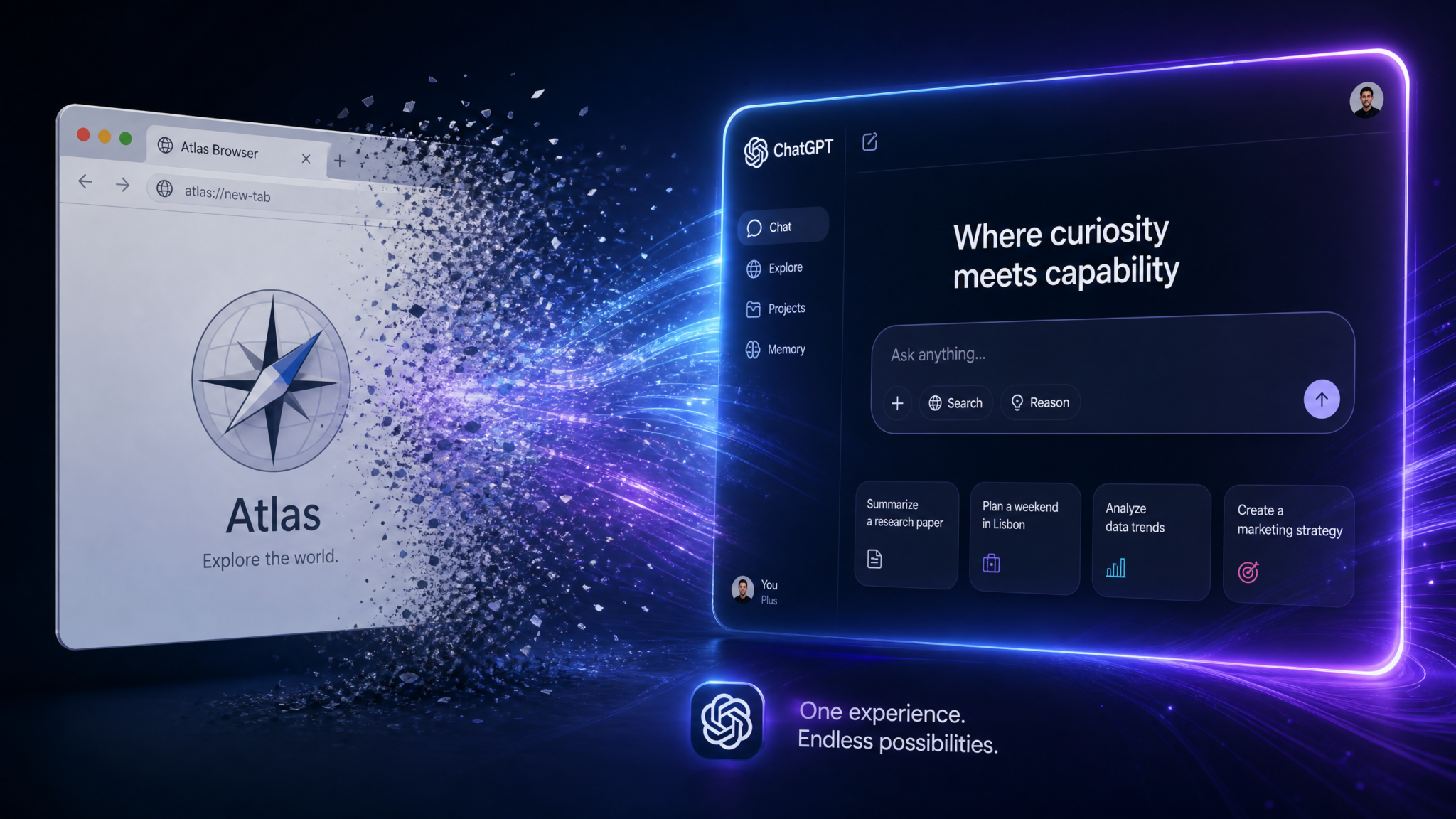
The End of Atlas: What OpenAI’s Browser Shutdown Means and How to Migrate Before August 9
Published: July 2026 | Category: AI News | Reading Time: ~18 minutes
What Was the Atlas Browser? A Quick History
If you were an early adopter of OpenAI’s experimental toolset, you almost certainly came across Atlas — the company’s standalone AI-native browser that launched quietly in late 2024 as part of an invite-only beta program. Atlas was positioned as OpenAI’s answer to a growing question in the AI industry: what would a browser look like if it were built from the ground up with a large language model at its core, rather than bolted onto an existing Chromium engine?
The pitch was compelling. Unlike Perplexity’s search engine or Google’s AI Overviews, which layer AI responses on top of traditional web architecture, Atlas treated the browser itself as an intelligent agent. Every tab was a potential conversation. Every search query was parsed not just as a string of keywords but as an intent signal. The browser could summarize pages, extract structured data from unstructured content, fill out forms using your stored preferences, and hand off complex multi-step research tasks to OpenAI’s backend models running in real time.
The Core Architecture of Atlas
Atlas ran on a modified rendering engine that sat on top of a Chromium core but inserted an AI middleware layer between the user interface and the page content. When you loaded a webpage, Atlas didn’t just render the HTML — it also passed the parsed DOM tree through a lightweight on-device model that annotated the content before displaying it. This allowed for features like automatic in-line summaries, one-click citation extraction, and what OpenAI internally called “semantic navigation,” where you could ask the browser to “find the part of this article that discusses pricing” and it would scroll directly to the relevant section.
The browser also introduced a concept called “Sessions with Memory,” where Atlas could remember what you had researched across multiple browsing sessions and surface relevant context the next time you opened a related topic. This was an early precursor to what eventually became the persistent memory features now baked into ChatGPT. In many ways, Atlas served as OpenAI’s real-world testing laboratory for AI-native browsing behaviors before those behaviors were mature enough to ship inside the main ChatGPT product.
Adoption and Limitations
Despite genuine excitement among its early user base — particularly developers, researchers, and power users who loved the semantic search features — Atlas never achieved mainstream adoption. Estimates from usage data shared at OpenAI’s 2025 developer conference suggested that Atlas had approximately 1.2 million monthly active users at its peak, a modest figure compared to the hundreds of millions using ChatGPT directly. The browser faced persistent criticism for its memory footprint, its occasional rendering failures on JavaScript-heavy sites, and the simple friction of asking users to download and adopt yet another browser when they were already comfortable with Chrome, Safari, or Edge.
OpenAI engineers also acknowledged in internal communications that maintaining a separate browser codebase was becoming a significant resource drain. Every time Chromium pushed a security update or a major web standard changed, the Atlas team had to adapt their AI middleware layer accordingly — a process that consumed engineering cycles that could otherwise be spent improving the core ChatGPT product. The writing was on the wall by early 2026, and on July 1, 2026, OpenAI made it official: Atlas would shut down on August 9, 2026.
For users who want to understand how the memory features that Atlas pioneered have evolved inside ChatGPT’s main interface, ChatGPT Memory Features Explained provides a thorough breakdown of how persistent context now works in conversations.
Why Is OpenAI Shutting Down Atlas?
OpenAI’s decision to retire Atlas is not a sign of failure — it’s a strategic consolidation that reflects how quickly the AI landscape has matured since Atlas first launched. The company has been remarkably transparent about the reasoning, and it breaks down into four distinct factors.
1. Feature Parity Has Been Achieved Inside ChatGPT
The core selling point of Atlas was that it brought powerful AI-assisted browsing into a dedicated interface. As of early 2026, ChatGPT’s native browser tool — running as a cloud-based headless browser that executes in OpenAI’s infrastructure rather than on the user’s machine — can now do everything Atlas could do, and considerably more. The gap that justified maintaining a separate product has closed. When the justification for a product’s existence disappears, retiring it is the rational move.
2. Fragmented User Experience
OpenAI heard consistent feedback from enterprise customers and individual subscribers that the existence of Atlas as a separate product created confusion. Users weren’t sure which tool to use for which task. Should they open Atlas for research and then paste results into ChatGPT? Should they use ChatGPT’s web browsing tool and then verify in Atlas? The bifurcation created cognitive overhead that worked against OpenAI’s goal of building a seamless AI workflow. Consolidating everything into ChatGPT eliminates that friction entirely.
3. The Cloud Browser Architecture Is Fundamentally More Powerful
Atlas ran on a hybrid architecture where some AI processing happened on the user’s device and some happened in the cloud. This created a frustrating ceiling: the on-device component was limited by consumer hardware, which meant features that required heavy computation were either slow or unavailable on machines below a certain performance threshold. The new cloud browser integrated into ChatGPT runs entirely in OpenAI’s infrastructure, which means the full power of the company’s models is available for every single browsing action, regardless of whether you’re on a high-end workstation or an aging laptop.
4. Security and Maintenance Costs
Browser security is an extremely demanding discipline. The attack surface of a full browser is enormous — from rendering engine vulnerabilities to extension injection attacks to network-level exploits — and OpenAI simply did not have the resources or mandate to build a world-class browser security team alongside its core AI research teams. By transitioning to a cloud browser model where the actual browsing happens in OpenAI’s hardened server environment (rather than on the user’s local machine), the company dramatically reduces both the attack surface and the maintenance burden.
What OpenAI Said Officially
“Atlas has been an invaluable proving ground for ideas that are now central to how ChatGPT interacts with the web. The features our users loved are not going away — they are being integrated into a more powerful, more secure, and more accessible home inside ChatGPT. We are deeply grateful to every Atlas user who helped us understand what AI-native browsing could look like.”
— OpenAI Product Team, July 1, 2026
What Replaces Atlas: The Integrated Cloud Browser in ChatGPT
The replacement for Atlas is not a single product — it is an ecosystem of three interconnected browsing interfaces that collectively offer more functionality than Atlas ever did. Understanding the distinctions between them will help you choose the right tool for your workflow.
The ChatGPT Cloud Browser (Primary Replacement)
The centerpiece of the transition is what OpenAI is calling the ChatGPT Cloud Browser — a fully headless, server-side browsing environment that ChatGPT can invoke automatically during conversations. When you ask ChatGPT a question that requires real-time web access, the model can now spin up a complete browsing session in OpenAI’s cloud infrastructure, navigate to specific URLs, interact with web pages programmatically, extract information, fill forms, take screenshots, and return structured results — all without requiring you to have a browser open on your own machine.
This is architecturally very different from how Atlas worked. Atlas required you to actively use the browser as a primary interface. The ChatGPT Cloud Browser is a background tool that ChatGPT orchestrates on your behalf. You describe what you need; ChatGPT figures out the browsing sequence required to get it; the cloud browser executes that sequence; ChatGPT synthesizes the results. The user experience is fundamentally conversational rather than navigational.
Availability by Subscription Tier
| Feature | ChatGPT Free | ChatGPT Plus | ChatGPT Pro | ChatGPT Enterprise |
|---|---|---|---|---|
| Cloud Browser (Basic) | Limited (10 sessions/day) | Yes (100 sessions/day) | Unlimited | Unlimited + Priority |
| Multi-Tab Cloud Sessions | No | Yes (up to 5 tabs) | Yes (up to 20 tabs) | Yes (custom limits) |
| Session Memory | No | Within conversation | Persistent across sessions | Persistent + team shared |
| Form Automation | No | Yes (read-only forms) | Yes (full interaction) | Yes (full interaction) |
| Screenshot Capture | No | Yes | Yes | Yes |
The cloud browser is already live for Plus, Pro, and Enterprise subscribers as of July 14, 2026, giving Atlas users nearly a month to test it before the Atlas shutdown on August 9.
Understanding the full scope of what ChatGPT can do on the web goes beyond browsing alone. ChatGPT Web Browsing Tool Guide walks through every aspect of how ChatGPT’s real-time web access works, including how to invoke it reliably and interpret its outputs.
New Capabilities: What the Integrated Browser Can Do That Atlas Couldn’t
Beyond feature parity, the ChatGPT cloud browser introduces capabilities that were simply not possible within Atlas’s architectural constraints. Here is a detailed breakdown of what’s genuinely new.
Multi-Step Agentic Web Tasks
In Atlas, AI assistance was largely reactive: you navigated to a page, and the AI helped you understand or process what you found. The ChatGPT cloud browser can now execute proactive, multi-step tasks across multiple websites without any navigation input from the user. For example, you can ask ChatGPT to “compare the return policies of the five largest US electronics retailers, then find which one currently has the best price on the Samsung Galaxy S26 Ultra and verify that the listing is in stock.” The cloud browser will autonomously navigate to each retailer’s site, locate the relevant policies and product listings, cross-reference the data, and deliver a structured comparison — a task that in Atlas would have required you to manually visit each site while the AI assisted along the way.
Real-Time Form Interaction and Data Entry
Atlas could read form fields and suggest what to enter, but it couldn’t actually submit forms or interact with complex web applications. The cloud browser, available to Pro and Enterprise users, can now fully interact with web forms — filling fields, selecting dropdown options, handling multi-page form flows, and even navigating CAPTCHA-adjacent verification steps using OpenAI’s computer use model. This opens up genuine automation possibilities for tasks like submitting permit applications, filling standardized research forms, or populating spreadsheet-style web interfaces with data extracted from other sources.
Visual Understanding of Web Pages
One of the most significant architectural upgrades is the cloud browser’s ability to take full-page screenshots and pass them through GPT-4o’s vision capabilities alongside the raw HTML content. Atlas relied primarily on DOM parsing, which failed on sites that rendered their content heavily in JavaScript or used canvas elements for display. The cloud browser can understand a page both structurally (through DOM parsing) and visually (through screenshot analysis), which means it works reliably on a far broader range of websites including modern single-page applications, data visualization tools, and interactive dashboards.
Persistent Research Projects
Pro users now have access to what OpenAI calls Research Projects — a feature that lets you associate a series of cloud browsing sessions with a named project, preserving the browsed content, extracted data, and AI annotations across multiple conversations. If you’re conducting a competitive analysis over several days, you can add to the same Research Project each session and ask ChatGPT to synthesize everything accumulated so far. Atlas had a rudimentary version of this in its “Sessions with Memory” feature, but the new implementation is significantly more robust and integrates directly with ChatGPT’s memory system.
Collaborative Browsing for Teams
Enterprise customers get an entirely new capability with no Atlas equivalent: shared cloud browsing sessions. Multiple team members can instruct ChatGPT to contribute to the same browsing research pool, with results aggregated and accessible to everyone in the workspace. This is particularly valuable for research teams, legal departments doing discovery work, and marketing teams monitoring competitive landscapes in real time.
Improved Citation and Source Tracking
One frustration that Atlas users frequently voiced was the inconsistency of citation handling — sometimes the browser would accurately attribute a fact to its source, and sometimes the attribution would drift or disappear as the AI synthesized across multiple pages. The integrated cloud browser uses a new sourcing architecture that maintains a strict provenance chain: every piece of information extracted from a web page is tagged with its source URL, the timestamp of access, and the specific section of the page it came from. When ChatGPT synthesizes research from cloud browsing sessions, those citations persist in the output and can be formatted according to standard citation styles (APA, MLA, Chicago, and IEEE are all supported natively).
For academic researchers and journalists who relied on Atlas for research workflows, ChatGPT Research Prompts for Academic Work contains a detailed guide to prompting strategies that maximize the quality and citability of AI-assisted research using the new integrated tools.
Step-by-Step Migration Guide: Save Your Data Before August 9
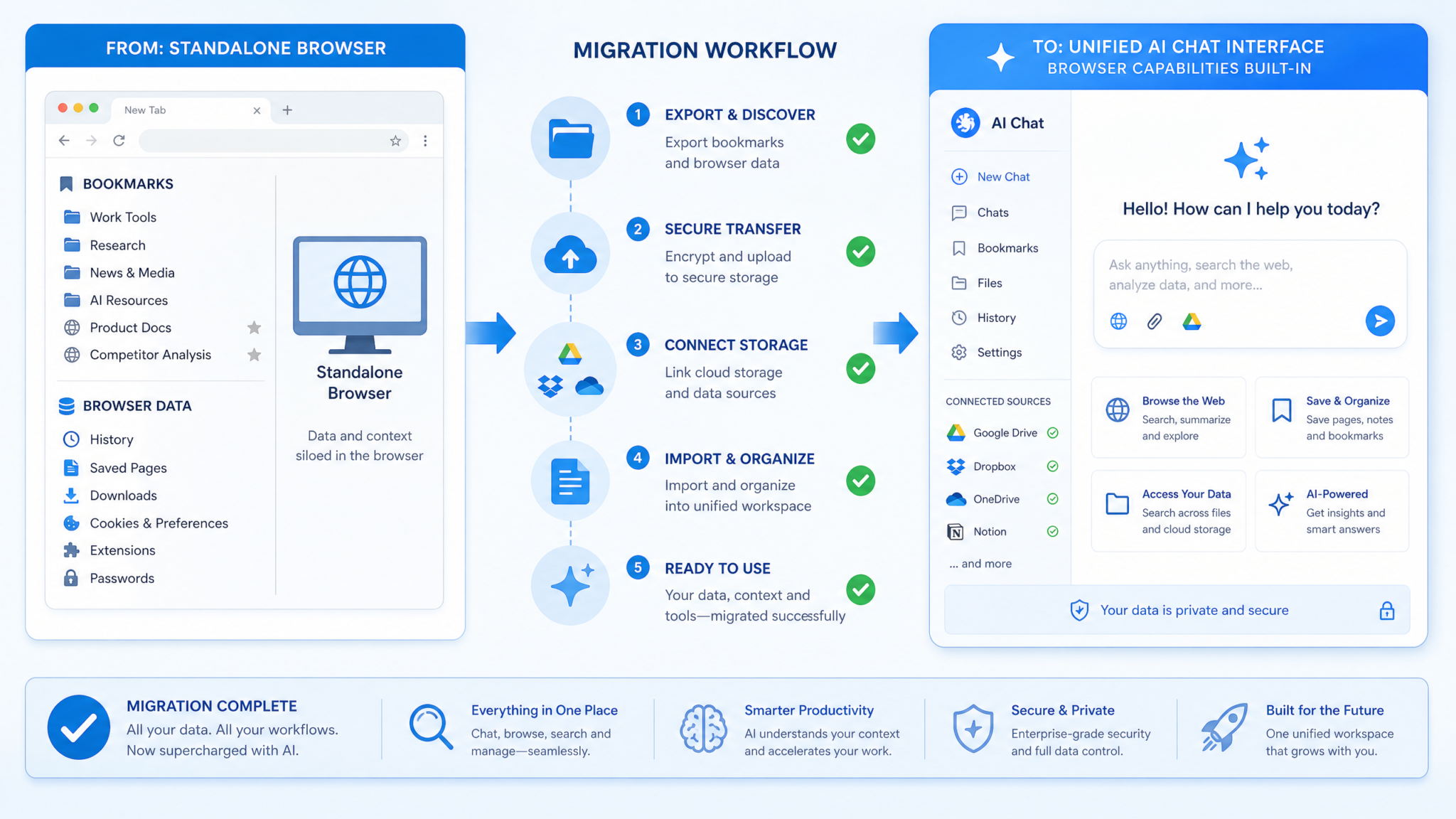
The most pressing concern for current Atlas users is not the question of what comes next — it’s the question of what data they stand to lose if they don’t act before the shutdown deadline. Atlas stored several categories of user data that will not be automatically transferred to ChatGPT. Here is exactly what you need to do, in order of urgency.
What Data Is At Risk
- Saved Sessions with Memory: All research sessions you saved with Atlas’s memory feature will be deleted on August 9. This includes page annotations, extracted data, and session summaries.
- Bookmarks and Saved Pages: Atlas had its own bookmarking system separate from your OS-level browser bookmarks. These will not carry over automatically.
- Custom AI Behaviors: If you customized Atlas’s AI behaviors — for example, setting specific summarization styles, preferred citation formats, or content filters — these configurations will be lost.
- Browsing History: Atlas maintained a separate browsing history from your main browser. If you need a record of sites you visited through Atlas, you must export it before the deadline.
- Saved Extractions: Data tables, text snippets, and structured extractions you saved within Atlas sessions need to be exported manually.
Step 1: Export Your Atlas Data (Do This First)
OpenAI has built a data export tool specifically for Atlas users that is accessible from the Atlas settings menu. Here is how to reach it:
- Open Atlas and click the Settings icon in the upper-right corner (the gear icon).
- Select Account & Data from the settings menu.
- Scroll to the section labeled Export Your Atlas Data.
- Click Request Full Export. OpenAI will compile your data into a downloadable package.
- You will receive an email notification (to the address associated with your OpenAI account) when the export is ready, typically within 2–4 hours.
- Download the ZIP file from the link in the email. Note: This download link expires after 7 days, so don’t wait to retrieve it.
The export package will contain the following files and folders:
atlas_export/
├── sessions/
│   ├── session_[id]_[date].json     # Individual session data
│   └── session_index.json           # Index of all saved sessions
├── bookmarks/
│   └── bookmarks.html               # Standard HTML bookmark format
├── extractions/
│   ├── [extraction_name].csv        # Saved data extractions as CSV
│   └── [extraction_name].json       # Same data in JSON format
├── history/
│   └── browsing_history.json        # Full browsing history log
├── settings/
│   └── ai_behaviors.json            # Your custom AI behavior configurations
└── readme.txt                       # OpenAI's guide to the export format
Step 2: Import Your Bookmarks Into Your Primary Browser
The bookmarks.html file in your export is in standard Netscape Bookmark File Format, which every major browser can import. Here is how to do it in each major browser:
Google Chrome
- Open Chrome and click the three-dot menu (⋮) in the upper right.
- Go to Bookmarks and lists > Import bookmarks and settings.
- From the dropdown, select Bookmarks HTML File.
- Click Choose File and select
bookmarks.htmlfrom your export folder. - Click Import. Your Atlas bookmarks will appear in a new “Imported” folder in Chrome’s bookmark manager.
Mozilla Firefox
- Open Firefox and press Ctrl+Shift+B (Windows/Linux) or Cmd+Shift+B (Mac) to open the Library.
- Click Import and Backup > Import Bookmarks from HTML.
- Navigate to and select your
bookmarks.htmlfile. - Click Open. The bookmarks will be imported into an “Imported” folder.
Microsoft Edge
- Open Edge and click the three-dot menu (…) in the upper right.
- Go to Favorites > Manage favorites.
- Click the three-dot menu inside the Favorites panel and select Import favorites.
- Select Favorites or bookmarks HTML file and choose your
bookmarks.htmlfile.
Step 3: Migrate Your Session Memory to ChatGPT
This step requires more manual effort, but it’s critical for users who used Atlas’s memory feature extensively for ongoing research projects. Your session data is stored in the sessions/ folder of your export as JSON files. The structure of each session JSON looks like this:
{
  "session_id": "ses_a1b2c3d4",
  "session_name": "Q3 Competitor Analysis",
  "created_at": "2026-04-15T09:23:11Z",
  "last_modified": "2026-05-02T14:45:08Z",
  "pages_visited": [
    {
      "url": "https://example.com/pricing",
      "title": "Example Corp Pricing Page",
      "visited_at": "2026-04-15T09:24:00Z",
      "ai_summary": "Example Corp offers three tiers: Basic ($9/mo), Pro ($29/mo), Enterprise (custom). Notable feature: unlimited API calls on all tiers.",
      "user_annotations": "Check if this matches their blog post from March — claimed different pricing then."
    }
  ],
  "extractions": [...],
  "session_notes": "..."
}
To migrate this into ChatGPT, use the following workflow:
- Open ChatGPT and create a new conversation.
- Use a prompt structured like this: “I’m migrating research from a previous tool. Here is a summary of a research session I want you to store in your memory for this project: [paste the ai_summary and user_annotations fields from relevant sessions]. Please confirm you’ve noted these key points and let me know if anything needs clarification.”
- If you are a Pro user with Research Projects enabled, create a named project first and conduct this migration conversation within that project context so the information persists.
- For large sessions with many pages, break the import into multiple messages rather than pasting everything at once — ChatGPT processes contextual memory more reliably in digestible segments.
Step 4: Reconfigure Your AI Behaviors in ChatGPT Custom Instructions
Open your exported settings/ai_behaviors.json file. The configurations you set in Atlas — preferred summarization length, citation style, content focus areas, language preferences — can be mapped to ChatGPT’s Custom Instructions feature. Here’s where to find it:
- In ChatGPT, click your profile icon in the upper left.
- Select Customize ChatGPT.
- You will see two text fields: “What would you like ChatGPT to know about you?” and “How would you like ChatGPT to respond?”
- Use the second field to specify your preferred AI behaviors. For example: “When summarizing web content, use bullet points of no more than two sentences each. Always cite sources in APA 7th edition format. Focus on quantitative data when comparing products or services.”
Step 5: Verify Your Migration Before August 9
Once you’ve completed steps 1–4, spend at least one session in ChatGPT attempting to replicate a workflow you previously used in Atlas. Identify any gaps, then use the time remaining before August 9 to fill them. Common gaps that users have reported in early migration testing include:
- Specific website access restrictions (some sites block cloud-based browsers with stricter bot detection)
- Loss of fine-grained annotation data that was embedded in session memory
- Differences in how the cloud browser handles sites that require login authentication
For the last point specifically: the ChatGPT cloud browser does not have access to your personal login credentials for third-party websites (and for obvious security reasons, it never will). For sites that required you to be logged in when browsing in Atlas, you will need to use the ChatGPT Chrome extension or desktop app browser instead, since those tools operate within your existing browser session where you are already authenticated.

The ChatGPT Chrome Extension: A Companion to the New Browser
While the cloud browser handles autonomous, multi-step web tasks, the ChatGPT Chrome Extension fills a different role in the ecosystem — one that actually maps more closely to how most Atlas users used the product on a day-to-day basis. The extension sits in your browser toolbar and gives ChatGPT awareness of whatever page you currently have open, enabling the same kind of AI-assisted browsing that Atlas provided but within your existing Chrome session, with all your logins and authentication intact.
Key Extension Features
- Page Summarization: Click the extension icon on any page to get an instant AI summary of the current content, formatted to your preferred style (paragraph, bullet points, or executive brief).
- Contextual Q&A: Ask questions about the specific page you’re on without copying and pasting content into ChatGPT. The extension passes the full page context automatically.
- Highlight and Ask: Select any text on a webpage, right-click, and choose “Ask ChatGPT” to get AI analysis of just that selected portion.
- Research Clip: Save page excerpts directly to a ChatGPT Research Project with one click, building your project’s knowledge base as you browse normally.
- Authenticated Site Access: Because the extension runs within your live Chrome session, ChatGPT can access page content on sites where you’re already logged in — paywalled news sites, your company’s internal tools, subscription databases, and so on.
Installing the Extension
- Navigate to the Chrome Web Store and search for “ChatGPT by OpenAI” — or visit the direct link from your ChatGPT settings page under the new Browser Tools section that will appear once the Atlas transition is complete.
- Click Add to Chrome and confirm the permissions request. The extension requires access to read the active tab’s content, which is the minimum necessary for page-context features.
- After installation, click the extension icon and sign in with your OpenAI account. This links the extension to your ChatGPT subscription level and memory.
- Pin the extension to your toolbar for quick access (click the puzzle piece icon in Chrome’s toolbar, find ChatGPT, and click the pin icon).
For Firefox users: OpenAI has confirmed that a Firefox-compatible version of the extension is in development, with a target release date of September 2026. In the meantime, the cloud browser within ChatGPT.com is fully functional in Firefox.
Power users who want to squeeze the maximum value out of the Chrome extension alongside other AI tools should look at Best AI Productivity Extensions for Chrome in 2026 for a comprehensive comparison of how the ChatGPT extension stacks up against alternatives from Google, Perplexity, and others.
Browser Integration in the ChatGPT Desktop App
The third component of the Atlas replacement ecosystem is the browser integration built into the ChatGPT Desktop App, available for macOS and Windows. This is perhaps the most powerful of the three options for users who do sustained, complex research work, because it combines the local-session authentication advantages of the Chrome extension with a dedicated workspace that doesn’t compete for screen real estate with your main browser window.
Access 40,000+ AI Prompts for ChatGPT, Claude & Codex — Free!
Subscribe to get instant access to our complete Notion Prompt Library — the largest curated collection of prompts for ChatGPT, Claude, OpenAI Codex, and other leading AI models. Optimized for real-world workflows across coding, research, content creation, and business.
The Split-Pane Research Interface
The desktop app’s browser integration uses a split-pane layout: on the left, you have your ChatGPT conversation interface; on the right, you have a fully functional embedded browser panel that you can navigate manually. As you browse in the right panel, ChatGPT in the left panel maintains awareness of what you’re looking at and can answer questions about the current page, compare it to previous pages you visited in the same session, or proactively surface relevant information without being asked.
This layout will feel immediately familiar to former Atlas users — it’s the closest analog to Atlas’s core interaction model, and OpenAI has clearly designed it with migrating Atlas users in mind. The right-panel browser supports your existing Chrome profile if you’ve connected it during setup, which means your saved passwords, cookies, and authentication sessions carry over.
Setting Up the Desktop App Browser
- Download the latest version of the ChatGPT Desktop App (version 2.4 or higher, released July 2026) from openai.com/download or your platform’s app store.
- Open the app and navigate to Settings > Browser Integration.
- Toggle Enable Split-Pane Browser to on.
- Optionally, connect your Chrome profile by clicking Connect Chrome Profile and following the authentication flow. This gives the embedded browser access to your Chrome cookies and saved credentials.
- Access the split-pane interface by clicking the new Browse button in the left panel toolbar, or by pressing Cmd+B (Mac) / Ctrl+B (Windows).
Desktop App vs. Cloud Browser: When to Use Which
| Use Case | Best Tool | Why |
|---|---|---|
| Autonomous multi-site research | Cloud Browser | Runs without your attention; handles multiple sites simultaneously |
| Browsing sites you’re logged into | Desktop App or Chrome Extension | Uses your existing auth sessions |
| Quick page summary while browsing | Chrome Extension | Lowest friction; one click from any page |
| Deep research sessions with note-taking | Desktop App | Split-pane keeps research and conversation in one window |
| Automated form filling/data entry | Cloud Browser (Pro/Enterprise) | Full programmatic form interaction capability |
| Research from mobile device | Cloud Browser via ChatGPT mobile app | Extension and desktop app not available on mobile |
Impact on Enterprise and Power Users
For individual users and hobbyists, the Atlas shutdown is a minor inconvenience: export your data, adapt to new tools, move on. For enterprise teams that built internal workflows around Atlas’s capabilities — particularly its API access and batch processing features — the transition requires more deliberate planning.
Atlas API Deprecation
Atlas exposed several API endpoints that enterprise customers used to integrate AI-assisted browsing into their internal tooling: the Page Analysis API, the Batch Extraction API, and the Session Memory API. All three of these are being deprecated on August 9 alongside the consumer product. OpenAI has published migration guides for each, mapping Atlas API endpoints to their equivalents in the new ChatGPT API with browser tool access.
The key change for developers is that Atlas’s APIs were synchronous — you called an endpoint and waited for a response. The new ChatGPT cloud browser API uses an asynchronous task queue model, where you submit a browsing task, receive a task ID, and poll for completion. This is a more scalable architecture for complex multi-step tasks, but it does require changes to any existing code that called Atlas APIs synchronously.
The New Operator API for Browser Tasks
Enterprise customers on the ChatGPT API have access to a new Operator API specifically designed for programmatic browser task submission. Here’s a simplified example of how a task that previously used the Atlas Batch Extraction API would be expressed in the new API:
// New ChatGPT Operator API (cloud browser tasks)
const response = await openai.beta.browser.tasks.create({
  model: "gpt-4o",
  task: {
    type: "extraction",
    instructions: "Visit each URL in the target_urls array. On each page, find the main product price and any listed discount percentage. Return as structured JSON.",
    target_urls: [
      "https://example1.com/product/widget",
      "https://example2.com/item/gadget",
      "https://example3.com/shop/device"
    ],
    output_schema: {
      type: "object",
      properties: {
        url: { type: "string" },
        price: { type: "number" },
        discount_percentage: { type: "number", nullable: true }
      }
    }
  }
});

const taskId = response.task_id;

// Poll for completion
const result = await openai.beta.browser.tasks.retrieve(taskId);
console.log(result.output); // Structured extraction results
Full API migration documentation is available in OpenAI’s developer portal, and OpenAI has announced dedicated migration office hours for enterprise customers throughout July 2026 — contact your account manager to schedule a session.
Team Workflow Disruption and Mitigation
Enterprise teams should conduct an internal audit of all workflows that touch Atlas before July 25, 2026 — two weeks before shutdown — to ensure there is time to test replacements and address any gaps. The most commonly reported Atlas-dependent enterprise workflows include:
- Competitive intelligence dashboards that used Atlas’s batch extraction to pull pricing and feature data from competitor sites on a scheduled basis
- Legal research workflows that used Atlas to systematically extract information from court document databases
- Content monitoring setups that tracked changes to specific web pages over time using Atlas’s session memory
- Sales enablement tools that used Atlas to research prospects before outreach, pulling publicly available company data into CRM notes
For teams building more sophisticated AI agent pipelines that incorporate web browsing as one step in a larger automated workflow, Building AI Agent Workflows with ChatGPT Tools covers the architecture patterns that work best with OpenAI’s current tool-use capabilities.
Key Dates and Timeline
Here is a consolidated timeline of every significant date in the Atlas shutdown process. Bookmark this section and use it as your migration checklist.
| Date | Event | Action Required? |
|---|---|---|
| July 1, 2026 | OpenAI officially announces Atlas shutdown | Begin planning your migration |
| July 7, 2026 | Data export tool becomes available in Atlas settings | Request your data export immediately |
| July 14, 2026 | ChatGPT cloud browser goes live for Plus/Pro/Enterprise | Begin testing replacement workflows |
| July 14, 2026 | ChatGPT Chrome Extension updated with new page-context features | Update or install Chrome extension |
| July 21, 2026 | Desktop App version 2.4 with split-pane browser released | Update desktop app if using it |
| July 25, 2026 (recommended) | Recommended deadline for enterprise API migration testing | Enterprise teams: validate API replacements |
| August 1, 2026 | Atlas enters “read-only” mode — no new sessions, but data still accessible | Verify your export is complete; final opportunity to request export if missed |
| August 9, 2026 | Atlas shuts down permanently. All data deleted. | Ensure all data has been exported before this date |
| August 9, 2026 | All Atlas API endpoints deprecated | Ensure all API integrations have been migrated |
| September 2026 (est.) | ChatGPT Firefox extension released | Firefox users: watch for this release |
Important: OpenAI has confirmed there will be no extensions to the August 9 deadline. If your data is not exported before that date, it cannot be recovered.
Frequently Asked Questions
Will my Atlas subscription be refunded?
Atlas was distributed as a standalone free product during its beta period and was later bundled as a feature of ChatGPT Plus and Pro subscriptions — there was no separate Atlas subscription fee. Existing Plus and Pro subscribers will see the new cloud browser features added to their plan at no additional cost, effectively increasing the value of their existing subscription. Users who paid for an annual plan specifically because of Atlas features and wish to request prorated refund consideration should contact OpenAI support, which has confirmed it will review requests on a case-by-case basis.
Can I continue using Atlas after August 9 if I don’t update the app?
No. Atlas’s core functionality depends on server-side API calls to OpenAI’s infrastructure. When those server endpoints are shut down on August 9, the local application will fail to function regardless of which version you have installed. The app will display an end-of-life notification and direct you to ChatGPT. You should not attempt to work around this — there is no offline mode for Atlas.
Does the cloud browser track my browsing history?
OpenAI’s privacy policy covers cloud browser sessions the same way it covers ChatGPT conversations: session data may be used to improve models unless you opt out through the data controls in your account settings. Browsing sessions conducted through the cloud browser are logged in your ChatGPT conversation history and can be deleted from there. For Enterprise customers with a Zero Data Retention agreement, cloud browser sessions are subject to the same ZDR policies as all other API usage.
What happens to Atlas sessions that are in progress on August 9?
As of August 1, Atlas enters read-only mode — you will not be able to start new browsing sessions, but you can still access and export your existing data. On August 9, even read-only access ends and the servers shut down. If you have a session open in the Atlas application at the moment of shutdown, the application will close and the data from that session will be lost if not previously exported. This is another reason to complete your export well before the deadline.
Is the new cloud browser available on mobile?
Yes. The cloud browser is accessible through ChatGPT’s iOS and Android apps, and it functions the same way it does on desktop — it runs in OpenAI’s cloud infrastructure, not on your mobile device. The Chrome extension and desktop app split-pane browser are not available on mobile platforms. For most mobile users, the cloud browser provides more than adequate capability, since mobile users are less likely to need the authenticated-session features that require the extension or desktop app.
I used Atlas for monitoring changes to specific web pages. What’s the equivalent now?
The ChatGPT cloud browser does not have a native scheduled monitoring feature as of the August 2026 launch. OpenAI has confirmed this is on the roadmap. In the meantime, the best approach is to use the cloud browser on a manual basis to check pages of interest and ask ChatGPT to compare the current content with a previous extraction stored in a Research Project. For automated change monitoring, third-party tools like Visualping, Distill.io, or custom scripts using the new Operator API can fill the gap.
Does the cloud browser work with paywalled content?
The cloud browser can access publicly available content only. It cannot access paywalled content, login-protected content, or subscription databases. For those use cases, the Chrome extension (which runs within your authenticated browser session) or the desktop app split-pane browser (which can connect to your Chrome profile) are the appropriate tools.
Will my Custom Instructions carry over automatically?
Custom Instructions in ChatGPT are separate from Atlas’s AI Behaviors settings. They will not be automatically populated from your Atlas export. You need to manually transfer relevant preferences following Step 4 of the migration guide above.
For a broader perspective on how OpenAI is evolving its product lineup and what these changes signal about the company’s strategy, OpenAI Product Roadmap and Strategy 2026 provides context on the consolidation decisions driving this and other recent changes to the OpenAI product portfolio.
The Verdict: Is the New Integrated Browser Better?
Honest answer: for most users, yes — substantially. The consolidation of Atlas’s features into ChatGPT’s native toolset removes friction, improves capability, and eliminates the cognitive overhead of managing two separate AI tools. The cloud browser’s ability to execute autonomous multi-step tasks represents a qualitative leap beyond what Atlas could do. The Chrome extension fills the gap for authenticated-session browsing in a way that’s more elegant than Atlas’s approach. And the desktop app’s split-pane interface is the most faithful recreation of Atlas’s interactive browsing model for users who prefer that workflow.
The places where the transition genuinely hurts are narrower but real. Users who relied on Atlas’s fine-grained annotation features will find that the new tools don’t have a direct equivalent — you can get close with ChatGPT’s memory and Research Projects, but it requires more intentional prompting and organization. The loss of the scheduled page monitoring feature is a real gap for certain use cases. And enterprise teams that built tightly integrated workflows around Atlas’s synchronous APIs face a non-trivial migration effort.
But the overall trajectory is unmistakably positive. OpenAI is not retreating from AI-assisted browsing — it is doubling down on it, building it deeper into the product where it has access to better models, more compute, and a more seamless user experience. Atlas was a valuable experiment. Its successor is a mature product. The shutdown is not the end of AI-native browsing; it is the moment when AI-native browsing stopped being a specialty product and became a standard feature.
If you’ve been a loyal Atlas user, the best thing you can do right now is complete your data export, spend this remaining time before August 9 genuinely exploring the new tools, and give yourself permission to be pleasantly surprised. The transition asks for some effort upfront. What it offers in return is considerably more powerful.
Action Checklist: The Five Things To Do Before August 9
- Request your Atlas data export today — don’t let the export link expire before you download it
- Import your bookmarks into Chrome, Firefox, or Edge using the exported HTML file
- Install the ChatGPT Chrome Extension and verify it’s connected to your account
- Migrate critical session memory to ChatGPT Research Projects using the prompting workflow in Step 3 of this guide
- Test your most important workflow in the new tools before Atlas shuts down, so you have time to address any gaps
The clock is running. August 9 is a hard deadline with no extensions and no data recovery. Everything you need to make a smooth transition is available right now — the only variable is whether you act on it.
