
How to Use OpenAI Codex Computer Use for Automated Desktop Workflows
The landscape of artificial intelligence is continually evolving, pushing the boundaries of what machines can achieve. Among the most groundbreaking advancements is OpenAI’s Codex, a powerful AI system capable of translating natural language into code. Building upon this foundation, the new OpenAI Codex Computer Use feature extends this capability, enabling AI to interact directly with your desktop environment. This tutorial delves deep into understanding, setting up, and effectively utilizing this revolutionary tool to automate complex desktop workflows, thereby transforming the way developers and power users interact with their operating systems.
Traditional automation often relies on pre-defined scripts, robotic process automation (RPA) tools, or specific APIs. While effective for repetitive, structured tasks, these methods can be rigid and difficult to adapt to novel situations or dynamic user interfaces. The OpenAI Codex Computer Use feature, however, introduces a paradigm shift. By leveraging large language models (LLMs) trained on vast datasets of code and human-computer interaction, it can interpret high-level natural language instructions and translate them into a series of actions performed on your computer screen. This includes clicking buttons, typing text, dragging and dropping elements, opening applications, navigating web pages, and even interacting with complex software interfaces – all guided by your verbal or textual commands.
Imagine instructing your computer to “Open the budget spreadsheet from last quarter, filter by ‘Marketing Department’, extract the total expenses, and paste them into a new email draft addressed to your manager, summarizing the key figures.” With Codex Computer Use, such complex, multi-application tasks become achievable through natural language, eliminating the need for intricate scripting or manual intervention. This tutorial will guide you through the architectural components, installation procedures, practical applications, and best practices for integrating this powerful AI into your daily operations. We will explore its potential to streamline development processes, enhance data analysis, and fundamentally change how we approach desktop productivity.
Understanding the Architecture and Capabilities of OpenAI Codex Computer Use
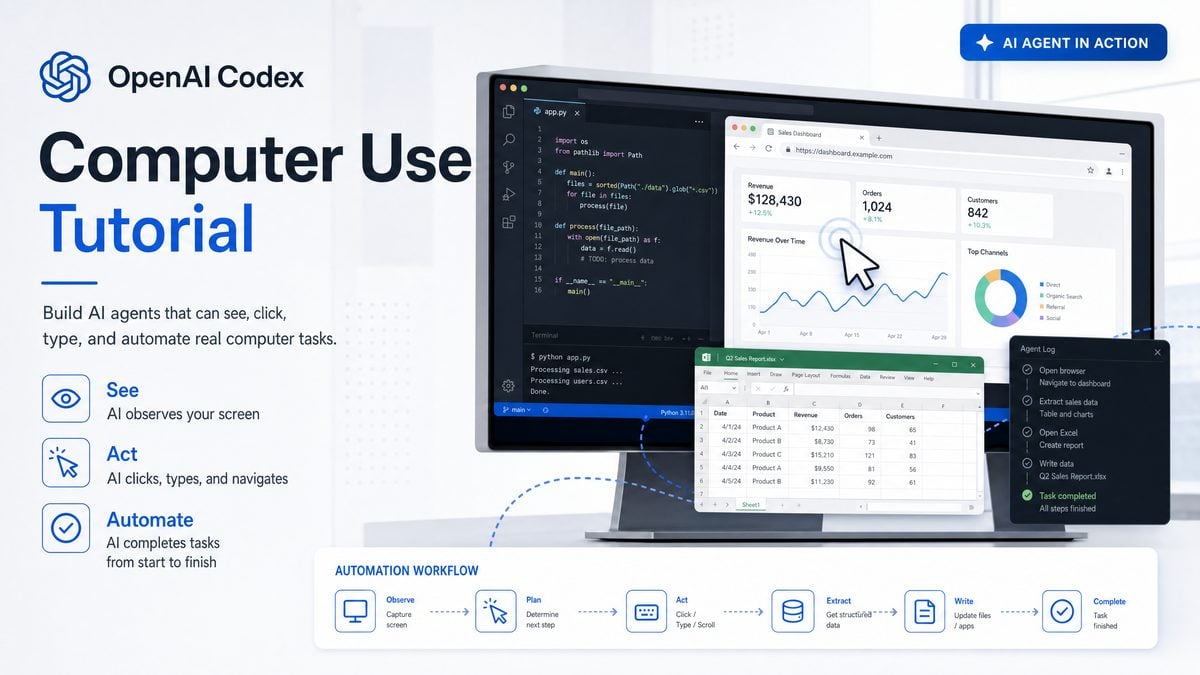
At its core, OpenAI Codex Computer Use operates by bridging the gap between natural language understanding and direct computer interaction. This is not merely an extension of existing voice command systems or simple hotkey macros; it represents a sophisticated AI agent that perceives, reasons, and acts within a graphical user interface (GUI) environment. To fully grasp its potential, it’s crucial to understand the underlying architecture and the range of capabilities it offers.
Core Components and How They Work
- Natural Language Interface (NLI): This is the primary input mechanism. Users provide instructions in plain English (or other supported languages). The NLI component, powered by a large language model similar to GPT-3.5 or GPT-4, parses these instructions, identifies key entities (e.g., file names, application names, specific actions), and infers the user’s intent. This is where the magic of understanding “Open the budget spreadsheet from last quarter” happens.
- Perception Module: To interact with a GUI, the AI needs to “see” what’s on the screen. The perception module utilizes advanced computer vision techniques to analyze the current desktop display. This includes identifying UI elements like buttons, text fields, icons, windows, and even their semantic meaning. It can discern that a certain rectangular region is a “Save” button or that a particular text input field is for “Username.” This module is critical for dynamic environments where UI elements might change position or appearance.
- Action Generation Engine: Based on the interpreted intent from the NLI and the perceived state of the GUI, the action generation engine formulates a sequence of low-level computer actions. These actions are akin to what a human user would perform: mouse clicks (left, right, double), keyboard inputs (typing text, pressing special keys like Enter, Tab, Ctrl+C), mouse movements (drag and drop), and window management (minimize, maximize, close). This engine also incorporates a reasoning component to determine the most efficient and logical sequence of actions to achieve the desired outcome.
- Execution Layer: This layer is responsible for physically executing the generated actions on the operating system. It interfaces directly with the OS’s input and accessibility APIs to simulate user input. This ensures that the AI’s actions are indistinguishable from those of a human user, allowing it to interact with virtually any application or system component.
- Feedback Loop and Error Handling: A robust system includes a feedback loop. After performing an action, the perception module re-evaluates the screen state to confirm the action was successful or to identify any unexpected changes. If an error occurs (e.g., a file not found, an application crashing), the system attempts to diagnose the problem and, if possible, recover or report the issue back to the user in a meaningful way. This iterative process allows for more complex and resilient automation.
Key Capabilities and Use Cases
The versatility of Codex Computer Use stems from its ability to perform a wide array of desktop interactions. Here’s a breakdown of its primary capabilities and potential applications:
- Application Control:
- Opening, closing, minimizing, maximizing applications.
- Navigating within applications (e.g., switching tabs in a browser, opening menus in a word processor).
- Interacting with application-specific UI elements.
- File System Operations:
- Creating, deleting, renaming files and folders.
- Copying, cutting, and pasting files.
- Opening specific files with their default applications.
- Navigating through directory structures.
- Web Browser Automation:
- Opening specific URLs.
- Filling out forms on websites.
- Clicking links and buttons.
- Extracting data from web pages (web scraping).
- Logging into accounts.
- Text and Data Manipulation:
- Typing text into any input field.
- Copying text from documents, web pages, or applications.
- Pasting copied text.
- Performing search operations within documents or applications.
- Basic data extraction and summarization.
- System Settings Interaction:
- Adjusting system settings (e.g., volume, display settings, network connections) – with appropriate permissions.
- Interacting with system dialogs (e.g., “Save As,” “Open File”).
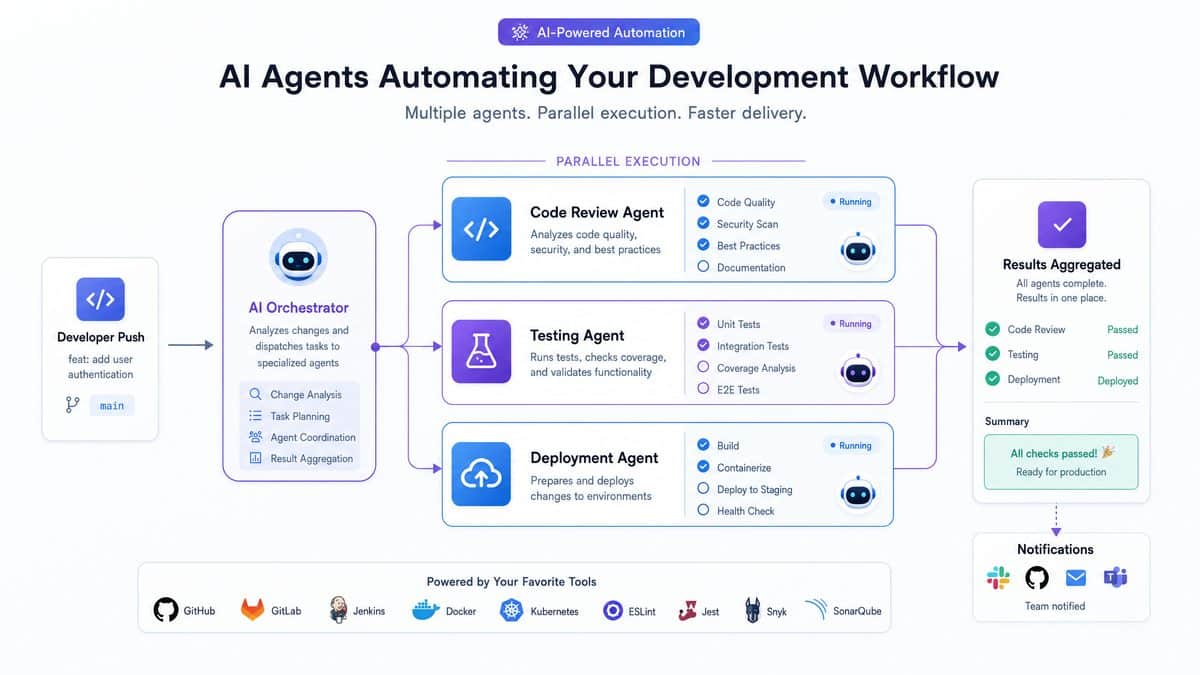
- Complex Workflow Orchestration: The true power lies in chaining these individual capabilities into multi-step, cross-application workflows.
- Example: Data Reporting: “Download the latest sales report from the CRM portal, open it in Excel, filter by region ‘APAC’, generate a pivot table summarizing product sales, and then email the pivot table as a PDF attachment to the sales team.”
- Example: Software Development: “Open Visual Studio Code, navigate to the ‘src/components’ folder, open ‘UserCard.js’, find the ‘render’ method, and change the button text from ‘Details’ to ‘View Profile’.” Or, more advanced, “Run the unit tests for the current project, if any fail, open the relevant log file and highlight the first error message.”
- Example: Customer Support: “Search the knowledge base for ‘refund policy’, open the first relevant article, copy the key points, and paste them into the chat window with the customer.”
This capability to interact with any GUI element, combined with advanced natural language understanding, positions Codex Computer Use as a transformative tool for productivity, development, and automation. It moves beyond brittle, pre-programmed scripts to a more intelligent, adaptable form of automation that responds to human-like instructions. For developers, this means the potential to automate not just code generation, but the entire development environment interaction. For business users, it unlocks a new level of desktop efficiency, turning complex, repetitive tasks into simple natural language commands. For more information on similar technologies, you can refer to resources on OpenAI Codex Computer Use: Complete Guide robotic process automation.
[IMAGE_PLACEHOLDE R_SECTION_1]
Setting Up Your Environment for OpenAI Codex Computer Use
Before you can harness the power of OpenAI Codex Computer Use, you need to properly set up your development environment and understand the necessary prerequisites. This section will guide you through the installation process, API key configuration, and essential system considerations.
Prerequisites and System Requirements
While the exact requirements may evolve, the following generally apply:
- Operating System: Currently, the feature is primarily designed for Windows, macOS, and potentially Linux environments with graphical desktop interfaces. Specific OS versions may be required (e.g., Windows 10/11, macOS Catalina or newer).
- Python Environment: A stable Python installation (3.8+) is typically required, along with
pipfor package management. We recommend using a virtual environment to manage dependencies. - OpenAI API Key: Access to the OpenAI API is fundamental. This feature will consume API credits, so ensure you have an active account with sufficient balance. You will need to generate an API key from your OpenAI dashboard.
- System Resources: As the system performs real-time screen analysis and AI inference, a modern CPU, sufficient RAM (8GB+ recommended), and a stable internet connection are essential for optimal performance.
- Accessibility Permissions: For the AI to interact with your desktop, it will require specific accessibility permissions from your operating system. This is a critical security measure and must be granted explicitly.
- OpenAI SDK (or specific client library): You will likely interact with the Codex Computer Use feature through an official OpenAI SDK or a dedicated client library that wraps the underlying API calls.
Installation Steps
Let’s outline a typical installation process. Note that specific commands and package names might vary slightly based on the official release details from OpenAI.
1. Prepare Your Python Environment
First, create and activate a virtual environment:
python -m venv codex_env
source codex_env/bin/activate  # On macOS/Linux
codex_env\Scripts\activate  # On Windows
2. Install OpenAI SDK and Codex Computer Use Client
Install the official OpenAI Python library. If there’s a specific client library for the Computer Use feature, install that as well. For this tutorial, we’ll assume a hypothetical openai-computer-use package, which might be integrated into the main openai SDK or released separately.
pip install openai
pip install openai-computer-use # This is a placeholder for a potential dedicated package
You might also need other dependencies for screen capturing, image processing, or interacting with specific OS APIs, which the client library would typically handle as its own dependencies (e.g., Pillow, mss, pyautogui, pywin32 for Windows, pyobjc for macOS).
3. Configure Your OpenAI API Key
It is crucial to handle your API key securely. Avoid hardcoding it directly into your scripts. The recommended approach is to set it as an environment variable.
On macOS/Linux:
export OPENAI_API_KEY="YOUR_API_KEY_HERE"Add this line to your ~/.bashrc, ~/.zshrc, or equivalent shell profile for persistence.
On Windows (Command Prompt):
setx OPENAI_API_KEY "YOUR_API_KEY_HERE"You may need to restart your terminal for the change to take effect.
Alternatively, you can load it from a .env file using the python-dotenv package:
pip install python-dotenvCreate a file named .env in your project directory:
OPENAI_API_KEY="YOUR_API_KEY_HERE"Then, in your Python script:
from dotenv import load_dotenv
import os

load_dotenv()
openai.api_key = os.getenv("OPENAI_API_KEY")
4. Grant Accessibility Permissions
This is arguably the most critical step for the Computer Use feature. Without proper permissions, the AI cannot “see” your screen or simulate input. The exact steps vary by OS:
- macOS: Go to System Settings > Privacy & Security > Accessibility. You will need to add the Python interpreter (or the specific application running the Codex client) to the list of allowed applications and check its box. You might also need to grant “Screen Recording” permissions.
- Windows: Ensure that the Python process has appropriate UAC (User Account Control) privileges. You may need to run your terminal or IDE as an administrator. Windows Defender or other antivirus software might also interfere, requiring exceptions to be added.
- Linux: Depending on your desktop environment (GNOME, KDE), you may need to configure accessibility frameworks like AT-SPI (Assistive Technology Service Provider Interface) or ensure your display server (Xorg, Wayland) allows programmatic input simulation.
Always review the official OpenAI documentation for the most up-to-date and specific instructions regarding accessibility and security configurations.
5. Basic Connectivity Test
Once everything is set up, perform a simple test to ensure your environment is correctly configured.
import openai
import os

# Ensure API key is loaded
openai.api_key = os.getenv("OPENAI_API_KEY")

try:
    # A simple test using a standard OpenAI model first
    # This confirms your API key is valid and connectivity is good
    response = openai.Completion.create(
        engine="text-davinci-003", # Or gpt-3.5-turbo-instruct
        prompt="Hello, AI!",
        max_tokens=5
    )
    print("OpenAI API connectivity successful:", response.choices[0].text.strip())

    # Now, attempt to initialize the Codex Computer Use client
    # This is a hypothetical example; actual API might differ
    from openai_computer_use import ComputerUseClient

    client = ComputerUseClient()
    print("Codex Computer Use client initialized successfully.")

    # A very basic, safe test action (e.g., get screen resolution)
    # This would require the client to have access to screen information
    screen_info = client.get_screen_resolution() # Hypothetical method
    print(f"Screen resolution detected: {screen_info['width']}x{screen_info['height']}")

except openai.error.AuthenticationError:
    print("Authentication error: Check your OpenAI API key.")
except openai.error.APIError as e:
    print(f"OpenAI API error: {e}")
except Exception as e:
    print(f"An unexpected error occurred: {e}")
    print("Ensure all dependencies are installed and accessibility permissions are granted.")
If these tests pass, your environment is ready to start building automated desktop workflows with OpenAI Codex Computer Use. Remember that for robust development, you should also consider version control and proper project structuring. You can find more details on setting up development environments in our guide on How to Build AI Agents That Actually Work AI development best practices.
Try These AI Tools Today
Access the most powerful AI models from one place.
Implementing Automated Workflows with Codex Computer Use
With your environment configured, you can now delve into the practical implementation of automated desktop workflows using OpenAI Codex Computer Use. This section will guide you through the process of defining tasks, writing code to interact with the AI, and handling common scenarios.
Defining Tasks and Prompts
The core of interacting with Codex Computer Use is providing clear, unambiguous natural language prompts. The quality of your prompt directly impacts the AI’s ability to understand your intent and execute the desired actions. Think of it as instructing a highly intelligent but literal assistant.
Principles for Effective Prompt Engineering:
- Be Specific: Instead of “Open Excel,” say “Open the Microsoft Excel application.” Instead of “Click the button,” say “Click the ‘Save’ button in the active window.”
- Provide Context: If a file is involved, specify its full path or relative location. If an action depends on a previous one, mention it. “After opening the browser, navigate to example.com.”
- Break Down Complex Tasks: For very long or intricate workflows, consider breaking them into smaller, manageable sub-tasks. You can then chain these sub-tasks programmatically.
- Specify Expected Outcomes: What should happen after an action? “After typing ‘hello’ into the search bar, press Enter.”
- Reference Visible Elements: Use the text labels, icons, or relative positions of UI elements you expect the AI to interact with. “Click the icon that looks like a printer.”
- Handle Ambiguity: If there are multiple elements that might match a description, try to differentiate them. “Click the ‘OK’ button in the ‘File Save’ dialog, not the ‘Cancel’ button.”
- Error Handling Instructions: You might even include instructions on what to do if something goes wrong. “If the application crashes, restart it.” (Though advanced error handling is often better handled programmatically).
Basic Workflow Example: Opening a Document and Copying Text
Let’s walk through a simple example: opening a specific text file, copying its content, and then printing the content to the console.
import openai
import os
import time

# Load API key (assuming .env setup or environment variable)
from dotenv import load_dotenv
load_dotenv()
openai.api_key = os.getenv("OPENAI_API_KEY")

# Hypothetical ComputerUseClient
# In a real scenario, this would be provided by OpenAI's SDK
class ComputerUseClient:
    def __init__(self):
        print("Initializing Computer Use Client...")
        # Placeholder for actual client initialization logic
        pass

    def execute_command(self, natural_language_command: str) -> dict:
        print(f"\nExecuting command: '{natural_language_command}'")
        # This is where the actual API call to OpenAI's Codex Computer Use would go.
        # It would send the natural_language_command and receive a response
        # indicating success, failure, or extracted data.

        # For demonstration, we'll simulate responses.
        if "open Notepad" in natural_language_command:
            print("Simulating: Opening Notepad...")
            time.sleep(2) # Simulate application launch time
            return {"status": "success", "message": "Notepad opened."}
        elif "type 'Hello, this is a test from Codex Computer Use.'" in natural_language_command:
            print("Simulating: Typing text...")
            time.sleep(1)
            return {"status": "success", "message": "Text typed into active window."}
        elif "save the file as 'codex_test.txt' in my Documents folder" in natural_language_command:
            print("Simulating: Saving file...")
            time.sleep(2)
            return {"status": "success", "message": "File 'codex_test.txt' saved."}
        elif "close Notepad" in natural_language_command:
            print("Simulating: Closing Notepad...")
            time.sleep(1)
            return {"status": "success", "message": "Notepad closed."}
        elif "open 'codex_test.txt' with Notepad" in natural_language_command:
            print("Simulating: Opening 'codex_test.txt' with Notepad...")
            time.sleep(2)
            return {"status": "success", "message": "File 'codex_test.txt' opened."}
        elif "copy all text from the active window" in natural_language_command:
            print("Simulating: Copying text...")
            time.sleep(1)
            # In a real scenario, this would return the actual copied text
            return {"status": "success", "data": "Hello, this is a test from Codex Computer Use.", "message": "Text copied."}
        else:
            print("Simulating: Unknown command or action.")
            return {"status": "failure", "message": "Could not execute command."}

# Initialize the client
client = ComputerUseClient()

def automate_text_copy_workflow():
    try:
        # Step 1: Open Notepad
        response = client.execute_command("Open the Notepad application.")
        if response["status"] != "success":
            raise Exception(f"Failed to open Notepad: {response['message']}")
        time.sleep(2) # Give application time to load

        # Step 2: Type some text
        response = client.execute_command("Type 'Hello, this is a test from Codex Computer Use.' into the active window.")
        if response["status"] != "success":
            raise Exception(f"Failed to type text: {response['message']}")
        time.sleep(1)

        # Step 3: Save the file
        # This prompt would ideally guide the AI through the "Save As" dialog
        response = client.execute_command("Save the current file as 'codex_test.txt' in my Documents folder.")
        if response["status"] != "success":
            raise Exception(f"Failed to save file: {response['message']}")
        time.sleep(2) # Give time for save dialog to process

        # Step 4: Close Notepad
        response = client.execute_command("Close the Notepad application.")
        if response["status"] != "success":
            raise Exception(f"Failed to close Notepad: {response['message']}")
        time.sleep(1)

        print("\n--- Workflow Part 1 (Creation) Completed ---")
        time.sleep(2)

        # Step 5: Re-open the file
        # Note: The exact path might need to be resolved by the AI or provided explicitly
        documents_path = os.path.expanduser("~/Documents") # Platform-independent Documents path
        file_path = os.path.join(documents_path, "codex_test.txt")
        response = client.execute_command(f"Open the file named 'codex_test.txt' located at '{file_path}' using Notepad.")
        if response["status"] != "success":
            raise Exception(f"Failed to open 'codex_test.txt': {response['message']}")
        time.sleep(2)

        # Step 6: Copy all text
        response = client.execute_command("Copy all text from the active window.")
        if response["status"] != "success":
            raise Exception(f"Failed to copy text: {response['message']}")

        copied_text = response.get("data", "No text copied.")
        print(f"\nSuccessfully copied text: '{copied_text}'")

        # Step 7: Close Notepad again
        response = client.execute_command("Close the Notepad application.")
        if response["status"] != "success":
            raise Exception(f"Failed to close Notepad: {response['message']}")

        print("\nWorkflow completed successfully!")
        print(f"The copied text was: {copied_text}")

    except Exception as e:
        print(f"An error occurred during the workflow: {e}")
        # Implement cleanup or retry logic here

    finally:
        # Ensure any opened applications are closed if possible
        print("Attempting final cleanup...")
        client.execute_command("Ensure Notepad is closed.") # A more robust command for cleanup

if __name__ == "__main__":
    automate_text_copy_workflow()
Explanation of the Code:
- The
ComputerUseClientclass is a hypothetical representation. In reality, you would import and instantiate the official OpenAI client for this feature. - The
execute_commandmethod is where the actual API call to OpenAI would be made. It sends your natural language instruction to the OpenAI service, which then translates it into desktop actions and returns the result. - We use
time.sleep()to simulate the time it takes for applications to respond and for the AI to process actions. In a real implementation, the OpenAI client might provide asynchronous responses or callbacks. - Error handling is crucial. Each step checks the
statusof the response to ensure the command was executed successfully. - The prompts are designed to be as specific as possible to guide the AI.
Advanced Workflow: Web Scraping and Data Entry
Consider a more complex scenario: going to a website, extracting information (e.g., product prices), and then entering that information into a local spreadsheet.
import openai
import os
import time
import pandas as pd # For spreadsheet interaction (hypothetical, could be direct AI action)

from dotenv import load_dotenv
load_dotenv()
openai.api_key = os.getenv("OPENAI_API_KEY")

# Re-using our hypothetical client for demonstration
class ComputerUseClient:
    # ... (same as before, but with more sophisticated simulated responses)
    def execute_command(self, natural_language_command: str) -> dict:
        print(f"\nExecuting command: '{natural_language_command}'")
        if "open Google Chrome" in natural_language_command:
            print("Simulating: Opening Chrome...")
            time.sleep(2)
            return {"status": "success", "message": "Chrome opened."}
        elif "navigate to 'https://www.example-products.com/products'" in natural_language_command:
            print("Simulating: Navigating to URL...")
            time.sleep(3)
            return {"status": "success", "message": "Navigated to product page."}
        elif "extract the price of 'Product A'" in natural_language_command:
            print("Simulating: Extracting Product A price...")
            time.sleep(1)
            return {"status": "success", "data": {"product_name": "Product A", "price": "$29.99"}, "message": "Price extracted."}
        elif "extract the price of 'Product B'" in natural_language_command:
            print("Simulating: Extracting Product B price...")
            time.sleep(1)
            return {"status": "success", "data": {"product_name": "Product B", "price": "$49.50"}, "message": "Price extracted."}
        elif "open the Excel application" in natural_language_command:
            print("Simulating: Opening Excel...")
            time.sleep(3)
            return {"status": "success", "message": "Excel opened."}
        elif "open the file 'product_prices.xlsx' in my Documents folder" in natural_language_command:
            print("Simulating: Opening Excel file...")
            time.sleep(2)
            return {"status": "success", "message": "Excel file opened."}
        elif "type 'Product A' into cell A1 and '$29.99' into cell B1" in natural_language_command:
            print("Simulating: Entering data into Excel...")
            time.sleep(1)
            return {"status": "success", "message": "Data entered for Product A."}
        elif "type 'Product B' into cell A2 and '$49.50' into cell B2" in natural_language_command:
            print("Simulating: Entering data into Excel...")
            time.sleep(1)
            return {"status": "success", "message": "Data entered for Product B."}
        elif "save the Excel file" in natural_language_command:
            print("Simulating: Saving Excel file...")
            time.sleep(1)
            return {"status": "success", "message": "Excel file saved."}
        elif "close Google Chrome" in natural_language_command:
            print("Simulating: Closing Chrome...")
            time.sleep(1)
            return {"status": "success", "message": "Chrome closed."}
        elif "close Excel" in natural_language_command:
            print("Simulating: Closing Excel...")
            time.sleep(1)
            return {"status": "success", "message": "Excel closed."}
        else:
            print("Simulating: Unknown command or action.")
            return {"status": "failure", "message": "Could not execute command."}

client = ComputerUseClient()

def automate_web_data_entry_workflow():
    product_data = []
    try:
        # Part 1: Web Scraping
        response = client.execute_command("Open the Google Chrome web browser.")
        if response["status"] != "success": raise Exception(f"Failed to open Chrome: {response['message']}")
        time.sleep(2)

        response = client.execute_command("Navigate to 'https://www.example-products.com/products'.")
        if response["status"] != "success": raise Exception(f"Failed to navigate: {response['message']}")
        time.sleep(3)

        # Extract data for Product A
        response = client.execute_command("Extract the price of 'Product A' from the current web page.")
        if response["status"] == "success" and "data" in response:
            product_data.append(response["data"])
            print(f"Extracted: {response['data']}")
        else:
            print(f"Failed to extract Product A price: {response.get('message', 'Unknown error')}")

        # Extract data for Product B
        response = client.execute_command("Extract the price of 'Product B' from the current web page.")
        if response["status"] == "success" and "data" in response:
            product_data.append(response["data"])
            print(f"Extracted: {response['data']}")
        else:
            print(f"Failed to extract Product B price: {response.get('message', 'Unknown error')}")

        response = client.execute_command("Close the Google Chrome web browser.")
        if response["status"] != "success": raise Exception(f"Failed to close Chrome: {response['message']}")
        time.sleep(1)

        print("\n--- Web Scraping Completed ---")
        if not product_data:
            print("No product data extracted. Exiting.")
            return

        # Part 2: Data Entry into Excel
        response = client.execute_command("Open the Microsoft Excel application.")
        if response["status"] != "success": raise Exception(f"Failed to open Excel: {response['message']}")
        time.sleep(2)

        # Assuming 'product_prices.xlsx' exists or AI can create it if instructed
        documents_path = os.path.expanduser("~/Documents")
        excel_file_path = os.path.join(documents_path, "product_prices.xlsx")
        response = client.execute_command(f"Open the Excel file named 'product_prices.xlsx' located in my Documents folder. If it doesn't exist, create a new one.")
        if response["status"] != "success": raise Exception(f"Failed to open/create Excel file: {response['message']}")
        time.sleep(2)

        # Enter headers (if new file or first run)
        client.execute_command("Type 'Product Name' into cell A1 and 'Price' into cell B1.")
        time.sleep(0.5)

        # Enter extracted data
        for i, item in enumerate(product_data):
            row = i + 2 # Start from row 2 after headers
            product_name = item.get("product_name", "N/A")
            price = item.get("price", "N/A")
            response = client.execute_command(f"Type '{product_name}' into cell A{row} and '{price}' into cell B{row}.")
            if response["status"] != "success":
                print(f"Warning: Failed to enter data for {product_name}: {response.get('message', 'Unknown error')}")
            time.sleep(0.5)

        response = client.execute_command("Save the current Excel file.")
        if response["status"] != "success": raise Exception(f"Failed to save Excel file: {response['message']}")
        time.sleep(1)

        response = client.execute_command("Close the Excel application.")
        if response["status"] != "success": raise Exception(f"Failed to close Excel: {response['message']}")
        time.sleep(1)

        print("\nWorkflow completed successfully: Product data scraped and entered into Excel!")

    except Exception as e:
        print(f"An error occurred during the workflow: {e}")
    finally:
        print("Attempting final cleanup...")
        client.execute_command("Ensure Google Chrome is closed.")
        client.execute_command("Ensure Excel is closed.")

if __name__ == "__main__":
    automate_web_data_entry_workflow()
This example showcases the power of chaining operations across different applications (browser to spreadsheet) using natural language. The AI is expected to understand contextually what “extract the price” means on a webpage and how to interact with an Excel sheet by specifying cell coordinates. For more on web scraping, you can check out resources on Claude Code vs OpenAI Codex CLI Comparison web data extraction techniques.
Best Practices for Implementation
- Start Simple: Begin with small, isolated tasks to understand the AI’s capabilities and limitations. Gradually build up to more complex workflows.
- Iterative Prompt Refinement: Don’t expect perfect prompts on the first try. Test your prompts, observe the AI’s actions, and refine your instructions for clarity and precision.
- Monitor and Supervise: Especially during initial development and deployment, supervise the AI’s actions. Mistakes can happen, and you want to catch them early.
- Time Delays: Introduce appropriate delays (
time.sleep()) between commands, especially when interacting with applications that need time to load or process. - Robust Error Handling: Implement comprehensive try-except blocks. Think about what could go wrong (e.g., application not found, UI element not visible, network error) and how your script should respond (retry, notify user, log error).
- Resource Management: Always ensure applications are closed cleanly after a workflow completes, or if an error occurs.
- Security and Permissions: Be extremely cautious with the level of access you
