
How to Build Automated Workflows with GPT-5.5 Connected Apps: Gmail, Drive, and Calendar Integration
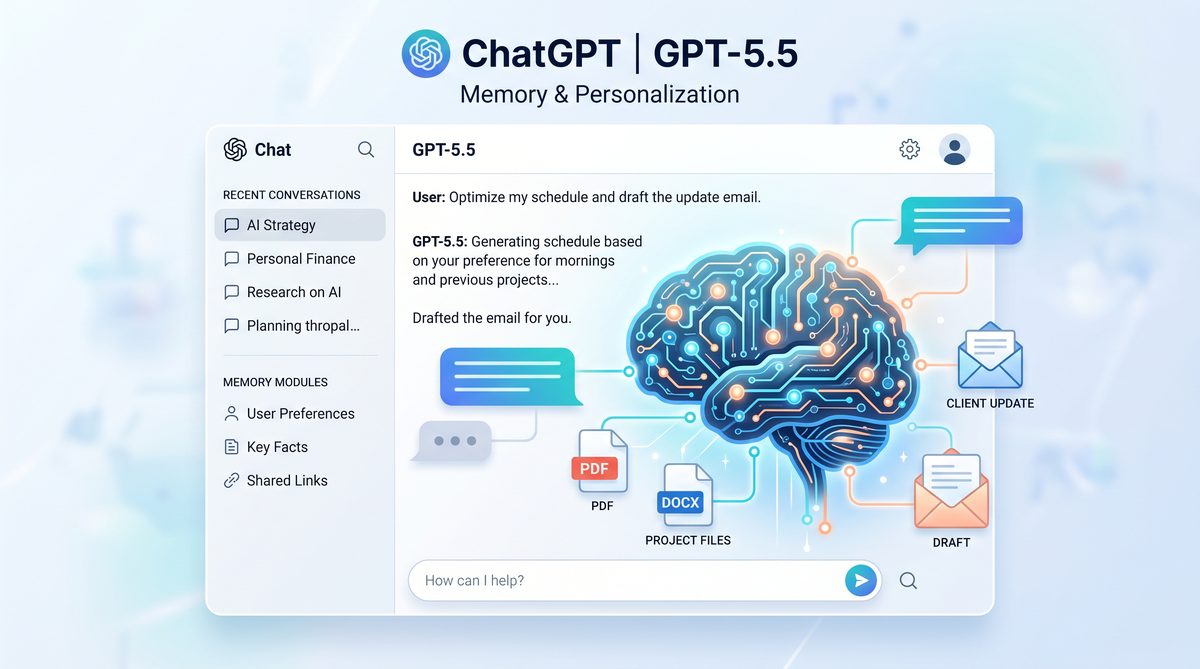
How to Build Automated Workflows with GPT-5.5 Connected Apps: Gmail, Drive, and Calendar Integration
By Markos Symeonides | May 15, 2026
1. Introduction: Why Connected App Workflows Matter for Productivity
In today’s fast-paced business environment, managing email overload, scheduling meetings, and maintaining up-to-date documentation are critical for team efficiency and decision-making. Traditional siloed applications often create friction, forcing users to manually switch between Gmail, Google Drive, and Calendar to complete routine tasks. This fragmentation can lead to missed deadlines, overlooked messages, and unprepared meetings.
Connected app workflows powered by GPT-5.5 offer a transformative approach to productivity by seamlessly integrating Gmail, Google Drive, and Calendar through AI-driven automation. Instead of merely reacting to notifications or manually compiling information, users can harness GPT-5.5’s connected apps feature to automate repetitive processes, prioritize workflows, and generate contextual content across platforms.
This tutorial focuses exclusively on building five practical, hands-on automated workflows that address common business challenges. Each workflow leverages the unique strengths of GPT-5.5’s connected apps to enhance productivity, reduce cognitive load, and optimize collaboration.
Why Automate Using GPT-5.5 Connected Apps?
- Streamlined Communication: Automate triage and responses to high-priority emails without losing the personal touch.
- Contextual Meeting Prep: Gather relevant documents and emails automatically before meetings to save prep time.
- Dynamic Document Management: Keep project files synchronized with ongoing email discussions.
- Proactive Scheduling: Ensure timely follow-ups with automated calendar reminders and draft emails.
- Comprehensive Reporting: Aggregate data across apps into weekly summary digests for informed decision-making.
By following this tutorial, you will gain practical experience with GPT-5.5’s connected app workflows tailored for real business use, enabling you to implement these automations immediately.
2. Prerequisites and Setup: How to Enable Connected Apps (Gmail, Google Drive, Calendar)
Before building the workflows, it’s essential to configure GPT-5.5 to access and interact with your Gmail, Google Drive, and Calendar accounts securely. This setup ensures GPT-5.5 can read, write, and manage data across these apps in compliance with privacy and security best practices.
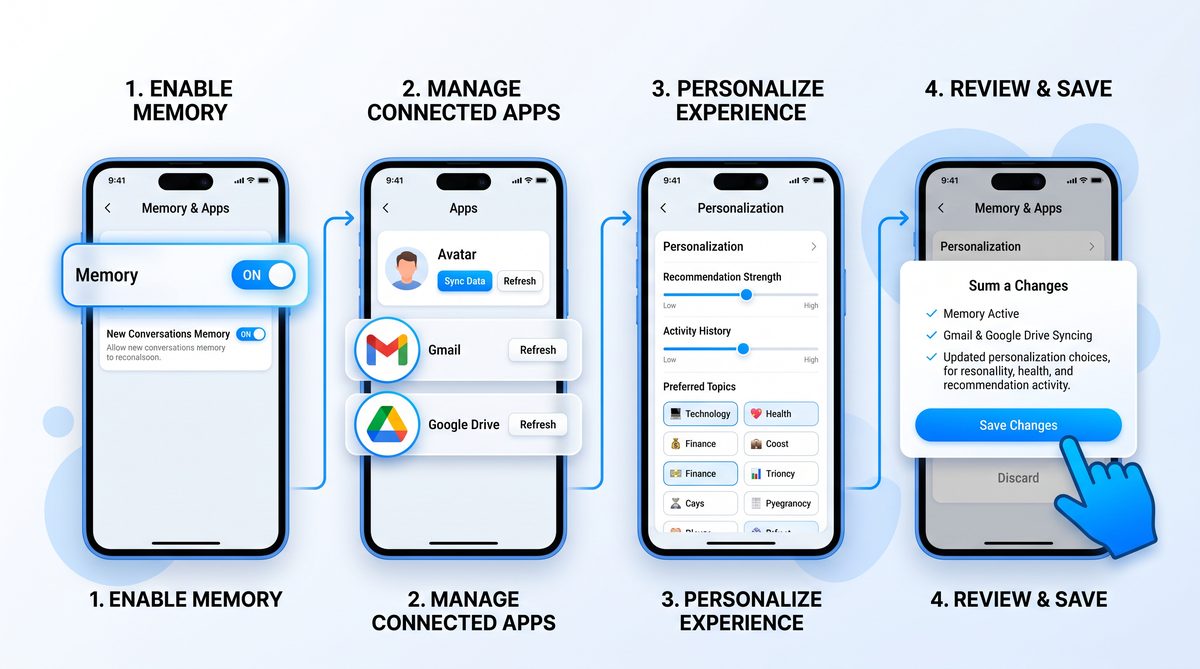
Step 1: Access Connected Apps Settings
- Open ChatGPT on your browser or desktop client.
- Click on your profile icon in the lower-left corner.
- Select Settings from the dropdown menu.
- Navigate to the Connected Apps tab.
Step 2: Enable Gmail Integration
- Find Gmail in the list of available apps.
- Click Connect and authorize GPT-5.5 to access your Gmail account.
- Review permissions carefully; GPT-5.5 requires read and send email permissions to automate workflows.
Step 3: Enable Google Drive Integration
- Locate Google Drive and click Connect.
- Authorize access to your Drive files and folders, allowing GPT-5.5 to create, read, and update documents.
Step 4: Enable Google Calendar Integration
- Find Google Calendar and select Connect.
- Allow GPT-5.5 to view, create, and modify calendar events.
Step 5: Verify Connections
Once connected, the status indicator next to each app should display Active. Test each integration by sending a simple command such as:
Show me my next 3 calendar events.If the response correctly lists your upcoming meetings, your connected apps are successfully enabled and ready.
3. Workflow 1: Automated Email Triage and Priority Response System
Handling a high volume of emails efficiently is a universal challenge. This workflow uses GPT-5.5 to automatically triage incoming emails, categorize them by priority, and draft contextually relevant responses for high-priority messages. This reduces time spent reading and responding manually, allowing focus on critical communications.
Step 1: Define Email Prioritization Criteria
Common prioritization rules include:
- Emails from key clients or executives are high priority.
- Emails containing urgent keywords like “deadline,” “urgent,” or “action required.”
- Emails marked as important or flagged by Gmail.
Step 2: Setup the Automation Trigger
Configure GPT-5.5 to monitor your inbox continuously or at scheduled intervals. In the ChatGPT interface:
- Navigate to Workflows > Create New Workflow.
- Name the workflow “Email Triage & Response.”
- Set the trigger as New Email Received in Gmail.
- Apply filters based on the prioritization criteria defined above.
Step 3: Create the Triage and Response Action
Use the following prompt template inside the workflow’s action step to analyze and respond to emails:
You are an email assistant. Given the email below, please:
1. Categorize its priority level (High, Medium, Low).
2. For High priority emails, draft a professional and concise response acknowledging receipt and outlining next steps.
3. For Medium and Low priority, generate a short summary.

Email:
{email_body}

Sender:
{sender_email}
Step 4: Test the Workflow
Send test emails matching different priority levels to your inbox and observe GPT-5.5’s triage and response outputs. Adjust filters and prompts as necessary to improve accuracy.
Step 5: Enable Auto-Response for High Priority Emails
Configure the workflow to automatically send the drafted response for high-priority emails or queue drafts for manual review.
Example Output for High Priority Email:
Subject: Re: Urgent: Project Deadline Change

Dear [Sender Name],

Thank you for your message. I acknowledge the change in project deadline and will update the team accordingly. I will follow up with a detailed plan by end of day.

Best regards,
[Your Name]
4. Workflow 2: Meeting Preparation Agent (Calendar + Drive + Gmail)
Preparing for meetings often involves gathering relevant emails, documents, and notes—an inefficient manual process. This workflow automates meeting preparation by extracting agenda items and related files from your calendar events, emails, and Google Drive, then generating a briefing document ahead of the meeting.
Step 1: Define Meeting Preparation Trigger
Configure GPT-5.5 to trigger this workflow based on upcoming calendar events:
- Trigger: Event starting in 24 hours on Google Calendar.
- Filter: Only events marked as “Meeting” or containing keywords like “Review,” “Sync,” or “Planning.”
Step 2: Gather Relevant Information
Use GPT-5.5 to:
- Scan the email threads related to the meeting participants or event title.
- Search Google Drive folders linked to the project or meeting topic.
- Extract agenda points or notes from previous meetings if available.
Step 3: Generate the Briefing Document
Create a Google Docs document using this prompt template to produce the briefing:
You are a meeting assistant. Based on the following inputs, create a concise briefing document for the upcoming meeting titled "{event_title}" scheduled at {event_time}.

1. Key agenda items and discussion points extracted from emails:
{email_summaries}

2. Relevant documents and notes found in Drive:
{drive_file_list}

3. Previous meeting notes summary:
{previous_meeting_notes}

Format the document with clear headings, bullet points, and action items.
Step 4: Share Briefing Document via Email
After creating the document, configure GPT-5.5 to send an email to all meeting participants with the briefing document link and a summary of what will be discussed.
Example Email Notification:
Subject: Briefing Document for Upcoming Meeting: {event_title}

Dear Team,

Please find the briefing document prepared for our meeting scheduled on {event_time}. It contains key agenda items, relevant files, and notes to help us have a productive session.

Access the document here: {document_link}

Looking forward to our discussion.

Best regards,
[Your Name]
Step 5: Test and Iterate
Schedule a test meeting and verify that the briefing document is generated and shared automatically. Refine the content extraction prompts or filters as needed to improve relevance and clarity.
This workflow not only saves preparation time but also ensures everyone comes to meetings informed and aligned, boosting meeting effectiveness.
For more advanced workflow setups, including chaining and memory use, see the How to Build Custom AI Workflows with Claude’s MCP Server Integration“>Advanced Tips section later in this article.
Workflow 3: Project Documentation Sync (Drive + Gmail)
In many project environments, critical updates and decisions are often communicated via email threads, while project documentation resides in Google Drive. Maintaining synchronization between these two sources manually is time-consuming and error-prone. This workflow leverages GPT-5.5’s connected apps capabilities to automatically extract key project updates from Gmail conversations and update corresponding documents in Google Drive, ensuring project files remain current without manual effort.
Step 1: Define Project Email Threads and Target Documents
Identify the email labels or threads that contain project communications, and specify the Google Drive folder or documents where the updates should be reflected. For example, emails tagged with ProjectX label will sync with the Project X Documentation folder in Drive.
Step 2: Set Up GPT-5.5 Connected Apps Access
Ensure GPT-5.5 has permission to access your Gmail and Google Drive accounts:
- In ChatGPT, click Settings > Connected Apps.
- Enable Gmail and Google Drive.
- Authorize access to the required labels and folders.
Step 3: Create the Extraction and Update Prompt
Below is a sample prompt that instructs GPT-5.5 to analyze the latest emails in the project thread and summarize key updates, then append them to a designated Google Doc:
Analyze the last 5 emails from the Gmail label "ProjectX".
Extract key project updates, decisions, and action items.
Append a summary to the Google Doc titled "Project X Documentation" in the "Project X" Drive folder.
Ensure the updates are formatted with dates and sender names.
Maintain chronological order and avoid duplications.
Step 4: Automate Workflow Triggering
Configure this prompt within GPT-5.5’s workflow automation interface to run:
- Automatically at designated intervals (e.g., daily at 9 AM), or
- When new emails arrive with the “ProjectX” label.
Step 5: Test and Refine
Send test emails with project updates tagged appropriately. Monitor the Google Doc to confirm that the summaries are appended correctly with proper formatting and content accuracy. Adjust the prompt or permissions as needed.
Benefits of This Workflow
- Reduces manual copy-pasting and documentation overhead.
- Improves project transparency by keeping documentation live and comprehensive.
- Ensures team members have access to the latest information centralized in Drive.
Example Table: Comparing Document Update Frequency Options
| Update Frequency | Pros | Cons | Use Case |
|---|---|---|---|
| Real-time (on new email) | Always up-to-date | Higher API usage, possible delays | Fast-moving projects with frequent updates |
| Daily Batch | Efficient resource use | May have slight delay in updates | Projects with moderate communication |
| Weekly Summary | Minimal API calls, focused updates | Less granular detail | Long-term projects or status reporting |
This workflow dramatically simplifies the ongoing challenge of keeping project documentation in sync with evolving email communications, freeing team members to focus on critical tasks instead of administrative updates.
Workflow 4: Smart Follow-Up Scheduler (Calendar + Gmail)
Following up on emails and meetings is crucial for closing deals, advancing projects, and maintaining customer relationships. However, busy professionals often miss or delay these follow-ups. GPT-5.5’s connected apps allow you to automate follow-up scheduling by analyzing your Gmail messages and Calendar events to generate reminders and draft follow-up emails at optimal times.
Step 1: Connect Gmail and Calendar
- In ChatGPT, navigate to Settings > Connected Apps.
- Enable Gmail and Google Calendar access.
- Authorize permissions to read events, email threads, and create calendar reminders.
Step 2: Define Follow-Up Rules
Decide the criteria for follow-ups, such as:
- Emails marked with
FollowUplabel but no reply within 48 hours. - Meetings that ended without a summary email sent.
- High-priority contacts or clients flagged in Gmail.
Step 3: Create the Follow-Up Scheduling Prompt
Use the following prompt to automate follow-up reminders and draft emails:
Review all Gmail emails labeled "FollowUp" that have not received a reply in 48 hours.
For each, create a calendar event reminder titled "Follow-up: [Email Subject]" scheduled for the next business day at 10 AM.
Draft a polite follow-up email based on the original message content, including a brief summary and call to action.
Save the draft in Gmail and link it to the calendar reminder.
Step 4: Configure Automated Execution
Set this workflow to run every morning, scanning emails and calendar events to update reminders and drafts accordingly.
Step 5: Review and Customize Follow-Up Drafts
Check the drafts created in Gmail to personalize tone or add context before sending. Over time, you can refine the prompt to better match your communication style.
Advantages
- Ensures timely follow-ups to increase engagement and response rates.
- Reduces mental load by automating task tracking and reminders.
- Improves professionalism through consistent, well-crafted correspondence.
Comparison Table: Manual vs Automated Follow-Up
| Aspect | Manual Follow-Up | Automated Follow-Up with GPT-5.5 |
|---|---|---|
| Consistency | Often inconsistent based on workload | Always consistent and timely |
| Personalization | Depends on user effort | Customizable prompts for tone and content |
| Time Investment | High, manual drafting and scheduling | Minimal, automated drafts and reminders |
| Follow-Up Success Rate | Variable | Improved due to timeliness and reminders |
This workflow helps maintain momentum in communications, an essential factor in sales, support, and project management.
Workflow 5: Weekly Digest Generator (All Connected Apps)
Managers, team leads, and busy professionals often need to stay informed about key activities without sifting through countless emails, calendar events, and Drive updates. This workflow uses GPT-5.5’s connected Gmail, Drive, and Calendar access to generate a comprehensive weekly digest summarizing important emails, upcoming events, and recent document changes.
Step 1: Enable All Connected Apps
Make sure GPT-5.5 has access to Gmail, Google Drive, and Google Calendar:
- Click Settings > Connected Apps.
- Enable Gmail, Google Drive, and Google Calendar.
- Authorize permissions for reading emails, events, and files.
Step 2: Define Digest Content and Scope
Decide what content to include in your weekly digest, for example:
- Unread or important emails received during the week.
- Upcoming meetings and deadlines in the next 7 days.
- Files created or modified in Google Drive related to your projects.
Step 3: Draft the Weekly Digest Prompt
Use the following prompt as a basis for generating the digest:
Generate a weekly digest summarizing the following:
1. Important unread emails from the past 7 days, including sender, subject, and brief summary.
2. Upcoming calendar events in the next 7 days, with times and attendees.
3. Google Drive files created or modified in the past week, including file names and locations.
Format the digest with clear sections and bullet points, suitable for sending as an email or Slack message.
Step 4: Automate Digest Creation and Delivery
Set GPT-5.5 to generate the digest every Friday afternoon. Configure it to either:
- Send the digest as an email to your inbox or team mailing list via Gmail.
- Export the digest as a Google Doc in a shared folder.
- Post the digest to a Slack channel via integration (if available).
Step 5: Review and Customize
Review the generated digest for completeness and format. You can customize the prompt to add more detail or filter by specific senders, projects, or event types.
Benefits
- Consolidates key weekly information in one accessible report.
- Saves time spent manually gathering updates across apps.
- Improves team alignment by sharing consistent, structured summaries.
This workflow can be adapted for different roles, such as sales teams needing client activity summaries or HR teams tracking employee schedules and document updates.
For additional insights on integrating these workflows into broader automation strategies, check the How to Automate Workflows with the Codex Chrome Extension“>Advanced Tips section later in this article.
8. Advanced Tips: Chaining Workflows and Using Memory for Persistent Automation
To maximize the power of GPT-5.5 connected apps, it’s essential to move beyond isolated workflows and embrace advanced techniques such as chaining multiple workflows and leveraging the system’s memory capabilities. These approaches enable persistent, stateful automation that can significantly enhance business productivity and reduce manual overhead.
8.1 Chaining Workflows: Creating Seamless Automation Pipelines
Chaining workflows means designing processes where the output of one workflow becomes the input of another, creating an automated pipeline that handles complex tasks end-to-end without human intervention. For example, you might start with an automated email triage, which triggers a meeting preparation workflow based on flagged emails, followed by a documentation sync, and then a follow-up scheduler.
How to Chain Workflows:
- Define Clear Outputs and Inputs: Each workflow should produce structured outputs (e.g., JSON objects, summary reports, flagged emails) that can be consumed by the next workflow.
- Use GPT-5.5’s Connected Apps Interface: Within the ChatGPT interface, utilize the “Workflow Trigger” feature to specify when a workflow should initiate after another completes.
- Set Conditional Triggers: Use conditions such as email priority, meeting types, or project tags to determine whether the next workflow activates.
- Test Each Segment Independently: Ensure that each workflow functions as expected before integrating it into a chain to avoid cascading errors.
Example: Email Triage to Meeting Preparation Chain
{
  "email_triage": {
    "flagged_emails": [
      {
        "subject": "Q2 Sales Strategy Meeting",
        "sender": "[email protected]",
        "date": "2026-05-10T09:00:00Z",
        "priority": "high"
      }
    ]
  },
  "trigger_meeting_prep": {
    "meeting_subject": "Q2 Sales Strategy Meeting",
    "meeting_time": "2026-05-12T15:00:00Z"
  }
}
Here, flagged emails with meeting invites or high-priority labels automatically trigger the Meeting Preparation Agent, which generates briefing materials ahead of time.
8.2 Using Memory for Persistent Automation
GPT-5.5 supports memory functionality that allows workflows to retain context, user preferences, and historical data across sessions. This persistent memory is crucial for building automation that adapts and improves over time without losing track of ongoing projects, communication patterns, or recurring tasks.
Enabling Memory:
- Navigate to Settings > Memory & Data in the ChatGPT interface.
- Toggle memory to On and specify what data should be retained securely.
- Use memory-aware prompts that call upon stored variables and past interactions.
Practical Use Cases for Memory in Workflows:
- Project Documentation Sync: Remember document versions and last update timestamps to avoid overwriting changes.
- Smart Follow-Up Scheduler: Track previous follow-ups and responses to optimize reminder timing.
- Weekly Digest Generator: Store user preferences on digest content and frequency for personalized reports.
Example Memory-Aware Prompt
"Remember that the client 'Acme Corp' prefers meeting briefs to be 2 pages maximum and include financial KPIs. When preparing briefing docs, always include this preference."
By incorporating such memory statements into your workflows, GPT-5.5 can tailor outputs dynamically, improving relevance and reducing repetitive instruction.
8.3 Combining Chaining and Memory: The Ultimate Automation Strategy
When chaining workflows and enabling memory, you create a powerful ecosystem where automation not only performs tasks sequentially but also learns and adapts to business needs over time. For instance, an email triage workflow might learn which types of emails require immediate follow-ups based on historical data stored in memory, and then trigger appropriate follow-up emails or calendar events accordingly.
| Feature | Chaining Workflows | Memory Usage | Combined Benefit |
|---|---|---|---|
| Purpose | Link multiple workflows for end-to-end automation | Retain context and preferences over time | Adaptive, continuous automation with minimal manual input |
| Setup Complexity | Medium to High – requires defining data formats and triggers | Low to Medium – just toggle and configure memory settings | High – requires planning but yields best productivity gains |
| Use Cases | Multi-step business processes (e.g., sales pipelines, project management) | Personalized responses and follow-ups, version tracking | End-to-end workflows that improve with experience |
| Maintenance | Requires monitoring triggers and outputs | Requires data privacy and security management | Requires periodic review and tuning for optimal performance |
By experimenting with chaining and memory, businesses can unlock new levels of automation sophistication, transforming routine tasks into intelligent, adaptive workflows.
9. Troubleshooting Common Issues
While GPT-5.5 connected apps workflows offer powerful automation capabilities, users may encounter challenges during setup or execution. This section highlights common issues and practical solutions to help you maintain smooth operation.
9.1 Issue: Connected Apps Not Responding or Showing Errors
- Cause: Authentication tokens expired or permissions revoked.
- Solution:
- Go to Settings > Connected Apps in ChatGPT.
- Re-authenticate Gmail, Google Drive, and Calendar apps by logging in again.
- Verify that required permissions (read/write access) are granted.
- Check your Google account security settings for any blocks or alerts.
9.2 Issue: Workflow Fails to Trigger Automatically
- Cause: Incorrect workflow trigger conditions or disabled triggers.
- Solution:
- Review your workflow trigger setup in the ChatGPT interface.
- Ensure triggers are enabled and conditions are correctly specified (e.g., email label, calendar event type).
- Test triggers manually by simulating input data.
9.3 Issue: Output Documents or Emails Have Formatting Issues
- Cause: Prompt formatting or template issues.
- Solution:
- Inspect the prompt templates used in your workflows for missing or incorrect HTML/Markdown tags.
- Use explicit formatting instructions in prompts (e.g., “Generate the email in plain text with bullet points”).
- Validate generated documents manually and adjust prompt wording accordingly.
9.4 Issue: Data Not Syncing Between Gmail and Drive
- Cause: API rate limits or permission mismatches.
- Solution:
- Check Google API usage dashboard for quota limits.
- Ensure you have granted full access permissions to both Gmail and Drive apps.
- Space out workflow executions to avoid hitting rate caps.
9.5 General Best Practices for Troubleshooting
- Always isolate and test each step of your workflow before connecting them.
- Use verbose logging features in ChatGPT to monitor workflow execution details.
- Consult the official GPT-5.5 connected apps documentation for updates and known issues.
- Maintain backups of critical documents and email templates before automating changes.
For more detailed troubleshooting strategies and community support, visit the Prompting Guide: How to Leverage GPT-5.5 Instant Memory Sources for Personalized AI Workflows“>ChatGPT AI Hub Troubleshooting Center.
10. Conclusion: Looking Ahead to Smarter, Connected Business Automation
In this comprehensive tutorial, we have explored how to build five practical, hands-on automated workflows using GPT-5.5’s connected apps feature, integrating Gmail, Google Drive, and Google Calendar to transform everyday business tasks.
From intelligent email triage to automated meeting preparation, dynamic project documentation, smart follow-up scheduling, and comprehensive weekly digest generation, these workflows demonstrate the tangible productivity gains achievable by harnessing GPT-5.5’s advanced automation capabilities.
By applying advanced concepts such as chaining workflows and leveraging GPT-5.5’s memory for persistent context, businesses can elevate these automations into adaptive, continuously improving systems that reduce manual effort, minimize errors, and free up valuable time for strategic activities.
As GPT-5.5 and its connected app ecosystem evolve, expect even deeper integrations, enhanced AI understanding of business contexts, and tighter security and compliance features. Staying ahead by mastering these workflows today will position your organization to capitalize on the next generation of AI-powered productivity solutions.
We encourage you to experiment with the workflows outlined here, customize them to your unique business needs, and explore the potential of combining GPT-5.5’s connected apps with other automation tools and APIs for a truly intelligent digital workplace.
Thank you for following this tutorial series. For continued updates, advanced strategies, and community insights, visit ChatGPT AI Hub.
Stay Ahead of the AI Curve
Get the latest ChatGPT tutorials, AI news, and expert guides delivered straight to your inbox. Join thousands of AI professionals who trust ChatGPT AI Hub.
