
How to Use Codex Mobile: Complete Guide to Running AI Coding Agents from Your Phone
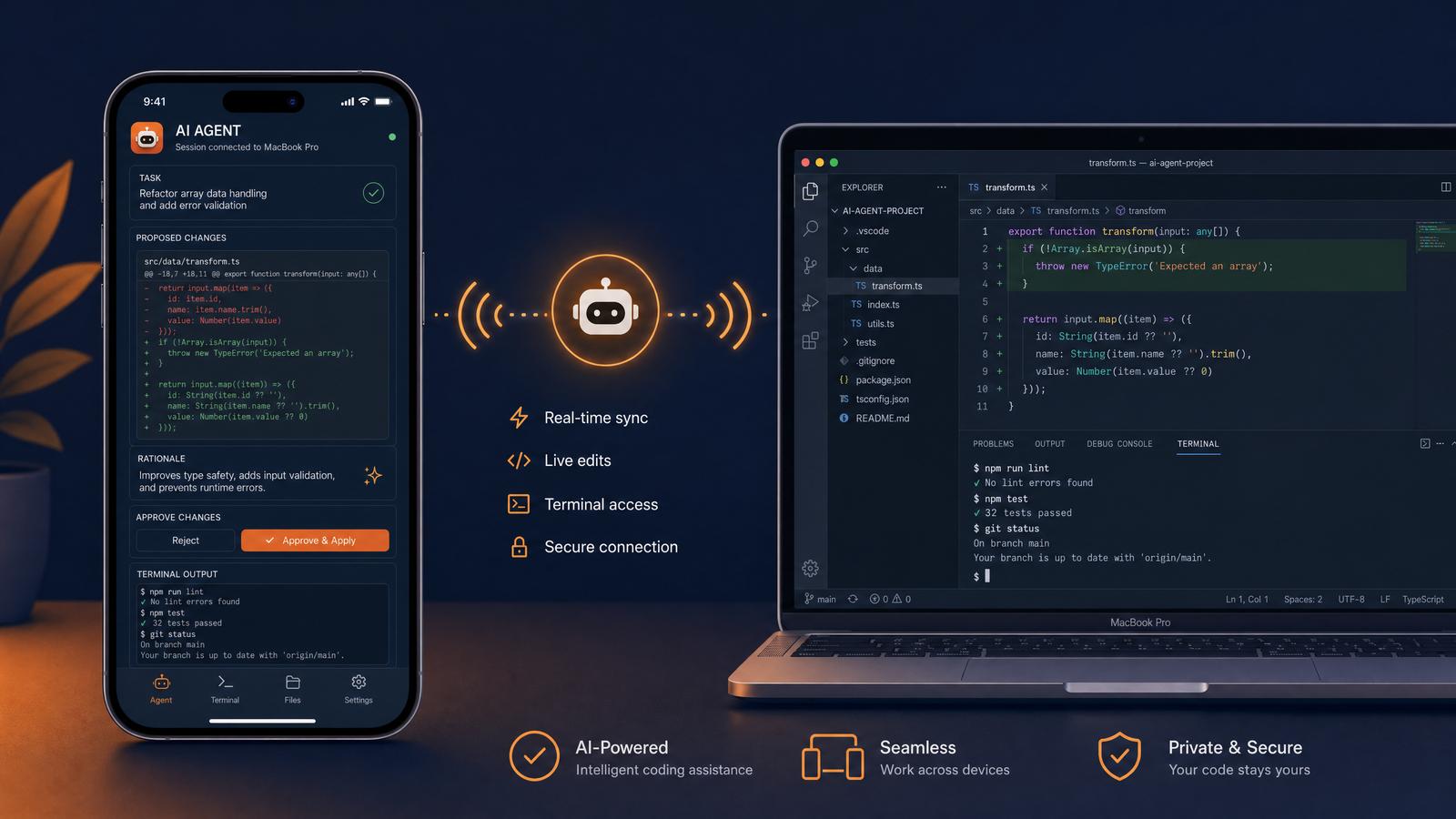
Codex Mobile, introduced in preview within the ChatGPT mobile app on May 14, 2026, revolutionizes the way developers interact with AI coding agents by enabling seamless, secure, and powerful coding workflows directly from their smartphones. This comprehensive guide covers everything you need to know about setting up and using Codex Mobile to run AI-driven code assistance on your local or remote machines, while maintaining robust security around your credentials and sensitive files.
Unlike traditional desktop or cloud-based coding environments, Codex Mobile leverages advanced mobile optimizations to deliver a native-like development experience on iOS and Android devices. It integrates tightly with your local development environments using secure tunnels, and supports multiple AI coding agents simultaneously, each tailored for different programming languages and frameworks. This enables developers to perform complex code generation, debugging, and deployment tasks without ever needing to switch to a laptop or desktop.
Key Benefits of Codex Mobile
- On-the-go development: Run AI-powered coding agents from anywhere, whether commuting, in meetings, or at client sites.
- Robust security: End-to-end encryption of credentials and communication channels ensures your source code and secrets remain protected.
- Multi-agent orchestration: Manage different AI coding assistants tailored for frontend, backend, DevOps, and testing workflows.
- Local and remote execution: Execute code generation and automation workflows on your local machines or cloud servers seamlessly.
- Integration with CI/CD pipelines: Trigger builds, tests, and deploys via Codex Mobile’s interface, bridging mobile development with production systems.
How Codex Mobile Works: Technical Overview
At its core, Codex Mobile acts as a secure client that connects to AI coding agents hosted either locally on your development machines or remotely on cloud instances. It leverages a multi-layered architecture:
- Mobile Client: Runs within the ChatGPT app, providing an intuitive UI to interact with AI agents, view code suggestions, and manage workflows.
- Secure Tunnel: Establishes an encrypted WebSocket or SSH tunnel between your phone and the target environment, ensuring low-latency, secure communication.
- Agent Daemon: A lightweight background process running on your machine or server that receives requests, invokes AI models, and streams responses back.
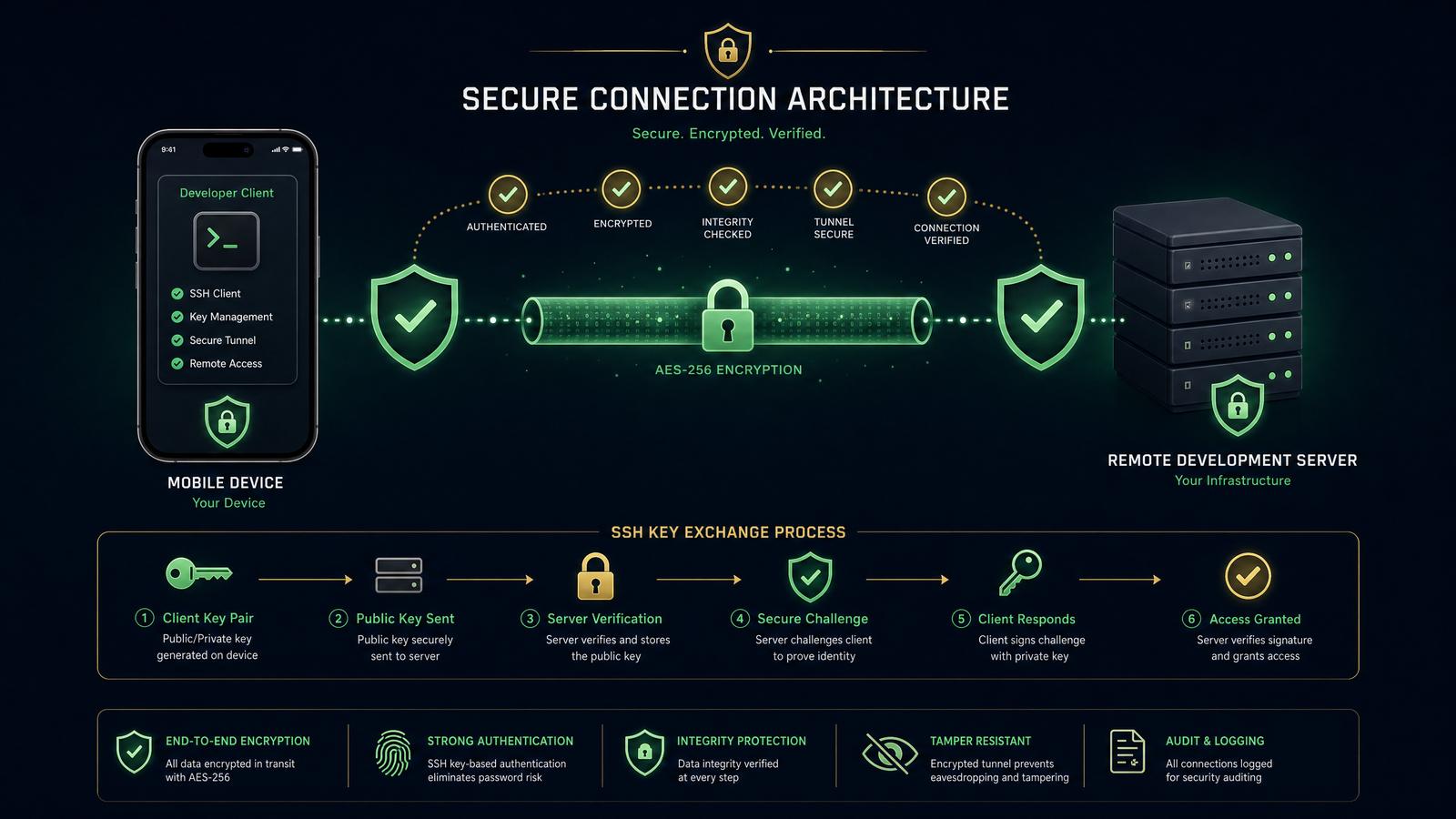
- Credential Vault: Manages API keys, SSH credentials, and tokens locally on the device using hardware-backed secure storage like iOS Keychain and Android Keystore for zero-trust security.
Example: Establishing a Secure Tunnel via SSH
Below is a production-grade example of setting up an SSH tunnel from your mobile device to a remote Linux server hosting Codex agent daemons. This allows Codex Mobile to securely forward traffic without exposing any ports publicly.
ssh -i ~/.ssh/codex_mobile_key -N -L 127.0.0.1:5000:localhost:5000 [email protected]
This command forwards local port 5000 on your phone (proxied via the mobile app) to port 5000 on the remote server, where the Codex agent daemon listens. The -N flag ensures no remote commands are executed, enhancing security.
Mobile Client Configuration Snippet (JSON)
Here is a sample configuration file snippet used by the Codex Mobile client to define multiple AI coding agents and connection details:
{
  "agents": [
    {
      "name": "Python Agent",
      "language": "python",
      "endpoint": "ws://127.0.0.1:5000",
      "auth": {
        "type": "ssh",
        "keyPath": "~/.ssh/codex_mobile_key"
      }
    },
    {
      "name": "NodeJS Agent",
      "language": "javascript",
      "endpoint": "ws://127.0.0.1:5001",
      "auth": {
        "type": "token",
        "token": "YOUR_SECURE_API_TOKEN"
      }
    }
  ],
  "credentialStorage": {
    "ios": "keychain",
    "android": "keystore"
  }
}
Supported Languages and Frameworks
Codex Mobile supports a broad spectrum of programming languages, providing tailored AI models and pre-built agents optimized for each environment:
| Language | Supported Frameworks | Agent Features |
|---|---|---|
| Python | Django, Flask, FastAPI | Code completion, bug detection, test generation, environment setup |
| JavaScript / TypeScript | Node.js, React, Angular, Vue | Refactoring, API integration, linting, build automation |
| Java | Spring Boot, Android SDK | Code synthesis, debugging, performance profiling |
| Go | Gin, Echo | Automated code review, concurrency analysis |
| DevOps | Kubernetes, Docker, Terraform | Infrastructure as code generation, deployment scripts, CI/CD orchestration |
Next Steps
With this foundation, you’re ready to dive deeper into the setup, configuration, and advanced usage of Codex Mobile. The following sections will guide you through installation, environment setup, security best practices, and real-world coding workflows on your phone.
Understanding Codex Mobile Architecture and Security Model
At its core, Codex Mobile functions as a highly secure and efficient bridge between your mobile device—whether running iOS or Android—and your coding environments, which typically consist of either a local macOS machine or a remote server accessible via Secure Shell (SSH). Unlike conventional mobile applications that might run AI models locally or hold sensitive data on the device, Codex Mobile delegates all intensive computations and sensitive operations to your trusted machines. This architectural design ensures that your phone remains a lightweight, responsive interface that streams terminal outputs, code diffs, screenshots, and interactive approval prompts back and forth over a secure channel, thereby preserving both data privacy and operational security.
By leveraging this architecture, Codex Mobile effectively addresses common concerns such as data leakage, unauthorized code execution, and device compromise risks, making it suitable for professional developers who require secure AI-assisted coding workflows while on the move.
Key Security Principles
- Local Execution: All code execution, file system modifications, and credential handling are strictly confined to your trusted local or remote machine. The mobile device merely acts as an interface for command input and output visualization, ensuring that sensitive logic and secrets never reside on the phone. This principle mitigates the risk of exposure from device loss or malware infection.
- Encrypted Communication: Communication between the mobile app and the coding environment is secured using Transport Layer Security (TLS) with mutual authentication. This means both the client (phone) and server (local or remote machine) authenticate each other using cryptographic certificates, preventing man-in-the-middle attacks and ensuring end-to-end encryption of all streamed data. Furthermore, the app negotiates strong cipher suites supporting Perfect Forward Secrecy (PFS) such as ECDHE_RSA with AES-256-GCM.
- Minimal Data Exposure: The system streams only non-sensitive outputs like terminal text, unified or side-by-side diffs generated via
git diffor similar tools, screenshots of relevant UI components (which can be selectively disabled), and explicit approval prompts. Raw source files, environment variables, API keys, or credentials remain strictly on the host machine and are never transmitted to the mobile device. This significantly reduces the attack surface. - Explicit User Approvals: To maintain codebase integrity and prevent unauthorized commits or refactors, any operation that alters the source code or pushes changes to remote repositories requires explicit confirmation through the mobile interface. Approval prompts are designed with clear contextual information, including diffs and commit messages, ensuring users make informed decisions before applying changes. This feature is critical when working in team environments or production branches.
How Codex Mobile Streams Data
The data streaming workflow in Codex Mobile is carefully optimized for low latency and reliability, ensuring an interactive and seamless user experience. Below is a detailed step-by-step walkthrough of the data flow from invocation to application of changes:
- Command Input: You initiate an AI coding agent by sending a prompt or command through the mobile app interface. This input can be natural language instructions (e.g., “Refactor the login module to use async/await”) or explicit command-line instructions.
- Remote Execution: The command is securely transmitted over an authenticated TLS channel to your local machine or remote server. This environment then runs the Codex AI model or a configured agent, typically leveraging OpenAI’s Codex API or a local AI runtime container. The AI processes your input and generates suggested code changes, terminal commands, or scripts accordingly.
- Data Streaming Back to Mobile: The environment streams back relevant outputs in real-time, including:
- Terminal Output: Standard output and error logs from the executed commands.
- Code Diffs: Unified diffs produced by
git diff --stagedor custom diff tools highlight proposed changes, facilitating precise review. - Screenshots: Optional UI snapshots to provide visual context, for example, previewing application behavior or IDE states.
- Approval Prompts: Interactive requests for user validation before applying critical changes.
- Interactive Review and Approval: You examine the streamed diffs and outputs on your phone. The interface allows inline comments, selective staging, and modification of proposed changes. You can approve, reject, or request regeneration of suggestions dynamically.
- Local Application of Changes: Once approved, the environment applies the modifications locally by staging and committing changes, or running scripts as needed. If configured, post-commit hooks or Continuous Integration (CI) pipelines can be triggered automatically. No code changes occur without explicit user approval, ensuring auditability and control.
Example: Secure SSH Configuration for Codex Mobile
To facilitate secure connections between your mobile device and a remote coding server, you can configure SSH with certificate-based authentication, which complements Codex Mobile’s security model:
# On the remote server (~/.ssh/authorized_keys)
command="codex-agent-handler",no-port-forwarding,no-X11-forwarding,no-agent-forwarding ssh-rsa AAAAB3NzaC1yc2EAAAADAQABAAABAQC...

# On the mobile device, use an SSH client supporting certificates:
ssh -i ~/.ssh/codex_mobile_key [email protected]

# Example SSH config snippet (~/.ssh/config)
Host codex-server
  HostName remote-server.com
  User user
  IdentityFile ~/.ssh/codex_mobile_key
  CertificateFile ~/.ssh/codex_mobile_key-cert.pub
  PermitLocalCommand yes
  LocalCommand echo "Connected to Codex server"
Data Flow Diagram
The following table summarizes key components and data flows in Codex Mobile’s architecture:
| Component | Role | Data Handled | Security Controls |
|---|---|---|---|
| Mobile Device | Control interface and visualization | User prompts, streamed terminal output, diffs, screenshots, approvals | End-to-end TLS encryption, mutual authentication, no local execution |
| Local/Remote Machine | Code execution, AI processing, file operations | Source code, credentials, AI model runtime | OS-level security, SSH authentication, encrypted storage |
| Network Layer | Data transport | Encrypted command and response streams | TLS 1.3 with PFS, certificate pinning |
Production-Grade Configuration Tips
- Use Hardware Security Modules (HSMs): When possible, store SSH private keys and certificates in hardware-backed keystores to prevent extraction.
- Implement Network Access Controls: Restrict SSH access to codex mobile clients via firewall rules or VPN tunnels.
- Enable Detailed Logging: Maintain comprehensive audit logs on your local/remote machine for all Codex Mobile agent activities for compliance and forensic analysis.
- Regularly Rotate Credentials: Periodically update SSH keys, API tokens, and certificates to minimize risk of compromised secrets.
- Leverage Multi-Factor Authentication (MFA): Add additional authentication layers on your remote environment to secure access.
By understanding and properly configuring these architectural and security principles, developers can confidently harness Codex Mobile’s powerful AI coding capabilities from their phones without compromising their codebase security or privacy.
Step-by-Step Setup Guide: Connecting Your Mobile Device to Your Coding Environment
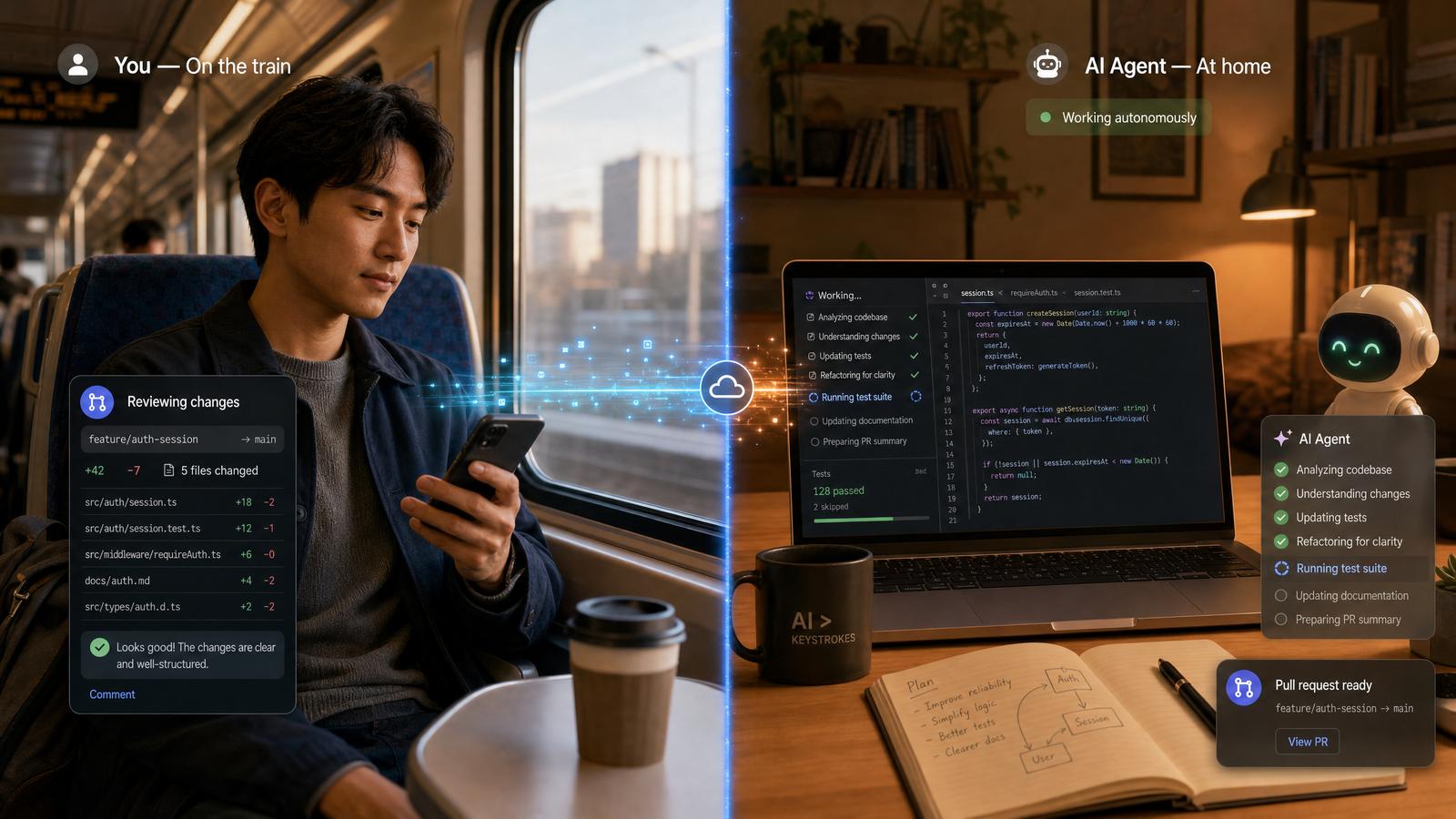
This section provides comprehensive, technical instructions to connect Codex Mobile with your macOS machine or a remote SSH-accessible Linux environment. It covers installation, configuration, and security best practices to ensure reliable and secure operation.
Prerequisites
- ChatGPT mobile app installed on iOS or Android (version 6.0+ as of May 2026). Verify your app version under
Settings > About. - macOS machine running macOS Monterey (12.0) or newer, or a remote Linux server accessible via SSH with OpenSSH 9.0+ installed.
- Stable network connectivity between your phone and machine—this can be through a shared Wi-Fi network, VPN, or cellular network with proper port forwarding.
- SSH key pair (preferably Ed25519) configured for secure, passwordless authentication on the remote server.
- Codex Mobile agent software installed on your local or remote machine. The agent binary must correspond to your OS/architecture. Download from the official repository.
- Optional but recommended: Firewall rules allowing inbound traffic on the Codex Mobile agent port (default 8080), and TLS certificates for encrypted communication.
1. Installing Codex Mobile Agent on macOS
The Codex Mobile agent acts as the server component that connects your phone’s app to your coding environment. Below is a production-grade installation sequence including verification steps.
# Download the latest Codex Mobile agent binary for macOS (Intel or Apple Silicon)
curl -LO https://codex-mobile.openai.com/releases/latest/codex-mobile-agent-macos.tar.gz

# Verify the SHA256 checksum (optional but recommended)
curl -LO https://codex-mobile.openai.com/releases/latest/codex-mobile-agent-macos.tar.gz.sha256
shasum -a 256 codex-mobile-agent-macos.tar.gz
cat codex-mobile-agent-macos.tar.gz.sha256

# Extract the archive
tar -xzf codex-mobile-agent-macos.tar.gz

# Move the agent binary to /usr/local/bin for system-wide access
sudo mv codex-mobile-agent /usr/local/bin/

# Ensure the agent binary has executable permissions
sudo chmod +x /usr/local/bin/codex-mobile-agent

# Verify installation and check version
codex-mobile-agent --version
Notes:
- For Apple Silicon (ARM64), ensure the binary is compatible; otherwise, run via Rosetta 2.
- If you prefer Homebrew, create a local tap or formula for easier updates.
- To enable system-wide service management, consider creating a
launchdplist for automatic agent startup (covered below).
Example: Setting up launchd service for Codex Mobile Agent
# Create a plist file at ~/Library/LaunchAgents/com.codexmobile.agent.plist with the following content:
cat > ~/Library/LaunchAgents/com.codexmobile.agent.plist <<EOF


    Label
    com.codexmobile.agent
    ProgramArguments

      /usr/local/bin/codex-mobile-agent
      start
      --port
      8080

    RunAtLoad

    KeepAlive

    StandardOutPath
    /tmp/codex-mobile-agent.log
    StandardErrorPath
    /tmp/codex-mobile-agent.err


EOF

# Load the agent service
launchctl load ~/Library/LaunchAgents/com.codexmobile.agent.plist

# Check status
launchctl list | grep codexmobile
2. Installing Codex Mobile Agent on Remote Linux Server
For remote Linux servers (Ubuntu, CentOS, Debian, etc.), follow the steps below. This example assumes a Debian-based system but is adaptable.
# Download the latest Codex Mobile agent binary for Linux (x86_64)
wget https://codex-mobile.openai.com/releases/latest/codex-mobile-agent-linux.tar.gz

# Verify SHA256 checksum
wget https://codex-mobile.openai.com/releases/latest/codex-mobile-agent-linux.tar.gz.sha256
sha256sum codex-mobile-agent-linux.tar.gz
cat codex-mobile-agent-linux.tar.gz.sha256

# Extract the archive
tar -xzf codex-mobile-agent-linux.tar.gz

# Move the agent binary to /usr/local/bin
sudo mv codex-mobile-agent /usr/local/bin/

# Make the binary executable
sudo chmod +x /usr/local/bin/codex-mobile-agent

# Verify installation
codex-mobile-agent --version
Production-grade considerations:
- Use a systemd service for automatic startup and monitoring:
# Create systemd service file
sudo tee /etc/systemd/system/codex-mobile-agent.service <<EOF
[Unit]
Description=Codex Mobile Agent Service
After=network.target

[Service]
ExecStart=/usr/local/bin/codex-mobile-agent start --port 8080
Restart=always
User=codexuser
Environment=PATH=/usr/local/bin:/usr/bin:/bin
WorkingDirectory=/home/codexuser

[Install]
WantedBy=multi-user.target
EOF

# Reload systemd and enable service
sudo systemctl daemon-reload
sudo systemctl enable codex-mobile-agent.service
sudo systemctl start codex-mobile-agent.service

# Check service status
sudo systemctl status codex-mobile-agent.service
Replace codexuser with the appropriate user account. Running the agent as a non-root user improves security.
3. Setting Up SSH for Remote Access
SSH provides a secure tunnel for your mobile device to communicate with remote servers. Passwordless authentication using SSH keys is essential for a seamless and secure Codex Mobile experience.
Generating SSH Key Pair
# Generate a new Ed25519 SSH key pair with a descriptive comment
ssh-keygen -t ed25519 -C "[email protected]" -f ~/.ssh/id_ed25519_codexmobile

# Optional: Use a passphrase for additional security, or leave empty for automated use
Deploying the Public Key to Remote Server
# Copy your public key to the remote server authorized_keys
ssh-copy-id -i ~/.ssh/id_ed25519_codexmobile.pub [email protected]

# Alternatively, manually append the public key
ssh [email protected] 'mkdir -p ~/.ssh && cat >> ~/.ssh/authorized_keys' < ~/.ssh/id_ed25519_codexmobile.pub
Testing SSH Connection
# Test passwordless SSH login using the specified identity file
ssh -i ~/.ssh/id_ed25519_codexmobile [email protected]

# For verbose debugging
ssh -v -i ~/.ssh/id_ed25519_codexmobile [email protected]
Security Best Practices:
- Ensure
~/.ssh/authorized_keyshas permissions600and~/.sshhas700. - Disable password authentication and root login in
/etc/ssh/sshd_configfor enhanced security:
# Edit /etc/ssh/sshd_config
PasswordAuthentication no
PermitRootLogin no

# Restart SSH daemon after changes
sudo systemctl restart sshd
4. Starting the Codex Mobile Agent
Once installed, start the Codex Mobile agent to listen for incoming connections from your mobile device. The agent supports multiple configuration options to tailor its behavior to your environment.
Basic Startup
# Start the agent with default settings (listens on port 8080 with automatic TLS)
codex-mobile-agent start
Advanced Usage Examples
- Specify SSH connection for remote environment:
codex-mobile-agent start --ssh [email protected] --project-path ~/projects/myapp
codex-mobile-agent start --port 9090
codex-mobile-agent start --tls-cert /path/to/cert.pem --tls-key /path/to/key.pem
nohup codex-mobile-agent start &
Monitoring and Logs:
- Logs by default are output to
stdout. Redirect output to log files for production use:
codex-mobile-agent start > /var/log/codex-mobile-agent.log 2>&1 &ps aux | grep codex-mobile-agent or systemctl status codex-mobile-agent (Linux) to check if the agent is running.codex-mobile-agent start --verbose5. Connecting the Mobile App
After your agent is up and running, follow these detailed steps to establish the connection from the ChatGPT mobile app to your coding environment.
- Open the ChatGPT mobile app and navigate to the Codex Mobile section. This is typically found under the main menu or the sidebar navigation.
- Tap “Add Environment” and select the appropriate connection type:
- Local Network: Use this if your phone and machine are on the same Wi-Fi network. Enter the local IP address (e.g.,
192.168.1.100) and the port number your agent is listening on (default is 8080). Verify connectivity by pinging the IP from your phone if possible. - SSH Tunnel: For connecting to remote servers securely over the internet, select this option. Input your SSH connection details:
Host:remote server hostname or IPPort:SSH port (default 22)Username:your SSH userAuthentication:Choose between SSH key authentication or password (key recommended)Private Key:You can import the SSH private key into the mobile app or use SSH agent forwarding if supported.
- Local Network: Use this if your phone and machine are on the same Wi-Fi network. Enter the local IP address (e.g.,
- Authenticate using your SSH keys or mobile app-generated token. The app supports hardware-backed key storage (Secure Enclave on iOS, Keystore on Android) for secure key management.
- Once connected, the app will display:
- Connection status (Connected / Disconnected / Error)
- Active projects and their paths
- Agent version and uptime
- Live logs or recent agent activity (optional)
Example: Configuring an SSH Tunnel Connection
Follow this example to set up an SSH tunnel connection inside the ChatGPT mobile app:
- Open Codex Mobile > Add Environment > SSH Tunnel.
- Enter the following details:
Host:remote-server.example.comPort:22User:yourusernamePrivate Key:Import yourid_ed25519_codexmobileprivate key file or paste the key contents securely.
- Tap Test Connection to verify SSH connectivity and agent responsiveness.
- If successful, save the environment and connect.
Network and Security Considerations
- Use VPNs or SSH tunnels to securely access your environment from untrusted networks.
- Ensure your firewall allows inbound connections on the Codex Mobile agent port (default 8080), or configure port forwarding on your router.
- Always prefer encrypted communication—Codex Mobile agent supports TLS by default.
- Rotate SSH keys periodically and revoke compromised keys immediately.
For more advanced configurations and troubleshooting, refer to the Codex Mobile Advanced Configuration section.
Practical Usage Scenarios of Codex Mobile
With Codex Mobile correctly configured, developers can leverage AI coding agents during everyday tasks, enhancing productivity even away from their desks. The flexibility of Codex Mobile enables seamless integration with existing development workflows, remote debugging, and continuous integration pipelines directly from a mobile device. This empowers developers to maintain momentum on complex projects without being tethered to a workstation.
Stay Ahead of the AI Curve
Get weekly insights on ChatGPT, OpenAI, and AI tools delivered to your inbox.
In production environments, Codex Mobile also facilitates rapid incident response and code iteration, minimizing downtime and accelerating feature delivery. Below, we explore detailed, real-world scenarios to illustrate how Codex Mobile can be effectively employed in diverse contexts.
Scenario 1: Unblocking a Refactor Mid-Commute
Imagine you are commuting and suddenly recall a critical refactor that requires AI assistance to optimize a legacy module. Using Codex Mobile on your phone, you can:
- Connect to your macOS machine running the agent. This connection is established via a secure WebSocket or SSH tunnel, ensuring encrypted data transmission. For example, you might use a VPN or SSH port forwarding to reach your local development environment behind a firewall.
- Send a prompt such as:
"Refactor the user authentication module to improve security and readability."This prompt can be crafted to specify coding standards, target languages, or frameworks to tailor AI suggestions precisely. - Receive streamed diffs showing suggested code changes. Codex Mobile supports incremental streaming of diffs using the unified diff format, enabling real-time review without waiting for the entire response.
- Review diffs, request modifications if necessary, and approve the update. The mobile UI allows inline commenting on diff hunks and iterative prompt refinement, such as requesting “Make the password hashing use bcrypt instead of SHA-1.”
- Push the changes locally or remotely through your connected git environment. Codex Mobile can interface with Git CLI via SSH or REST API to stage, commit, and push changes. For instance, you might run:
git add src/authentication/
git commit -m "Refactor authentication module for improved security and readability"
git push origin feature/refactor-auth
This command sequence can be executed directly within the mobile terminal or scripted through the AI agent.
Example: Advanced Prompt for Targeted Refactor
{
  "prompt": "Refactor the user authentication module in Python to use the latest 'passlib' library for password hashing, improve code modularity by separating concerns, and add type hints.",
  "language": "python",
  "files": ["src/authentication/auth.py"]
}
The AI agent will parse this structured prompt and generate precise diffs reflective of the specified requirements.
Scenario 2: Investigating a Bug While Waiting for Coffee
Waiting in line for coffee, you get a notification about a bug in production. Codex Mobile allows you to:
- SSH into your remote server hosting the application. Using built-in terminal emulation with SSH key authentication, Codex Mobile ensures secure and responsive shell access from your phone.
- Run diagnostic commands via the terminal streamed to your phone:
tail -n 50 /var/log/app/error.log | grep "NullPointerException"This command fetches the last 50 lines of error logs filtered for NullPointerException entries. You can also combine commands for deeper diagnostics, for example:
journalctl -u app.service --since "1 hour ago" | grep -i "error"or
kubectl logs -n production app-pod-12345 --tail=100 | grep "Exception"for Kubernetes environments.
- Request the AI agent to analyze logs and suggest a fix. Copy and paste the relevant log snippets or use Codex Mobile’s clipboard integration to send raw log excerpts to the AI agent. For example, you might prompt:
"Analyze these logs and propose a patch to handle the NullPointerException in the 'UserService' class." - View the AI-generated patch diffs and apply fixes after approval. The AI will respond with unified diffs, for example:
diff --git a/src/services/UserService.java b/src/services/UserService.java
index 5e3b1f2..8c7a5d3 100644
--- a/src/services/UserService.java
+++ b/src/services/UserService.java
@@ -45,7 +45,11 @@ public User getUserById(String id) {
-    return userRepository.findById(id).get();
+    Optional userOpt = userRepository.findById(id);
+    if (userOpt.isPresent()) {
+        return userOpt.get();
+    } else {
+        throw new UserNotFoundException("User with id " + id + " not found.");
+    }
 }
Codex Mobile enables you to apply these patches automatically using Git commands or manually review and paste changes in the integrated editor.
- Restart services or trigger deployment commands securely from your phone. After applying fixes, you might restart the affected service to apply changes:
sudo systemctl restart app.serviceOr, in a containerized environment, redeploy the pod:
kubectl rollout restart deployment app-deployment -n productionAll commands can be executed through Codex Mobile’s secure terminal interface, which supports SSH key forwarding and can integrate with multi-factor authentication (MFA) systems for enhanced security.
Best Practices for Bug Investigation Using Codex Mobile
- Use filtered log retrieval commands: Limit log outputs to relevant time windows and error types to reduce noise and improve AI analysis accuracy.
- Leverage AI-assisted code search: Query the codebase for suspect functions or modules using prompts like
"Find all usages of 'getUserById' in the project." - Maintain session persistence: Use tmux or screen sessions over SSH to preserve terminal state when switching between tasks.
- Automate common commands: Create alias scripts for diagnostics, such as
alias checkNullPointer='tail -n 50 /var/log/app/error.log | grep NullPointerException', to streamline repeated investigations.
Code and Command Snippets for Daily Codex Mobile Use
Using Codex Mobile Agent CLI
The codex-mobile-agent command-line interface (CLI) is the primary tool for interacting with your Codex Mobile AI coding agents directly from your phone’s terminal emulator or any connected device. It supports managing projects, sending prompts, reviewing AI-generated code, and controlling change workflows. Below is a detailed overview of common commands, flags, and usage patterns.
Basic Status and Project Management
To ensure the agent is running properly and see the current operational status:
# Check the status of the Codex Mobile agent
codex-mobile-agent status
This returns JSON-formatted output with runtime health metrics, connected projects, and active AI sessions:
{
  "status": "running",
  "uptime": "36h12m",
  "activeProjects": 2,
  "lastAction": "2024-06-18T09:45:30Z"
}
To list all active projects and their associated environments (e.g., development, staging, production):
# List active projects and environments
codex-mobile-agent list-projects

# Sample output
Project: myapp
  Environments: dev, staging
Project: analytics-dashboard
  Environments: prod
Sending Prompts to the AI Coding Agent
Advanced users can send detailed prompts to the AI agent specifying the project and the exact message. This is useful for generating code snippets, refactoring suggestions, or documentation generation directly from CLI:
# Send a prompt to generate unit tests for a specific class
codex-mobile-agent prompt --project myapp --message "Generate unit tests for PaymentProcessor class"

# Prompt with additional options like specifying language or output format
codex-mobile-agent prompt --project myapp --message "Refactor authentication middleware to improve security" --language python --output json
The above command sends the prompt and streams back the response, which can be piped into files or further processed in scripts.
Reviewing and Managing AI-Generated Changes
After the AI agent suggests code changes, you can fetch the diff output for review and decide whether to approve or reject changes. This facilitates a code review workflow integrated with AI assistance.
# Fetch the diff output from the last AI action for project 'myapp'
codex-mobile-agent diff --project myapp

# Sample diff output
diff --git a/src/payment_processor.py b/src/payment_processor.py
index 27b12e7..4f5d3a9 100644
--- a/src/payment_processor.py
+++ b/src/payment_processor.py
@@ -45,6 +45,14 @@ class PaymentProcessor:
-    def process_payment(self, amount):
-        # Existing implementation
+    def process_payment(self, amount, currency='USD'):
+        if amount <= 0:
+            raise ValueError("Amount must be positive")
+        # New validation logic added by AI
+        # ...
Once reviewed, you can approve or reject specific AI-generated changes by referencing their unique change IDs:
# Approve a pending change with change ID 1234
codex-mobile-agent approve --change-id 1234

# Reject a pending change with change ID 1234
codex-mobile-agent reject --change-id 1234
Additional Useful CLI Commands and Options
codex-mobile-agent history --project myapp— Lists the last 10 AI interactions with timestamps and outcomes.codex-mobile-agent config set --key apiKey --value YOUR_API_KEY— Set or update configuration parameters.codex-mobile-agent logs --follow— Stream real-time logs for debugging agent behavior.codex-mobile-agent help [command]— Get detailed usage information for any CLI command.
Sample SSH Command to Tunnel Codex Mobile
When working remotely, securely tunneling traffic from your mobile device to the Codex Mobile agent running on a remote server is essential. SSH tunneling forwards a local port on your phone to the remote agent's listening port, enabling encrypted communication over untrusted networks.
Step-by-Step SSH Tunnel Setup
- Prerequisites: Ensure you have SSH access to the remote server where Codex Mobile agent is running.
- Choose a local port: Typically, use
8080or any free port on your mobile device. - Run the SSH tunnel command:
# Create an SSH tunnel from your phone to remote server agent port 8080
ssh -L 8080:localhost:8080 [email protected]
- Keep the SSH session open: The tunnel remains active as long as this session is alive.
- Configure Codex Mobile app: Set the app's connection endpoint to
localhost:8080to route traffic through the tunnel.
Advanced SSH Tunnel Options
For enhanced security or usability, consider these SSH flags:
| Option | Description | Example |
|---|---|---|
-N |
Do not execute remote commands (tunnel only). | ssh -N -L 8080:localhost:8080 user@remote-server |
-f |
Run SSH in background after authentication. | ssh -f -N -L 8080:localhost:8080 user@remote-server |
-o ExitOnForwardFailure=yes |
Exit if port forwarding cannot be established. | ssh -o ExitOnForwardFailure=yes -L 8080:localhost:8080 user@remote-server |
Example Mobile Prompt Interaction
Interacting with the Codex Mobile agent via natural language prompts enables powerful AI-assisted code review, refactoring, and generation workflows directly from your phone. Below is an example of a typical prompt and agent response cycle.
Prompt Example
On your phone, you might send a prompt like this:
"Analyze the latest commit in the repo for potential security vulnerabilities and suggest fixes."Agent Response Workflow
Upon receiving the prompt, the agent performs the following steps:
- Fetches the latest commit diff and relevant code context.
- Runs static analysis and security vulnerability scanners (e.g., Bandit for Python, ESLint plugins for JavaScript).
- Identifies potential issues such as SQL injection risks, improper input validation, or insecure cryptographic usage.
- Generates a detailed report with highlighted diffs and remediation suggestions.
Sample Agent Output
Potential Security Issues Detected:

- File: src/api/user_controller.py
  Line 87: User input not sanitized before SQL query execution.
  Suggested Fix:
  + Use parameterized queries to prevent SQL injection.
  + Example change:
  - cursor.execute("SELECT * FROM users WHERE id = " + user_id)
  + cursor.execute("SELECT * FROM users WHERE id = %s", (user_id,))

Approve these changes? (yes/no)
You can then approve the suggested fixes directly via the CLI or the mobile app interface, which will automatically apply the patches to your codebase, commit the changes, and update the project repository.
Integrating with Continuous Integration (CI)
For production-grade workflows, Codex Mobile can be integrated into your CI pipeline to automatically run AI-driven code reviews and security audits on every commit or pull request. A sample GitHub Actions snippet:
name: Codex Mobile AI Review

on:
  pull_request:
    branches: [ main, develop ]

jobs:
  ai-review:
    runs-on: ubuntu-latest
    steps:
      - uses: actions/checkout@v3
      - name: Set up Python
        uses: actions/setup-python@v4
        with:
          python-version: '3.9'
      - name: Install Codex Mobile CLI
        run: pip install codex-mobile-agent
      - name: Run AI code review
        run: codex-mobile-agent prompt --project myapp --message "Review changes for security vulnerabilities and code quality issues"
      - name: Upload AI review report
        uses: actions/upload-artifact@v3
        with:
          name: codex-ai-review-report
          path: ./ai-review-report.json
Such automation ensures that AI insights are continuously incorporated into your development lifecycle, catching issues early and accelerating code quality improvements.
Best Practices and Tips for Optimal Codex Mobile Experience
- Keep your Codex Mobile agent updated: Regular updates are crucial as they often include security patches, performance improvements, and new features that enhance the overall experience. Staying up-to-date minimizes vulnerabilities and ensures compatibility with evolving AI models and mobile OS versions.
How to Update Codex Mobile Agent
Codex Mobile supports Over-The-Air (OTA) updates. To manually check for updates:
- Open the Codex Mobile app settings.
- Navigate to
Agent Management > Check for Updates. - If an update is available, download and install it. The app will prompt for a restart.
For advanced users running the agent on a dedicated server, use the following CLI commands to update:
ssh user@server
cd ~/codex-mobile-agent
git pull origin main
./install.sh
systemctl restart codex-agent.service
- Use SSH keys with passphrases: SSH keys provide a secure method of authentication for connecting to remote servers. Adding a passphrase encrypts the private key, preventing unauthorized use even if the key file is compromised.
Generating SSH Keys with Passphrases
Use the following command to generate an SSH key pair with a strong passphrase:
ssh-keygen -t ed25519 -a 100 -C "[email protected]" -f ~/.ssh/codex_mobile_id-t ed25519: Specifies the Ed25519 algorithm, offering high security and performance.-a 100: Applies 100 rounds of key derivation function to slow down brute force attacks.-C: Adds a comment to identify the key.-f: Specifies the output file.
After generating the key, add the public key to your server's ~/.ssh/authorized_keys file. To use the key with passphrase non-interactively, configure an SSH agent or use tools like sshpass cautiously.
- Enable two-factor authentication (2FA): Wherever supported, enable 2FA on both your remote servers and Codex Mobile app accounts. This additional layer of security helps protect against compromised credentials.
Implementing Two-Factor Authentication
For Linux servers using PAM (Pluggable Authentication Modules), Google Authenticator can be configured as follows:
sudo apt-get install libpam-google-authenticator
google-authenticator
# Follow prompts to set up QR code and emergency codes
sudo nano /etc/pam.d/sshd
# Add the line: auth required pam_google_authenticator.so
sudo nano /etc/ssh/sshd_config
# Set ChallengeResponseAuthentication yes
sudo systemctl restart sshd
On the mobile app, enable 2FA via account settings, linking with authenticator apps such as Google Authenticator or Authy.
- Limit agent exposure: To minimize attack surfaces, restrict network exposure of the Codex Mobile agent. Bind the agent to
localhostor VPN interfaces, avoiding public IPs or open Wi-Fi networks.
Binding Codex Mobile Agent to Localhost
When launching the agent on a server, specify the listening interface explicitly:
codex-agent --host 127.0.0.1 --port 8080This command ensures the agent only accepts connections from the local machine. To access the agent remotely, connect via an SSH tunnel:
ssh -L 8080:127.0.0.1:8080 user@serverThis securely forwards local port 8080 to the server’s agent port 8080 via SSH, enabling encrypted access.
- Review AI suggestions carefully: While Codex Mobile’s AI agents provide powerful code generation and automation, it is essential to manually review all AI-generated code before deployment. Automated output may contain subtle bugs, security vulnerabilities, or inefficient patterns.
Best Practices for Reviewing AI-generated Code
- Run Static Analysis Tools: Tools like ESLint (JavaScript), Pylint (Python), or SonarQube can automatically detect common errors and anti-patterns.
- Conduct Peer Reviews: Have developers review AI-generated code to ensure adherence to team standards and logic correctness.
- Write Unit Tests: Generate and run tests for AI code outputs to verify behavior under various conditions.
- Check for Security Risks: Use tools such as Bandit (Python) or Brakeman (Ruby) to identify potential security flaws.
Example Workflow for AI Code Review
- Generate code snippet via Codex Mobile agent.
- Run static analysis on snippet:
- Manually inspect for logical errors or insecure API usage.
- Write unit tests for critical functions.
- Integrate code into staging environment for integration testing.
pylint generated_code.py| Best Practice | Purpose | Implementation Example | Security Impact |
|---|---|---|---|
| Keep Agent Updated | Security & Feature Stability |
git pull origin main |
Prevents exploitation of known vulnerabilities |
| SSH Keys with Passphrases | Secure Authentication |
ssh-keygen -t ed25519 -a 100 -f ~/.ssh/id_codex_mobile |
Protects private keys from unauthorized use |
| Two-Factor Authentication | Identity Verification |
sudo apt install libpam-google-authenticator |
Mitigates risk of compromised passwords |
| Limit Agent Exposure | Network Security |
codex-agent --host 127.0.0.1 |
Reduces attack surface and unauthorized access |
| Review AI Suggestions | Code Quality & Security |
pylint generated_code.py |
Prevents bugs and vulnerabilities from being deployed |
Related Reading
Conclusion
Codex Mobile represents a paradigm shift in mobile developer productivity, bridging the gap between powerful AI coding assistance and the convenience of smartphones. By securely connecting your phone to your local or remote environments, it empowers developers to maintain high coding velocity and code quality anywhere, anytime.
Whether unblocking complex refactors during your commute or troubleshooting production bugs on the go, Codex Mobile ensures your sensitive code and credentials stay secure while providing an intuitive, interactive AI-driven development experience. Follow this guide to set up your environments, master the workflow, and unlock the full potential of Codex Mobile today.
Key Advantages of Using Codex Mobile in Production
- Seamless Environment Integration: Codex Mobile supports SSH tunneling, VPN configurations, and API-based connections to integrate with local development servers, cloud IDEs, and containerized environments (e.g., Docker, Kubernetes). This flexibility allows developers to maintain consistent workflows regardless of their infrastructure setup.
- Robust Security Measures: End-to-end encryption with TLS 1.3, OAuth 2.0 authentication flows, and hardware-backed key storage on mobile devices ensure that your codebase and credentials remain protected against interception or unauthorized access.
- AI-Powered Code Generation and Refactoring: Leveraging OpenAI’s Codex models, the mobile app supports context-aware code completions, automated bug fixes, and intelligent refactoring suggestions, reducing cognitive load and accelerating development cycles.
- Cross-Platform Compatibility: Codex Mobile is designed to run on both iOS and Android platforms with consistent UI/UX and synchronization capabilities, enabling developers to switch devices without losing context.
- Offline Mode and Local Caching: For scenarios with intermittent connectivity, Codex Mobile caches recent project data and AI models locally, allowing limited offline use and syncing changes once a connection is re-established.
Step-by-Step Best Practices for Maximizing Productivity with Codex Mobile
- Secure Your Development Environment: Configure SSH keys with passphrase protection and use multi-factor authentication (MFA) on all remote servers. For example, add your SSH public key to your remote Git server with
ssh-copy-id user@server. - Configure Environment Variables Securely: Use encrypted secrets management tools like HashiCorp Vault or AWS Secrets Manager to store API keys and credentials. Access these secrets programmatically within your mobile-connected environment via secure APIs rather than hardcoding.
- Optimize Codex Mobile Settings: Adjust AI model parameters such as temperature (to control creativity), max tokens (to limit output size), and top-p (nucleus sampling) to tailor code generation outputs for your specific project requirements.
- Leverage CI/CD Integration: Use Codex Mobile to trigger builds, run tests, and deploy applications remotely by integrating with existing CI/CD pipelines (e.g., Jenkins, GitHub Actions). Example: executing test suites via SSH commands directly from the mobile app.
- Implement Code Review Workflows: Use Codex Mobile’s collaboration features to perform inline code reviews, annotate AI-generated suggestions, and maintain comprehensive audit trails for compliance and quality assurance.
Example: Connecting Codex Mobile to a Remote Development Server via SSH
ssh -i ~/.ssh/id_rsa -p 2222 [email protected]
export CODEx_MOBILE_API_KEY="your_api_key_here"
codex-mobile start --env=production --port=8080 --secure
This snippet illustrates a typical workflow to securely connect Codex Mobile to a remote development environment. Replace id_rsa with your SSH private key, and ensure the CODEx_MOBILE_API_KEY environment variable is set with your personal access token for authentication.
Production-Grade Configuration for Codex Mobile YAML File
version: '1.0'
environment:
  name: production
  host: remote-server.example.com
  port: 2222
  ssh_key_path: ~/.ssh/id_rsa
  api_key: your_api_key_here
security:
  enable_tls: true
  auth_method: oauth2
  token_expiry: 3600
ai_settings:
  model: codex-davinci-002
  temperature: 0.2
  max_tokens: 512
  top_p: 0.9
logging:
  level: INFO
  file: /var/log/codex-mobile.log
Detailed Analysis: Why Codex Mobile Is a Game-Changer for On-The-Go Development
Traditional mobile development tools are limited by screen size, input methods, and lack of access to powerful backend resources. Codex Mobile overcomes these limitations by offloading complex AI computations to cloud or local servers, while providing an optimized user interface tailored for touch input and small displays.
Furthermore, it introduces a new paradigm where developers can maintain their full development environment virtually anywhere, effectively turning smartphones into powerful coding workstations. This capability reduces time-to-fix for critical bugs, accelerates feature delivery, and enhances collaboration across distributed teams.
By combining advanced AI coding assistance with secure remote connectivity and robust configuration options, Codex Mobile bridges the gap between convenience and capability, making it an indispensable tool for modern developers.
GPT-5.5 Complete Guide: Performance Benchmarks, New Features, and How It Compares to GPT-5.4
From Pilot to Production: How PwC Deployed Claude AI Across 75,000 Employees for Deal Execution
